

Most WordPress sites are a quiet pile of plugins that don’t talk to each other. The form plugin captures a lead, the CRM stores contacts, the LMS handles courses, the membership plugin grants access. Every one of them does its job, but stitching them together usually means either custom code, a paid Zapier subscription, or both. AutomatorWP Pro is the plugin that handles the stitching for you, from inside WordPress, with no code.
This article walks through what AutomatorWP Pro is, how it actually works in the admin, how to build your first automation step by step, what hooks and filters it exposes for developers, and the gotchas worth knowing before you put it on a busy production site.
Table of contents
- What AutomatorWP Pro is
- Free vs Pro: what changes when you upgrade
- Core concepts: triggers, actions, filters, tags
- The integrations library
- How to install and set up
- Building your first automation
- The dashboard, automations list, and logs
- Real-world automations worth building
- Developer reference: hooks, filters, and code
- Performance, compatibility, and gotchas
- How AutomatorWP Pro compares to other tools
- Pricing and licensing
- Frequently asked questions
- Final thoughts
What AutomatorWP Pro is
AutomatorWP is a "no-code automator" plugin for WordPress, built by Ruben Garcia and the AutomatorWP team. The free core plugin lives on wordpress.org and gives you the basic engine: one trigger, one action, one filter, simple recipes. The Pro bundle layers on every premium integration (over 150 of them) plus the premium features that turn a simple if-this-then-that recipe into a real workflow tool: multiple triggers, multiple actions, anonymous-user automations, scheduled automations, full logging, custom code, and more.
The model is straightforward. You pick a trigger ("when this happens"), you pick an action ("do this"), you optionally add filters between them ("only if these conditions are true"), you save, you activate. The engine listens for the trigger and fires the action every time it matches. The actual configuration UI lives at wp-admin/admin.php?page=automatorwp, looks like a clean modern WordPress dashboard, and never asks you to touch a line of PHP.
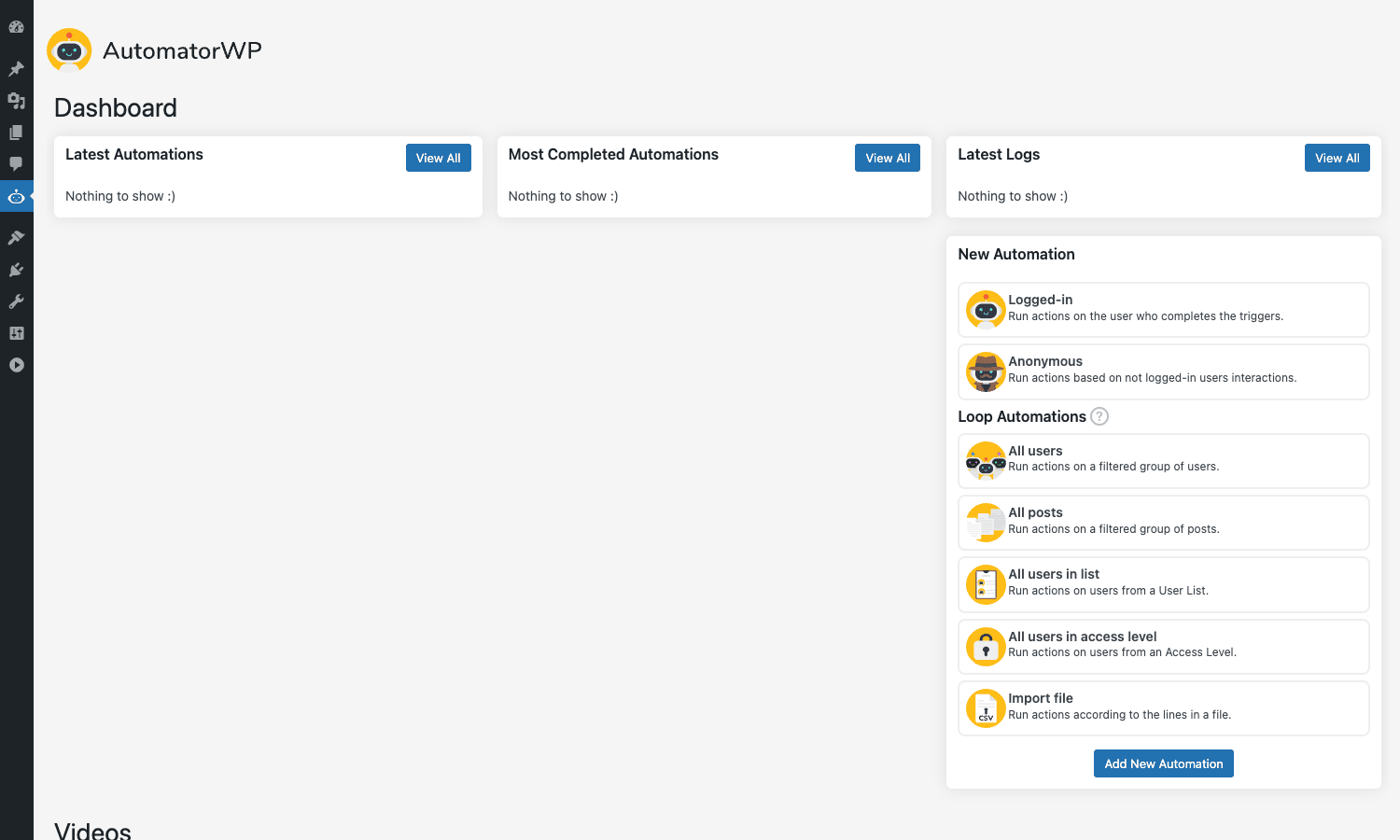
Here’s the AutomatorWP dashboard on a fresh install. The card on the right is the entry point: pick "Logged-in", "Anonymous", or one of the loop types and you’re in the builder.
Free vs Pro: what changes when you upgrade
The free wordpress.org plugin is a real working automator, not a stripped-down demo. You can already build "When user submits a form, send an email" automations with it. What Pro unlocks is the kind of workflow you actually run a site on:
- Multiple actions per automation. Free is limited to one action. Pro lets you chain ten of them. So a single recipe can: tag the contact in your CRM, enroll them in a course, send a welcome email, create a wp-admin user account, and post to a Slack-style webhook, all from one trigger.
- Multiple triggers with AND/sequential logic. Same automation can require "user submits form A AND completes lesson B" before firing.
- Anonymous automations. Run actions for users who are NOT logged in (a visitor reading a post, a guest checkout in WooCommerce).
- Scheduled and recurring automations. Run a recipe nightly at 3am, weekly on Mondays, or on a specific date.
- All-users and all-posts loops. Bulk-process every user that matches a filter (e.g. send a re-engagement email to every user who hasn’t logged in for 90 days).
- Advanced filters. Between any trigger and any action, gate the flow by user role, meta value, post property, anything.
- Full logging. Pro records every trigger fire and action result. Free only tracks completions.
- Premium integrations. The 150+ integrations under
integrations/only ship in Pro. Forms (Gravity, WPForms, Fluent Forms, Ninja Forms, Formidable), LMS (LearnDash, LearnPress, Tutor LMS, LifterLMS, Sensei), membership (MemberPress, Paid Memberships Pro, Restrict Content Pro), CRMs (FluentCRM, Mailchimp, ActiveCampaign, ConvertKit, HubSpot, MailerLite, AWeber), payment (WooCommerce, EDD, WP Simple Pay), community (BuddyBoss, BuddyPress, PeepSo, bbPress), and dozens of external services via webhooks, Zapier, Make, IFTTT, KonnectzIT, and Integromat. - Recipe importer/exporter. Export an automation as a portable file and import it on another site, no rebuild required.
For a single-site hobby project the free version is enough. For anything where the workflow needs to do more than one thing on a trigger, you need Pro.
Core concepts: triggers, actions, filters, tags
Four ideas drive the whole plugin. Once these click, everything else is a configuration detail.
Trigger
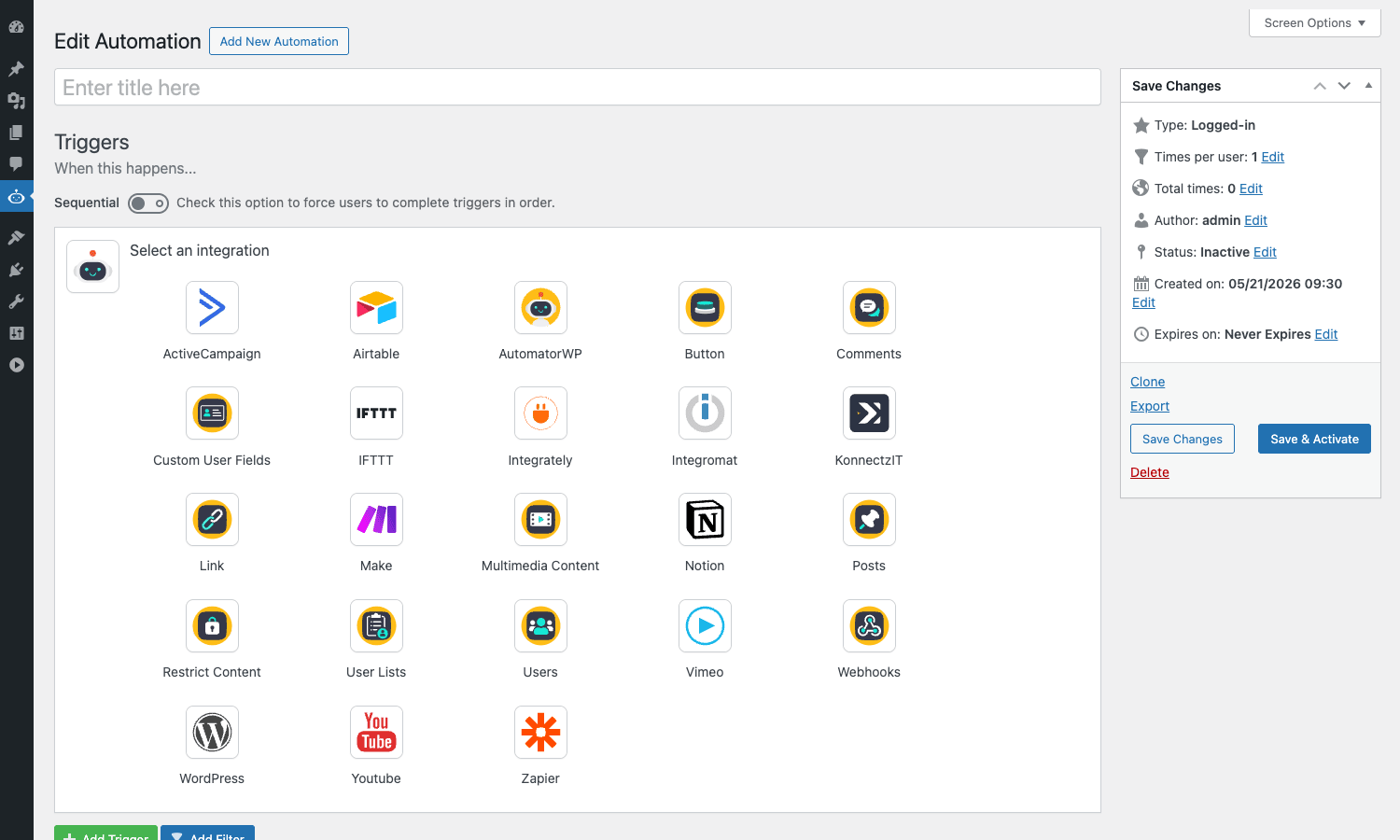
A trigger is "the event that starts the recipe." Examples: user submits a Gravity Forms entry, user purchases a WooCommerce product, user completes a LearnDash lesson, post receives a comment, scheduled time arrives, webhook is received at a URL the plugin generated for you. Each integration registers its own triggers. The Gravity Forms integration alone exposes more than a dozen ("form submitted", "specific field has value", "user submits this specific form", "anonymous user submits any form", and so on).
Inside the builder, when you click Add Trigger, you get the integration grid. Pick the plugin you want, then pick the specific trigger from the dropdown that appears.
Action
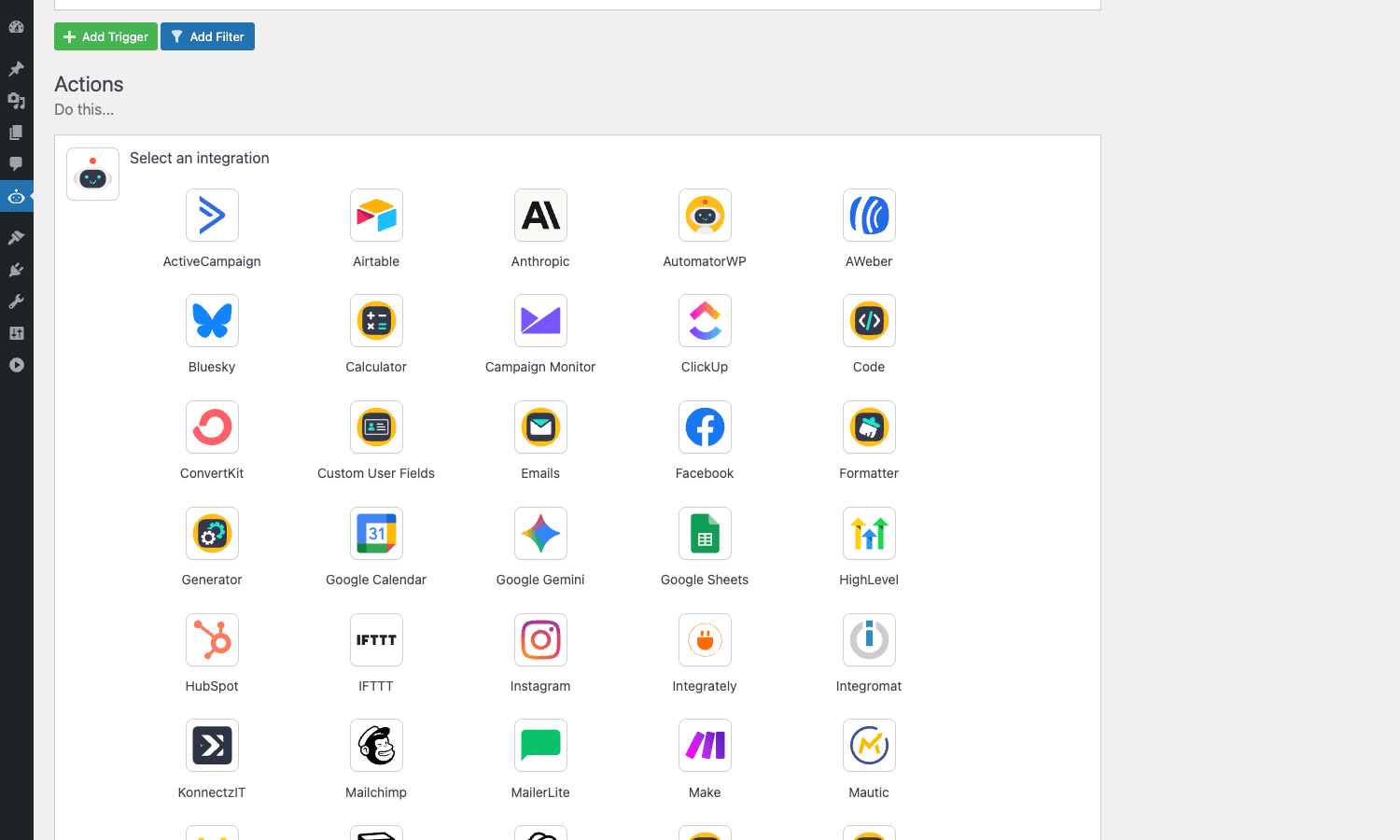
An action is "what happens when the trigger fires." Examples: send the user an email, create a WordPress post, add a tag in FluentCRM, enroll the user in a LearnDash course, fire a webhook to an external service, run custom PHP, run custom JS. Like triggers, actions belong to integrations.
The action picker uses the same grid pattern as the trigger picker, but with the action integrations the plugin knows about. AutomatorWP Pro ships with most of the major email and CRM platforms ready to talk to.
Filter
A filter is a gate. It sits between the trigger and the action, and only lets the recipe continue if its conditions are true. Example: "trigger when WooCommerce order completed", "filter: only if order total > $100", "action: enrol in VIP course". Pro adds advanced filter conditions (AND/OR chains, user meta lookups, post meta lookups, time-based gates).
Tag
A tag is a merge-tag style placeholder. When an action runs, you can pipe data from the trigger into the action. So an email action’s subject can be "Welcome {user_first_name} to {course_name}", and at run time the plugin replaces {user_first_name} with the actual user’s first name, and {course_name} with the course title from the LearnDash trigger. Every trigger exposes its own set of tags. There are also global tags like {date}, {site_name}, {user_email}, and meta-tags that pull arbitrary post meta or user meta.
The integrations library
The single most common reason people buy AutomatorWP Pro is the integrations library. There are over 150 of them, and the list keeps growing. Rather than list every one, here’s the rough breakdown by category, so you can sanity-check whether the tools you already run are supported:
- Forms: Gravity Forms, WPForms, Fluent Forms, Ninja Forms, Formidable Forms, Forminator, Caldera Forms, Contact Form 7, HappyForms, WS Form, ARForms, weForms, Everest Forms, Kali Forms, BBForms.
- LMS / e-learning: LearnDash, LearnPress, LifterLMS, Tutor LMS, MasterStudy LMS, Sensei LMS, WP Courseware, Thrive Apprentice, eLearnCommerce, H5P, WPLMS, Masteriyo LMS.
- Membership and access control: MemberPress, Paid Memberships Pro, Paid Membership Subscriptions, Restrict Content, Restrict Content Pro, SureMembers, WishList Member, Ultimate Member, ARMember, ActiveMember360, iMember360, Digimember.
- Community and forums: BuddyPress, BuddyBoss, PeepSo, bbPress, wpForo, AnsPress, Asgaros Forum, FluentCommunity.
- E-commerce: WooCommerce, Easy Digital Downloads, WP Simple Pay, Charitable, GiveWP, SliceWP, FluentCart.
- Email and CRM: FluentCRM, Groundhogg, Autonami (FunnelKit), MailPoet, Mailchimp, MailerLite, ActiveCampaign, ConvertKit, HubSpot, Campaign Monitor, AWeber, Mautic, Newsletter, Jetpack CRM, Fluent Support, Awesome Support.
- Events and booking: The Events Calendar, Modern Events Calendar, Events Manager, Amelia, FluentBooking, Eventin, WP Booking Calendar.
- Page builders and theme platforms: Elementor, Divi, Brizy, JetEngine, JetFormBuilder.
- Media / video: Vimeo, YouTube, Presto Player, Multimedia Content (button, link).
- External services and channels: Twilio, WhatsApp, Slack-equivalent via webhooks, OpenAI, Anthropic, Google Gemini, Twitter, Bluesky, Facebook, Instagram, Trello, ClickUp, Google Sheets, Google Calendar, Zoom, IFTTT, Integromat, KonnectzIT, Zapier.
- Utility add-ons: Webhooks (the killer feature for talking to anything with a REST API), CSV, Generator (import/export), Formatter (transform text/dates/numbers between steps), Calculator, Custom User Fields, QR Code, Schedule Actions, Block Users, Code Snippets, Run Now.
The integrations panel inside the plugin shows the live list, scrollable in the admin:
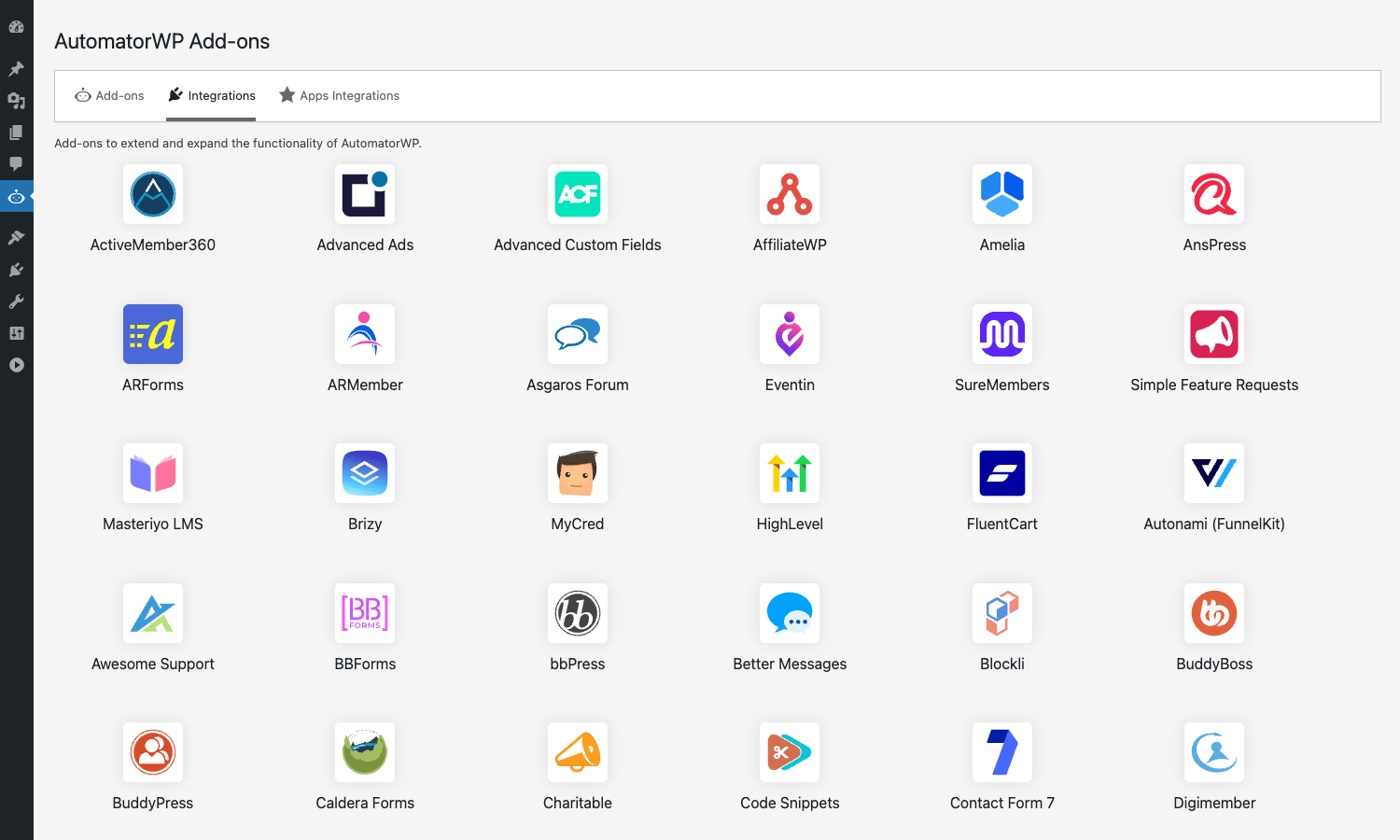
If you don’t see a service listed but it has webhooks or a REST API, you can still talk to it through the Webhooks add-on, which ships in Pro. That’s the escape hatch for everything else.
How to install and set up
There are three pieces, and the order matters.
Step 1: Install the free AutomatorWP core
The Pro plugin extends the free core. Go to Plugins -> Add new, search for "AutomatorWP", install, activate. Or upload the zip if you already have it. After activation you’ll see a new top-level menu item called AutomatorWP in the WordPress admin sidebar.
Step 2: Install AutomatorWP Pro on top
Upload the AutomatorWP Pro zip via Plugins -> Add new -> Upload Plugin. It’s a single zip even though it bundles all 150+ integrations. The plugin auto-detects which integrations are relevant based on what other plugins are active on the site, so it doesn’t load code for WPForms triggers if WPForms isn’t installed. That keeps the footprint small.
Step 3: Activate the license
Go to AutomatorWP -> Licenses and paste the license key. Without a valid key the plugin still works (Pro features are not gated behind license-check on this build), but you won’t get updates from the vendor.
After install, the AutomatorWP menu in the admin sidebar gets these submenu items: Dashboard, Automations, Logs, Licenses, Settings, Add-ons, plus integration-specific options for things like Webhooks Logs, User Lists, Access Levels, and Custom User Fields. The exact list depends on which integrations Pro detected as relevant.
A note on the Settings tab
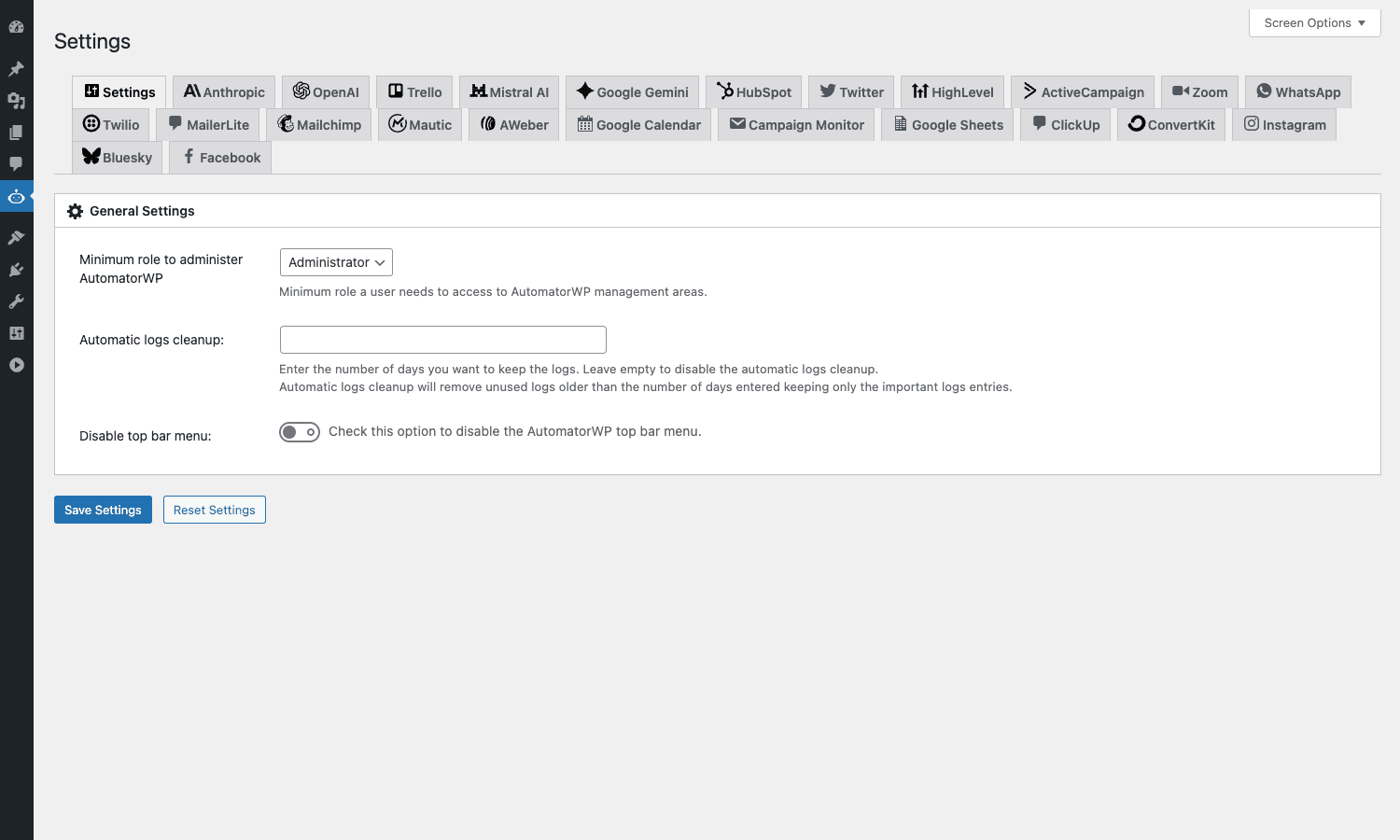
The General Settings panel covers exactly what you’d want, and not much more: the minimum WordPress role required to administer AutomatorWP (defaults to Administrator), the automatic logs cleanup interval (leave empty to disable, or set a number of days), and a toggle to hide the AutomatorWP top-bar menu. The tabs along the top are per-integration credential entry: Mailchimp API key, Twilio account SID, Google Sheets OAuth, OpenAI API key, and so on. Fill in only the ones you actually plan to use.
Building your first automation
The fastest way to understand the plugin is to build a recipe end to end. Let’s build the classic one: when a visitor submits a contact form, add them to the FluentCRM mailing list and send a thank-you email.
Step 1: Create the automation shell
Go to AutomatorWP -> Automations -> Add New Automation. Pick "Logged-in" if your form requires login, or "Anonymous" for a public contact form. The builder opens with two empty sections: Triggers and Actions.
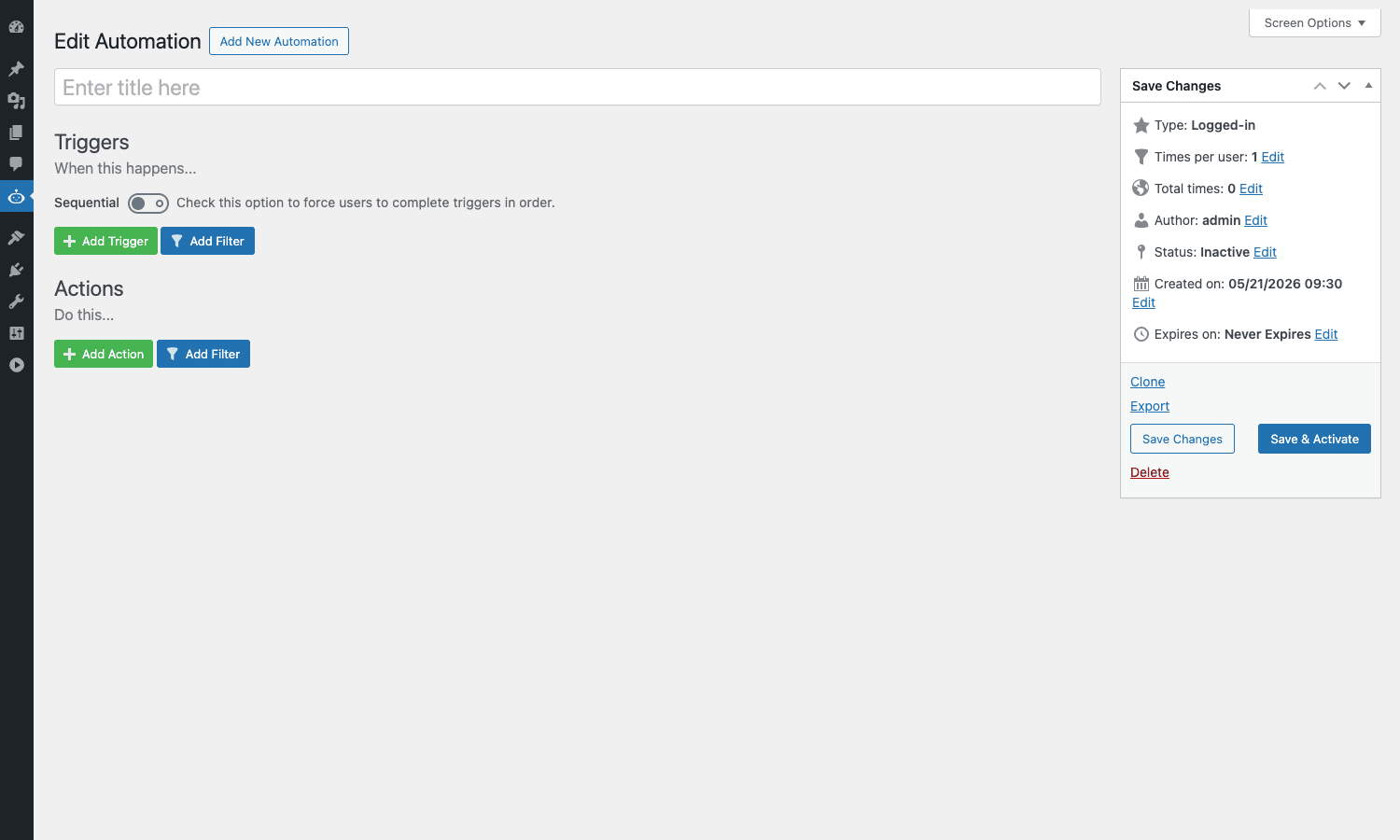
Step 2: Pick a trigger
Click Add Trigger, pick the form plugin you use (Gravity Forms, WPForms, Fluent Forms, etc.), then pick the specific trigger ("User submits a form"). A dropdown appears for the form ID. Pick your contact form. You’ll see a list of available tags pulled from the form fields below the trigger ({name}, {email}, {message}, etc.).
Step 3: Pick an action
Click Add Action. Pick FluentCRM. Pick "Add user to a list". A dropdown lets you pick which FluentCRM list. In the email field, pipe {email} from the trigger. In the first name field, pipe {name}.
Step 4: Add a second action
This is where Pro starts paying for itself. Click Add Action again. Pick Emails -> Send an email to user. Use {email} for the To field. Write a subject and body that reference the user’s name and the form they submitted: "Hi {name}, thanks for getting in touch. We’ll respond within one business day."
Step 5: Save and activate
In the right-hand sidebar, click Save & Activate. The recipe is live. The next time the form gets submitted, both actions run in order.
Step 6: Watch it work
Submit the form yourself as a test. Then go to AutomatorWP -> Logs. You’ll see a row for the trigger fire, plus a row for each action with status (success or error) and any debug info. If FluentCRM rejected the contact (already on the list, malformed email, API down), the log will show the exact reason. This is the bit that makes Pro genuinely useful: when something silently fails in production, the log is where you find out what broke.
The dashboard, automations list, and logs
Three views matter for day-to-day operation.
Dashboard
The dashboard at AutomatorWP -> Dashboard is the at-a-glance view: latest automations created, most-completed automations (so you can tell which recipes are doing the most work), latest log entries (so you can spot errors fast), plus the New Automation card on the right. There’s also a Videos block lower on the page with vendor-recorded walkthroughs.
Automations list
AutomatorWP -> Automations is a WordPress-style list table with columns for Title, Type (logged-in / anonymous / loop), Triggers count, Actions count, Author, Completions, Status, and Date. You can search, sort by completions, and filter by status. Activate or pause an automation by clicking its row and toggling Status in the sidebar.
Add-ons
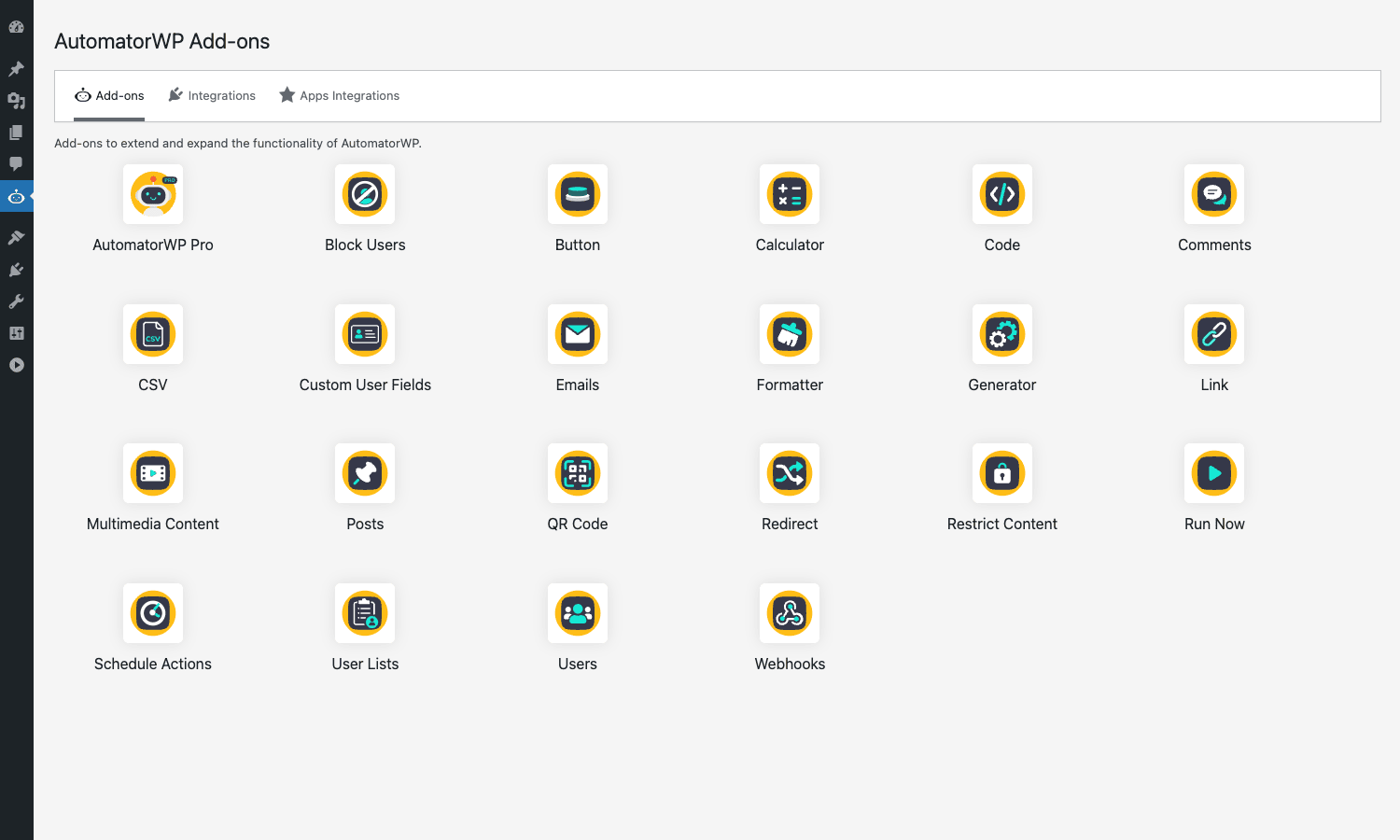
AutomatorWP -> Add-ons has three tabs: Add-ons (utility features like Buttons, CSV, Custom User Fields, QR Code, Run Now, Schedule Actions, Webhooks), Integrations (the full plugin integrations), and Apps Integrations (external services like ClickUp, Google Sheets, OpenAI, Twilio, ActiveCampaign). Each tile shows install status and a quick action button. This is your menu of building blocks.
Logs
AutomatorWP -> Logs is the audit trail. Every trigger that fires and every action that runs writes a log row with the user, the automation ID, the related post (if any), and the timestamp. Click a row for the full detail, including the actual tag values that were used (so you can debug "why did the email send to {email} literally"). You can clear logs in bulk with the Clear all logs button when the table gets big.
Real-world automations worth building
Here are five recipes that show what AutomatorWP Pro is actually good for. These aren’t toy examples; people run real businesses on these patterns.
LMS onboarding flow
Trigger: User purchases a WooCommerce product tied to a course.
Actions: Enroll user in the LearnDash course. Add a "Student" tag in FluentCRM. Send a welcome email with login instructions. Post a notification to a Slack-style webhook so the support team knows to expect a new student.
Without AutomatorWP, this is custom code or two or three separate "integration" plugins, each with its own admin page and pricing. With AutomatorWP, it’s one recipe and four clicks.
Lead-magnet delivery
Trigger: Anonymous user submits the lead-magnet form.
Filter: Only if they entered a real email (filter by regex match).
Actions: Add the email to a Mailchimp list. Send the lead-magnet PDF via Emails action. Track the submission in Google Sheets (Apps Integration). Fire a webhook to your analytics provider.
The anonymous-user automations are Pro-only, and they’re the reason this recipe even works for visitors who aren’t logged in.
Abandoned-cart re-engagement
Trigger: Scheduled, every 24 hours.
Loop: All users with a WooCommerce cart older than 1 day and no completed order.
Actions: Send a "did you forget something?" email with the abandoned products listed. Create a custom discount coupon for that user. Tag them in your CRM as "warm lead".
The loop and scheduled-recipe features are Pro. So is the "create coupon" WooCommerce action.
Membership renewal nudge
Trigger: Scheduled, every Sunday at 9 AM.
Loop: All users whose MemberPress membership expires in the next 14 days.
Actions: Send a renewal email. Add the user to a "renewal-window" CRM segment. If they don’t renew within 14 days, fire a second recipe that downgrades their access.
This kind of date-arithmetic-based recipe is exactly what the Schedule Actions add-on (bundled in Pro) makes possible.
Community moderation helper
Trigger: A BuddyBoss group activity (post, comment, reply) contains banned keywords.
Filter: Activity is by a user with less than three previous posts (likely spam).
Actions: Hide the activity. Apply the "muted" role to the user. Email a moderator with a link to the activity. Log the action for audit.
Filters by user activity count are exactly the kind of conditional that Pro’s advanced filters enable.
Developer reference: hooks, filters, and code
This is the section developers actually scroll to. AutomatorWP exposes a clean set of hooks for extending, gating, and integrating with custom code. All of these are in the free core, but the patterns are equally relevant when you’re working alongside Pro features.
Action: react when a user completes any trigger
The plugin fires automatorwp_user_completed_trigger after a logged-in user matches any trigger. Useful for cross-cutting concerns: analytics, audit logging, integration with a custom event bus.
add_action( 'automatorwp_user_completed_trigger', function( $trigger, $user_id, $event, $trigger_options, $automation ) {
 // Forward every trigger fire to your analytics pipeline.
 do_action( 'my_company_log_event', [
 'event' => 'automatorwp.trigger.completed',
 'user_id' => $user_id,
 'trigger' => $trigger->title,
 'automation_id' => $automation->id,
 ] );
}, 10, 5 );
Action: react after the whole automation completes
Use automatorwp_user_completed_automation when you care about the recipe as a whole, not the individual steps.
add_action( 'automatorwp_user_completed_automation', function( $automation, $user_id, $event ) {
 if ( $automation->title === 'VIP onboarding' ) {
 update_user_meta( $user_id, 'vip_onboarded_at', current_time( 'mysql' ) );
 }
}, 10, 3 );
Filter: gate a trigger by user role
automatorwp_user_has_access_to_trigger runs before the plugin decides the trigger applies to the current user. Return false to silently skip them.
add_filter( 'automatorwp_user_has_access_to_trigger', function( $has_access, $trigger, $user_id, $event, $trigger_options, $automation ) {
 // Don't run any automation for users in the "test" role.
 $user = get_userdata( $user_id );
 if ( $user && in_array( 'test', (array) $user->roles, true ) ) {
 return false;
 }
 return $has_access;
}, 10, 6 );
Filter: override a merge-tag value at render time
automatorwp_get_user_tag_replacement lets you intercept user-related tags. Handy when you have a custom field that AutomatorWP doesn’t know about.
add_filter( 'automatorwp_get_user_tag_replacement', function( $replacement, $tag_name, $object, $object_type, $user_id, $content, $log ) {
 if ( $tag_name === 'membership_tier' ) {
 // Pull the tier from your custom membership system.
 $replacement = my_company_get_user_tier( $user_id );
 }
 return $replacement;
}, 10, 7 );
Action: customize the email body before send
automatorwp_email_args lets you mutate the email arguments right before the email action sends.
add_filter( 'automatorwp_email_args', function( $email, $args ) {
 // Add a tracking pixel to every AutomatorWP-sent email.
 $email['message'] .= '<img src="https://track.example.com/?aid=' . urlencode( $args['automation_id'] ?? '' ) . '" width="1" height="1" />';
 return $email;
}, 10, 2 );
Filter: toggle duplicate-event logging
By default the plugin suppresses logging duplicate trigger fires inside the same request. If you actually want every fire logged (for debugging a sticky bug), flip this.
add_filter( 'automatorwp_log_duplications', '__return_true' );
Programmatically firing a trigger
If you’re building your own integration and want AutomatorWP to react when something happens in your code, fire the helper function:
function my_plugin_user_did_thing( $user_id, $thing_id ) {
 automatorwp_trigger_event( [
 'trigger' => 'my_plugin_user_did_thing',
 'user_id' => $user_id,
 'thing_id' => $thing_id,
 ] );
}
Of course this only works if you (or somebody) has registered the trigger first via automatorwp_register_trigger(). That’s how every integration in the Pro bundle plugs in.
Custom code via the Code Snippets add-on
If you don’t want to write a whole integration, the Code Snippets add-on (bundled in Pro) lets you run a snippet of PHP or JavaScript directly as an action inside any automation. Useful for one-off transformations, like recalculating a custom field or hitting a private internal API.
Performance, compatibility, and gotchas
A few things to know before you put AutomatorWP Pro on a production site running real traffic.
Logging can grow your database fast
Every trigger fire and every action writes to the automatorwp_logs custom table. On a site with a high-frequency trigger (every page view via the "User views a post" trigger, for example), this table grows quickly. The plugin ships a built-in cleanup cron with a configurable retention window in Settings -> General Settings -> Automatic logs cleanup. Set it (we’d suggest 30 to 90 days) before going live, not after.
Anonymous triggers and page caching
Anonymous-user triggers rely on a small inline JavaScript bridge that posts the visitor’s action back to WordPress (since static page-cached HTML can’t fire PHP). If your page cache strips inline scripts, or your CSP blocks them, anonymous triggers silently don’t fire. The plugin exposes automatorwp_redirect_excluded_urls to whitelist endpoints, and works fine with WP Rocket, WP Super Cache, and W3 Total Cache out of the box, but it’s worth testing on your specific stack.
Scheduled automations need real cron
WordPress’s "fake" cron (DISABLE_WP_CRON left at its default) only runs on page views. On a low-traffic site, scheduled automations can drift by hours. If you’re running scheduled or recurring recipes, set up a real OS-level cron job that hits wp-cron.php every minute. Most managed hosts (Kinsta, WP Engine, RunCloud, SiteGround) offer this as a one-click toggle.
Tag replacements are not escaped automatically
If you pipe {user_first_name} into an email body and the user’s first name happens to be <script>alert(1)</script>, the plugin replaces it as-is. Use HTML-safe action options (the email action runs through wp_mail, which is fine for normal email clients), but if you’re piping tag values into a custom action you wrote yourself, sanitize them at the edge.
Webhooks add-on retries are limited
The Webhooks action will fire the request once and log the response. If the destination is down, the action logs the error but doesn’t retry by default. For mission-critical webhooks (payment confirmations, irreversible actions), build the retry logic on the receiving end, not in AutomatorWP. There’s an automatorwp_webhook_retry_on_failure filter exposed in the Webhooks add-on if you want to tune this.
Compatibility with other "automation" plugins
You CAN run AutomatorWP alongside Uncanny Automator, WP Fusion, or FluentCRM’s built-in automations. They won’t conflict at the code level. But they will compete for the same triggers, and you’ll end up debugging duplicate actions. Pick one as your primary, and only fall back to a second when there’s a genuine gap.
How AutomatorWP Pro compares to other tools
A quick honest tour of the alternatives, so you can pick deliberately.
- Uncanny Automator. The closest competitor. Bigger marketing budget, more polished onboarding, very similar integration list. The pricing model differs: Uncanny charges "credits" for actions that hit external services (Mailchimp, OpenAI, Slack, etc.), which gets expensive fast for active sites. AutomatorWP’s access pass is flat. If you have a small site with low external-service usage, Uncanny is fine. If you expect to run thousands of actions a month against external services, AutomatorWP saves real money.
- WP Fusion. Different niche. WP Fusion is laser-focused on CRM-tag-driven workflows: when a CRM tag is added, do X in WordPress. It’s the right tool if your business runs entirely off ActiveCampaign or HubSpot tags. AutomatorWP is broader (any trigger from any plugin can drive any action in any plugin).
- FluentCRM’s built-in automations. Free if you already use FluentCRM. Powerful inside its own world (email sequences, CRM tagging, contact lifecycle), but doesn’t reach across the WordPress site the way AutomatorWP does. Use FluentCRM automations for CRM-internal flows; use AutomatorWP for cross-plugin flows.
- Notification Master. Focused on notifications. AutomatorWP can send notifications too, but also runs full workflows. Different scope.
- SureTriggers (now OttoKit), Bit Flows. Newer competitors. SureTriggers is impressive on the SaaS side; Bit Flows is more visual. Both are catching up to AutomatorWP’s integration count but aren’t there yet.
- Zapier, Make (formerly Integromat), n8n. External SaaS or self-hosted automation platforms. They speak HTTP, so AutomatorWP can talk to them via Webhooks. The choice between "automate inside WordPress" and "automate via external SaaS" comes down to: how often do your workflows need to leave WordPress, and how much do you care about your data not leaving your hosting? AutomatorWP keeps everything in-house. Zapier doesn’t.
The honest summary: AutomatorWP Pro is the best in-WordPress automator for sites that want to automate across many plugins without paying per action. If your workflows are mostly CRM-driven, use WP Fusion. If they’re mostly outside WordPress, use Zapier. If they’re inside WordPress and touch four or more plugins, use AutomatorWP.
Pricing and licensing
On the vendor site, the Pro bundle is sold as an "access pass" with tiered site limits: Personal (1 site), Professional (3 sites), Agency (10+ sites). Annual or lifetime pricing. The access pass includes every integration plus future ones. Without it, you’d buy each integration as a separate add-on, which adds up fast: a typical setup with WooCommerce + LearnDash + FluentCRM + Webhooks is already four add-on licenses.
You can install it on unlimited sites you control. For development, staging, and most production sites, this is more than fine.
Frequently asked questions
Does AutomatorWP Pro work without the free AutomatorWP core?
No. Pro is an add-on that extends the free core. Install AutomatorWP from wordpress.org first, then layer AutomatorWP Pro on top. Both are required for Pro features to work.
Will it conflict with my existing WPForms / Gravity Forms / WooCommerce setup?
No. AutomatorWP listens for events those plugins fire via standard WordPress actions. It doesn’t modify them. You can install and uninstall it freely; turning it off just stops the recipes from running, your forms and orders keep working exactly as before.
Can I move automations between sites?
Yes. Use the Export button on any saved automation to get a .json file. Import it on the destination site via AutomatorWP -> Add New Automation -> Import. Trigger and action IDs (like a Gravity Forms form ID) won’t auto-remap if they differ between sites, so you may need to re-select them on import. The recipe structure carries over fine.
Does it support custom post types and custom fields?
Yes. The Posts integration in Pro covers any registered post type, and the Custom User Fields and Advanced Custom Fields add-ons (also in the Pro bundle) expose custom fields as both trigger conditions and action targets. If you’ve built your site on ACF, AutomatorWP can read and write the same fields.
Can I use AutomatorWP Pro for ecommerce subscription renewals?
Yes for the workflow side. Trigger when a WooCommerce Subscriptions renewal succeeds, send a thank-you, tag the customer in FluentCRM, fire a webhook. The Subscriptions integration is in Pro. For the actual subscription billing logic, you still need WooCommerce Subscriptions or a similar plugin; AutomatorWP doesn’t process payments itself.
Is there a developer mode / sandbox?
Sort of. Every automation has an Active / Inactive status, and an Inactive automation never fires. So the standard workflow is: build the recipe with Status = Inactive, fire the trigger manually with Run Now (an add-on in Pro), inspect the log, then flip Status to Active when you’re happy. There’s also a automatorwp_is_event_correct filter you can use to short-circuit specific triggers programmatically while testing.
How do I migrate from Uncanny Automator to AutomatorWP?
There’s no automatic migration tool. The trigger / action concepts are similar enough that you can rebuild recipes by hand fairly quickly. The biggest gotcha is that some Uncanny "free" recipes require credits in AutomatorWP terms (an external-service action that Uncanny was billing you credits for). On AutomatorWP it just works, no per-action billing.
What happens if a license expires?
The plugin keeps running. The Pro features continue to work. You just stop getting update notifications from the vendor. For sites where stability matters more than the latest features, this is actually fine.
Does AutomatorWP Pro slow down WordPress?
Negligibly, in normal use. The plugin hooks into actions that WordPress already fires (wp_login, save_post, comment_post, the various WooCommerce hooks), so there’s no extra event scanning. The cost is the database write per trigger fire and per action result. On a site doing a thousand triggers a day, this is unmeasurable. On a site doing a hundred thousand, the logs table is the only thing that grows; turn on cleanup.
Can multiple admins manage automations?
Yes. The "Minimum role to administer AutomatorWP" setting controls who can access the builder. Default is Administrator; you can drop it to Editor or a custom role. All automations are visible to everyone above the minimum role, and the Author column tracks who built which one.
What about GDPR?
AutomatorWP stores user-related events in the logs table. If a user requests deletion under GDPR Article 17, those logs are user data. The plugin doesn’t include a built-in personal-data exporter or eraser yet, but the logs are stored in a standard custom table you can query and clean up via WP-CLI or a small custom snippet.
Final thoughts
AutomatorWP Pro is the kind of plugin that quietly becomes essential. The first time you set it up it feels overkill, because everything still works without it. Six months later, when you realize you’ve built fifteen recipes that quietly run sales, course enrollments, lead nurture, and community moderation in the background, you can’t picture the site without it.
It’s not the flashiest plugin in the WordPress catalog. The UI is functional rather than beautiful, the docs are dense, and the integration list is so long it’s hard to know where to start. But the engine is solid, the hooks are clean, the logs are honest about what happened, and the price (one bundle for every integration, no per-action billing) is hard to beat.
If you’ve been duct-taping plugins together with custom code or paying a Zapier subscription for workflows that never needed to leave WordPress, this is the plugin worth trying. The Pro bundle at GPL Times gets you every integration in one download, so you can experiment freely without buying twenty separate add-ons up front.