

The first time you build a paid membership site on WordPress, you usually need five different plugins to make it work. A membership tool to gate the content. A payment gateway to charge cards. A subscription engine for recurring billing. A course tool if you’re delivering lessons. An affiliate plugin if other people are going to refer paying members. Then you spend a week wiring them together and another week fixing the edge cases nobody warned you about.
MemberPress is the answer to "what if all of that was one plugin?". The base plugin handles memberships, payments (Stripe, PayPal, Authorize.net, Square), recurring subscriptions, content rules, dunning, coupons, taxes, and email transactionals. The same install gives you a built-in course system and a built-in affiliate program, with no extra plugins or licenses. You can buy MemberPress on a Friday afternoon and have your first paying member by Sunday.
This is a long review. We’ll walk through what MemberPress actually does, in the order you’d hit it as a first-time membership builder. We’ll spin up a real example site (a "WP Pro" tutorials membership), go through every screen worth knowing, configure Stripe properly, build content rules, set up the affiliate program, and look at how the built-in courses work. Then we’ll cover the developer hooks, performance, and the awkward edges.
Table of Contents
- What is MemberPress?
- How a paid membership site actually works
- Key features at a glance
- Setting up MemberPress from scratch
- Step 1: Install and run the setup wizard
- Step 2: Configure your payment gateway
- Step 3: Build your first Membership
- Step 4: Add Rules to gate your content
- Step 5: Test the signup flow end-to-end
- Step 6: Stand up the Account, Login, and Thank You pages
- Coupons, taxes, and dunning
- Drip content and content schedules
- Selling courses without a separate LMS
- Running an affiliate program without a separate plugin
- Real-world use cases
- MemberPress vs the alternatives
- Developer reference
- Performance, compatibility, and gotchas
- Pricing and licensing
- FAQ
- Final thoughts
What is MemberPress?
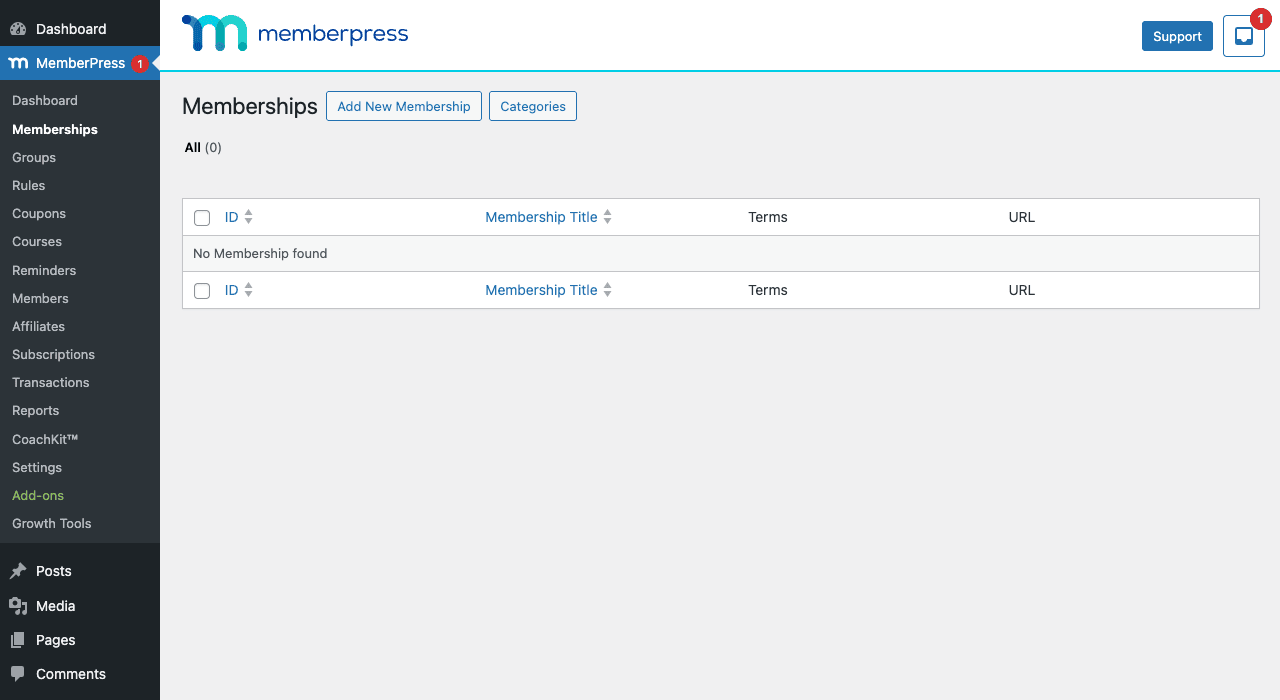
MemberPress is a WordPress plugin from Caseproof that turns your site into a paid membership platform. You install it, a MemberPress menu appears in your WordPress admin, and you start defining Memberships (pricing plans), creating Rules (which pages each plan unlocks), and selling them via your chosen payment gateway. When someone pays, MemberPress creates the WordPress user, charges the card, marks the membership as active, and unlocks the rule-protected content. When the subscription cancels or fails, access is revoked automatically.
The plugin is opinionated about the data model in a way that pays off. Every Membership is its own WordPress post. Every Member is a WordPress user. Every Rule is a piece of content (a page, a category, a custom post type) tied to one or more Memberships. Every Subscription is a recurring payment tied to a Member and a Membership. Every Transaction is a single charge. You can query, filter, export, and report on all of these as standard WordPress data.
It is not a hosted service. Everything runs on your site. Your database stores members, subscriptions, transactions. If your host goes down, your membership site goes with it. If you migrate hosts, the membership data migrates with the WordPress export.
It is not a community or forum platform either. MemberPress controls who can see what and who pays how much. The conversation between members happens in whatever you bolt on (BuddyPress, bbPress, Discord, Circle).
The reason people pick MemberPress over a hosted platform (Patreon, Memberful, Mighty Networks, Circle) is the same logic as picking LearnDash over Teachable: ownership of the data, full control over the design, no platform fee on every transaction, and you can mix the membership site with the rest of your WordPress operation (blog, store, courses) under one login.
How a paid membership site actually works
Before we touch settings, let’s walk through one real customer journey end-to-end. The mental model makes every panel in MemberPress make sense.
Sarah runs a WordPress tutorials site. She has fifty free blog posts that drive traffic and twenty paid tutorials that she wants to gate. She wants two paid tiers:
- WP Pro Monthly: $19/month, recurring, access to all twenty paid tutorials.
- WP Pro Annual: $190/year, recurring, same access, two months free.
A visitor (let’s call him Raj) reads a free blog post and clicks a link to one of the gated tutorials. The tutorial page loads with a paywall, Sarah’s custom message ("This tutorial is for WP Pro members. Subscribe for $19/month or $190/year"). Two buttons sit below the message, one per tier. Raj clicks "WP Pro Monthly $19/month".
He lands on the MemberPress registration page (/register/wp-pro-monthly/). The form asks for email, password, and credit card. Stripe Elements renders the card field. Raj fills it in, clicks Subscribe. Stripe charges his card. The order completes in 2 seconds. MemberPress:
- Creates a WordPress user for Raj (
raj@example.com). - Creates a Subscription record tied to his user and to "WP Pro Monthly".
- Creates a Transaction record for the $19 charge.
- Sends Raj a welcome email with his login credentials.
- Sends Sarah an admin email "new member signed up".
- Redirects Raj to the Thank You page Sarah configured.
Raj clicks the link in his welcome email and lands back on the original tutorial. This time the paywall is gone, he sees the actual content. MemberPress checks his active Membership against the Rule on this page, finds a match, and shows the protected content.
Twenty-eight days later, Stripe processes the next $19. MemberPress receives a webhook, extends Raj’s subscription by another month, and creates a new Transaction record. If Raj’s card fails on the renewal, MemberPress emails him with dunning links ("update your card"). After three failed retries, his Subscription flips to "cancelled" and his access is automatically revoked. The tutorial paywall comes back.
That’s the loop. Sign-up → check rule → unlock content → recurring charge → revoke on failure. Every screen in MemberPress is built around making one of those five steps work cleanly.
Key features at a glance
The features that matter day to day:
- Memberships. Each Membership is a paid plan (one-time, recurring, free). You define price, billing period (daily/weekly/monthly/yearly/lifetime), trial period, and access duration. Members can be on more than one Membership at once.
- Rules. The content gate. A Rule says "this content is accessible only to members of these Memberships". You can target a single page, all pages of a category, all custom post types, posts matching a tag, child pages of a specific parent, etc.
- Payment gateways. Stripe, PayPal Commerce, PayPal Standard, PayPal Pro, Authorize.net, Square. Stripe is the modern default. Multiple gateways can be active at once, let the customer pick.
- Subscriptions and dunning. Recurring billing built in. Automatic retry on failed cards. Customer-facing "update card" page. Customer-facing cancel page.
- Coupons. Percent or fixed discount. First payment only or all recurring payments. Per-membership or global. Usage limit.
- Groups (upgrade paths). Group multiple Memberships (Free / Pro / Premium) so the customer sees a pricing table and can pick. Members can upgrade or downgrade within a Group with prorated billing.
- Drip content. Each Rule can drip, "members see this lesson 7 days after they join". Combine with a course-style membership for a multi-week curriculum.
- Expiring access. Each Rule can expire, "members lose access after 90 days". Useful for limited-time bonus content.
- Reminders. Auto-emails sent N days before/after key events. Renewal coming up, trial expiring, payment overdue, after signup, after course completion.
- Built-in Courses. Lessons + sections + quizzes inside MemberPress, no LearnDash required. Lighter weight; covers most course needs.
- Built-in Affiliates. Self-service affiliate signup, referral tracking, commission rules, payouts. No AffiliateWP required.
- Reports. Members, transactions, MRR, ARR, lifetime value, retention, refund rate. Built-in dashboards plus CSV export.
- Integrations. Mailchimp, ActiveCampaign, AWeber, ConvertKit, HubSpot, Zapier, Slack, WooCommerce, bbPress, BuddyPress, Elementor, Divi, and many more via official add-ons.
- REST API. Read and write memberships, members, subscriptions, transactions via
/wp-json/mp/v1/.
Setting up MemberPress from scratch
The rest of this article is the actual hands-on build. We’ll set up Sarah’s WP Pro site step by step. By the end of this section, you’ll have a working two-tier membership with payment, signup, and content gating live on your own staging site.
If you’re following along, install MemberPress on a fresh WordPress site or a staging environment. Don’t experiment with a production site that already has customers, Stripe live keys plus test orders is a recipe for confusion.
Step 1: Install and run the setup wizard
Upload the plugin via Plugins → Add New → Upload Plugin. Choose the MemberPress zip, click Install Now, then Activate. The plugin redirects you to a Welcome screen with a setup wizard.
The wizard asks for four things:
- Business name and address. Used in emails and invoices.
- Currency. Pick yours (USD, EUR, GBP, etc.).
- Payment gateway. You can skip this step and configure it later, we’ll cover it in Step 2.
- Reserved pages. MemberPress auto-creates three pages: Account, Thank You, and Login. Accept the defaults unless you have a strong reason not to.
Click Finish. You’re dropped at the MemberPress dashboard.
Three quick housekeeping items before you do anything else:
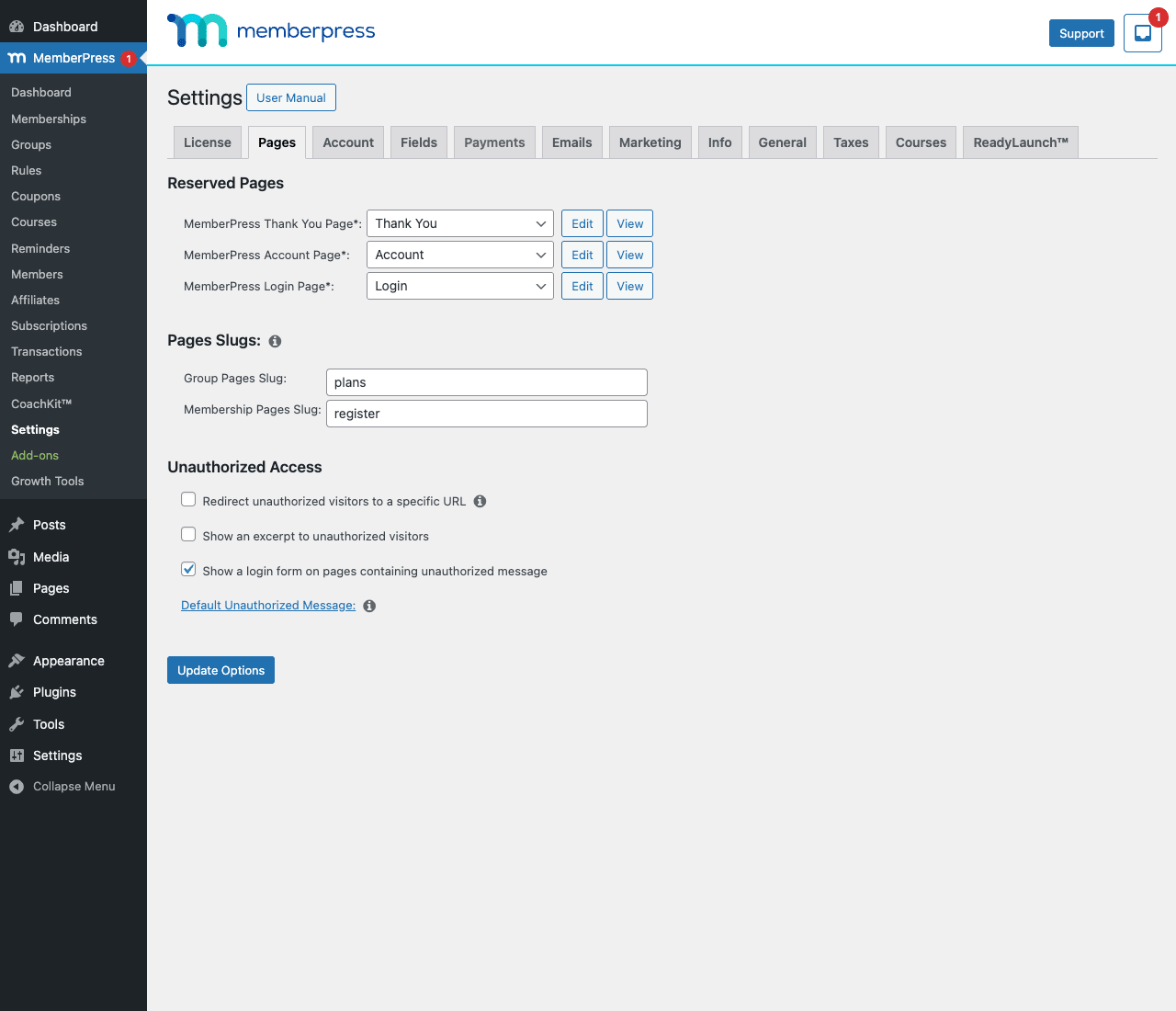
Set your default unauthorized message. Go to MemberPress → Settings → Pages. The "Default Unauthorized Message" link opens a textbox where you write the message non-members see when they hit a gated page. Don’t leave this default, write the message that will appear at the bottom of every paywall. Something like "This content is for WP Pro members. [Subscribe here]" with a real call-to-action.
Enable "Show a login form on pages containing unauthorized message" in the same Pages tab. Non-members who already have an account can log in instead of signing up again. Without this checkbox, the paywall has no login option, which is confusing for returning members.
Set your time zone in WordPress. Settings → General → Timezone. MemberPress uses the site time zone for everything (subscription renewal dates, drip schedules, reminder emails). Wrong time zone, wrong everything.
Step 2: Configure your payment gateway
Most stores pick Stripe. It’s the simplest, the cheapest, and has the cleanest customer experience. Here’s the exact setup:
Go to MemberPress → Settings → Payments → Add Payment Method. Pick Stripe.
Three configuration choices:
- Stripe Connect (recommended). Click the "Connect with Stripe" button. You’re redirected to Stripe’s onboarding flow, fill in your business details, bank account, tax info. When done, Stripe redirects back to your WordPress site and the gateway is live.
- Manual keys (advanced). Paste in your Live Secret Key, Live Publishable Key, Test Secret Key, Test Publishable Key. Use this if you need precise control over which Stripe account is connected.
- Webhooks. MemberPress auto-creates a webhook endpoint at
yourdomain.com/?action=mepr_listener&method=stripe. Stripe Connect auto-registers this. If you used manual keys, copy the URL into your Stripe Dashboard → Developers → Webhooks → Add endpoint. Subscribe tocustomer.subscription.*,invoice.payment_succeeded,invoice.payment_failedevents.
Set the gateway to Test mode for now. We’ll flip to Live after we’ve test-bought a membership.
Save. The Stripe gateway is now ready.
A common gotcha: if your site is behind Cloudflare with aggressive caching, Stripe webhooks might not reach your server. Add a Cloudflare page rule that bypasses cache for ?action=mepr_listener* URLs, or whitelist Stripe’s webhook IPs in your firewall.
For PayPal, repeat the same flow with Add Payment Method → PayPal Commerce. PayPal asks you to log into your PayPal Business account and grant access. The webhook is configured automatically.
You can have multiple gateways active at the same time. MemberPress will show all active gateways on the checkout page and let the customer pick. Most stores just enable Stripe and call it a day, adding PayPal as a second option lifts conversion by 5-15% for older audiences.
Step 3: Build your first Membership
This is the heart of MemberPress. Each Membership is a paid plan with its own price, billing schedule, and access.
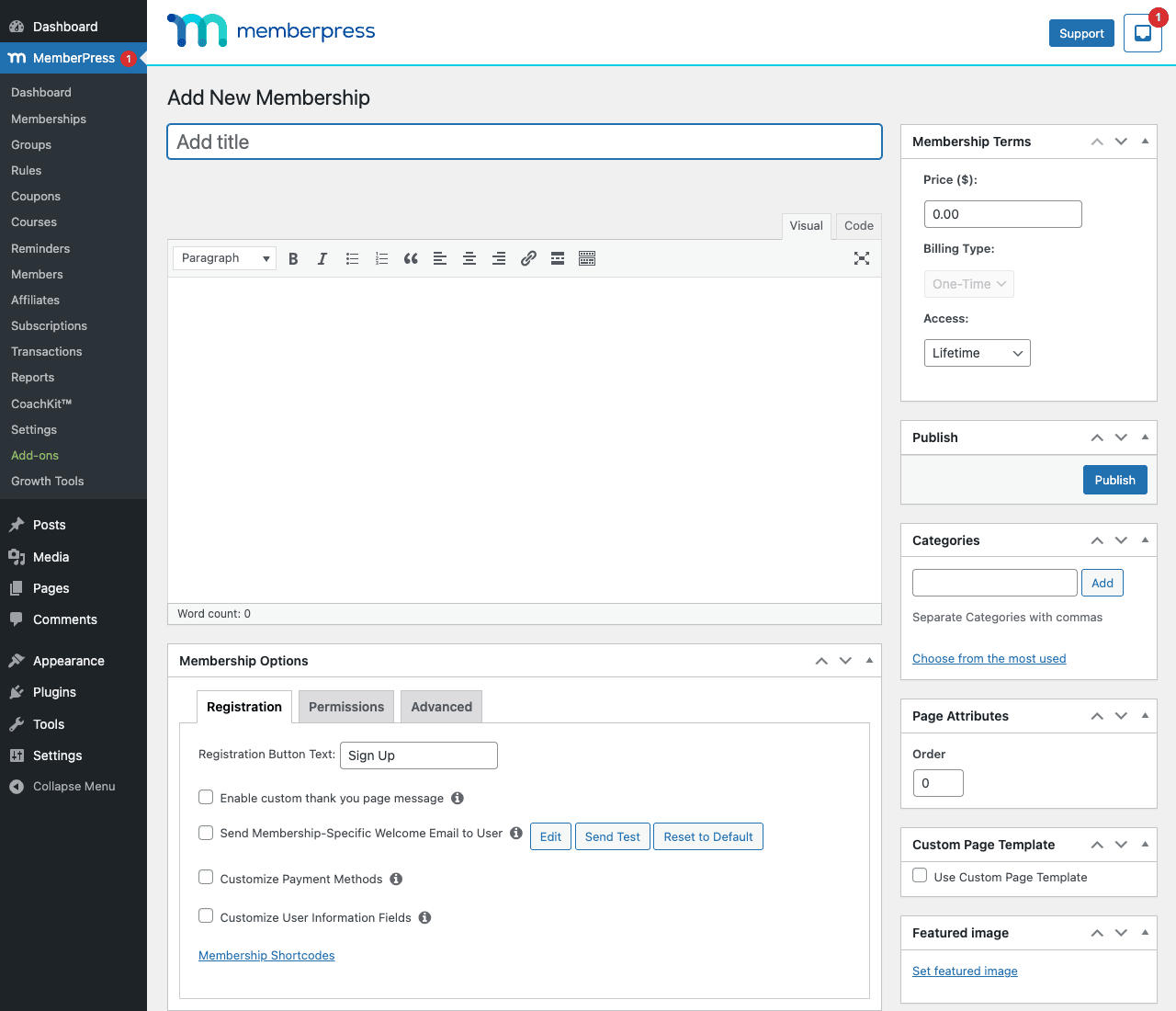
Go to MemberPress → Memberships → Add New Membership.
Fill it in:
- Title: "WP Pro Monthly".
- Description body: a short pitch, "Access to twenty premium WordPress tutorials, all our future deep-dives, and our private community Slack." This shows on the registration page.
- Membership Terms (right sidebar):
- Price: 19.00
- Billing Type: Recurring
- Interval: 1 Month
- Trial period: leave blank for now
- Access: Until cancelled
- Membership Options panel (below the editor):
- Registration tab: Registration Button Text → "Subscribe". Customize Payment Methods → tick if you want to restrict this membership to specific gateways (e.g. only Stripe). Otherwise leave default.
- Permissions tab: Who can purchase this membership? Default is "anyone". Optionally restrict to logged-in users only, or to members of another Membership.
- Advanced tab: Customize Thank You URL, Welcome email overrides, custom signup form fields.
- Click Publish.
Now repeat for WP Pro Annual: same idea, price 190.00, billing Recurring, Interval 1 Year.
Test that the membership is live: visit /register/wp-pro-monthly/ (or whatever slug MemberPress assigned). You should see the registration form with the Stripe Elements card field. Don’t submit yet, we still need to gate the content.
If you want both memberships to show side-by-side as a pricing table, create a Group under MemberPress → Groups → Add New. Add both memberships to the Group, configure the Group page slug, save. Now /plans/wp-pro/ (or your group slug) shows a side-by-side pricing comparison.
Step 4: Add Rules to gate your content
Memberships without rules don’t do anything. Rules are what make pages members-only.
Go to MemberPress → Rules → Add New.
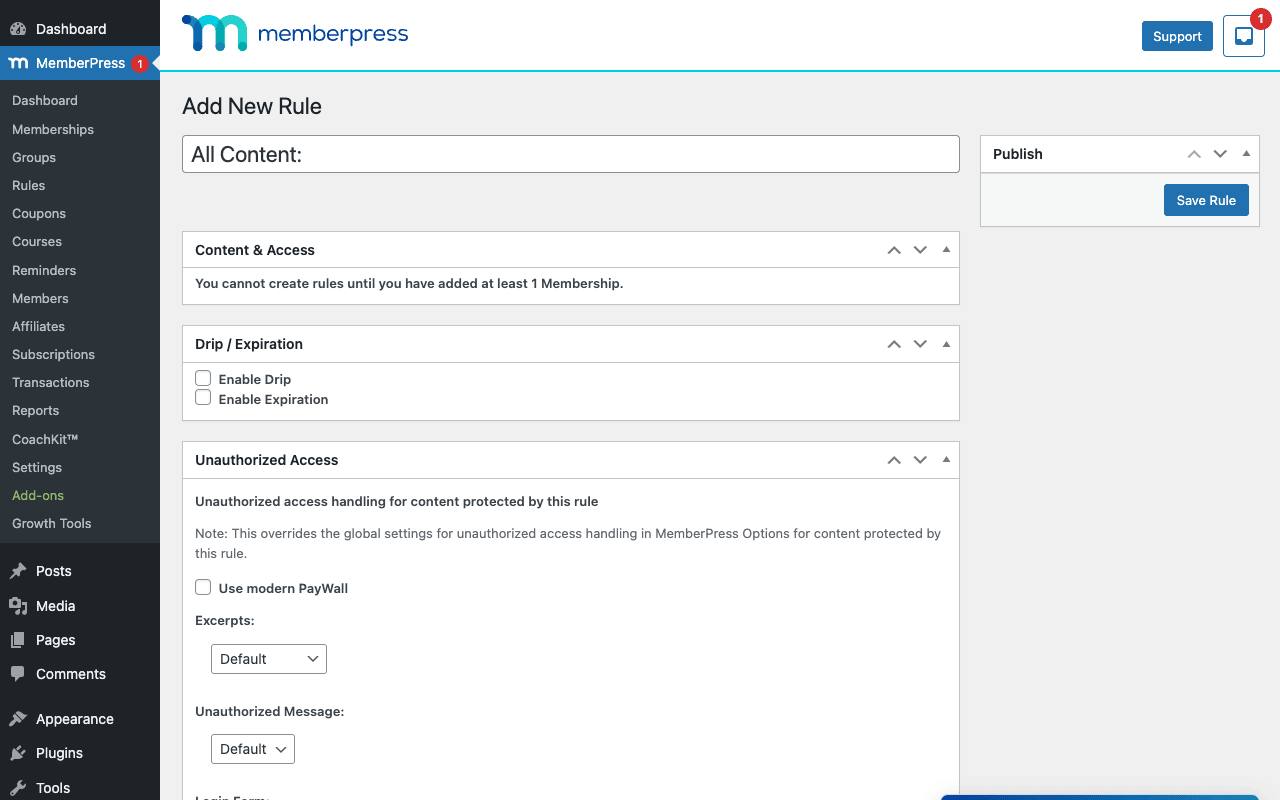
Three settings panels:
- Content & Access:
- Protected Content type (top dropdown): pick "Category", select your "WP Pro Tutorials" category. Or pick "A Single Page" and search for a specific page.
- Access: tick "WP Pro Monthly" and "WP Pro Annual" (both grant access).
- Click Save Rule.
- Drip / Expiration (optional): Enable Drip if you want the content to unlock N days after a member joins. Enable Expiration if access should end N days after a member joins.
- Unauthorized Access (optional): override the global paywall behavior for this specific rule. Use modern PayWall (slick modal), Excerpts (show a preview), custom Unauthorized Message.
For Sarah’s site, we’d create one Rule:
- Type: Category
- Category: "WP Pro Tutorials"
- Access: both Memberships
- Drip: off
- Expiration: off
Now every post in the WP Pro Tutorials category is gated. Non-members see the paywall + your unauthorized message. Members see the actual content.
Rule patterns that come up a lot:
- All posts: protect every blog post. Useful for a "premium blog" model.
- All pages with the URI starting with /premium/: protect a URL prefix. Useful for marketing landing pages plus member-only sections under one parent.
- All posts tagged "premium": protect by tag. Lets you mix free and paid content on the same blog.
- Children of "Members Hub" page: protect every child page of a specific parent. Useful for a member-only mini-site structure.
- Custom post type "course": protect every entry of a CPT, courses, videos, downloads.
Save your rule. Open one of the protected pages in an incognito window. You should see the paywall. Open it in your logged-in admin tab. You should see the content (admins bypass rules by default).
Step 5: Test the signup flow end-to-end
The most important five minutes of the whole setup.
Open an incognito browser window. Visit one of the gated pages. You should see the paywall, your unauthorized message, and a sign-up link.
Click the WP Pro Monthly registration link. You’re on /register/wp-pro-monthly/. Fill in:
- Email:
test+monthly@yourdomain.com(use a test email you can check) - Password: anything
- Card: Stripe test card
4242 4242 4242 4242, any future expiry, any CVC, any ZIP.
Click Subscribe. In Test mode, Stripe accepts the test card instantly. MemberPress should:
- Create the WordPress user.
- Create the subscription.
- Redirect you to the Thank You page.
Refresh the originally-gated page. The paywall should be gone, you see the actual content.
Go back to MemberPress → Members in admin. The new test member should be there. MemberPress → Subscriptions should show one active subscription. MemberPress → Transactions should show the test transaction.
If any of these are missing, troubleshoot in this order:
- Webhook not firing: check Stripe Dashboard → Developers → Webhooks → Events tab. Look for
invoice.payment_succeededfor your test transaction. If status is "Pending" or "Failed", your webhook isn’t reaching MemberPress. - Payment succeeded but no member created: check MemberPress → Settings → General → Time Zone matches your WordPress time zone. Mismatches occasionally break the post-payment hook.
- Member created but content still gated: check the Rule’s Access setting, is the new membership listed? Force-refresh the protected page in an incognito window (cache could be serving the paywall version).
Once the test signup works end-to-end, you’re ready to switch to Live mode. Settings → Payments → Stripe → Mode → Live. Save.
Step 6: Stand up the Account, Login, and Thank You pages
These three pages were auto-created during the setup wizard. They look bare by default. Spend ten minutes making them look like the rest of your site.
Account page (/account/): where members manage their subscription, update their card, change their password, view their transactions. The page uses the [mepr-account-form] shortcode. To customize the look, edit the page and add a Heading block above the shortcode with your branding. Or use the ReadyLaunch™ option (the modern member-area template, shipped with the Pro version).
Login page (/login/): the member login form. Auto-redirects logged-in users to their Account page. Add a "Forgot password?" link below the form if your theme doesn’t include one (some don’t).
Thank You page (/thank-you/): where members land after signup. The default page says "Thank you for signing up". Edit it to include:
- A welcome message ("Welcome to WP Pro, Sarah!")
- Their login credentials (using merge tags,
{$user_login}for username, etc.) - A "Start Here" link to the first tutorial they should read
- A link to the Account page
Sarah’s customization for the Thank You page (in plain content): "Welcome to WP Pro! Your account is ready. Start with our [Getting Started tutorial]. Manage your subscription anytime in [Your Account]."
Save all three pages. Test in incognito again, sign up as a new test member, walk through the full flow, make sure the Account page renders correctly, make sure the Login page works.
Coupons, taxes, and dunning
Three operational details that come up before you’ve been live a month.
Coupons: MemberPress → Coupons → Add New. Define a coupon code (e.g. "LAUNCH20"), set discount type (Percent or Flat), set value (20%), tie it to specific Memberships or all. Set usage limit and expiry date. Tick "First Payment Only" if you want the discount to only apply to the initial payment of a subscription (most common). Untick it for "every recurring payment". Save. Members add the coupon code on the registration form during signup.
Taxes: MemberPress → Settings → Taxes. Enable taxes, set your tax rates per country/state. MemberPress calculates tax at checkout and shows it on invoices. For EU VAT, the Vat Compliance add-on (or the built-in EU VAT support depending on your tier) handles digital-goods VAT rules.
Dunning (failed-payment recovery): MemberPress → Reminders. Pre-built templates exist for "Payment Failed", "Subscription Renewal Coming", "Trial Ending Soon". For each, set the timing (e.g. send 3 days after a failed payment, then again at 7 days, then again at 14 days) and customize the email body. The Failed Payment dunning sequence is the single highest-ROI feature in MemberPress for established memberships, it recovers 20-30% of failed payments that would otherwise churn.
Configure these three things on Day One, not Day Sixty. Coupons drive early conversions, taxes are required for compliance, dunning recovers money you’d otherwise lose.
Drip content and content schedules
Drip turns a static library into a course-like experience without using a real LMS.
For each Rule, the Drip section has:
- Drip from: Membership Date (number of days from when the member joined) or A Specific Date (calendar date).
- Drip Number: how many days/weeks/months.
So Rule 1 (Lesson 1) drips at 0 days (immediate). Rule 2 (Lesson 2) drips at 7 days. Rule 3 (Lesson 3) drips at 14 days. A member who signs up Monday sees Lesson 1 on Monday, Lesson 2 the following Monday, Lesson 3 the Monday after.
This works for any content type, not just courses. Sarah could drip her premium tutorials over twelve weeks even if they aren’t formally a course. The Tutorial 1 page is just a regular WordPress post; the Rule controls when each post becomes accessible.
Pair drip with Reminders for the full effect: when a lesson drips, send the member an email letting them know. Pre-built reminder template "Drip Content Released" handles this automatically.
Selling courses without a separate LMS
MemberPress includes a built-in course system. For most courses, it’s enough, you don’t need LearnDash or Tutor LMS Pro bolted on.
Go to MemberPress → Courses → Add New. A Gutenberg-based course editor opens. You build sections, lessons, and (optionally) quizzes inside a single course. Each lesson is a WordPress page styled to fit the MemberPress course template.
Built-in features:
- Section + lesson hierarchy
- Progress tracking per student
- Drag-to-reorder structure
- Built-in quizzes (less feature-rich than LearnDash’s quiz engine, but adequate)
- Tracking of student progress in MemberPress → Reports
- "Mark Complete" buttons on each lesson
- Course completion certificates
Compared to LearnDash, MemberPress Courses is simpler. LearnDash has more quiz question types (8 vs 4), Groups for cohort-based learning, prerequisites between courses, certificates editor with a visual builder. MemberPress Courses gives you the 80% of features that 95% of course creators need, without an extra plugin.
The decision rule: If your course is straightforward (sections, lessons, quizzes, certificates), use MemberPress’s built-in. If you need cohort tracking, advanced quiz logic, or you’re an instructor-led training company, layer LearnDash on top.
Running an affiliate program without a separate plugin
MemberPress includes an affiliate program. Same logic, for most stores, it’s enough without AffiliateWP.
Go to MemberPress → Affiliates (the menu item appears after you enable Affiliates in Settings → Affiliates). Configure:
- Default commission rate: 30% is typical for membership programs (recurring commissions).
- Cookie duration: 30 days is standard.
- Affiliate registration: tick to allow affiliates to sign up themselves via
/affiliate-register/. - Approval mode: automatic or manual.
Each affiliate gets a unique referral URL (?ref=USERNAME). When a referred visitor signs up, the affiliate gets a commission on the first payment and (optionally) every recurring payment for the duration of the subscription.
Compared to AffiliateWP, MemberPress’s affiliate is leaner. No creative library, no payout method automation (you mark referrals paid manually), no fraud detection beyond a basic IP blacklist. For a membership site selling its own product, this is enough, your affiliates are your existing members and you pay them via the same tool you use for vendors.
The decision rule: If you’re running affiliate marketing for your own one or two products, MemberPress affiliates is enough. If you’re running a multi-product affiliate program with hundreds of affiliates, custom payout methods, and serious fraud concerns, layer AffiliateWP on top.
Real-world use cases
Five patterns where MemberPress fits especially well:
The indie creator with one paid tier. A photographer selling access to a Lightroom presets library. One membership: $99/year, lifetime access. One Rule: protect all posts in the "Premium Presets" category. Stripe gateway. Done in three hours of setup, $5k in sales the first month. No other plugins needed.
The two-tier SaaS-style membership. A WordPress tutorials site (like Sarah’s). Free tier (built-in WordPress login, no MemberPress required) + Pro tier ($19/month) + Premium tier ($49/month with extras). Two paid Memberships, three Rules (one for each gated content section), Groups for the side-by-side pricing table.
The B2B / corporate training site. Companies buy access for their employees. Use Memberships with a corporate-account add-on (the official Corporate Accounts add-on or a custom integration). Employees register under the company’s account. Track usage per company.
The cohort-based course. Twelve-week course with weekly drip. Single Membership at $1,500. Twelve Rules with drip schedules at 0, 7, 14, 21… 77 days. Reminders fire weekly when each lesson drops. Built-in Courses for the actual lesson structure.
The "all-access pass" membership. Bundle multiple products into one tier. A single $99/month Premium membership unlocks a private podcast, a tutorials section, a Slack invite, a discount code for your store. Each product is a separate Rule but they share the same Membership.
The common thread: MemberPress works when the business model can be described as "members pay X, get access to Y". The more complex the model becomes, multi-currency taxation, complex prorating, B2B account hierarchies, the more glue code you’ll write around it. For 80% of membership sites, that complexity never shows up.
MemberPress vs the alternatives
The WordPress membership market has three major players plus a long tail. Quick comparison from actual builds:
MemberPress vs WooCommerce Memberships: WooCommerce Memberships is part of the WooCommerce ecosystem. If your site already runs on WooCommerce for selling products, adding Memberships is the path of least resistance. MemberPress is a self-contained membership-first plugin, better for "we don’t have an existing WooCommerce store". MemberPress’s payment flow, content gating, and reports are tighter for membership-as-the-product use cases. WooCommerce Memberships wins when memberships are an add-on to a regular product catalog.
MemberPress vs Paid Memberships Pro: PMP is the open-source competitor. Core plugin is free; advanced features are paid add-ons. PMP is slightly more developer-friendly out of the box (cleaner hook surface, more granular customization). MemberPress is slightly more user-friendly (better admin UI, more polished email templates). For a self-built site, the gap is small. For an agency shipping client sites, MemberPress is the more "done for you" choice.
MemberPress vs Restrict Content Pro: RCP is the developer-favorite, lighter, more code-forward, faster to extend. The admin UI is more spartan and the included reports are less detailed. If you’re a developer building a custom membership feature and don’t want to fight an opinionated framework, RCP. If you want everything pre-built and well-designed, MemberPress.
MemberPress vs LearnDash: not directly competing, they solve different problems. LearnDash is a course platform; MemberPress is a membership platform. Most sites that need both install both: MemberPress handles billing and access, LearnDash handles the course structure and quizzes. MemberPress’s built-in Courses removes that need for simpler course content.
MemberPress vs Memberful / Patreon / Circle (hosted): hosted platforms charge a percentage of revenue (5-10% typically) on top of payment processor fees. MemberPress is a flat license fee. For an established membership doing $50k+/year, the math heavily favors MemberPress. For a new membership testing product-market fit, hosted platforms are lower-risk: no monthly minimum, no setup time. Most successful indie memberships start on a hosted platform, then migrate to MemberPress around the $30-50k/year mark.
The decision tree:
- Do you need fine-grained membership management with built-in payments, courses, and affiliates? MemberPress.
- Is membership a feature of a larger WooCommerce store? WooCommerce Memberships.
- Are you a developer who wants a minimal codebase to extend? Restrict Content Pro.
- Is open-source community + extensible add-ons your priority? Paid Memberships Pro.
Developer reference
MemberPress has a deep but documented hook surface. The ones you’ll actually use:
Check if a user has an active membership
$user_id = get_current_user_id();

// Are they a member of any active Membership?
$mepr_user = new MeprUser( $user_id );
if ( $mepr_user->is_active() ) {
 // they have at least one active membership
}

// Are they a member of a specific Membership (post ID 42)?
if ( $mepr_user->is_active_on_membership( 42 ) ) {
 // they have access to membership 42
}
Use these checks in custom templates, REST endpoints, or page logic to decide what to show.
React to a new subscription
add_action( 'mepr-event-subscription-created', function( $event ) {
 $subscription = $event->get_data();
 $user_id = $subscription->user_id;
 $membership = new MeprProduct( $subscription->product_id );

 // Send to CRM, kick off onboarding sequence
 send_to_crm( array(
 'user_id' => $user_id,
 'membership_name' => $membership->post_title,
 'price' => $subscription->price,
 ) );
} );
Sister hooks for the full lifecycle: mepr-event-subscription-resumed, mepr-event-subscription-paused, mepr-event-subscription-stopped, mepr-event-subscription-expired.
React to a successful payment
add_action( 'mepr-event-transaction-completed', function( $event ) {
 $transaction = $event->get_data();
 // log, track conversion, fire analytics
 do_action( 'analytics/membership_payment', $transaction );
} );
Customize the unauthorized message
add_filter( 'mepr_unauthorized_message', function( $message, $post, $current_user ) {
 if ( $post->post_type === 'product' ) {
 return 'Members of WP Pro see this product. <a href="/register/wp-pro-monthly/">Join here</a>.';
 }
 return $message;
}, 10, 3 );
Add custom fields to the registration form
add_action( 'mepr-custom-fields-tab', function() {
 // Adds a new tab to the registration field admin
 echo '<div id="company-name-tab">';
 echo ' <label>Company Name <input type="text" name="company_name" /></label>';
 echo '</div>';
} );

// Capture on submit
add_action( 'mepr-process-signup', function( $user_id ) {
 if (! empty( $_POST['company_name'] ) ) {
 update_user_meta( $user_id, 'company_name', sanitize_text_field( $_POST['company_name'] ) );
 }
} );
For most custom fields, use the built-in Settings → Fields UI rather than code, it’s friendlier and you avoid breaking on plugin updates.
Use the REST API
MemberPress exposes endpoints under /wp-json/mp/v1/:
GET /mp/v1/members, list membersPOST /mp/v1/members, create a memberGET /mp/v1/memberships, list membershipsGET /mp/v1/subscriptions, list subscriptionsGET /mp/v1/transactions, list transactionsPOST /mp/v1/transactions, create a manual transaction
Auth uses WordPress application passwords or the MemberPress API key (Settings → Developer Tools → REST API).
# List active members
curl -u admin:application-password \
 "https://example.com/wp-json/mp/v1/members?per_page=20&status=active"

# Programmatically create a manual subscription
curl -u admin:application-password -X POST \
 "https://example.com/wp-json/mp/v1/subscriptions" \
 -H "Content-Type: application/json" \
 -d '{"user_id":42,"product_id":100,"price":19.00,"period_type":"months"}'
Useful for syncing from external systems, a HR tool granting access to all employees, a CRM moving paid leads to active members, a custom checkout flow that bypasses MemberPress’s UI.
Shortcodes
The most-used shortcodes:
[mepr-membership-registration-form id="100"]
[mepr-membership-link id="100"]
[mepr-account-form]
[mepr-active rule="100"]Members of plan 100 see this[/mepr-active]
[mepr-active rule="100" ifallowed="hide"]Non-members see this[/mepr-active]
[mepr-login-form]
[mepr-pro-pricing-table id="50"]
Use [mepr-active] to show conditional content inside an otherwise-public page, "Already a member? Click here for the bonus content" inside a public landing page.
Custom integration patterns
If you sell a non-membership product (a one-off digital download, a physical item) and want to grant membership access on purchase from a different plugin (a WooCommerce order, an Easy Digital Downloads sale, a Gravity Forms submission), grant the membership programmatically:
add_action( 'woocommerce_order_status_completed', function( $order_id ) {
 $order = wc_get_order( $order_id );
 foreach ( $order->get_items() as $item ) {
 if ( $item->get_product_id() === 999 ) {
 // SKU 999 grants WP Pro Monthly (membership ID 100)
 $sub = new MeprSubscription();
 $sub->user_id = $order->get_user_id();
 $sub->product_id = 100;
 $sub->price = 0; // we got paid via Woo
 $sub->period = 1;
 $sub->period_type = 'months';
 $sub->status = 'active';
 $sub->store();
 }
 }
} );
This is the standard pattern when MemberPress is the gate but a different store is the payment processor. The official MemberPress Woo add-on does exactly this, with more polish.
Performance, compatibility, and gotchas
What you’ll wish you knew before launch:
Member checks run on every protected page. MemberPress checks each request against the active Rules. On a site with hundreds of Rules and high traffic, this can add 30-80ms per protected request. Mitigation: keep Rules to the minimum needed (one Rule on a category beats fifty Rules on individual posts), enable object caching (Redis or Memcached), and ensure your hosting can handle the load.
Page caching plus members is the classic landmine. A page cache that serves the same HTML to logged-in and logged-out users will leak gated content to non-members. Every reputable cache plugin (WP Rocket, LiteSpeed, Breeze, Cache Enabler) bypasses logged-in users by default, but verify before launch by viewing a gated page in incognito while logged out. The bug "Cached premium content leaked to non-members" is the #1 self-inflicted membership site disaster.
Stripe webhooks must reach your server. Cloudflare, security plugins, and aggressive bot blockers sometimes break webhook delivery. Test by canceling a test subscription in Stripe Dashboard and checking that MemberPress reflects the cancellation. If it doesn’t, your webhook isn’t firing. Look at Stripe Dashboard → Developers → Webhooks → Recent events to see if delivery is failing.
The unauthorized_message template needs love. The default message is generic and converts poorly. Spend an afternoon writing genuinely good copy for it. Include the price, the value prop, the call to action, social proof if you have it. The unauthorized message is the highest-use piece of copy on a membership site, it’s the page every non-member sees before deciding to pay.
Email deliverability matters. Welcome emails, renewal emails, dunning emails, these need to land in the inbox, not the spam folder. Install an SMTP plugin (WP Mail SMTP, FluentSMTP) backed by Postmark, SendGrid, or Mailgun. Do not rely on PHP mail() in production. A missed dunning email means a churned member.
HPOS (High-Performance Order Storage) for WooCommerce: if you’re using the WooCommerce integration, MemberPress is HPOS-aware. If you’re on a very old MemberPress version and you just turned on HPOS, update MemberPress first.
Account page customization breaks on plugin updates if you override the template files in your theme. Use the mepr_account_form action and filter hooks where possible. Template overrides are powerful but require maintenance every time MemberPress updates its templates.
MemberPress sets cookies on every request. A few cookies for tracking active sessions. Most cache plugins handle this fine, but if you see "user X seeing user Y’s account page" issues, suspect cookie caching.
The default Account page is plain. Use the ReadyLaunch™ option for a modern member area without writing CSS. Or override the template files with your theme’s branded version.
Translation strings live in memberpress/i18n/. Text domain is memberpress. Drop your .mo files for non-English sites.
Pricing and licensing
The official MemberPress pricing has three tiers:
- Basic ($179.50/year, 1 site): core memberships, Stripe + PayPal Standard, basic reports, manual payment marking, no built-in courses or affiliates.
- Plus ($269.50/year, 2 sites): adds advanced gateways (Authorize.net, Square), course features, more reports.
- Pro / Scale ($399-$499/year, 5 sites): everything, Courses, Affiliates, ReadyLaunch™, CoachKit™, all add-ons, priority support.
All tiers are subscription-based. Renew annually for updates.
GPL Times sells the Pro / Scale-equivalent of MemberPress under GPL. The code is identical to what Caseproof ships, same memberpress.php, same add-on files. The pricing structure is different: a one-time purchase for unlimited sites with no annual renewal. Updates come from GPL Times rather than from MemberPress.com. For a single-site indie creator, the math is close to the official Basic tier. For an agency running 10+ client sites, the GPL Times version saves four figures a year.
The trade-off: official ticket-based support from Caseproof’s team is gated to paying subscribers. If your membership is mission-critical revenue and you need a 24-hour SLA on support, the official subscription is worth it.
FAQ
How does MemberPress compare to Patreon or Memberful?
Hosted platforms (Patreon, Memberful, Mighty Networks) take 5-10% of every transaction plus a monthly fee. They handle hosting, payments, and email. MemberPress is self-hosted: you keep all the revenue minus payment processor fees, you own the data, and you control the design. The trade-off is setup, hosted platforms are turn-key, MemberPress takes a few hours to set up. For memberships doing more than $30k/year, MemberPress is dramatically cheaper.
Can I migrate existing members from another platform?
Yes, with manual work. The recommended path: export your existing members as CSV (most platforms support this), then use MemberPress → Tools → Import to bulk-import them. Subscriptions need to be migrated separately, you’ll typically pause the old subscriptions, create matching MemberPress subscriptions, and let the new ones renew. For Stripe migrations, you can transfer subscriptions between two Stripe accounts via Stripe’s account transfer tools, which preserves the customer’s payment history.
Does it handle EU VAT, US sales tax, and GST?
Yes for VAT and basic GST. MemberPress → Settings → Taxes configures per-country/per-state rates. For complex multi-state US sales tax (with thousands of jurisdictions), use the official TaxJar / Avalara integrations rather than manual rates.
Can members pause their subscription?
Yes if you enable pausing. Settings → General → Subscription Pausing toggles it on. Members can then pause from their Account page. Pausing stops the renewal billing without canceling the subscription, they can resume at any time and pick up where they left off.
What happens to a member’s account when their subscription cancels?
Depends on the cancellation timing. If they cancel at the end of their billing period, they keep access until that period ends. If they cancel immediately, access ends immediately. MemberPress respects whichever you configure on the Membership.
Can I let members upgrade or downgrade between tiers?
Yes via Groups. MemberPress → Groups → Add New to create a Group containing your tiers. The Group acts as an "upgrade path", when a member upgrades, MemberPress handles the prorated billing automatically. Stripe Subscription Schedules handle the prorating on the payment side.
Does it work with WooCommerce?
Yes, via the official WooCommerce integration. You can sell membership access via WooCommerce products, which is useful if you already have a WooCommerce store. If you need recurring WooCommerce billing on top, pair with WooCommerce Subscriptions. Note: this adds complexity (two or three plugins handling halves of the same transaction). For pure membership sites, MemberPress alone is simpler.
Does it work with Easy Digital Downloads?
Yes via add-on. Sell EDD products that grant MemberPress access. Same caveat as Woo, two plugins, more moving parts.
Can I sell time-limited access (e.g. 30-day pass)?
Yes. Set Membership Access to "Expires after" and pick the duration. The membership auto-expires after the specified period without a renewal payment.
Can I run a free trial?
Yes. Each Membership has a "Trial period" setting, N days at $0 (or $1, or any trial price), then converts to the regular rate. The customer enters their card upfront, gets charged the trial price (often $0), and is auto-charged the regular rate at the end of the trial.
Does it handle prorated billing on upgrades?
Yes via Groups + Stripe Subscription Schedules. The customer pays the difference for the remainder of the current billing period; their next renewal is at the new tier.
Can members manage their own subscription (cancel, pause, update card)?
Yes. The Account page (/account/) gives members access to manage their subscription, change their card, view past invoices, cancel/pause. No admin involvement required.
How does MemberPress’s built-in Affiliates compare to AffiliateWP?
MemberPress’s built-in is simpler, basic referral tracking, manual payouts, fewer customization hooks. AffiliateWP is more featureful, automated payouts via Stripe/PayPal, fraud detection, more integrations, more reports. For a simple membership program, MemberPress is enough. For a serious affiliate operation, layer AffiliateWP on top.
Can I sell digital downloads through MemberPress?
Not directly. MemberPress is about access to content. If you want to sell a downloadable file (PDF, audio, video), put the file behind a Rule that requires a Membership. Members can download once they have access. For a full digital storefront, pair MemberPress with EDD.
Does it work with multi-author content?
Yes. The Author Pro add-on adds revenue-sharing logic, multiple authors share revenue from memberships in configurable splits. Useful for collaborative course platforms.
Translation/multilingual?
Both WPML and Polylang work with MemberPress. Translate Membership posts, Rules, and emails into each language.
Final thoughts
MemberPress is the membership plugin that wins when you want one tool to handle the whole membership business, payments, content gating, recurring billing, courses, affiliates, emails, reports, without patching five plugins together. The trade-off is that any one of those subsystems is a little less powerful than its best-of-breed equivalent. MemberPress Courses isn’t quite LearnDash. MemberPress Affiliates isn’t quite AffiliateWP. MemberPress’s recurring billing isn’t quite WooCommerce Subscriptions. But all of them are good enough for 80% of membership sites, and the simplicity of one plugin doing everything is worth a lot.
Three recommendations if you’re picking it up:
One: configure dunning before you launch, not after. Failed payments are real money, and the difference between a 5% churn rate and a 10% churn rate is whether you sent the "your card failed, please update it" email at the right time. MemberPress → Reminders → set up the Failed Payment sequence on Day One.
Two: write a real Unauthorized Message. The default text is generic and converts poorly. Spend an hour writing copy that explains the value, lists the benefits, names the price, and gives a clear call to action. This is the most-viewed page on a membership site after your homepage, treat it accordingly.
Three: test the full signup flow in an incognito window before you announce. Click the sign-up link, fill in the form, use a Stripe test card, verify the redirect, verify the welcome email arrives, verify the gated content unlocks. Five minutes of testing prevents the launch-day disaster where customers complete a payment but never get access.
If you’re choosing between MemberPress and the alternatives and you can’t decide, the heuristic is: pick MemberPress if memberships are your main product. Pick WooCommerce Memberships if you already run a Woo store. Pick a hosted platform if you’re testing product-market fit and want zero setup. MemberPress is the pick for "we’ve validated this works and we want to scale it on our own infrastructure".