


I’ve installed a lot of caching plugins on a lot of WordPress sites. Most of them either do too little (a couple of toggles and a "clear cache" button) or way too much (twenty tabs of settings that need a weekend to figure out). WP Rocket sits in a weird sweet spot. You turn it on, and most of the work is already done. Then, if you want, you can crack open the developer side and bend it to your exact stack.
This post is a long, honest walk through what WP Rocket does, how to set it up without breaking anything, the bits I wish someone had told me earlier, and a full developer reference with the hooks and filters worth knowing. Whether you’re a site owner who just wants a faster store, or a developer trying to keep a custom build out of trouble, by the end of this article you’ll know exactly what this plugin is doing under the hood.
Table of Contents
- What is WP Rocket?
- Why caching matters (in plain English)
- Key features at a glance
- Installation and setup
- A guided tour of every settings tab
- Recommended settings for most sites
- What kind of speed jump should you expect?
- Real-world use cases
- Developer reference: hooks, filters, and constants
- Performance, compatibility, and gotchas
- Troubleshooting
- Pricing and licensing
- FAQ
- Final thoughts
What is WP Rocket?
WP Rocket is a premium WordPress performance plugin built by WP Media, the same team behind Imagify. At its core it’s a page cache. But over the years it has grown into a full performance suite that handles caching, file optimization, lazy loading, database cleanup, CDN integration, preloading, and a stack of front-end tricks aimed at Google’s Core Web Vitals.
The product has been around for over a decade and it’s become the default recommendation in a lot of WordPress circles for one main reason: it does the boring "set it and forget it" job without asking you to learn what a critical CSS path is.
Most caching plugins fall into one of two camps. The free ones (W3 Total Cache, WP Super Cache, LiteSpeed Cache) are powerful but expect you to know what you’re doing. (Our W3 Total Cache walkthrough covers exactly that learning curve.) The other paid plugins try to compete on feature lists. WP Rocket competes on getting out of your way.
Under the hood you’ll find a fairly clean modular architecture: there’s an Engine namespace for the optimization work (Cache, CDN, Media, Optimization, Preload, Critical Path), an Admin namespace for the dashboard, and a license layer for the premium SaaS features like Remove Unused CSS and the cloud-based critical CSS generator. That structure matters more than it sounds. It means developers can extend a single feature without breaking the rest of the plugin.
Why caching matters (in plain English)
Skip this section if you already know how WordPress page caching works. If you don’t, here’s the short version, because the whole point of WP Rocket only clicks once you understand this.
A normal WordPress page request goes through a long process every single time:
- A visitor’s browser asks for a page.
- WordPress runs PHP to handle the request.
- PHP queries the MySQL database for the post content.
- The active theme and every active plugin run their hooks on that content.
- PHP builds the final HTML.
- The server sends the HTML back to the browser.
That whole chain runs on every visit. On a budget shared host you’re looking at a Time To First Byte (TTFB) of half a second or more before a single byte of CSS is even downloaded. On busy days, with a lot of concurrent visitors, the server can’t keep up and the site slows to a crawl.
What page caching does is sneaky and simple: the first time a page is requested, WP Rocket saves the finished HTML to a file on disk. The second time someone asks for that page, the web server hands them that file directly. No PHP, no MySQL, no theme, no plugins. The HTML goes from disk to network and that’s it.
On a typical content site that’s a 5x to 20x speed jump for the first byte of HTML. Combined with all the other things WP Rocket does (compressing CSS, lazy loading images, deferring JavaScript), the visible loading time often drops in half or more.
Caching plugins don’t make WordPress itself faster. They sidestep WordPress.
Key features at a glance
Rather than dump the full marketing list, here’s what actually moves the needle on a typical site:
- Page caching. The bread and butter. WP Rocket generates static HTML files for your pages and serves them straight from disk, bypassing PHP and MySQL on cache hits. This is the single biggest speed jump on most WordPress sites.
- Cache preloading. As soon as you clear the cache (or save a post, or update an option), WP Rocket starts crawling your site so the cache is warm before a real visitor lands on a cold page. You can also feed it a sitemap.
- GZIP compression and browser caching. Smart
.htaccessrules are added on Apache and LiteSpeed servers, so static files are compressed and cached client-side. - Minify and combine CSS / JS. Strip whitespace and merge files where it makes sense. With HTTP/2 the "combine" part is less useful, and WP Rocket is honest about that in its settings copy.
- Remove Unused CSS (RUCSS). This is one of the headline features. WP Rocket sends your page to its cloud service, gets back the only CSS that’s actually used above the fold, and serves that inline. Saves a real amount of LCP time. If RUCSS is making weird visual choices on your site and you want surgical per-page control instead, the companion read is the Asset CleanUp Pro walkthrough.
- Delay JavaScript execution. Holds off non-critical scripts (analytics, chat widgets, ad pixels) until the user interacts with the page. Huge win for Total Blocking Time.
- Critical CSS generation. A fallback to RUCSS that generates a small set of critical styles per page template.
- Image lazy loading. Native browser lazy loading plus a JS fallback for older browsers. Works on iframes too.
- WebP support. Detects WebP files and serves them when the browser supports them, either through
<picture>rewrites or.htaccessrules. - Database cleanup. Removes post revisions, auto-drafts, trashed posts, spam comments, expired transients, all on a schedule if you want.
- Heartbeat control. Throttles or kills the WordPress heartbeat API in the back-end and post editor to save CPU on shared hosts.
- CDN integration. Rewrites URLs to your CDN host for images, CSS, and JS, with reject patterns and protocol options.
- RocketCDN. An optional pay-as-you-go CDN from WP Media itself, set up in two clicks.
- Built-in Cloudflare add-on. Clears Cloudflare cache and toggles Development Mode through the WP Rocket dashboard.
- Varnish, Sucuri, and Cloudways integrations. Cache purging hooks for the popular reverse-proxy and managed-host setups.
That list looks long. The good news is most of it is on by default after activation, and the few decisions you have to make are guided by a clean settings UI.
Installation and setup
Installation is standard.
- Buy and download the zip from the GPL Times WP Rocket page.
- In your WordPress admin, go to Plugins → Add New → Upload Plugin.
- Choose the zip and click Install Now, then Activate.
That’s it. As soon as it’s active, WP Rocket turns on page caching, GZIP, browser cache headers, and mobile cache. You’ll see a small "WP Rocket" link in your admin bar and a new entry at Settings → WP Rocket.
When you first open the settings page, you land on the Dashboard tab. WP Rocket gives you a friendly "WP Rocket is now activated and already working for you" message, and shows your license, the Rocket Insights score, and a couple of one-click actions.
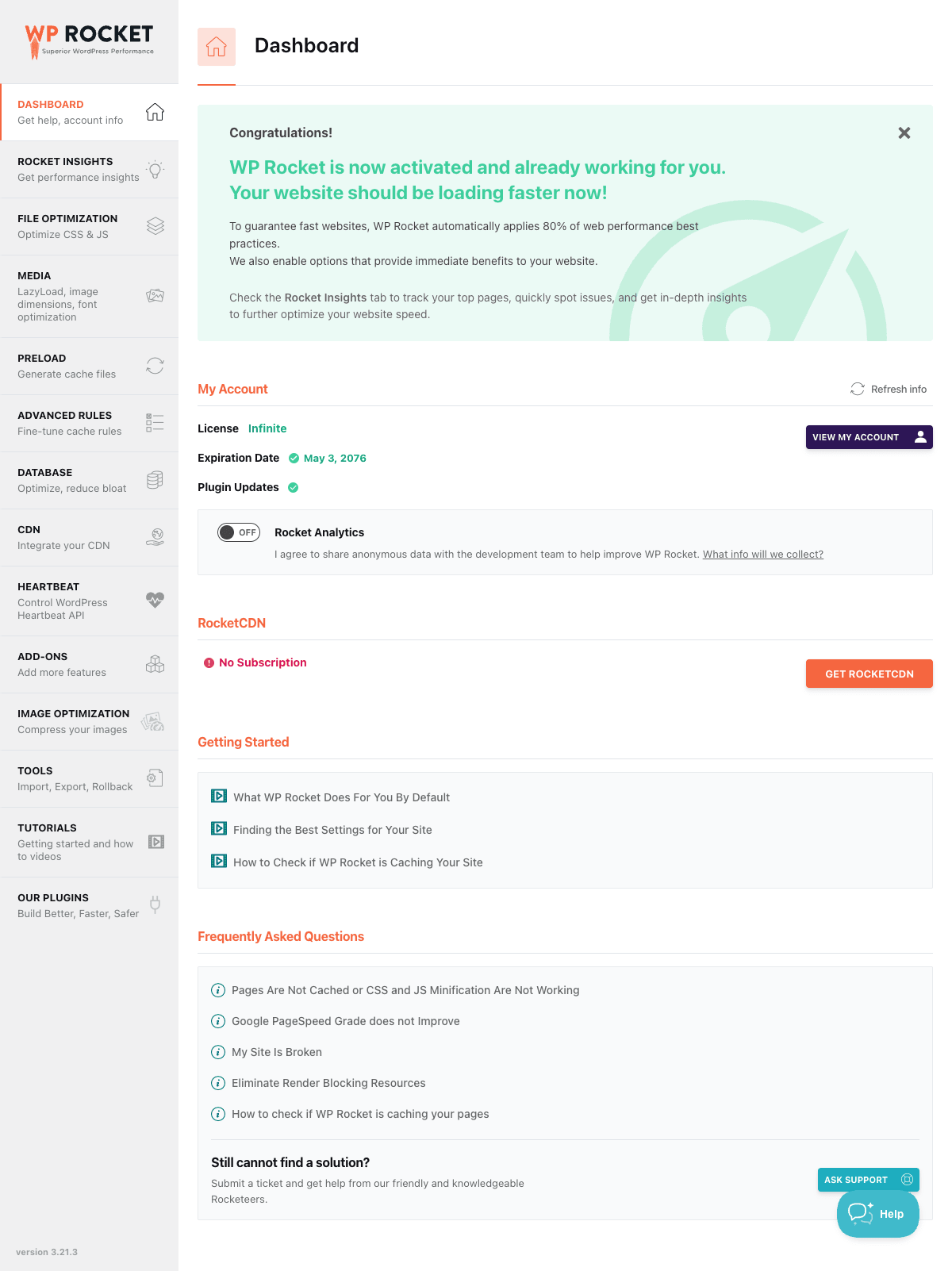
What I do right after activation:
- Check the dashboard tab. Confirms cache is on. The Rocket Insights Score panel in the top right will start tracking your top pages.
- Visit your own site as a logged-out visitor. Open an incognito window, open one of your popular posts, then look at the page source. You should see a comment like
<!-- This website is like a Rocket, isn't it? Performance optimized by WP Rocket.... -->near the bottom. That confirms a cached HTML file is being served. - Don’t enable every File Optimization toggle at once. Turn on Minify CSS, save, hit your site in a fresh incognito tab, click around. Then turn on Minify JS, save, test. Then RUCSS, save, test. Adding three things at once and finding a broken page later means you don’t know which toggle caused it.
- Configure the CDN tab only if you actually have a CDN. Most small sites don’t need one. If you do, paste your CNAME there.
- Set up your preload sitemap. WP Rocket auto-detects sitemaps from Yoast SEO Premium, Rank Math Pro, AIOSEO Pro, and SEOPress. If you use one of those, you don’t need to do anything.
If you’re on a managed host (Kinsta, WP Engine, Flywheel, Cloudways), WP Rocket will detect it and automatically disable conflicting features. You don’t have to tweak anything; the plugin knows that those hosts already cache at the server level.
A guided tour of every settings tab
This is the section I wish more reviews actually wrote. Below is what each tab in WP Rocket actually does, what to turn on, and what to leave alone. Treat this as the manual a friend would give you, not the official docs.
File Optimization
This is where the front-end speed work happens. Minify, combine, and the two big LCP-saving features: Remove Unused CSS and Delay JavaScript.
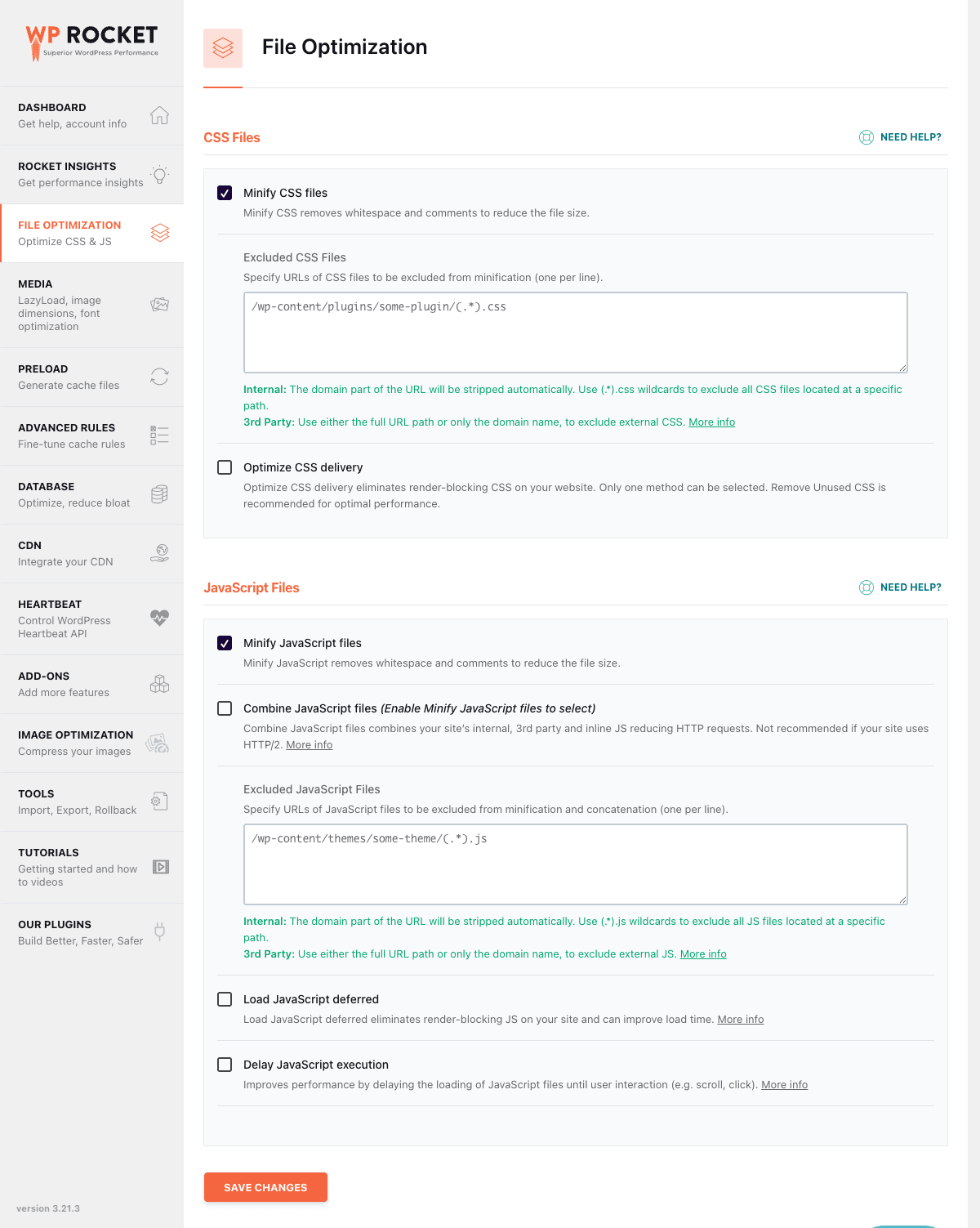
What to do:
- Minify CSS files: yes. Strips whitespace from CSS, makes files smaller, free win.
- Combine CSS: no on HTTP/2 and modern PHP. The cost of combining outweighs the gain. Leave off unless your host is still on HTTP/1.1 (it shouldn’t be).
- Optimize CSS Delivery → Remove Unused CSS: yes. This is the single biggest LCP improvement most sites will see. It takes a minute or two to "warm up" the first time after you enable it (WP Rocket queues your pages with its cloud service), then it stays warm.
- Minify JavaScript: yes. Same reason as CSS minify.
- Combine JavaScript: no. Same reason as CSS combine.
- Load JavaScript deferred: yes. This adds
deferto your non-critical scripts so the page renders before they execute. - Delay JavaScript execution: yes, with the default exclusions. This is the big one for Total Blocking Time. Scripts like Google Tag Manager, Facebook Pixel, chat widgets, and analytics get held off until the user does anything on the page. The user doesn’t notice (those scripts didn’t need to run on the first 100ms anyway), but Lighthouse and PageSpeed Insights notice a lot.
If you break a feature on the site (say, the cart drawer stops opening), the usual culprit is Delay JS catching a script it shouldn’t have. The fix is to add that script’s filename to the Delay JS exclusion list, which is right below the toggle. A common offender is a social-share plugin like Easy Social Share Buttons for WordPress: its bar JS gets delayed and the share buttons appear styled but don’t bind click handlers until the visitor scrolls or taps.
Media
Image lazy loading, video lazy loading, image dimensions, WebP caching, and a few smaller things like font preloading.

What to do:
- LazyLoad for images: yes. Defers off-screen images until the user scrolls near them. Big LCP improvement on long pages.
- Exclude the first image (LCP image). If your hero image is above the fold, you don’t want it lazy-loaded (that just delays it). Either add the image filename to "Excluded images" on this tab, or add a
data-skip-lazyattribute to the image in your theme. - LazyLoad for iframes and videos: yes. Same idea for embedded YouTube and Vimeo.
- Replace YouTube iframe with preview image: yes if you embed lots of videos. The YouTube embed code is huge and runs a lot of JS. WP Rocket replaces it with a screenshot, and only loads the real embed when the user clicks Play.
- Add missing image dimensions: yes if your theme is bad about setting width/height on images. This prevents CLS (layout shift).
- Enable WebP caching: yes if you have an image plugin (Imagify, ShortPixel, EWWW) that generates WebP variants.
Preload
This is the "warm the cache before real visitors arrive" tab.
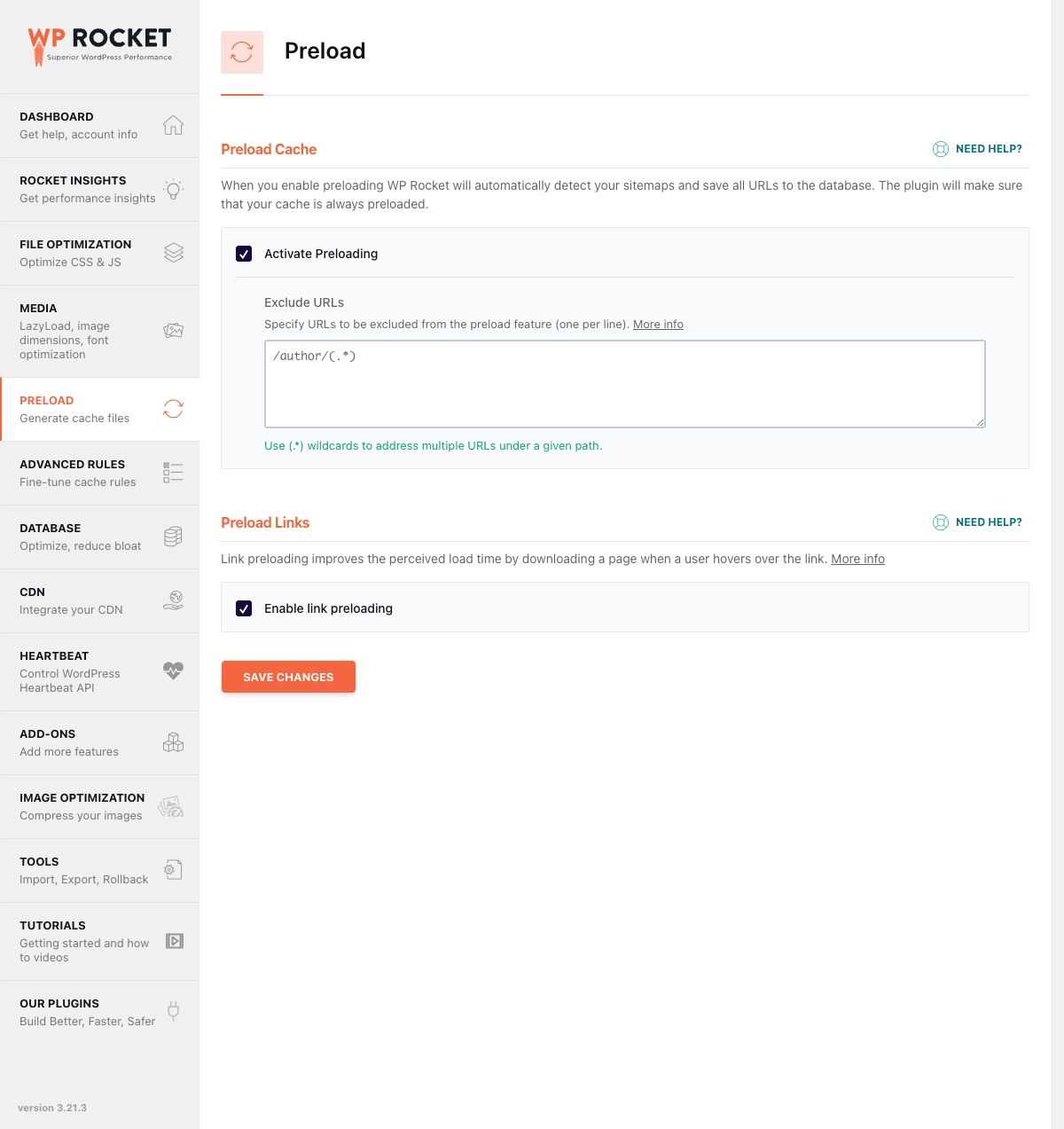
What to do:
- Activate Preloading: yes. Always.
- Activate sitemap-based cache preloading: yes, and let WP Rocket auto-detect your SEO plugin’s sitemap.
- Prefetch DNS Requests: add the hosts your pages load resources from. Google Fonts, Google Analytics, Facebook, Stripe, Cloudfront, etc. This tells the browser "you’ll need to talk to these domains soon, get the DNS lookup out of the way now."
- Preload Fonts: add the URLs of any custom fonts that load above the fold. This is a meaningful perceived-speed win because the browser otherwise discovers fonts late in the page render.
Advanced Rules
Where you exclude specific URLs, cookies, or query strings from the cache. Most sites don’t need to touch this.
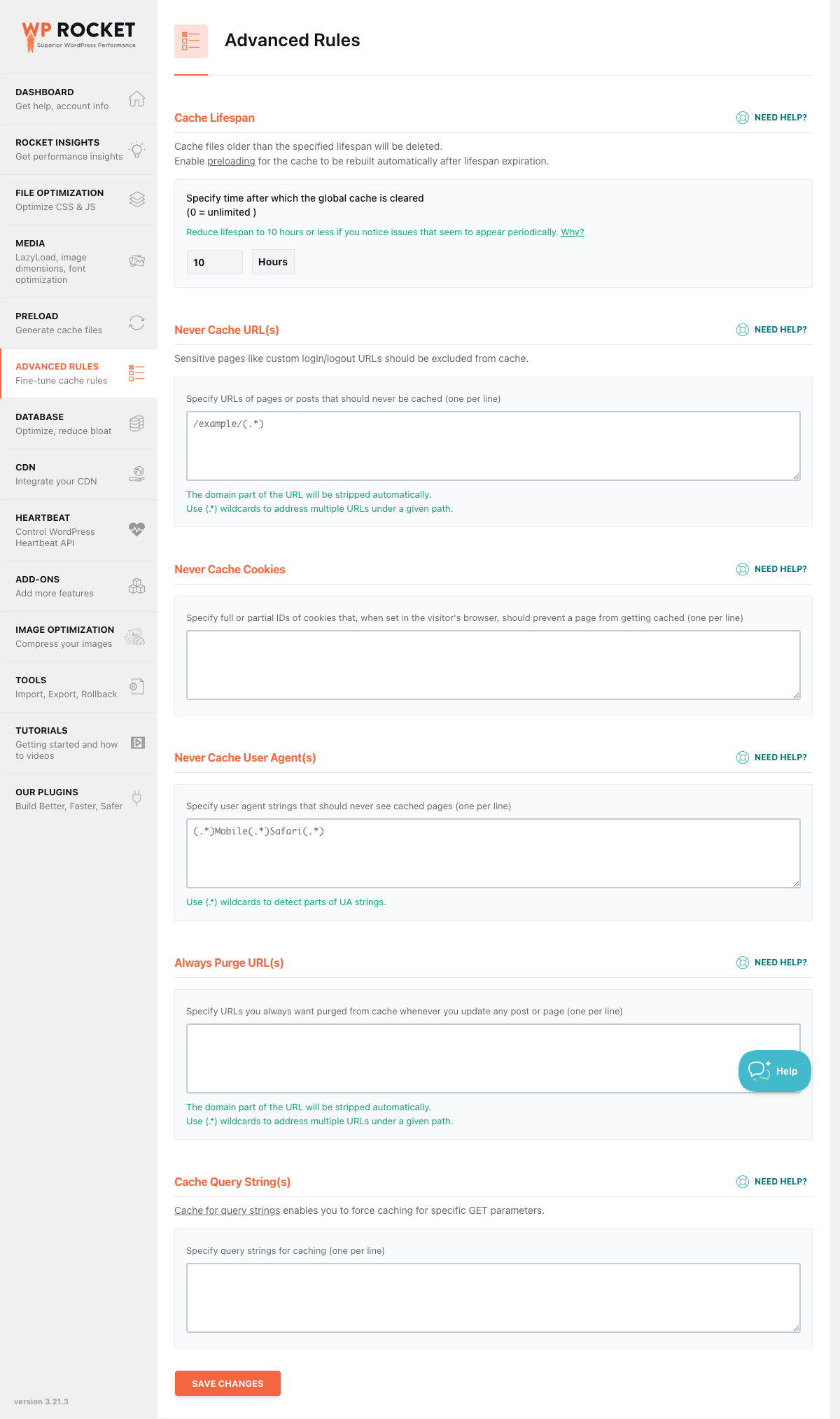
What to do:
- Never cache URLs: add patterns for any pages that need to be dynamic. WP Rocket automatically excludes WooCommerce cart, checkout, my-account, the WordPress login page, and a few others. If you have a custom dynamic dashboard or a real-time stats page, add it here.
- Never cache (cookies): if you have an app session cookie that should always bust the cache, list it.
- Never cache (user agents): rarely needed. Useful only if you serve a different page to specific bots.
- Always purge URLs: list pages that should be cleared from the cache every time any post is updated. Most useful for a custom "latest articles" widget on a static landing page.
- Cache Query Strings: rarely needed. By default, WP Rocket treats any URL with a query string as uncacheable. If you have a page where
?ref=newslettershould still be cached, add that param here.
Database
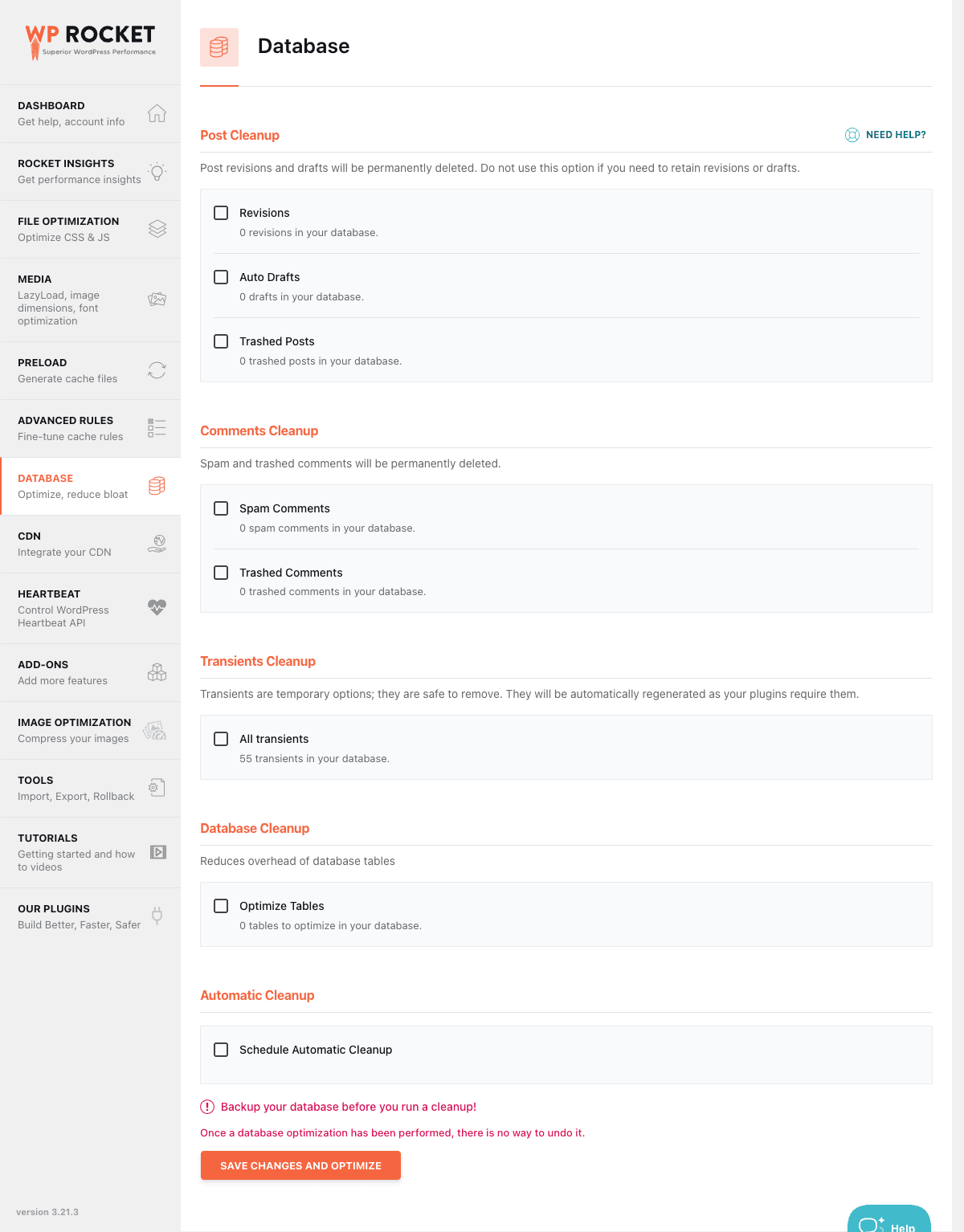
Cleans up bloat that builds up in wp_posts, wp_postmeta, wp_options, and wp_comments over time.
What to do:
- Run the cleanup once manually first. Click each "Save and optimize" button after ticking the boxes for: Revisions, Auto Drafts, Trashed Posts, Spam Comments, Trashed Comments, Expired Transients.
- Then schedule weekly cleanup. Daily is too aggressive on most sites. Monthly forgets the cleanup exists.
- Don’t enable "Optimize Tables" if you’re on a host that doesn’t support InnoDB online optimization, since it locks tables briefly. On most modern managed hosts this is safe, but check with your host if you’re unsure.
A word of warning: this tab is destructive in the sense that deleted revisions cannot be brought back. Always run a database backup before the first cleanup.
CDN
If you have a CDN (BunnyCDN, KeyCDN, StackPath, Cloudflare R2, RocketCDN, anything that gives you a CNAME), this tab rewrites your asset URLs to use it.
What to do:
- Enable Content Delivery Network: yes if you have a CDN.
- CDN CNAMES: paste your CDN host (e.g.
cdn.yoursite.com). One per line if you use multiple zones. - Reject files: add patterns for any local-only files that should not be served from the CDN. Useful for things like a robots.txt-like file or a privacy-sensitive uploads folder.
If you have RocketCDN, there’s a one-click setup in this tab that handles the CNAME for you and bills monthly.
Heartbeat
The WordPress heartbeat API is what powers autosaving, live notifications, and "post is being edited by another user" lockouts. It runs every 15 seconds in the editor and every 60 seconds in the front-end. On a shared host with a busy editor, that adds up.
What to do:
- Reduce activity in the back-end. Set to "Reduce activity" or "Disable" if you’re on shared hosting and you’ve never seen a "another user is editing this post" lockout.
- Reduce activity in the post editor. Slows autosave. Most people are fine.
- Leave the front-end alone unless you’ve measured that heartbeat is causing problems.
Tools
Import/export your WP Rocket settings, and roll back to a previous version if a recent update broke something.
If a WP Rocket update breaks your site, the rollback option is your friend. You can revert to the previous stable release without leaving the dashboard.
The import/export is also great for cloning settings from a staging site to production.
Recommended settings for most sites
If you skipped the tour, here’s the cheat sheet. These are what I turn on for nine out of ten content sites and small WooCommerce stores.
Cache tab (Dashboard)
- Enable Mobile Cache: yes. (Off only if you serve a completely different mobile theme.)
- Separate Cache Files for Mobile Devices: no, unless your theme actually does AMP-style mobile views.
- Cache Lifespan: ten hours is the default and it’s fine. Lower it if you publish constantly.
File Optimization
- Minify CSS: yes
- Combine CSS: no
- Optimize CSS Delivery → Remove Unused CSS: yes
- Minify JavaScript: yes
- Combine JavaScript: no
- Load JavaScript deferred: yes
- Delay JavaScript execution: yes
Media
- LazyLoad for images: yes
- LazyLoad for iframes and videos: yes
- Replace YouTube iframe with preview image: yes
- Enable WebP caching: yes (if your image plugin generates WebP)
Preload
- Activate Preloading: yes
- Activate sitemap-based cache preloading: yes
- Prefetch DNS Requests: add Google Fonts, Analytics, FB, Stripe etc.
- Preload Fonts: add above-the-fold web font URLs
Database
- Run cleanup once manually, then schedule weekly
Heartbeat
- Reduce activity in the back-end and post editor
The point of this list is that most of WP Rocket’s wins come from defaults. You’re nudging, not configuring.
What kind of speed jump should you expect?
Honest expectations matter. Here’s what I see on real sites after a clean WP Rocket install:
Static content site (blog, magazine, portfolio). PageSpeed Insights LCP usually drops from 3-5 seconds to 1.5-2.5 seconds. Lighthouse score jumps 15-30 points. Most of the gain comes from page cache + RUCSS.
Small WooCommerce store (under 500 products). Product pages get cached and behave like content pages. Cart/checkout stay uncached (correctly). The homepage and category pages see the same LCP improvement as a blog. Watch out for dynamic widgets that need to refresh per visitor.
Big WooCommerce store (thousands of products). Same per-page improvement, but the cache fills up slowly because there are so many pages. Sitemap preloading helps. Database cleanup helps a lot more than you’d expect, especially on sites that have been live for years.
Membership / LMS site. Logged-in users don’t hit the cache by default, so members see the same speed they always did. Public pages (sales pages, course catalog) cache normally. If you enable "Cache logged-in users" each role gets its own cache bucket, which can help.
Page builder site (Elementor, Bricks, Divi). This is where Delay JS and RUCSS shine. Page builders ship a lot of CSS and JS that doesn’t run on every page. RUCSS strips out what’s not used per template, so LCP drops noticeably. Just clear the cache after publishing a builder change.
If you don’t see at least a 10-point Lighthouse jump after enabling caching, RUCSS, lazy loading, and Delay JS, something is wrong. Your host is too slow, your theme has a render-blocking issue, or another plugin is conflicting. Don’t accept "well I turned it on and nothing changed" as the final answer.
Real-world use cases
Different sites get different value out of WP Rocket. Here are the patterns I see most often.
Bloggers and content sites. Cache hits go up close to 100% because most visitors hit the same handful of popular posts. RUCSS plus lazy loading is where you’ll see Lighthouse jump 20+ points. Sitemap preloading keeps the cache fresh after publishing.
WooCommerce stores. This is where caching gets tricky. You can’t cache the cart, checkout, or my-account pages or you’ll show one customer’s cart to another. WP Rocket excludes those URLs automatically through the WooCommerce integration. The wins come on the product catalog, single product pages, and the homepage. Watch out for dynamic price/inventory widgets that need fragment caching, you may need to exclude them with a filter.
Membership and LMS sites. By default, WP Rocket doesn’t cache for logged-in users. You can switch that on with the "Cache Logged-in Users" option, but every membership level needs its own cache bucket so make sure your roles are stable. For LearnDash and Tutor LMS, exclude lesson and quiz URLs from the cache.
Multilingual sites. Works fine with WPML, Polylang Pro, and TranslatePress out of the box. WP Rocket honors the language slugs in the cache key. CDN URL rewriting works per language too.
Page builder sites (Elementor Pro, Bricks, Divi, Beaver Builder). This is where Delay JS and RUCSS really shine. Page builders ship a lot of CSS and JS that doesn’t run on every page. RUCSS strips out what’s not used per template, which means less render-blocking and lower LCP. Just clear the cache after publishing a builder change.
Developer reference: hooks, filters, and constants
This is the section I wish more plugin reviews actually wrote. WP Rocket exposes hundreds of hooks. Below are the ones I reach for again and again, grouped by what you’re usually trying to do.
Excluding pages, posts, and parameters from cache
If a specific URL pattern needs to bypass the cache (think a custom checkout page or a real-time dashboard), use rocket_cache_reject_uri.
add_filter( 'rocket_cache_reject_uri', function ( $urls ) {
 $urls[] = '/live-stats(/.*)?';
 $urls[] = '/preview/(.*)';
 return $urls;
} );
The patterns are regex fragments. They’re matched against the request URI, not the full URL.
If you have a session cookie that should always bust the cache, add it to rocket_cache_reject_cookies.
add_filter( 'rocket_cache_reject_cookies', function ( $cookies ) {
 $cookies[] = 'my_app_session';
 return $cookies;
} );
Some sites need the opposite: ignore certain query strings so visits with ?utm_source=... still hit the cache. Use rocket_cache_ignored_parameters.
add_filter( 'rocket_cache_ignored_parameters', function ( $params ) {
 $params['gclid'] = 1;
 $params['fbclid'] = 1;
 $params['mc_cid'] = 1;
 $params['mc_eid'] = 1;
 return $params;
} );
Purging cache when your own plugin updates content
If you have a custom post type or data source that should invalidate specific URLs, call WP Rocket’s API directly.
function my_invalidate_urls_after_save( $post_id ) {
 if ( function_exists( 'rocket_clean_post' ) ) {
 rocket_clean_post( $post_id );
 }
 if ( function_exists( 'rocket_clean_files' ) ) {
 rocket_clean_files( [
 home_url( '/featured-products/' ),
 home_url( '/api-status/' ),
 ] );
 }
}
add_action( 'save_post_my_cpt', 'my_invalidate_urls_after_save' );
You can also react to WP Rocket’s own purge events using after_rocket_clean_domain, after_rocket_clean_post, or after_rocket_clean_files.
add_action( 'after_rocket_clean_domain', function () {
 do_action( 'my_plugin_cdn_purge_all' );
} );
Tweaking the HTML buffer
WP Rocket builds the final page HTML through a buffer that you can hook into with rocket_buffer. Be careful here, this runs on every cached page generation.
add_filter( 'rocket_buffer', function ( $html ) {
 return str_replace( '</body>', '<!-- built by rocket -->'. "n". '</body>', $html );
}, 99 );
If you only want to skip cache generation for the current request, return false from do_rocket_generate_caching_files.
add_filter( 'do_rocket_generate_caching_files', function ( $generate ) {
 if ( isset( $_GET['nocache'] ) ) {
 return false;
 }
 return $generate;
} );
Excluding files from minify and combine
You’ll need this the day your favorite plugin breaks because its inline JS got moved around. rocket_exclude_js and rocket_exclude_css take regex patterns matching the file URL or path.
add_filter( 'rocket_exclude_js', function ( $excluded ) {
 $excluded[] = '/wp-content/plugins/my-fragile-plugin/(.*).js';
 return $excluded;
} );

add_filter( 'rocket_exclude_css', function ( $excluded ) {
 $excluded[] = '/wp-content/themes/my-theme/css/widget-(.*).css';
 return $excluded;
} );
For inline scripts that shouldn’t be minified or moved, hook rocket_excluded_inline_js_content.
add_filter( 'rocket_excluded_inline_js_content', function ( $excluded ) {
 $excluded[] = 'window.dataLayer';
 $excluded[] = 'gtag(';
 return $excluded;
} );
For external scripts (CDN-hosted JS), use rocket_minify_excluded_external_js.
add_filter( 'rocket_minify_excluded_external_js', function ( $hosts ) {
 $hosts[] = 'maps.googleapis.com';
 $hosts[] = 'js.stripe.com';
 return $hosts;
} );
Delay JavaScript exclusions
rocket_delay_js_exclusions lets you stop the Delay JS feature from holding back specific scripts. The patterns are matched against the full script tag, not just the URL, so you can target inline data-cfasync markers or known function names.
add_filter( 'rocket_delay_js_exclusions', function ( $excluded ) {
 $excluded[] = '/jquery-?[0-9.]*(.min|.slim|.slim.min)?.js';
 $excluded[] = 'my-critical-bootstrap';
 return $excluded;
} );
CDN URL rewriting
If your CDN host changes, you don’t need to touch the database. rocket_cdn_cnames and rocket_cdn_hosts give you full control at runtime.
add_filter( 'rocket_cdn_hosts', function ( $hosts, $zones ) {
 if ( in_array( 'images', $zones, true ) ) {
 $hosts[] = 'img.example.com';
 }
 return $hosts;
}, 10, 2 );

add_filter( 'rocket_cdn_reject_files', function ( $patterns ) {
 $patterns[] = '/wp-content/uploads/private/(.*)';
 return $patterns;
} );
Lazy loading
You can fully disable lazy loading on a specific page by returning false from do_rocket_lazyload. To prevent a specific image from being lazy loaded (typical for the LCP image), add it to rocket_lazyload_excluded_attributes or use the data-skip-lazy HTML attribute.
add_filter( 'do_rocket_lazyload', function ( $enabled ) {
 if ( is_singular( 'product' ) ) {
 return false;
 }
 return $enabled;
} );

add_filter( 'rocket_lazyload_excluded_src', function ( $excluded ) {
 $excluded[] = 'hero-image.jpg';
 return $excluded;
} );
.htaccess rules
For Apache and LiteSpeed sites, WP Rocket writes a block of cache, GZIP, and expires rules to .htaccess. If you need to inject extra rules around that block, use before_rocket_htaccess_rules or after_rocket_htaccess_rules.
add_filter( 'after_rocket_htaccess_rules', function ( $rules ) {
 $rules.= "n# Custom security headersn";
 $rules.= "<IfModule mod_headers.c>n";
 $rules.= "Header set X-Content-Type-Options nosniffn";
 $rules.= "</IfModule>n";
 return $rules;
} );
Disabling features at runtime
There are constants and filters for almost every major feature, useful when you want to disable something on a per-environment basis (staging vs production) without changing settings.
// Disable.htaccess writing on read-only filesystems
define( 'WP_ROCKET_ADVANCED_CACHE', true );
add_filter( 'rocket_disable_htaccess', '__return_true' );

// Disable WebP caching when serving variants from a CDN
add_filter( 'rocket_disable_webp_cache', '__return_true' );

// Switch off automatic CDN option behavior
add_filter( 'rocket_disable_cdn_option_change', '__return_true' );
Useful action hooks
For event-driven extensions, the following actions fire at key moments:
rocket_activationandrocket_deactivationfire when the plugin is turned on or off.rocket_after_clean_termsandafter_rocket_clean_postfire after a term or post cache purge.rocket_before_rollbacklets you back up state before a rollback.rocket_options_changedfires after the options array is saved, with both old and new values, perfect for syncing state to a remote system.rocket_after_process_bufferfires after the HTML buffer has been processed, useful for last-mile transformations.
add_action( 'rocket_options_changed', function ( $old_value, $new_value ) {
 if ( $old_value['cdn']!== $new_value['cdn'] ) {
 error_log( 'WP Rocket CDN toggled to '. (int) $new_value['cdn'] );
 }
}, 10, 2 );
WP-CLI
WP Rocket ships a small CLI surface that’s worth knowing about. The exact commands depend on the release, but you can usually expect:
wp rocket clean # clear the page cache
wp rocket regenerate # regenerate config files (advanced-cache.php, etc.)
wp rocket activate-cache
wp rocket deactivate-cache
Combine them with --allow-root if you’re running them from a deploy script.
Performance, compatibility, and gotchas
A few real-world things I’ve run into.
Cache stampedes after a deploy. If you flush the cache and a popular post gets hit by hundreds of users at once, every one of those requests will rebuild the page. Use sitemap preloading so the cache is warm before traffic shows up.
Combine CSS/JS is rarely the right call anymore. Modern browsers parallelize file downloads over HTTP/2, and combining can actually hurt because you lose granular browser caching. Leave the toggle off unless you’re on HTTP/1.1 (which you shouldn’t be).
RUCSS needs time on the first run. The cloud service crawls your templates and sends back the trimmed CSS asynchronously. On a big site you’ll see the dashboard show "X items in queue" for a few minutes. Don’t panic and don’t keep clearing the cache or you’ll restart the queue.
Page builders need a cache purge after design changes. Bricks and Elementor inline a lot of generated CSS. If you update a global color, purge the cache or you’ll see the old colors for ten hours.
Conflicts with other cache plugins. WP Rocket will refuse to fully activate if W3 Total Cache, WP Super Cache, or LiteSpeed Cache’s caching is on. Disable theirs first. The plugin also warns you in the dashboard if it finds object-cache or advanced-cache files it didn’t create.
WooCommerce dynamic content. Mini-cart totals, "you have X items" badges, and live stock counts will be wrong on cached pages unless they’re loaded with JavaScript after the page renders. Most modern themes handle that already. If yours doesn’t, you’ll need to either skip the cache for product pages or refactor those widgets to be client-side.
Cloudflare APO. If you use Cloudflare’s Automatic Platform Optimization, WP Rocket and APO can both try to manage caching, leading to weird "I cleared cache but it’s still old" issues. Pick one. I usually let WP Rocket handle origin caching and let Cloudflare handle edge caching without APO.
Hosting that ignores .htaccess. Nginx hosts (Kinsta, Cloudways, WP Engine) won’t honor the .htaccess block. WP Rocket detects this and writes a config file that the host’s setup picks up automatically. Cloudways even shows the WP Rocket integration in its panel.
Troubleshooting
Common problems and the fastest fix.
"My page looks broken after enabling Delay JS." Open the broken page in a fresh incognito tab. Open browser DevTools, Network tab, refresh. Look for any JS file that’s failing or that’s being held back. Add it to the Delay JS exclusion list under File Optimization. Save. Test again.
"My LCP image isn’t showing for half a second." It’s being lazy-loaded. Add the image filename to "Excluded images" on the Media tab, or add data-skip-lazy="true" to the <img> tag in your theme.
"The cart total is wrong after adding an item." You probably have a static mini-cart widget on a cached page. Either disable caching for that page in Advanced Rules, or check your theme’s documentation for how to switch the mini-cart to AJAX.
"PageSpeed says I still have render-blocking CSS." Make sure Remove Unused CSS is on, and wait a few minutes for the queue to clear. If RUCSS keeps failing, check the Rocket Insights tab for the error message. The most common cause is a custom font on a third-party domain that the RUCSS service can’t reach.
"My site is slower than it was before." Almost always Delay JS catching a script it shouldn’t have. Clear the cache. Then turn off Delay JS, test. Turn off RUCSS, test. Find which feature is the culprit, then add exclusions for the specific script or stylesheet.
"I can’t reach my admin after WP Rocket update." Connect via FTP or your host’s file manager, rename wp-content/plugins/wp-rocket to wp-rocket-disabled. Login. Delete wp-content/advanced-cache.php. Rename the folder back and use Tools → Rollback to go to the previous version.
Pricing and licensing
WP Rocket is sold as an annual license per site, per three sites, or unlimited sites. The license unlocks updates and access to the cloud features (RUCSS, RocketCDN integrations, and the support).
If you want a more flexible way to use the plugin across multiple client sites, the version on GPL Times is the GPL-licensed version. WordPress’s GPL license requires that the PHP portion of every plugin be redistributable, and GPL Times distributes it that way without the per-site limits. You’ll save real money over time, especially if you run an agency or build a lot of sites a year. You will still want to be careful about updates and support coming from the plugin vendor’s own license rather than the GPL distribution.
There’s a Membership option on GPL Times that bundles WP Rocket with the other premium WordPress plugins they distribute. If you also need Yoast SEO Premium, Elementor Pro, or Divi, the bundle usually.
FAQ
Does WP Rocket work with my managed host?
Yes. WP Rocket detects Kinsta, WP Engine, Flywheel, Cloudways, Pressable, GoDaddy Pro, and a few others, and automatically disables features that would conflict with the host’s own caching layer. You don’t have to do anything.
Will WP Rocket break my WooCommerce site?
By default, no. WP Rocket auto-excludes cart, checkout, my-account, and a list of standard WooCommerce cookies. If you have a custom dynamic widget on cached pages (mini-cart total, live stock badge), make sure it loads with JavaScript after page render, or exclude that page from cache.
Can I use WP Rocket and Cloudflare together?
Yes. WP Rocket has a built-in Cloudflare integration that lets you purge Cloudflare from the WordPress dashboard, toggle Development Mode, and update IP geolocation. If you also use Cloudflare APO, pick one to manage caching to avoid double-cache headaches.
Does WP Rocket cache for logged-in users?
Not by default. There’s an option to enable a per-user cache, useful for membership sites. Each user role gets its own cache bucket. Be careful with personalization, anything user-specific must be rendered after page load with JavaScript.
What’s the difference between Critical CSS and Remove Unused CSS?
Critical CSS generates a small chunk of styles that render the above-the-fold content and inlines them in the page. Remove Unused CSS goes further and removes all CSS not used on the page, then either inlines or loads what’s left asynchronously. RUCSS is the more aggressive (and more effective) of the two for Core Web Vitals.
Will WP Rocket fix my Core Web Vitals?
It will get you most of the way for typical sites. Cache, RUCSS, lazy loading, and Delay JS hit LCP and TBT directly. CLS still depends on your theme, layout, and image dimensions, and WP Rocket can’t fix a missing width and height on your hero image.
Does it work with page builders?
Yes. WP Rocket has tested integrations with Elementor, Divi, Bricks, Oxygen, Beaver Builder, and Brizy. Each of these ships their own CSS and JS, and RUCSS plus Delay JS is exactly what they need.
Can I roll back to a previous WP Rocket version?
Yes, there’s a Rollback option in the Tools tab. If a release introduces a regression, you can downgrade and the plugin will replace itself with the previous stable release.
Does WP Rocket include a CDN?
Not bundled, but it offers RocketCDN as an optional paid add-on. You can also point it at any CDN that gives you a CNAME (BunnyCDN, KeyCDN, StackPath, Cloudflare R2).
How much faster will my site get?
On a typical content site, expect a 15-30 point Lighthouse improvement and a real-world load-time drop of 30-50 percent. On WooCommerce, the homepage and product pages improve; cart and checkout won’t (correctly). On a site that was already fast, the gains are smaller but still meaningful.
Do I have to clear the cache manually after publishing a post?
No. WP Rocket clears the relevant URLs automatically when you publish or update a post (the post itself, the homepage, the archive pages, the feed, and related category/tag pages).
Final thoughts
If you’re managing your own WordPress site and the only performance plugin you ever install is WP Rocket, you’ll be in a much better place than most. The defaults are good enough for the average site to see a real Lighthouse jump within minutes of activation, and the developer surface is rich enough that even custom builds can stay compatible.
The price point puts it above the free alternatives, and that’s fair, the team behind it is full-time on performance work and the cloud features (RUCSS, RocketCDN) need real servers to back them.GPL Times is the budget-friendly route that still gets you the plugin code in full.
What I like about WP Rocket isn’t any one feature. It’s that the surface area you have to learn is small for the result you get. Most of the wins come from defaults that someone else thought about for you. The rest of the wins come from a small set of well-named filters that let you bend the plugin to your stack without forking it.
For a deeper view of WordPress performance fundamentals, the WordPress.org performance handbook and the web.dev Core Web Vitals docs are still the best free reading you’ll find. Pair either with WP Rocket and you’re set for a long while.