


SeedProd Pro is the plugin a lot of WordPress folks reach for when they want a real landing page, a coming soon screen, or a quick maintenance mode that does not look like a default WordPress error. It started life as a coming-soon plugin and has grown into a full drag-and-drop page builder with a theme-builder mode that can replace your whole theme if you want it to. This review goes deep on what SeedProd Pro actually does, how to use it without breaking your site, and how developers can bend it to fit a custom stack.
Table of Contents
- What is SeedProd Pro?
- Key features
- How it works (for users)
- Installation and setup
- The drag-and-drop builder
- Coming soon, maintenance, login, and 404 modes
- Theme builder and full-site templates
- Real-world use cases
- Developer reference
- WP-CLI commands
- Performance, compatibility, and gotchas
- Pricing and licensing
- How it compares to other page builders
- FAQ
- Final thoughts
What is SeedProd Pro?
SeedProd Pro is a WordPress plugin from Awesome Motive, the same company behind WPForms, MonsterInsights, AIOSEO, OptinMonster, and a long list of other plugins you have probably bumped into. SeedProd specializes in landing pages and site-wide layouts. Where most page builders focus on building one section of a single post, SeedProd Pro builds full pages and full themes. You can use it for a single sales page, or you can flip a switch and let SeedProd run the entire front end of your site instead of your theme.
In product terms, SeedProd Pro covers four different jobs:
- A drag-and-drop landing page builder you can use on any WordPress page.
- A modes layer that puts your site in coming soon, maintenance, login, or 404 state.
- A theme builder that can replace your active theme’s header, footer, single, archive, page, and search templates.
- A conversion toolkit that ships with optin forms, countdown timers, pricing tables, contact forms, and WooCommerce or Easy Digital Downloads blocks.
Most plugins focus on one of those jobs. SeedProd does all four from a single admin menu, which is what makes it interesting and also what trips people up when they install it for the first time.
The focus keyword for this post is SeedProd Pro, and it is worth saying once up front: this is the paid tier, the one with theme builder, advanced blocks, email integrations, and the template library. The free version on the WordPress.org plugin repo only ships the coming soon and maintenance modes.
Key features
- Drag-and-drop visual builder. The editor renders the page client-side and lets you drop blocks anywhere on a row-and-column grid. It is genuinely fast, even on pages with a lot of sections.
- Theme builder. Build a header, footer, single post template, archive template, 404, search, and page template from inside SeedProd and assign them to any conditional rule (post type, taxonomy, URL, role, logged-in state).
- 200+ landing page templates. Sales pages, optin pages, webinar pages, thank-you pages, coming soon, maintenance, 404, plus a separate library of sections you can drop into any page.
- Coming soon and maintenance modes with a bypass form for allowed users and proper HTTP 503 status codes for the maintenance one. Search engines see the right signal, your team still sees the live site.
- Login mode. Replaces
wp-login.phpwith a branded SeedProd page. You can still log in fromwp-admindirectly, but anyone hitting/wp-login.phpgets your custom page. - 404 mode. Replace your theme’s 404 with a SeedProd page across the whole site without touching the theme.
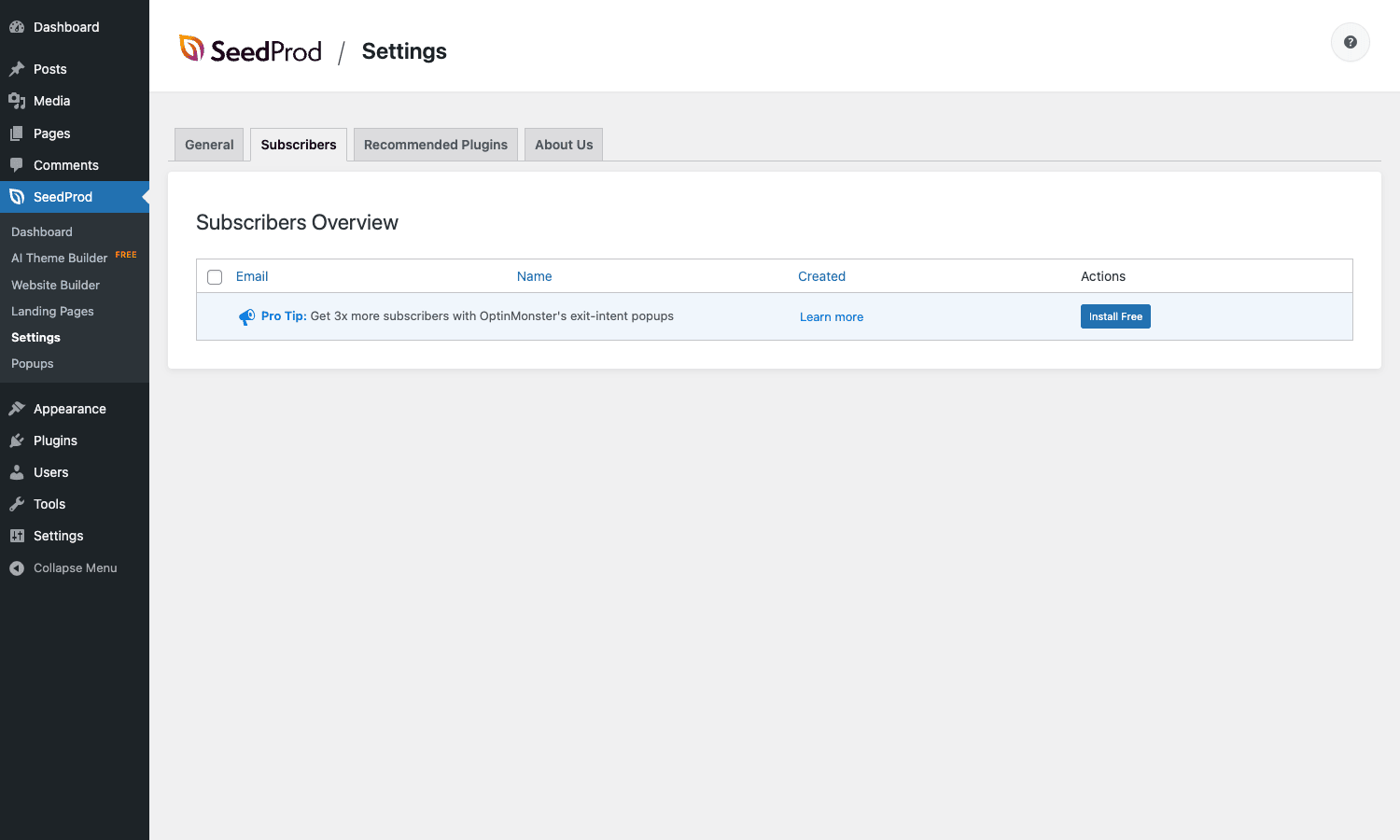
- Optin forms with a built-in subscriber list. SeedProd stores subscribers inside WordPress by default, and integrates with Mailchimp, ActiveCampaign, ConvertKit, AWeber, Drip, GetResponse, Constant Contact, MailPoet, Sendy, Campaign Monitor, MadMimi, iContact, and Mailster on top of that.
- Conversion blocks out of the box: countdown timers, pricing tables, testimonials, business reviews with star ratings, contact forms, social profile icons, social share buttons, buy-now buttons for WooCommerce and Easy Digital Downloads.
- WooCommerce and EDD integration with shortcodes and dedicated blocks (
[sp_archive_products],[seedprod_wc],[sp_edd_downloads_grid],[sp_buy_now_button],[sp_edd_cart],[sp_edd_checkout],[sp_edd_add_to_cart]). - AI theme generator. A newer dashboard section that asks you a few questions and produces a full theme template set you can edit.
- Custom CSS, custom code blocks, and custom field rendering via the
[sp_custom_field]shortcode that pulls from native meta or ACF fields.
That is a lot for one plugin. Whether it earns its place on your site depends on which of those jobs you actually need.
How it works (for users)
SeedProd Pro lives at WordPress dashboard > SeedProd after activation. The dashboard tile shows what you have set up and the current mode (Inactive, Coming Soon, Maintenance, Login, or 404). From there you go into Landing Pages to build a single page, or Website Builder if you want SeedProd to render the whole front end.
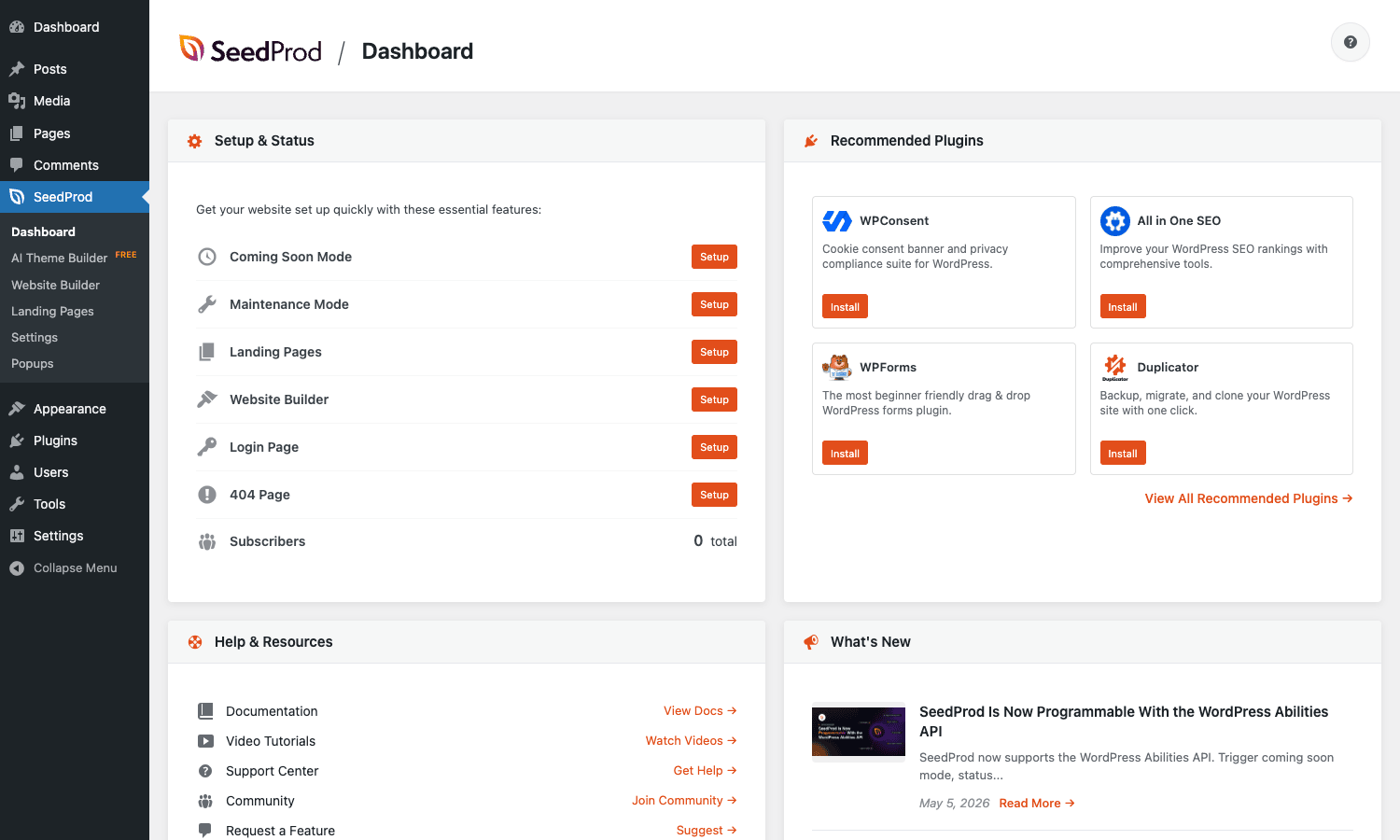
The mental model that helps with SeedProd: a page is just a row of sections, a section is a row of columns, a column is a stack of blocks. The blocks are the things you drag in (heading, image, button, optin, countdown, etc.). Each one has a content tab, a template-styling tab, and an advanced tab on the right.
Pages built with SeedProd live in their own custom post type called seedprod, not in the page or post post type. That is important to remember if you ever search for them in the WordPress admin and cannot find them. They show up under SeedProd > Landing Pages.
A SeedProd page can be assigned to a normal URL slug, or it can sit behind one of the modes and only render when the mode is active. So you can build the coming soon page in advance, switch the mode on when you launch, and the same page suddenly takes over.
The builder is responsive-aware. There are device-preview buttons at the bottom of the editor, and most styling controls have a desktop/tablet/mobile toggle so you can set different margins, font sizes, and visibility per device.
Installation and setup
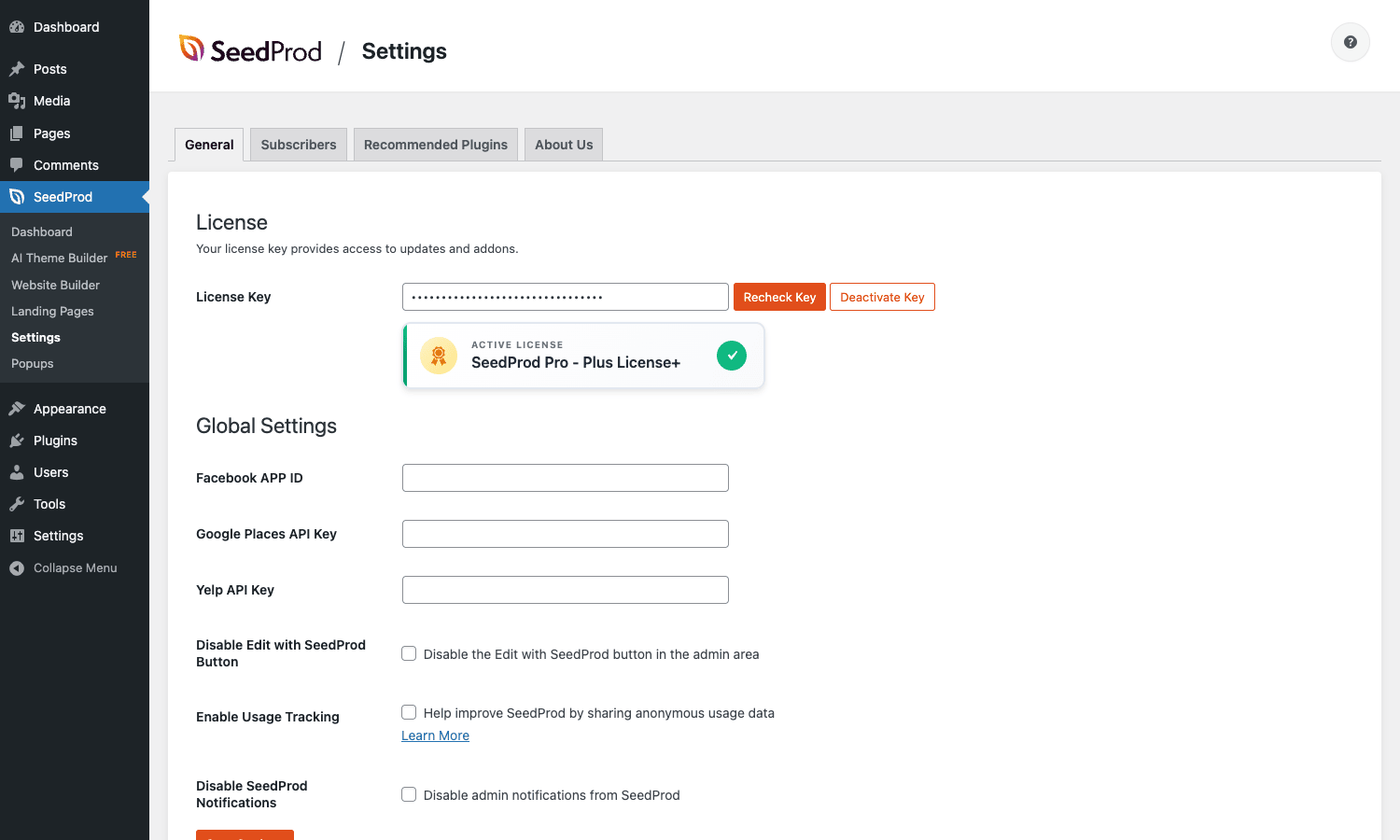
SeedProd Pro installs like any premium WordPress plugin. Upload the ZIP at Plugins > Add New > Upload Plugin, activate, then enter your license under SeedProd > Settings > License.
After activation:
- The plugin runs
register_activation_hookto register theseedprodpost type, set capabilities, and create the database tables it needs for subscribers and template parts. - The first time you open the SeedProd dashboard, it offers an onboarding flow with a quick prompt about goals (launch a coming soon page, build landing pages, or build a full theme).
- The Settings page exposes the per-screen capabilities (we will get to those in the developer section), the SMTP option for transactional emails, ReCAPTCHA keys, the SSL toggle, and a privacy / GDPR consent block.
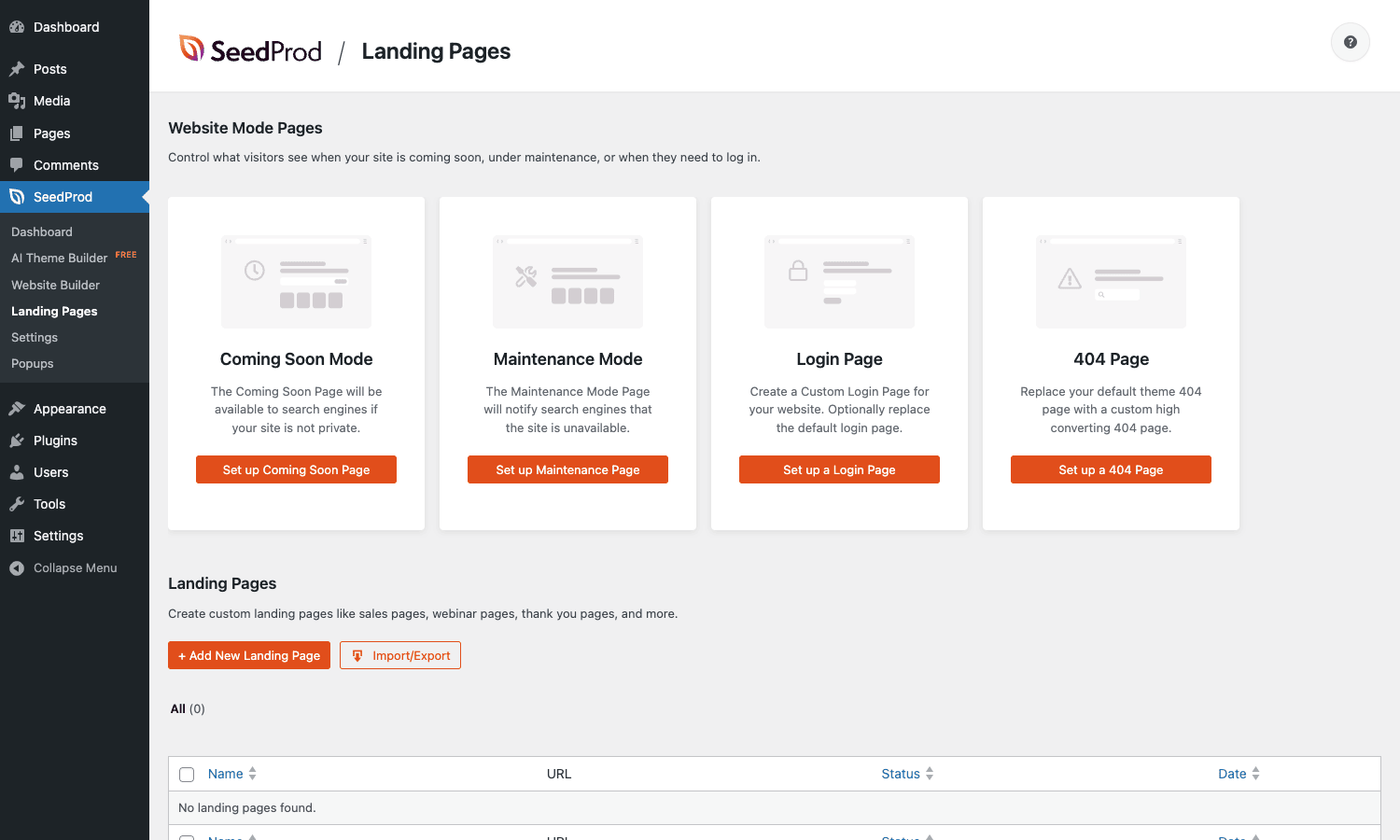
If you only want the coming soon mode, the path is SeedProd > Pages, pick a Coming Soon template, edit it, then switch the mode on under the Coming Soon Mode tile on the dashboard. Saving the page does not activate the mode by itself, which is the single thing most first-time users miss.
If you want SeedProd to take over the whole theme, that lives under SeedProd > Theme Builder (the menu item is labelled Website Builder in newer builds). Pick a template kit, click Apply, and SeedProd asks you to confirm you want it to start rendering the front end. From that point on, your active theme is essentially in a dormant state and SeedProd’s templates render every page.
You can roll back at any time by clicking Disable in the Theme Builder. The plugin sets a single option to flip the theme on or off, it does not delete or modify your theme files.
The drag-and-drop builder
The editor is single-page, client-side, and feels closer to Brizy Pro than to the iframe-heavy editors of Elementor Pro or Divi. That is by design. SeedProd renders the canvas inside the same document as the editor controls, which makes the drag interaction feel snappy because there is no cross-frame postMessage handshake on every action.
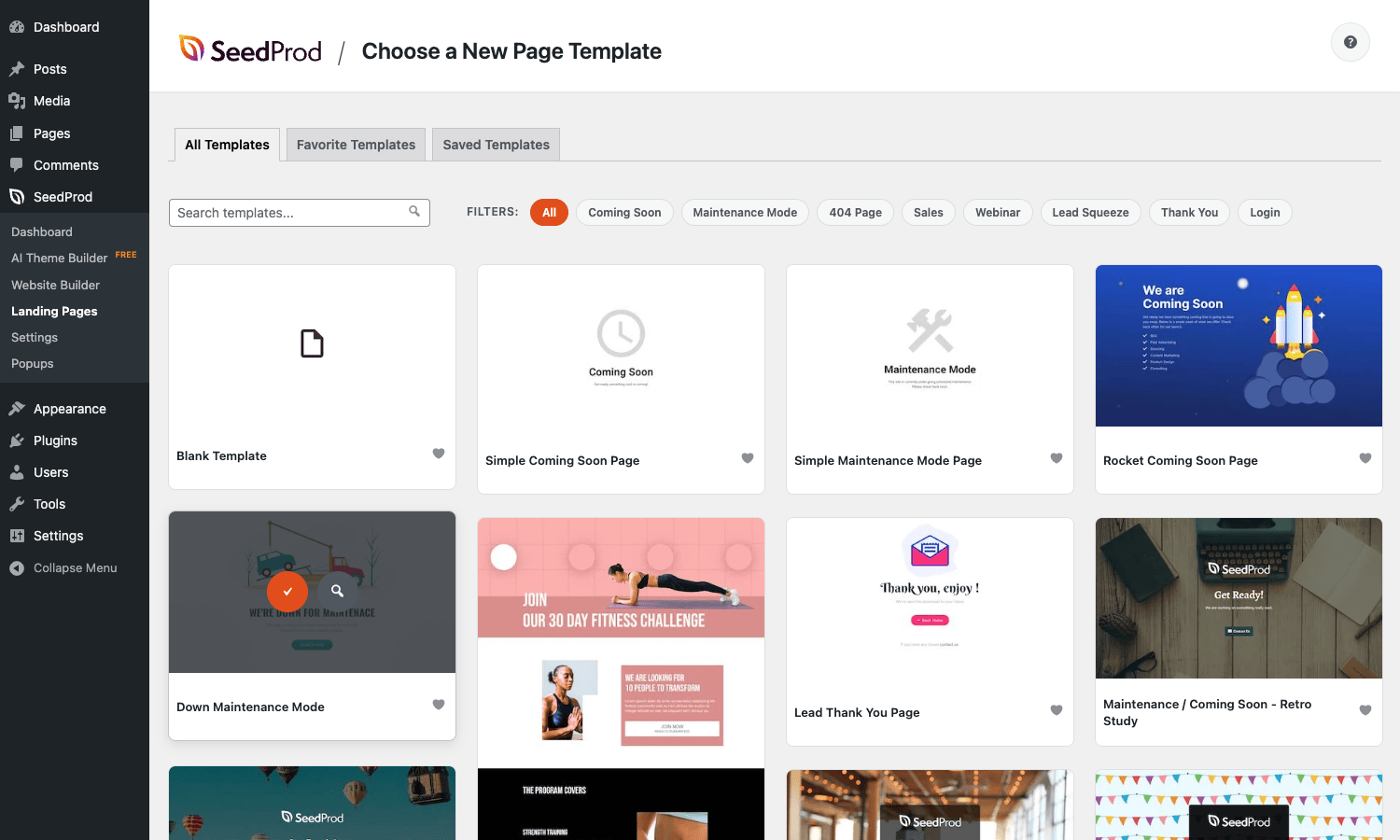
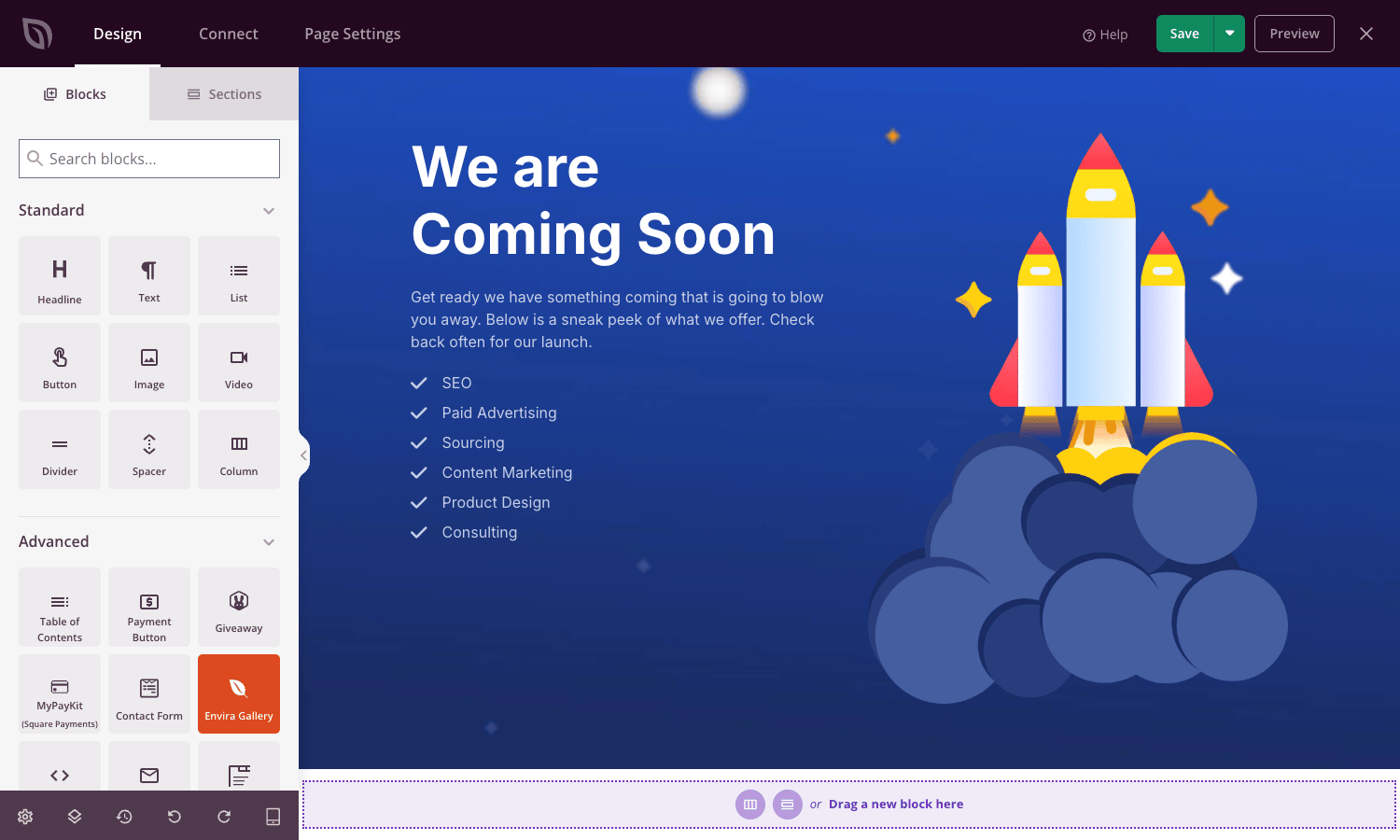
The left panel has tabs for Blocks, Sections, Templates, Global Settings, and Page Settings. The right panel is contextual: click any element and its content, design, and advanced settings load there.
Blocks fall into a few groups:
- Standard blocks (heading, text, image, button, divider, spacer, video).
- Advanced blocks (countdown, contact form, optin form, giveaway, pricing table, testimonials, social profiles, social sharing, business reviews, star ratings, anchor link, code).
- WooCommerce blocks (product grid, archive products, buy now buttons, recent products).
- EDD blocks (downloads grid, cart, checkout, add-to-cart).
- Template tag blocks for theme builder templates (post title, post content, post meta, featured image, post loop, navigation, comments).
The Sections tab is the time-saver. Each section is a pre-built row (a hero, a feature grid, a CTA strip, a pricing block) you drag onto the canvas. They use the same styling system as the rest of the page, so you can mix sections without ending up with three different fonts on one screen.
Global Settings is where you set the site-wide font family, font size, headline color, body color, and primary brand color. SeedProd writes those into CSS custom properties that every block reads from, which is why changing one swatch ripples through the whole page in real time.
Page Settings has the SEO and analytics fields (title, meta description, custom CSS, custom header scripts, custom body scripts, custom footer scripts), the page slug, and the publish status.
Coming soon, maintenance, login, and 404 modes
These four modes are the historical reason SeedProd became popular, and they are still the cleanest way to put a WordPress site into a temporary state.
Coming soon mode intercepts every front-end request and serves your SeedProd page instead of the normal site. Logged-in administrators see the regular site as usual. You can also let bypass users in (the [seed_bypass_form] shortcode renders a small form on the coming soon page itself for that). Coming soon mode returns HTTP 200, because the site is technically live, just hidden from anonymous visitors.
Maintenance mode returns HTTP 503 Service Unavailable, which is the correct status code to send to search engines while you work on the site. Google treats 503 as "come back later" and does not de-index your pages. If you launch maintenance mode and forget to turn it off, your SEO will not silently rot the way it would behind a redirect.
Login mode replaces wp-login.php with a SeedProd page. This is helpful when you want a branded login experience for membership sites, or just when you want to hide that you are running WordPress.
404 mode swaps the theme’s 404 template for a SeedProd one. The page is rendered by SeedProd’s own routing, so it is the same template no matter which theme is active.
All four modes share the same toggles on the SeedProd dashboard. You can run more than one at the same time (login mode + maintenance mode is a common pairing during a launch window).
The modes are stored as plugin options and resolved on every front-end request via the template_include filter. That means switching them on and off is instant and does not require a deployment.
Theme builder and full-site templates
The theme builder is where SeedProd starts to overlap with Bricks, Beaver Themer, and Elementor Pro’s theme builder. You build full templates (header, footer, single, archive, page, search, 404) inside SeedProd and assign each one a conditional rule.
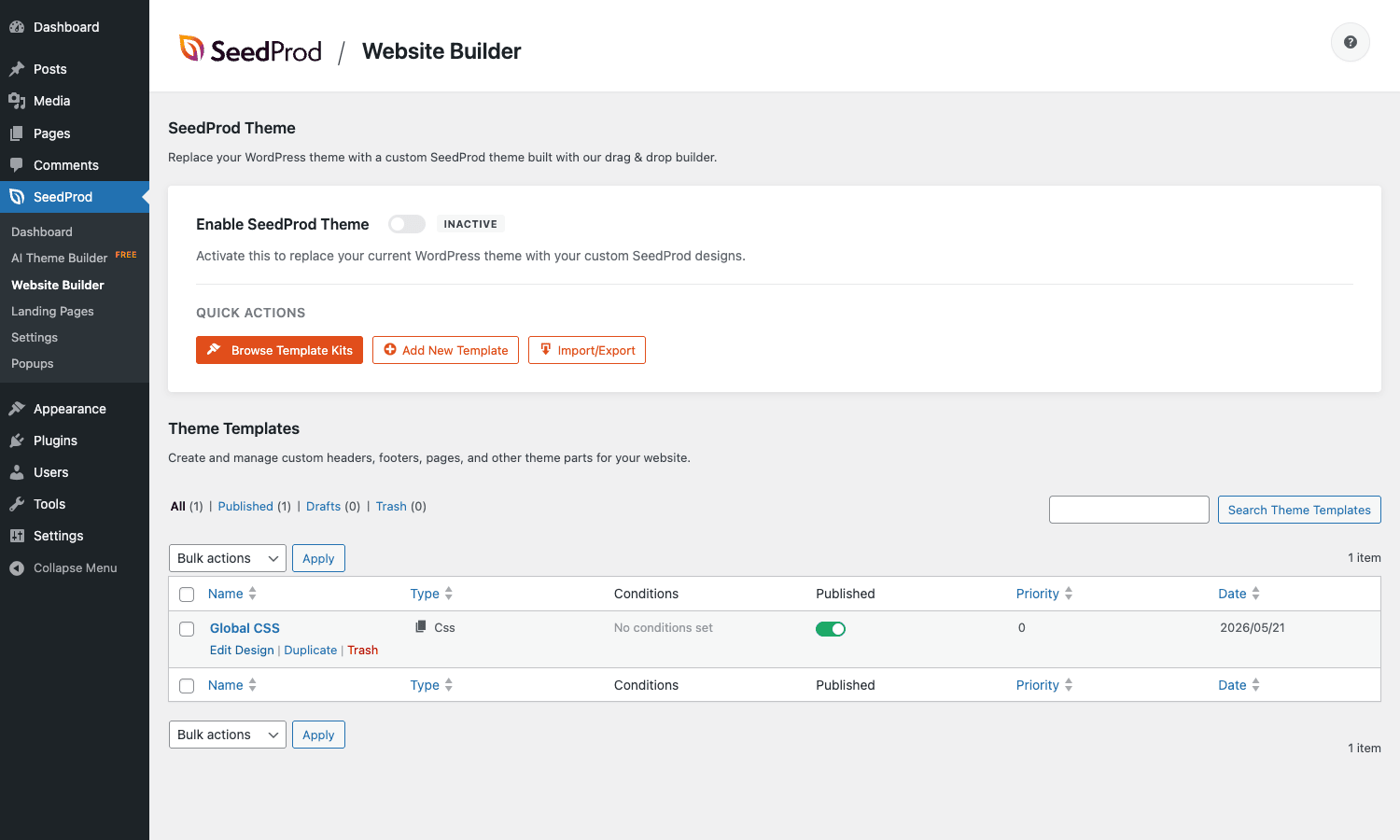
Conditional rules can be:
- All pages.
- A specific post type (post, page, product, download, custom).
- A specific taxonomy term (Category = News, Tag = Featured).
- A URL (regex or plain match).
- A user role.
- A logged-in versus logged-out user.
- A specific date range.
When a page request comes in, SeedProd evaluates the rules in priority order and renders the first matching template. If nothing matches, it falls back to your real theme.
This is powered by app/render-theme-template.php, which hooks template_include and decides whether to short-circuit the normal WordPress template hierarchy. The seedprod_disable_theme_load filter is the developer escape hatch if you need to keep the underlying theme active on specific URLs.
The big practical win is that you can build a header and footer once, drop dynamic blocks for navigation, site title, and search, and use the same template across every page type. The big practical limitation is that SeedProd’s blocks are not as deep as Elementor Pro’s or Bricks’ on the developer side. If you need a complex post loop with ACF relationships and meta queries, SeedProd will get you 80% of the way there and the last 20% requires custom code or shortcodes.
WooCommerce theme builder support is in there too. You can build single product, shop archive, cart, checkout, and my-account pages from inside SeedProd. The plugin attaches its renderable templates by removing the default WooCommerce hooks for those endpoints; the seedprod_pro_remove_brw_hooks filter is where you customize which hooks get stripped if you need WooCommerce to keep some of its own rendering.
Real-world use cases
1. Product launch landing page. A solo founder or small team building a SaaS or info product can use SeedProd to put up a coming soon page with an optin form. The form writes to the built-in subscriber list and (optionally) syncs to ActiveCampaign or FluentCRM Pro for a more advanced welcome sequence. When the product is ready, switch off coming soon mode and the landing page stays as the homepage.
2. WooCommerce sale or event page. Build a sales page with a countdown timer, pricing tables, testimonials, and buy-now buttons that go straight to the WooCommerce checkout. The page can live at /black-friday/ and bypass the rest of the site’s layout entirely.
3. Maintenance window during a migration. Flip maintenance mode on, do your work, flip it off. The 503 status code keeps Google from caching the maintenance page as if it were the real homepage, which is the failure mode you see when people put up a "we’re updating" page using a redirect or a hardcoded HTML file.
4. Membership site login replacement. Use login mode to replace the default WordPress login with a branded page that matches the rest of your site. Pair it with a MonsterInsights goal so you can measure how many people who land on the login actually complete the sign-in.
5. Full small-business site without a separate theme. Use the website builder to render every page through SeedProd. This is the riskiest move because you give up theme flexibility, but for a small site that is mostly a landing page, an about page, a services page, and a contact page, it is genuinely simpler than buying a theme and learning its options. You build the templates, you control everything visually, you do not have a theme update to worry about.
6. Quick microsite for a campaign. Stand up a microsite at a subdirectory like /event/ using a few SeedProd pages and a theme builder template for the event header and footer. When the event is over, delete the SeedProd pages and disable the theme.
Developer reference
SeedProd is more developer-friendly than its drag-and-drop marketing makes it sound. The plugin exposes a long list of capability filters, a couple of content filters, and a handful of shortcodes you can use anywhere in your site.
Capability filters
Every admin screen and important action has its own capability filter. The default is manage_options, which is the admin capability. If you want editors or a custom role to touch SeedProd, you change the capability via these filters. Pick whichever applies and return the WordPress capability string you want.
add_filter( 'seedprod_main_menu_capability', function( $cap ) {
 return 'edit_seedprod_pages';
} );

add_filter( 'seedprod_settings_menu_capability', function( $cap ) {
 return 'manage_seedprod_settings';
} );

add_filter( 'seedprod_builder_menu_capability', function( $cap ) {
 return 'edit_seedprod_pages';
} );

add_filter( 'seedprod_lpage_capability', function( $cap ) {
 return 'edit_seedprod_pages';
} );
Other capability filters in the same family: seedprod_dashboard_menu_capability, seedprod_gopro_menu_capability, seedprod_navmenu_capability, seedprod_license_capability, seedprod_archive_pages_capability, seedprod_debug_menu_capability, seedprod_ai_themes_menu_capability, seedprod_builder_preview_render_capability, seedprod_save_settings_capability, seedprod_save_app_settings_capability.
If you pair this with the User Role Editor plugin or a custom role-mapper, you can give a content team access to landing pages without giving them full admin.
Content filter
seedprod_lpage_content runs over the rendered HTML of a landing page just before it is sent to the browser. This is where you can inject scripts, rewrite URLs, or do any last-mile transformation.
add_filter( 'seedprod_lpage_content', function( $html ) {
 // Replace a token in the page content with a dynamic value.
 $current_year = date( 'Y' );
 return str_replace( '[current_year]', $current_year, $html );
} );
Wrap any token-like brackets in your article copy so they do not get parsed by other plugins. In production code, just use literal brackets.
Theme rendering filters
seedprod_allow_theme_display, seedprod_disable_theme_load, seedprod_excluded_template, and seedprod_excluded_posttypes control when SeedProd’s theme builder takes over from WordPress. If you have a post type that you do not want SeedProd to render (say, a custom listing post type with its own templates), you exclude it here.
add_filter( 'seedprod_excluded_posttypes', function( $excluded ) {
 $excluded[] = 'listing';
 $excluded[] = 'event';
 return $excluded;
} );

add_filter( 'seedprod_disable_theme_load', function( $disabled, $template ) {
 // Disable SeedProd theme load on a specific URL.
 if ( is_singular( 'product' ) && get_query_var( 'show_native_template' ) ) {
 return true;
 }
 return $disabled;
}, 10, 2 );
Google Fonts
SeedProd loads Google Fonts on every page that uses a non-system font. If you self-host fonts or want full control over font loading, turn it off:
add_filter( 'seedprod_allow_google_fonts', '__return_false' );
The plugin still respects the font choices you made in the builder, it just stops loading the Google CDN. You will need to register the fonts yourself in your child theme.
Viewport and meta tags
The seedprod_meta_content_viewport filter overrides the viewport meta tag that SeedProd emits on its own pages. Useful if you want a non-default initial scale or maximum scale.
add_filter( 'seedprod_meta_content_viewport', function() {
 return 'width=device-width, initial-scale=1, maximum-scale=5';
} );
Custom code blocks
If you let editors drop the Custom Code block onto a SeedProd page, the output runs through the seedprod_the_code filter before rendering. You can use this to sanitize what editors are allowed to embed.
add_filter( 'seedprod_the_code', function( $code ) {
 // Strip script tags from any custom code block on a landing page.
 return preg_replace( '#<script\\b[^>]*>.*?</script>#is', '', $code );
} );
Subscriber list
The single useful action hook is seedprod_add_subscriber. It fires after a new email is added to the built-in subscriber list, and it passes the subscriber object so you can sync to whatever CRM you want.
add_action( 'seedprod_add_subscriber', function( $subscriber ) {
 // Forward to an external CRM that SeedProd does not natively integrate with.
 wp_remote_post( 'https://crm.example.com/api/contacts', array(
 'headers' => array( 'Content-Type' => 'application/json' ),
 'body' => wp_json_encode( array(
 'email' => $subscriber->email,
 'first_name' => $subscriber->first_name,
 'list_id' => 'launch-waitlist',
 ) ),
 ) );
} );
Combine this with WPForms Pro on your contact pages and you have one CRM destination receiving both landing page optins and full contact submissions.
Shortcodes
SeedProd registers a stack of shortcodes you can use anywhere on the site, not just inside SeedProd pages:
[seedprod]and[sp_template_part]render a SeedProd template by ID.[sp_custom_field]prints any post meta or ACF field.[businessreview]renders a business review widget.[seedprod_login_helper]renders a login helper.[seed_bypass_form]renders the bypass form used by coming soon mode.[seedprod_get_permalink]emits the permalink of a SeedProd page.[defaultposts],[customposts],[manualposts]render post lists with various query rules.[sp_archive_products],[seedprod_wc]render WooCommerce blocks.[sp_edd_downloads_grid],[sp_buy_now_button],[sp_edd_cart],[sp_edd_checkout],[sp_edd_add_to_cart],[seedprod_edd]render EDD blocks.
Example of dropping a SeedProd-built section into your single post template:
<?php
// In single.php or wherever you want a SeedProd block to appear.
echo do_shortcode( '[sp_template_part id="42"]' );
echo do_shortcode( '[sp_custom_field name="cta_headline"]' );
?>
WP-CLI commands
SeedProd Pro ships a wp seedprod namespace via wp-cli-functions.php. The exact subcommands depend on the build, but you generally get:
wp seedprod activateto flip a mode on programmatically (useful in deployment scripts).wp seedprod export <id>to export a template as JSON.wp seedprod import <file>to bring a template back in.
That makes it possible to commit a template export to your repo, ship it to staging and production with a deploy hook, and keep landing pages out of the database backup-restore cycle.
Performance, compatibility, and gotchas
SeedProd’s pages are surprisingly lean on the front end. The CSS is a minimal stylesheet generated per page, not the full theme stylesheet. There is no jQuery dependency on the front end (the optin form and countdown timer ship as vanilla JS). For a coming soon page that needs to load in under half a second on a cold cache, SeedProd is one of the lightest options.
That said, here are the gotchas worth knowing.
Theme builder overrides your active theme. When you enable the website builder, your real theme stops rendering on the front end. Its functions.php and its plugins still run, but its templates do not. If you have theme-specific functionality in header.php or footer.php, you need to either replicate it in SeedProd or write a snippet in a WPCode Pro-style plugin instead.
Caching plugins can serve stale coming soon pages. If you switch off coming soon mode and visitors still see it, clear your page cache. The SeedProd mode toggle invalidates the plugin’s internal cache, but it cannot reach into the page cache of WP Rocket or LiteSpeed Cache. Most decent cache plugins clear automatically when the homepage option changes, but not every plugin is that smart.
Theme builder + WooCommerce can conflict with theme-provided WooCommerce templates. If your theme has heavily customized WooCommerce templates and you turn on SeedProd’s WooCommerce theme builder, you may need the seedprod_pro_remove_brw_hooks filter to keep some hooks attached.
ACF integration is shortcode-based. The [sp_custom_field] shortcode reads ACF values, but it does not give you the full PHP-style ACF access you would get inside a custom Elementor widget or a JetEngine listing. For deep ACF integration with repeaters and relationships, you will still want a custom template or a stronger builder.
No native conditional logic on blocks. SeedProd does not yet have a "show this block only if logged in" toggle at the block level the way some competitors do. You can work around it with the Custom Code block and a [<?php if ... ?>] block, but it is not as friendly as Elementor Pro’s visibility controls.
Page builder lock-in. Like every page builder, SeedProd stores its content as JSON in post meta. If you ever uninstall the plugin, your SeedProd pages stop rendering and you are left with empty WordPress pages. Export your templates with wp seedprod export before you remove the plugin, or rebuild important pages in the block editor first.
Pricing and licensing
SeedProd Pro is licensed annually direct from seedprod.com. The tiers are roughly:
- Lite (free): coming soon and maintenance modes only, no premium blocks, no theme builder.
- Basic: single site, basic blocks, no theme builder.
- Plus: three sites, basic email integrations.
- Pro: five sites, full theme builder, full email integration list, WooCommerce and EDD blocks.
- Elite: unlimited sites, agency features, white label, advanced subscriber management.
GPL Times sells the Pro+ tier as a one-time download with the standard GPL terms. That means you can install it on any number of your own sites and your clients’ sites, with no annual renewal. You do give up automatic updates from seedprod.com (we ship updates as new ZIPs on the product page when they land), but the plugin itself is identical to the upstream build.
If you are choosing between paying SeedProd directly and grabbing it from GPL Times, the trade-off is: subscription convenience and direct vendor support versus a one-time purchase with no auto-update channel. Both routes ship the same plugin code.
How it compares to other page builders
I get asked this a lot, so here is the short version.
SeedProd Pro versus Elementor Pro. Elementor Pro has a much deeper widget ecosystem and richer theme-builder conditions. SeedProd is lighter on the front end and easier to get a landing page live in under an hour. If you want one builder that runs your whole site and you need third-party widgets for everything, Elementor Pro wins. If you want a fast coming soon page or a single landing page, SeedProd wins.
SeedProd Pro versus Beaver Builder Pro. Beaver Builder Pro is rock solid for client work and has a fanatical developer community, but it does not have a built-in coming soon or maintenance mode and its theme builder requires the separate Beaver Themer addon. SeedProd ships all four modes plus the theme builder in one plugin. If you are an agency that already has a Beaver Builder workflow, do not switch. If you are starting fresh on a marketing site, SeedProd is the faster setup.
SeedProd Pro versus Divi. Divi is a theme plus a builder; SeedProd is a plugin that can replace your theme if you want it to. Divi has more polished design templates out of the box. SeedProd has lighter front-end output and a clearer separation between "edit this one page" and "edit my whole site".
SeedProd Pro versus Bricks. Bricks Builder is a theme + builder aimed at developers. It has stricter, more codey controls (CSS-class-first, design-system-first), and it absolutely dominates for performance and developer ergonomics. SeedProd is friendlier to non-developers and to teams who want preset templates rather than design from scratch. If your audience is "I am a designer who knows CSS", choose Bricks. If your audience is "I am a marketer who needs a landing page by Friday", choose SeedProd.
SeedProd Pro versus Brizy Pro. Both are landing-page-first builders. Brizy Pro leans harder into the visual editing experience and has a cleaner UI. SeedProd has a deeper integration with email services and the four modes (coming soon, maintenance, login, 404) baked in. For pure visual editing speed, Brizy is competitive. For everything-in-one-plugin, SeedProd is ahead.
SeedProd Pro versus Thrive Architect. Thrive Architect is part of the Thrive Suite and is heavily marketing-focused, with deep tie-ins to Thrive Leads, Thrive Quiz Builder, etc. SeedProd does not have an in-house quiz builder or A/B testing tool, but it integrates with most CRMs directly. If you are committed to the Thrive ecosystem, stay there. If you want a single plugin with conversion blocks plus modes plus theme builder, SeedProd is the simpler answer.
FAQ
Is SeedProd Pro the same as the free SeedProd plugin?
No. The free version on WordPress.org only ships coming soon and maintenance modes. The Pro version adds the drag-and-drop builder, the template library, the conversion blocks, the email integrations, and the theme builder.
Will SeedProd Pro work with my existing theme?
Yes, until you turn on the website builder. While SeedProd is only managing landing pages or coming soon mode, your real theme continues to render the rest of your site as normal. Once you enable the theme builder, SeedProd takes over the front end and your theme stops rendering.
Does SeedProd Pro slow down WordPress?
The front-end output is light. The admin builder is heavier (it loads the full editor app), but that only affects you, not your visitors. If you are obsessing over Core Web Vitals, SeedProd pages tend to score better than the equivalent page built in Elementor or Divi because the CSS is generated per page rather than loaded as a global stylesheet.
Can I move a SeedProd page to a regular WordPress page later?
Partially. You can copy the rendered HTML, but the JSON structure that SeedProd uses is not portable to the block editor or to another builder. Treat SeedProd pages as locked into SeedProd, and export them with the WP-CLI export command if you need them in version control.
What happens if I deactivate SeedProd Pro?
Your landing pages will stop rendering and visitors will see broken or empty pages where SeedProd content used to be. If you had the theme builder enabled, your real theme starts rendering again. Coming soon and maintenance modes turn off. Always export your templates before you uninstall.
Does it work with WooCommerce?
Yes. The Pro version ships WooCommerce blocks, a WooCommerce template tag shortcode, and full theme builder support for shop, product, cart, checkout, and my-account pages. There are minor edge cases where your existing WooCommerce theme can conflict with SeedProd’s templates; the seedprod_pro_remove_brw_hooks filter exists to handle those.
Is there an MX or DNS-level coming soon mode?
No. SeedProd’s coming soon mode runs at the WordPress layer, after the request reaches your site. If you need to serve a coming soon page before traffic even hits WordPress (for example during a major outage), use a Cloudflare Workers route or a static HTML page deployed in front of WordPress instead.
Can the subscriber list export to a real CRM?
Yes. SeedProd’s optin block has native integrations with the major email tools (Mailchimp, ActiveCampaign, ConvertKit, AWeber, Drip, etc.). For anything else, the seedprod_add_subscriber action fires when a new subscriber is added and you can push them anywhere via wp_remote_post.
Final thoughts
SeedProd Pro is the rare WordPress plugin that I install on almost every new marketing site I touch, even when I have a different page builder for the main site. The coming soon mode alone is worth keeping it around, and the fact that it also covers maintenance, login, and 404 modes means I am not stacking three different plugins to handle launch logistics.
The drag-and-drop builder is good. Not the best in WordPress, but solidly in the top tier, and it gets out of your way more than Elementor or Divi do. The theme builder is the surprise piece. It is not as deep as Elementor Pro’s or Bricks’, but it is good enough to run a small business site without buying a separate theme, and that is genuinely useful for clients who want one less moving part.
If you are stuck between SeedProd and a heavier builder, here is the rule I use. Marketing site with under 20 pages, lots of landing pages, occasional coming soon and maintenance windows: SeedProd Pro. Editorial site, multi-author blog, e-commerce store with complex product templates: keep your existing theme and use SeedProd just for the modes.
Install, activate, click into the dashboard, and you can be editing a landing page in about 90 seconds.
External references worth bookmarking: the official SeedProd documentation, the free SeedProd plugin on WordPress.org (which is a good way to see the underlying activation flow), the SeedProd features overview, and the WordPress page template documentation for understanding how the theme builder hooks into the template hierarchy.