

LearnDash is the LMS WordPress reaches for when "online course" stops being a buzzword and starts being a real product. Universities use it. Corporate training departments use it. Solo creators selling a $500 cohort use it. The reason is consistent: LearnDash treats course building as its only job, the data model is honest (courses, lessons, topics, quizzes, groups, each a custom post type), and the plugin has been around long enough that integrations exist for every payment processor, every membership tool, every page builder you’re likely to pair it with.
This review walks through what LearnDash actually does, in the order you’d hit it as a first-time course creator. We’ll plan a course, build it with the Course Builder, add a quiz, set up drip scheduling, and look at how groups, certificates, and reports work. Then we’ll spend the back half on the developer surface, because most "can it do X?" questions get answered there.
Table of Contents
- What is LearnDash LMS?
- How a course actually gets built
- Key features
- How it works (for users)
- Installation and setup
- Drip content, prerequisites, and access
- Quizzes, certificates, and assignments
- Selling and integrating
- Real-world use cases
- LearnDash vs the alternatives
- Developer reference
- Performance, compatibility, and gotchas
- Pricing and licensing
- FAQ
- Final thoughts
What is LearnDash LMS?
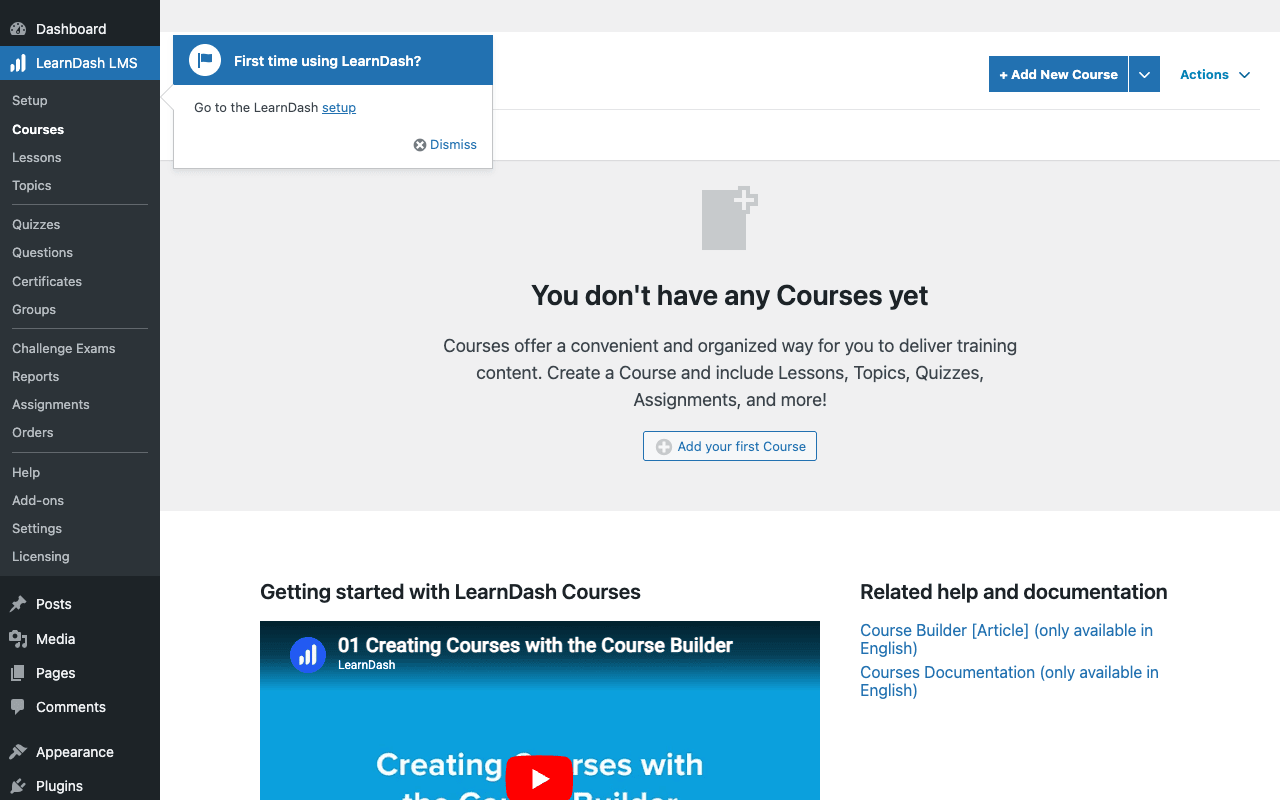
LearnDash is a WordPress plugin (currently owned by Liquid Web’s StellarWP family) that turns a WordPress site into a full Learning Management System. You install it, a "LearnDash LMS" menu appears in the admin, and you start building courses by adding Lessons, Topics (mini-sub-lessons), Quizzes, and Assignments. Each is a custom post type. Each can be associated with a Course via the Course Builder. The Course is then sold (or given) to a student, who works through it linearly or with drip-scheduled unlocks, with quizzes and assignments along the way.
It is not a marketplace. LearnDash doesn’t connect you to students. You bring your own audience, your customers, your mailing list, your community, and LearnDash hosts the courses for them.
It is not an email course tool either. LearnDash is for structured, gated content with assessments. If you just want a five-email drip about your topic, use an ESP. LearnDash starts paying off when the course has dozens of lessons, quizzes that decide progression, and assignments that need human grading.
The reason people pick LearnDash over hosted platforms (Teachable, Thinkific, Kajabi, Podia) is the math and the control. Hosted platforms charge a monthly fee plus transaction fees. LearnDash is a one-time license (or a subscription, depending on tier) and the data lives in your own database. You also keep full control over the design, your theme, your branding, your custom post type integration with the rest of the site.
How a course actually gets built
Before we walk through panels, let’s follow one course end-to-end. Knowing the loop makes every setting make sense.
Priya is building a "WordPress for Beginners" course. She has ten lessons in her head, each with two or three sub-topics, plus a quiz after every lesson and a final exam at the end. She wants the course to drip, students see Lesson 1 immediately, Lesson 2 a week later, Lesson 3 the week after, and so on. She wants a printable certificate at the end.
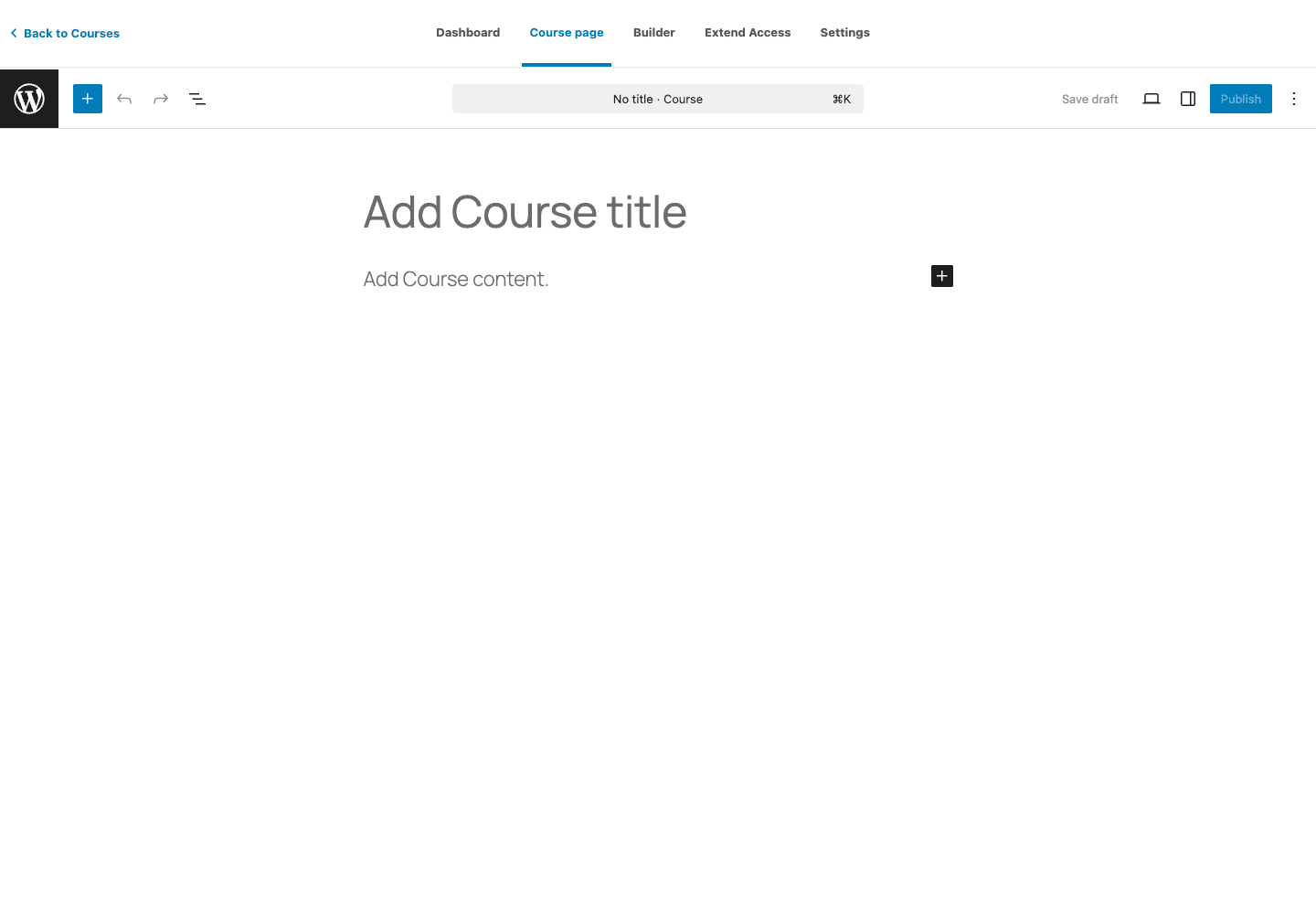
She installs LearnDash. Goes to LearnDash LMS → Courses → Add New. Types "WordPress Essentials" as the title. The Gutenberg editor opens with five tabs at the top: Dashboard, Course page, Builder, Extend Access, Settings.
She skips Course page (the descriptive body) for now and clicks Builder. This is where the structure goes. She clicks "New Lesson", types "Installing WordPress". Clicks again, "Domain and hosting". Eight more lessons. Inside each lesson she expands and adds 2-3 Topics ("Choosing a hostname", "DNS basics"). Inside each Lesson and after the topics she adds a Quiz. The structure tree fills up like an outline.
She clicks Settings tab. Sets the course to "Linear" progression (each step must be completed before the next unlocks). Sets a course price ($199 one-time). Picks a certificate.
For each Lesson, she opens its own settings panel and ticks "Visible after". Lesson 2: 7 days after course enrollment. Lesson 3: 14 days. And so on. That’s the drip schedule.
She clicks Course page tab and writes the sales body, the landing page content visitors see before they buy.
Publishes the course. The course is now live at /courses/wordpress-essentials/. She adds a Buy button (via WooCommerce or LearnDash’s own payment integration). A visitor pays, gets enrolled, sees Lesson 1 immediately, completes the quiz, the system records progress, Lesson 2 unlocks after 7 days, and so on through the structure.
That’s the whole loop. Build a course → add lessons/topics/quizzes → configure access and drip → enroll students → track progress.
Key features
The features that distinguish LearnDash from the cheap LMS plugins:
- Course Builder. Drag-and-drop outline view of your entire course structure. Lessons hold Topics hold Quizzes. Final Quizzes sit at the course level. Reorder by dragging.
- Quiz engine. Eight question types: single choice, multiple choice, free text, sorting, matrix sorting, fill in blanks, assessment, essay. Each question can have a points value, a hint, an explanation that appears on submission. Quizzes can be passing-required (the student can’t proceed without passing) or optional.
- Drip content. Lessons can be set to "visible after N days from enrollment" or on a specific calendar date. Combine with linear progression and you have a proper course unfolding over weeks.
- Prerequisites. A course can require completion of other courses first. Useful for a curriculum where Course 200 requires Course 100.
- Groups. Bundle students into Groups (think "classroom", "team", "cohort"). Groups have their own Group Leaders (the teacher role) who can see Group reports. Useful for B2B sales, companies buy access for their employees.
- Certificates. Auto-issued on course completion or on quiz pass. PDF, branded, with the student’s name and the completion date. Built-in editor for the certificate template.
- Assignments. Students upload a file (PDF, video, image) as homework. Instructor reviews, approves or rejects, optionally awards points.
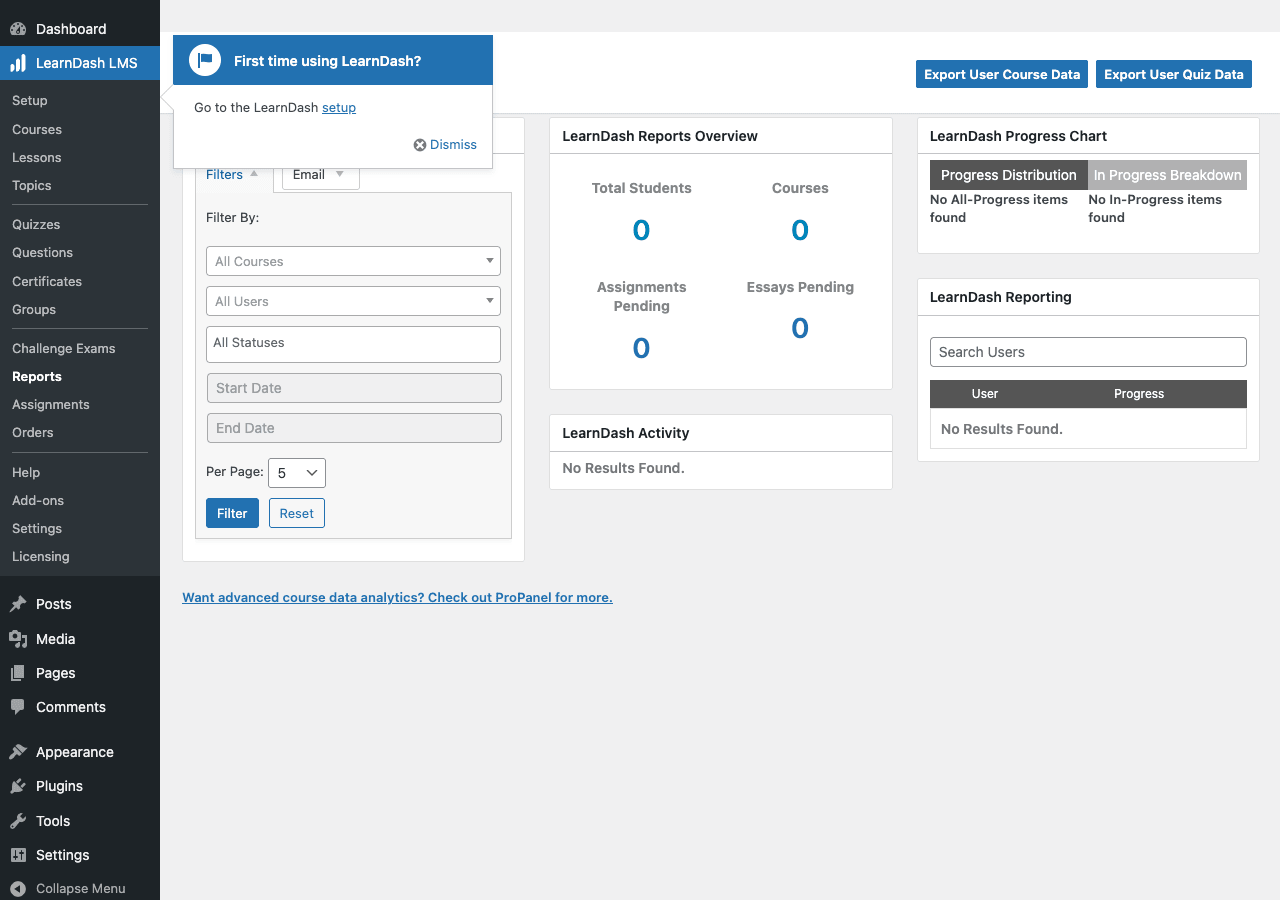
- Reports. Per-student, per-course, per-quiz, with CSV export. Plus the ProPanel add-on for advanced analytics.
- Focus Mode. A distraction-free reading view for lessons, strips the site chrome and shows just the lesson content. Optional per course.
- Course access management. Open, free, buy now (one-time), recurring, closed (enroll manually only), and "by group" access modes. Combine with WooCommerce Subscriptions or membership plugins for any other model.
- Custom post type architecture. Courses, Lessons, Topics, Quizzes, Questions, Certificates, Groups, Assignments, Essays, every concept is a CPT. Everything queryable, taggable, extensible.
- REST API. Read and write courses, lessons, topics, quizzes, users, groups via
/wp-json/ldlms/v1/and/wp-json/ldlms/v2/. - 24+ integrations. With WooCommerce, Easy Digital Downloads, MemberPress, Paid Memberships Pro, Restrict Content Pro, AffiliateWP, Stripe, PayPal, Zapier, Slack, bbPress, BuddyPress, and dozens more.
How it works (for users)
We’ll go through the actual build, panel by panel. By the end of this section you’ll know enough to ship a real course.
Step 1: Plan on paper first
Before you open WordPress, write down the course outline. Lessons, topics inside each lesson, quizzes after each lesson, a final exam. If you can’t write the outline in twenty lines on a sheet of paper, the course isn’t ready to build, refine the idea first.
LearnDash rewards a clear outline. Vague courses become bloated; clear courses become tight.
Step 2: Create the course
LearnDash LMS → Courses → Add New. Type a title. Use the Course page tab for the marketing body (the description, what students get, your bio, FAQ). Save as draft.
Step 3: Build the outline in the Builder
Click the Builder tab. This is the heart of course creation. Click New Lesson, type the title, press Enter. Repeat for every lesson. Inside each Lesson click "New Topic" to add sub-lessons. Drag to reorder. Final Quizzes sit at the bottom, quizzes that the student takes after completing every lesson.
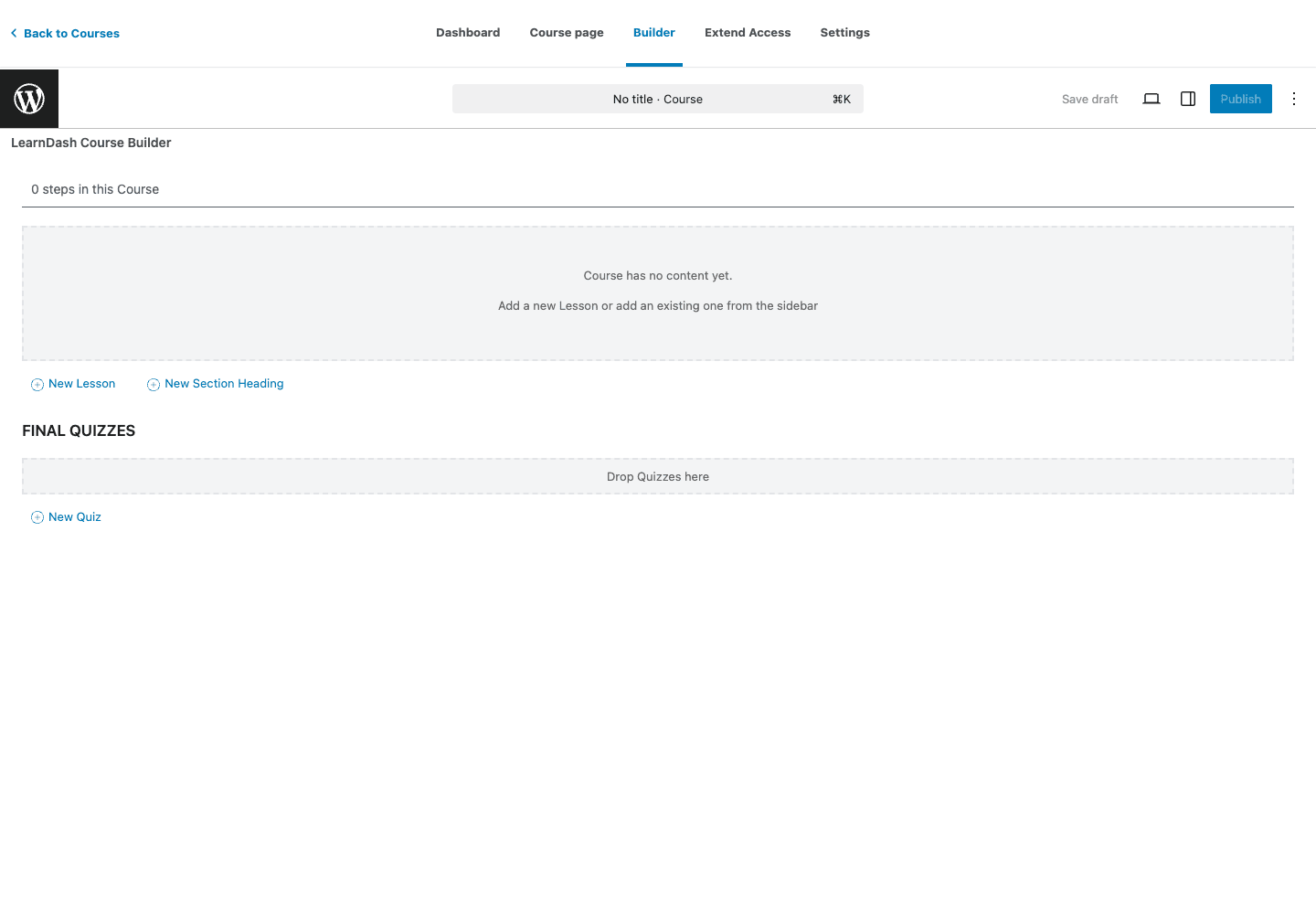
You don’t have to fill in lesson content yet. Build the skeleton first. Filling lessons later, with the skeleton in place, is much faster.
Step 4: Configure course settings
Click the Settings tab on the course. The important ones:
- Course Materials: text shown alongside the lesson list (a "what you’ll need" section).
- Course Price Type: Open, Free, Buy Now, Recurring, Closed.
- Course Access Mode: who can take it, on what terms.
- Course Progression: Linear (must complete each step in order) or Free Form (any order).
- Course Certificate: pick which certificate (you’ll build them under LearnDash LMS → Certificates).
- Course Prerequisites: must complete X course first.
- Course Points: optional gamification (a dedicated plugin like GamiPress takes this much further); students earn points per lesson.
Step 5: Fill in the lessons
Go to LearnDash LMS → Lessons in the admin. Each Lesson is a regular WordPress post (custom post type, but the editor is just Gutenberg). Type the lesson body, add images/videos/code blocks like any other post. Save.
You can also click the lesson title inside the Builder to jump straight to its editor.
Step 6: Add quizzes and questions
LearnDash LMS → Questions → Add New to define a question pool. Each Question is a CPT, write the question, pick the type (single choice, multi-choice, free text, etc.), set the correct answer, set the point value.
Then LearnDash LMS → Quizzes → Add New to define a Quiz, which is a collection of questions. Configure passing percentage, retake policy, hint visibility, time limit.
Attach the Quiz to a Lesson or to the Course via the Builder.
Step 7: Set drip schedules
In each Lesson’s settings panel, set "Visible after" to N days from enrollment, or to a specific calendar date. Save. The lesson now waits until the student has been enrolled for that long before becoming available.
Step 8: Build a certificate
LearnDash LMS → Certificates → Add New. Upload a background PDF or design with the in-editor template. Add shortcodes like [student_name], [course_title], [completion_date] for dynamic fields. Attach the certificate to a course or quiz.
Step 9: Test as a student
Open an incognito window. Register a test user. Enroll the user manually from Users → Edit (or buy the course if you set that up). Visit the course page. Walk through Lesson 1, take the quiz, see the next lesson unlock or wait for the drip period. This is the five-minute check that prevents the worst "course doesn’t work for actual students" failure mode.
Installation and setup
Setup is fast. Most courses are running their first lesson within an hour of plugin activation.
Prerequisites. WordPress 6.7+, PHP 7.4+. Works with any theme but looks best with one that supports full-width sections (most modern themes). For payment integration, install your store plugin first (WooCommerce, EDD, etc.).
Step 1: install from Plugins → Add New → Upload. Activate.
Step 2: paste your license key in LearnDash LMS → Licensing. The plugin offers a setup wizard on first activation; pick "Skip" if you want to configure manually.
Step 3: open LearnDash LMS → Settings. The General tab has the basics:
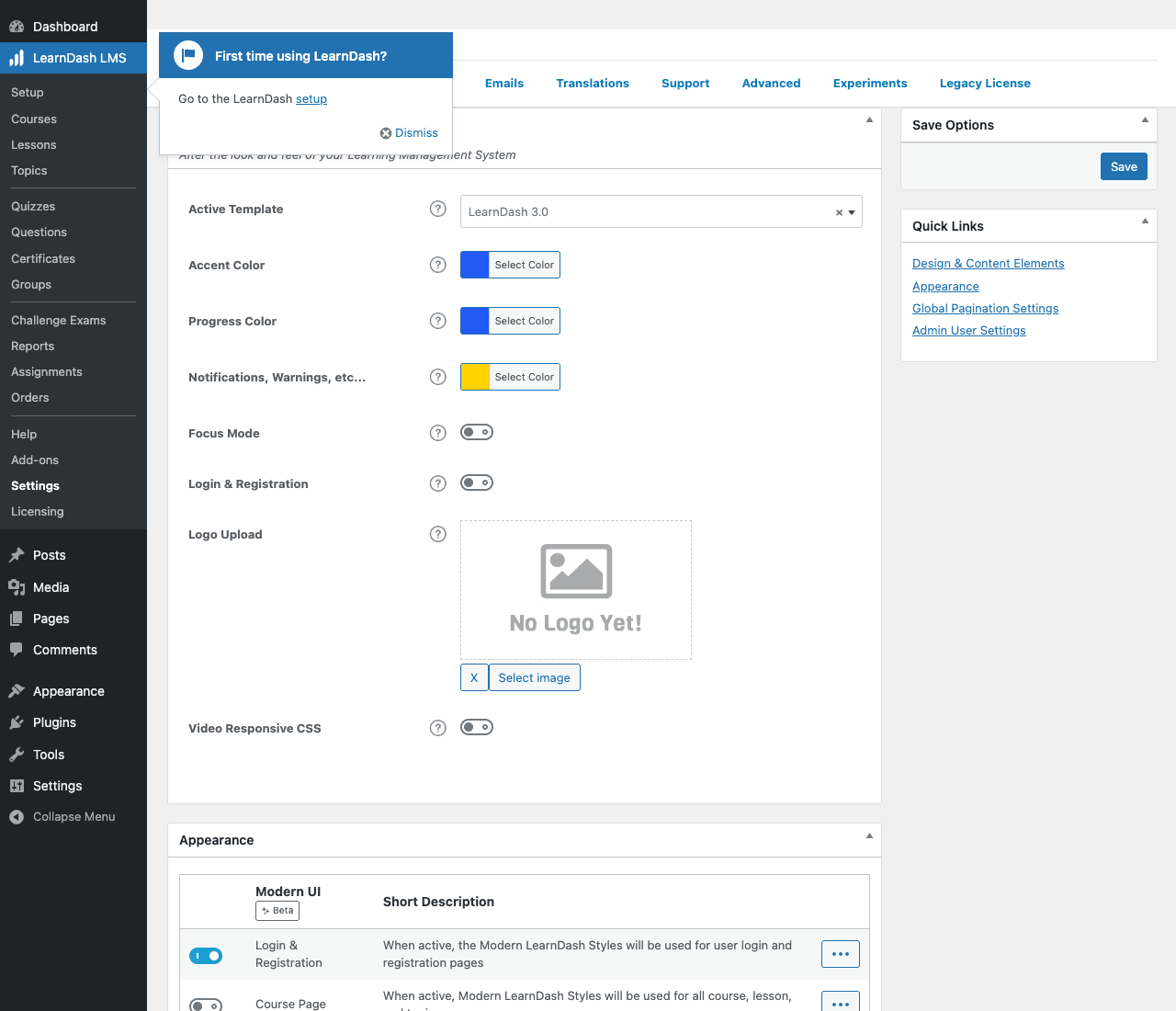
Decisions to make here:
- Active Template: LearnDash 3.0 (the modern responsive template). Don’t pick "Legacy" unless you have a specific reason.
- Accent Color and Progress Color: tweak to match your brand.
- Focus Mode: on or off. Focus Mode is great for serious courses; off is more like a regular blog post.
- Logo Upload: shown on certificates and Focus Mode pages.
Step 4: visit other settings tabs once:
- Payments: connect Stripe, PayPal, configure currency.
- Emails: customize transactional templates (enrollment, completion, certificates).
- Translations: language strings.
- Advanced: post type slugs, REST API, debug logging.
- Experiments: opt into beta features.
Step 5: build your first course (the loop above).
You’re done. Real-world setup including the first lesson takes about an hour.
Drip content, prerequisites, and access
Three features that decide whether your course feels like a real product or a Notion dump:
Drip content. In each Lesson’s settings, "Visible after" sets a delay from enrollment date or a fixed calendar date. Use this for cohort-style courses where everyone unlocks Lesson 2 a week into their enrollment. Pair with Linear Progression so students can’t skip ahead.
Prerequisites. A Course can require completion of another Course first. Useful for curricula: "Advanced WordPress" requires "WordPress Basics". The student sees "locked" until they complete the prerequisite. Configure under each course’s Settings tab.
Access modes. Each Course has an Access Mode setting:
- Open: no enrollment required, anyone can view.
- Free: enrollment required (creates a student record) but free.
- Buy Now: one-time payment via the configured payment gateway.
- Recurring: subscription payment (Stripe or PayPal recurring).
- Closed: enrollment is manual-only, admins or Group Leaders enroll students.
Most paid courses use Buy Now or Recurring. Most internal-training courses use Closed (admin enrolls) or Free (employee registers, you approve).
For more sophisticated access logic, selling courses bundled with other products, time-limited memberships, monthly subscriptions, pair LearnDash with MemberPress or Paid Memberships Pro or Restrict Content Pro, all of which integrate natively.
Quizzes, certificates, and assignments
What separates an LMS from a glorified blog: assessment.
Quizzes support eight question types: single choice, multiple choice, sort answer, matrix sort, free choice (typed answer), fill in the blanks, assessment (rate on a scale), essay (long text answer, manually graded). Each Question is a CPT, you build a library of questions, then assemble Quizzes from them. Quizzes can be:
- Timed (e.g. 30 minutes max)
- Passing-required (the student can’t progress without a passing score)
- Repeatable (one attempt or unlimited)
- Auto-graded (everything but Essay) or manually graded (Essay)
Certificates are PDF documents auto-issued on course completion or quiz pass. Build them with the in-plugin editor: background image, text overlays, shortcodes for student name, completion date, course title, score. Each Certificate is its own CPT, so you can have a different certificate per course or reuse one template.
Assignments let lessons require a file upload. Students upload (PDF, doc, image, video), instructor reviews, approves or rejects, optionally adds a comment. Assignment approval can be required for the lesson to count as complete. Useful for cohort programs where homework matters.
The combination is what makes LearnDash a "real" LMS rather than a content drip. Quiz scores gate progression, certificates reward completion, assignments enforce engagement.
Selling and integrating
LearnDash sells courses through multiple paths. Pick the one that matches your stack.
LearnDash’s built-in payment: Stripe or PayPal directly via the Course settings. Set a Buy Now price, paste your gateway keys, and a Buy button appears on the course page. Simplest setup; works for one-off purchases.
WooCommerce: install WooCommerce, install the LearnDash WooCommerce add-on, create a Woo product that grants access to the course. Best for stores that want a unified cart, multiple products in one transaction, or coupons/discounts.
WooCommerce Subscriptions: for subscription-billed access. See our Subscriptions deep dive for setup details. LearnDash respects the subscription status, cancel the subscription, lose course access.
WooCommerce Memberships: tie course access to a membership plan. Useful when you sell "all-access" memberships across multiple courses.
MemberPress / Paid Memberships Pro / Restrict Content Pro: same idea, bundle one or more courses into a paid membership tier.
Easy Digital Downloads (EDD): an alternative to WooCommerce for digital-only products. Lighter weight, focused on digital goods. The EDD LearnDash add-on wires up course access on order completion.
AffiliateWP: pay commissions to people who refer paying students. Works with all of the above payment paths.
Pick one. Two or more at the same time creates dual sources of truth and gets confusing fast.
Real-world use cases
Five patterns where LearnDash fits especially well:
The indie expert selling one flagship course. A course on, say, copywriting or guitar or Python. $300-700 price tag, fifty lessons, weekly drip over twelve weeks, a final exam, a certificate. LearnDash plus Stripe is enough. Pair with AffiliateWP once you have past students to refer new ones.
The cohort-based course. Live cohorts of 20-50 students per intake. LearnDash hosts the on-demand lessons, drip on a fixed calendar matched to the cohort schedule. Groups feature buckets each cohort separately so instructors can see only their students’ progress.
The corporate / B2B training site. Companies buy access for their employees. Use Groups + Group Leaders so each company manager can see their team’s progress. Pair with MemberPress for billing the company, not each employee.
The university / certification provider. Multi-course curricula with prerequisites. Certificates that match accreditation requirements. Possibly Sensei-style Continuing Education Units (CEUs) tracked per certificate. Big in compliance training and professional certs.
The membership site with courses as a benefit. A monthly membership that includes a growing course library. Pair with Paid Memberships Pro or WooCommerce Memberships. Members get all courses for $X/month.
The pattern: LearnDash starts paying off once the course has assessments, structure, and gating. For a five-video PDF-style course, simpler plugins are cheaper. For anything with quizzes, drip, certificates, or groups, LearnDash is the answer.
LearnDash vs the alternatives
The WordPress LMS market has matured. Quick comparison from real builds:
LearnDash vs LifterLMS: LifterLMS is the closest peer. Both are mature, both have quizzes, certificates, drip, groups. LifterLMS bundles email courses and engagement automation into core. LearnDash separates them as add-ons. LearnDash has the larger third-party integration list. LifterLMS has cleaner first-party tooling but a smaller ecosystem. Most agencies pick LearnDash for client work because of the ecosystem.
LearnDash vs Tutor LMS Pro: Tutor is the newer challenger. Editor is slicker. Course Builder feels more modern. Performance is lighter. But the integration list is shorter, the developer hook surface is smaller, and the brand recognition is lower. If your priority is the prettiest course-creation experience and you don’t need 24+ integrations, Tutor is a real choice. If you need WooCommerce Subscriptions, MemberPress, AffiliateWP and Zapier all wired in, LearnDash.
LearnDash vs Sensei Pro: Sensei is owned by Automattic. Deep WooCommerce integration. Simpler than LearnDash overall, fewer features, fewer settings, faster onboarding. If you’re already 100% WooCommerce and want the lightest LMS that ships courses, Sensei. If you need quizzes that gate progression, drip schedules, and assignment uploads, LearnDash.
LearnDash vs hosted platforms (Teachable, Thinkific, Kajabi, Podia, Skool): hosted platforms are turn-key, they handle hosting, payments, video, email, students. You upload courses and start selling. The trade-off is monthly fees ($39-$199+) plus transaction fees on every sale, and your data lives on their servers. LearnDash is a one-time investment (or a single annual license), data is yours, full design control, but you build the rest of the marketing and email stack yourself.
The heuristic: pick LearnDash if you want long-term ownership and control. Pick hosted if you want to focus on teaching and offload the tech.
Developer reference
LearnDash exposes hundreds of learndash_ hooks. The ones you’ll actually use:
Check if a user is enrolled in a course
$user_id = get_current_user_id();
$course_id = 42;

if ( sfwd_lms_has_access( $course_id, $user_id ) ) {
 // they have access
}
sfwd_lms_has_access() is the gating function. Use it in custom templates or REST endpoints to decide what to show.
React to course completion
add_action( 'learndash_course_completed', function( $data ) {
 $user_id = $data['user']->ID;
 $course_id = $data['course']->ID;

 // Send to a CRM, fire an email, kick off an offboarding sequence
 send_to_crm( $user_id, array(
 'event' => 'course_completed',
 'course_id' => $course_id,
 ) );
} );
Sister hooks: learndash_lesson_completed, learndash_topic_completed, learndash_quiz_completed, learndash_certification_created.
React to enrollment
add_action( 'ld_added_course_access', function( $user_id, $course_id ) {
 // Just enrolled, send a personalized welcome email, etc.
 add_to_mailchimp_audience( $user_id, 'course-'. $course_id. '-students' );
}, 10, 2 );
The inverse is ld_removed_course_access (unenrollment).
Modify lesson visibility
If the built-in drip + prerequisites aren’t enough, gate visibility with a filter:
add_filter( 'learndash_lesson_visible', function( $visible, $lesson_id, $user_id, $course_id ) {
 // Only show lessons to users with a specific role
 if (! user_can( $user_id, 'manage_options' ) && date( 'N' ) < 6 ) {
 return false; // weekends only
 }
 return $visible;
}, 10, 4 );
Customize the course list query
The [ld_course_list] shortcode and the LearnDash REST endpoints use standard WP_Query. Filter args via learndash_course_list_args:
add_filter( 'learndash_course_list_args', function( $args ) {
 $args['posts_per_page'] = 24;
 $args['orderby'] = 'date';
 return $args;
} );
Reading and writing via REST
LearnDash exposes REST endpoints at /wp-json/ldlms/v1/ and /wp-json/ldlms/v2/. Common ones:
GET /wp-json/ldlms/v2/sfwd-courses, list coursesGET /wp-json/ldlms/v2/sfwd-courses/<id>/users, users enrolled in a coursePOST /wp-json/ldlms/v2/users/<id>/courses, enroll a user (admin auth)GET /wp-json/ldlms/v2/sfwd-quiz, list quizzesGET /wp-json/ldlms/v2/groups, list groupsGET /wp-json/ldlms/v2/users/<id>/course-progress, per-user progress
Auth uses WordPress application passwords or the cookie+nonce flow.
# Enroll user 42 in course 100
curl -X POST "https://example.com/wp-json/ldlms/v2/users/42/courses"
 -H "Content-Type: application/json"
 -u admin:application-password
 -d '{"course_ids":[100]}'
Handy for sync from external systems (a CRM, a HR tool, a Zapier flow).
Shortcodes
Eighteen-plus shortcodes ship with the plugin. The most-used:
[course_content course_id="42"]
[ld_navigation]
[ld_course_resume]
[ld_lesson_list]
[ld_materials]
[ld_quiz quiz_id="10"]
[courseinfo show="title" course_id="42"]
[user_groups]
[ld_user_course_points]
[ld_certificate]
Drop them anywhere, page templates, page builder modules, widget areas.
Custom course progression logic
The learndash_can_complete_step filter decides whether the "Mark Complete" button shows up:
add_filter( 'learndash_can_complete_step', function( $can, $user_id, $post_id, $course_id ) {
 // Block completion if a specific user meta isn't set
 if (! get_user_meta( $user_id, 'profile_complete', true ) ) {
 return false;
 }
 return $can;
}, 10, 4 );
Building a custom add-on
LearnDash add-ons follow the standard WordPress plugin pattern. Boot on learndash_init:
add_action( 'learndash_init', function() {
 // your add-on loads here, after LearnDash core is ready
 new My_LearnDash_Reporter();
} );
The add-on can register custom REST routes under the ldlms/v2 namespace, add custom report widgets, hook into completion events. Most third-party LearnDash add-ons are 200-500 lines of PHP, small for the value they add.
Database schema
LearnDash uses standard WordPress custom post types + post meta, plus a few custom tables:
wp_learndash_user_activity, every activity event (enrolled, lesson complete, quiz attempt)wp_learndash_user_activity_metawp_learndash_pro_quiz_*, quiz engine tables (legacy ProQuiz)
Posts: sfwd-courses, sfwd-lessons, sfwd-topic, sfwd-quiz, sfwd-question, sfwd-certificates, groups, sfwd-assignment, sfwd-essays. Meta keys are prefixed _sfwd- or _ld_.
For ad-hoc queries:
// Get all courses user 42 is enrolled in
$courses = learndash_user_get_enrolled_courses( 42 );

// Get progress for one course
$progress = learndash_user_get_course_progress( 42, 100 );

// Get quiz attempts
$attempts = learndash_get_user_quiz_attempts( 42 );
These helper functions handle caching and edge cases. Prefer them over raw WP_Query.
Performance, compatibility, and gotchas
What the marketing pages don’t tell you:
Asset loading is per-template. LearnDash enqueues its own CSS/JS only on LearnDash-related pages. Pages without courses don’t pay the bundle cost. Verify with View Source if you’re optimizing Lighthouse.
The Course Builder can get slow on huge courses. Past ~150 lessons + topics in a single course, the Builder UI drags. Workaround: split a giant course into two or three smaller ones with prerequisites, which is better course design anyway.
Quiz import/export is a thing. LearnDash LMS → Quizzes → Tools offers ZIP-based quiz export/import, copy a quiz to a different course or a different site. Don’t manually duplicate quizzes; use this tool.
Page caching plays nice for course-list pages, but lesson pages bypass cache automatically. Most reputable cache plugins detect LearnDash content. Verify with your specific cache + theme combo. WP Rocket supports LearnDash out of the box.
Video drip is your responsibility. LearnDash drips lessons but doesn’t host video. Use Vimeo Pro, YouTube unlisted, Bunny.net, Cloudflare Stream, or another host. Don’t upload course videos as WordPress media, that pegs your server’s CPU on simultaneous streaming.
Email deliverability matters more for LMS. Enrollment emails, certificate emails, completion notifications, these are transactional emails that students expect. Use an SMTP plugin (FluentSMTP, WP Mail SMTP) backed by Postmark / SendGrid / Mailgun. Don’t rely on PHP mail() in production.
Focus Mode and theme conflicts. Focus Mode strips your theme chrome for lessons. Some themes (especially ones with aggressive global CSS) fight the Focus Mode CSS. Test before going live, and either pick a theme that’s been tested against LearnDash or accept some custom CSS work.
The Modern UI experiment. Newer versions of LearnDash include a "Modern UI" appearance experiment. It’s improving every release but isn’t yet on by default everywhere.
HPOS for WooCommerce. If you sell courses via WooCommerce and have HPOS turned on, you’re fine, the LearnDash WooCommerce integration is HPOS-aware. If you’re on a very old integration version, update before turning on HPOS.
Translation strings live in learndash/languages/. Text domain is learndash. Drop your .mo for non-English sites.
Pricing and licensing
The official LearnDash pricing is subscription-based:
- 1-Site: $199/year, single site, all features, 1 year of updates and support.
- 10-Site: $399/year, up to 10 sites.
- Unlimited: $799/year, unlimited sites.
- ProPanel add-on: extra $49 for advanced reporting (now bundled in some tiers).
All tiers renew annually. Cancel and you keep using the plugin but lose updates and support.
GPL Times sells LearnDash LMS as a GPL download. The code is the same sfwd_lms.php and integration files the official LearnDash team ships. The pricing is different: a one-time purchase for unlimited sites, no annual renewal. Updates come from GPL Times rather than from learndash.com. For a course creator running one site, the math is close to the official 1-Site tier. For an agency running 10+ client sites, the GPL Times version is dramatically cheaper.
The trade-off: official ticket-based support from the LearnDash team is gated to paying subscribers. If your course is mission-critical revenue and you need a guaranteed 24-hour response on a Friday afternoon, the official subscription is worth it. If you’re confident reading docs and the community Slack, the GPL Times version is the better economics.
FAQ
How does LearnDash compare to a hosted platform like Teachable or Kajabi?
Teachable/Kajabi handle everything, hosting, payments, video delivery, student management, email. You upload content and sell. LearnDash gives you full control and ownership: your WordPress site, your database, your design. The trade-off is configuration, you wire up payments, email, and video yourself. Past ~$30k/year in course revenue, the math heavily favors LearnDash.
Can students learn on mobile?
Yes. The LearnDash 3.0 template is responsive. Focus Mode works on mobile (a reading-optimized view). Mobile course consumption is one of the biggest LearnDash traffic patterns, students learning on their commute or lunch break.
Does LearnDash host my videos?
No, and you don’t want it to. WordPress hosting isn’t built for video streaming. Use Vimeo Pro, YouTube (unlisted), Bunny.net, or Cloudflare Stream. Embed in lessons as a video block.
Can I gate course content behind a membership?
Yes, via integrations with MemberPress, Paid Memberships Pro, Restrict Content Pro, or WooCommerce Memberships. Bundle one or more courses into a membership tier, charge monthly or annually, and the membership plugin handles billing while LearnDash handles delivery.
What about recurring (subscription) course payments?
LearnDash supports recurring via its own Stripe/PayPal integration (set Course Price Type to Recurring) or via WooCommerce Subscriptions for more sophisticated billing.
Can I pay affiliates for course sales?
Yes. The AffiliateWP integration tracks referrals on course purchases via any of the supported payment methods. Set commission rates per course or globally.
Does LearnDash support live cohorts and instructor-led courses?
Partially. Drip + Groups + Group Leaders give you most of what cohort-based courses need. For real-time video sessions (Zoom, etc.), pair with a Zoom embed or a meeting plugin, LearnDash doesn’t run video calls itself.
How many students can it handle?
On reasonable hosting, easily 10,000+ enrolled students per course. Past 100k students you’ll want managed WordPress hosting tuned for membership/LMS workloads (Kinsta, WP Engine, RunCloud-managed VPS). The bottleneck is usually database, not the plugin.
Can I export a course and import it elsewhere?
Yes. LearnDash LMS → Tools → Course Export dumps a course (with lessons, topics, quizzes) as a ZIP. Import it into another LearnDash site. Useful for cloning between staging and production.
Does LearnDash work with multilingual plugins like WPML or Polylang?
Yes. Both have LearnDash compatibility modules. Translate each Course/Lesson/Topic as a separate post, and progress is tracked per language version.
Final thoughts
LearnDash is the LMS that wins on longevity. It is not the prettiest, not the cheapest, not the easiest to set up. It is the one that sites running serious course businesses still pick five years in, because the data model is honest and the ecosystem hasn’t moved out from under them.
Two recommendations if you’re starting. One: write the course outline on paper before opening the Builder. The Builder is great at building what’s already designed; it’s bad at helping you design from scratch. Two: configure email deliverability properly on day one. SMTP plugin, real transactional provider (Postmark, SendGrid, Mailgun). Enrollment emails are the first impression students get, they should not land in spam.
If you’re choosing between LearnDash and a hosted platform like Teachable or Kajabi, the heuristic is: are you a creator-first business that wants to focus on teaching (pick hosted), or a brand/agency that wants full control of the experience and the data (pick LearnDash). Either choice is valid. LearnDash is the choice that ages well.