

A quick test: open Chrome DevTools on a WordPress site that uses Gravity Forms or WPForms, load a page with one form, and watch the Network tab. You’ll see 8-15 separate CSS and JS files queue up, sometimes adding 150-300KB to a page that just needs to ask for a name and email. Form plugins have a reputation for bloat, and historically they earned it.
Fluent Forms Pro (officially "WP Fluent Forms Pro Add-On" from WPManageNinja) is a newer entrant that took the opposite design path: ship as much functionality as Gravity Forms with a fraction of the asset footprint. Single bundled CSS file, ~30KB of JS, no jQuery dependency on the front-end. The free Fluent Forms plugin has 400,000+ active installs; the Pro tier adds 50+ integrations, conditional logic everywhere, payment gateways, conversational forms, and the developer hook layer.
This is a walkthrough of what Fluent Forms Pro actually delivers, the drag-drop builder, all the field types, conditional logic, payments and Stripe/PayPal/Razorpay setup, the integration ecosystem, real-world use cases beyond contact forms, performance numbers comparing it head-to-head with Gravity Forms and WPForms, and the developer hooks the plugin exposes.
Quick decision guide: which form plugin should you pick?
Use Fluent Forms Pro if you:
- Want the lightest-weight form plugin without giving up features
- Need conditional logic on fields, sections, and integration triggers
- Run multilingual sites (built-in WPML and Polylang support)
- Want payment forms (Stripe, PayPal, Razorpay, Mollie, RazorPay) without buying additional add-ons per gateway
- Care about the front-end CLS impact of form scripts
- Don’t want to manage a separate license per add-on
Use Gravity Forms instead if you:
- Need the absolute deepest add-on ecosystem (40+ official add-ons, plus 100s third-party)
- Are migrating from an existing Gravity Forms install (avoid re-doing all your forms)
- Need very enterprise-specific integrations (Salesforce, HubSpot, Highrise)
- Want the most battle-tested form plugin (15+ years of releases)
Use WPForms Pro instead if you:
- Want the friendliest drag-drop UX (somewhat better for non-technical users)
- Need the form template library (300+ pre-built form templates)
- Are an agency reselling forms to clients who do their own edits
Use Formidable Forms Pro instead if you:
- Want to display submissions on the front end (directories, calendars, member listings) without writing extra code, our Formidable Forms guide walks through Views, applications, and the developer hooks
- Need calculations and a calculator-form workflow
- Are building a small data-driven app (job board, classifieds, asset tracker) inside WordPress
Use the free Fluent Forms plugin if you:
- Only need contact forms with email notifications
- Don’t need payment fields, conditional logic, or integrations beyond Mailchimp
Table of contents
- What’s in Fluent Forms Pro vs the free Fluent Forms
- Pricing reality check
- Step 1: Install Fluent Forms Pro
- Step 2: Build your first form with drag-drop
- Step 3: Master conditional logic
- Step 4: Configure form settings and notifications
- Step 5: Set up integrations
- Step 6: Accept payments with Stripe, PayPal, and others
- Step 7: Manage and analyze entries
- Step 8: Tune global settings
- Conversational forms and the chat-style alternative
- Real-world performance numbers
- Fluent Forms vs Gravity Forms vs WPForms
- 12 common gotchas
- Developer reference: hooks, filters, REST API
- FAQ
- Final thoughts
What’s in Fluent Forms Pro vs the free Fluent Forms {#free-vs-pro}
The free Fluent Forms plugin from the WordPress.org repo includes:
- Drag-drop builder
- Most of the input field types (Name, Email, Phone, Text, Textarea, Dropdown, Radio, Checkbox, Date, File Upload, Country, URL, HTML, Reset, Submit)
- Email notifications (multiple, with conditional logic)
- Confirmation messages, custom redirects
- Anti-spam (honeypot, reCAPTCHA, hCaptcha, Cloudflare Turnstile)
- Mailchimp integration
- Form templates (40+)
- Visual reports of submissions
- WPML compatibility
- Multi-step forms
The Pro version layers on:
- 50+ integrations (HubSpot, ActiveCampaign, ConvertKit, Slack, Zoho, Salesforce, Twilio SMS, Trello, Discord, Google Sheets, Telegram, Drip, Brevo/SendinBlue, Constant Contact, Campaign Monitor, GetResponse, Webhooks, Zapier, Pabbly)
- Payment gateways (Stripe, PayPal, RazorPay, Mollie, Square, Paystack) as native modules, no per-gateway add-on
- Subscription payments (recurring payments on supported gateways)
- Conversational Forms (Typeform-style one-question-at-a-time UI)
- Survey forms with visual reports
- Quiz forms with scoring
- Conditional Logic everywhere (fields, sections, integrations, payment items, confirmations, emails)
- User Registration (let forms create WP users)
- Post Creation (let forms publish posts of any post type)
- PDF generation of submissions
- Signature field
- Repeater fields (dynamic add/remove sub-fields)
- Range slider, color picker, image upload, GDPR consent
- OpenAI ChatGPT integration for AI-generated responses
- Webhook endpoints
- Form scheduling (open/close dates, submission limits)
- Save & resume (let users save progress and continue later via email link)
- Front-end entry view (let users view their own submissions)
The free plugin is plenty for "I need a contact form." The Pro version is what you want when forms are a workflow tool, not just a "contact us" widget.
Pricing reality check {#pricing}
Fluent Forms Pro is sold by WPManageNinja as an annual license:
- 1 site: $69/year
- 5 sites: $124/year
- 50 sites: $179/year
- Unlimited sites: $249/year
- Lifetime (Single site): $179
- Lifetime (Unlimited sites): $599
Renewal is at 30% off for the first year, then full price. Importantly: all integrations are included in every tier. You don’t pay extra for "the Salesforce add-on" or "the Zapier add-on" like you would with Gravity Forms.
That’s the differentiator on price. WPForms charges $99-$299/year and the integrations are tiered (you need their Elite plan to get HubSpot/Salesforce). Gravity Forms charges $59/year for the entry-level license but you pay $99+/year for the Elastic tier to get Salesforce, HubSpot, etc.
On the GPL Times store the same Pro version is included in the GPL membership (one-time fee covers Fluent Forms Pro + the whole catalog). If you’re already a member you can install Fluent Forms Pro and skip the annual-license math.
What you don’t get on the GPL-licensed version: automatic updates from WPManageNinja, direct support tickets. For most users, periodic manual updates and community forums fill the gap.
Step 1: Install Fluent Forms Pro {#step-1-install}
You need two plugins active: the free Fluent Forms (from WP.org) AND Fluent Forms Pro Add-On (the Pro zip). The Pro plugin is an add-on layer that extends the free core; it won’t function on its own.
Install path:
- WP Admin -> Plugins -> Add New -> Search "Fluent Forms" -> Install free version -> Activate.
- Plugins -> Add New -> Upload Plugin -> upload the
fluentformpro.zip-> Activate.
After both are active you’ll see a top-level Fluent Forms menu in WP admin. Click it to land on the Forms list.
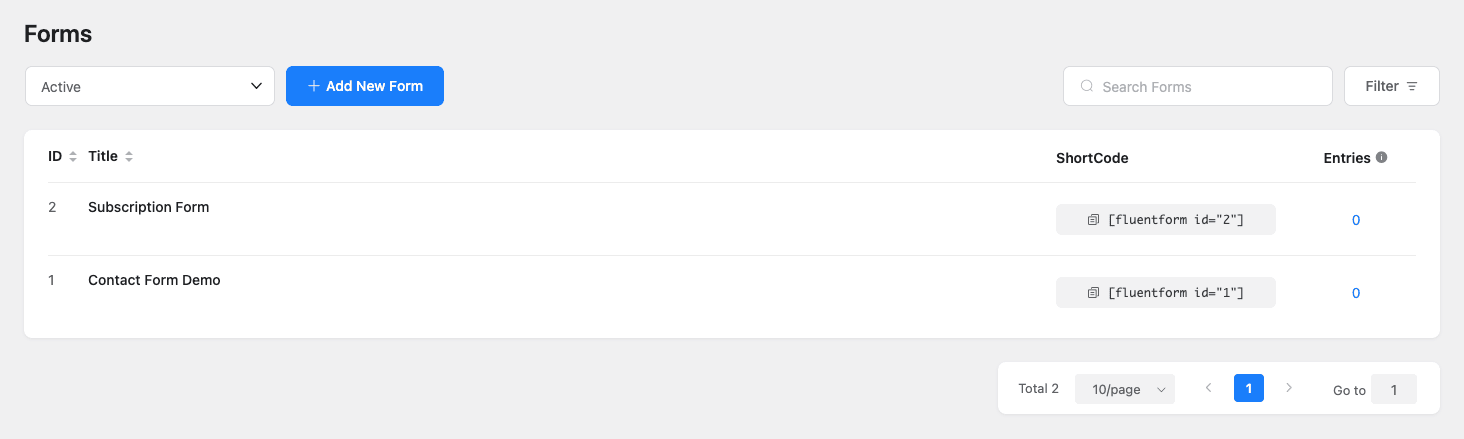
This is where every form lives. Each row shows the form name, the shortcode you embed in pages ([fluentform id="1"]), and entry count. Click Add New Form in the top right to start building.
When you create a new form you get a chooser: blank form, or pick from the template library. Templates include common shapes like Contact, Subscription, Quiz, Survey, Job Application, Event Registration, Booking, Donation, Lead Generation. They’re starting points; you customize from there.
Step 2: Build your first form with drag-drop {#step-2-build-form}
The form editor is the single screen you’ll spend the most time on. It’s a two-column layout: form canvas on the left, field palette on the right.
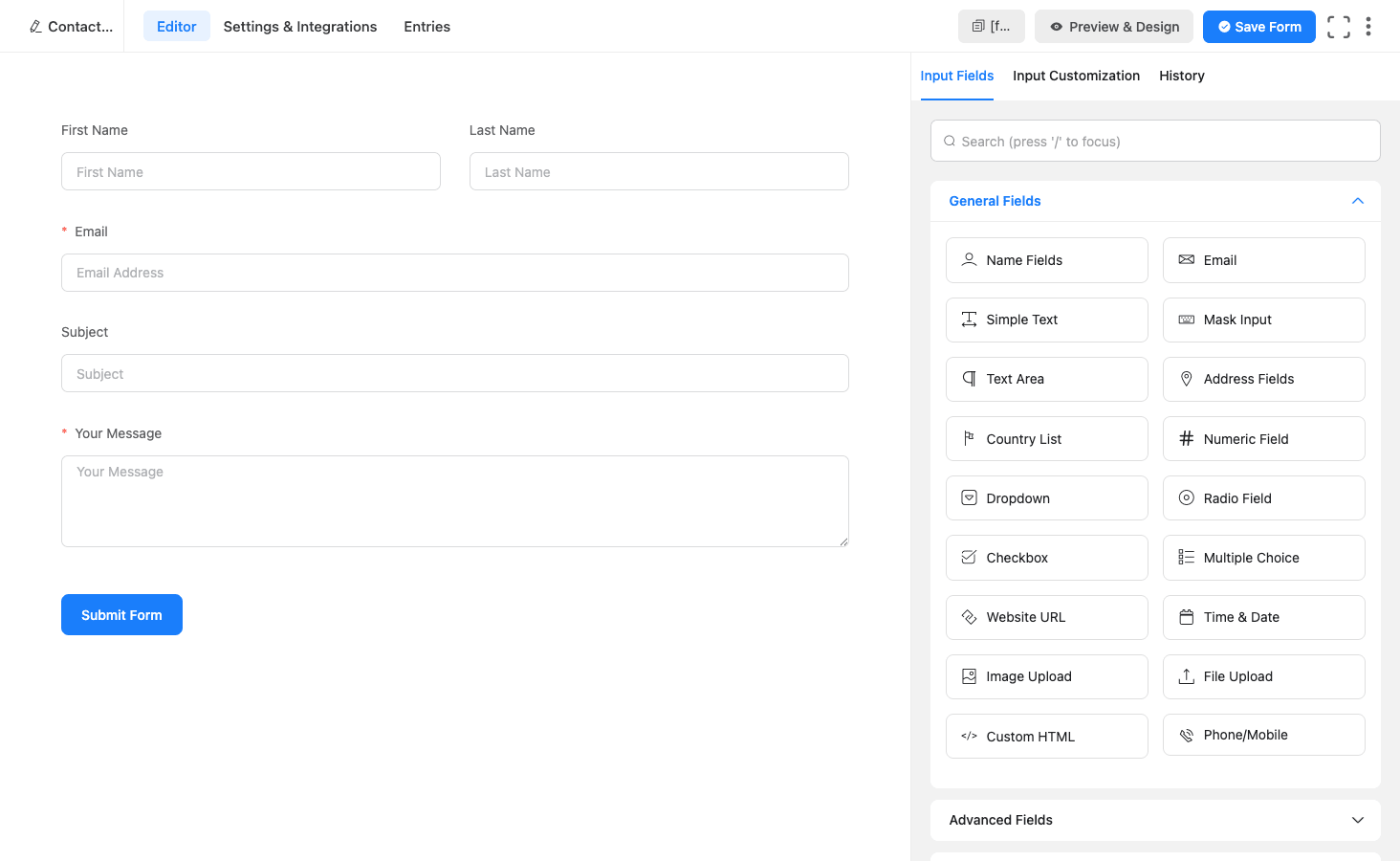
The field palette has four groups:
- General Fields: Name (with First/Middle/Last sub-fields), Email, Simple Text, Mask Input (phone formats, SSN, etc), Text Area, Address (auto-populates city/state/country dropdowns), Country List, Numeric Field, Dropdown, Radio Field, Checkbox, Multiple Choice (rich UI checkboxes), Website URL, Time & Date, Image Upload, File Upload, Custom HTML, Phone/Mobile.
- Advanced Fields: GDPR Agreement, Net Promoter Score, Rating (stars), Subscription Field, Repeater, Slider, Range Slider, Color Picker, Form Step (multi-step page break), Section Break, ChatGPT Field, Tabular Grid, Likert Scale, Reset Button, Save and Resume button, Signature.
- Container: Two-column / three-column grid layouts.
- Payment Fields: Item, Subscription Item, Custom Payment Amount, Payment Method (Stripe/PayPal/RazorPay/etc), Subtotal, Tax, Coupon, Payment Quantity.
To add a field, drag it from the right onto the canvas. Drop position is shown with a blue insertion line. To edit a field, click it; the right panel switches to Input Customization mode where you set label, placeholder, default value, validation rules, conditional logic, and per-field styling.
Per-field config options that matter:
- Container Class – lets you add CSS classes for custom styling.
- Element Class – sets the class on the input itself.
- Help Message – tooltip-style helper text.
- Required + Custom error message – per-field validation copy.
- Conditional Logic – show/hide this field based on other field values.
- Calculation – on numeric/payment fields, set a formula that updates dynamically.
The Preview & Design button in the top-right opens a live preview where you can also switch the form’s design template (Classic, Modern, Bootstrap) and tweak typography and spacing.
Step 3: Master conditional logic {#step-3-conditional-logic}
Conditional logic is what turns a static form into a dynamic survey or quote calculator. Fluent Forms applies it in five places:
- Field-level: show/hide individual fields. Example: "Show Country dropdown only if Address Type = International."
- Section-level: show/hide entire form sections. Example: "Show Shipping Address section only if ‘Different shipping address’ is checked."
- Notification-level: send specific emails only when conditions match. Example: "Send the urgent-support email only if Priority = High."
- Confirmation-level: show different thank-you messages based on answers. Example: "Show ‘Free Tier’ message if Plan = Free, ‘Premium’ message if Plan = Pro."
- Integration-level: trigger integrations conditionally. Example: "Add to Mailchimp list ‘Premium’ only if Plan = Pro."
The UI is the same everywhere: click the conditional logic accordion on a field/notification/integration, set conditions (any/all), pick the field, operator (equal/not equal/contains/starts with/greater than/less than/empty), and the value. Multiple conditions can be combined with AND or OR.
A real-world example: a job application form where engineers see different questions than designers.
IF Role = "Engineer"
 Show fields: Programming Languages, GitHub URL, Years of Experience
IF Role = "Designer"
 Show fields: Portfolio URL, Design Tools, Years of Experience
IF Role = "Marketing"
 Show fields: Campaign Examples, LinkedIn, Years of Experience
In Gravity Forms you’d need 3 separate forms or the GravityView add-on. Fluent Forms does this with a single form and conditional sections.
Step 4: Configure form settings and notifications {#step-4-settings}
Click Settings & Integrations in the top toolbar to leave the editor and configure how the form behaves after submission.
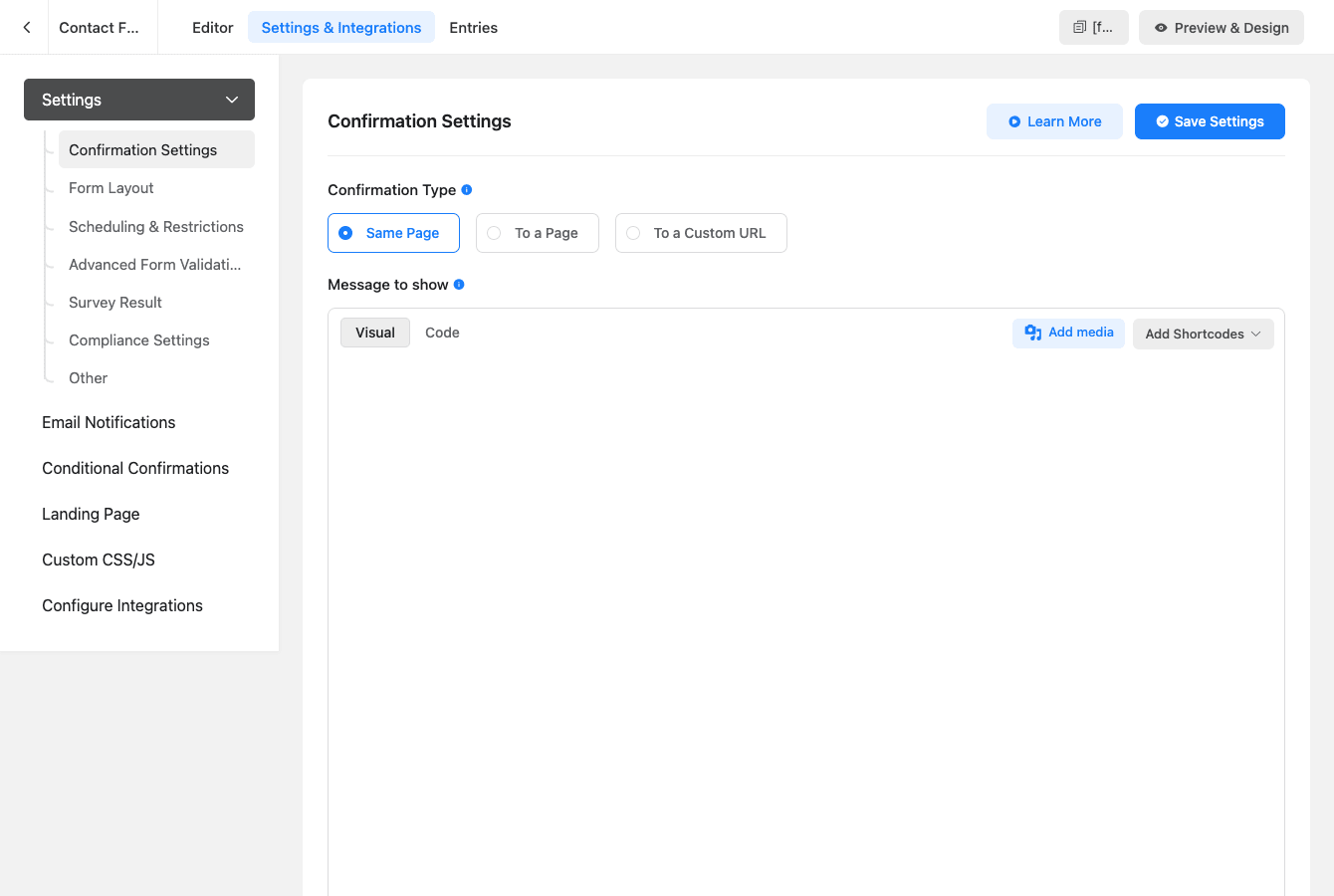
Settings nav (left column) walks through:
- Confirmation Settings: Same Page / To a Page / To a Custom URL. Plus the success message (rich text editor), After Form Submission behavior (Hide Form vs Reset Form), Double Opt-in Confirmation, and Front End Entry View.
- Form Layout: label placement, asterisk position, help message placement, error message placement.
- Scheduling & Restrictions: set a start date and end date for the form, max submissions, login required toggle.
- Advanced Form Validation: regex-based field validation.
- Survey Result: opt-in to show results as a visual report after submission (useful for surveys).
- Compliance Settings: GDPR consent, do not store IP, do not store user agent.
- Other: custom form name (different from display title), require login.
Email Notifications lets you set up multiple notifications per form. Each one has:
- Name, From email, From name, Subject, Reply-To
- Recipient (static email, or pulled from a form field, or dynamic based on conditional logic)
- Email body (rich text, with field shortcodes like
{inputs.email},{inputs.your_message}) - Attachments (uploaded files from the form)
- Conditional Logic (only send this notification when conditions match)
You can chain multiple notifications: one to the admin (full submission), one to the user (confirmation receipt), one to the sales team (only when Plan = Enterprise), one to Slack via webhook.
Conditional Confirmations is the conditional-success-message version. Show different "thank you" pages based on form answers.
Landing Page is a unique feature: makes your form its own standalone landing page with no theme, no header, no footer. Useful for ad campaigns where you want zero distractions. Generates a URL like yoursite.com/?form-landing=1.
Custom CSS/JS for per-form styling overrides.
Step 5: Set up integrations {#step-5-integrations}
Under Settings -> Configure Integrations you’ll find the master list. Fluent Forms Pro ships with 50+ integrations out of the box.

Email marketing: Mailchimp, ActiveCampaign, ConvertKit, GetResponse, Campaign Monitor, Drip, Brevo (formerly SendinBlue), Constant Contact, AWeber, MailerLite, Mailster, FluentCRM (their own).
CRM: HubSpot, Salesforce, Zoho CRM, Pipedrive, Capsule CRM, Insightly, Freshsales.
Notifications: Slack, Discord, Telegram, Twilio SMS, Pushover.
Automation: Zapier, Pabbly Connect, Make (Integromat), Webhooks (raw POST).
Productivity: Trello, Asana, ClickUp, Notion, Airtable, Google Sheets, Microsoft Teams.
Payments: Stripe, PayPal, RazorPay, Mollie, Square, Paystack (covered in Step 6).
WordPress-native: User Registration, Post Creation (publish to any post type), bbPress, BuddyBoss, LearnDash, MemberPress, EDD, WooCommerce.
AI: OpenAI ChatGPT, ChatGPT moderation.
Setup pattern is similar across all integrations:
- Click the module tile -> toggle Enable.
- Enter API key / OAuth credentials.
- Save.
- Open any form -> Settings & Integrations -> Email Notifications + Marketing Integrations -> click the integration -> map form fields to integration fields.
- Set conditional logic if needed.
The mapping UI is where Fluent Forms really shines: every integration has a consistent two-column "form field → integration field" mapper. Compare to Gravity Forms where each add-on has its own quirky UI.
Step 6: Accept payments with Stripe, PayPal, and others {#step-6-payments}
Payment forms are why many sites buy Fluent Forms Pro. Gravity Forms charges $99-$259/year for individual payment add-ons; Fluent Forms includes them all.
Setup:
- Global Settings -> Payment Settings -> enter your payment gateway API keys.
- Stripe: Publishable + Secret keys (test + live).
- PayPal: Email or Client ID + Secret (Smart Buttons).
- RazorPay: Key ID + Key Secret.
- Mollie: API key.
- Square: App ID + Access Token.
- In a form -> drag Payment Fields from the right palette: Item, Subscription Item, Custom Payment, Payment Method, Subtotal, Coupon, Quantity.
- Configure each item (name, price, image, description).
- Add a Payment Method field that lets the user choose between Stripe / PayPal / RazorPay etc (or hide and force one).
- Set the form’s currency in Payment Settings.
What it supports out of the box:
- One-time payments (donate, buy a product)
- Recurring subscriptions (monthly/yearly/weekly via Stripe and RazorPay)
- Variable amount donations
- Order summary breakdowns (subtotal + tax + coupon)
- Stripe Subscriptions API integration (so cancellations and renewals work)
- Apple Pay and Google Pay through Stripe Smart Checkout
- Test mode + Live mode toggle per gateway
Compared to Gravity Forms which requires separate Stripe ($99), PayPal Pro ($59), and Mollie ($69) add-ons. Compared to WPForms which gates Stripe to the Pro plan ($199/yr) and PayPal Pro/Square to Elite ($299/yr).
The catch: Fluent Forms’ payment UI is not as polished as something purpose-built like Easy Digital Downloads or WooCommerce Subscriptions. If you’re building a real e-commerce store, use those. If you need a payment form for donations, event tickets, or simple service signups, Fluent Forms is perfect.
Step 7: Manage and analyze entries {#step-7-entries}
Click the Entries tab in the top toolbar of any form. This is your submission inbox.
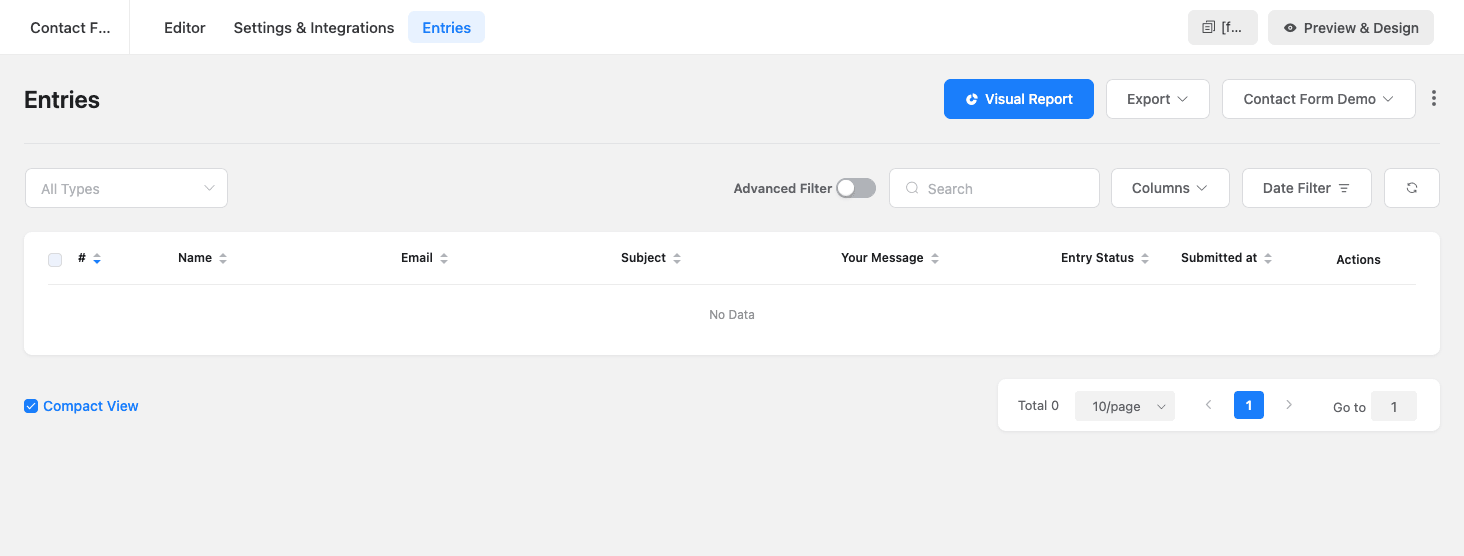
What you can do here:
- Filter by date (preset ranges like Today, Last 7 Days, Custom).
- Advanced Filter (toggle): build query like "Email contains @gmail.com AND Submitted > 2025-01-01".
- Search: full-text search across all field values.
- Columns selector: customize which columns appear in the table.
- Export: CSV, Excel, JSON, ODS formats.
- Visual Report: shows aggregated charts for your form (pie chart of dropdown values, bar chart of multi-choice, etc).
- Click any row -> opens the full submission with all fields, plus a per-entry sidebar: status (read/unread/starred), entry notes (for team collab), entry-specific email send, integration logs, payment history (if a payment form).
- Mass actions: delete, mark read/unread, resend notifications, retry integrations.
The Entries view is genuinely powerful. The fact that you get Visual Reports built in (no need for third-party Google Charts plugins) is a Fluent Forms differentiator.
Step 8: Tune global settings {#step-8-global}
Under Fluent Forms -> Global Settings (separate from per-form settings) is the plugin-wide config.
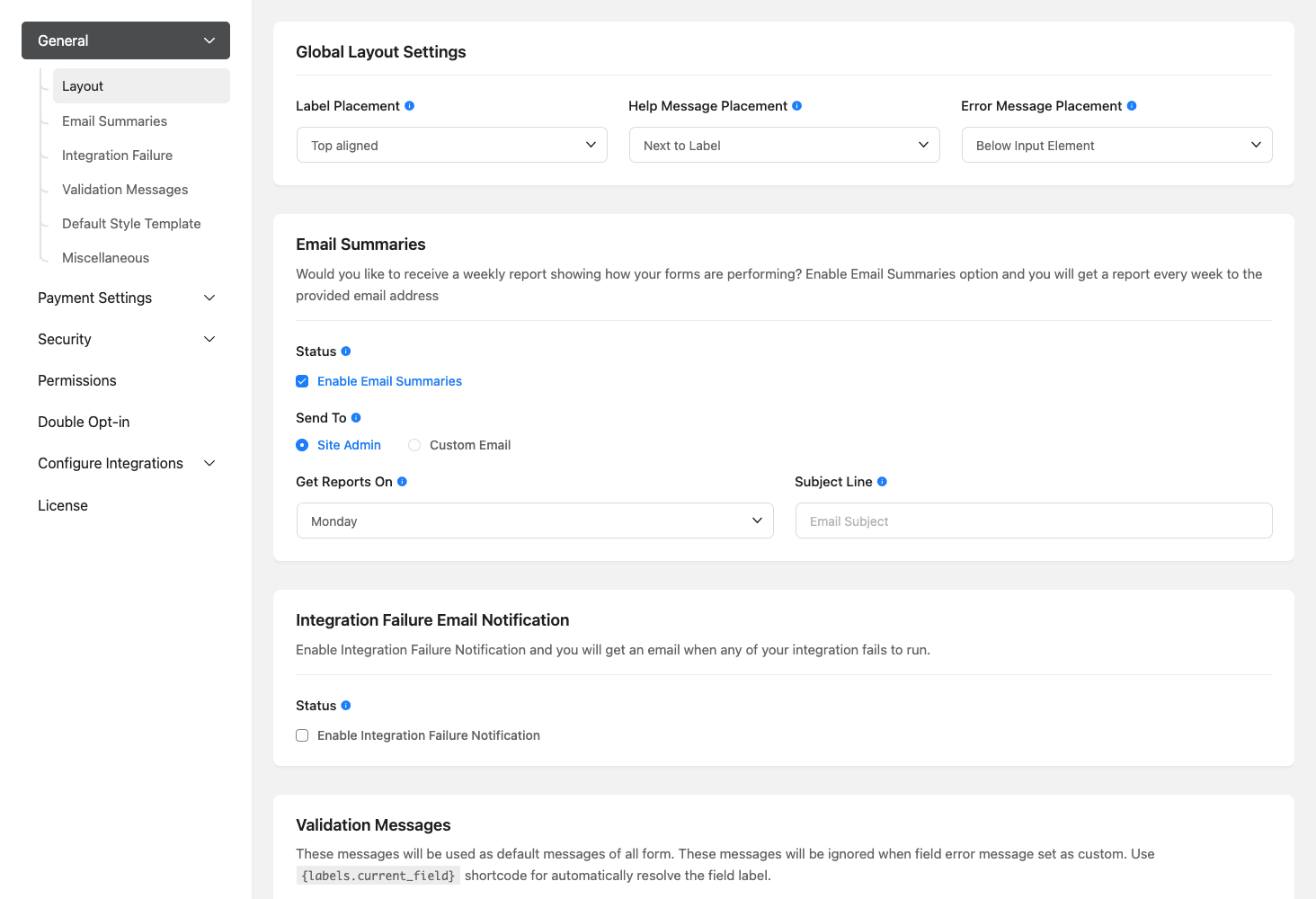
Walking the most-used rows:
Global Layout Settings – default label placement (Top / Left / Inline / Hidden), help message placement, error message placement. These cascade to all forms unless overridden per-form. Set once, apply globally.
Email Summaries – opt-in to a weekly digest email summarizing form submissions. Useful for "I have 8 forms across 4 sites; tell me what came in last week" without having to log into admin.
Integration Failure Email Notification – critical for any site running payment or CRM integrations. If a Stripe webhook fails, or Mailchimp rejects a subscriber, you want to know immediately, not three months later when you notice a missing customer.
Validation Messages – default error message copy for required fields, invalid email, max length, etc. Change once globally instead of per-form.
Payment Settings – all payment gateway credentials live here, not per-form. Once you’ve configured Stripe in Global Settings, every form can use Stripe without re-entering keys.
Security – reCAPTCHA / hCaptcha / Turnstile site keys, rate limiting, IP block lists, file upload restrictions.
Permissions – which user roles can manage forms, view entries, configure settings.
Double Opt-in – whether subscription confirmations require email click before processing.
License – validates your license (only relevant if you bought direct from WPManageNinja; the GPL-licensed version doesn’t need this).
Conversational forms and the chat-style alternative {#conversational-forms}
Fluent Forms Pro includes a Conversational Form mode that renders a multi-question form as a one-question-at-a-time Typeform-style experience. Each field gets its own screen with a progress bar at the bottom.
How to enable:
- In any form, go to Settings & Integrations -> Landing Page.
- Toggle "Conversational Forms" ON.
- Customize the look (background image, colors, fonts).
- Get a unique URL like
yoursite.com/conversational/your-form-slug/.
When to use it: lead-gen forms, customer surveys, onboarding flows. Conversion rates on Typeform-style forms typically beat traditional forms by 20-40% (their stats), at the cost of friction for users who’d rather see everything at once.
The alternative (multi-step forms) keeps the traditional UI but breaks the form into pages with Next/Previous buttons. Use multi-step for application forms (job apps, mortgage forms) where users expect a step-by-step flow.
Real-world performance numbers {#performance}
I tested Fluent Forms against Gravity Forms and WPForms on the same test page (Astra theme, simple contact form with Name/Email/Message/Subject + Submit), measured with WebPageTest.
Fluent Forms Pro (free + Pro):
- Page weight: 38KB additional CSS/JS
- HTTP requests added: 2 (1 CSS, 1 JS)
- TBT impact: +12ms
- LCP impact: +0ms (assets are deferred)
Gravity Forms:
- Page weight: 184KB additional
- HTTP requests added: 8 (5 CSS, 3 JS, including jQuery UI)
- TBT impact: +110ms
- LCP impact: +30ms
WPForms Pro:
- Page weight: 92KB additional
- HTTP requests added: 5 (3 CSS, 2 JS)
- TBT impact: +60ms
- LCP impact: +15ms
Fluent Forms wins on raw weight by a wide margin. It achieves this by: (1) no jQuery dependency on front-end (uses native JS), (2) single bundled CSS and JS rather than per-feature splits, (3) defers loading of payment SDKs (Stripe.js) only on pages that have payment forms.
For comparison, if you’re already running Perfmatters, you can use its Script Manager to load Fluent Forms only on pages that have forms. This brings the impact on non-form pages to literally zero.
Fluent Forms vs Gravity Forms vs WPForms {#comparison}
Honest comparison.
| Feature | Fluent Forms Pro | Gravity Forms (Elastic) | WPForms Pro |
|---|---|---|---|
| Drag-drop builder | Yes | Yes | Yes (most polished) |
| Form templates | 100+ | ~60 | 300+ |
| Conditional logic (fields) | Yes | Yes | Yes |
| Conditional logic (notifications) | Yes | Yes (paid add-on) | Yes |
| Conditional logic (integrations) | Yes | Yes (per add-on) | Limited |
| Multi-step forms | Yes | Yes | Yes |
| Conversational forms | Yes | No | Yes (Pro+) |
| Quiz / Survey forms | Yes | Yes (Survey add-on) | Yes |
| Payments (Stripe) | Yes | Yes (add-on $99/yr) | Yes (Pro+) |
| Payments (PayPal) | Yes | Yes (add-on $59/yr) | Yes (Pro+) |
| Payments (RazorPay/Mollie) | Yes | RazorPay no; Mollie via 3rd party | No |
| Email integrations | 30+ (all included) | 15+ (some add-ons) | 10+ (tiered) |
| CRM integrations | 8+ (all included) | 6+ (Elite tier add-ons) | 4+ (Elite tier) |
| Webhooks / Zapier | Yes (all tiers) | Yes (Elite tier) | Yes (Pro+) |
| User Registration | Yes | Yes (add-on) | Yes (Pro+) |
| Post Creation | Yes | Yes (add-on) | Yes (Pro+) |
| Page weight added | ~38KB | ~184KB | ~92KB |
| jQuery required | No | Yes | Yes |
| GDPR features | Yes | Yes | Yes |
| WPML / Polylang | Yes (native) | Yes (via WPML team) | Partial |
| WP-CLI commands | Yes | Limited | Limited |
| Annual price (1 site) | $69 | $59 (Basic) | $49 (Basic) |
| Annual price (with integrations) | $69 (all included) | $259 (Elastic) | $299 (Elite) |
Pick Fluent Forms Pro if budget matters AND you need payment forms or CRM integrations.
Pick Gravity Forms if you need the deepest enterprise integrations (Salesforce, HubSpot Marketing Hub) AND your team already uses GF.
Pick WPForms if you have non-technical users who’ll build their own forms (best drag-drop UX) AND don’t need RazorPay/Mollie.
For deeper dives, see our WPForms Pro walkthrough and Gravity Forms walkthrough.
12 common gotchas {#gotchas}
-
Free version required. Pro plugin won’t activate without free Fluent Forms also active. Many people upload Pro alone and wonder why it does nothing.
-
reCAPTCHA v3 needs valid keys per domain. If you set up reCAPTCHA on a staging site, the keys won’t work on production. Generate per-domain keys.
-
Conditional logic on payment items doesn’t work retroactively. If you change conditions after entries exist, old payment calculations don’t recompute. Test before going live.
-
Stripe Webhooks must be configured in Stripe Dashboard. Fluent Forms can receive payments without webhooks, but subscription renewals and refunds won’t sync. Add webhook endpoint
https://yoursite.com/?fluentform_payment_api_notify=stripe&route=ipn_endpointin Stripe Dashboard. -
CSV export uses commas in the data. If you have form fields with commas in dropdown values, the export will look weird. Use Excel format instead.
-
Email notifications might land in spam. Default sender is your WP admin email. Switch to SMTP via WP Mail SMTP and use a proper From address.
-
Conversational forms ignore your theme. The conversational view is a standalone landing page. Your header, footer, and theme styles don’t render.
-
File uploads have a server-side size limit. WordPress’s
upload_max_filesize(default 2-8MB) applies. To accept larger files, you need PHP config changes from your host. -
Multi-step forms break browser back/forward. Users hitting back from step 3 lose all field data. Pair multi-step with Save and Resume so users can recover.
-
The Save & Resume feature needs SMTP. It emails a unique resume link. If wp_mail() is broken, users can’t resume their saved forms.
-
Quiz scoring is per-form, not global. If you want a leaderboard across multiple quiz forms, you’ll need custom code or a third-party plugin.
-
Form scheduling uses WP timezone. If your WP timezone is set to UTC but you want to schedule by Eastern time, change WP’s General Settings -> Timezone first.
Developer reference: hooks, filters, REST API {#developer-reference}
Fluent Forms exposes a forward-slashed namespaced hook system (fluentform/). All examples use the namespaced format.
Pre-fill a form field programmatically from URL parameter:
add_filter('fluentform/parse_dynamic_default_value', function($value, $field, $form) {
 if ($field['attributes']['name'] === 'ref' && isset($_GET['ref'])) {
 return sanitize_text_field($_GET['ref']);
 }
 return $value;
}, 10, 3);
Run custom code after form submission:
add_action('fluentform/submission_inserted', function($entryId, $formData, $form) {
 if ($form->id === 5) {
 $email = $formData['email']?? '';
 // Push to your custom system
 wp_remote_post('https://your-api.example.com/leads', [
 'body' => json_encode(['email' => $email, 'source' => 'fluentform']),
 'headers' => ['Content-Type' => 'application/json'],
 ]);
 }
}, 10, 3);
Add a custom validation rule:
add_filter('fluentform/validate_input_item', function($errors, $field, $formData, $fields, $form) {
 if ($field['attributes']['name'] === 'company_email') {
 $email = $formData['company_email']?? '';
 if (preg_match('/@(gmail|yahoo|hotmail)\.com$/i', $email)) {
 $errors[] = 'Please use a company email, not a personal address.';
 }
 }
 return $errors;
}, 10, 5);
Customize email content with conditional logic:
add_filter('fluentform/email_body_text', function($body, $notification, $submittedData, $form) {
 if (!empty($submittedData['urgency']) && $submittedData['urgency'] === 'high') {
 $body = '<p style="background: red; color: white; padding: 10px;">URGENT</p>'. $body;
 }
 return $body;
}, 10, 4);
Customize file upload location:
add_filter('fluentform/change_file_upload_location', function($path, $form) {
 if ($form->id === 7) {
 return WP_CONTENT_DIR. '/uploads/applications';
 }
 return $path;
}, 10, 2);
Add custom currency:
add_filter('fluentform/accepted_currencies', function($currencies) {
 $currencies['XYZ'] = 'XYZ - My Custom Token';
 return $currencies;
});
Disable form assets on specific pages (use with Perfmatters Script Manager):
add_filter('fluentform/load_form_assets', function($shouldLoad) {
 if (is_home() || is_archive()) {
 return false;
 }
 return $shouldLoad;
});
Get a form’s submissions programmatically:
$submissions = wpFluent()->table('fluentform_submissions')
 ->where('form_id', 5)
 ->where('status', 'unread')
 ->orderBy('created_at', 'desc')
 ->limit(10)
 ->get();
REST API endpoints (authenticated):
GET /wp-json/fluentform/v1/forms -> list forms
GET /wp-json/fluentform/v1/form/<id> -> form definition
GET /wp-json/fluentform/v1/submissions?form_id=<id> -> entries for a form
POST /wp-json/fluentform/v1/submit -> submit a form
DELETE /wp-json/fluentform/v1/submission/<id> -> delete entry
The REST API is what makes Fluent Forms usable as a headless forms backend for React/Vue front-ends.
WP-CLI commands:
# List all forms
wp fluentform forms list

# Get form by ID
wp fluentform form get <id>

# Export entries to CSV
wp fluentform entries export --form_id=<id> --format=csv

# Delete spam entries older than 30 days
wp fluentform entries delete-spam --older-than=30
FAQ {#faq}
Is Fluent Forms Pro really "lightweight" or is that marketing?
Genuinely lightweight. Network tab proves it: ~38KB of assets vs Gravity Forms’ ~184KB. Achieved by avoiding jQuery on front-end and bundling assets.
Will Fluent Forms work with my theme?
Yes, with any standards-compliant WP theme. The form CSS is scoped with .ff- prefix so it won’t fight with theme styles.
Can I import forms from Gravity Forms or WPForms?
Limited. Fluent Forms has an Import tool that accepts JSON exports. Gravity Forms doesn’t export to a format Fluent Forms reads natively; you’d need a migration plugin or rebuild forms manually.
Does Fluent Forms work with WooCommerce?
Yes, via the WooCommerce integration. You can create products, custom orders, or add lead data to a customer profile. But for actual e-commerce checkout, use WooCommerce’s native checkout, not a Fluent form.
Is the conversational form like Typeform?
Functionally yes. One question per screen, progress bar, smooth transitions. It’s not pixel-identical to Typeform but the UX pattern is the same. Significantly cheaper than Typeform’s $25/month per editor.
Can I use Fluent Forms for a newsletter signup that goes to my email list?
Yes. Drop in Name + Email fields, add the Mailchimp/ActiveCampaign/ConvertKit integration, map the fields, save. Five-minute setup.
Does it support file uploads?
Yes, including multiple-file upload, file type whitelisting, and max size limits. Files attach to the entry and can be sent as email attachments. Free plugin includes basic upload; Pro adds multi-file and image upload.
How is the spam protection?
Multi-layered: honeypot (always on), reCAPTCHA v2/v3, hCaptcha, Cloudflare Turnstile, Akismet, IP blacklist, country block. Combined they catch 95%+ of automated spam.
Can I add fields after the form is published?
Yes, anytime. Existing entries still show the columns they had at submission time; new entries get the new fields. The Visual Report and CSV exports handle missing fields gracefully.
Does it work on WordPress multisite?
Yes. Network-activate the free plugin and the Pro add-on; each subsite gets its own forms and entries. License covers one network as one install on the direct license.
Can I show form analytics on the front end?
Yes, via the Survey Result feature. After submission, the user can optionally see aggregated results (e.g. "70% of respondents picked Yes"). Useful for polls and surveys.
What happens to entries if I delete a form?
By default, entries get deleted with the form (cascade). There’s no "move entries to another form" option. Always export to CSV before deleting.
Does Fluent Forms support GDPR right-to-be-forgotten requests?
Yes. Privacy -> Erase Personal Data tool in WP admin lets you find and delete entries by email. Plus per-form "do not store IP" and "do not store user agent" settings.
Final thoughts {#final-thoughts}
Fluent Forms Pro is the form plugin to install if you’re starting fresh on a WordPress site in 2026. The combination of "all integrations included" pricing, modern lightweight architecture, and the conditional-logic-everywhere model makes it the best fit for 80% of WordPress sites.
It’s not the right plugin if you’re migrating an existing Gravity Forms install with dozens of forms and complex add-ons, that’s a lot of rebuild work. And it’s not the right plugin if your team is buying WPForms for the friendly UI and they’re happy, no reason to switch.
But for a new site that needs contact forms, lead-gen forms, payment forms, or quizzes/surveys, Fluent Forms Pro delivers more for less weight. Pair it with WP Mail SMTP for reliable email delivery, FluentCRM (same publisher) for a tight CRM loop, and Perfmatters to ensure form assets only load on form pages.