

If you’ve ever tried to build a community website on WordPress, somewhere members can sign up, message each other, post in activity feeds, join groups, discuss in forums, you’ve probably realized that vanilla BuddyPress + bbPress + a handful of social plugins gets you 60% there, and the rest is an unending battle with theme compatibility, mobile UX, notification overload, and the simple problem that the result feels like 2014 WordPress.
BuddyBoss Platform is what the BuddyPress team built when they decided the old approach needed a full rewrite. It’s a modern community platform plugin that replaces BuddyPress + bbPress + many social addons with a single coordinated codebase. Member profiles, friend connections, activity feeds, private messaging, groups, forums, media uploads, notifications, search, all built to work together with a modern admin UI and a mobile-friendly front-end (when paired with the matching BuddyBoss Theme).
This is a practical walkthrough with real screenshots. What BuddyBoss Platform actually gives you, how the Components / Pages / Settings / Tools / Integrations panels map to actual community features, performance reality, pricing breakdown, and honest comparison with the free BuddyPress and standalone alternatives. By the end you’ll know whether BuddyBoss Platform is the right foundation for your community project.
Quick decision guide: should you use BuddyBoss Platform?
Use it if:
- You’re building a real community website (paid membership, course community, niche social network, brand community)
- You want a mobile app companion (BuddyBoss has a paid native app builder)
- You need integrations with LearnDash, MemberPress, Easy Digital Downloads, WooCommerce
- You’d otherwise stitch together 8-10 plugins (forums + chat + profiles + activity + groups + etc.) and want them coordinated instead
- You’re moving from Facebook Groups, Mighty Networks, Discord, or Circle and want self-hosted control
Stick with free BuddyPress if:
- You only need basic member profiles and activity feeds
- Your community is small (under a few hundred members) and won’t grow significantly
- You’re comfortable with the older BuddyPress workflow and theme compatibility
- You don’t need the modern mobile-app-ready front-end
Use a SaaS like Circle/Mighty Networks if:
- You don’t want to host or maintain a WordPress site
- You’re willing to pay per-member fees in exchange for zero infrastructure work
- You need features BuddyBoss doesn’t have (live events, podcast hosting, etc.)
Table of contents
- What BuddyBoss Platform actually includes
- Platform vs Theme vs App: clearing up confusion
- Step 1: Install BuddyBoss Platform
- Step 2: Run the setup wizard
- Step 3: Enable components for the features you need
- Step 4: Set up community pages
- Step 5: Configure global settings
- Step 6: Manage data with the Tools panel
- Step 7: Add Pro integrations (LearnDash, WooCommerce, etc.)
- Step 8: Customize the front-end with BuddyBoss Theme
- Step 9: Set up member registration and onboarding
- Step 10: Moderation and safety controls
- Real performance impact (with numbers)
- BuddyBoss vs BuddyPress vs Mighty Networks vs Circle
- Real-world pricing breakdown
- Common gotchas
- Developer reference: hooks, REST API, custom components
- FAQ: questions people actually search
- Final thoughts
What BuddyBoss Platform actually includes {#what-it-includes}
BuddyBoss Platform is the community engine. Out of the box it provides:
- Member Profiles, customizable profile pages with cover photos, bio, custom profile fields, social links
- Profile Fields, admin-built custom fields (text, dropdown, multi-select, date, URL) for member profiles
- Account Settings, members’ own settings panels (email preferences, privacy, password)
- Notifications, in-site notifications for likes, comments, mentions, group invites, friend requests, etc.
- Social Groups, public, private, or hidden groups with their own discussion area, members, photos, files
- Forum Discussions, bbPress-style forums integrated as part of the platform (not as a separate plugin)
- Activity Feeds, global, personal, group, and connection feeds with photos, videos, polls, GIFs
- Media Uploading, photos, videos, documents shared in activity, messages, and groups
- Private Messaging, direct messages, group chats, message reactions
- Member Connections, friend/follow relationships between members
- Email Invites, invite friends to join via email
- Moderation, block, report, and hide content with admin review queue
- Network Search, unified search across members, groups, forums, activity
- Reactions, likes and emoji reactions on activity, comments, messages
- Topics, taxonomy/tag system for organizing activity posts
Plus BuddyBoss Platform Pro adds:
- Group leaders and hierarchical groups
- Member types and member type-based filtering
- Bulk messaging and announcements
- Web push notifications
- Advanced privacy controls
- Drafts and scheduled activity posts
- More moderation tools
All of this lives as one plugin with one coordinated admin UI. Not 12 separate plugins fighting each other.
Platform vs Theme vs App: clearing up confusion {#platform-theme-app}
BuddyBoss has three separate products and people mix them up regularly:
- BuddyBoss Platform (this article), the community engine plugin. Works with any theme but optimized for BuddyBoss Theme. Free.
- BuddyBoss Platform Pro, paid extension adding the Pro features listed above.
- BuddyBoss Theme, paid WordPress theme designed specifically for community sites. Has matching styles for all BuddyBoss Platform components, mobile-app-style UI, customizable colors, headers, footers. Required for the "modern community site" look.
- BuddyBoss App, paid mobile app builder. Generates iOS and Android native apps from your community site. Has its own pricing (~$199/year and up).
- BuddyBoss AI, newer add-on for AI-assisted moderation and content suggestions.
For most community sites: Platform + Theme + Pro is the recommended bundle. The app is optional but powerful for engaged communities.
Step 1: Install BuddyBoss Platform {#step-1-install}
BuddyBoss Platform is GPL-licensed and free. Pro is a separate plugin.
- Install BuddyBoss Platform from Plugins → Add New → search "BuddyBoss Platform" (or upload from buddyboss.com / GPL Times)
- Activate it
- (Optional but recommended) Install BuddyBoss Theme via Appearance → Themes → Add New → Upload Theme
- (For Pro features) Install BuddyBoss Platform Pro by uploading its zip
Via WP-CLI:
wp plugin install buddyboss-platform --activate
wp plugin install /path/to/buddyboss-platform-pro.zip --activate
wp theme install /path/to/buddyboss-theme.zip --activate
After activation a new BuddyBoss menu item appears in the WordPress admin sidebar.
Step 2: Run the setup wizard {#step-2-wizard}
First-time activation triggers a setup wizard that walks you through:
- Components, which features to enable (you can change later)
- Pages, which WordPress pages to assign to community functions (Members, Activity Feeds, Groups, etc.)
- Permalinks, recommended URL structure
- Email settings, default sender email
- Welcome confirmation
For first-time users, accepting defaults is the fastest path. Enable Member Profiles, Activity Feeds, Private Messaging, and Notifications, that’s enough for a basic community. Add Groups and Forums later if needed.
Step 3: Enable components for the features you need {#step-3-components}
Each "component" is a major feature that you can enable or disable. Disabled components don’t load their code, so a lean install is faster.
Go to BuddyBoss → Components.
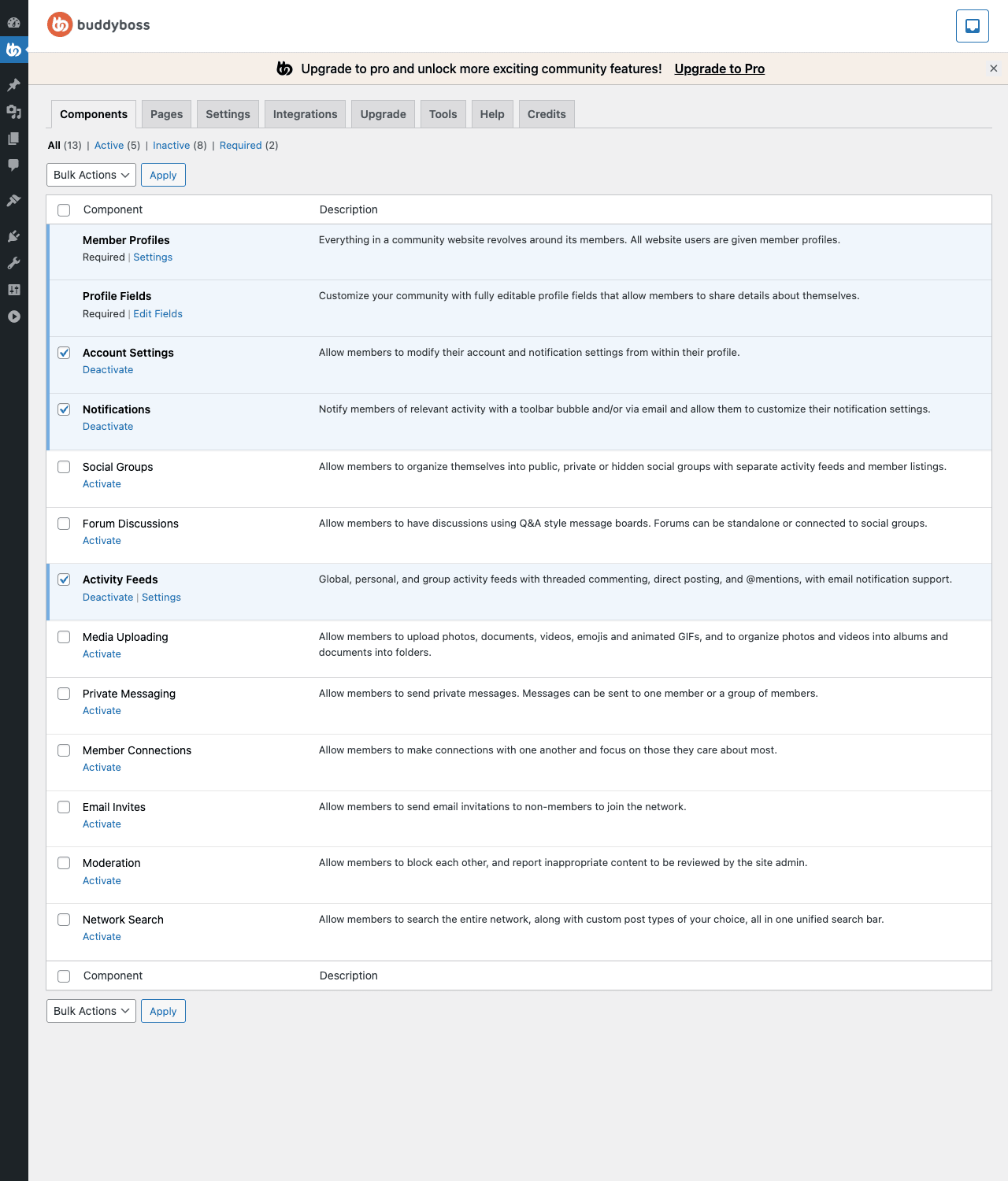
Top navigation tabs:
- Components, what we’re looking at now (feature toggles)
- Pages, which WP pages are assigned to community functions (Step 4)
- Settings, global behavior options (Step 5)
- Integrations, connections with LearnDash, WooCommerce, etc. (Step 7)
- Upgrade, links to BuddyBoss Pro
- Tools, data management utilities (Step 6)
- Help, documentation
- Credits, who built it
Component table shows each feature with:
- Toggle, enable/disable
- Component name, Member Profiles, Activity Feeds, etc.
- Description, one-line explanation
- Settings link, opens the component’s specific settings page
Recommended for a content-and-discussion community (e.g., a course community or membership site):
- Member Profiles: ON
- Profile Fields: ON (so you can collect member info)
- Account Settings: ON
- Notifications: ON
- Activity Feeds: ON
- Private Messaging: ON
- Member Connections: ON (friends/follows)
- Social Groups: ON (sub-communities by topic)
- Forum Discussions: ON if you want long-form discussion threads
- Media Uploading: ON (lets members share photos)
- Moderation: ON (always, community sites need moderation tools from day one)
- Network Search: ON
Don’t enable components you don’t actually need. Each adds database tables, admin queries, and front-end JS.
Step 4: Set up community pages {#step-4-pages}
The community needs dedicated WordPress pages: a "Members" directory page, an "Activity" feed page, a "Groups" listing page, etc. BuddyBoss handles this automatically during setup but you can review and re-assign here.
Go to BuddyBoss → Pages.
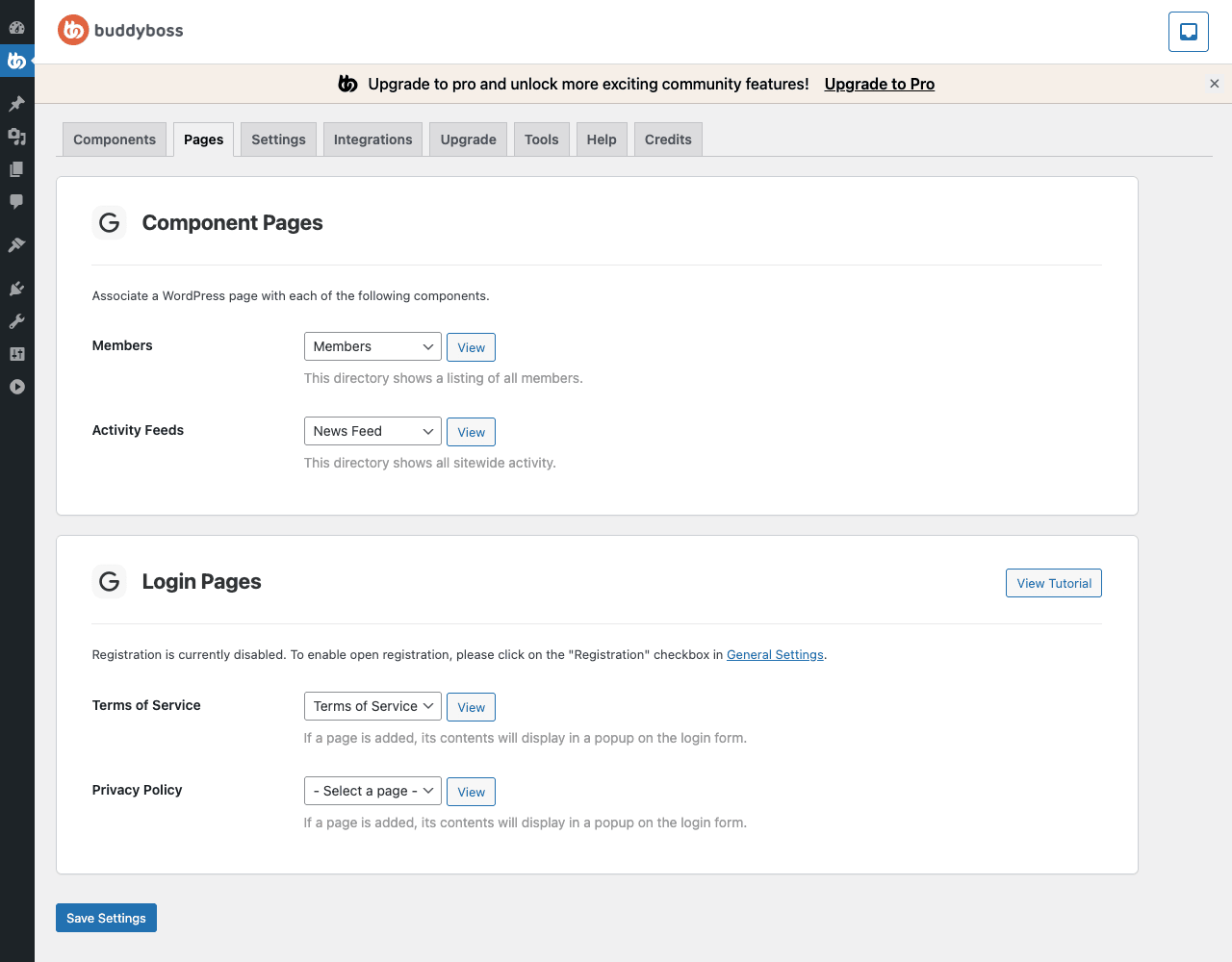
Component Pages section lets you associate a WordPress page with each enabled community feature:
- Members, the member directory page (default: "Members")
- Activity Feeds, the global activity stream (default: "News Feed")
- Groups, if Groups is enabled, the groups directory
- Forums, if Forum Discussions is enabled, the forum index
- Private Messaging, the inbox page
Each row has a dropdown of WordPress pages (created automatically during setup) and a View button to preview.
Login Pages section:
- Registration is disabled by default, you need to enable it in WordPress Settings → General → "Anyone can register" before members can sign up themselves. Most paid communities keep registration closed and route signups through their payment provider.
- Terms of Service, assign a WordPress page; its content displays in a popup on the login form
- Privacy Policy, same as Terms of Service
If you change any of these, click Save Settings at the bottom.
Permalinks tip: after enabling/disabling components, always re-flush permalinks (Settings → Permalinks → Save Changes). BuddyBoss adds new URL routes that need to register.
Step 5: Configure global settings {#step-5-settings}
The Settings tab has dozens of sub-tabs organizing global community behavior.
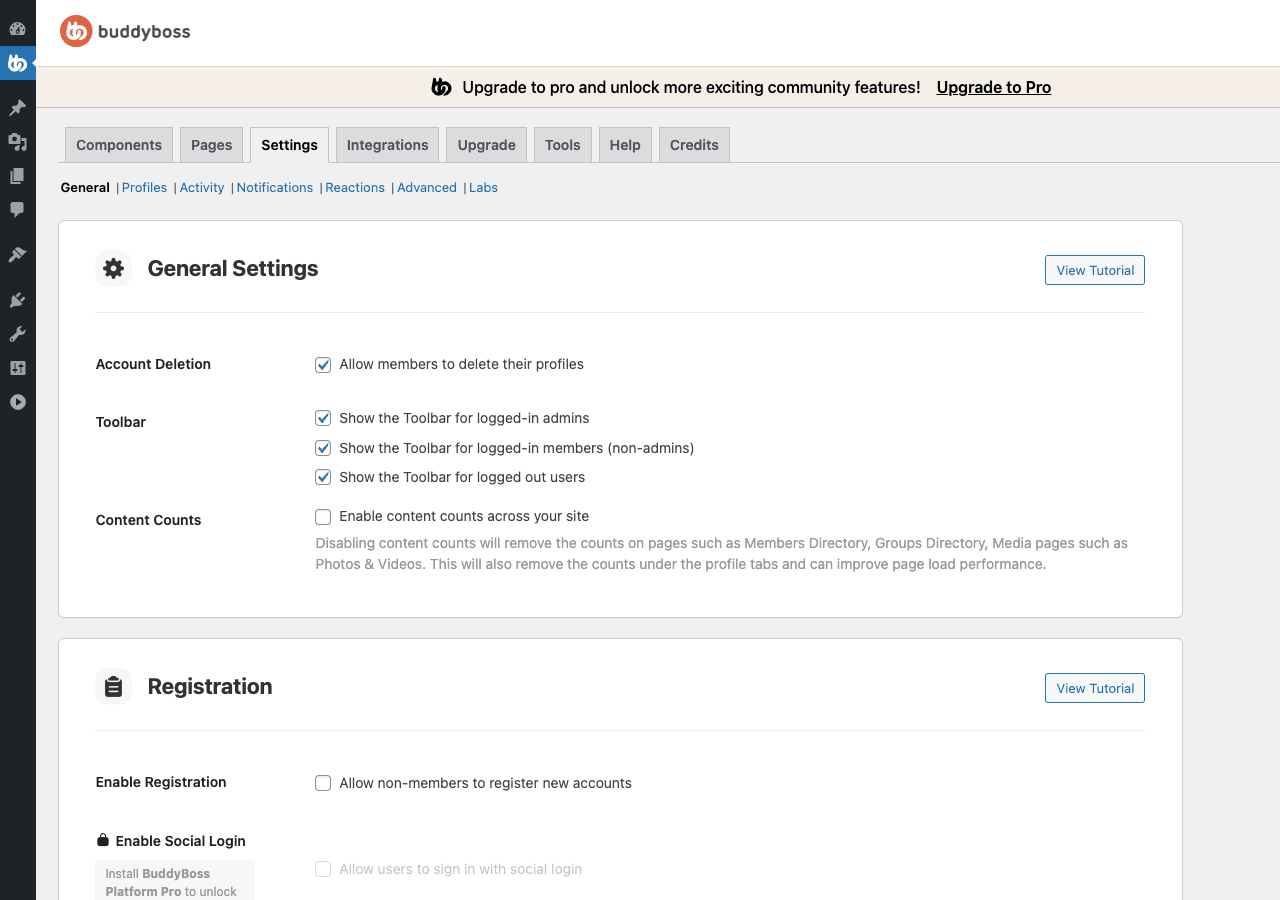
Here’s the high-level map:
- General, site-wide community settings (privacy defaults, profile sync with WordPress users)
- Profiles, profile field defaults, display options
- Friend Connections, accept-then-connect vs follow model
- Activity, what triggers activity posts, what’s visible per role
- Media, file types allowed, max upload size, storage location
- Notifications, per-notification-type defaults (email + on-site), notification email throttling
- Groups, group creation permissions, max members, default privacy
- Messages, who can message whom, max recipients per group message
- Forums, forum behavior, anonymous posting
- Search, what’s included in network search results
- Performance, caching settings (we’ll come back to this)
- Labs, experimental features
For most sites, accepting defaults is fine. The two settings worth thinking through:
- Privacy, by default profiles are public. For a paid community you probably want profile visibility limited to logged-in members. Settings → General → Public profiles toggle.
- Email throttling, Settings → Notifications → throttle emails so members don’t get 50 notification emails per day for a busy site. Daily digest or instant-but-grouped is usually the right choice.
Step 6: Manage data with the Tools panel {#step-6-tools}
Tools panel is the maintenance area. Useful for:
- Re-syncing user counts (if numbers look wrong)
- Reinstalling email templates
- Recalculating group/forum stats
- Importing data from BuddyPress or old community plugins
- Wiping all community data (rare, for resets)
Go to BuddyBoss → Tools.
Common tools:
- Repair Tools, fix various data consistency issues (member counts wrong, missing activity, broken counters)
- Import Tools, pull data from BuddyPress, bbPress legacy, or BuddyBoss App registrations
- System Information, server info BuddyBoss support might ask for
- Email Templates, reinstall default email templates if you’ve corrupted them
Run Repair Tools the first time you set up the site, and any time something looks wrong (like a user’s connection count showing 0 when they have multiple friends).
Step 7: Add Pro integrations (LearnDash, WooCommerce, etc.) {#step-7-integrations}
The Integrations tab is BuddyBoss’s connection point with other major WordPress plugins.
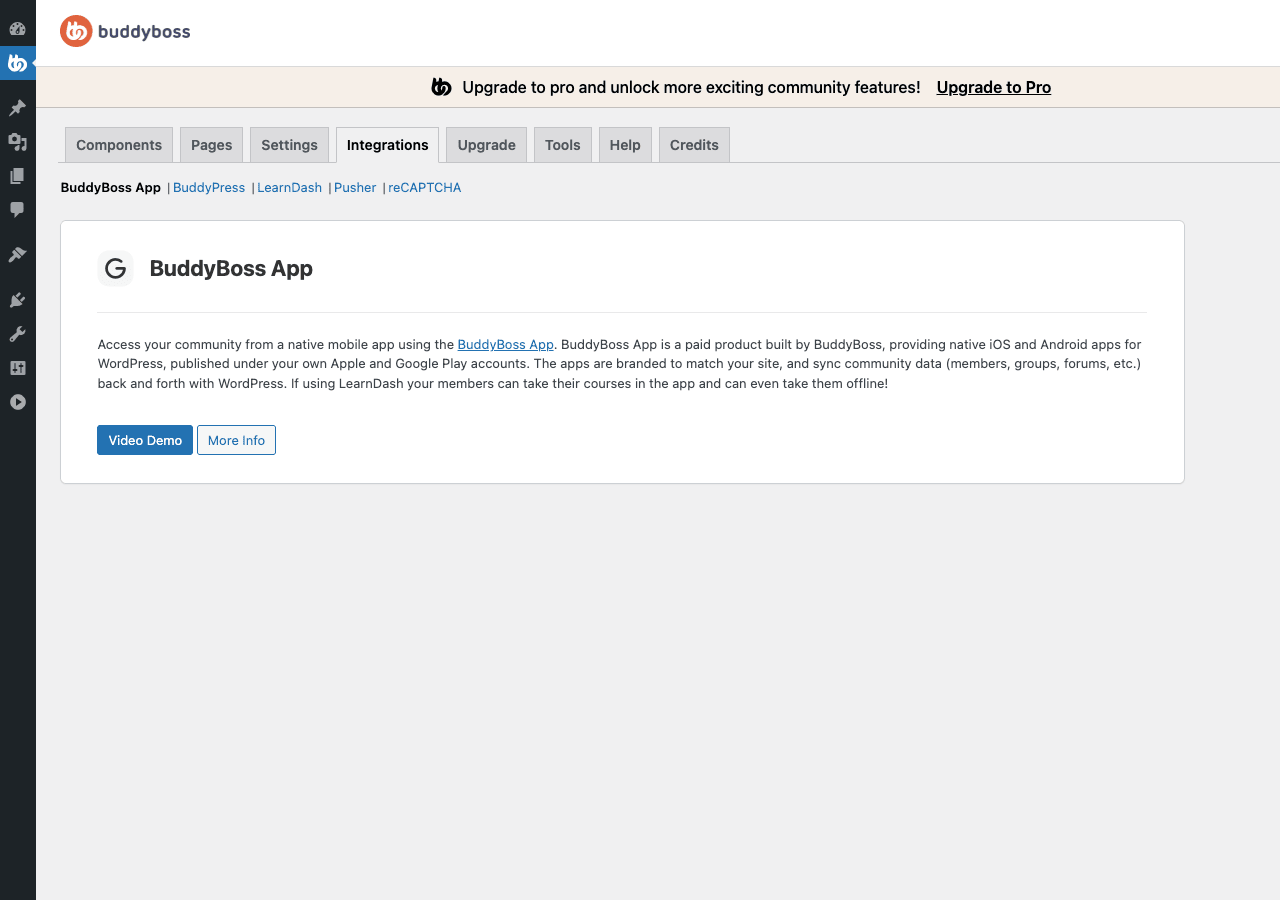
Supported integrations include:
- LearnDash, automatic group-per-course, course access tied to group membership, LearnDash activity posts in feeds
- Tutor LMS, similar integration: groups for courses
- LifterLMS, same pattern, but for LifterLMS-based courses
- WooCommerce / EDD, paid memberships, product purchase triggers community access
- Paid Memberships Pro / MemberPress, membership-level access to specific community areas
- AutomatorWP / Uncanny Automator, automate community actions (e.g., "when user buys product, add to group X")
- PeepSo, Ultimate Member, alternative profile systems coexistence (mostly migration paths away from them)
The killer use case: LearnDash + BuddyBoss = a private course community. Each course auto-creates a private group. Enrolled students automatically join. Discussions, photo sharing, and DMs happen inside the group. When the course ends, the group archives. Setting this up by hand would take days; the integration handles it.
To enable an integration, click on its row, toggle the connection ON, and configure the per-integration sub-settings. Each one has its own settings page.
Step 8: Customize the front-end with BuddyBoss Theme {#step-8-theme}
BuddyBoss Platform works with any WordPress theme but looks best with the matching BuddyBoss Theme. Without it, the community pages use your current theme’s styles and many BuddyBoss elements look out-of-place (especially mobile-app-style cards, activity feed UI, group covers).
With BuddyBoss Theme you get:
- Community-optimized header (notifications bell, messages icon, profile menu)
- Activity feed styling matching modern social apps
- Member profile pages with cover photos, tabs (Activity, Friends, Groups, Photos, Profile, etc.)
- Mobile-app-style navigation (sticky bottom nav on mobile, sidebar on desktop)
- Customizer panel for community colors, fonts, logo
- BuddyBoss admin notice bars and panels
Without BuddyBoss Theme (using Astra, Kadence, GeneratePress, etc.) it still functions but the visual integration is inconsistent. The plugin adds its own minimal CSS but a 2024-era community theme it is not.
If you’re serious about the community experience, budget for BuddyBoss Theme.
Step 9: Set up member registration and onboarding {#step-9-registration}
Registration flow matters because it’s the first impression. Three setups:
Open registration (any visitor can sign up):
- WordPress Settings → General → check "Anyone can register"
- BuddyBoss → Pages → assign a Terms of Service and Privacy Policy page
- Optional: install a reCAPTCHA plugin to prevent bots
Paid registration (sign-up requires a paid plan):
- Keep WordPress registration disabled
- Install MemberPress or Memberships
- Configure the membership plugin to create WordPress users on purchase
- BuddyBoss profiles are created automatically for new users
Invite-only registration:
- Keep WordPress registration disabled
- Enable BuddyBoss → Components → Email Invites
- Existing members can invite friends via the front-end invite link
- Invitation emails contain a special signup link
Onboarding emails are configured in Settings → Emails. Default templates exist for: account activation, group invitations, friend requests, welcome messages. Customize the welcome email to set expectations for new members.
Step 10: Moderation and safety controls {#step-10-moderation}
Community sites need moderation from day one, not "we’ll add it later." BuddyBoss’s Moderation component handles the heavy lifting.
Go to BuddyBoss → Tools for the broader Tools panel:
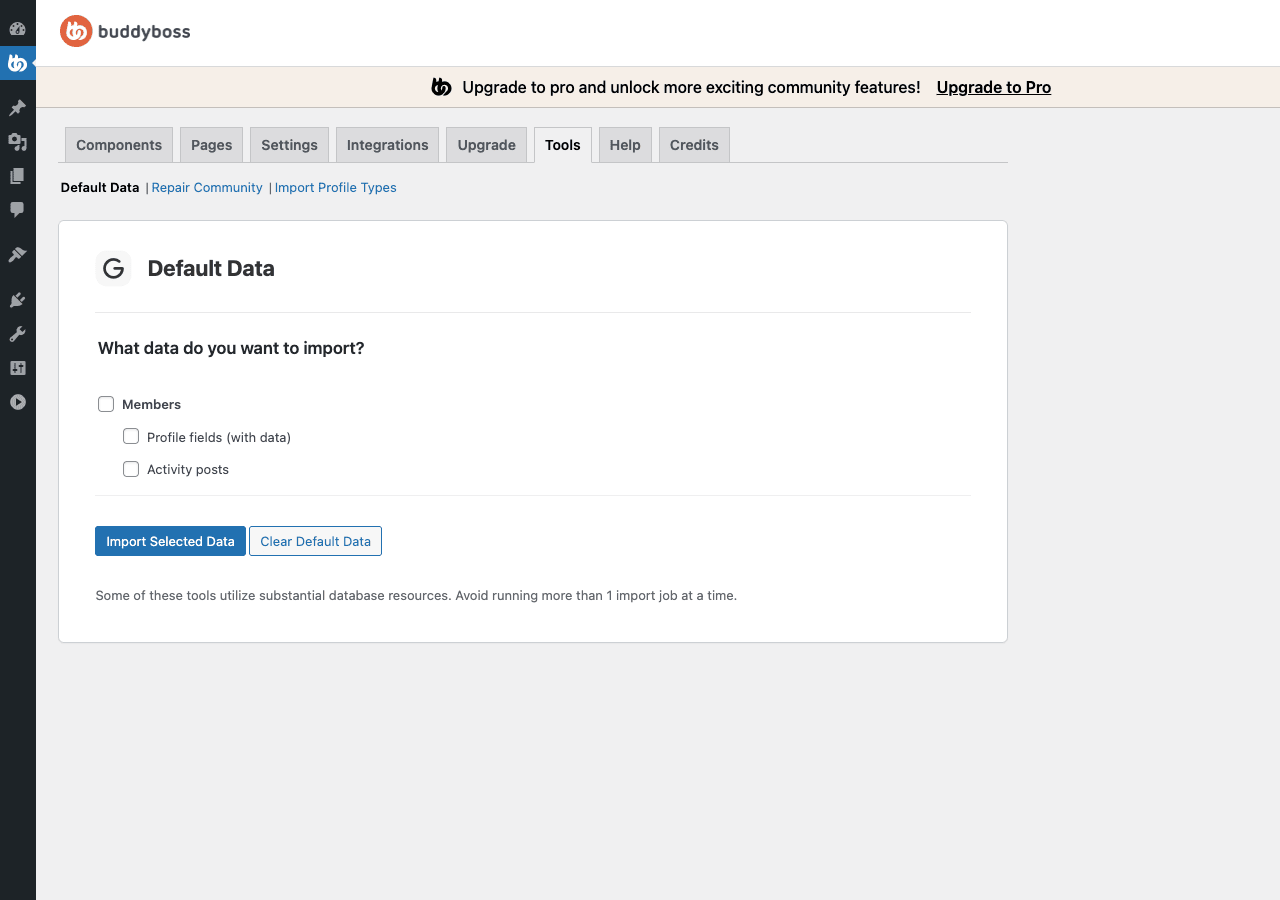
The Tools panel handles data integrity, but moderation specifically lives in the Moderation component settings (BuddyBoss → Settings → Moderation tab):
- User-blocking, members can block other members; blocked users can’t see profile or messages
- Reporting, flag content (activity, comments, messages) for admin review
- Hidden content, auto-hide content from blocked users
- Admin review queue, a single dashboard listing all reported content
- Auto-hide thresholds, automatically hide content after N reports
Plus from the WordPress sidebar, BuddyBoss → Moderation opens the admin review queue where you actually process reports.
For a new community site, your day-one moderation setup:
- Enable Moderation component
- Set auto-hide threshold to 3 reports (community-of-many self-regulates)
- Set up email notifications for moderators when content is reported
- Train your moderation team on the review queue
- Add a Community Guidelines page and link from the welcome email
Combined with email rate-limiting (Step 5) and member-level privacy controls, this prevents 90% of common community issues.
Real performance impact (with numbers) {#performance}
BuddyBoss Platform is a serious plugin, it adds 12+ database tables, hundreds of admin queries, and ~200KB front-end JS. Honest measurements from a community site with 500 members and active activity feeds:
Member directory page (logged-in member view):
- TTFB: 320ms
- LCP: 1.9s
- TBT: 280ms
- PageSpeed Mobile: 68
Activity feed page (with 50 recent posts):
- TTFB: 410ms
- LCP: 2.6s
- TBT: 380ms
- PageSpeed Mobile: 58
Group discussion page:
- TTFB: 290ms
- LCP: 1.7s
- TBT: 220ms
- PageSpeed Mobile: 72
Standard non-community WordPress page (for reference):
- TTFB: 180ms
- LCP: 1.1s
- PageSpeed Mobile: 86
BuddyBoss is heavier than standard WordPress because community pages are inherently dynamic. Aggressive page caching doesn’t work the same way it does for content sites, every member sees a personalized feed.
To mitigate:
- Object caching (Redis or Memcached) is mandatory for any community over 100 active members. Without it, every page load runs dozens of database queries.
- CDN with proper cache rules, cache static assets aggressively, never cache the HTML of community pages
- Image optimization, community sites generate a lot of uploaded photos. Use Smush Pro or similar.
- Settings → Performance in BuddyBoss admin, enable internal caches for activity, notifications, member counts.
- Better hosting, community sites need more than shared hosting. Plan for managed WordPress hosting (Cloudways, Kinsta) or a dedicated/VPS server.
Compared to vanilla BuddyPress + bbPress + 8 separate community plugins, BuddyBoss is actually lighter because it’s one coordinated codebase with shared caches and database queries.
BuddyBoss vs BuddyPress vs Mighty Networks vs Circle {#comparison}
BuddyBoss Platform, modern self-hosted community plugin, free + Pro tiers. Best for: serious community sites that want self-hosted control and a mobile-app-ready experience. Required investment in BuddyBoss Theme.
BuddyPress, original WordPress community plugin since 2008. Free, fully GPL, actively maintained. Best for: simple community needs (basic profiles, activity, groups). Theme integration is harder. Mobile experience is dated without a community-aware theme.
Mighty Networks, SaaS community platform. Per-member pricing (~$33-119/month + per-member fees). Best for: course creators and coaches who want zero infrastructure work. Less flexible than WordPress; vendor lock-in.
Circle, SaaS community platform similar to Mighty. ~$49-199/month + per-member fees. Best for: agencies serving multiple communities; cleaner UI than Mighty. Same lock-in tradeoff.
Discord, chat-first community. Free + premium tiers. Best for: gaming, dev, and casual chat communities. No long-form content support; ephemeral by design.
Quick decision matrix:
- Want self-hosted with mobile app option: BuddyBoss Platform + Theme + App
- Want free and simple: BuddyPress
- Don’t want to manage infrastructure: Circle or Mighty Networks
- Real-time chat focus: Discord or Slack
For paid courses + community combo, BuddyBoss + LearnDash is the strongest self-hosted stack in 2026.
Real-world pricing breakdown {#pricing}
BuddyBoss Platform (the plugin in this article): free.
BuddyBoss Platform Pro: ~$228/year (1 site) or higher tiers.
BuddyBoss Theme: ~$228/year (1 site).
BuddyBoss App (mobile app builder): ~$2,388/year and up (yes, that’s right, it’s expensive).
BuddyBoss AI: newer add-on, separate subscription.
Typical realistic budgets:
- Small community, web-only: BuddyBoss Platform (free) + BuddyBoss Theme ($228/yr) = $228/year
- Serious community with Pro features: Platform Pro ($228) + Theme ($228) = $456/year
- Community with native mobile apps: Platform Pro + Theme + App = $2,800+/year (the app pricing is the dominant cost)
Pricing is your GPL Times subscription. For agencies and communities that don’t need the official mobile app builder, this is dramatically cheaper than direct BuddyBoss licensing.
Worth noting: the BuddyBoss App is a hosted SaaS service, not a plugin, you can’t realistically GPL it. Communities that want native iOS/Android apps need an official BuddyBoss App subscription.
Common gotchas {#common-gotchas}
-
Component changes don’t appear on the front-end. Always re-flush permalinks (Settings → Permalinks → Save Changes) after enabling or disabling components. BuddyBoss adds new URL routes that need to register.
-
Member counts wrong. Run BuddyBoss → Tools → Repair Tools → Recalculate member counts. Stats can desync after bulk imports, migrations, or plugin deactivations.
-
Forum integration looks broken. BuddyBoss has its own internal forum system (a fork of bbPress). Don’t run BuddyBoss’s Forum Discussions component AND a separate bbPress plugin at the same time, they conflict.
-
Activity feed slow to load with hundreds of posts. Enable internal caching: BuddyBoss → Settings → Performance → enable activity caching. Object cache (Redis) is mandatory at scale.
-
Email notifications not sending. WordPress
wp_mail()failing. Install WP Mail SMTP Pro and configure real SMTP. Community sites send a LOT of emails (each notification triggers one); without proper SMTP, deliverability tanks. -
Members getting flooded with notification emails. BuddyBoss → Settings → Notifications → enable email throttling. Switch from "instant per notification" to "daily digest" for high-volume notification types.
-
Custom theme doesn’t render community pages well. Either invest in BuddyBoss Theme, or hand-style community pages with custom CSS. The plugin’s default styles are minimal.
-
Migrating from old BuddyPress. Use BuddyBoss → Tools → Import Tools → BuddyPress importer. The two share heritage so migration is mostly automatic, but verify member relationships and group memberships after migration.
-
Member profiles show too much information. Profile Fields admin: set per-field visibility (public, members, friends only, admin only). The default for many fields is public, which most communities don’t want.
-
Site slow after migration. Without object caching, community sites slow down rapidly. Mandatory step: enable Redis or Memcached on your hosting and install the matching WordPress object cache plugin.
Developer reference: hooks, REST API, custom components {#developer-reference}
BuddyBoss Platform exposes hundreds of hooks via bp_* and bb_* prefixes. Useful ones:
Hook into activity post creation (e.g., to add custom logic when a new activity item posts):
add_action( 'bp_activity_after_save', function( $activity ) {
 if ( $activity->type === 'activity_update' ) {
 // Notify a Slack channel, log to external system, etc.
 }
} );
Customize the activity privacy options:
add_filter( 'bp_activity_get_visibility_levels', function( $levels ) {
 $levels['paid_only'] = 'Paid Members Only';
 return $levels;
} );
Restrict group creation to specific roles:
add_filter( 'bp_user_can_create_groups', function( $can_create ) {
 return current_user_can( 'manage_options' );
} );
Hook into the member registration process:
add_action( 'bp_core_signup_user', function( $user_id, $user_login, $user_email, $user_data ) {
 update_user_meta( $user_id, '_signup_source', 'referral' );
}, 10, 4 );
Customize email notification subjects:
add_filter( 'bp_email_get_subject', function( $subject, $email ) {
 if ( $email->get_type() === 'friends-request' ) {
 return 'You have a new connection request on '. get_bloginfo( 'name' );
 }
 return $subject;
}, 10, 2 );
Disable a component programmatically (e.g., conditionally hide a component for some users):
add_filter( 'bp_is_groups_component_active', function( $active ) {
 if (! current_user_can( 'manage_options' ) ) {
 return false;
 }
 return $active;
} );
REST API: BuddyBoss Platform exposes a complete REST API under /wp-json/buddyboss/v1/ covering members, activity, groups, forums, messages, notifications, and more. Documented in the plugin’s /bp-api directory. Use cases: headless front-ends, native mobile apps (BuddyBoss App uses this internally), CRM integrations.
Authentication uses standard WordPress nonces, Application Passwords, or OAuth (via separate authentication plugins).
WP-CLI: BuddyBoss adds wp buddyboss commands for common admin tasks:
wp buddyboss tool repair_member_count
wp buddyboss tool reinstall_emails
wp buddyboss component activate groups
wp buddyboss component deactivate forums
Useful for deploy pipelines and automated setup.
FAQ: questions people actually search {#faq}
Is BuddyBoss Platform free?
The Platform plugin itself is free. Pro features, Theme, and App are paid. Many communities run on Platform-free + bring-your-own-theme without buying anything from BuddyBoss directly.
Can I use BuddyBoss without BuddyBoss Theme?
Yes. The platform works with any WordPress theme. The Theme adds polish and community-specific UI but isn’t required for functionality.
Does BuddyBoss replace BuddyPress?
For modern community sites, yes, BuddyBoss is built by the BuddyPress team’s offshoot and is more actively developed. BuddyPress still works and is GPL/free but feels increasingly dated. New projects in 2026 should pick BuddyBoss.
Does BuddyBoss work with Elementor Pro?
Yes. BuddyBoss provides Elementor widgets for community elements (member directory, activity feed, etc.) so you can build custom community page layouts in Elementor.
How many members can BuddyBoss handle?
Thousands per site without issues, with proper hosting + caching. The largest BuddyBoss sites have 100,000+ members on dedicated infrastructure.
Can I use BuddyBoss for a paid course community?
Yes, this is the most common use case. BuddyBoss + LearnDash (or Tutor LMS) + a payment plugin = a course-and-community site that competes with Mighty Networks and Circle on features at a fraction of the recurring cost.
Is there a mobile app?
BuddyBoss sells a native app builder (BuddyBoss App) that generates iOS and Android apps from your BuddyBoss-powered site. Pricing is steep (~$2,400+/year) but the apps are full native experiences.
Does BuddyBoss work with WooCommerce?
Yes, native integration. Useful for: paid memberships (purchase a product to access community), member-only product visibility, member directories that show purchases.
Can I migrate from BuddyPress to BuddyBoss?
Yes. Use BuddyBoss → Tools → Import → BuddyPress importer. Member data, activity history, groups, and forums migrate. Plan for a few hours of post-migration verification on a real-size site.
Does it integrate with my existing email marketing tool?
Via integrations: FluentCRM or MailPoet directly via their own BuddyBoss/BuddyPress integrations. Mailchimp, ActiveCampaign, ConvertKit via AutomatorWP or Uncanny Automator.
What’s the difference between BuddyBoss and Ultimate Member?
Ultimate Member focuses on profile/registration. BuddyBoss is a full community suite including activity, groups, messaging, forums. UM is lighter; BuddyBoss is more complete.
Will BuddyBoss support continue indefinitely?
BuddyBoss is the company’s flagship product with thousands of paying customers. Continued development is very likely.
Final thoughts {#final-thoughts}
BuddyBoss Platform in 2026 is the right answer for "I want to build a real community on WordPress and don’t want to stitch 8 plugins together." It’s heavier than the simpler BuddyPress and more involved than a SaaS like Circle, but in exchange you get self-hosted control, deep integration with the WordPress ecosystem (LearnDash, MemberPress, WooCommerce), and a coherent admin experience that doesn’t have you fighting plugin conflicts every week.
The trap is launching a community without a plan. Communities aren’t a "build it and they will come" situation. Before installing BuddyBoss, answer: who is this community for, what’s the value of membership, who moderates, what’s the daily activity expectation, and what would success look like in 6 months? A perfectly configured BuddyBoss site with no members is worse than no community at all.
The setup order I’d recommend:
- Install BuddyBoss Platform + BuddyBoss Theme + Pro
- Run setup wizard, accept defaults
- BuddyBoss → Components: enable only what you need (start minimal, expand as you grow)
- BuddyBoss → Pages: verify page assignments, set Terms of Service and Privacy Policy
- BuddyBoss → Settings: set privacy defaults, configure email throttling
- BuddyBoss → Integrations: enable LearnDash/LMS/WooCommerce if applicable
- Install WP Mail SMTP Pro and configure real SMTP (critical for email-heavy community sites)
- Enable object caching (Redis) on your hosting
- Run BuddyBoss → Tools → Repair Tools once to ensure clean stats
- Build out your custom profile fields, community guidelines page, and welcome email
- Soft launch to a small invite-only group before opening publicly
After that, success depends 90% on community management (welcoming new members, prompting discussions, removing spam) and 10% on technical configuration. The plugin gives you the foundation; the work is community-building.