

WordPress ships with the same login screen it had a decade ago: a white box with the WordPress wobble logo and a thick pink button. That’s fine for sites where only the developer logs in. It stops being fine the moment paying customers, members, students, or staff need to sign in every day, because that screen sets the tone for everything they’re about to do on the site.
LoginPress Pro is the plugin that replaces that screen with one that looks like yours. It also handles a stack of related jobs that almost always come up at the same time: hiding the default login URL, sending people to different places after login depending on role, letting users sign in with Google or Facebook, throttling brute-force attempts, and branding the password-reset email.
This is a deep look at how it works, which add-ons matter, where its hooks and filters live, and how it compares to the alternatives.
Table of contents
- What LoginPress Pro actually is
- Core features at a glance
- How customization works in the WordPress Customizer
- The seven Pro add-ons
- Installation and setup
- Real-world use cases
- Developer reference
- Performance, compatibility, and gotchas
- Pricing and licensing
- Frequently asked questions
- Final thoughts
What LoginPress Pro actually is
LoginPress Pro is the paid extension to the free LoginPress plugin on WordPress.org, which has more than a million active installs. Both are made by WPBrigade, a small WordPress product studio that has been shipping the plugin since 2017.
The free plugin already gives you a Customizer-based UI for editing the login page: change the logo, change the background, change the form colors, drop in a small block of custom CSS. That alone is enough for a hobby site. The Pro plugin unlocks the parts that bigger sites tend to need:
- A library of more than seventeen ready-made templates (Minimalist, Company, Persona, Corporate, Startup, Wedding, and many numbered variants).
- Background slideshows, gradients, and video-friendly options instead of one static image.
- Six bundled add-ons that handle social login, custom login URL, login attempt limits, role-based redirects, an embeddable login widget, and email-based auto-login links.
- Customizer panels for the lost-password screen and for per-element styling that the free version stops short of.
- Branded password-reset emails with proper merge tags.
- Integrations with BuddyPress, BuddyBoss, WooCommerce, Easy Digital Downloads, LearnDash, and LifterLMS, so the styled login form appears on those plugins’ own checkout and account pages too.
Two things to know up front. First, LoginPress Pro is not a standalone plugin: the free LoginPress must be active first, because Pro extends it. Second, it lives almost entirely inside the native WordPress Customizer. That’s a deliberate choice and once you’re past the initial "wait, where is the settings page?" moment it turns out to be the right one, because every tweak previews live against the real login screen.
Core features at a glance
- Drag-free Customizer UI: every visual setting (logo, background, form, button, error messages, fonts) is a Customizer control with a live preview pane showing the actual login screen.
- Seventeen plus pre-made templates: pick one, optionally tweak, save. The bundled templates cover most generic styles, and you can layer custom CSS on top.
- Background gallery and slideshow: rotate through multiple background images, not just one static file. Plus gradient and solid-color options for sites that want a flatter look.
- Custom Google Font for the form: pick from the Google Fonts catalog and apply it just to the login page without affecting the front end of the site.
- Custom login slug through the Hide Login add-on: rename
wp-login.phpto anything you want; bots that hit the old URL get a 404. - Limit Login Attempts add-on: lock out bots after N failed attempts, with whitelist/blacklist support, custom messages, and a "Status" column showing success/failed/locked rows.
- Per-role login and logout redirects: subscribers go to
/my-account, editors go to/wp-admin, customers go to a personal dashboard. Supports per-user overrides too. - Auto-Login add-on: generate one-click, expiring login links you can email to a user. Good for magic-link flows.
- Social Login: Facebook, Google, Twitter/X, LinkedIn, Apple, Microsoft, GitHub. Restrict to specific email domains for B2B use.
- Login Widget add-on: embed the LoginPress login, registration, or lost-password form anywhere with a Gutenberg block or a shortcode.
- Force Login: lock the entire site behind login, with per-URL or per-crawler exceptions.
- Branded password-reset emails: replace the default WordPress email template with one that matches your brand.
- CAPTCHA layer: Google reCAPTCHA v2 and v3, hCaptcha, Cloudflare Turnstile, plus a built-in math challenge for sites that don’t want a third-party service.
- Import / export of all Customizer settings as JSON: move a finished design from staging to production without a database copy.
- Multi-language ready: WPML, Polylang, and Loco Translate are supported.
How customization works in the WordPress Customizer
LoginPress Pro builds its entire settings UI as panels inside the WordPress Customizer. If you’ve used the Customizer for a theme, this will feel familiar. If you haven’t, it’s the screen at Appearance > Customize, with a sidebar of options on the left and a live preview of the site on the right.
LoginPress hijacks the preview pane and points it at wp-login.php?loginpress-preview=true, so the live preview becomes the actual login form. Drag the logo width slider and the logo on the right shrinks. Change the button background and the button on the right repaints. There’s no save-and-refresh loop.
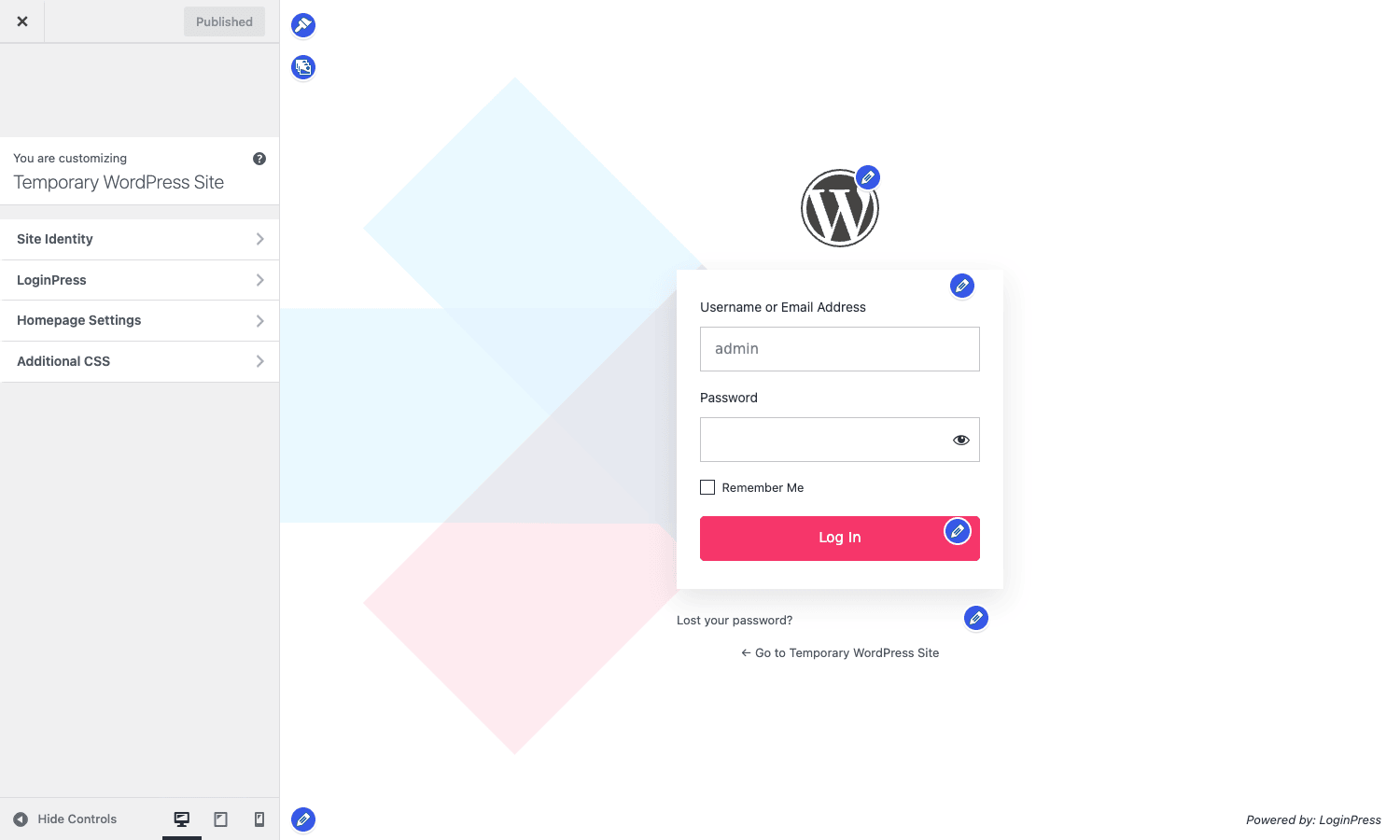
The panels under the LoginPress section are:
- Themes: the template picker. Choose a starting point; the preview repaints instantly.
- Google Fonts: one font for the entire form.
- Logo: image, width, height, top padding, mobile size, mobile padding.
- Background: solid color, gradient, single image, gallery slideshow, plus a separate mobile background if you want.
- Customize Login Form: form width, container background, padding, input field colors and borders, placeholder color, label color, link color, "Remember Me" checkbox style.
- Customize Forget Form: the same controls again, but for the lost-password screen.
- CAPTCHAs: pick a CAPTCHA provider and configure where it appears.
- Button Beauty: the Log In button. Background, hover, text color, border-radius, shadow.
- Error Messages: rewrite every default WordPress login error ("Invalid username", "Empty password", etc.) into something kinder or more on-brand.
- Welcome Messages: replace the awkward "Welcome to wp-login.php" subtitle.
- Form Footer: the "Lost your password?" and "Go to site" footer text and color.
- Custom CSS/JS: a free-form code editor with a CSS tab and a JS tab when you’ve hit the limits of the GUI.
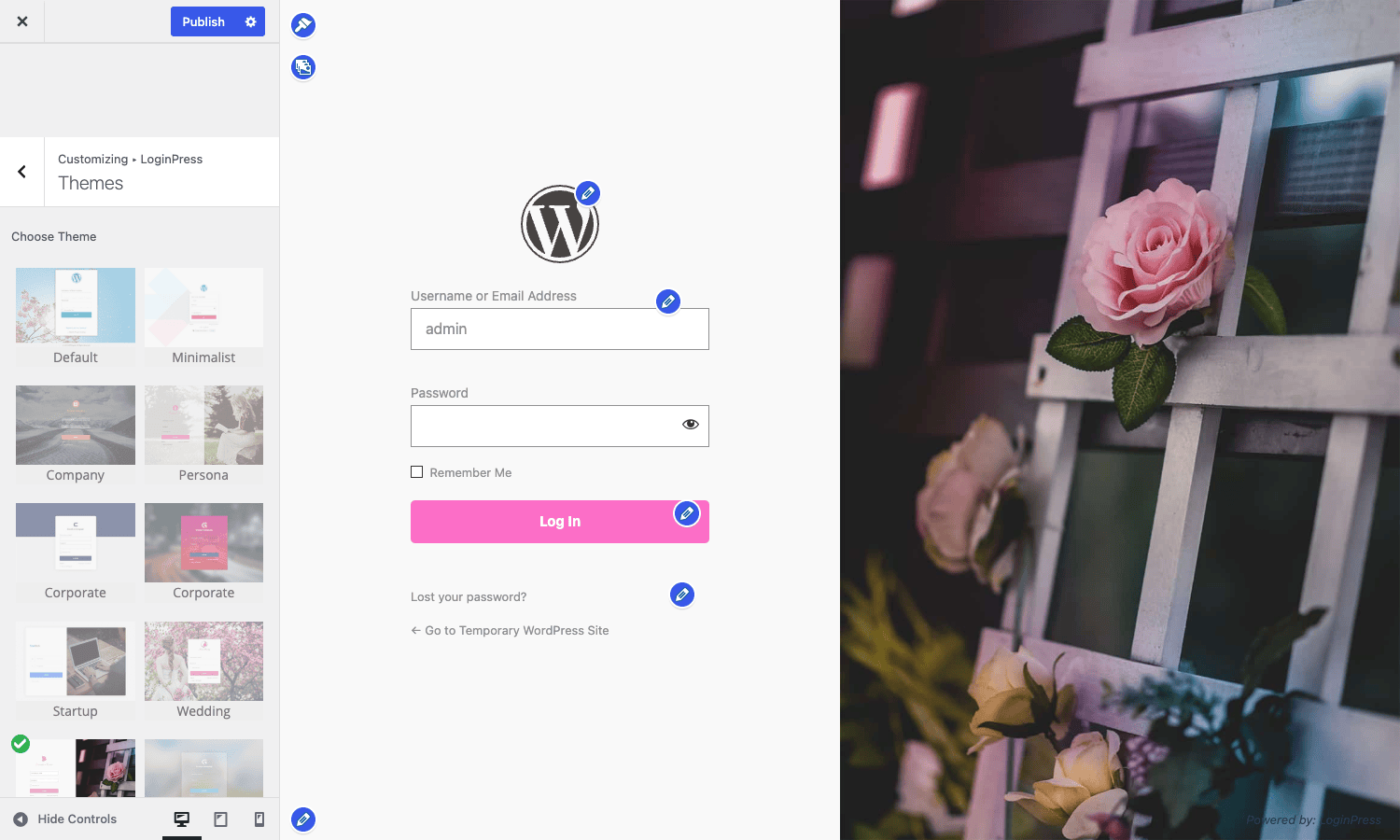
The reason this Customizer-first approach works well, despite WordPress core slowly moving away from the Customizer for theme settings, is that the login page genuinely benefits from a live preview. Designing a login form is fussy: the form is small, the spacing matters, and a logo that looks right on a desktop preview can sit off-center on mobile. Being able to see the change at the moment you make it saves five steps in the loop. The Customizer also exposes a built-in mobile/tablet/desktop preview toggle at the bottom, so you can check the mobile layout without resizing the browser.
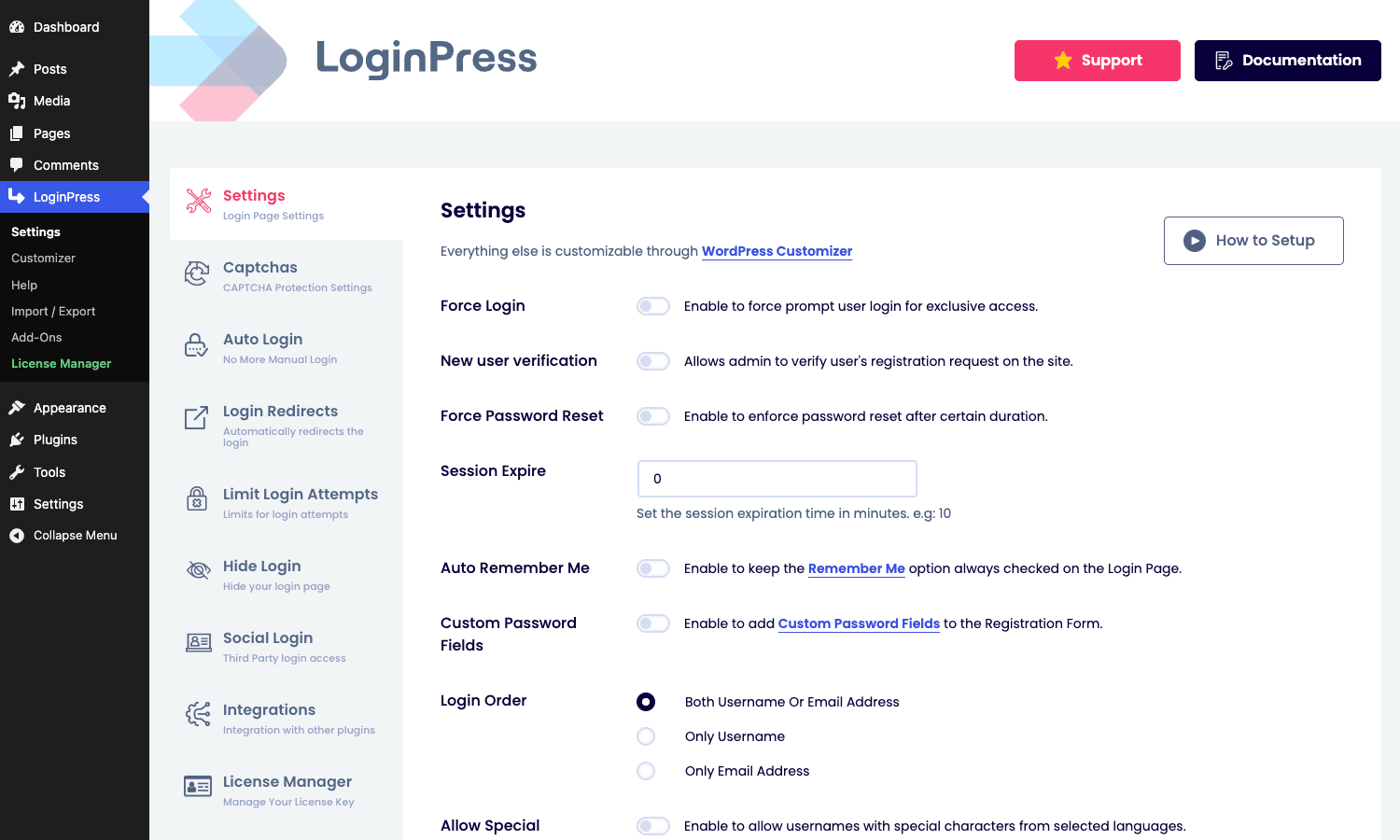
There’s also a separate top-level Settings page in wp-admin > LoginPress > Settings for the non-visual configuration: Force Login toggle, session expiration, new-user verification, custom password fields on registration, allowed login order (username vs email), and the per-tab settings for each add-on.
The seven Pro add-ons
The Pro plugin ships with six add-ons bundled inside it (and the free plugin contributes a seventh, the Login Logout Menu). They appear on the LoginPress > Add-Ons page as cards you can activate or deactivate per site.
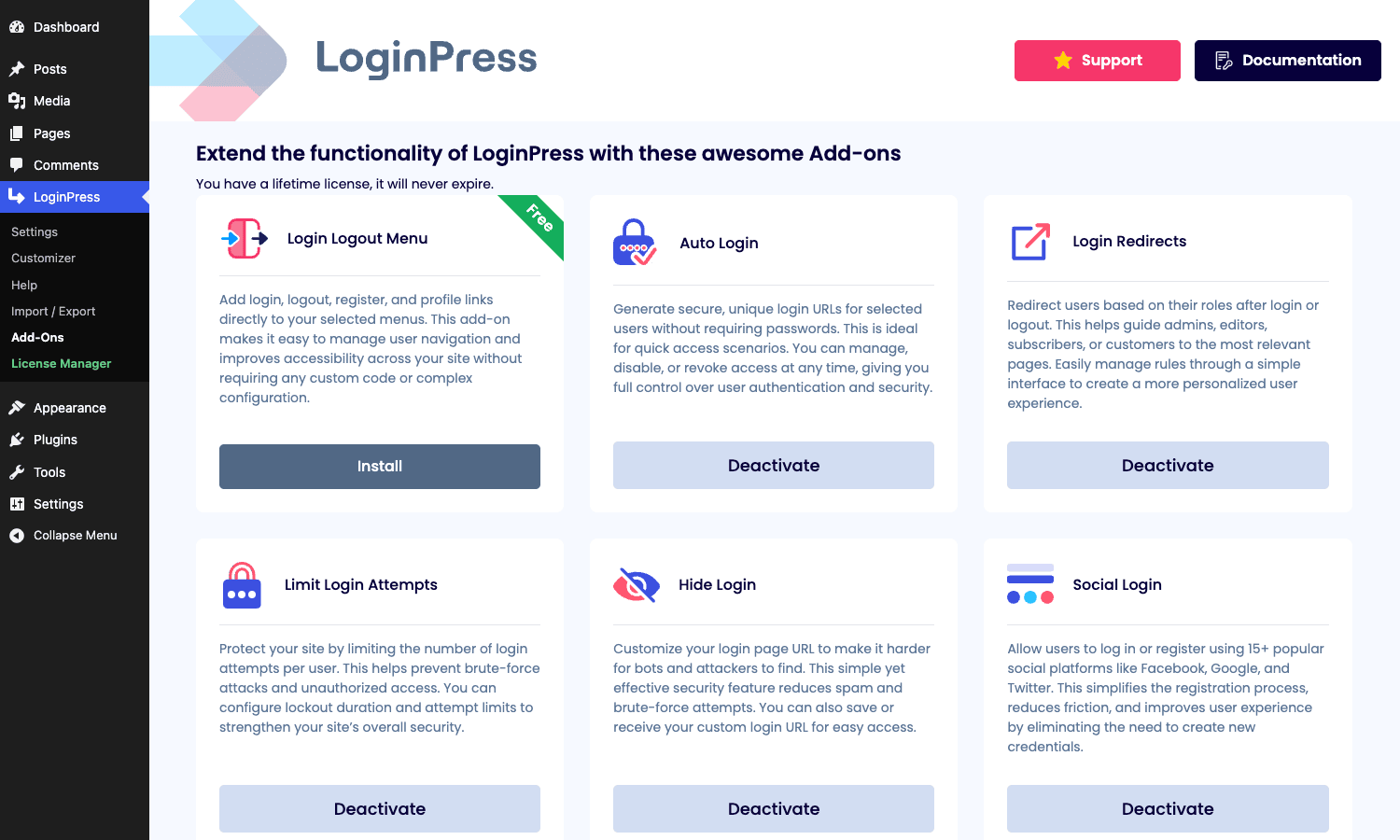
Hide Login
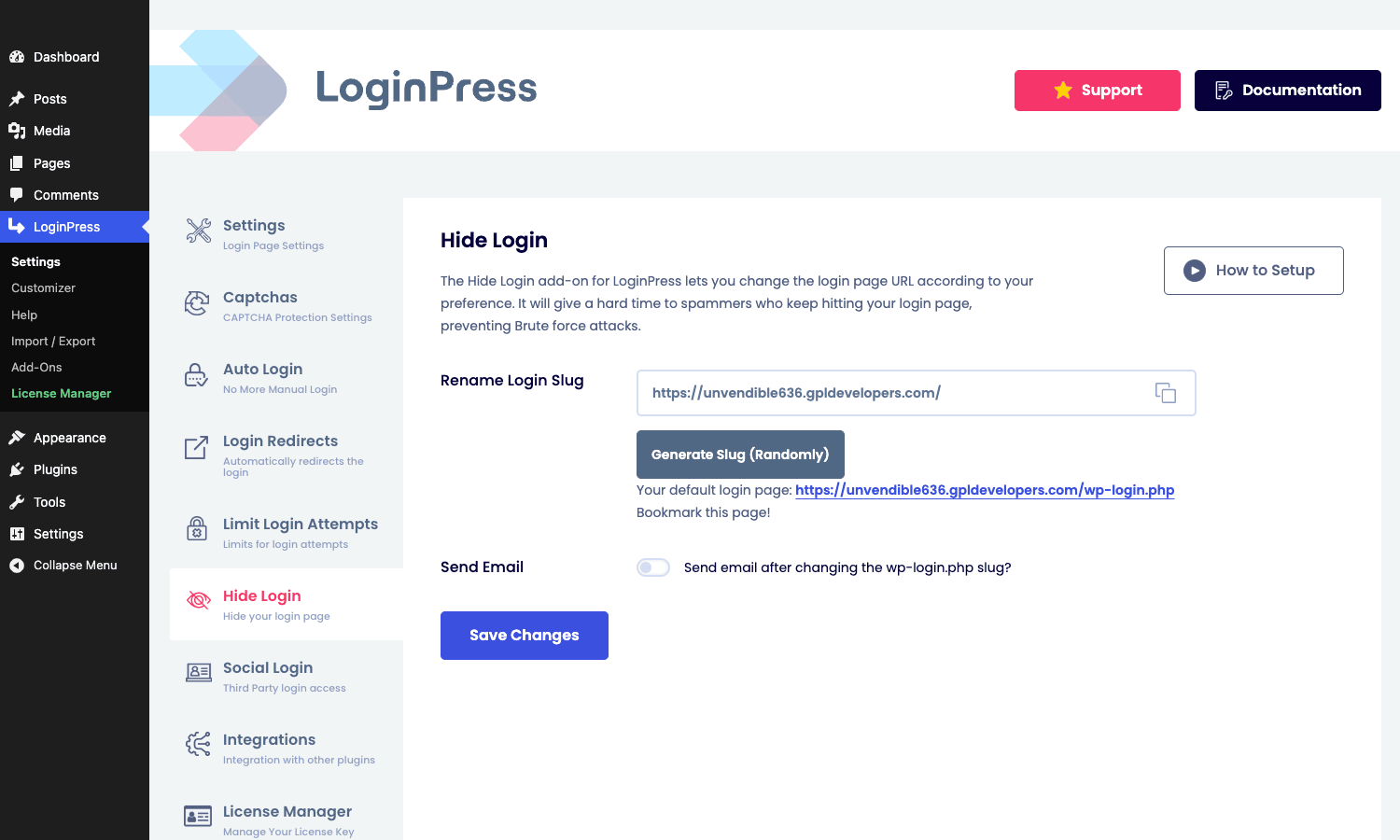
Renames wp-login.php to whatever slug you want. Once enabled, going to the old URL returns a 404 (or a redirect of your choice). The slug shows up on the front end as the new login link, but only if someone follows your bookmark, link, or email. Bots hitting /wp-login.php directly get nothing.
This is functionally the same job as the standalone WPS Hide Login plugin, bundled into the suite. If you already use LoginPress Pro, you don’t need WPS Hide Login on top of it.
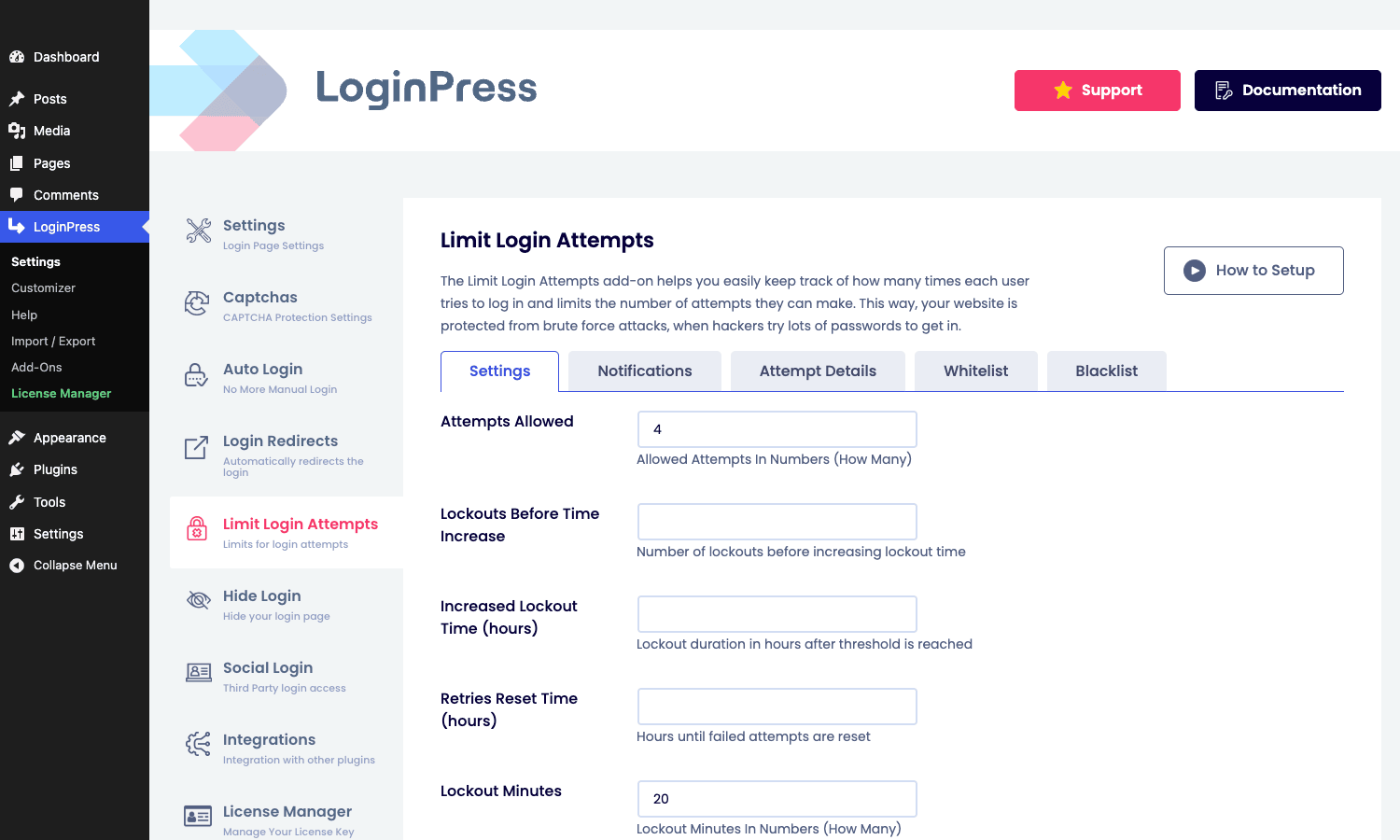
Limit Login Attempts
Counts failed logins per IP and per username. When the count crosses a threshold, the account or IP is locked out for a configurable period. The 6.0 release added a "Status" column under Attempt Details that shows whether each row was a success, a failure, or a lockout, plus a Limit Concurrent feature that caps simultaneous sessions per user.
This is not a replacement for a full security plugin. If you need 2FA, file monitoring, malware scanning, or a managed WAF, you’re better off pairing this with a focused security plugin. There’s a longer comparison further down.
Login Redirects
Send users to different URLs after login (and after logout) based on their role or their username. Subscribers can land on the public homepage, customers on /my-account, editors on /wp-admin/post-new.php. There’s a per-user override table for the special cases.
The implementation has decent hooks; the LearnDash and LifterLMS integrations expose their own filters (loginpress_redirects_group_filter, loginpress_llms_redirect_priority) so course-completion redirects can run alongside login redirects without fighting each other.
Auto Login
Generates one-click login links with an expiration. The admin pastes the link into an email or a chat message; the recipient clicks it once and gets logged in. The token expires after the configured duration or usage count.
This is the "magic link" pattern that products like Slack and Notion use. It’s also the workhorse for one-time webinar links, paid-content unlock emails, and "reset your password" replacements for membership sites that don’t want users to manage another password. Hooks like loginpress_autologin_inactive_error and loginpress_autologin_expired_error let you rewrite the message shown when a token is bad.
Social Login
Adds buttons for Facebook, Google, Twitter/X, LinkedIn, Apple, Microsoft, and GitHub. Each provider needs an OAuth app on the provider’s side (a one-time setup); the add-on stores the keys and handles the rest.
Two things make this add-on more interesting than the standalone social-login plugins:
- Per-provider domain restriction. The filters
loginpress_social_login_google_domains,loginpress_social_login_microsoft_domains, and the rest let you accept only emails fromyourcompany.com. That makes it usable for B2B sites where employees should sign in with their work Google account. - Tight integration with the login form’s styling. The buttons inherit the form’s theme by default, so you don’t end up with a stylish login form sitting above a row of jarring stock Facebook-blue buttons.
There’s also a shortcode [loginpress_social_login] and a Gutenberg block (loginpress-pro/social-login) that drops the same buttons anywhere on the site.
Login Widget
Embed the LoginPress login form (or the registration or lost-password form) inside any page or post. Available as a Gutenberg block (loginpress-pro/login-widget) and as a shortcode. Useful when you want the front-end of the site to feel like a unified flow, with the login form on a real branded page instead of a separate wp-login.php URL.
Combined with Hide Login, this turns into a basic front-end login system without needing a heavier plugin like Profile Builder Pro.
Login Logout Menu (contributed by the free plugin)
Adds a "Login / Logout" link to any WordPress menu. The link text and visibility update based on whether the user is logged in. Useful for sites with a main nav that should hide "Login" when the user’s already signed in.
Installation and setup
This is a two-step install because the Pro plugin extends the free plugin.
Step 1: install free LoginPress. Go to Plugins > Add New, search "LoginPress", install, activate. Or download the free version from wordpress.org/plugins/loginpress and upload it.
Step 2: install LoginPress Pro. Upload the Pro zip from Plugins > Add New > Upload Plugin. The Pro plugin will detect the free version and activate cleanly. If you try to activate Pro without the free version first, WordPress shows a "missing required plugin" notice.
After activation, an onboarding wizard prompts you to opt into anonymous usage data and a few starter settings. Skip it and go straight to LoginPress > Customizer to start designing, or LoginPress > Settings if you want to configure the non-visual options first.
The first three things worth doing:
- Pick a template. LoginPress > Customizer > Themes. Click through them; the preview repaints. Pick one that’s close to your brand and tweak from there.
- Add your logo. Customizer > LoginPress > Logo. Replace the WordPress wobble with your own image. Set the height carefully, 60 to 90 pixels works for most logos.
- Set the redirects. Settings > LoginPress > Login Redirects. At minimum, decide where subscribers should go after login. Sending them to
/wp-admin(the default) is a bad experience because the WP admin is overwhelming for a non-editor; sending them to a public page or a/my-accountURL is almost always better.
Then turn on the add-ons you actually need. Don’t activate them all at once, each one adds settings clutter. Most sites end up using Hide Login + Login Redirects + sometimes Limit Login Attempts and Social Login.
Real-world use cases
Membership site that wants the login form to feel native
If you run a membership site with something like MemberPress Pro or Ultimate Member, the login form is the gate to the paid content. A vanilla wp-login.php page breaks the spell instantly. Pick a template that matches the membership site’s colors, set the background to a subtle image of whatever the members are paying for, set the post-login redirect to /account, hide the URL with the Hide Login add-on. The form is now a logical part of the site instead of a WordPress leak.
Community site running BuddyBoss or BuddyPress
The free BuddyBoss login page is functional but stark. LoginPress Pro’s BuddyBoss integration injects the styled form into the BuddyBoss flow, so the login experience matches the rest of the community theme. Add social login on top so new members can sign up with one click; this is the single biggest lever on community sign-up conversion. If you’re running the full BuddyBoss Platform stack, the integration is worth more than the rest of the plugin combined.
Online store with WooCommerce that hates the WP login UX
WooCommerce sends customers to /my-account for sign-in, but customers occasionally land on /wp-login.php from a saved bookmark or a reset-password email. Both pages now look like your store, because LoginPress Pro themes the underlying form that both surface. Set the customer-role redirect to /my-account so post-login behavior is consistent.
Internal tool gated by Google Workspace
Site is internal-only. Staff all have @yourcompany.com email addresses on Google Workspace. Turn on Social Login, configure Google as a provider, set the domain restriction filter to ['yourcompany.com']. Anyone hitting the site signs in with their work Google account in one click; outsiders can’t get in even if they create a Google account. Pair with Force Login and the Hide Login URL slug for an internal-only tool that nobody has to manage another password for.
Online course where the instructor wants to send "join now" emails
Use the Auto Login add-on. Generate a one-time login link for the student, paste it into the welcome email, the student clicks once and is logged in and dropped on the course homepage. No password setup at all. Set the link to expire after 7 days so old emails don’t become a security problem.
Developer reference
The free LoginPress plugin and LoginPress Pro together expose over 100 actions and filters in the loginpress_ namespace. The most useful ones are below, grouped by what you’re trying to do.
Hook: override the after-social-login redirect
The default sends users back to where they came from. If you need a deterministic landing page (e.g. always go to /onboarding for new social signups), filter loginpress_social_login_redirect:
add_filter( 'loginpress_social_login_redirect', function( $url ) {
    // Always send new social-login users to onboarding.
    return home_url( '/onboarding/' );
} );
Hook: send only specific email domains through Google login
For B2B sites you usually want to restrict Google login to one or more company domains:
add_filter( 'loginpress_social_login_google_domains', function() {
    return array( 'acmecorp.com', 'acme.io' );
} );
A user signing in with a Google account on any other domain will see the restriction error (whose text you can also filter):
add_filter( 'loginpress_social_login_restriction_message', function( $msg ) {
    return 'Sign in with your Acme Corp Google account, please.';
} );
Hook: rewrite the Auto Login expired error
When an auto-login link is past its expiration the user lands on a generic error. Rewrite it to point at the right next action:
add_filter( 'loginpress_autologin_expired_error', function() {
    return sprintf(
        'This link has expired. <a href="%s">Request a new link</a>.',
        esc_url( site_url( '/login/request-link' ) )
    );
} );
Hook: brand the registration approval email
When the "New User Verification" setting is on, admins approve new sign-ups manually. The approval and rejection emails both have a default WordPress-y subject line and body. Filter both:
add_filter( 'loginpress_approve_email_subject', function( $subject ) {
    return 'Your Acme account is ready';
} );

add_filter( 'loginpress_approve_email', function( $body, $user ) {
    return "Hi {$user->display_name},\n\nYour Acme account is now active. "
         . "Log in at " . site_url( '/login' ) . "\n\nThanks,\nThe Acme Team";
}, 10, 2 );
Hook: exempt specific pages from Force Login
Force Login locks the whole site behind authentication. To leave specific URLs public (a contact page, a status page, a public landing page):
add_filter( 'loginpress_apply_forcelogin_only_on', function() {
    // Only enforce login on these post IDs (everything else is public).
    return array( 42, 99, 102 );
} );
There’s also loginpress_exclude_forcelogin for ad-hoc exemptions and loginpress_add_custom_crawlers for letting your monitoring tools through without authenticating.
Hook: change the LifterLMS redirect priority
If you run LifterLMS and have a separate course-completion redirect that needs to win over LoginPress’s login redirect, drop its priority:
add_filter( 'loginpress_llms_redirect_priority', function( $priority ) {
    return 25; // default is around 10; bumping this gives other handlers a chance to run first.
}, 10, 1 );
Hook: customize the "or" separator on social login
The "or" text between the password form and the social buttons is filterable. Use it for translations or to inject a small HTML separator:
add_filter( 'loginpress_social_login_separator', function() {
    return 'or sign in with';
} );
Action: react when a new user signs up via social login
The loginpress_social_login_registered action fires when a user is created through any social provider. Hook into it to seed metadata, push to a CRM, or tag the user for an onboarding campaign:
add_action( 'loginpress_social_login_registered', function( $user ) {
    update_user_meta( $user->ID, 'signup_source', 'social' );
    update_user_meta( $user->ID, 'signup_timestamp', current_time( 'timestamp' ) );

    // Push to your CRM, mailing list, etc.
    do_action( 'mycrm/register_user', $user );
} );
Filter: replace the bundled theme file with your own
If none of the seventeen bundled templates is close enough and you’d rather ship a custom PHP theme for the login screen, intercept the file path:
add_filter( 'loginpress_premium_theme', function( $path ) {
    return get_stylesheet_directory() . '/loginpress-themes/my-custom-theme.php';
} );
The theme file is just a standard wp-login.php template with LoginPress’s variables in scope.
REST endpoints
LoginPress Pro registers several REST routes under loginpress/v1 and loginpress-pro/v1 for the admin UI. They’re not publicly documented as a stable API, but they’re useful to know if you’re embedding LoginPress configuration into a build pipeline:
loginpress/v1/captcha/*for reading and writing CAPTCHA configuration.loginpress-pro/v1/login-redirects/*for full CRUD on per-user and per-role login redirects.loginpress-pro/v1/auto-login/*for generating and revoking auto-login tokens.loginpress-pro/v1/social-login/*for provider config.
Capability for all of them is manage_options, so they require an admin nonce.
WP-CLI
There’s no official WP-CLI command surface for LoginPress, but the import/export of Customizer settings as JSON means you can effectively script "apply our standard branding" with two commands:
# On staging
wp option get loginpress_customization > /backup/lp-staging.json

# On production
wp option update loginpress_customization "$(cat /backup/lp-staging.json)"
For more complex automation, the standard WordPress Customizer API (developer.wordpress.org reference) applies, because LoginPress’s settings are all standard WP_Customize_Setting objects.
Performance, compatibility, and gotchas
Performance
On the front end of your site, LoginPress Pro adds nothing. Its CSS, JS, and PHP only fire on:
wp-login.php(and the renamed slug if Hide Login is on)- The
loginpress_widgetblock or shortcode (only the pages that embed it) wp-admin(for the settings UI; only when an admin is logged in)
This is the right architecture and it shows up in field measurements: zero impact on Largest Contentful Paint, Cumulative Layout Shift, or any of the Core Web Vitals on actual content pages. The login page itself isn’t usually crawled by Google so its weight doesn’t matter for SEO. It still matters for human users, and there the page is reasonable: under 200 KB transferred for most templates, much of which is the chosen background image.
Compatibility
- WordPress version: tested up to WordPress 7.0. Compatible back to 4.0.
- Multisite: yes. Each subsite gets its own customization.
- WooCommerce, BuddyPress, BuddyBoss, LearnDash, LifterLMS, Easy Digital Downloads: explicit integrations.
- WPML, Polylang, Loco Translate: yes, all customizer strings are translatable.
- Page builders: the Customizer UI is independent of which builder you use. Elementor, Bricks, Divi, Astra Pro, none of them touch
wp-login.php, so there’s no conflict to manage. - Caching plugins: WP Rocket, W3 Total Cache, and the like don’t cache
wp-login.phpby default, so no special config needed. If you’ve forced them to cache it, exclude/wp-login.phpand your renamed slug. - Security plugins: see the dedicated section below.
Compatibility with dedicated security plugins
LoginPress Pro is a branding plugin first. It includes a Limit Login Attempts add-on and CAPTCHA, but it isn’t a security plugin. If you also run Loginizer (the dedicated security counterpart that handles brute-force protection, 2FA, and reCAPTCHA), or a full suite like Wordfence Premium, pick one to handle login throttling.
Running LoginPress Pro’s Limit Login Attempts add-on and a dedicated security plugin’s brute-force module at the same time is fine but pointless, because both count the same failures separately and you’ll get noisy lockout logs. Pick one, turn the other off.
If you also run Hide My WP for URL obfuscation, the Hide Login add-on in LoginPress Pro overlaps with it on the login URL specifically. Hide My WP renames more (admin paths, plugin URLs); LoginPress only renames wp-login.php. Decide which one owns the login slug and turn off the other one’s login renaming so they don’t fight.
Gotchas
- Activation order matters. Free LoginPress first, then Pro. If you bulk-update plugins and free LoginPress fails to activate for any reason, Pro will not work and the admin notice may be cryptic.
- The Customizer location is non-obvious for first-time users. New site owners expect a plugin to put settings under Settings > [Plugin Name]. LoginPress Pro does have a Settings page, but the visual configuration is all under Appearance > Customize (or the LoginPress > Customizer shortcut). Document this for your clients.
- Custom CSS sits in
Custom CSS/JS, not in the theme’s Customizer. Easy to forget when you’re editing both the theme and the login form. - Hide Login can lock you out if you forget the slug. The plugin shows the slug in Settings > Hide Login and offers a "Bookmark this page" prompt. Bookmark it. If you do get locked out, deactivate LoginPress Pro via SFTP or WP-CLI (
wp plugin deactivate loginpress-pro) and the defaultwp-login.phpis restored. - The free plugin shows an upsell banner for the Pro version. Once Pro is active the banner disappears. If you’re evaluating the free version first, that banner is the only intrusive bit.
- JSON export does not include uploaded images. It includes the URLs of the images in the media library. If you export from staging to production and the media library URLs don’t match, the background and logo will 404. Either upload the images to production first or use a search-replace step in your deploy script.
- CAPTCHAs added to WooCommerce checkout matter. Enabling the CAPTCHA add-on with "apply to all WooCommerce forms" turned on will add a reCAPTCHA challenge to the checkout. That’s good for spam protection but it can affect conversion. Test before going live on a high-volume store.
Pricing and licensing
LoginPress Pro is sold on the vendor site at loginpress.pro in three tiers: Personal (single site), Business (multiple sites), and Agency (unlimited sites). A lifetime upgrade is occasionally offered. The license includes one year of updates and support; renewing keeps the updates flowing, but the plugin continues to work after the license lapses.
The plugin is GPL-licensed (GPLv2+), as required for anything that uses WordPress’s APIs. That means the code itself is freely redistributable. The license you buy from the vendor is for updates and official support, not for the code.
LoginPress Pro is available as a GPL download on the GPL Times store, which is a useful path if you want to evaluate the plugin on a real site before deciding whether to buy a vendor license for the update stream.
Frequently asked questions
Does LoginPress Pro work without the free LoginPress plugin?
No. The Pro plugin extends the free plugin’s Customizer panels and add-ons; it doesn’t ship the base code itself. Install free LoginPress from WordPress.org first, then add Pro on top.
Will LoginPress Pro slow down my site?
No, because none of its code loads on front-end content pages. The CSS and JS only load on wp-login.php (and on pages that embed the Login Widget block/shortcode, if you use it). Core Web Vitals on regular pages are unaffected.
Can I keep the default WordPress login URL?
Yes. The Hide Login add-on is opt-in. If you don’t enable it, wp-login.php works as normal but with your custom design.
How does the Limit Login Attempts add-on compare to Loginizer?
LoginPress Pro’s add-on covers the basics: count failed attempts, lock out for a duration, allow whitelist/blacklist by IP. Loginizer is a focused security plugin with deeper brute-force protection, 2FA, reCAPTCHA-only mode, and an attack pattern database. If login security is a real concern, run a dedicated security plugin and turn off the LoginPress add-on. If you just want basic lockouts and don’t want a second plugin, the bundled add-on is enough.
Can I use it for a registration page, not just login?
Yes. LoginPress styles all three WordPress auth pages: login (wp-login.php), registration (wp-login.php?action=register), and lost password (wp-login.php?action=lostpassword). Each has its own Customizer panel.
Does it support 2FA?
Not directly. LoginPress Pro doesn’t ship a 2FA add-on. If you need 2FA, install a dedicated 2FA plugin or a security plugin that includes it. LoginPress’s CAPTCHA + Limit Login Attempts combo deters bots but doesn’t replace a real second factor.
Can I migrate my customization from staging to production?
Yes, with two caveats. The Customizer settings export as a JSON file from LoginPress > Import / Export. Import on production. The two caveats: uploaded images are referenced by URL, so the media library URLs need to resolve on the destination site; and the License Manager state does not export, so re-enter the license on production.
Does it work with multisite?
Yes. Each subsite has its own Customizer settings. Network-activate the plugin once; configure per subsite.
Can I embed the login form on a custom page?
Yes, via the Login Widget add-on. There’s a Gutenberg block (loginpress-pro/login-widget) and a shortcode for classic editor and page builders. Combined with the Hide Login URL renamer, you can build a fully branded front-end login system without a heavier user-management plugin.
Final thoughts
The login form is one of those parts of WordPress that everyone uses, almost nobody styles, and then the one time you do want to style it you discover it’s surprisingly hard to do without making a mess. LoginPress Pro is the plugin built specifically for that job.
What’s good about it: the live-preview Customizer is the right UI for designing a login form, the seventeen templates cover the obvious starting points, and the add-on roster (custom URL, social login, role-based redirects, auto-login) covers the things you almost always want next. The integrations with BuddyBoss, BuddyPress, LearnDash, LifterLMS, WooCommerce, and EDD mean it works in the contexts where login design actually matters most: communities, courses, and stores.
What’s not perfect: it’s a branding plugin, not a security plugin, so the Limit Login Attempts add-on is fine but not a substitute for a real security stack. The Customizer location is unintuitive for first-time admins, so document it for clients. The free version’s upsell banners are mildly annoying until you’ve installed Pro.
If your site has any flavor of "logged-in users matter" (members, customers, students, employees) and you’ve been putting up with the default wp-login.php because changing it seemed like too much work, this is the cleanest way to fix it. The Customizer gets you 90 percent of the way there in an afternoon, and the add-ons cover the long tail.