

If you have ever installed the free Astra theme, looked at the customizer, and thought "this is nice, but I want to change a few more things and I keep hitting a wall", that wall is exactly what Astra Pro removes. The free theme gives you the foundation. The Pro add-on unlocks the rest: header builder layouts, sticky headers, white label, advanced typography per post type, WooCommerce checkout templates, custom hooks for any spot in the page. You install both, click through the customizer panels you already know, and suddenly every grey-locked option turns on.
This guide is for two readers at once. If you are a site owner who just wants to make your Astra site look the way you imagined it, you will get a click-by-click walkthrough of the panels that matter. If you are a developer who needs to know what filters fire, what post types are registered, and how to extend the addon properly, the second half is yours. Everything below is based on the actual Astra Pro plugin running on a live demo install, not a marketing page.
Table of Contents
- What is Astra Pro?
- Key features of Astra Pro
- How Astra Pro works (for users)
- Installation and setup
- Step-by-step: customizing a site with Astra Pro
- Real-world use cases
- Developer reference
- Performance, compatibility, and gotchas
- Pricing and licensing
- FAQ
- Final thoughts
What is Astra Pro?
Astra Pro is the premium add-on plugin for the free Astra WordPress theme. The free Astra theme on its own is already one of the most installed themes on WordPress.org, but it intentionally keeps many panels locked behind a "Go Pro" link in the customizer. Astra Pro is what unlocks those panels and adds whole new modules on top.
Made by Brainstorm Force (the same team behind Spectra, Schema Pro, Convert Pro, and Ultimate Addons), the addon is delivered as a regular WordPress plugin. You install the free Astra theme first, then upload the Astra Pro plugin zip. The plugin detects the theme, registers itself as an addon, and the moment you open Appearance → Customize, every option that previously said "Pro" is now active.
What you get is essentially a no-code theme customization layer. You stay inside the native WordPress Customizer (the live-preview panel) instead of learning a separate page builder UI. You still write or edit posts and pages the WordPress way. Astra Pro adds the surrounding chrome: headers, footers, typography, colors, spacing, sidebars, post layouts, sticky elements, mega menus, custom hooks. The theme stays lean (Astra is famous for its small CSS footprint), and Pro keeps that lean-by-default behavior because each addon module is a toggle you can turn off if you do not need it.
A line you hear a lot about Astra: it is the theme that gets out of the way of your page builder. It pairs cleanly with Elementor, Beaver Builder, Spectra, the block editor, and even classic editor sites. Astra Pro extends that "gets out of the way" feeling to the parts a page builder usually cannot reach, such as the global header, the WooCommerce checkout, the search results page, and 404s.
Key features of Astra Pro
- Site Builder layouts. Pick from container, content width, sidebar position, and sticky behaviors per post type. The Pro layouts include narrow-width, full-width, plain container, and the new fluid container option.
- Header Builder, with Pro elements. Add an above-header bar, mega menus, search modal, WooCommerce cart icon, multiple menu rows, sticky header, and account/login dropdowns. The free theme has the builder, Pro adds the elements that fill it in.
- Advanced Footer Builder. A 5-column footer builder, footer widgets, and credits row with custom HTML allowed.
- Typography per post type. Set distinct font sizes, weights, line heights, letter spacing, and font families for posts, pages, archives, single, search results, and 404s separately. No more "same headings everywhere".
- Colors and Background. Body, container, headings, sidebar, footer, off-canvas menu, button hover, all editable per post type with a live preview.
- Spacing module. Padding and margin controls for sections, containers, post entries, all responsive (desktop, tablet, mobile).
- Sticky Header. Stick the entire header (or just the primary row) on scroll. Configurable per device.
- Mobile Header. A separate header layout for mobile, with hamburger styling, off-canvas slide-in, and a different menu structure if you want it.
- Nav Menu module. Mega menus, icons next to menu items, last-item-styled-as-button, divider lines, badges (New, Hot, Sale).
- Page Headers / Hero sections. Set per-page banner area with custom title, subtitle, background image, gradient, and CTA. Useful for landing pages without firing up a page builder.
- Custom Layouts (advanced hooks). This is the most powerful module. Drop a block of HTML, shortcode, or even a page-builder layout at any Astra hook position (above header, after content, before footer, inside the loop) with conditional display rules. We unpack this in the developer section.
- Blog Pro. Equal-height blog grids, post meta reordering, infinite scroll, content "load more" behavior, related posts.
- WooCommerce module. Cart icon header element, quick view, off-canvas filters, checkout layout (multi-step or single-page), distraction-free checkout, infinite product scroll, sale badge styles, gallery layout swaps.
- EDD module. Equivalent of the WooCommerce module but for Easy Digital Downloads stores.
- LearnDash & LifterLMS modules. Course grid presets, sidebar tweaks, profile shortcodes, and styling fixes specifically for the two main WordPress LMS plugins.
- White Label. Hide Astra and Brainstorm Force branding everywhere in the admin. Replace plugin/theme name, author, screenshots, links. This matters if you are an agency reselling sites.
- Site Builder Import/Export. Save your entire Astra customizer setup as a single JSON file and import it onto another site.
- Starter Templates integration. The Astra Starter Templates plugin gives you 300+ ready-made designs across niches. Pro unlocks the premium templates and Pro-only blocks inside them.
- Performance flags. File generation mode (CSS/JS as static files instead of inline), asset regeneration, and a Performance settings tab to disable scripts/styles you do not need.
How Astra Pro works (for users)
The mental model is simple. Astra (free) is the theme. Astra Pro is an addon plugin. Both have to be installed. Once they are, every option you see in the customizer is the same UI, but the locked padlocks turn into actual controls.
You do not have to learn a new editor. The Customizer is the same WordPress panel you have always used (Appearance → Customize), with a live preview on the right and panels on the left. The difference is what is inside the panels.
There is also a top-level Astra menu in the admin sidebar (wp-admin/admin.php?page=astra). This is the modular control center. Inside it you can see all Astra Pro modules listed as toggle cards. You can switch off the modules you do not use, which means their CSS/JS never gets loaded, keeping the front-end light.
Here is what the Astra dashboard looks like right after activation:
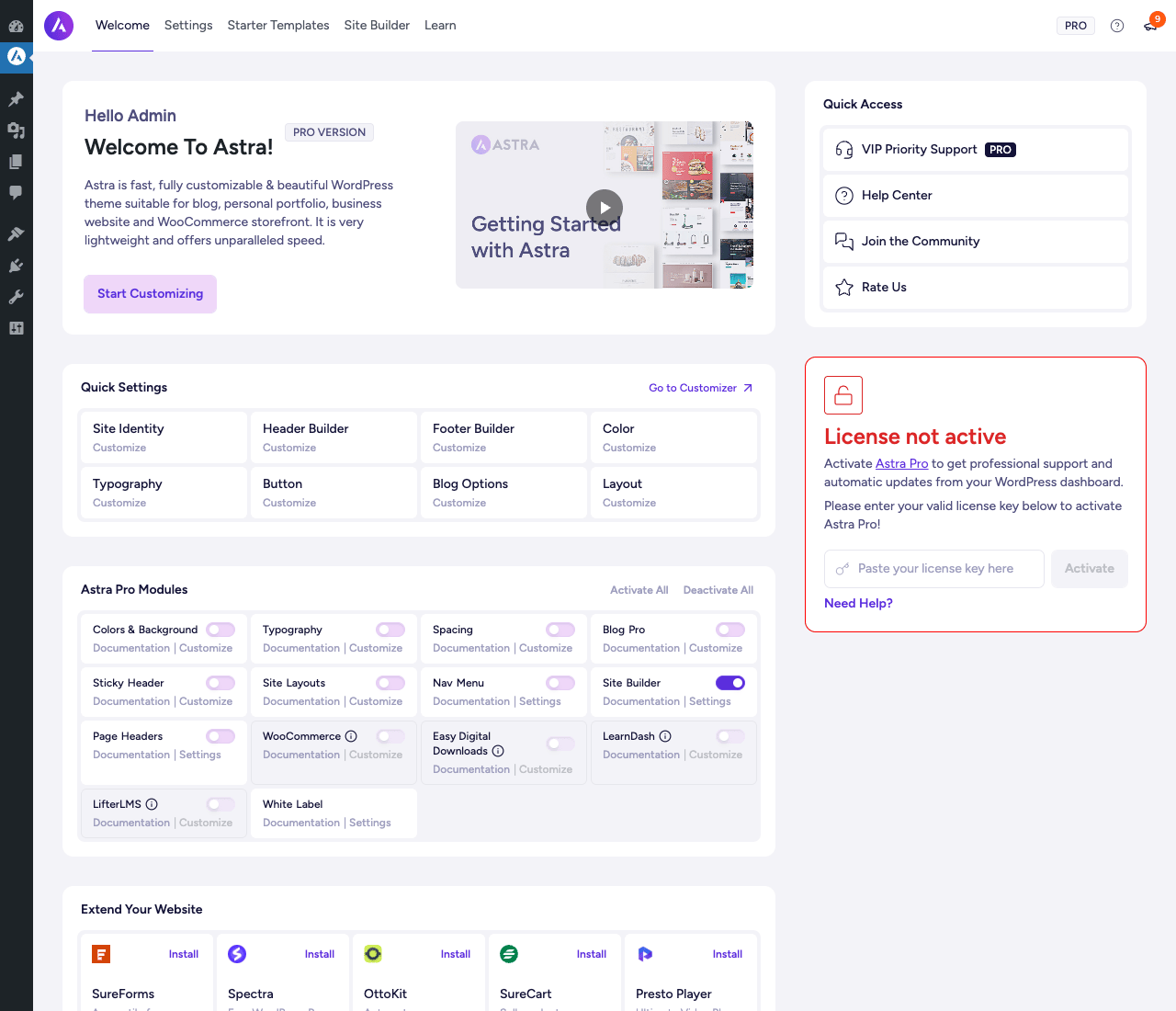
Notice the right column says "License not active". That is normal on a fresh install. You enter your license key under Astra → Settings → General to enable automatic updates and Pro support. The plugin works without it (you get all features), but the official updater stops checking for new versions.
The Astra menu in the sidebar has four tabs at the top: Welcome (the dashboard you see above), Settings (performance, version control, white label, MCP), Starter Templates (browse and import designs), and Site Builder (separate UI for header/footer when the new builder is enabled). The Customize sublink takes you straight into the WordPress Customizer where the actual styling happens.
The flow most beginners follow is: import a Starter Template that is close to what you want, then open the Customizer and tweak colors, fonts, headers, footers until it feels yours. That is genuinely how the addon was designed to be used.
Installation and setup
Setting up Astra Pro on a real WordPress site is a five-minute job. The catch is that Astra Pro requires the free Astra theme. The plugin will not function alone, it needs the theme as its host.
Step 1: Install the free Astra theme. In your WordPress admin, go to Appearance → Themes → Add New and search for "Astra". Click Install on the result by Brainstorm Force, then Activate. You will see the theme is now active and the front-end is using Astra’s default styling.
Step 2: Upload Astra Pro. Astra Pro is delivered as a plugin zip. Go to Plugins → Add New → Upload Plugin, choose the astra-addon.zip file, click Install Now, then Activate Plugin. WordPress will load it and you will see a new "Astra" menu appear in the left sidebar of wp-admin.
Step 3: Open the Astra dashboard. Click the new Astra menu item. The welcome screen confirms the addon is active and shows the module list. If a particular module does not interest you (say, you do not run a WooCommerce store), click its toggle to off so its assets never load.
Step 4: Enter your license (optional but recommended). Go to Astra → Settings → General → Activate Astra Pro and paste your license key, then click Activate. If you got Astra Pro from GPL Times, the plugin works fully without a license; the license only enables update checks from wpastra.com. The plugin’s features are not gated on license.
Step 5: Pick a starting point. This is where most people decide between two paths.
Path A: Start with a Starter Template. Click Astra → Starter Templates, scroll through the design library, pick one that is closest to your niche, click Import. The plugin pulls in pages, menus, customizer settings, and (if you let it) demo content. You get a working site in 60 seconds.
Path B: Start from a blank install. Skip Starter Templates, open Appearance → Customize, and build it up panel by panel: Site Identity (logo), Global (colors and fonts), Header Builder, Footer Builder, Post Types (per-CPT layout).
I recommend Path A for first-time Astra users. The template gives you a complete reference for how Astra panels can be combined. You can always wipe the demo content later and replace it with yours.
The Starter Templates browser looks like this:
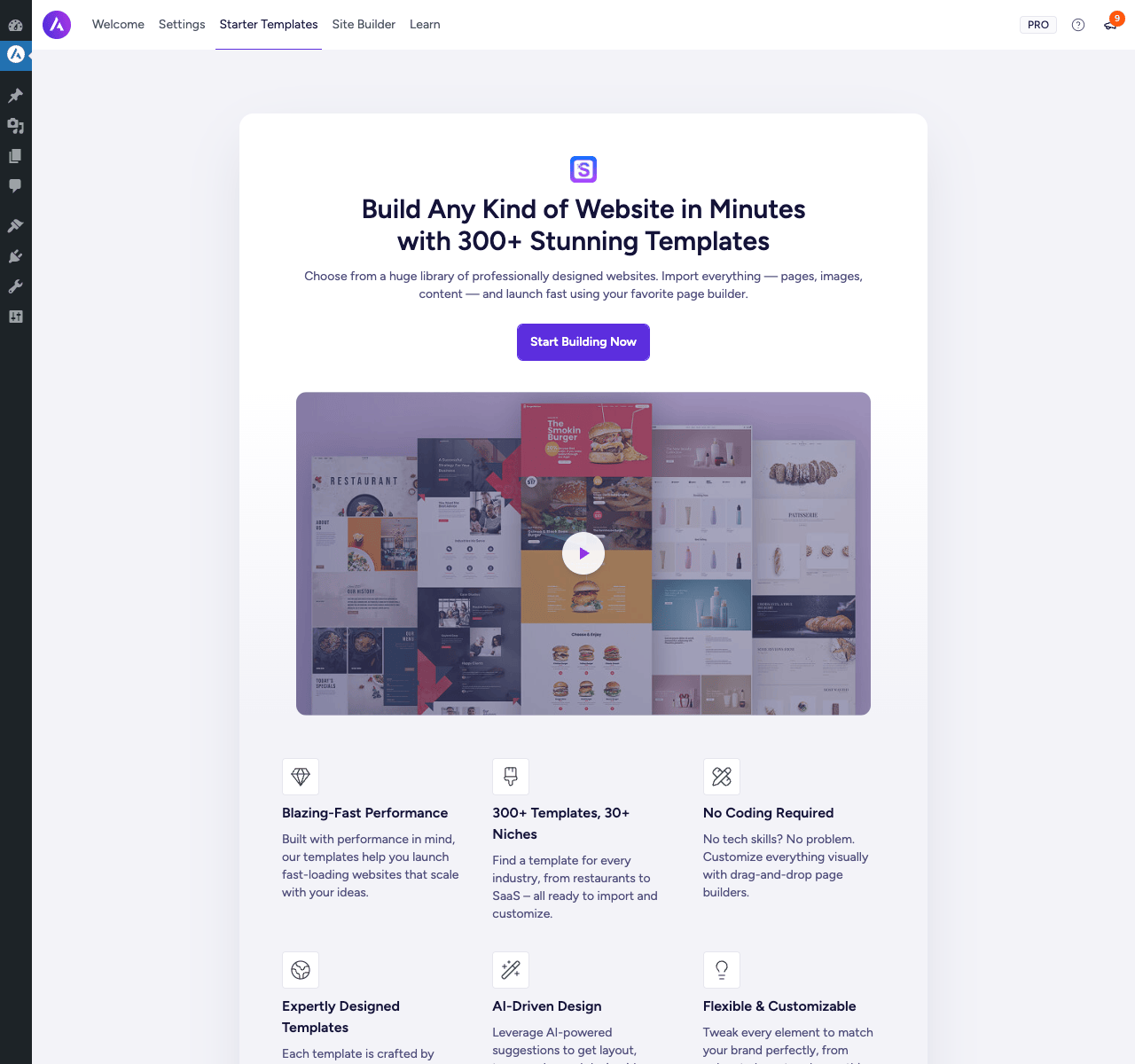
That "Start Building Now" button drops you into the template gallery itself. Filters across the top let you narrow by category (business, ecommerce, blog, portfolio, agency, online store) and by page builder (Elementor, Beaver Builder, Spectra, block editor). Pick one designed for the builder you already know.
Step-by-step: customizing a site with Astra Pro
Let me walk you through what most beginners actually do on day one. We will use the example of a small business site for "Sara’s Bakery". Sara wants a clean homepage, a Menu page with photos, an Order page, and a Contact page. She wants a sticky header so the "Order Online" link is always reachable.
Step 1: Set the global colors and typography. Open Appearance → Customize → Global → Colors. Astra Pro shows you the color palette with up to nine swatches. Set the brand color to her warm orange (#E07A22). Change the heading color to a deep brown. Switch to the Typography section under Global.
The Typography panel is one of Astra Pro’s strongest surfaces. You pick a preset (Sara picks "Serif Elegant"), then override the base font and the heading font individually:

You can set H1 through H6 separately, with font family, weight, size, line height, and letter spacing per device (desktop, tablet, mobile). For Sara we set H1 large and serif, H2 medium and warm, body text in a clean sans-serif at 16px.
Tip: any time you see a small responsive icon (laptop/tablet/phone) next to a size field, that field can have different values per breakpoint. Use it. Mobile sizes should usually be 80% of desktop, otherwise text looks oversized on phones.
Step 2: Build the header. Go to Appearance → Customize → Header. Astra Pro shows the Header Builder, which has presets at the top and a row-based composition area at the bottom:
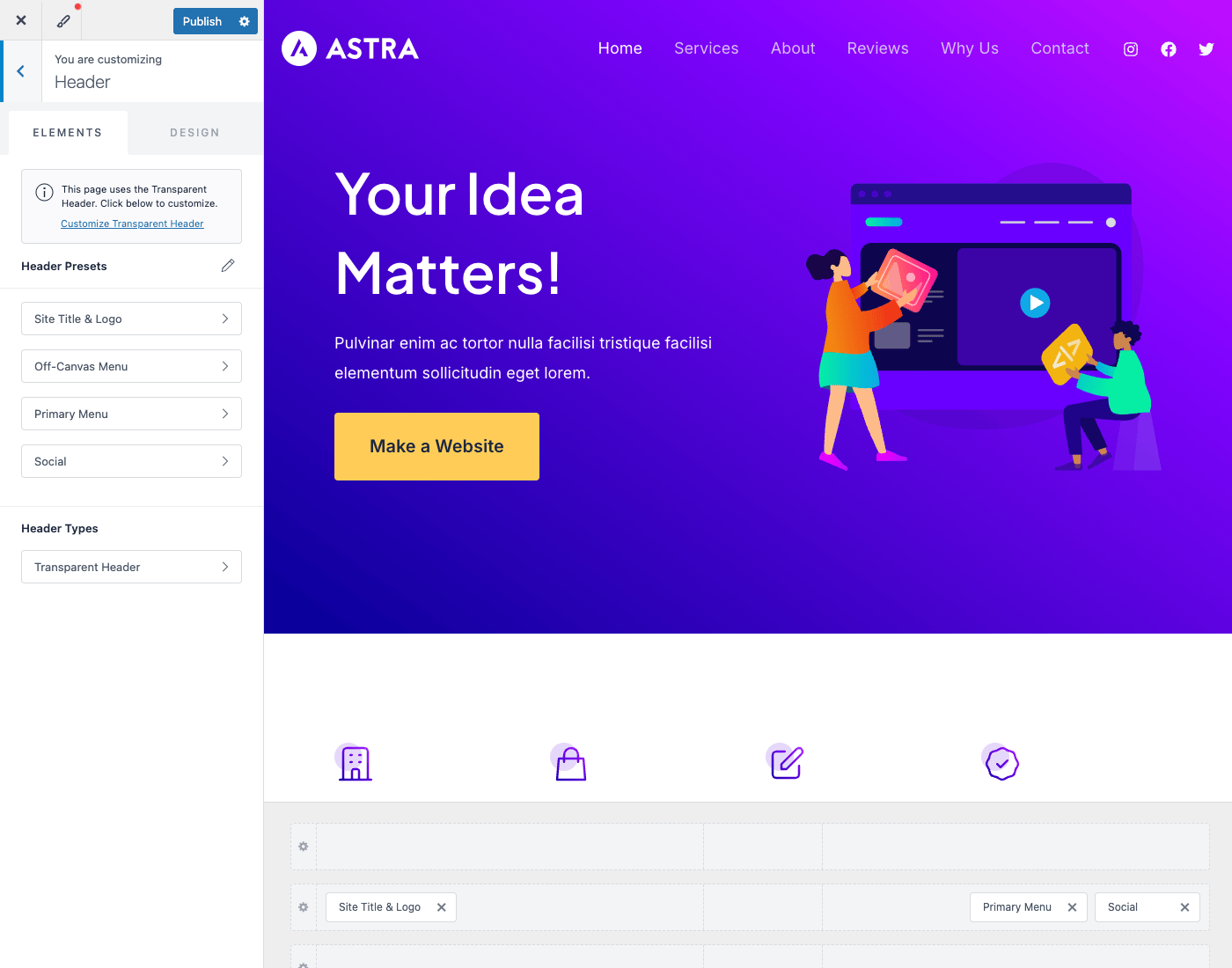
Pick a preset close to what you want (Sara picks the one with the logo centered). Then in the Elements panel on the left, drag elements into the rows: Site Title & Logo, Primary Menu, Social Icons, an "Account" link, and a custom HTML element holding her "Order Online" button. Astra Pro lets you have up to three rows: above-header, primary, and below-header.
To enable Sticky Header, look under Header → Header Builder → Sticky Header. Toggle on, choose "Primary Header only", and pick the animation (slide, fade, or none). Set the breakpoint where it kicks in (default 921px). Now scroll the front-end preview, the primary row sticks at the top.
Step 3: Configure the footer. Same approach. Open Appearance → Customize → Footer. Drag widgets into footer columns (Sara uses 4 columns: Contact, Hours, Quick Links, Social). The credits row at the bottom takes custom HTML so you can replace the default "Powered by Astra" text with "© 2026 Sara’s Bakery, all rights reserved".
Step 4: Set per-post-type layouts. This is where the Pro module shines. Go to Appearance → Customize → Post Types. You will see a dropdown with all your post types: Posts, Pages, Products (if WooCommerce is active), Custom Post Types. Pick one. For each, set the container width, sidebar position, content width, and a per-type Featured Image position.
For Sara’s site we set Pages to "Full Width Stretched" so the homepage looks edge-to-edge. Posts stay at the default boxed layout with a right sidebar. The Menu page (which is a Page) is full width with no sidebar so the food photo grid looks clean.
Step 5: Settings tab for performance and licensing. The Settings tab is where you control the addon globally:
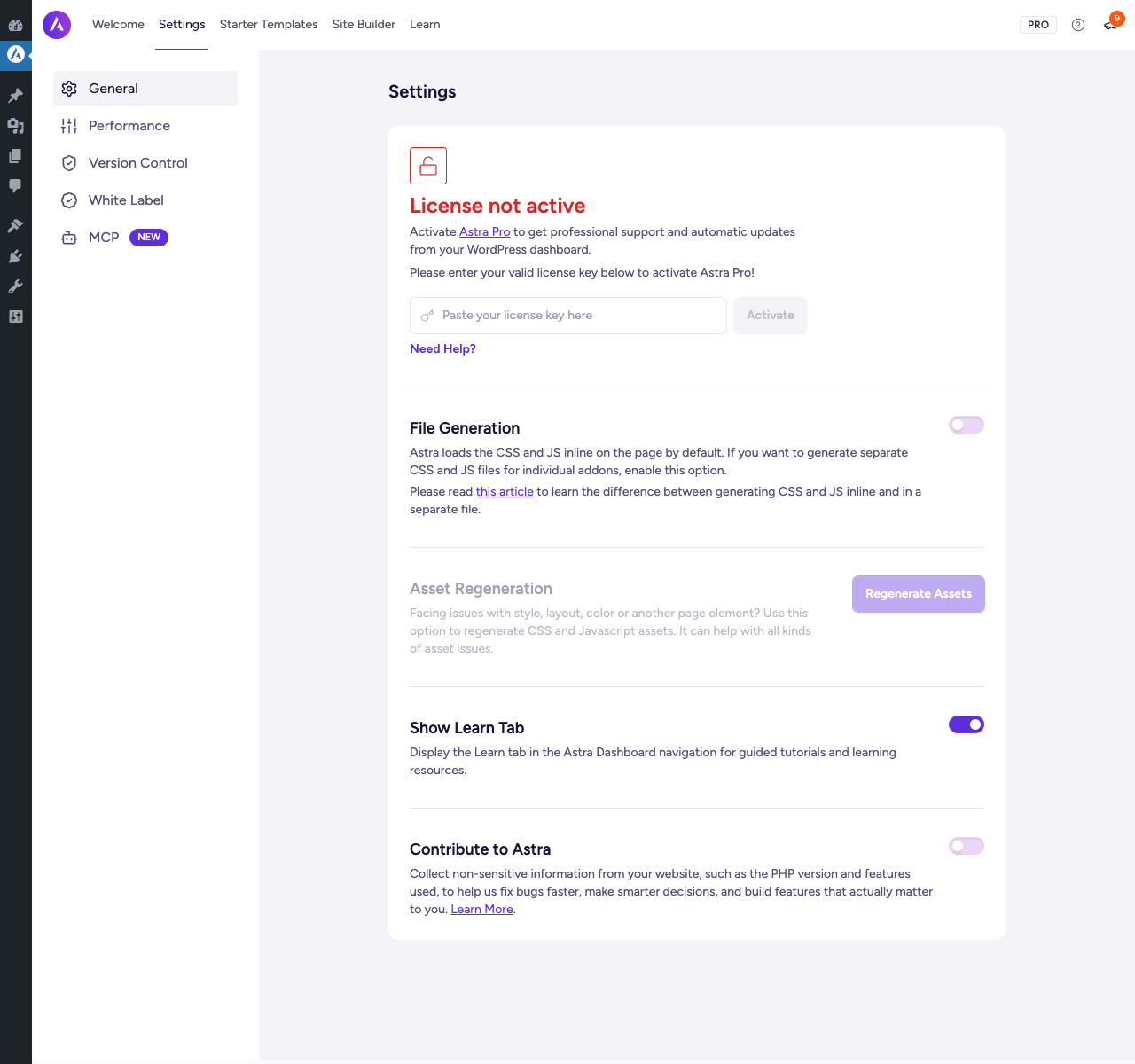
The most useful toggles here:
- License key. Paste it and click Activate.
- File Generation. By default Astra inlines its CSS and JS on every page. If you enable File Generation, the addon writes out a static
astra.cssandastra.jsto the uploads folder, which then gets cached by your browser and CDN. Slightly better TTFB but takes one extra DB write per save. Most sites should turn this on. - Asset Regeneration. A "rebuild assets" button. Click this if you see styles looking broken after a Pro update.
- Show Learn Tab. Hides the in-admin Learn tutorials. Turn off if it is noise for you.
- Contribute to Astra. Optional telemetry. Off by default.
The Performance tab has switches to disable specific Astra scripts globally (Flexbox, theme JS, font loading method, etc). Most users will not need to touch this.
Step 6: White label (if you are an agency). Under Astra → Settings → White Label, replace the plugin name, plugin author, plugin URI, and theme branding entirely. Useful if you build sites for clients and want the admin to say "Bakery Studio Pro Customizer" instead of "Astra Pro". The setting hides the Astra logo, all marketing links, and even the help links inside customizer.
By the end of those six steps Sara has a sticky-header bakery site with a custom typography stack, a 4-column footer, full-width Menu page, and an admin that quietly belongs to Sara without any Astra branding visible. No code written, no page builder needed.
Real-world use cases
The same panels apply across very different sites. A few examples:
1. A consulting business landing page. Priya runs an HR consulting practice. She wants a single landing page with a strong hero section, three service blocks, a testimonials section, and a contact form. She installs Astra + Astra Pro, picks the "Consulting Agency" Starter Template, swaps logos and colors, and uses the Page Header module to give her landing page a tall hero with a background gradient and a CTA button. Total build time: 90 minutes.
2. An online course site with LearnDash. Vikram teaches online courses on data analytics. He uses LearnDash LMS for course delivery. The Astra Pro LearnDash module styles the course grid, lesson page, and student profile to match his site brand. He also uses Custom Layouts (the hooks module) to add a "What you will learn" banner above every course’s lesson list.
3. A WooCommerce store with a distraction-free checkout. Anika sells handmade jewelry. Her checkout abandonment was high, so she enables the Astra Pro WooCommerce module’s "Distraction Free Checkout" option. The header, footer, sidebar, and unrelated links all disappear during checkout, leaving only the form and her logo. Conversions rise.
4. An agency reselling sites. Marcus runs a small WordPress agency. Every client site he builds gets Astra + Astra Pro. He white-labels the addon to "Marcus Studio Theme Engine" so clients see his brand in their admin. He maintains a master JSON export of his preferred Astra settings (default fonts, color scheme, header layout) and imports it onto every new client site in 30 seconds.
5. A long-form blog with custom typography. Anjali runs a personal essay blog. She wants serif body text at 19px with generous line height. She uses Astra Pro’s Typography module to set her base font to Lora at 19px, line height 1.8, max content width 720px. Every post she writes inherits the magazine-style reading experience without per-post fiddling.
6. A multilingual site with WPML. Raj runs a travel blog in English and Spanish using WPML. Astra Pro’s nav menu module supports adding flag icons to menu items, and the addon’s WPML compatibility layer handles the per-language settings the customizer needs to keep in sync. Both language versions get the same customized header.
Developer reference
This section is for developers extending Astra Pro. Both Astra (theme) and Astra Pro (addon) expose a large surface of action and filter hooks. Almost every layout decision can be overridden without editing core files. I will keep this practical and show real, runnable snippets.
Where Astra Pro lives
After installation the plugin sits at wp-content/plugins/astra-addon/. The two important entry points:
astra-addon.php, which bootstraps the plugin, checks Astra theme presence, and defines constants (ASTRA_EXT_VER,ASTRA_EXT_URI,ASTRA_EXT_DIR).classes/class-astra-theme-extension.php, which registers all addon hooks and loads enabled modules fromaddons/.
Each module is its own folder under addons/, with the same internal structure (a loader class that conditionally loads markup, customizer config, and dynamic CSS classes). The pattern is: addons/<name>/classes/class-astra-ext-<name>-loader.php boots, registers customizer panels, and only loads markup + CSS if the toggle is on.
Enabling and disabling addons programmatically
The list of active modules is stored in the option astra-addon-extensions. You can read or override it via the astra_addon_enabled_extensions filter:
add_filter( 'astra_addon_enabled_extensions', function( $enabled ) {
 // Force-enable the typography module.
 $enabled['typography'] = true;
 // Force-disable the EDD module (we are not using EDD).
 $enabled['edd'] = false;
 return $enabled;
} );
Useful when you ship a turnkey site config and want to guarantee a specific module is always active or always off, regardless of what the admin user toggles.
Core action hooks (theme + addon)
Astra (the theme) defines hook positions across the rendered page. Astra Pro respects them and adds its own. The most useful for custom layouts:
// Above the header (Astra Pro: above-header row of the builder).
add_action( 'astra_above_header_top', function() {
 echo '<div class="bakery-promo">Free delivery on orders over $30</div>';
} );

// After the primary header.
add_action( 'astra_header_after', function() {
 // Hero section, breadcrumb bar, anything you want under the header.
} );

// Inside the content area, before the loop.
add_action( 'astra_primary_content_top', 'render_announcement' );

// Footer hooks (Astra Pro adds advanced-footer hooks).
add_action( 'astra_footer_before', 'render_newsletter_signup' );
add_action( 'astra_footer_after', 'render_legal_links' );

// Astra Pro-specific lifecycle hooks.
add_action( 'astra_addon_activated', function( $module ) {
 error_log( "Astra addon module activated: $module" );
}, 10, 1 );

add_action( 'astra_addon_deactivated', function( $module ) {
 error_log( "Astra addon module deactivated: $module" );
}, 10, 1 );

add_action( 'astra_addon_update_after', function( $old_version ) {
 // Run when Astra Pro updates from $old_version to current.
 // Good place for one-time data migration hooks.
}, 10, 1 );
These hook locations are stable across Astra/Astra Pro releases. Use them rather than editing template files.
Pro-specific filters worth knowing
// Override which Pro extensions are reported as available.
add_filter( 'astra_addon_get_addons', function( $extensions ) {
 return $extensions;
} );

// Customize the 404 page settings array.
add_filter( 'astra_addon_custom_404_options', function( $defaults ) {
 $defaults['custom-404-title'] = "Looks like that page wandered off.";
 return $defaults;
} );

// Force-load specific CSS/JS files alongside Astra Pro's bundle.
add_filter( 'astra_addon_add_css_file', function( $files ) {
 $files['my-bakery-overrides'] = array(
 'dependency' => array(),
 );
 return $files;
} );

// Modify the localized JS data sent to the front-end astra-addon-js script.
add_filter( 'astra_addon_js_localize', function( $data ) {
 $data['cart_redirect_url'] = wc_get_cart_url();
 return $data;
} );

// Mutate the dynamic inline CSS Astra Pro outputs.
add_filter( 'astra_addon_dynamic_css', function( $css ) {
 return $css . " .site-header { box-shadow: 0 2px 8px rgba(0,0,0,0.05); }";
} );

// Toggle whether Astra Pro should load any assets at all on a page.
add_filter( 'astra_addon_enqueue_assets', function( $enqueue ) {
 if ( is_page( 'no-style' ) ) {
 return false;
 }
 return $enqueue;
} );
The Custom Layouts (advanced hooks) post type
This is the most important developer module. Custom Layouts registers a custom post type called astra-advanced-hook (constant ASTRA_ADVANCED_HOOKS_POST_TYPE). Each post is one piece of content (HTML, shortcode, or a page-builder layout) that gets injected at a chosen hook position with conditional display rules (specific pages, post types, user roles, devices, dates).
You can create these from the admin (Astra → Site Builder → Custom Layouts), but you can also create them programmatically:
function bakery_install_announcement_hook() {
 if ( ! defined( 'ASTRA_ADVANCED_HOOKS_POST_TYPE' ) ) {
 return;
 }
 if ( get_page_by_title( 'Free Delivery Bar', OBJECT, ASTRA_ADVANCED_HOOKS_POST_TYPE ) ) {
 return;
 }

 $post_id = wp_insert_post( array(
 'post_type' => ASTRA_ADVANCED_HOOKS_POST_TYPE,
 'post_status' => 'publish',
 'post_title' => 'Free Delivery Bar',
 'post_content' => '<div class="bakery-delivery-bar">🚚 Free delivery on orders over $30</div>',
 ) );

 update_post_meta( $post_id, 'ast-advanced-hook-layout', 'hooks' );
 update_post_meta( $post_id, 'ast-advanced-hook-action', 'astra_header_before' );
 update_post_meta( $post_id, 'ast-advanced-hook-priority', 10 );
 update_post_meta( $post_id, 'ast-advanced-hook-display-on-devices', 'both' );
}
add_action( 'after_switch_theme', 'bakery_install_announcement_hook' );
The meta keys map to the same UI fields shown in the Custom Layouts editor. You can add display rules with ast-advanced-hook-display-rules (an array of conditions).
The module also exposes its own filters:
// Add a custom action target to the Custom Layouts hook dropdown.
add_filter( 'astra_addon_custom_layout_target_hooks', function( $hooks ) {
 $hooks['bakery_menu_before'] = 'Before Menu Page';
 return $hooks;
} );

// Customize the post type registration args.
add_filter( 'astra_advanced_hooks_post_type_args', function( $args ) {
 $args['show_in_menu'] = false;
 return $args;
} );

// Action: lets you inject content at the exact start/end of a custom layout preview iframe.
add_action( 'astra_addon_custom_layout_preview_start', 'my_preview_top' );
add_action( 'astra_addon_custom_layout_preview_end', 'my_preview_bottom' );
Advanced Headers post type
The Page Headers / Hero module registers another post type, astra_adv_header, for reusable hero/page-header layouts. Same pattern as advanced hooks. You assign one of these to a specific page, post, or condition.
add_filter( 'astra_advanced_headers_post_type_args', function( $args ) {
 $args['capability_type'] = 'post';
 return $args;
} );
Customizing the WooCommerce module
Astra Pro’s WooCommerce module adds quick-view, off-canvas filter, distraction-free checkout, and many cart/checkout layout swaps. The actions and shortcodes it exposes:
// Render Astra Pro's mini cart anywhere via shortcode.
echo do_shortcode( '[astra_woo_mini_cart]' );

// Slide-in cart trigger.
echo do_shortcode( '[astra_woo_slide_in_cart]' );

// Hook fires before the quick-view modal renders.
add_action( 'astra_addon_woo_quick_view_before', function( $product_id ) {
 // Add a "New" badge for products added in the last 14 days.
 $created = get_post_time( 'U', false, $product_id );
 if ( ( time() - $created ) < 14 * DAY_IN_SECONDS ) {
 echo '<span class="badge-new">NEW</span>';
 }
}, 10, 1 );

// Checkout layout hooks (Pro's distraction-free checkout exposes these).
add_action( 'astra_woo_checkout_main_header_bar_top', 'render_checkout_trust_badges' );
add_action( 'astra_woo_checkout_main_header_bar_bottom', 'render_checkout_progress_bar' );
add_action( 'astra_woo_checkout_footer_content_top', 'render_checkout_security_notice' );
Easy Digital Downloads (EDD) module
Mirror of the WooCommerce module, with the same hook patterns:
echo do_shortcode( '[astra_edd_mini_cart]' );

add_action( 'astra_edd_checkout_main_header_bar_top', 'render_edd_trust_badges' );
add_action( 'astra_edd_checkout_footer_content_top', 'render_edd_security_notice' );
If you are running Easy Digital Downloads Pro, this module integrates cleanly with its checkout flow.
Blog Pro template hooks
Blog Pro adds a "load more" / infinite-scroll experience and an enhanced author info block. Both have hook points:
add_action( 'astra_author_info_before', 'render_author_social_links' );
add_action( 'astra_author_info_after', 'render_author_recent_posts' );

add_action( 'astra_before_content_partial_loop', 'render_filter_bar' );
add_action( 'astra_after_content_partial_loop', 'render_loop_separator' );
add_action( 'astra_no_more_posts_content_partial', function() {
 echo '<p class="end-of-feed">You are all caught up.</p>';
} );
Header sections hooks (above/below header rows)
The Header Sections module adds extra rows above and below the primary header. Each row has top/bottom and before/after-menu hook points:
add_action( 'astra_above_header_top', 'render_announcement_bar' );
add_action( 'astra_above_header_bottom', 'render_shipping_promo' );
add_action( 'astra_above_header_before_menu', 'render_above_left_block' );
add_action( 'astra_above_header_after_menu', 'render_above_right_block' );

add_action( 'astra_below_header_top', 'render_breadcrumb_strip' );
add_action( 'astra_below_header_bottom', 'render_search_bar' );
Templates and template overrides
Astra Pro uses a astra_addon_get_template filter for template path resolution, similar to WooCommerce’s wc_get_template. You can copy a Pro template into your child theme at <child>/astra-addon/<template>.php to override it. To handle template lookup yourself:
add_filter( 'astra_addon_locate_template', function( $template, $template_name, $template_path ) {
 // Custom resolution: load templates from a sibling plugin if they exist.
 $candidate = WP_PLUGIN_DIR . '/bakery-addon/astra-overrides/' . $template_name;
 if ( file_exists( $candidate ) ) {
 return $candidate;
 }
 return $template;
}, 10, 3 );

add_action( 'astra_addon_before_template_part', function( $template_name, $template_path, $located, $args ) {
 // Logging, debugging, or before-render side effects.
}, 10, 4 );
WP-CLI commands
Astra Pro itself does not register its own WP-CLI commands. But the bundled bsf-core library (Brainstorm Force update layer) provides the wp brainstormforce command, which is used internally for license sync and update checks. You will rarely need it directly. For day-to-day site work, wp option get astra-addon-extensions and wp option update astra-addon-extensions ... is how you manipulate enabled modules from the CLI:
# Show currently enabled Astra Pro modules.
wp option get astra-addon-extensions --format=json

# Disable a specific module (typography).
wp eval '$ext = get_option("astra-addon-extensions"); $ext["typography"] = false; update_option("astra-addon-extensions", $ext);'

# Regenerate Astra Pro assets (after switching File Generation on/off).
wp eval 'do_action("astra_addon_assets_refreshed"); Astra_Minify::refresh_assets();'
For routine theme work, wp theme list and wp theme activate astra work as usual.
REST API endpoints
Astra Pro registers a few internal REST routes used by the React-based admin UI. These live under the astra namespace and are not designed as a public API. If you need to fetch Astra option values from outside WordPress, read them from astra-settings and astra-addon-extensions options directly via the WP REST settings endpoint, or write a tiny custom route in your own plugin.
The Advanced Hooks module (Theme Builder) does register internal REST routes for the React editor under /wp-json/astra-addon/v1/theme-builder/.... Treat these as private. Brainstorm Force may change their shape between versions.
Customizer setting names
If you want to read or write Astra options from PHP, the helper is astra_get_option( 'key', $default ). Some commonly-needed keys:
// Read the current global color palette.
$palette = astra_get_option( 'global-color-palette' );

// Read the body font family.
$body_font = astra_get_option( 'body-font-family' );

// Read the container max width.
$container_width = astra_get_option( 'site-content-width', 1240 );

// Write back a setting (rare).
$opts = get_option( 'astra-settings' );
$opts['site-content-width'] = 1440;
update_option( 'astra-settings', $opts );
The full keyspace is in addons/<module>/classes/customizer/. Each module’s customizer config file lists every setting it exposes.
Compatibility hooks for plugins
Astra Pro ships compatibility layers for many popular plugins:
- WPML, Polylang (translation sync)
- Beaver Builder, Elementor, Brizy, Divi (page builder integration)
- WooCommerce, EDD (commerce)
- LearnDash, LifterLMS (LMS)
- AMP (AMP page rendering)
- bbPress, BuddyPress (community)
- Yoast SEO, Rank Math (SEO meta on Astra CPTs)
Each lives in classes/compatibility/. If you write a plugin that wants to play nicely with Astra Pro, mirror the same pattern: detect Astra Pro with defined( 'ASTRA_EXT_VER' ), then register hooks scoped to the appropriate addon’s do_action( 'astra_addon_..._loaded' ) event.
Performance, compatibility, and gotchas
Astra is one of the leanest themes in the WordPress.org top-10. The default install of Astra + Astra Pro on a blank WordPress site adds about 35KB of CSS and 20KB of JS to the front-end (gzipped). That is light, but the number can grow if every Pro module is on. Modules you do not use are the easiest performance win.
Performance tips:
- Turn off modules you do not need under
Astra → Dashboard. Each module’s CSS and JS only loads if its toggle is on. - Enable File Generation under
Astra → Settings. Static CSS/JS files are friendlier to browser cache and CDN than inline output. - Pair Astra Pro with a caching plugin like WP Rocket for full-page caching, CSS minification, and lazy-loading.
- Avoid loading large Google Fonts. Astra Pro can self-host fonts via the customizer setting in Performance.
- For WooCommerce stores, the Pro WooCommerce module’s "Quick View" adds an extra modal script. Turn it off if quick-view is not actually used by customers.
Compatibility caveats:
- Astra Pro requires the free Astra theme. It will not function alone. The plugin self-deactivates if Astra theme is not detected.
- Astra Pro is not compatible with sites that have switched to a full-site-editing (FSE) block theme as the active theme. FSE themes do not expose the customizer the way Astra expects.
- If you use a page builder with its own theme builder (Elementor Pro’s Theme Builder, Beaver Builder Pro‘s Themer), pick one. Running Astra Pro’s Custom Layouts AND Elementor’s Theme Builder will compete over the same hook positions (header replacement, footer replacement) and the result is unpredictable.
- The new Header Builder (rebuilt circa Astra 3.0) is required for many Pro elements. If your site still uses the legacy "Old Header" mode, enable the new builder under
Appearance → Customize → Header Builder → Use new builder. The toggle is permanent. - Heavy customization via Custom Layouts (advanced hooks) can add many queries to every page. Use the display rules to scope each layout narrowly so it does not check 50 conditions on every page load.
Common gotchas:
- Forgetting to enable the module. People install Astra Pro, look for "the WooCommerce settings", and miss that the WooCommerce module is off by default. Toggle it on first under
Astra → Dashboard. - The free Astra Starter Templates plugin shows BOTH free and Pro templates in the gallery. The Pro ones have a small "Pro" badge in the corner. They will only import successfully if Astra Premium Starter Templates is also installed.
- Caching can hide your changes. After major customizer edits, click
Astra → Settings → Asset Regeneration → Regenerate Assetsand flush your page cache (WP Rocket, LiteSpeed, etc). - White-labeling does not hide the addon from
Plugins → Installed Plugins. It hides the in-customizer branding, marketing links, plugin description, and screenshots. The plugin still shows up in the plugins list (because WordPress requires it to). Use a separate hide-plugin plugin if you need that. - SVG icons in the nav menu module require the SVG support flag. It is on by default, but if your security plugin blocks SVG, those icons will not render.
Pricing and licensing
Astra Pro from Brainstorm Force comes in annual and lifetime tiers, sold either standalone or as part of the Essential Bundle (Astra Pro + Premium Starter Templates + Spectra Pro + WP Portfolio + a few addons) and the Growth Bundle (everything plus Convert Pro, Schema Pro, Ultimate Addons). Pricing changes regularly. Check wpastra.com/pricing for current numbers.
The plugin is GPL-licensed (the WordPress license requires it). The "license" Brainstorm Force sells is officially a support and update license, not a use license. Once installed, you can use it on as many sites as you want; the license only gates support and the automatic-update channel from wpastra.com.
Because of GPL, the same plugin file is legally redistributable. You get the same plugin, same features, no update channel.
You will probably also want the companion plugin: Astra Premium Starter Templates. Without it, the Starter Templates browser only shows free designs.
FAQ
Q: Does Astra Pro replace the free Astra theme?
No. Astra Pro is an addon, not a replacement. You install the free Astra theme first, then activate Astra Pro alongside it. The plugin extends what the theme already does.
Q: Can I use Astra Pro without writing any code?
Yes. The entire addon is configured through the WordPress Customizer (Appearance → Customize). Code is only needed if you want to extend Astra Pro itself with custom hooks or templates. A normal site owner never has to touch PHP.
Q: Does Astra Pro work with the block editor (Gutenberg)?
Yes. Astra Pro respects the block editor for content creation. The theme styling applies to blocks. The Pro Spectra blocks (free, by the same company) extend the block editor with extra blocks if you want them.
Q: Is Astra Pro compatible with Elementor Pro and Beaver Builder?
Yes. Astra was designed to be a page-builder host theme. Elementor Pro and Beaver Builder both work seamlessly. If you use Elementor Pro’s Theme Builder for headers/footers, do not also use Astra Pro’s Custom Layouts for the same positions. Pick one.
Q: Does Astra Pro slow down my site?
Not measurably if you only enable the modules you use. Astra is one of the lightest themes on WordPress.org and Astra Pro inherits that. The default install adds ~50KB of assets. Turn off unused modules and enable File Generation under Settings for the best performance.
Q: How is Astra Pro different from a page builder like Elementor or Beaver Builder?
Astra Pro customizes the theme. It does not give you a drag-and-drop page builder for your page content. It controls the wrapping chrome (header, footer, layout, typography, sidebars, sticky elements, hero sections). Use Astra Pro for the site shell and Elementor/Beaver Builder/Spectra for individual page content. They complement each other.
Q: Can I export my Astra Pro configuration and import it onto another site?
Yes. Under Astra → Settings → Site Builder Import/Export, save your customizer state as a JSON file. Import that file onto a new site (with Astra + Astra Pro installed) and the new site inherits your fonts, colors, header, footer, module toggles. Agencies use this constantly.
Q: Does Astra Pro support white labeling for client work?
Yes. The White Label module under Astra → Settings → White Label lets you replace the plugin name, author, screenshot, description, and Astra branding inside the customizer. Clients see your studio name, not "Astra Pro".
Q: Will Astra Pro break when WordPress updates?
Generally no. Brainstorm Force keeps Astra and Astra Pro tightly synced with WordPress core. They publish updates within days of every major WordPress release. The plugin’s astra_addon_update_after hook runs migration logic when Pro itself updates.
Final thoughts
Astra Pro is the unusual case of a theme addon that earns the "Pro" word. The free Astra theme is genuinely useful on its own, but it intentionally holds back features that most real sites want: per-post-type typography, a real header builder, sticky header, footer columns, distraction-free checkout. Astra Pro turns them on, and it does so without locking you into a new editor or a proprietary builder. You stay inside the WordPress customizer that you have always used.
For a beginner the path is simple. Install Astra, install Astra Pro, click into the customizer, and start touching panels. Add the Starter Templates plugin and you can import a finished design and tweak from there. You will not need code for the kind of customization most sites want.
For a developer the path is also clean. Astra Pro exposes a generous set of action and filter hooks, registers two custom post types (advanced hooks and advanced headers) for visual rule-based content injection, and respects the WordPress conventions you already know. Templates can be overridden in your child theme. Modules can be enabled and disabled per option. The compatibility layers for WPML, WooCommerce, LearnDash, LifterLMS, and the big page builders are there and they work.
The honest place where Astra Pro is not the right answer: if you want a full drag-and-drop page editor for your post content, use a page builder. If you want a full-site-editing block theme, use one of those. Astra is a classic customizer-driven theme that extends elegantly. Once you accept that frame, Pro feels like the natural next step.
Spin them up on a staging site, import a Starter Template close to your niche, and walk through Steps 1 to 6 in this guide. By the time you finish, you will have a site that looks like yours instead of like the default Astra demo.
Useful external references:
- Astra theme documentation for the official knowledge base and changelog.
- WordPress Customizer API for the underlying framework Astra builds on.
- Theme Handbook (WordPress.org) for general theme concepts that apply across Astra and any other classic theme.