

The first time a non-technical subscriber lands on wp-admin/profile.php, they usually do one of two things. They close the tab, or they email you asking what all the boxes mean. The default WordPress profile screen was built for people who write code, not for the yoga student you just sold a membership to. That mismatch is the entire reason Profile Builder Pro exists.
Cozmoslabs has been shipping it since 2014, which is unusual longevity for this category. It is the same Romanian team behind TranslatePress and Paid Member Subscriptions, so the plugin slots cleanly into a coherent stack rather than living as a one-off side project. I’ve shipped this on three client sites this year, the most recent being a continuing-education portal where the registration form had to capture state license numbers per role. Profile Builder Pro did it without a single line of custom PHP.
Table of contents
- What Profile Builder Pro actually does
- The shortcode-based form model
- Tour of the admin
- Form fields and conditional logic
- Add-ons that change the product
- The four built-in design styles
- Installation and the bare-minimum setup
- Building a paid coaching site, end to end
- Developer reference: hooks, filters, integrations
- Performance, compatibility, and the gotchas
- How it compares to the alternatives
- Pricing and licensing
- FAQ
- Final thoughts
What Profile Builder Pro actually does
Strip the marketing copy away and the plugin does four things:
- Renders front-end registration, login, edit-profile, and password-recovery forms via shortcodes.
- Lets you define custom fields (text, select, radio, file upload, agreement checkbox, datepicker, and a dozen others) that get saved as user meta on registration.
- Adds a moderation layer (email confirmation, admin approval, custom redirects per role) around the WordPress signup flow.
- Ships a small editor for the transactional emails WordPress sends out, so welcome and reset emails stop looking like 2009.
That is the core. Everything else, the user directory, the Stripe billing integration, the two-factor login, the bbPress avatars, comes from the Pro add-ons that live in a separate admin screen.
The architectural decision worth noting up front: Profile Builder is shortcode-driven, not block-driven. There is a Gutenberg block for embedding shortcodes, sure, but the canonical way to build a registration page is to drop [wppb-register] onto a page. That feels old-fashioned in a Gutenberg-first world, and it is, but it also means the plugin works identically in the classic editor, Elementor, Beaver Builder, Divi, Bricks, Oxygen, and any page builder you can name. There is no block-editor lock-in.
The shortcode-based form model
You publish five Pages, you drop one shortcode on each. That is the whole front-end:
| Page | Shortcode | What it shows |
|---|---|---|
| Register | [wppb-register] |
Registration form |
| Log in | [wppb-login] |
Login form (replaces wp-login.php) |
| Account | [wppb-edit-profile] |
Edit-profile form for logged-in users |
| Reset | [wppb-recover-password] |
Password recovery |
| Members | [wppb-list-users] |
Public user directory (Pro) |
There are variants. [wppb-register role="author"] shows a registration form that creates Author-role users specifically, which is handy when you have a contributor flow separate from the regular subscriber flow. The same role="..." attribute works on the edit-profile shortcode if you have the Multiple Edit Profile Forms add-on activated.
You can also constrain access to the login shortcode itself. Wrap the whole block in a conditional and you can build a private-website page that only shows the login form to logged-out users and redirects authenticated ones to the account page. The Custom Redirects add-on does this without the wrapper.
Tour of the admin
Profile Builder lives at the top level of the WordPress admin sidebar, with its own little three-figures icon. Once you activate the Pro license, the dashboard fills out.
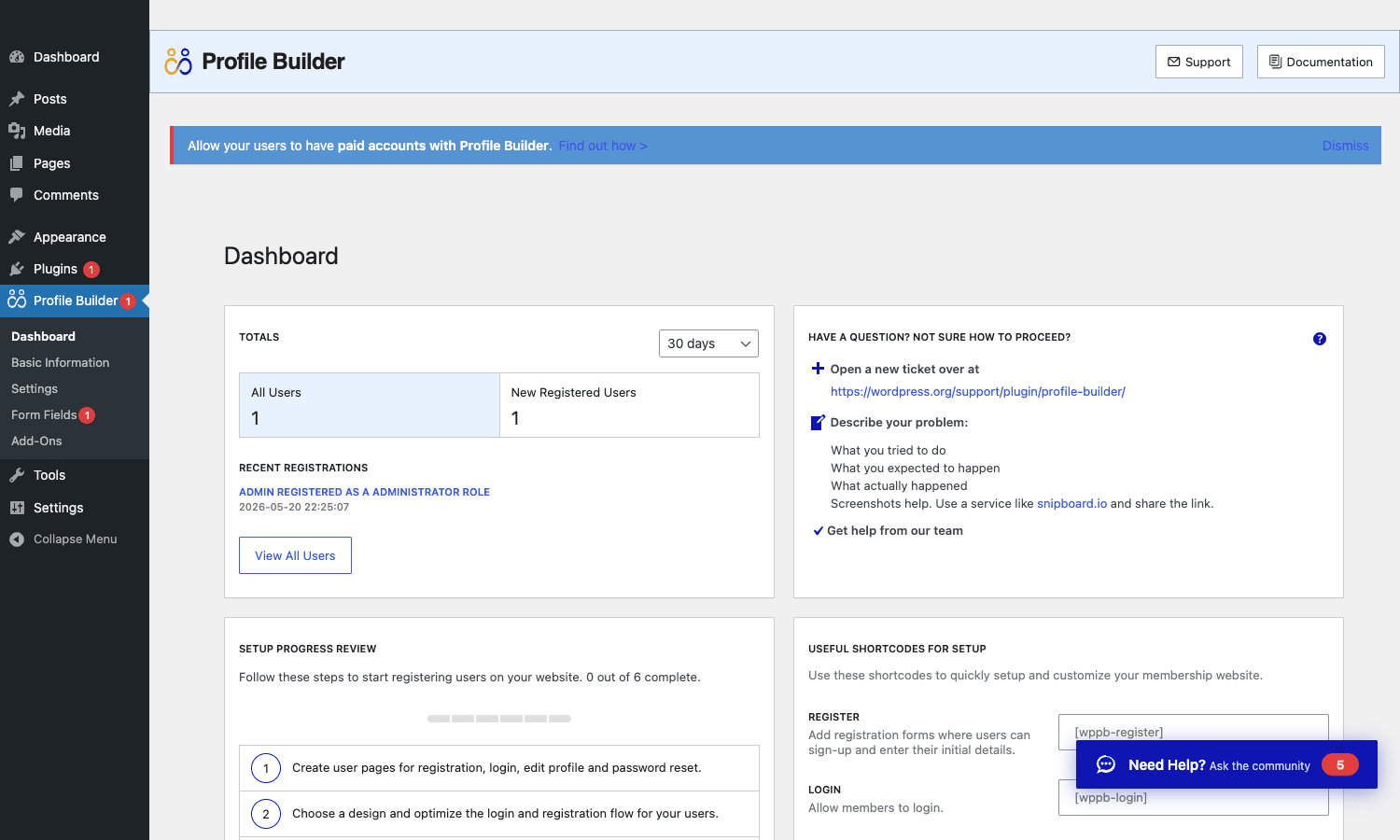
The dashboard is genuinely useful, which surprised me. It is not a vanity panel covered in upsells. The TOTALS card shows All Users and New Registered Users with a 30-day window switch, Recent Registrations links straight to user profiles, and the SETUP PROGRESS REVIEW box on the bottom-left walks you through the six pages a working install needs. The USEFUL SHORTCODES panel on the right side gives you the literal copy-paste blocks to drop on those pages, which beats hunting through documentation on the first install.
The notice across the top advertises Paid Member Subscriptions, the sister product. It is dismissible. The notice is annoying once, fine after that.
The left sub-nav under Profile Builder shows the real surface: Dashboard, Basic Information, Settings, Form Fields, Add-Ons. Once you flip add-ons on, more entries appear: User Listing, Admin Approval, Email Confirmation, User Roles Editor, Custom Redirects, Multiple Registration Forms, Multiple Edit Profile Forms, Import/Export.
Form fields and conditional logic
This is where Profile Builder earns the "Pro" suffix. The Form Fields screen lets you stack any combination of inputs on the registration and edit-profile forms, and most fields can be conditionally shown based on the value of another field.
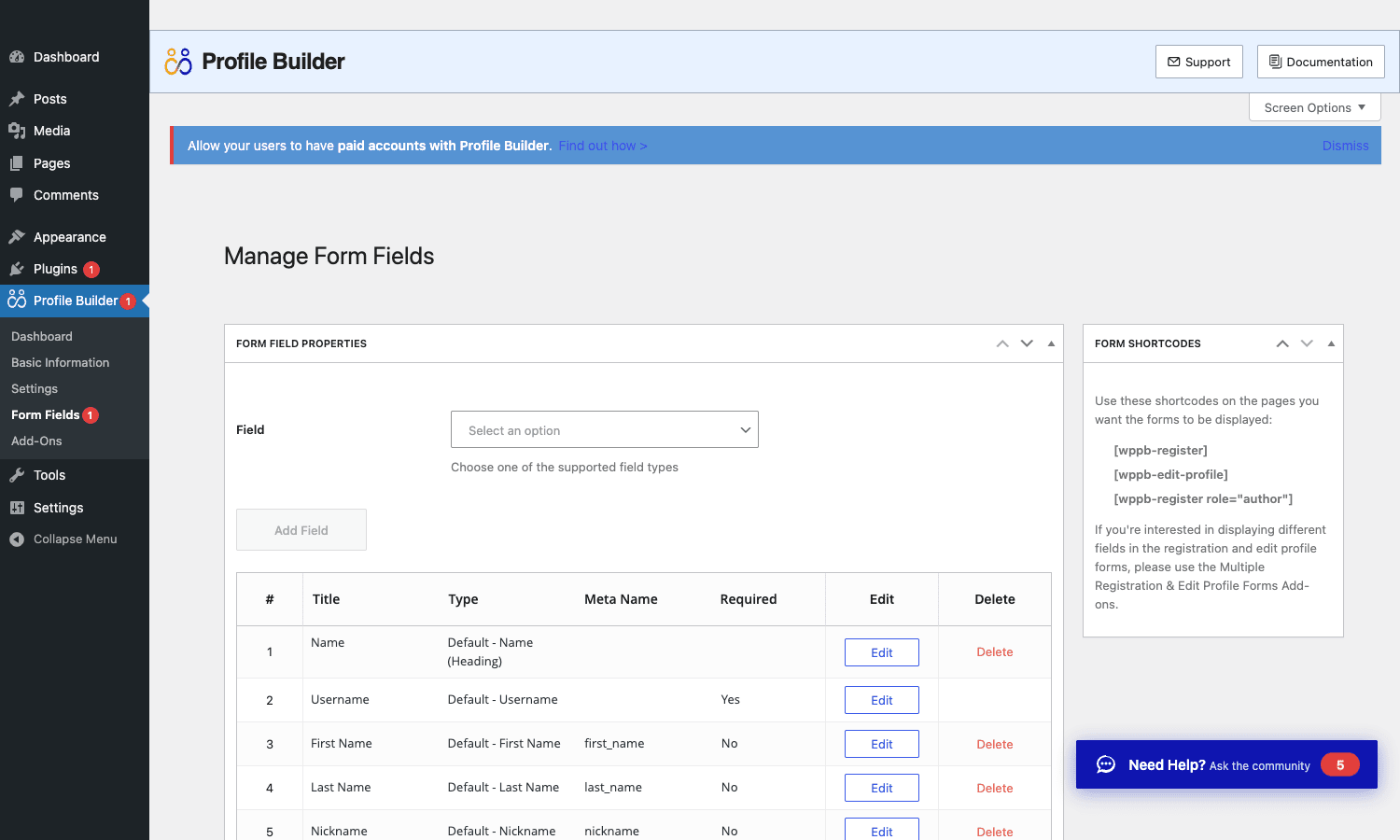
The Field dropdown ships with about thirty types. The ones I reach for most:
- Heading: A section divider with a title, great for breaking long registration forms into "Account", "Billing", "Preferences" groups.
- Input / Textarea: Plain text inputs with optional placeholder and description.
- Select / Radio / Checkbox: Choice fields with arbitrary options, saved as a single value or comma-list.
- Upload: File upload with MIME-type and size restrictions. Files land in the regular WordPress media library, attached to the user.
- Datepicker: jQuery UI date input.
- Agree to Terms: A required checkbox with a link to your terms page. Half of the GDPR conversation, right there.
- Country Select / Phone Number: Pre-built lists with sensible defaults.
- Map: A Google Maps location picker if you have a Maps API key.
Every field has a Meta Name, which is the user_meta key the value gets saved under. If you set a field’s Meta Name to state_license_number, you can pull it back anywhere with get_user_meta( $user_id, 'state_license_number', true ). Default fields like First Name and Last Name use the canonical WordPress meta keys (first_name, last_name), so they play nicely with everything else that reads them.
Conditional logic is set per field: show this field if account_type equals coach, hide it if account_type equals student. The conditions chain. It is not as visually slick as the conditional-logic editor in something like Gravity Forms, but it works for the registration-form complexity most sites need, and it is unlimited.
Add-ons that change the product
The Add-Ons page is where Profile Builder turns from a registration plugin into something closer to a membership toolkit.
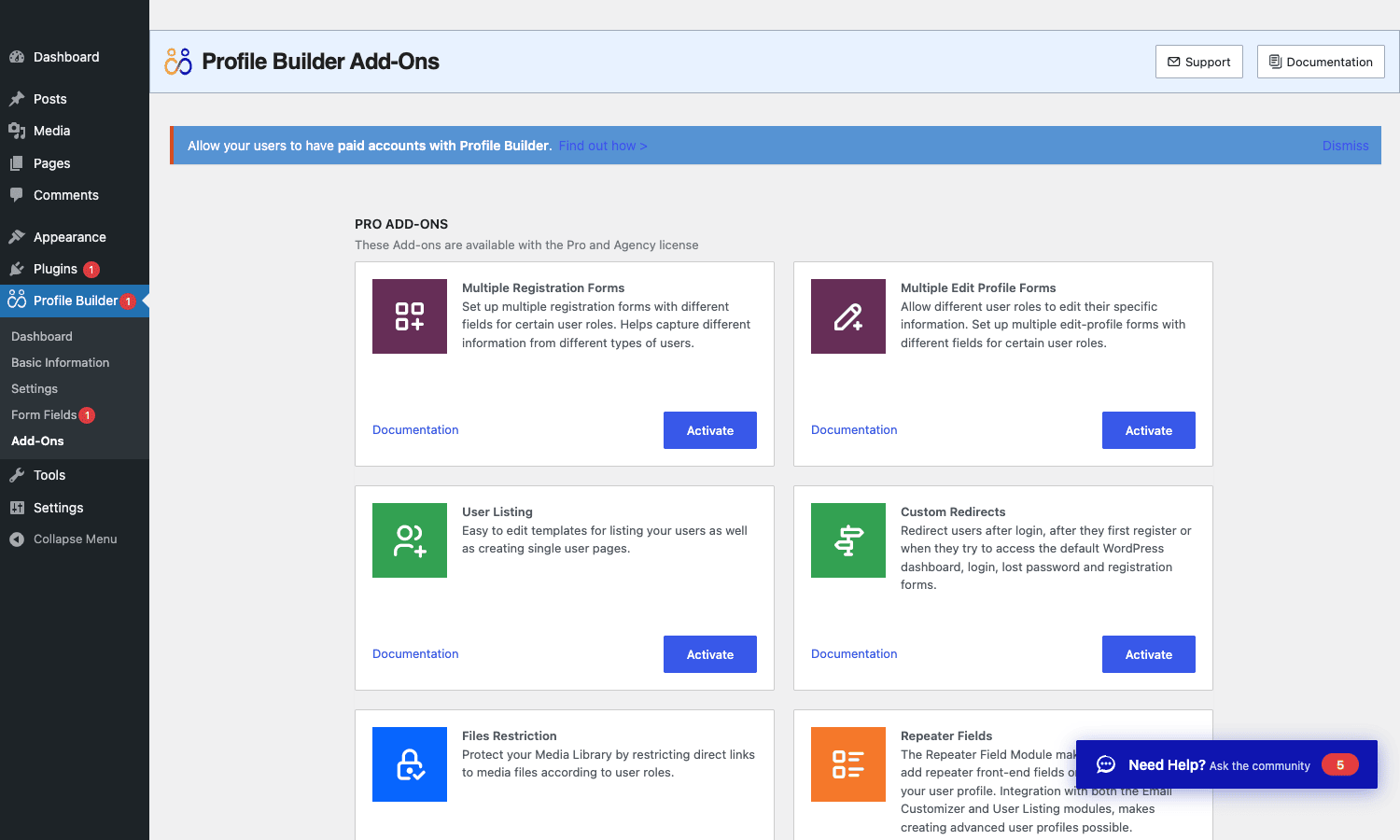
The ones worth flipping on early:
- Multiple Registration Forms and Multiple Edit Profile Forms: Different fields for different user roles. The students sign up with one form, the coaches sign up with another. Without this, every user fills the same form.
- User Listing: Front-end member directory with search, filters, sortable columns, and individual profile pages. Templates are PHP files in your theme, which gives you total control.
- Custom Redirects: Send users to specific pages after login, after registration, after logout, and (crucially) when they try to access
/wp-admin/without permission. The default WordPress behavior of dropping non-admin users at the admin dashboard is hostile, and this fixes it. - Files Restriction: Protects the
wp-content/uploads/directory so media library files can only be downloaded by logged-in users. Useful for paywalled PDFs. - Repeater Fields: Lets a user add multiple instances of the same field group on their profile, like multiple addresses or multiple work-experience entries.
The non-PRO add-ons (free with core, listed below the PRO block on the same screen) include reCAPTCHA, hCaptcha, Email Customizer, Email Confirmation, Admin Approval, User Roles Editor, Two-Factor Authentication, MailChimp, ActiveCampaign, MailPoet, and WooCommerce sync. There are around twenty in total. You activate the ones you need and leave the rest off, which keeps the database footprint and the option count reasonable.
A small structural note: every Pro add-on is shipped as part of the main Pro plugin zip, not as separate downloads. Activation toggles a flag in the database. You do not have to manage multiple plugin installs to use the feature set.
The four built-in design styles
Profile Builder ships with four pre-built form styles, switchable from a single radio choice in Settings.
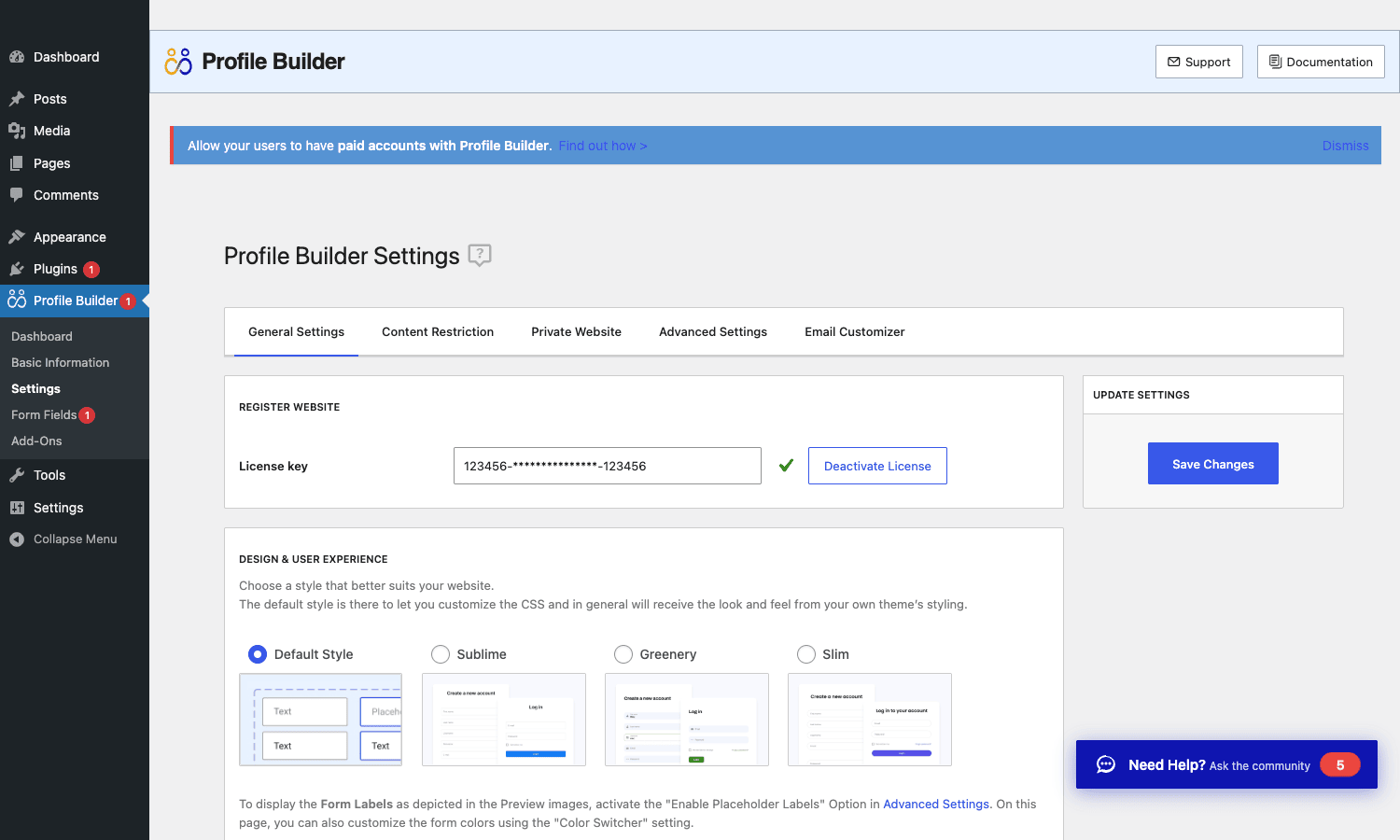
- Default Style inherits everything from your theme. Buttons, inputs, fonts, colors. It is the right pick if your theme already has a strong visual identity and you want the form to disappear into the page.
- Sublime is a clean centered card with a blue submit button. Neutral, professional.
- Greenery is the same layout with a green submit button and softer borders. Feels SaaS-ish.
- Slim is the most compact, with smaller padding and a deep-purple primary. Good for sidebars or modals.
The four styles cover roughly 80% of what most sites need. The other 20% needs CSS overrides, and Profile Builder makes that practical because every form element has a sensible class like wppb-form-field, wppb-user-forms, wppb-form-field-username. There is no obfuscated CSS-in-JS, just plain class names you can target from your theme’s stylesheet.
If you want to display the form labels inside the inputs as placeholders (the look the preview screenshots use), that is an Advanced Settings toggle: Enable Placeholder Labels. By default labels sit above inputs.
Installation and the bare-minimum setup
Plugins page, Add New, search "Profile Builder", install the free core. Then upload the Profile Builder Pro zip via Add New > Upload Plugin and activate it. Pro requires the free plugin to be active first, because Pro is technically an extension of core. You’ll see a single Profile Builder entry in the admin sidebar after activation.
Drop your license key into Profile Builder > Settings > General Settings. Without a license you still get all the features, but you don’t get auto-updates from Cozmoslabs.
Then create five pages (Register, Log In, Account, Reset Password, Members), drop the matching shortcode on each, and link them from your main menu. That is the entire bare-minimum setup. On a fresh WordPress install I can get this live in under fifteen minutes if I’m not fussing with the theme.
A few flags worth flipping immediately:
- Settings > General Settings > Allow Users to Log in With: Set to "Username and Email". Otherwise people who registered with their email will type that email at the login screen and bounce.
- Settings > Advanced Settings > Password Strength: Set to "Medium" or "Strong" so the password strength meter actually rejects weak ones, instead of just complaining about them.
- Settings > Email Customizer: At minimum, swap the default welcome-email subject and body for something that does not look like a stock WordPress install. Use the
{{username}}and{{site_name}}merge tags. - Add-Ons > Email Confirmation (activate it): Requires users to click a confirmation link before they can log in. Cuts spam registrations to almost zero.
If you skip nothing else, do those four.
Building a paid coaching site, end to end
Here is the concrete scenario that turned me into a Profile Builder Pro convert. A client wanted a directory of fitness coaches that members could browse, with two registration flows. Members sign up with first name, last name, email, and a fitness-goal dropdown. Coaches sign up with the same fields plus their certifications, an "About me" textarea, a photo upload, and a state license number, and their accounts need admin approval before they go live in the directory.
Here is roughly what that build looks like in Profile Builder Pro:
- Activate add-ons: Multiple Registration Forms, User Listing, Custom Redirects, Email Confirmation, Admin Approval.
- Define the extra fields: In Form Fields, add
fitness_goal(Select with options "Strength", "Cardio", "Mobility", "Weight Loss"),certifications(Textarea),about_me(Textarea),coach_photo(Upload, JPG/PNG only, 2MB max),state_license_number(Input). - Build two registration forms: Profile Builder > Multiple Registration Forms > Add New. The Member form selects
fitness_goaland the default name/email/password fields. The Coach form adds the certifications, about, photo, and license fields. Each form gets its own role, "Subscriber" for Member, a custom "Coach" role for Coach (created in the User Roles Editor). - Turn on admin approval for coaches: In the Coach form, check "User Approval > Manually approve by admin". Pending coaches sit in a queue at Profile Builder > Admin Approval until you approve them.
- Set redirects: Custom Redirects > After Registration. Members go to
/dashboard/, coaches go to/coach-pending/(a page that explains we’ll email when approval lands). - Build the member directory: Profile Builder > User Listing > Add New. Pick the Coach role only, choose the fields to display (Photo, Name, About, Certifications, State License), set the per-page count, and drop the generated shortcode on a public Members page.
- Customize the approval email: Email Customizer > User Approval Email. Add the coach’s first name, the URL to their public profile, a short "you’re live" message.
Time from zero to working: about two hours. The longest part was deciding which fields to capture, not configuring the plugin.
Two things I’d flag if you build something similar: the User Listing templates are PHP files inside the add-on directory, and customizing them means copying to your theme (yourtheme/profile-builder/userlisting/userlisting.php) and editing. It is the same overrideability pattern WooCommerce uses, and it works the same way. Second, the photo upload field is a server-side upload that hits PHP’s upload_max_filesize limit, so if you set the field max to 5MB and your php.ini caps at 2MB, the field will silently truncate. Bump the PHP limit at the host level if you want bigger uploads.
Developer reference: hooks, filters, integrations
Profile Builder is built for hooking. Here are the ones I use most, with the realistic snippets.
Send a Slack notification when an admin approves a coach
add_action( 'wppb_after_user_approval', 'mysite_notify_slack_on_approval', 10, 1 );

function mysite_notify_slack_on_approval( $user_id ) {
 $user = get_userdata( $user_id );
 if (! $user ||! in_array( 'coach', (array) $user->roles, true ) ) {
 return;
 }

 $payload = wp_json_encode( array(
 'text' => sprintf(
 ':white_check_mark: Coach approved: %s (%s) is now live in the directory.',
 $user->display_name,
 $user->user_email
 ),
 ) );

 wp_remote_post( 'https://hooks.slack.com/services/XXX/YYY/ZZZ', array(
 'body' => $payload,
 'headers' => array( 'Content-Type' => 'application/json' ),
 'timeout' => 5,
 ) );
}
The wppb_after_user_approval action fires once per approval, with the user ID as the only argument. Pair it with wppb_after_user_unapproval if you want a matching "removed from directory" notification.
Redirect users to different dashboards based on role
add_filter( 'wppb_after_login_redirect_url', 'mysite_role_based_login_redirect', 10, 2 );

function mysite_role_based_login_redirect( $redirect_url, $user ) {
 if ( in_array( 'coach', (array) $user->roles, true ) ) {
 return home_url( '/coach-dashboard/' );
 }
 if ( in_array( 'subscriber', (array) $user->roles, true ) ) {
 return home_url( '/dashboard/' );
 }
 return $redirect_url;
}
The Custom Redirects add-on covers most of these cases through the UI, but the filter is there when you need conditional logic the UI does not expose (like sending users to different URLs based on a meta value rather than a role).
Restrict admin approval to a specific capability
add_filter( 'wppb_admin_approval_user_capability', function( $cap ) {
 return 'edit_users';
} );
By default any user with promote_users can approve registrations. The filter lets you swap to a tighter or looser capability, useful when you have a "Membership Manager" role that should approve users but should not have full editor privileges.
Append a meta field to every queued user before notification
add_action( 'wppb_new_user_pending_approval', 'mysite_stamp_pending_users', 10, 1 );

function mysite_stamp_pending_users( $user_id ) {
 update_user_meta( $user_id, 'registration_source', $_SERVER['HTTP_REFERER']?? 'direct' );
 update_user_meta( $user_id, 'pending_since', current_time( 'mysql' ) );
}
Useful for tracking which landing page drove a registration. Profile Builder will not store this on its own, but the hook gives you a clean place to do it without touching the registration form.
Filter the user-listing query (User Listing add-on)
add_filter( 'wppb_users_listing_current_query_arguments', function( $args ) {
 $args['meta_query'] = array(
 array(
 'key' => 'wppb_approved',
 'value' => '1',
 'compare' => '=',
 ),
 );
 return $args;
} );
Restricts the public directory to admin-approved users only, even if their accounts technically exist in WordPress. Without this filter, every user with the matching role shows up, approved or not.
Custom email on address-change request
add_action( 'wppb_send_mail_address_change_request', function( $user_id, $new_email, $hash ) {
 $user = get_userdata( $user_id );
 if (! $user ) {
 return;
 }

 $confirm_url = add_query_arg( array(
 'wppb_request_confirmation' => $hash,
 'user_id' => $user_id,
 ), home_url( '/' ) );

 wp_mail(
 $new_email,
 'Confirm your new email on Coachly',
 sprintf( 'Hi %s, click here to confirm: %s', $user->display_name, $confirm_url )
 );
}, 10, 3 );
Profile Builder requires email-change confirmation by default (a good thing, it stops account-takeover via a single hijacked session). The action gives you the user ID, the new email, and the confirmation hash, so you can swap in your own transactional-email provider instead of wp_mail.
Useful WordPress core functions that play well with Profile Builder
If you ever need to create a Profile Builder user from outside the registration flow (a CSV import, a CRM sync), use the native wp_insert_user function and then set the Profile Builder approval flag manually:
$user_id = wp_insert_user( array(
 'user_login' => 'jane.coach',
 'user_email' => 'jane@example.com',
 'user_pass' => wp_generate_password( 16, true ),
 'role' => 'coach',
) );

if (! is_wp_error( $user_id ) ) {
 update_user_meta( $user_id, 'wppb_approved', '1' );
}
Setting wppb_approved to 1 bypasses the admin-approval queue, which is what you want for a trusted CSV import.
Performance, compatibility, and the gotchas
A working Profile Builder Pro install with five add-ons activated adds roughly 18 database options and a handful of usermeta keys per registration. Page-load impact is negligible on the front end because the plugin only enqueues its scripts and styles on pages where a wppb-* shortcode is present. On any page without a Profile Builder shortcode the plugin’s footprint is zero front-end assets. That conditional loading is the right way to do it, and it is one of the reasons the plugin behaves well alongside heavy page builders.
Where things get less smooth:
- The default form HTML uses tables. Profile Builder still uses
<table>markup for the form-field layout instead of CSS grid or flex. It is accessible, just dated. The four built-in design styles work around it with CSS, but if you’re writing custom CSS targeting form rows, you’re styling<tr>and<td>selectors. Annoying in a 2026 codebase. - Multisite support is partial. The plugin works on multisite, but the User Listing add-on lists users from the current subsite only. If you need a cross-network directory, you’ll need to write a custom query or use the Multisite add-on (separate).
- Conflicts with WooCommerce’s My Account page. If you put the
[wppb-edit-profile]shortcode on the WooCommerce My Account page, both plugins try to render an edit form and the layout breaks. The fix is to use the WooCommerce Sync add-on, which makes Profile Builder fields show inside the WooCommerce edit form natively, and skip the standalonewppb-edit-profileshortcode on that page. - Email Customizer overrides every transactional email. Once you enable it, WordPress’s default password-reset email is replaced. If your security plugin (like Wordfence) hooks into the same email template, you may see double or overridden notifications. Test the password-reset flow after enabling.
- The Repeater Fields add-on doesn’t sync to WooCommerce. Repeater data lives in serialized usermeta that WooCommerce’s account-page sync does not understand. If you need repeaters on a WooCommerce store, plan to render them outside the WooCommerce flow.
None of these are dealbreakers. They are the sort of edges you find on every plugin in this category. Profile Builder is more honest about its limits in the documentation than most.
How it compares to the alternatives
Profile Builder is not the only choice and it is not always the right one. The honest breakdown:
- Ultimate Member is the closest direct competitor and has a stronger community-features story: activity feeds, friend connections, private messaging out of the box. If you’re building something that feels more like a social network than a membership site, Ultimate Member is usually the better starting point. Profile Builder will get you to a directory, but not a feed. And if your users mainly submit content rather than socialize, WP User Frontend is the front-end-posting alternative to both.
- UserPro is sold once on CodeCanyon. Cheaper if you build one site, but the update cadence and support are noticeably worse than Cozmoslabs. Pick UserPro if you want a one-time fee and are comfortable diagnosing your own issues.
- BuddyPress is free and ships with WordPress.org. If you only need profiles plus activity streams (no custom registration logic, no admin approval, no role-based fields), BuddyPress costs nothing and the integration ecosystem is huge. The trade is that BuddyPress is community-first, not registration-first; the registration form is plain.
- RegistrationMagic has a nicer drag-and-drop form builder. If the registration form itself is the focal point of your site (lead-gen, conferences, application forms), RegistrationMagic’s UX during form building is genuinely better. Profile Builder catches up on the post-registration side (profile management, directories, email customization) which RegistrationMagic does not really do.
Profile Builder’s sweet spot is sites that need all of registration, profile management, member directory, and email customization in one plugin, where the customer is technical enough to live with a shortcode-driven workflow. It is not the prettiest. It is complete.
It also slots into the Cozmoslabs stack cleanly. If you’re already running TranslatePress for multilingual or Paid Member Subscriptions for billing, Profile Builder is the natural fit for accounts. The teams share a codebase style and an integration mindset that you don’t get when you stitch together four plugins from four different vendors.
Pricing and licensing
Profile Builder Pro is sold as an annual subscription from Cozmoslabs:
- Hobbyist: around $69/year, one site, the basic Pro feature set.
- Pro: around $159/year, unlimited sites, every add-on.
- Agency: around $239/year, five sites plus the premium add-ons (Two-Factor, Files Restriction).
- Lifetime tiers are offered at multiples of the annual price, with the same feature distribution.
The free core plugin gives you front-end login, registration, and edit-profile with no custom fields. It is enough to evaluate the workflow but not enough to ship a real site.
Because Profile Builder Pro is GPL-licensed, you can also run it through GPL Times.
FAQ
Does it work with the block editor?
Yes. There is a "Profile Builder" Gutenberg block that wraps each shortcode, so you can drop a registration form into a block-editor page without typing the shortcode by hand. The fields still render via the same shortcode pipeline underneath.
Can I migrate from Ultimate Member or another registration plugin?
There is no automatic importer, but because user accounts live in the standard WordPress users and usermeta tables, the user records carry over when you switch plugins. The custom-field meta keys will be different (Ultimate Member uses its own naming, Profile Builder uses what you set), so you’ll need a small migration script to remap field names. The CSV Import/Export add-on can help bulk-write the new meta keys.
Does it integrate with WooCommerce?
Yes, via the WooCommerce Sync add-on (free, bundled). Custom fields you define in Profile Builder show up in the WooCommerce checkout (optional) and the My Account edit form. The integration is field-level, not page-level: the Profile Builder edit-profile shortcode and the WooCommerce account edit form remain separate templates, but they share the underlying meta data.
Can users delete their own accounts?
Yes. The edit-profile form has an optional "Delete account" button that you enable from the Form Fields screen by adding the "Delete User" field. It triggers a confirmation step, then a soft delete (WordPress’s standard wp_delete_user).
Is it GDPR compliant out of the box?
It includes the building blocks: an Agree to Terms field with a link to your policy, an Email Confirmation flow (so accounts can be verified before being created), and the standard WordPress data-export and data-erase hooks (Profile Builder meta is included). For the rest of compliance (consent records, processing logs), you’ll need a dedicated GDPR plugin. The official European Commission overview is the right starting point for what "compliant" actually means in your jurisdiction.
Can I use it without writing any code?
Yes, for everything described above. The hooks and filters are there for sites that need extension; the UI covers the standard build. I’ve shipped two of those three client sites without writing a single line of custom PHP.
Final thoughts
Profile Builder Pro is not the plugin you reach for because it is exciting. You reach for it because the default WordPress user experience is hostile to your end users, and you need to swap it out for something that looks like it was designed for humans. It does that one job comprehensively. The form-style choices are decent rather than dazzling, the admin is functional rather than slick, the add-on system avoids the trap of selling you fifteen separate plugins for one feature set.
Where it stands out is the Cozmoslabs ecosystem fit. If you’re building a site that needs accounts, billing, and translations, the Profile Builder + Paid Member Subscriptions + TranslatePress trio shares a coherent design language and a single support team. That kind of vertical integration is rare in the WordPress plugin space, and on a long-running client site it saves real time. Pair it with a customizable theme like Astra Pro or a builder like Elementor Pro for the page chrome around the forms, and you’ve got a setup that the next developer on the project will be able to read without ceremony. That, more than any single feature, is why I keep coming back to it.