

Most WordPress sites end up with at least one table that nobody on the team can touch comfortably. Maybe it’s a custom orders table from a plugin you wrote five years ago. Maybe it’s wp_postmeta and you need a non-developer to fix 200 rows of bad data. Maybe it’s an entirely separate analytics database sitting on another host. WP Data Access Premium gives that table a working WordPress admin UI, complete with browsing, search, edit forms, exports, charts, and frontend publishing, without anyone writing a line of PHP.
Table of Contents
- What WP Data Access Premium does
- Key features
- How it works for users
- Installation and setup
- Building your first data app
- Publishing data to the frontend
- Connecting to remote databases
- Real-world use cases
- Developer reference
- Performance, compatibility, and gotchas
- Pricing and licensing
- Frequently asked questions
- Final thoughts
What WP Data Access Premium does
WP Data Access Premium is a database administration and low-code app builder for WordPress. It’s developed by Passionate Programmers B.V. (Peter Schulz is the lead developer) and the project has been on the WordPress.org repository for years under the simpler wp-data-access name. The free edition handles browsing and editing local MySQL tables. The Premium edition turns it into a full Rapid Application Development tool with cloud database connections, dashboards, role-based publishing, form generation, charts, and a REST API.
The mental model is straightforward. A "data app" is a WordPress-admin page generated on top of a MySQL table. You point WP Data Access at a table (any table, whether WordPress owns it or not), pick an app type (Data Table, Data Administration, Chart, Dashboard, Map, Registration Form, Data App bundle), and the plugin generates a list view, edit form, and search bar that respects your column types, foreign keys, and permissions. If you’d rather show the data on the front end, the same publication setup can be dropped into a post via shortcode or Gutenberg block.
The thing that makes it stand out from "table" plugins is the scope. wpDataTables is great for pretty front-end tables, but it doesn’t try to be a CRUD generator for your own admin. JetEngine and Toolset Types build interactive sites on top of custom post types, which is the wrong shape if your data lives in a real MySQL table. phpMyAdmin and Adminer are first-class database tools but live outside WordPress, so a marketing manager can’t use them. WP Data Access sits in the middle: it’s a database tool that speaks WordPress.
Key features
- Data Explorer that reads any MySQL schema. Browse tables, views, stored procedures, and functions across local and remote databases. Sort, filter, paginate, export. It looks like a friendlier phpMyAdmin embedded in
wp-admin. - App Builder with seven app types. Data Table (read-only), Data Administration (full CRUD), Chart, Dashboard, Map, Registration Form, and Data App (multi-app bundles with their own menu).
- SQL Query Builder with syntax highlighting. A CodeMirror-based editor with multiple tabs, query history, max-rows safety cap, and a built-in AI assistant integration for query suggestions. Can run any
SELECT, plus DDL/DML if you allow it. - Data Publisher that turns tables into shortcodes and blocks. Drop a configured table into any post, page, or widget. Supports custom queries, custom post types as a source, multiple output styles (DataTables, list, cards), and per-publication styling.
- BI-style Data Dashboards. Combine charts, data widgets, and custom components into a grid-based view. Charts use Google Charts under the hood and can be driven by raw SQL.
- Row-level and column-level permissions. Restrict who can read, insert, update, or delete records per WordPress role. Premium adds the
wpda_app_access_filterhook to gate features like global search and column filtering per role. - Inline editing for spreadsheet-style data entry. Click a cell, type the new value, hit Tab. Great for back-office staff who don’t want a "click row, open form, save" loop.
- Remote (cloud) database connections. Pro only. Connect to an external MySQL or MariaDB instance and treat it like a first-class WordPress schema. Useful for analytics warehouses, multi-site shared catalogs, legacy systems.
- Data Backups per table. Built-in table-level backups that survive plugin updates. A repository-rebuild safeguard is also available in Settings -> Repository.
- Import/export in CSV, JSON, SQL, and XML. Wizards for both directions. Scheduled imports/exports in Pro.
- REST API for every data source. The plugin exposes a
wpda/namespace with endpoints for table actions (rename, copy, truncate), exports, tree navigation, settings, and AI helpers. Great for headless setups or external scripts. - 35-language translations. Out of the box. You can ship a data app to a multilingual back office without reverse-engineering the strings.
How it works for users
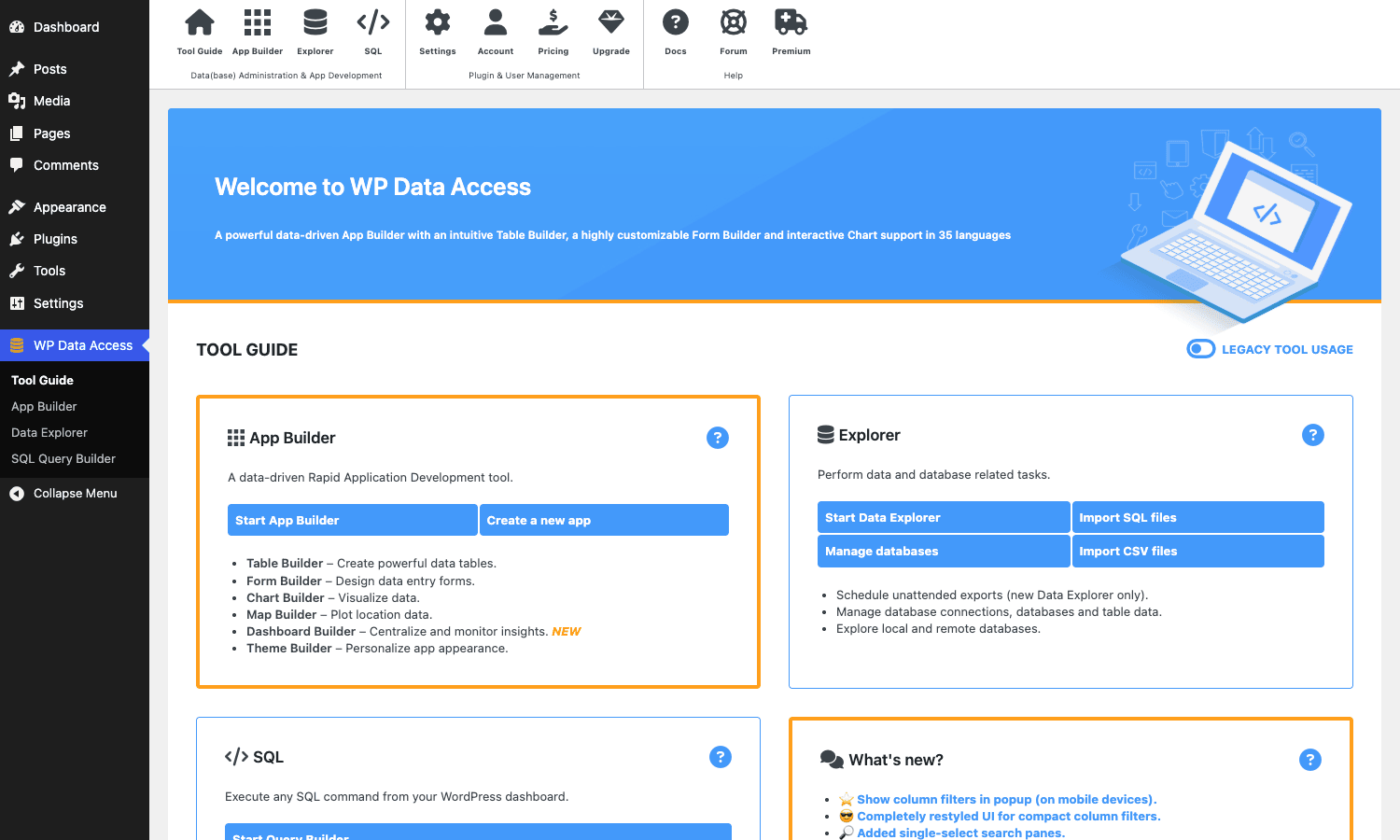
The first run drops you on the Tool Guide page (WP Data Access -> Tool Guide). It’s a four-panel hub: App Builder for new low-code apps, Data Explorer for poking at the database, SQL for raw queries, and a What’s New widget. Nothing is hidden behind a paywall ceremony, and the labels are in plain English.
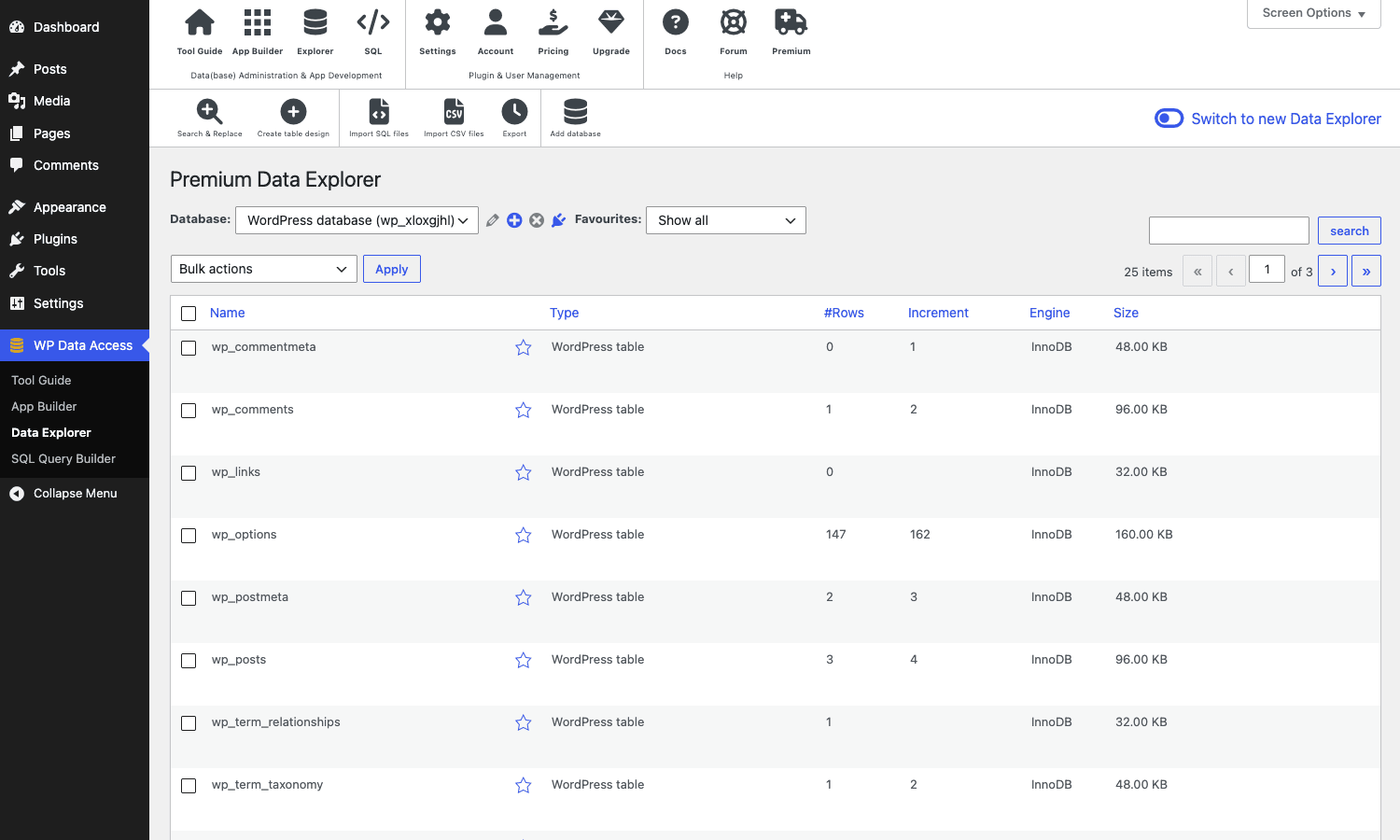
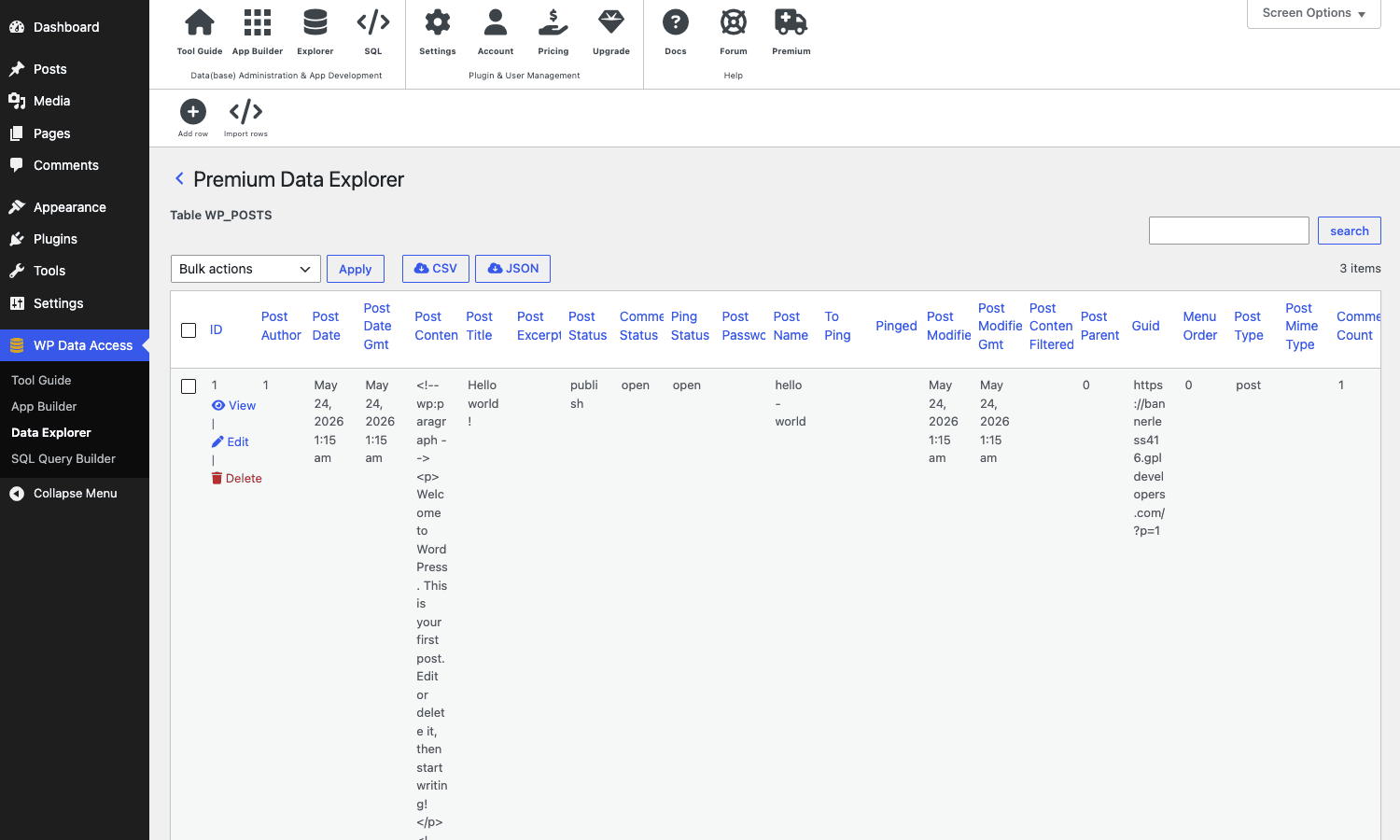
The Data Explorer is the workhorse for anyone coming from phpMyAdmin. Pick a database from the dropdown (your WordPress install starts as the default), and you see every table with row counts, storage engine, increment value, and size. Click a table name to browse rows. Click Manage to edit table options, indexes, or design. Click Explore to open the data view with View, Edit, and Delete row actions, plus a CSV/JSON export from the toolbar.
The first time you hit a table that WP Data Access has never seen, it asks whether you want to use the default display behavior or generate persistent table settings (labels, column ordering, sortable flags, hidden columns). Settings live in the plugin’s own repository tables (wp_wpda_table_settings and friends), so they survive plugin reactivation and can be exported.
The Data Administration view is what most non-developers will actually use. It’s the same list-table shell but with an Add row toolbar button, plus per-row Edit and Delete actions that open a proper form with the right input widget per column type. Foreign keys, if you’ve declared them, become dropdowns of the referenced parent table. Date columns get a date picker. JSON columns get a viewer/editor.
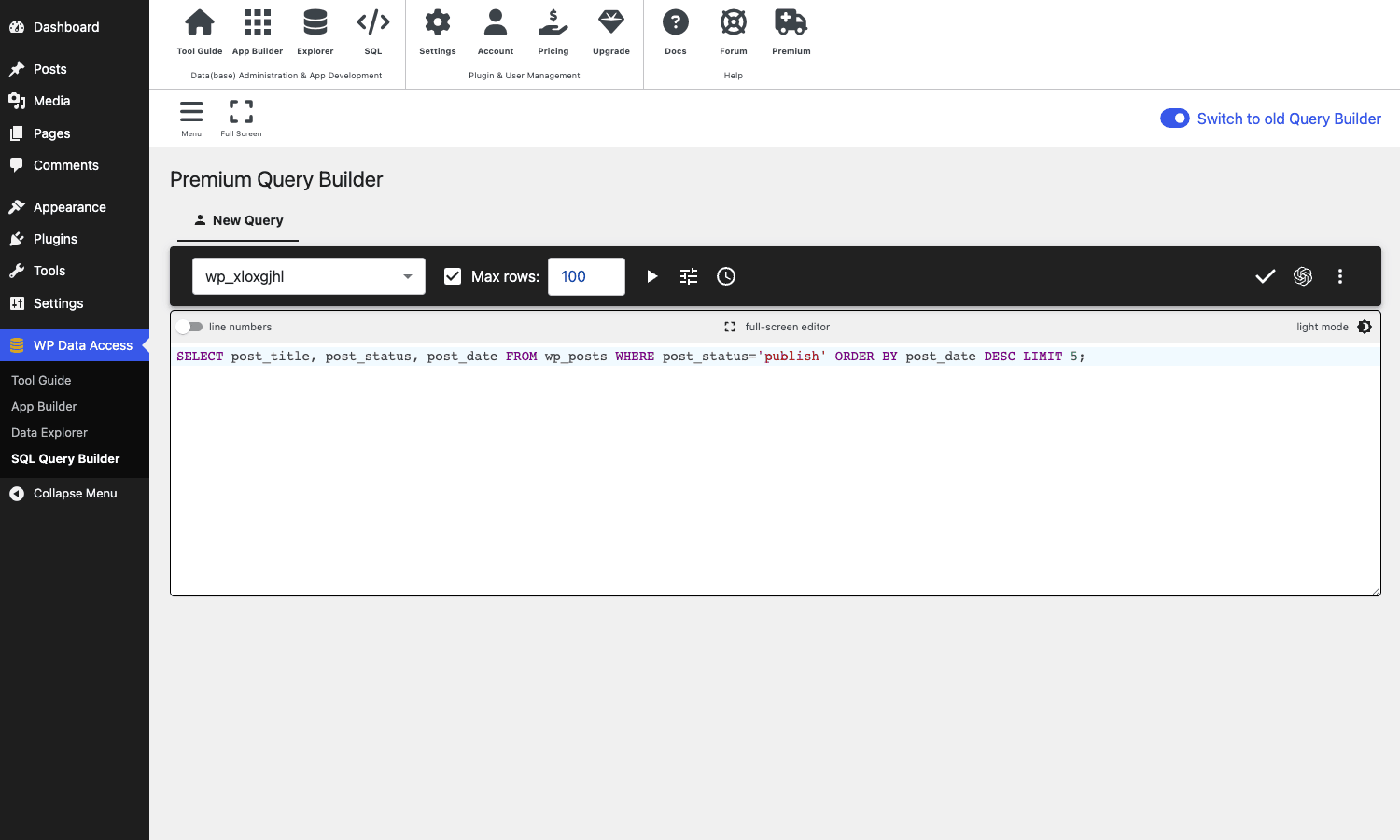
The SQL Query Builder is the third pillar. Open WP Data Access -> SQL Query Builder and you get a CodeMirror editor with database selector, max-rows guard, multi-tab support, AI assistant (small chat icon), and a play button. Run the query and a virtualized results grid renders below the editor, with column sorting and a CSV export. It’s the right tool for the times when "open phpMyAdmin and tweak a string" is actually faster than the WordPress UI.
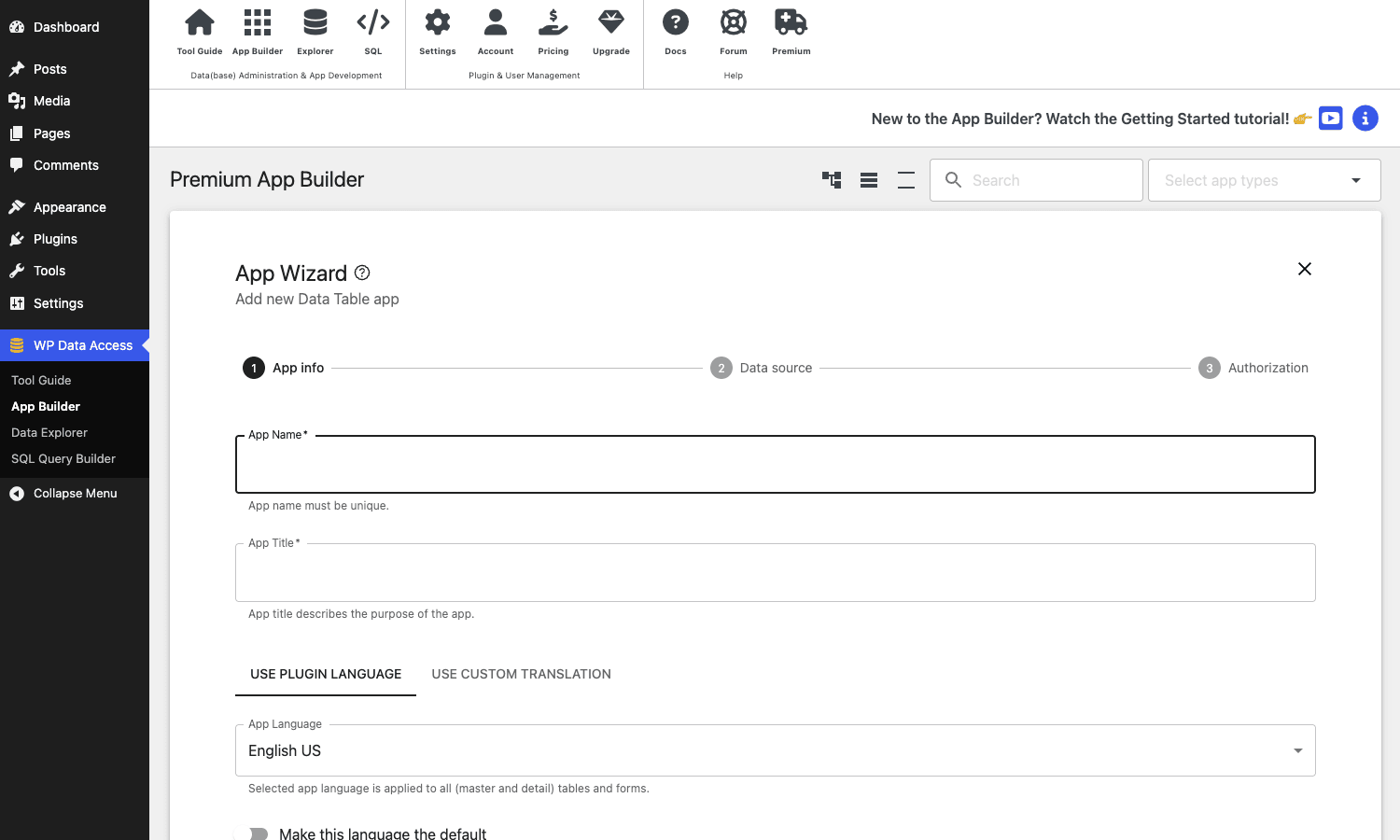
The App Builder is where Premium really stretches. It’s a wizard that generates a full WordPress-admin page (or a frontend shortcode) on top of a table. You name the app, pick a data source, set authorization rules, and the plugin produces a working interface that respects column types, primary keys, and your permission rules.
Installation and setup
Standard WordPress plugin install. Upload the ZIP from Plugins -> Add Plugin -> Upload Plugin, activate it, and a new WP Data Access menu appears in the left sidebar with Tool Guide, App Builder, Data Explorer, and SQL Query Builder. A second WP Data Access entry shows up under Settings for the configuration tabs.
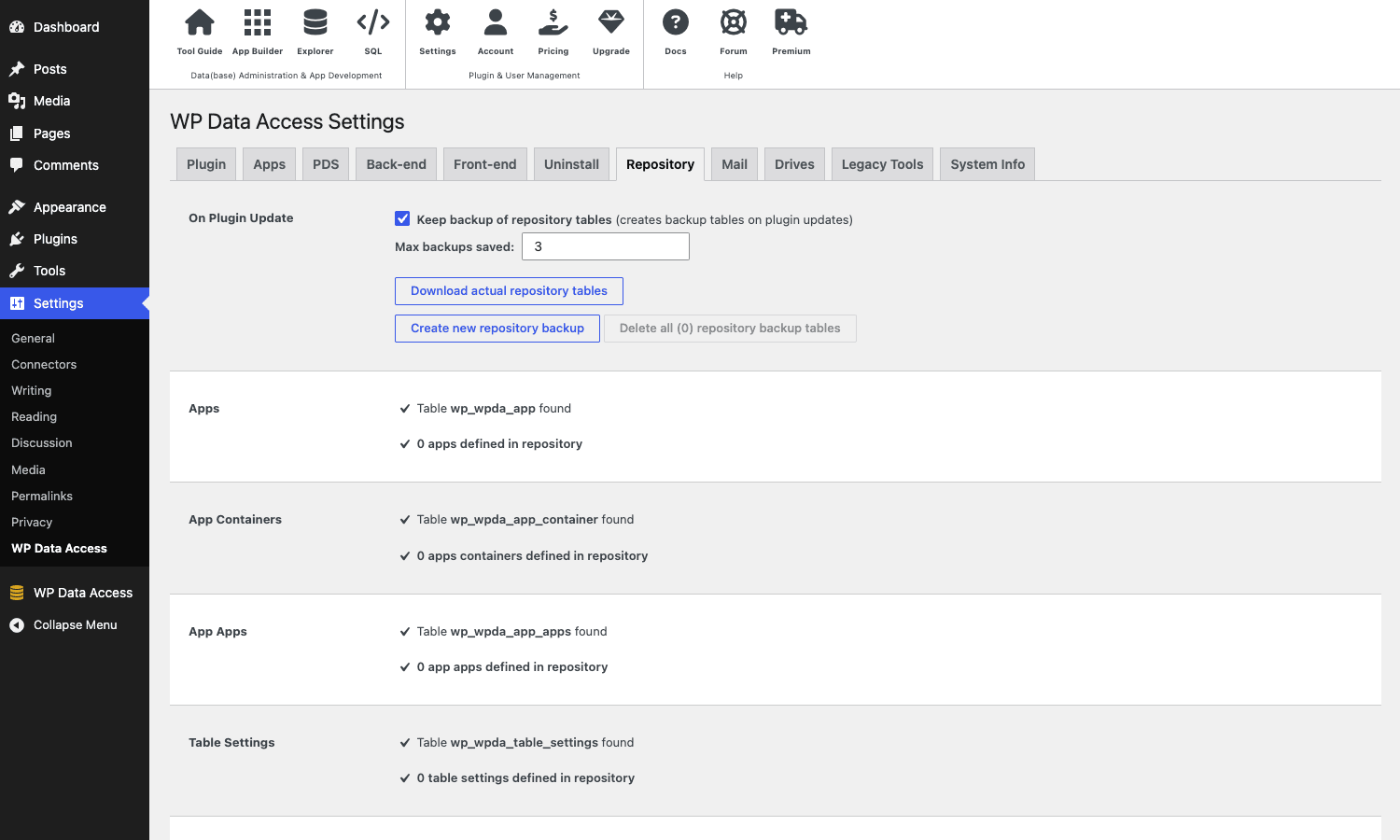
The activation flow is the same whether you grab the free version from WordPress.org or the Premium edition. You can skip past the Freemius opt-in dialog if you want to (it’s optional). Settings live at Settings -> WP Data Access and the tabs are Plugin, Apps, PDS, Back-end, Front-end, Uninstall, Repository, Mail, Drives, Legacy Tools, and System Info.
First-time housekeeping I’d recommend on any new install:
- Open
Settings -> WP Data Access -> Repository, confirm all thewp_wpda_*repository tables show up as found, and tick "Keep backup of repository tables on plugin update". You don’t want to be the one who lost three months of app definitions because a botched update truncated the repository. - Tick "Hide notices of other themes and plugins on WP Data Access admin pages" under the Plugin tab. The plugin’s admin pages get cluttered fast if your site has 30 active plugins all printing notices.
- If you plan to use the SQL editor against tables that contain personally identifiable data, set "Panel cookies: Clear when switching panels" so previously run queries aren’t restored on next visit.
- Decide who gets access. By default, only administrators see the menu. Under
Settings -> WP Data Access -> Back-endyou can grant subscriber, contributor, author, or editor roles their own data-only view.
Building your first data app
The clearest "aha" moment with this plugin is creating an App Builder app on top of an existing table. Let’s say you have a custom table called wp_event_signups with columns id, event_id, attendee_name, attendee_email, created_at, and confirmed.
Open WP Data Access -> App Builder, click Create New App, pick Data Administration from the App Type dropdown, and hit Start Wizard. Three steps:
- App info. Give the app a unique name (used internally) and a display title (shown to admin users). Pick the plugin language (defaults to your WordPress locale). Optionally set a custom translation for column labels.
- Data source. Pick the database, pick the table (
wp_event_signups), and pick which columns to expose. You can star a subset, change column order, set per-column labels. - Authorization. Pick which WordPress roles can list, view, insert, update, and delete records. The admin gets everything by default. Per-role per-capability checkboxes mean you can give a "Volunteer Coordinator" role permission to insert and update but never delete.
Save, and you have a new entry under WP Data Access -> App Builder and a new admin page that any authorized user can use to manage event signups. They don’t need to know what a database table is. They see a friendly list, can filter by event, click Edit on a row, change confirmed from 0 to 1, and save.
Behind the scenes, the plugin stored your app definition in its repository tables, generated a permission policy, and registered a submenu page. You can re-open the app definition any time and tweak the column rendering, swap data sources, or change permissions without breaking existing data.
For a Chart or Dashboard app, the wizard replaces step 2 with a chart configuration: type (line, bar, pie, area, scatter, etc., via Google Charts), data query (either pick columns from a table or paste raw SQL), grouping, and styling. Dashboard apps stack multiple charts in a grid that admins can rearrange.
Publishing data to the frontend
The other half of WP Data Access Premium is publishing tables to the front of the site, not just the back. Two paths exist: the old Data Publisher (still in the plugin as WP Data Access -> Data Publisher, marked for migration to the new App Builder) and the new App Builder front-end render. Both produce a shortcode and a Gutenberg block.
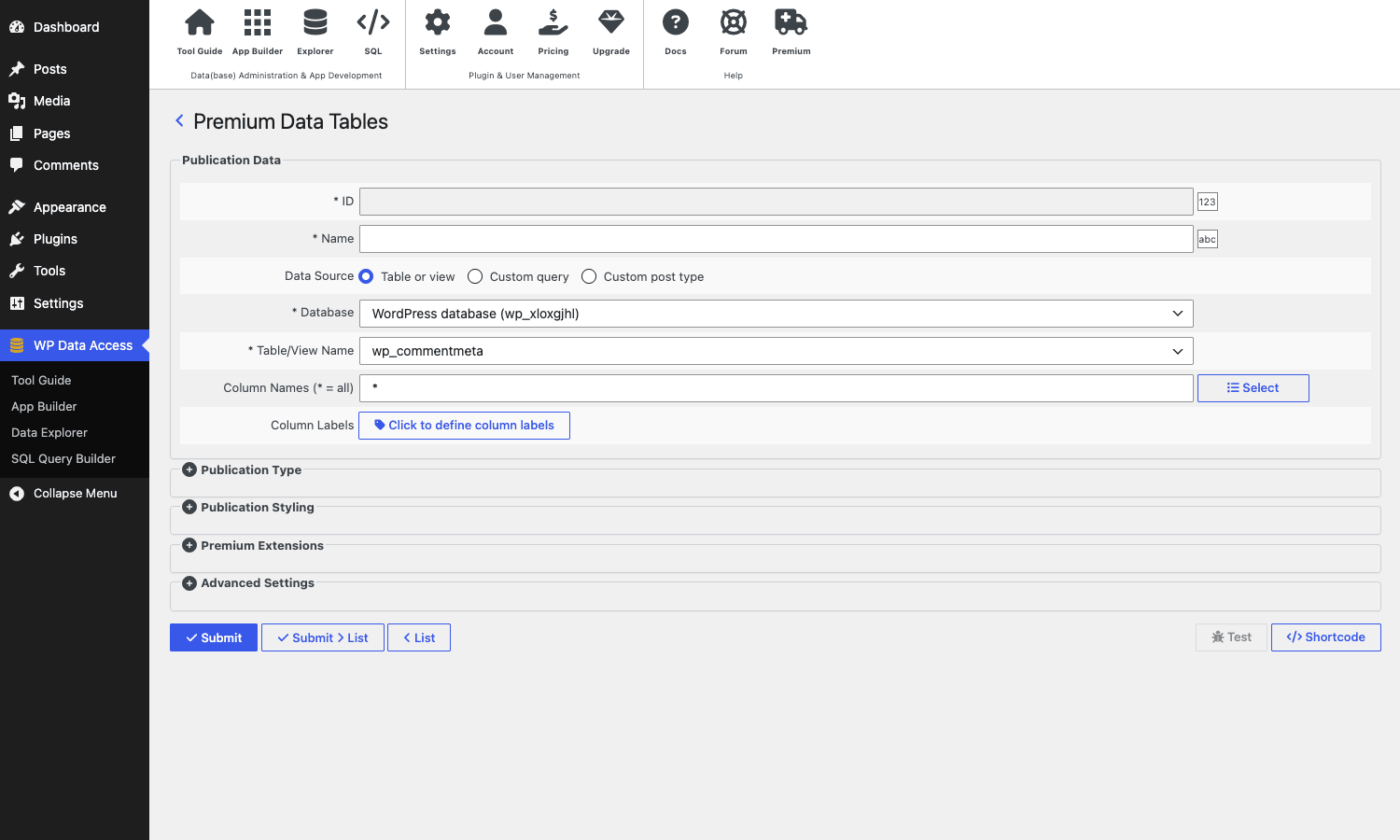
Open WP Data Access -> Data Publisher, click Create data table, and you get a form that mirrors the App Wizard but with publication-specific options: Data Source can be a Table or view, a Custom query, or a Custom post type. Publication Type controls the output format (DataTables, list, cards). Publication Styling controls CSS classes. Premium Extensions add inline editing, geo maps, FULLTEXT search.
When you save the publication, the plugin prints a shortcode like [wpdataaccess pub_id="42"]. Paste it into any post, page, or widget. The front end gets a DataTables-style sortable, searchable, paginated table backed by your live database. Inline editing is gated by wpda_app_access_filter so you can give editors the right to change rows from the front-end without exposing the same to public visitors.
The new App Builder workflow is similar but pushes you toward bundled "Data App" containers, where multiple related views (a list view, a chart, a registration form) live under one front-end app. Both styles work; pick the one that matches your project.
Connecting to remote databases
This is the killer Premium feature for anyone running multiple databases. Under Settings -> WP Data Access -> Plugin, scroll to "Remote database connections" and add a connection: host, port, database name, username, password, optional SSL settings, optional SSH tunnel via Drives. The plugin stores credentials encrypted using a secret key and IV you set in Settings (don’t skip this; the warning text is there for a reason).
Once a remote connection is registered, the Data Explorer dropdown shows it next to your WordPress database. App Builder, Data Publisher, SQL Query Builder, and the REST API all treat it as a first-class schema. You can build an admin app on top of a table that lives on a totally different server, and your WordPress users will never know.
A few caveats:
- The remote database user only needs the privileges you want exposed (usually
SELECT, INSERT, UPDATE, DELETEon the tables you plan to manage). Don’t grantALL PRIVILEGESunless you also want App Builder users to drop tables. - Latency matters. A remote DB in another region behind 80 ms of network round trip will feel slow on every keystroke in the Data Administration form. Co-locate or use a read replica.
- Connection pool: each WPDA query opens a fresh PDO connection. For heavy bursty workloads, put PgBouncer or ProxySQL in front.
Real-world use cases
I’ve seen this plugin used in production for some surprisingly different things.
- Internal CRUD for plugin-table data. You wrote a custom plugin five years ago. It has a
wp_my_plugin_orderstable that staff need to edit. You don’t want to build a settings page from scratch. WP Data Access generates the admin UI in five minutes. The Volunteer Coordinator role mentioned earlier is a real case. - Analytics dashboard on top of an external warehouse. An e-commerce site keeps order history in WooCommerce but rollup tables in a separate MySQL warehouse. The marketing manager doesn’t want to log into a BI tool. A WPDA Dashboard pulls live numbers from the warehouse into a chart on the WordPress admin home.
- Public-facing data tables. A municipality publishes a list of building permits. They already keep the data in a MySQL table populated by a custom workflow. A Data Publisher publication renders that table on a WordPress page with full search, pagination, and a CSV download button.
- Replacement for phpMyAdmin on a shared host. Some hosting providers don’t expose phpMyAdmin to lower-tier accounts. Installing the free WP Data Access plugin gives the same browser-based DB admin without contacting support.
- Form-driven data collection that bypasses Gravity Forms. Registration Form apps in the App Builder generate a frontend form, write rows into a MySQL table, optionally email the admin. Lighter than a full forms plugin if you only need one or two simple forms wired to one table.
- Headless data API. The REST endpoints under
/wp-json/wpda/let an external app read or modify data without you writing a plugin. Useful for mobile apps or a Next.js front-end that needs to query a non-WordPress schema living on the same host.
Developer reference
The plugin exposes a small, focused set of hooks. Most of the magic is in the wpda_ action and filter prefix. Here are the ones that actually move the needle.
Filter: rewrite the search WHERE clause
The single most useful filter is wpda_construct_where_clause. It runs every time the list-table search box is used. You can rewrite the SQL fragment, add joins, restrict by user role, or short-circuit and return a different result.
add_filter( 'wpda_construct_where_clause', function( $where, $schema, $table, $columns, $search ) {
    if ( 'wp_event_signups' !== $table ) {
        return $where;
    }

    // Restrict non-admins to their own signups.
    $current = get_current_user_id();
    if ( ! current_user_can( 'manage_options' ) && $current ) {
        $own = $GLOBALS['wpdb']->prepare( 'created_by = %d', $current );
        return $where ? "({$where}) AND {$own}" : $own;
    }

    return $where;
}, 10, 5 );
Filter: customize how a column renders
wpda_column_default gets called for every cell in every list table that doesn’t have an explicit renderer. Return a string and the list table prints it.
add_filter( 'wpda_column_default', function( $default, $item, $column, $table, $schema, $columns, $row_index, $view ) {
    if ( 'wp_event_signups' === $table && 'confirmed' === $column ) {
        return ! empty( $item['confirmed'] )
            ? '<span style="color:#2e8540;">Confirmed</span>'
            : '<span style="color:#a00;">Pending</span>';
    }
    return $default;
}, 10, 8 );
Filter: override column headers per table
wpda_get_column_headers lets you replace the column labels at runtime. Handy for multilingual back offices that don’t want to maintain a translation file.
add_filter( 'wpda_get_column_headers', function( $schema, $table ) {
    if ( 'wp_event_signups' === $table ) {
        return array(
            'id'             => __( 'ID', 'my-textdomain' ),
            'event_id'       => __( 'Event', 'my-textdomain' ),
            'attendee_name'  => __( 'Name', 'my-textdomain' ),
            'attendee_email' => __( 'Email', 'my-textdomain' ),
            'confirmed'      => __( 'Status', 'my-textdomain' ),
            'created_at'     => __( 'Signed up', 'my-textdomain' ),
        );
    }
    return null;
}, 10, 2 );
Action: initialize a new database connection
wpda_dbinit fires every time the plugin opens a new wpdb-style connection, including remote connections. Use it to set the session timezone, character set, or any other session-level variables.
add_action( 'wpda_dbinit', function( $db ) {
    if ( $db instanceof \wpdb ) {
        $db->query( "SET time_zone = '+00:00'" );
        $db->query( "SET SESSION sql_mode = 'STRICT_TRANS_TABLES,NO_ZERO_DATE'" );
    }
} );
Filter: Pro role-level access gate
wpda_app_access_filter is the Pro permission gate for App Builder apps. Return false and the requested capability is denied. The example below blocks the global-search box for the subscriber role inside a specific app.
add_filter( 'wpda_app_access_filter', function( $app_id, $cnt_id, $capability, $args ) {
    if ( 42 === (int) $app_id && 'global_search' === $capability ) {
        if ( current_user_can( 'subscriber' ) && ! current_user_can( 'editor' ) ) {
            return false;
        }
    }
    return true;
}, 10, 4 );
Filter: hook into the [wpdataaccess] shortcode
wpda_wpdataaccess_prepare gives you a chance to inject JavaScript or change the DataTables init right before the shortcode renders. Useful for adding row-grouping, fixed columns, or custom button extensions.
add_filter( 'wpda_wpdataaccess_prepare', function( $default, $database, $table, $pub_id, $columns, $settings ) {
    if ( 42 === (int) $pub_id ) {
        return 'rowGroup: { dataSrc: 2 },';
    }
    return $default;
}, 10, 6 );
Action: extend the list-table search bar
wpda_add_search_actions and wpda_add_search_filter are called inside the list-table search row. Echo extra <select> or <input> controls and they’ll appear next to the search button.
add_action( 'wpda_add_search_filter', function( $schema, $table, $settings, $columns ) {
    if ( 'wp_event_signups' === $table ) {
        echo '<select name="filter_confirmed">';
        echo '<option value="">Any status</option>';
        echo '<option value="1">Confirmed</option>';
        echo '<option value="0">Pending</option>';
        echo '</select>';
    }
}, 10, 4 );
REST API
The Premium plugin registers routes under the wpda namespace. Endpoints worth knowing:
POST /wp-json/wpda/action/rename– rename a tablePOST /wp-json/wpda/action/copyand/copy/start– copy a table with or without dataPOST /wp-json/wpda/action/truncate– truncate a tablePOST /wp-json/wpda/action/export– export data in CSV/JSON/SQL/XMLGET /wp-json/wpda/table– list tables in a schemaGET /wp-json/wpda/tree– schema tree (databases -> tables -> columns)POST /wp-json/wpda/ai/*– AI assistant for query suggestions
All endpoints honor nonce-based REST auth. The permission callbacks live in WPDataAccess/API/, and the namespace constant is WPDA_API::WPDA_NAMESPACE = 'wpda'. If you need to extend the API, the pattern is to instantiate your own class inside rest_api_init and call register_rest_route( 'wpda', '/your-endpoint', $args ) so the same namespace works.
Front-end shortcodes
These are the public shortcodes the plugin registers, all in public/class-wp-data-access-public.php:
[wpdataaccess pub_id="N"]– render a Data Publisher publication (the most common one)[wpda_app_builder app_id="N"]and[wpda_app id="N"]– render an App Builder app on the frontend[wpda_data_explorer]– embed the Data Explorer (great for staff intranets)[wpda_query_builder]– embed the SQL Query Builder (Premium, careful with permissions)[wpdadataproject id="N"]– render a legacy Project Manager table[wpdadataforms id="N"]– render a generated Data Form (Premium)[wpdageomap id="N"]– render a Google Map app (Premium)[wpdadiehard]– render through the Diehard cache layer for static-friendly output
Working with the remote-DB connection layer
The internal connection wrapper lives at WPDataAccess\Connection\WPDADB. Call WPDADB::get_db_connection( $schema_name ) and you get back a wpdb-compatible object pointing at the named remote connection. Useful when you want to run a custom query against a non-WordPress database without bypassing WPDA’s auth checks.
use WPDataAccess\Connection\WPDADB;

$remote = WPDADB::get_db_connection( 'analytics' );
$rows   = $remote->get_results(
    $remote->prepare(
        'SELECT day, total_orders FROM order_rollup WHERE day >= %s ORDER BY day DESC LIMIT 30',
        gmdate( 'Y-m-d', strtotime( '-30 days' ) )
    ),
    ARRAY_A
);
Internal table model
WP Data Access keeps its own repository tables prefixed wp_wpda_* (e.g. wp_wpda_app, wp_wpda_table_settings, wp_wpda_publisher). They survive plugin updates and can be backed up from the Repository settings tab. If you write a deployment script that needs to migrate app definitions between staging and production, those tables are the ones to copy.
Performance, compatibility, and gotchas
The plugin is heavier than a vanilla settings page but reasonable for what it does. The Data Explorer doesn’t query every column on initial load; it lazy-loads as you scroll. The App Builder admin pages load their own React-style bundles (visible in the page source under /assets/dist/) which adds a couple hundred KB on first paint, but the bundles are cached aggressively after that.
A few things worth flagging:
- The Data Explorer’s "all tables" view runs
INFORMATION_SCHEMA.TABLESqueries which can be slow on databases with thousands of tables. There’s a Favourites filter to limit the view. - Inline editing writes through with
UPDATEon every cell change. If you have an audit trigger on the table, you’ll get one trigger fire per cell. - The default permissive
__return_truepermission callbacks on some REST routes are sensible for admin-only menus, but if you expose any of the routes to non-admins (custom roles, frontend embeds), tighten them withwpda_app_access_filter. - The
wpda_freemius_loadedaction runs early, before most plugins, so don’t depend onwp_loadedorinithaving fired inside a callback there. - Block editor compatibility is good. The Data Publisher block appears in the block inserter once you’ve created at least one publication.
- Multisite: the plugin works on multisite but stores per-site settings. If you want to share an app definition across subsites, you’ll need to export it and re-import on each.
- It plays nicely with WP Migrate Pro for moving the repository tables between environments, and with Better Search Replace Pro if you ever need to rewrite serialized values inside the app definitions.
Pricing and licensing
WP Data Access is dual-licensed. The free edition on the WordPress.org repository is fine for browsing and editing local tables, plus very basic publication. The Premium edition adds the App Builder Pro features (Data Forms, Charts, Dashboards, Geo, Inline Editing, FULL-TEXT Search, Templates, CPT publishing, Remote Connections, scheduled imports/exports, role-based publishing).
Vendor pricing (from the WP Data Access site) is per-site annual, with a multi-site bundle and an unlimited-sites option for agencies. There’s a 30-day refund window. The plugin is GPL-2.0+, which is why you’ll find it for download on WP Data Access Premium at GPL Times with all Pro features unlocked and no per-site key required.
Direct from the vendor, you also get email support, priority bug fixes, and access to the closed Forum. The GPL package on GPL Times skips the vendor support channel but includes future updates of the plugin code as they’re released.
Frequently asked questions
Is WP Data Access Premium safe to use on a live production site?
Yes, with the same caveats as any database tool. The plugin doesn’t modify your existing data unless you explicitly tell it to. Stick to read-only Data Tables for the first week, get comfortable with the UI, and then enable Data Administration apps for the staff that needs them. Always have a fresh backup before running anything from the SQL Query Builder.
Does it work with non-MySQL databases?
The local WordPress connection uses whatever WordPress uses (MySQL or MariaDB). Remote connections support MySQL and MariaDB. PostgreSQL is not supported, since the plugin relies on MySQL-specific dialect features in several places (INFORMATION_SCHEMA queries, full-text indexes, JSON functions).
Can I expose tables to a custom user role without granting them WordPress admin?
Yes. Under Settings -> WP Data Access -> Back-end you can grant non-admin roles access to specific data apps. Combined with the wpda_app_access_filter filter you can restrict per-row what they see. Many sites give an "Operations" role a single Data Administration app and nothing else from the WordPress admin.
How does it compare to wpDataTables?
Different focus. wpDataTables is optimized for beautiful, configurable front-end tables and charts from data you upload (CSV, Excel) or pull from existing tables. WP Data Access Premium is a database admin tool that happens to also publish data. If you need a pretty pivot table on a landing page, wpDataTables is the better pick. If you need a working back-office CRUD UI on a custom table, this plugin wins.
What about JetEngine or Toolset Types?
JetEngine and Toolset Types are CPT-driven. They make custom post types feel like database tables. That works great when your data fits the CPT shape (one row = one post). It doesn’t work at all when you have an existing MySQL table you can’t (or don’t want to) migrate into the posts table. WP Data Access reads any table as-is, no migration, no CPT mapping.
Does it slow down the front end?
Only on pages that use a Data Publisher publication, and even then the cost is roughly equivalent to one DataTables instance per shortcode. The admin assets do not load on front-end pages by default. The plugin enqueues frontend CSS/JS only when a [wpdataaccess] shortcode or App Builder block is detected on the page.
Can I version-control the app definitions?
The app definitions live in wp_wpda_* tables, so they’re database state, not files. The practical pattern is to use WP Migrate Pro to push a copy of those tables from staging to production, or to write a deployment script that runs mysqldump --tables wp_wpda_app wp_wpda_publisher ... and replays on the target. The plugin doesn’t export to JSON for git, which is a gap worth knowing.
Will it run on PHP 8.x?
Yes. The vendor lists PHP 7.0 as the minimum but the plugin runs cleanly on PHP 8.0, 8.1, 8.2, and 8.3. The Freemius SDK occasionally generates deprecation notices on newer PHP, but they don’t break anything.
Final thoughts
There’s a particular kind of WordPress problem that has historically had three bad answers: "build a custom admin page" (too much work for staff), "give them phpMyAdmin" (terrifying), or "use a CPT plugin and migrate the data" (often impossible). WP Data Access Premium is the fourth answer most teams didn’t know to ask for: a generic, no-code admin UI for any MySQL table, including ones outside your WordPress database.
The free edition is enough to replace phpMyAdmin for most day-to-day database admin. The Pro edition is what you reach for when you want to give a non-developer a working app: editable, searchable, secure, embedded inside the WordPress sidebar they already know. The fact that the same plugin can also publish those tables to the front end with shortcodes and Gutenberg blocks means a single tool covers admin and public output, instead of stitching together three plugins.
A few things I’d love to see improved in future updates: a JSON export of app definitions for proper version control, PostgreSQL support, and a built-in audit log of who edited which row when (right now that’s a tracker plugin’s job, like Advanced Database Cleaner Pro on the cleanup side or a separate audit tool). None of those are dealbreakers; the core promise is solid.
If you’re a developer who’s tired of spinning up a five-line WP_List_Table subclass every time a client needs to edit a custom table, this plugin pays back the install time on the first project. If you’re a site owner whose database has accumulated a few "we should really have an interface for that" tables, it’s worth a Saturday afternoon.