

Pull up the access logs of any unloved WordPress site that’s been online for more than a week and you’ll see the same pattern. A few hundred requests per day for /wp-login.php. A trickle for /xmlrpc.php. Drive-by GETs for /?author=1 and /?author=2, then ?author=3. Bots probing /wp-content/plugins/wordfence/ and /wp-content/plugins/elementor/ to figure out exactly what’s installed before they pick an exploit. None of that traffic is sophisticated. It’s all running off the same fingerprints WordPress hands out for free in the HTML head and the URL structure.
Hide My WP, the Codecanyon plugin from wpWave with somewhere north of 190,000 sales, takes one specific position on that mess: if you remove the fingerprints, the bot can’t pick the right exploit. It’s not a firewall. It’s not a malware scanner. It will not patch a vulnerable plugin. What it does is rename /wp-admin/ to whatever you want, hide the names of the plugins you have installed, strip the <meta name="generator"> tag, block the /?author=N enumeration trick, and quietly make your WordPress install look like something else. People in the security world have argued about whether that is "real" security for a decade. I’ll tell you where I land on it after we walk through what the plugin actually does, because the answer depends on what else you’re already running.
Table of contents
- The case for obscurity (and the honest pushback)
- What Hide My WP actually changes on your site
- Installation, the Open Wizard, and the first scary save
- Touring the admin tabs
- One real example: a client site that kept getting brute-forced
- Developer reference: hooks, filters, and the DB tables
- Compatibility, Nginx, and the things that will absolutely break
- Where Hide My WP fits next to Wordfence and Solid Security
- Pricing and licensing
- Worth installing?
The case for obscurity (and the honest pushback)
You’ll hear the line "security through obscurity isn’t security" repeated by every security professional with a Twitter account. They’re right, and they’re also being lazy. The full version of the argument is that obscurity is not a substitute for a real security posture. It is, however, a layer. The NSA, the same agency that wrote the original Bell-LaPadula model, also runs hosts that don’t advertise their service banners. Big banks rename SSH ports. The fingerprint isn’t the lock, but the fingerprint tells the attacker which lock you have, and the lockpick set is usually pre-loaded.
WordPress is unusually generous with fingerprints. The <meta name="generator" content="WordPress"> tag sits in the head of every page out of the box. The path /wp-content/plugins/ is in every enqueued asset URL, so the first View Source on any post tells a bot exactly which third-party plugins are loaded, which versions they’re on, and which of them currently have unpatched CVEs. /?author=1 returns a 301 to the author archive containing the admin’s slug, which is a username. /xmlrpc.php is still on by default unless your host disables it, and every credential-stuffing toolkit in the world knows that endpoint accepts grouped login attempts.
Take all of that away and you don’t make a site invulnerable. What you do is push it down the prioritization list of every automated scanner that just plucks the low-hanging fruit. Most attacks against most WordPress sites are not targeted. They’re a worm hitting a list of IPs, looking for a fingerprint, choosing a payload from a menu. Break the fingerprint step and the worm moves on to the next IP. The targeted attackers, the ones who would actually look closer, are a much smaller population and they care much less about whether your admin is at /wp-admin/ or /backend/. Hide My WP is for the first group, not the second.
That’s the case. The honest pushback is that obscurity buys you exactly nothing against a determined human. It also adds risk: the more rewriting you do, the more things can break, and a broken plugin can leave a worse hole than the WordPress branding you were trying to hide. We’ll come back to that.
What Hide My WP actually changes on your site
The plugin’s scope is narrow and well defined. Roughly:
- URL rewrites for
/wp-admin/,/wp-login.php,/wp-content/,/wp-content/plugins/,/wp-content/themes/, and/wp-content/uploads/. Each of these can be renamed to any path you choose. Hit the old path and the request returns a 404, optionally with a custom template. - Per-plugin and per-theme folder renames so that the asset URLs in your HTML don’t read
/plugins/wordfence/or/themes/astra/. A bot scraping your homepage no longer learns what you’ve installed. - Generator and version stripping for the
<meta name="generator">tag,readme.html, license files, RSD link, WLW manifest, and the?ver=query string on enqueued assets. The version queries are an underrated leak: they tell an attacker not just what’s installed but which exact release. - Author enumeration block for
/?author=Nrequests, which is the easiest way to discover the admin username. Hide My WP returns a 404 instead of the 301 redirect that exposes the slug. There’s a good writeup on author enumeration from Acunetix if you want the attacker’s view. - xmlrpc and REST gates.
xmlrpc.phpcan be fully closed, and the REST API can be restricted to logged-in users so that/wp-json/wp/v2/usersdoesn’t dump a list of usernames to anyone with curl. - HTTP security headers including
X-Frame-Options,X-Content-Type-Options,Referrer-Policy,Strict-Transport-Security, and a configurableContent-Security-Policy. The CSP one is the most useful because nothing else in the WordPress ecosystem ships a sane default CSP out of the box. MDN has a readable reference on CSP if you’ve never written one before. - IP allowlist and blocklist, plus a "Trust Network" feature that pulls a list of known-bad IPs from wpWave’s own community feed and bans them upstream of WordPress.
- Intrusion Detection System that logs suspicious requests (SQLi patterns, file inclusion attempts, common scanner signatures) and can auto-block their IPs.
- Compatibility scanner that walks through your active plugins and flags ones likely to break after a rewrite, before you commit the change.
Notably not in the box: malware scanning, file integrity monitoring, 2FA, behavioral firewall, or anything close to what Wordfence Premium provides on the firewall side. Hide My WP doesn’t pretend otherwise. It does one job and it does it across what the wpWave docs call the Apache, Nginx, IIS, and LiteSpeed surfaces. The actual rewrites happen in .htaccess (or its Nginx equivalent), so they execute before WordPress boots, which is also why they can break things if a plugin hardcodes its own URLs.
Installation, the Open Wizard, and the first scary save
Install Hide My WP the normal way: upload the zip, activate, follow the prompts. The plugin sits as a top-level menu item in the WordPress admin sidebar called Hide My WP, with five sub-items: Dashboard, Intrusions, Blocked IPs, Settings, and a Feedback link to the developer.
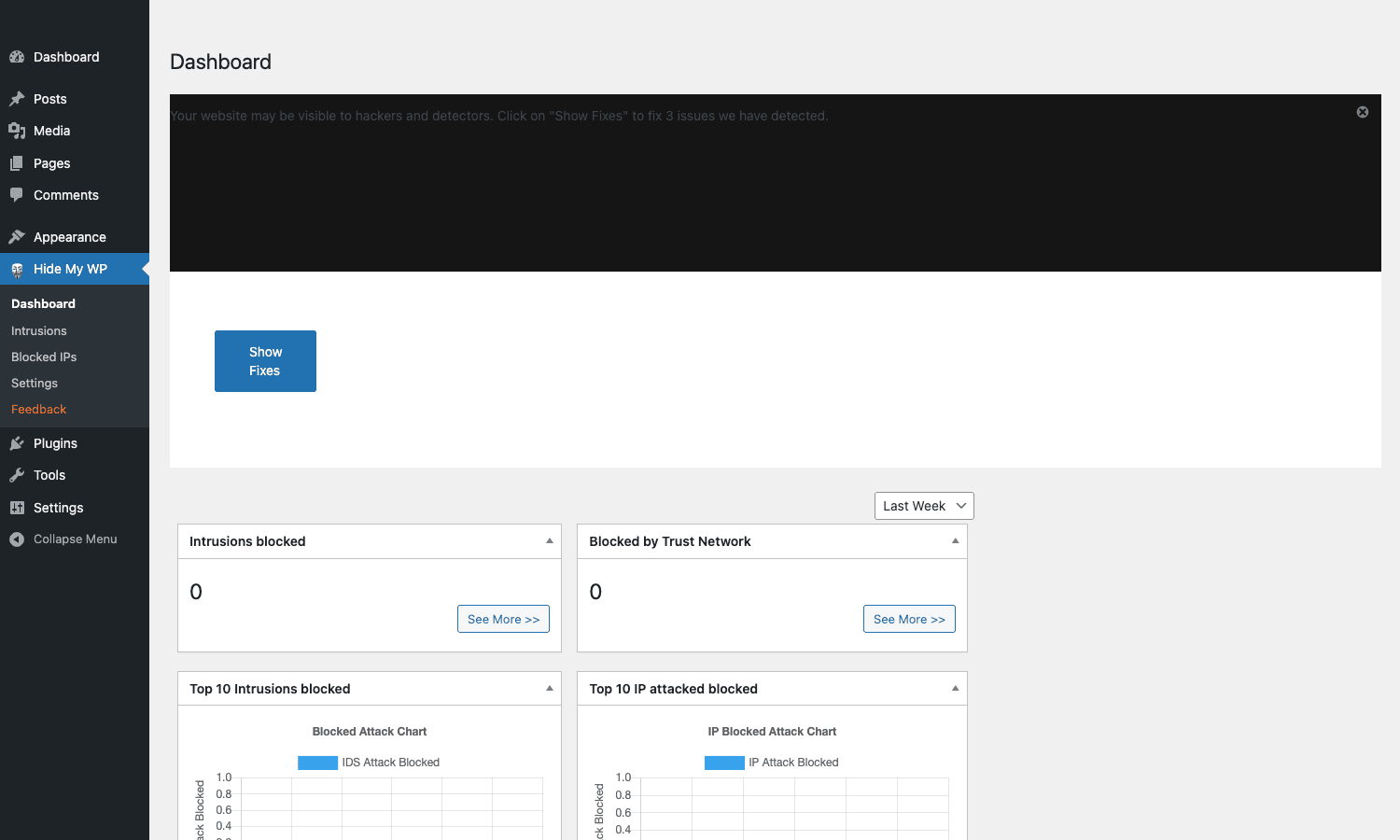
The first thing the Dashboard does is shout at you. There’s a dark banner across the top that reads "Your website may be visible to hackers and detectors. Click ‘Show Fixes’ to fix 3 issues we have detected." Below it are stat cards for Intrusions blocked, Blocked by Trust Network, and the Top 10 chart panels that will fill in once IDS starts logging real attacks. On a fresh install all of these read zero. That’s fine. The dashboard’s job is to push you into the Settings page, which is where the actual work happens.
The Settings page opens on the Start tab. This is the meta tab: license code, import and export of settings, an Nginx configuration generator, a debug report builder for support tickets, and a Quick Fix Guide with video links. The big button on Start is Open Wizard under Import Options.
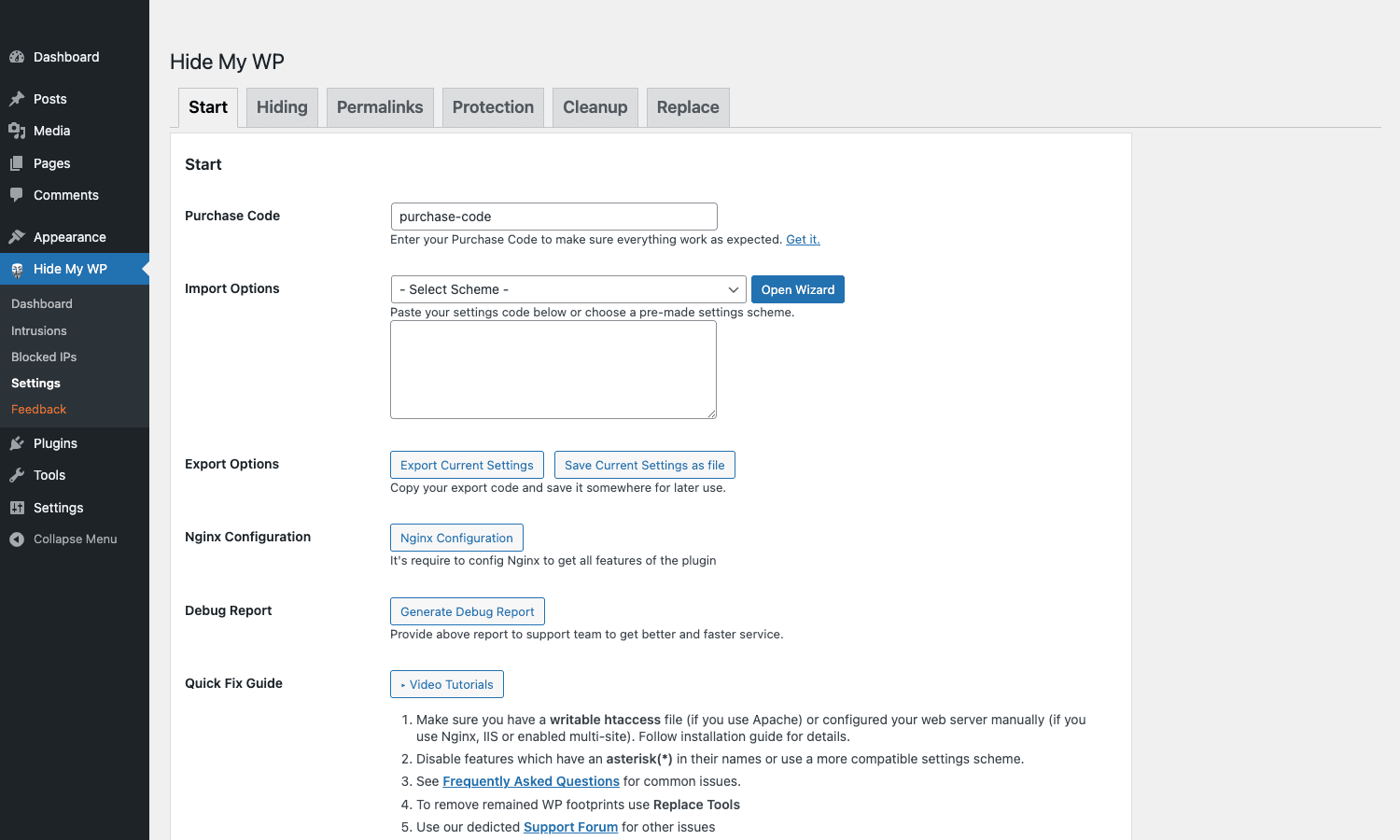
The Wizard walks you through three pre-made profiles: basic, complete, and paranoid. Basic flips the safest switches: strip the generator tag, hide readme.html, close /?author= enumeration. Complete adds the URL renames. Paranoid turns on everything including the renamed /wp-admin/. You can pick one and tweak the individual toggles afterwards, or you can ignore the wizard and configure it all by hand from the Hiding, Permalinks, and Protection tabs.
I recommend running the Compatibility Scanner before you save any rewrite changes. The scanner walks your active plugins looking for hardcoded references to wp-admin, wp-content, or wp-includes in their PHP and asset code and flags the ones that will probably break. Some plugins (older membership and form plugins are the usual offenders) genuinely will not work if you rename /wp-admin/. Better to learn that from a scan than from a customer ticket at 2 AM.
The other thing worth doing on the Start tab, the very first time, is Export Current Settings. The export gives you a base64 blob that you can paste back into Import Options if a rewrite goes wrong and you can’t reach the admin. Save it in your password manager. There’s a recovery file the plugin drops on the server too (a default-paths.php in the plugin directory), but having a clean export off the server is the safer move.
Touring the admin tabs
Hiding tab
The Hiding tab is where you toggle the high-level masks. Each row is a single switch with a short description.
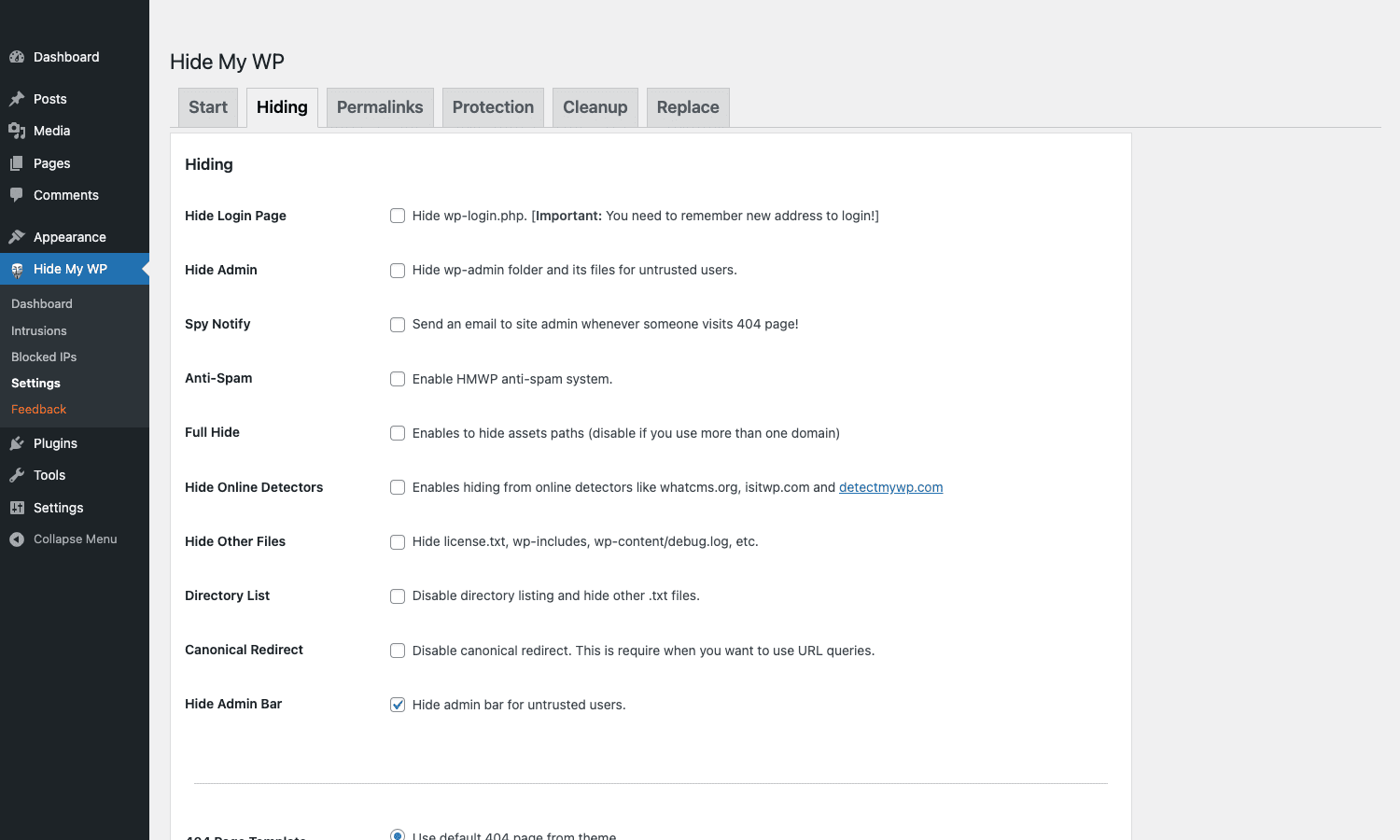
A few of these need explaining:
- Hide Login Page changes the URL to whatever you set on the Permalinks tab. The warning is real. If you forget the new URL, you’re locked out and have to FTP into the plugin folder to disable it. Write it down. Bookmark it.
- Hide Admin rewrites
/wp-admin/to a custom path and 404s the old one for untrusted users. Logged-in admins still see the canonical paths internally so things like media uploads keep working. - Spy Notify emails the site admin every time someone hits a 404 on a path that looks like a WordPress fingerprint. Useful for the first few weeks to see who’s probing. Turn it off after that or your inbox fills up.
- Full Hide rewrites the asset URLs in HTML output so the masked
/wp-content/path actually appears in source view. Disable this if your site spans multiple domains because the search-and-replace can hit cross-domain URLs incorrectly. - Hide Online Detectors specifically targets
whatcms.org,isitwp.com, anddetectmywp.com. These services scrape your HTML and tell anyone who asks what CMS, theme, and plugins you run. Hide My WP responds to their user agents with a stripped page. - Hide Other Files masks
license.txt,readme.html, thewp-includes/directory listing, andwp-content/debug.logif you haveWP_DEBUG_LOGon (which you shouldn’t on a production server, but people do). - Canonical Redirect is the only one I disable cautiously. WordPress sometimes auto-301s URLs with query parameters, which can collide with rewrite rules. Turn this off only if a specific rewrite is misbehaving.
The Hide Admin Bar toggle defaults to on for untrusted users. That’s a small thing but a useful one: subscribers who log in for a download or a forum post no longer see the WordPress branding bar across the top of every front-end page.
Permalinks tab
This is where the actual renaming happens. Each row has a label and a text input: wp-admin becomes whatever you type, same for wp-login.php, wp-content, plugins, themes, uploads, and the individual plugin and theme folder names. Save the changes, the plugin updates .htaccess (or shows you the Nginx block to paste manually), and the new paths go live.
A few patterns I’ve found work well in practice:
- Don’t pick names that are obviously "I’m trying to hide something."
/backend/,/secret/,/secure-admin/, and/login-here/are on every modern scanner’s wordlist. Pick something neutral like/portal/or even a project-specific slug like/acme/. - For
/wp-content/,/static/,/assets/, and/files/all look natural./data/is also fine. - For individual plugins, just renaming to a shortened or generic slug works.
wordfencebecomeswf-core,wpformsbecomesforms-app, etc. The masking is consistent so internal references keep working.
Protection tab
Protection handles the active blocking layer.
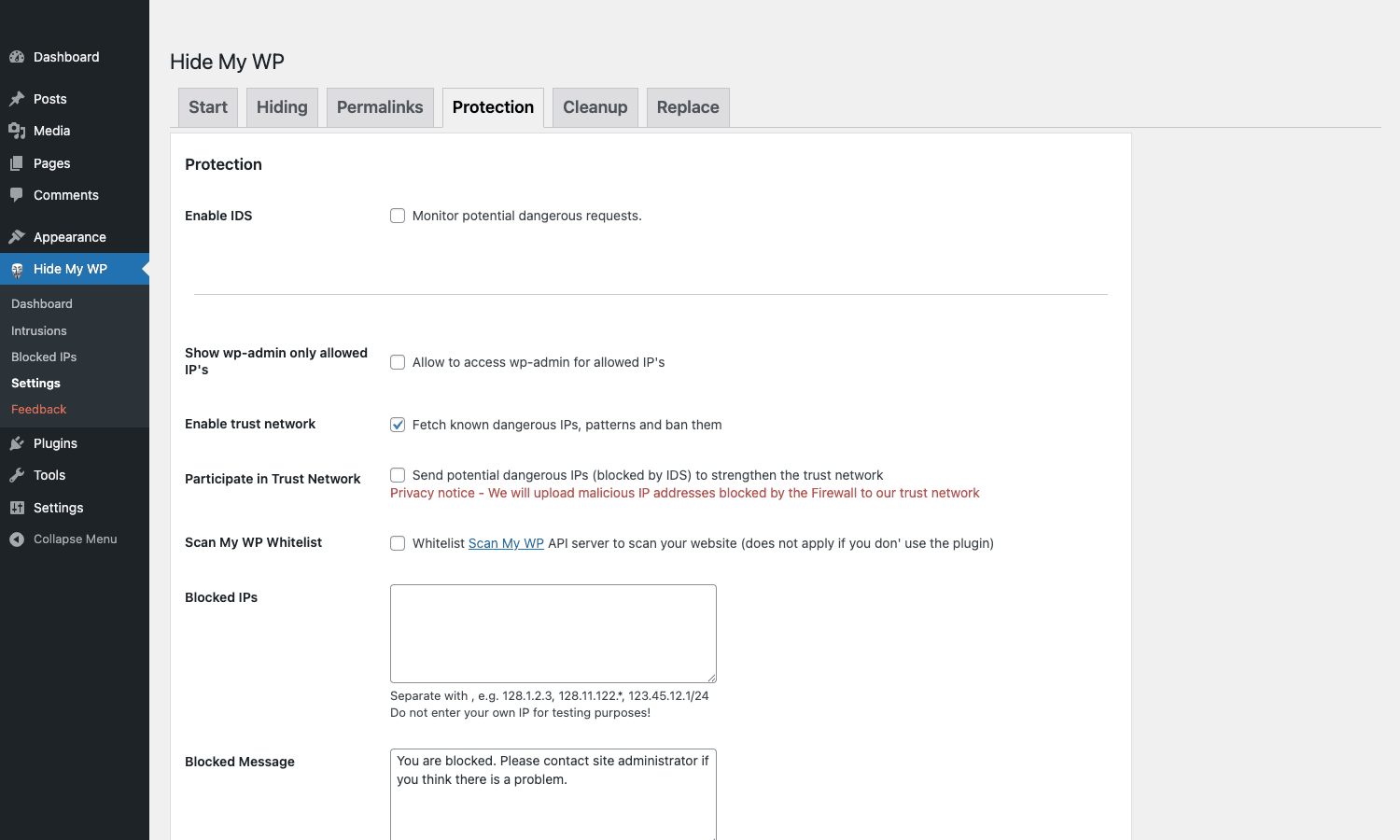
Enable IDS turns on the Intrusion Detection System. The IDS pattern-matches incoming requests against a signature list (SQLi keywords, common LFI strings, scanner user agents, malformed query strings) and logs hits to the prefix_hmw_attacks table. With auto-block on, after N hits from the same IP, the IP gets added to the Blocked IPs list. The IDS is conservative by default; in months of running it I’ve never seen a legitimate request flagged.
Enable trust network pulls a daily-updated list of bad IPs from wpWave’s central server. Think of it like a smaller, security-focused version of the StopForumSpam list. You’re trusting wpWave’s curation, which is a real trust decision, but the list quality has been decent in my experience. Free of subscription, just opt in.
Participate in Trust Network is the reciprocal: your locally blocked IPs get sent back to wpWave so the network grows. There’s a clear privacy notice that this happens. If you’re squeamish about that, leave it off; the protection still works one-way.
Show wp-admin only allowed IPs is the strongest single setting on this page. Toggle it on, add your office IP (or your VPN exit), and /wp-admin/ is unreachable from anywhere else. This is the closest thing to a real lock the plugin offers, because no amount of fingerprint hiding helps once you’ve narrowed legitimate access to a known IP range. I run this on every client site where the admin staff aren’t traveling.
The Blocked IPs textarea accepts comma-separated values with wildcards: 128.11.122.*, 123.45.12.1/24, single IPs, ranges. The Blocked Message field is what the blocked party sees instead of WordPress, which is useful because the default "You don’t have permission" can itself be a fingerprint.
Cleanup tab
Cleanup is the disposal aisle. It strips the things WordPress leaves behind: emoji scripts, REST API discovery links, oEmbed discovery links, the RSD link in <head>, the Windows Live Writer manifest link, comment feeds, the meta-generator from RSS feeds. Each is a separate toggle. None of these are security risks by themselves; they’re surface area reduction. A clean head section also loads marginally faster.
Replace tab
The Replace tab is the escape hatch for find-and-replace across HTML output. You give it a string to find and a string to replace, and the plugin rewrites it in the response body before delivery. Useful when a plugin hardcodes a WordPress-y string that you couldn’t reach with the standard renames. Use sparingly. Every replace pair is one more thing to break.
One real example: a client site that kept getting brute-forced
I’ll skip the generic use-cases section. Here’s the one story that captures what Hide My WP is actually useful for.
A client runs a small e-commerce site, maybe 800 orders a month, WooCommerce on a managed host. Nothing fancy. About two years ago, their access logs started filling up with login attempts: not enough to take the site down, but enough that their host’s WAF was emailing rate-limit warnings every other day. The wp-login page was getting hit a couple thousand times a day, mostly from rotating IPs in the same handful of ASNs. Wordfence was already installed and was blocking the attempts, but it was working harder than it needed to. The CPU on the shared host kept spiking when the brute-force waves came in.
Two changes fixed it. First, I renamed /wp-login.php to a custom path. Within twelve hours the login attempts on /wp-login.php dropped to about one per hour (residual scans from less sophisticated bots that didn’t follow redirects), and the new URL stayed completely untouched. Second, I locked /wp-admin/ to the office IP range with the "Show wp-admin only allowed IPs" toggle. The client had two people who touched the admin and both worked from the same office, so this was zero friction.
The Wordfence dashboard, which had been logging hundreds of blocked login attempts a day, dropped to almost nothing. The host’s WAF stopped emailing. CPU went back to normal. Nothing about the underlying security posture changed, technically. The site was no more or less hardened. The attackers just couldn’t find the door, so they stopped knocking. That’s the entire pitch for Hide My WP in one anecdote.
The thing that did not fix was an actual targeted attack a year later, where someone tried to exploit a known CVE in a plugin we had on a delayed patch cycle. The attacker had clearly fingerprinted the site by hand, knew which plugin we ran (despite the folder rename, because they pulled it from a JavaScript file that referenced an absolute path) and went straight for it. Wordfence’s firewall caught that one. Hide My WP did not. Different tools, different jobs.
Developer reference: hooks, filters, and the DB tables
The plugin’s extension surface is small but well chosen. If you’re integrating it into a managed-WordPress operation or just want to hook into the blocking flow, here’s what you have to work with.
Hooks
// Fires right before an IP is added to the block list. Use it to push the
// block event to your central log aggregator (Loki, Datadog, an SIEM, etc.)
// before HMWP writes to its own table.
add_action( 'hmwp_action_before_user_blocked', function( $ip, $reason ) {
 if ( function_exists( 'wp_remote_post' ) ) {
 wp_remote_post( 'https://logs.example.com/hmwp', [
 'blocking' => false,
 'timeout' => 2,
 'body' => wp_json_encode( [
 'ip' => $ip,
 'reason' => $reason,
 'site' => home_url(),
 'time' => time(),
 ] ),
 ] );
 }
}, 10, 2 );
Filters
// Stop HMWP from blocking a specific IP even if the IDS flags it.
// Useful when an internal monitoring service triggers false positives.
add_filter( 'hmwp_filter_before_user_blocked', function( $should_block, $ip ) {
 $allowlist = [ '10.0.0.0/8', '203.0.113.42' ];

 foreach ( $allowlist as $range ) {
 if ( hmwp_ip_in_range( $ip, $range ) ) {
 return false;
 }
 }

 return $should_block;
}, 10, 2 );
// Extend the blocked IPs list at runtime from an external source.
// In this example we pull a list from a shared Redis cache that all
// sites in a multisite-style fleet write into.
add_filter( 'hmwp_filter_blocked_ips', function( $ips ) {
 if ( ! function_exists( 'wp_cache_get' ) ) {
 return $ips;
 }

 $shared = wp_cache_get( 'fleet:blocked_ips', 'security' );
 if ( is_array( $shared ) ) {
 $ips = array_unique( array_merge( $ips, $shared ) );
 }

 return $ips;
} );
// Expand the trust network with our own known-good IP ranges.
// Anything in this list bypasses the rewrite-based 404s for /wp-admin/.
add_filter( 'hmwp_filter_trust_network_ips', function( $ips ) {
 $office = '198.51.100.0/24';
 $monitoring = '203.0.113.10';

 $ips[] = $office;
 $ips[] = $monitoring;

 return $ips;
} );
// Programmatically force a settings profile on activation. Handy when you
// ship a custom theme that depends on a specific HMWP configuration and
// you don't want clients clicking through the wizard.
add_filter( 'hmwp_pre_made_settings', function( $settings, $profile ) {
 if ( 'complete' !== $profile ) {
 return $settings;
 }

 $settings['hmwp_admin_url'] = 'portal';
 $settings['hmwp_login_url'] = 'sign-in';
 $settings['hmwp_disable_xmlrpc'] = true;
 $settings['hmwp_hide_authors'] = true;

 return $settings;
}, 10, 2 );
Database tables
Three custom tables get created on activation, prefixed with your WordPress table prefix (wp_ by default):
wp_hmw_attacksstores IDS detections. Columns: id, ip, country, attack_type, payload, request_uri, user_agent, attempts, status, created_at. Theattack_typeenum is the most useful field if you want to chart what’s hitting you: SQLI, LFI, RFI, XSS, BRUTEFORCE, SCANNER, OTHER. A quick query likeSELECT attack_type, COUNT(*) FROM wp_hmw_attacks GROUP BY attack_typegives you a feel for the threat profile.wp_hmw_logsis the general action log. Settings changes, manual blocks, manual unblocks, IP whitelist edits.wp_hmw_settings_historykeeps a version history of the Settings export blob, so you can roll back to a previous configuration without re-doing the wizard.
These tables are small (a few thousand rows on a busy site is normal) and don’t need any special maintenance. The plugin auto-prunes attacks older than 30 days by default; that retention is configurable.
REST API
The plugin doesn’t ship its own REST endpoints. What it does is gate access to the core WordPress REST API: with the "Disable REST API for non-logged-in users" toggle on, an unauthenticated request to /wp-json/wp/v2/users returns 401 instead of dumping a list of usernames. If you depend on public REST endpoints (front-end form submissions to a custom endpoint, headless WordPress, third-party integrations) you’ll need to either keep this off or use the filter:
// Allow specific REST routes through even when REST is gated for guests.
add_filter( 'rest_authentication_errors', function( $result ) {
 $public_routes = [
 '/wp/v2/posts',
 '/contact-form-7/v1/contact-forms',
 ];

 $route = $GLOBALS['wp']->query_vars['rest_route'] ?? '';

 foreach ( $public_routes as $public ) {
 if ( str_starts_with( $route, $public ) ) {
 return null;
 }
 }

 return $result;
}, 20 );
The official WordPress REST API FAQ covers the gotchas of locking down the API more thoroughly.
Compatibility, Nginx, and the things that will absolutely break
Here’s where I have to be the most candid, because the plugin’s marketing is not. Hide My WP rewrites URLs at the web server level. Anything that hardcodes the WordPress paths in its own code will misbehave. In rough order of how often I’ve hit problems:
- Builder plugins that store absolute asset URLs in postmeta. Some older Elementor templates and a couple of Visual Composer themes store the full
/wp-content/uploads/...path inside the page data. When you rename/wp-content/, the rendered HTML still references the old path, returns 404, and the page looks broken. Fix is either to run a database search-and-replace after the rename, or to use the Replace tab to translate the old path to the new on output. WP-CLI’swp search-replaceis the cleanest approach if you take the database route, and dry-run it first. - Caching plugins. Most of them are fine, but WP Rocket, W3 Total Cache, and LiteSpeed Cache each have settings that reference
wp-content/cache/paths. Hide My WP knows about the common ones and handles them, but if you’ve enabled an exotic feature (CDN URL rewrites, specific exclusion patterns) sanity-check after enabling the renames. - Membership and form plugins. A handful of older plugins still POST to
/wp-admin/admin-ajax.phpwith the full hardcoded string. If/wp-admin/is renamed, the POST 404s and the form silently fails. Most modern plugins useadmin_url()which handles the rewrite cleanly, but the old ones don’t. The Compatibility Scanner catches most of these before you commit. - Custom REST endpoints. As above, if you’ve gated the REST API and forgotten to allowlist your own endpoints, your contact form stops working at the same moment the protection turns on. The diagnostic is always the same: open browser DevTools, watch the Network tab, look for a 401 on
/wp-json/.... - Nginx. If your stack is Nginx, Hide My WP cannot write its rewrites for you because Nginx doesn’t read
.htaccess. The Nginx Configuration button on the Start tab generates a block you have to paste into your server config manually and reload. This is a deal-breaker for some shared hosts that don’t give you Nginx config access. Apache and LiteSpeed users have it easier because the plugin manages the rewrites in.htaccessautomatically.
The fix-it path when things break is well marked. Every settings save creates a snapshot in wp_hmw_settings_history. The plugin also writes a default-paths.php recovery script in its own directory that, if you rename it to default-paths-fail.php and hit any URL, disables the rewrites and lets you back into /wp-admin/. Worth knowing before you need it.
A word on PHP-FPM and OPcache: changes to the .htaccess file take effect immediately, but if you’ve cached a stale plugin configuration in OPcache, you might see one or two requests behave oddly after the rename until the cache rolls. A quick wp cache flush and an OPcache reset are good muscle memory after any major rewrite change.
For the underlying philosophy, the WordPress Hardening guide on wordpress.org is still the best plain-English starting point. Hide My WP implements about half of it automatically and ignores the other half (file permissions, database user privileges, SSL termination) because those aren’t really URL rewriting problems.
Where Hide My WP fits next to Wordfence and Solid Security
This is the question I get asked the most: do I need Hide My WP if I already have Wordfence or Solid Security? The honest answer is "different layer." They don’t overlap in any meaningful way.
Wordfence Premium is a firewall plus malware scanner. Its job is to inspect incoming requests against a signature database (WAF rules, known-bad payload patterns, vulnerability signatures) and to scan your filesystem for malware injected into PHP files. It’s a defender-of-the-castle plugin. The castle still has its WordPress flag flying; Wordfence just guards the gates.
Solid Security Pro (the iThemes Security successor) is closer to Hide My WP in spirit because it also does some URL renaming (it can hide the login URL). But its bigger contribution is hardening: file change detection, 2FA enforcement, brute-force lockouts, password policies, database backups, SSL forcing. It’s a Swiss-army hardening kit.
Hide My WP is narrower than both. It’s the "make the site not look like WordPress" layer. There is overlap on the brute-force protection and the hide-login-URL feature with Solid Security, and on the IDS feature with Wordfence’s firewall, but for the most part the three tools coexist fine. The combination I run most often is Wordfence (or its free version) for the actual firewall and malware scan, plus Hide My WP for the fingerprint hiding. Solid Security goes in when the client needs the 2FA and password policies as well.
A few specifics about running them together:
- Don’t double up the brute-force protection. Pick one. Both plugins counting failed logins independently can cause one to ban an IP the other already banned, or one to count an attempt the other already redirected.
- Wordfence’s "Hide WordPress version" overlaps with Hide My WP’s generator-tag removal. Either one is fine; turn off the one in whichever plugin is doing it second.
- Solid Security’s "Change WP login URL" should be off if Hide My WP is doing it. Two plugins racing to rewrite the same URL is a recipe for the recovery script becoming necessary.
You also don’t need Hide My WP if your reverse proxy or CDN already does the obscurity work. Some Cloudflare setups can strip the generator tag with a Transform Rule, block author enumeration with a WAF expression, and rewrite paths at the edge. If you’re already paying for Cloudflare’s Pro or Business tier and writing rules, you’ve done about half of what Hide My WP does without an extra plugin. The trade-off is that the edge solution is harder to configure and lives outside WordPress, where this plugin is one checkbox.
I keep Hide My WP on every WordPress site I manage where the host is not Cloudflare-fronted. On the ones that are, I lean on Cloudflare and run the smaller WP Hide & Security Enhancer instead. Yours will depend on what’s already in front of WordPress.
Pricing and licensing
Hide My WP is a Codecanyon item. Single-site regular license is around $59 with six months of support included; the extended license is higher and intended for SaaS resellers. There’s no subscription. Lifetime updates are included with the purchase, which is unusually generous for a security plugin where ongoing rule updates matter. wpWave (the publisher, formerly Hassan Jahangiri solo, now an ExpressTech team) ships meaningful updates a few times a year.
The Trust Network feed is included free with the license. The IDS rule updates are included. There’s no upsell to a Pro tier for premium signatures, no fingerprinting feed paywall. What you pay for the license is what you get, in full.
Worth installing?
Hide My WP is a one-job plugin that does its one job carefully. It will not stop a competent human attacker who is targeting you specifically. What it will do is push your site off the script-kiddie scanning lists, drop the brute-force noise on your logs by an order of magnitude, and quietly raise the floor of what an attacker has to know before they can pick the right exploit for your stack.
If you have a small e-commerce site, a member community, a SaaS marketing site, anything that isn’t actively being attacked by a state actor: install it, run the wizard on the "complete" profile, lock /wp-admin/ to your office IP, walk away. The set-and-forget value is high. The risk of breaking something is real but bounded, and the Compatibility Scanner plus the settings history mean recovery is fast.
If you’re choosing between Hide My WP and Wordfence with limited budget, choose Wordfence. The firewall and malware scanner is the more critical layer because it catches actual exploits in flight. Add Hide My WP after, when you want to make Wordfence’s job easier by reducing the number of requests it has to inspect in the first place. Defense in layers is the whole point. Renaming the doors doesn’t replace the locks, but it does mean fewer people try the doors.