

WordPress 7.0 "Armstrong" landed on May 20, 2026, and it’s the biggest core release in years. Not because the version number jumped from 6.x to 7.0 (that’s mostly marketing), but because it’s the first release that bakes AI into core, ships a redesigned admin, and quietly raises the floor for blocks, scripts, and PHP. If you run a WordPress site, you’re going to feel this update the moment you open wp-admin.
I spent the day after the release inside a fresh 7.0 install, clicking through every new screen, poking at the Connectors API, and reading the Field Guide so I could write this without faking any of it. What follows is a careful walkthrough of what’s actually shipping, who needs to act on what, and how to upgrade without setting yourself on fire.
Table of contents
- What is WordPress 7.0?
- Headline features
- What’s new for site owners
- What’s new for developers
- Performance and infrastructure changes
- Compatibility and breaking changes
- How to upgrade safely
- Frequently asked questions
- Final thoughts
What is WordPress 7.0?
WordPress 7.0 is a major core release of the open-source WordPress publishing platform. It’s nicknamed "Armstrong" after jazz trumpeter Louis Armstrong, following the project’s tradition of naming releases after musicians. Release lead was Matias Ventura, with more than 875 contributors involved (over 200 first-time contributors), and the team closed 419 Trac tickets across core plus 411 enhancements and 486 bug fixes on the Gutenberg side.
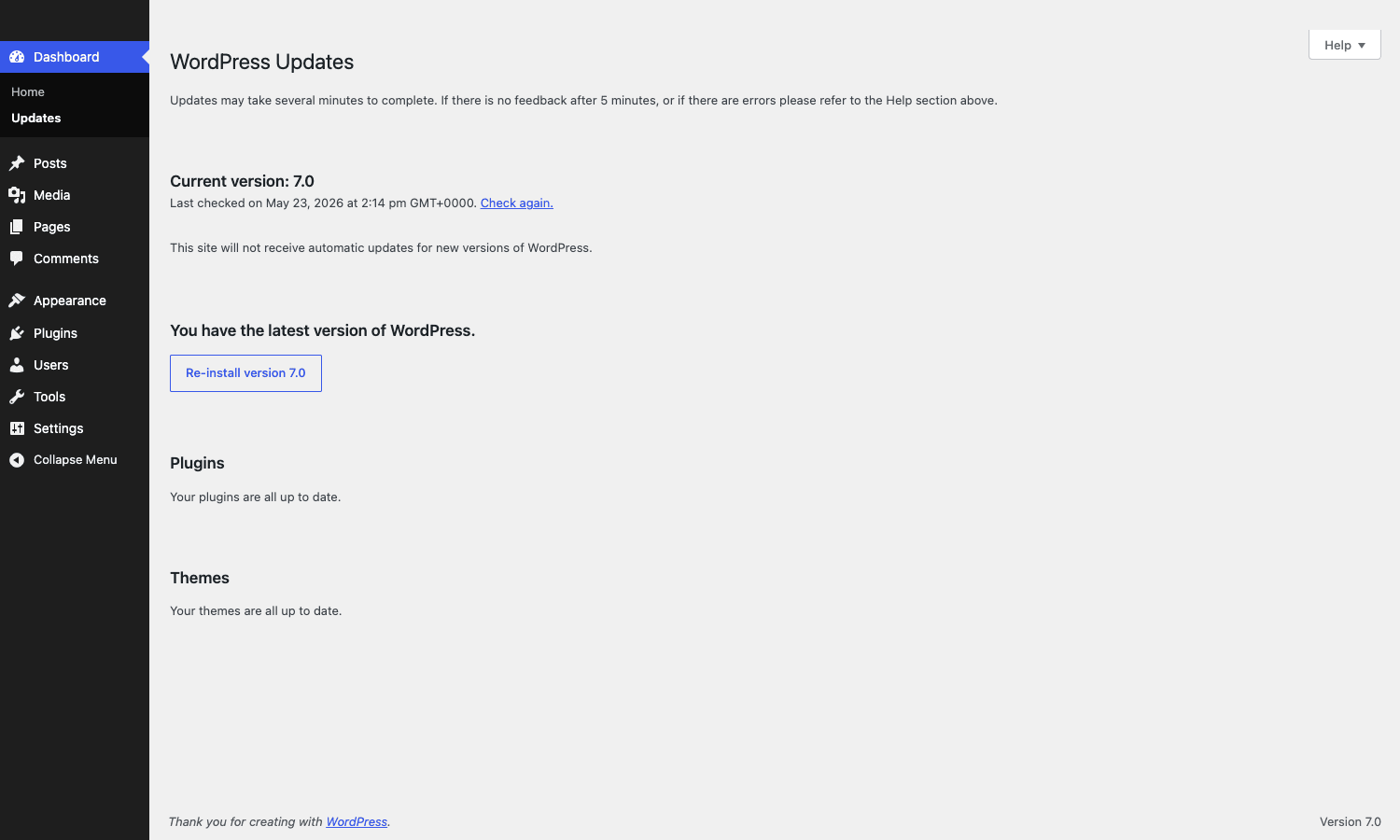
The release dropped on May 20, 2026, and is available right now through the Dashboard -> Updates screen on any site running a recent 6.x version. If your site has automatic background updates enabled, you may already be on 7.0 without touching anything.
A few useful framing points before we dig in:
- The jump to 7.0 is not a breaking compatibility break the way old "x.0" releases were. WordPress still cares deeply about backward compatibility. Most plugins and themes that worked on 6.7 will keep working.
- The PHP minimum is now 7.4. If you’re on shared hosting that still serves PHP 7.3 or older, you need to fix that first.
- The AI features are opt-in. No part of WordPress is sending content to an AI provider unless you connect one yourself and install the optional AI plugin.
That last point is worth repeating because the headlines around "AI in WordPress" have made some site owners nervous. Out of the box, 7.0 ships a UI for connecting AI providers and a JavaScript / PHP API for plugins to use them. It does not ship a chatbot in your sidebar. It does not auto-write your posts. You decide.
Headline features
Six things stand out in this release. Most everything else is a refinement of one of these:
- AI Connectors and the AI Client. A new Settings panel called Connectors lets you authenticate against AI providers (Anthropic, Google, OpenAI ship as presets). Any plugin can read those credentials through the new AI Client API, so you stop pasting API keys into every plugin’s settings page.
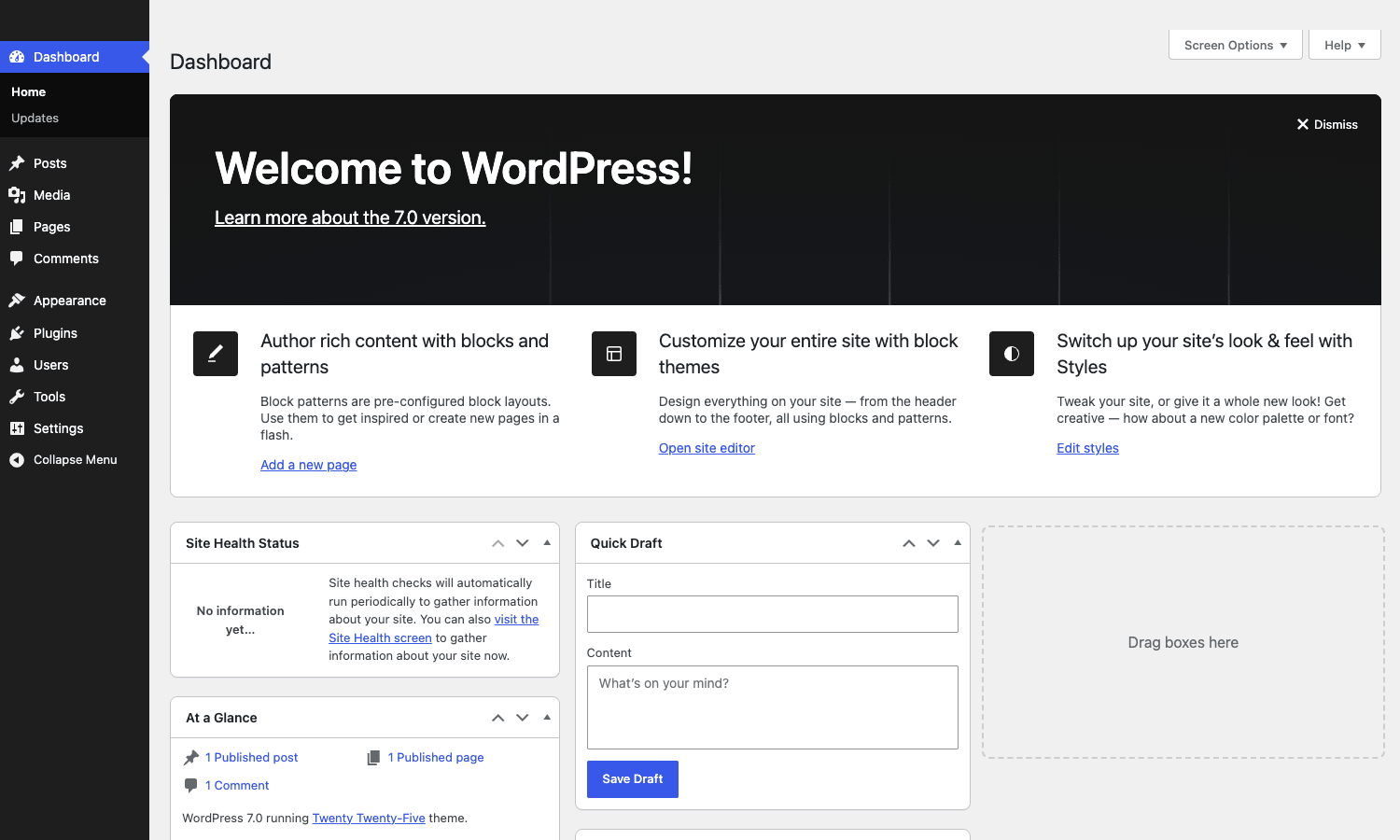
- A revitalised admin design. Smoother typography, a new default color scheme, and CSS view transitions between admin screens. You’ll feel it the moment you click between Posts and Settings.
- Cmd+K command palette. A clickable
Cmd/Ctrl+Kshortcut now lives in the editor toolbar. It opens a searchable jump-to-anywhere palette: templates, pages, blocks, settings. - Visual revisions. Post revisions get a timeline slider with visual diff markers on the content itself, block by block. Restoring a version is one click.
- Patterns as single blocks. Drop a pattern onto a page and it behaves like one unit. Swap text, swap images, adjust styles. No more hunting through nested blocks to find the heading you want to change.
- A redesigned navigation overlay. The mobile menu overlay is now a real canvas. Drop in blocks, columns, typography choices, a custom close button. Start from a template or build your own.
There’s also a new Font Library page that consolidates font installs across block, hybrid, and classic themes, plus new Heading, Breadcrumbs, Icons, and improved Gallery blocks. We’ll get to all of them.
What’s new for site owners
If you’re running a site and you don’t care what do_action() does, this is the section that matters to you.
The admin looks and feels different
Open wp-admin and the first thing you’ll notice is that the default color scheme has been refreshed. Sidebar typography is cleaner. The link color is a more saturated blue. Screen-to-screen transitions are smooth instead of janky. The dashboard widgets sit on a lighter background with rounder corners.
It’s not just a coat of paint. WordPress 7.0 introduces CSS view transitions on admin navigation, so clicking Posts -> All Posts -> Edit feels closer to a single-page app than a string of full page reloads. The transitions respect prefers-reduced-motion, so if you have that set in your OS, you’ll get the old instant snap instead of the slide.
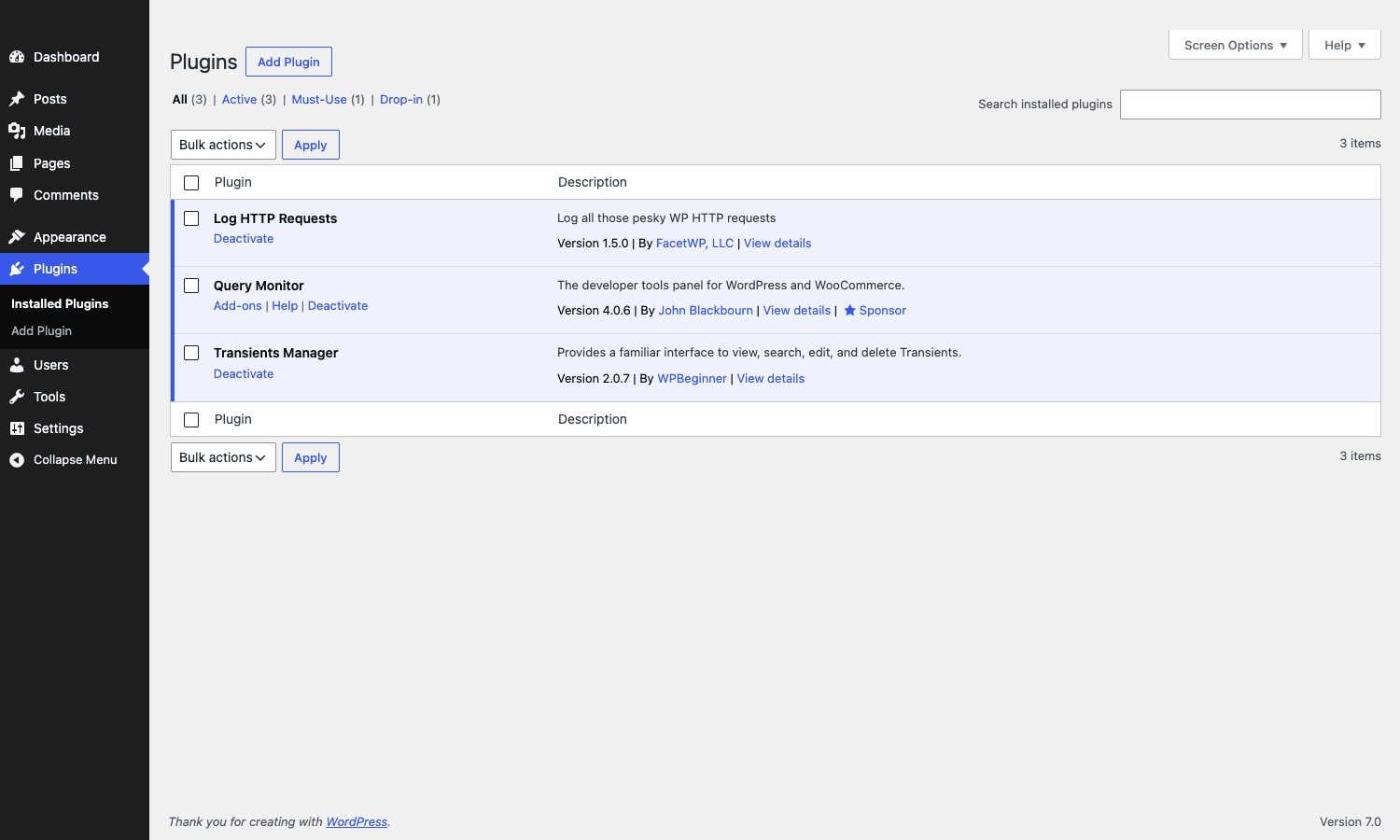
The plugins screen, the updates screen, the user list, the comments panel: same chrome, same content, but everything reads cleaner. Site owners with three sites open in three tabs are going to notice this immediately.
The Command Palette: Cmd+K is your new best friend
Look at the top of the editor toolbar in 7.0 and you’ll see a new search-shaped widget showing the post title and a ⌘K keyboard shortcut hint. Click it (or press Cmd+K on Mac, Ctrl+K on Windows/Linux) and you get a search box that knows about almost everything in your site.
Type "pages" and it offers to take you to the Pages list. Type a page title and it offers to edit that page. Type "settings" and it surfaces every settings panel. Type "template" and it offers to edit the template the current post is using.
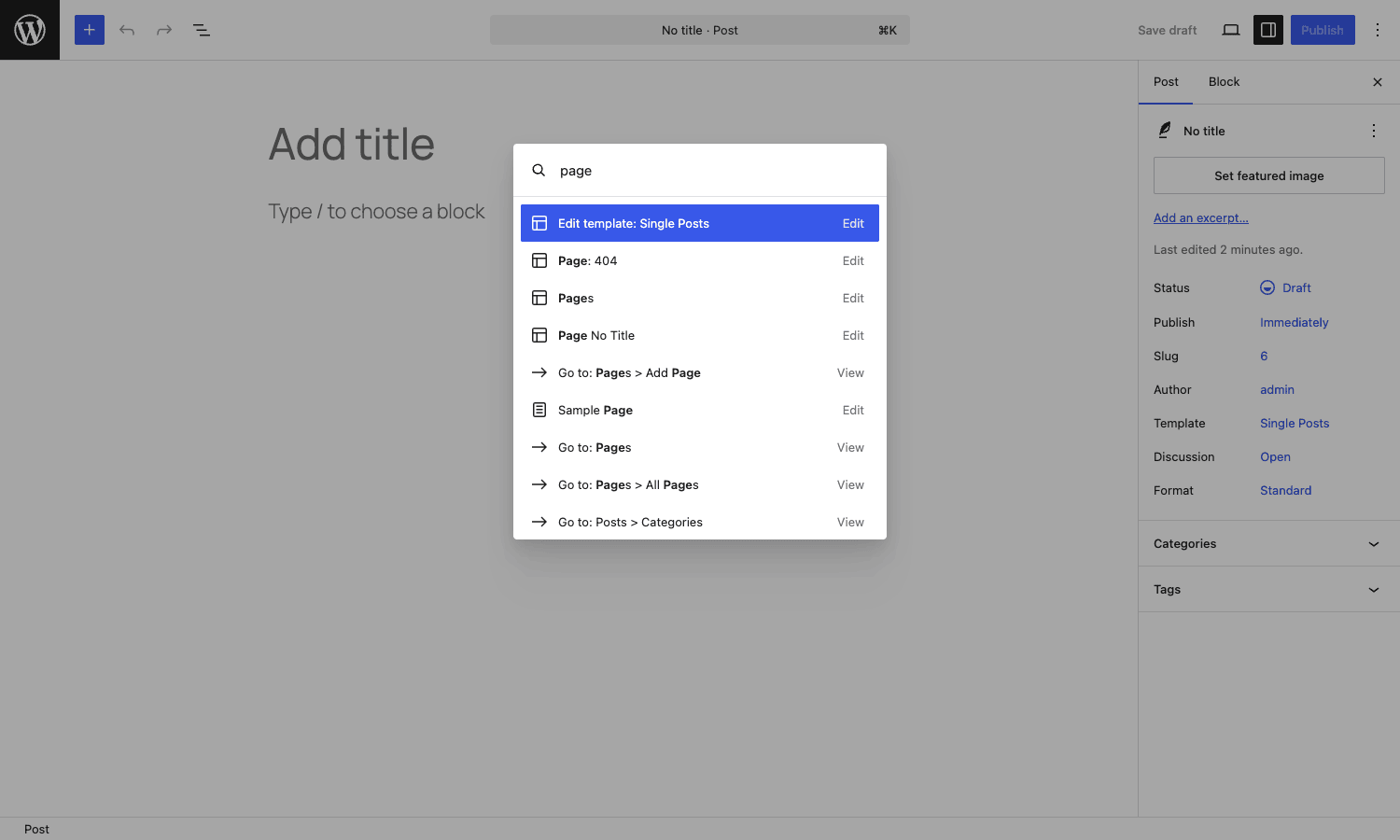
The command palette existed in the Site Editor for a few versions, but in 7.0 it’s exposed in the regular post and page editor too, with the icon right in the toolbar. For anyone who works in WordPress all day, this is the kind of small change that compounds. I stopped touching the admin sidebar within an hour of trying it.
Visual revisions, finally
WordPress has had post revisions since 2.6. The old UI was a text-diff view with two side-by-side panes and a slider that snapped between numbered revisions. It was functional and slightly miserable.
In 7.0 the revisions screen gets a timeline slider with date markers and a visual diff overlaid directly on the content. When you scrub through versions, you see blocks that changed flash in a yellow highlight. You see blocks that were added appear; blocks that were removed fade. It’s far easier to spot "okay, this is the version from before I broke the homepage hero."
Restore is one click. No more "let me copy the old text out and paste it in by hand."
Connectors: one place for AI provider credentials
Open Settings -> Connectors and you’ll find a screen that didn’t exist before. It’s a small idea with big implications.
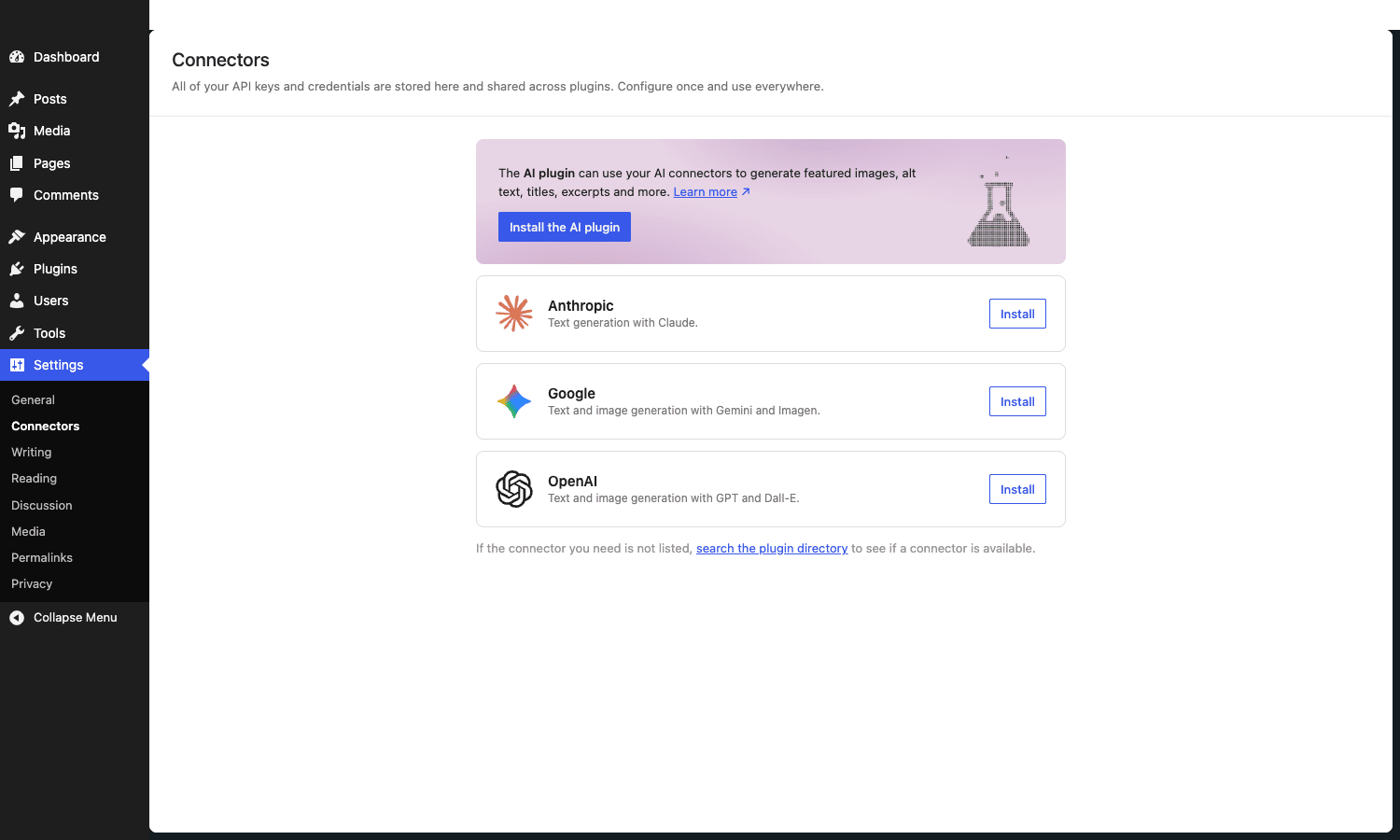
The Connectors screen is a central store for external service credentials. Three AI presets ship in core: Anthropic (Claude), Google (Gemini and Imagen), and OpenAI (GPT and DALL-E). You add an API key once, name the connection, and any plugin that wants to call that provider can ask WordPress for the credentials through the AI Client API.
You don’t have to use AI for this to be useful. The point is that the Connectors API is generic. Any plugin that needs to connect to an outside service can register a new connector type and have its credentials live alongside everyone else’s, with consistent UI, consistent storage, and consistent permissions.
There’s also a recommendation card at the top of the screen suggesting the optional "AI plugin" from wordpress.org, which adds in-editor features like generated titles, generated excerpts, auto-suggested alt text, and generated featured images. The AI plugin is not installed by default. You opt in.
Patterns as single blocks
This one is harder to capture in a screenshot but easier to feel the moment you try it. Drop a pattern onto a page in 7.0 and instead of inserting twenty nested blocks, you get one container that behaves like a single block.
You can swap the headline text. Swap the images. Adjust the column count. Pick a different style. Move it up or down. All from a single block toolbar and a single inspector sidebar. No more "expand the columns, expand the inner row, click on the heading inside the third column, change the font size, oh wait that broke the spacing."
If you want full surgical control, there’s an "Edit pattern" button that flips into the old detailed mode where every inner block is editable. Most of the time you won’t need it.
A real navigation overlay
The mobile menu overlay, which used to be a plain dropdown of links, is now its own design canvas. You can:
- Add columns and lay out menu items in a grid instead of a list
- Increase the font size for accessibility
- Drop in a search block, a logo, or a social-icons row inside the overlay
- Replace the default close button with your own design
- Pick from pre-built overlay templates if you don’t want to start from scratch
It’s a lot more like the kind of slide-out menu you see on agency-built sites. The kind of thing that used to require a Pro page builder and twenty minutes of fiddling with z-index.
A consolidated Font Library
Block, hybrid, and classic themes all now share one Appearance -> Fonts screen. You can install Google Fonts, upload your own font files, see what’s already in use by your theme, and remove fonts you don’t need.
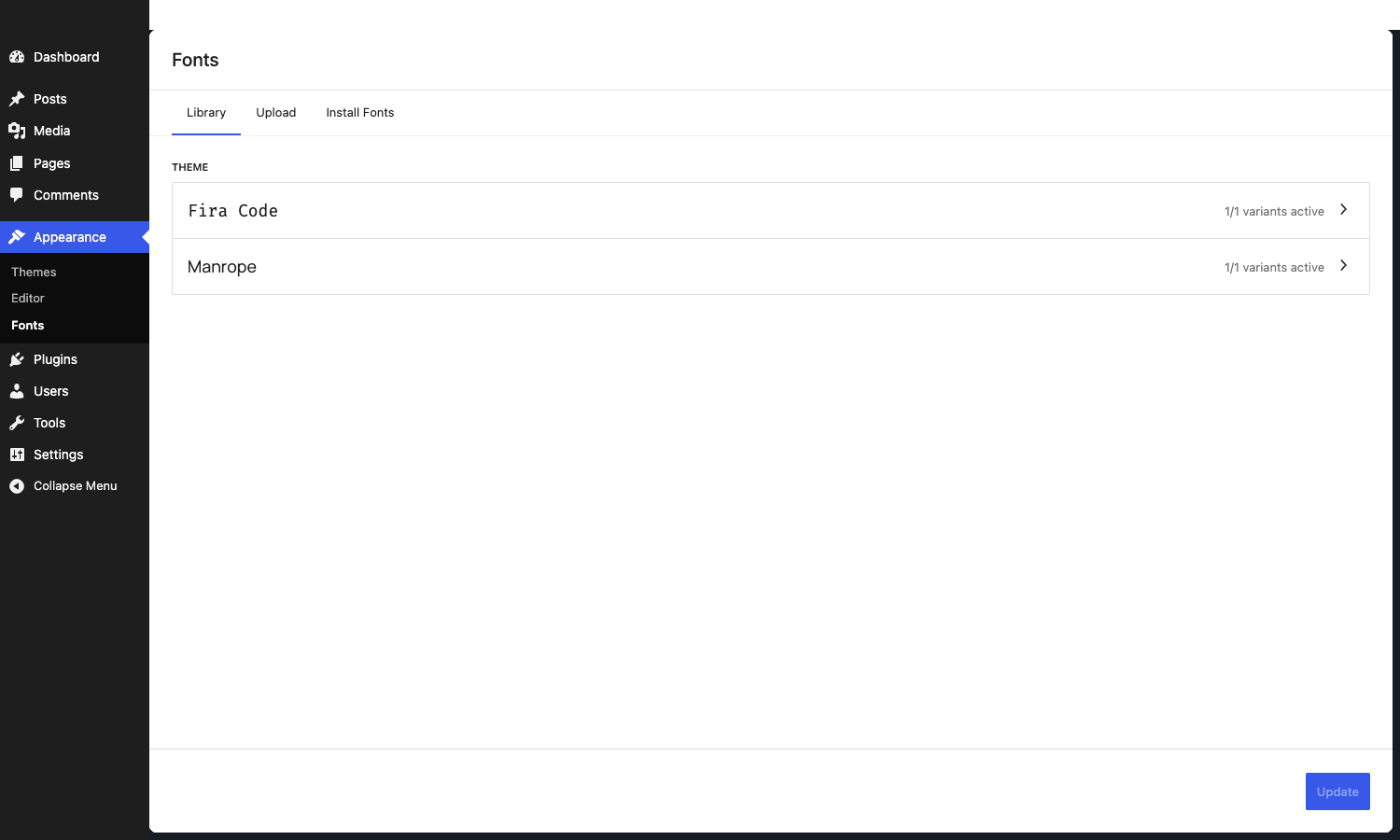
The screen exposes three tabs: Library (what’s currently installed), Upload (bring your own font files), and Install Fonts (browse the Google Fonts catalog without leaving WordPress).
If you’ve ever installed a font manager plugin just to manage your font stack, you can probably remove it now.
New blocks worth knowing
WordPress 7.0 adds a handful of new core blocks:
- Heading block with a sidebar toggle for every level. Replaces the "convert this paragraph to H2" dance.
- Breadcrumbs block that auto-builds breadcrumbs from your site’s hierarchy. Includes filters for taxonomy/term customization. Useful for content-heavy sites that don’t want to install Rank Math or Yoast just for breadcrumbs.
- Icons block with a curated set, plus a developer-facing API for plugins to register their own icon packs.
- Gallery block with a lightbox slideshow option. Click an image and it expands into a swipeable lightbox.
If you’ve been keeping a per-site list of "blocks I always install a third-party plugin for," that list just got shorter.
Per-block CSS
There’s now a textarea in the block inspector for adding custom CSS at the block level. It scopes to the specific block instance, so you can paste in something like:
margin-top: 4rem;
border-bottom: 2px solid var(--wp--preset--color--accent);
…directly on a heading or a group, without touching the theme’s global stylesheet. For one-off styling tweaks this saves a trip to Appearance -> Editor -> Custom CSS.
It’s not meant to replace proper theme styles. It’s meant for the moment where you need this one block on this one page to look slightly different.
Responsive block visibility
Blocks now have device-level visibility toggles in the toolbar. You can hide a block on mobile, show it only on desktop, or mix and match. This used to require a utility plugin (or a hand-rolled CSS class). It’s now a single click.
The behavior uses CSS, so the block is still in the DOM and still accessible to screen readers if you choose visually-hidden semantics; it’s just visually suppressed at certain breakpoints.
What’s new for developers
This is where 7.0 gets genuinely interesting. The release is full of new APIs that have been telegraphed for the last year of Make/Core posts.
The AI Client and the Abilities API
The AI Client is a provider-agnostic interface for talking to generative AI models from PHP. The pattern is:
use WordPress\AI\Client;

$prompt = new WP_AI_Client_Prompt_Builder();
$prompt->set_user_message( 'Summarize this post in two sentences.' );
$prompt->using_model_preference( 'text-generation' );

$client   = new Client();
$response = $client->generate( $prompt );

echo esc_html( $response->get_text() );
You don’t specify "Anthropic Claude 4" or "GPT-4o" directly. You declare what kind of model you need (text generation, image generation, embeddings), and the AI Client maps it to whichever connector the user has authenticated against. If the user is set up with both OpenAI and Anthropic, your plugin doesn’t care which one runs the request.
This is paired with the Abilities API, a registry of named capabilities (think: generate_title, suggest_alt_text, summarize_post) that any plugin can register or call. A plugin that adds an improve_writing ability can be invoked by any other plugin that knows the name, with the AI Client doing the wiring underneath.
The Client-Side counterpart is the new @wordpress/abilities and @wordpress/core-abilities npm packages. They give you JavaScript access to the same ability registry plus a UI layer including the command palette integration and filterable lists.
The Connectors API for non-AI services
Don’t let the AI framing fool you. The Connectors API is a generic credential store with a built-in UI. To register a new connector type:
add_action( 'wp_connectors_init', function( $registry ) {
    $registry->register( 'mailchimp', array(
        'label'   => __( 'Mailchimp', 'my-plugin' ),
        'icon'    => 'https://example.com/icons/mailchimp.svg',
        'auth'    => 'api_key',
        'fields'  => array(
            'api_key' => array(
                'label'    => 'API key',
                'required' => true,
            ),
        ),
    ) );
} );
That gives you a card on the Connectors screen, a credential form, and a stored credential the rest of your plugin can read by name. Two plugins that both need a Mailchimp API key can now share one credential rather than each asking the user to paste their key in twice.
Auto-registered PHP-only blocks
Block development used to mean a webpack toolchain, a JavaScript build, and a register_block_type() call that pointed at compiled JS. WordPress 7.0 lets you skip all of that:
register_block_type( 'my-plugin/promo-banner', array(
    'title'      => 'Promo banner',
    'category'   => 'widgets',
    'attributes' => array(
        'message'     => array( 'type' => 'string',  'default' => 'Hello' ),
        'button_text' => array( 'type' => 'string',  'default' => 'Buy now' ),
        'button_url'  => array( 'type' => 'string',  'default' => '' ),
    ),
    'supports'        => array(
        'autoRegister' => true,
    ),
    'render_callback' => 'my_plugin_render_promo_banner',
) );
The 'autoRegister' => true support flag tells WordPress to expose the block on the JavaScript side automatically, generate an inspector control for each declared attribute, and wire up the editor preview using the render callback. No webpack. No JS build pipeline. No block.json if you don’t want one.
For plugins that need a few small custom blocks (a CTA banner, a callout, a newsletter form), this is a huge reduction in scaffolding.
A more extensible Site Editor
7.0 ships a refactored Site Editor with proper client-side routing, route validation, and a new @wordpress/boot package that lets plugins build their own Site Editor pages alongside the core ones.
If you’ve shipped a plugin with its own settings UI that wishes it could live inside the Site Editor (instead of in its own admin menu item), the door is now open. The patterns are documented in the Field Guide. Expect a wave of plugin updates over the next two months that move their admin UIs into the Site Editor namespace.
Block bindings, pattern overrides, and the iframed editor
The block bindings system gained a block_bindings_supported_attributes filter so block authors can opt their custom attributes into pattern overrides. A pattern can declare that its heading text and image source are overridable, and consumers of the pattern can swap them per-instance without breaking the rest.
The editor iframe is now enforced for all blocks declaring apiVersion: 3 or higher. Lower-version blocks keep the existing rendering path. If you maintain a block that hits global window scope in a way that doesn’t survive iframing, this is a thing to test.
Interactivity API and the watch() primitive
The Interactivity API gets a new watch() function that subscribes a callback to any signal accessed inside it. It re-runs when those signals change. There’s a matching data-wp-watch HTML directive for the markup-driven side:
<div data-wp-interactive="my-plugin"
     data-wp-watch="callbacks.logState">
  ...
</div>
store( 'my-plugin', {
  callbacks: {
    logState() {
      const { state } = getContext();
      console.log( 'isOpen changed to', state.isOpen );
    },
  },
} );
state.url is now populated on the server side, which makes link-rendering interactive blocks work correctly during SSR. If you’ve been hand-rolling URL handling around the Interactivity API, this is the change you’ve been waiting for.
New hooks and filters
A few hooks worth knowing about:
plugins_list_status_textlets you customize the row of text under each plugin on the Plugins screen (Active / Inactive / Update available). Useful if you’re shipping a plugin with custom states.block_editor_settings_allcan opt patterns out ofcontentOnlymode if you need full edit access in certain contexts.default_role_dropdown_excluded_rolescontrols which roles are excluded from the "default new user role" selector. Editor and Administrator are excluded by default now, but you can change that.- The Breadcrumbs block exposes filters for taxonomy, term, and separator customization.
- A new
textIndentblock support adds first-line indentation as a typography option. - The
wp_get_image_alttext()function reads IPTC metadata from uploaded images, so photographers who tag their files in Lightroom get their alt text auto-populated.
For a complete list, the Field Guide on make.wordpress.org/core is the canonical reference and links to every individual dev note.
Updated bundled libraries
The bundled JS/PHP libraries have all moved forward:
- CodeMirror updated to v5 with Esprima replaced by Espree for proper ES6 parsing in the code editor.
- Backbone.js to 1.6.1.
- Requests library to 2.0.17.
- PHPMailer to 7.0.2.
If your plugin pins to specific versions of any of these, test before you push 7.0 to production.
If you build with custom code and want to keep your modifications portable across releases, a snippet manager like Code Snippets Pro gives you a safer place to drop hook code than functions.php. The fewer files you touch on the server, the fewer rollbacks you have to do when a release lands.
Performance and infrastructure changes
WordPress 7.0 ships several quiet performance improvements that don’t get headlines but matter for real-world page speed.
Image loading prioritization
The fetchpriority="high" heuristic that decides which image WordPress hints as the LCP candidate has been tightened up. Specifically, hidden images, images inside navigation overlays, and images inside interactive blocks no longer get marked as high priority. That sounds obvious in writing; in practice, before 7.0, an off-canvas menu’s hero image could end up labeled "the most important image on this page" because the heuristic didn’t know it was hidden.
The result, on real sites, is a measurable improvement in Core Web Vitals’ LCP metric for sites that use overlay menus or carousels. If you’ve been chasing the last few hundred milliseconds of LCP, this release will probably get you part of the way there without changing anything.
For sites where caching is the next layer of optimization, the patterns around the WP Rocket caching plugin are unchanged: page caching, asset minification, lazy loading. None of those need a 7.0-specific update.
On-demand block stylesheets in classic themes
On-demand block CSS loading (only ship the stylesheets for blocks that actually appear on the page) used to work reliably in block themes but had edge cases in classic themes. 7.0 fixes the classic-theme codepath so the same optimization applies regardless of how your theme is structured.
If you’re running a classic theme with the block editor for content, this is a free reduction in render-blocking CSS.
Scripts that depend on script modules
WordPress 7.0 lets enqueued scripts declare a dependency on a script module (ES module). Previously, traditional scripts and script modules were two separate dependency graphs. Now you can have a classic script that waits on an import-based module before running, which means more code can move to modules without breaking older code paths.
For developers, this is a cleaner migration path for plugins that want to ship modern JS without rewriting every consumer.
View transitions and reduced motion
The CSS view transitions in the admin add some animation work to navigation, but the implementation correctly checks prefers-reduced-motion and disables the transitions when the user has set that preference. There’s no extra paint cost on browsers that don’t support view transitions: they just don’t animate.
Compatibility and breaking changes
This is the section to read carefully before you upgrade.
PHP 7.4 minimum
The PHP minimum version for WordPress is now 7.4. WordPress will refuse to install on PHP 7.3 or older. If your host is still on an older PHP, you’ll need to bump PHP before you bump WordPress. Most managed hosts have offered PHP 8.x for years, so this should be a non-issue, but cheap shared hosts can surprise you. Check your host’s PHP settings panel first.
Officially supported and recommended is PHP 8.1 or newer.
Removed default-role options
The "Default new user role" dropdown on Settings -> General no longer offers Administrator or Editor as options for new self-registered users. This is a defense-in-depth change for sites with open registration. You can override it with the default_role_dropdown_excluded_roles filter if your workflow genuinely needs it.
If you’re seeing your registration form drop Editor-as-default behavior after upgrading, this is why.
Iframed editor for apiVersion: 3+ blocks
Any block declaring apiVersion: 3 or higher now renders inside the editor iframe. Most well-maintained plugins moved to iframing years ago, but the long tail of older blocks that hit global window state may break inside the iframe. The Field Guide has a checklist for testing.
Older apiVersion: 1 and apiVersion: 2 blocks render in the old path. There’s no forced migration.
Library updates and theme implications
The CodeMirror update can affect plugins that customize the in-admin code editor (the wp_enqueue_code_editor() flow). If your plugin extends CodeMirror’s syntax modes or themes, retest. Most plugins won’t notice.
The Backbone.js bump is unlikely to break anything but is worth knowing about if you have an old media manager extension.
Plugin compatibility risk areas
In my testing on a clean 7.0 install:
- All popular SEO plugins (Yoast, Rank Math, AIOSEO) work without changes
- Most page builders (Elementor, Beaver Builder, Bricks) report compatibility on their changelogs as of this article going up
- Backup and migration plugins are unaffected
- A small number of older block libraries (specifically ones still on apiVersion 1) need updates
Before you upgrade production, check the changelog of every active plugin to confirm it’s been tested against 7.0. The Plugin Directory now exposes a "Tested up to" field that reads 7.0 for compatible plugins.
How to upgrade safely
For a small personal blog, you can hit "Update now" on the Updates screen and walk away. For anything you care about, follow the standard sequence.
1. Take a backup before you touch anything
A full backup means the database and the files. Database-only backups aren’t enough. If a plugin update mangles a file structure, a database-only restore won’t bring back the files. Tools like Solid Backups and UpdraftPlus handle both halves and let you store the archive off-server (S3, Dropbox, Google Drive). Don’t skip the off-server part. A backup that lives in /wp-content/backups/ is no help if the server itself goes down.
Trigger a manual backup once. Verify the backup actually downloaded somewhere you can reach. Now you have a real fallback.
2. Test on staging first
If you have a staging environment, restore last week’s database into it and run the 7.0 update there. If you don’t have staging, this is the moment to set one up. A tool like WP Migrate Pro makes the production-to-staging push less painful (it handles serialized data and search-replace correctly, which is the part everyone gets wrong by hand).
On staging, do the upgrade, then:
- Click through every public-facing page type (home, single post, category, search, contact)
- Log in as a regular user (not just admin) and confirm the registration / login / account pages work
- Open the Customizer, the Site Editor, and the Posts editor and confirm each loads without console errors
- Run any business-critical workflow (checkout if WooCommerce, form submit if a contact form, etc.)
If something breaks on staging, you’ve saved yourself a production outage.
3. Update plugins and themes first, then core
The recommended order is:
- Update all plugins to their latest versions
- Update the active theme
- Update WordPress core to 7.0
This sequence reduces the chance that a plugin running on an older WP version fails because it expected pre-7.0 internals. Most plugins ship their "7.0 compatibility" update before 7.0 itself rolls out broadly, so by the time you upgrade core, the supporting layer is ready.
4. Check PHP version on the host
Before clicking the upgrade button, confirm your host is on PHP 7.4 minimum (and ideally 8.1+). Most managed WordPress hosts (Kinsta, WP Engine, Pressable, Cloudways, RunCloud) expose this in their dashboard with a one-click switcher. If you’re on cPanel, look under "Select PHP Version."
5. Tighten security after the update
A core update is a good moment to confirm your security setup didn’t get bumped out of place. Run a malware scan with Wordfence Premium or audit your hardening rules with Solid Security Pro. Confirm your two-factor authentication on admin accounts is still active. Check that your firewall rules didn’t drop after the update.
6. Watch the front-end for 24 hours
Resist the urge to mark the upgrade "done" the moment the dashboard says 7.0. Watch your front-end for issues:
- Open Google Search Console and check for new crawl errors
- Spot-check Core Web Vitals in PageSpeed Insights
- Watch your error logs for new PHP warnings or fatal errors
- Confirm forms still submit, comments still post, payments still process
Most issues will surface within the first day. If you make it past the 24-hour mark with no error spikes, you’re clean.
Hosting platform notes
Some managed hosts hold off on auto-upgrading sites to a brand new major release for a week or two while they vet it. Others push immediately. Check your host’s release notes if you want to know whether your site will be upgraded automatically or whether you need to trigger it from the dashboard.
If you have automatic updates disabled at the wp-config level (define( 'WP_AUTO_UPDATE_CORE', false )), nothing will happen until you click the button. If automatic updates are on for major releases ('WP_AUTO_UPDATE_CORE' => 'major'), it could happen at any moment after the release window opens.
Frequently asked questions
Is WordPress 7.0 stable enough to install right away?
Yes. The release went through four release candidates, was tested by hundreds of contributors, and the final 7.0 announcement was published only after the issues found in RC4 were fixed. That said, if you run a high-traffic site, the usual advice applies: stage it, test it, then push. The release is not a beta.
Will WordPress 7.0 break my plugins?
Probably not. WordPress maintains strong backward compatibility. Most plugins that worked on 6.7 will work on 7.0. The exception is plugins that depend on internals that were deprecated and finally removed in 7.0, or very old block plugins still on apiVersion 1 that get re-rendered under the iframed editor. Check each active plugin’s changelog for "Tested up to 7.0" before you upgrade production.
Does WordPress 7.0 send my content to OpenAI or Anthropic?
No. By default, WordPress 7.0 sends nothing to any AI provider. The Connectors screen is empty until you add a connection. The AI Client and Abilities API are dormant unless a plugin uses them. Even if you install the optional AI plugin from wordpress.org, it only sends data to the connector you configured, and only when you explicitly trigger an action like "generate title."
Do I need to use the AI features?
No. The AI integration is opt-in at three levels: you have to add a connector, install the AI plugin (or another plugin that uses the AI Client), and trigger the action. If you ignore the Connectors screen, your site behaves like 6.x with a refreshed UI.
Will WordPress 7.0 hurt my Core Web Vitals?
Probably the opposite. The image loading prioritization fix and the on-demand block CSS improvement both reduce render-blocking content. The CSS view transitions in the admin don’t affect public pages. If your CWV numbers move at all after upgrade, they should move in your favor.
What’s the minimum PHP version for WordPress 7.0?
PHP 7.4. WordPress will refuse to install on PHP 7.3 or older. The recommended version is PHP 8.1 or newer for better performance and security.
Will my classic theme still work?
Yes. WordPress 7.0 makes block themes more capable, but classic themes (the kind with header.php and footer.php) are still fully supported. The on-demand block CSS loading change is actually a quality-of-life win for classic themes that use the block editor for content.
When does WordPress 7.1 ship?
The WordPress release cadence is roughly three releases per year. Based on previous cycles, 7.1 should land in late 2026 (probably September or October). Make.wordpress.org will publish the schedule a month or two before the first beta.
Where do I report a bug in 7.0?
WordPress core bugs go to Trac. Gutenberg bugs (the block editor specifically) go to the Gutenberg GitHub repo. If you’re not sure which, post in the WordPress Slack and someone will route you to the right place.
Final thoughts
WordPress 7.0 isn’t trying to be a flashy "AI revolution." It’s setting up the plumbing. The AI Client, the Abilities API, the Connectors screen, the refactored Site Editor with proper routing, the auto-registered PHP blocks: these are infrastructure decisions that will shape what plugin authors can build over the next two years.
For site owners, the immediate wins are the refreshed admin, the command palette, the visual revisions, patterns as single blocks, and the genuinely useful navigation overlay. Each of these alone would have been a headline feature in a smaller release. Shipping all of them together makes 7.0 feel like the kind of update that takes you a few days to settle into before everything stops feeling new.
For developers, the door has just opened on a category of features that wasn’t easily buildable in WordPress before: provider-agnostic AI integration, ability-based plugin composition, server-only blocks with no build step. Expect to see a wave of plugins in the next quarter that lean on these APIs.
If you’ve been on the fence about upgrading: take a backup, test on staging, then go. The release is well-tested, the compatibility story is good, and waiting six months for "everything to settle down" mostly means missing six months of useful upgrades.
Read the official WordPress 7.0 release post for the celebratory version, the WordPress 7.0 Field Guide for the developer deep dive, and the version documentation for the changelog reference. Then go play with the command palette. It’s the small thing in this release that will change how you work.