

Every WordPress site owner eventually has a really bad day. A plugin update breaks the homepage, a hacked admin account replaces every post with spam, a hosting provider deletes your account by mistake. The difference between a really bad day and a catastrophic week is whether you have a working backup. Not a backup file you took two years ago. A recent, complete, restorable backup.
Solid Backups, which most people still know by its previous name BackupBuddy, is one of the oldest and most-installed WordPress backup plugins. It was launched by iThemes in 2010, has been continuously developed since, and was renamed Solid Backups when iThemes rebranded to SolidWP in 2023. It runs on hundreds of thousands of WordPress sites and has been my go-to backup plugin for client work for years.
This review covers what Solid Backups does, how its backup and restore workflow actually works in practice, the 20+ destinations it can ship backups to, how it compares to alternatives like UpdraftPlus, the developer hooks worth knowing about, and the gotchas you only find out the hard way. By the end you will know whether it is the right backup plugin for your site.
Table of contents
- What Solid Backups does
- The core backup workflow
- Backup profiles and what they include
- Where your backups can be stored
- How scheduled backups work
- Restoring or migrating a site with importbuddy
- Stash Live: continuous backup
- How to install and configure the plugin
- Settings explained, section by section
- Developer hooks and filters
- Common use cases
- Performance, storage, and compatibility
- Solid Backups vs UpdraftPlus
- Pricing and licensing
- Frequently asked questions
- Who should install this plugin
What Solid Backups does
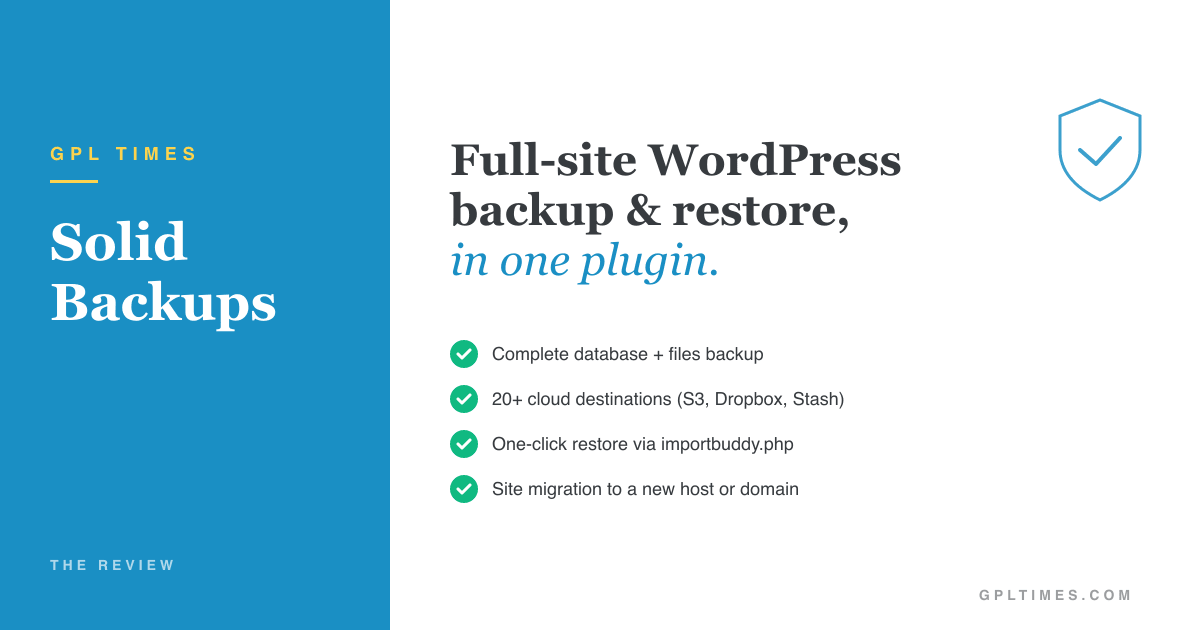
Solid Backups is a complete WordPress backup, restore, and migration plugin. It does three big things, and a number of small things around them.
Backs up your full WordPress site
The backup includes your WordPress database (everything in MySQL, every table, every row) plus your file system (every theme, every plugin, every uploaded image, every PDF, every custom file in wp-content/). The result is a single ZIP file that contains everything needed to reconstruct your site from scratch.
Ships the backup to a remote destination
Storing backups on the same server as your site is not really a backup. If the server dies, both go with it. Solid Backups supports 20+ remote destinations: Amazon S3, Dropbox, Google Drive, OneDrive, FTP, SFTP, Rackspace, the Solid Backups Stash cloud service, email, and several more. You can ship to multiple destinations at once.
Restores a site from a backup
The restore process is called "importbuddy" (yes, the old BackupBuddy name lives on internally). You upload your backup file and a tiny PHP script called importbuddy.php to any web server, visit the script in a browser, enter your backup password, and walk through a three-step wizard. The script unpacks the ZIP, restores the database, copies the files, fixes the serialized URLs, and your site is live. The same flow handles migrations to a new host or new domain.
That is the entire pitch. Three operations, done well, with a UI that has been refined for 15 years.
The core backup workflow
The day-to-day workflow looks like this.
Step 1: Choose what to back up
The Backups page shows the available profiles. The default profiles handle 95% of cases. You can also create a custom profile if your site has unusual exclusion rules (specific directories you do not want backed up, specific tables, etc.).
Step 2: Optionally send to a remote destination
Below the backup profiles is a checkbox: Send to remote destination as part of backup process. Tick it, pick a configured destination, and the backup is automatically uploaded there once generated.
Step 3: Run the backup
Click the profile card you want to run. The plugin starts generating the backup. The interface shows a live progress log: connecting to the database, dumping each table, archiving the file system, compressing, transferring to the remote destination, finalising.
Step 4: Verify the backup completed
Once done, the backup appears in the Local Backups tab with a timestamp, file size, status, and download / send / restore / delete actions. If you chose a remote destination, the backup also appears there.
A typical full backup of a 5GB site takes 5-15 minutes on a decent shared host, less on a VPS. Pure database backups take seconds. Large media-heavy sites can take 30+ minutes; for those, Stash Live or files-only profiles often make more sense.
Backup profiles and what they include
Each profile defines what gets included in a backup. Six built-in profiles plus the option to create custom ones.
Complete Backup
Backs up everything: database + all files in WordPress (themes, plugins, uploads, custom code). This is the profile you run when you want a true full snapshot. Used for: pre-update safety backup, monthly archive, before major changes.
Database Only
Just the SQL database dump, no files. Tiny file size, fast to generate, fast to restore. Used for: daily backups when files rarely change (most WP sites), syncing content between dev and prod, before risky data migrations.
Themes Only
Just the wp-content/themes/ directory. Useful for: backing up a custom theme before editing, preserving theme customizations before a theme update.
Plugins Only
Just the wp-content/plugins/ directory. Useful for: archiving plugin combinations, comparing plugin sets between environments.
Media Only
Just the wp-content/uploads/ directory. Useful for: backing up media library before bulk operations, transferring uploads to a CDN without the rest of the site.
Create New Profile
Custom profile builder. You define which database tables to include or exclude, which file directories to include or exclude, and whether to include the database, files, or both. The most common custom profile I create is "Site Excluding Uploads" for clients with 50GB media libraries where the upload directory is independently backed up to S3.
Where your backups can be stored
The Destinations panel is where Solid Backups visibly outclasses most competitors. The plugin ships with adapters for over 20 remote destinations.
Cloud storage providers
The big-name cloud providers all have first-class integrations.
- Amazon S3: three flavours: legacy S3, S3 v2, and S3 v3 (current). Use v3 for new setups; older versions exist for backward compatibility with sites that have existing configs.
- Dropbox: two versions: v2 (older OAuth) and v3 (current). Use v3.
- Google Drive: v1 and v2 available. Use v2.
- OneDrive: Microsoft’s cloud storage. Personal and business accounts both supported.
- Rackspace Cloud Files: niche but supported.
Solid Backups Stash
Stash is SolidWP’s own backup-as-a-service cloud. You buy storage quota, the plugin ships backups directly. Three versions exist (legacy, v2, v3 / Stash Live). The advantage over Amazon S3 is no separate AWS account setup; the disadvantage is a separate billing relationship and tighter quotas.
Server protocols
For self-hosted backup destinations.
- FTP: old-school file transfer. Still widely used.
- SFTP: secure file transfer over SSH. Use this instead of FTP whenever possible.
- Local Directory Copy: copy the backup to another directory on the same server. Useful for shipping backups to a mounted drive or NAS.
Backups can be sent as email attachments. Useful only for small (database-only) backups, since most email providers limit attachments to 25MB or less.
Solid Backups Deployment
A unique destination: ship a backup directly to another WordPress site. You set up a Deployment Key on the receiving site, the sending site authenticates, the backup is transferred and restored. Used for syncing staging to production or rolling out template updates across multiple installs.
Configurable per backup
When you start a backup, you choose which destination(s) the backup goes to. The same backup can be sent to multiple destinations. Useful pattern: keep daily backups on local + Dropbox, monthly archives on S3 Glacier.
How scheduled backups work
Scheduled backups are how Solid Backups goes from "manual operation I do when I remember" to "set it once and forget it" automation.
Setting up a schedule
The Schedules page lets you define backup schedules with these parameters:
- Name: descriptive label for the schedule.
- Backup profile: which profile runs (Complete, Database Only, etc.).
- Interval: hourly, twice daily, daily, twice weekly, weekly, monthly, twice monthly, every six months, custom interval.
- First run: when the first run happens.
- Destinations: which remote destinations the backup is sent to.
- Email notifications: who gets notified on success or failure.
- Maximum number to keep: auto-delete old backups after this many runs to prevent disk fill.
Multiple schedules
You can stack schedules. A common pattern: daily database backup at 2 AM, weekly full backup Sundays at 3 AM, monthly archive backup on the 1st. The three together give you frequent point-in-time recovery for content (the daily DB backup) plus full disaster recovery (the weekly full) plus long-term archival (the monthly).
How the scheduler runs
Internally, schedules use WordPress’s WP-Cron system. WP-Cron fires whenever a visitor hits your site, which means low-traffic sites can have unreliable scheduling. The fix is to replace WP-Cron with a real cron job on your server. Set define('DISABLE_WP_CRON', true) in wp-config.php and add * * * * * wget -q -O - https://yoursite.com/wp-cron.php >/dev/null 2>&1 to your crontab. Schedules become reliable.
Notifications
The notification email lists the backup details and provides a download link. Failure notifications include the error reason and a link to the diagnostics page. If you use a transactional email service like WP Mail SMTP Pro, notifications are reliable; the default WordPress mailer often gets blocked by shared hosts.
Restoring or migrating a site with importbuddy
Restore is where Solid Backups earns its reputation. The flow has been refined over 15 years and works smoothly even on hosts where other backup plugins fail.
The importbuddy.php script
Every backup ZIP includes a small PHP script called importbuddy.php. This is the restore engine. It is intentionally a single PHP file with no dependencies, so it works on any LAMP host, even ones where WordPress is not installed.
The restore workflow:
- Download your backup ZIP and a fresh
importbuddy.phpfrom the Solid Backups admin. - Upload both files to the root directory of the target server via FTP or your hosting file manager.
- Visit
https://target-host.com/importbuddy.phpin your browser. - Enter your importbuddy password (set in Solid Backups Settings).
- The script walks you through three steps: confirm backup, enter database credentials for the new server, confirm new site URL.
- Importbuddy extracts files, imports the database, runs serialized URL replacement, finalises.
- The script deletes itself when done.
The whole process takes 5-15 minutes depending on backup size. A 5GB site typically takes 10 minutes.
Migrating to a new host or domain
The same flow handles migrations. Generate a backup on the old site, upload the ZIP and importbuddy.php to the new host, run importbuddy.php, and when it asks for the new URL, enter the new domain. Importbuddy handles the URL replacement, including the tricky serialized data that breaks simple SQL find/replace.
I have used this flow to migrate dozens of client sites between hosts (SiteGround → Kinsta, GoDaddy → Pantheon, generic shared → dedicated VPS). It works.
Restoring just one file or database table
The plugin also supports partial restore: just the database, just specific tables, just specific files. Useful when you do not need a full restore, just want to roll back the wp_options table after a plugin broke it, for example.
Multisite support
For WordPress multisite networks, Solid Backups can back up the entire network or extract a single site from a network backup. The "Extract Subsite" tool in importbuddy turns one site out of a multisite into a standalone WP install.
Stash Live: continuous backup
Standard Solid Backups runs on a schedule (daily, weekly, etc.). Stash Live is a separate, premium service that runs continuously.
What Stash Live does
Stash Live watches your site for changes. When a file changes or the database updates, the change is streamed to SolidWP’s Stash cloud in near-real-time. The result is a continuously-updated backup that always reflects the latest state of your site, with rollback to any point in the retention window.
Retention policy
The default retention keeps:
- 5 daily database snapshots
- 2 weekly database snapshots
- 1 monthly database snapshot
- 1 daily, 1 weekly, 1 monthly full snapshots
So you can roll back to any of those points. Configurable in the Stash Live settings.
When to use it
Stash Live makes sense for:
- High-value sites where losing even a few hours of changes is unacceptable (e-commerce, membership sites).
- Sites where content changes constantly (active blogs, forums).
- Sites where the developer wants point-in-time recovery without managing the infrastructure.
It does not make sense for low-change sites where weekly full backups are sufficient.
Pricing model
Stash Live is sold as a separate SolidWP subscription, billed monthly or annually. The plugin code that connects to Stash Live is present; activating it requires a paid Stash Live account.
How to install and configure the plugin
Five steps from zero to a working scheduled backup.
Step 1: Install the plugin
Upload the Solid Backups zip via WP admin → Plugins → Add New → Upload Plugin. Install and activate.
Step 2: Skip the Quick Setup Wizard
On first launch, the plugin opens a Quick Setup Wizard that walks you through email setup, password creation, and a first backup. If you prefer to configure manually, click "Skip Setup Wizard for Now" at the top.
Step 3: Set the importbuddy password
Go to Backups → Settings → General Settings → Importer password. Set a strong password. This password is what protects your backup files. Anyone with the password can restore your backups, so do not reuse your WP admin password.
Step 4: Configure at least one remote destination
Go to Backups → Destinations → Add New. Pick a destination (S3, Dropbox, Stash, FTP, whichever you prefer). Configure credentials. Test the connection with the Test button before relying on it.
Step 5: Create at least one scheduled backup
Go to Backups → Schedules → Add Schedule. Pick a profile (Complete Backup or Database Only), set the interval (Daily is a reasonable default), pick the destination(s) you just configured, set max backups to keep (10 is reasonable), and save.
That is the minimum viable setup. Schedule fires, backups land in your destination, you can restore from any of them.
Settings explained, section by section
The Settings page has three top-level tabs: General Settings, Advanced Settings, Licensing.
General Settings
This tab covers the essentials.
- Importer password: required, gates importbuddy.php access. Set this strong.
- Custom local storage directory: by default, backups live in
wp-content/uploads/backupbuddy_backups/. You can change this to a custom directory, ideally outside the web root for security. - Solid Backups access permission: which user role can manage the plugin. Default is Administrator only, which is correct for most sites.
- Email notifications: addresses for backup-started, backup-completed, backup-error, and "no backup happened" alerts. The last one is important: if scheduled backups silently fail, you want to know.
Advanced Settings
The advanced tab has knobs for the gritty stuff most users never touch.
- Backup compatibility: choose between Modern, Compatible, and Classic backup modes. Modern is faster, Compatible works on older PHP versions, Classic is the legacy mode for hosts with weird configurations.
- ZIP method: ZipArchive (recommended) or pclzip (legacy fallback). Plugin auto-detects; only override if you have issues.
- File and database exclusions: patterns to exclude from backups. Cache directories, log files, node_modules.
- Max backups to keep: global limit on number of local backups.
- Cleanup settings: when and how to clean up temporary files generated during backup.
Licensing
Standard license activation panel.
Developer hooks and filters
The plugin exposes around 14 useful filter hooks. The ones I have actually used.
Exclude additional files from backup
add_filter( 'backupbuddy_zip_exclusions', function ( $exclusions ) {
 $exclusions[] = ABSPATH . 'wp-content/uploads/large-cache-folder';
 $exclusions[] = ABSPATH . 'wp-content/uploads/cdn-mirror';
 return $exclusions;
} );
Useful when your site has known huge directories you do not want in every backup (e.g. a CDN mirror, a video cache, a temp directory).
Customize the backup notification email template
add_filter( 'backupbuddy_custom_email_template', function ( $template, $type, $data ) {
 if ( $type === 'backup_complete' ) {
 $template['subject'] = sprintf( '[%s] Backup completed at %s', get_bloginfo( 'name' ), $data['timestamp'] );
 $template['body'] .= "\n\nView site: " . home_url();
 }
 return $template;
}, 10, 3 );
Useful when you want notification emails branded or include extra context.
Filter remote-addr headers for Cloudflare or load balancer setups
add_filter( 'itbub_filter_remote_addr_headers', function ( $headers ) {
 // Prepend Cloudflare's connecting IP header
 array_unshift( $headers, 'HTTP_CF_CONNECTING_IP' );
 return $headers;
} );
Solid Backups logs the IP that initiates a backup or restore. Behind Cloudflare, the default $_SERVER['REMOTE_ADDR'] shows Cloudflare’s IPs, not the real user. This filter fixes that.
Control restore file permissions
add_filter( 'backupbuddy_restore_permission_mode', function ( $mode, $is_dir ) {
 if ( $is_dir ) {
 return 0755; // directories
 }
 return 0644; // files
}, 10, 2 );
Useful when your host has strict permission requirements (some shared hosts reject 0777 directories).
Hook into backup notifications
add_action( 'backupbuddy_core_add_notification', function ( $type, $title, $message, $extra ) {
 if ( $type === 'error' ) {
 // Forward backup errors to your external monitoring
 wp_remote_post( 'https://monitoring.example.com/alerts', [
 'body' => [
 'source' => 'solid_backups',
 'title' => $title,
 'message' => $message,
 ],
 ] );
 }
}, 10, 4 );
Useful for piping backup events into your alerting stack (Pagerduty, Slack, OpsGenie).
Customize the backups listing query
add_filter( 'backupbuddy_backups_args', function ( $args ) {
 // Show only the 50 most recent backups in the admin
 $args['limit'] = 50;
 return $args;
} );
Useful on long-running sites with thousands of historical backups, where the default listing query is slow.
Disable the Quick Setup Wizard
add_filter( 'itbub_hide_quickwizard', '__return_true' );
Useful for white-labelled deployments where you do not want clients to see the SolidWP-branded wizard.
Common use cases
Six concrete scenarios from real projects.
1. Daily database backup for a content site
A blog or news site with daily publishing. Files rarely change (themes, plugins are stable). Use a daily Database Only schedule that ships to Dropbox. Backup size is ~50MB, transfer is fast, recovery from a content disaster is minutes. Cost: $0 if your Dropbox has free space.
2. Pre-update full backup before any change
Before updating WordPress core, plugins, or themes, run a manual Complete Backup. If the update breaks something, restore takes 10 minutes via importbuddy. Pair with a staging environment for safer testing.
3. Site migration between hosting providers
The classic use case. Generate a backup on the old host, upload to the new host, run importbuddy.php, change DNS. Total downtime: 30-60 minutes. I have used this flow to migrate sites from SiteGround, GoDaddy, Bluehost, and Kinsta in both directions.
4. Cloning production to staging
Generate a Complete Backup on production, upload to staging, run importbuddy.php with the staging URL. Staging environment is now an exact replica of production for testing. Combine with WP-Optimize Premium on staging to test caching changes safely.
5. Multi-destination redundancy for a high-value site
For a flagship site, ship every backup to three destinations: local, Amazon S3, and Stash Live. Three copies in three different infrastructure providers. The "3-2-1 backup rule" (three copies, two media types, one offsite) is satisfied by this configuration.
6. WooCommerce store with frequent orders
A WC store gets orders 24/7; losing six hours of orders to a crash is unacceptable. Use Stash Live for continuous backup. If the worst happens, you can restore to any point within the last few hours and lose minutes of orders, not hours.
Performance, storage, and compatibility
Backup duration
A full backup of a 1GB site takes 3-5 minutes on shared hosting, 1-2 minutes on a VPS, under a minute on a dedicated server. Database-only backups are seconds. Large sites (5GB+) can take 15-30 minutes; the plugin uses chunking to avoid PHP timeouts, but extremely large sites may still need manual intervention.
Disk usage
Each Complete Backup ZIP is roughly the same size as your full WordPress directory + a 50% overhead for the SQL dump. A 2GB site produces ~2-3GB backup files. Keeping 10 backups means 20-30GB of disk space. Plan accordingly, or use the "max backups to keep" setting to auto-delete old ones.
PHP version compatibility
Solid Backups requires PHP 7.4+. Tested with PHP 8.0, 8.1, 8.2, 8.3. Older PHP versions (7.0, 7.2) will see deprecation warnings but mostly work.
WordPress version compatibility
Tested with WordPress 6.2 to current. Older versions (5.x) may work but are not officially supported.
Hosting compatibility
The plugin works on virtually every WordPress host. The known problem hosts:
- WPEngine explicitly disallows backup plugins (their managed backups replace the need). Solid Backups will warn you and refuse to back up on WPEngine.
- WP.com Business has limited file system access; backups work but cannot restore in-place.
- Cloudflare-fronted sites with a low "Connection Timeout" setting may time out long backups. Either run backups via WP-CLI to bypass the HTTP layer, or temporarily disable Cloudflare during backup.
WP-CLI support
The plugin includes WP-CLI commands for headless backup operations. Run wp backupbuddy backup --type=complete from the command line to trigger a backup. Useful for cron-driven backups that bypass the HTTP layer entirely.
Solid Backups vs UpdraftPlus
Solid Backups and UpdraftPlus are the two dominant WordPress backup plugins. Both work. Choosing between them is mostly a matter of taste, but here are the differences.
Where Solid Backups wins
- importbuddy.php restore script. Works without WordPress installed on the target. Easier to use for migrations to brand-new hosts.
- Stash Live for true continuous backup with point-in-time recovery.
- Deployment destination for push-syncing between WordPress sites.
- UI polish: the admin pages have been refined over 15 years, feel more solid (no pun intended) than UpdraftPlus’s interface.
Where UpdraftPlus wins
- Free version is genuinely usable. UpdraftPlus free has scheduled backups, multiple cloud destinations, and works fine for small sites. Solid Backups is paid-only.
- More cloud destinations at the free tier. UpdraftPlus supports 12+ cloud services without upgrading.
- Faster development cycle. UpdraftPlus releases more frequently and tracks WP changes faster.
- Lower file size on backups: UpdraftPlus’s compression is slightly better in my testing.
My personal pick
For client work where the client pays for the license: Solid Backups, because the importbuddy restore experience and Stash Live are worth the cost. For my own side projects: UpdraftPlus free, because it does enough and costs nothing.
Pricing and licensing
Solid Backups is sold by SolidWP as part of their Solid Suite or as a standalone plugin. Pricing changes from time to time; check the official SolidWP / Liquid Web product pages for current numbers. License tiers are single site, 5-site, 10-site, and 50-site, all with one year of updates and support.
That covers everything except the Stash Live cloud service, which requires a separate SolidWP subscription for cloud access.
Frequently asked questions
Is this BackupBuddy or Solid Backups?
Same plugin, just renamed. iThemes (the original developer) rebranded to SolidWP in 2023, and BackupBuddy became Solid Backups. The internal plugin slug, file names, and database options are still backupbuddy_*, so installations from before the rename continue to work without migration.
Can I restore a backup to a different WordPress version?
Yes, restoring an older backup to a newer WordPress version is supported. WordPress’s database upgrade routines run automatically after restore. Restoring a newer backup to an older WordPress version is risky (database schemas may not be compatible).
Are backups encrypted?
The ZIP file itself is not encrypted by default. The database dump inside the ZIP contains your data in plaintext. For sensitive sites, configure the destination to encrypt at rest (S3 server-side encryption, encrypted Dropbox folder, etc.). Solid Backups does support importbuddy password protection, but that gates restore, not the ZIP contents.
What happens if a backup fails mid-way?
Partial backups are detected and cleaned up automatically. The plugin logs the failure with the error message. You can review failures in the Diagnostics tab. Common failure causes: PHP memory exhaustion, server timeout, disk full, file permissions blocking the backup directory.
Can I exclude certain database tables from a backup?
Yes, via the custom profile builder. Common exclusions: high-volume log tables, third-party analytics tables, transient/cache tables. Smaller backups, faster restores.
Does the plugin work on WordPress multisite?
Yes. Full network backup is supported. You can also extract a single site from a network backup using the "Subsite Extract" option in importbuddy. Useful when you need to split a multisite into individual sites.
Can I run a backup from WP-CLI?
Yes: wp backupbuddy backup --type=complete. Useful for cron-driven backups that bypass HTTP. Combine with a server-level cron job for the most reliable scheduling.
Where are backup files stored locally?
Default: wp-content/uploads/backupbuddy_backups/. The directory is protected by an .htaccess deny rule so backup files are not publicly downloadable. For paranoid setups, configure a custom storage directory outside the web root.
What is the difference between Stash and Stash Live?
Stash is a destination for scheduled backups (you upload a backup ZIP to Stash storage on a schedule). Stash Live is continuous backup with real-time streaming of changes. Stash Live is more expensive and more powerful; Stash is fine for daily/weekly backup workflows.
Can I undo a restore?
Only if you backed up the target site before restoring. Importbuddy overwrites files and the database; there is no undo button. Best practice: before restoring to a production site, take a fresh backup of the current production state.
How does Solid Backups handle WooCommerce orders during backup?
WooCommerce orders are stored in the WordPress database (either as shop_order posts in the legacy schema or in wp_wc_orders table in HPOS). Both are captured in a Database backup. Restore preserves all orders.
Will backups work if my site has 100,000+ products?
Yes, but expect longer backup times. Solid Backups handles million-row tables via chunked dumping, but very large databases can take 30+ minutes to back up. For e-commerce sites at this scale, Stash Live (continuous backup) is usually a better fit than scheduled full backups.
Who should install this plugin
Install Solid Backups if any of these apply:
- You run a WordPress site that would be costly to lose (e-commerce, membership, business presence).
- You migrate WordPress sites between hosts and want the most reliable restore experience.
- You want a single backup plugin that handles backup, restore, and migration without separate tools.
- You need scheduled backups to multiple destinations (local + S3 + Dropbox, for example).
- You want continuous backup via Stash Live and can budget for the cloud subscription.
- You manage multiple client sites and want consistent backup processes across all of them.
Skip it if:
- Your host’s built-in backup system meets your needs (some managed WP hosts like WPEngine and Kinsta have decent backups included).
- You only need basic scheduled backups to one cloud destination, in which case UpdraftPlus free or All-in-One WP Migration covers it.
Spend 20 minutes configuring it, run a test backup, restore the backup to a fresh WordPress install via importbuddy.php to verify the flow, and you have a battle-tested disaster recovery setup for the rest of your site’s life.