

Moving a WordPress site from local to staging to production is one of those jobs that always sounds simple and never is. WP Migrate Pro, the developer plugin from Delicious Brains (now part of WP Engine), is the tool I reach for when I want surgical control over what gets copied where. This walkthrough goes from "I just installed it" to "I’m scripting push/pull deploys from CI", with screenshots from a real WP Migrate Pro install and code examples for the hooks that matter.
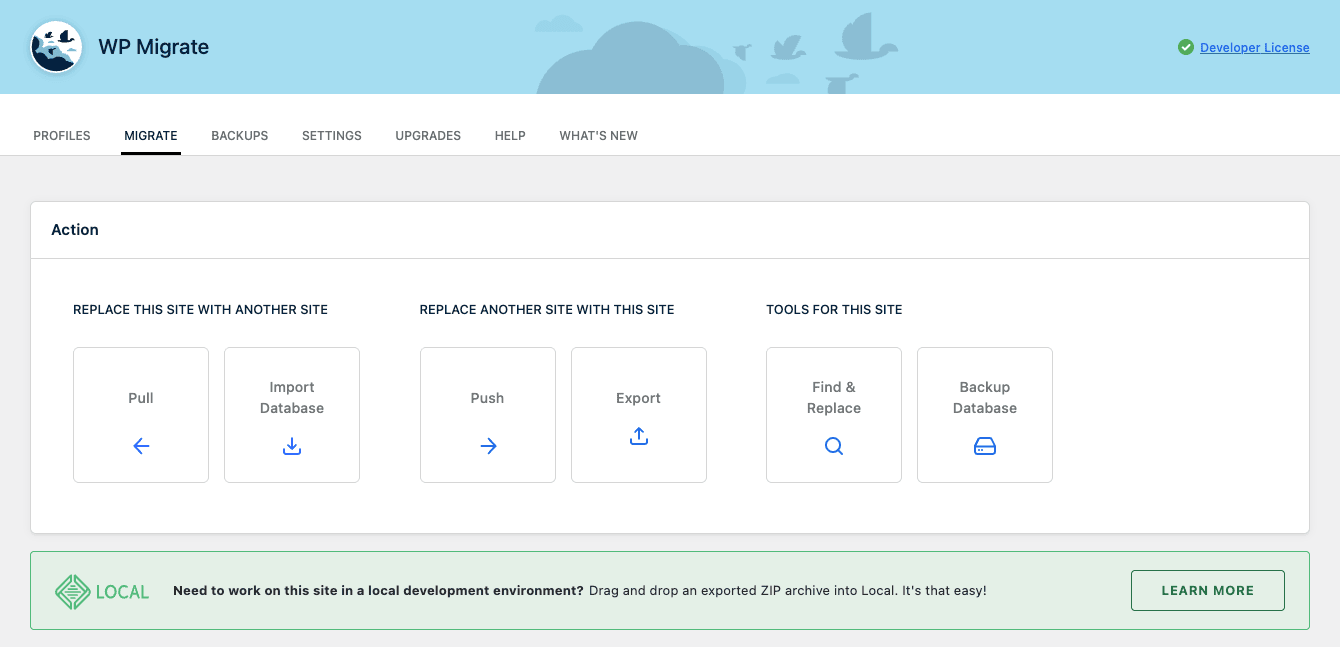
Table of contents
- What WP Migrate Pro is
- Key features at a glance
- How a push or pull works, end to end
- Installing and connecting two sites
- The six action types explained
- Find and replace, including serialized data
- Transferring media, themes, and plugins
- Saved profiles for repeat migrations
- The WP-CLI command set
- Developer reference: hooks, filters, and customizations
- Multisite migrations
- Real-world use cases
- Performance, compatibility, and gotchas
- Pricing and licensing
- Frequently asked questions
- Final thoughts
What WP Migrate Pro is
WP Migrate Pro (the product’s full UI name is simply "WP Migrate", with Pro being the tier) is a developer-focused plugin that copies WordPress data between any two installs. The big idea is direct site-to-site transfer over HTTP: you connect two WordPress sites with a shared secret, then push your local database to staging, or pull production data down for debugging, all without manually exporting SQL files or messing with hosting panels.
It does four things that backup plugins generally don’t do well:
- Direct push and pull between two WP installs over a secure connection, with no zip middleman.
- Serialize-aware find and replace that correctly rewrites URLs, file paths, and theme options stored inside PHP serialized arrays.
- Selective table and post-type migration, so you can sync only
wp_postswithout nuking your user accounts. - CLI integration for the same operations, which is what makes deploy hooks practical.
WP Migrate Pro is published by Delicious Brains, the team behind WP Offload Media. WP Engine acquired Delicious Brains in 2022, and the plugin now ships as part of WP Engine’s developer suite. Same product, same team, same plugin slug under the hood (wp-migrate-db-pro).
If you’re the kind of person who keeps a local copy of every client site running on Local or Laravel Valet, this is built for you. If you’ve never SSH’d into a server, you can still use it (the UI is friendly enough), but the value compounds the more comfortable you are with the command line.
Key features at a glance
- Push and pull between two WordPress sites over an authenticated HTTP connection. No FTP, no SSH tunneling, no mysqldump.
- Export a full site as a single zip archive containing the database plus any combination of media, themes, plugins, MU-plugins, and WordPress core files.
- Serialize-safe find and replace that walks PHP arrays/objects and updates string lengths so deserialization keeps working after the swap.
- Saved migration profiles that store source, destination, find/replace pairs, table selections, and add-on flags so you can rerun a complex migration with one click (or one CLI call).
- Selective tables and post types: migrate only
wp_posts+wp_postmeta, or exclude orders, or skip transients and spam comments. - Backup-on-migrate that automatically takes a database backup on the destination before overwriting it.
- Standard plus custom find/replace rows, with regex and case-sensitive modifiers per row.
- Media, theme, and plugin file transfer as separate file-level operations beyond the database. The add-ons ship in the Pro bundle.
- Multisite support: subsite to subsite, single site to subsite, subsite to single site, and full multisite-to-multisite with mapping.
- WP-CLI commands for every UI action (
wp migrate push,wp migrate pull,wp migrate export, etc.). - Compatibility mode that disables non-essential plugins during migration AJAX requests so a third-party plugin can’t break the transfer.
- A REST-style permissions model: Pull and Push are gated independently per site, so a staging site can pull from production without production being able to push to staging.
How a push or pull works, end to end
Most backup plugins are zip-based: they dump everything to a file, you download it, you upload it somewhere else, you run an installer. WP Migrate Pro skips all that.
When you click Migrate on Site A and choose Push, here’s what happens behind the scenes:
- Site A asks Site B "are you there, and do you accept this secret key?" (a small POST to Site B’s WP Migrate REST/AJAX endpoint).
- Site B verifies the secret, confirms the action is allowed (Push must be enabled on Site B in Settings -> Permissions), and replies with its WordPress version, table prefix, and capacity info.
- Site A starts streaming SQL statements in chunks (the chunk size is bounded by
wpmdb_bottleneck, which defaults to about half of PHP’spost_max_size). - Site B writes each chunk, applies find/replace pairs in flight (serialize-aware), and stores schema info for the create/alter pass.
- If you ticked Media, Themes, or Plugins, a second pass streams those files over the same connection. Each file pass is its own HTTP loop.
- Once everything is written, both sides finalize: Site B renames temp tables into the real ones in a single swap, then fires
wpmdb_finalize_migrationandwpmdb_after_finalize_migration.
The whole flow is resumable. If the network drops at chunk 47 of 200, hitting retry continues from chunk 47, not from zero. That’s the bit that turns "I’ll migrate this 4 GB database tomorrow when I have time" into "I’ll click migrate and walk away".
Installing and connecting two sites
The first-time setup is short, but there are two specific gotchas that catch people. Here’s the order:
Step 1: Install on both sites
Upload the plugin zip via Plugins -> Add New -> Upload Plugin on both sites. Activate. License keys can be entered via Tools -> WP Migrate -> Settings or, better for staging environments, hardcoded in wp-config.php:
define( 'WPMDB_LICENCE', 'your-license-key-here' );
The constant short-circuits the UI activation, which is handy when you keep wiping your staging install.
Step 2: Grant Push and Pull permission on the destination
This is the gotcha that catches everyone the first time. By default, both Push and Pull are OFF on the destination site. You have to flip the toggle on the side you’re migrating into. The toggles live at Tools -> WP Migrate -> Settings -> Permissions.
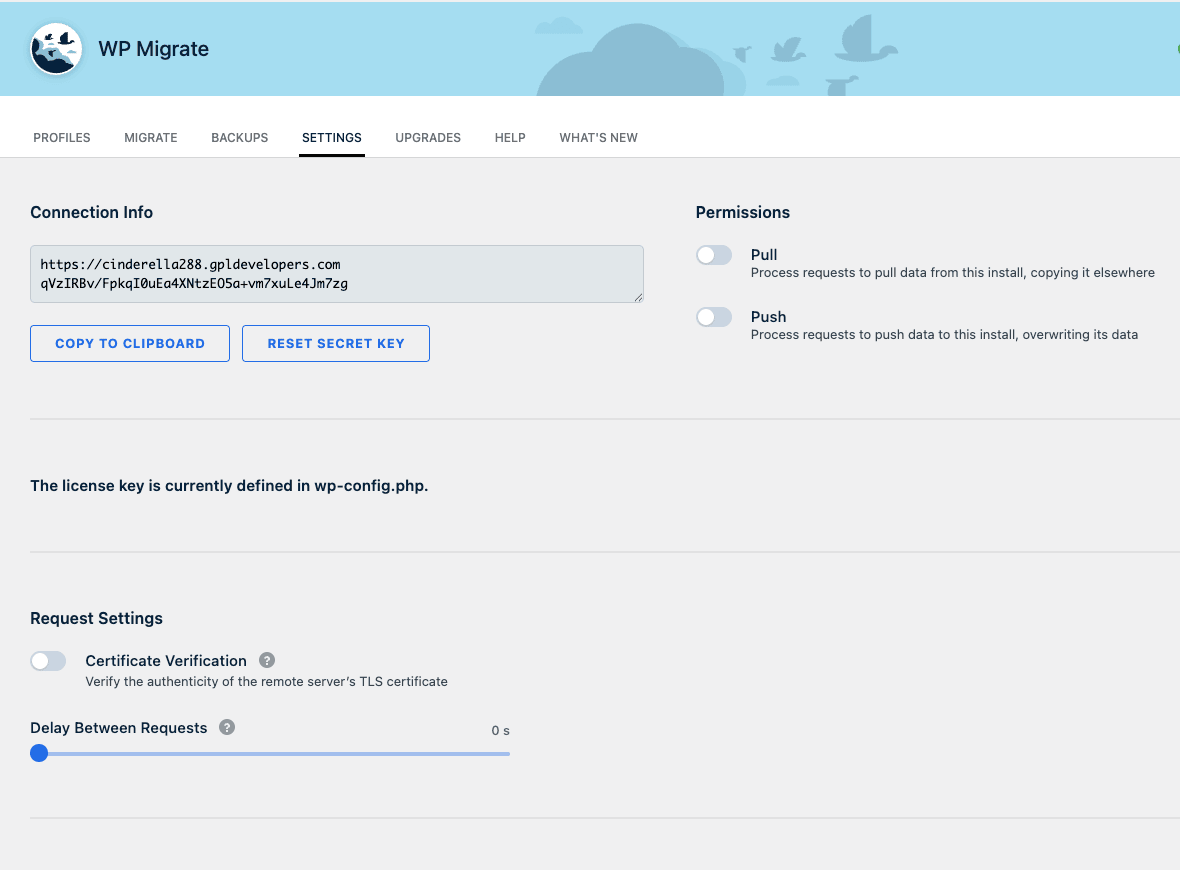
If you’re pushing from local to staging, Push needs to be ON on staging. If you’re pulling from production to local, Pull needs to be ON on production. They’re independent. Many teams turn Pull on permanently on production (low risk, lets devs pull) and keep Push off on production (high risk, prevents accidental local data overwriting live).
Step 3: Copy the connection info
On the destination, hit the Copy to Clipboard button under Connection Info. That gives you a string in the form https://destination-site.tld\n<long random secret>. Paste it on the source site in the migration setup screen and you’re connected.
Step 4: Decide what to migrate
This is where the find/replace pairs auto-populate. If your local site is https://mysite.test and your staging site is https://mysite-staging.example.com, WP Migrate pre-fills the URL and file path swaps for you. We’ll come back to find/replace in the next section.
The six action types explained
The Migrate tab is a single action chooser. Pick one, configure it, run it.
- Pull: this site pulls data from a remote site and overwrites itself. Used by developers grabbing production data into a local dev environment.
- Import Database: this site imports a
.sql,.sql.gz, or.zipfile from your local disk. The zip variant is what you get if someone exported from another install. - Push: this site pushes its data to a remote site, overwriting that remote. Used when promoting local changes to staging.
- Export: this site exports a single file you can download (SQL dump, gzipped SQL, or a full zip with media/themes/plugins). Useful for archive snapshots and for handing a copy to a teammate.
- Find & Replace: in-place search/replace on the local database without migrating. Handy after you’ve manually moved a database and need to fix URLs.
- Backup Database: dumps the local database to
wp-content/uploads/wp-migrate-db/. This is your "before I do something scary" safety net.
Each action has the same shape: pick the tables, pick the post types, set find/replace pairs, tick which file groups (media/themes/plugins/MU/core) to include, hit go.
Find and replace, including serialized data
This is the part where WP Migrate Pro. WordPress stores theme options, widget settings, and a lot of plugin data as PHP-serialized arrays inside wp_options and wp_postmeta. A serialized string includes the byte length of each value, like s:11:"hello world". A naive search/replace that changes "hello world" to "hi there" produces s:11:"hi there", which deserialization rejects, and the option vanishes.
WP Migrate walks the serialized structure, replaces strings inside, and updates the length prefixes. After the migration, every plugin that stores URLs in serialized options keeps working.
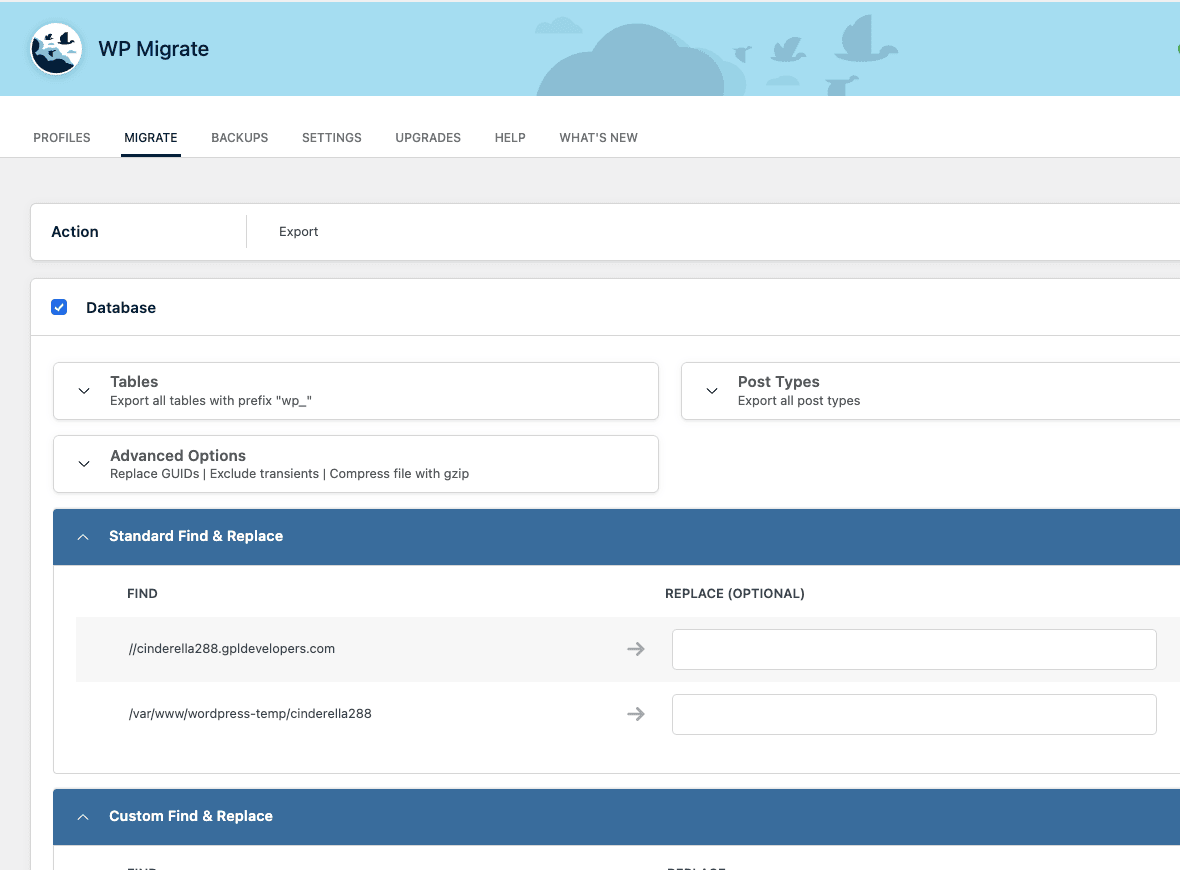
The setup screen has two find/replace sections:
- Standard Find & Replace is pre-populated with
//source-domain->//dest-domainand the absolute file system path (handy for sites that store absolute paths in widget configs). These are inferred from the connected sites and you usually don’t touch them. - Custom Find & Replace is where you add your own rows. Each row has Find, Replace, and three toggles per row: case-sensitive, regex, and "case insensitive Aa". For regex, you write the pattern with delimiters, like
/foo[0-9]+/i, exactly as PCRE expects.
You can also use the Find & Replace action on its own (not part of a migration) to fix up a database after a manual mysqldump restore.
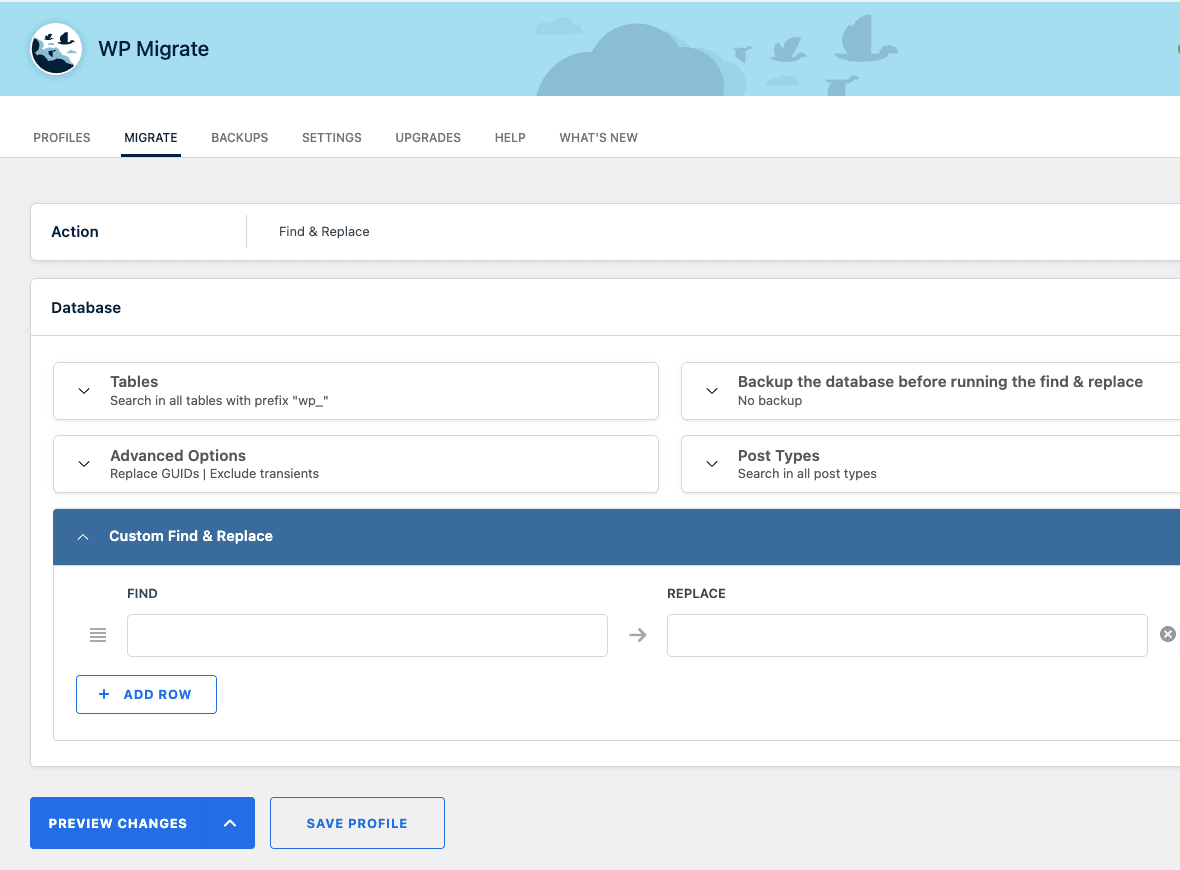
The Preview Changes button is a small gift. Before committing, it scans the database and tells you how many rows in each table will be affected. If the number is "13,420 rows in wp_postmeta" when you expected "a handful", you stop and check the regex before you wreck the DB.
Transferring media, themes, and plugins
Database migration is half the story. Real sites also have a wp-content/uploads/ directory that’s 5 GB of customer images, plus a custom theme and a stack of plugins. The Media Files, Theme & Plugin Files, and (separately) Core Files toggles on the migration setup screen handle those.
What’s actually transferred:
- Media Uploads: every file under
uploads/except the WPMDB backup folder itself. Subdirectory structure is preserved. - Themes: the contents of
wp-content/themes/. You can pick all themes or just specific ones. - Plugins: the contents of
wp-content/plugins/. Again, you can include all or pick specific plugins. - Must-Use Plugins:
wp-content/mu-plugins/. Often skipped because hosting MU plugins are environment-specific. - WordPress Core Files: the actual
wp-admin/,wp-includes/, and root PHP files. Most teams leave this off because they manage core separately.
File transfer chunks the same way the database does: each file gets streamed in pieces, the destination assembles, and the operation is resumable. For sites with thousands of media files (an e-commerce store, say), this can take a while, but it doesn’t time out the way a manual rsync over a flaky connection might.
If you do enable Media Files but want to skip already-uploaded files, there’s a "Compare files" mode that hashes both sides and only transfers differences. For repeat dev->staging syncs of a media library that mostly hasn’t changed, this turns a 45-minute file copy into 90 seconds.
Saved profiles for repeat migrations
The first time you set up a migration, it takes a few minutes: pick action, paste connection string, configure find/replace, decide on file groups. The second time you do the same thing two days later, it’s annoying.
Saved profiles solve that. After configuring a migration, click Save Profile at the bottom. WP Migrate stores the entire setup, including the find/replace pairs and add-on flags, under a name you choose. Next time, you open the Profiles tab, click the profile, and the migration runs with the saved config.
Profiles get even more useful with CLI. A saved profile gets a numeric ID (and a name slug). From the command line, wp migrate profile staging-to-prod reruns it. Drop that into a deploy script and you’ve got "promote staging to production" as a single command.
The Profiles tab also shows "Last 10 unsaved profiles", which is your audit trail of ad-hoc migrations from the last week or so. You can promote any of them to a saved profile later if you find yourself rerunning the same thing.
The WP-CLI command set
If you’re going to script migrations (CI deploys, nightly syncs, post-deploy automation), this is where you’ll spend your time. WP Migrate registers three top-level commands:
wp migrate(the canonical one, added in recent versions)wp migratedb(the legacy command, still works)wp wpmdb(deprecated, kept for backwards compatibility)
All three accept the same subcommands. Pick whichever reads best in your scripts. I use wp migrate for new work.
Export
wp migrate export "//source.test" "//target.example.com" \
 --backup=/tmp/backups/ \
 --media=all \
 --themes=all \
 --plugins=all
This dumps the database with the URL find/replace applied, optionally including media/themes/plugins as separate files in the output. Output defaults to wp-content/uploads/wp-migrate-db/.
Push
wp migrate push "https://staging.example.com;<secret-key>" \
 --find="//source.test" \
 --replace="//staging.example.com" \
 --media=all
The first argument is the connection string (URL + semicolon + secret). Multiple --find and --replace pairs are supported.
Pull
wp migrate pull "https://production.example.com;<secret-key>" \
 --find="//production.example.com" \
 --replace="//local.test" \
 --exclude-spam \
 --gzip-file
Pull is most useful for grabbing production data into a local dev environment after a customer reports a bug you can’t reproduce.
Find and replace (no migration)
wp migrate find-replace "//old-domain.com" "//new-domain.com" \
 --regex \
 --case-sensitive
You can also pass --dry-run to get a count of affected rows without committing.
Profile
wp migrate profile "staging-to-prod"
The argument is either the saved profile name or the numeric profile ID from the Profiles tab. This is the killer feature for CI: configure the migration once in the UI, save the profile, run it from a deploy hook.
Backup
wp migrate backup --tables=wp_posts,wp_postmeta --gzip-file
Quick way to dump just the post tables before a risky import.
Developer reference: hooks, filters, and customizations
WP Migrate exposes dozens of filters and actions. Here are the ones that actually matter for typical customization work, with realistic snippets.
Filter: customize the chunk size with wpmdb_bottleneck
The chunk size limits how much data ships per HTTP request. On hosts with tight post_max_size (some shared hosts cap it at 8 MB), large tables get split into hundreds of requests and the migration drags. If you control the destination, you can raise this:
add_filter( 'wpmdb_bottleneck', function( $bytes ) {
 return 40 * 1024 * 1024; // 40 MB chunks
} );
Don’t raise it above what your server can actually accept; you’ll just get 413 Payload Too Large responses.
Filter: add automatic find/replace pairs with wpmdb_domain_replaces
Some teams have a third URL family that needs swapping (CDN, REST media, embed proxies). The standard URL pair handles the main domain; this filter adds additional auto pairs that show up in the UI pre-filled:
add_filter( 'wpmdb_domain_replaces', function( $pairs ) {
 $pairs['//cdn.production.com'] = '//cdn.staging.com';
 return $pairs;
} );
Filter: change required capability with wpmdb_ajax_cap
By default, only users with the import capability can trigger migrations from the UI. To restrict to administrators only:
add_filter( 'wpmdb_ajax_cap', function() {
 return 'manage_options';
} );
Useful on shared staging environments where editors have the import cap for content imports but shouldn’t be able to overwrite the database.
Filter: load extra plugins during migration with wpmdb_compatibility_plugin_whitelist
WP Migrate’s compatibility mode disables non-essential plugins during migration AJAX requests. If your migration depends on a specific plugin’s hooks (say, a custom encryption plugin that intercepts options before save), allowlist it:
add_filter( 'wpmdb_compatibility_plugin_whitelist', function( $whitelist ) {
 $whitelist[] = 'my-encryption-plugin/my-encryption-plugin.php';
 return $whitelist;
} );
Filter: alter table data before write with wpmdb_alter_data_queries
Lets you mutate the SQL statements just before they hit the destination database. The classic use case is scrubbing customer PII from production data as it lands in staging:
add_filter( 'wpmdb_alter_data_queries', function( $queries, $table ) {
 if ( $table === 'wp_users' ) {
 $queries[] = "UPDATE wp_users SET user_email = CONCAT( 'noreply+', ID, '@example.com' )";
 $queries[] = "UPDATE wp_users SET user_pass = MD5( RAND() ) WHERE ID > 1";
 }
 return $queries;
}, 10, 2 );
Combine with a saved profile and you’ve got an automated, GDPR-friendly "pull production to staging with scrubbed user data" flow.
Filter: change the destination table name with wpmdb_alter_table_name
Sometimes you want to migrate a production table into a staging table with a different prefix. Useful if you keep multiple WordPress instances in one database:
add_filter( 'wpmdb_alter_table_name', function( $table ) {
 if ( strpos( $table, 'wp_' ) === 0 ) {
 return 'staging_'. substr( $table, 3 );
 }
 return $table;
} );
Action: react to a finished migration with wpmdb_after_finalize_migration
Fires after the swap is complete on the destination. Perfect place to bust caches, ping Slack, or invalidate a CDN:
add_action( 'wpmdb_after_finalize_migration', function() {
 wp_cache_flush();
 if ( function_exists( 'rocket_clean_domain' ) ) {
 rocket_clean_domain();
 }
 wp_remote_post( 'https://hooks.slack.com/services/XXX', array(
 'body' => json_encode( array(
 'text' => 'WP Migrate finished on '. home_url(),
 ) ),
 ) );
} );
Action: log every migration with wpmdb_migration_complete
The arguments tell you what kind of migration just ran. Useful for audit logs:
add_action( 'wpmdb_migration_complete', function( $type, $stage ) {
 error_log( sprintf(
 'WP Migrate finished: type=%s stage=%s by user=%d',
 $type, $stage, get_current_user_id()
 ) );
}, 10, 2 );
$type is one of push, pull, savefile, import, find_replace, or backup_local. $stage describes the migration phase.
Filter: extend CLI defaults with wpmdb_cli_default_find_and_replace
CLI runs always include the source/destination URL pair. To inject extra rows automatically:
add_filter( 'wpmdb_cli_default_find_and_replace', function( $pairs ) {
 $pairs[] = array(
 'replace_old' => '/var/www/production',
 'replace_new' => '/var/www/staging',
 );
 return $pairs;
} );
Action: catch errors with wpmdb_error_migration
When something fails mid-migration, this action fires. Hook it to your error monitoring:
add_action( 'wpmdb_error_migration', function() {
 if ( function_exists( 'Sentry\\captureMessage' ) ) {
 \Sentry\captureMessage( 'WP Migrate failed on '. home_url() );
 }
} );
Filter: timeout for the verify-connection call
The first thing a migration does is verify it can talk to the remote site. On slow hosts, this can time out before the verify even completes. Raise it:
add_filter( 'wpmdb_prepare_remote_connection_timeout', function() {
 return 60; // seconds
} );
Multisite migrations
Multisite is one of the trickier WordPress configurations, and WP Migrate handles four shapes of it:
- Subsite to subsite within the same network. Picking a source subsite and a destination subsite via the Multisite Tools picker.
- Subsite to a single-site install. Useful when you’re spinning a subsite out into its own standalone WordPress install. WP Migrate flattens the subsite tables into single-site equivalents.
- Single site into a subsite slot. The reverse: importing a single-site WordPress install into a new subsite on a network.
- Multisite to multisite, with explicit mapping of source subsite IDs to destination subsite IDs.
The Multisite Tools add-on ships in Pro and lights up the subsite picker on the migration setup screen when the source or destination is a network. If both ends are single-site, the picker simply doesn’t appear.
A common workflow: a client has a multisite with 12 subsites, one of which has outgrown the others and needs its own install. WP Migrate exports that one subsite’s tables, options, and uploads as a single-site flavored archive. You spin up a fresh WordPress install on a new domain, import the archive, done. The DB has been flattened, the URLs rewritten, and the uploads landed in the right place.
Real-world use cases
These are the scenarios I’ve actually used WP Migrate Pro for. They’re meant to illustrate the gap between "migration plugin" and "developer workflow tool".
Use case 1: nightly production-to-staging sync with PII scrub
Cron job on staging runs wp migrate profile pull-prod-scrubbed at 03:00. The profile pulls the production database, applies the URL find/replace, runs additional custom find/replace pairs to clear API keys, and the wpmdb_alter_data_queries filter scrubs wp_users emails and passwords. By 03:15 staging is a fresh copy of production with no real customer data. Developers wake up to a current dataset every morning.
Use case 2: client demo with a frozen content snapshot
You’re showing a client the redesigned site on a Friday. The content needs to look fresh, but you don’t want them seeing tomorrow’s posts that aren’t ready yet. Pull production into the staging URL, save the profile as "client-demo-snapshot", run it once at 09:00 on demo day. The staging environment has Friday morning’s content forever, decoupled from the live site.
Use case 3: post-deploy URL fix-up
You moved a WordPress site between hosts manually (mysqldump, scp, gunzip, mysql). All the URLs in the database point at the old domain. Running wp migrate find-replace "//old-host.com" "//new-host.com" from SSH fixes everything in one shot, including serialized theme options that a basic sed would have corrupted.
Use case 4: spinning up a debug instance from a customer bug report
A customer reports something weird. You can’t reproduce it locally because your dev database is from last month. Spin up a fresh local WordPress install, give it WP Migrate Pro, pull production with --exclude-spam --skip-media. Five minutes later, your local has a live copy of production’s database. You reproduce the bug, fix it, push the fix back to staging.
Use case 5: pre-launch content freeze with staged go-live
Big-bang site relaunch on Monday. Content team locks editing on the old site at 23:00 Sunday. At 23:05 you push the staging build to a temporary URL like relaunch.client.com. At 23:30 you final-pull the locked content from the old site into the relaunch URL. At 00:00 you swap DNS. The five-hour window is entirely scripted because every step is a saved profile.
Use case 6: client handover
You finished a project for a client. They have their own hosting. Export the full site (database + uploads + themes + plugins) as a single zip via the Export action, hand them the zip plus instructions to use the Import action on their new install. They click two buttons and have your build running on their server. No "the URLs are wrong" follow-up email.
Performance, compatibility, and gotchas
How fast is it?
For a database under 100 MB, migrations finish in under a minute on most hosts. The bottleneck is rarely WP Migrate itself; it’s PHP max_execution_time, post_max_size, and the destination server’s write speed. For databases above 1 GB, expect 5 to 20 minutes depending on chunk size, which you can tune via the wpmdb_bottleneck filter.
File transfers are slower because each file is its own HTTP request loop. A 5 GB media library with 20,000 files can take 30 to 60 minutes the first time. Subsequent syncs with "Compare files" enabled finish in under two minutes because only changed files transfer.
Memory considerations
WP Migrate streams data in chunks rather than loading whole tables into memory, so it works on low-memory hosts (PHP memory_limit of 128 MB is plenty for most sites). Where it falls over is when a single row exceeds the chunk size, which happens occasionally with badly designed plugins that serialize huge arrays into a single wp_options row. The fix is to raise the chunk size or exclude that table.
Hosts that block direct site-to-site connections
Some hosts (cough, some shared providers) block outbound HTTP requests from their PHP environments. WP Migrate’s push will fail with "Could not connect to remote site". If you can’t get the host to allowlist the destination, fall back to the Export -> file transfer -> Import path. Slower, but always works.
SSL certificate issues
The Settings tab has a Certificate Verification toggle. Default is OFF, which is fine for testing between development environments. If you’re connecting to a production site, turn it ON, otherwise a misconfigured DNS or an expired cert can silently route migrations to the wrong host.
Push and Pull are off by default on the destination
This is the most common "why isn’t it working" complaint, and it’s been a sticky thing for years. Push must be ON on the destination side. Pull must be ON on the destination side. Both are off by default. The toggle is at Tools -> WP Migrate -> Settings -> Permissions.
The compatibility MU plugin
When you activate WP Migrate, it writes a tiny MU plugin to wp-content/mu-plugins/ that disables non-allowlisted plugins during migration AJAX requests. This is on purpose (it speeds up migrations and dodges third-party interference) but it surprises people who manage their MU plugins manually. If you uninstall WP Migrate, double-check the MU plugin is gone too.
Cache plugins
Backup-on-migrate is enabled by default for Push and Pull but disabled for Find & Replace and Backup Database. If you’re running Find & Replace on production data, take a separate backup first. WP Rocket, WP-Optimize Premium, and other cache plugins should be cleared after every migration; you can automate that via wpmdb_after_finalize_migration.
Local-as-source quirks
Migrating from a *.test or *.local domain to a real public domain works fine, but if your local URL uses HTTPS with a self-signed cert, your remote site’s verify call might fail. Either trust the cert chain on the remote or temporarily turn certificate verification off for the connection.
Edge case: backup completes successfully
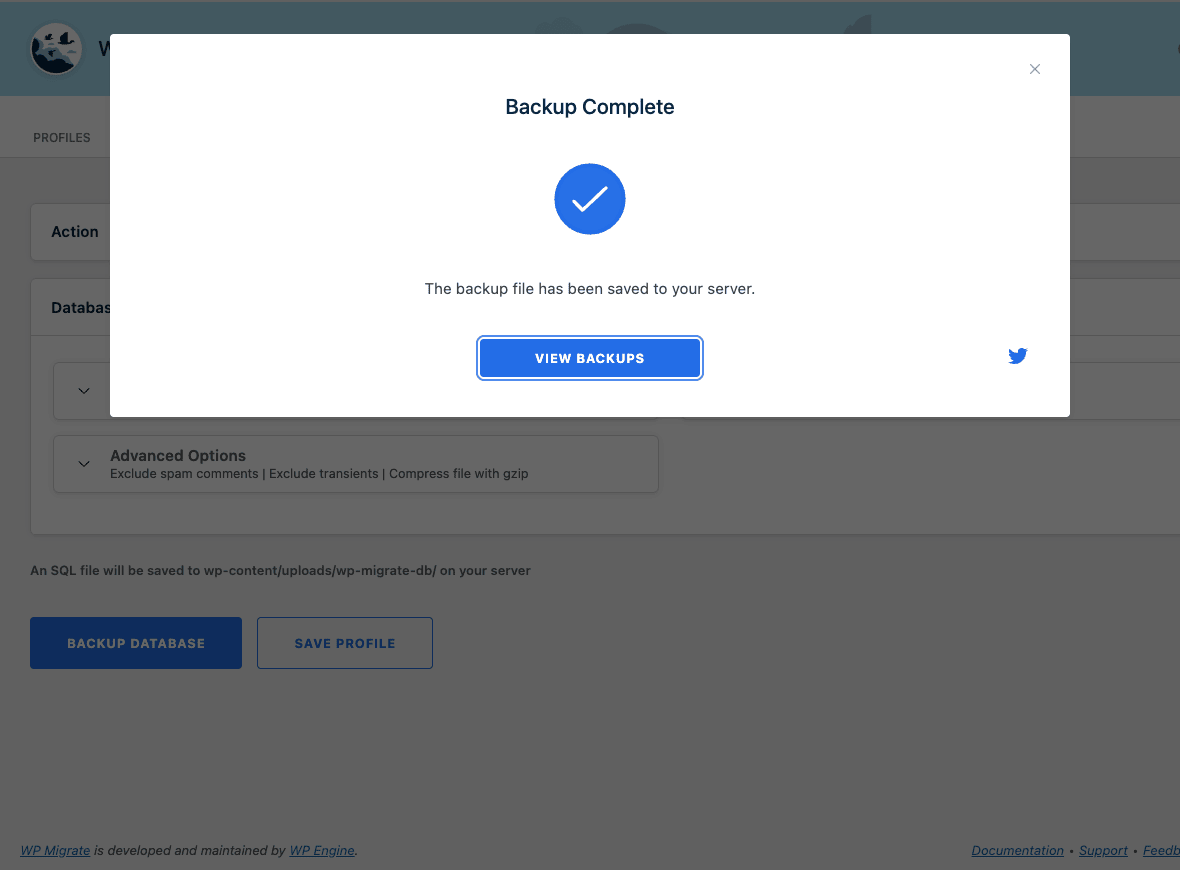
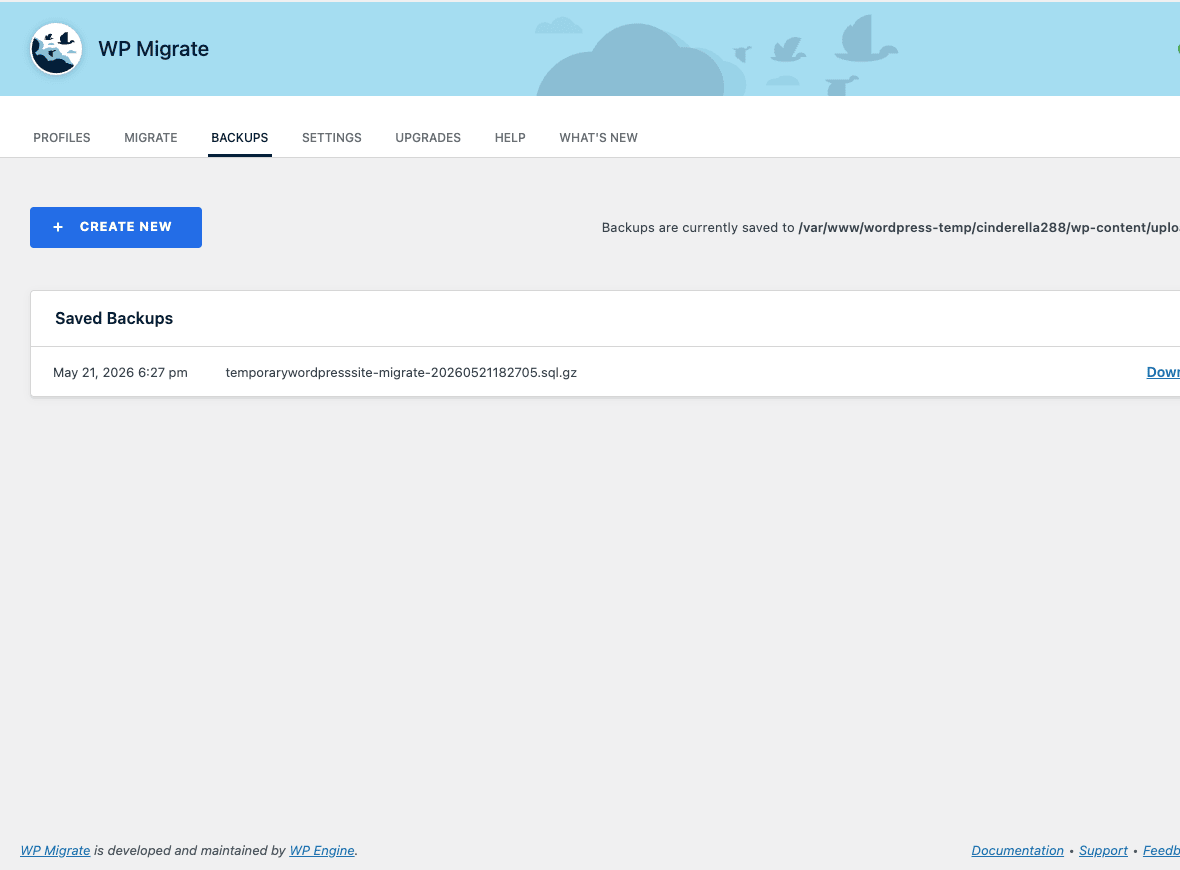
After a successful backup, WP Migrate shows a confirmation modal and the file lands in the Backups tab. The default backup folder is wp-content/uploads/wp-migrate-db/, which is web-accessible by default. For production sites, consider moving it to a non-web-accessible location via the WPMDB_BACKUPS_PATH constant in wp-config.php, or at minimum add a .htaccess deny rule.
Pricing and licensing
The vendor pricing (WP Engine / Delicious Brains) splits into three tiers:
- Personal unlocks the core push/pull/export/import/find-replace features for a small number of sites. The Media Files, Theme & Plugin Files, and Multisite Tools add-ons are NOT included.
- Freelance raises the site count and bundles Media Files, Theme & Plugin Files, and Multisite Tools.
- Developer is unlimited sites with everything included plus priority email support.
Lifetime licensing existed historically but was discontinued; the vendor sells subscriptions only now.
GPL Times sells the WP Migrate Pro plugin as a one-time purchase with every add-on bundled (Media Files, Theme & Plugin Files, Multisite Tools, CLI). That’s the same code, same plugin slug, same UI. If you’re running it on production for a paying customer and want vendor support, buy direct from WP Engine.
Frequently asked questions
Can WP Migrate replace my backup plugin?
It can do backups (the Backup Database action dumps a SQL file) but it’s not a full-site backup tool. There’s no scheduling UI, no off-site storage destinations, no incremental backups, and no encrypted archive. For dedicated backups, use a backup-focused plugin like UpdraftPlus, Solid Backups (formerly BackupBuddy), or Duplicator Pro. WP Migrate is for migrations, not backup retention.
How is this different from Duplicator Pro?
Duplicator Pro is zip-file based. You generate an archive plus an installer.php on the source, upload both to the destination, and run the installer. It’s great for one-shot clones and especially for moving a site to a brand new server where you don’t have WordPress installed yet. WP Migrate Pro is connection based. You install it on both sides and push/pull directly. WP Migrate is faster for repeat dev-to-staging syncs because there’s no zip middleman. Duplicator is friendlier for the initial server-to-server clone. Lots of teams use both.
What about All-in-One WP Migration?
All-in-One WP Migration is a one-click export/import tool. It’s much simpler than WP Migrate Pro and aimed at non-developer users moving their first WordPress site. WP Migrate Pro is more surgical (table-level control, per-row find/replace, CLI integration, profiles). If you’ve never touched WP-CLI, All-in-One is easier. If you’re scripting deploys, WP Migrate Pro is the right tool.
Does it work with WooCommerce?
Yes. The serialize-safe find/replace handles WooCommerce option data correctly, and tables like wp_woocommerce_sessions, wp_woocommerce_payment_tokens, and the High-Performance Order Storage (HPOS) tables migrate without issue. For stores that don’t want to migrate sessions or transient data, deselect those tables in the migration setup or use the "Exclude transients" advanced option. After a production-to-staging pull, always purge WooCommerce’s cache via wp wc tool run clear_transients.
Can I run it in CI/CD?
Yes. Hardcode the license in wp-config.php via WPMDB_LICENCE, save your migration profile in the UI once, then call wp migrate profile <profile-name> from your CI script. Some teams use this for "promote staging to production" deploy steps; others use it for nightly data refreshes from production to staging.
Will it migrate users and passwords?
Yes, by default. Users live in wp_users and wp_usermeta, which are included in the "all tables" selection. If you want to keep destination users intact (common for production sites where you don’t want to overwrite real accounts with local dev users), deselect those tables in the migration setup. You can also use wpmdb_alter_data_queries to scrub user data on the way in (see the developer reference above).
Is it serialize-safe?
Yes. PHP serialized arrays and objects are walked and string lengths are updated correctly. This is the main reason to use a migration tool instead of a basic search/replace on the SQL dump. If you really like the simpler workflow, Better Search Replace Pro is a focused alternative that only handles the find/replace side.
Can I exclude specific rows, not just tables?
Not in the UI, but yes via the wpmdb_alter_data_queries filter. Hook it, write SQL that targets the specific rows you want to exclude or modify, return the modified query list. This is how teams handle things like "don’t bring over Order IDs above 50000" or "exclude rows where post_status=’trash’".
Does it support Multisite?
Yes, in all four directions: subsite to subsite, subsite to single site, single site to subsite, and multisite to multisite. The Multisite Tools add-on (bundled in Pro) provides the subsite picker.
What happens if the migration fails halfway?
WP Migrate writes to temp tables and only swaps them into place at the end. If the migration dies at chunk 47 of 200, the destination’s real tables are untouched and you can retry. If retry doesn’t work, drop the temp tables (named like wpmdb_tmp_wp_posts) and start over.
Can I import a .sql.gz file directly?
Yes. The Import action accepts .sql, .sql.gz, and .zip (the format WP Migrate’s own Export produces). For huge SQL files, the gz format is usually 5x smaller and uploads faster.
Is bulk import data also handled here?
No. WP Migrate is for database/file migration between WordPress installs. If what you want is to import a CSV of products or posts into WordPress, that’s a different category of plugin. WP All Import Pro handles structured CSV/XML imports into post types, and WP All Export Pro is its counterpart for getting data out.
Final thoughts
WP Migrate Pro is one of the few WordPress plugins I’d call essential for working developers, in the same bucket as a good code editor and a sensible local dev environment. The combination of serialize-safe find/replace, push-pull-export-import-find-replace-backup as separate first-class actions, saved profiles, and full CLI coverage means you stop thinking about migrations as a chore and start treating them as a single script call.
The first time you set up a connection between two sites is fiddly (especially the Push/Pull permission toggles that everyone forgets), but once it’s wired up, the experience is closer to "right-click, deploy" than to "spend an afternoon moving a database". For agencies that touch multiple client sites a week, the time saved across a year is substantial.
If you’re already happy with file-based tools like Duplicator Pro, you don’t necessarily need this on top. But if you’re scripting deploys, syncing dev databases nightly, or routinely needing surgical control over what migrates where, WP Migrate Pro is the tool that fits that shape.
External references worth bookmarking: the official WP Migrate documentation for vendor-supplied articles, the free WP Migrate Lite on WordPress.org for the export-only version, and developer.wordpress.org for the underlying WordPress hooks you’ll combine with WP Migrate’s filters in deeper customizations.