

WooCommerce’s default variation picker is a dropdown. For a T-shirt that comes in five colors and four sizes, that’s two dropdowns the customer has to open, scan, and choose from before they can even see a price. It works, but it’s the visual equivalent of asking someone to read a spec sheet. Variation Swatches for WooCommerce Pro by GetWooPlugins swaps those dropdowns for color circles, image thumbnails, labeled buttons, or radio groups, both on the single product page and on shop and category archives.
This is the kind of plugin that, once installed and configured, the store owner forgets about, but customers feel every day. Pickup, scan, click, add to cart. No "open dropdown to see if Royal Blue is even available." That’s the whole pitch.
Table of contents
- What Variation Swatches Pro does
- Free vs Pro: what the Pro version adds
- Core features
- Installing and configuring the plugin
- Creating swatch attributes step by step
- Settings tab by tab
- Common use cases
- Developer reference: hooks, filters, REST endpoints
- Performance, compatibility, and gotchas
- Pricing and licensing
- Frequently asked questions
- Final thoughts
What Variation Swatches Pro does
Variation Swatches for WooCommerce Pro is a WooCommerce extension by GetWooPlugins, the same author who maintains the free Woo Variation Swatches plugin on WordPress.org. It hooks into how WooCommerce renders attribute pickers for variable products and replaces the standard <select> element with one of four visual swatch types:
- Color – a filled circle or square using a hex value stored on each attribute term.
- Image – a thumbnail using an attachment image assigned per term.
- Button – a labeled rectangle (good for sizes, materials, or short text).
- Radio – a stack of radio buttons with optional image, price, and stock info inline.
The Pro tier extends the free plugin in a few ways that matter for real stores. Archive pages (shop, category, tag) can show swatches under each product card, so customers pick the variant they want before they ever click into the product page. Tooltips appear on hover with either the attribute name or a custom label or image. Attribute term presets let you set "Royal Blue = #1d4ed8" once globally and have every product that uses that term pick it up. There’s a "+3 more" indicator for attributes with many options, a single-variation preview that auto-selects the first variant, sharable variation URLs, and Gutenberg blocks for inserting the swatch picker into custom templates.
If you’ve ever tried to sell apparel, footwear, paint, framed art, or anything else with visible color or pattern variations on a default WooCommerce setup, you know how flat the dropdown experience is. This plugin is the most-used solution in that space.
Free vs Pro: what the Pro version adds
The free Woo Variation Swatches plugin on WordPress.org already covers the product page basics. You can convert the dropdown to color, image, button, or radio. You can set a hex color per term. That’s enough for many small stores.
Pro adds:
- Swatches on the shop archive and category pages. Customers can pick a color or size from the product grid without clicking through to the product page.
- Tooltips with custom label, image, or both. Hover over a color and see "Royal Blue, cotton blend, $24" if you want.
- Hover image change on product page. When a customer hovers (not clicks) a color swatch, the main product image previews that variant. Useful when you have many colors and don’t want every hover to commit them to a selection.
- Per-term presets at the taxonomy level. Set the color hex for "Red" once, and every product that uses pa_color=red inherits it. No per-product setup.
- Per-product overrides. A specific product can override the global preset (e.g. "Red" is a different shade on a specific T-shirt).
- "+%s More" indicator when an attribute has more swatches than will fit.
- Catalog mode showing single-attribute swatches on archive pages even for non-variable products.
- Single variation image preview that auto-selects the first attribute combo.
- Sharable variation URLs so customers can paste a link with the variant pre-selected.
- Layered nav widget swatches (variation swatches inside the standard WooCommerce filter widget).
- Gutenberg blocks:
variation-swatchesandattribute-filterfor use inside the block editor. - WPML, Polylang, and TranslatePress compatibility for multi-language stores.
- LiteSpeed Cache integration flags REST API responses as cacheable so the archive swatches don’t tank performance.
The free plugin is a fine starting point. The Pro plugin is the version stores actually run once they cross the threshold of "we sell more than one color of anything."
Core features
Here’s the feature list with enough detail to know what each setting actually does. Not every one is in the screenshots that follow, but every one is in the plugin.
- Four swatch types per attribute. Color, image, button, radio – configured at the attribute level (Products > Attributes > Edit). Each WooCommerce attribute can be assigned exactly one type. So your
pa_colorattribute is a color swatch globally,pa_sizeis a button,pa_materialis text-only via select, and so on. - Per-term color, image, and tooltip. Inside the attribute terms screen (e.g. Products > Attributes > Color > Configure terms), each term gets fields for color hex (with dual-color gradient support), image attachment, tooltip text, and tooltip image.
- Shape control (rounded or squared) with corner radius. Set under Settings > General.
- Selected and out-of-stock indicators. A tick mark color when a swatch is selected, a cross/strike color when the variation is out of stock. Both customizable hex (Settings > Styling).
- Single-product swatch size. Width, height, and font size for the product page swatches.
- Archive-page swatch size. Same three controls but for shop/category pages, since archive swatches usually want to be smaller.
- Show selected attribute name beside the title. Replaces "Cotton T-Shirt – Color: Choose an option" with "Cotton T-Shirt – Color: Royal Blue" once the customer picks a swatch.
- Variation label separator. The character between the attribute name and value (defaults to ":").
- Preloader. Optional spinner that shows while AJAX variation data is loading.
- Generate variation URL. Adds a "copy share URL" button that produces a deep link with attributes pre-selected.
- Attribute display limit. Cap how many swatches show before the "+N More" indicator kicks in.
- Group swatches align. Horizontal or vertical layout for the swatch row.
- Archive swatches with image and add-to-cart selector mapping. You tell the plugin which selectors in your theme are the product wrapper, the image, and the add-to-cart button; the plugin’s JS uses these to swap content as the user picks swatches.
- Catalog mode. Show a single attribute taxonomy (e.g. just colors) on archive pages even when the product is not actually variable.
- Single variation image preview. Switch the main product image based on the first attribute the user picks, before they finish selecting all attributes.
- Large size attribute section. Render the first attribute (often color) in a noticeably larger swatch on the product page.
- Group presets (Group tab). Define a named swatch group ("Brand Reds") that maps to specific terms, so you can reuse curated swatch sets across many products.
- LiteSpeed Cache integration. Marks REST responses as cacheable when LSCache is detected.
- WPML, Polylang, TranslatePress. Multi-language attribute names and tooltips are translated transparently through the REST layer.
- Gutenberg blocks. Drop a swatch row or attribute filter into any custom block template.
- Compatible with the WooCommerce checkout block, Elementor product widgets, Divi WooCommerce module, Astra Shop layouts, and the Flatsome WooCommerce theme. Front-end markup uses standard WooCommerce hooks, so themes that override product templates still pick up the swatches.
Installing and configuring the plugin
The plugin depends on two things being installed and active:
- WooCommerce (8.0 or newer, with variable product support configured). Required.
- Woo Variation Swatches (the free plugin from WordPress.org). Required. The Pro plugin is a layer on top, not a standalone replacement.
Once both are active, install the Pro plugin zip via Plugins > Add New > Upload Plugin, then activate. The settings live under WP admin > GetWooPlugins > Swatches Settings.
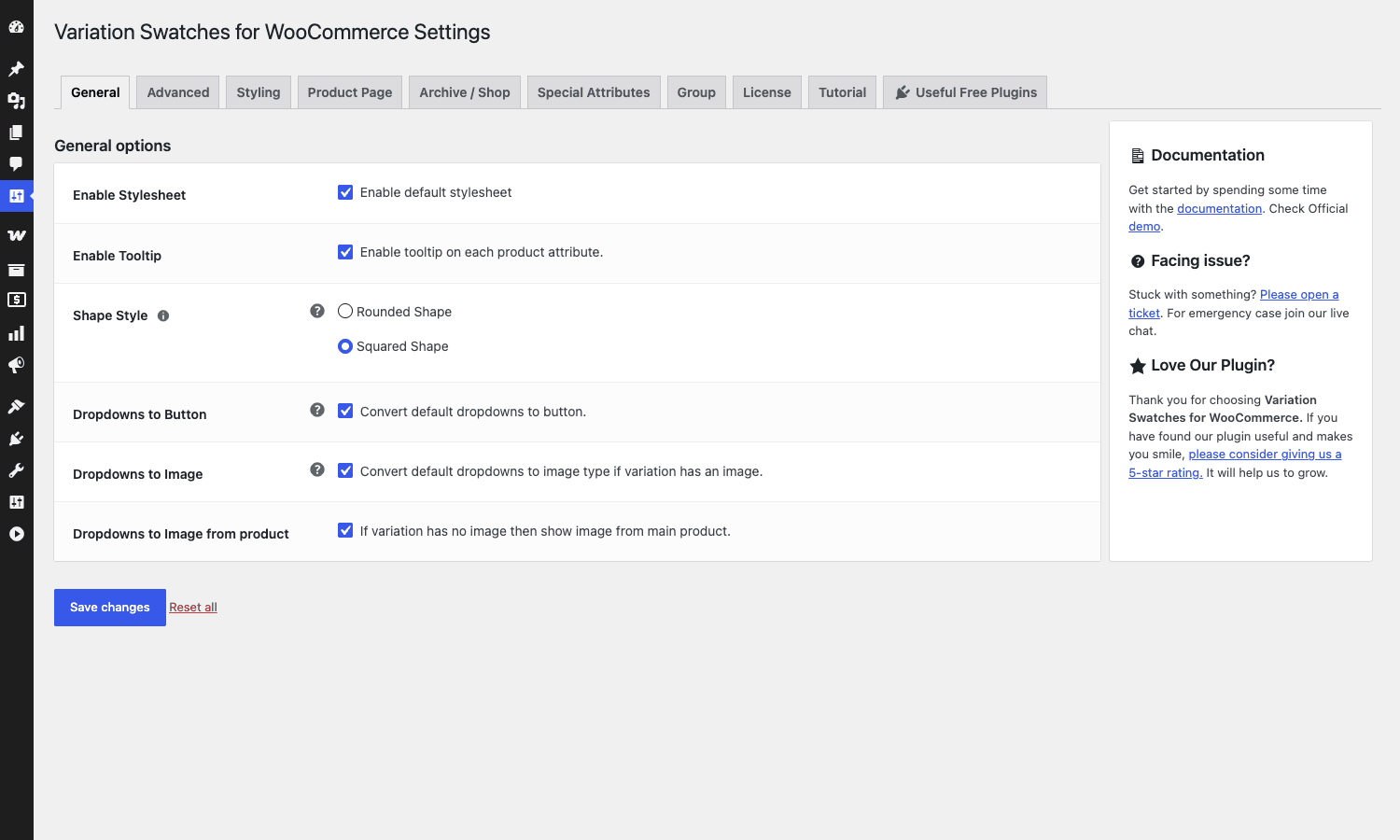
The General tab is where you make the big decisions: keep the plugin’s default stylesheet on or off (turn it off if you’re a theme developer styling swatches from scratch), turn the global tooltip on or off, pick rounded vs squared swatch shape, and tell the plugin whether to auto-convert default attribute dropdowns to button or image swatches.
The two "Dropdowns to Button" and "Dropdowns to Image" toggles are useful for a specific scenario: you have a WooCommerce attribute that was set up as a regular select type (before installing this plugin), but it has labels that would read better as buttons, or it has variation images you’d like to surface. Toggle these and the plugin promotes the dropdown to a richer swatch type without you having to edit each attribute manually.
If your theme already styles variation buttons (a few WooCommerce themes do), turn off the default stylesheet so the plugin doesn’t double up CSS.
Creating swatch attributes step by step
The order matters. WooCommerce attributes are taxonomies, and the swatch type is set at the taxonomy level, not per product. Here’s the flow:
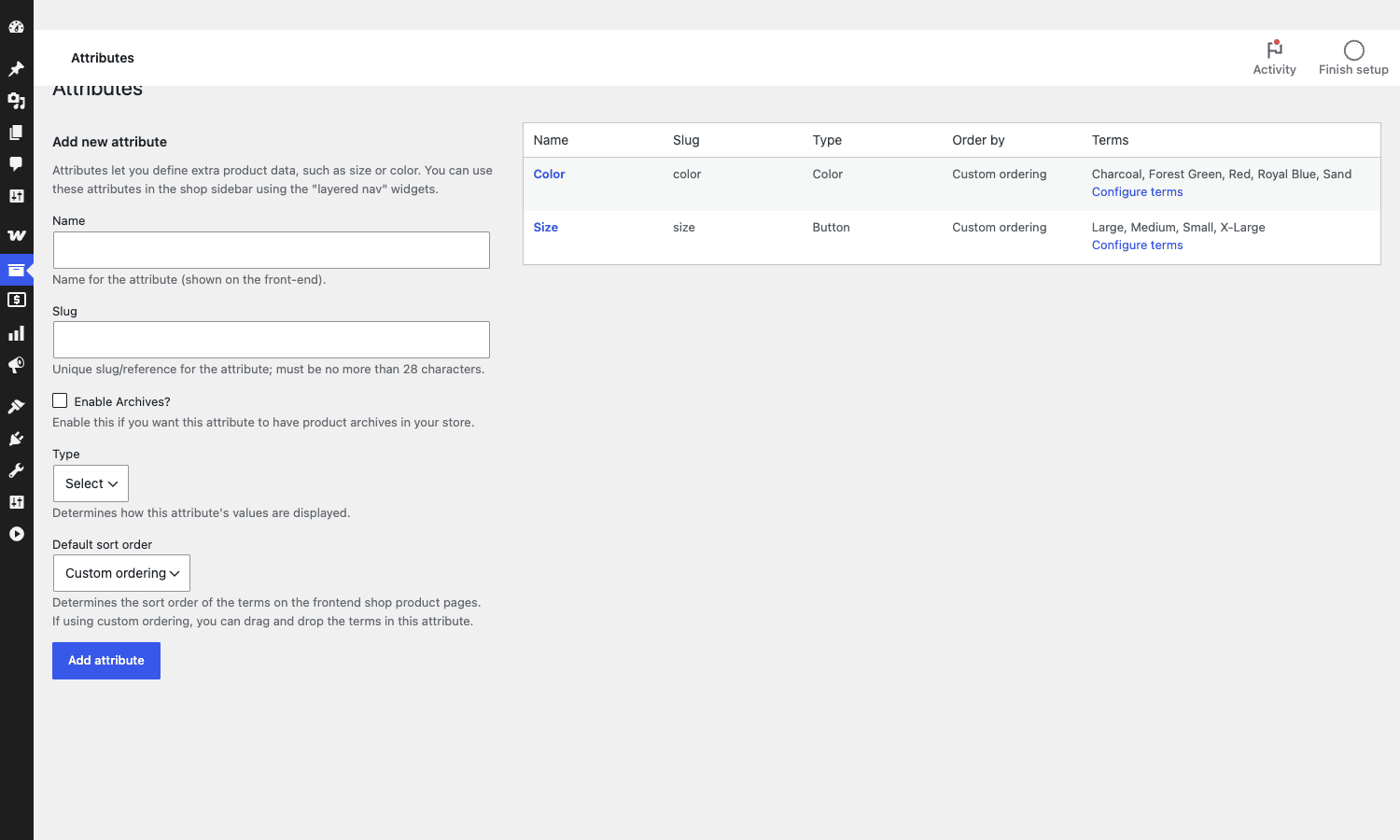
Step 1: Create the attribute
Go to Products > Attributes. Fill in the form:
- Name: human-readable label, e.g. "Color" or "Size".
- Slug: short URL-friendly version, e.g. "color" or "size". WooCommerce will prefix it with
pa_internally (so the taxonomy ispa_color). - Enable Archives: tick if you want a public
/color/red/style archive URL. Optional. - Type: pick from Select, Color, Image, Button, or Radio. This is what makes the magic happen.
Click Add attribute.
Step 2: Add terms with their values
Click Configure terms next to your new attribute. Each term becomes a swatch. For a Color attribute, the term-edit form gains a color picker:
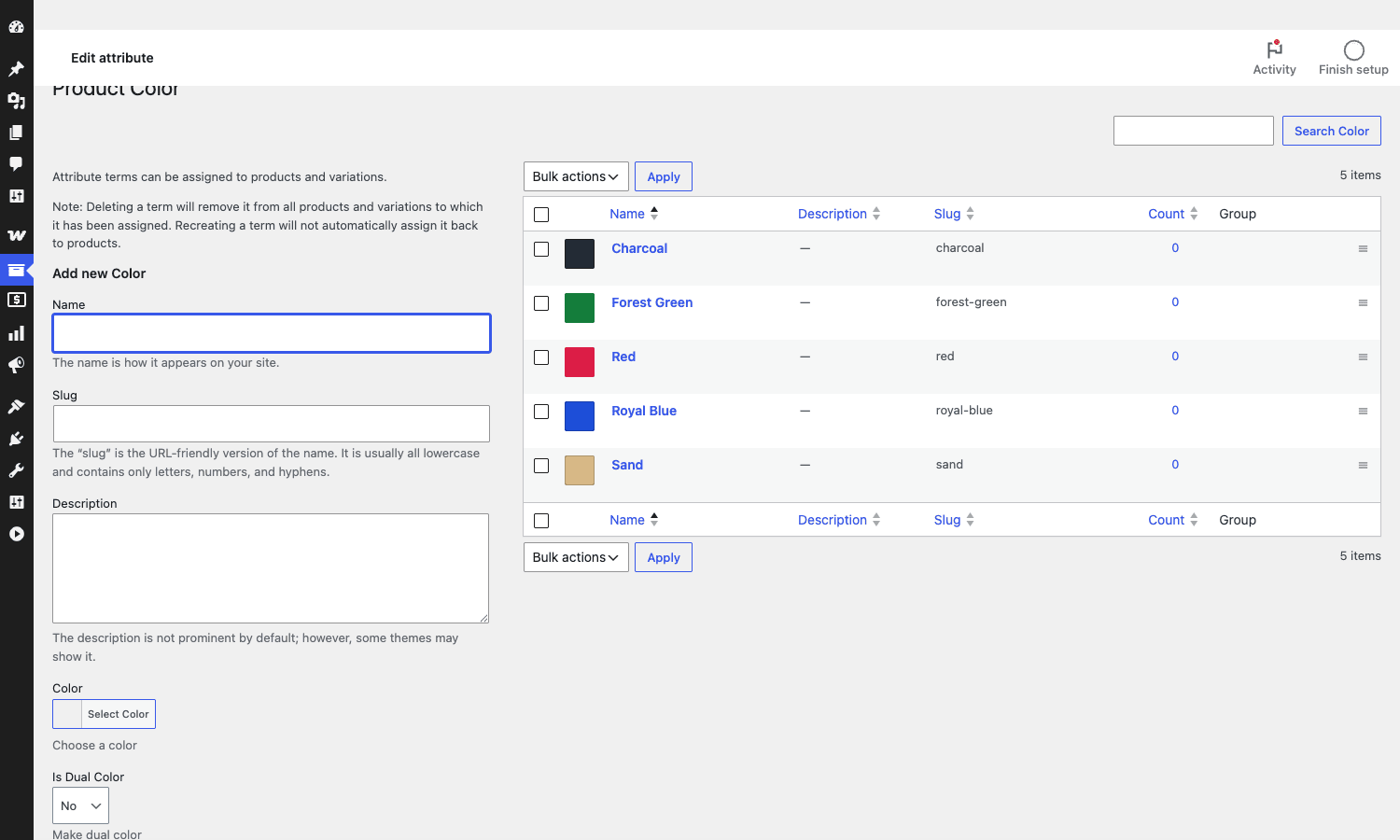
Add a term name (e.g. "Royal Blue"), pick a slug, and select the color. The plugin also surfaces three less-obvious fields:
- Is Dual Color: if set to Yes, a second color picker appears. The swatch will render a 50/50 gradient between the two. Useful for striped or two-tone products.
- Tooltip: choose None, Text, or Image. If Text, fill in a custom tooltip string (defaults to the term name). If Image, pick a tooltip image attachment.
- Group: optional, used with the Group tab to bundle terms into reusable presets.
Repeat for every color, image, or button label you need. For a Button-type attribute like Size, there’s no color picker, only the tooltip and group fields, because the button’s label IS the term name.
Step 3: Assign attributes to your variable product
Open or create a product, switch its type to Variable product in the Product data dropdown, then go to the Attributes tab. Add your attribute, tick "Used for variations," and select which terms apply to this product. Save attributes.
Switch to the Variations tab and click "Generate variations" (or add them manually). For each variation, set its regular price, sale price, stock, image, and so on.
Step 4: Use the Swatches Settings tab on the product
The Pro plugin adds a Swatches Settings sub-tab inside the product editor. This is where per-product overrides live. If you want this specific T-shirt’s "Red" to be a slightly different shade than the global preset, you can set it here without touching the global term.
Settings tab by tab
The settings page has ten tabs. Here’s what each does in plain English.
General
- Enable Stylesheet: the plugin’s default CSS. Leave on unless your theme styles swatches.
- Enable Tooltip: global on/off for tooltip rendering.
- Shape Style: rounded (circle) or squared (with optional corner radius).
- Dropdowns to Button: auto-convert remaining select attributes to button type.
- Dropdowns to Image: auto-convert to image type when a variation has an image.
- Dropdowns to Image from product: fallback to the main product image when the variation itself has no image.
Advanced
Threshold for AJAX variation loading (how many child variations before the plugin loads via API rather than inline), layered nav widget settings, and a few performance toggles.
Styling
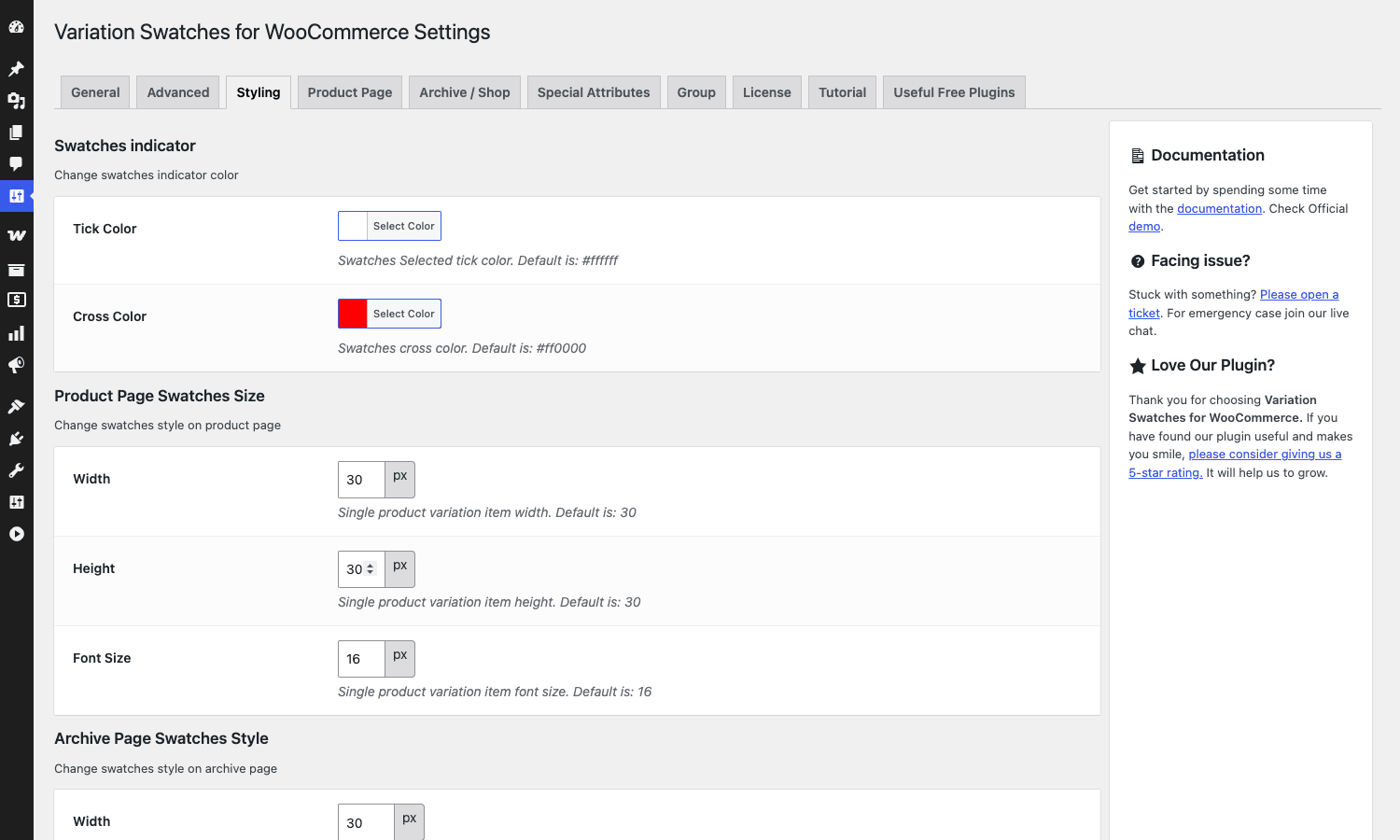
The visual controls:
- Tick Color: the color of the checkmark drawn on the selected swatch. Default white.
- Cross Color: the color of the diagonal strike across out-of-stock swatches. Default red.
- Product Page Swatches Size: width, height, font size in pixels.
- Archive Page Swatches Style: separate width/height/font for archive pages, since you usually want smaller swatches in the product grid.
Product Page
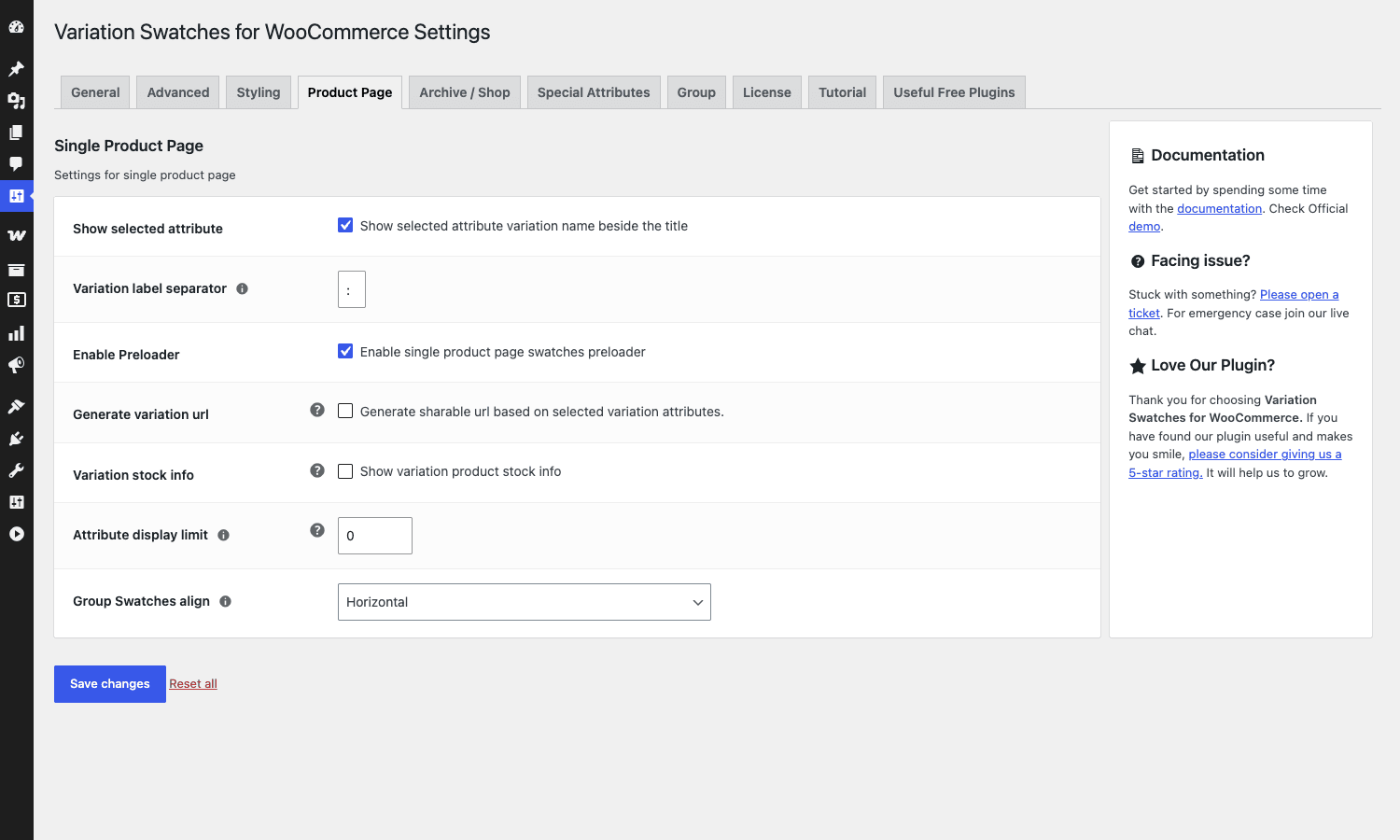
Single-product behavior:
- Show selected attribute: shows the chosen variation name beside the product title.
- Variation label separator: the character between attribute name and value.
- Enable Preloader: spinner while loading variation data.
- Generate variation url: adds a sharable URL feature.
- Variation stock info: shows stock count on each swatch.
- Attribute display limit: cap on how many swatches per attribute before the "+N More" link.
- Group Swatches align: horizontal or vertical row layout.
Archive / Shop
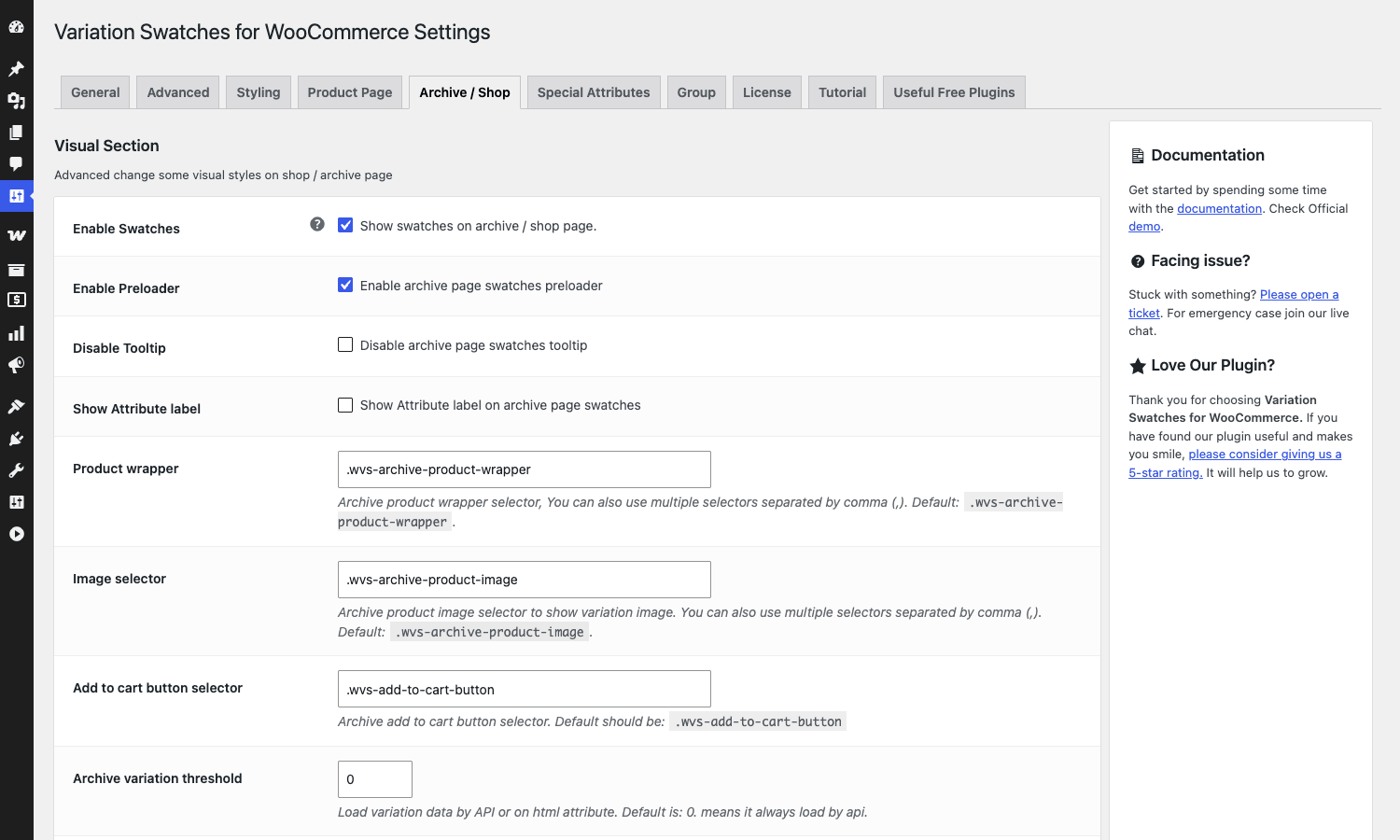
The archive-page swatch behavior, where most of the Pro upgrade lives:
- Enable Swatches: master on/off for shop / category / tag archives.
- Enable Preloader: same as single but for archives.
- Disable Tooltip: shut tooltips off just on archives if you want.
- Show Attribute label: show the attribute name (e.g. "Color:") next to the swatch row on archive cards.
- Product wrapper: CSS selector for the wrapper element around each product card. Defaults to
.wvs-archive-product-wrapperbut you’ll usually map this to your theme’s product card class. - Image selector: which element inside the card holds the product image (so it can be swapped when a swatch is picked).
- Add to cart button selector: which selector the plugin should treat as the add-to-cart button on archives.
- Archive variation threshold: number of variations beyond which the plugin loads via REST API instead of inline.
The product wrapper / image / button selectors are the most important fields in the whole plugin to get right. They tell the JS where to splice the swatch row into your theme’s archive cards. The defaults are sensible for the WooCommerce default theme; for Flatsome, Astra, Divi, Elementor’s archive widget, or Bricks, you’ll usually need to inspect a product card and adjust.
Special Attributes
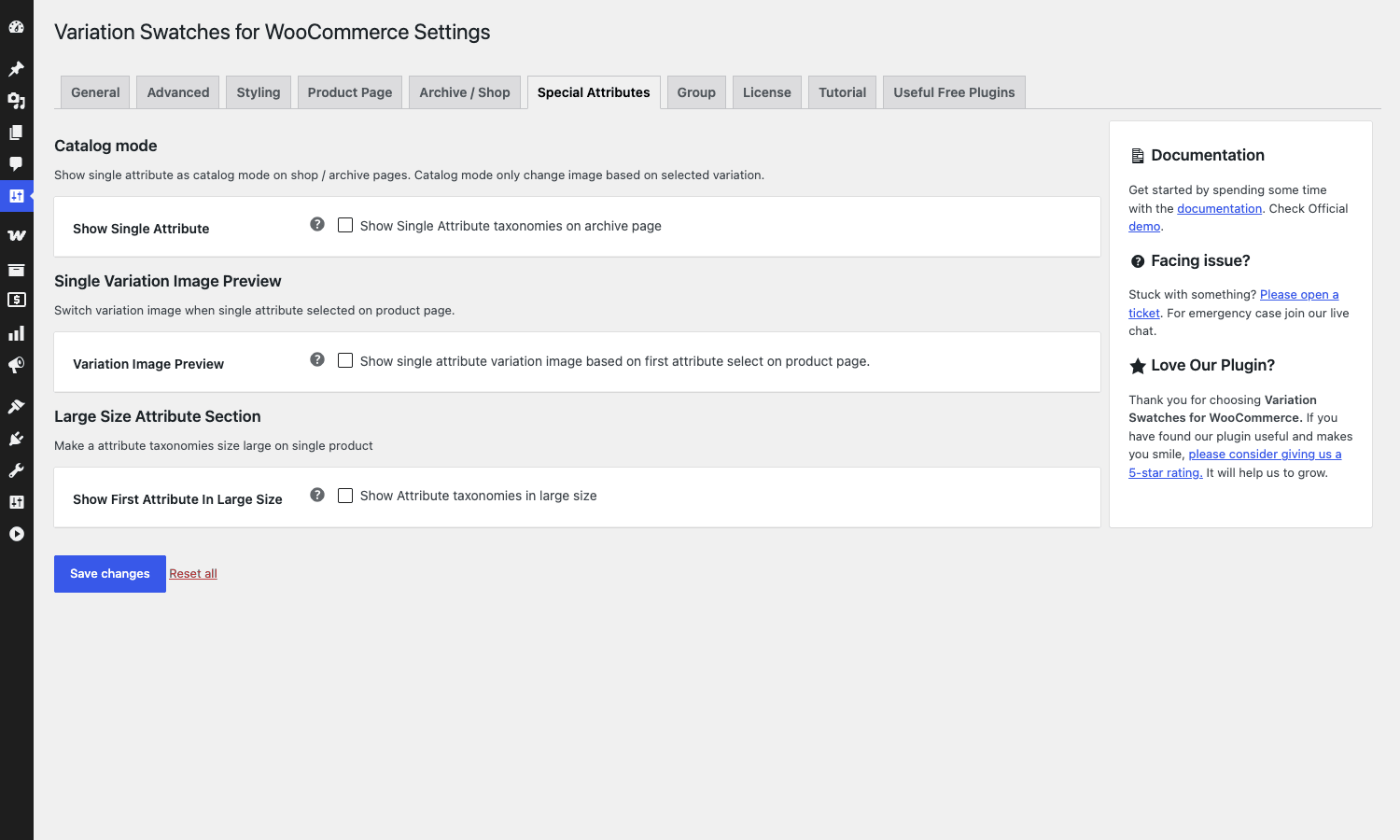
This tab is for three niche but useful features:
- Catalog mode > Show Single Attribute: lets you display a single attribute’s swatches on archive pages even when the product isn’t variable. Useful for non-WooCommerce-variation use cases (like a "wood finish" attribute that’s the same across all sizes).
- Variation Image Preview: when a customer picks the first attribute (e.g. just color, without size yet), swap the main product image to that color before they finish the selection.
- Show First Attribute In Large Size: render the first attribute (most often color) at a bigger swatch size for visual emphasis.
Group
Define swatch groups that reuse a curated set of terms. Example: a "Spring Palette" group of pastels you can apply to any product. Saves time when you launch new products that share a curated palette.
License
Activate the GetWooPlugins license. On a development site you can leave this empty; the plugin functions on the front end either way (license affects update checks and support).
Tutorial
Embedded help videos. Skip on production.
Useful Free Plugins
A cross-promotion screen for other GetWooPlugins extensions. Ignorable.
Common use cases
I’ve watched stores use this plugin in five distinct ways. The configuration shifts slightly for each.
Apparel stores: color + size
The classic case. Color is a swatch (rounded, ~36px), Size is a button (square with rounded corners). Tooltip on color shows the color name (some buyers care: "Is that Royal Blue or French Blue?"). Out-of-stock variations stay visible but with the diagonal strike across the swatch. Archive swatches are turned on, so the product grid shows the color row under each card.
Paint, ink, or art supplies
Each shade is its own term with a precise hex value. Tooltip includes the SKU and a custom hover image showing how the color looks on a swatch card. Single-variation image preview is on, so as soon as the customer clicks "Cerulean," the product image swaps to a swatch card photo of cerulean. No size attribute needed in this case.
Footwear stores
Color as image swatches (the product photo on a model), Size as buttons. Dual-color gradient for two-tone shoes. Archive shows just the color row, not the size, to keep the product card uncluttered. Size selection happens after click-through to the product page.
Print-on-demand merchandise
Color as a flat square swatch, Style as a button (T-shirt vs Hoodie vs Sweatshirt), Size as a button. The Style attribute typically loads a different product image, so the variation image preview feature swaps the mockup as the customer picks. Catalog mode is occasionally enabled for non-variable design-only products that should still display a color tag on archives.
Furniture and home goods
Wood finish as an image swatch (showing the actual finish texture). Upholstery as image swatch too (a closeup of the fabric). Hover image change is critical here, because the texture preview is what convinces the buyer the chosen finish will look right in their room. Tooltips with the finish name help on accessibility.
Developer reference: hooks, filters, REST endpoints
The plugin exposes a generous developer surface. The free plugin owns the base hook namespace (woo_variation_swatches_*), and Pro adds its own (woo_variation_swatches_pro_*). Here are the ones you’ll reach for most often.
Filter: customize the swatch HTML output
The Pro plugin renders each swatch type through a sprintf template that you can override. Color swatches, for example:
add_filter( 'woo_variation_swatches_color_attribute_template', function( $template, $data, $attribute_type, $variation_data ) {
    // Add a subtle border to every color swatch
    return '<span class="variable-item-span variable-item-span-color" style="background-color:%s; border: 1px solid #ddd;"></span>';
}, 10, 4 );
The image template:
add_filter( 'woo_variation_swatches_image_attribute_template', function( $template, $data, $attribute_type, $variation_data ) {
    return '<img class="variable-item-image my-custom-class" %s aria-hidden="true" alt="%s" src="%s" width="%d" height="%d" />';
}, 10, 4 );
Filter: add custom CSS classes to a swatch item
Useful for theme integration:
add_filter( 'woo_variation_swatches_variable_item_css_class', function( $classes, $data, $attribute_type, $variation_data ) {
    if ( 'color' === $attribute_type && empty( $variation_data['is_in_stock'] ) ) {
        $classes[] = 'my-theme-grayed-out';
    }
    return $classes;
}, 10, 4 );
Filter: add custom HTML attributes to a swatch item
add_filter( 'woo_variation_swatches_variable_item_custom_attributes', function( $attrs, $data, $attribute_type, $variation_data ) {
    $attrs['data-sku'] = isset( $variation_data['sku'] ) ? $variation_data['sku'] : '';
    return $attrs;
}, 10, 4 );
The data-sku will be available in client-side JS for analytics tracking.
Filter: customize the "+N More" indicator text
add_filter( 'woo_variation_swatches_pro_item_more_text', function( $text, $product ) {
    return esc_html__( '+%s other colors', 'my-theme' );
}, 10, 2 );
The %s is replaced by the count of remaining swatches.
Filter: change the tooltip text per swatch
add_filter( 'woo_variation_swatches_global_variable_item_tooltip_text', function( $tooltip, $data ) {
    // Append the term slug for debugging
    if ( current_user_can( 'manage_options' ) ) {
        $tooltip .= ' (' . $data['slug'] . ')';
    }
    return $tooltip;
}, 10, 2 );
Filter: hide a specific swatch from output
add_filter( 'woo_variation_swatches_remove_attribute_item', function( $remove, $data, $attribute_type ) {
    // Hide all "discontinued" color terms (term name suffixed " - DC")
    if ( 'color' === $attribute_type && false !== strpos( $data['name'], ' - DC' ) ) {
        return true;
    }
    return $remove;
}, 10, 3 );
Filter: change AJAX threshold
By default, after 30 variations, the plugin switches to AJAX loading. Adjust per product:
add_filter( 'woo_variation_swatches_ajax_variation_threshold_min', function( $threshold, $product ) {
    if ( 'apparel' === get_post_meta( $product->get_id(), '_category_type', true ) ) {
        return 100;  // Big SKU ranges, keep inline longer
    }
    return $threshold;
}, 10, 2 );
Filter: disable archive swatches per product
add_filter( 'disable_woo_variation_swatches_archive_product', function( $disable, $product, $instance ) {
    // Hide archive swatches for products in the "exclude-grid" category
    if ( has_term( 'exclude-grid', 'product_cat', $product->get_id() ) ) {
        return true;
    }
    return $disable;
}, 10, 3 );
Action: react to per-product settings save
The plugin fires an action whenever a product’s per-product swatch settings are saved:
add_action( 'woo_variation_swatches_product_settings_update', function( $product_id, $data ) {
    // Clear your custom cache for this product
    wp_cache_delete( 'my_product_swatches_cache_' . $product_id );
}, 10, 2 );
Action: archive template hooks
Inside the archive variable-product template, the plugin fires four positional hooks you can target:
add_action( 'woo_variation_swatches_archive_before_add_to_cart_form', function() {
    echo '<div class="my-pre-form-info">Free shipping over $50</div>';
} );

add_action( 'woo_variation_swatches_archive_after_variations_form', function() {
    echo '<small class="size-guide-link"><a href="/size-guide">Size guide</a></small>';
} );
Filter: tweak the swatch group radio label template
The radio swatch type supports an interesting label template with image, variation name, price, and stock placeholders:
add_filter( 'woo_variation_swatches_variable_item_radio_label_template', function( $template, $data, $no_price ) {
    if ( $no_price ) {
        return '%image% %variation%';
    }
    return '%image% %variation% - %price%';
}, 10, 3 );
REST endpoints
The plugin registers its own REST namespace at woo-variation-swatches/v1. If you’re new to extending WC via REST, the WooCommerce developer docs cover the patterns the namespace builds on.
GET /wp-json/woo-variation-swatches/v1/archive-product/<product_id>– archive page swatch data.GET /wp-json/woo-variation-swatches/v1/single-product/<product_id>– single product swatch data.GET /wp-json/woo-variation-swatches/v1/archive-editor-preview/<product_id>– block editor preview for archive view.POST /wp-json/woo-variation-swatches/v1/single-product-preview– block editor preview for single product view.POST /wp-json/woo-variation-swatches/v1/archive-product-preview– block editor preview for archive product view.
Headless WooCommerce builds can hit these endpoints to retrieve swatch metadata alongside the standard wc/store/v1/products data.
Gutenberg blocks
Two blocks ship with the Pro plugin:
variation-swatches/variation-swatches– inserts the swatch picker into any block template (product page, archive template, custom layout).variation-swatches/attribute-filter– a swatch-aware variant of WooCommerce’s filter block, useful in shop archive sidebars.
Both are registered via register_block_type() from the plugin’s build/ directory and work with the standard Site Editor.
LiteSpeed Cache integration
If LiteSpeed Cache is detected, the plugin’s REST responses are flagged as cacheable. You can disable this:
add_filter( 'woo_variation_swatches_litespeed_cache_control', '__return_false' );
Performance, compatibility, and gotchas
Performance
The plugin is reasonably lightweight on the product page. The free part adds two small files (swatch CSS and the inline-variation JS). Pro adds the archive-page JS (the heavier piece) and the REST API class.
The biggest performance variable is the archive variation threshold. Below the threshold (default 30), the plugin emits all variation data inline as JSON in the page HTML. Above, it makes an AJAX call to the REST endpoint. For shops with many high-variation products on the same archive (50+ products, each with 50+ variations), the inline approach can balloon the page HTML. Set the threshold low (e.g. 5) and let the JS lazy-load on demand.
For LiteSpeed and Cloudflare CDN users, the REST endpoints are static GETs and cache well at the edge.
Theme compatibility
The plugin uses the WooCommerce variation template hook (woocommerce_dropdown_variation_attribute_options_html), so any theme that uses standard WooCommerce templates picks up swatches automatically. That covers the WooCommerce default (Storefront), Flatsome theme, Astra Pro, GeneratePress, Kadence, Divi WooCommerce, and Bricks Builder shops.
Themes that completely re-implement the product page (some heavily customized Elementor and Divi builds) sometimes bypass the hook. Solution: ask the theme to call wc_dropdown_variation_attribute_options() instead of building custom HTML, OR use the plugin’s REST endpoint to fetch swatch data and render it client-side in the custom template.
For archive pages, the Product wrapper / Image selector / Add to cart button selector fields in the Archive tab must match your theme’s HTML. Default WooCommerce archives work without changes; Flatsome’s product card has its own classes; Elementor archive widgets have a different wrapper. Inspect the card HTML, find the wrapping element of one product, plug its class or ID into the field.
Cache plugin compatibility
Object cache (Redis, Memcached): no issues. The plugin uses standard WooCommerce caches.
Page cache (WP Rocket, LiteSpeed, W3 Total Cache, FastCGI): the swatch HTML is part of the page output and caches normally. The REST endpoint for archive lazy-loading should be excluded from page cache for logged-in users only; for guest users it can be cached.
Multilingual (WPML, Polylang, TranslatePress)
The plugin ships a WPML support class that translates attribute names and tooltips when a translation exists. Polylang and TranslatePress use the standard translation hooks and work transparently. If you see untranslated tooltip strings, register the strings via WPML’s String Translation module or Polylang’s strings page.
Gotchas worth knowing
A few rough edges to be aware of:
- The free Woo Variation Swatches plugin must stay installed. This is not a standalone Pro version. If you deactivate the free plugin, Pro’s settings disappear too.
- Color picker only stores hex. No rgba, no hsl. If you want translucent swatches, you’ll need to use a custom filter on the color template (see the developer section above) to wrap the color in a CSS variable or expand it to rgba inline.
- Variation share URLs require pretty permalinks. If your site is on the default
?p=123permalink structure, the share URL feature stores the variation as query parameters but the JS may misread them on some routers. - Archive swatches need the correct selector mapping. This is the most common support ticket. Wrong selector means the swatches render but clicking them does nothing (or replaces the wrong image). Inspect, fix, save settings, hard-refresh.
- Tooltip image quality. Tooltips with images use the original-size attachment by default. For 10MB JPEGs, this means a 10MB hover tooltip. Use the
woo_variation_swatches_global_product_attribute_image_sizefilter to force a smaller intermediate size. - Per-product overrides override globally. Set a per-product color for "Red" and it stays even if you later change the global preset. Useful, but if you want to revert to global, you have to clear the per-product setting via the product editor’s Swatches Settings tab.
Pricing and licensing
Variation Swatches for WooCommerce Pro is sold directly by GetWooPlugins via their site (single-site, multi-site, and lifetime tiers; check the vendor for current prices). The GPL version is also available on GPL Times under the product page for this plugin, and that’s the build the screenshots in this article are taken from.
Stores that already use other GetWooPlugins or Iconic extensions will recognize the admin UI; the Settings panel style is shared across that vendor’s catalog. If you’re considering bundling swatches with other Woo upgrades (gallery improvements, sales triggers, upsell offers), Iconic Sales Booster for WooCommerce is a popular pairing, and pricing and promotion plugins like Discount Rules for WooCommerce Pro, Advanced Coupons for WooCommerce Premium, or WooCommerce Dynamic Pricing work alongside swatches without interference. Gift cards, BOGO, and store-credit needs are covered by WooCommerce Smart Coupons.
Loyalty and rewards programs run independently of swatches but pair well with the kind of stores that benefit from rich variation UIs – take a look at WPLoyalty Pro if you sell repeat-buy categories like cosmetics or apparel. If you bundle products into kits (e.g. matching color sets), WooCommerce Product Bundles coexists with swatches because bundles wrap individual variable products.
For analytics, Pixel Manager for WooCommerce Premium reads the swatch-selected variation when firing add-to-cart events, so your Facebook, Google, and TikTok pixels record the variant SKU rather than the parent product.
Frequently asked questions
Does Variation Swatches Pro work with the free plugin, or replace it?
Pro is a layer on top of the free Woo Variation Swatches plugin. You install both. The free plugin handles the four swatch types on the product page; Pro adds archive swatches, tooltips, presets, blocks, layered nav widget swatches, and the rest of the upgrades described above.
Can I use the plugin without WooCommerce?
No. The plugin extends WooCommerce’s variation handling. Without WooCommerce installed and active, it does nothing useful.
Does it support the WooCommerce Cart and Checkout blocks?
The cart and checkout blocks display the variation name in line items but don’t include swatch markup themselves. The swatches appear at the point of variation selection (product page and archive), which is unaffected by the cart/checkout block switch. Stores using the block-based checkout work fine.
How does it interact with the WooCommerce REST API for headless storefronts?
The Pro plugin registers its own REST namespace (woo-variation-swatches/v1) for archive and single-product swatch data. Headless setups can query both the standard WooCommerce Store API and this namespace to get the swatch metadata. WPML and Polylang translation pass through.
Will swatches slow down my shop archive page?
Inline mode (default, threshold 30) adds JSON data to the page HTML, which adds bytes but no extra requests. Above the threshold, it switches to a REST API call per archive load, which is one additional HTTP request that’s cacheable. For a 50-product archive with heavy variations, lazy loading via REST is usually faster than inline.
Do swatches work in Elementor and Divi product widgets?
Yes for both, with caveats. Elementor’s standard WooCommerce widgets use the default WC templates, so swatches show. Custom Elementor product loops might bypass templates; in that case, use the Pro plugin’s Gutenberg block or hook into the variations form manually. Divi’s WooCommerce Modules behave the same way.
Can I sort swatches in a custom order?
Yes. The attribute terms page supports drag-and-drop ordering. Set the attribute’s Default sort order to "Custom ordering" on the Products > Attributes screen, then drag terms on the Configure terms page.
What happens to out-of-stock variations?
By default, out-of-stock swatches are still visible but show the cross-color diagonal strike. You can toggle them to be hidden entirely (Settings > Advanced) or clickable in catalog mode (Settings > Special Attributes).
How do I customize the swatch CSS for my theme?
Either turn off the plugin’s default stylesheet (Settings > General > Enable Stylesheet > off) and write your own CSS targeting .variable-item, .variable-item-span-color, .variable-item-image, etc. Or keep the stylesheet on and override with higher-specificity rules in your theme.
Can I show different swatches on mobile vs desktop?
The plugin renders one set of HTML; responsive behavior is done via CSS. The swatch width/height settings in the Styling tab apply at all breakpoints. For different mobile sizing, write media queries in your theme’s CSS targeting .variable-item inside @media (max-width: 768px).
Does the plugin support attribute combinations like color-with-pattern?
Yes through dual-color terms (two hex values per term) or through image swatches (the term’s image can show the pattern). For three-way combinations you’d need a custom image per term.
Can I share a variation URL with the variant pre-selected?
Yes. Turn on Settings > Product Page > Generate variation url. The product page displays a small "share" link that contains the variation attributes in the query string. The plugin’s JS reads them on load and selects the appropriate swatches.
How do I migrate from another swatches plugin?
The plugin’s migration helper (in includes/migration/migration-functions.php) handles upgrades from older versions of this plugin’s own 1.x data format. For migrations from competing plugins (YITH Color, Image & Label Variation Swatches Premium, WooSwatches, the WooCommerce Variation Swatches and Photos extension), there’s no automatic mapping. You’d export the attribute term meta from the old plugin, then write a one-time WP CLI script to import it into this plugin’s term meta format. Test on staging first.
Final thoughts
Variation Swatches for WooCommerce Pro is one of those plugins where the upgrade is obvious in the first thirty seconds. A dropdown turns into a row of color circles, customers stop reading and start clicking, and the bounce rate on the product page drops. The archive-page swatches are the real Pro upgrade though: letting shoppers commit to a color or size from the grid means fewer click-throughs to products that turn out not to have the variant they wanted.
The plugin is mature, has a generous developer surface (more filters than most extensions in this category), works with the major themes and page builders, and exposes a REST API for headless builds. Performance is reasonable as long as you tune the variation threshold for your archive density.
The downside is mostly the small surface of polish issues common to long-lived plugins: a few settings labels are wordy, the archive selector mapping fields require manual setup per theme, and the catalog mode option in Special Attributes is genuinely confusing the first time you read it. None of these are dealbreakers; they’re just the kind of friction a brand-new plugin wouldn’t have.
For any WooCommerce store with two or more visible product variations (color, finish, fabric, pattern), this is the type of extension that recovers its purchase cost in a couple of weeks of normal traffic. The free plugin gets you halfway there. Pro is what you install once you start tracking variation-level conversion rate.