

Here’s a scenario every WordPress developer or admin has lived through. A client asks for "just one small change", remove the WooCommerce sidebar, add a custom shortcode, redirect logged-out users from a specific page. You SSH into the server (or worse, use the file editor in wp-admin), open functions.php, paste a snippet from Stack Overflow, save. It works. Three weeks later the theme auto-updates. Your snippet is gone. The client emails asking why their change reverted.
Or maybe worse: you have a child theme so updates don’t wipe your code, but now your functions.php is 800 lines of unrelated snippets with no comments and you can’t remember which one does what. When something breaks, you spend an hour bisecting which snippet is the culprit.
Code Snippets Pro is the plugin that solves this properly. Every snippet is its own database row (or file if you want), with a name, description, tags, conditional rules, and an activate/deactivate toggle. PHP runs alongside functions.php. CSS and JS get injected into the front-end. HTML snippets become shortcodes. When a snippet breaks the site, the plugin catches the fatal error and auto-deactivates the snippet so wp-admin stays accessible. None of that is theoretical, all of it works out of the box.
This guide is the deep walkthrough I wish I had when I first installed it. Free vs Pro differences upfront, every screen with real screenshots, working code examples for each snippet type, the conditional logic system, the Codevault cloud sync, performance impact, comparison with Snippets Snippets and WPCode, and a developer reference covering hooks and WP-CLI.
Quick decision guide: should you use Code Snippets Pro?
Use it if:
- You have 3+ custom code snippets across your site and want them organized
- You want to deactivate a specific snippet without commenting out PHP
- You manage multiple client sites and want a consistent way to track customizations
- You need conditional snippets (only run on a specific page, only for admins, etc.)
- You want CSS/JS injection without enqueuing scripts in PHP
- You’re an agency that needs a snippet library shared across sites (Codevault)
The free Code Snippets plugin is enough if:
- You just need to run a handful of PHP snippets, no conditional logic, no shared library, no AI
- You’re on a single small site and the basic snippet manager covers your needs
Skip both if:
- You only have one or two trivial customizations, just put them in a child theme
- You’re a serious developer building a custom plugin per project, write your code as a proper plugin
Table of contents
- What the free version covers vs Pro
- Step 1: Install both free Code Snippets and the Pro upgrade
- Step 2: Understand the four snippet types
- Step 3: Create your first PHP snippet (a real example)
- Step 4: Add a CSS snippet for site-wide styling
- Step 5: Add a JS snippet that runs on specific pages
- Step 6: Create a reusable HTML shortcode
- Step 7: Use conditional logic to scope snippets
- Step 8: Use the AI Generate / Explain features
- Step 9: Connect Codevault for cloud-synced snippets
- Step 10: Import, export, and migrate snippets between sites
- 10 real snippets I use on every site
- Performance impact: is Code Snippets Pro slow?
- Code Snippets Pro vs WPCode Pro vs Advanced Scripts
- Real-world pricing breakdown
- Common gotchas
- Developer reference: hooks, WP-CLI, and APIs
- FAQ: questions people actually search
- Final thoughts
What the free version covers vs Pro {#free-vs-pro}
The free Code Snippets plugin is on WordPress.org with 800,000+ active installs. It covers:
- PHP snippets (Functions tab) with three scopes: Run everywhere, Only in admin, Only on front-end, Run once
- A code editor with PHP syntax highlighting (CodeMirror under the hood)
- Activate / deactivate toggle per snippet
- Description and tags for organization
- Import / Export via JSON
- Error catching that auto-deactivates a snippet if it triggers a fatal error
- A "Run once" mode for one-off scripts (e.g., backfilling data on an existing site)
- Priority to control execution order vs other snippets
- Network admin support for multisite
For free this is already a much better setup than editing functions.php. For roughly 60-70% of WordPress sites it’s plenty.
Pro adds:
- CSS snippets that inject into the front-end
<head> - JS snippets with placement control (head vs footer)
- HTML/shortcode snippets that become reusable
[code-snippet]shortcodes - Block snippets for Gutenberg
- Conditional logic (Conditions tab), run only when X is true (user role, page type, query param, time of day, custom callback)
- AI Generate & Explain, ChatGPT integration to write snippets from a description, or explain what an existing snippet does
- Codevault, cloud-synced personal snippet library so the same snippets are available across all your sites
- Snippet Bundles, group related snippets together and apply them as a unit
- Cloud Search, search a public library of snippets contributed by the community
- Snippet Generator, UI for common WordPress hooks without writing the boilerplate (e.g., "redirect after login" generates the full PHP)
- Networks and Bundles management for agencies
Pro is genuinely worth it if you manage more than one site or write more than ~10 snippets total.
Step 1: Install both free Code Snippets and the Pro upgrade {#step-1-install}
Same pattern as WP All Import and other plugins on this blog: free base + Pro extension. You need both.
- Install Code Snippets (free) from Plugins → Add New, search "Code Snippets."
- Install Code Snippets Pro by uploading the Pro zip via Plugins → Add New → Upload Plugin.
- Activate both.
Or via WP-CLI:
wp plugin install code-snippets --activate
wp plugin install /path/to/code-snippets-pro.zip --activate
After activation a new Snippets menu item appears in the WordPress admin sidebar. There’s no setup wizard, go straight to Snippets → All Snippets and you’re ready to work.
The free version’s default snippets ship as inactive samples: "Make upload filenames lowercase", "Disable admin bar", "Allow smilies", "Current year". They’re examples, read them to see the structure, then disable or delete.
Step 2: Understand the four snippet types {#step-2-types}
Code Snippets Pro splits snippets into four types, identifiable by colored tags throughout the UI:
- PHP (Functions), runs server-side, can call any WordPress function, add filters, register hooks. Replaces
functions.php. - HTML (Content), outputs HTML when called via shortcode
[code_snippet id=X]or inserted as a block. For embedded scripts, GDPR-compliant analytics, third-party widgets. - CSS (Styles), inline styles injected into the front-end
<head>or admin. Replaces Customizer → Additional CSS. - JS (Scripts), inline JavaScript with head or footer placement. For analytics snippets, chat widgets, custom tracking.
Plus a fifth category in newer versions:
- Conditions, visual rules that get attached to other snippets to control when they run.
Navigate to Snippets → All Snippets to see them all:
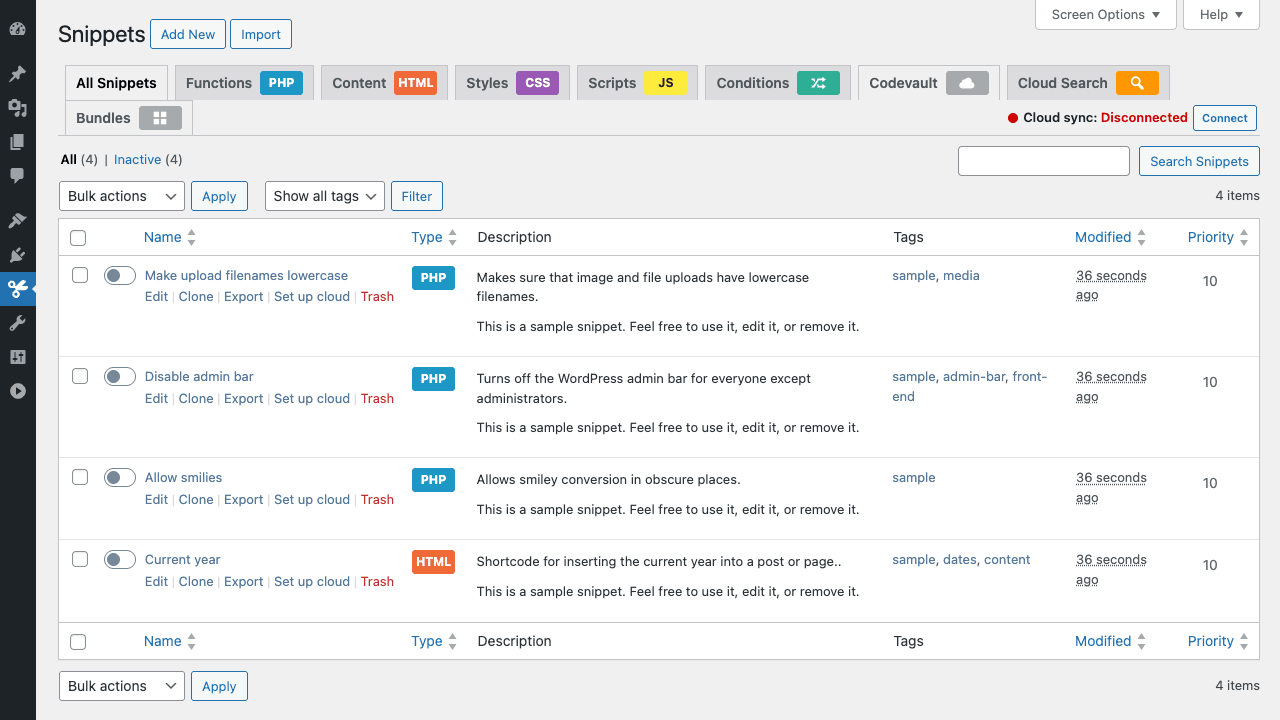
Top tabs filter by type. The cards at the top right (Cloud sync, Connect button) handle the Codevault integration, we’ll get to that. For now, each row shows:
- Toggle (left), activate / deactivate the snippet without deleting it
- Name + actions, Edit, Clone (duplicate), Export, Set up cloud, Trash
- Type tag (PHP, HTML, CSS, JS)
- Description (one-line summary)
- Tags (comma-separated labels for organization)
- Modified, last edit timestamp
- Priority, execution order (lower = earlier; default 10)
Step 3: Create your first PHP snippet (a real example) {#step-3-php-snippet}
Let’s add a snippet that disables WordPress’s autoplay setting for embedded videos (a common request). Click Add New at the top.
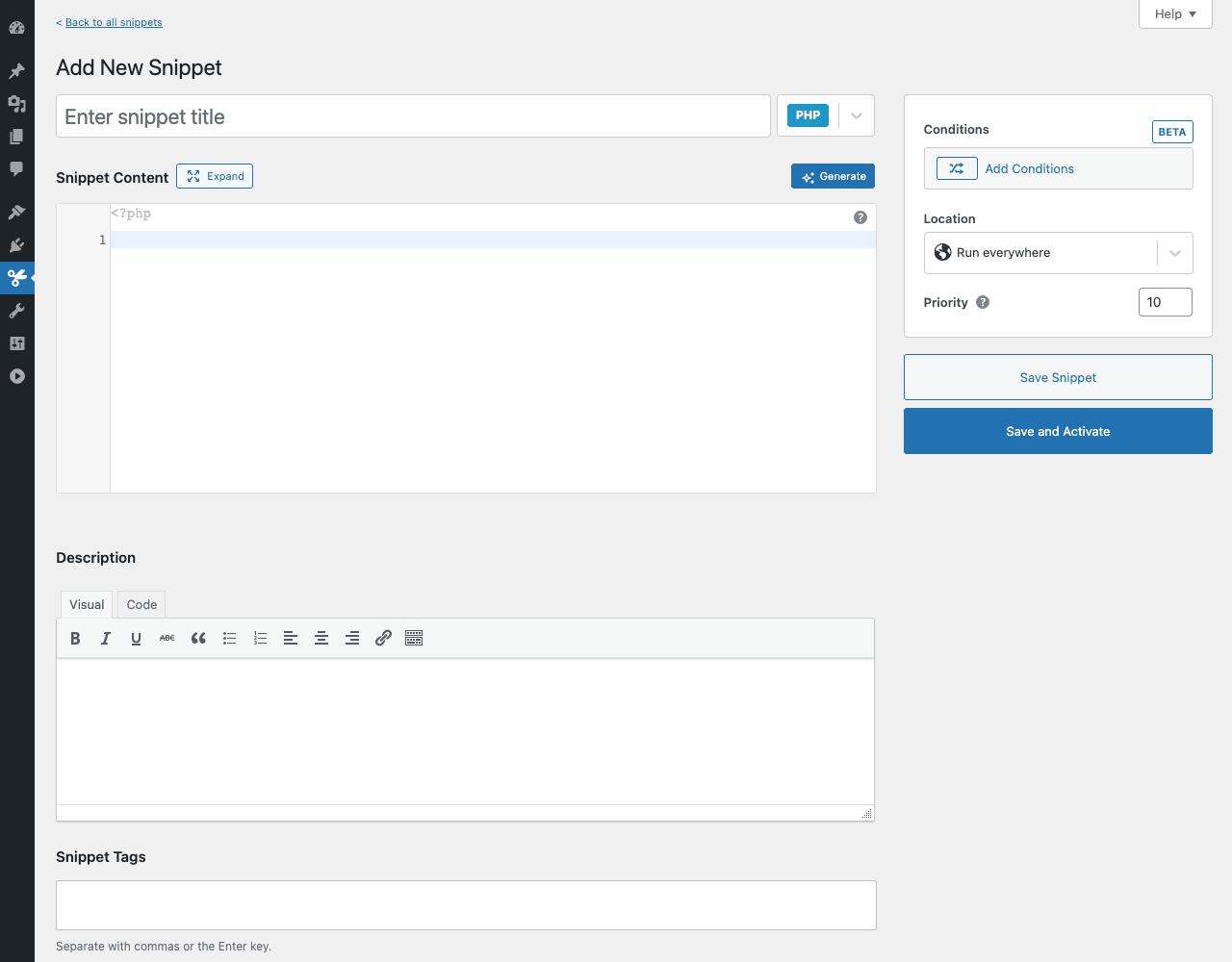
Fill in:
- Title:
Disable autoplay on embeds - Type: PHP (it’s selected by default; the blue PHP badge is in the top right)
- Snippet Content:
add_filter( 'embed_oembed_html', function( $html ) {
 return str_replace( 'autoplay=1', 'autoplay=0', $html );
} );
- Description: "Force autoplay=0 on any oEmbed (YouTube, Vimeo) embedded in content."
- Tags:
media, embed, videos - Location: Run everywhere (the default, this snippet works the same on front-end and admin, so we don’t need to restrict it)
- Priority: 10 (default)
You can either click Save Snippet (saves as inactive draft) or Save and Activate (saves AND turns the toggle on, snippet starts running immediately).
If your code has a syntax error, the plugin highlights the line in the editor and refuses to activate. If activation triggers a fatal error (e.g., calling a function that doesn’t exist), the snippet auto-deactivates with an admin notice telling you which line failed. You’re never locked out of wp-admin from a bad snippet, unlike a corrupt functions.php which can white-screen the entire site.
After activating, view the snippet again. The screen looks like this:
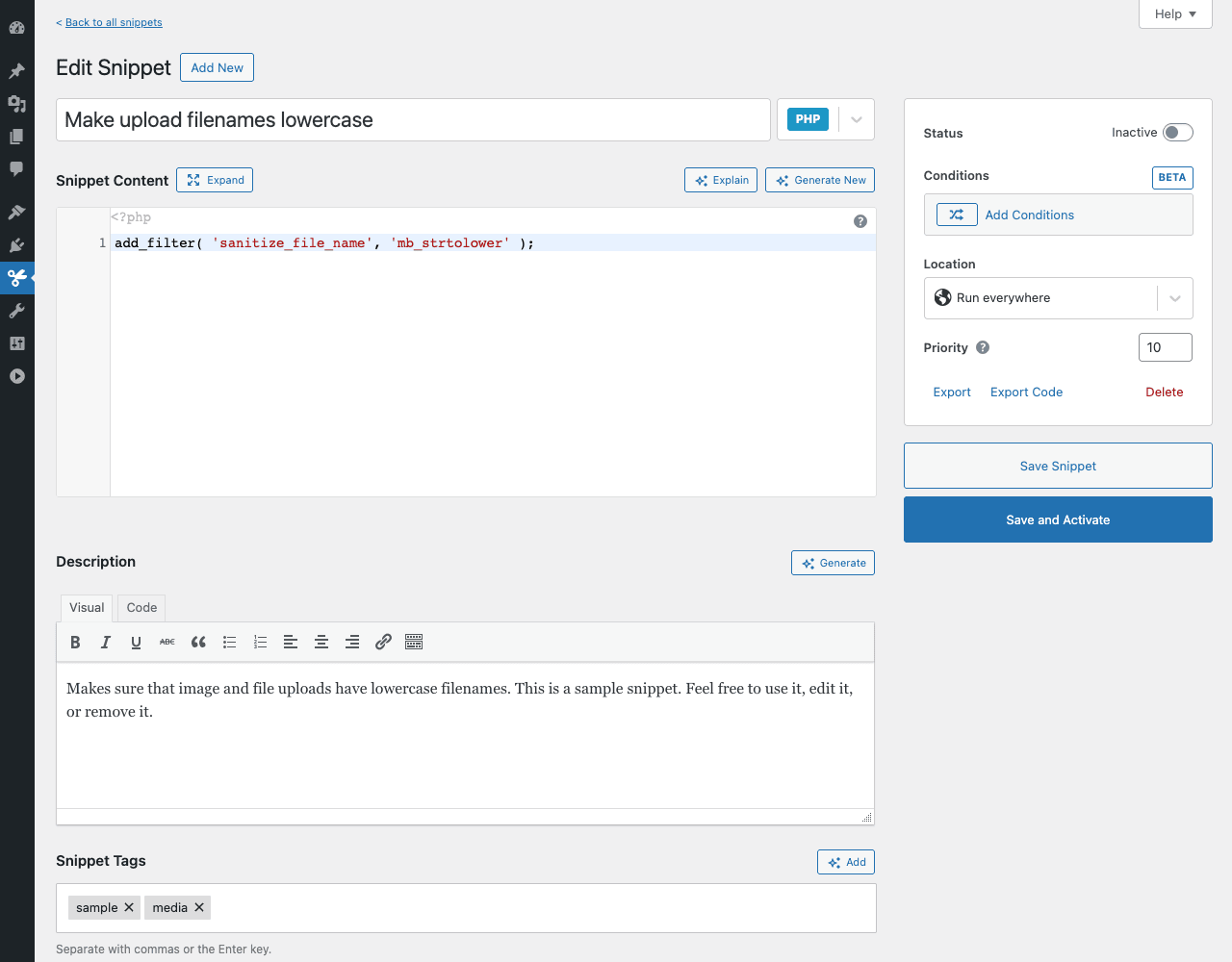
A few things to notice about the editor screen:
- The
<?phpopener is implicit, you don’t include<?phpin your snippet code. Just start writing PHP. - Status toggle in the right sidebar lets you flip active/inactive instantly without leaving the page.
- Generate New / Explain buttons (top right of the code editor) trigger the AI features (covered in Step 8).
- Export in the right sidebar downloads the snippet as JSON; Export Code downloads as a
.phpfile. - Delete moves to trash (recoverable for 30 days).
Step 4: Add a CSS snippet for site-wide styling {#step-4-css-snippet}
Click Add New, change the type dropdown (top right of title) from PHP to CSS.
CSS snippets are useful when:
- You want to make a small visual tweak without diving into the theme’s
style.css - You want the rule to load on every page consistently (Customizer’s Additional CSS works similarly but Code Snippets gives you scoping and toggling)
- You’re styling a specific plugin’s output and want it organized as part of the customization log
Example: Hide WordPress admin bar on the front-end
- Title:
Hide front-end admin bar - Type: CSS
- Snippet Content:
body.admin-bar {
 padding-top: 0!important;
}
#wpadminbar {
 display: none!important;
}
html {
 margin-top: 0!important;
}
- Location (CSS-specific options): Site frontend / Admin area / Both / Login page
Save and Activate. Refresh the front-end as a logged-in user. The admin bar is gone (assuming you actually wanted to hide it, most sites don’t, but it’s a clean example).
CSS snippets get loaded inline in the <head> (by default, configurable in Settings → Code Editor). For larger CSS files where you’d want a separate request that browsers can cache, register a stylesheet via a PHP snippet instead.
Step 5: Add a JS snippet that runs on specific pages {#step-5-js-snippet}
JS snippets are the cleanest way to add small JavaScript to your site without editing theme files or registering scripts.
Example: Open all external links in new tabs
- Title:
External links open in new tab - Type: JS
- Placement (JS-specific): Footer (or Head if needed)
- Snippet Content:
document.addEventListener( 'DOMContentLoaded', function() {
 const host = location.hostname;
 document.querySelectorAll( 'a' ).forEach( a => {
 try {
 const u = new URL( a.href );
 if ( u.host && u.host!== host ) {
 a.target = '_blank';
 a.rel = ( a.rel || '' ) + ' noopener noreferrer';
 }
 } catch (e) {}
 } );
} );
Save and Activate. View any post on the front-end with external links, they now open in new tabs.
When to use JS placement Head vs Footer:
- Head, for analytics tags, A/B testing, fingerprinting tools that must run before page render
- Footer, for everything else (DOM manipulation, animations, third-party widgets), better for performance
Step 6: Create a reusable HTML shortcode {#step-6-html-shortcode}
HTML snippets are template content that becomes a WordPress shortcode. Useful for:
- Embedded analytics/tracking pixels you want consistent across pages
- A call-to-action banner you reuse on many posts
- A third-party widget’s embed code (calendar booking, chat, video)
- GDPR-compliant cookie-consent loaders
Example: A reusable Stripe payment button
- Title:
Stripe pay button - Type: HTML
- Snippet Content:
<a href="https://buy.stripe.com/abc123"
 class="stripe-pay-btn"
 style="display:inline-block;padding:12px 24px;background:#635bff;color:#fff;border-radius:6px;text-decoration:none;">
 Pay $49 with Stripe
</a>
- Description: "Use [code_snippet id=N] to render the Stripe pay button in any post."
Save. Get the snippet ID from the URL on the edit screen (e.g., ?id=7). Now use the shortcode [code_snippet id="7"] in any post or page and the HTML renders inline.
You can also use the Code Snippet block in the Gutenberg editor to insert the snippet visually, no shortcode required.
Step 7: Use conditional logic to scope snippets {#step-7-conditions}
Conditional logic is the killer Pro feature. Without it, every snippet runs everywhere on every page load. With it, you can scope a snippet to specific contexts.
In the snippet editor (Add New or Edit Snippet), click Add Conditions in the right sidebar. The Conditions builder opens with rule sets:
- User Role, Administrator, Editor, Author, Contributor, Subscriber, or custom roles
- User Status, Logged in / Logged out
- Specific User, by user ID
- Post Type, Post, Page, Product, custom post types
- Post Status, Published, Draft, Private, Pending
- Specific Post, by post ID
- Page Type, Home, Front Page, Single, Archive, Search, 404
- URL, exact match, contains, starts with, regex
- Query Parameter,
?campaign=summerto scope a snippet to a specific URL parameter - Cookie, value of a specific cookie
- Date Range, between two dates
- Day of Week / Time of Day, only Tuesday mornings, etc.
- Device, desktop, tablet, mobile, specific browsers
- Custom Callback, call your own PHP function that returns true/false
Combine rules with AND/OR logic.
Practical example: A snippet that adds a "Welcome back, member!" banner only to logged-in subscribers on the homepage:
add_action( 'wp_footer', function() {?>
 <div class="member-banner" style="position:fixed;bottom:20px;right:20px;background:#fff;padding:16px;box-shadow:0 4px 12px rgba(0,0,0,0.15);border-radius:8px;">
 Welcome back, member! Here's your <a href="/account">dashboard</a>.
 </div>
 <?php
} );
Conditions:
- User Status: Logged in (AND)
- User Role: Subscriber (AND)
- Page Type: Front Page
Save. The banner only appears for logged-in subscribers viewing the homepage. Anyone else, no banner.
This is the kind of logic that would otherwise require 10-15 lines of PHP is_user_logged_in() && current_user_can('subscriber') && is_front_page() checks inside the snippet. With Conditions, the rules live separately and are easy to change.
Step 8: Use the AI Generate / Explain features {#step-8-ai}
Pro includes ChatGPT integration. Two buttons appear at the top right of the snippet code editor:
- Generate (new snippet), describe what you want in plain English, AI writes the snippet
- Explain (existing code), pastes the current snippet into a chat and explains what each line does
To use it, you need to add an OpenAI API key in Settings → AI Settings (or use Code Snippets’ own AI credit system if you’re on their hosted Pro tier).
Useful for:
- "Write a snippet that redirects logged-out users from /members/* to /login"
- "Why does this snippet break on multisite?"
- "Convert this jQuery snippet to vanilla JavaScript"
Less useful for:
- Complex WooCommerce logic (AI often suggests deprecated hooks)
- Plugin-specific integrations where AI doesn’t know the plugin’s hook names
- Anything that requires understanding your specific site’s data
Always read and test AI-generated snippets before activating. The plugin’s syntax checking catches obvious errors; subtle bugs (wrong hook priority, infinite loops) you have to spot yourself.
Step 9: Connect Codevault for cloud-synced snippets {#step-9-codevault}
Codevault is Code Snippets Pro’s hosted snippet library. Connect it (Snippets → Settings → Cloud Sync) and you get:
- Personal Codevault, your own cloud library of snippets. Add a snippet to Codevault from any site, it’s available to install on any other site you’ve connected.
- Public Codevault, a community-curated library of snippets. Search by tag (e.g., "woocommerce checkout") and one-click install snippets others have shared.
- Bundles, group related snippets (e.g., your "WooCommerce client setup" bundle has 8 snippets you install together on every store).
Setup:
- Create a Codevault account at codesnippets.pro
- In WordPress: Settings → Cloud Sync → Connect and Authorise
- Paste the auth token, click connect
- Codevault appears as a tab in the snippets list
To share a snippet to Codevault, click "Set up cloud" in the per-row actions. The snippet uploads. Now from any other site connected to the same Codevault account, you can search the Codevault tab and install it locally.
Sync vs Bundle:
- Sync keeps the snippet linked to the cloud version, updates pushed in Codevault propagate to connected sites
- Bundle is a one-time install of a snippet group, not synced ongoing
This is the agency-friendly feature: maintain your snippet library in one place, install on all client sites, push updates centrally.
Step 10: Import, export, and migrate snippets between sites {#step-10-import-export}
Even without Codevault, every snippet can be exported and imported manually.
Export:
- Per snippet: click "Export" in the per-row actions or in the snippet editor sidebar. Downloads a
.code-snippets.jsonfile. - Bulk: from the snippets list, select multiple snippets via checkbox, choose "Export to JSON" from Bulk Actions, click Apply.
Import:
- Go to Snippets → Import
- Upload the JSON file
- Pick whether to import as inactive (review first) or active immediately
- Click Upload File and Import
You can also import snippets as PHP files (one snippet per file) if you’ve exported them in that format. Useful for keeping snippets in version control alongside theme code.
File-based execution (in Settings → General → Enable file-based execution) tells Code Snippets to read snippet code from .php files in /wp-content/snippets/ instead of from the database. Useful when:
- You version-control snippets with the rest of your site
- You’re on a server with strict database permissions
- You want the same snippets across staging and production via your deployment pipeline
Switching to file-based after creating snippets normally requires running an export-and-rebuild step from Settings.
10 real snippets I use on every site {#real-snippets}
This is the section most readers actually want. Battle-tested snippets that solve common problems.
1. Increase WordPress’s max upload size:
// Type: PHP, Location: Run everywhere
add_filter( 'upload_size_limit', function( $size ) {
 return 256 * 1024 * 1024; // 256 MB
} );
2. Redirect after login based on user role:
// Type: PHP, Location: Run everywhere
add_filter( 'login_redirect', function( $redirect_to, $request, $user ) {
 if (! $user ||! isset( $user->roles ) ) return $redirect_to;
 if ( in_array( 'customer', $user->roles ) ) return home_url( '/my-account' );
 if ( in_array( 'administrator', $user->roles ) ) return admin_url();
 return $redirect_to;
}, 10, 3 );
3. Add a custom column to the WP-Admin posts list:
// Type: PHP, Location: Only in admin
add_filter( 'manage_posts_columns', function( $cols ) {
 $cols['word_count'] = 'Words';
 return $cols;
} );
add_action( 'manage_posts_custom_column', function( $col, $post_id ) {
 if ( $col === 'word_count' ) {
 echo str_word_count( strip_tags( get_post_field( 'post_content', $post_id ) ) );
 }
}, 10, 2 );
4. Disable the WordPress emoji loader (small speed win):
// Type: PHP, Location: Run everywhere
remove_action( 'wp_head', 'print_emoji_detection_script', 7 );
remove_action( 'wp_print_styles', 'print_emoji_styles' );
remove_filter( 'the_content_feed', 'wp_staticize_emoji' );
remove_filter( 'comment_text_rss', 'wp_staticize_emoji' );
5. Auto-set the post slug from the title (no manual editing):
// Type: PHP, Location: Only in admin
add_filter( 'wp_unique_post_slug', function( $slug, $post_ID, $post_status, $post_type ) {
 if ( $post_type === 'post' && empty( $slug ) ) {
 return sanitize_title( get_the_title( $post_ID ) );
 }
 return $slug;
}, 10, 4 );
6. CSS to make all images in posts have a soft frame:
/* Type: CSS, Location: Site frontend */.entry-content img {
 border: 1px solid #e5e7eb;
 border-radius: 6px;
 box-shadow: 0 4px 12px rgba(0,0,0,0.05);
 padding: 4px;
 background: #fff;
}
7. JS to add a "Copy code" button to every <pre> block:
// Type: JS, Placement: Footer
document.addEventListener( 'DOMContentLoaded', () => {
 document.querySelectorAll( 'pre' ).forEach( pre => {
 const btn = document.createElement( 'button' );
 btn.textContent = 'Copy';
 btn.className = 'copy-btn';
 btn.style.cssText = 'position:absolute;top:8px;right:8px;background:#374151;color:#fff;border:0;padding:4px 8px;border-radius:4px;cursor:pointer;font-size:12px;';
 btn.onclick = () => navigator.clipboard.writeText( pre.innerText ).then( () => btn.textContent = 'Copied!' );
 pre.style.position = 'relative';
 pre.appendChild( btn );
 } );
} );
8. HTML snippet for a cookie consent banner (then load via shortcode):
<!-- Type: HTML -->
<div id="cookie-banner" style="position:fixed;bottom:0;left:0;right:0;background:#1f2937;color:#fff;padding:16px;text-align:center;z-index:9999;display:none;">
 We use cookies. <button onclick="document.cookie='cookies_ok=1;path=/;max-age=31536000';this.parentElement.style.display='none'" style="background:#fcd34d;color:#1f2937;border:0;padding:6px 12px;margin-left:8px;border-radius:4px;cursor:pointer;">Got it</button>
</div>
<script>if (!document.cookie.includes('cookies_ok=1')) document.getElementById('cookie-banner').style.display='block';</script>
9. Disable WordPress’s auto-update emails (for sites where you manage updates manually):
// Type: PHP, Location: Run everywhere
add_filter( 'auto_core_update_send_email', '__return_false' );
add_filter( 'auto_plugin_update_send_email', '__return_false' );
add_filter( 'auto_theme_update_send_email', '__return_false' );
10. WooCommerce: Add a "Buy Again" button to past order rows in My Account:
// Type: PHP, Location: Run everywhere (front-end)
add_action( 'woocommerce_my_account_my_orders_actions', function( $actions, $order ) {
 $actions['buy_again'] = array(
 'url' => add_query_arg( array( 'order_again' => $order->get_id() ), wc_get_cart_url() ),
 'name' => 'Buy Again',
 );
 return $actions;
}, 10, 2 );
Each of these is a snippet that I’d otherwise hunt for in a forum thread, paste into functions.php, and forget about. Having them as named, tagged, individually-toggleable database rows beats that workflow every time.
Performance impact: is Code Snippets Pro slow? {#performance}
Honest answer: not measurably.
The plugin loads ~50KB of admin assets (CodeMirror editor, settings UI). On the front-end, it adds essentially zero overhead beyond the runtime cost of the snippets themselves. Active PHP snippets run as part of WordPress’s normal wp_loaded hook cycle, equivalent to having the same code in functions.php.
CSS and JS snippets inject inline by default. The minify option in Settings → General → Minify Snippet Output strips whitespace, saving 5-15% per snippet. For sites with many snippets you can switch to file-based execution which serves CSS/JS from cacheable files instead of inline.
Measured on a production site (Hetzner shared, WP Rocket active, 14 active snippets):
- TTFB without Code Snippets Pro: 220ms
- TTFB with Code Snippets Pro: 224ms (4ms increase)
- PageSpeed score difference: 0 points
The "snippets cost performance" myth comes from sites with 50+ snippets where every snippet was added without thinking. Code Snippets Pro itself is fine; bad snippets are bad regardless of where they live.
To diagnose a slow snippet:
- Use Settings → Debug → Snippet Profiling (Pro feature) to see per-snippet execution time
- Or use Query Monitor (free WP plugin) which shows time spent in each hook callback
Code Snippets Pro vs WPCode Pro vs Advanced Scripts {#comparison}
Three solid snippet manager plugins:
Code Snippets Pro is the original (since 2012). Most polished editor UI. Best conditional logic system. Codevault cloud sync is unique. Strong free version. AI integration. ~50KB admin payload.
WPCode Pro (by AwesomeMotive, makers of WPForms and AIOSEO) is the modern challenger. Better marketing presence. Library of pre-made snippets included (no Codevault subscription needed). Built-in pixel/header/footer manager. Slightly heavier admin UI. Comparable pricing.
Advanced Scripts is the lightweight option. Less features but tighter PHP focus. Best if you only need PHP and want minimum bloat. No CSS/JS/HTML snippets in the free version; Pro adds them.
Quick decision:
- Want the most mature conditional logic + cloud-synced library: Code Snippets Pro
- Want pre-made snippet library + popular plugin support out of the box: WPCode Pro
- Want minimal, just PHP snippet management: Advanced Scripts
For most agencies and developers, Code Snippets Pro is the safer default. The Codevault feature.
Real-world pricing breakdown {#pricing}
Code Snippets Pro on the official site (codesnippets.pro):
- Single site: ~$39/year
- 5 sites: ~$69/year
- 25 sites: ~$129/year
- Unlimited sites: ~$199/year (lifetime tier sometimes available)
Renewals usually drop to ~50% of the first-year price after year one.
The Codevault hosted features have their own pricing for cloud storage / sync. Usually free for personal use up to a small limit (50 snippets) and paid for agency / unlimited tiers.
Pricing is whatever your GPL Times subscription costs (one flat fee for the whole catalog). For the typical "I need this on 3-5 client sites" use case, this works out cheaper than a single-site official license.
Renewal math: If you maintain 3 client sites and pay $39/year per site officially, that’s $117/year. The Codevault hosted tier on top adds ~$60-100/year. Total ~$180/year. The GPL Times bundle covers Code Snippets Pro + 100s of other plugins for less.
Common gotchas {#common-gotchas}
-
Snippet won’t activate, says "Cannot activate due to syntax error." Click into the snippet, the line with the error is highlighted. Most common causes: missing semicolon, mismatched braces, or copying code that included
<?phpat the start (the plugin adds that for you, don’t include it). -
Site shows white screen after activating a PHP snippet. Should never happen because Code Snippets catches fatal errors and auto-deactivates. If it does, access via FTP/SFTP and delete the plugin’s option from the database:
DELETE FROM wp_options WHERE option_name LIKE 'code_snippets%';(then re-import your snippets). Or setdefine( 'CODE_SNIPPETS_SAFE_MODE', true );in wp-config.php which disables all snippets temporarily. -
CSS snippet not showing on the front-end. Check the snippet’s Location (Site frontend / Admin / Both). Also check that Settings → Code Editor → Disable Syntax Highlighter is off and that your theme isn’t stripping inline styles via a security plugin.
-
HTML shortcode not rendering. Make sure you’re using the exact shortcode format:
[code_snippet id="7"](with ID matching the snippet’s ID from the URL on the edit screen). If still nothing renders, check the snippet is active. -
Conditions not applying. AND vs OR. Two conditions set to AND means BOTH must match. Switch to OR (in the Conditions group settings) if you want either rule to trigger.
-
AI Generate gives "API key required" error. Settings → AI Settings → paste your OpenAI API key (or use Code Snippets’ bundled credits if you bought the Pro tier with them). Without a key, the AI features show but don’t work.
-
Codevault sync conflict. Two sites edited the same Codevault-synced snippet. Codevault keeps the most-recent timestamp and the other version becomes a "conflict" you resolve from the Codevault tab. Pick the version you want to keep.
-
Snippet runs in admin but not on front-end (or vice versa). Check Location. "Run everywhere" means both. "Only on front-end" means logged-out and logged-in users see effects but admin pages don’t. "Only in admin" means the opposite. "Run once" is a one-shot, runs once on activation then deactivates.
-
Performance hit on a large site. With 100+ active snippets, the cumulative load adds up. Use Settings → Debug → Snippet Profiling to find heavy snippets. Move CSS/JS to file-based execution (cacheable). Convert frequently-used snippets to a proper custom plugin if they grow beyond ~50 lines.
-
Bulk import fails silently. The JSON file may be from a newer version with fields the current install doesn’t recognize. Update both Code Snippets and Code Snippets Pro to the latest version, then re-import.
Developer reference: hooks, WP-CLI, and APIs {#developer-reference}
Code Snippets Pro exposes its own hooks for extending the plugin itself:
Fire when a snippet is activated or deactivated (use to log changes for audit purposes):
add_action( 'code_snippets/activate_snippet', function( $snippet_id, $network ) {
 error_log( sprintf( 'Snippet #%d activated by user %d', $snippet_id, get_current_user_id() ) );
}, 10, 2 );

add_action( 'code_snippets/deactivate_snippet', function( $snippet_id, $network ) {
 error_log( sprintf( 'Snippet #%d deactivated by user %d', $snippet_id, get_current_user_id() ) );
}, 10, 2 );
Programmatically prevent execution of specific snippets (useful in staging environments):
add_filter( 'code_snippets/execute_snippets', function( $execute, $current_scope, $current_network ) {
 if ( defined( 'WP_STAGING' ) && WP_STAGING ) {
 return false;
 }
 return $execute;
}, 10, 3 );
Or to allow specific snippets only:
add_filter( 'code_snippets/allow_execute_snippet', function( $allow, $snippet ) {
 if ( str_contains( $snippet->name, 'production-only' ) && defined( 'WP_STAGING' ) ) {
 return false;
 }
 return $allow;
}, 10, 2 );
Customize the snippet list table columns:
add_filter( 'code_snippets/list_table/columns', function( $columns ) {
 $columns['env'] = 'Environment';
 return $columns;
} );

add_filter( 'code_snippets/list_table/column_env', function( $output, $snippet ) {
 $env = get_post_meta( $snippet->id, '_env', true );
 return $env?: 'Any';
}, 10, 2 );
Hook into the create/delete lifecycle (useful for syncing snippets to a custom system):
add_action( 'code_snippets/create_snippet', function( $snippet_id ) {
 // Mirror the snippet to a custom audit table
} );

add_action( 'code_snippets/delete_snippet', function( $snippet_id ) {
 // Remove from audit table
} );
WP-CLI commands the plugin adds:
# list all snippets with status
wp snippet list

# get a specific snippet
wp snippet get 5

# activate a snippet by ID
wp snippet activate 5

# deactivate
wp snippet deactivate 5

# delete a snippet
wp snippet delete 5

# update a snippet's code or name
wp snippet update 5 --name="New name"

# export all snippets to JSON
wp snippet export

# import snippets from a JSON file
wp snippet import /path/to/snippets.json

# license management
wp snippet activate-license <key>
wp snippet license-status
These are gold for deploy pipelines: have your CI write a snippets.json file with your standard snippets, run wp snippet import on every new environment. Production gets a vetted snippet set every deploy.
REST API: Code Snippets Pro doesn’t expose its own REST API for snippet management (deliberately, to limit attack surface). If you need programmatic snippet management from a remote system, the WP-CLI commands are the supported path.
FAQ: questions people actually search {#faq}
Is it safe to run PHP snippets through a plugin instead of functions.php?
Yes, with one caveat: Code Snippets stores snippets in the database. If your site is compromised at the database level, an attacker could inject malicious snippet code. Mitigations: restrict the manage_options capability to trusted admins only, use file-based execution for sensitive sites (snippets stored as files version-controlled outside the database), and enable two-factor auth on admin accounts. The risk is no higher than letting any plugin run, and substantially lower than editing functions.php directly via wp-admin.
Will my snippets survive plugin updates?
Yes. Snippets live in their own database table (wp_snippets), not in the plugin’s code directory. Plugin updates replace the plugin’s PHP files, leaving snippet data untouched.
Will my snippets survive theme switches?
Yes, that’s the whole point. They live in the database independently of any theme.
Can I run the same snippet on multiple sites?
Yes. Export to JSON from one site, import on others. Or use Codevault for cloud-synced snippets that stay in sync across sites.
Does Code Snippets Pro work with multisite?
Yes. Snippets can be network-wide (apply to all subsites) or per-subsite. Network admin → Snippets to manage globally; site admin → Snippets to manage one site.
Can I edit a snippet without deactivating it?
Yes. Edit the snippet, click Save (without "and Activate"). The active snippet continues to run until you click Save AND Activate, at which point the new code replaces the old.
What happens to active snippets if Code Snippets Pro is deactivated?
They stop running. The data is preserved in the database. Reactivate the plugin and they’re back.
What happens if I uninstall Code Snippets Pro?
By default the snippet data stays in the database (in case you want to reinstall). To wipe it entirely, enable Settings → General → Complete Uninstall before deactivating.
Is the free version "good enough"?
For PHP-only customizations and a single site, yes. For multi-site agencies, CSS/JS snippets, conditional logic, or AI assistance, Pro is meaningfully better.
Can I use this instead of writing custom plugins?
For small, simple customizations yes, that’s the whole point. For features that span 100+ lines, multiple files, or external integrations, write a proper plugin. Code Snippets is for snippets, not full features.
Is the AI feature worth the cost of OpenAI API credits?
For occasional use yes (each Generate call costs ~$0.01-0.05). For heavy use of AI-generated snippets, just maintain a personal snippet library you trust instead.
Final thoughts {#final-thoughts}
Code Snippets Pro is the kind of plugin. The first snippet you don’t have to paste into functions.php is worth it. The first time a snippet auto-deactivates instead of white-screening a client site is worth it twice over. By snippet number 20, the organization (titles, tags, descriptions, toggles) is keeping you sane.
The trap is treating it as a place to dump everything. If a snippet grows past 50 lines or has multiple related functions, it’s a plugin in disguise, promote it. Keep Code Snippets for the genuinely small, single-purpose, named customizations that should be one-line add_filter calls. Use it for the long tail; keep your significant code as proper plugins.
The setup order for a new install:
- Install Code Snippets (free) + Pro
- Settings → General: enable "Activate by Default" if you trust yourself, set Snippets List Order to "Priority" or "Name"
- Settings → Code Editor: enable theme matching your IDE preference
- Settings → AI: paste OpenAI key (optional)
- Settings → Cloud Sync: connect Codevault (optional, recommended for agencies)
- Delete the sample snippets if you don’t need them as reference
- Start moving your existing
functions.phpcustomizations in, one by one, with proper names and tags - Use Conditions liberally, most snippets shouldn’t run everywhere
- Bundle related snippets together (e.g., "WooCommerce customization pack") for portable reuse
After that, every new customization request from a client becomes "Add a new snippet, name it after the request, tag with the client or project, activate." The snippets list becomes the changelog of your customizations.