

Every long-lived WordPress site collects database junk. Old post revisions, expired transients that never got swept, post meta rows for plugins you removed two years ago, cron jobs pointing at functions that no longer exist. Most of it is harmless individually. Added up over a couple of years, it makes wp_options larger than it needs to be, slows down meta queries, and turns admin pages into a small wait.
Advanced Database Cleaner is a plugin built around that one problem. It scans every cleanup-able corner of a WordPress database, shows you exactly what is in there, and lets you delete it (or schedule deletion) without writing SQL. This is a long walkthrough of what the plugin actually does, where it fits next to bigger all-in-one tools, and what to expect when you point it at a database that hasn’t been touched in years.
Table of contents
- What Advanced Database Cleaner is
- Core features
- The 28 cleanup categories
- Installing and first setup
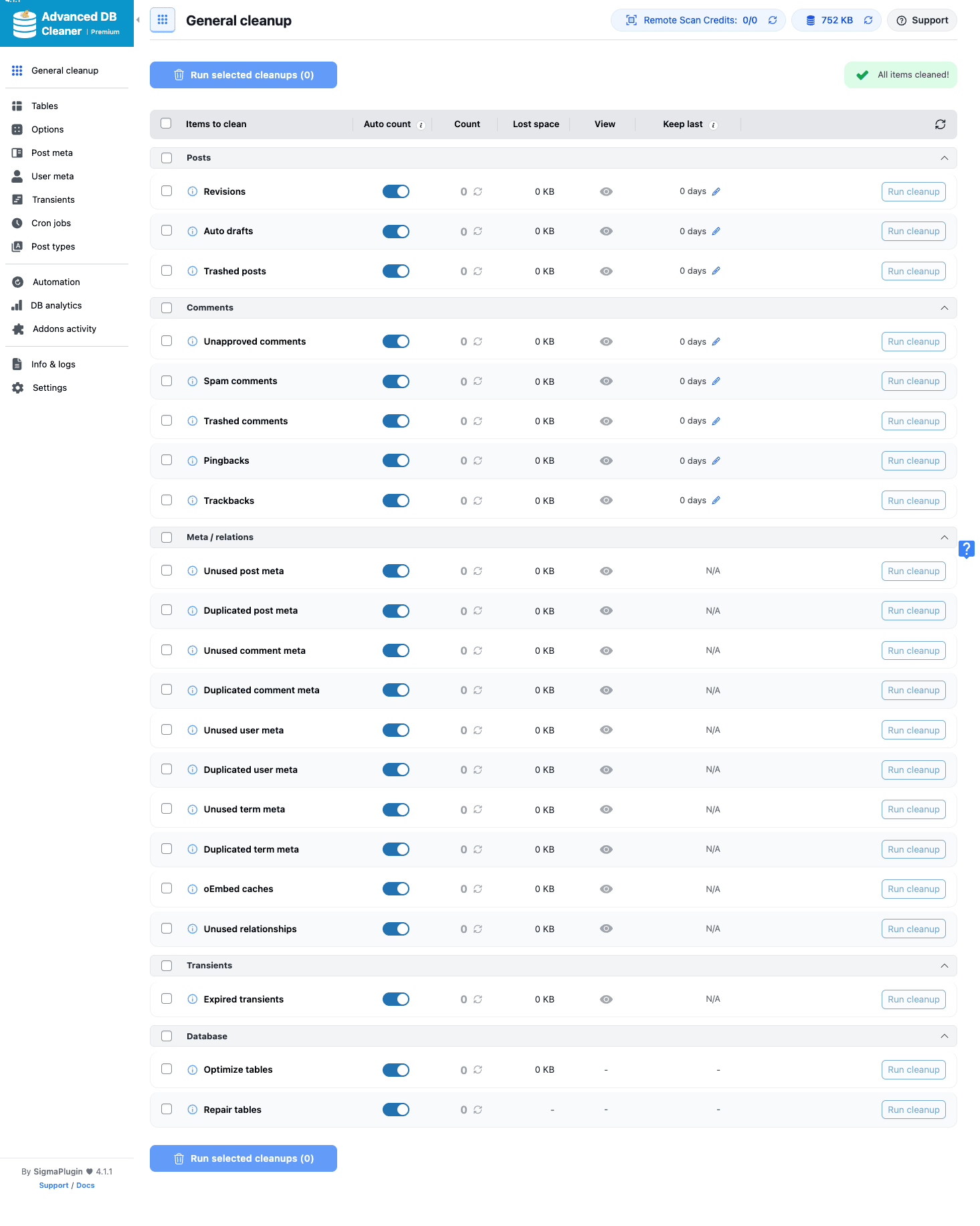
- The General cleanup tab in detail
- Tables tab: optimize, repair, drop
- Post meta and user meta forensics
- Transients and the autoload problem
- Cron jobs and orphans
- Scheduled automation
- DB analytics and growth tracking
- Settings worth knowing about
- Developer reference
- Real-world use cases
- Performance, compatibility, and gotchas
- How it compares to WP-Optimize and WP Sweep
- Pricing and licensing
- Frequently asked questions
- Final thoughts
What Advanced Database Cleaner is
Advanced Database Cleaner is a WordPress maintenance plugin by SigmaPlugin. The free version has been on the official plugin directory for over a decade and is one of the more downloaded DB tools on wordpress.org/plugins/advanced-database-cleaner/. The Premium build adds scheduled automation, DB growth analytics, addon attribution, and a few extra deep-scan tools.
What it is not: a caching plugin, an image optimizer, or a backup tool. If you want all three plus DB cleanup in one box, WP-Optimize Premium covers that whole stack. Advanced Database Cleaner is the opposite philosophy: do one thing thoroughly. The result is a UI that knows about 28 distinct kinds of DB clutter (versus the 8 or 9 most plugins handle) and surfaces them in tabs with row counts, size estimates, and one-click deletion.
The plugin is built as a React single-page admin that talks to its own REST namespace. That means the UI feels modern, scans are paginated and don’t lock up the browser, and everything you do in the interface (delete a meta row, optimize a table, set up an automation) goes through nonce-protected REST endpoints rather than the older admin-post POST style. The whole admin lives under one menu item, WP DB Cleaner, with 13 tabs in a left rail.
Authorship and trust matter here because you’re letting a plugin run DELETE queries against your live database. SigmaPlugin (the maker) has been shipping this for years, the free version has a healthy WP.org review history, and the code structure shows the usual signs of a mature plugin (separate model/endpoint/utility classes, capability-gated REST routes, multisite awareness, dry-run preview before destructive operations). It’s not a hobby plugin.
Core features
- General cleanup matrix with 28 categories. Revisions, auto-drafts, trashed posts, spam comments, trashed comments, unapproved comments, pingbacks, trackbacks, duplicated post/comment/user/term meta, unused post/comment/user/term meta, oEmbed caches, expired transients, unused relationships, tables to optimize, tables to repair, and seven Action Scheduler categories.
- Per-category row counts and disk-size estimates before you delete anything.
- Tables tab showing every table in the database with size, row count, storage engine, and per-table optimize / repair / drop / convert-to-InnoDB actions.
- Post meta and user meta forensic view. Filter to unused, duplicated, or big meta entries. See exactly which keys are growing.
- Options scanner that flags large autoloaded options, the single biggest cause of slow admin pageloads on older sites.
- Transients scanner that separates expired from valid, with a one-click sweep of just the expired ones.
- Cron jobs scanner that flags hooks with no callback (orphans left by uninstalled plugins) and lets you delete them.
- Post types tab that counts posts grouped by post_type, including invalid types (post_type registered by a plugin that no longer exists).
- Scheduled automation (Premium). Pick any combination of cleanup categories, set a frequency, choose a start time. It runs via WP-Cron.
- DB analytics (Premium). Daily database-size sampling, plotted as a chart so you can see whether growth is healthy or runaway.
- Addons activity (Premium). Attempts to attribute orphan DB items to the plugin or theme that created them.
- Multisite support for the network’s main site, with a separate network-admin menu for super admins.
The 28 cleanup categories
This list lives in the plugin’s ADBC_Cleanup_Type_Registry. Every one of these is a separate row in the General cleanup tab, with its own count, size, and Run cleanup button:
| Group | Categories |
|---|---|
| Posts | Revisions, Auto-drafts, Trashed posts |
| Comments | Unapproved comments, Spam comments, Trashed comments, Pingbacks, Trackbacks |
| Meta (unused) | Unused post meta, Unused comment meta, Unused user meta, Unused term meta |
| Meta (duplicated) | Duplicated post meta, Duplicated comment meta, Duplicated user meta, Duplicated term meta |
| Caches | oEmbed caches, Expired transients |
| Relationships | Unused term relationships |
| Tables | Tables to optimize, Tables to repair |
| Action Scheduler | Completed actions, Failed actions, Canceled actions, Completed logs, Failed logs, Canceled logs, Orphan logs |
If you’ve ever run a WooCommerce store for a year or two, the Action Scheduler logs alone are usually worth several hundred MB. WooCommerce, Action Scheduler-based mailers, sync plugins, and most modern WP plugins use it as their background queue, and the completed-action history piles up fast.
Installing and first setup
Installation is the standard WordPress flow.
- Download the plugin zip and go to Plugins -> Add Plugin -> Upload Plugin in the admin.
- Pick the zip, click Install Now, then Activate.
- After activation, a new top-level menu item called WP DB Cleaner appears in the left sidebar (it’s also linked from the Tools menu, for people who expect to find DB tools under Tools).
- The Premium build asks you to paste a license key on the Settings tab. The free version skips this step.
The first time you open the General cleanup tab, you’ll see the matrix but most counts will be zero or a small placeholder. That’s because heavy categories (post meta, user meta) are gated behind a manual "Start a scan" button until you’ve explicitly enabled auto-count for that category. The reason is simple: on a site with 200,000 posts, blindly counting unused post meta on every pageload would make the admin unusable. The plugin defaults to safe.
The most important habit to form before running anything for the first time: take a full backup. The plugin’s deletions are real DELETEs, not soft-trashes. If you don’t already have a backup workflow, the Duplicator Pro migrate-or-clone walkthrough or the Solid Backups review on this site walk through two solid options. Pick one, take a backup, then come back.
The General cleanup tab in detail
The General cleanup tab is the headline feature. Every category sits in a row with five columns: a checkbox, the category name, an "Auto count" toggle, the current row count, the disk space estimate, a "View" button to inspect what would be deleted, and a "Keep last" control plus a per-row "Run cleanup" button.
Three things in that row are worth understanding.
Auto count is the toggle for whether the plugin should count this category automatically every time the page loads. On a fresh small site you can flip everything on. On a large site, leave the heavy ones off and trigger them with the "Start a scan" button when you actually want a number. The threshold inside the plugin is 50,000 rows, which is the size at which the counting query starts to feel slow.
View shows you exactly what would be deleted, paginated, before you delete it. For revisions, that’s the list of revision rows with parent post titles. For unused post meta, the list of orphan rows with the meta_key, meta_value, and the missing post ID. You can spot-check a few entries here before pulling the trigger.
Keep last is a per-category retention setting. The classic use is revisions: "Keep the last 5 revisions per post, delete the rest." Set it to 5, run cleanup, and the plugin keeps the most recent 5 revisions for each post and deletes everything older. Same control is available for trashed posts ("keep posts trashed less than N days").
At the top of the matrix is a master "Run selected cleanups" button. Tick a handful of categories, pick the ones you trust, and click run. The plugin processes them in batches in the background, with a live progress bar.
Tables tab: optimize, repair, drop
The Tables tab is the part most other DB plugins don’t do at all. It lists every table in your WordPress database (including non-core ones added by plugins, themes, and your own custom code) with:
- Table name
- Row count
- Disk size (data + index)
- Storage engine (InnoDB / MyISAM)
- Overhead (the fragmentation MySQL reports)
- Whether it "Belongs to" WordPress core, a recognized plugin, a recognized theme, or "Unknown" (orphans)
The tab has filter pills at the top: All tables, Orphans, Plugin tables, Theme tables, WP tables, Not scanned.
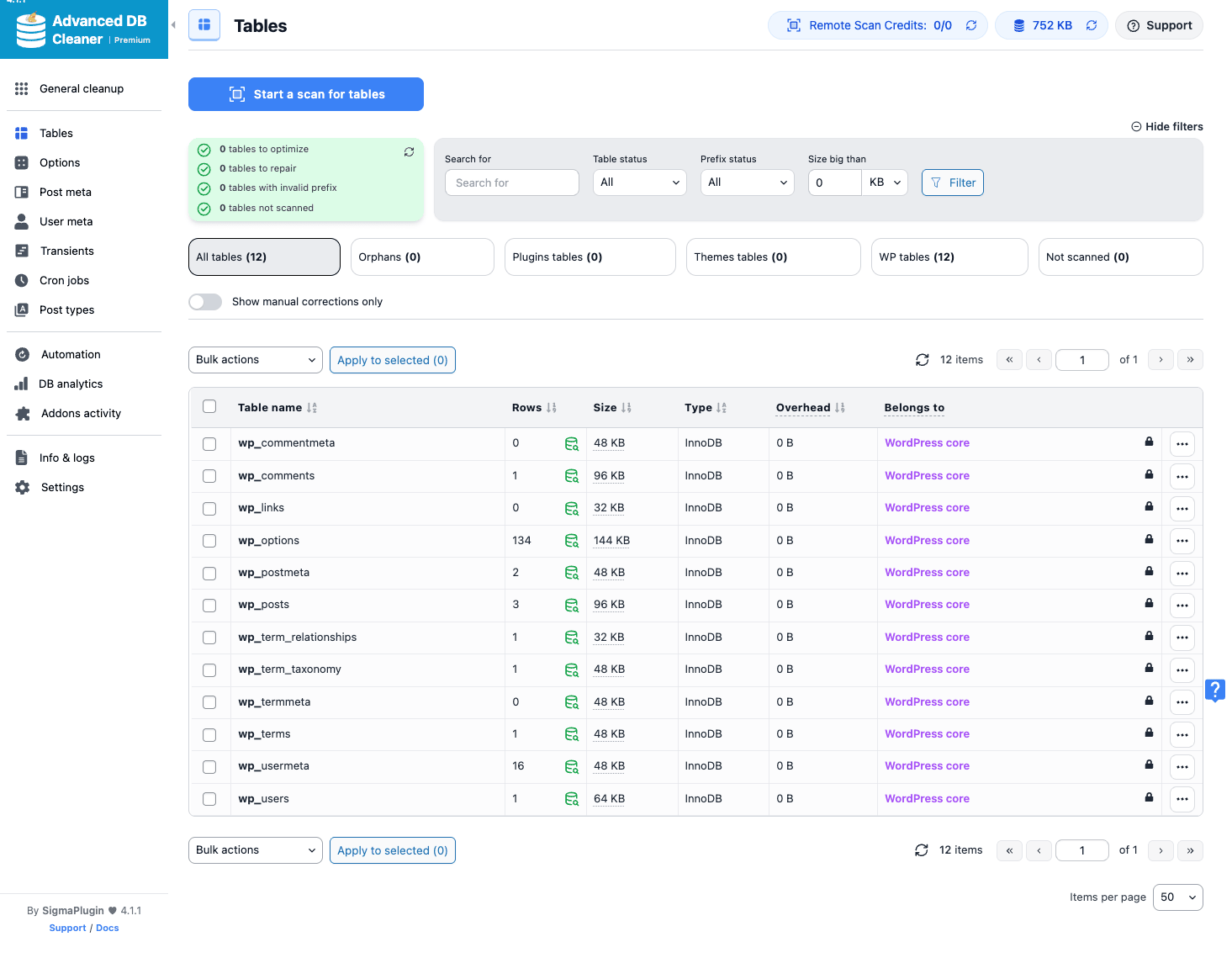
The Orphans filter is the magic one. If you’ve ever uninstalled a plugin that created its own tables (Yoast SEO’s index tables, an old caching plugin, a custom CRM addon) without that plugin cleanly dropping its tables on uninstall, those tables are still sitting in your database years later, taking up space, included in every backup. The plugin scans your active plugins and theme code, matches table prefixes against them, and shows you what’s left over.
Bulk actions on this tab let you:
- Optimize tables. Runs
OPTIMIZE TABLEon the selected tables, which reclaims overhead space and rebuilds the index. Safe. - Repair tables. Runs
REPAIR TABLE. MyISAM only, mostly useless on modern InnoDB installs but still here for legacy databases. - Convert to InnoDB. Changes the storage engine. Useful if you inherited a site from cPanel-era hosting and some tables are still MyISAM.
- Empty tables. Truncates the rows but keeps the structure.
- Delete tables. Drops the table entirely. Use this on orphans, never on
wp_optionsorwp_posts.
The plugin’s table classifier isn’t perfect, sometimes it’ll flag a custom table created by your own theme’s functions.php as "Unknown" because it didn’t find the dbDelta call in the right place. Always click into an unknown table and look at the data before dropping it. The "Get table structure" and "Get table rows" buttons on the row actions menu let you peek without ever leaving the admin.
Post meta and user meta forensics
The Post meta and User meta tabs are the same pattern: scan, classify, filter, delete.
The categories the plugin breaks meta into:
- All, every row in
wp_postmetaorwp_usermeta. - Orphans, meta rows whose
post_idoruser_idno longer exists in the corresponding table. - Plugin meta, rows whose
meta_keymatches a pattern the plugin associates with a known plugin (e.g._wp_attachment_*for core,_woocommerce_*for WooCommerce,_yoast_wpseo_*for Yoast). - Theme meta, similar but for theme-prefixed keys.
- WP meta, core WordPress keys.
- Unknown, meta keys that don’t match any registered plugin or theme. Often the leftover of a removed plugin that wrote its own meta.
A scrollable table at the bottom shows the actual rows, with the meta key, a peek at the value, the size, the post or user ID, and which plugin or theme it belongs to.
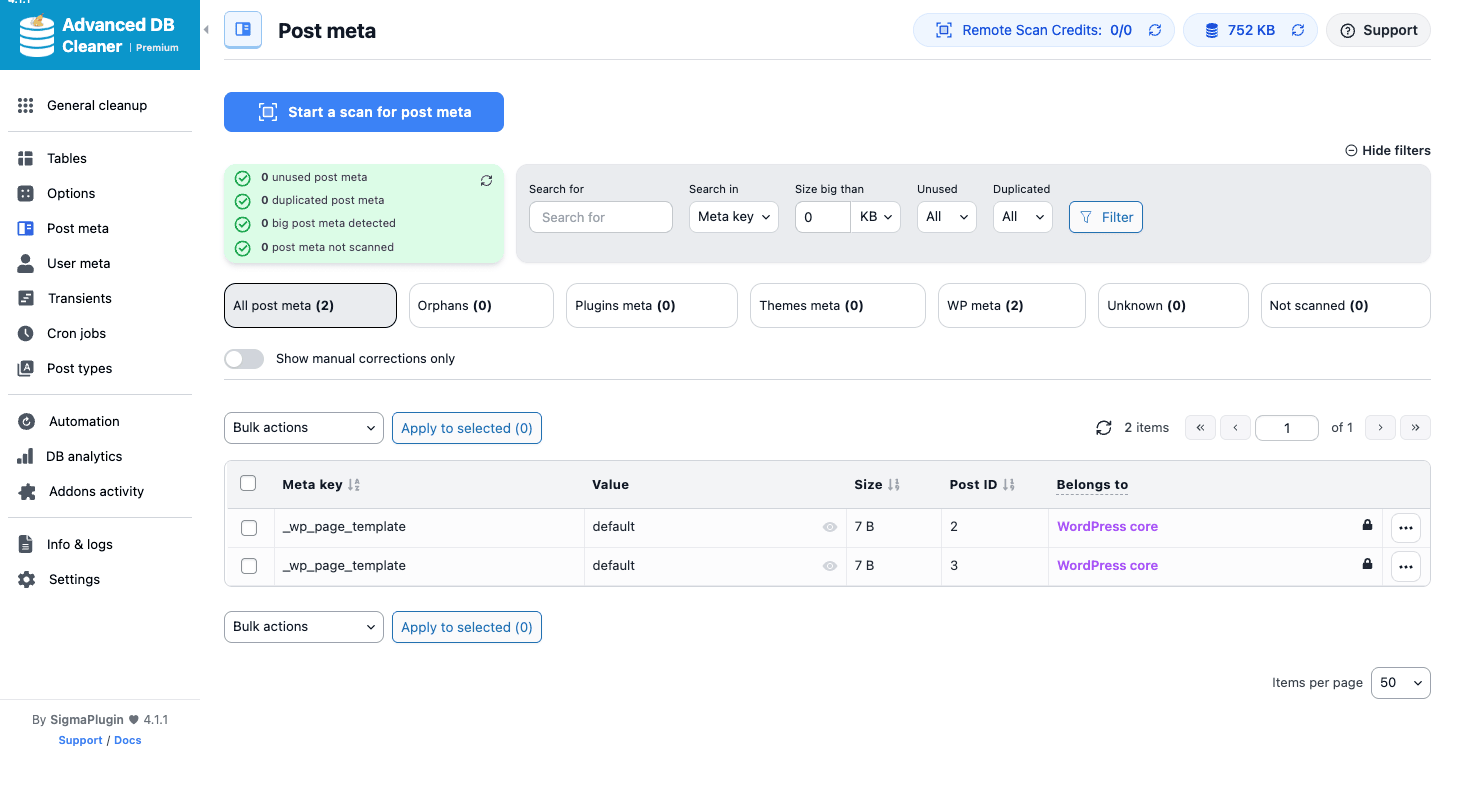
The duplicated detection is particularly useful. If a buggy plugin wrote the same meta key for the same post twice with different values, you’ll see both rows here and can decide which to keep.
A practical pattern on an older site: filter to Orphans, sort by Size descending, look at the top 20 meta keys, and you’ve usually identified one or two plugins that wrote a lot of post meta and were uninstalled without cleaning up. Deleting all of that orphan meta in one go is often the single biggest space win available on a long-lived WordPress site.
The big-meta filter is a separate axis. The plugin lets you say "show me only meta values larger than N KB" so you can find the rare post meta entry that stores a 200 KB blob of serialized JSON.
Transients and the autoload problem
WordPress transients live in the wp_options table (the non-object-cache kind, anyway). Every plugin that wants to cache an API response for an hour stores it here. The problem is that plugins are not always disciplined about cleaning up expired transients, and the wp_options autoload setting means a chunky transient with autoload = yes gets loaded into PHP memory on every WordPress request.
The plugin’s Transients tab splits the analysis into:
- All transients, every transient currently in
wp_options. - Expired transients, transients whose
_transient_timeout_*companion row says they should have been deleted already. - Plugin transients / theme transients, categorized by prefix.
- Big transients, anything over a configurable size threshold.
For each row, the plugin shows the value size and the autoload setting. You get a one-click "Set autoload to no" button per row, and the same for the bulk actions.
This is also where the Options tab. Click into Options and use the "Big options" filter. The plugin shows you every option larger than N KB and tells you whether it’s currently autoloaded. The "Get autoload health" endpoint produces a single number, the total size in bytes of all autoloaded rows in wp_options, and tells you whether you’re over WordPress’s recommended limit. If you are, the most common fix is to find the two or three biggest autoloaded options and switch their autoload setting to "no" without deleting them.
If you’ve never looked at this before, the moment you see what an old install actually autoloads is a small revelation. A site I checked last week had 11 MB of autoloaded options, half of which was a single plugin’s cached API response that should never have been autoloaded in the first place.
Cron jobs and orphans
The Cron jobs tab shows every WP-Cron hook currently scheduled on the site. Five filter pills:
- All cron jobs
- Orphans (hooks with no registered callback)
- Plugins cron jobs
- Themes cron jobs
- WP cron jobs
- Not scanned
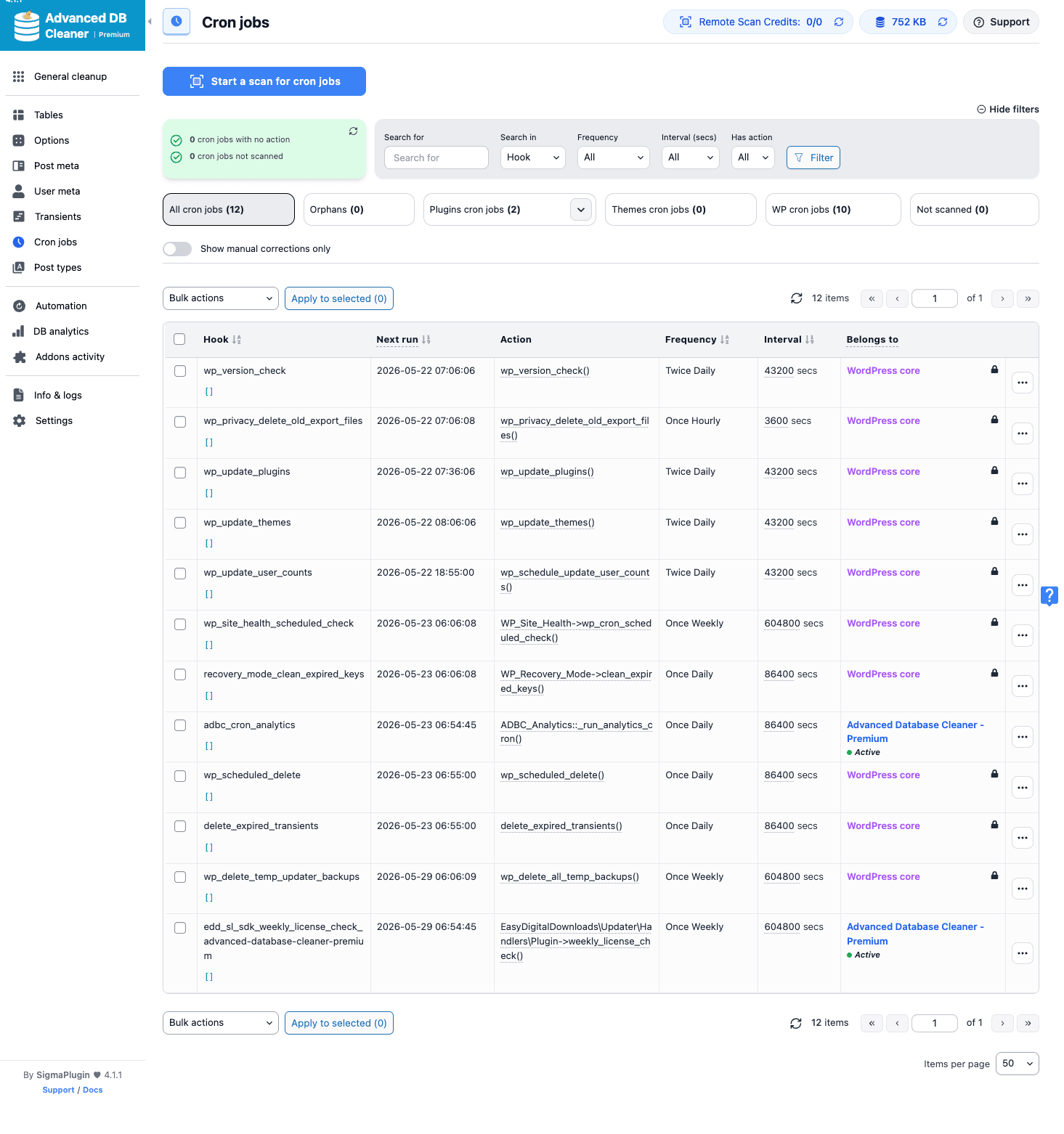
The Orphans filter is the interesting one. WordPress doesn’t automatically delete a scheduled cron event when the plugin that registered it is deactivated or removed. The hook stays in the wp_options row called cron, WP-Cron tries to fire it on every cycle, and the call goes nowhere because there’s no add_action() for that hook anymore. It’s not catastrophic, but on a server with hundreds of orphan cron entries, the WP-Cron lookup takes longer than it should.
The plugin’s Orphans filter shows you exactly which hooks have no callback. Bulk-select, delete. The cron table shrinks immediately.
For each row in the Cron jobs table you see the hook name, the next run time, whether there’s an add_action callback bound to it, the frequency, the interval in seconds, and which plugin or theme owns it. The "Belongs to" attribution uses the same registry approach as the meta and tables tabs.
Scheduled automation
This is the Premium tab that justifies most of the upgrade cost. Rather than manually clicking Run cleanup once a month, you create automation tasks that fire on a schedule.
The form has four parts: the task name, the items to clean (any combination of the 28 cleanup categories), the actions to do (Optimize tables, Repair tables, or just delete), and the schedule.
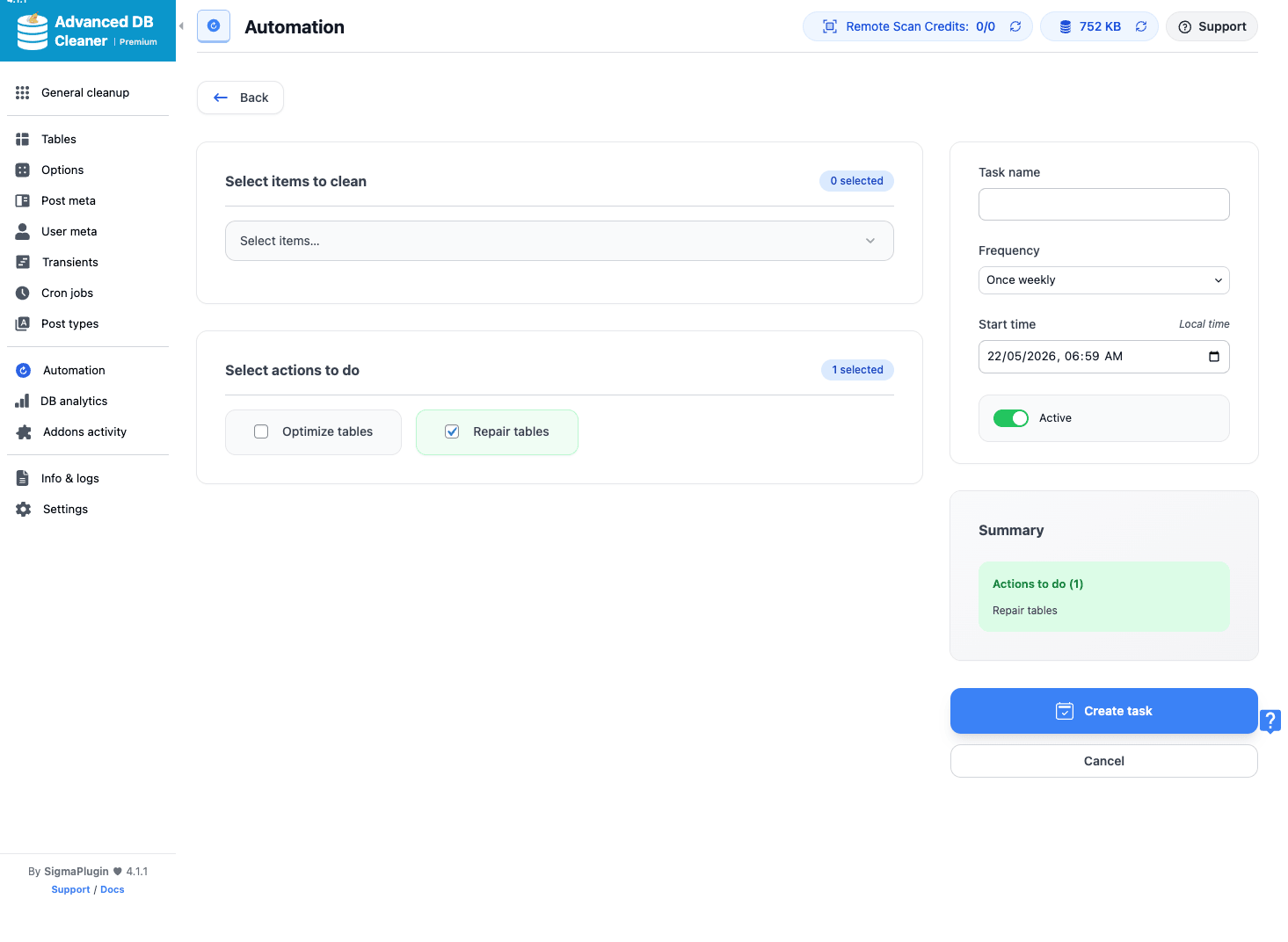
Frequencies available:
- Once only (one-shot)
- Hourly
- Twice daily
- Daily
- Weekly
- Monthly
The custom schedules are registered via WordPress’s cron_schedules filter, so they’re real WP-Cron intervals. The actual cleanup runs through a hook called adbc_cron_automation with the task ID as an argument. If you’ve already replaced WP-Cron with a real system cron on your server (which I’d recommend for any reasonably busy site), the automation tasks will run on your system cron schedule and not whenever a visitor happens to hit the site.
A typical setup for a content site:
- Weekly task: Revisions (keep last 5), Auto-drafts, Trashed posts (older than 30 days), Spam comments, Trashed comments, Expired transients, oEmbed caches.
- Monthly task: All Action Scheduler completed actions and logs, Unused post meta, Unused term relationships, Optimize all tables.
Set the weekly to run at 3am on Sunday, the monthly to run on the 1st of every month at 4am. Forget about it. The DB stays clean and the only manual work is reviewing the Info & logs tab once a quarter.
The plugin doesn’t currently email a cleanup report after each automated run (a feature I’d like to see added). It does log every run to its internal log, which you can inspect from the Info & logs tab.
DB analytics and growth tracking
The DB analytics tab is the other big Premium feature. It samples the database size and table count once a day (via the adbc_cron_analytics cron hook) and plots both as a chart. Last 30 days by default, but you can switch to a custom date range and a daily-vs-monthly view.
Why it matters: cleanup is reactive. Analytics is proactive. If your database grew by 40% in the last 60 days and you didn’t add a corresponding amount of content, something is wrong. Maybe a plugin is logging excessive data. Maybe Action Scheduler is backed up. Maybe the WooCommerce orders table doubled because you ran a 50%-off sale. The chart tells you to investigate.
There’s a Tables analytics sub-tab that breaks growth down by individual table. If wp_postmeta is the line that’s been climbing, that’s where to start. Pair this with the Post meta filter for "big meta" and you’ve got the answer in two clicks.
The chart data lives in the plugin’s own options (not in a separate table), so the history is portable in a backup but does add a small amount of weight to wp_options over time. If you don’t want analytics at all, the Settings tab has a toggle to disable it and the daily cron hook will stop firing.
Settings worth knowing about
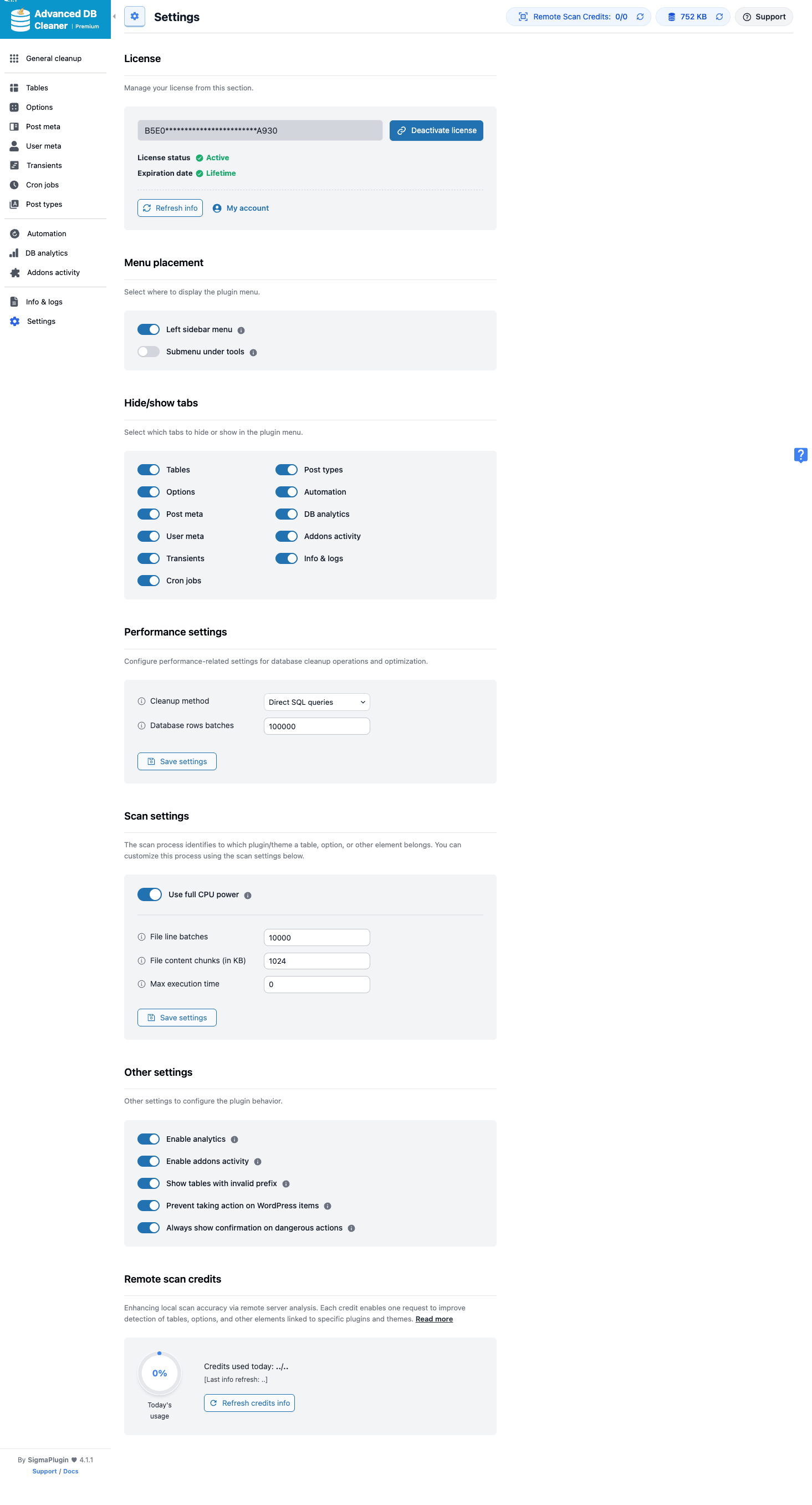
The Settings tab is where you’d expect: License, Menu placement (left sidebar vs Tools submenu vs hidden), Hide/show tabs (you can hide tabs you’ll never use to reduce visual noise), Performance settings (which cleanup method to use, Direct SQL or wpdb queries), Scan settings (CPU power, batch sizes), Other settings (analytics on/off, addons activity on/off, show tabs with invalid prefix, prevent taking action on WordPress core, always show confirmation on dangerous actions), and a Remote scan credits section for offloading huge scans to a hosted worker.
A few specific toggles to pay attention to:
- Use full CPU power. Turn this on for scheduled runs that happen at 3am. Turn it off if you’re running an interactive cleanup during business hours on a small server.
- Prevent taking action on WordPress core tables. Leave this ON. It’s a safety net against accidentally truncating
wp_optionsor droppingwp_users. - Always show confirmation on dangerous actions. Also leave ON for interactive use. Skip it only if you’re scripting against the REST API.
- Hide/show tabs. If you’re not on multisite and don’t use WooCommerce, you can hide the User meta and Post types tabs to declutter the left nav.
The license section auto-validates your key when you paste it. The "Refresh info" button forces a re-check against the SigmaPlugin license server, useful if you’ve just bumped from a 5-site to an unlimited license.
Developer reference
Two things up front, because they shape what the developer section can offer:
- The plugin exposes essentially no public action or filter hooks of its own. It consumes a handful of WP-core filters (
plugin_locale,site_status_autoloaded_options_size_limit) but doesn’t fire its ownadbc_*actions for third-party integration. There is noadbc_before_cleanup, noadbc_after_table_optimizefilter, noregister_cleanup_typeextension API. - There are no WP-CLI commands. All cleanup goes through the React UI or scheduled cron, not the CLI.
That sounds limiting, and it kind of is. But it doesn’t mean the plugin is unreachable from code. There are still useful integration points.
Listening for the automation cron
The internal cron hook the plugin fires for each scheduled task is adbc_cron_automation, and it’s called with the task ID as the first argument. You can hook your own callback to it:
add_action( 'adbc_cron_automation', function( $task_id ) {
 error_log( "ADBC cleanup task {$task_id} just ran at ". current_time( 'mysql' ) );
 // Send your own notification, fire a webhook, log to a custom table, etc.
}, 20, 1 );
This isn’t an officially documented hook (which is why the priority is 20, after the plugin’s own callback at 10), but the hook name is stable and used internally for the plugin’s own scheduling, so a callback bound to it will run reliably.
For DB analytics, the parallel hook is adbc_cron_analytics, called daily with no arguments.
Using the custom cron schedules
The plugin registers five custom schedules on the cron_schedules filter documented in the WordPress plugin handbook, all prefixed adbc_:
add_filter( 'cron_schedules', function( $schedules ) {
 return $schedules; // adbc_hourly, adbc_twicedaily, adbc_daily, adbc_weekly, adbc_monthly are added by ADBC
} );

// Use any of them in your own code:
if (! wp_next_scheduled( 'my_plugin_periodic_check' ) ) {
 wp_schedule_event( time(), 'adbc_weekly', 'my_plugin_periodic_check' );
}

add_action( 'my_plugin_periodic_check', function() {
 // your weekly task
} );
This works whether the plugin is in free or Premium mode. The schedules are registered for everyone.
Calling the REST API directly
Every cleanup, scan, and automation operation is a REST endpoint under advanced-db-cleaner/v1. Auth is the standard WordPress REST nonce (X-WP-Nonce header) plus manage_options capability. Endpoints follow the conventions described in the WordPress REST API handbook. So if you wanted to trigger a revisions cleanup from a custom dashboard or external tool:
$response = wp_remote_post(
 rest_url( 'advanced-db-cleaner/v1/general-cleanup/delete-items' ),
 array(
 'headers' => array(
 'X-WP-Nonce' => wp_create_nonce( 'wp_rest' ),
 'Content-Type' => 'application/json',
 ),
 'cookies' => $_COOKIE, // logged-in admin
 'body' => wp_json_encode( array(
 'items_type' => 'revisions',
 'keep_last' => 5,
 ) ),
 )
);
For an external integration with no logged-in admin session, you’d need to mint a JWT or Application Password and authenticate that way, plus generate the nonce in a context that has user data attached. Application Passwords are usually the simpler route for a server-to-server caller.
Useful endpoints to know:
POST /general-cleanup/delete-items, run a single category cleanup.POST /optimize-tables, optimize a list of tables (passtables_namesas an array).POST /delete-transients, delete specific transients by name or all expired.POST /set-autoload-to-no-options, flip autoload off for specific options without deleting them.POST /automation/create-task, create an automation task programmatically (Premium only).GET /get-autoload-health, returns the total bytes of autoloaded options, useful for monitoring.
Reading the cleanup log
Cleanup runs write to a log file under the plugin’s own uploads directory (wp-content/uploads/adbc_uploads_F_<security-code>/). The path is deliberately randomized to prevent direct web access. To read the log content from code, use the REST endpoint:
$response = wp_remote_post(
 rest_url( 'advanced-db-cleaner/v1/get-logs-content' ),
 array(
 'headers' => array(
 'X-WP-Nonce' => wp_create_nonce( 'wp_rest' ),
 'Content-Type' => 'application/json',
 ),
 'cookies' => $_COOKIE,
 'body' => wp_json_encode( array( 'log_type' => 'cleanup' ) ),
 )
);
A common pattern is to set up a daily cron in your own code that pulls the latest cleanup log lines and emails them to your ops address. Until the plugin ships native email reports, this is the workaround.
Multisite considerations
The plugin gates itself with is_main_site() at the top of the main file. On a multisite network, the cleanup UI only runs on the network’s main site. Subsites don’t get the menu at all. There is a separate network menu for super admins on the network admin (/wp-admin/network/admin.php?page=advanced_db_cleaner_network).
If you need per-site cleanup on multisite, the workaround is to use the WordPress core function switch_to_blog() from a custom callback, query each site’s tables directly with wpdb, and run your own cleanup queries. The plugin’s helper class class-adbc-sites.php handles iteration internally, but it’s not exposed as a public API.
A reasonable "extension" pattern
Because the plugin doesn’t expose its own hooks, the cleanest pattern for "do something extra during a scheduled cleanup" is to schedule your own cron at the same frequency as the ADBC automation:
register_activation_hook( __FILE__, function() {
 if (! wp_next_scheduled( 'my_plugin_after_db_cleanup' ) ) {
 wp_schedule_event( time(), 'adbc_weekly', 'my_plugin_after_db_cleanup' );
 }
} );

add_action( 'my_plugin_after_db_cleanup', function() {
 // run after ADBC's weekly cleanup
 do_my_custom_post_cleanup_work();
} );
The schedules fire at the same interval but not necessarily the same wall-clock time, so this is "shortly after" not "immediately after." For exact ordering you’d need to chain off the internal adbc_cron_automation action shown earlier.
Real-world use cases
A few scenarios where the plugin.
The five-year-old marketing site. 2 GB database, 80% of which is post meta from plugins that were uninstalled years ago. Running the Orphans filter under Post meta and bulk-deleting reclaimed 1.4 GB and cut average admin pageload from 3.8s to 1.1s. Most of the savings came from the autoload pile-up in wp_options rather than the meta itself.
The WooCommerce store with slow admin. Action Scheduler had 600,000+ completed actions sitting in wp_actionscheduler_actions. The plugin’s seven Action Scheduler categories cleared most of it in 20 minutes. WooCommerce admin became noticeably snappier afterward. (For very large stores, also worth pairing with WP Rocket’s database optimization on its Database tab, but ADBC’s granularity is much better.)
The membership site with orphan cron jobs. A previously-uninstalled subscription billing plugin had left 47 scheduled cron events pointing at hooks with no callbacks. WP-Cron was wasting cycles checking them every 60 seconds. The Cron jobs tab’s Orphans filter found and deleted them in one click.
The site you’re about to migrate. Before pulling a database between staging and production with WP Migrate Pro, run an ADBC cleanup first. Smaller dump, faster transfer, less garbage carried into the new environment.
The agency handoff. Inherited site, you don’t know what’s in there. The Tables tab’s Orphans filter shows you every table that doesn’t belong to anything currently installed. Often that’s a third of the database. Drop them after a backup and the site is markedly leaner.
The serialized-meta investigation. Something is storing huge serialized arrays in post meta and you can’t tell what. Post meta tab, Big meta filter, sort by Size descending. You’ll see the offending key in 30 seconds. If you then need to fix the values rather than delete them, Better Search Replace Pro is the tool for that part and pairs well with ADBC’s identification work.
Performance, compatibility, and gotchas
Some things to know before pointing it at a production database.
Backups are mandatory, not optional. The plugin runs real DELETEs against the WordPress database (the schema is documented in the WordPress codex database description). There’s no soft-delete, no undo, no recycle bin. Take a database backup first. Every time. If you’re already using UpdraftPlus, BackBuddy / Solid Backups, BlogVault, or any other backup plugin, run a manual backup before the first big cleanup.
Scanning huge tables can be slow. On a database with 5 million postmeta rows, the unused-meta scan can take minutes and consume a lot of memory. The plugin’s Scan settings let you control batch size, max execution time, and CPU usage. Lower the batch size if you hit memory or timeout limits. The "Use full CPU power" toggle should be off for interactive scans on a shared host.
MyISAM repair is mostly historical. If your tables are InnoDB (default for years), REPAIR TABLE does nothing. The plugin still offers the action because some legacy databases still have MyISAM tables, but you shouldn’t be reaching for repair on a healthy modern install.
The autoload changes are sticky. When you flip a transient or option to "autoload = no" via the plugin, the change is permanent. The next time the plugin (or core) writes that option, it might flip back to autoload yes, depending on how the writer calls update_option. So check periodically.
Multisite only runs on the main site. Don’t install this expecting per-subsite cleanup UIs. If you need that, you’ll need to wire up custom code using switch_to_blog().
The plugin has no public hook API. Mentioned earlier in the developer section, but worth repeating: if your integration depends on running code immediately before or after a specific cleanup category, you’ll be working around the plugin rather than with it.
Object caching matters. If your site uses Redis or Memcached for object caching, the transients you see in wp_options may be a subset of the actual transient activity. The plugin doesn’t read the object cache, only the database. That’s fine because non-persistent caches shouldn’t be persisting transients anyway, but it does mean the count is not the full picture.
Cloudflare and WP-Cron. If you’re using Cloudflare’s Rocket Loader or aggressive bot blocking, WP-Cron might not fire reliably from visitor pageviews. Set up a real system cron (crontab -e, then */5 * * * * php /path/to/wp-cron.php) and the plugin’s automation tasks will fire on schedule regardless of traffic.
No email reports yet. Scheduled tasks run silently. You can read the run log on the Info & logs tab, but the plugin doesn’t email a summary after each run. The workaround is to monitor the log size or hook into adbc_cron_automation from your own code (see developer section).
How it compares to WP-Optimize and WP Sweep
A short and honest comparison.
WP-Optimize Premium is the broadest tool. Cache, database cleanup, image compression, minification, and a few extras. Its DB cleanup module handles the common categories (revisions, auto-drafts, transients, spam comments, trashed comments) and runs OPTIMIZE TABLE on selected tables. If you want one plugin for all four jobs and don’t care about granular DB analysis, WP-Optimize Premium is the right choice and we have a full walkthrough. What it doesn’t do as deeply: orphan attribution, options autoload analysis with sizing, the granular 28-category matrix, the per-table forensic view with classify-by-owner. ADBC wins on depth, WP-Optimize wins on breadth.
WP Sweep (free) is the lightweight option. Six or seven cleanup categories, manual only (no scheduled automation), no Tables view, no orphan detection. Fine for a small blog. Not enough for a real production site.
WP Rocket has a Database tab inside the cache plugin, with the same basic categories as WP Sweep. If you’re already using WP Rocket and the basic cleanup is enough for your site, you might not need a separate plugin. For anything beyond the basics, ADBC adds enormous depth.
Perfmatters focuses on the wp_options autoload problem specifically, plus a long list of "disable WP feature X" toggles. There’s some overlap with ADBC’s Options tab, both can show you and flip autoload, but Perfmatters is more about general WordPress overhead reduction than database hygiene per se. They’re complementary, not competing.
The mental model I find useful: WP-Optimize is the Swiss Army knife. WP Sweep is a butter knife. WP Rocket has a small folding knife as a bonus accessory. Advanced Database Cleaner is the proper kitchen knife designed for one job.
Pricing and licensing
The Premium build is sold by SigmaPlugin on a yearly license model. Tiers go from single-site through 5-site, 25-site, and unlimited, with the per-site price dropping at each tier. The license entitles you to one year of plugin updates and email support from SigmaPlugin. A lifetime tier is sometimes available as a limited-time deal.
If you want vendor-direct support and the official update channel, buy from SigmaPlugin. If you want to evaluate first, install the GPL-licensed version, validate that it does what you need, then make the call.
The free version on wordpress.org is genuinely usable for a small site. The features you lose without Premium: scheduled automation, DB analytics, addons activity attribution, remote scan credits, and a couple of advanced scan options. Most small blogs can run the free version, click through the General cleanup tab once a month manually, and be perfectly fine.
Frequently asked questions
Is it safe to run on a live production database?
With a backup beforehand, yes. The plugin is mature and the deletion logic is conservative (it always confirms before destructive actions, has a "prevent action on WP core tables" safety toggle, and shows you what would be deleted before deleting it). The risk isn’t bugs in the plugin, it’s deleting something you didn’t realize was important, for example, deleting "orphan" post meta that turned out to be used by a deactivated-but-not-deleted plugin you intend to reactivate next month. Always backup, always preview before bulk-delete.
Will it break my WooCommerce store?
The general cleanup categories are safe for WooCommerce. The Action Scheduler categories specifically clean WooCommerce’s background queue and are recommended for any store more than a year old. The thing to be careful about: don’t bulk-delete tables marked "Unknown" if you haven’t confirmed what they are. WooCommerce extensions sometimes create tables with non-obvious prefixes. Use the "Get table structure" button to peek before dropping anything you don’t recognize.
Does it work with managed hosts like WP Engine, Kinsta, or Pressable?
Yes. The plugin uses standard WP-Cron and standard wpdb queries, so it works on any host that runs WordPress. The only host-specific consideration is that some managed hosts (notably WP Engine) replace WP-Cron with their own system cron. Scheduled automation tasks will still fire, just on the host’s cron schedule rather than WP’s pseudo-cron. Some hosts also block direct table operations like OPTIMIZE TABLE for security reasons, the plugin handles that gracefully and falls back to per-row deletes.
How is this different from running phpMyAdmin myself?
You could do most of what the plugin does manually in phpMyAdmin, if you know SQL well and have time to write the queries. The plugin saves you from writing 28 different SELECT/DELETE queries, gives you safety guards (preview, confirmation, "don’t touch core" toggles), and adds scheduling on top. It’s a productivity tool more than a capability tool.
Will deleting revisions break the post editor?
No. WordPress’s editor doesn’t depend on revisions existing. If you delete all revisions and then edit a post, a new revision is created on save, as normal. Setting "Keep last 5" is a reasonable middle ground if you ever need to roll back a recent edit.
Should I delete unused term relationships?
Usually yes. A wp_term_relationships row is "unused" when it links a taxonomy term to a post that no longer exists, or vice versa. These are pure orphans and deleting them has no visible effect on the site. The plugin’s detection is reliable. The space savings tend to be modest.
Does it affect SEO?
Indirectly, by speeding up the site. The cleanup itself doesn’t touch anything Google sees (it doesn’t delete posts, doesn’t change permalinks, doesn’t modify content). A faster admin doesn’t directly help SEO, but a smaller database usually means a slightly faster front-end, particularly for any plugin that queries wp_postmeta heavily.
Can I undo a cleanup?
No, not from within the plugin. There’s no recycle bin or undo button. Restore from your pre-cleanup backup if you deleted something you needed.
Is the orphan-table detection 100% accurate?
No. The plugin uses pattern matching against the active plugins and theme, plus a registry of known plugin/theme table prefixes. A custom table created by your own theme or a tiny plugin that the registry doesn’t know about may show up as "Unknown." Always click in and look at the data before dropping any "Unknown" table.
Does it work on PHP 8.x and MySQL 8 / MariaDB 11?
Yes. The plugin requires PHP 7.0 or later and works on all supported MySQL and MariaDB versions WordPress itself supports.
Final thoughts
Advanced Database Cleaner does one job, does it deeply, and gets out of the way. It’s not the showy "speed your site up by 73%!" pitch some performance plugins make. It’s the boring, useful work of keeping a database tidy so it doesn’t slowly become the bottleneck that nobody notices until it’s painful.
The free version is solid enough that most personal blogs can run it manually once a month and be fine. The Premium version is worth the upgrade as soon as you stop wanting to think about database maintenance. Schedule a weekly cleanup, schedule a monthly deep clean, glance at DB analytics once a quarter, and the database stays healthy.
The two things I’d most like to see added in future versions: an email report after each scheduled run, and a proper public hook API so other plugins can integrate cleanly with the cleanup pipeline. Both feel like reasonable additions for a plugin this mature.
If you’ve been putting off database maintenance because it always felt risky or fiddly, this is the plugin that makes the risk manageable: previews before deletion, granular control, sensible defaults, a clear UI. Take a backup, point it at your database, and see what’s been hiding in there. Most sites have more cleanup waiting than their owners realize.