

Anyone who has ever moved a WordPress site from one URL to another has run into the same trap. You export the database, find-and-replace http://staging.example.com with https://example.com in a SQL file, re-import, and half your widgets disappear. Theme options reset. Customizer settings look like JSON soup. The culprit is almost always serialized data: PHP arrays and objects stored as strings with a length prefix that no plain text editor will recalculate for you. Better Search Replace Pro fixes that. This article walks through what the plugin does, how to use it, where its limits are, and the developer side underneath.
Table of contents
- What Better Search Replace Pro is
- Why serialization matters
- Key features
- How it works for users
- Installation and setup
- Real-world use cases
- Developer reference
- Performance, compatibility, and gotchas
- Better Search Replace vs the alternatives
- Pricing and licensing
- Frequently asked questions
- Final thoughts
What Better Search Replace Pro is
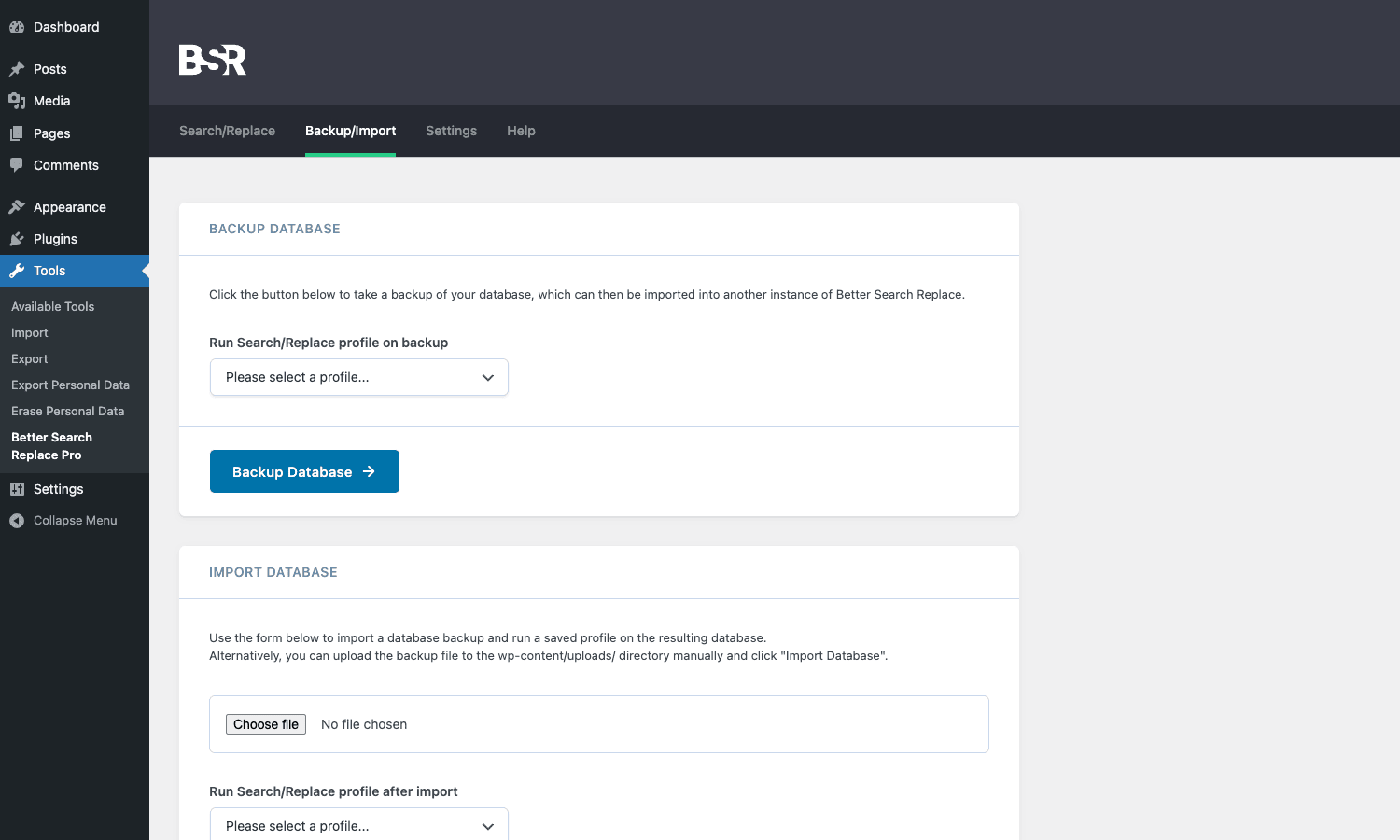
Better Search Replace started life as a free WordPress.org plugin from Delicious Brains, the team behind WP Migrate. It’s been installed on more than a million active sites and is now maintained under the WP Engine umbrella along with WP Migrate Pro. The free version is great for one-off ad-hoc finds. The Pro version adds the things you actually want when you’re doing this regularly: saved profiles, a one-click database backup before each run, a database backup-then-import flow that can apply a saved search-replace on the way in, automatic plugin updates, and premium support.
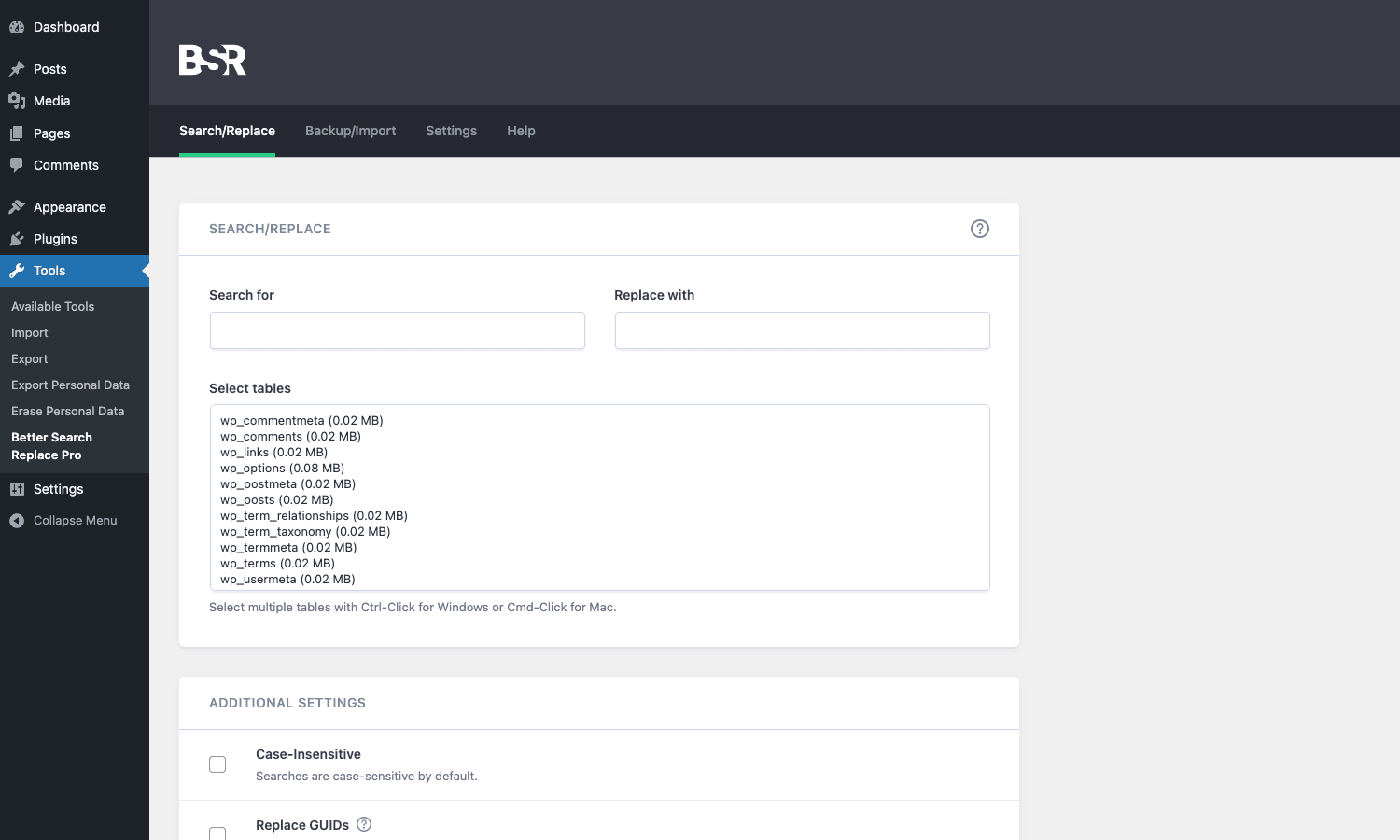
The Pro plugin lives at Tools -> Better Search Replace Pro in the WordPress admin. The whole UI is four tabs (Search/Replace, Backup/Import, Settings, Help), which is refreshing compared to the dozens of nested menus most "Pro" upgrades pile on.
The focus keyword here is the product itself, so let me say it once clearly: Better Search Replace Pro is the plugin you reach for when you need to safely change strings across a WordPress database without breaking serialized data. That’s it. It doesn’t migrate files, it doesn’t push between environments, it doesn’t manage media or users. It changes strings. Well.
Why serialization matters
If you’ve ever opened a wp_options row in phpMyAdmin and seen something like a:3:{s:9:"font_size";s:4:"16px";s:5:"color";s:7:"#1a8fc4";...}, that’s PHP’s serialized format. The s:9: prefix means "the next string is 9 characters long". WordPress uses this format everywhere: widget options, theme mods, transient cache entries, plugin settings, ACF field groups, Elementor page data, you name it.
Now imagine you do a plain SQL search-and-replace to change oldsite.com (10 characters) to mynewsite.org (13 characters). The string itself swaps fine. But the s:10: prefix still says "10 characters next". PHP tries to read 10 characters, hits a boundary it doesn’t expect, and the unserialize fails. The option silently returns false or null. Your homepage widgets vanish.
Better Search Replace solves this by unserializing the cell first, walking the resulting structure recursively, doing the string replacement on the leaves, then reserializing the whole thing. Length prefixes get rewritten. Nested arrays, objects, everything is rebuilt from scratch. That’s why this kind of tool exists and why "just use phpMyAdmin’s replace" is a bad idea.
WordPress core ships with a built-in command-line equivalent (wp search-replace) that does the same serialization-aware swap. Better Search Replace Pro is what you use when SSH isn’t an option, when you want a dry-run preview before you commit, or when you want to save the same search-replace as a reusable profile and run it on multiple sites.
Key features
Here’s what you get with the Pro version, distilled.
- Serialization-safe replacement. The whole reason the plugin exists. Arrays, objects, nested structures, all rewritten correctly. Length prefixes adjusted. This is identical behavior to
wp search-replaceunder the hood, just with a GUI. - Dry run mode by default. Every search-replace defaults to "dry run" so you see exactly how many cells would change before any data is touched. The result banner reports tables searched, cells found, and cells changed. Untick the box to commit.
- Table-level selection. You pick which tables to scan. Useful when you know the change only affects
wp_optionsandwp_postmeta, so you skip the giantwp_postscontent scan. - Replace GUIDs toggle. Off by default, because the GUID column should rarely change (it’s used by feed readers as a permanent post identifier). The plugin defends you from accidentally touching it.
- Case-insensitive search. Off by default, since most domain/URL replacements are case-sensitive. Toggle on when you need to match
Title Casevariants. - Saved profiles (Pro). Once you’ve configured a search-replace you’ll run again, save it as a named profile. The next time you open the plugin, pick the profile from a dropdown and you’re done. Migrations across multiple staging sites become a one-click affair.
- Database backup (Pro). A one-click full SQL dump of the database, gzip-compressed if you want, written to
wp-content/uploads/. The file name is salted, so it isn’t a guessable URL. - Database import (Pro). Upload a previously exported backup and the plugin imports it. Optionally, run a saved profile on the imported data on the way in.
- Multisite-aware. The plugin file has
Network: true. On a network install, every subsite gets its own table list and you can run S/R againstwp_2_options,wp_3_postmeta, etc. - Tunable chunking. Large tables are processed in pages. Default page size is 20,000 rows. If you’re on shared hosting with strict timeouts, drop it to 5,000 and the plugin will spread the work across more AJAX requests.
- Standard WordPress admin pattern. No external SaaS, no API calls back to a vendor (except license activation). Everything runs on your own server.
How it works for users
The flow makes sense once you’ve done it once. Here’s the path from "I need to change a URL across the database" to "done, with a backup."
Step 1: Take a backup first
Even though dry-run is on by default, my habit is to hit the Backup/Import tab and click Backup Database before any destructive run. The backup ends up under wp-content/uploads/ as a salted .sql (or .sql.gz if gzip is on in Settings). Download it. Now if you do something wrong, you can re-import it and rewind.
Step 2: Fill in the search and replace fields
Back on the Search/Replace tab, type the string you want to find in the "Search for" field and the replacement in "Replace with". Don’t add a trailing slash if you don’t want a trailing slash. Match exactly what’s in the database. URLs are the most common case, but the same flow works for any text: an old author name, a deprecated shortcode, a moved CDN domain, the email address of a former employee.
Step 3: Pick the tables
The plugin lists every table in the database with its size. Click one to select it, Cmd-click or Ctrl-click to select more. If you don’t know which tables hold the data, select everything. It’s slower but it’ll find every match.
For a URL change you usually want at least:
wp_options(siteurl, home, widget settings, plugin options)wp_postmeta(per-post URLs, Elementor/Divi page data, ACF fields)wp_posts(post_content, post_excerpt)wp_usermeta(rare, but custom user profile URLs live here)
Step 4: Tune the options
Scroll past the table picker and you’ll see the Additional Settings panel. Four checkboxes:
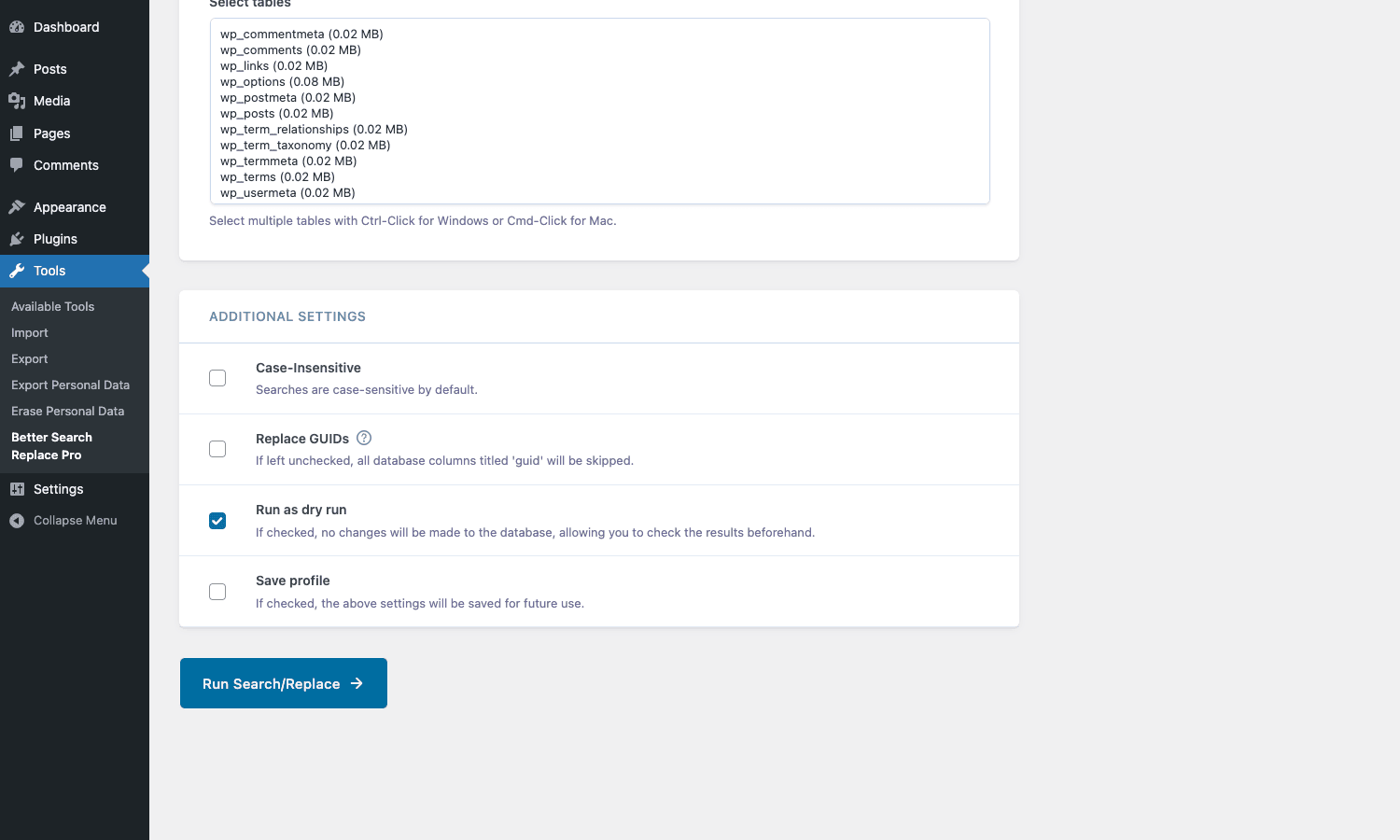
- Case-Insensitive. Leave off unless your data is genuinely mixed-case.
- Replace GUIDs. Leave off. Always. The only time to turn this on is on a brand-new site that no feed reader has seen yet.
- Run as dry run. Leave on for the first pass. Always.
- Save profile. Tick this if you’re going to run this exact search-replace again later. The plugin asks for a profile name and remembers it.
Then click Run Search/Replace. A progress bar moves across the screen.
Step 5: Read the dry-run report
When the run finishes, a banner at the top tells you exactly what happened.
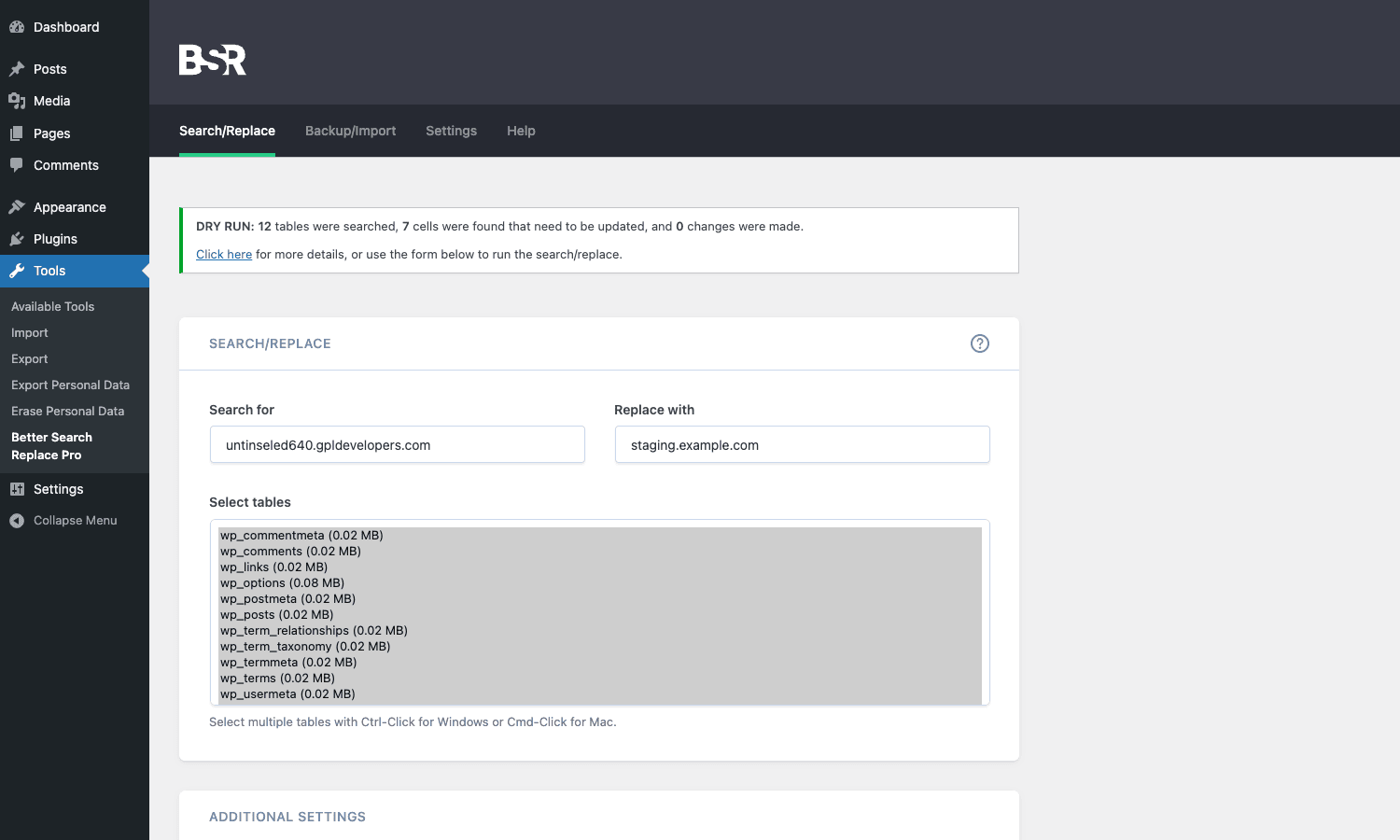
"12 tables were searched, 7 cells were found that need to be updated, and 0 changes were made." That last number is the key. On a dry run it’s always zero. Click "Click here for more details" and you get a per-table breakdown: which table, which column, how many cells in that column matched. If the numbers look right (you expected ~10 hits on wp_options and you got ~10), uncheck the dry run box and run it again. Done.
If the numbers look wrong (you expected hits on wp_postmeta and got none), you’ve probably got a typo in the search string, or the data is stored as base64, or it lives in a table the plugin doesn’t know about (custom plugin tables sometimes opt out of wpdb table listing).
Installation and setup
Standard WordPress plugin install. Three ways to get the plugin on the site:
- From the GPL Times store. Grab the Better Search Replace Pro zip, then in your WordPress admin go to Plugins -> Add New -> Upload Plugin, choose the zip, click Install Now, then Activate.
- Via SFTP. Unzip locally, drop the folder into
wp-content/plugins/, activate from the Plugins screen. - Via WP-CLI.
wp plugin install /path/to/better-search-replace-pro.zip --activate.
After activation, head to Tools -> Better Search Replace Pro. The first time you open it, click the Settings tab and paste your license key into the License Key field, then click Activate License. This unlocks automatic updates and access to backups and profiles. You can use the search-replace itself without activating, but you’ll lose the Pro extras until you do.
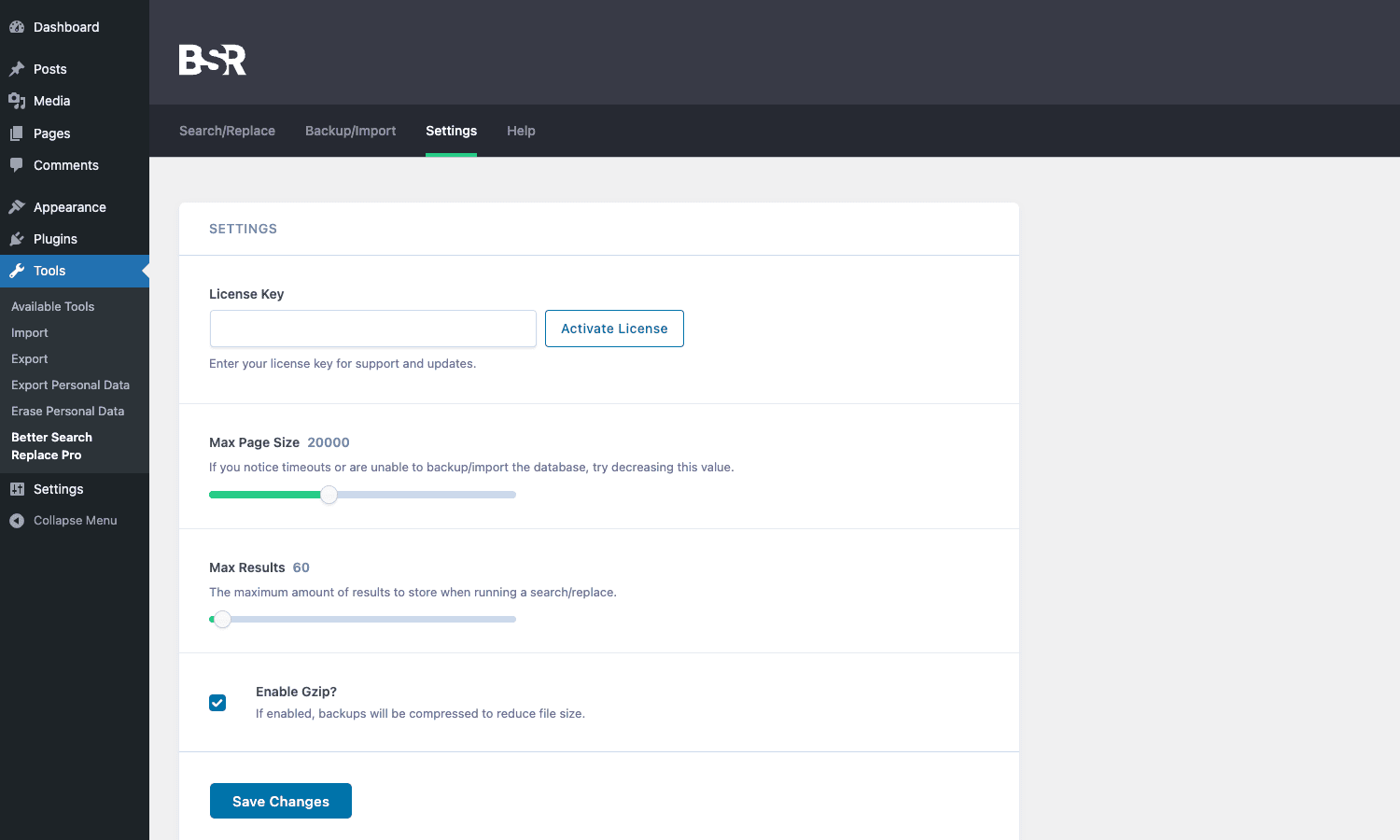
The other two settings on this page are worth a look:
- Max Page Size. Default 20,000 rows per AJAX chunk. Drop it to 5,000 if you hit PHP timeouts or 504s during a long run.
- Max Results. Default 60. This caps how many matching rows the dry-run report shows you. If you’re auditing a big change and want to see all 400 matched rows, bump it.
For multisite, activate network-wide. The menu appears per-site under Tools. If you want to run an S/R against a specific subsite’s tables, switch into that subsite’s admin first.
Real-world use cases
These are the situations I actually use this plugin for. They cover most of the search-replace work a WordPress developer or site owner does in a year.
1. Moving a site from staging to production
This is the canonical case. You built the new site on staging.example.com. Now it goes live at https://example.com. Copy the database over (mysqldump in, mysqldump out, or a plugin like Duplicator Pro or All-in-One WP Migration which do the file move too). On the new server, install Better Search Replace Pro, dry-run http://staging.example.com -> https://example.com across all tables, check the report, commit. Done in five minutes.
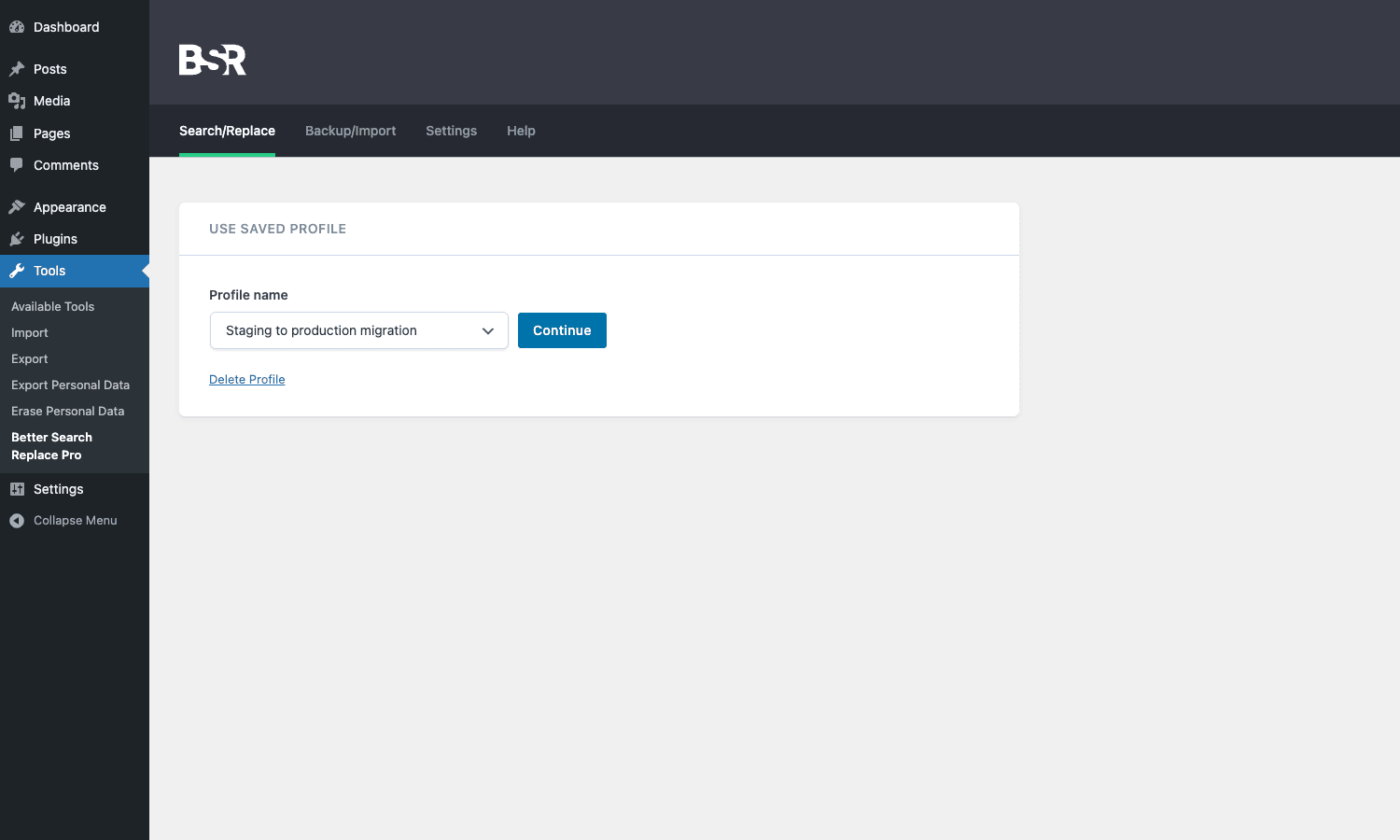
If you’re moving regularly, save it as a profile called "Staging to production" and the next migration is one click.
2. Switching from HTTP to HTTPS
After you install an SSL certificate and want to flip the whole site to https://. The plugin’s serialization-aware replacement is critical here because lots of plugins store full URLs (with the scheme) in serialized arrays. A naive replace breaks them; this one doesn’t.
3. Cleaning up after a hacked or compromised site
A malware scan reports the same suspicious string injected across hundreds of wp_posts.post_content rows. Use Better Search Replace to find and replace the string with empty. Restrict the tables to wp_posts and wp_postmeta so the search runs fast. Run a dry-run first so you can see exactly how many rows would be touched.
That’s also a good moment to back up the database (Backup/Import tab) before the destructive run, in case the malware injected something subtle that your replacement breaks.
4. Domain migration after a rebrand
You’ve changed company name from "OldName Inc" to "NewName" and need to update mentions across the database. Author bios in wp_users.meta, social URLs in theme options, copyright lines in widgets. Run two separate replacements (you could chain them by saving a profile then re-running with new fields). The case-insensitive checkbox is useful here if your old name was inconsistently capitalized.
5. Pulling production data into a local dev environment
Workflow: dump the production database, import it locally with WP-CLI (wp db import dump.sql), then run Better Search Replace Pro to swap https://www.example.com for http://example.test. Five minutes and your local environment is running real production data without sending HTTP requests back to the live site.
This is also where the Backup/Import tab’s "Run a saved profile on the imported data" feature shines. Upload the dump, pick the profile that swaps production for local, click Import. Browser sits on a progress bar for a couple of minutes and you’re done.
6. Bulk-fixing image URLs after a CDN swap
You moved from one image CDN to another. Every post body has <img src="https://oldcdn.com/...">. Restrict the run to wp_posts.post_content (well, restrict to wp_posts and let the plugin scan post_content), replace https://oldcdn.com with https://newcdn.com, dry-run, commit. Pair this with WP-Optimize Premium afterwards to clear caches and the change is live within minutes.
Developer reference
The plugin’s surface is small but the bits that exist are useful. Most of what you’ll want to customize is gated by capability or done by hooking into the AJAX dispatcher.
Filter: bsr_capability
Restrict who can access the plugin. By default the requirement is manage_options, which means any administrator. You can raise the bar.
add_filter( 'bsr_capability', function( $cap ) {
 // Only allow your custom 'database_engineer' role.
 return 'edit_database';
} );
If you have a multi-admin site where you want only one specific user to run search-replaces, combine this with a custom capability assigned to that user via Members or User Role Editor.
Action: bsr_ajax_{action}
The plugin runs its AJAX requests through a custom dispatcher in BSR_Ajax::do_bsr_ajax(). Every supported action fires a dynamic hook of the form bsr_ajax_{action_name}. Hook into it to log, throttle, or wrap the call.
add_action( 'bsr_ajax_process_search_replace', function() {
 error_log( sprintf(
 '[BSR] Search/replace started by user #%d at %s',
 get_current_user_id(),
 current_time( 'mysql' )
 ) );
} );
The actions you can hook into are bsr_ajax_process_search_replace, bsr_ajax_process_backup, bsr_ajax_process_import, and bsr_ajax_upload_import.
Programmatic dry-run via BSR_DB::srdb()
If you want to invoke the search-replace engine from your own code (a custom WP-CLI command, a cron task, a CI/CD job), the heavy lifting lives in BSR_DB::srdb(). The signature takes a table name, a page offset, and an args array. Here’s a sketch.
$db = new BSR_DB();
$args = array(
 'search_for' => 'http://staging.example.com',
 'replace_with' => 'https://example.com',
 'tables' => array( $wpdb->options, $wpdb->postmeta ),
 'dry_run' => 'on',
 'case_insensitive' => 'off',
 'replace_guids' => 'off',
 'completed_pages' => 0,
 'bsr_data' => array(),
);

foreach ( $args['tables'] as $table ) {
 $pages = $db->get_pages_in_table( $table );
 for ( $page = 0; $page < $pages; $page++ ) {
 $report = $db->srdb( $table, $page, $args );
 // Inspect $report for matches.
 }
}
In practice you’ll want to copy the pagination logic out of BSR_Ajax::process_search_replace(). The class doesn’t expose a one-shot "do the whole thing" method because the AJAX flow is chunked.
The serialization helper
If you want to use the same recursive-unserialize-and-replace logic somewhere else (a one-off cleanup script, a migration plugin you’re writing), the method to copy is BSR_DB::recursive_unserialize_replace(). It’s defensive: it uses is_serialized() from WordPress core, calls unserialize() with allowed_classes => false to prevent object injection, and falls back to a Brumann polyfill on PHP versions that don’t support the flag.
The function handles four cases: serialized strings, plain arrays, objects (cloned safely), and plain strings. For your own code, this matters whenever you’re processing user-generated content that might be stored serialized. Reaching for maybe_unserialize() plus a tree walk is the right pattern. Better Search Replace’s implementation is a solid reference.
Saved profiles in code
Saved profiles are kept in the bsr_profiles option, as a serialized associative array keyed by profile name. You can inject one programmatically (useful for staging environments where you want the same profile to exist out of the box):
$profiles = get_option( 'bsr_profiles', array() );
$profiles['Staging to production'] = array(
 'search_for' => 'https://staging.example.com',
 'replace_with' => 'https://example.com',
 'tables' => array( 'wp_options', 'wp_postmeta', 'wp_posts' ),
 'case_insensitive' => 'off',
 'replace_guids' => 'off',
);
update_option( 'bsr_profiles', $profiles );
The next time someone opens the Search/Replace tab, the "Use Saved Profile" dropdown appears with this entry preselected.
Where to extend, where to leave alone
Two non-obvious tips. First, don’t try to swap out serialize() / unserialize() for a custom encoder. WordPress and every plugin under the sun expect those exact PHP functions; using anything else (igbinary, msgpack) breaks integrations the moment another plugin reads the value. Second, the plugin’s chunking logic is forgiving on shared hosts but not infinite. If you’ve got a multi-GB wp_postmeta (Elementor sites, looking at you), drop bsr_page_size to 2,500 before you start.
Performance, compatibility, and gotchas
The replacement itself is fast: the limiting factor is database I/O, not the unserialize-walk. On a typical 200MB WordPress database, a full-table scan completes in 30 to 90 seconds. On larger databases (10GB+) you’re looking at several minutes; that’s a sign you should narrow the tables.
A few things I’ve hit in production that the docs gloss over.
Object cache after the run. If the site uses Redis, Memcached, or any object cache, run a flush after a successful search-replace. The plugin doesn’t do this automatically. wp cache flush from the command line or WP Rocket -> Tools -> Clear Cache if you’re on a cache plugin.
Persistent transients. Some plugins cache rendered output as _transient_* rows in wp_options. A search-replace will rewrite these, but stale rendered HTML may still reference old paths. Easiest fix: delete all transients after the run via wp transient delete --all.
Tables outside the wpdb prefix. If you’ve got plugins that create tables without using $wpdb->prefix (rare but possible), Better Search Replace won’t see them in the table list because the plugin uses $wpdb->get_results("SHOW TABLES LIKE '{$wpdb->prefix}%'"). For those, you’re stuck with manual SQL.
Storage engine quirks. I once hit a case where a customer’s wp_postmeta had been converted to MyISAM with a corrupted index. Better Search Replace’s chunked reads silently skipped the corrupted rows. The dry-run report looked correct, the actual run looked correct, but the broken rows stayed broken. The fix was outside the plugin: REPAIR TABLE wp_postmeta, then re-run.
Memory limit on backups. The gzip-compressed backup buffers the SQL output in memory before writing. On databases over ~1.5GB this can exceed memory_limit. The plugin shows a notice, but the cleaner workaround is to use mysqldump from the command line or take the backup before a major run via UpdraftPlus or Solid Backups, then use BSR just for the replace.
Stale rewrite rules. After a siteurl change, WordPress’s rewrite rules can cache the old siteurl in wp_options.rewrite_rules. Visit Settings -> Permalinks, hit Save (no need to change anything), and the rules get rebuilt against the current siteurl.
Multisite + subsite-only changes. If you only want to replace strings on subsite 3, switch into that subsite first via the network admin’s My Sites menu, then open Better Search Replace from there. The table list will show only wp_3_* tables.
Better Search Replace vs the alternatives
This category has more options than you’d expect for a job that sounds simple.
vs. wp search-replace (WP-CLI)
WordPress core’s built-in wp search-replace does the same serialization-aware swap. It’s free, it’s fast, it has flags Better Search Replace doesn’t (--regex, --include-columns, --export). If you have SSH access and you’re comfortable on the command line, wp search-replace is excellent. Better Search Replace exists for everyone else: site owners on managed hosts without SSH, developers who want a visual dry-run preview, agencies who want to save profiles and hand them to clients.
vs. WP Migrate Pro
WP Migrate Pro is the bigger sibling, also from Delicious Brains / WP Engine. WP Migrate handles the full database (and optionally files and media) push-and-pull between two WordPress installs, with search-replace baked in as one step of that flow. Better Search Replace is the "just the search-replace, please" subset. If you’re moving sites between environments regularly, WP Migrate Pro’s two-button push/pull is faster. If you just need to change URLs on a database that’s already in place, Better Search Replace is the lighter tool.
vs. Velvet Blues Update URLs
Velvet Blues is the older free plugin in this space. It’s still in the WordPress.org repository but hasn’t been seriously updated in years and (critically) its serialization handling is incomplete. I’ve seen Velvet Blues silently corrupt Elementor data on sites I migrated. Skip it.
vs. Search Regex
Search Regex is a different tool. It searches and replaces inside post content with regex and a per-row preview. It’s great for content editing ("replace all <h3> with <h2>" across 200 posts). It does not touch wp_options, wp_postmeta, or any other table, so it isn’t a substitute for Better Search Replace when you’re migrating site URLs.
vs. Search & Replace by Inpsyde
Another free option from Inpsyde. It does table-level search-replace with serialization handling, like the free version of Better Search Replace. The free Better Search Replace is more polished and more widely tested; the Pro features (backups, profiles, imports) are what justify the upgrade.
vs. phpMyAdmin or direct SQL
Tempting if you’ve got root MySQL access. Don’t. A REPLACE against serialized data corrupts the length prefixes. The only safe way to do this directly in SQL is to dump, unserialize-replace-reserialize in a script, and reimport. At which point you’ve reinvented Better Search Replace.
Pricing and licensing
The plugin is sold direct from bettersearchreplace.com in single-site, five-site, and twenty-site tiers, plus a lifetime option that includes WP Engine’s wider plugin bundle. The free version on WordPress.org covers the basic search-replace flow if you don’t need backups, profiles, or imports.
Better Search Replace is GPL-3.0 licensed, which means the code is free to redistribute under the same license. If you’ve already got Code Snippets Pro or other developer tools from the store, this fits the same pattern. The single difference is that automatic updates from the official bettersearchreplace.com server require your own license; if you grabbed it from GPL Times, plan to update manually when major releases land. That’s usually three or four times a year for this plugin.
Frequently asked questions
Will Better Search Replace Pro work on a WooCommerce site with thousands of products?
Yes. WooCommerce stores most product data in wp_posts, wp_postmeta, and a handful of WooCommerce-specific tables (wp_wc_*). All show up in the plugin’s table list. For very large stores (50,000+ products), drop the Max Page Size in Settings to 5,000 and run during off-peak hours.
Does it handle ACF (Advanced Custom Fields) repeaters and flexible content?
Yes. ACF stores field data in wp_postmeta as either plain strings or serialized arrays depending on field type. The serialization-aware replacement handles both correctly.
Can I undo a search-replace if I picked the wrong replacement?
Not from inside the plugin. That’s why dry-run mode is on by default. Take a database backup (Backup/Import tab) before any destructive run, and you can restore by re-importing the backup.
Does it work with object-cache plugins like W3 Total Cache or Redis Object Cache?
It writes to the database directly, bypassing the object cache. After a successful run, flush your object cache so reads pick up the new values. From the WordPress admin, use the cache plugin’s Flush button. From the command line, wp cache flush.
Is it safe to run on a live production site?
Safer than most database tools because of the dry-run preview, but I still wouldn’t. Pull a backup first, run the replace on a staging clone, verify the site still works, then run on production during a maintenance window. The plugin is solid; the things that break production migrations are usually human typos in the search string.
Does the plugin work with Cloudways, WP Engine, Kinsta, or other managed hosts?
Yes, all of them. The plugin uses standard wpdb calls and doesn’t touch the filesystem outside of wp-content/uploads/ for backups. Some managed hosts (WP Engine especially) recommend disabling caching during a large replace; their docs mention how.
Can I run two search-replaces back to back without reopening the admin page?
Yes. Save the first one as a profile, then go back to the Search/Replace tab, pick a different combination, save that as a second profile. When you need to chain them, run profile A, wait for completion, then run profile B. There isn’t a single "run multiple profiles in sequence" button in the current UI, but you can script it with wp search-replace if you need automation.
What’s the difference between this and the free Better Search Replace on WordPress.org?
Same engine, same serialization handling. The free version is missing: saved profiles, database backups, database imports, automatic updates, and premium support. If your workflow is "run search-replace once and forget", the free version is fine. If you migrate sites monthly, the Pro extras pay back fast.
Final thoughts
I’ve used Better Search Replace, in some form, on every WordPress site migration I’ve done in the last five years. The Pro features (profiles, backups, import-with-replace) are the kind of thing you don’t think you need until you’ve done the same migration four times in a row and realize you’ve been retyping the same search string each time.
The plugin doesn’t try to be a migration tool, a backup tool, or a content-editor. It does one job: change strings across a WordPress database safely. The dry-run banner has saved me from at least three production-breaking typos over the years, and the per-table reporting makes debugging an unexpected match count straightforward.
If you’re an agency or a freelancer who builds WordPress sites for clients, this is one of the boring, reliable utilities that belongs in your toolkit alongside Solid Backups and WP-Optimize Premium. The kind of plugin you install, configure once, and then forget about until the next migration. That’s the highest compliment I can pay it.