

If you sell on WooCommerce long enough, the question of "how do I run a tiered/bulk/BOGO/role-based promotion without writing PHP" comes up. WooCommerce’s built-in coupon system handles flat percentage or fixed-amount codes, and that’s about where it stops. Once you need "buy 5 of these get 20% off, but only for wholesale customers, only on Tuesdays, only when the cart subtotal is over $100", the core stops being enough.
Discount Rules for WooCommerce PRO is the FlyCart plugin that fills that gap. It exposes a rule-based pricing engine on top of WooCommerce, with a long list of conditions, several discount types, an automatic BOGO mechanism, a bulk pricing table for product pages, and a stack of integrations with the usual suspects (Subscriptions, Memberships, WPML, FOX).
I’ve spent a while inside the codebase and admin UI for this article and the writeup below covers what it does, where to click, where the developer hooks are, and what to watch out for in production.
Table of contents
- What Discount Rules for WooCommerce PRO is
- Core features at a glance
- Installation and first-time setup
- Discount types explained
- Conditions: who, what, when, where
- Building a tiered bulk discount step by step
- Building a Buy X Get Y rule
- The bulk pricing table on product pages
- Real-world scenarios
- Developer reference: hooks, filters, and code
- Performance, compatibility, and gotchas
- Pricing and licensing
- How it compares with other discount plugins
- Frequently asked questions
- Final thoughts
What Discount Rules for WooCommerce PRO is
Discount Rules is a two-pack: a free Core plugin on the WordPress.org repository (wordpress.org/plugins/woo-discount-rules) and a PRO add-on that you install alongside it. The free package gives you basic percentage and fixed-amount rules, plus a Cart Subtotal condition and a Cart Line Items condition. The PRO add-on layers on the rest of the rule engine: thirty-plus conditions across customer, address, date, and purchase history, every flavour of BOGO, bundle pricing, free shipping, the bulk pricing table widget, scheduled rules, reports, and the third-party integrations.
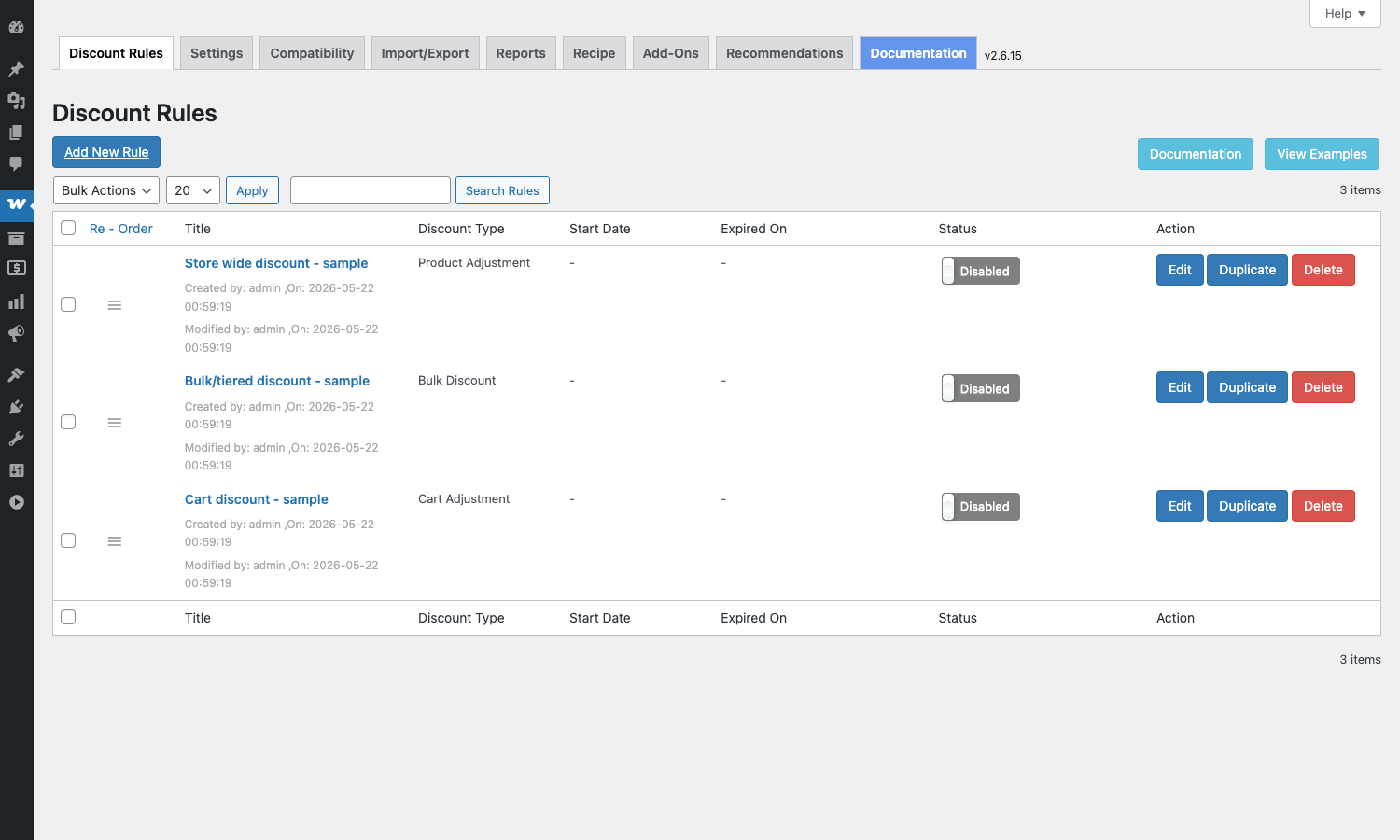
The plugin lives under WooCommerce in the admin menu, at /wp-admin/admin.php?page=woo_discount_rules. Once both packages are active you get an "All Discounts" list, an Add New form, and a row of top tabs for Settings, Compatibility, Import/Export, Reports, Recipe, Add-Ons, Recommendations, and Documentation.
It’s made by FlyCart, the team behind WebToffee’s older plugin line, and it’s been at the top of the WooCommerce discount-engine category for years. The codebase is namespaced under advanced_woo_discount_rules_* (you’ll see this prefix all over the hooks reference below) and the admin URL slug is woo_discount_rules.
Core features at a glance
A quick rundown before I dig in.
- Rule-based discounts with priority, stacking control ("apply all matched rules" vs "biggest one wins"), and an "exclusive" flag per rule that suppresses the rest.
- Seven discount types: Product Adjustment, Cart Adjustment, Free Shipping, Bulk Discount, Bundle (Set) Discount, Buy X get X, Buy X get Y.
- Thirty-plus conditions including subtotal, cart quantity, line items count, product/category/tag/SKU/attribute filters, user role, specific user, email TLD, first-order check, days-since-last-order, lifetime spend, payment method, shipping country/state/zip, order date range, days of the week, and time of day.
- Quantity-tiered ranges on every rule: buy 2-4 = 10% off, 5-9 = 15% off, 10+ = 20% off, applied automatically as customers add to cart.
- Automatic BOGO that pushes the free item into the cart when conditions match (no separate add-to-cart step for the customer).
- Bulk pricing table that auto-renders on product pages for products under a Bulk Discount rule. Customers see "buy 5, save 10%" right next to Add to Cart.
- Discount bar for the cart page: "Add $20 more to save 15%!".
- On-sale badge with optional discount percentage label.
- Coupon-required mode: discount only triggers when a specific coupon code is applied (handy for "hidden" or shareable promotions).
- Scheduling: every rule has a Valid From / Valid To date plus a max-usage counter.
- Strikethrough display: on cart and product, the original price is crossed out and the discounted price is shown beside it.
- Reports tab with usage statistics: orders touched by each rule, total discount given, top-discounted products.
- Import/Export of rule configurations, useful when you stage a promotion on a dev site and want to move it to production.
- WPML, Polylang, Aelia and FOX currency switcher support out of the box.
- HPOS compatibility (declares it explicitly via the
FeaturesUtilAPI, so it’ll work cleanly on stores using High-Performance Order Storage).
Installation and first-time setup
Both halves of the plugin install the same way:
- From
/wp-admin/plugins.php, click Add New, then Upload Plugin. - Upload
woo-discount-rules.zip(the core) and click Install Now, then Activate. - Upload
woo-discount-rules-pro.zip(the PRO add-on) and activate it.
The order matters. PRO is an add-on, not a standalone plugin; activating it without core leaves you with an "install core" prompt and no UI. Once both are active a "Discount Rules" entry appears under the WooCommerce menu.
The first time you open it you’ll land on an empty discounts list with two helper buttons in the top right: Documentation and View Examples (a quick gallery of common rule recipes). The Recipe tab on the same screen has prebuilt "Simple Discount", "Bundle (set) Discount", and "BOGO Discount" templates that you can click Create on and get a runnable starting point.
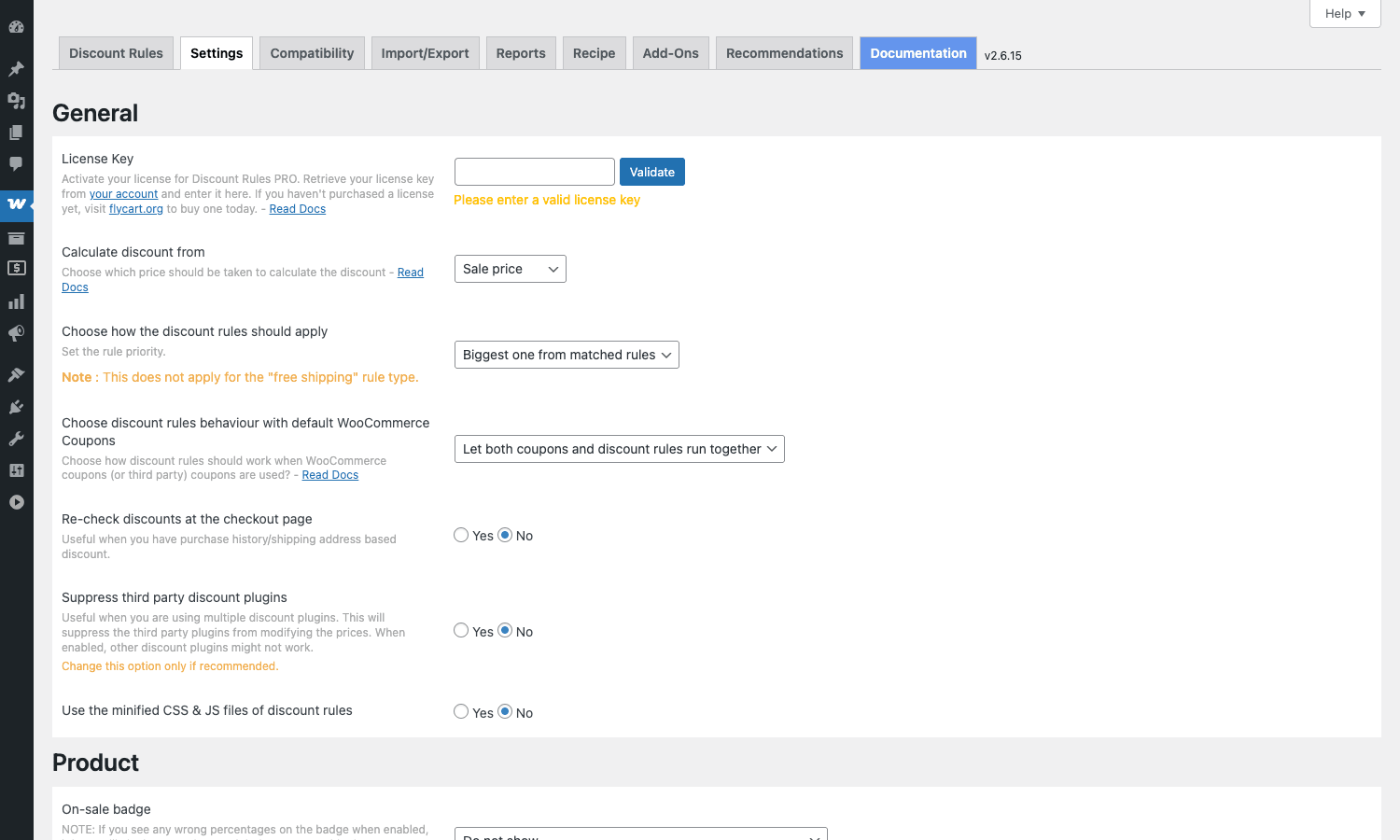
Before you add any real rule, walk through the Settings tab once and check four options:
- Calculate discount from: Sale price (default) or Regular price. If you already mark items as on-sale via the standard WooCommerce sale-price field, choose Sale price; otherwise the discount applies on top of the sale, which is rarely what you want.
- Choose how the discount rules should apply: "Biggest one from matched rules" is the safe default. "Apply all matched rules" stacks discounts and can quickly produce items priced near zero if you’re not careful.
- Choose discount rules behaviour with default WooCommerce Coupons: "Let both coupons and discount rules run together" is the most permissive option. The other options give coupons priority, give rules priority, or block them from running together at all.
- Re-check discounts at the checkout page: turn this on if you have shipping-address-dependent rules (different zones / countries), because the customer’s address often isn’t known until checkout.
Pop a license key in if you bought the PRO package directly from FlyCart and you’ll get automatic updates from their CDN.
Discount types explained
Discount Rules organises everything around the Discount Type picker at the top of every rule. The choice you make there changes the rest of the form below it. Here’s what each one does and when to reach for it.
Product Adjustment
The simplest type. Pick filters (a product, a category, an attribute, all products) and apply a percentage off, a flat amount off, or a fixed price. Use this for "20% off all hoodies", "$5 off the SKU CAP-001", "all blue products are $19".
Cart Adjustment
Same idea but on the cart subtotal. Pick a condition like "subtotal greater than $100" and apply percentage or flat off the cart total. Internally this is applied as a WooCommerce fee (negative amount), so taxes recalculate correctly.
Free Shipping
Forces free shipping when matched. Pair it with a Cart Subtotal condition for the classic "free shipping over $75" pattern, or with a User Role condition for "free shipping for VIP customers".
Bulk Discount
The headline feature. You define ranges in a Discount Type column on the rule: Quantity 2-4 = 10% off, 5-9 = 15%, 10+ = 20%. The "Count Quantities by" picker controls how the engine measures buying quantity:
- Filters set above: counts the total of all items matching the rule’s filter (e.g. the total hoodie count across blue and red).
- Individual product: counts each product line individually (so two products at 1 each won’t trigger the 2+ tier).
- All variants in each product together: variations of the same parent product count toward the same tier.
The tiered ranges automatically render as a bulk pricing table on each affected product page when you enable "Show bulk table" in Settings → Product.
Bundle (Set) Discount
You define a set: 1× T-shirt + 1× cap + 1× tote = $40. The rule fires when the cart contains the required set. Recursive bundles are supported, so "every multiple of one set repeats the price" works without writing custom logic. Useful for "grab the starter pack" promotions.
Buy X get X
Quantity-based on the same product. Examples: buy 3, get the 4th free (Buy 3 Get 1); buy 2, get the second at 50% off. Reach for this when X and Y are the same SKU.
Buy X get Y
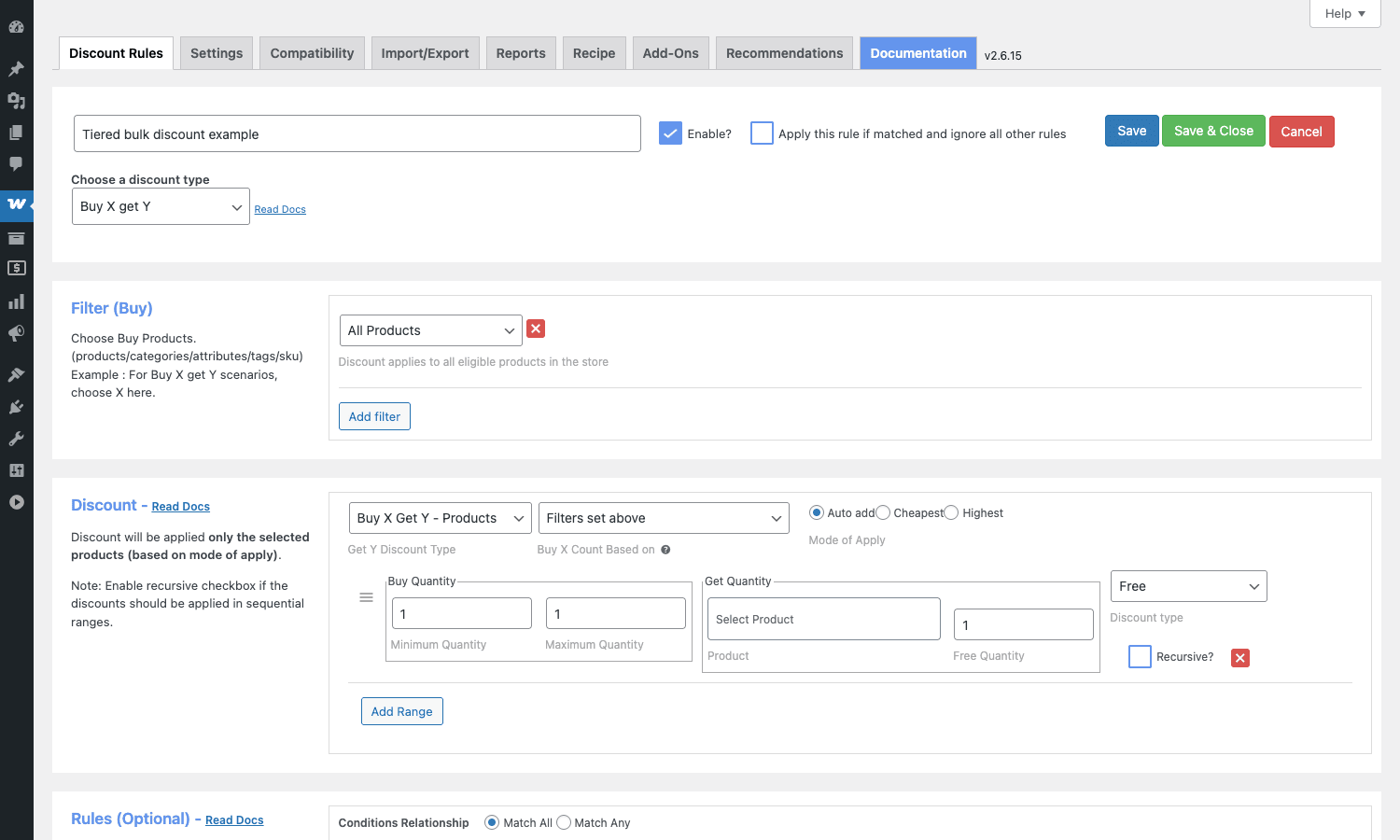
The full BOGO type. Buy X items from one filter, get Y items from a different filter, optionally free or at a percentage off. The Get-Y items can be from a specific products list, a category list, or any matched products. There’s a Mode of Apply picker for Auto-add / Cheapest / Highest, so you can either push the free Y item into the cart automatically or wait until the customer adds the qualifying Y item themselves.
Conditions: who, what, when, where
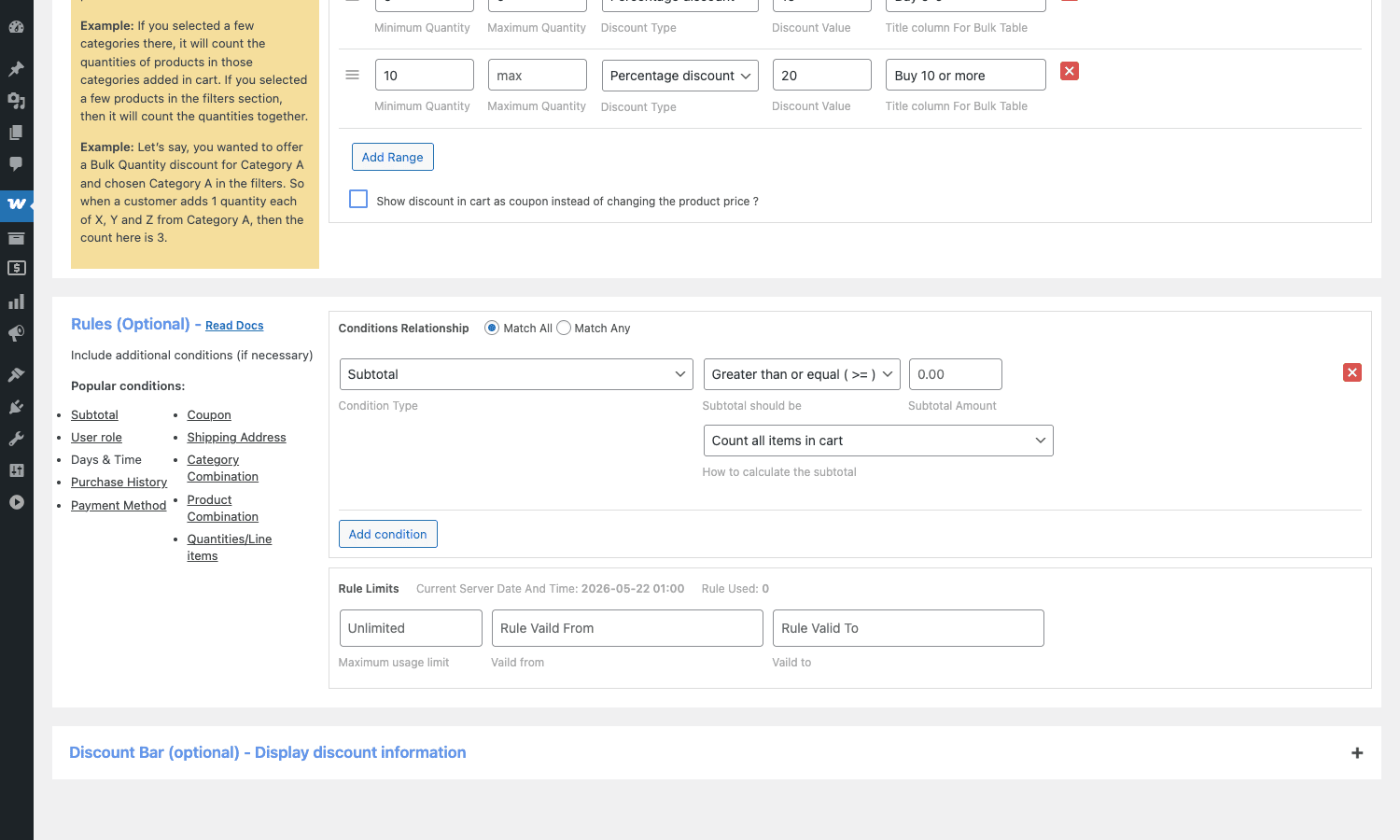
Every rule (except Free Shipping, where some conditions are baked in) lets you stack additional conditions in a Rules (Optional) section. The Conditions Relationship at the top is the AND / OR control: Match All means every condition must pass, Match Any means at least one needs to.
The condition catalogue is one of the most complete in any WooCommerce discount plugin. Here’s the full list, grouped by what they check.
Cart-shape conditions look at what’s in the cart right now: Subtotal, Cart Line Items count, Cart Item Quantities, Cart Item Weight, Cart Item Products / Categories / Tags / SKU / Attributes / Onsale status, Cart Item Category Combination (multiple categories together), Cart Item Product Combination (multiple specific products together), Cart Item Products Taxonomy (custom taxonomies), Coupon (specific coupon must be applied), and Payment Method (specific gateway selected).
Customer-history conditions look at the buyer’s past behaviour: First Order (only fires on the user’s first order), Last Order Date (days since), Last Order Amount, Total Previous Orders (count), Previous Orders for a Specific Product, Quantities Bought (lifetime quantity of a specific product), and Lifetime Spent.
User-identity conditions: User Role (one or more, including custom roles from Memberships and Wholesale plugins), User Email (exact match or by TLD/domain), User List (specific user IDs), and User Logged In (guest vs registered).
Address conditions: Billing City, Shipping City, Shipping State, Shipping Country, Shipping Zip Code.
Date/time conditions: Order Date (a date range), Order Date and Time, Order Days (which days of the week the rule is active), and Order Time (which hours of the day).
That’s a long list and it covers most common promotional briefs without code. Where it doesn’t, the developer hooks fill in.
Building a tiered bulk discount step by step
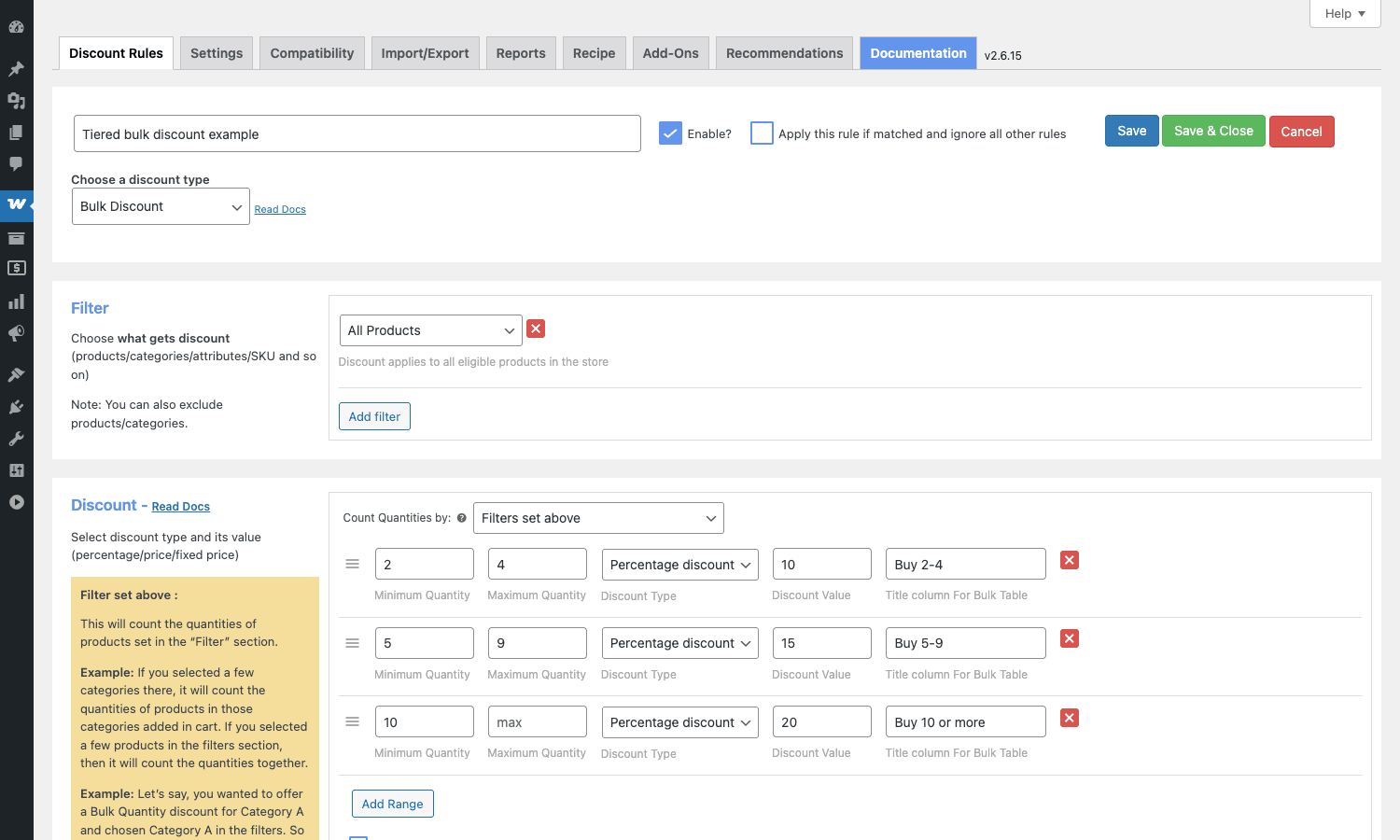
I’ll walk through a concrete one. The brief: "Buy 2-4 of any T-shirt and get 10% off, buy 5-9 and get 15% off, buy 10 or more and get 20% off. Show a bulk pricing table on each T-shirt’s product page so customers see the tiers before they add to cart."
- Go to WooCommerce → Discount Rules and click Add New Rule.
- Name it something internal like "Tiered T-shirt discount" and tick the Enable? checkbox.
- Set Choose a discount type to Bulk Discount.
- In the Filter card, leave the dropdown on "All Products" if you want this rule to apply to the whole store, or switch it to Product Category and pick "T-shirts". You can stack multiple filters here (one for category, one to exclude SKUs that are already on clearance, etc.).
- In the Discount card, leave Count Quantities by at "Filters set above" so the engine counts every T-shirt in the cart toward the tier.
- Fill in the first range: Min 2, Max 4, Discount Type "Percentage discount", Discount Value 10, Title column "Buy 2-4". The Title column is what appears in the bulk pricing table on the product page.
- Click Add Range and fill in 5, 9, 15%, "Buy 5-9".
- Click Add Range again and add 10, (leave Max empty for "and up"), 20%, "Buy 10 or more".
- Skip the Rules (Optional) section unless you want extra conditions (a customer role, a coupon, etc.).
- Click Save & Close.
Now flip on the bulk pricing table: go to Settings → Product and toggle Show bulk table to Yes. The default position is "Before add to cart form", which works for almost every WooCommerce theme.
That’s a complete tiered bulk discount with a public pricing table, set up in two minutes. Customers see the table on the product page, prices update live as they change the quantity in the Add to Cart box, and the cart line shows "Buy 2-4 saved $5.80" under the line item.
Building a Buy X Get Y rule
For something slightly less common, here’s how a "Buy any two shirts, get a free cap" rule looks.
- Add a new rule, name it, enable it, set the type to Buy X get Y.
- Filter (Buy): pick Product Category → Shirts. This is the X side, the items the customer has to buy.
- Discount: set Get Y Discount Type to Buy X Get Y – Products, the Buy X Count Based on to "Filters set above", and the Mode of Apply to Auto add (so the cap is added to the cart on its own, with no extra click from the customer).
- In the range row: Buy Quantity Min 2 / Max 2, Get Quantity 1, choose the cap product in the Select Product field, Discount Type Free.
- Optional: tick Recursive? so every additional pair of shirts triggers another free cap (buy 4 shirts, get 2 caps).
- Save & Close.
The PRO add-on registers the advanced_woo_discount_rules_after_free_product_added_to_cart action when the auto-add fires, which you can hook into for telemetry or email logic. Stuff like "send a separate transactional email when a customer earns a free gift" is a few lines of PHP once you know which action to listen on.
The bulk pricing table on product pages
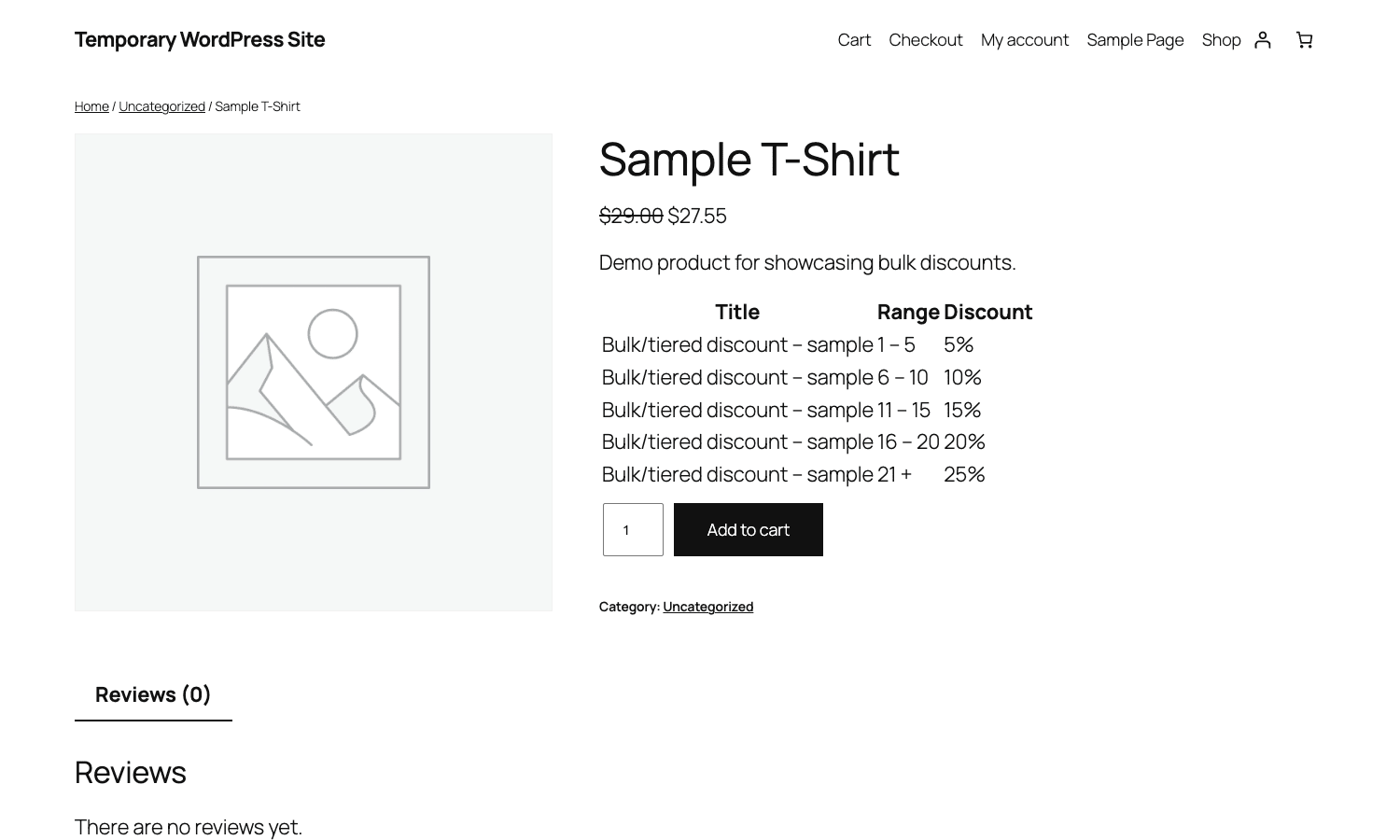
The bulk pricing table is one of the features that pays for the plugin on its own. It’s a small table next to the Add to Cart button that lists every quantity range and the discount that applies, sourced from whichever Bulk Discount rules match the current product.
Two reasons it matters:
- Conversion. Customers see the savings without having to add to cart and discover them. That’s the same psychological lever Amazon’s "Buy 4 for $19.99 each" boxes use.
- Trust. A visible discount ladder reads as a deliberate promotion, not as a quirk of the cart logic. Customers don’t second-guess whether the price changed because of something they did wrong.
You can rename the column headers (Title, Range, Discount) under Settings → Product → "Bulk table column names". The whole table is filterable in PHP via advanced_woo_discount_rules_bulk_table_ranges, so you can suppress a row, append a custom row, or merge two adjacent ranges. The "advanced layout" alternative is rendered on its own filter (advanced_woo_discount_rules_advance_table_based_on_rule), useful when you want a different look entirely on a specific rule.
If the table doesn’t show up after you enable it, the most common cause is a theme that overrides woocommerce_before_add_to_cart_form with its own action. Switch the position to a different hook in Settings → Product → "Where should the bulk table appear" until it slots into the right spot.
Real-world scenarios
A few promotional briefs I’ve actually built with this plugin, with the rule shape that solved them.
Wholesale and member-only pricing
A WooCommerce store has retail customers and wholesale customers. You want the wholesale role (a custom WP role, usually added by a wholesale plugin or WooCommerce Wholesale Pro) to see a flat 25% off, with no need for coupon codes. Build a Product Adjustment rule, set Filter to All Products, Discount to 25% off, and add a single condition: User Role → in_list → wholesale. Done. The wholesale customer sees the discounted price live on the product page, the cart, and the checkout. The retail customer sees the regular price. The plugin reads the user object on every page hit, so if a customer signs in mid-session the price updates.
Tiered subscriptions
If you sell on WooCommerce Subscriptions, you can build a "10% off the first cycle" promotion or an "ongoing 15% off all renewals". Discount Rules detects the subscription product type and lets you toggle whether the discount applies on the sign-up only or every renewal. Pair it with a User Role condition that targets your member role (set up via WooCommerce Memberships) and member-only pricing is a single rule. I covered the Memberships side of that flow in the WooCommerce Memberships article.
Flash sale on specific days
Want to run a "20% off everything every Wednesday between 6pm and 9pm"? Add a Product Adjustment rule with All Products selected, 20% off, and two conditions: Order Days → Wednesday and Order Time → between 18:00 and 21:00. The rule starts and stops itself based on the server clock. No cron jobs, no scheduled tasks, no manual toggling. Combine with a homepage countdown widget for urgency.
First-time customer welcome discount
Standard ecommerce hook. Add a Cart Adjustment rule with 10% off the cart, a User Logged In condition (Yes) and a First Order condition (Yes). The plugin checks the customer’s past order count when calculating the cart. After the first paid order, the rule stops firing for that customer automatically. If you want to extend it to guest checkout (where there’s no user account yet), turn on the filter advanced_woo_discount_rules_check_purchase_history_based_on_email_and_user_id so the engine also looks up past orders by the billing email.
Funnel-driven bulk offer
You’re running a sales funnel on CartFlows Pro or WPFunnels Pro and want a hidden 30% off for funnel traffic only. Create a rule with a Coupon condition set to a single private code (e.g. "FUNNEL30"). Pass the code into the funnel via a query string and apply it programmatically on the cart-pre-fill hook. The price drops only for traffic that came through your funnel; everyone else pays full price.
Free shipping over a cart threshold
Free Shipping rule with a Cart Subtotal condition "greater than or equal to 75". Combine with a Shipping Country condition if you only want it for domestic orders. The "Add $X more to qualify" message renders automatically via the discount bar on the cart page.
Developer reference: hooks, filters, and code
Every action and filter the plugin exposes is namespaced under advanced_woo_discount_rules_*. There are roughly 200 of them between the core and PRO packages, so the list below is the load-bearing subset, the ones I’ve actually needed.
Action: react to a free product being added to cart
When a BOGO rule’s Auto-add mode pushes the free Y item into the cart, this action fires. Useful for logging, custom email triggers, or analytics events.
add_action( 'advanced_woo_discount_rules_after_free_product_added_to_cart', function( $cart_item_key ) {
 if (! is_user_logged_in() ) {
 return;
 }
 $user_id = get_current_user_id();
 error_log( "Free product added via BOGO: cart key {$cart_item_key} for user {$user_id}" );
}, 10, 1 );
Action: log every rule save
Fires once a rule is created or updated in the admin. Good for syncing rule definitions to a staging site, a Slack channel, or an audit log.
add_action( 'advanced_woo_discount_rules_after_save_rule', function( $rule_id, $post, $arg, $rule_additional ) {
 $title = isset( $post['rule_name'] )? sanitize_text_field( $post['rule_name'] ) : "rule {$rule_id}";
 wp_remote_post( 'https://hooks.example.com/audit', array(
 'body' => wp_json_encode( array(
 'event' => 'discount_rule_saved',
 'rule_id' => $rule_id,
 'title' => $title,
 'time' => current_time( 'c' ),
 ) ),
 'headers' => array( 'Content-Type' => 'application/json' ),
 ) );
}, 10, 4 );
Filter: rewrite the price the engine bases discounts on
If you run a custom pricing layer (wholesale prices, gift-card balance, role-based price overrides) the easiest place to inject your "true" base price is this filter. Discount Rules will then calculate percentages and tiers against your number, not the WooCommerce regular price.
add_filter( 'advanced_woo_discount_rules_product_price_on_before_calculate_discount', function( $price, $product, $quantity, $cart_item, $calc_from ) {
 if (! is_user_logged_in() ) {
 return $price;
 }
 $wholesale_price = get_post_meta( $product->get_id(), '_my_wholesale_price', true );
 if ( $wholesale_price && in_array( 'wholesale', wp_get_current_user()->roles, true ) ) {
 return floatval( $wholesale_price );
 }
 return $price;
}, 10, 5 );
Filter: reshape the bulk pricing table
The table on the product page is built from an array of ranges. You can prune, reorder, or annotate them before render. Below, I hide any 0% row (sometimes the engine emits one when the lowest tier starts at 1) and append a friendly label to the highest tier.
add_filter( 'advanced_woo_discount_rules_bulk_table_ranges', function( $ranges, $rules, $product ) {
 $ranges = array_filter( $ranges, function( $row ) {
 return floatval( $row['discount_value'] ) > 0;
 } );
 if (! empty( $ranges ) ) {
 $last = array_key_last( $ranges );
 $ranges[ $last ]['title'].= ' (best value)';
 }
 return array_values( $ranges );
}, 10, 3 );
Filter: skip the discount for an already-free item
A common edge case: when a BOGO rule has already given a customer a free product, you don’t want another rule to compound on top of it (e.g. a flat-cart-discount also taking 10% off the free item). Return false from this filter for those cart items.
add_filter( 'advanced_woo_discount_rules_calculate_discount_for_cart_item', function( $should_calculate, $cart_item ) {
 if (! empty( $cart_item['awdr_free_product'] ) || ( isset( $cart_item['data'] ) && floatval( $cart_item['data']->get_price() ) === 0.0 ) ) {
 return false;
 }
 return $should_calculate;
}, 10, 2 );
Filter: customise the "Add X more for Y off" message
The cart-promotion message uses the rule’s configured threshold. You can rewrite the full string per rule, e.g. to localise it differently or add an inline image.
add_filter( 'advanced_woo_discount_rules_cart_subtotal_promotion_message', function( $message, $rule, $from_value, $current_subtotal, $min_value ) {
 $to_go = max( 0, $min_value - $current_subtotal );
 return sprintf(
 '<strong>Almost there!</strong> Spend %s more to unlock your discount.',
 wc_price( $to_go )
 );
}, 10, 5 );
Filter: extend purchase-history checks to billing email
By default, the "purchase history" conditions only work for logged-in users. If you want them to also fire for guest checkouts (where the same email returns to buy again), turn this filter on:
add_filter( 'advanced_woo_discount_rules_check_purchase_history_based_on_email_and_user_id', '__return_true' );
Filter: cascade discounts to product variations
By default, a rule that filters on a parent variable product also applies to its variations. If you have a special case (you sell a colour variation that should never discount, even when the parent matches), gate this filter on the product ID:
add_filter( 'advanced_woo_discount_rules_apply_discount_to_variants', function( $apply_to_variants ) {
 global $product;
 if ( $product && in_array( $product->get_id(), array( 1234, 5678 ), true ) ) {
 return false;
 }
 return $apply_to_variants;
}, 10, 1 );
Shortcode: list every product currently on sale via Discount Rules
The plugin registers [awdr_sale_items_list]. Drop it on a "Promotions" landing page and it renders every product that any active rule currently discounts. You can pass per_page, columns, category, and orderby attributes the same way you would to [products]. Good for an automated "What’s on sale?" page that updates itself.
The plugin also exposes a small Snippets folder under App/Snippets/ in the source, with a few ready-to-go integrations (Subscriptions, Memberships, role-based variants). They’re not in the admin UI; you find them by browsing the plugin code. Worth pillaging for hook examples.
Performance, compatibility, and gotchas
The discount engine is one of the more performance-sensitive plugins on a WooCommerce store because it has to recalculate prices on every product page view, every cart update, and every checkout step. Here’s what I’ve seen.
Caching plays poorly with logged-in prices. If your discount rule depends on user role, the cached HTML cannot include the personalised price, or every guest sees the discounted view. Most page-caches handle this correctly by skipping cached responses for logged-in users on WooCommerce pages, but check your specific setup. If you’re using a full-page cache that ignores cookies, exclude product, cart, and checkout URLs from cache. (The same principle applies to schema-rich product cards generated by Pixel Manager Pro for WooCommerce, which also needs to see the actual price for analytics).
Cart fee mode vs line discount mode. By default the plugin modifies each cart line subtotal. For Cart Adjustment rules it switches to a WooCommerce fee (negative). Fees affect tax calculation differently from line discounts: a fee is taxed separately and may not pass through to ERP/accounting integrations the same way. If your accounting system relies on per-line discounts, use the filter advanced_woo_discount_rules_apply_the_discount_as_fee_in_cart to override the choice.
Rule order matters. Use Re-Order on the All Discounts list to control priority. The first matching rule wins under "Biggest one from matched rules" if their values tie. If you have a "5% off everything" rule and a "10% off T-shirts" rule, put the T-shirt rule above and tick "Apply this rule if matched and ignore all other rules" to ensure it doesn’t stack with the everything-rule and double-discount T-shirts.
Variations and the parent rule. If you set a rule on a parent variable product, every variation inherits the discount. That’s usually what you want, but it bites when a single variation has its own custom sale price. Use the advanced_woo_discount_rules_apply_discount_to_variants filter (above) to opt-out specific variants.
Multi-currency. With FOX, Aelia, or WPML Currency Switcher active, the plugin reads the active currency and applies the discount on the converted price. If your rule’s condition is "Subtotal greater than $100", the engine will use the converted value of $100 in the active currency. For most stores that’s the right behaviour; if you need to gate by USD-equivalent regardless of display currency, the filter advanced_woo_discount_rules_converted_cart_subtotal_value is your bypass.
WooCommerce HPOS. Declared compatible. I’ve run it on stores with HPOS turned on and seen no order-fetching issues. The plugin still uses get_user_meta for purchase-history conditions, which is appropriate.
Coupon conflicts. The Settings tab gives you four ways to handle "what happens when a coupon is applied alongside a rule": run together, coupons win, rules win, mutually exclusive. Run together is usually fine, but watch for stacking interactions if both your rule and your coupon are percentage-based. A 10% rule plus a 10% coupon does not equal 20% off; the second applies to the already-discounted price. Communicate this to customer support so they know to spot it.
Reports tab and large stores. The Reports query scans the orders table for orders that carry discount metadata. On a store with hundreds of thousands of orders it can be slow. The plugin doesn’t paginate the report query, so consider running it against a smaller date range and exporting. If you need first-class analytics for promotions, route the data through MonsterInsights Pro (it’ll pick up the line-item totals from the order, including the discount lines).
Pricing and licensing
FlyCart sells the PRO plugin in three tiers (1 site, 5 sites, 25 sites), with optional lifetime upgrades. The annual licenses include updates and email support for the year.
GPL Times distributes the full PRO build under GPL. You get the same code as FlyCart’s paid release and the same hooks, filters, and admin UI, but without the per-domain count.
The free core plugin alone (from wordpress.org) is limited: percentage and flat product adjustments, plus the Cart Subtotal and Cart Line Items conditions, with no BOGO, no bundles, no user-role conditions, no purchase-history conditions, no bulk pricing table widget, no Reports, no scheduling, no Import/Export. For anything beyond a "10% off everything sitewide" promo, you’ll need PRO.
How it compares with other discount plugins
The WooCommerce discount-plugin space has three plugins that come up in every shortlist: this one, WooCommerce Smart Coupons, and Advanced Coupons for WooCommerce Premium. They overlap but they aim at different problems.
WooCommerce Smart Coupons is the official WooCommerce.com extension. It’s coupon-management heavy: gift card creation, bulk coupon generation, URL coupons, store credit, scheduling on coupons. The discount logic itself is whatever WooCommerce’s built-in coupon engine supports, which is flat / percentage / per-product. If your promotions live on coupon codes (codes you email out, codes you print on packaging inserts, gift cards), Smart Coupons is the better fit. I covered it in detail in the WooCommerce Smart Coupons article.
Advanced Coupons for WooCommerce Premium is also coupon-centric but with an extra loyalty / store credit layer. Coupons can carry conditions (cart subtotal, role, shipping, payment), can be scheduled, can grant loyalty points or earn store credit. There’s a basic BOGO implementation too. If you want one plugin to power your loyalty program and your coupon engine, that’s the one. Compared in the Advanced Coupons article.
Discount Rules is the rule-based pricing engine of the three. Promotions run automatically when conditions match. There’s no coupon code to share, no email to send, no URL to track. Customers see the price drop because the rule fires for their context. This is the best fit for:
- Tiered/bulk pricing (the bulk pricing table widget is the unique-to-this-plugin feature),
- Role-based pricing (wholesale / member / VIP),
- Automatic BOGO with auto-add,
- Date/time scheduled promotions,
- Complex condition stacks (subtotal AND first-order AND payment method, etc.).
You can run all three together. A common combination: Smart Coupons for gift cards, Advanced Coupons for the loyalty program, Discount Rules for the automatic tier and BOGO promotions. The plugins are non-overlapping if you let each one do what it’s best at.
A few smaller competitors worth a mention: WooCommerce Dynamic Pricing (the original WooCommerce.com extension, simpler than Discount Rules), Pricing Deals for WooCommerce (similar feature set, slightly less polished UI), and Yith WooCommerce Dynamic Pricing per Discount (Yith’s take). I’ve used all of them; Discount Rules has the deepest condition catalogue and the smoothest BOGO Auto-add of the lot.
Frequently asked questions
Does Discount Rules work with WooCommerce HPOS?
Yes. The plugin declares HPOS compatibility via FeaturesUtil::declare_compatibility('custom_order_tables',...). I’ve tested it on stores running HPOS and seen no order-table issues.
Can I import and export rules between staging and production?
Yes. The Import/Export tab lets you download all rules as JSON and reimport them on another site. Useful for staging a promotion on a dev environment and pushing it to production atomically when it’s ready.
Will discount rules apply to subscription renewals?
By default, a rule that matches at the time of sign-up will also apply to renewals because the engine recalculates the cart at renewal time. If you only want the discount on the first cycle, add a First Order condition or use the Recipe tab’s "Coupon based user role discount" template, which has the renewal logic prebuilt.
Does the plugin work with variable products?
Yes. A rule on a parent variable product cascades to its variations. You can also write rules that filter on specific attribute values (e.g. "all Blue colour variants get 10% off"). The condition catalogue includes Cart Item Product Attributes for this.
Can I show a strikethrough price on the shop catalog page, not just product pages?
Yes. Under Settings → Product → "Show strikethrough price" you can enable strikethrough on the shop loop, single product page, and cart independently. The strikethrough on the loop adds a small overhead per product (the plugin has to evaluate every rule against every catalogued product) so on stores with thousands of products it can slow down catalog page loads. Leave it off the loop and only on for the product page if you see this.
How do I run a promotion that only works with a hidden coupon code?
Add a Coupon condition to your rule. The discount doesn’t apply until the customer enters that exact code on the cart page. Combine with a coupon you don’t share publicly, and you have a "hidden" promotion that only triggers for people who know the code. Useful for influencer codes, beta-tester rewards, or a private follow-up after a webinar.
Can I use Discount Rules for B2B wholesale pricing instead of a dedicated wholesale plugin?
For simple stores, yes. Build one Product Adjustment rule per wholesale role with a different discount percentage, condition on User Role. For deep wholesale needs (tax-exempt pricing, minimum order quantities, role-specific catalogs, tiered registration), a purpose-built tool like WooCommerce Wholesale Pro is the better fit; Discount Rules handles the pricing math, but it doesn’t handle the registration/approval flow or wholesale-only product visibility.
Does it work with multi-currency switchers like FOX?
Yes. Tested with FOX Currency Switcher Pro and Aelia. The engine reads the active currency and applies the percentage on the converted price. If you write rules with fixed dollar amounts (a "$10 off cart" rule), the $10 is applied as-is in every currency, which is rarely what you want; switch to percentage rules for currency-agnostic promotions.
How does scheduling work? Does it use WP-Cron?
No, it’s just a date-range comparison on every page load. A rule with Valid From 1 December and Valid To 31 December checks the server clock when a customer hits a page; if the current time is inside the range, the rule fires. There’s no WP-Cron involvement, so scheduling is reliable on stores with disabled cron. The Order Days and Order Time conditions work the same way.
Can I write a rule that combines multiple conditions with OR logic?
Yes. The "Conditions Relationship" toggle at the top of the conditions list switches between Match All (AND) and Match Any (OR). If you need more complex logic (A AND (B OR C)), split it into two separate rules: rule one with A AND B, rule two with A AND C, and mark them mutually exclusive so they don’t double-fire.
How do I disable Discount Rules on the checkout for a particular payment method?
Add a Payment Method condition to the rule, set it to "not in list", and pick the payment method you want to exclude. Useful for "discount only applies on Stripe, not on Cash on Delivery".
Final thoughts
If you’re building anything beyond percentage/flat coupon codes on a WooCommerce store, you’re going to outgrow the built-in coupon engine within a quarter. Discount Rules covers the next three years of that growth: tiered/bulk pricing, role-based wholesale pricing, scheduled promotions, BOGO with auto-add, free shipping under conditions, and a bulk pricing table on product pages. It does all of it with a UI that you can hand to a non-technical merchant, and it leaves enough hooks open that a developer can reach in and customise the edges.
It’s not the only option. If your promotional model is "coupon codes we email and print and share", Smart Coupons or Advanced Coupons fit better. If your model is "the cart price changes automatically based on the cart contents and the customer’s context", Discount Rules is the canonical answer.
Drop both packages onto a staging WooCommerce install, point a test customer at it, and walk through a tiered bulk rule plus a BOGO rule from the Recipe templates. By the time you’re done you’ll know whether it’s the right shape for your promotional plans.