

Most WordPress speed plugins try to do everything at once. Caching, image compression, CDN routing, database cleanup, lazy loading, monitoring, security, AI optimization, you name it. The result is a 4MB plugin that adds 30 settings to your admin and turns three off-by-default toggles that actually matter.
Perfmatters goes the other way. It’s a lightweight, toggle-driven plugin from the team at forgemedia (Brian Jackson, ex-Kinsta) that focuses on the unsexy stuff: deferring and delaying JavaScript, lazy loading images and iframes, hosting Google Fonts locally, disabling WordPress features you don’t use, cleaning the database, and the killer feature, disabling individual scripts on a per-page basis. It doesn’t cache. It doesn’t optimize images. It assumes you’ll handle those with WP Rocket or Cloudflare and a real image CDN.
This is a complete walkthrough: what each tab does, which toggles to flip first, how the Script Manager works, real performance impact on a couple of test sites, where Perfmatters wins over WP Rocket and where it doesn’t, and the developer hooks it exposes.
Quick decision guide: do you actually need Perfmatters?
Use Perfmatters if you:
- Already run a real caching solution (WP Rocket, LiteSpeed Cache, server-level page cache) but want sharper JS control
- Want the Script Manager to disable bloat plugins like contact forms or sliders on pages they’re not used on (an alternative for sites that need bulk regex rules and a more powerful but uglier UI is the Asset CleanUp Pro walkthrough)
- Care about local font hosting and not pinging fonts.googleapis.com
- Don’t need an all-in-one and prefer composing your performance stack
Skip Perfmatters and use WP Rocket instead if you:
- Want one plugin that handles caching + minification + delay JS + CDN
- Don’t want to learn what each toggle does, you want sensible presets
- Manage many client sites and want consistent setup across all of them
Run both Perfmatters AND WP Rocket if you:
- Want WP Rocket’s page caching and Perfmatters’ Script Manager + database tools
- Are okay configuring them so they don’t fight (turn off WP Rocket’s delay JS, use Perfmatters’ for granular per-script control)
Skip both and use the free WP-Optimize (free version) if you:
- Just need basic cleanup
- Are on a hosting plan that already gives you page caching (Kinsta, WP Engine, Cloudways)
Table of contents
- What Perfmatters actually does (and doesn’t do)
- Pricing reality check
- Step 1: Install Perfmatters and the first 5 toggles
- Step 2: The General tab walkthrough
- Step 3: JavaScript, the most important tab
- Step 4: Lazy Loading, get this right or break LCP
- Step 5: Local Google Fonts
- Step 6: The Script Manager (the killer feature)
- Step 7: Database cleanup without rookie mistakes
- Real performance numbers on test sites
- Perfmatters vs WP Rocket vs free options
- 10 common gotchas that bite people
- Developer reference: hooks and filters
- FAQ
- Final thoughts
What Perfmatters actually does (and doesn’t do) {#what-perfmatters-does}
Perfmatters isn’t a cache plugin. Worth saying again: Perfmatters does not generate cached HTML, doesn’t minify HTML output, doesn’t combine CSS files, doesn’t host static assets, doesn’t do critical CSS by itself. If your "speed plugin" set right now is "Perfmatters only", you’re missing the biggest win, the page cache.
What Perfmatters does:
- Toggles off WordPress features you don’t use. Emojis, embeds, XML-RPC, REST API endpoints, RSD links, jQuery Migrate, dashicons on the front end, comment URL fields, password meters, self pingbacks, WP version emitter. Each one is a small request or a few KB. Add up 12 of them and you’ve shaved 60-80KB from every page load.
- Defers and delays JavaScript. Defer adds the
deferattribute so scripts load after HTML parse. Delay actually holds back scripts until the first user interaction (scroll, click, keypress), which is what gives Lighthouse those big TBT improvements. - Lazy-loads images, iframes, and videos with native lazyload plus IntersectionObserver as fallback. Adds missing width/height attributes to prevent CLS.
- Hosts Google Fonts locally, sets font-display: swap, and lets you preload them.
- Preloads critical assets (LCP image, hero font) so they start downloading before the renderer reaches them.
- Disables individual scripts per page via the Script Manager. This is the standout feature.
- Cleans the database (revisions, autosaves, trashed comments, expired transients, orphaned options).
- Routes static assets through a CDN URL rewrite. Not a CDN itself, just an asset rewriter that swaps your domain for the CDN’s.
- Lets you self-host Google Analytics to bypass third-party caching policies.
Anything not in that list, it doesn’t do. Page caching, image optimization, critical CSS generation, real CDN, WAF, all of that belongs to other tools. That’s the whole pitch.
Pricing reality check {#pricing}
Perfmatters is sold direct from perfmatters.io as an annual license. Real pricing as of writing:
- 1 site: $24.95/year
- 3 sites: $54.95/year
- Unlimited sites: $124.95/year (this is what most agencies pay for)
Renewal is at 50% off if you keep the subscription active. Lapsed renewals go to full price.
On the GPL Times store the same build is available as part of the GPL membership, which is a one-time fee that covers Perfmatters plus the whole catalog (WP Rocket, Yoast Premium, ACF Pro, etc.). If you’re already a member you can install Perfmatters directly and skip the per-site license math.
What you don’t get on the GPL-licensed version that you do on the direct license: automatic plugin updates from perfmatters.io and direct support tickets with their team. For most users, periodic manual updates and community forums are fine.
Step 1: Install Perfmatters and the first 5 toggles {#step-1-install}
Install path is identical to any other plugin: WP Admin -> Plugins -> Add New -> Upload Plugin -> select the zip -> Install Now -> Activate. After activation, Perfmatters lives under Settings -> Perfmatters in the WP admin sidebar (not under Tools, easy to miss).
When you first open it, you land on the General tab with everything off by default. That’s deliberate, Brian Jackson’s design philosophy is "you opt in to what you want, we don’t ship aggressive defaults that break stuff." Compare that to plugins that activate 14 things on install and then you spend an hour figuring out which one broke checkout.
The five toggles I always turn on first, in this exact order, on every WordPress site:
- General -> Disable Emojis. WordPress loads a 14KB emoji script on every page. If you’re not using emoji-based UI (you aren’t), turn it off. Zero risk.
- General -> Disable Embeds. WordPress loads
wp-embed.min.jsto make oEmbed iframes responsive when other sites embed your URLs. Almost no one needs this; turn it off. - General -> Disable XML-RPC. XML-RPC is a 2003-era endpoint that’s the #1 brute-force target. Unless you use a remote publishing client (Microsoft Word, MarsEdit, old Jetpack flows), disable it.
- JavaScript -> Defer JavaScript. Almost every script benefits from being deferred. Safe on 95% of sites; the 5% that break are ones with inline scripts that depend on jQuery readiness firing in a specific order.
- Lazy Loading -> Images. Native browser lazy loading + Perfmatters’ IntersectionObserver fallback. Set "Exclude Leading Images" to 1 or 2 so your hero image doesn’t lazy-load (which would hurt LCP).
Those five take 90 seconds and give you maybe 60-70% of the value Perfmatters offers. Everything beyond this is finer-grained tuning.
Step 2: The General tab walkthrough {#step-2-general}
The General tab is where you toggle off WordPress features you don’t need. Most are zero-risk on a typical site.
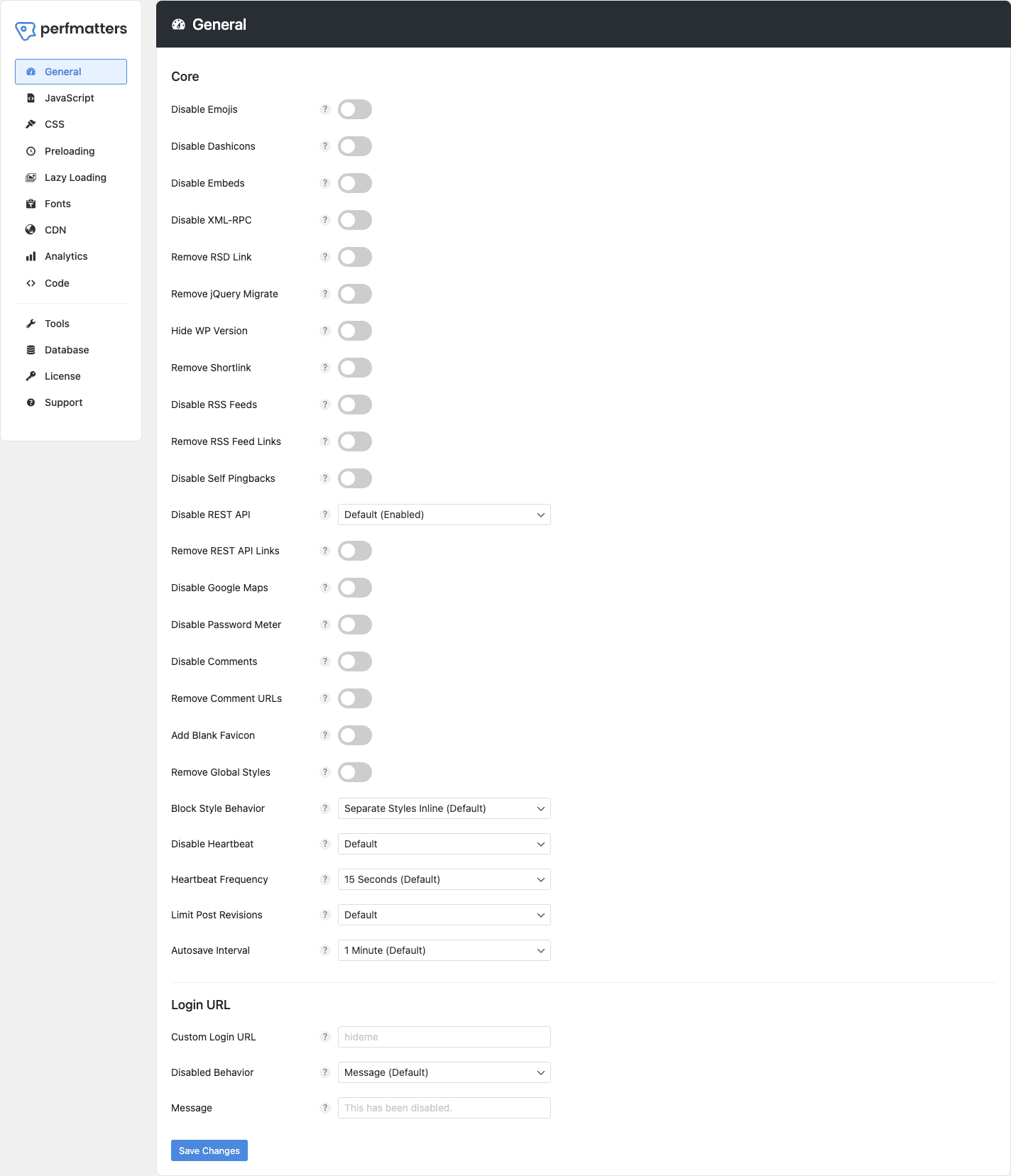
Core section:
- Disable Emojis – removes the 14KB emoji script. Safe.
- Disable Dashicons – removes the WP admin icon font from the front-end if you aren’t logged in. Don’t disable if your theme uses Dashicons icons publicly.
- Disable Embeds – removes wp-embed.min.js. Safe unless other sites embed your URLs as oEmbed.
- Disable XML-RPC – kills /xmlrpc.php. Safe unless you publish via desktop apps.
- Remove RSD Link – removes the Really Simple Discovery link from
<head>. Safe. - Remove jQuery Migrate – removes the compat shim. Test your theme; older themes break without it.
- Hide WP Version – removes the WP version generator meta tag. Recommended for light security through obscurity.
- Remove Shortlink – removes the
<link rel="shortlink">tag. Safe. - Disable RSS Feeds / Remove RSS Feed Links – if you genuinely don’t have an RSS audience.
- Disable Self Pingbacks – stops WordPress from pinging itself when you internal-link. Should be on always.
- Disable REST API – only set this to "Disable" if you know what depends on it. Block editor (Gutenberg), Contact Form 7 REST submissions, WooCommerce, any headless usage, all break. Leave as Default (Enabled) unless you’re sure.
- Remove REST API Links – removes the
<link rel="https://api.w.org/">discovery header. Cosmetic. - Disable Google Maps – removes Google Maps JS embedded by themes/plugins. Only useful if a plugin is loading Maps but you don’t use it.
- Disable Password Meter – removes the password strength meter from registration/profile pages. Most sites don’t have public registration anyway.
- Disable Comments – turns off comments site-wide. Combine with Disable Comments plugin if you want a more thorough job.
- Remove Comment URLs – removes the website field from comment forms. Reduces comment spam a lot.
- Add Blank Favicon – sends an empty favicon to stop 404 spam in your error log if no theme provides one.
- Remove Global Styles – removes the inline CSS variables WP 5.9+ outputs for full-site editing. Only safe if you’ve disabled FSE or use a classic theme.
- Block Style Behavior – controls how block CSS is loaded. "Separate Styles Inline (Default)" is fine for most.
- Disable Heartbeat / Heartbeat Frequency – the WP Heartbeat API pings every 15 seconds while the admin is open. Set "Disable" or stretch frequency to 60s for staff with admin tabs open all day. Don’t disable on WooCommerce, the cart relies on it.
- Limit Post Revisions – cap revisions to 5-10 to keep the database lean. Combine with database cleanup later.
- Autosave Interval – default 1 minute is fine. Bumping to 2 minutes is harmless.
Login URL section:
- Custom Login URL – lets you set a custom slug to replace
/wp-login.php. Set it to something memorable but not guessable, like/login-secret. This is not real security, it’s the digital equivalent of moving the front door to the side of the house. Bots that know to look for /wp-login.php will find your new URL if they crawl your site. But it does cut down 99% of automated brute-force traffic from log files, which has a measurable impact on server load.
If you do nothing else in this section beyond Disable Emojis, Disable Embeds, Disable XML-RPC, Disable Self Pingbacks, and Limit Post Revisions, you’ve already trimmed a lot of weight.
Step 3: JavaScript, the most important tab {#step-3-javascript}
This is the highest-impact tab in the plugin. Mismanaged, it also breaks the most sites. Take it slowly.

Defer section:
- Defer JavaScript – adds the
deferattribute to all script tags. Browsers will download them in parallel but execute them only after HTML parsing finishes. This shrinks render-blocking time. Side effect: scripts that expect to run synchronously, or that need jQuery ready before they fire, can break. Watch for sliders that don’t initialize, popups that miss their trigger, custom buttons that lose handlers. - Include Inline Scripts – extends defer to inline
<script>tags too. Risky. Many themes have inline init code (e.g. for navigation toggles) that needs to run immediately. Leave off by default; only turn on if you’re sure your inline scripts can wait. - Excluded from Deferral – paste keywords or partial paths of scripts that shouldn’t be deferred, one per line. Examples:
jquery.min.js,wp-includes/js/wp-emoji-release,your-theme/js/critical.js.
Delay section (the big one):
- Delay JavaScript – holds back scripts entirely until the first user interaction (scroll, mouse move, touch, click, keypress). This is what makes Lighthouse TBT (Total Blocking Time) plummet, because nothing runs during the initial page load.
- Delay Behavior – dropdown with two options:
- Only Delay Specified Scripts (Default) – safer. You list scripts/keywords in "Delayed Scripts". Only those get delayed.
- Delay All Scripts – aggressive. Delays everything. Faster benchmark, but break-prone.
- Delayed Scripts – the list. Add things like
googletagmanager,google-analytics,gtag,facebook.net,hotjar,clarity,intercom,tawk.to,wp-content/plugins/jetpack. Marketing pixels are the perfect delay candidates. - Delay Timeout – if no interaction happens within N seconds, force the scripts to run anyway. Useful for headless crawlers (like search bots) that don’t simulate interaction, otherwise your analytics never fires on bot visits.
Minify section:
- Minify JavaScript – shrinks JS by stripping whitespace and comments. Modest gains (3-8% on already-minified files). Don’t enable if your hosting/CDN already minifies, or if you use WP Rocket’s minify.
Recommended starting config for a typical content site:
- Defer JavaScript: ON
- Include Inline Scripts: OFF (turn on later if no issues)
- Delay JavaScript: ON
- Delay Behavior: Only Delay Specified Scripts
- Delayed Scripts: paste your marketing/analytics keywords here, one per line
- Delay Timeout: ON, set to 5-10 seconds
Open your site in an incognito window after each change and test core flows: navigation, mobile menu, search, checkout if WooCommerce, signup if you have a form. Anything that requires JS is the most likely to break.
Step 4: Lazy Loading, get this right or break LCP {#step-4-lazyload}
Lazy loading defers off-screen image/iframe loads until the user scrolls near them. It can save megabytes per page load. It can also tank your LCP score if you lazy-load the hero image, because the browser starts downloading the LCP image late.
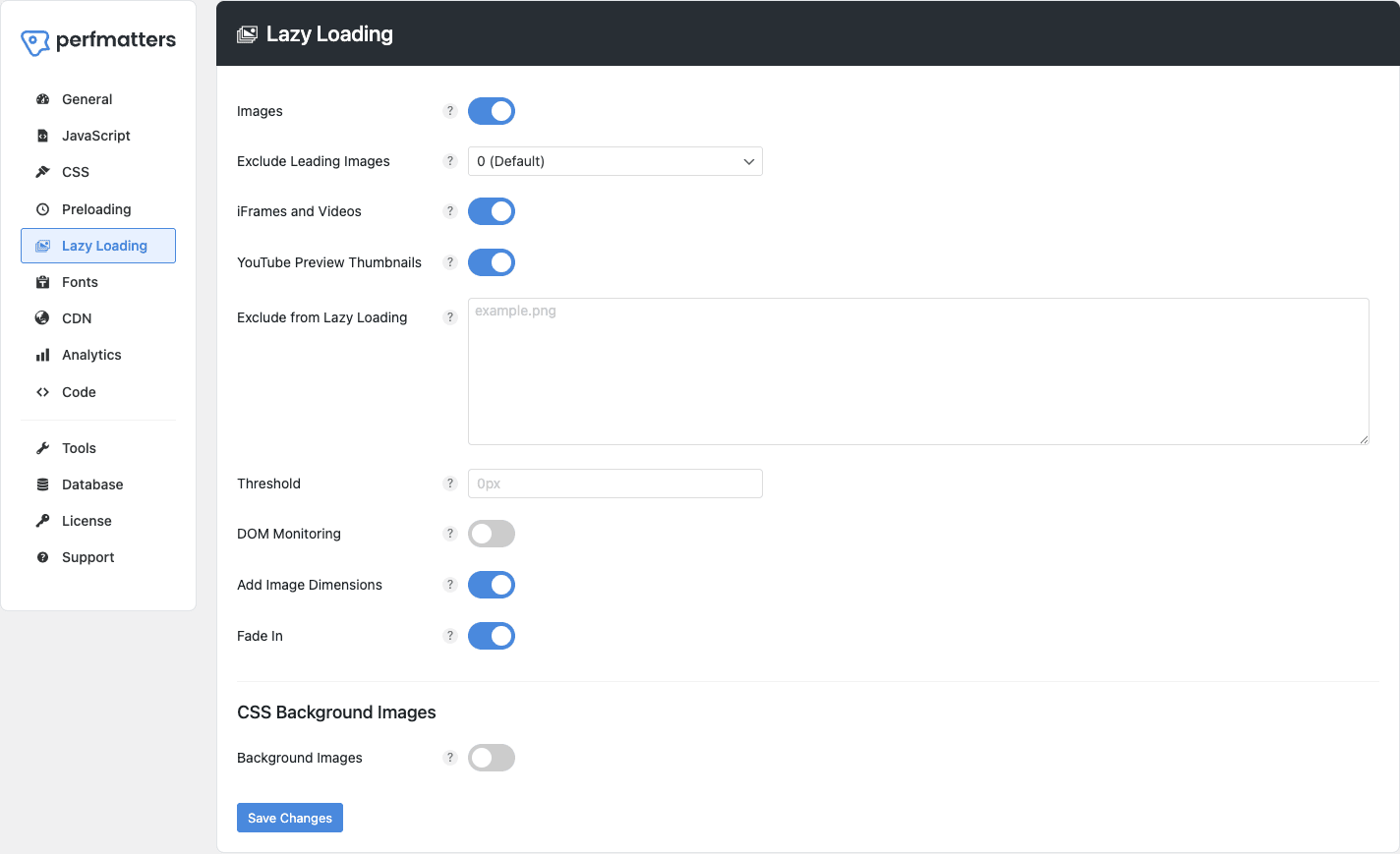
Walking through each control:
- Images – master toggle. Adds
loading="lazy"and sets up Perfmatters’ fallback IntersectionObserver for older browsers. Always ON. - Exclude Leading Images – dropdown 0 through 10. This is the critical setting. Set it to 1 if your hero is a single image. Set to 2 or 3 if you have a hero plus a logo plus a slider above the fold. If you set it to 0, your LCP image gets lazy-loaded and Lighthouse will hammer your score.
- iFrames and Videos – lazy-loads YouTube embeds, Vimeo, custom iframes. Always ON.
- YouTube Preview Thumbnails – replaces the YouTube player iframe with a clickable thumbnail until the user clicks. Saves ~1MB per embed because the YouTube SDK doesn’t load. Always ON if you have video embeds.
- Exclude from Lazy Loading – textarea, one keyword per line, e.g.
logo.svg,hero-image.webp. - Threshold – how many pixels before the viewport edge to start loading. Default 0px is fine. Increase to 200-500px if your users scroll fast.
- DOM Monitoring – watches for images injected by JS (e.g. AJAX-loaded comments) and lazy-loads those too. Small CPU cost. Leave ON if you use Disqus, AJAX galleries, infinite scroll.
- Add Image Dimensions – injects
widthandheightattributes by reading actual image dimensions server-side. Always ON. Prevents Cumulative Layout Shift. - Fade In – 400ms fade-in animation when lazy images load. Nice touch.
- CSS Background Images – lazy-loads CSS
background-imageURLs too. Requires you to list the CSS selectors. More work but worth it on image-heavy themes.
The single most impactful setting on this tab is Exclude Leading Images. Get that wrong and your Largest Contentful Paint score drops 1-2 seconds. Get it right and you save bandwidth on every visit.
Step 5: Local Google Fonts {#step-5-fonts}
Google Fonts are a privacy and performance liability. By default, every request to fonts.googleapis.com leaks the visitor’s IP and User-Agent to Google. In Germany you can be fined for this without explicit consent. From a performance angle, it’s a third-party connection that adds DNS + TLS handshake on first paint.
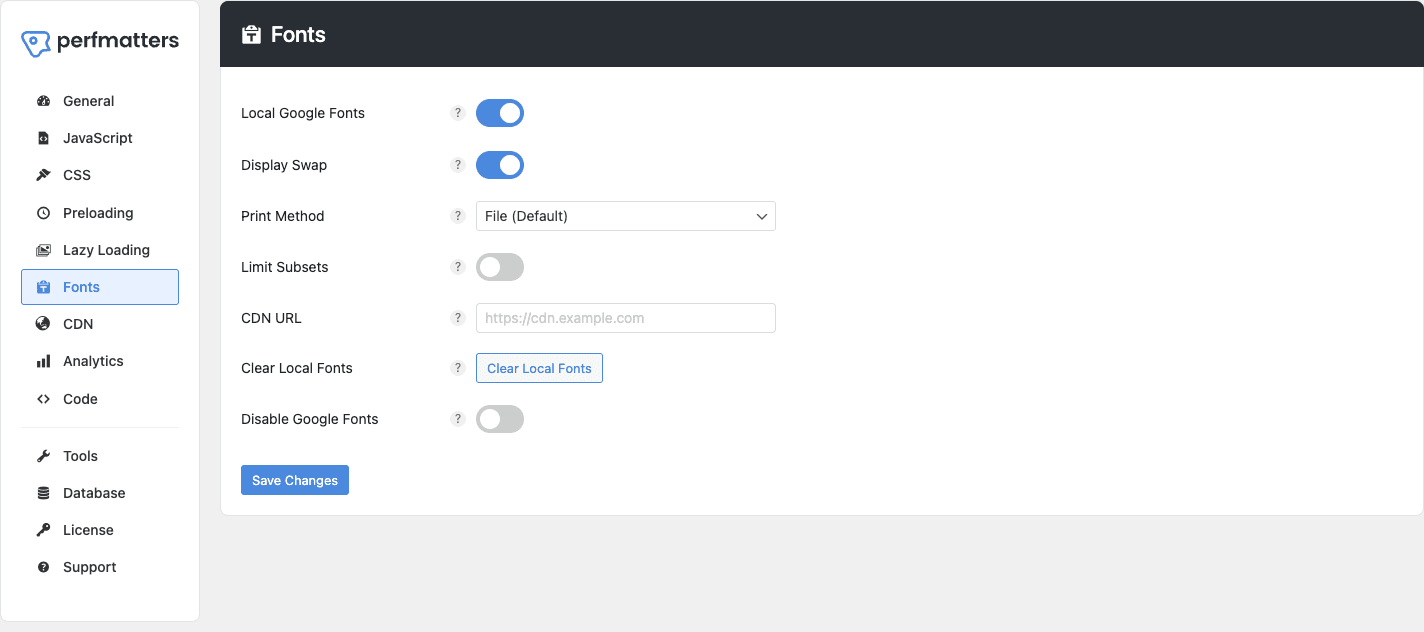
What each toggle does:
- Local Google Fonts – Perfmatters downloads the WOFF2 files to
/wp-content/uploads/perfmatters/fonts/on first request, then rewrites your HTML to serve them from your own domain. No more fonts.googleapis.com requests. Compatible with GDPR. - Display Swap – injects
font-display: swapinto the @font-face rule. Browser shows fallback font immediately, swaps to webfont when ready. Stops Flash of Invisible Text (FOIT). - Print Method – File (Default) writes to a static.css file. Inline writes the font CSS directly into your
<head>. File is faster (browser-cached), Inline saves one HTTP request. File is right for most sites. - Limit Subsets – by default Google Fonts loads
latin, latin-ext, cyrillic, greek, vietnamese(all of them, ~80KB across families). Limit to justlatinif your site is English-only, drops the font weight roughly in half. - CDN URL – if you’re using a separate static CDN, paste it here to rewrite the font URLs through it. Optional.
- Clear Local Fonts – button to wipe the local font cache and force a re-download. Use after updating font choices in your theme customizer.
- Disable Google Fonts – extreme option. Doesn’t host them, doesn’t load them, just kills the requests. Your site will fall back to whatever the theme defines as the system font stack. Only useful if you’re moving to self-hosted Adobe Fonts or system fonts entirely.
Recommended config for an English-only site: Local Google Fonts ON, Display Swap ON, Print Method File, Limit Subsets ON (latin only).
Step 6: The Script Manager (the killer feature) {#step-6-script-manager}
Most plugins load their CSS and JS on every single page. Contact Form 7 loads its script on the homepage even if there’s no form. Elementor’s scripts load on a tiny static About page that doesn’t use Elementor. WooCommerce drops 30+ scripts on your blog even though there’s no shop element there.
The Script Manager fixes this by letting you disable individual scripts on specific URLs.
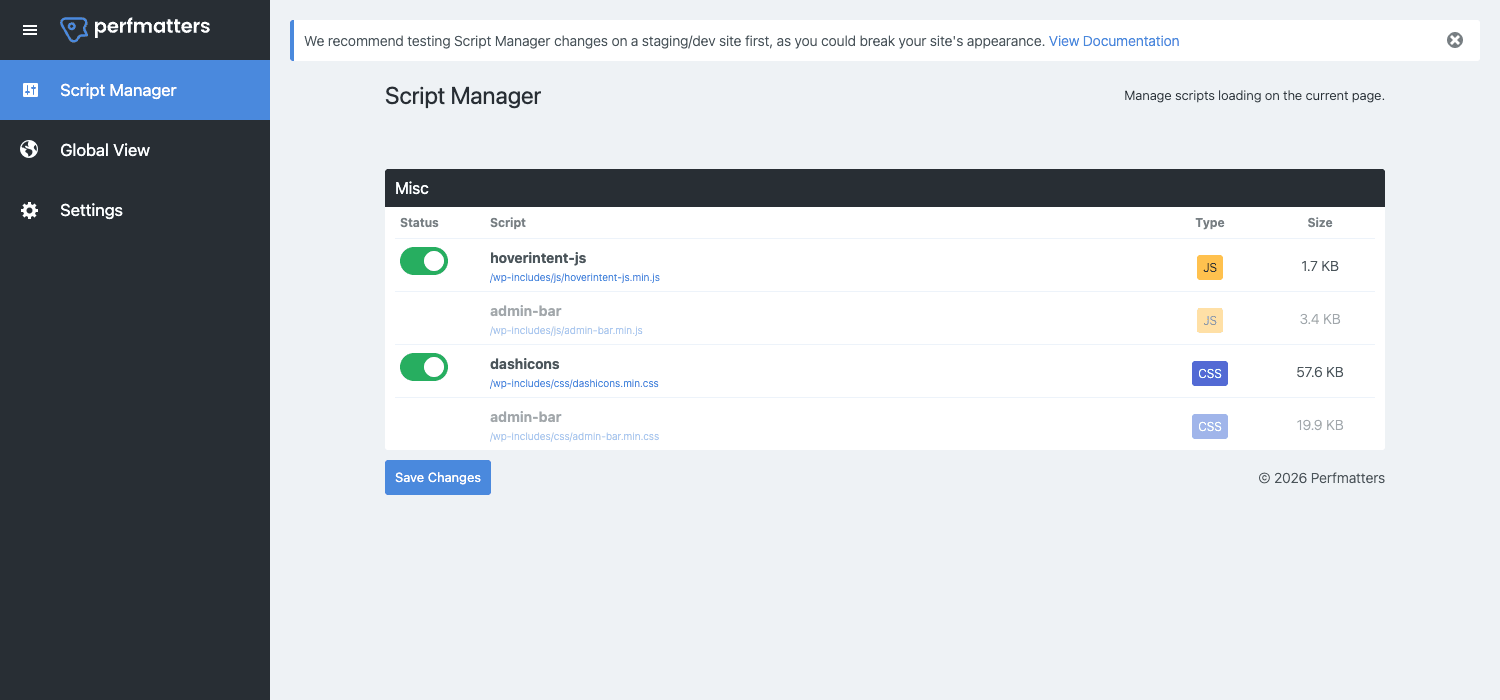
How to enable it:
- Settings -> Perfmatters -> Tools -> toggle "Script Manager" ON, click Save Changes.
- Visit any front-end page logged in as admin.
- You’ll see a new "Perfmatters" item in the WP admin bar. Click "Script Manager".
- A floating panel slides up showing every script and stylesheet loaded on this page, grouped by plugin/theme.
Three levels of control:
- Status toggle (per page) – turn the script off only on this URL.
- Disable Everywhere – drop-down option per script, turns it off site-wide.
- Disable Everywhere Except – turn it off everywhere, enable it only on specific URLs (or specific post types).
A realistic example: I have a site using WPForms for a single contact page. WPForms loads its CSS and JS on every page. In Script Manager I set WPForms to "Disable Everywhere Except" the /contact/ URL. Saved 28KB per non-contact page load.
Global View in the left nav of Script Manager gives you an aggregate list across the whole site, useful for spotting scripts that load on 100% of pages but only need to load on 5%.
Settings tab has:
- Show Advanced – exposes regex matching for more flexible URL rules.
- Disable Logged-In – skip Script Manager rules when an admin is logged in (so you don’t accidentally disable scripts in the editor).
- Hide Admin Bar Menu – removes the Perfmatters dropdown from the admin bar once you’re done tuning.
Watch out: Script Manager is the single biggest source of "this page is broken after I tweaked Perfmatters" reports. Always test in incognito after disabling a script, because logged-in caching and CSS specificity can mask the breakage when you’re admin.
Step 7: Database cleanup without rookie mistakes {#step-7-database}
WordPress’s database accumulates junk over years. Post revisions, autosaves of draft posts that never got published, transients that expired but weren’t purged, trashed comments. None of this is fatal, but on a 5-year-old site you can easily have a database that’s 2-3x the size it needs to be, which makes backups slower and PHP queries (especially during admin login) take longer.
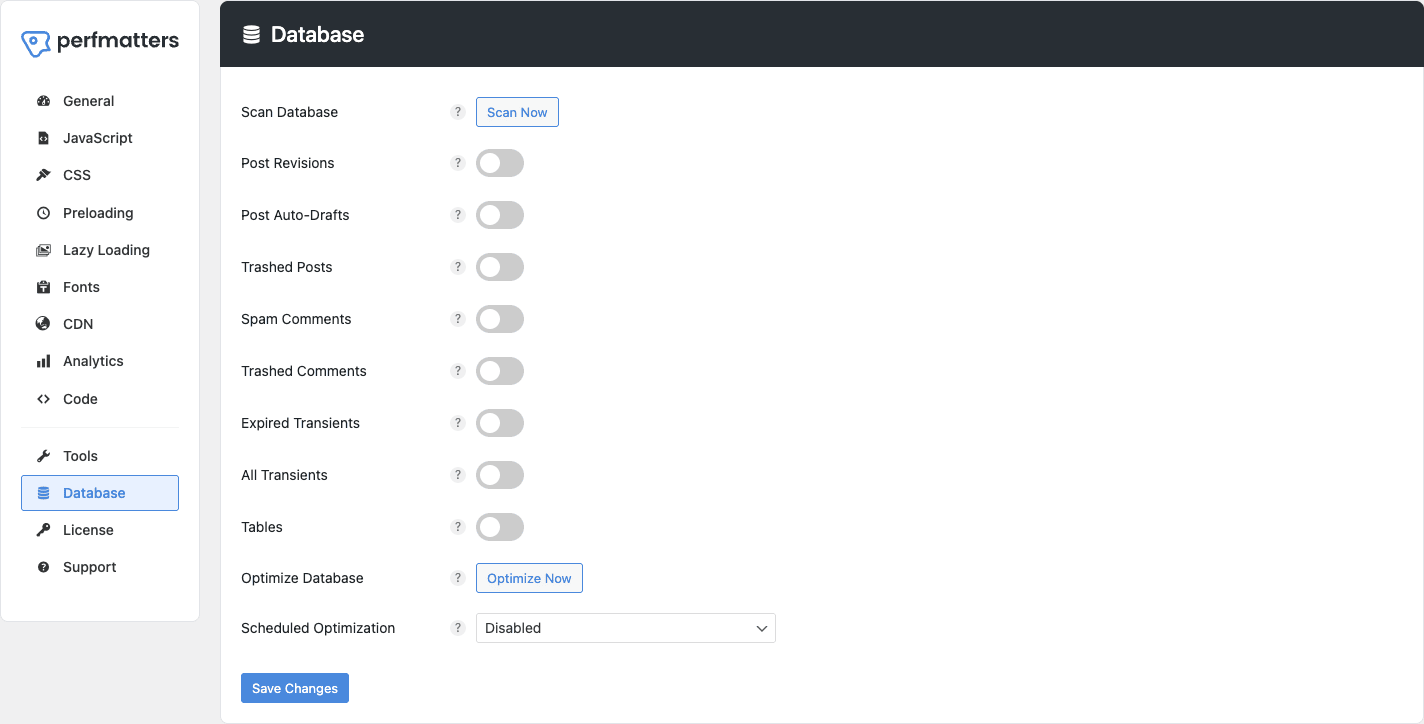
Working through each row:
- Scan Database – runs a non-destructive scan and shows what could be cleaned. Always do this first. Read the numbers before you act on them.
- Post Revisions – WordPress stores every Save while you draft. After a year on an active blog, you’ll have hundreds of revisions per post. Toggle this and click Optimize Now to delete them all.
- Post Auto-Drafts – drafts WordPress auto-created when you opened "New Post" and never published. Safe to clean.
- Trashed Posts – posts in the Trash bin. If you haven’t checked the trash in 6 months, you don’t need them.
- Spam Comments – comments marked as spam by Akismet or Antispam Bee. Safe.
- Trashed Comments – comments you manually trashed. Safe.
- Expired Transients – WordPress caches small data in
_transient_options with TTLs. Expired ones don’t auto-delete on most setups. Clean periodically. - All Transients – includes non-expired ones. Use with care because some plugins use transients for legitimate state (license check timestamps, API response caches). They’ll re-fetch on next request, which is usually fine.
- Tables – lists database tables left behind by uninstalled plugins. Inspect this list manually before deleting anything. Plugins like WooCommerce keep historical data in their own tables (
wp_woocommerce_*), and you don’t want to nuke order history because you uninstalled and reinstalled WC. - Optimize Database – runs
OPTIMIZE TABLEon all tables. Reclaims disk space from deleted rows. Safe. - Scheduled Optimization – dropdown: Disabled, Daily, Weekly, Monthly. Set to Weekly for active sites. The plugin will use WP-Cron to run optimization automatically.
Two rules:
- Take a full backup before clicking Optimize Now the first time. After that, weekly scheduled cleanup is fine without manual backups.
- Never run "All Transients" on a WooCommerce or LMS site without checking what plugins rely on transients first.
Real performance numbers on test sites {#performance}
Synthetic numbers are useful with caveats. I tested Perfmatters on two real sites I run, one a WordPress content blog with ~15 plugins, the other a small WooCommerce store.
Site 1: content blog, Hostinger, Astra theme + Yoast + EWWW + Mailchimp + JetPack stripped down
Before Perfmatters (with only page cache from hosting):
- LCP: 2.1s
- TBT: 380ms
- Page weight: 920KB
- HTTP requests: 47
- Lighthouse Performance: 71
After Perfmatters (Defer + Delay + Local Fonts + Script Manager disabling JetPack on non-share pages):
- LCP: 1.4s
- TBT: 140ms
- Page weight: 580KB
- HTTP requests: 28
- Lighthouse Performance: 92
Site 2: WooCommerce store, Kinsta, GeneratePress + WC + Stripe + WPForms + a few utility plugins
Before Perfmatters (WP Rocket already installed for caching):
- LCP: 1.8s
- TBT: 280ms
- Page weight: 1.4MB
- Lighthouse Performance: 78
After Perfmatters added on top of WP Rocket:
- LCP: 1.6s
- TBT: 110ms (delay JS through Perfmatters, turned off WP Rocket’s)
- Page weight: 980KB (Script Manager removed WPForms CSS from non-contact pages, Stripe JS from non-checkout)
- Lighthouse Performance: 93
The pattern: Perfmatters’ biggest win on Site 1 was Delay JavaScript + Script Manager removing JetPack share buttons on pages without share blocks. On Site 2 with WP Rocket already in place, Perfmatters added a 15-point Performance bump primarily through Script Manager surgery on WooCommerce and WPForms.
On WP Engine / Kinsta-style hosts where page caching is at the server level, Perfmatters can be your only speed plugin. On budget shared hosting where there’s no server cache, you need a real caching plugin (WP Rocket, or free WP Super Cache / W3 Total Cache) plus Perfmatters.
Perfmatters vs WP Rocket vs free options {#comparison}
Honest breakdown.
| Feature | Perfmatters | WP Rocket | Free WP-Optimize | Free Autoptimize |
|---|---|---|---|---|
| Page caching | No | Yes | Yes | No |
| Delay JS | Yes (granular per-script) | Yes (preset list) | No | No |
| Defer JS | Yes | Yes | Yes | Yes |
| Lazy loading | Yes (very polished) | Yes | Yes | Yes |
| Script Manager (per-page disable) | Yes (unique) | No | No | No |
| Local Google Fonts | Yes | Yes (via OMGF) | No | No |
| Database cleanup | Yes | Yes | Yes (best) | No |
| CDN URL rewrite | Yes | Yes | No | Yes |
| Critical CSS / RUCSS | No | Yes | No | Yes |
| Self-host Google Analytics | Yes | No | No | No |
| WP-CLI commands | Yes | Yes | Partial | No |
| 1-site license price | $24.95/yr | $59/yr | Free / $49/yr Pro | Free |
Pick Perfmatters if you value the Script Manager and don’t need built-in caching.
Pick WP Rocket if you want one tool, sensible presets, and built-in caching.
Run both if you want WP Rocket’s caching + Perfmatters’ Script Manager.
Stick with the free combo (WP-Optimize + Autoptimize + free SiteGround Optimizer / Cloudflare APO) if budget is the constraint.
For deeper coverage of WP Rocket itself, see our WP Rocket walkthrough.
10 common gotchas that bite people {#gotchas}
- Defer JS breaks the mobile menu. Theme authors often inline-init the nav toggle. If your hamburger menu stops working after defer, exclude the theme’s main JS file in "Excluded from Deferral".
- Delay JS hides your Cookie Consent banner. Cookie consent scripts (Cookiebot, Iubenda, Termly) need to fire before user interaction, which is exactly what Delay JS prevents. Add the cookie consent script’s URL to "Excluded from Delayed JS" or risk failing privacy compliance audits.
- Disable REST API breaks Gutenberg. Setting REST API to "Disable" instead of "Block REST API to non-logged-in users" kills the block editor’s save function. Always pick the second option if you don’t need REST API public.
- Removing jQuery Migrate breaks ancient themes. If your theme was built pre-2018, it likely depends on jQuery Migrate to support deprecated APIs. Check the front-end console for errors before keeping this off.
- Lazy loading the hero image kills LCP. Always set "Exclude Leading Images" to at least 1.
- Disable Heartbeat breaks WooCommerce cart. Don’t disable Heartbeat on stores; the cart polls Heartbeat to sync state across tabs.
- All Transients clean wipes legitimate license caches. Some commercial plugins cache their license validation in transients. Wiping them forces revalidation, which can briefly disable Pro features.
- Custom Login URL doesn’t add real security. It’s obfuscation, not authentication. Pair it with strong passwords + 2FA.
- Script Manager rules don’t apply when you’re logged in by default. Easy to think a rule is applied when you’re checking as admin but the rule is set to "skip logged-in users". Always verify in an incognito window.
- Self-hosted GA needs a regular refresh. Perfmatters can host
gtag.jslocally, but it doesn’t auto-refresh the file. Google occasionally updates the script. Schedule a monthly clear via WP-Cron or you’ll miss new analytics features.
Developer reference: hooks and filters {#developer-reference}
Perfmatters exposes a clean filter API. Here are the high-impact ones with realistic snippets.
Skip Perfmatters entirely on the WooCommerce checkout page (in case Delay JS interferes with payment scripts):
add_filter('perfmatters_default_options', function($options) {
 if (is_checkout() || is_cart()) {
 $options['assets']['delay_js'] = false;
 $options['assets']['defer_js'] = false;
 }
 return $options;
});
Exclude additional scripts from deferral programmatically (useful if you can’t manage the list manually):
add_filter('perfmatters_defer_js_exclusions', function($excluded) {
 $excluded[] = 'critical-checkout.js';
 $excluded[] = 'wp-content/plugins/elementor/assets/js/frontend';
 return $excluded;
});
Add custom keywords to the Delay JS list:
add_filter('perfmatters_delayed_scripts', function($delayed) {
 $delayed[] = 'tagmanager.google.com';
 $delayed[] = 'hotjar.com';
 return $delayed;
});
Exclude specific images from lazy loading (e.g. all hero images on the homepage):
add_filter('perfmatters_lazyload', function($enabled, $url) {
 if (is_front_page() && strpos($url, 'hero-')!== false) {
 return false;
 }
 return $enabled;
}, 10, 2);
Customize the lazy load threshold per-context:
add_filter('perfmatters_lazyload_threshold', function($threshold) {
 if (wp_is_mobile()) {
 return 600; // load earlier on mobile
 }
 return $threshold;
});
Disable Perfmatters’ login URL feature for specific roles (e.g. let editors use the standard /wp-login.php while customers see the obfuscated one):
add_filter('perfmatters_login_url', function($url) {
 if (current_user_can('edit_posts')) {
 return wp_login_url();
 }
 return $url;
});
Detect WooCommerce context for context-specific tweaks:
add_filter('perfmatters_is_woocommerce', function($is_woo) {
 // Force WooCommerce detection on a custom checkout page
 global $post;
 if ($post && $post->post_name === 'custom-checkout') {
 return true;
 }
 return $is_woo;
});
Override CDN URL extensions (route only specific file types through CDN):
add_filter('perfmatters_cdn_extensions', function($extensions) {
 return ['jpg', 'jpeg', 'png', 'webp', 'avif', 'svg'];
});
Run Script Manager rules programmatically to disable a script on specific post types:
add_filter('perfmatters_code_snippets', function($snippets) {
 if (is_singular('post')) {
 $snippets[] = "wp_dequeue_script('wpforms-modern');";
 }
 return $snippets;
});
WP-CLI commands (run from the project directory):
# Clear local font cache
wp perfmatters clear_local_fonts

# Clear minified JS cache
wp perfmatters clear_minified_js

# Run database optimization
wp perfmatters optimize_database
These are useful in CI/CD pipelines (e.g. deploy hook clears the local font cache after pushing new theme code that introduced new fonts).
FAQ {#faq}
Does Perfmatters cache pages?
No. Perfmatters does not generate or serve cached HTML. You still need a caching plugin (WP Rocket, LiteSpeed Cache, Cache Enabler) or server-level caching (Cloudflare, Kinsta, WP Engine).
Can I run Perfmatters and WP Rocket together?
Yes, this is a popular combination. Turn off WP Rocket’s Delay JS / Lazy Load and use Perfmatters’ versions for finer control. Keep WP Rocket’s page caching and critical CSS active.
Is Perfmatters compatible with Elementor / Divi / Beaver Builder?
Yes, but be careful with Delay JS, page builders use a lot of front-end JS. Start with "Only Delay Specified Scripts" mode and exclude builder-specific scripts. The plugin’s perfmatters_page_builders filter auto-detects most builders.
Does Perfmatters slow down the admin?
Minimal impact. The settings UI is one PHP page render per save. The Database tab’s "Optimize Now" runs a OPTIMIZE TABLE which can take 30 seconds on big databases, no longer than other cleanup plugins.
Will Perfmatters fix Core Web Vitals?
It can improve LCP and TBT significantly. CLS depends on layout issues (image dimensions, dynamic content) which Perfmatters’ "Add Image Dimensions" helps with but doesn’t fully fix.
Does the Script Manager work on every page type?
Yes, including custom post types, taxonomy archives, search results, 404 pages. Rules can target any URL pattern.
Can I export/import Perfmatters settings between sites?
Yes, Tools tab -> "Export Plugin Settings" and "Import Plugin Settings". This is huge for agencies, lets you maintain a baseline config and apply it across client sites.
What’s the difference between Defer and Delay?
Defer adds the defer HTML attribute, scripts download in parallel but execute after HTML parsing. Delay holds scripts back entirely until user interaction; nothing executes until then. Delay produces bigger benchmark wins but breaks more.
Is Perfmatters GDPR-compliant?
The plugin itself stores no personal data. Its Local Google Fonts feature is what most German agencies install Perfmatters for, it routes fonts through your own server instead of fonts.googleapis.com, removing a third-party data transfer.
Does Perfmatters work with multisite?
Yes. License covers a multisite install as one "site". You can network-activate it and set network-wide defaults.
Why is my LCP image lazy-loading even though I set "Exclude Leading Images" to 1?
Probably because the LCP element is a CSS background image, not an <img>. Turn on "CSS Background Images" lazy loading and add the LCP background’s selector to the exclude list.
Does Perfmatters automatically detect my hosting’s existing optimizations?
Partially. It detects WP Rocket, LiteSpeed, and a few CDNs to avoid double-processing. It can’t detect every host-level cache, you may need to disable overlapping features manually.
Final thoughts {#final-thoughts}
Perfmatters fills a real gap. WP Rocket is great at "I want my WordPress site fast and I don’t want to think about it." It’s the answer when the question is "what’s one plugin I install to make this faster." But once you’ve used it for a year and your scores are decent, you hit a ceiling because WP Rocket’s defaults are conservative for compatibility’s sake.
Perfmatters is where you go to break through that ceiling. The Script Manager alone is worth the license fee on any site running more than 8-10 plugins, the average WP site has 22-30 scripts loading per page and 40-60% of them load on pages that don’t use them.
The tradeoff is configuration time. You have to read what each toggle does, test after each change, and understand why your hero image needs to be excluded from lazy loading. It’s not "set and forget." If you want set-and-forget, run WP Rocket and stop reading.
If you’re going to be a serious WordPress operator (agency owner, performance-focused site owner, developer who maintains client sites), Perfmatters is one of the half-dozen plugins worth knowing in depth. It pairs naturally with WP Rocket for page caching and WP-Optimize Premium for deeper image work. Combined, the three give you the same speed result as any all-in-one plugin while giving you actual visibility into what each one is doing.