

If you run a WordPress site that captures users, leads, or customers, you’ve probably hit the same wall I have. Your CRM lives somewhere else (ActiveCampaign, HubSpot, Mailchimp, Drip, take your pick), and getting WordPress data into it usually means a fragile chain of Zapier zaps, hand-built REST calls, or a plugin per CRM. WP Fusion is the bridge that quietly replaces all of that.
This walkthrough covers what WP Fusion does, how it works under the hood, every tab in the settings screen, the hook reference you’ll want bookmarked, and the gotchas I’ve run into setting it up on real sites.
Table of contents
- What WP Fusion does
- The 60+ CRMs it connects to
- Core features in plain English
- How a tag-based workflow actually flows
- Installation and first-time setup
- Walking through the settings screen
- Content restriction: gating posts, pages, and blocks
- Shortcodes you’ll actually use
- WooCommerce, EDD, and membership plugins
- Forms: Gravity, WPForms, Fluent, and the rest
- Real-world use cases
- Developer reference
- Performance, queueing, and gotchas
- WP Fusion vs FluentCRM vs AutomatorWP vs Zapier
- Pricing and licensing
- Frequently asked questions
- Final thoughts
What WP Fusion does
WP Fusion is a connector. It sits between WordPress and a CRM (or marketing automation tool, or transactional email service, however you want to categorise the platform you’re paying for), and it does two things really well.
First, it syncs user data. When somebody registers on your site, places an order, fills out a form, completes a course, or updates their profile, WP Fusion pushes the relevant data to the CRM as a contact. When the CRM updates that contact (a sales rep changes their name, an automation flips a custom field), WP Fusion can pull that back to the WordPress user.
Second, it gates content by CRM tag. Every CRM has tags or lists or segments. WP Fusion lets you say "only show this page to users who carry the Customer tag in HubSpot" or "redirect anyone without the Course-1-Buyer tag to the sales page". The check happens server-side, on every request, against the user’s cached tags.
That’s the whole product in two paragraphs. The reason WP Fusion has thirty thousand-ish active installs is because doing those two things reliably, across sixty different CRMs and a hundred different WordPress plugins, is genuinely hard. The plugin’s been in active development since around 2015 by Jack Arturo at Very Good Plugins, and the back catalog of integration code shows it.
The 60+ CRMs it connects to
This is what people land on the product page for. Here’s the actual list bundled in the current build, grouped roughly by category.
Mainstream marketing automation: ActiveCampaign, HubSpot, Drip, ConvertKit (Kit), Mailchimp, MailerLite, GetResponse, AWeber via Mautic bridge, Brevo (formerly Sendinblue), Constant Contact, EmailOctopus, Sender, SendFox, Klick-Tipp, Mailjet, MailEngine, Moosend, Omnisend, Ortto.
E-commerce-focused: Klaviyo, Customer.io, Encharge, Engage, EngageBay, Drift, Customerly, Intercom, Sendlane, Maropost, Bento, BirdSend, Holler Box’s own backend.
Self-hosted CRMs: FluentCRM Pro (local install OR remote REST), Groundhogg (local OR REST), FunnelKit Automations (Autonami), Mautic, MailPoet, WP-ERP, ZeroBS CRM, Profile Builder’s CRM bits.
Heavy enterprise CRMs: Salesforce, HubSpot (the CRM side, not just marketing), Microsoft Dynamics 365, Zoho, Pipedrive, Keap (formerly Infusionsoft), Ontraport, Capsule, Copper, Insightly via Salesflare, AgileCRM, NationBuilder, Vtiger.
Newer or niche tools: Platformly, Kartra, ConvertFox/Gist, Tubular, UserEngage, Pulsetech, Loopify, Highlevel, Quentn, Salesflare, Flexie, Convesio Convert, Emercury.
When you select a CRM from the Setup tab dropdown, WP Fusion swaps in the auth fields that platform needs. ActiveCampaign asks for an API URL and key. HubSpot uses OAuth. Salesforce uses OAuth with a sandbox toggle. FluentCRM (this site) connects with one click because it’s right next door in the same WordPress install.
If the CRM you use isn’t in the list, you’ve got a few options: build a custom CRM module (the abstract WPF_CRM_Base class is documented and other people have done it), use the generic webhook in/out via the WP Fusion Webhooks add-on, or route through Zapier with WP Fusion’s webhook receiver.
Core features in plain English
Here’s what the plugin actually gives you once it’s connected.
- Contact creation and update on user registration. A new WordPress user becomes a contact in the CRM, with first name, last name, email, role, and whatever custom fields you’ve mapped. If the email already exists in the CRM, WP Fusion updates the existing contact instead of creating a duplicate.
- User meta to CRM field mapping, two-way. The Contact Fields tab is a long table where each WP user meta key on the left maps to a CRM contact field on the right. You decide which fields sync, which direction, and whether to load existing CRM values into WP on first sync.
- Tag-based content restriction. Every post, page, custom post type, taxonomy term, navigation menu item, Elementor section, Gutenberg block, and Beaver Builder row can be gated by "user must have ANY of these tags" or "user must have ALL of these tags" or "user must NOT have these tags". The check runs in the
wpandtemplate_redirecthooks. - Apply or remove tags on action. When a user views a post, completes a course, fills a form, places an order, hits a milestone in a gamification plugin, or just logs in, you can apply a CRM tag to them. That tag in the CRM then triggers your real automation: a follow-up email, a sales notification, a Slack message, whatever.
- Bulk operations. The Import Users tab pulls existing CRM contacts into WordPress as users. The export functions in the Logs tab push WP users up to the CRM. Both run as batch jobs so you don’t time out on ten thousand records.
- Passwordless auto-login. Add
?cid=<contact_id>to any URL on your site (the parameter name is configurable) and WP Fusion treats the request as that contact, sets a session cookie, and applies any of the plugin’s logic as if they’d logged in. Used heavily for "click this email link to view your account" workflows. - Logging and retry. Every CRM API call is logged with the request, response, and duration. Failed calls can be retried with one click. The async queue means slow CRMs don’t block the page response.
- Multisite support. Each subsite gets its own CRM connection. There’s a network setting in the Advanced tab to lock the choice across the network.
How a tag-based workflow actually flows
If you’ve never used a tag-driven CRM workflow, here’s the mental model that makes WP Fusion click.
Imagine you sell an online course on WordPress. The student journey looks like this in your head:
- Visitor reads a blog post about the course topic.
- They sign up for a free lead magnet.
- They buy the course.
- They complete lesson 5 (the make-or-break lesson).
- They finish the course.
- They get added to a follow-up email sequence about your next course.
WP Fusion turns each of those steps into a tag. So in your CRM you have tags like Blog Reader: Course Topic, Lead Magnet Downloaded, Customer: Course 1, Course 1 Lesson 5 Complete, Course 1 Complete. Each one is a noun the CRM understands.
WordPress is responsible for applying the right tag at the right step. The form plugin applies Lead Magnet Downloaded on submit. WooCommerce applies Customer: Course 1 on payment complete. LearnDash applies Course 1 Lesson 5 Complete when the user marks lesson 5 done. WP Fusion is the glue that sends every one of those tag operations to the CRM.
Once the tag exists in the CRM, the CRM’s own automation engine takes over. ActiveCampaign sees Course 1 Complete and starts the upsell automation. HubSpot’s workflow tool sees Course 1 Lesson 5 Complete and triggers an "are you stuck?" check-in email. Mailchimp segments your master list by tag.
Crucially, the WordPress side also reads tags back from the CRM. If your sales rep manually tags a contact as Refunded in HubSpot, WP Fusion notices on next sync and you can configure WordPress to revoke their access. The tag is a two-way handshake, not a one-shot fire-and-forget.
That’s the model. Once you start thinking in tags, every "should I be syncing this?" question answers itself.
Installation and first-time setup
The Pro plugin is a single zip you upload like any other premium plugin.
- In WordPress, go to Plugins, Add Plugin, Upload Plugin, pick the
wp-fusion.zipfile, install, activate. - Go to Settings, WP Fusion. The first tab you see is Setup.
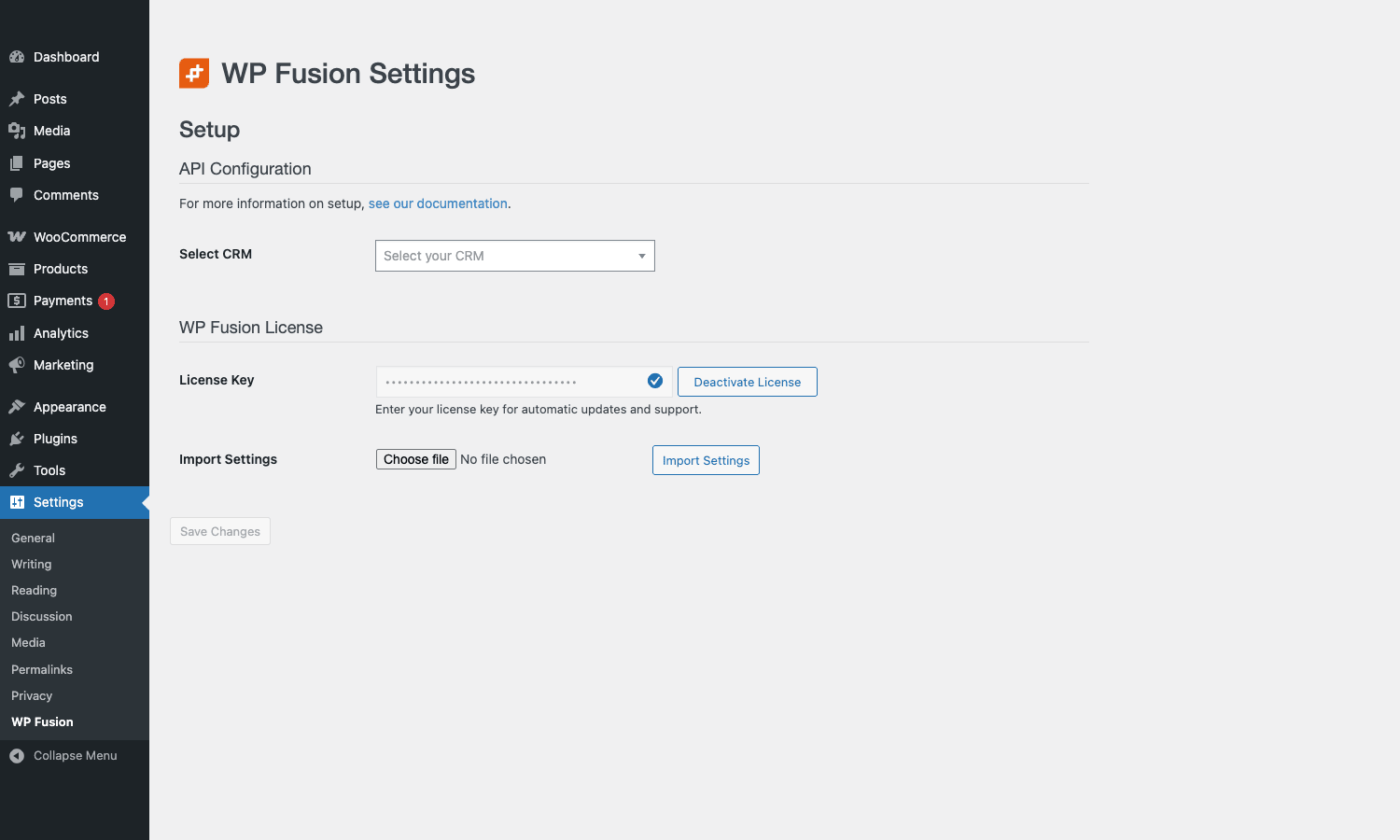
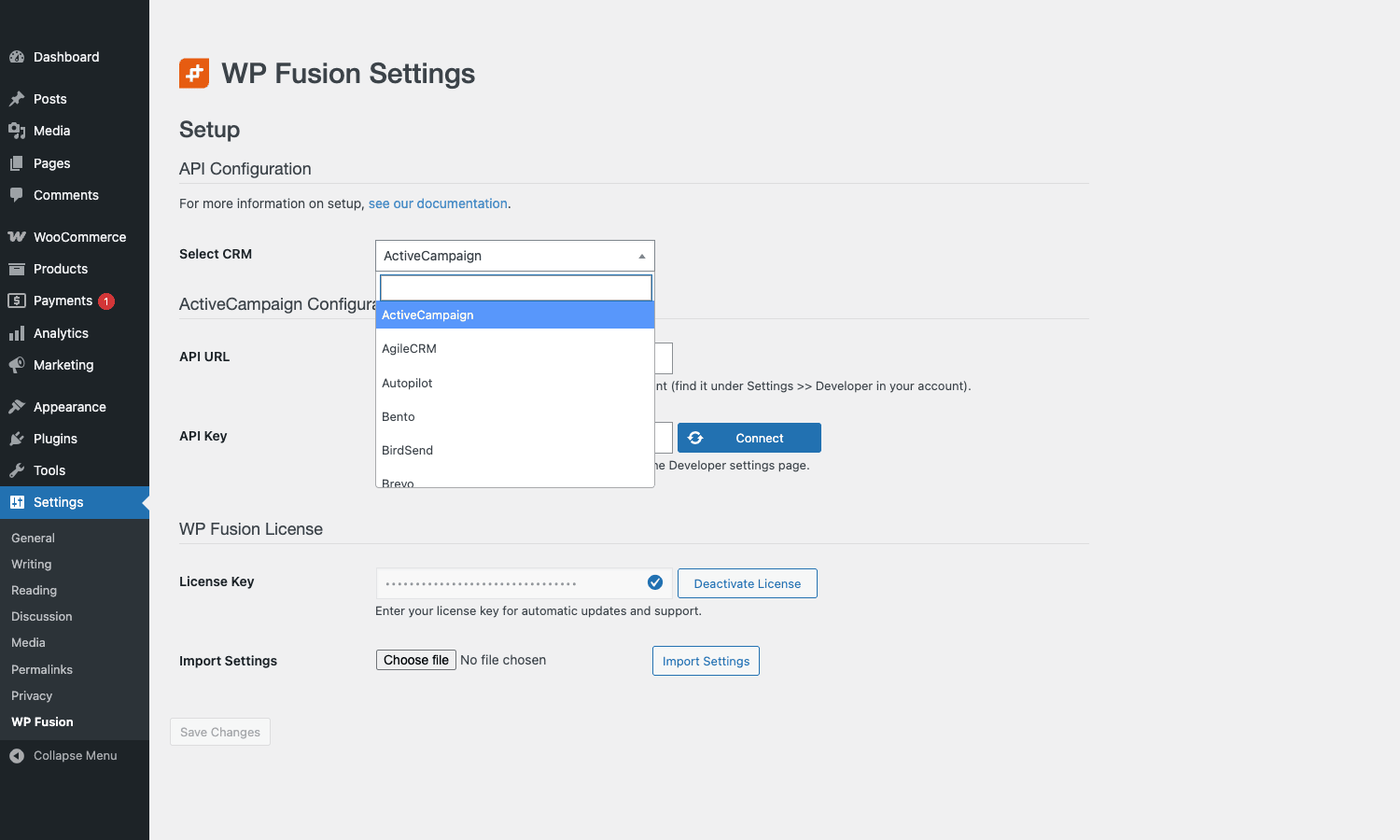
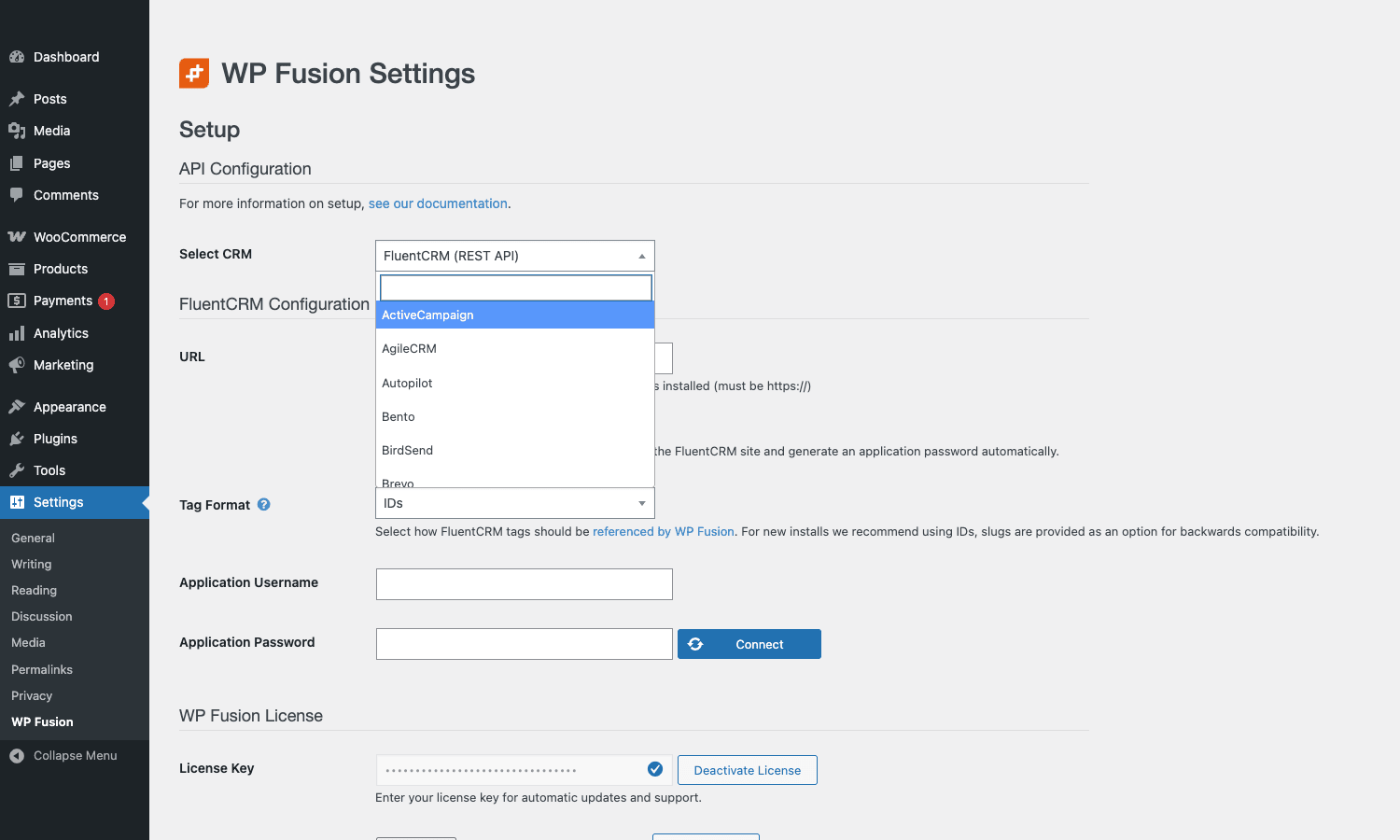
- Pick your CRM from the Select CRM dropdown.
The dropdown shows every supported platform alphabetically. ActiveCampaign, AgileCRM, Autopilot, Bento, BirdSend, Brevo, Capsule, Constant Contact, ConvertKit, and so on, all the way down to Vtiger, WP-ERP, and ZeroBSCRM.
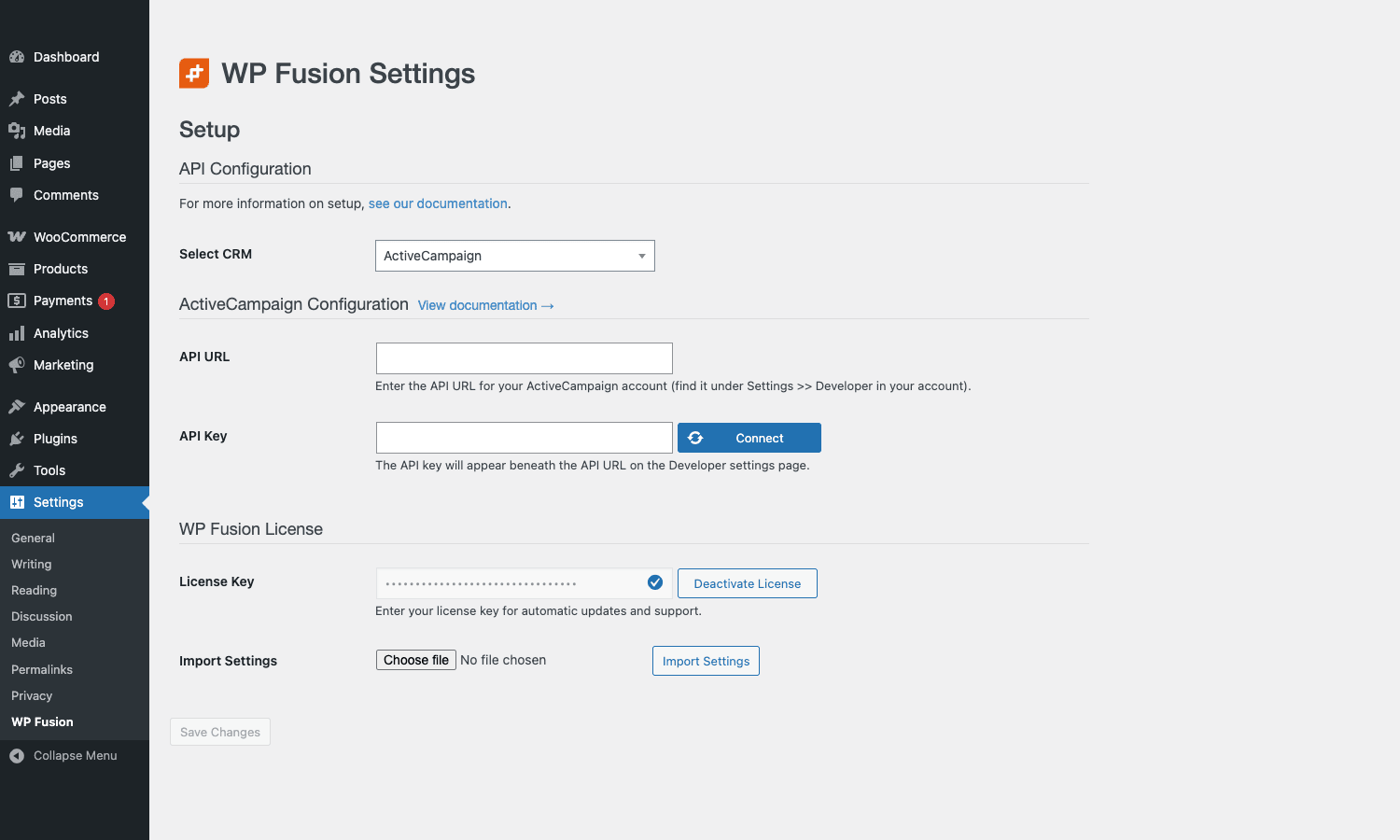
The CRM you pick determines which auth fields appear underneath. ActiveCampaign needs an API URL (found under your AC account, Settings, Developer) and an API key.
Other CRMs ask for different things. FluentCRM’s REST API option wants the site URL and an application password generated on the FluentCRM site.
HubSpot and Salesforce kick off an OAuth flow that opens a popup on the vendor’s site, you grant access, and the popup closes itself once authorisation is complete.
Once the Connect button returns green, WP Fusion saves the connection and unlocks the rest of the tabs (General Settings, Contact Fields, Integrations, Import Users, Advanced). The plugin also runs a one-time sync to pull the list of available tags and custom fields from your CRM and caches them in wp_options so the rest of the admin UI can autocomplete against the real data.
That first sync is the moment where slow CRMs feel slow. Salesforce with a lot of custom fields can take 30 seconds. ActiveCampaign and FluentCRM are usually instant. If it hangs, check the Logs tab (Tools, WP Fusion Logs) for the raw API response.
After the sync, paste your license key in the License Key field at the bottom of the Setup tab and save. That enables automatic updates and lets you download the add-ons (Webhooks, Logins, Enhanced E-commerce, etc.) from your account.
Walking through the settings screen
WP Fusion’s settings page is a single screen with anchored tabs across the top: General Settings, Contact Fields, Integrations, Import Users, Setup, Advanced. Each tab is a different aspect of the connection.
General Settings
This is the most-touched tab. It controls how WordPress users sync to the CRM.
- Assign tags on user creation. Whatever tags you select here are applied to every new contact the moment they’re created. Useful for "anyone who registers gets the
Site Membertag". - Hide WP Fusion meta box by role. By default the per-post WP Fusion meta box is visible to anyone who can edit posts. You can restrict it to administrators only.
- Enable user sync from CRM. Off by default. Turn it on if you want CRM-side changes (a user’s tags being modified in HubSpot) to update the WP user’s cached tags on next request. The check happens on the WordPress
inithook and is debounced via a cron job (wpf_background_sync). - Restrict access globally. A site-wide toggle for the content-gating engine. You can turn restrictions off here without disabling the plugin, which is handy when debugging.
- Login meta sync. On user login, pull fresh user meta from the CRM. Off by default because it adds an API call per login; turn it on for sites that care about real-time field values.
- Lead source tracking. WP Fusion can capture UTM parameters from the URL, store them in cookies, and push them as custom fields on contact creation. The fields are configurable:
lead_source,utm_campaign,utm_medium,utm_source,utm_term,utm_content, plus the original landing page URL and referrer.
Contact Fields
This is the long mapping table that tells WP Fusion which WordPress user meta keys should sync to which CRM contact fields. The left column lists every meta key WordPress knows about: built-ins like first_name, user_email, user_login; WooCommerce billing fields like billing_phone, billing_country, billing_postcode; LearnDash, MemberPress, ACF, Gravity Forms entries, anything else other plugins register. The middle column is a checkbox for "sync this". The right column is a dropdown of CRM fields.
The Contact Fields table is where you’ll spend the most time during initial setup. The defaults are sensible (email, name, billing address get pre-mapped on most CRMs), but custom fields (HubSpot custom properties, ActiveCampaign custom fields, Mailchimp merge tags) need to be wired up by hand once.
Integrations
A long list of plugin-specific settings. If you have WooCommerce installed, you get a WooCommerce panel with "apply tags on order complete", "apply tags on order refund", "sync customer to CRM as", "include order line items as custom fields". If LearnDash is installed, you get a LearnDash panel with "apply tags on course complete", "remove tags on quiz fail", "sync course progress as custom field". Each integration’s panel is independent.
The Integrations tab is also where you toggle "include WooCommerce subscription status in custom fields", "use Gravity Forms entry data as initial CRM fields on guest checkout", "import WooCommerce coupon usage as tags", and similar plugin-pair settings.
Import Users
A batch processor. Type a tag name from your CRM, pick the WP user role to assign, optionally a custom welcome email, and click Import. WP Fusion fetches every CRM contact carrying that tag, creates a WP user for each (or updates the existing one if matched by email), and applies the imported tags + meta. The whole thing runs in the background via wpf_batch actions and a cron-driven queue, so you can close the browser tab once it kicks off.
Setup
The CRM connection itself. You can disconnect, switch CRMs, deauthorise OAuth, or reset the entire WP Fusion state from here. There’s also a debug toggle that prints extra API output to the logs and an "import/export settings" pair for moving the WP Fusion config between sites.
Advanced
The "I know what I’m doing" tab.
- Restrict user roles sync. Pick which WP roles get pushed to the CRM. Set it to "subscriber, customer" only and admins never accidentally end up in your marketing tool.
- Login redirect by tag. Send users to different URLs after login based on which tag they carry.
- Enable queue to switch the async background sync from "spawned loopback request" to "Action Scheduler queue". Use this on hosts that block self-loopback (some managed WordPress hosts do).
- Limit user meta push. Restrict outbound sync to a whitelist of fields.
- API timeout, retry count, batch size. The numbers behind the batch jobs.
- Reset everything. Nuclear option, deletes all the cached CRM tags + field maps + the contact ID stored on every user.
Content restriction: gating posts, pages, and blocks
Once a CRM is connected, every post and page in WordPress gets a WP Fusion meta box in the sidebar of the editor. The box has:
- A Lock this content checkbox. Off means everyone sees the post; on means restriction applies.
- A Users must be logged in sub-toggle.
- A Required tags (ANY) multiselect, an All required tags (ALL) multiselect, and an Excluded tags multiselect.
- An Apply tags when viewed and Remove tags when viewed multiselect for fire-on-view tagging.
- A Redirect to URL or page picker for unauthorised visitors.
The engine that enforces all of this lives in WPF_Access_Control (includes/class-access-control.php). It hooks into template_redirect early, runs wpf_user_can_access_post, and either lets the page render, redirects to the URL you picked, or replaces the content with a "members only" message.
The same restriction model extends to:
- Categories and tags (taxonomy archive pages get a WP Fusion settings panel).
- Custom post types (any CPT with
public => true). - WordPress menu items (a "show only to users with tag" dropdown appears on each menu entry).
- Elementor sections, columns, and widgets (a "WP Fusion" tab in the panel of every element when you edit a page with Elementor).
- Beaver Builder rows, columns, and modules (same idea, on the panel of every BB element).
- Bricks, Divi, Breakdance, Cornerstone elements (each integration adds the same panel where the builder allows it).
- Gutenberg blocks via the "Secure Block" wrapper block from WP Fusion: drop it around any other block to gate that block by tag.
- bbPress forums, BuddyBoss groups, MemberPress rules, Restrict Content Pro membership levels (the membership/forum plugins each get their own restriction surfaces wired up).
That’s a lot of places where the same per-tag access check is reused. The reason it works is the single hook everything funnels through: wp_fusion()->user->has_tag( $tag, $user_id ). Every integration calls that function, so a tag granted in one place unlocks content everywhere.
Shortcodes you’ll actually use
WP Fusion ships a small set of shortcodes for inline access control. The full list lives in includes/class-shortcodes.php.
[wpf tag="customer"]Visible to users with the customer tag.[/wpf][wpf tag="customer,vip" method="all"]Visible only to users with both tags.[/wpf][wpf not="refunded"]Visible to anyone who is NOT tagged refunded.[/wpf][wpf_loggedin]Visible to logged-in users.[/wpf_loggedin][wpf_loggedout]Visible to logged-out users.[/wpf_loggedout][wpf_user_can_access post_id="123"]Inserts a yes/no based on whether the current user can access post 123.[/wpf_user_can_access][wpf_update_tags add="watched-video" remove="lead"]apply/remove tags when this shortcode renders. Useful inside Gravity Forms confirmation messages and the "you just bought X" page.[wpf_update_meta key="last_seen_page" value="pricing"]push a single meta key to the CRM at render time.[user_meta key="first_name" default="friend"]print the current user’s meta value. Only registers if no other plugin already owns the shortcode.
The [wpf] shortcode supports an else attribute too: [wpf tag="customer" else="Sign up to see this content"]Customer-only content[/wpf]. The else value is shown to anyone who fails the tag check, so you don’t need a second shortcode for the fallback.
WooCommerce, EDD, and membership plugins
The e-commerce integrations are the headline use case. If you sell on WordPress, this is probably what you bought the plugin for.
WooCommerce. WP Fusion adds three things to a WC product:
- A "WP Fusion" panel under the product data tabs (next to General, Inventory, Shipping). Inside: "apply tags when purchased", "apply tags when refunded", "remove tags when refunded".
- A per-variation version of the same panel, so variable products can tag based on which variation was ordered.
- An order-level sync that pushes the line items, order total, coupon used, and shipping/billing addresses to the CRM as custom fields.
Subscription tagging works via WooCommerce Subscriptions: you can apply different tags on subscription start, on renewal payment, and on cancellation. Membership levels via WooCommerce Memberships sync as a custom field on the contact. Abandoned cart recovery is handled by the WP Fusion Abandoned Cart add-on, which captures the cart contents when a guest enters their email and pushes it to the CRM for follow-up.
Easy Digital Downloads. Same pattern as WC. Each download has a WP Fusion panel for "tag on purchase", "tag on refund". Recurring payments via EDD Recurring tag on renewal, on cancellation, on failed payment. Software Licensing addon adds "tag on license expiry" and "tag on license deactivation". The full Easy Digital Downloads Pro build is supported including the variable pricing and custom prices extensions.
Membership plugins. MemberPress Pro, Restrict Content Pro, Paid Memberships Pro, MemberMouse, MemberDash, Wishlist Member, ARMember, and a handful more all integrate. Each one’s membership level shows up as a tag option in the level edit screen: "apply tag X when this membership is activated".
Learning Management Systems. LearnDash LMS, LifterLMS, LearnPress, Tutor LMS, MasterStudy LMS, and Sensei are supported. Per-course tagging: "tag user when course is completed", "tag user when quiz is failed", "tag user when group registration begins". Course progress (which lessons they’ve finished) can be pushed as a CRM custom field for reporting.
Forms: Gravity, WPForms, Fluent, and the rest
Every major WordPress form plugin has a WP Fusion feed inside the form editor.
- Gravity Forms gets a "WP Fusion Feed" tab in the form settings. You map each form field to a CRM contact field, pick which tags to apply on submission, and decide whether to create-or-update the contact.
- WPForms Pro gets the same idea but in the WPForms marketing tab.
- Fluent Forms Pro gets a Fluent Forms "WP Fusion Integration" feed.
- Ninja Forms and Formidable both get equivalent action / integration tabs.
- Contact Form 7 gets a small WP Fusion options panel because CF7 doesn’t have a real feed system, so the mapping is per-form via meta.
- Caldera Forms (legacy but still alive), Forminator, and a few smaller plugins are wired too.
Elementor’s built-in form widget gets a WP Fusion action under "Actions After Submit". Beaver Builder forms, Divi’s contact module, and Bricks forms each have integration too.
What this means in practice: any time a WordPress form is submitted, WP Fusion can create or update the CRM contact, apply tags, push the form’s field values to mapped custom fields, and trigger whatever automation lives in the CRM. No webhook setup, no Zapier, no custom REST endpoint. The feed is a few clicks in the form’s settings.
Real-world use cases
Five concrete scenarios from sites I’ve worked on.
Online course site. Course author uses LearnDash for the courses, WooCommerce for selling them, ActiveCampaign for email. WP Fusion applies Customer: Course Name when a purchase completes, Course Started when the first lesson is viewed, Course Complete when the course is finished, and Engaged when ten lessons in a row are viewed within a week. ActiveCampaign uses those tags to send drip emails, identify cold customers for re-engagement, and segment for upsells. The store owner does not touch ActiveCampaign except to write the email copy.
Membership site. Site uses MemberPress for paid memberships and HubSpot as the master CRM. WP Fusion creates the HubSpot contact on member registration, syncs the active membership level as a HubSpot custom property, and applies tags for each level (Membership: Gold, Membership: Platinum). HubSpot’s workflow tool segments by property, sends renewal reminders 14 days before billing, and notifies the customer success rep when a member’s engagement_score field (calculated from page-view tracking pushed via WP Fusion’s apply tags on view feature) drops below a threshold.
B2B lead capture. WordPress site is a content marketing blog with gated downloads. Visitor downloads a lead magnet via Gravity Forms; WP Fusion creates the contact in Salesforce, applies Lead Source: Whitepaper Q3, and adds the form’s "company size" answer as a Salesforce custom field. Salesforce’s lead routing assigns the contact to a sales rep based on company size and triggers a sequence in SalesLoft. WP Fusion is the only WordPress-side moving part.
E-commerce upsell. WooCommerce Subscriptions subscribers get an Active Subscriber tag in Klaviyo on signup. When a subscriber’s renewal fails, WP Fusion applies Failed Payment and Klaviyo immediately fires a "update your payment method" email flow. When the subscription is cancelled, WP Fusion swaps the tags for Churned: $reason and Klaviyo starts a win-back sequence.
Multi-language site. Site uses WPML and Mailchimp. WP Fusion pushes the user’s preferred language as a Mailchimp merge field so the Mailchimp newsletter goes out in the right language. The integration uses wpf_user_meta_array filter to add the WPML user language to the outbound contact data.
Developer reference
WP Fusion exposes 60+ action hooks and 160+ filters, all prefixed wpf_. Here are the ones I reach for most.
Filter: mutate user data before push to CRM
The catch-all for "I want to send a custom field that isn’t in the Contact Fields mapper". Fires every time WP Fusion is about to push a user to the CRM.
add_filter( 'wpf_user_meta_array', function( $data, $user_id ) {
 $user = get_userdata( $user_id );

 $data['signup_year'] = (int) date( 'Y', strtotime( $user->user_registered ) );
 $data['custom_field'] = get_user_meta( $user_id, 'company_size', true );
 $data['language'] = function_exists( 'wpml_get_current_language' )
 ? wpml_get_current_language()
 : get_locale();

 return $data;
}, 10, 2 );
Filter: override which tags to apply
Run before any tag-application API call. Useful for adding a "site source" tag to every operation.
add_filter( 'wpf_apply_tags', function( $tags, $user_id ) {
 if ( is_multisite() ) {
 $tags[] = 'Site: ' . get_current_blog_id();
 }
 return $tags;
}, 10, 2 );
Action: react to a tag being applied or removed
Fires every time WP Fusion successfully applies or removes a tag for a user. Cleanest hook for "when X happens in the CRM, do Y in WordPress".
add_action( 'wpf_tags_modified', function( $user_id, $user_tags ) {
 if ( in_array( 'vip', $user_tags, true ) ) {
 $u = get_userdata( $user_id );
 if ( $u && ! in_array( 'wpf_vip', (array) $u->roles, true ) ) {
 $u->add_role( 'wpf_vip' );
 }
 }
}, 10, 2 );
Filter: customise the auto-login query parameter
Auto-login defaults to ?cid=<contact_id>. Rename it for cleaner URLs.
add_filter( 'wpf_auto_login_query_var', function() {
 return 'magic'; // /thank-you/?magic=12345
} );
Filter: extend the auto-login cookie lifetime
Default is one day. Useful when you email magic links that the user might click days later.
add_filter( 'wpf_auto_login_cookie_expiration', function() {
 return WEEK_IN_SECONDS;
} );
Filter: override content-restriction outcome
Final say on whether a user can see a post. Bypass for admins, force-allow for a custom role, anything.
add_filter( 'wpf_user_can_access', function( $can_access, $user_id, $post_id ) {
 if ( user_can( $user_id, 'manage_options' ) ) {
 return true;
 }
 return $can_access;
}, 10, 3 );
Filter: tune the batch processor
The bulk Import Users / sync jobs use a batch queue. These three filters control the size and pace.
add_filter( 'wpf_batch_objects', fn( $objects ) => $objects ); // mutate the list of items
add_filter( 'wpf_batch_args', fn( $args ) => [ 'per_step' => 5 ] );
add_filter( 'wpf_batch_sleep_time', fn() => 1 ); // seconds between steps
Action: log every API request
Every CRM API call fires wpf_api_success or wpf_api_fail. Mirror them to your own monitoring.
add_action( 'wpf_api_fail', function( $error, $request_args ) {
 error_log( '[WP Fusion API fail] ' . $error->get_error_message() );
 // Push to Sentry / Datadog / wherever
}, 10, 2 );
Filter: the universal last-mile data override
wpf_crm_post_data is the lowest-level filter. It receives the array WP Fusion is about to send to the CRM API and lets you mutate it. Useful for renaming fields per-CRM or stripping fields a particular CRM rejects.
add_filter( 'wpf_crm_post_data', function( $data ) {
 // Mailchimp rejects empty strings in merge fields, replace with null
 foreach ( $data as $k => $v ) {
 if ( $v === '' ) {
 $data[ $k ] = null;
 }
 }
 return $data;
} );
Helper functions
A few global functions you’ll use a lot once you’re writing custom code.
// Get / set the current user's tags
$tags = wp_fusion()->user->get_tags(); // array of tag IDs/slugs
wp_fusion()->user->apply_tags( [ 'newsletter' ] ); // apply a tag
wp_fusion()->user->remove_tags( [ 'trial' ] ); // remove a tag

// Check access programmatically
$can = wp_fusion()->access->user_can_access( $post_id, $user_id );

// Push fresh user meta to the CRM
wp_fusion()->user->push_user_meta( $user_id );

// Pull fresh tags + meta from the CRM
wp_fusion()->user->get_tags( $user_id, true ); // force-refresh
The full hook reference is documented on the WP Fusion site under Developers, and the inline PHPDoc on WPF_User, WPF_Access_Control, and WPF_CRM_Base is genuinely helpful if you read the plugin source. For lower-level WP plumbing, the WordPress user meta developer reference is the canonical doc.
Performance, queueing, and gotchas
A few things worth knowing before you flip WP Fusion on for a high-traffic site.
The async queue
By default, every tag-apply, tag-remove, contact-create, and meta-push call is non-blocking. WP Fusion buffers the call into a local queue, then at the end of the request fires a loopback HTTP request to wp-admin/admin-ajax.php to actually hit the CRM API. The user’s page response is not blocked by the CRM round-trip.
The catch: on hosts that block self-loopback (some managed WordPress hosts do for security), the queue silently doesn’t fire. Symptom: tags get applied minutes late, or not at all. Fix: go to Settings, WP Fusion, Advanced, turn on Enable queue, and WP Fusion switches to an Action Scheduler-backed queue that runs on the regular WP cron tick. Slightly slower but always reliable.
API rate limits
ActiveCampaign, HubSpot, Mailchimp, and most CRMs rate-limit API calls. WP Fusion respects the X-RateLimit-Remaining header where the CRM sends it and backs off automatically. For bulk Import Users, the batch processor sleeps between requests (configurable via wpf_batch_sleep_time).
If you’re syncing more than a couple thousand users on first import, do it during off-hours. The Import Users tab will tell you if it hit a rate limit and pause; you can resume by re-running the batch.
Caching plugins
WP Fusion uses cookie checks for some content restriction features. Page caching plugins (WP Rocket is a common one) need to exclude logged-in users from the cache (most do by default) AND respect WP Fusion’s session cookies. The plugin sets a cookie called wpf_admin_override for admins and a contact-ID cookie for auto-login sessions; tell your cache to bypass on those.
If you run a wholly-public site that gates one section only, set up cache exclusions for the URLs of the gated section so anonymous users don’t accidentally see a cached "you can access this" version intended for a logged-in user.
"Connection lost" errors
The Logs tab will show cURL error 28: Operation timed out if your server can’t reach the CRM. Common causes: outbound firewall, DNS resolution failure on a managed host, the CRM having an outage. The error is verbose; copy the request URL out of the log and try to hit it manually from the server (or from your laptop). If your laptop works and the server doesn’t, talk to your host.
Multi-environment
Switching a site from staging to production usually means switching the CRM connection too. WP Fusion ships a Staging Sites feature: if it detects the site URL has changed (you cloned production to staging), it automatically disables the outbound sync to prevent accidental tag application on real customers from your staging environment. Production-only operations until you explicitly re-enable.
What can go wrong
A non-exhaustive list of "I’ve debugged this on a real site":
- User meta key naming. Custom fields with spaces or special characters can fail to sync. Use snake_case for new custom fields and avoid emoji or punctuation.
- Two-way sync loops. If you have CRM-to-WP sync on AND apply-tag-on-view, you can create a feedback loop where WP applies a tag, CRM pulls the tag, CRM thinks the WP user changed, and triggers another update. WP Fusion has loop protection but in custom code (
wpf_user_meta_arrayfilters that read from the CRM) it’s possible to defeat it. Watch the Logs tab for repeated identical calls. - Bulk operations time out. The Import Users batch processor uses cron, so if WP Cron is disabled on your site (some hosts run a real Linux cron pinging
wp-cron.php), batches can stall. Either re-enable WP Cron or trigger the batches via WP-CLI. - OAuth tokens expire. HubSpot tokens expire after 6 hours and refresh automatically; Salesforce tokens last longer but can be revoked by the Salesforce admin. The Logs tab will show 401 errors if a refresh fails; reconnect from the Setup tab.
WP Fusion vs FluentCRM vs AutomatorWP vs Zapier
The four products people compare WP Fusion against. They solve overlapping problems differently.
FluentCRM Pro is a self-hosted CRM that runs inside WordPress. Your contact data lives in wp_fc_subscribers and friends, your email automation is a FluentCRM flow, and there’s no external service involved. If you don’t already pay for a CRM and want one inside WordPress, FluentCRM is the answer. WP Fusion is the bridge to an EXTERNAL CRM you’re already paying for. They actually integrate: WP Fusion has a FluentCRM adapter, so you can use both (some teams use FluentCRM for transactional email and HubSpot for sales, with WP Fusion syncing tags between them).
AutomatorWP Pro is an "if this then that" rule engine that runs inside WordPress. Triggers like "user completes a course" and "user views a page" connect to actions like "send email", "add user to group", "apply WP Fusion tag". It’s wider in what it can trigger (the automatorwp triggers cover plugins WP Fusion doesn’t integrate with directly) but narrower in CRM reach (it does its own light Mailchimp/ActiveCampaign actions, not the 60+ adapters). The two are complementary. AutomatorWP fires arbitrary rules; WP Fusion handles the CRM bridge. Sites that use both let AutomatorWP detect "user qualifies for the VIP program" via 50 different trigger sources, then trigger a WP Fusion action that applies the VIP tag in HubSpot.
Zapier is SaaS. It runs outside your site, polls or receives webhooks, and routes data to 5,000+ apps. WP Fusion is local code running inside WordPress. The differences that matter:
- WP Fusion is free per zap (no per-task fee).
- WP Fusion can gate content; Zapier can’t see into WordPress at all.
- WP Fusion fires synchronously on the user action; Zapier polls (or you build a webhook in WP, send to Zapier, Zapier sends to CRM, much longer chain).
- Zapier connects to far more apps, including non-CRM stuff WP Fusion doesn’t touch (Slack, Trello, Notion).
Pick Zapier when you need cross-app workflows that aren’t CRM-shaped (e.g. "new order, post in Slack and create Trello card"). Pick WP Fusion when the workflow is WP-to-CRM data sync plus content gating.
Uncanny Automator and Make (formerly Integromat) sit in similar slots to AutomatorWP and Zapier respectively. Same trade-offs.
Pricing and licensing
WP Fusion is sold from wpfusion.com with three Pro tiers, all annual: Personal (1 site), Plus (3 sites + EDD/MemberPress/Subscriptions add-on), and Professional (unlimited sites + all current and future add-ons). There’s also a free WP Fusion Lite on the WordPress plugin directory that supports a smaller subset of CRMs and skips the e-commerce/membership integrations.
The full Pro build is available under GPL on GPL Times. The GPL Times WP Fusion bundle is the same code you’d get from Very Good Plugins directly, just without the upstream license key that fetches updates from their server. Manual updates work as expected: download the new zip from the store, replace the plugin folder, run any database migrations if the upgrade routine prompts.
If you want auto-updates and direct vendor support, buying from verygoodplugins.com is the right call.
Frequently asked questions
Does WP Fusion work without a CRM?
No. WP Fusion’s value is the CRM bridge. Without a CRM selected on the Setup tab, the plugin loads but most of the admin UI hides itself and the content-restriction features don’t activate. If you want WordPress-internal automation without an external CRM, look at FluentCRM Pro or AutomatorWP Pro instead.
Can I use WP Fusion with more than one CRM at the same time?
Officially, no. The connection is one-to-one: one WP install, one CRM. If you need to send data to multiple destinations, the workaround is either WP Fusion + Zapier (Zapier fan-out from a single CRM webhook), or running FluentCRM Pro alongside WP Fusion’s connection to an external CRM, with custom code to mirror tags between them.
Will WP Fusion work with my Gutenberg-built site?
Yes. WP Fusion ships a Gutenberg "Secure Block" wrapper. Drop it around any block (or group of blocks) and configure the tag-based access rules in the block sidebar. The block respects the same restriction engine the rest of the plugin uses.
Does the CRM data sync happen in real-time?
Mostly yes, with a small queue. Tag application and contact updates fire on the user action (page view, form submit, order complete), but the actual API request to the CRM runs asynchronously via the WP Fusion queue. So the user’s experience is not blocked by CRM latency; the CRM gets the update within seconds via a background loopback request.
What happens to my WordPress users if I cancel my CRM subscription?
The WordPress users stay. Their cached tags and contact IDs are stored locally in user meta (wpf_tags, wpf_contact_id). What stops working is the sync: no new contacts are pushed, no tag changes are propagated, no incoming webhooks are processed. If you reconnect to a different CRM, WP Fusion can re-link users to new contacts by email.
Can I move from one CRM to another without losing data?
Sort of. WP Fusion has an Export Users batch that pushes every WP user to whatever CRM is currently connected. The migration pattern is: export your contacts out of the old CRM, import them into the new one, swap the WP Fusion connection, run WP Fusion’s Import Users to re-link the user records by email. Tags will need to be mapped manually since CRM tag names don’t always match.
Does WP Fusion store any data outside WordPress and the CRM?
No. WP Fusion doesn’t run any phone-home telemetry, doesn’t store data on a third-party server, doesn’t proxy requests through wpfusion.com. The plugin makes HTTP requests directly from your server to the CRM API endpoint and back. The only data left in WordPress is the contact ID and tag cache in user meta plus the API logs in wp_options (or a custom table if you enable verbose logging).
Why does my user have no tags after I apply one?
Three usual causes. (1) The CRM rejected the tag because it doesn’t exist; check the Logs tab. (2) Loop protection short-circuited; same place to check. (3) You applied the tag in code but didn’t pass the user ID, so it tried to tag user 0. The wp_fusion()->user->apply_tags(['x']) call uses get_current_user_id() by default; pass an explicit ID if running in a context where the current user isn’t set.
Can I use WP Fusion with WooCommerce HPOS (high-performance order storage)?
Yes. WP Fusion’s WooCommerce integration supports both the legacy post-based order tables and HPOS. The order-complete tag-application fires the same way in either mode.
Is there a way to test the integration without hitting my live CRM?
Yes-ish. The plugin includes a built-in Staging CRM adapter that simulates connect, tag-apply, and contact-create without making real API calls. It’s not exposed in the standard dropdown but a developer can switch to it programmatically for tests. For development against a real CRM, ActiveCampaign and HubSpot both have free dev sandboxes.
How does it compare to building this myself with REST API calls?
You could, for a single CRM. The reason WP Fusion exists is that doing this properly for 60+ CRMs, plus handling rate limits, OAuth refresh, async queueing, retry-on-failure, bulk operations, content gating, and a hundred plugin integrations, is months of work. The plugin is the accumulated knowledge of doing it right across all of them.
Final thoughts
WP Fusion is one of those plugins that’s invisible when it works and impossible to replace when you remove it. The core idea (use your CRM tags as the source of truth for who can see what, and who gets which automation) is simple. The execution (60+ CRM adapters, 185+ plugin integrations, an async queue, a batch processor, a hook reference long enough to live on a separate site) is genuinely impressive engineering.
If you’re running a WordPress site that has a paying audience and you’re already paying for ActiveCampaign or HubSpot or Drip, WP Fusion is the bridge you’d otherwise have to build yourself in pieces. The first time you set it up takes an afternoon; after that it just runs.
If you don’t have a CRM yet, look at FluentCRM Pro first. If you only need light "when X happens, do Y" rules without a CRM at all, AutomatorWP Pro is lighter. But if your CRM is somewhere else and WordPress is where the users live, WP Fusion is the right tool, and it’s been the right tool for a long time.