

If you’ve used WordPress in the last few years, you’ve probably used Elementor, watched somebody else use it, or argued with a developer about whether you should. It’s the page builder that turned WordPress into a drag-and-drop tool for people who don’t write CSS, and it’s been chasing the "you don’t need a developer" promise harder than anyone else in the ecosystem.
This is a long, honest walk through Elementor Pro. We’ll look at what it actually does, what Pro adds over the free version, how the editor feels in practice, the Theme Builder (which is the real reason most people upgrade), how forms and popups work, what to expect on Core Web Vitals, and a real developer reference with the hooks and filters that matter when you’re building custom widgets or wiring Elementor into a serious site.
Grab Elementor Pro from GPL Times and you can try every widget and Theme Builder feature mentioned below on a real WordPress install.
Table of Contents
- What is Elementor Pro?
- Free vs Pro: what you actually pay for
- Installation and first-time setup
- Inside the Elementor editor
- Theme Builder: why most people upgrade
- The Templates library
- Forms, popups, and WooCommerce widgets
- Dynamic content and display conditions
- Recommended settings for most sites
- Elementor and Core Web Vitals
- Real-world use cases
- Developer reference: hooks, filters, custom widgets, and WP-CLI
- Performance, compatibility, and gotchas
- Troubleshooting
- Pricing and licensing
- FAQ
- Final thoughts
What is Elementor Pro?
Elementor is a visual page builder for WordPress. The free version replaces the default Gutenberg editor with a drag-and-drop canvas where you build pages out of containers (formerly sections and columns) filled with widgets (heading, image, button, video, etc.). Pro is the paid layer on top: more widgets, a full Theme Builder for site-wide templates, form and popup builders, a WooCommerce builder, dynamic content from custom fields, and several dozen integrations.
The company behind it, Elementor.com, is a venture-backed startup that’s been at this since 2016. They have millions of active installs and one of the most active third-party widget marketplaces in WordPress (we have separate walkthroughs of Element Pack Pro if you want to see how the largest pack stacks up and of The Plus Addons for Elementor if you want the addon pack with the best scroll-animation tooling). Lately they’ve been shipping a lot of AI tooling and a new "Atomic Elements" mode (Div block, Flexbox primitives) that pushes the builder toward modern CSS layout under the hood.
The architecture is two-layer: a PHP plugin that registers widgets, controls, and templates plus saves their settings as post meta JSON, and a JavaScript editor that renders the canvas and orchestrates the drag-and-drop. The front-end loads only the CSS/JS for the widgets actually present on the page. That separation is what lets it scale to thousands of widgets without making every page bloated.
Free vs Pro: what you actually pay for
Free Elementor is genuinely capable. You get:
- The visual editor with the full UX
- The base widget set (Heading, Image, Text Editor, Video, Button, Divider, Spacer, Icon, Image Gallery, Image Carousel, Icon List, Counter, Progress Bar, Testimonial, Tabs, Accordion, Toggle, Social Icons, Alert, Shortcode, HTML, Sidebar, Menu Anchor, Google Maps, Read More)
- Container layout system
- Responsive controls with breakpoint editing
- Hover and motion effects
- Global colors and fonts
- Built-in template library (limited)
- Maintenance and Coming Soon modes
- Revision history
Pro adds the things you’ll eventually need on a real project:
- Theme Builder. Build the site header, footer, single post template, archive template, single page template, search results, 404, and the "loop item" template that drives custom post grids. This is the killer feature for most upgraders.
- WooCommerce Builder. Custom product templates, custom archive layouts, mini cart, checkout customization, all visually.
- Forms widget. A full form builder with conditional fields, multi-step forms, file uploads, payment integrations, webhooks, and 25+ marketing/CRM integrations (Mailchimp, ActiveCampaign, ConvertKit, HubSpot, Slack, Discord, etc.).
- Popup Builder. Full popups, slide-ins, hello bars, full-screen takeovers, with display conditions and trigger rules.
- Dynamic Tags. Pull post fields, custom fields (ACF, Pods, Toolset, Meta Box), term meta, user meta, site info, archive info into any widget. This is what turns Elementor into a real CMS front-end, and if you need it to go further, Dynamic Content for Elementor adds deeper field widgets, a token language, and query control on top.
- Display Conditions. Show or hide any element based on logged-in state, role, device, date, URL parameter, custom field, or any combination.
- 30+ Pro widgets. Posts grid, Portfolio, Slides, Form, Login, Nav Menu, Animated Headline, Price Table, Pricing List, Flip Box, Call to Action, Media Carousel, Testimonial Carousel, Reviews, Countdown, Search Form, Author Box, Breadcrumbs, Site Logo, Site Title, Post Comments, Site Map, the WooCommerce widget set, Code Highlight, Lottie animations, Video Playlist, Hotspot, Off-Canvas, and a few more.
- Custom Code. Add custom HTML/CSS/JS site-wide or per-page without touching the theme.
- Role Manager. Limit what each user role can edit. Useful for client sites.
- Custom Fonts and Custom Icons. Upload your own.
- Global Widget. Save a widget once, use everywhere; update once, changes everywhere.
- AI features. Generate text, images, custom CSS, and full sections from a prompt.
For a personal site or simple landing page, free is fine. For a business site, a custom blog template, a WooCommerce store, or anything with custom post types, Pro.
Installation and first-time setup
Installation is standard.
- Install and activate the free Elementor plugin first (from the WordPress repo). It’s the runtime engine. Pro depends on it.
- Buy and download the Pro zip from the GPL Times Elementor Pro page.
- Plugins → Add New → Upload Plugin, choose the zip, Install Now, Activate.
After activation, you’ll see a new Elementor menu in the WordPress sidebar with submenus for the editor, settings, theme builder, custom code, templates, and tools. The Quick Start dashboard shows you four big tiles for the most common starting tasks.
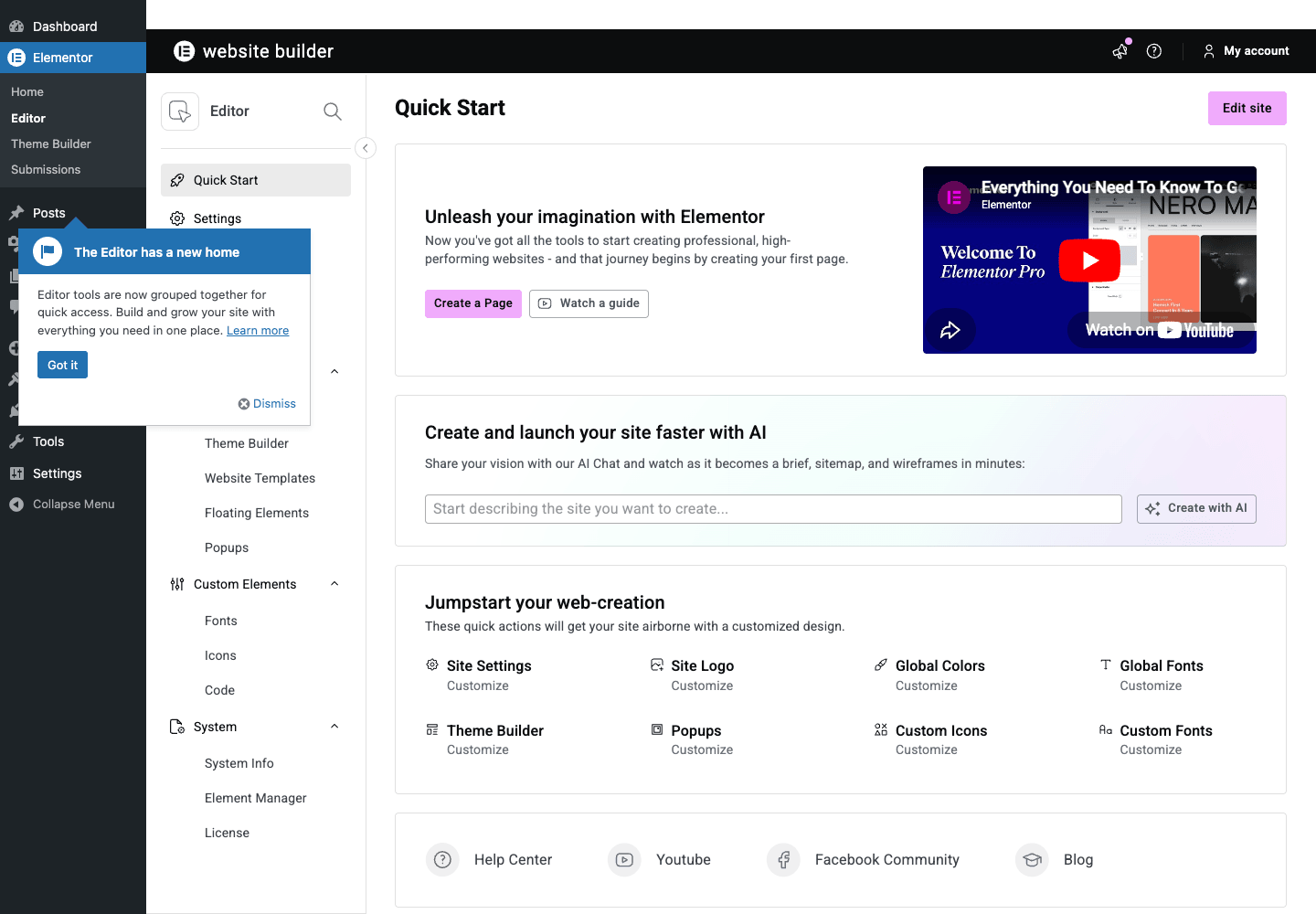
The first thing to do after activating is set your global colors and global fonts. Both are in Elementor → Settings → Style (or directly inside the editor via the hamburger menu). Setting these once means every widget on every page picks them up automatically. Changing them later updates everything in one shot.
Then I’d:
- Add your site logo via Elementor → Site Settings → Site Identity.
- Set the base typography (body font, heading font, base font size) in Site Settings → Typography.
- Visit Elementor → Theme Builder and decide what you want to override (just headers and footers, or full single/archive too).
That’s it for setup. The real work happens when you actually build something.
Inside the Elementor editor
The editor is where you’ll spend most of your time. It’s a full-screen replacement for the WordPress post editor that loads when you click "Edit with Elementor" on any page or post.
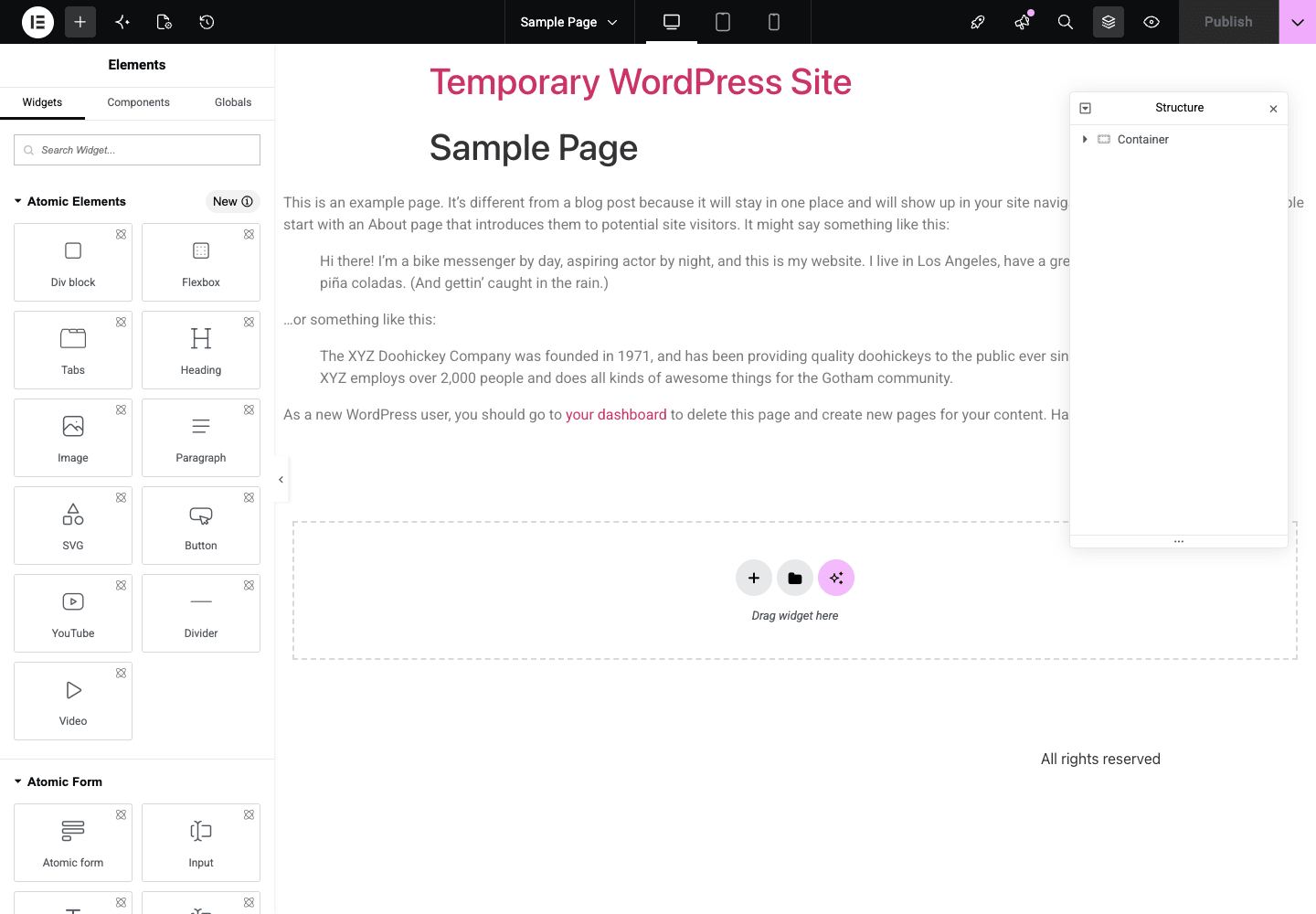
The layout, left to right:
- Top toolbar. Site Settings (hamburger), the Elements/Components/Globals panel toggle, the History button, the page navigator, the responsive mode toggle (desktop/tablet/mobile), the AI button, search, structure view, preview, and the big Publish button.
- Elements panel (left). This is where every widget lives. Search by name, or scroll by category (Atomic Elements, Atomic Form, Basic, General, Pro, Site, Theme Elements, WooCommerce, depending on what’s enabled). Drag any widget onto the canvas.
- Canvas (center). Live preview of the page being edited. Click any element to select it and the left panel switches to show that element’s controls. Drag-and-drop everything.
- Structure panel (right, toggleable). Tree view of the document. Click a node to jump to it. Useful on dense pages.
The interaction model is consistent. Pick a widget from the panel, drop it on the canvas, configure it in the panel that takes the widget’s place, hit Publish. Everything has three control tabs: Content (the obvious stuff), Style (typography, colors, borders, spacing), and Advanced (margin/padding, motion effects, custom CSS, responsive overrides, custom attributes).
Some details that take a while to discover:
- Containers replaced sections and columns. If you’re coming back to Elementor after a couple of years, the section/column model is deprecated. Containers are CSS flex/grid wrappers. They’re more flexible and produce less DOM bloat. Stick with containers for new builds.
- Responsive editing. Hit the device-frame icon at the top to switch between desktop, tablet, and mobile. Every control can have a different value per breakpoint. The value you set on desktop cascades down unless you override it. Custom breakpoints are configurable.
- Global colors and fonts. Setting these once means every "Color" picker shows your brand palette by default. Save real time across a project.
- Right-click for clone/copy/paste-style. This menu is underused. Copy a fully styled widget, paste only its style onto another widget. Saves hours.
- History panel. Two kinds of history: actions (every change you made) and revisions (every save). You can roll back to any point. Don’t lose work to a bad accidental delete.
- Navigator (Ctrl+I). Same as the Structure panel but as a floating window.
- Keyboard shortcuts. Ctrl+Z undo, Ctrl+S save, Ctrl+Shift+L finder (jump to any setting). Ctrl+Shift+P opens the on-screen panel switcher.
If you’re new to Elementor, build one full landing page from scratch before reading any more guides. Twenty minutes of dragging widgets and breaking things teaches you more than an hour of tutorials.
Theme Builder: why most people upgrade
If you take one thing away from this review, it’s this section. The Theme Builder is the reason agencies and serious site owners upgrade to Pro.
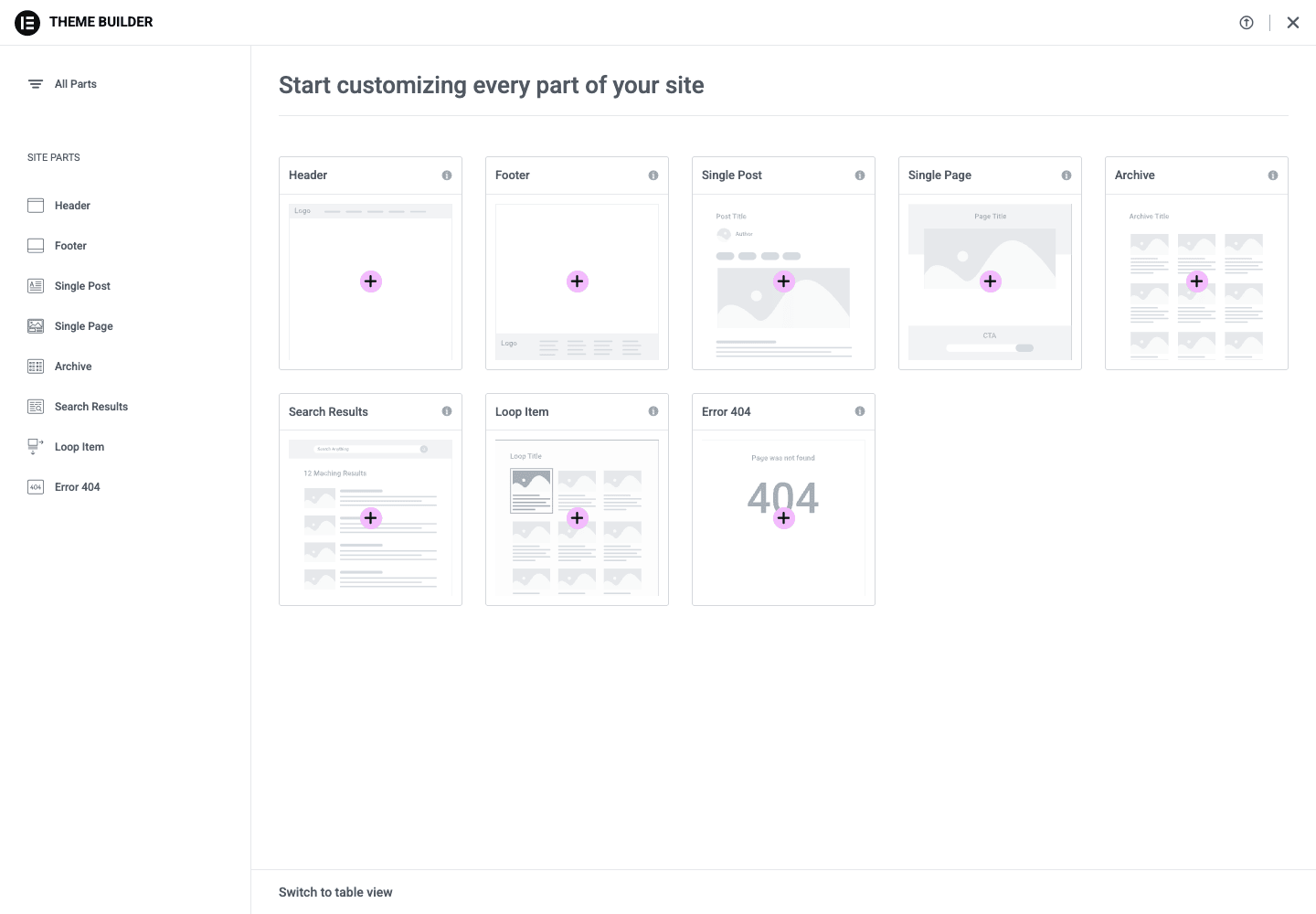
In free Elementor, you can design individual pages with the builder. But your site’s header, footer, blog post template, category archive template, and 404 page all come from your active theme’s PHP files. Pro removes that barrier. You can replace every part of the site with an Elementor-built template, visually, no theme code touched.
What you can build:
- Header. Site-wide navigation, logo, search, cart, anything. Sticky/transparent variants per page.
- Footer. Same idea.
- Single Post. The template that renders every blog post. Pull the title, author, date, content, featured image, related posts, comments, all as widgets you can position freely.
- Single Page. Same for pages.
- Single (custom post type). Same for products, events, properties, recipes, anything.
- Archive. Category archive, tag archive, author archive, custom taxonomy archive. Build the layout once, all archives use it.
- Loop Item. A reusable template for each item in a post grid. This unlocks magazine-style grids with mixed layouts.
- Search Results. Custom layout for the WP search page.
- Error 404. Custom 404 page. Add a search box, recent posts, your usual "lost?" copy.
The way it works is: build a template once in the editor, then apply a display condition that tells Elementor where to use it. Conditions are flexible: "all posts", "posts in category X", "posts by author Y", "all pages except cart", "the singular page with ID 123", etc.
This is the killer feature because it means you can:
- Switch themes without losing your custom blog layout.
- Use a generic neutral theme (Hello Elementor, GeneratePress, Astra) and put all the custom design in Elementor.
- Hand off a finished site to a client where they edit everything visually, including the header and the blog template.
For agencies, "Hello theme + Elementor Pro" has become a standard stack.
The Templates library
Beyond Theme Builder, Pro gives you access to a much bigger template library: ready-made page kits, sections, and entire site templates you can import and edit.
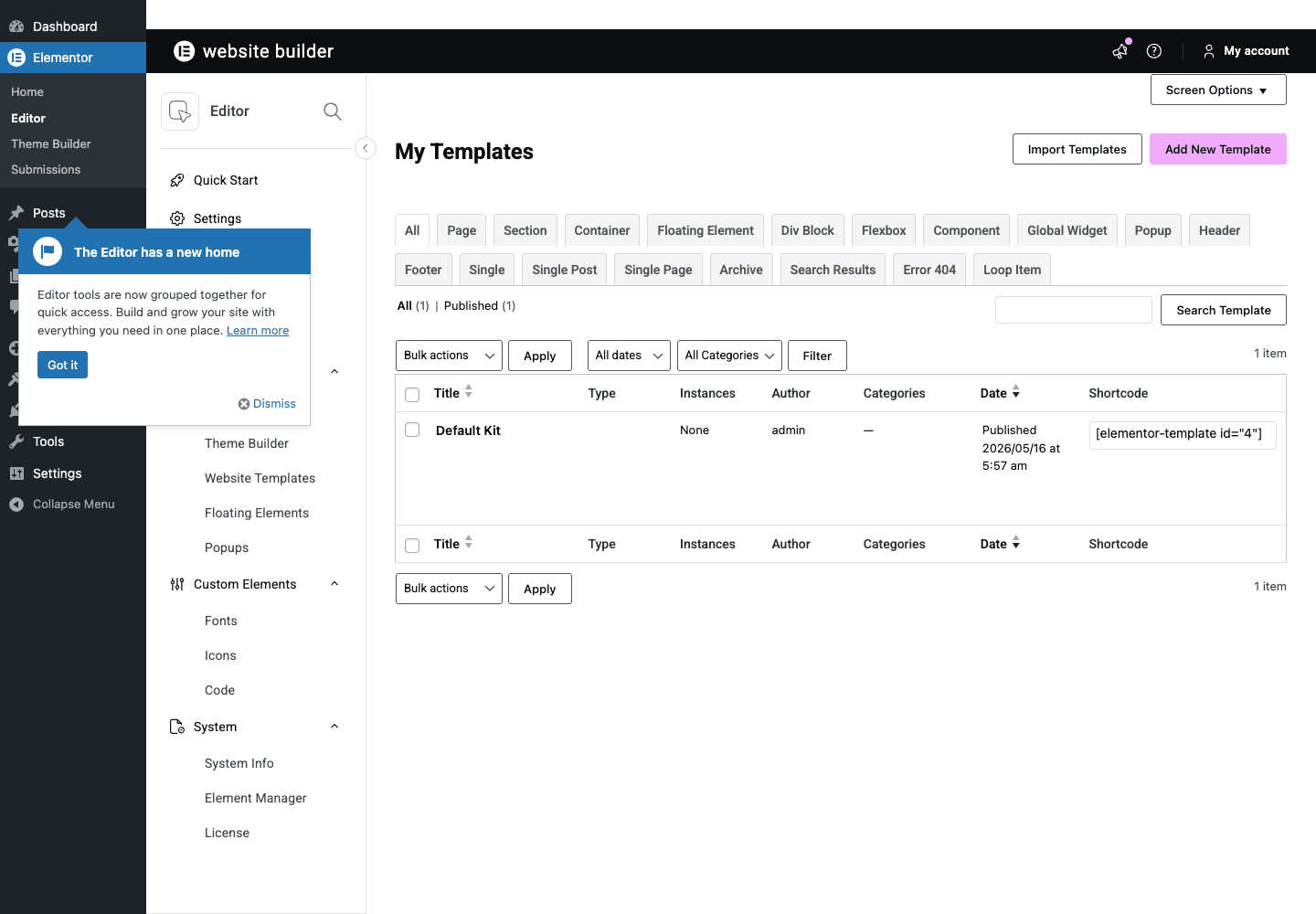
Three kinds of templates:
- Page templates. Pre-designed full pages (home page, about, contact, pricing, service). Import, replace the copy and images, publish.
- Block templates. Single sections (hero, feature grid, testimonial, FAQ, footer). Drop into any existing page.
- My Templates. Anything you save. Designed once, reused everywhere. Saved templates also expose a shortcode (
[elementor-template id="123"]) so you can drop them into Gutenberg or even non-Elementor pages.
The library has thousands of templates now, organized by industry (restaurant, gym, real estate, etc.) and by style. The quality varies, but they’re a useful starting point and you’ll always edit them down to your brand before publishing.
Forms, popups, and WooCommerce widgets
The three big "applications" that ship with Pro.
Forms. A full form builder as a widget. Drag the Form widget onto any page, configure fields (text, email, tel, number, textarea, select, radio, checkbox, acceptance, upload, date, time, password, HTML, hidden), set conditional logic to show/hide fields, configure submission actions (email, redirect, MailChimp, ActiveCampaign, ConvertKit, HubSpot, MailerLite, Slack, Discord, webhook, PayPal, Stripe, custom). Multi-step forms with progress bar. Honeypot for spam. reCAPTCHA support. The submissions are stored in a database table you can view in Elementor → Submissions (Pro requires the free plugin’s database setup to be done).
Popups. The popup builder is essentially Theme Builder for popups. You design the popup in the regular editor with any widget you like, then attach triggers (page load delay, scroll percentage, exit intent, click on a class, after-inactivity, after X page views) and conditions (which page, which user role, which device, etc.). Save and the popup is live everywhere it matches. You can also attach popups to button clicks via the link field.
WooCommerce widgets. A dedicated set: Products Grid, Products Archive (custom product loop), Add to Cart, Product Title, Product Price, Product Rating, Product Stock, Product Images, Product Short Description, Product Meta, Mini Cart, Menu Cart, Custom Add to Cart Button, Checkout, My Account, Cart, Notices. Combined with Theme Builder, this gives you a full visually-designed WooCommerce front-end without writing template overrides.
Dynamic content and display conditions
These two features quietly do the most for serious sites.
Dynamic Tags. Almost every control in Elementor (text, image, link, color, even font size) can be set to a dynamic value instead of a hardcoded one. Click the little dynamic icon next to the control, pick a source: Post Title, Post Custom Field, ACF field, term meta, user info, site info, page URL parameter, current date, archive title, the works. Pro ships with built-in support for ACF, Pods, Toolset, Meta Box.
This is what lets the Loop Item template work. You design one card showing "Post Title, Post Featured Image, Post Excerpt, custom ACF field ‘price’", and that template renders for every item in a custom post type archive.
Display Conditions. Hide or show any element conditionally. The condition picker covers user state (logged in/out, role, capability), device (desktop/tablet/mobile/custom breakpoint), date and time (specific date, before, after, day of week, schedule), URL parameter, referrer, geolocation (with the IP integration), browser, OS, and any combination via AND/OR.
Combined with Dynamic Tags, these two features turn Elementor from a page builder into something closer to a real CMS front-end.
Recommended settings for most sites
The defaults are reasonable, but here’s what I tweak.
Site Settings → Layout
- Content width: 1140-1280px depending on your design.
- Widgets default padding: 0 (so containers control spacing).
Site Settings → Typography
- Pick body and heading fonts.
- Set base font size to 17-18px for blogs, 15-16px for marketing sites.
- Set line height to 1.6-1.7 for body, 1.2-1.3 for headings.
Site Settings → Global Colors
- Primary, Secondary, Text, Accent. Use four max.
Elementor → Settings → Performance
- Improved CSS Loading: on (Pro default). Loads only the CSS needed for each page.
- Improved Asset Loading: on. Same idea for JS.
- Inline Font Icons: on. Faster than the icon fonts.
- Optimized Markup: on. Generates leaner HTML.
Elementor → Settings → Features
- Hello Theme Header & Footer: on if you use Hello theme and want them controlled by Theme Builder.
- E_DOM_OPTIMIZATION: on. Big DOM cleanup.
Elementor → Tools → Regenerate CSS & Data
- Run this after major design changes or after switching themes. It rebuilds the per-page CSS files.
Elementor and Core Web Vitals
This is the section people argue about. The short answer: Elementor isn’t slow if you set it up right.
The longer answer:
- CSS/JS bloat is the historical concern. Earlier versions of Elementor loaded all widget CSS on every page. That’s fixed now. The "Improved CSS Loading" toggle in Performance settings loads only what’s used.
- The classic section/column model produced extra DOM nodes (a section nested 2-3 levels deep). The newer Container layout system produces much leaner HTML. Use containers, not sections, for new builds.
- Image lazy loading is on by default in current Elementor. Make sure your above-the-fold image is excluded (toggle in image widget Advanced).
- Custom fonts add weight. If you use a custom Google Font with multiple weights, that’s 4-6 font files. Limit to 2-3 weights total.
- Pair Elementor with a caching plugin. WP Rocket is the easiest pairing. Enable Remove Unused CSS in WP Rocket and you’ll see a real Lighthouse improvement.
On a typical Elementor Pro site with WP Rocket’s RUCSS turned on, you can hit 85-95 Lighthouse mobile scores. Without RUCSS or with too many widget styles, you’ll struggle past 70. So the framework is fast; the design choices people make on top of it are usually what’s slow.
Real-world use cases
Marketing site / landing page. Free is enough. Pro is overkill unless you also need a Theme Builder.
Business website. Pro. Build a consistent site without theme code.
Agency building client sites. Pro is the default. Build a header template once, reuse across the agency. The Role Manager keeps clients from breaking layouts they shouldn’t touch.
WooCommerce store. Pro + WooCommerce widgets gives you full visual control over product, archive, cart, and checkout pages. Pair with WP Rocket for performance and Yoast SEO Premium for metadata. That stack handles 95% of stores.
Magazine / publication. Theme Builder + Loop Item lets you build the magazine-style grid you’ve always wanted without touching a theme. Custom Loop Item templates for different post types or categories.
Membership / LMS site. Pro + display conditions = show different content per role. Combined with the popup builder, you can run upsells, course completions, and member-only sections without code.
Multilingual site. Elementor Pro works with WPML, Polylang Pro, and TranslatePress. Each translates the editor strings; layout stays consistent across languages.
Developer reference: hooks, filters, custom widgets, and WP-CLI
Elementor is genuinely friendly to developers. The hook surface is large and well-organized. Here are the ones I reach for most often.
Registering a custom widget
The classic pattern. Extend \Elementor\Widget_Base, register controls, render output.
namespace MyTheme\Widgets;

use Elementor\Widget_Base;
use Elementor\Controls_Manager;

class Hello_World extends Widget_Base {
 public function get_name() {
 return 'mytheme_hello';
 }
 public function get_title() {
 return 'Hello World';
 }
 public function get_icon() {
 return 'eicon-text-area';
 }
 public function get_categories() {
 return [ 'general' ];
 }

 protected function register_controls() {
 $this->start_controls_section( 'content_section', [
 'label' => 'Content',
 'tab' => Controls_Manager::TAB_CONTENT,
 ] );
 $this->add_control( 'message', [
 'label' => 'Message',
 'type' => Controls_Manager::TEXTAREA,
 'default' => 'Hello, world!',
 ] );
 $this->end_controls_section();
 }

 protected function render() {
 $settings = $this->get_settings_for_display();
 echo '<p>'. esc_html( $settings['message'] ). '</p>';
 }
}

add_action( 'elementor/widgets/register', function ( $widgets_manager ) {
 require_once __DIR__. '/widgets/hello-world.php';
 $widgets_manager->register( new \MyTheme\Widgets\Hello_World() );
} );
That’s a complete custom widget. From here you can add more controls, style controls, repeater controls, dynamic-tag support, etc.
Adding a widget category
add_action( 'elementor/elements/categories_registered', function ( $elements_manager ) {
 $elements_manager->add_category(
 'mytheme-widgets',
 [
 'title' => 'My Theme',
 'icon' => 'fa fa-plug',
 ]
 );
} );
Filtering form submissions before recording
add_action( 'elementor_pro/forms/new_record', function ( $record, $handler ) {
 $form_name = $record->get_form_settings( 'form_name' );
 if ( $form_name!== 'Contact' ) {
 return;
 }
 $fields = $record->get( 'fields' );
 // Reject submissions whose email field contains a banned domain
 if ( isset( $fields['email']['value'] ) && stripos( $fields['email']['value'], '@spammer.com' )!== false ) {
 $handler->add_error( 'email', 'This email domain is not allowed.' );
 }
}, 10, 2 );
Adding a new form action
add_action( 'elementor_pro/init', function () {
 class My_Form_Action extends \ElementorPro\Modules\Forms\Classes\Action_Base {
 public function get_name() { return 'my_action'; }
 public function get_label() { return 'My Custom Action'; }
 public function run( $record, $ajax_handler ) {
 $fields = $record->get_formatted_data();
 // Do something with the fields: call your API, save to a custom table, etc.
 wp_remote_post( 'https://api.example.com/submissions', [
 'body' => wp_json_encode( $fields ),
 'headers' => [ 'Content-Type' => 'application/json' ],
 ] );
 }
 public function register_settings_section( $widget ) {}
 public function on_export( $element ) {}
 }
 \ElementorPro\Plugin::instance()->modules_manager->get_modules( 'forms' )->add_form_action( 'my_action', new My_Form_Action() );
} );
Restricting Elementor to certain post types
add_filter( 'elementor/utils/get_public_post_types', function ( $post_types ) {
 unset( $post_types['attachment'] );
 return $post_types;
} );
Adding a dynamic tag
Dynamic tags are how you expose your own data sources (custom database tables, external APIs, anything) as Elementor controls.
add_action( 'elementor/dynamic_tags/register', function ( $dynamic_tags ) {
 require_once __DIR__. '/tags/external-price.php';
 $dynamic_tags->register_group( 'mytheme', [ 'title' => 'My Theme' ] );
 $dynamic_tags->register( new \MyTheme\Tags\External_Price() );
} );
Inside the tag class, extend \Elementor\Core\DynamicTags\Tag (or Data_Tag for non-string output), register controls, return the dynamic value from render().
Modifying the query for a Posts widget
add_action( 'elementor/query/featured_posts_query', function ( \WP_Query $query ) {
 $query->set( 'meta_key', 'featured' );
 $query->set( 'meta_value', '1' );
 $query->set( 'orderby', 'meta_value' );
} );
In the Posts widget, set "Source" to "Manual Selection" or any source, then set the Query ID under the Advanced tab to featured_posts. The hook fires only for queries with that ID.
Disabling Elementor’s default CSS file per page
add_filter( 'elementor/document/css/post-'. get_the_ID(), function ( $css ) {
 return ''; // skip Elementor's generated CSS for this post
} );
Useful when you want Elementor to render but don’t want its generated CSS on a specific page.
Theme Builder programmatic conditions
add_action( 'elementor/theme/register_conditions', function ( $conditions_manager ) {
 $conditions_manager->register_condition( 'singular/product' );
 // Now "Product" appears as a condition target in the Theme Builder UI
} );
Performance hooks
// Force Elementor to load all widget CSS on a specific page (debug only)
add_filter( 'elementor/element/should_render_shortcode', '__return_true' );

// Change the assets URL (CDN)
add_filter( 'elementor_pro/frontend/assets_url', function () {
 return 'https://cdn.example.com/wp-content/plugins/elementor-pro/assets/';
} );

// Disable a Pro widget you don't use
add_action( 'elementor/widgets/register', function ( $widgets_manager ) {
 $widgets_manager->unregister( 'global-widget' );
}, 100 );
Localizing editor settings
add_filter( 'elementor_pro/editor/localize_settings', function ( $settings ) {
 $settings['mytheme_branding'] = 'My Theme';
 return $settings;
} );
This is how you pass server-side data to your custom widget’s editor-time JavaScript.
WP-CLI
Elementor ships a complete CLI namespace.
# Regenerate all CSS files (after switching themes or making global changes)
wp elementor flush-css

# Replace a URL in all Elementor data (after a migration)
wp elementor replace-urls https://old.example.com https://new.example.com

# Run the database update process
wp elementor update db

# Sync the global widget library
wp elementor library sync

# Print the active widgets on a page
wp elementor library export 123
wp elementor --help lists all available subcommands.
Performance, compatibility, and gotchas
A few real-world things.
The classic section/column system is deprecated. Use containers for new builds. Convert old sections to containers via the editor’s right-click menu when you’re ready to do the migration. The classic system still works, but containers produce cleaner HTML.
Custom CSS in the Advanced tab is per-widget. That’s fine but adds inline styles to your HTML. For site-wide rules, use Elementor → Custom Code (Pro) or your theme’s style.css.
The DOM can get heavy. A complex page can hit thousands of nodes. Lighthouse will flag it as "Excessive DOM size". Solutions: use containers not nested columns, avoid stacking multiple wrapper rows where one container suffices, and use the Atomic Elements (Div block, Flexbox) for primitives instead of dropping a heavyweight "Inner Section" widget.
Editor performance on slow servers. The editor saves to the database with every change (debounced). On shared hosting with high max_post_size but slow DB, the auto-save can lag. Set define( 'WP_AUTO_UPDATE_CORE', false ); to prevent core updates from interrupting editor saves.
Theme conflicts. Hello Elementor is the safe choice; it does nothing except load WordPress. Astra, GeneratePress, OceanWP, Kadence all play nicely. Custom themes are fine as long as they don’t override Elementor’s body classes or fight for the wp_head action.
Caching plugins. WP Rocket plays nicely. So does LiteSpeed Cache, W3 Total Cache, and most managed-host caches (Kinsta, WP Engine, Cloudways). Enable RUCSS in WP Rocket for the biggest single performance win on an Elementor site.
WooCommerce conflicts. Pro’s WooCommerce widgets sometimes fight with the WooCommerce default templates. If a single product page renders twice or has duplicate "Add to Cart" buttons, you’ve probably enabled the Theme Builder Single Product template while WooCommerce is also rendering its default. Pick one.
Multisite. Elementor Pro works on multisite. License covers either per-site or network-wide depending on what you bought.
REST API. Elementor exposes its templates and data over a REST API. Useful for syncing template libraries across sites or building headless front-ends. See /wp-json/elementor/v1/.
Troubleshooting
The editor won’t load (spinning loader). 99% of the time this is a JS error from a conflicting plugin or theme. Visit the page in incognito with admin login. Open browser DevTools, Console tab. The error usually tells you which plugin or theme file is the culprit. Deactivate it, refresh.
Styles don’t update on the front-end after editing. Run Elementor → Tools → Regenerate CSS & Data. Then purge your caching plugin.
Custom font won’t load. Check that the upload included all four files (woff, woff2, ttf, eot) or at least woff and woff2 for modern browsers. Custom Fonts is in Elementor → Custom Fonts.
Theme Builder template not applying. Check the display conditions. The order matters: include conditions evaluate first, then exclude. If you have "All Posts" + "Exclude Posts in category X", an unassigned post still gets the template.
Slow Lighthouse scores. Pair with WP Rocket and enable Remove Unused CSS. Limit Google Fonts to 2-3 weights. Use containers, not the deprecated section/column system. Lazy-load below-the-fold images.
"Out of memory" error in editor. Increase PHP memory in wp-config.php: define( 'WP_MEMORY_LIMIT', '256M' );. On shared hosts that don’t allow this, contact support.
Form submissions not arriving. Check Elementor → Submissions to confirm the form is recording. If it is but email isn’t arriving, the issue is wp_mail, not Elementor. Install an SMTP plugin (FluentSMTP, WP Mail SMTP).
Migration to a new domain. Use wp elementor replace-urls instead of a generic search-replace. Elementor stores URLs inside serialized JSON in post meta; a naive search-replace can corrupt that data.
Pricing and licensing
Elementor Pro is sold as an annual license per site (Essential), three sites (Advanced), 25 sites (Expert), 100 sites (Studio), and 1000 sites (Agency). The license unlocks updates, premium templates, and AI credits.
The version on GPL Times is the GPL-licensed version. GPL covers the PHP code, and GPL Times distributes it without the per-site limits. You’ll save real money over time, especially if you run more than two sites or an agency. Support comes from the community and your own knowledge rather than directly from Elementor; the plugin is stable and well-documented enough that most installs never need vendor support.
There’s a Membership option that bundles Elementor Pro with WP Rocket, Yoast SEO Premium, and the rest of the GPL Times catalog. If you need three or more premium plugins, the membership.
FAQ
Do I need the free Elementor plugin too?
Yes. Elementor Pro is an add-on. The free plugin contains the editor engine; Pro adds widgets and the Theme Builder on top.
Is Elementor better than Gutenberg / the WP block editor?
Different tools. Gutenberg is leaner and the WP project’s strategic direction. Elementor is more powerful out of the box, especially with Pro’s Theme Builder. For a portfolio or a marketing site you can build everything in Gutenberg. For a custom client site with a non-trivial layout and dynamic content, Elementor Pro is faster to build with.
Can I switch themes without losing my pages?
Yes for individual pages (Elementor stores them as post meta, independent of theme). For Theme Builder templates (header, footer, single post), they’re stored as Elementor templates, so switching to a "regular" theme means you lose the Elementor-built header/footer rendering. The data is still there; just reactivate Theme Builder.
Does Elementor work with WooCommerce?
Yes. The free version handles WooCommerce shortcodes; Pro adds dedicated WooCommerce widgets and a WooCommerce Builder for custom product/archive/checkout templates.
Will Elementor slow down my site?
It can, but doesn’t have to. With "Improved CSS Loading" and "Improved Asset Loading" on, plus a caching plugin with RUCSS, you can hit 90+ Lighthouse. Without those, expect 60-70.
Can I export an Elementor design to plain HTML/CSS?
Not directly. Elementor outputs HTML and CSS at render time, but the source of truth is in the WP database. You can save a template, export it as JSON, and import into another Elementor site, but not into a static site.
Does it work with multilingual plugins?
Yes. WPML, Polylang Pro, and TranslatePress all integrate. Strings get translated; layout stays consistent.
Can I use Elementor and Gutenberg on the same site?
Yes. Each page or post chooses its editor. Some pages use Elementor, others use Gutenberg. Switching between editors on the same post is possible but requires care, as Elementor data is stored separately.
What’s an "Atomic" widget?
Elementor’s newer set of low-level layout widgets (Div block, Flexbox, Heading, Paragraph, Image, Button) that produce minimal HTML. They’re the recommended building blocks for new builds because they generate cleaner DOM than the older container/widget combos.
Can I roll back if Pro update breaks something?
Yes. Elementor → Tools → Version Control → Rollback Version restores a previous release. Available for both free and Pro.
Will my Elementor pages survive a Hello theme update?
Yes. Hello theme is just an empty shell that loads WordPress; the pages are stored in the database regardless of theme.
Final thoughts
Elementor Pro is the page builder I recommend to anyone building a custom WordPress site without wanting to write a theme from scratch. The Theme Builder alone is worth the license for any serious project, and the form/popup/WooCommerce additions cover the things you usually have to install three more plugins for.
The price point is fair for what you get, especially compared to hiring a developer to wire the same flexibility into a custom theme.GPL Times is the budget-friendly route. You’ll get the full plugin without the per-site cap.
For developers, the hook surface and the custom-widget API are genuinely good. You can build a fully custom widget with controls in 50 lines of PHP and it’ll feel native to the editor. The Dynamic Tags API turns Elementor into a viable front-end for any content model you can express in WordPress.
If you’re starting a project today, the safe modern stack is: Hello Elementor theme + Elementor Pro + WP Rocket + Yoast SEO Premium. That combination handles design, performance, and SEO for almost any site you’re likely to build.
For deeper reading, the Elementor Developer Docs and the official Elementor Academy are the best free references for both code and design. Pair either with Pro and you’re set for a long while.