

You sell something on WordPress. Maybe a course, maybe a downloads library, maybe a club with monthly tips. At some point you stop wanting to send a one-time file and start wanting to keep people in. That’s the moment you reach for a membership plugin, and WooCommerce Memberships is the one most WooCommerce stores end up using.
This review walks through what WooCommerce Memberships actually does, in the order a real shop owner runs into it. We’ll set up a plan from scratch, lock some content, hand out a discount, and look at what your member sees when they log in. Then we’ll spend the back half on the developer surface, because that’s where most "can it do X?" questions get answered.
Table of Contents
- What is WooCommerce Memberships?
- How a membership actually works for a customer
- Key features
- How it works (for users)
- Installation and setup
- Real-world use cases
- WooCommerce Memberships vs WooCommerce Subscriptions
- Developer reference
- Performance, compatibility, and gotchas
- Pricing and licensing
- FAQ
- Final thoughts
What is WooCommerce Memberships?
WooCommerce Memberships is an official WooCommerce extension, built by SkyVerge, that turns a regular WordPress site into a member-only site. You define a plan ("Gold Membership", "Library Access", "Pro Customers"). You decide what each plan unlocks: specific blog posts, specific products, an entire category, downloadable files, member-only pricing. Then you decide how someone joins: pay for a product that grants the plan, register for free, or get manually added by an admin.
Once a person is on a plan, the plugin handles every gate on the site for you. A non-member who hits a locked post sees a message you wrote. A member who hits the same URL sees the actual content. A member browsing the shop sees member prices on tagged products. Discounts apply at checkout automatically. Everything is enforced by the plugin, you don’t have to write a single if ( is_logged_in() ) check.
There are two things the plugin is not. It’s not a recurring billing engine: it doesn’t charge anyone monthly on its own. For that, you pair it with WooCommerce Subscriptions, and the two talk to each other automatically. And it’s not a forum or social network: it controls who can see content, not how members talk to each other.
If you’re coming from a "membership site builder" world (MemberPress, Restrict Content Pro, Paid Memberships Pro), the mental shift here is that the membership is just another type of WooCommerce purchase. You don’t manage members on a separate dashboard. They’re WooCommerce customers with one extra layer.
How a membership actually works for a customer
Before we touch admin, let’s follow a real person through the flow. This is the part that decides whether you’ve built a good store or a frustrating one, and getting the shape right in your head saves a week of trial-and-error later.
Sara reads your free blog. She hits the bottom of a post and sees a teaser that reads: "The rest of this post is for Gold members. Get access for $49." She clicks. That link goes to a normal WooCommerce product page in your shop, set up as a "Gold Membership Access" product priced at $49. She buys it like any other product. Card charged, order completed, email receipt sent.
The moment Woo marks her order as completed, WooCommerce Memberships notices, creates a user membership tied to her account, and gives her the Gold plan. If she already had a WordPress account when she bought, she’s immediately a member. If she checked out as a guest, the plugin creates the account for her and emails the password.
Sara goes back to the original blog post. The teaser is gone. The full article is there. She also notices her My Account page now shows a new "Memberships" tab. Inside it, she can see what she has access to: the list of locked posts, the discounted products, the expiry date if you set one, a button to renew, and any notes the admin left her. Nothing else changed in her WordPress experience. Same login, same checkout, same email receipts.
That’s the whole loop. The customer doesn’t see a different "membership area" living in a separate place from the store. They see the same store, with more of it unlocked. The plugin is invisible by design.
Key features
These are the parts of WooCommerce Memberships that actually matter day to day. I’ve left out the fluff.
- Three ways to grant access. A plan can be free (anyone can sign up by registering an account), purchase-based (you tie one or more products or variations to the plan), or manual (only admins can assign it). You pick per plan. Most stores end up using purchase-based, but the free option is great for a low-friction newsletter-style gate.
- Per-rule restrictions, not site-wide. You don’t lock "the whole blog" and then carve out exceptions. You add a rule that says "Posts tagged ‘tutorials’ are accessible to Gold members." Each rule is independent. You can have one plan that unlocks five categories and another that unlocks three products, with overlap. It scales.
- Drip content. Each restriction rule has an "accessible" setting. The default is "immediately" (member gets it the moment they join), but you can switch to "specify a time" and pick "30 days after the start of the membership". That’s drip. Useful for courses where you want lesson 2 to unlock a week after lesson 1, automatically.
- Member discounts. A plan can include a Purchasing Discounts list. Each row is a rule: "Members get 15% off products in the ‘Bundles’ category" or "Members get $10 off product X". Discounts stack with sale prices unless you tell them not to, and they show up on product cards as a "member discount" badge if you turn that on.
- Three restriction modes. Site-wide, you choose what non-members see on a locked post: a teaser excerpt with a message, the full message and no content, or a hard 404 (as if the page doesn’t exist). Different needs, different defaults. SEO-conscious stores usually pick teaser mode so Google can still index the headline.
- Custom messages with merge tags. Every restriction message is editable, and supports tags like
{products},{login_url},{discount},{date}. You write something like "To access this guide you can{login}or buy{products}" once and the plugin fills in the right link for the right user. - Member directory. Optional public page listing members of a plan (their name, optional bio). Useful for "Pro Vendor Directory" or "Certified Coach" style sites. Off by default.
- Profile fields. Each plan can have its own custom fields ("Company name", "Preferred topics", "Member since alumni year"). Members edit them on My Account. Exportable.
- CSV import/export. Migrating from another membership plugin? You can bulk-import member records by CSV. Migrating out, you can export every active member with their plan, start date, and expiration to a single file.
- REST API and WP-CLI. Both supported. We’ll come back to this in the developer section.
How it works (for users)
This is the section to bookmark if you’ve never built a membership site before. We’ll go in the order you’d actually do it.
Step 1: Decide what the plan unlocks
Before you touch the plugin, write it down on paper. Examples that work well:
- "Premium tutorials" – every post in the Tutorials category, plus three eBooks (each is a downloadable product).
- "Wholesale pricing" – all products in the Wholesale category get 30% off.
- "Founders club" – early access to new products, plus three downloadable templates.
If you can’t describe what the plan unlocks in one sentence, the plugin will not save you. Memberships rewards clarity. Vague plans frustrate customers.
Step 2: Create the plan
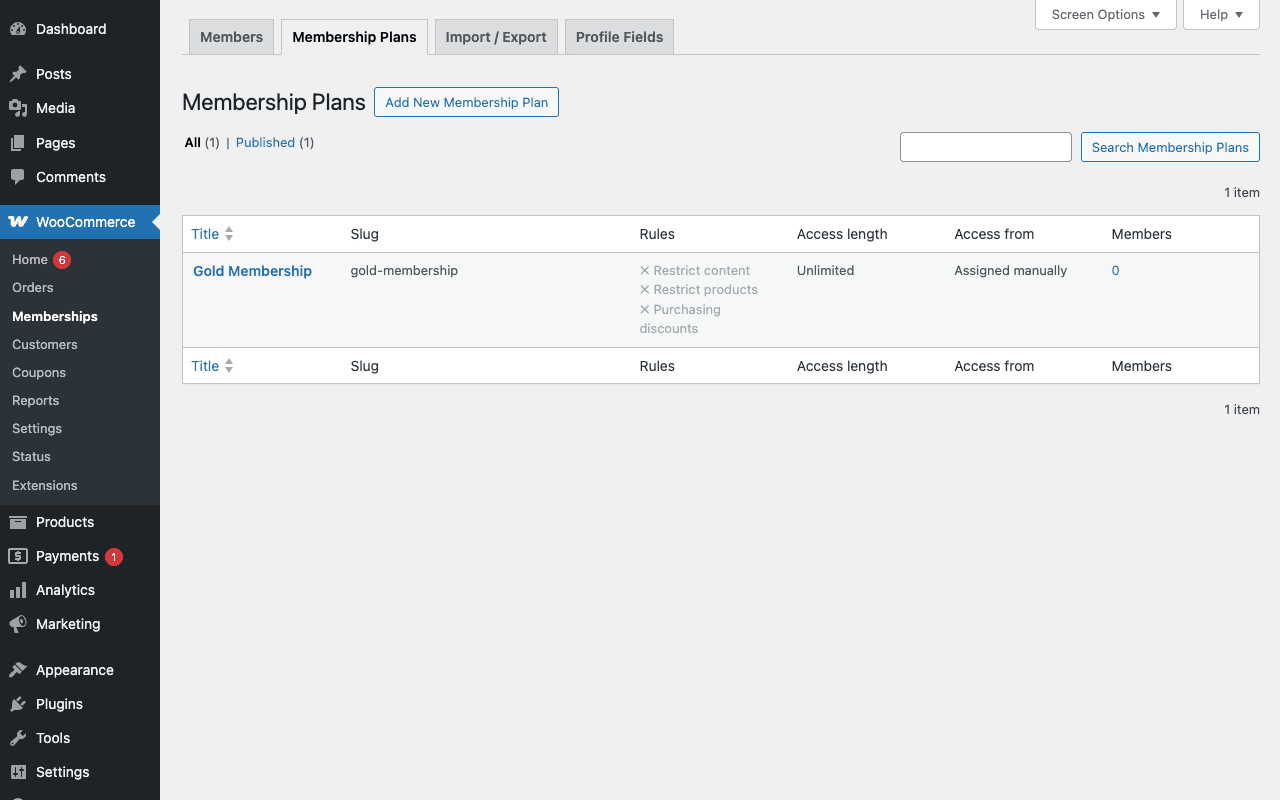
In WordPress admin, go to WooCommerce → Memberships → Membership Plans → Add New. Type a name (e.g. "Gold Membership"). The plan editor has six tabs on the left side of the Membership Plan Data box. We’ll walk each.
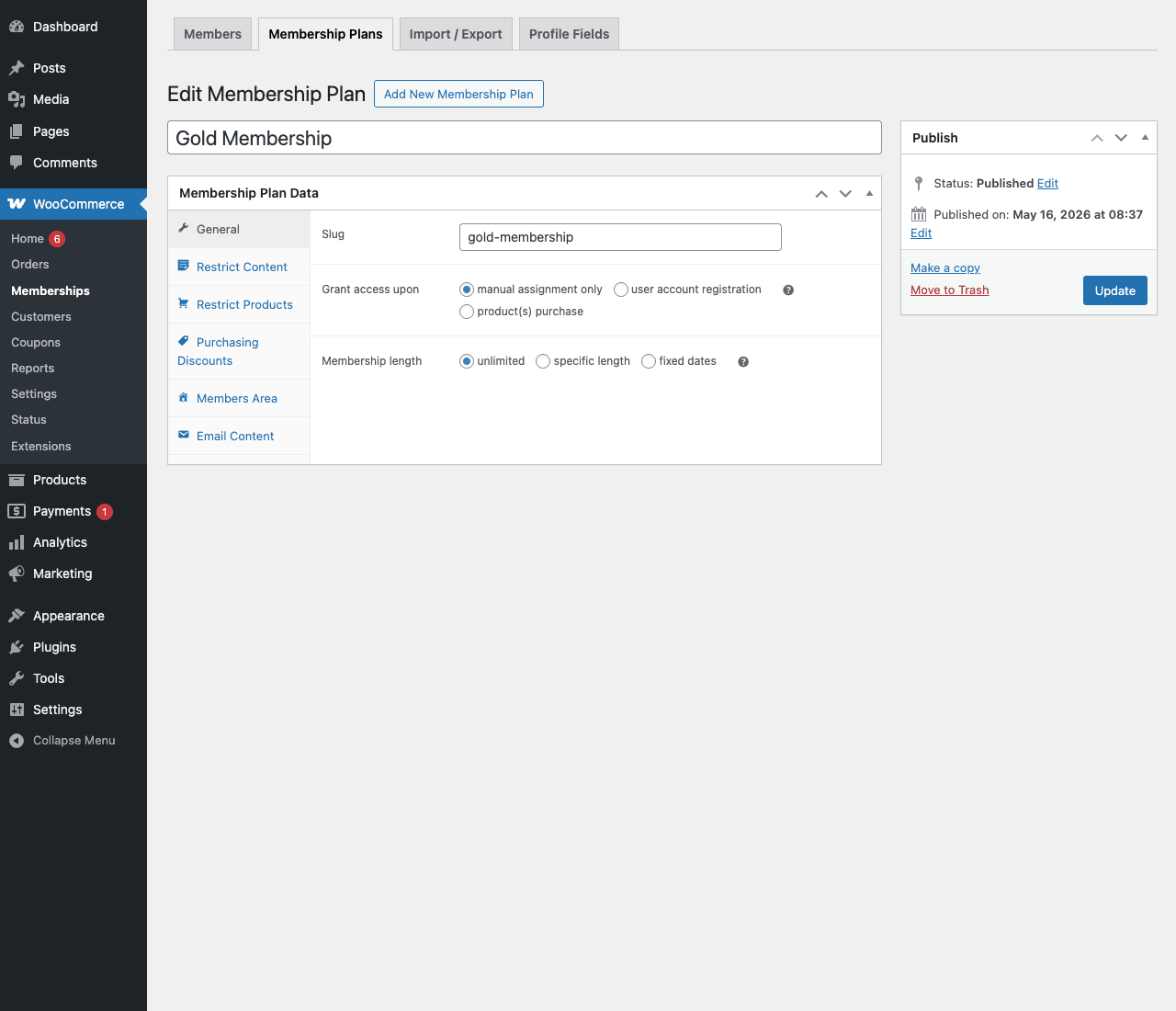
General: pick how members join (manual, account registration, product purchase) and how long the membership lasts (unlimited, specific length like "12 months from purchase", or fixed start/end dates).
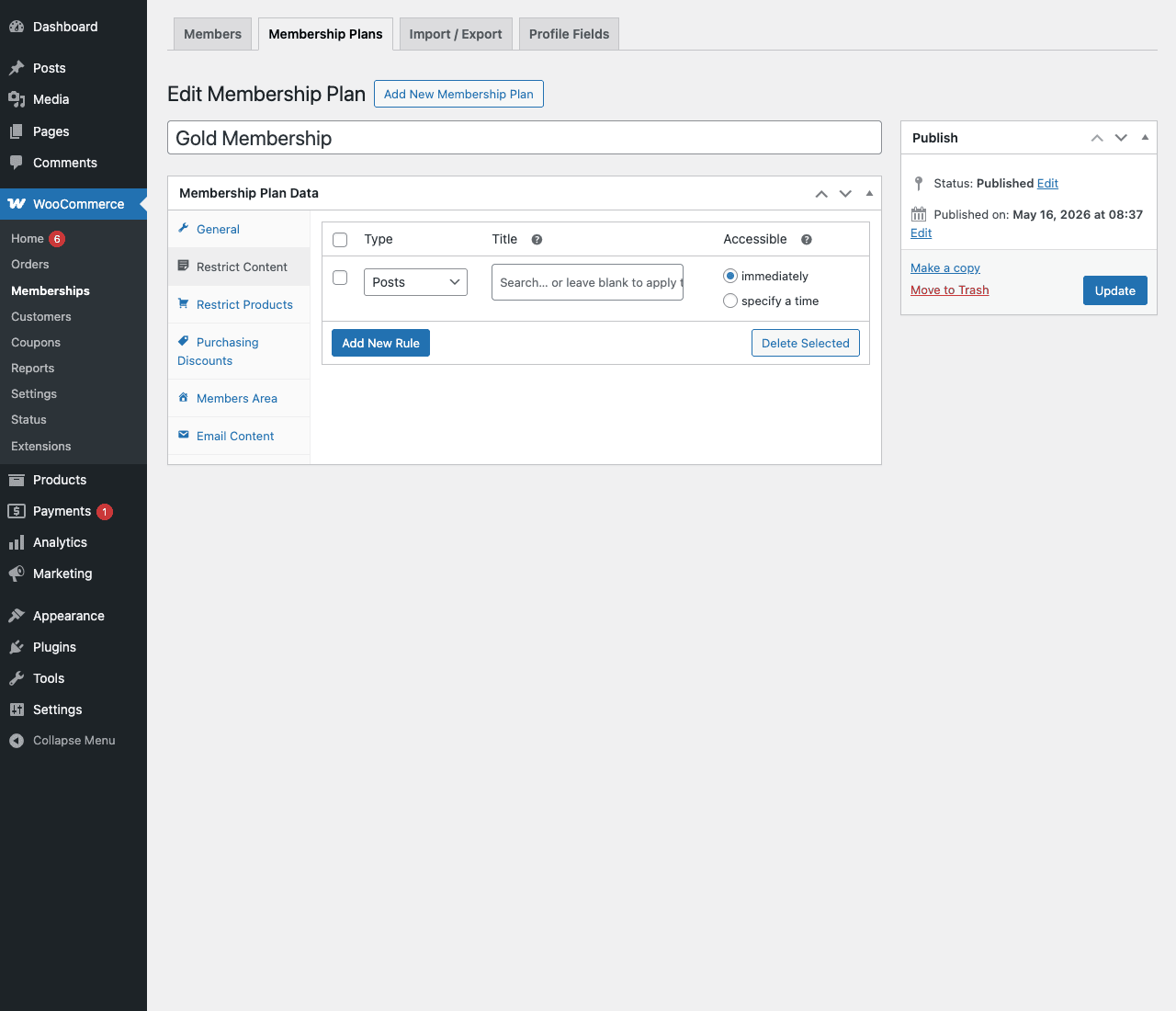
Restrict Content: this is where you add rules for posts, pages, custom post types, taxonomies. Click Add New Rule, pick the type, search for the specific item or leave blank to apply to the whole type, and set whether members get access immediately or after a delay.
Restrict Products: same idea as Restrict Content, but for catalog visibility. You can block non-members from viewing certain products at all, or just from buying them.
Purchasing Discounts: list of percent-off or flat-off rules per product or category. The plan-level "this is a 15% off plan" lives here.
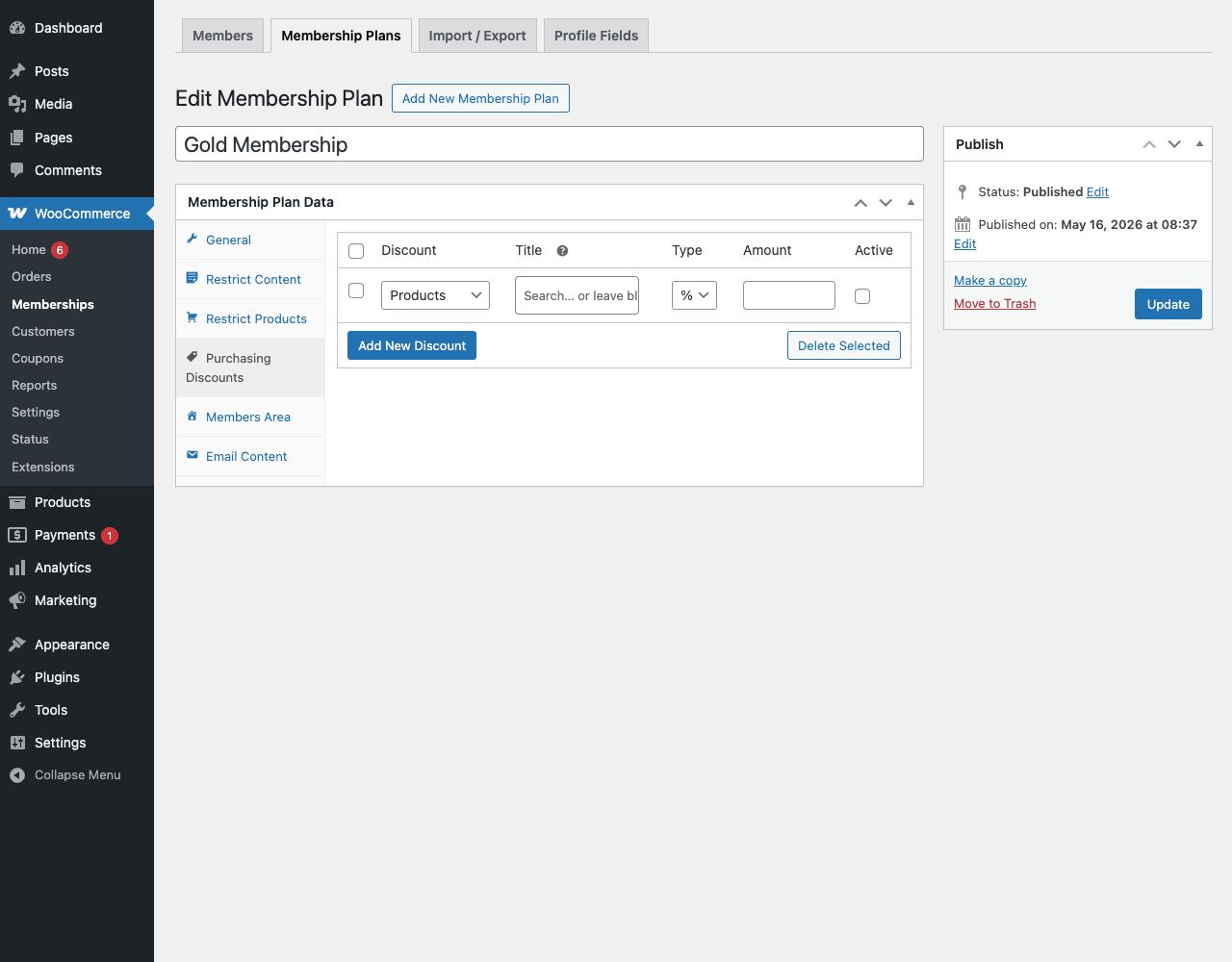
Members Area: which sections appear on the member’s My Account page. You can show or hide "My Content", "My Products", "My Discounts", "Notes", "Manage Membership", per plan.
Email Content: per-plan email overrides. Lets you write a different welcome message for "Gold" vs "Free" members without changing site-wide email templates.
Hit Publish and the plan is live.
Step 3: Hook up the access product
For purchase-based plans, you need a WooCommerce product that grants the plan. Either edit an existing product or create a new one. In the Membership product data tab, tick "This product grants access to" and select the plan. Set the price, the description, the images, just like any other product. When someone buys it, they get the plan.
For variation-based products (e.g. T-shirt with sizes), you can grant access on specific variations, so only the "Bundle + Membership" variation creates a member.
Step 4: Tell people about it
The plugin won’t market the plan for you. The two things to do:
- Edit your locked content’s restriction message so the call-to-action points to the product. The Messages settings tab lets you do this in one place rather than per post.
- Add the Members Area to your menu, or use the
[wcm_directory]shortcode if your plan has a public directory.
Step 5: Test as a non-member
Open the site in an incognito window. Visit one of the locked posts. You should see the restriction message and not the protected content. Then log in as a test member, refresh, and confirm the content appears. This is the five-minute check that prevents the worst membership-site failure mode: the site looks fine to you (admin) and broken to everyone else.
Installation and setup
Setup itself is fast. Most stores are running plans within thirty minutes of installing.
Prerequisites. WordPress 5.6+, PHP 7.4+, WooCommerce 3.9.4 or newer. If you’re going to use recurring memberships, install WooCommerce Subscriptions first; the two are designed to detect each other and auto-link.
Step 1: install and activate the plugin like any other WordPress plugin. From wp-admin/plugins.php, click Add New, upload the zip, then activate.
Step 2: the plugin auto-creates two admin menu items under WooCommerce: Memberships (the plans + members area) and an extra Memberships settings tab inside WooCommerce → Settings.
Step 3: open WooCommerce → Settings → Memberships. This is where the site-wide defaults live:
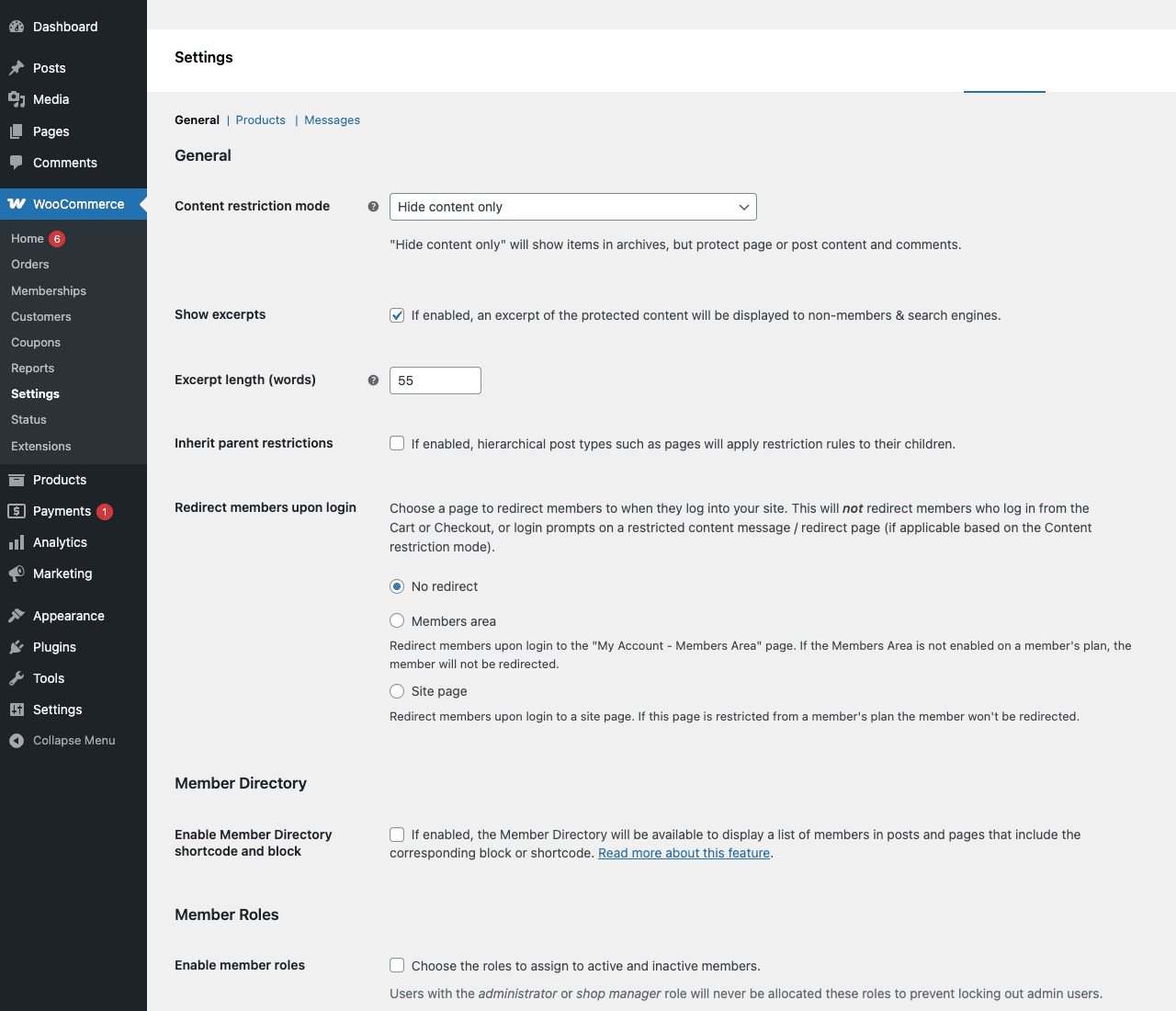
The most important one is Content restriction mode. Three choices:
- Hide content only (default): shows the post title and excerpt, replaces the body with your restriction message. SEO-friendly. Use this unless you have a specific reason not to.
- Hide completely: the post 404s for non-members. Hides the existence of the content entirely. Useful if even the title is sensitive.
- Redirect: send non-members to a custom URL. Good for "you must register first" funnels.
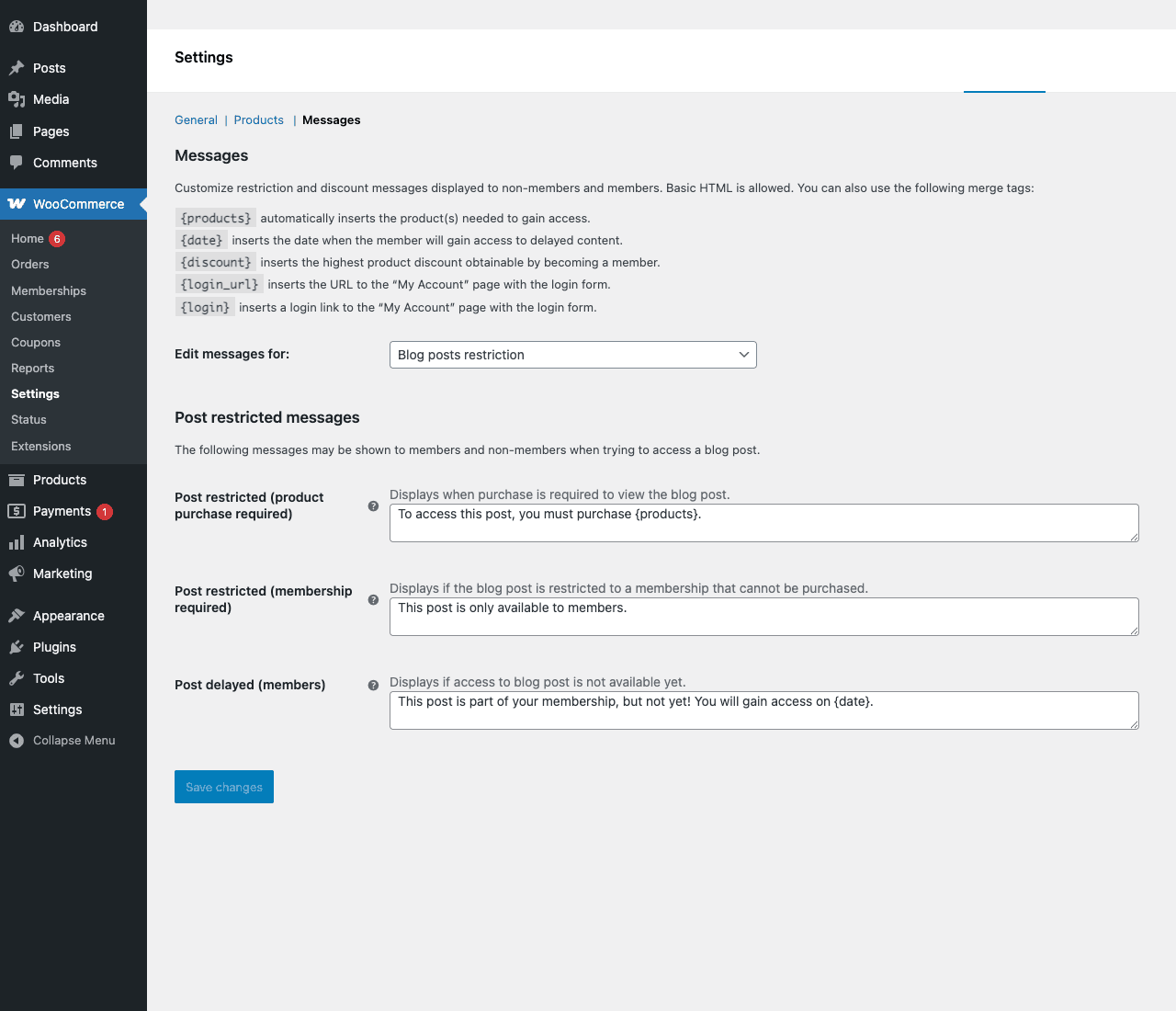
The Messages sub-tab is where you’ll spend more time than you expect. It groups all the restriction messages by context (blog posts, products, terms, delayed content) and supports merge tags. This is the copy your customers see; treat it like you’d treat a checkout button.
Step 4: create your first plan, hook up an access product, and test in an incognito window. From a clean install you can have a working member-only post in about fifteen minutes.
Real-world use cases
Five patterns I’ve seen ship successfully with this plugin:
The premium tutorials site. A how-to blog with one Gold membership plan that unlocks the "Premium" category and a Resources page. Free posts stay free for SEO. Conversion happens at the bottom of free posts that lead into premium ones. Customers buy a one-year plan for $49. Renewal handled by WooCommerce Subscriptions or by sending an email when "ending soon" fires.
Wholesale B2B store. Two roles: retail (default) and wholesale (members). The wholesale plan is free but admin-assigned: you approve applications. Members see 30% off everything via a Purchasing Discount rule on "all products". Retail customers see normal prices. Same shop, two pricing tiers, no separate catalog to maintain.
Members list of locked downloads. A digital product library. Each downloadable file is a product. A single plan unlocks them all. Use the Hide Completely restriction mode so non-members don’t even see the products in the shop archive. Pair with WooCommerce Subscriptions for monthly billing and you have a "Netflix for templates" with about an hour of setup.
Online course with weekly lessons. Each lesson is a WordPress page. The plan has 12 restriction rules, one per page, with drip schedules "0 days", "7 days", "14 days", and so on. The member buys the plan, sees lesson 1 immediately, and the rest unlock automatically on schedule. No drip plugin needed.
If you want to send onboarding emails alongside that drip schedule, the cleanest pairing is AutomateWoo on the Membership Created trigger; it lets you ship a multi-day welcome series without leaving the WooCommerce admin.
Paid private community. Lock a Forum page (or BuddyPress/bbPress section) plus a set of curated articles behind a Free plan that requires registration. Anyone can join but the gate filters out drive-by visitors. Add an upgrade-to-paid plan with extra discounts and the directory listing turned on, and you’ve got tiered community access.
The pattern in all five: don’t fight the plugin, fight the planning. The plugin handles whatever you can specify clearly.

WooCommerce Memberships vs WooCommerce Subscriptions
Confusion alert. These two SkyVerge plugins sound interchangeable and they are not. Here’s the line:
WooCommerce Subscriptions handles recurring billing. It turns a product into a "$10 per month" charge that auto-renews. It cares about money, scheduled payments, failed cards, renewals. It does not gate any content.
WooCommerce Memberships handles access control. It cares about who can see what, when. It does not charge anyone anything.
You use them together when you want a paid recurring membership. Subscriptions charges the card every month, Memberships keeps the plan active as long as the subscription is active and revokes access if the subscription cancels or fails. They’re designed to work together: the linkage is one checkbox on the plan settings.
You use Memberships alone when access is one-off (lifetime access for $99, or free), or when access is tied to a one-time purchase that you don’t want to bill again.
You use Subscriptions alone when you’re selling a recurring product (a physical subscription box, a SaaS-style fee) but there’s no protected content to gate.
If you’ve already read our Subscriptions deep dive, the short version: Subscriptions is the engine, Memberships is the door. Most paid-membership sites need both.
Developer reference
The plugin has 216 filters and well over a hundred actions across src/. We’re not going to list all of them; that’s what grep is for. Instead, here are the hook surfaces you’ll actually reach for, with examples.
Custom post types
Two are registered:
wc_membership_plan, a plan definition. The thing you edit in Memberships → Membership Plans.wc_user_membership, a single user’s instance of a plan. The thing you see under Members.
Most queries you write against the plugin will be against wc_user_membership posts, where post_author is the user ID and post_parent is the plan ID.
Checking access in your own code
Two ways. The fast way:
// Is the current user a member of plan with slug 'gold-membership'?
if ( wc_memberships_is_user_active_member( get_current_user_id(), 'gold-membership' ) ) {
 // show member-only thing
}
The granular way:
// Can this user view this specific post?
$user_id = get_current_user_id();
$post_id = get_the_ID();

if ( current_user_can( 'wc_memberships_view_restricted_post_content', $post_id ) ) {
 // user has access
}
The plugin registers a set of meta capabilities (wc_memberships_view_restricted_post_content, wc_memberships_purchase_restricted_product, wc_memberships_view_delayed_post_content, etc.) and routes them through current_user_can(). You don’t have to think about plans at all if you just want a yes/no on a specific post.
Filtering access decisions
If you need to override the plugin’s verdict, use wc_memberships_user_can:
add_filter( 'wc_memberships_user_can', function( $can_access, $user_id, $args ) {
 // Allow site admins to always view restricted content
 if ( user_can( $user_id, 'manage_options' ) ) {
 return true;
 }
 return $can_access;
}, 10, 3 );
Useful for testing on staging or for special roles ("Editors can preview member content without a plan").
Reacting to membership lifecycle
A plan’s lifecycle is a series of status changes (active, paused, expired, cancelled, etc.). Each transition fires wc_memberships_user_membership_status_changed:
add_action( 'wc_memberships_user_membership_status_changed', function( $membership, $old, $new ) {
 if ( $new === 'active' ) {
 // Welcome them to Slack, add to a Mailchimp audience, etc.
 send_welcome_to_slack( $membership->get_user_id() );
 } elseif ( $new === 'expired' ) {
 // Tag them as 'expired-member' in your CRM
 tag_in_crm( $membership->get_user_id(), 'expired-member' );
 }
}, 10, 3 );
Other lifecycle hooks worth knowing: wc_memberships_user_membership_created (just created), wc_memberships_user_membership_saved (any save), wc_memberships_grant_membership_access_from_purchase (purchase just granted access), and wc_memberships_user_membership_expired (cron-triggered expiry).
Customizing restriction messages
If the global Messages settings aren’t enough, override per-context with wc_memberships_restriction_message:
add_filter( 'wc_memberships_restriction_message', function( $message, $args ) {
 // Replace the default message for the 'Tutorials' category only
 if ( isset( $args['term'] ) && $args['term']->slug === 'tutorials' ) {
 return 'Tutorials are members-only. <a href="/join">Join now</a>.';
 }
 return $message;
}, 10, 2 );
Member discounts and price display
The price html shown on member-only-discount products is filterable:
add_filter( 'wc_memberships_get_price_html_after_discount', function( $html, $product, $price_html ) {
 return $price_html. ' <span class="member-only-tag">(Member price)</span>';
}, 10, 3 );
There’s also wc_memberships_member_discount_badge for the badge shown on product cards and wc_memberships_member_prices_display_sale_price to control how member prices interact with sale prices.
Shortcodes
Six shortcodes ship with the plugin, all prefixed wcm_:
[wcm_restrict plans="gold-membership"]This is members-only.[/wcm_restrict]
[wcm_nonmember]Visible only to non-members.[/wcm_nonmember]
[wcm_content_restricted]
[wcm_discounted_product product_id="42"]This product has a member discount.[/wcm_discounted_product]
[wcm_product_discount product_id="42"]
[wcm_directory]
wcm_restrict is the most-used: wrap any chunk of content and pass a comma-separated list of plan slugs. Useful inside posts where you want a mixed-access page (free intro, member body, free outro).
Gutenberg blocks
If you’re on the block editor, the same access controls are available as native blocks: Member Content, Non-Member Content, Members Directory, Dynamic Content. The block panel lets you pick the plan, the access schedule, and the fallback message right in the sidebar. The shortcodes still work, but the blocks are friendlier for editors.
REST API
The plugin registers WC REST API endpoints under /wc/v3/memberships/:
GET /wc/v3/memberships/plans, list of plansGET /wc/v3/memberships/plans/{id}GET /wc/v3/memberships/members, list of user membershipsGET /wc/v3/memberships/members/{id}POST /wc/v3/memberships/members, create a user membershipPUT /wc/v3/memberships/members/{id}, update status, expiry, etc.POST /wc/v3/memberships/members/batchGET /wc/v3/memberships/members/directory
Auth uses standard WooCommerce REST auth (consumer key + secret, OAuth, or application passwords). Handy if you want to grant access from a different system (an external course platform, a Discord bot, a paid Patreon-style integration).
WP-CLI
# List all plans
wp wc memberships plan list

# Create a membership for user 42 on plan 'gold-membership'
wp wc memberships membership create --user=42 --plan=gold-membership --status=active

# Bulk-update statuses
wp wc memberships membership update 101 --status=paused
Full reference is in the plugin’s official documentation. The CLI is genuinely complete; bulk operations that would take an hour in the admin take seconds via WP-CLI.
Profile fields
Memberships supports per-plan custom fields, defined under Memberships → Profile Fields. Each field has a type (text, textarea, radio, checkbox, multiselect, file, etc.), is tied to one or more plans, and is editable on the member’s My Account page. Programmatically:
// Get a member's "company_name" field value
$value = wc_memberships_get_profile_field_value( $user_membership_id, 'company_name' );

// Update it
wc_memberships_update_profile_field( $user_membership_id, 'company_name', 'Acme, Inc.' );
The field definitions are filterable via wc_memberships_get_profile_field_definitions, so you can add fields in code without using the admin UI.
Performance, compatibility, and gotchas
A few things that aren’t obvious from reading the docs:
The plugin queries every restriction rule on every page load to decide what to show. On sites with hundreds of rules, this can add ~30-50 ms. If you’re hitting that scale, install WP Rocket or another page cache for non-logged-in users (members are bypass-cached anyway). You can also use wc_memberships_excluded_member_discounts_products_cache_expiration to control the discount cache TTL.
Caching plus members. Any page cache that serves a single cached HTML to logged-in users will leak member content to non-members. Every reputable WP cache plugin (WP Rocket, LiteSpeed, Cloudways/Breeze, Cache Enabler) bypasses logged-in users by default, but always verify before going live. The single most embarrassing membership-site bug is "cached page leaked premium content".
The "ending soon" email window is set in Settings → Emails → Membership Ending Soon. It defaults to seven days. Change it to match your renewal-prompt cadence, not the default.
Profile fields don’t sync to WordPress user meta automatically. If you’ve built parts of your site against get_user_meta(), profile fields won’t show up there. Use wc_memberships_get_profile_field_value().
Bulk action limits. Bulk-deleting more than ~50 memberships from the admin times out on most shared hosts. Use WP-CLI for bulk ops.
HPOS compatibility. WooCommerce has been moving orders out of the posts table into custom tables (High-Performance Order Storage). Memberships is HPOS-aware, but if you’re on a very old version of the plugin and you just turned on HPOS, run WooCommerce → Status → Tools → Regenerate user memberships data once.
Translation strings live in i18n/languages/. If you’re running a non-English site, drop the .mo for your locale there. The plugin’s text domain is woocommerce-memberships.
Action Scheduler is required. The plugin schedules background jobs (expiry checks, status transitions, ending-soon emails) via WC’s Action Scheduler. If you’ve turned off Action Scheduler or are running an unusually old Woo, plan transitions will not fire. WooCommerce → Status → Scheduled Actions is where you check that the queue is healthy.
Pricing and licensing
WooCommerce Memberships is sold by SkyVerge (now part of WooCommerce). The official subscription is $149 per year for a single site, which gets you the plugin, official support, and updates. For agencies and stores running multiple environments, you’d buy multiple seats or a higher tier.
GPL Times sells the same plugin under its GPL license. The code is identical, the same woocommerce-memberships.php SkyVerge ships in the paid distribution. You get to install it on any number of sites with no per-seat counting, and you pay a fraction of the SkyVerge price. The trade-off: official SkyVerge support is gated to paid customers, and automatic updates come from GPL Times rather than from woocommerce.com. For most stores, the savings on multi-site licensing alone cover the difference and then some.
FAQ
Does WooCommerce Memberships handle recurring payments on its own?
No. It manages access. For monthly or yearly billing you pair it with WooCommerce Subscriptions. The two plugins are designed to detect each other and auto-link, so you don’t write any integration code.
Can I have multiple plans on one site?
Yes, as many as you want. A single user can be on more than one plan at once. Rules are additive: if Plan A unlocks Posts and Plan B unlocks Products, a member of both sees both.
Can a member upgrade or downgrade between plans?
Yes, but the plugin doesn’t do prorated billing on its own. If you’re using WooCommerce Subscriptions, install the Subscriptions Switching add-on. Otherwise, the safest pattern is: cancel the old plan, sell them the new one as a fresh purchase.
What happens when a membership expires?
The plugin moves the user_membership status to expired and fires wc_memberships_user_membership_expired. The user loses access to everything that plan unlocked. You can also configure WordPress role changes (e.g. drop them from "Subscriber" to "Customer" on expiry) under Settings.
Does it work with custom post types?
Yes. Any registered public CPT can be restricted. The Restrict Content rule type dropdown auto-populates with every CPT on the site (excluding utility types like attachments and revisions).
Can I sell access to a single piece of content, not a whole plan?
WooCommerce has a feature called "downloadable products" for that, but if you want post-level access, the workaround is to create a one-post plan and tie a single product to it. It works, but if you find yourself making dozens of one-post plans you’re probably solving the wrong problem; bundle them.
Does it integrate with LearnDash, Sensei, BuddyPress, etc?
Sensei is supported natively (the plugin has Sensei-specific access logic baked in). LearnDash, LifterLMS, Tutor LMS, BuddyPress, and bbPress all have third-party integrations or work via standard content restriction. Forum gating works out of the box because forums are just custom post types.
Can I export members to a CSV?
Yes. Memberships → Import / Export → Export dumps every active member with their plan, status, dates, and profile fields as a CSV. Useful for emergency migrations or for handing your accountant a renewal forecast.
Is the plugin GDPR-friendly?
The Personal Data Exporter and Eraser endpoints WordPress core exposes for GDPR are wired up. When a user requests their data, their memberships and profile fields are included. When they ask to be erased, the memberships go with the user record.
Final thoughts
WooCommerce Memberships is the right tool when the problem is "I have stuff on my WooCommerce site and I want some of it gated to paying customers." It’s not the right tool if you want a community-first product like Circle, Mighty Networks, or Discord-based paid groups. It’s a content gate, not a community.
What I keep coming back to with this plugin is how few decisions it forces on you. You don’t pick a "membership directory layout" or a "course player template". You write a plan, write some rules, and the plugin uses what’s already on your site. That’s a tighter scope than most membership plugins and it pays off in less time spent fighting templates.
Two specific recommendations if you’re picking it up for the first time. One: write your plans down on paper before you create them in the plugin. The plugin enforces clarity; vague plans frustrate customers. Two: always test as a non-member in an incognito window before you announce the plan. The single most common membership-site failure is a locked page that looks fine to an admin and broken to everyone else.
If you’re paired with WooCommerce Subscriptions, you can build a full recurring-billing membership site in an afternoon. If you’re not, you can still build a perfectly good one-off-purchase or free-tier membership site, and revisit recurring billing later when the audience exists.