

For years I was the person on the team who talked clients out of multipurpose themes. You know the pitch: one theme that builds anything, hundreds of demos, a thousand options. I’d seen too many of those projects turn into a slow page weighed down by features nobody used, so I’d steer people toward a lean starter theme and a single page builder instead. Then I inherited a site running the Total WordPress theme by WPExplorer, spent a few weeks living in its admin, and quietly changed my mind.
This is the honest version of why. Not a love letter, not a takedown. A long, practical walk through what Total actually does, where it shines, the parts that feel dated, and a real developer reference for the people who’ll be writing code against it.
The short version: Total is a WPBakery-first theme that also speaks Gutenberg and Elementor, ships with a big demo library, and exposes one of the deepest template-hook systems I’ve seen in a commercial theme. The longer version is below, and it’s worth your time if you’re deciding whether a multipurpose theme belongs on your next project. If you want to compare it with another flexible WPBakery-based multipurpose theme, my Bridge theme review walks through a close cousin.
Table of Contents
- What is the Total WordPress theme?
- Who Total is actually for
- The demo library and the three builders
- Installation and first setup
- The Theme Panel: features you turn on and off
- The Customizer, where most options actually live
- Content types: Portfolio, Staff, and Testimonials
- Header Builder, Footer Builder, and Dynamic Templates
- Developer reference: hooks, filters, and the action system
- Where Total trips people up (and how to keep it lean)
- Total vs Avada vs Divi vs BeTheme
- Performance and compatibility
- FAQ
- Final thoughts
What is the Total WordPress theme?
Total is a premium multipurpose WordPress theme from WPExplorer, the team behind a long-running WordPress tutorial site. It sells on ThemeForest as a one-time license, and it’s been around long enough to have a mature, framework-style codebase underneath the marketing. There are over 800 PHP files in the theme. That number tells you what kind of product this is: not a styling layer over a page builder, but a full theme framework with its own options, its own template system, and its own developer surface.
The headline feature is flexibility. Total is built primarily around WPBakery Page Builder, but it also supports the native block editor (Gutenberg) and Elementor. The demo importer even has a toggle to choose which builder a demo loads with. That three-builder stance is genuinely unusual, and it’s the single thing that made me reconsider my "avoid multipurpose themes" rule.
Where Total fits: it’s aimed at people who build a lot of different sites and don’t want to relearn a new theme each time. Agencies, freelancers, and anyone running several WordPress projects get the most out of it, because the investment in learning Total pays off across every build after the first.
Under the hood, Total leans on a bundled companion plugin called Total Theme Core for the heavy structural pieces (the custom post types, the demo importer, the WPBakery integration, the dynamic templates). The theme handles presentation and options; the plugin handles content structure. That split matters, and I’ll come back to it in the developer section, because it’s a common source of confusion about what "the theme" can do versus what its plugin does.
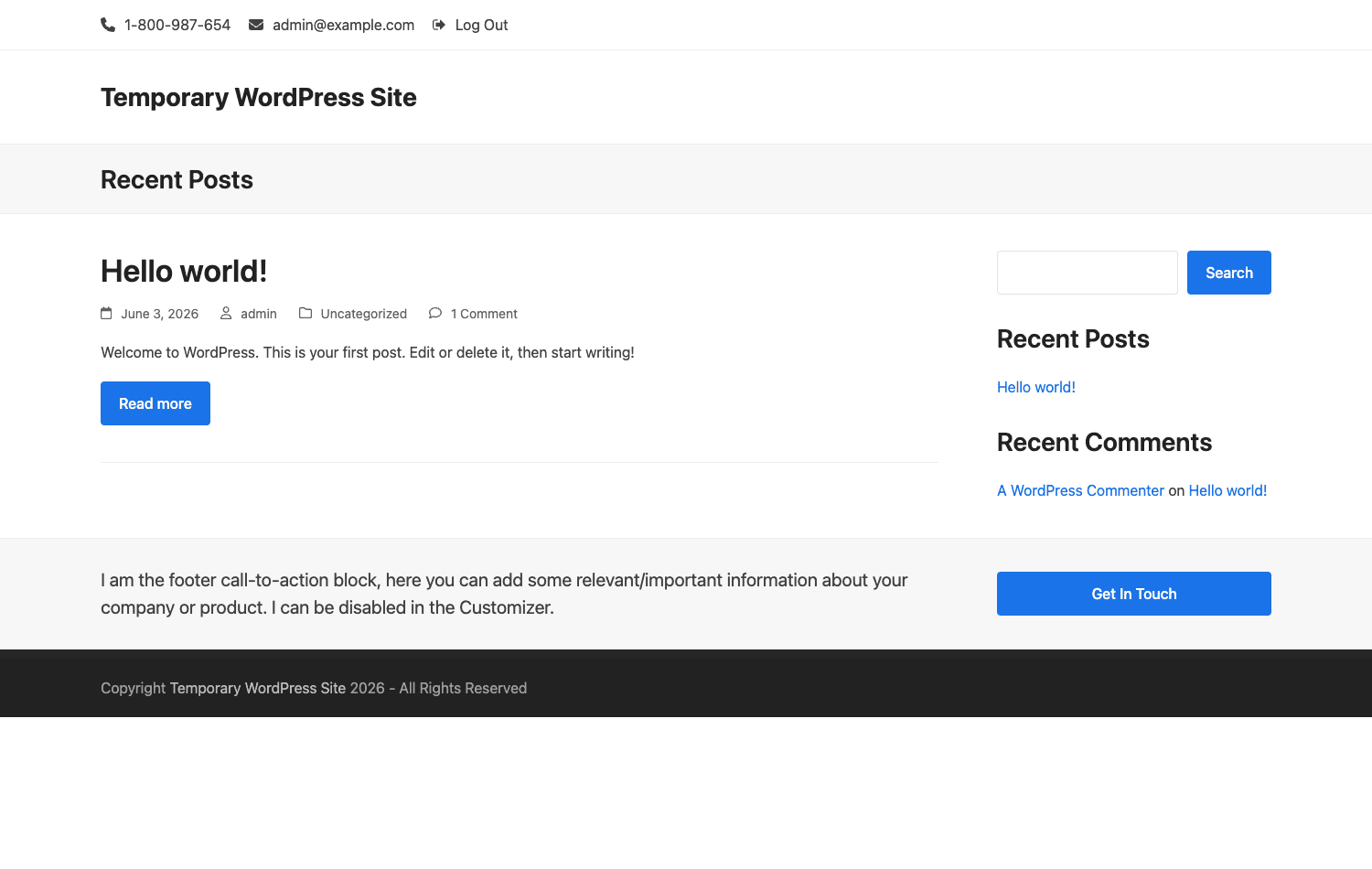
If you want to poke at every panel as you read, the Total WordPress theme on GPL Times is the same ThemeForest package, delivered through the GPL store with its documentation intact. Spin it up on a clean install and you can match each screenshot here to your own admin.
Who Total is actually for
A multipurpose theme is a tool, and tools fit some hands better than others. Here’s who I think gets real value out of Total, and who probably shouldn’t bother.
If you build client sites for a living, Total is close to ideal. You learn one theme, one options panel, one set of hooks, and then every project after that goes faster. The demo library gives you a running start on layout, and the per-feature toggles let you hand a client a site that only has the features they’ll use. I’ve handed off Total sites where the client’s admin was deliberately stripped down to "Pages, Posts, and the three things they actually need," and that’s a nice place to land.
For a one-person shop or a small business owner, Total is more of a mixed bag. The flexibility is real, but so is the learning curve. You’re going to meet a Theme Panel with dozens of toggles, a Customizer with well over a hundred sections, and a page builder that has its own vocabulary. If you just want a blog and a contact page, this is more theme than you need, and I’d say so plainly.
For developers, Total is quietly one of the more pleasant commercial themes to extend, which I did not expect to write. The hook system is deep, the child theme is provided, and there’s an admin panel that lets you inject PHP into template positions without touching a file. If you’ve ever inherited a theme with zero action hooks and had to hack header.php directly, you’ll appreciate what Total gives you here.
Where Total shines: anything content-heavy that benefits from custom post types. A portfolio site, an agency site with a staff page, a small shop, a blog network. The built-in Portfolio, Staff, and Testimonials types mean you’re not bolting on a separate plugin for the obvious content structures.
You might be wondering whether a multipurpose theme is the wrong call for a serious, performance-sensitive site. It can be, if you leave everything switched on. It doesn’t have to be, and the "keep it lean" section below is the whole answer to that worry.
The demo library and the three builders
This is the part most people come for, so let’s spend time on it.
Total ships with a Demo Importer that lives in the Theme Panel. Open it and you get a grid of demo thumbnails pulled from the official WPExplorer servers, with two controls that matter: a Choose Builder Type toggle (WPBakery or Elementor) and a Filter by Category dropdown. The categories cover the usual spread: Agency, Blog, Business, Creative, Holiday, Medical, One Page, Shop, Personal, Photography, Portfolio, Restaurant, and a catch-all Other. There are well over forty demos in there, so the filter is not decoration, you’ll want it.
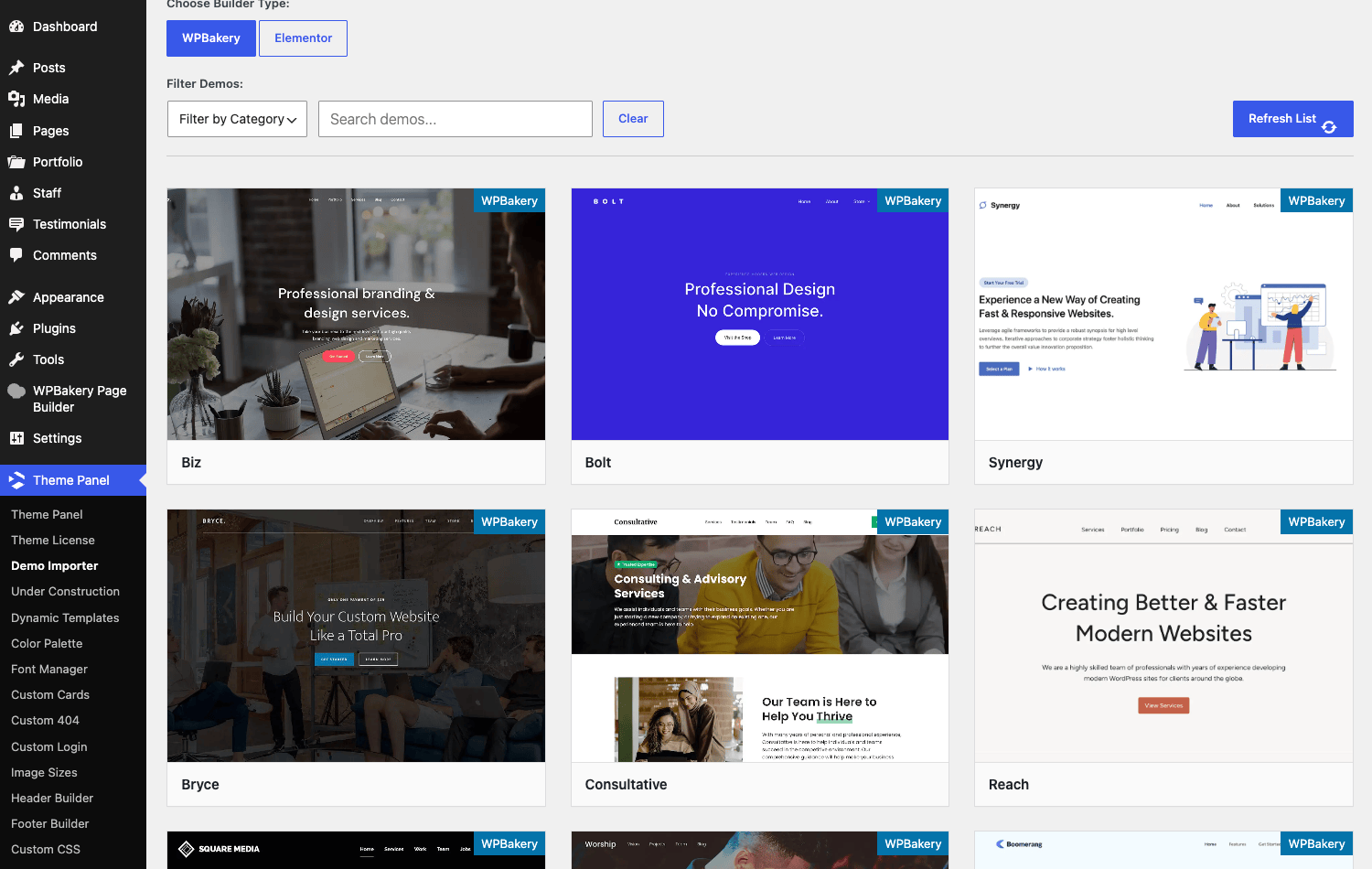
The builder toggle is the real story. Most multipurpose themes pick a builder and marry it. Total lets you choose, per demo, whether you want the WPBakery version or the Elementor version of a layout. That’s a practical hedge. If your shop standardized on Elementor, you’re not locked out of Total’s demos. If you prefer the block editor, Total supports Gutenberg natively too, with wide alignment and the theme’s color palette wired into the editor.
Let me be honest about the trade-offs between the three, because the marketing won’t.
- WPBakery is Total’s home turf. The deepest integration, the most demos, and a whole family of custom builder elements (more on those in the developer section). If you’re new to it, our guide on how to use WPBakery Page Builder covers the editor itself. The catch: WPBakery’s editing experience feels dated next to Elementor’s live canvas or the modern block editor. You’re working in a back-end grid of rows and columns, and while the front-end editor exists, it’s not as fluid as the newer tools. If you’ve only ever used Elementor or Gutenberg, WPBakery will feel like a step back in feel, even if it’s a step forward in how much Total can do with it.
- Elementor support means you get a familiar, modern drag canvas, and a chunk of the demo library built for it. You give up some of the tightest Total-specific integration that WPBakery has, but for a lot of teams that’s a fair trade for the better editing feel.
- Gutenberg is the lightest option. Total declares
gutenberg-editorsupport, registers an editor color palette and font sizes, and turns on wide and full alignment. If you care about keeping the front-end output lean, building in blocks produces the least extra markup of the three.
Tip: decide which builder you’re standardizing on before you import a single demo. Mixing WPBakery pages and Elementor pages in one site is technically possible, but it doubles the surface you have to maintain and it confuses anyone who edits the site after you.
Heads-up: the importer shows an in-app notice telling you to import on a clean install. Take it seriously. I’ll explain exactly why in the anti-pattern section, because it’s the single most expensive mistake people make with this theme.
Installation and first setup
Installing Total is the standard ThemeForest theme flow, with one wrinkle worth calling out.
- Upload the theme. Go to Appearance » Themes » Add New » Upload Theme, pick the theme zip, install, and activate. Total requires a reasonably current WordPress and PHP version, so if you’re on an ancient host, sort that first.
- Install the bundled plugins. On activation, Total triggers a TGM notice prompting you to install its companion plugins. The required one is Total Theme Core. The recommended set includes WPBakery Page Builder, Templatera (reusable WPBakery templates), and Slider Revolution. Install them one at a time and let each finish before starting the next. They pull from WPExplorer’s servers, and clicking through too fast is a good way to get a half-installed plugin.
- Activate your license under Theme Panel » License so you get updates. This is also where the demo importer and bundled-plugin downloads get authorized.
- Import a demo, or don’t. On a brand-new site, the Demo Importer is the fastest way to a finished-looking layout. On an existing site, skip it and build manually. (Again: clean install only. The anti-pattern section explains the cost.)
The first time you land in the admin after activation, it can feel like a lot. Total adds a Theme Panel, three custom post types, a WPBakery menu, and a Customizer stuffed with options. That’s the overwhelming-at-first feeling I promised to be honest about. It settles. Give it an afternoon and the structure starts to make sense, because almost everything routes through two places: the Theme Panel and the Customizer.
Note: if you’re handing this site to a non-technical client, do your setup, then go back into the Theme Panel and switch off the features they’ll never touch. A clean admin is a kindness, and Total makes it easy to deliver one.
The Theme Panel: features you turn on and off
The Theme Panel (under its own top-level Theme menu, at admin.php?page=wpex-panel) is where Total earns the "framework" label. The first tab you’ll see is Features, and it’s a long list of toggles. I counted around 58 of them.

Each toggle enables or disables a chunk of the theme: the Demo Importer, Under Construction mode, Bundled and Recommended Plugins, Dark Mode, Dynamic Templates, Theme Elements, Custom CSS, Custom Actions, the Portfolio post type, Staff, Staff-User Relations, Testimonials, Post Series, and many more. The panel lets you sort these by category too: Core, Custom Fields, Developers, Editor, Fonts, Optimizations, Post Cards, Post Types, Shortcodes and Blocks, Taxonomies, WPBakery Builder, and Widgets.
Here’s why this list is the answer to the "multipurpose themes are bloated" complaint, and not just a settings dump.
A multipurpose theme is only heavy if you leave all of it loaded. If your site is a blog, you don’t need the Portfolio, Staff, or Testimonials post types, so you turn them off, and their registration code, their meta boxes, and their admin pages simply don’t load. Don’t use WPBakery because you’re a Gutenberg shop? There’s a category of toggles for that. The Theme Panel is, in effect, a build-your-own-theme switchboard, and using it well is the difference between a lean Total site and a sluggish one.
The other Theme Panel tabs are License, Demo Import, and Customize, and the panel branches out into a stack of sub-pages: Demo Importer, Dynamic Templates, Color Palette, Font Manager, Custom Cards, Custom 404, Custom Login, Image Sizes, Header Builder, Footer Builder, Custom CSS, Custom Actions, Customizer Manager, Accessibility, Import/Export, and Theme License. You will not touch most of these on a given project. But when you need to swap the 404 page or rebuild the login screen, it’s nice that it’s a panel and not a code edit.
The catch: the sheer number of options is genuinely overwhelming on day one. There’s no way around that with a theme this capable. The upside is that it’s mostly progressive: the defaults are sane, and you only open a panel when you have a specific reason to.
The Customizer, where most options actually live
If the Theme Panel decides what features exist, the WordPress Customizer decides how they look. Total has moved the bulk of its visual options into the native Customizer, which I think was the right call, because you get a live preview of every change instead of saving and refreshing.
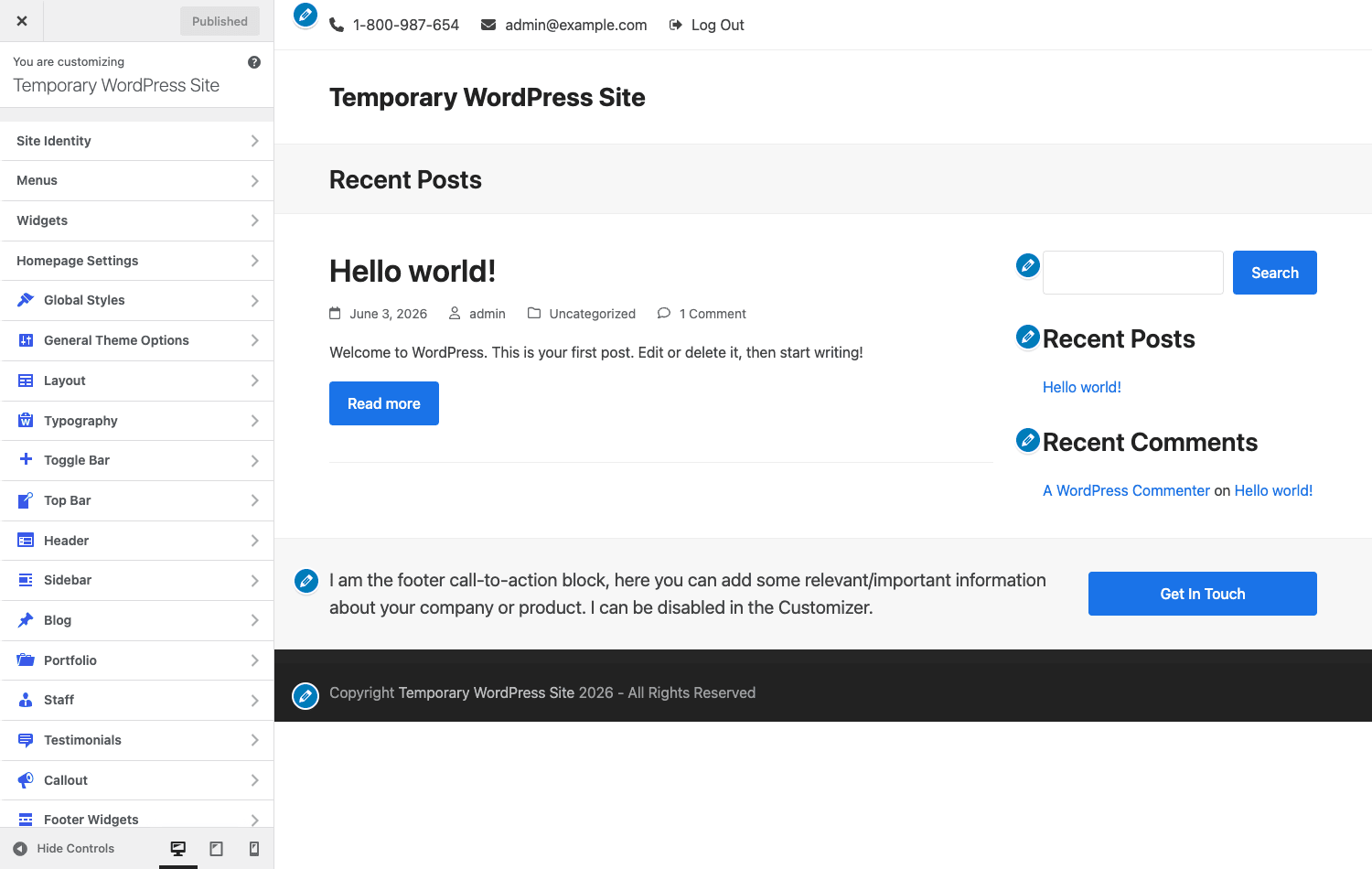
Open Appearance » Customize on a Total site and you’ll find a deep tree. I counted around 161 sections in there. The Total-specific panels include General Theme Options, Layout, Typography, Toggle Bar, Top Bar, Header, Sidebar, Blog, Portfolio, Staff, Testimonials, Callout, and Footer Widgets, sitting alongside the standard WordPress sections.
That’s a lot, but it’s organized by where it appears on the page, which makes it findable. Want to change how the header behaves? Header. Need a different blog layout? Blog. Adjusting the footer call-to-action band? Callout. Each panel has live preview, so you nudge a setting and watch the front-end react in the preview pane.
A few panels worth knowing about specifically:
- Layout controls the global site width, boxed versus full-width, and the sidebar arrangement. This is where you set the skeleton every page inherits.
- Typography wires into Total’s Font Manager, so the fonts you load show up here as choices for headings, body, menus, and the like.
- Toggle Bar and Top Bar are two separate strips Total gives you above the header, handy for announcements, contact details, or a secondary menu. Not every theme bothers with both.
- Header is where you’ll spend real time, because Total’s header has a lot of styles and behaviors before you even get to the full Header Builder.
Tip: the Customizer Manager sub-page in the Theme Panel lets you hide Customizer sections you don’t use. On a client handoff, trimming the Customizer down to the five panels they’ll actually touch makes the whole thing far less intimidating.
Content types: Portfolio, Staff, and Testimonials
Total gives you three custom post types out of the box: Portfolio, Staff, and Testimonials. I want to be precise about ownership here, because it matters for both troubleshooting and development: these are registered by the bundled Total Theme Core plugin, not by the theme itself. The theme ships zero register_post_type calls. If you deactivate Total Theme Core, those post types go away. So when people say "Total adds a portfolio," what they really mean is "Total, via its Total Theme Core plugin, adds a portfolio." Keep that distinction in your head and a whole class of "where did my content type go" confusion disappears.
Each of the three types comes with its own settings page. The Portfolio one is a good example of the depth on offer.
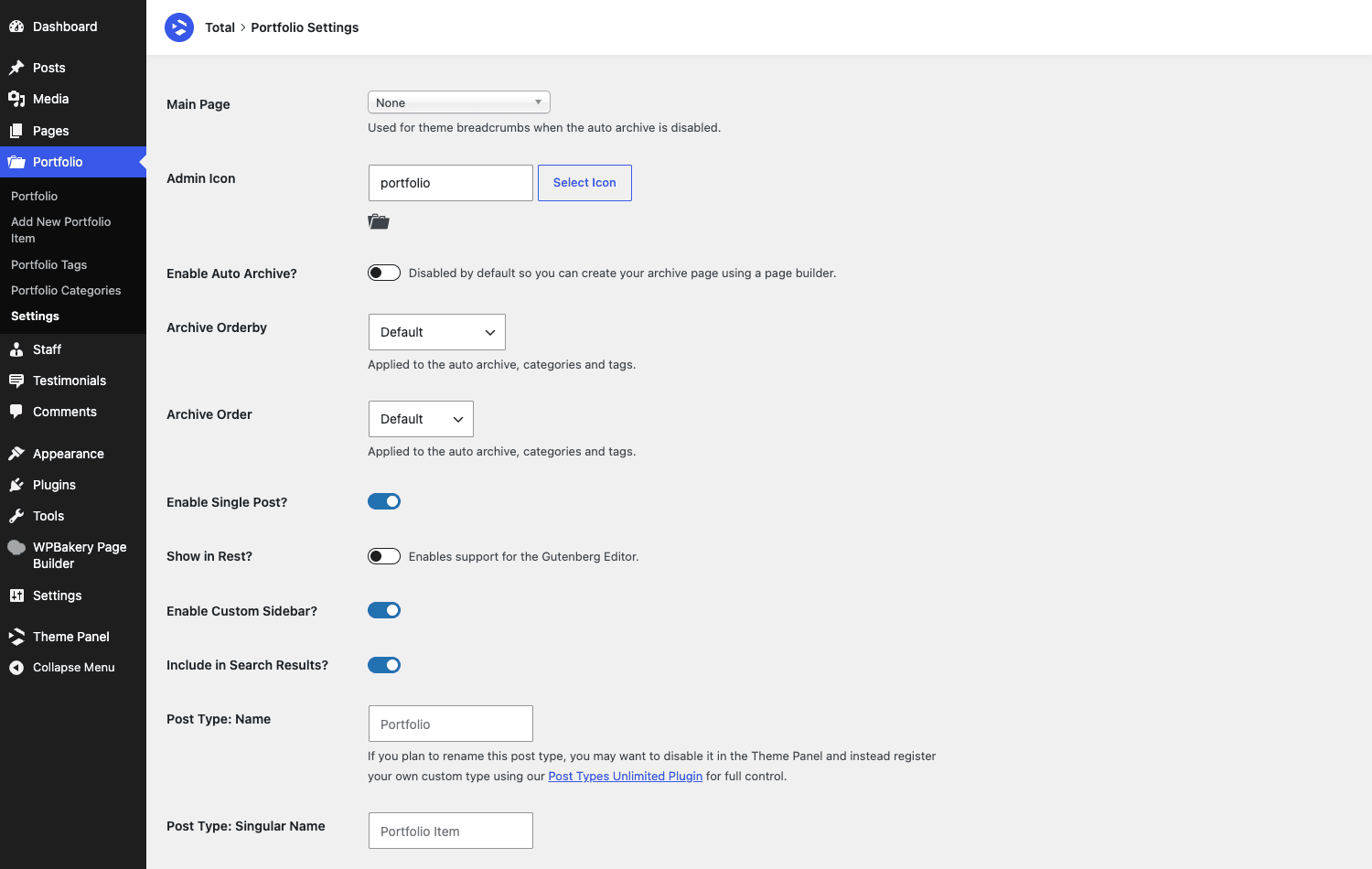
In Portfolio Settings you can set the Main Page and breadcrumbs, choose an Admin Icon, enable Auto Archive, set the Archive Orderby and Order, toggle the Single Post template, decide whether to Show in Rest (so the items appear in the block editor and the WordPress REST API), assign a Custom Sidebar, choose whether to Include in Search, and even rename the post type label (Post Type Name and Singular). Staff and Testimonials have their own equivalent settings.
Where this shines: a portfolio or agency site that would otherwise need a third-party CPT plugin plus a layout plugin gets both from the theme stack, already styled, with archive and single templates ready to go. If you run a print shop and want a gallery of past jobs, that’s the Portfolio type. If you run a small consultancy and want a "meet the team" page, that’s Staff. The integration is the value: these types know how to render inside Total’s layouts without extra glue.
Heads-up: because these post types belong to the plugin, plan your content migration around the plugin, not the theme. If you ever move off Total, you keep the posts (they’re normal WordPress posts in the database), but you lose the registration and templates that made them render nicely. That’s the trade-off with any theme-bundled CPT, and it’s worth knowing before you build a hundred portfolio items.
Header Builder, Footer Builder, and Dynamic Templates
Beyond the Customizer’s header and footer options, Total has dedicated builders for both, plus a broader Dynamic Templates system. These are the pieces that push Total from "configurable theme" toward "theme framework."
The Header Builder and Footer Builder (each their own Theme Panel sub-page) let you construct a custom header or footer from a template. You start from a New Template and build the layout you want, then assign it. For anyone who’s fought a theme’s hardcoded header to get a logo where they want it, building the header as a template you control is a relief.
Dynamic Templates is the bigger idea. Total’s Dynamic Templates let you build custom headers, footers, cards, single-post layouts, and archive layouts as reusable templates, then apply them by condition. Under the hood there’s a totaltheme_get_dynamic_template_type helper that resolves which dynamic template type is in play. In practice this means you can design, say, a custom single-post layout once and apply it across a post type, instead of hacking template files.
Where this shines: sites that need more than one header or more than one card style. A shop that wants a minimal header on checkout and a full header everywhere else, or a blog that wants a different post card for featured stories. Dynamic Templates handle that without a single PHP file edit, which is exactly the kind of thing that used to push me toward "just code a custom theme." Total closes a lot of that gap.
The Custom Cards sub-page deserves a mention too: it lets you design the card used to display posts, portfolio items, and the like, so your archive grids match your brand instead of inheriting a generic look.
Developer reference: hooks, filters, and the action system
This is where Total surprised me most, and where I’d point any developer who’s skeptical that a commercial multipurpose theme can be a good citizen.
The template hook system (the big one)
Total exposes 72 template action hooks, all prefixed wpex_hook_. These are do_action() calls placed at meaningful positions throughout the theme’s markup, the same idea as WooCommerce’s template hooks, but applied to the whole theme layout. They let you inject content at precise spots without editing a single template file.
A sample of the real hook names, so you can see the granularity:
wpex_hook_after_body_tagwpex_hook_wrap_before,wpex_hook_wrap_after,wpex_hook_wrap_top,wpex_hook_wrap_bottomwpex_hook_outer_wrap_before,wpex_hook_outer_wrap_afterwpex_hook_header_before,wpex_hook_header_afterwpex_hook_topbar_before,wpex_hook_topbar_after,wpex_hook_topbar_innerwpex_hook_content_before,wpex_hook_content_after,wpex_hook_content_top,wpex_hook_content_bottomwpex_hook_primary_before,wpex_hook_primary_afterwpex_hook_sidebar_before,wpex_hook_sidebar_after,wpex_hook_sidebar_top,wpex_hook_sidebar_bottom,wpex_hook_sidebar_innerwpex_hook_page_header_top,wpex_hook_page_header_title_before,wpex_hook_page_header_title_afterwpex_hook_footer_before,wpex_hook_footer_after,wpex_hook_footer_top,wpex_hook_footer_bottom,wpex_hook_footer_innerwpex_hook_footer_widgets_top,wpex_hook_footer_widgets_bottomwpex_hook_mobile_menu_top,wpex_hook_mobile_menu_bottomwpex_hook_site_logo_innerwpex_hook_header_search_overlay_top,wpex_hook_header_search_overlay_bottom
Seventy-two of these is a lot of surface to work with. Here are a few realistic examples.
Drop a promo bar right under the opening body tag, on every page:
add_action( 'wpex_hook_after_body_tag', function () {
    echo '<div class="site-promo">Free shipping over $50 this week.</div>';
} );
Add a trust line directly after the header, useful for a shop:
add_action( 'wpex_hook_header_after', function () {
    if ( is_shop() ) {
        echo '<p class="shop-reassurance">30-day returns, no questions asked.</p>';
    }
} );
Inject a sponsor credit at the top of the footer:
add_action( 'wpex_hook_footer_top', function () {
    echo '<div class="footer-sponsor">Proudly hosted on green energy.</div>';
} );
Notice you never had to copy a template into your child theme to do any of that. You hook in, you echo, you’re done.
Custom Actions: hooking in without code
Total takes the hook system one step further with the Custom Actions panel in the Theme Panel. It’s a UI where you pick one of those wpex_hook_ positions and paste in the PHP (or HTML) you want to run there, and Total stores and fires it via a totaltheme_action_callback handler. No file editing, no FTP, no child theme required.
I have mixed feelings about storing PHP in the database, and I’d still reach for a child theme snippet on a serious project for version control reasons. But for a quick "add this tracking script after the body tag" on a client site where you don’t want to deploy code, Custom Actions is a genuinely useful escape hatch, and it keeps the change out of files an update could overwrite.
Filters worth knowing
Total exposes a healthy set of apply_filters() hooks under the wpex_ prefix. The ones I’ve reached for most:
wpex_metaboxesfilters the per-post meta options Total adds, so you can add or remove fields on the post edit screen.wpex_portfolio_single_blocks,wpex_staff_single_blocks, andwpex_page_single_blocksreorder (or remove) the blocks that compose a single portfolio item, staff member, or page. This is how you change the anatomy of a single template without editing templates.wpex_related_in_same_catcontrols whether related posts are pulled from the same category.wpex_togglebar_visibilitycontrols where the Toggle Bar shows.wpex_woocommerce_product_entry_thumbnail_idandwpex_woocommerce_template_loop_product_thumbnaillet you adjust WooCommerce loop thumbnails.
There are more, including wpex_related_in_same_cat, wpex_localize_array, wpex_aria_label, wpex_targeted_link_rel, wpex_check_more_tag, and wpex_wpbakery_section_templates. A quick example of reordering the blocks on a single portfolio item:
add_filter( 'wpex_portfolio_single_blocks', function ( $blocks ) {
    // Move the related-projects block to the very end.
    if ( ( $key = array_search( 'related', $blocks, true ) ) !== false ) {
        unset( $blocks[ $key ] );
        $blocks[] = 'related';
    }
    return $blocks;
} );
The vcex_ builder elements
If you do work in WPBakery, Total ships its own family of builder modules prefixed vcex_. Around 45 files in the theme reference that prefix. These are Total’s custom WPBakery elements, things like a heading, a button, a content grid, an image, and an icon box (the common names are vcex_heading, vcex_button, vcex_grid, vcex_image, vcex_icon_box). They’re what give Total’s WPBakery integration its depth: you’re not limited to stock WPBakery elements, you get a whole extra toolkit designed to pull in WordPress content (recent posts, portfolio items, staff) and lay it out.
The flip side is the lock-in I’ll cover below: pages built heavily out of vcex_ shortcodes are tied to Total. Worth knowing, not a reason to avoid them, just a reason to commit consciously.
Theme support flags
Total declares a solid set of add_theme_support flags, which tells you what it integrates with natively:
woocommercepluswc-product-gallery-lightbox,wc-product-gallery-slider, andwc-product-gallery-zoom. So Total is WooCommerce-ready with the gallery niceties switched on.sensei. Total natively supports the Sensei LMS, which is a nice bonus if you’re building a course site.gutenberg-editor,align-wide,responsive-embeds,editor-color-palette, andeditor-font-sizesfor proper block editor integration.- Plus the standard kit:
post-formats,custom-header,custom-logo,html5,title-tag,post-thumbnails,customize-selective-refresh-widgets,automatic-feed-links,appearance-tools.
A note on the newer namespace, and on REST
Total has been migrating helpers into a totaltheme_ namespace alongside the legacy wpex_ functions. You’ll see things like totaltheme_get_color_palette, totaltheme_get_color_schemes, totaltheme_component, totaltheme_get_dynamic_template_type, totaltheme_get_post_estimated_read_time, totaltheme_get_aspect_ratio_choices, and totaltheme_get_branding_label. If you’re writing fresh code, prefer the totaltheme_ functions where they exist.
One honest clarification: Total is a theme, and it does not register its own REST API routes. If you read elsewhere that "Total has a REST API," that’s not accurate for the theme itself. Your content is exposed through WordPress’s own REST API (and you can toggle Show in Rest on the custom post types), but Total isn’t adding bespoke endpoints. I’d rather tell you that than have you architect a mobile app around endpoints that don’t exist.
Always use the child theme
Total ships a child theme. Use it. Put your PHP and template overrides in the child theme, your styles in the child theme’s stylesheet or the Custom CSS panel, and never edit the parent theme’s files directly. The next theme update will overwrite parent files, and a week of customizations vanishes. This is true of every theme, but it’s worth repeating loudly for one as update-active as Total. The official child theme documentation is the canonical reference if you’ve never set one up.
Don’t let Total trip you up (keeping it lean)
I’ve watched a few Total projects go sideways, and almost always for the same handful of reasons. Don’t do these.
Don’t import a demo onto a live site. Total’s importer warns you to use a clean install, and it’s right. Drop a demo onto a site that already has content and you get WordPress GUID conflicts, duplicate posts, and broken internal links that take hours to untangle. Import on a fresh install, or run the import on a staging copy and migrate. I lost an afternoon once cleaning up a client’s production site after a hopeful "let me just try this demo," over a step the software told me not to take.
Don’t paint yourself into one builder. Build every page as deeply nested WPBakery rows and your content becomes a wall of vcex_ shortcodes; switch builders later and you inherit a mess of unrendered tags. Decide up front whether you’re a WPBakery, Gutenberg, or Elementor shop and commit. The freedom to choose is a feature at a project’s start and a liability if you treat it as "mix whatever."
Don’t leave every feature switched on. This is the big one for performance, and the direct answer to "multipurpose themes are bloated." Total ships those roughly 58 toggles precisely so you can turn off what you don’t use. No portfolio, staff, testimonials, Dark Mode, or Post Series? Off, off, off, off, off. Each disabled feature is code that no longer loads. Everything on is heavy; trimmed to the project is lean. Ignoring the toggle panel is how a multipurpose theme earns its bad reputation.
Don’t edit theme files. Custom PHP or CSS in the parent theme gets wiped on the next update. Use the bundled child theme plus the Custom CSS panel. Losing your work to an update is avoidable, every time.
Get those four right and most of the horror stories about multipurpose themes simply don’t apply to you.
Total vs Avada vs Divi vs BeTheme
If you’re choosing between the big multipurpose themes, the honest answer is that they’re all capable, and the right pick depends on which axis you care about. Let me give you numbers instead of adjectives.
The cleanest way to separate them is builder support and developer surface, not a feature-count arms race. Total supports three builders (WPBakery, Gutenberg, and Elementor), where Divi is built around its own single builder. Total exposes 72 wpex_hook_ template action hooks for developers, ships around 45 vcex_ builder modules, around 58 feature toggles, roughly 161 Customizer sections, and over 40 demos.
Here’s a comparison of the axes that actually drive the decision:
| Theme | Page builder(s) | License model | Standout for |
|---|---|---|---|
| Total | WPBakery + Gutenberg + Elementor (3) | One-time ThemeForest license | Builder choice, 72 template hooks, lean-by-toggle |
| Avada | Its own Fusion Builder | One-time ThemeForest license | Largest install base, mature drag builder |
| Divi | Its own Divi Builder | Subscription or lifetime (Elegant Themes) | Front-end visual editing, big template pack |
| BeTheme | Its own BeBuilder (+ WPBakery legacy) | One-time ThemeForest license | Hundreds of pre-built sites |
A few honest distinctions:
On pricing, be careful comparing sticker numbers, because the real difference is the model, not the dollar amount, and prices move. Total, Avada, and BeTheme are sold as one-time ThemeForest licenses, usually in the rough $49 to $69 ballpark. Divi’s Elegant Themes runs a subscription instead, around $89 per year with a lifetime option near $249. So the spread is real but small in absolute terms, and the one-time-versus-subscription axis is what to weigh: a one-time license is cheaper over years if you maintain a site for a long time, while a subscription bundles ongoing support and a whole product suite. Don’t pick on the headline price alone.
On builder philosophy, this is where Total stands apart. Avada and Divi each give you one polished, proprietary builder. BeTheme leans on its own BeBuilder and ships an enormous library of pre-built sites. Total is the one that says "use the builder you already like," and for a team that already standardized on Elementor or Gutenberg, that flexibility is worth more than another hundred demos. Salient is another well-regarded multipurpose option in this space if you want a fourth name to weigh.
On developer depth, Total’s 72-hook system is the most code-friendly of the group in my experience. If your projects involve real customization, that surface saves you from template hacking in a way the others don’t quite match.
My take: if you live in Elementor or Gutenberg and you build varied client sites, Total’s builder flexibility plus its hook system make it the easiest of the four to recommend. If you want the single most-installed theme with the largest community, Avada is hard to argue against. If front-end visual editing is everything to you, Divi’s builder is the smoothest. And if you want to start every project from a finished design, BeTheme’s pre-built library is the headline.
Performance and compatibility
A multipurpose theme’s performance is mostly in your hands, which is both the good and the bad news.
The good news: the feature toggles mean you control how much of Total loads. A trimmed-down Total site, built in Gutenberg blocks with unused post types disabled, can be genuinely light. The theme registers an Optimizations category in its toggles for a reason. Pair it with a caching layer and you’re in good shape. (If you run a store and want the boring set-and-forget speed wins, our WP Rocket review covers the caching side that complements any theme.)
The honest caveat: WPBakery’s output is heavier than native blocks. If you build everything in WPBakery with lots of nested rows, your pages will carry more markup and more CSS than a Gutenberg-built equivalent. That’s not unique to Total, it’s the nature of WPBakery, but it’s the thing to watch if Core Web Vitals are a hard requirement for you. Building the performance-critical pages in blocks and reserving WPBakery for complex marketing pages is a reasonable middle path.
On compatibility, Total plays well with the obvious suspects. WooCommerce is supported natively with the gallery features enabled. Sensei is supported for LMS sites. The block editor is wired in properly. The bundled Slider Revolution covers sliders (and if you lean on it, our Slider Revolution review goes deeper on that plugin). Templatera handles reusable WPBakery templates. Because Total uses standard WordPress mechanisms (post types via its plugin, the Customizer, theme support flags), it tends not to fight other well-behaved plugins.
On hosting, Total wants a reasonably current PHP version and enough memory for a feature-rich theme, so budget shared hosting on an old PHP release will struggle, the same as it would with any big theme. Multisite works, with the usual caveat that you activate the theme per-site and manage licenses accordingly.
You might be wondering whether Total slows down the WordPress admin with all those options. In my experience it doesn’t noticeably, because the panel and Customizer only load their own screens. The front-end weight is the thing to manage, and the toggles are how you manage it.
FAQ
Is the Total WordPress theme bloated?
Only if you make it that way. Total ships around 58 feature toggles specifically so you can disable what you don’t use, and disabled features don’t load their code. Built in Gutenberg with unused post types switched off, a Total site is light. Built entirely in WPBakery with every feature on, it’s heavy. The weight is a choice you control, not a fixed property of the theme.
WPBakery feels dated. Can I just use Elementor or Gutenberg instead?
Yes, and this is Total’s best trick. The demo importer has a WPBakery/Elementor toggle, and the theme supports the native block editor too. If your team standardized on Elementor or Gutenberg, you can run Total entirely in your preferred builder. You’ll give up some of the tightest WPBakery-specific integration, but for most teams the better editing feel is worth it. Just pick one and commit instead of mixing.
Can I import a demo onto my existing site?
You can, but you really shouldn’t, and Total warns you about this in the importer. Importing a demo onto a site with existing content causes GUID conflicts, duplicate pages, and broken links that take hours to fix. Import on a clean install, or do it on a staging copy and migrate the result. This is the most common and most expensive Total mistake.
Do I need a child theme?
For any real customization, yes. Total ships a child theme, and you should put PHP, template overrides, and custom styles there (or in the Custom CSS panel) rather than editing the parent. Theme updates overwrite parent files, so anything you put directly in the parent theme disappears on the next update. For quick snippets without deploying code, the Custom Actions panel is an alternative that survives updates.
Does Total add a REST API for developers?
No. Total is a theme and does not register its own REST routes. Your content is available through WordPress’s standard REST API, and the custom post types have a Show in Rest setting, but there are no Total-specific endpoints. If you’re building a headless front-end or a mobile app, plan around the core WordPress REST API, not theme-provided endpoints.
Which custom post types does Total include, and where do they come from?
Portfolio, Staff, and Testimonials. Importantly, they’re registered by the bundled Total Theme Core plugin, not by the theme itself. Each has its own settings page (archive behavior, single template, sidebar, Show in Rest, and so on). If you deactivate Total Theme Core, the post types stop being registered, though the underlying posts remain in your database.
How does Total handle WooCommerce?
Natively. Total declares WooCommerce support along with the gallery lightbox, slider, and zoom features, and it includes filters to adjust loop thumbnails. You get a styled store without a separate WooCommerce theme. For complex shop layouts you’ll still lean on a builder, but the baseline integration is there out of the box.
Is the one-time license better than a subscription theme?
It depends on your timeline, and this is the real decision, not the headline price. Total is a one-time ThemeForest license, which is cheaper over the years if you maintain a site long-term. Subscription themes like Divi bundle ongoing support and a wider product suite, which can be worth it if you want continuous updates and help. The Total WordPress theme on GPL Times is delivered under the GPL with documentation intact, which is the route a lot of people take to evaluate it on a real install before committing.
Can I build custom headers and footers without code?
Yes. Total has a dedicated Header Builder and Footer Builder (template-based), plus a Dynamic Templates system for custom cards, single layouts, and archives that you apply by condition. For most header and footer changes you never touch a PHP file. That’s one of the things that makes Total feel more like a framework than a fixed design.
Does Total support an LMS for course sites?
Yes, through Sensei. Total declares sensei theme support, so a Sensei-powered course site inherits Total’s styling. It’s a smaller LMS than some alternatives, but the native support means you’re not fighting the theme to make lessons look right.
Final thoughts
I started this review as someone who reflexively steered clients away from multipurpose themes, and I’ll be honest about where I landed: Total earned a permanent spot in the small set I’d actually recommend. Not because it’s the flashiest, and not because it has the most demos, but because of two specific things. The builder choice means I’m never locked into a tool a client or team dislikes. And the 72-hook template system means that when I do need to write code, the theme gets out of my way instead of forcing me to hack its files.
It isn’t for everyone. If you want a blog and a contact page, this is too much theme, and the day-one options overload is real. WPBakery, the deepest-integrated of the three builders, feels dated next to Elementor and the block editor, and you’ll feel that if you’ve only used the newer tools. Those are fair criticisms, and I’d rather you know them going in.
But for the people building lots of different sites, who’ll invest the afternoon to learn one capable theme and reuse it forever, Total is one of the best uses of a single license in the WordPress world. Learn the Theme Panel, respect the clean-install rule, lean on the child theme, and turn off what you don’t use. Do that, and the "bloated multipurpose theme" reputation never catches up to you. That’s the version of Total worth buying, and it’s a genuinely good one.