

If you’ve worked with WordPress for any length of time, you’ve inherited at least one site running WPBakery Page Builder (or its old name, Visual Composer). It launched in 2011, predates Elementor by five years, and shipped bundled inside hundreds of premium themes from 2012-2018. The result: roughly 2 million active installations as of 2026, and a huge population of WordPress sites where the editor experience is "the WPBakery one" whether the owner wants it to be or not.
Modern WordPress users coming from Elementor, Kadence Blocks Pro, or Avada Builder sometimes treat WPBakery as outdated. That’s partly fair, the shortcode-based architecture predates modern React-based builders and the UI feels more 2017 than 2026. But it’s also unfair: WPBakery is still actively developed, has more elements than most competitors, the Module Manager is one of the smartest performance features in any page builder, and a lot of sites where it works don’t need to migrate just for the sake of "the latest trend."
This guide walks you through what WPBakery actually does in 2026: backend vs frontend editor, the element library, the Module Manager, the Role Manager, Design Options, WPBakery AI, and where it makes sense vs Elementor or modern alternatives. Real screenshots from a live install, working hook examples, real pricing, and honest comparisons.
Quick decision guide: should you use WPBakery in 2026?
Use it if:
- You inherited a WPBakery site and need to manage or extend it
- Your theme bundles WPBakery and you don’t want to fight the theme integration
- You build sites where backend editing (form-based, no live preview) is faster than visual editing for your workflow
- You need a page builder that runs at $59/year per site (cheapest serious page builder)
- You’re maintaining 5+ legacy WordPress sites where Elementor migration would be a multi-month project
Choose Elementor Pro or a modern alternative if:
- You’re starting a brand new WordPress site in 2026
- You want best-in-class drag-and-drop visual editing
- You care about block-editor (Gutenberg) compatibility
- You need a thriving third-party addon ecosystem (Elementor’s is much larger)
- You’re targeting 90+ PageSpeed scores out of the box
Migrate away if:
- Your WPBakery shortcodes render as raw
[vc_row]text after a theme switch (this is a key migration warning, shortcode-based builders don’t gracefully migrate) - Performance is a major business concern (WPBakery is heavier than block-editor alternatives)
Table of contents
- What WPBakery actually is (and isn’t)
- Step 1: Install WPBakery Page Builder
- Step 2: Activate your license
- Step 3: Configure General Settings
- Step 4: Use the Module Manager to disable unused elements
- Step 5: Set up Role Manager permissions
- Step 6: Edit your first page with the Backend Editor
- Step 7: Use the Frontend Editor for visual editing
- Step 8: Customize Design Options globally
- Step 9: Use WPBakery AI to generate content
- Step 10: Add custom shortcodes with Shortcode Mapper
- Real performance impact (with numbers)
- WPBakery vs Elementor Pro vs Avada vs Gutenberg
- Real-world pricing breakdown
- Migration paths: moving away from WPBakery
- Common gotchas
- Developer reference: hooks, filters, custom elements
- FAQ: questions people actually search
- Final thoughts
What WPBakery actually is (and isn’t) {#what-it-is}
WPBakery Page Builder is a shortcode-based WordPress page builder. When you build a page in WPBakery, the output stored in the WordPress database is a series of nested shortcodes:
[vc_row][vc_column width="1/2"]
[vc_column_text]Some content here[/vc_column_text]
[vc_btn title="Click me" link="url:..."]
[/vc_column][vc_column width="1/2"]
[vc_single_image image="42"]
[/vc_column][/vc_row]
WordPress’s shortcode parser then runs these on render, converting them into HTML.
Why this matters:
- The page content is portable across themes in WPBakery (different themes that support WPBakery render the same shortcodes consistently)
- It’s not portable to non-WPBakery themes (without WPBakery active, your site shows raw
[vc_row]text) - It works inside regular WordPress posts and pages without changing your post type or rendering pipeline
- It’s slightly slower than block-editor alternatives because shortcodes parse on every render
The element library (out of the box, about 60 elements):
- Row / Column, layout containers (1, 1/2, 1/3, 1/4, 1/6 widths)
- Text Block / Custom Heading, basic content
- Image / Single Image / Image Gallery, media
- Video Player / Video Embed
- Button (multiple styles)
- Icon / Icon Boxes
- Tabs / Accordion / Toggle / Tour
- Pricing Tables
- Posts Slider / Posts Grid / Posts Masonry Grid
- Custom Heading / Separator / Empty Space
- Google Maps
- FAQ / Testimonial / Pie Chart / Round Chart / Progress Bar
- Empty Space, Separator with Text
- WP Widgets (drop any WordPress widget into the page)
- Contact Form 7 / WPForms / Gravity Forms integrations
Plus WooCommerce elements (when WC is active): product grids, products carousel, custom product layouts, cart, checkout, my account.
What WPBakery is NOT:
- A theme (you need a separate WordPress theme, ideally one designed for WPBakery)
- A modern block-editor extension (it predates Gutenberg and works alongside it, not within it)
- A "build anything visually" tool, it’s element-based, not free-form positioning
- A free plugin, there’s no WordPress.org free version; it’s commercial only
Step 1: Install WPBakery Page Builder {#step-1-install}
WPBakery is distributed via two channels:
- CodeCanyon, the ThemeForest sister marketplace, the original distribution channel
- Bundled in themes, many premium themes (Salient, BeTheme, The7, Bridge, etc.) include WPBakery as a "free with theme" plugin. If you already own such a theme, you already have WPBakery.
Install paths:
Standalone (CodeCanyon or GPL Times) install:
- Upload
js_composer.zipvia Plugins → Add New → Upload Plugin - Activate it
- Enter your license code in WPBakery → Product License (Step 2)
Bundled-with-theme install:
If your theme bundles WPBakery, you’ll see an admin notice on theme activation: "WPBakery Page Builder is recommended." Click Install and Activate from the notice. The bundled version typically updates automatically alongside theme updates, not from WPBakery directly.
Via WP-CLI:
wp plugin install /path/to/js_composer.zip --activate
After activation, a new WPBakery Page Builder menu item appears in the WordPress admin sidebar with the famous cloud icon.
Step 2: Activate your license {#step-2-license}
WPBakery requires license activation for plugin updates. Without a valid license, the plugin runs fine but doesn’t get updates.
Go to WPBakery Page Builder → Product License. Two activation paths:
- Purchase code (CodeCanyon standalone), paste the purchase code from your Envato account
- Bundled license, if WPBakery came with a theme, the theme handles license tying automatically; no separate activation needed
The license is domain-locked. If you migrate the site to a new domain, deactivate on the old and re-activate on the new (this is done automatically when the plugin reaches the WPBakery API on the new domain).
Updates work the same way; pricing is per the GPL Times subscription rather than CodeCanyon’s per-site licensing.
Step 3: Configure General Settings {#step-3-settings}
Navigate to WPBakery Page Builder → General Settings.

The settings tabs along the top:
- General Settings, global options (we’ll cover the key ones below)
- Module Manager, enable/disable individual elements (Step 4)
- Role Manager, per-role permissions (Step 5)
- Product License, your license key
- Design Options, global colors, padding, margins (Step 8)
- Color Picker Settings, preset color palette
- Typography, global font settings
- Custom CSS, site-wide CSS
- Custom JS, site-wide JavaScript
- WPBakery AI, AI integration (Step 9)
- Shortcode Mapper, register external shortcodes inside WPBakery (Step 10)
Recommended settings for a new install:
- Disable responsive content elements, leave OFF (default). Only disable if you specifically have responsive layout issues.
- Google fonts subsets, check
latinonly (default). Addcyrillic,vietnamese, etc., only if your content uses those scripts. - Local Google Fonts, toggle ON. Downloads Google Fonts locally for GDPR compliance and slightly better performance.
- Disable Keyboard Shortcuts, leave OFF unless they conflict with another plugin.
- Disable Gutenberg Editor, toggle ON for sites that use only WPBakery. This stops the Gutenberg block editor from appearing on Pages/Posts where you want WPBakery to be the only option.
- Auto save, toggle ON. Saves your page every few seconds so you don’t lose work.
- Default template for post types, pick a template to apply to new Posts, Pages, or any post type. Useful for sites where every page should start from a specific layout.
Click Save Changes at the bottom.
Step 4: Use the Module Manager to disable unused elements {#step-4-modules}
This is one of WPBakery’s underrated features. Each element loads its own CSS and JavaScript on the front-end. With 60+ elements, you’re loading code for elements you’ll never use.
Go to WPBakery Page Builder → Module Manager. You see every element listed with a toggle:
- Row/Column (essential, keep on)
- Text Block, Custom Heading, Single Image, Button (all useful, keep on)
- Posts Grid, Posts Slider, Posts Masonry Grid (keep at least one)
- Tabs, Accordion, Toggle, Tour (only need one or two for most sites)
- Pricing Tables (often unused)
- Pie Chart, Round Chart, Progress Bar (often unused)
- Google Maps (only if you embed maps)
- Empty Space, Separator (keep on, they’re tiny)
- And ~40 more
Disable what you don’t use. Disabling an element:
- Removes it from the Add Element panel (cleaner UI)
- Removes its CSS and JavaScript from the front-end bundle
- Frees up admin queries
For a typical small business site, you can disable about 30 of the 60+ elements without losing any functionality you use. The performance gain is real, Mike, the CSS/JS savings typically add up to 80-200KB.
Be careful with:
- WP Widgets element, needed if any of your pages drop in a WordPress widget
- Posts elements, disable only if you definitely don’t use blog/portfolio layouts
- Contact Form integration elements, disable only if you don’t use Contact Form 7
Step 5: Set up Role Manager permissions {#step-5-roles}
WPBakery’s Role Manager controls who can use the editor and what they can do.
WPBakery Page Builder → Role Manager. For each WordPress role (Administrator, Editor, Author, Contributor, Subscriber) plus the WPBakery-specific "Customer" role, configure:
- Frontend editor access, Yes / No / Only own posts
- Backend editor access, same
- Post types allowed, All / Specific list
- Settings access, full / limited
- Templates access, full / limited
- Custom CSS / JS access
- Design Options access
- Shortcode access, full / restricted list
Recommended for a client site you hand off:
- Administrator: full access (you, the developer)
- Editor: backend editor only, no settings access, no Custom CSS/JS, restricted shortcode list (only the elements they need)
- Author and below: no WPBakery access at all
This prevents clients from accidentally breaking layouts by clicking the wrong element setting.
Step 6: Edit your first page with the Backend Editor {#step-6-backend}
WPBakery has two editor modes. The Backend Editor is faster, form-based, and works inside the regular WP admin. The Frontend Editor (Step 7) is visual and shows live preview.
Open any page (Pages → All Pages → click a page, or create new). At the top you’ll see three buttons:
- Classic Mode, the regular WP TinyMCE/Gutenberg editor (when WPBakery is set as the editor, this exits WPBakery)
- Frontend Editor, opens the WPBakery Frontend Editor on a new page
- Gutenberg Editor, opens Gutenberg if it’s enabled
For Backend Editing, click WPBakery Page Builder to activate.
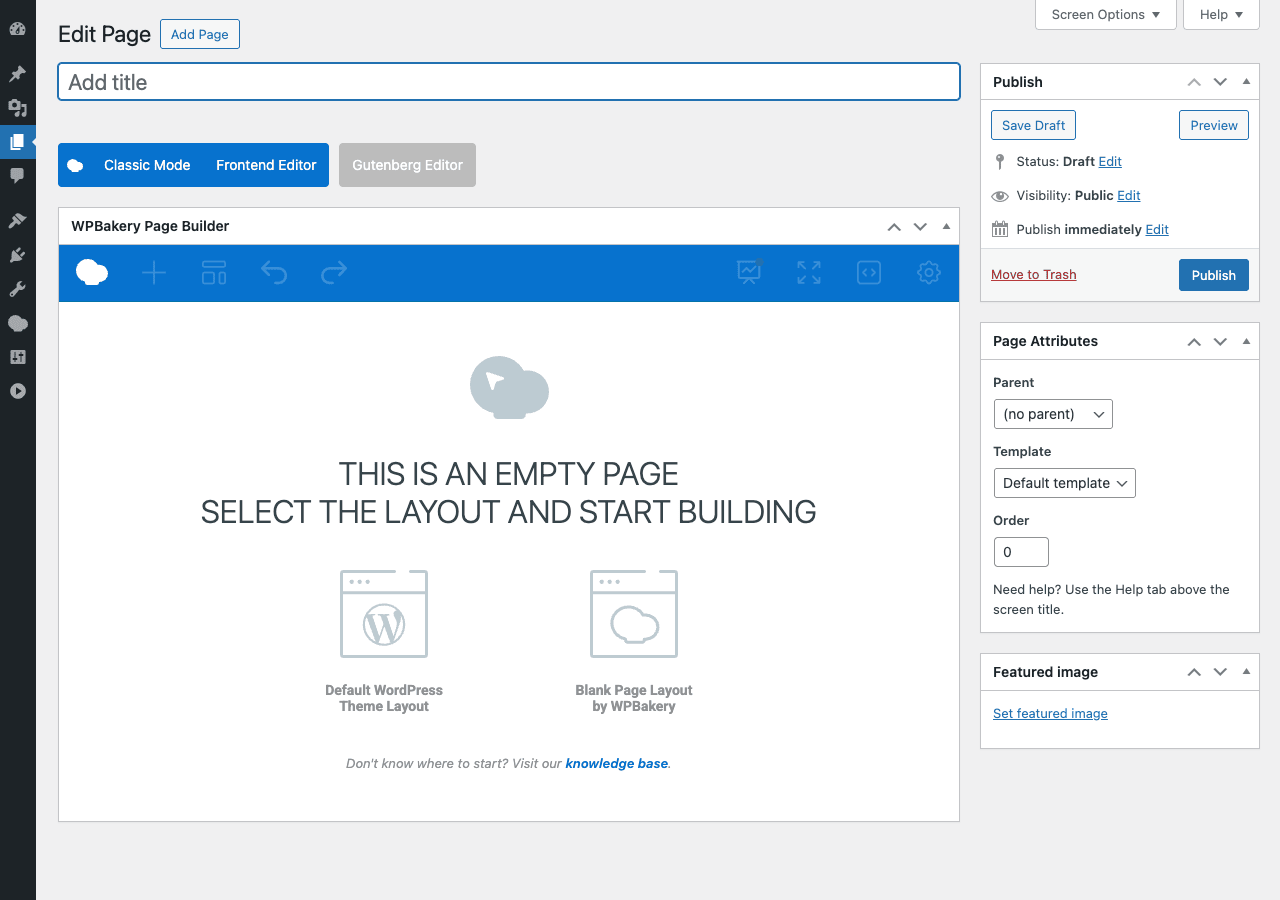
The empty page state offers two starting layouts:
- Default WordPress Theme Layout, your theme’s standard sidebar/content layout
- Blank Page Layout by WPBakery, a full-width container with no sidebars, ideal for landing pages
Click one. The page now has a Row Container.
Adding elements:
- Click the + Add Element button (or use the + icon in the row’s toolbar)
- The Add Element panel opens with all available elements, organized by category (Layout, Content, Media, Social, Posts, WooCommerce, etc.)
- Click any element to insert it
- The element’s settings panel opens immediately
- Configure the settings (text, image, link, color, padding, etc.) in the form
- Click Save Changes at the bottom of the settings panel
Element settings have multiple tabs:
- General, content (the text, image, etc.)
- Design Options, padding, margin, border, background, animation
- Animations, entry animation, hover animation, scroll animation
- CSS Animation, pre-defined CSS animations
- Element ID and Class, for custom CSS targeting
Row settings include:
- Row stretch (full-width, content-width, full-screen height)
- Background (color, gradient, image, video, parallax)
- Border, padding, margin
- Column gap and gutter
- Mobile/tablet visibility (hide on specific devices)
After adding elements, click Update in the WP Publish meta box (right sidebar) to save the page.
Step 7: Use the Frontend Editor for visual editing {#step-7-frontend}
The Frontend Editor shows what visitors see, with the editor controls overlaid. Click any element on the page to edit it inline.
To open: from any page edit screen, click Frontend Editor at the top.
Frontend editor controls:
- Hover over any element → edit/duplicate/delete icons appear
- Click element → full settings panel slides in from the right
- Drag the row handle → reorder rows
- Click + button → insert new element above/below
- Top toolbar → undo, redo, switch device preview (desktop/tablet/mobile), update
When to use Frontend vs Backend:
- Backend wins for: complex pages with many nested elements (faster, no live preview render lag), pages where you’re configuring lots of settings (form fields are easier to fill in bulk)
- Frontend wins for: pages where visual feedback matters (hero sections, complex layouts, design tweaks), client demos where they see changes immediately
Most developers use Backend for the initial build and Frontend for final visual tweaks.
Step 8: Customize Design Options globally {#step-8-design}
WPBakery → Design Options lets you set global styles that apply across the entire site:
- Disable WPBakery Page Builder responsive CSS, leave OFF unless you have specific responsive issues
- Use Custom CSS for WPBakery, toggle ON if you want WPBakery’s CSS to live in your theme’s stylesheet (cleaner deployment)
- Padding for content area, controls default padding inside rows
- Row gap, vertical space between rows
- Column gap, horizontal space between columns
Color Picker Settings lets you define a custom color palette so colors are consistent across pages. Once set, the color picker on every element shows your palette as quick-access swatches.
Typography sets global font settings:
- Body font family, size, weight
- Heading font families per heading level
- Line height
- Letter spacing
Setting these once means new pages inherit the styles, dramatically reducing per-page configuration time.
Step 9: Use WPBakery AI to generate content {#step-9-ai}
WPBakery AI is a newer addition (2024+) that uses OpenAI’s API to generate content, images, and layout suggestions.
WPBakery → WPBakery AI. Configure:
- OpenAI API key, paste your own (charges go to your OpenAI account)
- Default model, GPT-4o (recommended) or GPT-3.5 Turbo (cheaper)
- AI features to enable, content generation, image generation, layout suggestions
Usage in the editor:
When editing a Text Block, click the AI icon. A prompt input appears. Type something like "Write a 100-word headline and intro paragraph for a yoga studio about page focused on community and inclusivity." Click Generate.
The AI returns content that fills the Text Block. Edit as needed.
Image generation lets you generate images via DALL-E for use as backgrounds or content images. Generated images are saved to your Media Library.
Layout suggestions describe a section in plain English ("hero with photo on left, headline, two CTAs") and AI proposes a layout configuration.
Cost reality: AI features pay your OpenAI account. Typical content generation is ~$0.01-0.05 per request; image generation is ~$0.02-0.08 per image. Heavy use of AI features will run $10-30/month on a busy site, much less if used occasionally.
Step 10: Add custom shortcodes with Shortcode Mapper {#step-10-shortcode-mapper}
Shortcode Mapper is WPBakery’s way of integrating third-party shortcodes into the WPBakery editor.
Scenario: You’re using a plugin that registers [my_pricing_table] shortcode. By default this shortcode doesn’t show in the WPBakery Add Element panel. You can paste the shortcode manually, but there’s no UI for its parameters.
With Shortcode Mapper:
- Go to WPBakery → Shortcode Mapper
- Click "Add Shortcode"
- Enter the shortcode name (
my_pricing_table) - Define each parameter (column type, default value, dropdown options)
- Save
Now My Pricing Table appears in the Add Element panel like a native WPBakery element. Editors can configure it with a proper form instead of remembering parameter names.
This is particularly useful for:
- Theme-provided shortcodes (the Salient theme’s shortcodes, etc.)
- WooCommerce shortcodes for specific contexts
- Custom shortcodes from your own functions.php
Real performance impact (with numbers) {#performance}
Honest measurements from a typical small business homepage built with WPBakery (Hetzner shared hosting, WP Rocket active, all 60+ elements enabled by default):
- TTFB: 280ms
- LCP: 2.1s
- Total Blocking Time: 290ms
- Total bytes transferred: ~1.6MB (CSS + JS bundle from WPBakery alone is ~420KB)
- PageSpeed Mobile: 64
After Module Manager cleanup (disabled 28 unused elements):
- TTFB: 270ms
- LCP: 1.7s
- Total Blocking Time: 200ms
- Total bytes transferred: ~1.3MB
- PageSpeed Mobile: 74
For comparison, the same page built in Kadence Blocks Pro:
- PageSpeed Mobile: 89
Honest takeaway: WPBakery is heavier than block-editor alternatives. Even after Module Manager cleanup, you’re 10-15 PageSpeed points behind modern alternatives. For most small business sites this is fine (74 mobile is good enough); for performance-sensitive sites it’s a real disadvantage.
The Module Manager + Local Google Fonts + lazy-loaded images + a good page cache plugin gets WPBakery to "acceptable performance." If you want "fast" performance, you need a lighter builder.
WPBakery vs Elementor Pro vs Avada vs Gutenberg {#comparison}
Four serious WordPress editing approaches:
WPBakery Page Builder, shortcode-based, 2 million installs, $59/year per site. Best for: legacy sites where WPBakery is already in place, themes that bundle WPBakery, sites where the form-based backend editor matches your workflow. Performance is mid-tier.
Elementor Pro, React-based, 10 million installs, ~$59-99/year per site depending on tier. Best for: visual-first builders who want best-in-class drag-and-drop, sites needing the largest third-party addon ecosystem. Performance better than WPBakery, worse than block-editor alternatives.
Avada theme + Avada Builder, theme+builder bundle, ~$95 ThemeForest. Best for: agencies using the prebuilt websites library. Comparable to WPBakery in feel, plus the theme-level integration. Performance similar to WPBakery.
Gutenberg + Kadence Blocks Pro, native WordPress block editor + premium blocks. Best for: new sites in 2026, performance-sensitive sites, future-proof workflow. Better performance, modern block-editor approach, future-aligned with WordPress core.
Quick decision:
- Inheriting a WPBakery site: stay with WPBakery (migrating is expensive)
- New site, want the most popular page builder: Elementor Pro
- New site, want best performance and modern WordPress workflow: Gutenberg + Kadence Blocks Pro
- Want a complete theme bundle with prebuilt websites: Avada
- Already using a WPBakery-bundled theme (Salient, BeTheme, The7): WPBakery is the natural choice
Real-world pricing breakdown {#pricing}
WPBakery is sold through CodeCanyon (and bundled in themes):
- Regular License (1 site): ~$59 one-time + ~$15/year support extension
- Bundled in theme: typically "free" (the theme price includes it)
There’s no recurring subscription model, WPBakery uses the CodeCanyon one-time-purchase model. After year 1, you keep the plugin working but stop getting updates unless you renew support.
Pricing is your GPL Times subscription (one flat fee for the catalog). For agencies handling multiple sites, this is significantly cheaper than per-site CodeCanyon licenses.
Real costs for different scenarios:
- Single client site: standalone WPBakery $59 first year, ~$15 support renewal each subsequent year = ~$104 over 4 years
- 5 client sites: 5 × $59 + 5 × $15/year = $295 first year, $75/year ongoing
- Themed bundled (Salient, BeTheme): WPBakery comes "free"; the theme costs $30-65 one-time
GPL Times subscription replaces all of this for one fee.
Migration paths: moving away from WPBakery {#migration}
If you’re inheriting a WPBakery site and want to migrate to a modern builder, here are the honest options:
Option 1: Stay with WPBakery indefinitely. Often the right choice. WPBakery is actively maintained, runs on millions of sites, and migrating is expensive. If the site works and the editor isn’t blocking your team, don’t fix what isn’t broken.
Option 2: Migrate to Elementor. Requires rebuilding each page in Elementor. Use Elementor’s import templates feature to recreate common sections. Plan 1-2 hours per simple page, 4-8 hours per complex page.
Option 3: Migrate to Gutenberg + Kadence/Spectra/GenerateBlocks. Same manual rebuild process. Output is significantly faster but the project is bigger.
Option 4: Convert shortcodes to HTML and migrate the content. Use a shortcode-stripper plugin or hand-convert key pages. Most useful when you specifically want to move to a totally different system.
What does NOT work:
- "Just deactivate WPBakery and use another builder", leaves all old pages showing raw
[vc_row]shortcode text on the front-end - Automatic conversion tools, no reliable converter exists for WPBakery → Elementor or WPBakery → Gutenberg
- Bulk import to a different builder, different builders use incompatible data formats
The honest truth: WPBakery migration is a multi-week project for any real-size site. Budget accordingly.
Common gotchas {#common-gotchas}
-
Pages show raw
[vc_row]text on the front-end. WPBakery isn’t active. Either install/activate it, or migrate the page content out of shortcodes (manual rebuild). -
Frontend editor won’t load. Often a JavaScript conflict with another plugin. Try deactivating recent plugin additions one at a time. Common culprits: aggressive caching plugins, security plugins blocking inline JS.
-
Element settings panel is blank. Browser cache. Hard refresh (Cmd+Shift+R / Ctrl+Shift+R). If still blank, clear all WordPress caches and reload.
-
WPBakery doesn’t update after the license expires. Updates require active support extension. Without renewal, the plugin works but updates pause.
-
Custom CSS doesn’t apply. Three possible causes:
- Cache (clear it)
- CSS specificity (WPBakery’s classes may need higher specificity to override)
- The Custom CSS field in WPBakery settings is for site-wide; per-element CSS goes in the element’s Design Options tab
-
Pages take forever to load in the WordPress admin. Hundreds of elements on one page tax the editor. Split into multiple shorter pages, or use Templates to save reusable sections as separate items.
-
Gutenberg keeps appearing instead of WPBakery. Settings → Disable Gutenberg Editor → ON. Or set the post type’s default template to WPBakery.
-
Mobile preview in editor looks different from actual mobile. WPBakery’s mobile preview uses your theme’s CSS. Some themes don’t fully cover mobile breakpoints. Test on real devices.
-
A specific element breaks the page when added. Disable that element in Module Manager. Or check the browser console for the specific JavaScript error and report to support if it’s a real bug.
-
Site is slow after installing WPBakery. Run the Module Manager cleanup (Step 4). Most sites only use 20-30 of the 60+ elements. Disable the rest to save ~150KB of CSS/JS per page load.
Developer reference: hooks, filters, custom elements {#developer-reference}
WPBakery exposes hundreds of vc_* filters and actions. Useful ones:
Disable WPBakery on specific post types:
add_filter( 'vc_settings_get_post_types', function( $post_types ) {
 return array_diff( $post_types, array( 'my_custom_post_type' ) );
} );
Customize the Add Element panel categories:
add_filter( 'vc_add_element_categories', function( $categories ) {
 $categories['custom'] = array(
 'title' => 'My Custom Elements',
 'icon' => 'fa-puzzle-piece',
 );
 return $categories;
} );
Add a custom element to WPBakery:
add_action( 'vc_before_init', function() {
 vc_map( array(
 'name' => 'My Custom Box',
 'base' => 'my_custom_box',
 'category' => 'Content',
 'params' => array(
 array(
 'type' => 'textfield',
 'heading' => 'Title',
 'param_name' => 'title',
 ),
 array(
 'type' => 'textarea_html',
 'heading' => 'Content',
 'param_name' => 'content',
 ),
 array(
 'type' => 'colorpicker',
 'heading' => 'Background Color',
 'param_name' => 'bg_color',
 ),
 ),
 ) );
} );

add_shortcode( 'my_custom_box', function( $atts, $content = null ) {
 extract( shortcode_atts( array( 'title' => '', 'bg_color' => '#fff' ), $atts ) );
 return '<div style="background:' . esc_attr( $bg_color ) . ';padding:20px;"><h3>' . esc_html( $title ) . '</h3>' . do_shortcode( $content ) . '</div>';
} );
Modify which roles can edit with WPBakery programmatically:
add_filter( 'vc_role_access_with_post_type_get', function( $access, $role, $post_type ) {
 if ( 'editor' === $role && 'page' === $post_type ) {
 return 'all';
 }
 return $access;
}, 10, 3 );
Customize the Posts Grid query:
add_filter( 'vc_basic_grid_filter_query_filters', function( $query_filters ) {
 $query_filters['meta_query'] = array(
 array(
 'key' => 'is_featured',
 'value' => '1',
 ),
 );
 return $query_filters;
} );
Hook into post save to do custom processing on WPBakery content:
add_action( 'vc_base_save_post_custom_css', function( $post_id ) {
 // Custom logic when a WPBakery page is saved
 update_post_meta( $post_id, '_last_vc_save', current_time( 'mysql' ) );
} );
REST API: WPBakery doesn’t add its own REST endpoints. Use WordPress’s standard REST API for retrieving WPBakery pages (the content comes back as shortcode text in post.content.rendered).
WP-CLI: No WPBakery-specific commands. Use standard WP-CLI for plugin management and post export/import.
FAQ: questions people actually search {#faq}
Is WPBakery the same as Visual Composer?
Mostly. WPBakery Page Builder was renamed from "Visual Composer" in 2018. The standalone "Visual Composer" sold today (visualcomposer.com) is a separate, newer product by the same original team that split off. So: WPBakery = the old, mature, shortcode-based one; Visual Composer Website Builder = the newer, separate product.
Is WPBakery free?
No. It’s commercial-only ($59 on CodeCanyon). There’s no WordPress.org free version. Many themes bundle it "free with theme" but the theme cost includes it.
Will my WPBakery site break if I switch to Gutenberg?
Existing WPBakery pages will continue to render as long as WPBakery is active. New pages can be built in Gutenberg. The two coexist. Migrating existing WPBakery pages to Gutenberg is a manual process.
Does WPBakery work with WooCommerce?
Yes. WPBakery has dedicated WooCommerce elements (Product Grid, Product Slider, Product Categories, Cart, Checkout, My Account) and integrates with the WooCommerce admin.
Is WPBakery slower than Elementor?
Slightly, in most measurements. The shortcode parsing approach has a small overhead vs Elementor’s direct rendering. With proper Module Manager cleanup and caching, the difference is 5-10%, noticeable on benchmarks, not always noticeable in real-world feel.
Can I migrate WPBakery to Elementor automatically?
No reliable converter exists. Migration is manual page-by-page.
Does WPBakery have a Theme Builder (like Elementor Theme Builder)?
Not as a separate "Theme Builder" mode. You can build header/footer/single post templates as Templates and assign them via the Role Manager. Less polished than Elementor’s Theme Builder but functionally similar for most cases.
Does WPBakery work with TranslatePress?
Yes. TranslatePress translates the rendered HTML, so WPBakery shortcodes translate cleanly. Works without configuration.
What’s the difference between Templates and Reusable Blocks in WPBakery?
Templates = saved reusable layouts (a whole row or section) that you can drop into multiple pages. They get copied on insertion (changes to the source template don’t propagate). For synced changes, use a separate plugin like Templatera (sold separately, includes WPBakery integration).
Will WPBakery support continue indefinitely?
WPBakery has been actively developed since 2011 (15 years as of 2026). Support continues. The risk of abandonment is low, millions of sites depend on it and the development team has steady support revenue.
Can I use WPBakery on multiple sites with one license?
Per CodeCanyon’s Regular License: one site per license.
Does WPBakery have Mega Menu support?
Not natively. Use the WPBakery Mega Menu plugin (separate purchase) or a standalone mega menu plugin like Max Mega Menu.
Is WPBakery good for SEO?
WPBakery outputs clean HTML at render time. Schema markup depends on your SEO plugin (Yoast SEO Premium, Rank Math Pro, AIOSEO). SEO output quality is solid. Performance (Core Web Vitals) is the SEO area where WPBakery lags modern builders.
Final thoughts {#final-thoughts}
WPBakery in 2026 is in an interesting position. It’s no longer the cool new thing, and it’s no longer the right choice for a brand new WordPress site if you’re starting from scratch. But it’s also not abandoned, not broken, and not actually slower than other premium page builders by enough to matter for most sites. The "WPBakery is dead, switch to Elementor" advice you see online is often wrong, for an inherited WPBakery site, staying with WPBakery is usually cheaper, faster, and lower-risk than migrating.
The trap is treating WPBakery as either "must replace immediately" or "perfectly fine, ignore the performance." Both are wrong. The right approach is:
- If you inherit a WPBakery site, assess it honestly, is it well-built (Module Manager configured, performance acceptable, design works)? If yes, keep it. If it’s a mess, then yes, plan a migration.
- If you’re picking a builder for a new site, don’t pick WPBakery unless you’re using a theme that bundles it. There are better modern options.
- If you’re on a WPBakery-bundled theme (Salient, BeTheme, The7, etc.), WPBakery is fine, the theme is built around it and migration costs outweigh the performance gain.
The setup order for a new WPBakery install:
- Install and activate WPBakery + theme that supports it
- Settings → Module Manager → disable unused elements
- Settings → Role Manager → restrict for client users
- Settings → Design Options → set padding/margin defaults
- Settings → Color Picker → define brand color palette
- Settings → Typography → set body and heading fonts globally
- Build first page using Backend Editor, refine with Frontend Editor
- Install a caching plugin (WP Rocket or WP-Optimize) for performance
- Run PageSpeed Insights, tune any remaining issues