

I’ve added gift-wrap toggles to florist stores, engraving fields to a knife shop, custom-dimension calculators to a blinds company, "leave a note for the baker" boxes to a cake site, and name-your-price donation amounts to a charity checkout. Most of those used the same plugin: WooCommerce Product Add-Ons. It’s the official Automattic extension for tacking extra options (free or paid) onto a product, right where the customer decides to buy.
A plain WooCommerce product gives you a price, an Add to cart button, and maybe a couple of variations. That’s fine for a t-shirt in three sizes. It falls apart the moment a customer wants to engrave a name, pick a delivery date, upload a logo, or add $5 of gift wrap. You need to capture that intent at the cart, charge for it correctly, and carry it through to the order so whoever packs the box knows what to do.
This is a long, honest walk through what the plugin does, every field type you get, the three pricing models that trip people up, the developer hooks worth knowing, and the spots where add-ons quietly cost you money if you’re not careful. Whether you run the shop or build it, by the end you’ll know exactly when to reach for this and when to reach for something heavier.
Table of Contents
- What is WooCommerce Product Add-Ons?
- The nine field types and when to reach for each
- Global add-ons vs per-product add-ons
- The three pricing models (this is where stores get it wrong)
- What the customer actually sees
- Installation and setup
- Managing add-ons as your catalog grows
- Who this is for: five real stores
- Developer reference: hooks, classes, and the REST API
- Don’t bolt on add-ons without doing the money math first
- Product Add-Ons vs YITH vs the Gravity Forms route
- Troubleshooting
- FAQ
- Final thoughts
What is WooCommerce Product Add-Ons?
WooCommerce Product Add-Ons is the official extension from WooCommerce (Automattic) that lets you add extra options to a product which customers select on the product page, before they add to the cart, with an optional fee per option. The vendor’s own description sums it up cleanly: add-ons can be checkboxes, a select box, or custom text input, each with an optional cost attached.
That’s the whole idea. You’re bolting input fields onto the product page and, where it makes sense, attaching money to them.
The plugin sits inside WooCommerce as a dependency (its Requires Plugins header points straight at woocommerce), so there’s no separate dashboard to learn. Add-on fields live in two places you already know: a global manager under Products, and an Add-ons tab inside each product’s data panel. The fees you attach flow through WooCommerce’s normal cart, tax, and order pipeline, which matters more than it sounds. It means add-on charges are taxed like the product, refunded with the line item, and visible in the order exactly where a fulfillment person would look.
A quick note on what it is not. This is the official Automattic add-ons extension, distinct from the YITH plugin of a similar name and from the Gravity Forms Product Add-ons bridge. They solve overlapping problems in very different ways, and I’ll put real numbers on that difference further down. If you want to try every panel as we go, WooCommerce Product Add-Ons on GPL Times is the official Automattic zip, documentation intact, ready to drop onto a test store.
One honest caveat up front: this is an options plugin, not a forms plugin. It does not have the branching, show-this-field-if-that-one conditional logic that a real form builder gives you. If your product configurator needs "show the monogram field only when the customer picks the leather strap," you’ll feel that gap. For straightforward paid options, it’s the lightest, most native way to do the job.
The nine field types and when to reach for each
There are nine field types, and the difference between a clean product page and a confusing one usually comes down to picking the right one. Here’s the full set, grep-confirmed against the plugin source, with the job each is built for.
| Field type | What it captures | Reach for it when… |
|---|---|---|
| Checkboxes | One or more on/off options, each with its own fee | Gift wrap, "add a card," extra warranties, optional extras the customer can stack |
| Multiple Choice | A single pick from a list (dropdown, radio, or image swatches) | Choosing one finish, one frame color, one shipping speed |
| Short Text | A single line of free text | Engraving, monogram initials, a name on a jersey |
| Long Text | A multi-line text box | "Notes for the baker," special instructions, a longer dedication |
| File Upload | A customer file attached to the order | Logos for printing, design briefs, a photo for a custom portrait |
| Customer Defined Price | An amount the buyer types in | Donations, tips, name-your-price products |
| Quantity | A numeric input that multiplies a fee | Number of extra prints, additional guests, per-unit add-ons |
| Heading | A non-input label that groups fields | Visually separating "Personalization" from "Shipping options" |
| Date Picker | A calendar date | Delivery date, event date, rental start day |
A few of these deserve a closer look, because the labels undersell what they do.
Multiple Choice is three controls in one. You can render it as a dropdown, as radio buttons, or as image swatches. The dropdown is compact for long lists, radio buttons are friendlier for two or three choices, and image swatches turn "pick a wood finish" into something visual and clickable. Same field, three very different feels on the page.
Short Text and Long Text capture free-form input like a monogram, a personalization note, or special instructions. You can attach a single fee to the field (flat, per-quantity, or percentage) and cap the input with a character limit so a 400-character paste never reaches your fulfillment team. The fee is the same whether the customer types two letters or two sentences, so price it as a flat engraving charge, not by length.
Customer Defined Price is the donation and tip field. Instead of you setting the price, the buyer enters it. A charity checkout, a "buy us a coffee" tip, a pay-what-you-want digital download, all of those run on this one.
Heading isn’t an input at all. It’s there purely to organize. On a product with eight add-on fields, a couple of Heading rows ("Personalization," "Delivery") stop the page from reading like a tax form.
My honest gripe: the field builder UI gets fiddly once you’re past five or six options in a single list. Each option is its own little row with a title, a price type, a price, and a default toggle, and adding ten of them by hand is a slog. For big swatch lists you’ll wish for a bulk-paste import (there is an Import/Export control, which helps, but the per-option editing is still click-heavy).
Global add-ons vs per-product add-ons
This is the first real decision you’ll make, and getting it right saves you a lot of repetitive clicking later.
Per-product add-ons live inside a single product. Open the product, go to Product data » Add-ons, and build fields that apply to that one item. An engraving field on one specific knife, a "gift box?" checkbox on a single hamper. Per-product fields render at display order 10 by default.
Global add-ons apply across many products at once. You build them under Products » Add-ons, give the group a name (internal only, the customer never sees it), choose whether it applies to All Products or to specific Product Categories, and set a display order. Lower display order numbers float higher up the product page.
Here’s the screen where you build one. I created a group called "Gift Options," dropped in a Checkboxes field titled "Gift wrapping," and added a single option, "Premium gift wrap with ribbon," priced as a $5 flat fee.
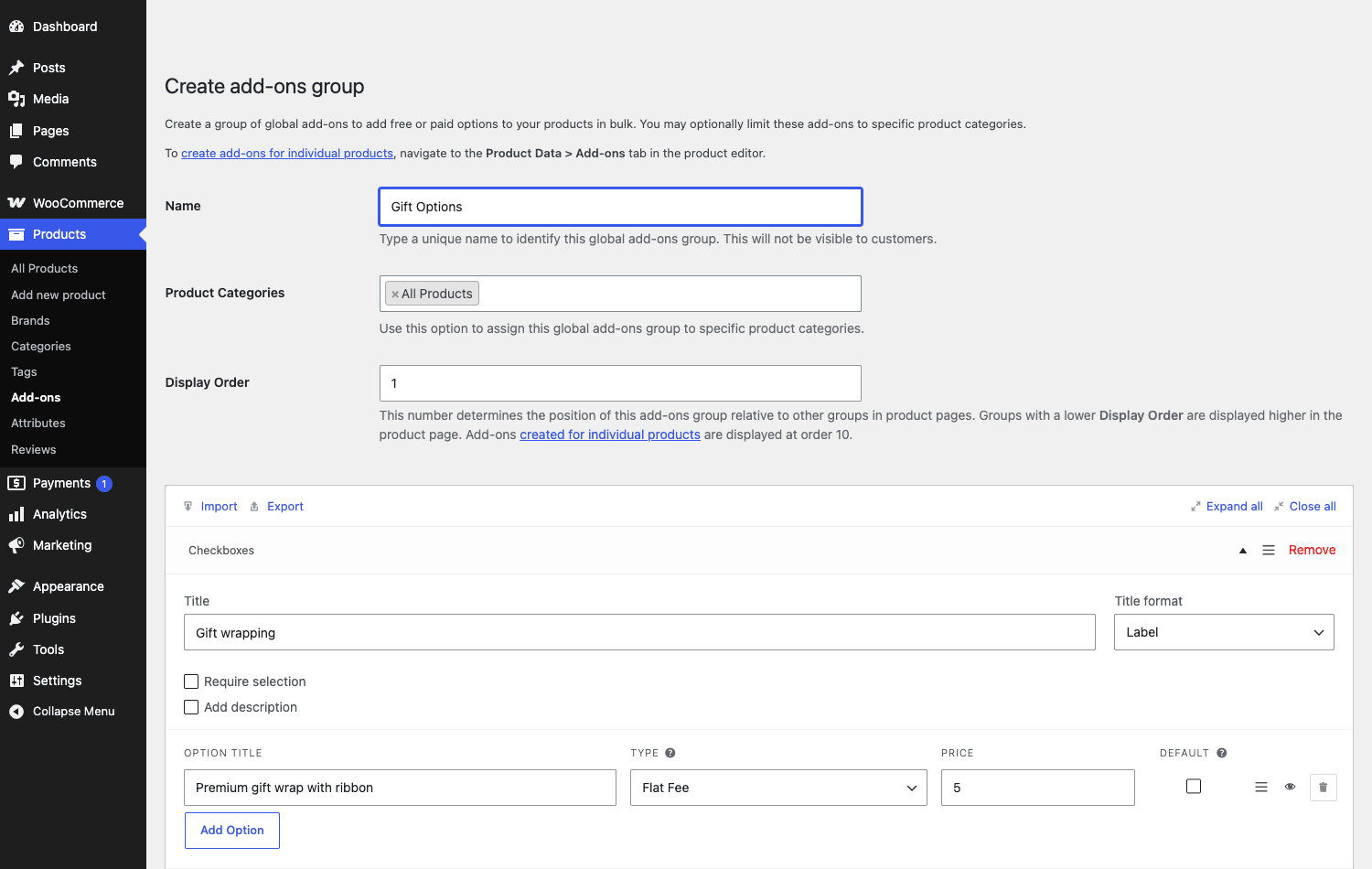
Where this shines: a store with 300 products where every item should offer gift wrap. You build one global group, scope it to All Products, and you’re done. No touching 300 product pages. Change the gift-wrap price once and it updates everywhere.
The two systems coexist, and that’s the part people miss. Each product has a Use Global Add-Ons? toggle in its own Add-ons tab. Leave it on (the default) and the product shows both its own per-product fields and any matching global groups. Turn it off and the product ignores all global groups, useful for that one weird product where gift wrap makes no sense.
Here’s the per-product tab, where I added a Short Text field for engraving on a single product:
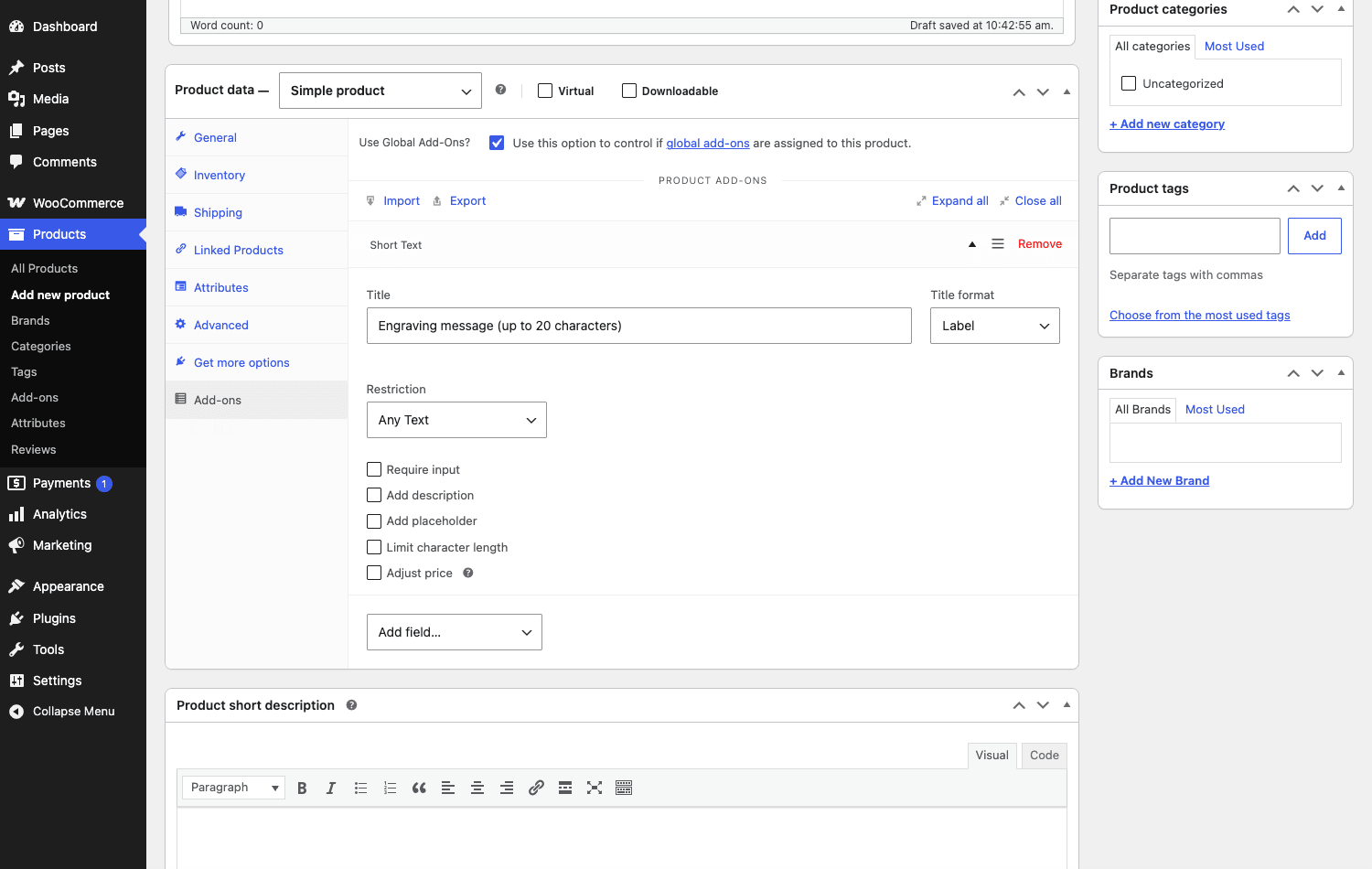
Notice the field-level controls on that Short Text field: a Restriction setting (Any Text, Email, Numbers, and so on), Require input, an option to add a description, a placeholder, Limit character length, and Adjust price. Those small toggles are what separate a field that quietly accepts garbage from one that enforces your fulfillment rules. More on that in the section about where this bites you.
Tip: start global, go per-product only for exceptions. Most stores want the same handful of options everywhere (gift wrap, gift message, expedited handling) and a few one-off personalizations on specific items. A pile of per-product fields that should have been one global group is the most common setup mistake I see.
The three pricing models (this is where stores get it wrong)
Every priced option uses one of three pricing models, plus the special Customer Defined Price field. Pick the wrong model and you either bleed margin or confuse the customer. This is the single most important thing to understand about the plugin, so let’s be precise.
| Pricing model | How it’s calculated | Best for |
|---|---|---|
| Flat Fee | A fixed amount, added once regardless of quantity | Gift wrap, a one-time setup charge, a flat "add a gift card" fee |
| Quantity Based | A per-unit amount that multiplies with the product quantity | Engraving each item, per-piece printing, anything that scales with how many they buy |
| Percentage | A percentage of the product’s price | Insurance, a handling surcharge, a premium that should track an expensive item |
And separately, Customer Defined Price lets the buyer enter the amount themselves (the donation/tip case).
Read that Quantity Based row again, because it’s the one that costs people money. If a customer buys ten engraved tumblers and your engraving fee is a Flat Fee, you charge for engraving once and engrave ten items for free. Quantity Based multiplies the fee by the cart quantity, so ten tumblers means ten engraving charges. The Percentage model is the right call when an add-on should scale with price, like insuring a $40 item versus a $400 one with the same percentage.
You might be wondering whether all this math slows the product page down. It doesn’t. The recalculation happens in the browser as the customer clicks, and the server re-validates the price when the item hits the cart, so the customer can’t tamper with the total. The live price summary you see updating is JavaScript; the price WooCommerce actually charges is computed server-side.
One thing the plugin does not do: per-character pricing. A text field charges a single fee from the models above, not a price-per-letter, so a long engraving costs the same as a short one. If you need "longer costs more," cap the field with a character limit and price it as a flat or per-item fee instead.
What the customer actually sees
All of that admin work produces something pretty simple on the front end: the add-on fields appear on the product page, and a live price summary recalculates as the customer makes choices. This live total is the plugin’s signature feature, and it’s the bit that quietly nudges conversions, because the customer always knows what they’re about to pay.
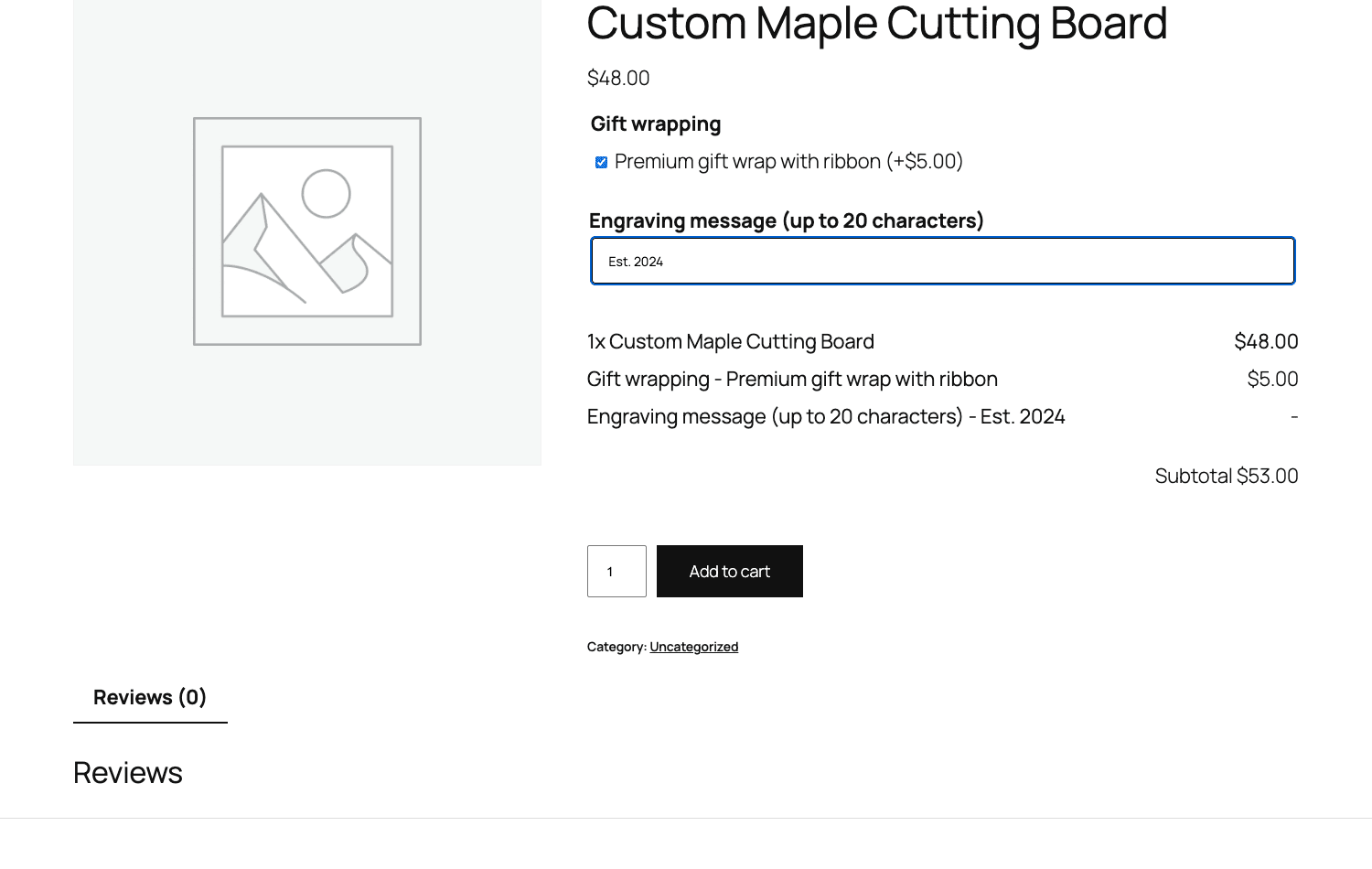
In that screenshot, the base product is $48. The customer ticked the $5 gift-wrapping checkbox and typed an engraving message, and the summary breaks it out as line items: 1x product at $48.00, gift wrapping at $5.00, the engraving text, and a Subtotal of $53.00, all above the Add to cart button. No surprises at checkout.
That breakdown carries all the way through. The selections show up in the cart, in the order confirmation, in the admin order screen, and in the order emails, so whoever packs the box sees "Gift wrapping: Premium gift wrap with ribbon" and "Engraving message: Est. 2024" right next to the product. That continuity is the reason to use a native WooCommerce extension instead of a bolt-on form: the data lives where your fulfillment people already look.
Heads-up: the add-on fields render between the price and the Add to cart button by default, controlled by display order. If your theme heavily customizes the single-product template (a lot of page-builder themes do), double-check that the fields land where you expect. I’ve seen a builder push them below the fold on one client’s theme.
Installation and setup
If you’ve installed any WooCommerce extension, this will feel familiar. There’s no wizard and no account-linking dance to get the fields working.
- Confirm WooCommerce is active first. The plugin lists WooCommerce as a required plugin, so WooCommerce has to be installed and active or you’ll get a dependency notice. It targets a reasonably modern PHP and WooCommerce, so a maintained host is fine.
- Install and activate the plugin. Upload the zip under Plugins » Add New » Upload Plugin, activate it, and you’re done. No settings page appears on its own, which throws some people. The features live inside products and under a new Products submenu.
- Build your first global group. Go to Products » Add-ons » Add new, name the group, choose All Products or specific categories, set a display order, then add a field. Pick the field type, give it a title, choose a title format (Label, Heading, or Hide), decide whether selection is required, and add your priced options.
- Or add a per-product field. Edit a product, open Product data » Add-ons, leave Use Global Add-Ons? on, and build a field that only applies to that product.
- Check the front end. Open the product page as a customer would and confirm the fields appear and the live total updates when you interact with them. You should expect the price summary to change the instant you tick a priced checkbox.
That’s genuinely the whole setup. The depth is all in which fields and which pricing model, not in configuration screens.
Managing add-ons as your catalog grows
Once you’ve got more than a handful of global groups, the management list under Products » Add-ons becomes your control panel. It shows each group with its name, the display order, which products or categories it applies to, and how many fields it contains.
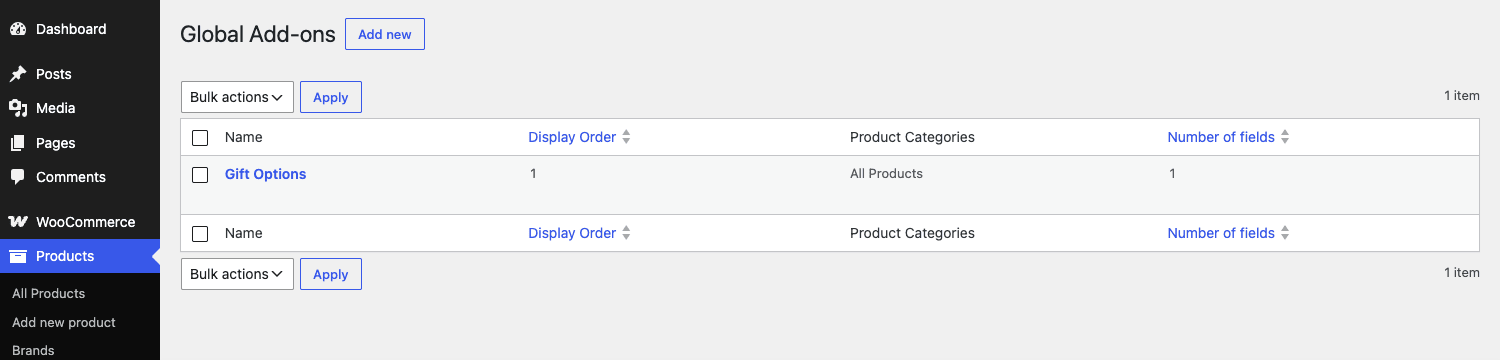
That list is also where the Display Order column earns its place. When two global groups apply to the same product, the lower display-order number renders first. So if you want "Personalization" above "Shipping options" on every product, give Personalization the lower number. Per-product fields sit at order 10, so a global group at order 1 lands above a product’s own fields, and a global group at order 20 lands below them. It’s a small lever, but it controls the entire stacking order of options on the page.
A real organizational tip: name your global groups for where they apply, not for what they do. "All Products: Gift Wrap" reads better in a long list than "Gift Wrap," because six months from now you’ll be scanning thirty groups trying to remember which one hits the whole catalog versus which one is scoped to the Jewelry category. The name is internal-only, so spend it on clarity, not branding.
The group form also has Import/Export controls and Expand all / Close all buttons, which are the only relief from the click-heavy per-option editing I griped about earlier. If you’ve built a rich group on a staging environment, exporting it and importing it on production beats rebuilding every option by hand.
Who this is for: five real stores
Add-ons are abstract until you map them to a real shop. Here are five I’ve actually built or rebuilt, and the exact field-and-pricing combination that fit each one.
If you run an engraving shop, your money field is a Short Text with a flat engraving fee, or a Quantity Based fee if you charge per engraved item. Set a character limit so the engraving machine doesn’t choke on a 400-character paste, and add a Restriction if you only allow letters and numbers. The live total updates the moment they tick engraving, which is exactly the reassurance you want before they reach checkout.
For a bakery taking custom-cake orders, reach for a Long Text "message on the cake" box, a Date Picker for the pickup date, and a Multiple Choice for the size or flavor. The Date Picker alone removes a whole category of "when do you need this?" back-and-forth emails. A required Date Picker is reasonable here; a required File Upload usually isn’t (see the next section for why).
For a print shop, the File Upload field is the whole business: customers attach the artwork they want printed, and it lands on the order. Pair it with a Multiple Choice for paper stock and a Quantity field if extra copies carry a per-unit cost. Just plan for where those files go and how long you keep them, because a busy print shop accumulates a lot of customer artwork fast.
For a charity or a creator taking tips, the Customer Defined Price field turns a "Donation" product into a name-your-amount form. The buyer types what they want to give, it flows into the cart as a normal line item, and your tax and reporting treat it like any other sale.
For a furniture or blinds store selling made-to-measure, combine a couple of numeric Quantity fields (width, drop) with a Percentage-based "made to measure" surcharge so the premium scales with the base price of the fabric. It’s not a true configurator with conditional logic, but for "enter your dimensions, pay a surcharge," it’s enough and it’s native.
See yourself in one of those? The pattern is always the same: pick the field that captures the intent, pick the pricing model that charges fairly, and let WooCommerce carry the rest.
Developer reference: hooks, classes, and the REST API
Now the part developers actually came for. The plugin exposes a healthy set of filters and actions in the woocommerce_product_addons_* namespace, a clean set of field-type classes, and (unusually for a WooCommerce extension) a real REST API. Everything below is grep-confirmed against the source.
Adjusting add-on prices: the two filters you’ll use most
The two highest-value, most-used filters are woocommerce_product_addons_price_raw and woocommerce_product_addons_option_price_raw. They let you change an add-on’s price programmatically before WooCommerce applies it, which is how you do member discounts, dynamic pricing, or currency tweaks on add-ons.
Here’s a realistic example: knock 20% off every add-on fee for logged-in customers.
add_filter( 'woocommerce_product_addons_option_price_raw', 'gpl_member_addon_discount', 10, 2 );

function gpl_member_addon_discount( $price, $option ) {
    if ( is_user_logged_in() && (float) $price > 0 ) {
        $price = (float) $price * 0.8; // 20% off the add-on for members
    }
    return $price;
}
woocommerce_product_addons_price_raw works at the broader add-on level (the whole field’s computed price), while woocommerce_product_addons_option_price_raw targets the price of an individual option inside a field. Reach for the option-level filter when you want to adjust a specific choice, and the raw-price filter when you want to adjust the field’s total contribution.
Controlling how add-on data displays
Two filters govern how selections appear to the customer and on the order. woocommerce_product_addons_get_item_data controls what shows in the cart, and woocommerce_product_addons_order_line_item_meta controls the meta saved against the order line item. Use them to relabel, reformat, or hide internal data.
add_filter( 'woocommerce_product_addons_order_line_item_meta', 'gpl_relabel_addon_meta', 10, 4 );

function gpl_relabel_addon_meta( $meta_data, $addon, $cart_item, $values ) {
    // Prefix add-on labels so they stand out on packing slips.
    if ( ! empty( $meta_data['key'] ) ) {
        $meta_data['key'] = 'Add-on: ' . $meta_data['key'];
    }
    return $meta_data;
}
Saving, validating, and parsing
When a customer adds a product to the cart, the plugin runs the submitted values through a save/validate/parse pipeline. woocommerce_product_addons_save_data fires as data is saved, woocommerce_product_addons_validate_value lets you enforce custom validation rules per field, and woocommerce_product_addons_parse_cart_addons hooks into how add-ons are read back out of the cart. The validate filter is the right place to reject input your fulfillment can’t handle (a phone number that isn’t a phone number, an engraving longer than your machine allows).
Display and JS params
A handful of filters tune the front-end behavior: woocommerce_product_addons_show_grand_total toggles the live grand-total display, woocommerce_product_addons_show_num_chars controls the character counter, woocommerce_product_addons_update_product_price governs the live price update, and woocommerce_product_addons_params lets you filter the JavaScript params passed to the front-end script. There are also tax-aware helpers, woocommerce_product_addons_get_addon_price_including_tax and _excluding_tax, plus woocommerce_product_addons_global_post_terms, woocommerce_product_addons_upload_dir (handy for steering uploaded files), and woocommerce_product_addons_image_swatch_size.
Actions worth knowing
On the action side, wc_pao_updated fires once after the plugin updates to a new version (it runs in the install and upgrade routine, handy for one-time migrations or cache clears on upgrade), and a trio wraps each field’s render: wc_product_addon_start, wc_product_addon_options, and wc_product_addon_end. There’s also woocommerce_product_addons_end, woocommerce_product_addons_after_adjust_price, and the global-group lifecycle actions woocommerce_product_addons_global_create_addons and woocommerce_product_addons_global_edit_addons. The per-field render actions are your insertion points if you need to wrap custom markup around individual add-on fields in a custom theme.
add_action( 'wc_product_addon_end', 'gpl_addon_helper_text', 10, 1 );

function gpl_addon_helper_text( $addon ) {
    // Drop a reassurance line under each add-on field on the product page.
    echo '<p class="gpl-addon-note">Charges update live above the Add to cart button.</p>';
}
The class map
The field types are backed by real classes you can study or extend: WC_Product_Addons_Field_Custom (text inputs), WC_Product_Addons_Field_Select, WC_Product_Addons_Field_List, WC_Product_Addons_Field_File_Upload, and WC_Product_Addons_Field_Datepicker. Around them sit the workhorse classes: WC_Product_Addons_Cart and WC_Product_Addons_Display (front-end and cart), WC_Product_Addons_Admin, WC_Product_Addons_Admin_Ajax, and WC_Product_Addons_Admin_Order (admin side), the global-group classes WC_Product_Addons_Global_Group and WC_Product_Addons_Groups, plus WC_Product_Addons_Group_Validator, WC_Product_Addons_Helper, WC_Product_Addons_Html_Generator, and WC_Product_Addons_Install.
Yes, there’s a REST API
This is where the official extension pulls ahead of a lot of WooCommerce add-on plugins: it ships a v2 REST API for reading and managing product add-ons. There’s a versioned controller (WC_Product_Addons_Api_V2_Controller) plus a groups controller (WC_Product_Add_Ons_Groups_Controller), exposed through register_rest_route calls. The product add-ons routes live under the wc-product-add-ons/v2 namespace and the groups routes under wc-product-add-ons/v1, so you can read a product’s add-ons and manage global groups from outside the admin, which is exactly what a headless storefront or a sync script needs.
Block Cart and Checkout (Store API) support
The plugin includes a WC_Product_Addons_Blocks_Compatibility class, which means it works with WooCommerce’s block-based Cart and Checkout (the Store API), not only the legacy shortcode cart. If you’ve moved to the newer block checkout (or you’re planning to), that compatibility is worth confirming, because plenty of older add-on plugins simply don’t render add-on data through the Store API.
A small implementation note for developers: global add-on groups are stored as a custom post type, managed by the group classes above. You generally interact with them through the group classes and the REST controllers rather than by querying the post type directly, which keeps you insulated from internal storage details.
Don’t bolt on add-ons without doing the money math first
Add-ons look harmless, but a few setup mistakes quietly cost real money, time, or trust. So think through the pricing math, validation, and refunds first.
The expensive one: a flat fee where it should be per-unit. Charge a $5 flat engraving fee, and a customer who orders ten of them gets ten items engraved for the price of one. You won’t catch it on the order screen; you’ll catch it reconciling margins weeks later. Use Quantity Based pricing (or a Quantity field) for per-item work so the fee multiplies with cart quantity. A flat fee that should scale bleeds margin on every bulk order.
Unvalidated free text invites garbage. A Short Text or Long Text field with no limit invites pasted essays, emoji, and junk that breaks your fulfillment (and, literally, your engraving machine). Set a character limit and a Restriction (numbers, email) wherever the field feeds a physical process. Two minutes of validation saves a ticket and a reprint.
Required uploads can block checkout. Mark a File Upload as required and a customer on a flaky mobile connection may be unable to finish, so you lose the sale and never know why. Make uploads optional with a "we’ll email you" fallback, unless the file truly can’t come later.
File uploads are a privacy liability. Customer files land in your uploads directory and may contain personal data. With no retention plan you’re sitting on a pile of other people’s data, a GDPR problem, not just a disk-space one. Decide how long you keep uploads and how you purge them.
Tax and refunds follow the line item. Add-on fees are taxed and refunded with the product line they attach to. Treat an add-on as a separate "service" and your tax and partial-refund math drifts. Let WooCommerce own it.
Product Add-Ons vs YITH vs the Gravity Forms route
People usually weigh three options for "extra product fields": this official extension, YITH WooCommerce Product Add-ons, and the Gravity Forms Product Add-ons route. They’re genuinely different tools, so let’s compare on capability first, money second (and carefully, because exact prices move).
| WooCommerce Product Add-Ons | YITH Product Add-ons | Gravity Forms route | |
|---|---|---|---|
| Field types | 9 native types | Comparable set | Full form-builder field set |
| Pricing models | 3 (Flat Fee, Quantity Based, Percentage) + Customer Defined Price | Per-option fees | Via the Product Add-ons bridge |
| Conditional logic | None native | Some | Strong (this is the reason to pick it) |
| Block Cart/Checkout (Store API) | Supported | Varies | Form embeds, not native cart fields |
| REST API | v2 REST API included | Varies | Gravity Forms REST API |
| Licenses needed | One | One | Two (Gravity Forms + the bridge) |
Lead on integration and field types, not on price. The official Product Add-Ons gives you 9 field types and 3 pricing models that plug directly into WooCommerce’s cart, tax, and order flow, with native block-checkout support and a v2 REST API. That tight, native fit is its real advantage. To make the difference concrete: with the native plugin, a 5% percentage surcharge on a $48 product computes inside the line item and is taxed and refunded with it; a $5 gift-wrap fee shows in the order email where your packer reads it. Your add-on data behaves like first-class WooCommerce data everywhere, with 1 license and no separate form to maintain.
YITH WooCommerce Product Add-ons is the closest direct competitor and covers similar ground; some teams prefer its option styling or its bundling with YITH’s wider plugin range. If you’re already in the YITH range it’s a reasonable pick. Feature-for-feature on basic paid options, the two are close.
The Gravity Forms route is a different animal. You install Gravity Forms and then a bridge add-on that connects its forms to WooCommerce products. You get genuine conditional logic, multi-page forms, calculations, and the full form-builder field set. The cost is real, though: it’s two licenses (the forms plugin plus the bridge) and a heavier, more complex setup. As a rough, hedge-it figure, the forms plugin alone tends to start around the $59-per-year mark and goes up from there, on top of which you still need the WooCommerce bridge. Pick this when your "product options" are really a complex form with branching logic. For straightforward paid options, it’s overkill.
So the decision is mostly about logic. Need branching, calculated forms? Go the Gravity Forms route and accept two licenses and more setup. Need solid paid options that feel native to WooCommerce? The official Product Add-Ons is the lighter, better-integrated choice.
If your need is actually bundling products together rather than adding options to one, that’s a different tool entirely. Look at WooCommerce Product Bundles for "buy these items as a kit," or WooCommerce Composite Products for a step-by-step "build your own" configurator. Add-ons, bundles, and composites overlap in people’s heads but solve three distinct problems.
Troubleshooting
A short list of the issues that actually generate support tickets, and the fix for each.
The add-on fields don’t appear on the product page. First, confirm WooCommerce is active (the plugin depends on it). Then check the product’s Use Global Add-Ons? toggle if you expected a global group to show, and confirm the global group’s category scope actually includes this product. A heavily customized single-product template from a page-builder theme can also move or suppress the fields; test on a default theme to isolate it.
Fields show, but the price doesn’t update live. That live total is JavaScript, so a script conflict is the usual culprit. Disable other plugins one at a time, or check the browser console for a JS error from another plugin stepping on the product page. The price still calculates correctly server-side at add-to-cart time even when the live preview misbehaves, but you want the preview working for conversions.
A multi-quantity order undercharged for a per-item add-on. You used Flat Fee where you needed Quantity Based. Switch the option’s pricing model. This is the most common "why did I lose money" ticket, and it’s a one-setting fix.
File uploads fail or time out. Large files run into your PHP upload_max_filesize, post_max_size, and max_execution_time limits, and your host’s request limits. Raise those for big artwork, or set expectations on the field description about file size.
Add-on data isn’t showing on the block-based checkout. Confirm you’re on a current version of the plugin and WooCommerce, since the Store API compatibility is what carries add-on data into the block Cart and Checkout. If you mix an old add-on plugin with the new block checkout, this is exactly where it breaks.
An add-on charge looks wrong after a partial refund. Remember add-on fees are part of the product line item for tax and refund purposes. Refund through WooCommerce’s normal line-item refund flow rather than trying to back the add-on out separately, and the math stays consistent.
FAQ
Does WooCommerce Product Add-Ons support conditional logic?
No, not natively, and this is the honest limitation to weigh before you buy. The plugin shows fields based on which global groups and per-product fields apply, but it can’t show or hide one field based on the answer to another. If you need "reveal the monogram box only when the leather option is chosen," you want a form-based tool like the Gravity Forms route. For straightforward options that all show at once, the plugin is the lighter fit.
Will an add-on fee scale when a customer buys several of the same product?
Only if you set the pricing model to Quantity Based. A Flat Fee is charged once no matter the quantity, which is correct for things like a single gift-wrap charge but wrong for per-item work like engraving. Quantity Based multiplies the fee by the cart quantity; Percentage scales it against the product price. Choosing the right model here is the difference between fair pricing and a quiet margin leak.
Where do customer-uploaded files go, and what about GDPR?
Uploaded files land in your site’s uploads directory and are referenced from the order. Because they can contain personal data (logos, photos, documents), you’re responsible for a retention and deletion plan under GDPR and similar rules. Decide how long you keep them and how you purge old ones; don’t treat the uploads folder as infinite, consequence-free storage. Developers can steer the upload location with the woocommerce_product_addons_upload_dir filter.
Does it work with the new block-based Cart and Checkout?
Yes. The plugin ships a blocks-compatibility layer that carries add-on data through the Store API, so selections show on the block Cart and Checkout, not just the legacy shortcode cart. This is one area where the official extension is ahead of several older add-on plugins, which only render through the classic cart. If you’re on or moving to the block checkout, verify it on a test order, but the support is built in.
Can I read or manage add-ons over the REST API?
Yes, which is unusual for a WooCommerce extension. The product add-ons routes sit under the wc-product-add-ons/v2 namespace (the global-group routes under wc-product-add-ons/v1), so a headless front end or an external script can read a product’s add-ons and manage global groups. The capability is genuinely there rather than bolted on.
How is this different from product variations?
Variations are predefined combinations of attributes (size, color) that each map to a real product variation with its own stock and SKU. Add-ons are open-ended options layered on top of a single product, with optional fees, and they don’t create separate SKUs. Use variations when the choices are a fixed matrix you stock; use add-ons when the choice is personalization or an optional extra (engraving text, gift wrap, a date). Many stores use both on the same product.
Is it better than YITH WooCommerce Product Add-ons?
For core paid options they’re close, so "better" depends on your stack. The official extension’s edge is native WooCommerce integration: block-checkout support, a v2 REST API, and add-on data that behaves like first-class order data everywhere. YITH is a reasonable alternative, especially if you already run other YITH plugins and prefer their styling. Try whichever fits your existing toolset; neither is a wrong answer for basic options.
Will it slow down my product pages or checkout?
Not meaningfully. The live price preview is client-side JavaScript and the authoritative price is recalculated server-side at add-to-cart, so there’s no heavy per-request computation on page load. The realistic performance cost is the extra fields rendering and the small script that powers the live total. If a product page feels slow with add-ons on, the cause is almost always a script conflict with another plugin, not the add-ons themselves.
Can customers set their own price, like a donation or a tip?
Yes. The Customer Defined Price field lets the buyer type in the amount, which then flows into the cart as a normal line item. It’s the field charities use for "Donation" products and creators use for tips or pay-what-you-want downloads. Because it goes through the standard cart, your tax and reporting handle it like any other sale.
Is the GPL version the same plugin, and what does it cost?
It’s the same official Automattic extension, documentation included. Pricing on woocommerce.com is a yearly subscription and the exact figure shifts over time, so check the current rate there. WooCommerce Product Add-Ons on GPL Times is the route if you’d rather get the same files through the GPL store and put them straight onto a test shop without committing to a subscription first.
Final thoughts
WooCommerce Product Add-Ons does one job and does it natively: it captures custom options at the product page, charges for them correctly, and carries the data cleanly through cart, order, and emails. The nine field types cover almost every "let the customer personalize this" request a store gets, and the three pricing models (plus customer-defined pricing for name-your-price) handle the money side as long as you pick the right one. That last part is the whole game. Match Flat Fee, Quantity Based, and Percentage to how the cost actually behaves and you’ll never quietly lose margin on a bulk order.
It isn’t a forms engine. There’s no native conditional logic, the field builder gets click-heavy for big option lists, and file uploads need a real retention plan rather than an afterthought. Know those limits and they’re easy to work around; ignore them and they become the support tickets I listed above.
For straightforward paid options that should feel like a built-in part of WooCommerce, including the block checkout and a REST API for headless setups, this is the tool I keep reaching for. If you want to put every field type and pricing model through its paces on a real store, WooCommerce Product Add-Ons on GPL Times gives you the official extension to test against your own catalog. Set up one global gift-wrap group, add one engraving field to your best-seller, and watch the live total do the convincing. For more on the official extension, the WooCommerce Product Add-Ons product page and the WooCommerce developer docs are the canonical references.