

Picture the brief. A design studio wants a portfolio site: big type, smooth scroll animations, a few case-study pages that look like they cost five figures, and a small shop bolted on the side. You could hand that to a developer for six weeks. Or you could reach for a multipurpose theme and have the skeleton standing by lunch.
The Salient theme has been my answer to that brief more times than I can count. It’s one of the oldest multipurpose themes still being actively developed, it’s sold north of a hundred thousand copies, and it has a personality that most multipurpose themes lack: it leans hard into motion, whitespace, and oversized type instead of trying to look like a corporate brochure.
This is a long, honest walk through what the Salient theme actually is, how you set it up without inheriting a mess, every part of its options panel worth touching, the builder and the elements that make it feel like Salient and not generic WPBakery, and a full developer reference with the real hooks and filters. Some of it is praise. Some of it is me telling you where it bites. By the end you’ll know whether it fits your next project.
Table of Contents
- What is the Salient theme?
- What you get the moment you activate it
- Setting up Salient without the usual headaches
- A tour of the Salient Theme Options
- Building pages the Salient way
- The demo library: 40-plus starting points
- Who actually reaches for Salient
- Don’t import a demo and call it done
- Is Salient bloated? The honest performance answer
- Salient vs Avada vs BeTheme vs Divi
- Developer reference: hooks, filters, and shortcodes
- FAQ
- Final thoughts
What is the Salient theme?
The Salient theme is a multipurpose WordPress theme built by ThemeNectar, first released on ThemeForest more than a decade ago and updated steadily ever since. "Multipurpose" is doing a lot of work in that sentence, so let me be specific about where it sits.
Salient ships its own page builder layer on top of WPBakery (the artist formerly known as Visual Composer), plus a slider, a portfolio system, a widget pack, and a one-click demo importer. You don’t assemble those from the plugin repository. They come bundled with the theme and install from inside your own site. That’s the multipurpose promise: one purchase, one install, and you can build a marketing site, a portfolio, a blog, or a small store without shopping for parts.
Where Salient differs from the other giants is taste. Avada is the everything-for-everyone theme. BeTheme wins on sheer demo count. Salient has always felt like it was made by people who care about design, specifically the kind of design agencies and freelancers want: parallax, animated headings, full-screen sliders, masonry portfolios, "fancy" boxes that flip and fade. If your reference sites are on Awwwards, Salient gets you closer to that look out of the box than most.
It’s also a genuine WooCommerce theme, not a theme that tolerates WooCommerce. It declares full WooCommerce support including the product gallery zoom, lightbox, and slider, and it ships its own template overrides for the cart, checkout, single product, and account pages. So the "small shop on the side" part of that opening brief is covered properly, not bolted on.
You can get the Salient theme on GPL Times, which is the same package ThemeNectar ships, companion plugins and demo importer included, so everything in this walkthrough is something you can click through yourself.
What you get the moment you activate it
Activate the theme, install its companion plugins (more on that in a second), and a handful of new things appear in your WordPress admin. Here’s what each one is for, in plain terms.
- The Salient options panel. A Redux-powered Theme Options screen with seventeen-plus tabs covering color, type, header, footer, blog, portfolio, performance, and more. This is the control room. You’ll spend most of your setup time here.
- WPBakery Page Builder, Salient flavor. The familiar drag-and-build editor, but loaded with Salient’s own element set: Fancy Box, Post Loop Builder, Lottie Animation, Image With Hotspots, Cascading Images, and a few dozen more. These elements are what make a Salient page look like Salient.
- Nectar Slider. A custom post type for building full-width and full-screen sliders with image or video backgrounds, animated headings, and per-slide styling.
- Home Slider. A separate, simpler slider type aimed specifically at homepage hero sections.
- Portfolio. A proper portfolio custom post type with its own archive layouts (columns, masonry, full-width) and a stack of hover styles.
- Global Sections. Reusable blocks of content you build once and drop into many pages, or assign as a custom header or footer. Think of them as Salient’s version of reusable templates.
- The demo importer. A grid of complete starter sites you can pull in with one click.
The short version: activating Salient turns a blank WordPress install into a design toolkit. That’s the appeal, and as you’ll see later, also the thing you have to stay disciplined about.
Setting up Salient without the usual headaches
Theme setup is where people lose an afternoon, so let me give you the exact path that avoids the common traps.
Step 1: Install the theme, then say yes to the plugins. After you upload and activate Salient (Appearance » Themes » Add New » Upload Theme), WordPress shows a notice at the top: "This theme requires the following plugins." Click through to Appearance » Install Plugins. You’ll see a list of bundled companion plugins: Salient Core, Salient WPBakery Page Builder, Salient Shortcodes, Nectar Slider, Portfolio, Home Slider, Widgets, Social, Custom Branding, and the Demo Importer.
Select all of them, choose Install from the bulk action dropdown, apply, then come back and bulk Activate. This takes about a minute. Salient Core and the WPBakery plugin are the two that genuinely matter; the rest you can leave off if you know you won’t use sliders or portfolios, which is a nice touch for keeping things lean.
Heads-up: these plugins are bundled inside the theme, not pulled from WordPress.org. That’s normal for a premium theme, and it’s why they install fine even on locked-down hosts. It also means they update when the theme updates, not on their own schedule.
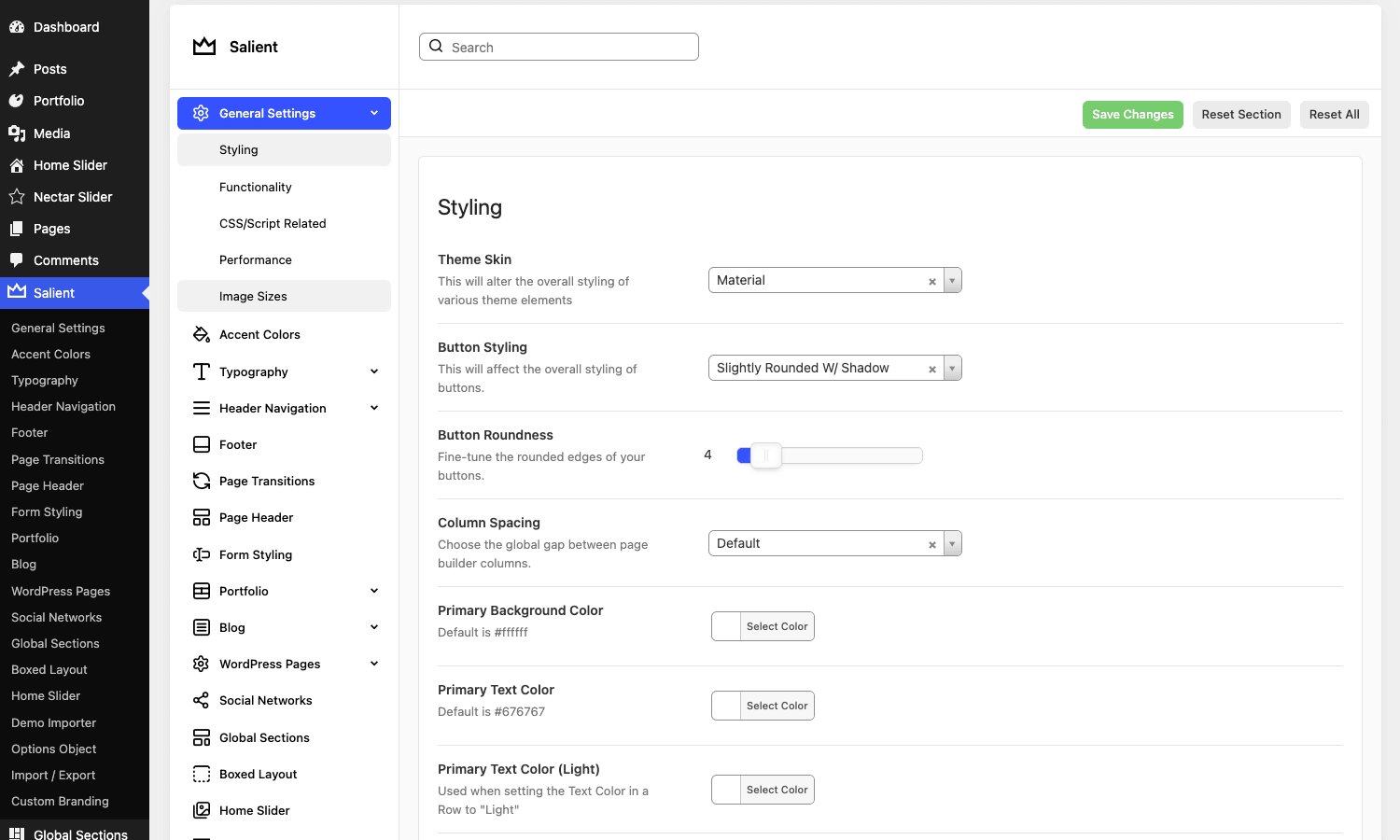
Step 2: Decide your skin before you do anything else. In Salient » General Settings » Styling there’s a "Theme Skin" option set to "Material" by default, with a "Classic" alternative. This changes the baseline look of buttons, inputs, and various elements across the whole site. Pick it now, because switching later means re-checking every page. Material is the modern, slightly flatter look most people want today.
Step 3: Set your global type and color. Jump to Typography and Accent Colors and set your fonts and brand colors once, globally, before you build pages. Salient cascades these everywhere, so getting them right up front saves you from overriding colors on individual elements later (which is how stylesheets turn to spaghetti).
Step 4: Build your header. The Header Navigation tab is deep enough to deserve its own section below. For setup purposes, just choose a header layout and decide whether you want a transparent header on top of your hero. Then create a menu under Appearance » Menus and assign it to the "Top Navigation Menu" location.
Step 5 (optional): Import a demo. If you want a head start, the demo importer is right there. Read the demo-import section before you do, because importing carelessly is the single most common way people end up with a slow, messy Salient site.
That’s the whole setup. Theme, plugins, skin, type, header, menu. Twenty minutes if you don’t get distracted.
A tour of the Salient Theme Options
The options panel is where Salient earns its reputation for being powerful and, occasionally, overwhelming. There are seventeen-plus top-level tabs, many with their own sub-tabs. I won’t pretend every one matters equally, so here’s the guided version: what each main tab controls and which settings I actually change.
General Settings. Five sub-tabs. Styling holds the theme skin, button shape, and global colors. Functionality toggles big features like the page-loading animation, sticky elements, and lightbox behavior. CSS/Script Related is where custom CSS and header/footer scripts live. Performance is important enough that it gets its own section below. Image Sizes lets you tune the dimensions Salient regenerates, which matters if you care about not serving 2000px images into 400px slots.
Accent Colors. Salient runs on a system of accent colors that elements reference by name rather than hex. Set them here once and your buttons, links, and highlights stay consistent. You can also register extra colors, which becomes relevant in the developer section.
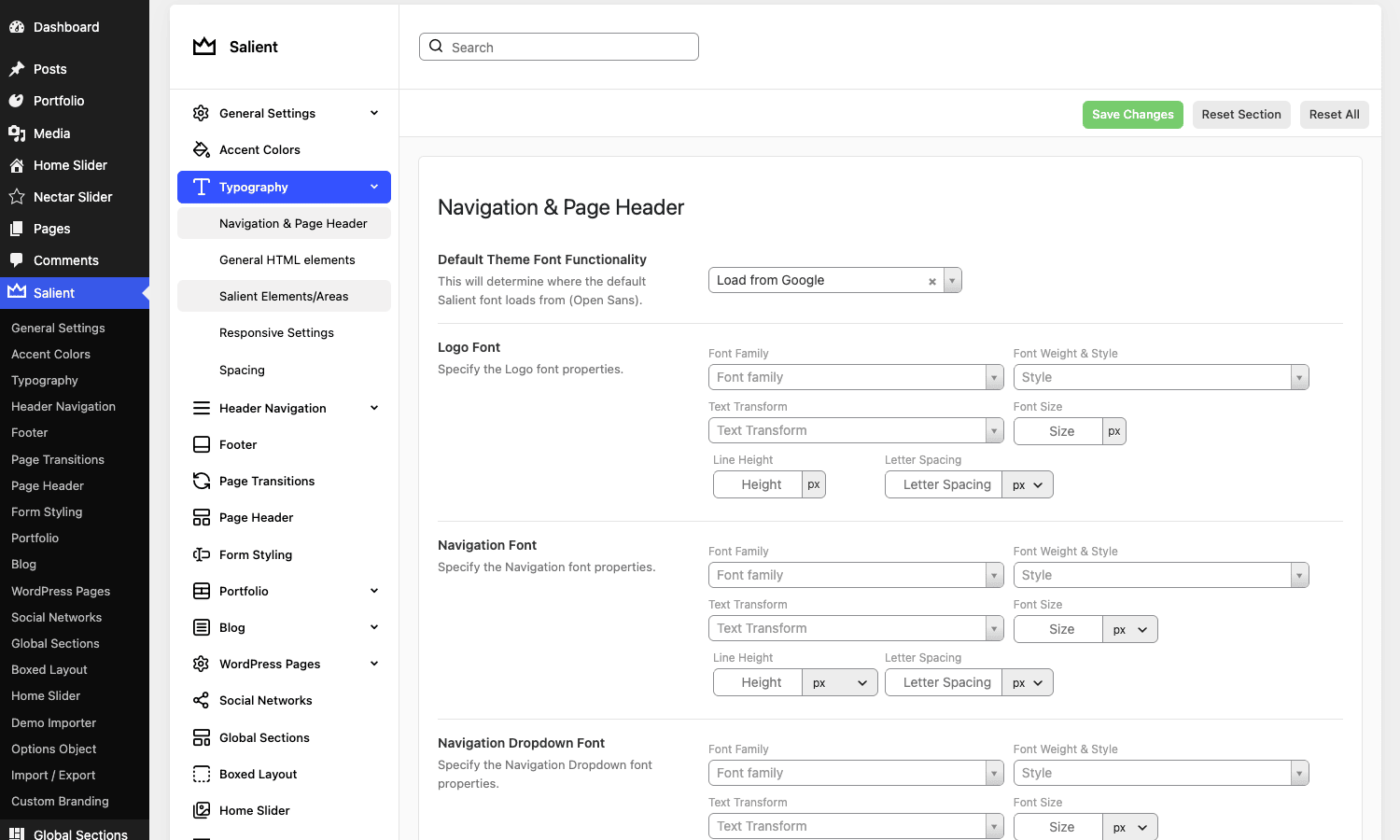
Typography. This is one of the better-organized type panels in any theme. Sub-tabs split it into Navigation & Page Header, General HTML elements, Salient Elements/Areas, Responsive Settings, and Spacing. You set the logo font, navigation font, body font, and heading scale, each with family, weight, transform, size, line height, and letter spacing. The Responsive Settings sub-tab is the one people forget: it lets you scale type down on tablet and phone so your 80px hero heading doesn’t blow out a 375px screen.
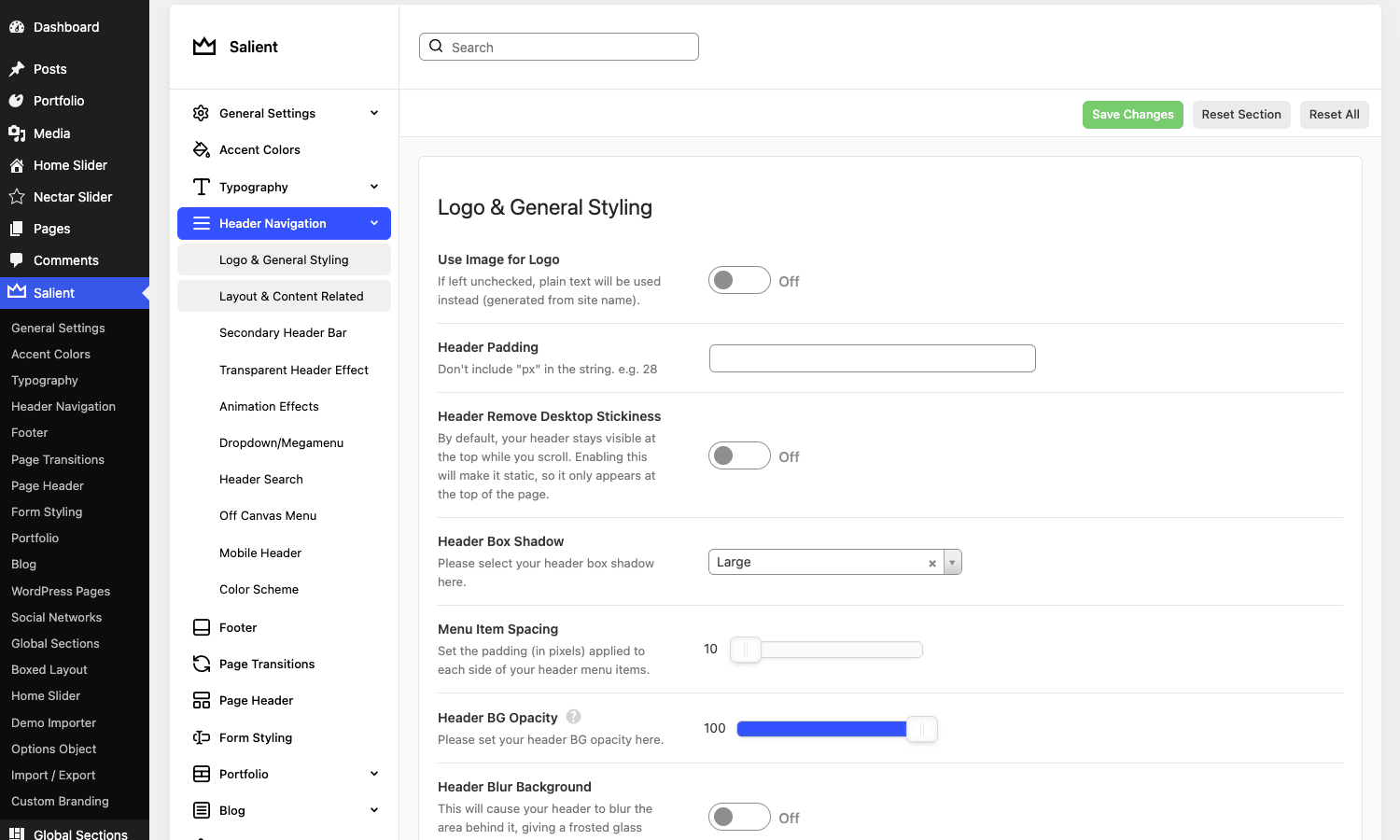
Header Navigation. The deepest tab in the panel, and rightly so, because the header is where Salient shows off. Sub-tabs cover Logo & General Styling (logo image or text, header padding, box shadow, menu item spacing, header background opacity, blur background for that frosted-glass effect), Layout & Content (which header layout: centered, left, right, menu-and-search), Secondary Header Bar (the thin bar above the main header for contact info or social links), Transparent Header Effect, Animation Effects, Dropdown/Megamenu, Header Search, Off Canvas Menu, Mobile Header, and Color Scheme. If you’ve ever wanted a header that’s transparent over the hero and turns solid on scroll, with a blurred background and a slide-in mobile menu, every one of those toggles is here.
Footer. Column count, widget styling, the "back to top" button, and the copyright bar.
Page Transitions. Salient’s signature page-load and page-to-page animations (fade, slide, the "morphing" preloader). Tasteful in small doses, motion-sick territory if you crank it.
Page Header. The banner area at the top of pages and posts: height, parallax, background, breadcrumb display. You can override this per page, but the global default lives here.
Form Styling. Global styling for form fields (border style, focus color, padding) so contact and search inputs match the rest of your design instead of falling back to the browser default. Set it once and every form on the site inherits it.
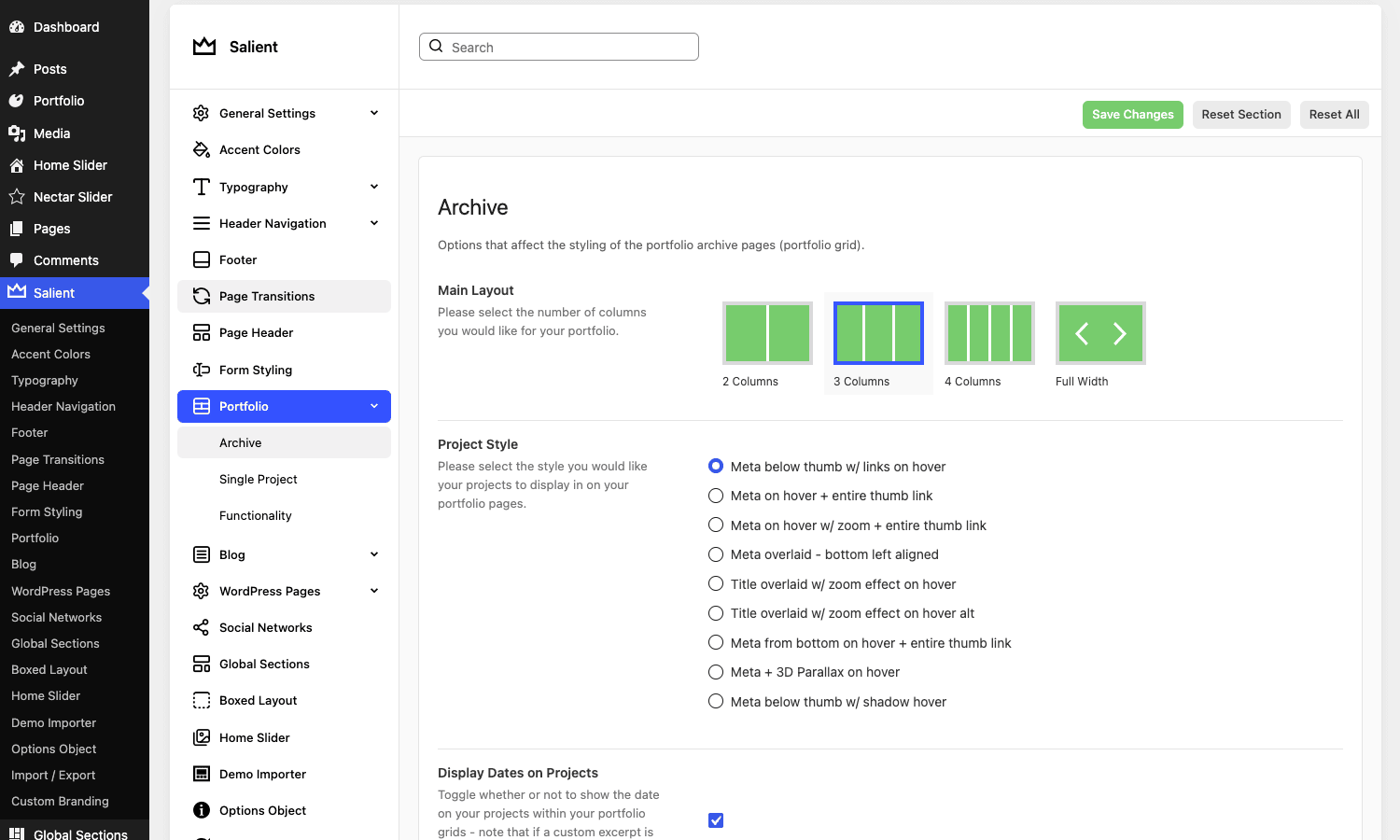
Portfolio. Three sub-tabs (Archive, Single Project, Functionality) that control how your portfolio grid and project pages look. The Archive sub-tab has a visual layout picker (2, 3, 4 columns, or full width) and a long list of hover styles for project thumbnails, including a 3D parallax option that genuinely looks expensive.
Blog. Layout (standard, masonry, sidebar position), what meta to show, and how excerpts behave.
WordPress Pages. Default page padding and sidebar behavior for plain pages.
Social Networks, Global Sections, Boxed Layout, Home Slider. Smaller tabs for social profile URLs, the global-sections feature toggle, an optional boxed (non-full-width) site layout, and the homepage slider defaults.
Options Object and Import/Export. Developer and migration tools. Import/Export lets you save your entire Theme Options config as a string and paste it into another site, which is how you keep a consistent house style across client builds.
Tip: there’s a search box at the top of the options panel. With this many settings, typing "transparent" or "lazy" to jump straight to the toggle you want is faster than hunting through tabs.
Building pages the Salient way
Salient uses WPBakery as its builder, but the experience is shaped by Salient’s own element set, so it doesn’t feel like a stock WPBakery install.
When you create a page, you can build it in the Backend Editor (the stacked, form-like view) or the Frontend Editor (edit on a live preview). I default to the backend editor for structure and switch to frontend for fine-tuning. Click Add Element and you get Salient’s library: somewhere north of seventy elements, organized into All, Content, Query, Media, Typography, Structure, and Interactive tabs.
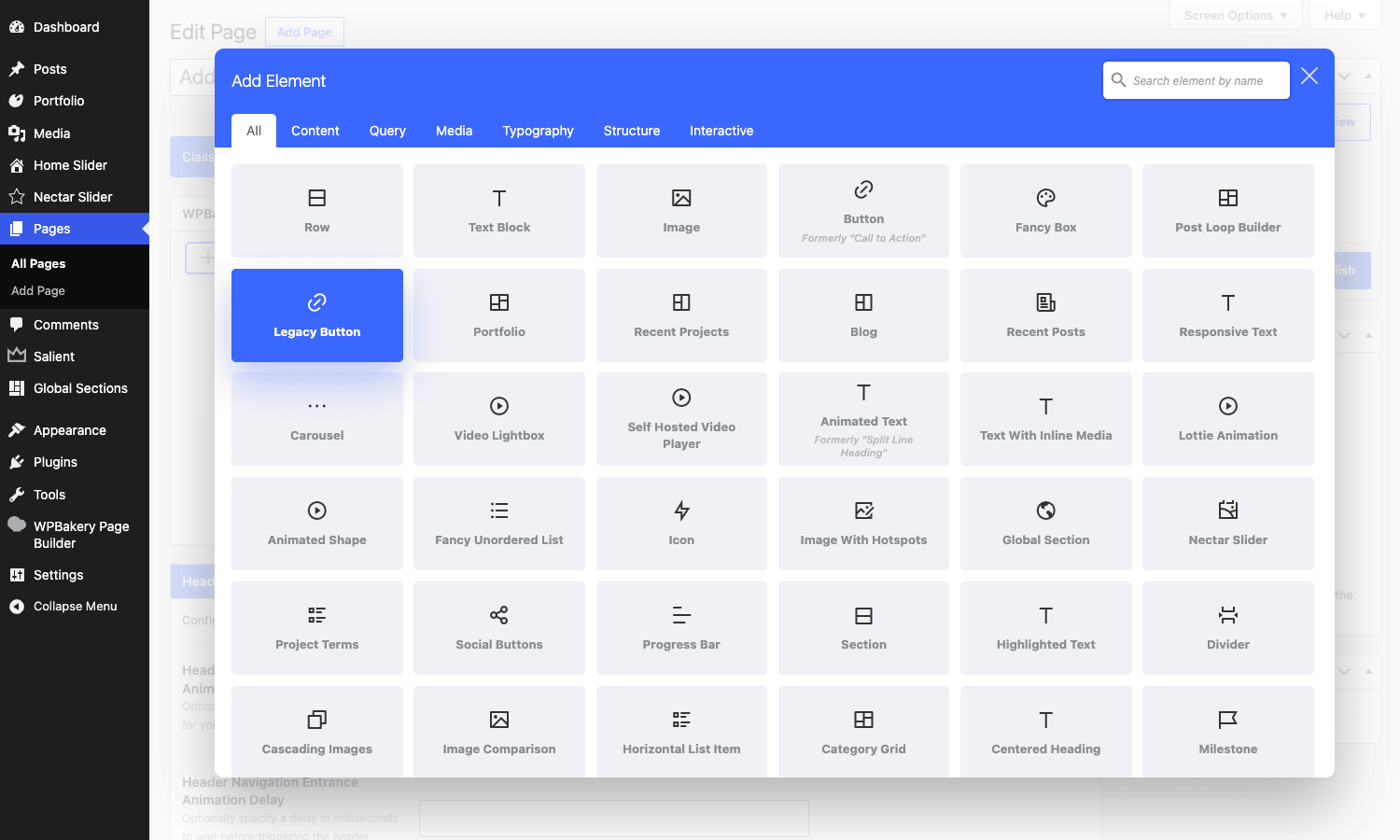
The elements worth knowing on day one:
- Row and Column. The structural backbone. Salient rows have extra options for full-width, full-screen height, parallax backgrounds, gradient overlays, and column animations on scroll. The full-screen row is what powers those one-screen-at-a-time scrolling sites.
- Fancy Box. A card with an image, text, and a hover effect. The workhorse for "three services" or "four features" rows.
- Post Loop Builder. A query-driven grid or carousel of posts or projects. This is the modern, flexible way to show a blog or portfolio feed inside a page, and it replaced a stack of older single-purpose elements.
- Nectar Slider element. Drops a slider you built (see below) into a page.
- Image With Hotspots. Pin clickable tooltips onto an image. Great for product diagrams or "anatomy of" graphics.
- Lottie Animation. Native support for Lottie JSON animations, the lightweight vector animations designers love. Not many themes ship this as a first-class element.
- Cascading Images, Animated Shape, Image Comparison, Milestone (animated counters), Testimonial Slider, Pricing Table, Team Member. The rest of the "agency site in a box" toolkit.
There’s also a Salient Templates button in the builder bar that opens a library of pre-built page sections you can drop in and restyle, plus My Templates for saving your own. Building your own section library is the trick to staying fast across multiple projects.
Nectar Slider
The Nectar Slider is a custom post type, so you build slides under Nectar Slider » Add New rather than inside a page. Each slide has its own Slide Settings: an image or video background, a texture overlay toggle, background alignment, a light/dark font color switch, a heading, and a caption. You group slides into a "Slider Location," then drop that location into any page with the Nectar Slider element.
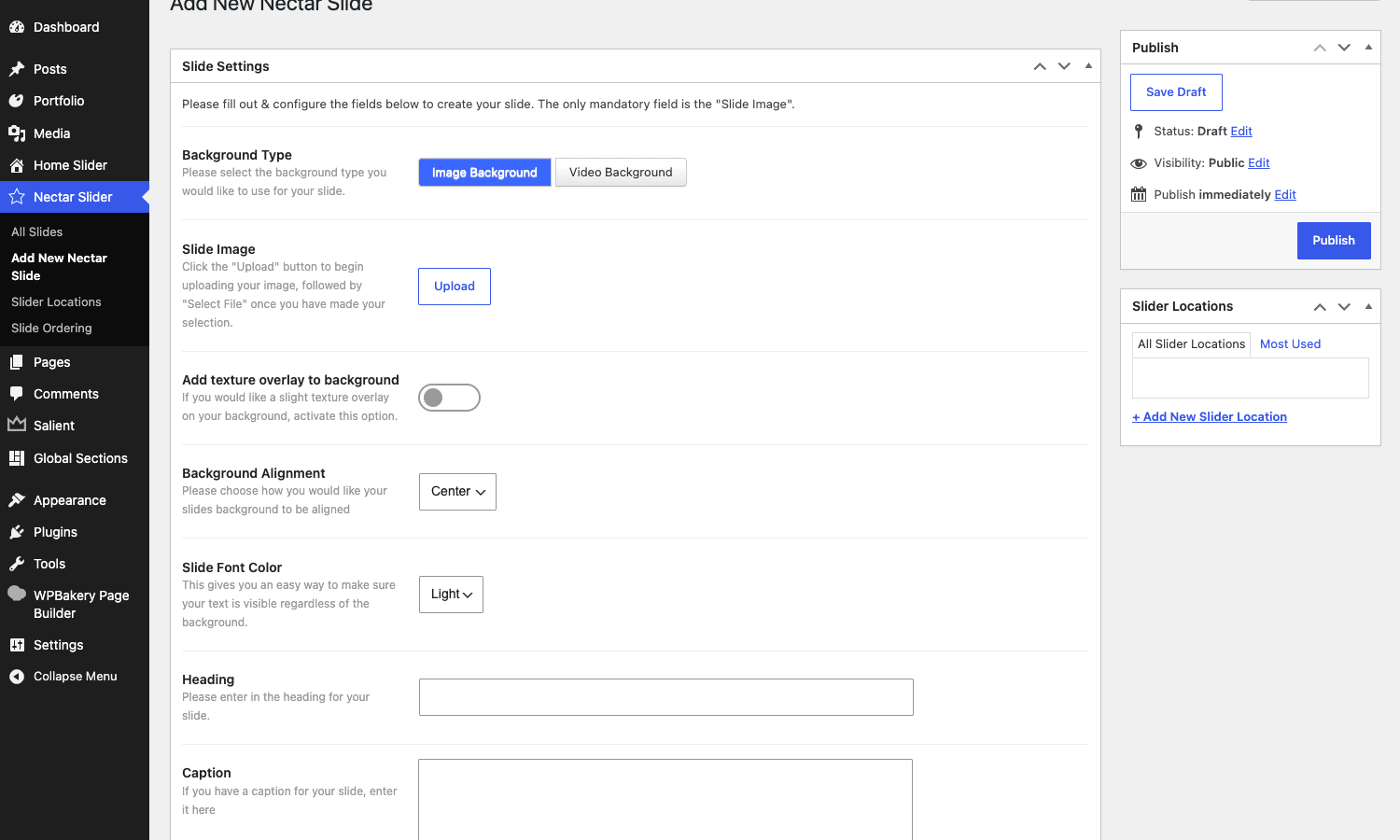
It’s a sensible split. Slides live as their own content, so you can reuse a slider across pages and edit it in one place. The video background option is the one people reach for most: a muted, looping hero video behind a single line of bold type is the most-requested homepage of the last five years, and Salient does it without a third-party plugin.
Global Sections
Global Sections are reusable content blocks. Build a call-to-action band once, save it as a Global Section, and reference it on twenty pages. Change the section, all twenty update. You can also assign a Global Section as a site-wide header or footer, which is how you build a custom footer with the page builder instead of being stuck with the theme’s footer widgets. For anyone managing a site with repeated components, this is the feature that saves the most time long-term.
The demo library: 40-plus starting points
If you don’t want to start from a blank canvas, Salient’s demo importer is genuinely good. Under the importer you get a grid of complete starter sites, each with a screenshot and a one-click Import Demo button. The demos span agency, portfolio, freelancer, magazine, shop, app-landing, and one-pager styles.
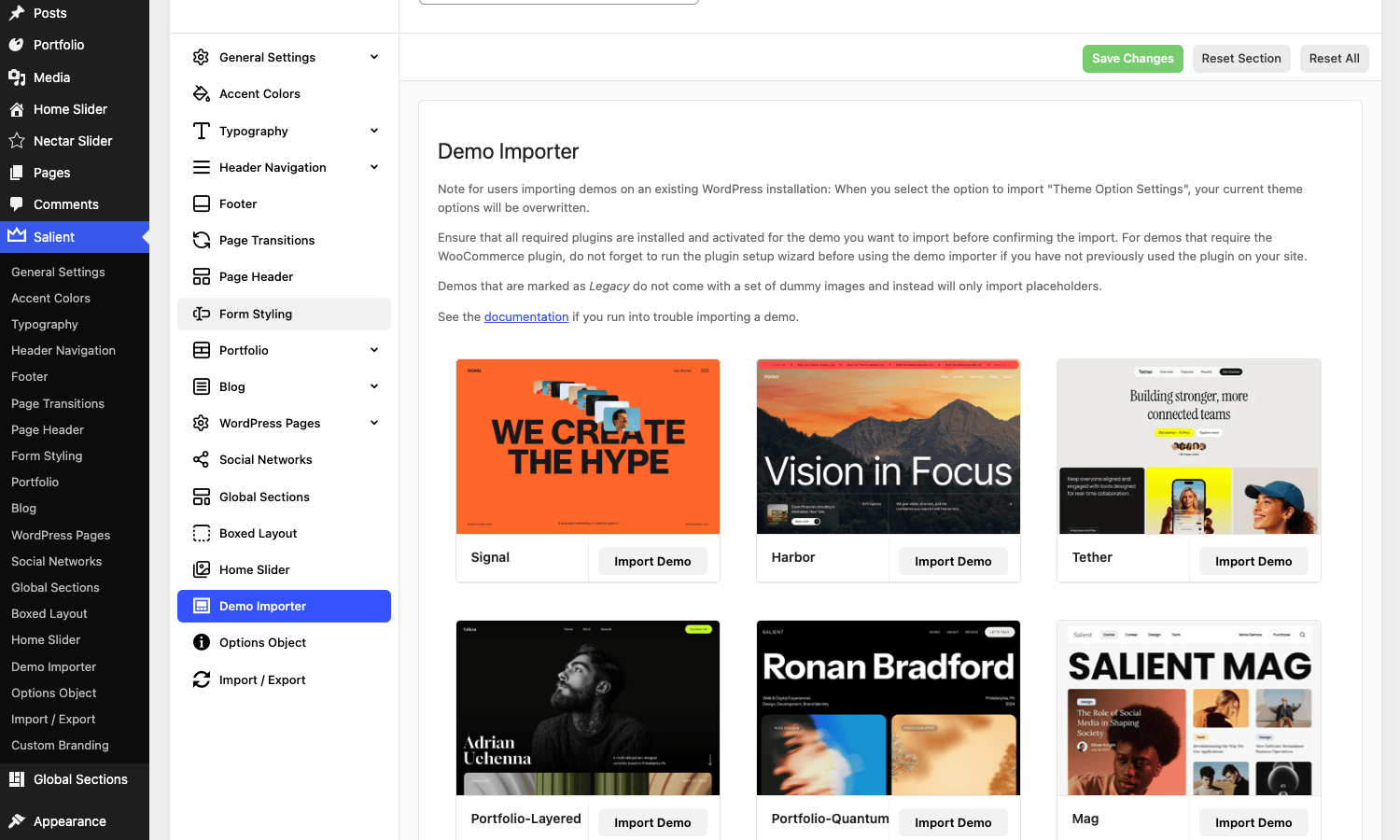
Each demo pulls in pages, a matching Theme Options configuration, sliders, and sample content, so you land on something that looks like the screenshot rather than a pile of unstyled blocks. For a freelancer who needs to show a client three directions by Friday, importing two or three demos onto a staging site and customizing the closest one is a real workflow, not a gimmick.
The thumbnails alone are worth browsing before you start, because they show you what the theme is capable of and which layout patterns are easiest to achieve. Just don’t import one and ship it as-is. Which brings me to the part of this article you should not skip.
Who actually reaches for Salient
Multipurpose themes get sold as "for everyone," which is useless when you’re trying to decide. Here’s who Salient genuinely fits, and who should look elsewhere.
If you’re a design-led freelancer or small agency, Salient is close to ideal. The motion, the type controls, the portfolio system, and the demo library map directly to the kind of work you sell. You can produce a site that looks custom without writing CSS, and the Import/Export of Theme Options means you carry your house style from project to project.
If you run a creative or personal portfolio, the Portfolio custom post type with its parallax and masonry hover styles is the whole reason to pick this theme. You’ll spend more time choosing a hover effect than fighting the layout.
If you need a marketing site for a startup or SaaS, the full-screen rows, Lottie animations, animated milestones, and pricing tables cover the standard app-landing page without add-ons.
If you run a small to mid-size shop, Salient’s real WooCommerce template overrides and gallery features mean the store looks like part of the site, not a default WooCommerce afterthought. For a catalog in the dozens-to-hundreds range, it’s comfortable. If you’re building a thousand-SKU store with heavy filtering, a dedicated shop theme like Porto or WoodMart will give you more commerce-specific tooling.
If you want the absolute lightest possible site (a fast blog, a docs site, a brochure with three pages), Salient is overkill. A lightweight theme plus the block editor will load less. Salient’s value shows up when you’re using its design features, not when you’re hiding them.
| Project type | Salient fit | Why |
|---|---|---|
| Design agency / freelancer | Excellent | Motion, type control, portfolio, demo library |
| Creative portfolio | Excellent | Portfolio CPT with premium hover styles |
| Startup / SaaS landing | Strong | Full-screen rows, Lottie, pricing tables |
| Small-to-mid WooCommerce shop | Good | Real WC template overrides, gallery zoom |
| Large catalog store | Fair | A dedicated shop theme has more commerce tooling |
| Minimal blog / docs | Overkill | A lightweight theme loads less |
Don’t import a demo and call it done
Here’s the failure mode I’ve watched sink more Salient projects than any bug: someone imports a demo, sees something close to the screenshot, swaps the logo and a few headlines, and ships it. Three months later they’re complaining that "Salient is slow." Salient isn’t slow. The un-pruned demo is.
When you import a demo, you don’t just get pages. You get every Nectar Slider, every Global Section, every sample post, every placeholder portfolio project, and every Theme Options value that demo used. Import three demos while you’re "just looking," and your database now carries dozens of orphan sliders and sections you’ll never use, each one loading its own assets on the pages that reference it. Your media library fills with demo images you didn’t choose. Your homepage might be pulling a full-screen video and six animated rows you don’t actually need.
Then there’s the licensing trap. A demo can assume plugins that aren’t really yours to keep, sliders or add-ons that came bundled and that you now think you own outright. Those update through the theme, not independently, so treating them like standalone purchases will bite you later.
The fix is discipline, not avoidance. Import onto a staging site, never production. Import one demo, the closest to your target, not three. Then delete what you don’t use: open the Nectar Slider and Global Section lists and trash the orphans, clear the sample posts and projects, and prune the media library. Run the homepage through a speed test before and after you delete, and watch the page weight drop. The time you spend pruning is less than the time you’ll spend explaining to a client why their five-page site weighs nine megabytes. A demo is a starting point, not a finished site, and the gap between those two is cleanup.
Is Salient bloated? The honest performance answer
This is the question every WPBakery theme has to answer, so let me answer it straight: Salient can be heavy, and how heavy is mostly up to you.
The honest part first. A WPBakery-based theme loads more CSS and JavaScript than a block-editor-native or hand-coded theme, because the builder ships styles and scripts for every element you might use. A maximalist Salient homepage with a video hero, parallax rows, animated counters, a slider, and page transitions will never out-benchmark a stripped lightweight theme showing static text. If raw Lighthouse numbers on a near-empty page are your only metric, no multipurpose theme wins that fight.
Now the part people miss: Salient gives you real controls to claw most of that back, and they live in Salient » General Settings » Performance. The ones that matter:
- Delay JavaScript. Salient can hold off non-critical scripts until user interaction, the single biggest Total Blocking Time win available. There’s even a developer filter to control exactly which scripts get delayed.
- Deferred / async CSS loading so render-blocking stylesheets stop holding up your first paint.
- Lazy loading for images and backgrounds, with a toggle to defer to the browser’s native lazy loading or hand it off to a dedicated plugin.
- Font Awesome version control, so you only load the icon font you actually use rather than every version.
- Image size tuning in the Image Sizes sub-tab, so elements request appropriately sized images instead of full-resolution originals.
Where this shines: combine Salient’s built-in delay-JS and lazy-load with a good caching plugin like WP Rocket and a pruned page, and a real Salient site lands in respectable Core Web Vitals territory. I’ve taken bloated demo imports from a "poor" LCP into the "good" band purely by deleting unused content, turning on delay-JS, and serving correctly sized images. No code.
Compatibility notes worth knowing. Salient wants a current PHP version and a reasonable memory limit (256MB is comfortable, the default 40MB on cheap hosts is not). It plays well with the major caching and SEO plugins. The most common conflict reports involve aggressive CSS/JS combine settings in a caching plugin breaking the builder’s layout, so if your animations stop working after you enable "combine CSS," that’s the first toggle to flip back off. Salient also bundles its own slider and elements, so stacking a third-party slider or another page builder on top is asking for asset duplication and conflicts.
Salient vs Avada vs BeTheme vs Divi
These four are the multipurpose heavyweights people actually cross-shop (Bridge is a fifth worth weighing, covered in my Bridge theme review), so let me put real numbers on the comparison instead of waving at "powerful" and "flexible."
On price, three of them share the ThemeForest one-time model: Salient and BeTheme both sit around the $60 mark for a regular license with six months of support, and Avada is a touch higher near $69. Divi breaks the pattern with Elegant Themes’ subscription: roughly $89 per year or around $249 for lifetime access, which also unlocks their other products.
On prebuilt demos, Salient’s importer showed me just over 40 complete starter sites. That’s plenty, but it’s not the category leader: Avada ships 90-plus, and BeTheme is famous for its 700-plus pre-built sites, the largest library of the group. Divi counts differently, offering 2000-plus individual layout packs rather than full-site demos.
On the builder, all four bundle their own, so none of them costs you a separate builder license. Salient builds on WPBakery, Avada has its own Fusion Builder, BeTheme offers a three-way choice of its BeBuilder plus WPBakery plus Elementor, and Divi runs the Divi Builder. The practical difference: WPBakery (Salient) is the most familiar if you’ve used Visual Composer, Divi’s builder is the most polished front-end editor, and BeTheme’s flexibility is the widest.
| Theme | One-time price | Prebuilt demos | Builder | Strongest at |
|---|---|---|---|---|
| Salient | ~$60 | 40-plus | WPBakery | Design-led, motion, portfolios |
| Avada | ~$69 | 90-plus | Fusion Builder | All-rounder, huge user base |
| BeTheme | ~$60 | 700-plus | BeBuilder / WPBakery / Elementor | Demo count, builder choice |
| Divi | ~$89/yr | 2000-plus packs | Divi Builder | Front-end editing, subscription value |
The takeaway isn’t that one wins. It’s that Salient competes on taste and motion, not on having the biggest number next to "demos." If your work is design-forward, that trade is usually worth it.
Developer reference: hooks, filters, and shortcodes
Salient looks like a point-and-click theme, but underneath it exposes a clean set of action hooks, filters, and shortcodes, all under the nectar_ prefix. This is the part most reviews skip. If you’re building on Salient for a client, these are what keep your customizations in the child theme instead of hacked into core files.
Always use a child theme. Salient ships one (salient-child) in the bundle. Activate it and put your code in its functions.php so a theme update never wipes your work. If you’re new to this, the WordPress child theme guide is the canonical reference.
Template action hooks
Salient places do_action() calls at every meaningful point in its templates, so you can inject markup without editing template files. These fire with no arguments; you just hook and echo. The ones I reach for most:
// Drop an announcement bar right after the opening <body> tag.
add_action( 'nectar_hook_after_body_open', function () {
    echo '<div class="site-announcement">Free shipping this week.</div>';
} );

// Inject a trust badge row just before the footer.
add_action( 'nectar_hook_before_footer_open', function () {
    get_template_part( 'partials/trust-badges' );
} );
The full set of injection points includes nectar_hook_after_body_open, nectar_hook_before_content, nectar_hook_after_content, nectar_hook_before_header_nav, nectar_hook_before_secondary_header, nectar_hook_before_footer_open, nectar_hook_after_footer_open, nectar_hook_before_footer_widget_area, nectar_hook_after_footer_widget_area, nectar_hook_before_body_close, nectar_hook_after_wp_footer, and nectar_hook_404_content. There’s a parallel set for the blog loop (nectar_before_blog_loop_content, nectar_after_blog_loop_content, nectar_blog_post_grid_item_start, nectar_blog_post_grid_item_end) and the archive header (nectar_archive_header_before_title, nectar_archive_header_in_title, nectar_archive_header_after_title).
WooCommerce injection points
Because Salient is a real WooCommerce theme, it also adds a parallel set of shop-specific action hooks, so you can extend the store without overriding WooCommerce templates. Two I use often: a reassurance line under the add-to-cart button, and a promo band above the shop loop.
// Add a trust line right after the add-to-cart form on a product page.
add_action( 'nectar_woocommerce_after_add_to_cart_form', function () {
    echo '<p class="cart-note">30-day returns, no questions asked.</p>';
} );

// Inject a promo banner above the shop product grid.
add_action( 'nectar_shop_above_loop', function () {
    echo '<div class="shop-banner">Summer sale: 20% off everything this week.</div>';
} );
Others in the same family include nectar_woocommerce_after_single_product_summary, nectar_woocommerce_after_shop_loop, nectar_woocommerce_after_checkout_billing_form, and nectar_shop_header_markup, covering the single product, shop, and checkout surfaces.
Useful filters
Change the logo text or URL without touching the header template:
// Point the logo at a custom landing page instead of the home URL.
add_filter( 'nectar_logo_url', function ( $url ) {
    return home_url( '/welcome/' );
} );

// Override the text logo (when you're not using an image logo).
add_filter( 'nectar_logo_text', function ( $text ) {
    return 'Studio North';
} );
Register extra accent colors so your custom elements can reference the same named palette Salient uses:
add_filter( 'nectar_additional_theme_colors', function ( $colors ) {
    $colors['brand-coral'] = '#ff6f61';
    $colors['brand-ink']   = '#11202b';
    return $colors;
} );
Control which scripts get delayed by the performance engine. This is the filter that lets you fix a script that breaks when delayed, or add one the theme didn’t catch:
add_filter( 'nectar_delay_js_script_list', function ( $scripts ) {
    // Add a handle/keyword to delay, or remove one that must run immediately.
    $scripts[] = 'my-analytics-loader';
    return $scripts;
} );
Other filters worth knowing: nectar_activate_transparent_header (force or block the transparent header programmatically), nectar_font_awesome_5_enabled and nectar_font_awesome_6_enabled (choose the icon font version you load), nectar_disable_deferred_css and nectar_disable_third_party_lazy_loading (opt out of specific performance behaviors when they conflict with another plugin), and nectar_global_sections_enabled (toggle the Global Sections feature).
Custom post types
Salient registers three CPTs you can query like any other content:
portfoliofor portfolio projectsnectar_sliderfor slidessalient_g_sectionsfor Global Sections
So a custom query for recent projects is just:
$projects = new WP_Query( array(
    'post_type'      => 'portfolio',
    'posts_per_page' => 6,
) );
Shortcodes
The Salient Shortcodes plugin registers the elements as shortcodes too, which is handy when you need a Salient component inside a widget, a custom template, or another plugin’s content area. The layout set follows a fractions pattern ([one_half], [one_third], [one_fourth], [two_thirds], [three_fourths], and so on, each with a _last variant to close the row), and there’s a [full_width_section] for breakout bands.
The component shortcodes cover the usual agency kit: [button], [heading], [divider], [image_with_animation], [icon], [milestone] (animated counter), [pricing_table] and [pricing_column], [team_member], [testimonial] and [testimonial_slider], [clients], [carousel], [tabbed_section] and [tab], [toggles] and [toggle], and [recent_posts]. A quick two-column row with a call-to-action button looks like this:
[one_half]Left column copy goes here.[/one_half]
[one_half_last][button color="accent-color" url="/contact/"]Get in touch[/button][/one_half_last]
Between the action hooks, the filters, and the CPTs, you can extend Salient quite far without ever editing a core template, which is exactly what you want on a theme you don’t control the release schedule of.
FAQ
Is the Salient theme good for beginners?
Mostly yes, with one caveat. The page builder and demo importer make it genuinely approachable, and you can get a good-looking site up without code. The caveat is the Theme Options panel: seventeen-plus tabs is a lot to meet on day one. Use the search box at the top of the panel, change settings in small batches, and you’ll be fine. Beginners get into trouble when they import three demos and then can’t tell which setting is doing what.
Does Salient slow down your site?
It can, but it’s usually the content, not the theme. A WPBakery theme loads more than a minimalist one by nature, but Salient ships delay-JavaScript, deferred CSS, lazy loading, and image-size controls in its Performance tab. Pair those with a caching plugin and prune any demo content you imported, and a real Salient site reaches good Core Web Vitals. The "Salient is slow" complaints almost always trace back to an un-pruned demo import.
Do I need to buy WPBakery separately?
No. The Salient WPBakery Page Builder comes bundled with the theme and installs from inside your site. You don’t buy or license it separately, and it updates when the theme updates.
Can I use Elementor or Gutenberg with Salient instead of WPBakery?
Salient is built around WPBakery, and its element library and demos assume it. You can use the block editor for simple pages, but you lose access to Salient’s elements, which are the reason to pick the theme. If your heart is set on Elementor, a theme like BeTheme that natively supports Elementor as a builder option is a better match than fighting Salient.
Is Salient a good WooCommerce theme?
Yes, for small to mid-size stores. It declares full WooCommerce support, including product gallery zoom, lightbox, and slider, and it ships its own template overrides for cart, checkout, single product, and account pages, so the shop looks like part of your site. For a very large catalog with heavy filtering, a dedicated commerce theme will give you more shop-specific features.
What’s the difference between Nectar Slider and Home Slider?
Nectar Slider is the full-featured slider (image or video backgrounds, animated headings, per-slide styling) you build as its own content and drop anywhere. Home Slider is a simpler, older slider aimed specifically at homepage hero sections. For new sites, use Nectar Slider; it’s the more capable of the two.
Will my customizations survive theme updates?
Only if you make them correctly. Activate the bundled child theme and put PHP in its functions.php, CSS in its stylesheet or the Custom CSS box in Theme Options, and use the nectar_ hooks and filters instead of editing template files. Do that and updates are safe. Edit core theme files directly and an update will overwrite them.
Does the GPL version of Salient get updates and the companion plugins?
The package on GPL Times is the full ThemeNectar release, with the bundled companion plugins and demo importer included, so you can install and use everything in this walkthrough. The practical thing to know is that the companion plugins update through the theme rather than independently, which is true of the theme however you obtain it.
How many demos does Salient include?
The demo importer in the current release shows just over 40 complete starter sites, spanning agency, portfolio, freelancer, magazine, shop, and one-pager styles. Each imports its pages, Theme Options, and sample content in one click.
Is Salient still being actively developed?
Yes. It’s one of the longest-running themes on ThemeForest and still ships regular updates, including modern features like Lottie animation support and the delay-JavaScript performance engine. Longevity is part of the pitch: you’re buying a theme with a decade-plus track record of staying current.
Final thoughts
The Salient theme is what I’d call a confident multipurpose theme. It doesn’t try to be the theme with the most demos or the longest feature list. It tries to be the theme that makes design-forward sites, the ones with motion and big type and portfolios that feel expensive, achievable without a developer. On that goal it delivers, and it has for a long time.
It isn’t the right pick for everyone. If you want the absolute lightest blog, look elsewhere. If you need a thousand-product store, a dedicated commerce theme will serve you better. And if you import a demo and never prune it, you’ll get the heavy, slow site that gives WPBakery themes their reputation, which is a self-inflicted wound, not the theme’s fault.
But for the brief I opened with, the studio that wants a beautiful site standing by lunch, Salient is one of the few themes I trust to get there. Set your type and color once, build with its elements, lean on the Performance tab, keep a child theme for the hooks, and you’ve got a site that looks custom and behaves itself. You can pick up the Salient theme on GPL Times and click through every panel in this walkthrough on a real install. If you’re weighing it against the other giants, the BeTheme walkthrough and The7 review make good companion reads.