

Multipurpose themes get a bad rap, and a lot of it is deserved. Ask any seasoned WordPress developer about "do-everything" themes and you’ll get the same lecture: bloated, jack-of-all-trades, a thousand options you’ll never touch, slow to load, painful to leave. The Bridge theme is squarely one of those themes, the kind purists love to dunk on. So let me make the unpopular argument up front, because I’ve actually shipped sites on it: sometimes a kitchen-sink theme is exactly the right call, and sometimes it’s the worst decision you’ll make all year. The trick is knowing which situation you’re in.
This is a long, honest walkthrough of what you get with the Bridge theme, where it genuinely shines, where it’ll cost you, and what the developer surface looks like underneath all those demo sites. I’ll show you the parts that matter, skip the marketing fluff, and be straight about the trade-offs no product page will tell you.
Table of Contents
- Is the Bridge theme worth it? The honest case for and against
- Key features worth knowing
- The demo library is the real product
- One license, four kinds of site
- Getting started: the first-run flow
- Headers, every which way
- The WPBakery element library
- Developer reference
- Bridge is heavy. Here is how to make it fast.
- Don’t lock your whole site into Bridge shortcodes without a plan
- Bridge vs other multipurpose themes
- Pricing and licensing
- FAQ
- Final thoughts
Is the Bridge theme worth it? The honest case for and against
Let me get the disclaimer out of the way, because I think it’s the most useful thing I can tell you. A theme like Bridge, built by Qode Interactive and sold as a "Creative Multipurpose WordPress Theme," is not lightweight, and anyone who claims otherwise is selling you something. It ships with a full page builder, a slider plugin, an icon library, hundreds of prebuilt designs, and a pile of custom content elements. That is a lot of code. If you wanted the leanest possible site, you wouldn’t start here.
So why does Bridge keep landing on real projects, including some of mine? Because for a particular kind of work, the math favors it.
Where Bridge is the right call. You’re a freelancer or a small agency. A client wants a polished site in two weeks, not three months. The budget doesn’t stretch to a bespoke design and a custom theme. You need to pick a starting layout, recolor it, swap the copy and images, and ship something that looks intentional rather than slapped together. That’s the exact job a theme like this was built for, and it’s genuinely good at it.
Where Bridge is the wrong call. You’re building a high-traffic content site where every hundred milliseconds of load time costs you ad revenue or conversions. You have a designer and a developer and a real timeline. You want full control over the markup. In that world, a feature-heavy theme is dead weight, and you’d be better served by a lean starter theme plus exactly the plugins you choose.
Most projects, honestly, sit in the first bucket. That’s why these themes sell by the hundreds of thousands. The mistake isn’t picking a multipurpose theme. The mistake is picking one and then being surprised when it behaves like a multipurpose theme.
Here’s the framing I use before recommending it to anyone.
| Your situation | Is Bridge a good fit? | Why |
|---|---|---|
| Agency shipping client sites fast | Yes, strongly | The demo library and WPBakery make recolor-and-ship a one-day job |
| Solo creator, modest traffic | Yes | One purchase covers design, slider, and most elements you’ll want |
| Directory, course, or membership site | Yes | The bundled Qode add-ons cover those use cases without extra themes |
| High-traffic publisher chasing Core Web Vitals | Be careful | Powerful, but you’ll spend real effort trimming it down |
| Headless / React front end | No | Classic PHP theme, no content REST API, no block-theme support |
If you landed in a "Yes" row, the rest of this article is the tour I wish someone had given me before my first Bridge project.
Key features worth knowing
Rather than list everything the marketing page lists, here’s what actually changes how you work day to day.
- A massive prebuilt demo library. This is the headline. Bridge ships with hundreds of full demo sites across business, creative, portfolio, blog, shop, and one-page categories. You pick one, import it, and you have a real starting point instead of a blank canvas.
- WPBakery Page Builder, bundled. Bridge’s native builder is WPBakery (formerly Visual Composer). It comes included, so you don’t buy it separately. Bridge layers dozens of its own custom elements on top.
- A genuinely deep header system. Five distinct navigation locations, multiple header types (regular, left vertical menu, fullscreen, and more), centered-logo layouts, a side area, and a separate mobile menu. Few themes give you this much control over the top of the page.
- Full WooCommerce support. The theme declares
woocommercesupport plus product-gallery lightbox, slider, and zoom, and it ships a whole template-override directory for the shop. It also adds its own product-list elements. - Bundled niche add-ons. Qode includes its directory/listing, LMS, membership, and music add-on plugins. One Bridge license can become a directory site, a course site, a membership site, or a band site without buying a separate theme for each.
- Slider Revolution and LayerSlider included. Two premium slider plugins ship with the theme. Slider Revolution alone is a meaningful chunk of value if you’d otherwise license it.
- A real options framework. The Qode Options panel exposes global control over typography, colors, header, footer, blog, portfolio, and more, with an import/export feature for moving settings between sites.
- Translation-ready and WooCommerce-ready out of the box. The theme is built for use with translation tools like WPML, and its
bridgetext domain means strings are localizable.
Most of these are on the moment you activate the theme and install its companion plugins. Let me walk through the ones that earn their place, starting with the one that actually sells Bridge.
The demo library is the real product
I’ll be blunt: most people don’t buy Bridge for its code. They buy it for the demos. The single most valuable thing in the package is the prebuilt-site library, and it’s the first place you should look after activation.
Once Bridge Core (the companion plugin, more on that shortly) is installed, you get a new Import screen at admin.php?page=import in the WordPress admin. It’s a searchable, category-filtered grid of prebuilt demo sites. The filters across the top let you narrow by type: All, Business, Creative, Portfolio, Blog, Shop, One Page, Special, and Other. Each demo card shows you a thumbnail of the design and, importantly, which builder it was made with (WPBakery, Elementor, or Gutenberg), so you know what you’re getting into before you import.
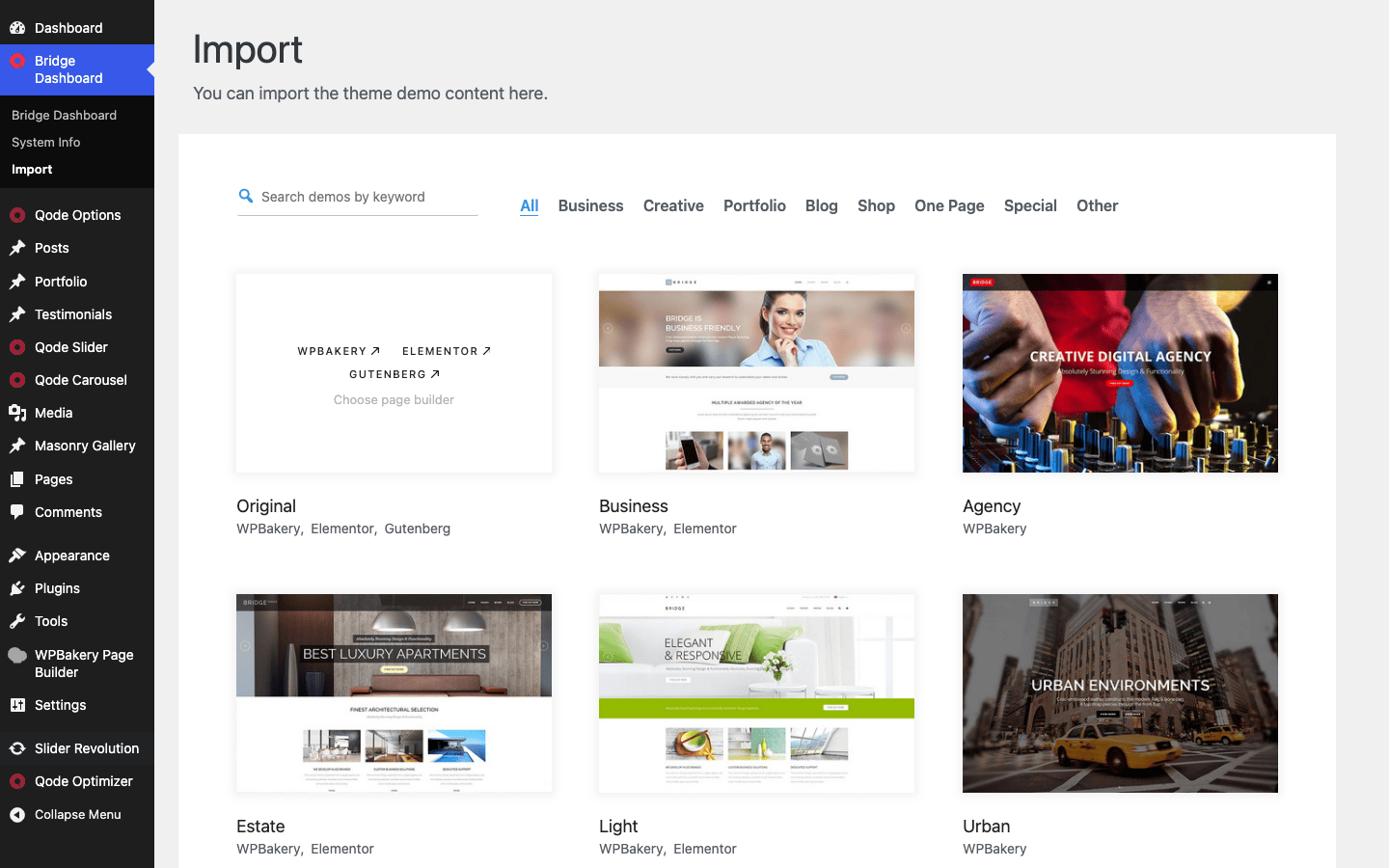
How many demos are there? Qode markets the number as "600+," and I won’t pretend I counted them one by one. What I can tell you from clicking around is that there are hundreds, spanning nearly every site type a small business or creative might need. Restaurants, gyms, law firms, photographers, agencies, online shops, personal blogs, app landing pages. The breadth is the point. Whatever your client does, there’s probably a starting layout that’s close.
The catch, and it’s a real one. A full one-click demo import does not always succeed, especially on a throwaway sandbox or a tightly locked-down host. When you import a demo, Bridge fetches the demo’s images, content, and any required plugins from Qode’s servers. If your host blocks outbound connections, or the sandbox you’re testing on can’t reach those servers, the import stalls or fails partway through. I hit exactly this when poking at Bridge on a disposable test environment: the demo library loaded perfectly, but the actual import of a demo’s media couldn’t complete because the external fetch was blocked.
On a normal, well-connected host (which is what your real site runs on), demo import works as advertised. So don’t panic if you see an import hang on a stripped-down test box. It’s almost always a connectivity issue on the environment, not a bug in the theme.
Tip: before you import a demo onto an existing site, take a backup. A demo import drops in pages, posts, menus, and theme options, and while Bridge is careful about it, you do not want to be untangling demo content from your real content by hand. Import onto a fresh install, or test on staging first.
Heads-up: importing a demo doesn’t lock you to its builder forever, but it does mean the imported pages are built with whatever that demo used. If a demo card says Elementor and you’re a WPBakery shop (or the other way around), pick a different demo that matches your preferred builder rather than fighting the imported pages.
Once a demo is in, you treat it like any other WordPress site. Swap the logo, change the colors in the options panel, replace the placeholder copy and images, and you’re most of the way to a finished site. For a freelancer billing by the project, that’s the whole value proposition right there.
One license, four kinds of site
Here’s a thing about Bridge that surprised me, and it’s genuinely clever from a value standpoint. The theme doesn’t just bundle a page builder and a slider. It bundles a set of Qode’s own add-on plugins that turn Bridge into a completely different category of site depending on which you activate.
Look in the theme’s bundled plugins and you’ll find these, alongside Bridge Core, WPBakery, and LayerSlider:
- qode-listing for directories and listings.
- qode-lms for courses and learning management.
- qode-membership for membership sites.
- qode-music for bands, DJs, and music projects.
Think about what that means in practice.
If you run a directory (a local-business finder, a real-estate listings site, a "best of" guide), the qode-listing add-on gives you the listing post type, category filtering, and listing layouts without reaching for a separate directory theme or a third-party plugin.
For a course creator, the qode-lms add-on adds course content types so you can build a learning site on the same Bridge install you’d use for the marketing pages. It’s not going to replace a dedicated LMS platform for a serious course business, but for a small catalog of lessons attached to a creative brand, it’s right there.
If you’re spinning up a membership area, qode-membership handles members and restricted content within the Bridge world.
For a musician or band, qode-music adds the music-specific pieces (discography, events) that a generic theme just doesn’t have.
I want to be fair here: these bundled add-ons are convenience plays, not best-in-class replacements for specialist plugins. If you’re building a serious membership business, a dedicated tool like ARMember will out-feature qode-membership on billing logic and access rules every time. But that’s not the point. The point is that one Bridge license lets you say yes to a directory client this month and a course client next month without buying four different themes. For an agency, that flexibility is worth real money.
Getting started: the first-run flow
Setting up Bridge follows the same pattern as most premium ThemeForest themes, with one quirk worth flagging. Here’s the flow I follow.
Step 1: Upload and activate the theme. Go to Appearance » Themes » Add New » Upload Theme, choose the bridge.zip file, and click Install Now, then Activate. Bridge also ships a child theme as a separate bridge-child.zip download. If you plan to add any custom code, install and activate the child theme instead of the parent, so your changes survive theme updates. (More on why this matters in the FAQ.)
Step 2: Install the required plugins. As soon as Bridge activates, you’ll see a TGM Plugin Activation notice at the top of the admin asking you to install the theme’s bundled and recommended plugins. The ones you actually need for the core experience are Bridge Core (the content types and most of the custom elements live here), WPBakery Page Builder (the builder), and Slider Revolution (for the slider-heavy demos). Click through and install those.
This is the quirk: the demo sandbox I tested on blocks the standard WordPress plugin-install screen, yet the TGM notice still installed the bundled plugins fine, because they’re packaged inside the theme rather than fetched from wordpress.org. On a real host, you’ll install them the same way, straight from the TGM notice. Bridge also lists optional extras here (Elementor, QI Addons for Elementor, QI Blocks, Envato Market, the Qode WooCommerce quick-view and wishlist plugins). You don’t need those for a standard WPBakery build.
Note: Bridge does not require Elementor. Its native builder is WPBakery. Elementor support exists, optionally, through Qode’s QI Addons and QI Blocks plugins, so if you’re an Elementor person you can work that way too. But if you ignore Elementor entirely, nothing breaks.
Step 3: Register the theme (optional but recommended). Bridge has its own dashboard, the Bridge Dashboard, where you’ll find a Welcome panel, theme registration via your Envato purchase code, links to documentation and support, and a System Information panel.
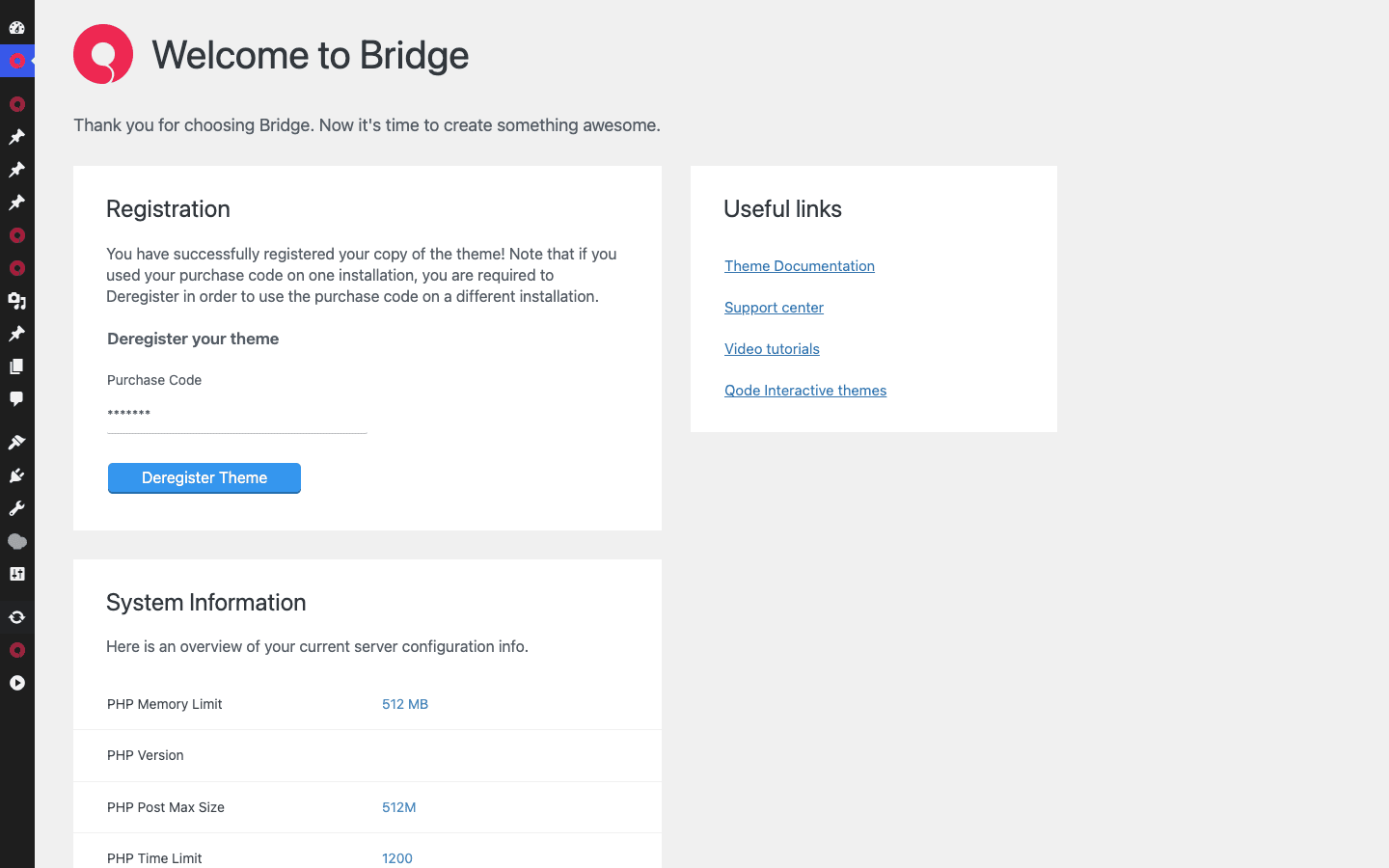
That System Information panel is more useful than it looks. It reports your PHP memory limit and other server values, and Bridge is a memory-hungry theme. Qode recommends a generous PHP memory limit (the dashboard surfaces values like a 512MB limit), and if your host is set lower, demo imports and the WPBakery editor can choke. Check this panel first if anything feels sluggish or fails to load.
Step 4: Open Qode Options. This is the global control center, found at admin.php?page=qode_theme_menu in the admin. The left nav is a long list of tabs: General, Logo, Header, Footer, Title, Fonts, Elements, Sidebar, Qode Slider, Page, Search Page, Blog, Portfolio, Vertical Split Slider, Social, 404 Error Page, Contact Page, Parallax, Content Bottom, WPBakery, Performance, Panel Area, Maintenance Mode, Import/Export Options, and Reset.
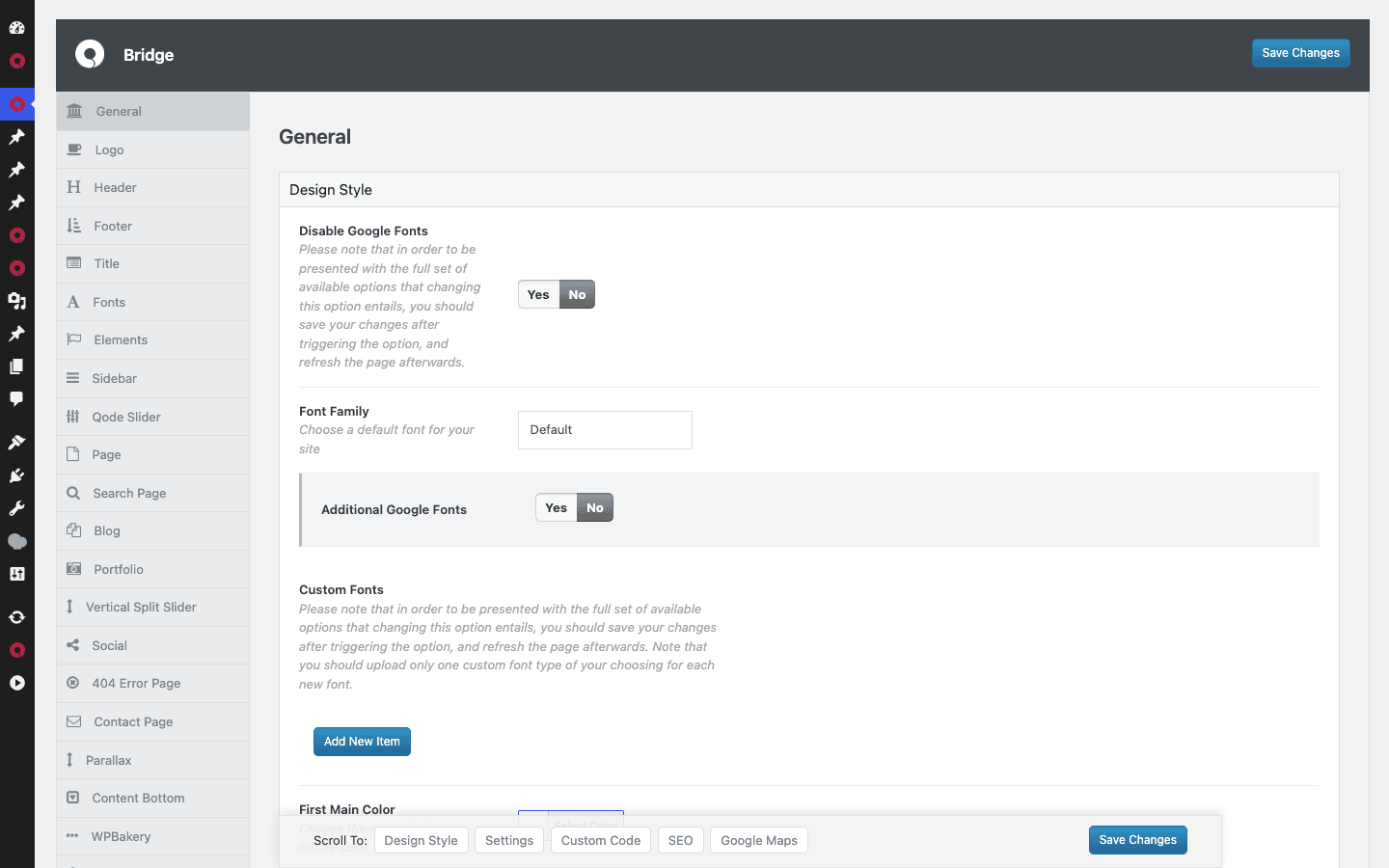
That’s a lot of tabs, and I won’t pretend you need to touch all of them. The ones that matter most on a typical setup:
- General sets your global typography and the first main color (your brand color), plus toggles like Disable Google Fonts. There’s a scroll-down section with Design Style, Settings, Custom Code, SEO, and Google Maps controls.
- Logo is where you upload your logo (and its variants for different header states, like a light logo for dark headers).
- Header is the big one, covered in its own section below.
- Footer controls your footer columns and bottom bar.
- Fonts gives you fine-grained type control over headings and body text.
- Blog and Portfolio control how your post and project archives render.
- Import/Export Options lets you save your entire Qode Options config to a file and load it on another site. This is genuinely useful for agencies running a house style across multiple builds.
- Reset dumps options back to defaults if you’ve painted yourself into a corner.
You might be wondering whether you have to configure all of this before you can launch. You don’t. If you imported a demo, most of these are already set to match the demo, and you just tweak the few that matter (logo, colors, fonts). The full options panel is there for when you want control, not as a mandatory checklist.
Headers, every which way
If there’s one area where Bridge genuinely out-engineers most of its rivals, it’s the header. The number of header layouts you get is borderline excessive, in a good way.
Under the hood, Bridge registers five separate navigation menu locations:
top-navigation(the standard horizontal top menu)left-top-navigation(left side of a split top menu)right-top-navigation(right side of a split top menu)mobile-navigation(a dedicated mobile menu, separate from desktop)popup-navigation(the menu used by the fullscreen/popup header type)
Why does that matter? Because it means you’re not stuck retrofitting one menu into every layout. You can have a centered-logo header with menu items split left and right of the logo, a completely different fullscreen overlay menu, and a purpose-built mobile menu, all from the same theme.
In Qode Options, the Header tab is where this comes to life.
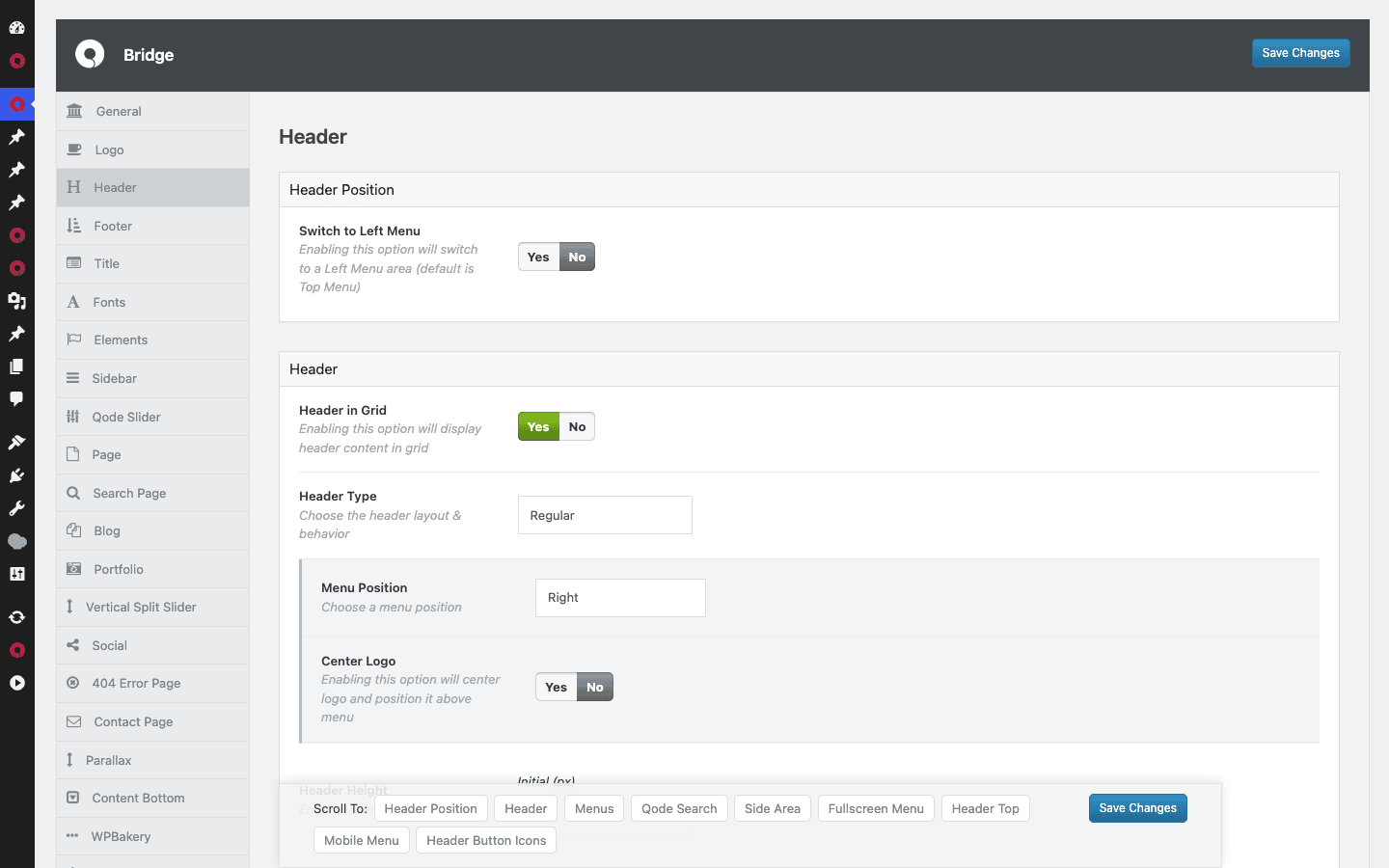
The Header tab carries a deep set of controls and sub-sections: Header Position (including a "Switch to Left Menu" toggle for a vertical side menu), Header Type, Menu Position, Center Logo, and Header Height, plus dedicated panels for Header, Menus, Qode Search, Side Area, Fullscreen Menu, Header Top (the thin bar above the main header), Mobile Menu, and Header Button Icons.
In plain terms, here’s what you can build without writing a line of code:
- A classic top header with the logo left and the menu right.
- A centered-logo header, the kind you see on fashion and editorial sites, with menu items flanking a central logo.
- A left vertical menu, where the navigation runs down the side of the page instead of across the top. Great for portfolio and gallery sites.
- A fullscreen popup menu, where a hamburger icon opens an overlay covering the whole screen. Bold, and good for minimal one-page sites.
- A header top bar for a phone number, social icons, or a tagline above the main nav.
- A side area, a slide-out panel triggered by an icon, for extra widgets, a secondary menu, or contact details.
Where this shines: if you build a lot of sites, you know the pain of a client who wants "something different" up top. With most themes, "different" means custom CSS or a header plugin. With Bridge, it’s usually a dropdown. That alone has saved me hours.
The flip side, predictably, is choice overload. The first time you open the Header tab you may stare at it for a minute trying to figure out which combination of toggles produces the look you want. My advice: import a demo whose header you like, then reverse-engineer its settings rather than building from scratch.
The WPBakery element library
Bridge’s native page builder is WPBakery Page Builder, and it ships bundled with the theme, so there’s no separate license to buy. If you’ve used WPBakery before (a huge slice of ThemeForest themes use it), you already know the drag-and-row-and-column workflow.
What makes Bridge’s WPBakery different is the custom element library layered on top. Out of the box, you get dozens of Bridge-specific elements that don’t exist in vanilla WPBakery. Counting across the theme’s own element extensions and the Bridge Core plugin, there are well over 60 custom elements. A representative slice of what’s available:
qode_pricing_tableandqode_pricing_listfor pricing comparison blocks.qode_content_sliderfor full content sliders (not just images).qode_elements_holderfor grouping interactive blocks into a grid.qode_vertical_split_sliderfor the split-screen scroll effect popular on agency sites.qode_in_device_sliderfor showing screenshots inside a phone or laptop frame.qode_preview_sliderfor image preview carousels.image_with_textandicon_textfor the bread-and-butter "icon plus heading plus paragraph" feature blocks.counterandcountdownfor animated number counters and event countdowns.pie_chartandprogress_barfor stats and skill bars.portfolio_listandportfolio_sliderfor showing off your project work.blog_sliderandmasonry_blogfor blog feeds in slider or masonry layouts.product_list_masonry(and elegant/pinterest variants) for WooCommerce product grids.qode_bannerandqode_video_boxfor promo banners and video lightboxes.qode_google_mapfor embedded maps.qode_interactive_linksfor hover-reveal link lists.qode_parallax_layersfor layered parallax scrolling sections.qode_carouselandqode_masonry_galleryfor content carousels and masonry galleries.
That’s a partial list, but it gives you the flavor: these are the building blocks of the polished agency and creative layouts Bridge is known for. You drop them into a WPBakery row, configure them in their settings popup, and they render with the theme’s styling already applied.
The honest take: WPBakery is a divisive builder. Plenty of developers prefer Gutenberg or Elementor, and WPBakery’s shortcode-based output is a real long-term consideration (I’ll cover the lock-in risk in its own section, because it’s the single biggest gotcha with this theme). But for the visual-editor crowd who just want to assemble pages from prebuilt blocks, Bridge’s element library is one of the richest you’ll find.
And to repeat the earlier point because it trips people up: if you’d rather use Elementor, you can. Qode’s QI Addons for Elementor and QI Blocks plugins give you Bridge-flavored elements inside Elementor. Bridge does not force WPBakery on you, it just defaults to it.
Developer reference
Now the part most theme reviews skip entirely. If you’re a developer who has to extend or maintain a Bridge site, here’s what the surface actually looks like, with the important caveats up front.
Bridge is a classic PHP theme. There is no theme.json, no full-site-editing support, and no block-theme architecture. You customize it the traditional way: a child theme, template overrides, the Qode Options panel, and the theme’s action and filter hooks. If you came hoping for an FSE/block theme, this isn’t one, and that’s a deliberate design choice given its WPBakery foundation.
The theme registers no REST routes of its own. There is one wrinkle worth knowing: the bundled Bridge Core plugin exposes a tiny qode-api/v1 REST namespace (routes like registration and theme-validation) used purely for license registration and theme validation in the Bridge Dashboard. That’s plumbing, not a content API. So your real integration surface is the WordPress hooks system plus WPBakery’s vc_map for adding builder elements. If you need a headless or app backend, you’ll be leaning on WordPress core’s own REST API, not on anything Bridge adds for content.
The content types live in a plugin, not the theme. This is important. The Bridge theme itself registers zero custom post types and zero taxonomies. All of Bridge’s content types are registered by the Bridge Core companion plugin. That’s why installing Bridge Core is mandatory, and it’s also good news for portability: because the content types live in a plugin rather than the theme, your portfolio items and testimonials don’t vanish the instant you switch themes (the records stay in the database). The five Bridge Core post types are:
portfolio_page(Portfolio), withportfolio_categoryandportfolio_tagtaxonomies.testimonials, withtestimonials_category.slides(the Qode Slider), withslides_category.carousels(the Qode Carousel), withcarousels_category.masonry_gallery(the Masonry Gallery), withmasonry_gallery_category.
Action hooks
Bridge exposes a set of theme-specific action hooks for injecting markup at key points in the template. They’re all no-argument output hooks, meaning you echo your markup inside the callback rather than receiving and returning data.
The most useful, and by far the most-used inside the theme itself, is bridge_qode_action_page_after_container. It fires right after the main page container, which makes it a reliable spot for appending content to the bottom of pages site-wide.
add_action( 'bridge_qode_action_page_after_container', function () {
    if ( is_singular( 'post' ) ) {
        echo '<div class="my-post-cta">';
        echo '<a href="' . esc_url( home_url( '/subscribe/' ) ) . '">Subscribe for more</a>';
        echo '</div>';
    }
} );
bridge_qode_action_after_wrapper_inner fires after the inner wrapper element, another structural insertion point if you need to place something just inside the main wrapper.
add_action( 'bridge_qode_action_after_wrapper_inner', function () {
    echo '<div id="my-sticky-banner" role="region" aria-label="Announcement"></div>';
} );
bridge_qode_action_header_meta lets you print extra tags into the document head area Bridge controls. Handy for verification meta tags or custom preconnect hints.
add_action( 'bridge_qode_action_header_meta', function () {
    echo '<link rel="preconnect" href="https://fonts.gstatic.com" crossorigin>';
} );
And bridge_qode_action_style_dynamic is where Bridge prints its dynamic inline CSS (the styles generated from your Qode Options choices). Hook here to append your own dynamic styles in the same block.
add_action( 'bridge_qode_action_style_dynamic', function () {
    echo '.my-feature-box { border-radius: 12px; }';
} );
Bridge also fires WordPress core’s wp_body_open, so any standard wp_body_open integration (analytics no-script tags, accessibility skip links) works as expected.
Filter hooks
The filter hooks are where the real configuration power lives. They use the bridge_qode_filter_ prefix and are single-value filters (you receive a value and return a modified one).
Turn off Google Fonts. If you self-host fonts or want to cut the external request for privacy or speed, bridge_qode_filter_disable_google_fonts returns false by default. Return true to stop Bridge loading Google Fonts.
add_filter( 'bridge_qode_filter_disable_google_fonts', '__return_true' );
Override the sidebar layout for specific contexts with bridge_qode_filter_sidebar_layout, which receives the current layout string.
add_filter( 'bridge_qode_filter_sidebar_layout', function ( $layout ) {
    if ( is_singular( 'portfolio_page' ) ) {
        return 'no-sidebar';
    }
    return $layout;
} );
Force-show or hide the page title area with bridge_qode_filter_show_title_area, a boolean filter.
add_filter( 'bridge_qode_filter_show_title_area', function ( $show ) {
    if ( is_front_page() ) {
        return false; // hide the title bar on the homepage
    }
    return $show;
} );
Rewrite the title text itself with bridge_qode_filter_title_text.
add_filter( 'bridge_qode_filter_title_text', function ( $title ) {
    if ( is_404() ) {
        return 'We could not find that page';
    }
    return $title;
} );
Register your own icon packs with bridge_qode_filter_icon_packs, which receives (and returns) an array of icon pack definitions, so your custom icons appear in the relevant element pickers.
add_filter( 'bridge_qode_filter_icon_packs', function ( $packs ) {
    $packs['my_icons'] = array(
        'label'  => 'My Icons',
        'prefix' => 'mi',
    );
    return $packs;
} );
Edit the native (non-Google) font list with bridge_qode_filter_native_fonts_list, useful if you self-host a custom typeface and want it selectable in Qode Options.
add_filter( 'bridge_qode_filter_native_fonts_list', function ( $fonts ) {
    $fonts[] = 'Inter';
    return $fonts;
} );
Adjust the TGM required-plugins list with bridge_qode_filter_required_plugins. This receives the array of plugins Bridge nudges you to install. If you’re packaging a managed build for clients and want to drop a recommendation, this is the place.
add_filter( 'bridge_qode_filter_required_plugins', function ( $plugins ) {
    return array_filter( $plugins, function ( $plugin ) {
        return $plugin['slug'] !== 'hubspot';
    } );
} );
Pass extra variables to the front-end JavaScript with bridge_qode_filter_js_global_variables, which receives the array of globals Bridge hands to its front-end script.
add_filter( 'bridge_qode_filter_js_global_variables', function ( $vars ) {
    $vars['myScrollOffset'] = 120;
    return $vars;
} );
There are more filters in the same family, names like bridge_qode_filter_search_page_layout, bridge_qode_filter_single_blog_templates, bridge_qode_filter_excerpt_postfix, and bridge_qode_filter_product_list_add_to_cart_link. They do roughly what their names suggest (control the search results layout, register blog single-post templates, change the excerpt suffix, and tweak the WooCommerce product-list add-to-cart link respectively). I’d document exact signatures from the source before depending on the less-common ones, since Bridge doesn’t publish a formal hook reference. Start from the Qode knowledge base for the documented surface.
WooCommerce: use the standard hooks
For WooCommerce work, you don’t need Bridge-specific hooks. The theme integrates heavily with WordPress core’s standard WooCommerce hooks in its template overrides, things like woocommerce_before_add_to_cart_form, woocommerce_after_add_to_cart_button, woocommerce_single_product_summary, and woocommerce_proceed_to_checkout. So your existing WooCommerce snippets that hook those actions will work, and Bridge respects their ordering in its overridden templates. If you’ve customized a WooCommerce store before, that knowledge transfers directly.
Adding your own builder element
Because Bridge’s builder is WPBakery, adding a custom element is a standard vc_map() call, exactly as you would in any WPBakery project. Nothing Bridge-specific is required.
add_action( 'vc_before_init', function () {
    vc_map( array(
        'name'     => 'My Callout',
        'base'     => 'my_callout',
        'category' => 'Content',
        'params'   => array(
            array(
                'type'        => 'textfield',
                'heading'     => 'Heading',
                'param_name'  => 'heading',
            ),
            array(
                'type'        => 'textarea_html',
                'heading'     => 'Content',
                'param_name'  => 'content',
            ),
        ),
    ) );
} );
That’s the developer surface in full. It’s a traditional, hooks-and-templates theme. If you’re comfortable with classic WordPress theming and WPBakery, you’ll be productive fast. If you were hoping for blocks, a content REST API, and theme.json, set that expectation aside before you start.
Bridge is heavy. Here is how to make it fast.
I’m not going to tell you Bridge is a featherweight, because it isn’t, and you’d catch me lying the first time you ran it through PageSpeed Insights. A theme that bundles a page builder, multiple sliders, an icon library, and 60-plus custom elements is carrying weight by definition. The good news is that Bridge gives you real, specific levers to trim it down, and it’s surprisingly honest about this in its own options.
The single biggest lever is dequeuing JavaScript libraries you don’t use. Bridge loads a stack of front-end JS libraries to power its various elements: carousels, smooth-scroll, sliders, video resizing, infinite scroll, and so on. If your site doesn’t use the element a library powers, you’re shipping that library to every visitor for nothing. Bridge exposes a family of bridge_qode_filter_enqueue_*_script filters specifically so you can switch those off.
For example, if you never use the Owl Carousel-based elements, turn off that library:
add_filter( 'bridge_qode_filter_enqueue_owl_carousel_script', '__return_false' );
If you don’t use the nice-scroll smooth-scrolling behavior:
add_filter( 'bridge_qode_filter_enqueue_nice_scroll_scripts', '__return_false' );
If you don’t use the Qode Slider element:
add_filter( 'bridge_qode_filter_enqueue_qode_slider_scripts', '__return_false' );
The same pattern covers other bundled libraries in the family, including ones for bigtext, fitvids, flexslider, fluidvids, infinite_scroll, and one_page_scroll. Audit which Bridge elements your finished site actually uses, then dequeue the libraries behind the ones you don’t. On a site that uses three element types out of sixty, this can strip a meaningful number of HTTP requests and a chunk of parse time.
Tip: do this after your design is final, not before. If you dequeue a library and later add an element that needs it, that element silently breaks. Make the dequeue list the last thing you touch before launch, and document it in your child theme so future-you knows why a script is missing.
Beyond dequeuing, the other levers are the usual suspects, and they matter more on a heavy theme than a light one:
- Use a caching plugin. This is non-negotiable on a Bridge site. A page cache turns all that PHP and database work into a static file served in milliseconds, which sidesteps the theme’s weight on repeat visits. WP Rocket is the one I reach for, partly because its Delay JavaScript and Remove Unused CSS features are tailor-made for exactly this kind of element-heavy, library-loading theme. Hold off the non-critical scripts until interaction, strip the CSS that isn’t used above the fold, and a heavy WPBakery page suddenly behaves.
- Disable Google Fonts if you self-host. Either the
bridge_qode_filter_disable_google_fontsfilter above or the General-tab toggle removes the external font request. - Check the Performance tab in Qode Options. Bridge has a dedicated Performance tab in the options panel with its own optimization toggles. Go through it before launch.
- Give PHP enough memory. Refer back to the System Information panel in the Bridge Dashboard. A starved PHP memory limit makes everything slower and can break the WPBakery editor outright.
- Optimize your images. This is true of every site, but it’s acute on a theme built around big hero sliders and full-bleed imagery. Compress and properly size everything.
Do all of that and a Bridge site can absolutely score well. The mistake is launching a Bridge site with every demo asset intact, every script loading, no cache, and uncompressed images, then blaming the theme for being slow. The weight is real, but a lot of it is optional once you know where the switches are.
Don’t lock your whole site into Bridge shortcodes without a plan
This is the one I want you to read twice, because it’s the failure mode that bites people hardest and they never see it coming until it’s too late.
WPBakery (Bridge’s builder) stores everything as shortcodes inside your post content. Build a page with Bridge’s elements and what gets saved to the database isn’t clean HTML, it’s a soup of shortcodes like [vc_row][qode_pricing_table ...][/qode_pricing_table][/vc_row]. While Bridge and WPBakery are active, those render into the polished design you built. The moment they’re not, they don’t.
Here’s the trap. Say you build an entire site on Bridge, then two years later you switch themes. Now every page is full of orphaned shortcodes rendering as literal text. Your pricing table becomes the words [qode_pricing_table title="Pro"] in the middle of the page. Multiply that across a hundred pages and you’re looking at days of manual cleanup, rebuilding by hand. That’s the migration tax, and on a fully Bridge-built site it’s brutal.
This isn’t unique to Bridge, it’s true of any shortcode-based builder. But Bridge leans hard on its custom elements, so plan for it deliberately:
- Commit to Bridge long-term where that’s appropriate. For a brochure site that won’t be redesigned for years, lock-in genuinely doesn’t matter.
- Keep critical, long-lived copy in plain blocks. Write your core service descriptions and important posts as plain Gutenberg blocks, not builder elements, so the words survive a theme change. Use WPBakery for the visual flourishes.
- Export your Qode Options before any big change from the Import/Export tab, so you can roll back.
I’ve watched a small agency lose the better part of a week untangling WPBakery shortcodes during a migration nobody had budgeted for. It soured the whole project. Pick Bridge knowing what you’re signing up for, and the lock-in becomes a non-issue.
Bridge vs other multipurpose themes
Bridge isn’t the only flagship multipurpose theme, and if you’re choosing, the comparison matters. Let me put it against the two it’s most often weighed against, with actual numbers rather than vibes.
The big multipurpose names are Bridge, Avada, and Salient. All three are top-selling ThemeForest themes, all three bundle a builder and demos, and all three will get you to a finished site fast. They differ in ways that should drive your pick.
On demo count, Bridge is the clear leader. Qode markets Bridge at 600-plus prebuilt demos. Avada ships roughly 90 prebuilt websites. Salient sits in a similar range to Avada, dozens rather than hundreds. If sheer starting-point variety is what you’re after, no one out-demos Bridge, and that gap (hundreds vs around ninety) is not subtle.
On the builder, the three diverge. Bridge’s native builder is WPBakery (with optional Elementor support). Avada uses its own Fusion Builder, which is purpose-built for Avada and arguably more polished than generic WPBakery. Salient ships a customized version of WPBakery too, with its own element set. If you specifically dislike WPBakery, Avada’s Fusion Builder is the differentiator.
On bundled value, Bridge is generous. It includes WPBakery plus two premium sliders (Slider Revolution and LayerSlider) plus four niche Qode add-on plugins (listing, LMS, membership, music). Avada bundles Fusion Builder, Slider Revolution, and LayerSlider. Salient bundles its builder and includes Slider Revolution. Counting bundled premium plugins, Bridge’s four extra Qode add-ons are the tiebreaker if your project needs directory, course, or membership features.
On the element library, Bridge’s 60-plus custom WPBakery elements are among the richest you’ll find. Salient’s element set is also large and well-designed (Salient has a strong reputation for visual polish). Avada’s Fusion Builder element library is comparably deep.
On price, all three follow the same ThemeForest model: a one-time regular license in the same ballpark. Bridge lists at roughly $69, Avada at about $69, and Salient at around $60, each with six months of support included and an extended license for projects sold to end users. That’s less than a 15% spread across the three, so price shouldn’t decide it. None of them is a subscription, which is a genuine relief in 2026.
| Theme | List price | Prebuilt demos | Native builder | Bundled sliders | Extra add-ons |
|---|---|---|---|---|---|
| Bridge | ~$69 | 600+ (Qode’s figure) | WPBakery (+ optional Elementor) | Slider Revolution + LayerSlider | Listing, LMS, membership, music |
| Avada | ~$69 | ~90 | Fusion Builder | Slider Revolution + LayerSlider | Avada Studio library |
| Salient | ~$60 | Dozens | Customized WPBakery | Slider Revolution | Salient’s own element set |
My honest read: pick Bridge if demo variety and the bundled add-ons matter most, and you’re fine with WPBakery. Pick Avada if you want the most refined first-party builder and don’t need hundreds of demos. Pick Salient if visual polish and a more curated, design-forward feel rank above raw demo count. They’re all capable. Bridge’s edge is breadth.
Pricing and licensing
Bridge follows the standard ThemeForest pricing model, which is refreshingly simple compared to the subscription creep elsewhere in the WordPress world. You pay once.
Here’s the shape of it:
| License | What you get | Best for |
|---|---|---|
| Regular license | The theme, all bundled plugins, lifetime updates, 6 months of support | One end product where the end user isn’t charged for access |
| Extended license | Same theme, but covers a product where end users pay | SaaS or paid products built on the theme |
A few things worth knowing:
- It’s a one-time purchase, not a subscription. You buy the regular license, you own the theme, and you get updates. Support is included for six months and can be extended.
- The bundled plugins are included. WPBakery, Slider Revolution, and LayerSlider normally cost money on their own. They come with Bridge at no extra charge, which is a real chunk of value baked into the price.
- Most people want the regular license. Unless you’re selling access to the finished site as a product (a true SaaS), the regular license is the one for you. A client website, an agency project, a personal site, all regular-license territory.
Bridge is available as a GPL download through the Bridge theme on GPL Times. It’s the same Qode package, delivered with the bundled plugins and documentation, through the GPL store. Because Bridge is licensed under the GPL (its own style.css declares GNU GPL v2 or later), redistribution this way is within the license terms of the theme itself.
Note: the GPL download gives you the theme and its updates. If you want Qode’s official one-on-one support and direct demo-import assistance through Envato, that’s tied to a ThemeForest purchase code registered in the Bridge Dashboard. For most builds the documentation plus the Qode knowledge base is plenty, but if hand-holding support matters to you, factor that in.
FAQ
Does the Bridge theme require Elementor?
No. Bridge’s native page builder is WPBakery Page Builder, which is bundled with the theme. You can build entire sites without ever installing Elementor. Elementor support exists optionally, through Qode’s QI Addons for Elementor and QI Blocks plugins, so Elementor users aren’t shut out. But it’s a choice, not a requirement.
Is Bridge bloated and slow?
It’s heavy, and I won’t dress that up. A theme bundling a page builder, two sliders, an icon library, and 60-plus custom elements carries real weight, and out of the box it won’t top a speed test. The honest answer is that Bridge gives you specific levers to fix this: the bridge_qode_filter_enqueue_*_script filters let you dequeue JS libraries you don’t use, there’s a dedicated Performance tab, and pairing it with a caching plugin like WP Rocket makes a large difference. A carefully trimmed Bridge site performs fine. A Bridge site with every demo asset loaded and no caching does not. The performance is in your hands more than the theme’s.
Why did my demo import fail?
Almost always because of the hosting environment, not the theme. When you import a demo, Bridge fetches the demo’s images, content, and required plugins from Qode’s servers. If your host blocks outbound connections (common on locked-down or sandbox environments), or your PHP memory limit is too low, the import stalls. Check the System Information panel in the Bridge Dashboard for your memory limit, make sure your host allows outbound HTTP, and try again. On a normal, well-connected host the import works as advertised.
Will I be locked into Bridge if I build my whole site with it?
To a meaningful degree, yes, and you should plan around it. WPBakery stores page layouts as shortcodes in your content, so if you later switch to a non-WPBakery theme, those pages render as raw shortcode text and need rebuilding. This is true of any shortcode-based builder, not just Bridge. Mitigate it by keeping critical copy in plain blocks, committing to Bridge long-term where that’s appropriate, and budgeting for a rebuild if you know a migration is coming. It’s a manageable risk if you go in aware of it.
Do I need the child theme?
If you plan to add any custom PHP, CSS, or template overrides, yes, use the child theme that ships alongside the main download (bridge-child.zip). Editing the parent theme directly means your changes get wiped the next time you update Bridge, and updates matter for security and bug fixes. If you’re only ever going to use the options panel and the builder, you can skip the child theme, but installing it costs nothing and saves heartache later.
Is Bridge good for WooCommerce stores?
Yes, genuinely. Bridge declares full WooCommerce support including product-gallery lightbox, slider, and zoom, ships a complete set of WooCommerce template overrides, and adds its own product-list elements (masonry, elegant, and pinterest layouts). It also offers optional Qode quick-view and wishlist plugins. For a design-led shop, it’s a strong fit. For a very large catalog chasing maximum speed, apply the performance section’s advice carefully.
Can I use Bridge for a directory, course, or membership site?
Yes, thanks to the bundled Qode add-ons: qode-listing (directories), qode-lms (courses), and qode-membership (membership). These turn one Bridge license into several kinds of site. Be realistic about their depth, though. They’re convenient and they work, but a dedicated specialist plugin will out-feature them for a serious business in that category. For a small listing site or a modest course catalog attached to a creative brand, they’re more than enough.
Is Bridge translation-ready and multilingual-friendly?
Yes. Bridge ships with a bridge text domain and language files, so its strings are translatable, and it’s built to work with multilingual plugins like WPML. If you’re running a multi-language site, you’ll manage translations through your translation plugin as usual, and Bridge’s strings will pick up the localization.
Does Bridge support full-site editing or block themes?
No. Bridge is a classic PHP theme. There’s no theme.json, no FSE support, and no block-theme architecture. You customize it through a child theme, the Qode Options panel, and the theme’s hooks. If full-site editing is a hard requirement for you, Bridge isn’t the right pick, and that’s a deliberate consequence of its WPBakery foundation.
How many demos does Bridge actually include?
Qode markets the figure as "600+" prebuilt demos. I didn’t count them one by one, so take the exact number as the vendor’s claim, but the practical reality is that there are hundreds of full demo sites across business, creative, portfolio, blog, shop, one-page, and special categories. Whatever your project is, there’s very likely a close starting point in the library.
Final thoughts
Bridge is exactly what its critics say it is: a big, feature-dense, do-everything theme that you’ll have to work to keep fast. It’s also exactly what its fans say it is: the quickest way to turn a client brief into a polished, on-brand site without designing and coding from zero. Both things are true. Which one matters more depends entirely on the project in front of you.
If you’re an agency or freelancer who ships sites on deadline, the demo library alone changes your economics, and the bundled add-ons mean you can take directory, course, and membership work without re-tooling. If you’re a developer who values clean output and full control, the WPBakery shortcode foundation and the absence of a content REST API and block-theme support are real friction, and you should weigh the lock-in seriously before you commit a long-lived project to it.
My advice is unglamorous but sound: go in with eyes open. Trim the scripts you don’t use, cache aggressively, keep your important copy portable, and Bridge will serve you well for years. Treat it as a magic "set it and forget it" button and it’ll punish you on speed tests and migrations alike.
If that trade-off sounds right for your next project, you can pick up the Bridge theme on GPL Times and start clicking through that demo library yourself. Spend an afternoon in the Import screen and the Qode Options panel, and you’ll know within a couple of hours whether Bridge is the tool for the job you’ve got. That hands-on hour will tell you more than any review, including this one.