


Picture a maker who runs a small ceramics shop on WooCommerce. She does well enough that three other potters ask to sell through her storefront too. So now she has four people’s products on one site, four sets of orders, and at month-end she opens a spreadsheet, tallies who sold what, subtracts her cut, and sends three PayPal transfers by hand. One typo and somebody gets underpaid. One forgotten refund and she’s out of pocket. That is exactly the mess WooCommerce Product Vendors exists to clean up. By the third month she’s spending more time on payout math than on glazing pots.
That is the exact problem WooCommerce Product Vendors solves. It is Automattic’s official multi-vendor extension for WooCommerce, the one that turns a single store into a marketplace where vendors manage their own products and earn a commission on every sale. The header in the plugin file puts it plainly: "Run stores similar to Amazon or Etsy." No second spreadsheet, no manual tally, no guessing who is owed what.
I’ve set up marketplaces on a few of the big multi-vendor plugins, and they all approach the problem differently. Product Vendors is the lean one. It does not bolt a whole second application onto WordPress. It adds a taxonomy, a few roles, a commission ledger, and a payout engine, and then it gets out of the way. Whether that restraint is a feature or a limitation depends entirely on what kind of marketplace you’re building, and that is what this article is going to untangle.
This is a long, honest walkthrough: what it actually adds to your store, how commissions flow from a global default down to a single product, how payouts work (and where they bite you), the full developer surface, and the places I’ve watched marketplace owners lose real money. By the end you’ll know whether the official, native option is the right call or whether you want one of the heavier third-party suites instead.
Table of Contents
- What is WooCommerce Product Vendors?
- Who should run a Product Vendors marketplace
- Key features
- How it works for vendors and customers
- Installation and setup
- Vendor management: roles, approval, and the vendor admin
- How commissions actually work (global, vendor, product)
- Payouts: manual, scheduled, and instant PayPal
- The commission dashboard
- The customer-facing storefront
- Don’t launch blind: where marketplaces go wrong
- Developer reference: taxonomy, roles, hooks, filters, shortcodes
- Product Vendors vs Dokan vs WC Vendors vs WCFM
- Compatibility, performance, and known gotchas
- FAQ
- Final thoughts
What is WooCommerce Product Vendors?
WooCommerce Product Vendors is the official multi-vendor extension built by WooCommerce (Automattic), the same team that makes WooCommerce itself. It sits on top of a normal WooCommerce store and lets multiple sellers, called vendors, list their own products, fulfill their own orders, and collect a commission on each sale while you, the store owner, keep the rest.
It requires WooCommerce to be active. Its plugin header literally reads Requires Plugins: woocommerce, which means WordPress will not let you activate it without WooCommerce installed first. That dependency matters, because it tells you the design philosophy: this is not a standalone marketplace app, it is a layer that extends the store you already have.
Here is the mental model. A normal WooCommerce store has products and orders. Product Vendors adds a vendor concept on top, implemented as a WordPress taxonomy called wcpv_product_vendors. Every vendor is a term in that taxonomy, the same way a category is a term. You assign products to a vendor, the same way you assign a product to a category. When that product sells, the plugin records a commission row, calculates the vendor’s share, and queues it for payout.
That is the whole architecture in one paragraph, and it is genuinely refreshing how little ceremony there is.
The catch: because it leans on native WooCommerce plumbing instead of replacing it, the vendor experience lives inside a stripped-down WordPress admin rather than a slick front-end dashboard. If you’ve seen Dokan’s vendor storefront-builder, the Product Vendors vendor admin will feel dated by comparison. I’ll come back to that, because it is the single biggest trade-off in the whole product.
You can grab WooCommerce Product Vendors on GPL Times and have it running on a test store in about ten minutes. The setup is short enough that I’d recommend installing it and following the settings tour below with the admin open in another tab.
Who should run a Product Vendors marketplace
Not every marketplace idea fits this plugin, and pretending otherwise wastes your time. Here is who it actually suits.
If you run a maker collective, say a group of potters, woodworkers, or printmakers who already trust each other, Product Vendors is close to ideal. You handle one storefront and one brand, each maker gets their own product list and commission, and payouts are a monthly job instead of a daily one. The lean admin is fine because your vendors are a handful of people you can onboard personally.
If you operate a curated boutique where you, the owner, approve every seller and every listing, the built-in approval flow and the pending-vendor role were made for you. Vendors apply, sit in a pending state with no store access, and only get a dashboard once you approve them. You stay the gatekeeper.
For a digital-download marketplace (fonts, presets, templates, audio), the fact that vendors do not need to deal with shipping is a clean fit. You set the commission split, the file delivers through WooCommerce as normal, and the vendor sees the sale in their commission ledger.
For a small services or bookings marketplace, Product Vendors integrates with WooCommerce Bookings, and each vendor can be flagged to sell bookable products. Think a yoga studio renting time to independent instructors, or a co-working space listing different room hosts.
Now the honest other side.
Where this struggles: if you want vendors to feel like they have their own branded store with a front-end dashboard, drag-and-drop storefront, withdrawal requests, and a mobile app, this is not that product. If you need to pay vendors by Stripe Connect, bank transfer, or anything other than PayPal natively, you will be writing code or reaching for a third-party suite. And if you expect hundreds of self-service vendors signing up without you touching anything, the dated vendor admin and the manual-leaning payout flow will frustrate them.
Pick the tool that matches the marketplace you actually have, not the one you wish you had.
Key features
Rather than dump the full marketing list, here is what materially shapes a real marketplace built on this plugin.
- Vendors as a taxonomy. Each vendor is a term in the
wcpv_product_vendorstaxonomy. That means assigning products to vendors reuses the exact mechanism you already know from categories, and vendor pages get clean URLs out of the box. - Three vendor roles. A vendor admin (full control of their own products and orders), a vendor manager (a limited helper account), and a pending vendor (applied but not yet approved, with no dashboard access). More on the caps later.
- Three-level commission system. A global default, a per-vendor override, and a per-product override. The most specific setting wins. This is the heart of the plugin and I’ve given it its own section.
- Percentage or fixed commissions. Each level can be a percentage of the product price or a flat monetary amount. The value you enter is always the vendor’s share, not yours.
- Tax handling choices. Per vendor you pick Keep Taxes, Pass Taxes, or Split Taxes, which decides whether the vendor’s commission is calculated on the product price alone or including tax.
- Shipping pass-through. A "Pass shipping charges to vendor" toggle so a vendor keeps the shipping they charged, plus per-product, per-vendor shipping rates if a vendor needs their own rate table.
- A commission ledger. A dedicated top-level admin screen listing every commission with filters, CSV export, and bulk mark-paid/unpaid actions.
- Instant PayPal payouts. Native PayPal MassPay support that can pay a vendor the moment an order is paid, plus a scheduler for manual or periodic payouts.
- "Sold by" attribution. An optional "Sold by [Vendor Name]" line on product pages, linking to the vendor’s storefront, with vendor ratings shown on store pages.
- Front-end vendor stores. Every vendor gets a public storefront at
/vendor/<slug>/showing their name, average rating, and products. - Vendor registration shortcodes. A
[wcpv_registration]form so people can apply to become a vendor from the front end, plus a vendor directory and a vendor-details shortcode. - Vendor email notifications. Vendors get emailed on new orders, cancelled orders, and subscription renewals, with admin notifications for fulfillment status.
- Bookings and Subscriptions awareness. Vendors can sell bookable products and recurring subscription products, with the renewal emails routed to the right vendor.
Most of this is on the moment you activate the plugin. The PayPal automation is the only piece that needs API credentials before it does anything.
How it works for vendors and customers
Before the settings tour, it helps to see the flow end to end, because the whole point only clicks once you follow a single sale through the system.
Here is the journey of one order on a Product Vendors marketplace:
- A customer browses your store. Products from every vendor sit in the same catalog, the same categories, the same search. To the shopper it looks like one shop, except each product page can show a small "Sold by Northwind Surf Co." line.
- The customer adds products from two different vendors to one cart and checks out once. They pay you, the store owner, in a single transaction. This is important and I’ll keep hammering it: the customer pays the store, not the vendor.
- WooCommerce creates the order as normal. Product Vendors then splits that order behind the scenes, creating a commission row per vendor product.
- Each vendor sees only their portion. In their limited wp-admin they get their line items, their orders to fulfill, and their commission tally. They never see another vendor’s sales.
- When the order reaches a status you’ve configured (processing or completed, typically), the commission becomes valid to pay. Depending on your payout settings it either pays out instantly via PayPal, waits for the scheduler, or sits in the ledger for you to mark paid manually.
- The vendor fulfills the order, marks their fulfillment status, and the customer gets shipping updates.
That is the loop. A customer buys, the order splits, vendors fulfill and get paid, you keep your cut. Everything else in the plugin is configuration around that loop.
Note: because checkout is a single transaction paid to you, you are almost always the merchant of record. That has tax and refund consequences that catch people out, and I’ve devoted a whole section to it below. Read it before you launch.
Installation and setup
Installation is ordinary WordPress. Upload the plugin, activate it, and because it depends on WooCommerce, make sure WooCommerce is active first or WordPress will block activation.
Once active, three places in the admin matter, and I’ll walk each.
Step 1: Set your global commission defaults. Go to WooCommerce » Settings » Products » Vendors. This is the global control panel for the whole marketplace. The Default Commission Configuration block sets the commission type (percentage of product price or fixed) and the default amount that applies to every vendor who does not have their own override. The plugin ships with a 0% default, which is the safe choice, and there is a good reason for that I’ll explain in the commissions section.
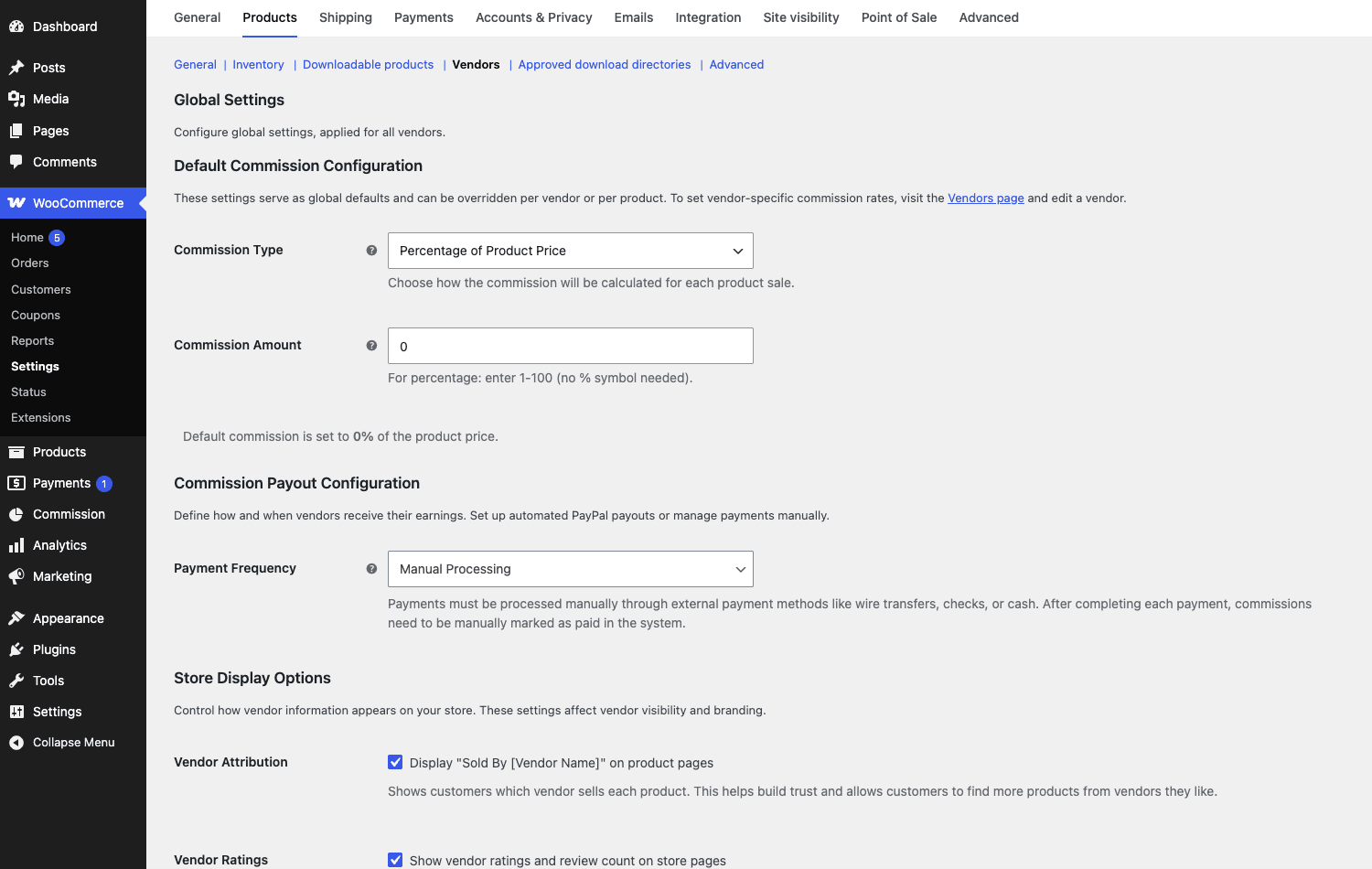
On the same screen you set the Commission Payout Configuration. The Payment Frequency dropdown decides whether payouts are handled by Manual Processing (you mark them paid yourself) or on a schedule, and there is a PayPal Integration Mode block where you drop in your sandbox or live API Client ID and Secret if you want automated payouts. Below that, Store Display Options control whether the "Sold By [Vendor Name]" line appears on product pages and whether vendor ratings show on store pages.
Step 2: Add your first vendor. Go to Products » Vendors. This screen looks like the standard WordPress taxonomy editor (because it is one), with an add-vendor form on the left and the vendor list on the right showing each vendor’s slug, product count, and ID.
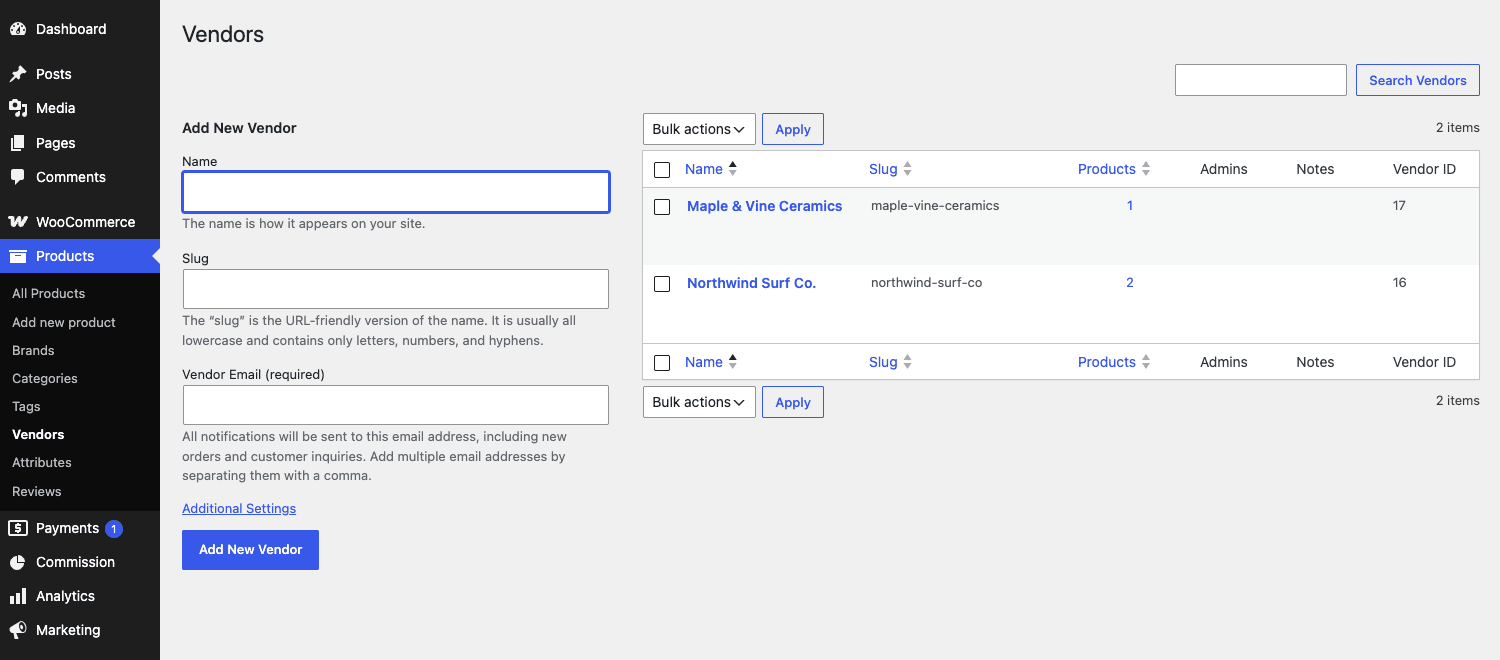
The add/edit vendor form is where most of the per-vendor configuration lives. You’ll fill in the vendor Name, Slug, a Registration Description, private Admin Notes, a Vendor Logo, and a Public Vendor Profile (rich text shown on their storefront). The required Vendor Email is where order and payout notifications go. Vendor Administrators is where you assign one or more WordPress users to run that vendor account. The rest of the form (commission, shipping, tax, PayPal) I’ll cover in the commission and payout sections, because that is genuinely the part worth slowing down for.
Step 3: Assign a product to the vendor. Open any product in the editor. In the right-hand sidebar there is now a Vendors dropdown metabox. Pick the vendor. It is a single-select, so a product belongs to one vendor at a time, which is the correct model for a marketplace. Save, and that product now feeds that vendor’s commission.
That is the minimum viable marketplace: a global default, one vendor, one assigned product. Everything from here is refinement.
Tip: set up a single test vendor and a single cheap test product first, place one sandbox order, and watch the commission row appear in the ledger before you onboard real vendors. It takes five minutes and it teaches you the flow better than any walkthrough, including this one.
Vendor management: roles, approval, and the vendor admin
Vendors in Product Vendors are real WordPress users with special roles, and there are exactly three of them.
The vendor admin role (wc_product_vendors_admin_vendor) is the full vendor account. A vendor admin can manage their own products, see and fulfill their own orders, view their commission, and read their reports. They cannot see anyone else’s data and they cannot touch store-wide settings.
The vendor manager role (wc_product_vendors_manager_vendor) is a limited helper. Use this for a vendor’s assistant who should handle orders but maybe not edit pricing or commission-relevant fields.
The pending vendor role (wc_product_vendors_pending_vendor) is the holding pen. Someone who registers through the front-end form lands here. They have no dashboard access until you approve them. This role is the quiet hero of the whole system, and skipping it is how marketplaces get burned (more on that shortly).
The approval flow is handled by the plugin’s approval logic. When a person submits the registration form, they become a pending vendor, and an admin reviews and approves (or rejects) the application before they get any real access. You stay in control of who publishes under your brand.
Each vendor admin logs into a limited wp-admin. They see their own products, their own orders, a vendor reports page, and their commission. They do not see the rest of the store. Honestly, this is the part I have the most mixed feelings about. On one hand, reusing wp-admin means zero learning curve for anyone who has used WordPress before, and it inherits WordPress’s accessibility and translation work for free. On the other hand, it feels dated next to the front-end vendor dashboards that Dokan and WCFM ship, where vendors get a branded panel that never exposes the WordPress chrome. If your vendors are non-technical sellers expecting an Etsy-like dashboard, set expectations early.
The role capabilities are not fixed, by the way. Each role’s caps run through a filter (wcpv_default_admin_vendor_role_caps and its manager and pending siblings), so a developer can grant or revoke specific capabilities per role. I’ll show that in the developer section.
How commissions actually work (global, vendor, product)
This is the section to read twice. Commission configuration is where new marketplace owners make their most expensive mistakes, and the model is simple once you see it laid out.
Commissions are set at three levels, and the most specific level wins:
- Global default at WooCommerce » Settings » Products » Vendors. Applies to every vendor and product unless overridden.
- Per-vendor on the vendor edit screen. Overrides the global default for that vendor’s products.
- Per-product via an "Override product vendor settings" checkbox in the product editor. Overrides everything for that one product.
So the precedence is: per-product override beats per-vendor setting beats global default. Think of it as zooming in. The closer the setting is to the individual sale, the more authority it has.
At every level you choose a Commission Type, either Percentage (a number from 0 to 100) or Fixed (a monetary amount), and the value is always the vendor’s share. If you set 80% on a vendor, that vendor keeps 80% of the product price and you keep 20%. Get that direction straight in your head, because entering it backwards is a classic and costly slip.
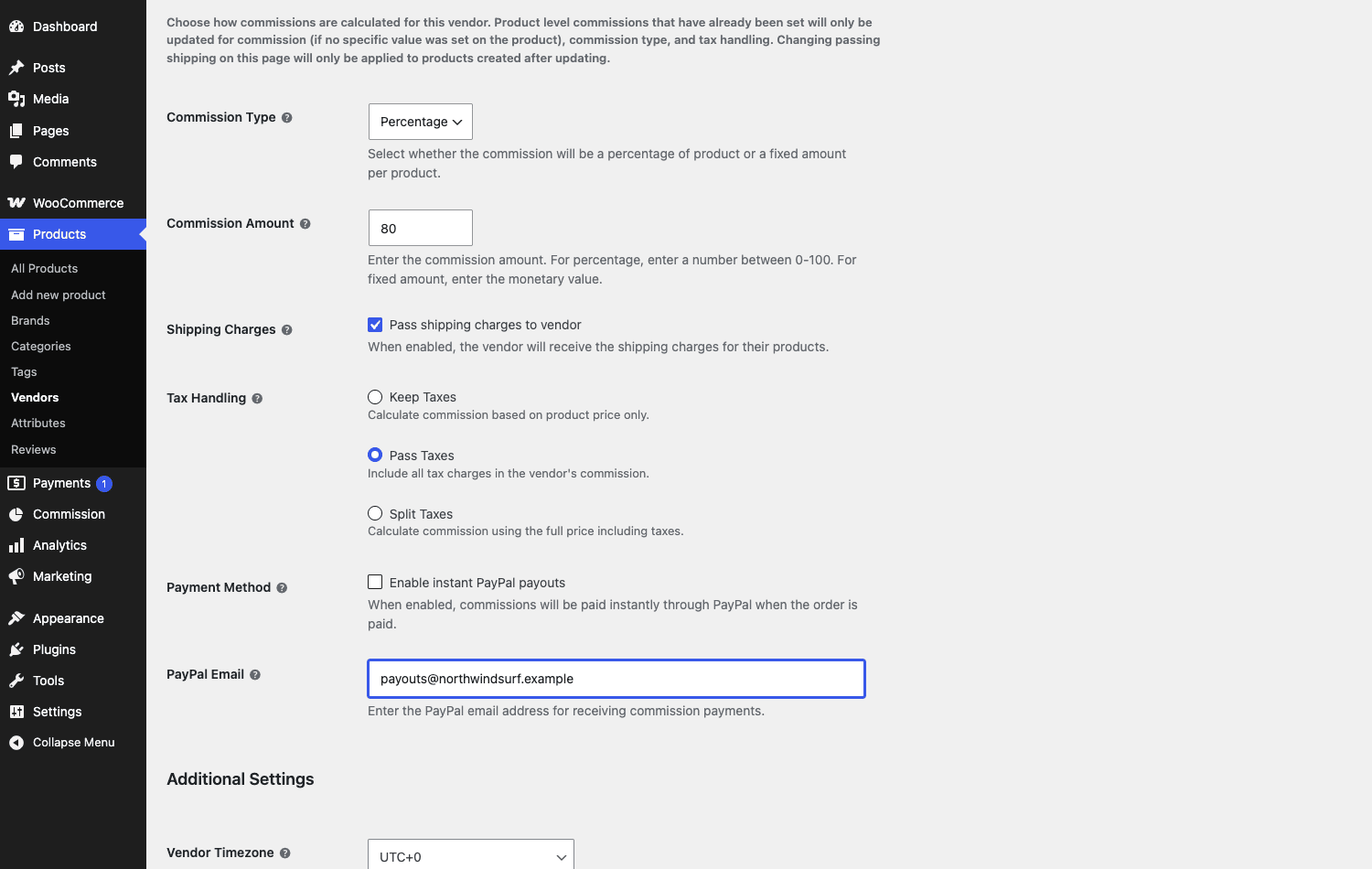
On the per-vendor screen, alongside the commission amount, you get two settings that quietly move real money.
Pass shipping charges to vendor is a checkbox. With it on, the shipping the customer paid flows to the vendor instead of you. For a marketplace where vendors do their own fulfillment and shipping, this is usually what you want, because the vendor is the one paying for postage.
Tax Handling is a set of three radios, and it deserves a careful read:
| Tax Handling mode | Commission is calculated on | Who tends to want it |
|---|---|---|
| Keep Taxes | Product price only, tax excluded | Store owner remits all tax and wants vendor commission clean of tax |
| Pass Taxes | Includes the tax amount in the vendor’s commission | The vendor is responsible for remitting their own tax |
| Split Taxes | The full price including tax | Setups where tax is shared per the marketplace agreement |
I want to be blunt here: picking a tax mode is not just an accounting preference, it has legal weight. "Pass Taxes" hands the tax money to the vendor, but in most jurisdictions the store that took the customer’s payment is still the merchant of record and may still owe the tax. Choosing how the money moves does not by itself change who the tax authority comes after. Talk to an accountant before you flip this for a live store. I mean it.
The per-product override is the surgical tool. Open a product, tick Override product vendor settings, and set a commission just for that item.
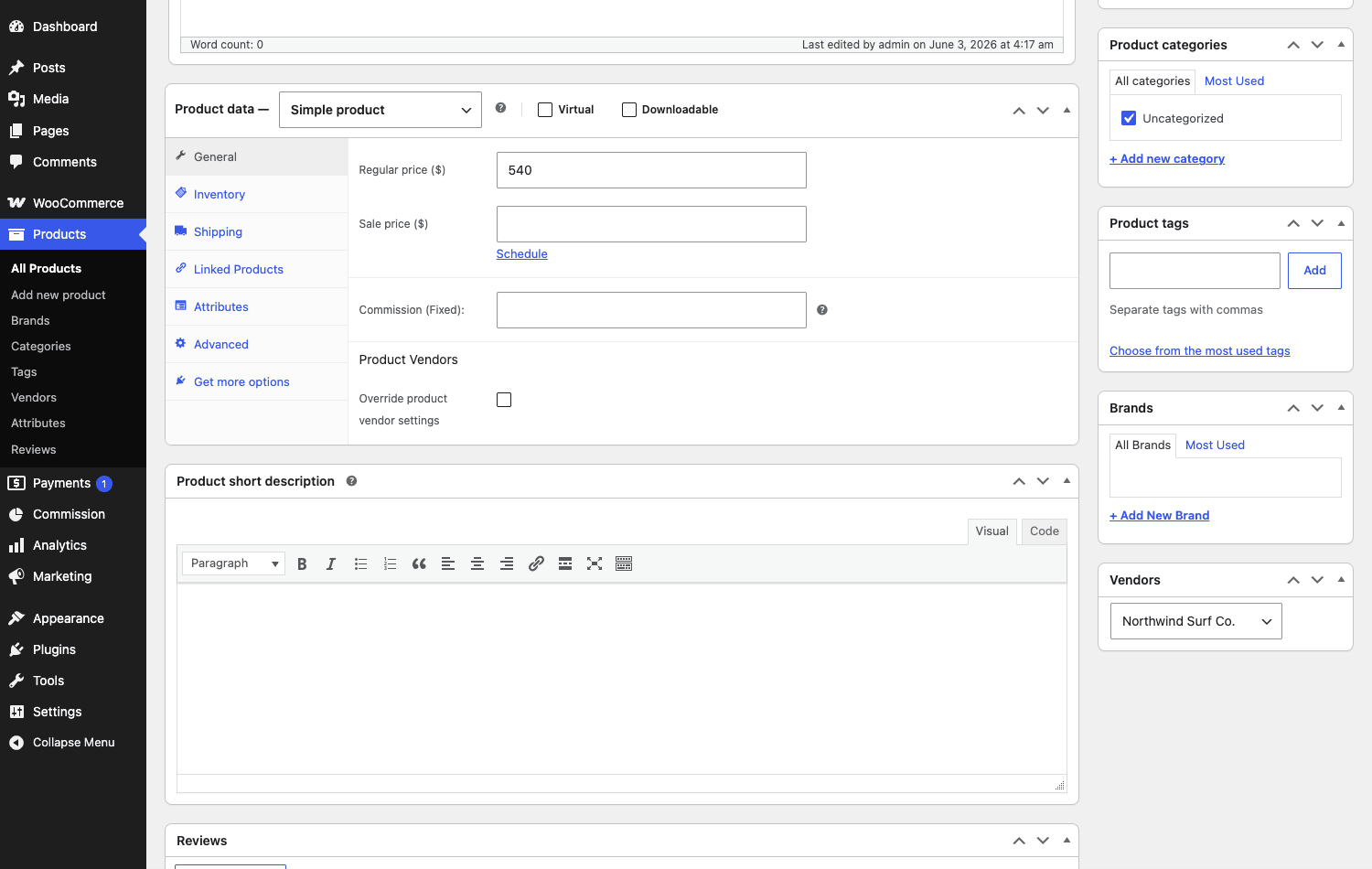
A realistic use of the override: a vendor sells mostly $30 items at 80%, but they also list one premium $540 surfboard. On that one high-ticket product you might drop the commission to 60% because your fixed costs per sale (support, payment fees, packaging if you co-fulfill) are the same regardless of price, so the bigger sale can carry a bigger cut for you. The override lets you do exactly that without touching the vendor’s other products.
Heads-up: start your global default at 0% and override upward. If you set a high global default and forget a vendor, you silently overpay them on every sale. A 0% default fails safe, an 80% default fails expensive. I have seen the expensive version happen and it is not fun to claw back.
Payouts: manual, scheduled, and instant PayPal
Once a commission exists, it has to actually reach the vendor. Product Vendors gives you three ways to do that, and the choice has real consequences for your cash flow and your risk.
Manual Processing is the default Payment Frequency. Commissions pile up in the ledger and you mark them paid after you’ve sent the money however you like: bank transfer, wire, check, cash, store credit. This is the safest mode because you control timing and you can hold a payout if an order looks fishy. It is also the most work, because the actual money movement happens outside WordPress.
Scheduled payouts run through the payout scheduler. You set a Payment Frequency and the plugin batches up commissions and pays them out periodically. This needs PayPal API credentials configured, because the automated path goes through PayPal.
Instant PayPal payouts are the headline automation. On a per-vendor basis you can tick "Enable instant PayPal payouts" and provide the vendor’s PayPal Email. When an order with that vendor’s product is paid, the commission is sent to the vendor’s PayPal account right away via PayPal MassPay. The vendor gets their money in near real time without you lifting a finger.
That sounds great, and for the right marketplace it is. But here is my honest reservation, and it is a big one.
The catch with instant payouts: PayPal MassPay is the only native automated payout method in this plugin. There is no built-in Stripe Connect, no automated bank transfer, no Wise, no Payoneer. If your vendors are not on PayPal, or PayPal is not well supported in their country, your only native automation evaporates and you are back to manual processing. For a plugin made by Automattic in this era of marketplace tooling, PayPal-only feels limiting, and it is the first thing I’d flag to anyone choosing between this and a third-party suite.
The deeper problem with instant payouts is not technical, it is financial, and it is about refunds. If you pay a vendor the instant an order is paid, and the customer refunds two days later, you have already sent the vendor their share and now you are refunding the customer in full out of your own balance. The plugin does void or reverse the commission record when an order is refunded or cancelled, but a reversed record is not the same as money coming back from the vendor’s PayPal account. On the customer-facing side, that is exactly where a dedicated WooCommerce returns and warranty workflow helps, because each vendor can handle their own RMA requests in one shared queue. I’ll dig into this in the anti-pattern section because it is the single most common way marketplaces leak money.
There are developer controls for exactly this. A wcpv_commission_is_valid_to_pay filter lets you gate whether a given commission is allowed to pay out at all, which is the right hook for a "hold new vendors for 14 days" rule. And wcpv_combine_total_commission_payout_per_vendor governs whether a vendor’s commissions are batched into a single payout (on by default) or sent as separate transfers. Both appear in the developer section with code.
If you sell subscription products through vendors, note that vendor renewal emails are wired up too. When a WooCommerce Subscriptions renewal processes, the relevant vendor gets a renewal notification, so recurring revenue flows to vendors the same way one-time orders do.
The commission dashboard
Every commission the marketplace generates lands in one place: the Commission top-level admin menu. This is your single source of truth for who is owed what, what has been paid, and what is still pending.
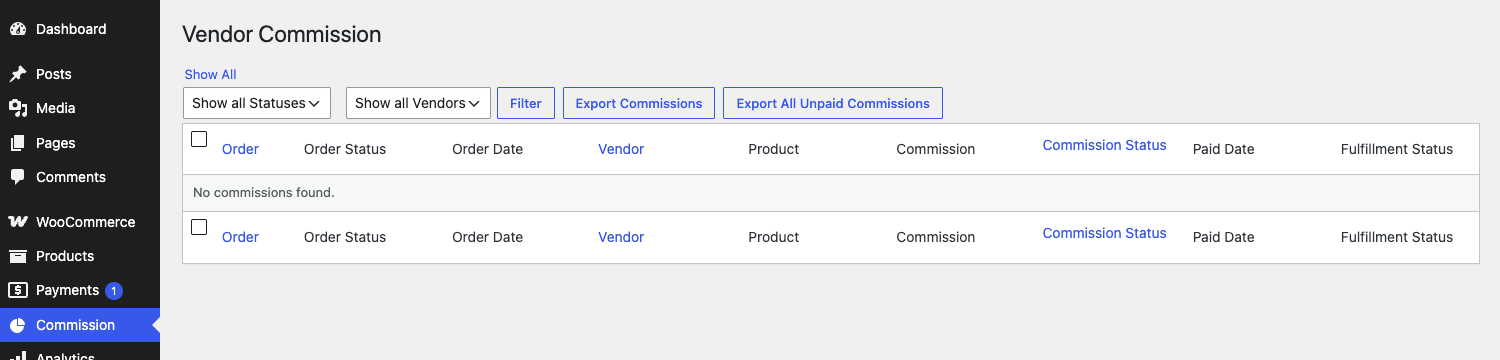
Every vendor sale lands here as a row you can filter, export, and mark paid. The columns give you the full picture per commission: Order, Order Status, Order Date, Vendor, Product, Commission amount, Commission Status, Paid Date, and Fulfillment Status. So at a glance you can see that order #1043 from Northwind Surf Co. for a Driftwood Surfboard generated a commission that is unpaid and the order is processing.
The toolbar is where the day-to-day work happens. Two filters, "Show all Statuses" and "Show all Vendors," let you narrow the ledger to, say, all unpaid commissions for one vendor before a monthly payout run. There are two export buttons, Export Commissions (the current filtered view) and Export All Unpaid Commissions (exactly what you need to reconcile against a payout batch). And you can bulk-select rows to mark them paid or unpaid in one action, which is how you’d close out a manual payout cycle after sending the actual money.
This screen is plain, but it is honest and it does the job. If you run manual payouts, you will live here at the end of every payment period: filter to unpaid, export the CSV, send the money outside WordPress, then come back and bulk-mark the batch paid. It is not glamorous, but it is auditable, and for marketplace accounting auditable beats glamorous every single time.
The customer-facing storefront
So far everything has been admin-side. What does the shopper actually see?
To the customer, your marketplace looks like one ordinary WooCommerce store. Products from all vendors share the same catalog, categories, and search. The only visible sign that a product comes from a specific vendor is the optional "Sold by [Vendor Name]" line on the product page, which links through to that vendor’s storefront.
That storefront lives at /vendor/<vendor-slug>/. It is a clean front-end page showing the vendor’s name, their average rating, and a grid of all their products.
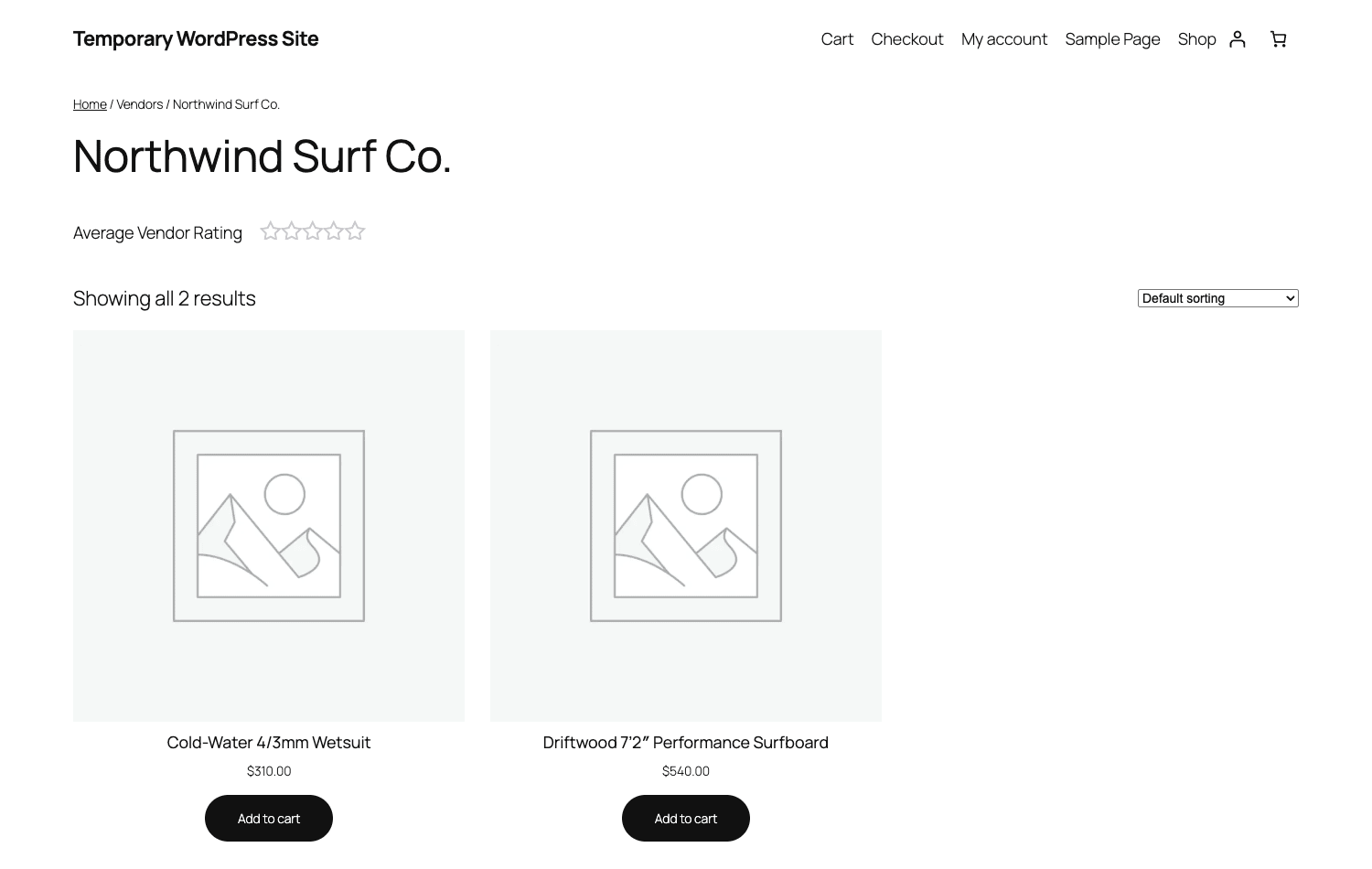
For example, a vendor storefront for a surf shop shows the shop’s name, an average vendor rating, a "Showing all results" count, and the products, each with its price and add-to-cart button, all inside your normal store theme. The page inherits your theme’s product grid, so it matches the rest of the site without any extra styling work.
Vendor ratings are accumulated and shown both on the storefront and, if you enable it, on store pages, which gives shoppers a quick trust signal about a particular seller. The storefront slug base (/vendor/) is configurable through a filter if you’d rather it read /seller/ or /shop/, which I’ll show in the developer section.
You can also surface vendors elsewhere with shortcodes. The [wcpv_vendor_list] shortcode renders a directory of all your vendors, handy for a "Meet our makers" page, and [wcpv_vendor_details] pulls in a single vendor’s details. Drop those onto a page and you’ve got a vendor discovery experience without touching a template file.
Where this shines: the customer experience is genuinely smooth for the shopper precisely because Product Vendors does not try to give each vendor a separate-feeling store. One cart, one checkout, one brand. For a curated marketplace where you want your brand front and center and the vendors in a supporting role, that is exactly right. If instead you want each vendor to feel like they run their own shop-within-a-shop with custom banners and a unique layout, this restraint will feel like a limitation, and that is a real fork in the road when you choose a multi-vendor plugin.
Don’t launch blind: where marketplaces go wrong
I’ve watched marketplaces lose money not because the software broke, but because nobody thought through the money and the legal side first.
Don’t launch without settling who is the merchant of record, and who eats the refund. In a Product Vendors marketplace, you (the store owner) are almost always the merchant of record: the customer pays you in one checkout, and you pay vendors a commission. That single fact creates four expensive traps.
Tax liability sits with you. Sales-tax collection, payout reporting (1099s in the US, equivalents elsewhere), and chargeback liability typically land on you, not the vendor. The Tax Handling setting decides how the tax money moves, not who the tax authority comes after. "Pass Taxes" hands the money to the vendor while the liability stays yours. Choose it with an accountant in the room.
Refunds leak money when you pay too early. If a customer refunds after a commission was already paid out, especially via instant PayPal payout, you’ve sent the vendor their 80% and now you’re refunding the customer 100% from your own balance. The record gets voided, but the cash already wired to the vendor’s PayPal does not come back. Use manual or scheduled payouts with a hold window for new vendors, and gate the wcpv_commission_is_valid_to_pay filter in code.
Commission above margin bleeds you per sale. Set the global default to 0% and override upward. A forgotten high default silently overpays every vendor until reconciliation.
Auto-approving vendors invites trouble. The pending-vendor role exists so strangers can’t publish under your brand on a whim. Keep the gate. Review applications. It’s your brand and your liability on the line.
Developer reference: taxonomy, roles, hooks, filters, shortcodes
Product Vendors is pleasant to extend because it is built on standard WordPress primitives. A few things to know up front, then the hooks worth your time.
It uses a taxonomy, not a custom post type, for vendors. The taxonomy is wcpv_product_vendors (exposed as the constant WC_PRODUCT_VENDORS_TAXONOMY). Each vendor is a term. You can query and manipulate vendors with the normal WP_Term and get_terms() APIs, and you can filter the taxonomy registration args with wcpv_vendor_taxonomy_args.
There is no REST API. I want to be clear about this so you don’t go looking. The plugin registers zero REST routes. All its admin interactivity runs through admin-ajax, not the WP REST API. If you need to talk to vendor or commission data from an external system, you query the database or write your own endpoints. Do not plan an integration around REST routes that are not there.
There is exactly one WP-CLI command: wp wcpv migrate-vendor-admins, which migrates how vendor admins are stored. That is the only command the plugin ships. There is no wp wcpv list or wp wcpv payout, so don’t reach for commands that don’t exist.
Now the practical hooks.
Customize the "Sold by" attribution
The wcpv_sold_by_text filter changes the "Sold by" label itself (it receives just the label string, not a vendor id), and wcpv_sold_by_link and wcpv_sold_by_link_name control the link and its anchor. Useful when "Sold by" doesn’t match your brand voice.
add_filter( 'wcpv_sold_by_text', function ( $text ) {
    return 'Handmade by'; // the filter passes only the label string
} );
Hold payouts for untrusted vendors
The wcpv_commission_is_valid_to_pay filter decides whether a commission may be paid out. This is the right place to enforce a hold window so you never instantly pay a brand-new vendor before their refund risk is known.
add_filter( 'wcpv_commission_is_valid_to_pay', function ( $is_valid, $commission, $order ) {
    // Hold payout until the order is at least 14 days old.
    if ( $order && ( time() - $order->get_date_created()->getTimestamp() ) < 14 * DAY_IN_SECONDS ) {
        return false;
    }
    return $is_valid;
}, 10, 3 );
Batch a vendor’s payouts into one transfer
wcpv_combine_total_commission_payout_per_vendor controls whether multiple commissions for the same vendor are combined into a single payout. Combining is on by default (which keeps PayPal transfer fees down), so the useful move is to turn it off when you want a separate transfer recorded per commission.
// Combining is the default. Force a separate transfer per commission instead:
add_filter( 'wcpv_combine_total_commission_payout_per_vendor', '__return_false' );
Tune what a vendor role can do
Each vendor role’s capabilities pass through a filter. Use wcpv_default_admin_vendor_role_caps (and the manager and pending equivalents) to grant or revoke specific caps, for example letting vendor admins manage their own coupons.
add_filter( 'wcpv_default_admin_vendor_role_caps', function ( $caps ) {
    $caps['manage_woocommerce_coupons'] = true; // let vendor admins create coupons
    return $caps;
} );
Control which order statuses count in vendor reports
wcpv_reports_order_statuses filters which order statuses feed the vendor reports (the top-seller and sales stats a vendor sees), defaulting to completed, processing, and on-hold. Pass bare statuses; the query adds the wc- prefix itself. Commission row creation is a separate path: it follows order-status transitions and wcpv_processing_init_commission_status, which sets the initial commission status, so reach for that hook when you want commissions to count only once an order is fully completed.
add_filter( 'wcpv_reports_order_statuses', function ( $statuses ) {
    return array( 'completed' ); // bare status; the query adds the wc- prefix
} );
Act when a commission is created
The wcpv_commission_added action fires when a new commission is recorded, and wcpv_processing_vendor_order_item fires as each vendor order item is processed. Hook these to push data into your own accounting system, Slack, or a custom ledger.
add_action( 'wcpv_commission_added', function ( $order ) {
    error_log( sprintf( 'Commission recorded for order %d', $order->get_id() ) );
} );
Change the vendor store URL base
If /vendor/ doesn’t fit your site, wcpv_vendor_slug rewrites the storefront base, and wcpv_vendor_rewrite_rules lets you adjust the rewrite rules behind it.
add_filter( 'wcpv_vendor_slug', function () {
    return 'seller'; // storefronts become /seller/<slug>/
} );
The front-end shortcodes
Three shortcodes ship with the plugin:
[wcpv_registration]renders the "become a vendor" application form. Drop it on a "Sell with us" page and applicants land in the pending-vendor queue.[wcpv_vendor_list]renders a directory of vendors, filterable viawcpv_vendor_list_args.[wcpv_vendor_details]renders a single vendor’s details.
There are matching action hooks around the registration form (wcpv_registration_form plus _start and _end variants) and the vendor support form, so you can inject extra fields or markup without overriding templates. For example, to add a custom field to the registration form:
add_action( 'wcpv_registration_form_end', function () {
    echo '<p class="form-row"><label>Portfolio URL</label>';
    echo '<input type="url" name="vendor_portfolio_url" /></p>';
} );
Beyond these, the plugin exposes a rich set of class names you’ll see if you read the source: WC_Product_Vendors_Commission, WC_Product_Vendors_PayPal_MassPay, WC_Product_Vendors_Payout_Scheduler, WC_Product_Vendors_Per_Product_Shipping, WC_Product_Vendors_Approval, WC_Product_Vendors_Privacy (privacy-policy guidance), WC_Product_Vendors_COT_Compatibility (HPOS support), WC_Product_Vendors_Bookings, and WC_Product_Vendors_Emails. These are the seams to read first if you’re extending payouts, shipping, or compliance behavior.
For the official developer and user documentation, the WooCommerce Product Vendors product page is the canonical reference, and the underlying taxonomy and roles follow the standard WordPress taxonomy and roles and capabilities APIs, so the core WordPress developer docs apply directly.
Product Vendors vs Dokan vs WC Vendors vs WCFM
This is the comparison everyone wants, so let me be specific rather than wave my hands. The four serious WooCommerce multi-vendor options are Product Vendors, Dokan, WC Vendors, and WCFM, and they split cleanly into "lean and native" versus "heavy and feature-rich."
Here is the honest shape of it:
| Product Vendors | Dokan | WC Vendors | WCFM | |
|---|---|---|---|---|
| Vendor roles | 3 (admin / manager / pending) | Admin + staff | Vendor + pending | Vendor + staff |
| Commission levels | 3 (global / vendor / product) | 3+ (global / vendor / product / category) | 3 (global / vendor / product) | 3+ (incl. category) |
| Native payout gateways | 1 (PayPal MassPay) | 3+ (Stripe Connect, PayPal, bank) | PayPal + bank | Multiple |
| Tax handling modes | 3 (Keep / Pass / Split) | Configurable | Configurable | Configurable |
| Vendor dashboard | Limited wp-admin | Front-end branded panel | Front-end + wp-admin | Front-end panel |
| Front-end shortcodes | 3 | Many | Several | Many |
| Weight | Lean (1 taxonomy, 1 menu) | Heavy (30+ modules) | Medium | Heavy |
Read that table and the trade-off is obvious. Product Vendors adds 1 taxonomy, 3 vendor roles, 3 shortcodes, and 1 top-level menu to your store. Dokan ships a front-end vendor dashboard and 30-plus add-on modules, with Stripe Connect, PayPal, and bank payouts (3-plus gateways) versus Product Vendors’ single PayPal MassPay path. WC Vendors Pro sits in the middle, giving vendors a front-end form-based dashboard while staying lighter than Dokan. WCFM is the kitchen-sink option with a polished front-end manager and the broadest feature surface of the four.
On price, the picture is mixed and I’d be careful believing any single number you read elsewhere. Product Vendors is an official WooCommerce extension and the value of the GPL copy on GPL Times is the convenience and bundling, not a license dodge. The third-party suites are commercial and their public pricing gives you a rough sense of scale: Dokan Pro tiers commonly run from roughly $149/yr up to about $499/yr depending on sites and modules, WC Vendors Pro lands near $199/yr, and WCFM runs a free core with paid add-ons stacked on top. So the realistic spread between the heavyweights is on the order of a $150 to $500 per-year commitment, while the feature gap that money buys is concrete: 1 native payout gateway here versus 3-plus there, and a roughly 90% lighter footprint (1 taxonomy and 1 menu, not 30-plus modules). The exact dollar figures move with every promotion, so lead your decision on the stable feature and weight numbers in that table, not on a price tag.
So which do you pick? If you want native, lean, and you’re fine with PayPal payouts and a wp-admin vendor experience, Product Vendors is the clean answer, and being official Automattic code means it tracks WooCommerce core releases closely. If you need Stripe Connect, branded front-end vendor dashboards, withdrawal requests, and dozens of modules, one of the heavyweights is worth the extra weight and cost. Don’t pay for a 30-module suite to run a five-vendor maker collective, and don’t try to stretch the lean option into a thousand-vendor self-service bazaar. Match the tool to the scale.
Compatibility, performance, and known gotchas
A few practical things to know before and after you go live.
It is HPOS-compatible. The plugin ships a dedicated compatibility class (WC_Product_Vendors_COT_Compatibility) for WooCommerce’s High-Performance Order Storage, so it works whether your store uses the legacy post-based order storage or the newer custom order tables. That matters because some older marketplace plugins still trip over HPOS.
It is GDPR-aware, in a limited way. There is a privacy class (WC_Product_Vendors_Privacy) that adds a Product Vendors entry with guidance text to WooCommerce’s privacy page, which helps you write your store’s privacy policy. Be clear on the boundary, though. It does not register an automated personal-data exporter or eraser, so vendor and commission records are not pulled into WordPress’s data-export and erasure tools for you. If you operate where data-subject requests are common, plan to handle vendor data by hand.
Performance is light by design. Because vendors are a taxonomy and commissions are stored in their own table, the plugin does not add heavy per-request overhead to your storefront the way a full second application would. The front end is just normal WooCommerce with an extra "Sold by" line and a vendor archive. The heaviest moving part is payout processing, and that happens on order events and scheduled runs, not on every page load.
Now the gotchas I’d want a heads-up about.
PayPal-only native payouts. I’ve said it twice already and I’ll say it once more because it is the thing people most regret discovering after launch. If your vendors can’t or won’t use PayPal, your native payout automation is gone and you’re on manual processing or custom code. Confirm your vendors are PayPal-friendly before you commit.
The vendor admin is wp-admin, not a branded dashboard. Set expectations with non-technical vendors. Some will be perfectly happy; others expect an Etsy-style seller panel and will be underwhelmed.
Single vendor per product. A product belongs to one vendor. If two vendors genuinely sell the identical item and you want a shared listing with competing offers, that is not this plugin’s model. Each vendor lists their own product.
Refund-after-payout. Covered at length above, but it belongs in any gotchas list. Instant payout plus a refund equals money out of your pocket. Use hold windows.
Commission status follows order status. Because commissions are created and voided based on order status transitions, a non-standard order workflow (custom statuses, unusual fulfillment flows) can behave in ways you need to test. The wcpv_processing_init_commission_status filter sets the initial commission status, but the real safeguard is to run a test order through your full lifecycle, refund included, before you launch.
None of these are dealbreakers for the right marketplace. They are simply the shape of choosing the lean, native option, and going in with eyes open beats discovering them with real vendors and real money on the line.
FAQ
Is WooCommerce Product Vendors free?
It is an official WooCommerce extension, and on GPL Times the value is convenient access to the GPL-licensed copy plus the documentation, not a workaround on licensing. Functionally you get the full multi-vendor feature set: vendor roles, the three-level commission system, the commission ledger, and PayPal payouts. Budget for your time setting up vendors and your payment-processing costs, because those are the real ongoing expenses of running a marketplace, not the plugin.
Can I pay vendors by Stripe or bank transfer instead of PayPal?
Not natively for automated payouts. PayPal MassPay is the only built-in automated payout method, which is genuinely limiting and the plugin’s biggest weakness in my view. You can still pay vendors any way you like under Manual Processing (bank transfer, Wise, check) and simply mark the commissions paid in the ledger after you’ve sent the money. If you need automated Stripe Connect payouts specifically, a third-party suite like Dokan is the better fit.
Who is responsible for sales tax on a Product Vendors marketplace?
In most setups, you are, because the customer pays your store in a single checkout, making you the merchant of record. The Tax Handling setting (Keep, Pass, Split) controls how the tax money is split with vendors, but it does not by itself transfer legal tax liability away from you. This is a question for an accountant familiar with marketplace facilitator rules in your jurisdiction, not something to decide from a settings screen.
What happens to a vendor’s commission if the customer gets a refund?
The commission record is voided or reversed when the order is refunded or cancelled. The important caveat: if you already paid that commission out (especially via instant PayPal payout), reversing the record does not automatically pull the cash back from the vendor’s PayPal account. That gap is exactly why I recommend manual or scheduled payouts with a hold window for new vendors instead of instant payout.
Do vendors get their own front-end dashboard like Dokan?
No. Vendors log into a limited WordPress admin showing only their own products, orders, commission, and reports. It is functional and inherits WordPress’s accessibility and translations, but it is not the branded front-end storefront-builder experience that Dokan and WCFM offer. If a polished front-end vendor panel is a hard requirement for you, factor that into your choice.
Can vendors sell subscription or bookable products?
Yes to both. The plugin integrates with WooCommerce Subscriptions, including routing renewal-order emails to the correct vendor, and with WooCommerce Bookings, with a per-vendor "Bookable Products" toggle that lets a vendor list bookable services. Recurring revenue and time-based bookings flow into the same commission and payout system as one-time products.
How do I let people apply to become vendors from my site?
Place the [wcpv_registration] shortcode on a page. Applicants submit the form and land in the pending-vendor role with no store access until you approve them through the approval flow. Pair it with [wcpv_vendor_list] on a "Meet our vendors" page so visitors can see who already sells with you. Keep the approval gate on, since auto-approving strangers is how marketplaces end up with products they never wanted on their brand.
Does it work with HPOS (High-Performance Order Storage)?
Yes. The plugin includes a dedicated HPOS compatibility layer, so it functions on both the legacy post-based order storage and WooCommerce’s newer custom order tables. You can enable HPOS on your store without breaking vendor commissions or the ledger.
Can a single product be sold by more than one vendor?
No, each product is assigned to exactly one vendor through a single-select dropdown. That is the correct model for most marketplaces (the vendor who lists it owns and fulfills it), but if your concept depends on multiple vendors offering competing prices on one shared listing, this plugin is not built for that pattern.
How do I keep a forgotten setting from overpaying my vendors?
Set the global default commission to 0% and override upward per vendor or per product. With a 0% global default, a vendor you forget to configure simply earns nothing until you set their split, which is recoverable. A high global default does the opposite: it silently overpays everyone you forget, and clawing that back from vendors is awkward and sometimes impossible.
Final thoughts
After setting this up on a sandbox and walking every screen, my take is simple: WooCommerce Product Vendors is the right marketplace layer when you want the official, native, lean option and you’re honest about its limits.
What I genuinely like is the restraint. It does not turn your WordPress install into a sprawling second application. Vendors are a taxonomy, commissions are a clean three-level system, the ledger is auditable, and because it is Automattic code it tracks WooCommerce core closely instead of lagging behind. For a curated marketplace, a maker collective, or a digital-download shop where you stay the brand and the vendors play a supporting role, it is hard to beat for how little it gets in the way.
What I’d want you to walk in knowing is equally clear. PayPal MassPay being the only native automated payout method is a real constraint, not a nitpick. The vendor wp-admin is functional but dated next to front-end dashboards. And the merchant-of-record reality means tax and refund liability mostly sit with you, so the planning matters more than the plugin.
If you’re standing up a focused marketplace and you want it living inside WooCommerce instead of beside it, the official Product Vendors extension on GPL Times is the most direct way to give your sellers their own products and commissions without rebuilding your store around a heavier suite. Set your global default to 0%, keep the approval gate on, hold payouts for new vendors, and you’ll have a marketplace that pays the right people the right amount without a spreadsheet in sight.