

Avada has sold roughly a million copies since launching in 2012, making it the highest-grossing WordPress theme on ThemeForest by a wide margin. Even if you’ve never personally bought it, you’ve almost certainly visited a site built on Avada. Construction company portfolios, restaurant menus, gym landing pages, dentist clinic websites, niche e-commerce stores, conference event pages, the percentage of "real" small business WordPress sites running Avada is genuinely surprising once you start spotting it.
The reason it sold a million copies: it ships with 113 fully-designed prebuilt websites (called "Avada Websites"), a visual page builder (Avada Builder, formerly Fusion Builder), a header builder, footer builder, mega menu builder, and a Theme Options panel with ~600 settings. Buy once, build any kind of business website. For non-developers and agencies handling diverse client work, that’s the value.
This guide walks you through what Avada actually gives you, how the workflow differs from Elementor/Divi/Astra, the prebuilt websites system, the Avada Builder, performance reality, pricing, and the honest comparison with modern alternatives. The bestselling theme isn’t always the best choice in 2026, so I’ll be direct about where Avada wins and where it doesn’t.
Quick decision guide: should you use Avada in 2026?
Use it if:
- You build small business client sites and want fully-designed templates as starting points
- You like the all-in-one approach (theme + builder + options panel from one vendor)
- You’re already familiar with Avada from past projects and want to use existing knowledge
- You need an agency-friendly theme bundle covering 30+ industries without buying separate templates
- You manage Avada sites for clients and need long-term stability (Avada has been actively developed since 2012)
Choose a lighter theme + page builder combo instead if:
- You prioritize performance scores (Avada is heavier than Astra Pro or Kadence by 200-400KB on the front-end)
- You prefer block-editor (Gutenberg) workflows over Avada’s custom builder
- You’re building a single specialized site (a blog, a single SaaS landing page) where a multi-purpose theme is overkill
- You’re already comfortable with Elementor Pro and don’t want to learn another builder
Stick with Avada if your business runs on it. This is the underrated answer. A working Avada site doesn’t need to be migrated to "the latest trend." If your team knows Avada Builder, your clients are happy, and the site performs acceptably, switching has real switching cost and limited payoff.
Table of contents
- What you actually get when you buy Avada
- Step 1: Install Avada theme and required plugins
- Step 2: Run the Avada setup wizard
- Step 3: Import a prebuilt website
- Step 4: Customize via the Avada Options panel
- Step 5: Edit pages with the Avada Builder
- Step 6: Build a custom header with the Header Builder
- Step 7: Set up the Avada Layouts (theme builder)
- Step 8: Configure WooCommerce styling
- Step 9: Performance tuning checklist
- Real performance numbers (with measurements)
- Avada vs Astra Pro vs Divi vs Kadence
- Real-world pricing breakdown
- Common gotchas
- Developer reference: hooks, filters, child theme
- FAQ: questions people actually search
- Final thoughts
What you actually get when you buy Avada {#what-you-get}
Avada is sold as a single ThemeForest item but you actually get five separate products that work together:
- Avada Theme, the parent theme. Handles overall layout, typography, colors, header/footer/menu structure. ~25MB installed.
- Avada Child Theme, empty starter child theme. Always install this if you plan to add custom code.
- Avada Builder, the visual page builder plugin (formerly Fusion Builder). Required for most prebuilt websites to import correctly. ~30MB installed.
- Avada Core, utility plugin that adds shortcodes, custom post types, and the Slider modules. Required.
- 113 Prebuilt Websites, fully-designed industry-specific website templates you can import. Categories: Corporate (49), Shop (29), Creative (25), Portfolio (23), Education (21), Health & Beauty (19), Events (11), Restaurant, Real Estate, Fitness, Photography, Restaurant, Travel, more.
Beyond those:
- Avada Studio, a library of pre-designed page sections (hero, pricing tables, testimonials, CTAs, etc.) you can drop into any page
- Header Builder, visual builder for custom site headers (mega menus, sticky headers, multiple layouts per device)
- Footer Builder, same for footers
- Layouts (Theme Builder), design templates for blog single, blog archive, product single, product archive, 404, search, page title bar
- Avada AI, AI-assisted content and layout generation (newer feature)
- WooCommerce styling, fully Avada-styled WooCommerce out of the box
- Form Builder, custom contact forms
- Slider Builder, full slider/carousel module
The total feature set is closer to a Squarespace or Wix experience than a typical WordPress theme. That breadth is the selling point and also the source of its weight.
Step 1: Install Avada theme and required plugins {#step-1-install}
Avada is a theme, not a plugin. Install it via Appearance → Themes → Add New → Upload Theme.
- Upload
Avada.zip, click Install Now, then Activate. - After activation Avada redirects to its welcome dashboard.
- You’ll be prompted to install Avada Builder and Avada Core plugins. Both are required, install and activate.
- Optionally upload
Avada-Child-Theme.zipas a child theme. Activate the child theme if you plan custom CSS orfunctions.phpsnippets, or use Code Snippets Pro instead.
Recommended additional plugins (Avada works well with all of these, install only what you need):
- WPForms Pro or Gravity Forms for serious form needs
- Yoast SEO Premium, Rank Math Pro, or AIOSEO for SEO
- WP Rocket for caching
- WooCommerce if you’re building a store
Avada integrates with HubSpot, WPML, The Events Calendar, LearnDash, bbPress, BuddyPress, and most major WordPress plugins out of the box.
Step 2: Run the Avada setup wizard {#step-2-wizard}
After installation, you land on the Avada Dashboard.
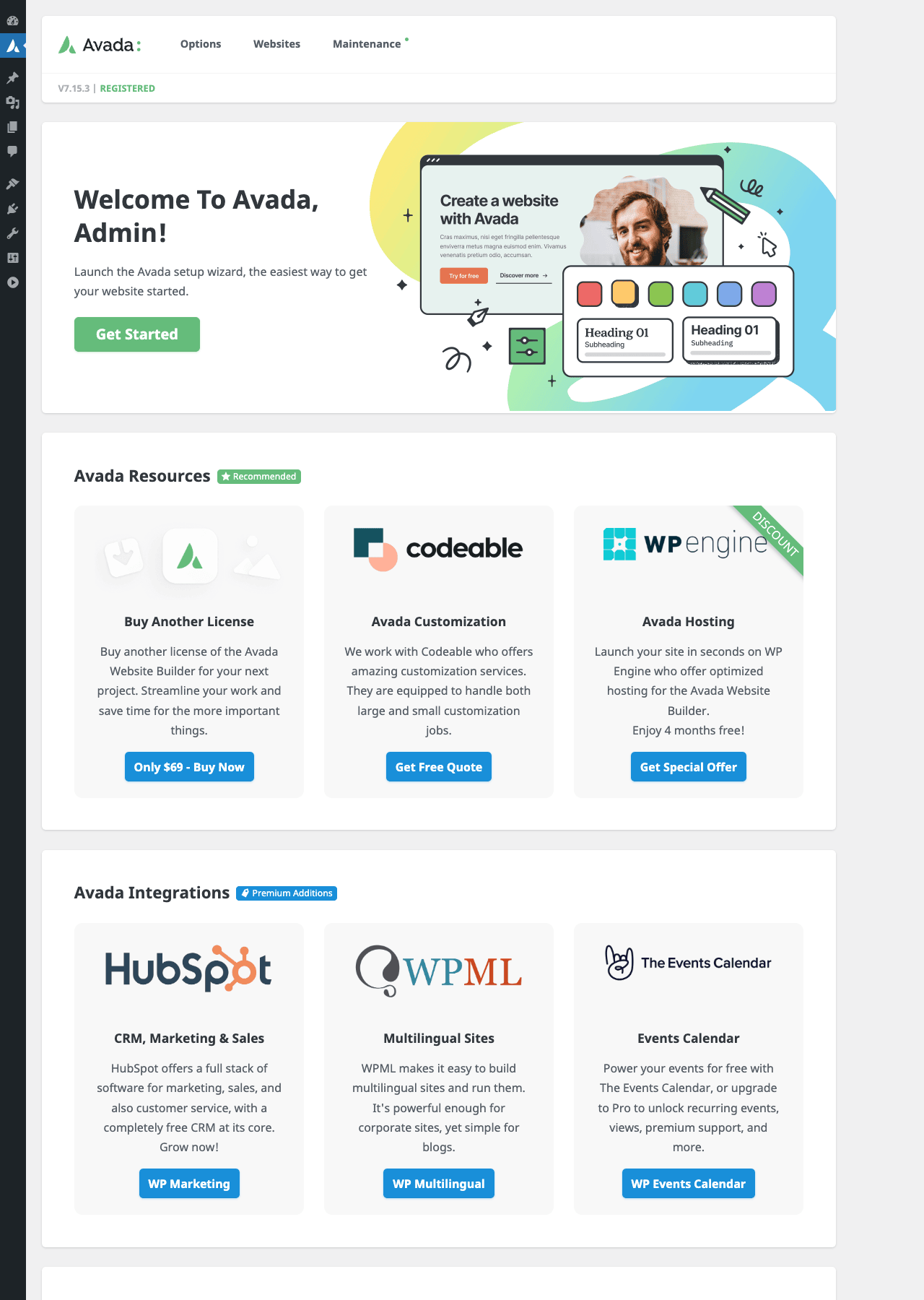
The Welcome card has a Get Started button that walks you through:
- System Status, checks PHP version, memory limit, max upload size, and lists any warnings. Avada needs PHP 7.4+ and 256MB memory minimum.
- License Registration, paste your ThemeForest purchase code (or activate via the GPL Times license process).
- Plugin Installation, confirms Avada Builder and Avada Core are installed and active. Will install bundled plugins (Slider Revolution, LayerSlider) if you want them.
- Demo / Prebuilt Website Choice, pick from the prebuilt library to import (Step 3) or start from blank.
- Final Setup, sets up default menus, widgets, and basic colors.
You can skip the wizard and configure manually, but for first-time Avada users running the wizard is faster than figuring out where to start.
The Avada admin navigation (visible across all Avada pages):
- Options, the Theme Options panel (Step 4)
- Websites, the prebuilt websites library (Step 3)
- Maintenance, system tools, database updates, cache management
Step 3: Import a prebuilt website {#step-3-prebuilt}
This is the killer feature that drove Avada’s million sales: 113 fully-designed websites you can import in 5 minutes.
Click Websites in the Avada nav.
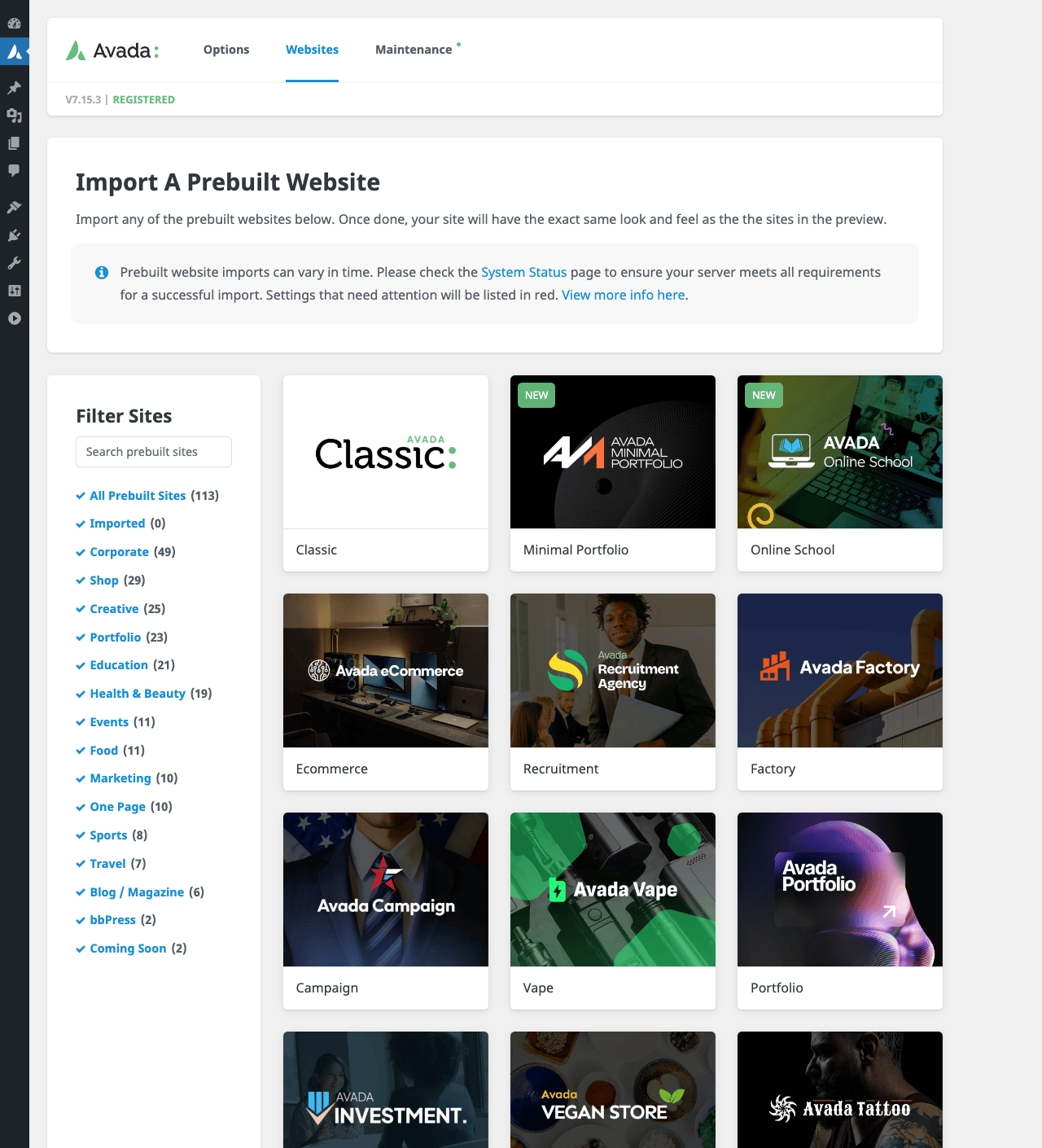
The interface has:
- Filter Sites sidebar, categories with site counts (Corporate 49, Shop 29, Creative 25, Portfolio 23, Education 21, Health & Beauty 19, Events 11, etc.) plus a search box
- Site cards, each card shows the prebuilt’s preview with a "NEW" tag for recent additions
- Live Preview, click any card to see a full screen preview of the demo before importing
- Import button, once you pick a site, click Import
What the import does:
- Downloads the site’s pages, posts, theme options, sliders, and menus from Avada’s CDN
- Sets your active site’s pages to match the prebuilt structure
- Installs and imports any required plugins (Slider Revolution, LayerSlider) if the prebuilt uses them
- Sets colors, fonts, and global settings to match the design
- Imports demo images (or replaces with placeholders, your choice)
Import time: 2-10 minutes depending on prebuilt complexity and your server. Watch the progress bar; don’t close the browser.
After import you’ll have a fully-functional site matching the prebuilt design. From here you replace demo content (text, images, contact details) with your real content. This is dramatically faster than building from scratch.
Each prebuilt site includes:
- 5-15 fully-designed pages (Home, About, Services, Pricing, Contact, etc.)
- Custom header and footer
- WooCommerce shop pages if the prebuilt is for an e-commerce site
- Demo content with placeholder text and images
- Custom widget configurations
- Sliders pre-configured
Important caveat: prebuilts overwrite your theme options on import. If you’ve already configured anything, back up first or import into a fresh staging site.
Step 4: Customize via the Avada Options panel {#step-4-options}
The Avada Options panel is the famous "600 settings" interface. It’s where you configure global colors, typography, layout, header behavior, footer styling, blog list appearance, portfolio settings, social media accounts, and everything else.
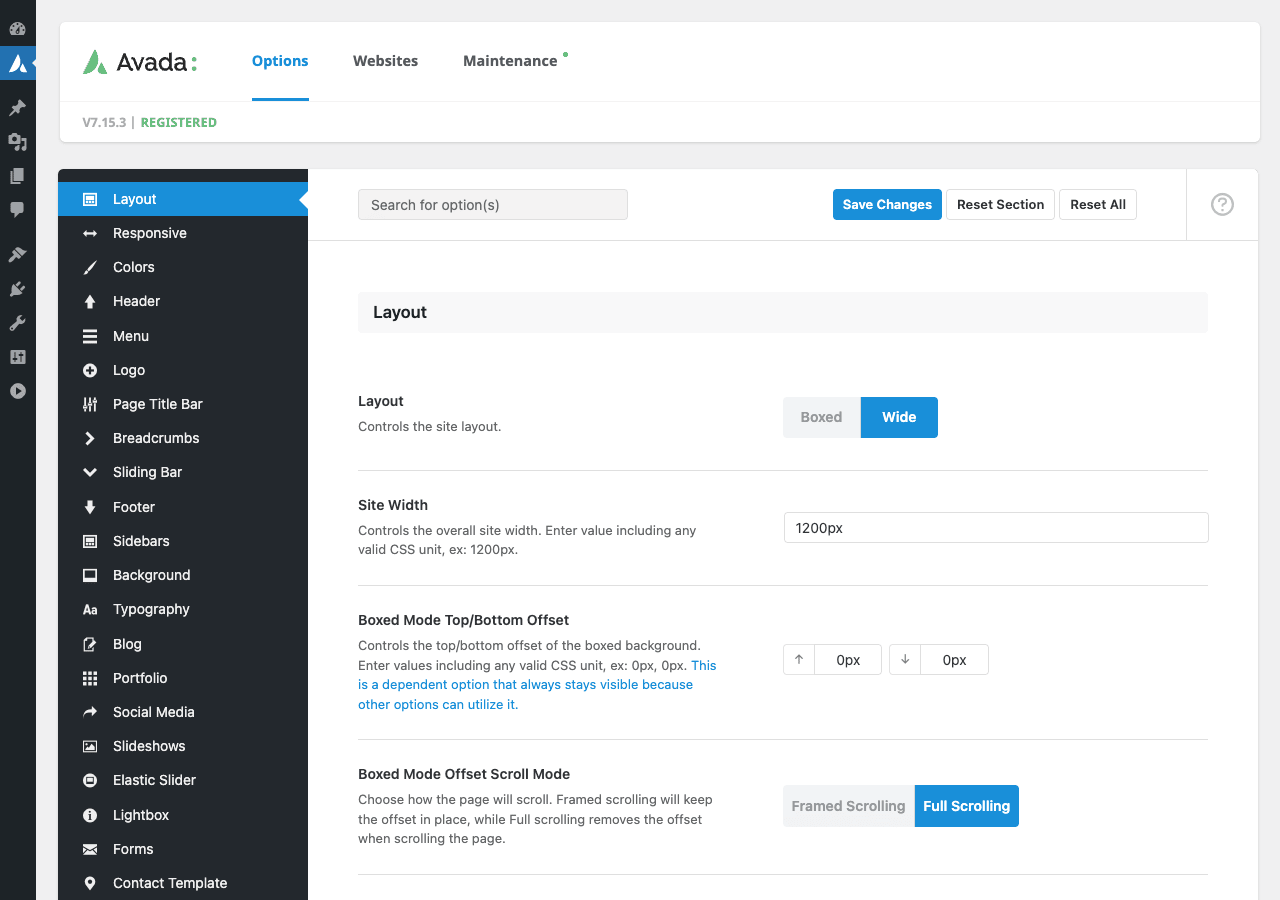
Navigate to Options in the Avada nav (or Appearance → Theme Options).
Left sidebar categories (top to bottom):
- Layout, site width, boxed vs wide layout, content padding
- Responsive, breakpoints, mobile menu behavior, mobile typography overrides
- Colors, primary, secondary, tertiary colors, palette
- Header, header layout (V1, V2, V3, V4, V5, V6), height, transparency, sticky behavior, mobile header
- Menu, main menu, mega menu, submenu styling
- Logo, logo image, height, mobile logo, retina logo
- Page Title Bar, the band below the header showing page title and breadcrumbs
- Breadcrumbs, separator, prefix, custom HTML
- Sliding Bar, optional slide-out side panel
- Footer, footer columns (1-6), background, social icons
- Sidebars, sidebar columns, positions, widget styling
- Background, page background, body background, patterns, gradients
- Typography, Google Fonts integration, font families, sizes per element
- Blog, blog index layout, post styling, archive layout, related posts
- Portfolio, portfolio grid, masonry, single project layout
- Social Media, your social account URLs (used in footer/header)
- Slideshows, Avada Slider, Fusion Slider settings
- Elastic Slider, alternate slider with size-based layout
- Lightbox, image popup behavior
- Forms, Avada’s built-in contact form styling
- Contact Template, contact page with map, contact info, contact form
- WooCommerce (if WooCommerce is active), shop styling, single product page, cart, checkout
Each category has 20-50 individual options. Total ~600 options. This is where Avada’s "everything in one place" philosophy shines and also where it overwhelms new users.
Recommended starting settings for any new Avada site:
- Layout, Wide, Site Width 1200px (or match your brand container)
- Colors, set Primary, Secondary, Tertiary, Body Text, and Heading Colors to match your brand
- Typography, pick a body font (Inter, Open Sans, or Roboto are fast-loading), a heading font, and set base font size 16px
- Header, pick V1 or V4 for most sites (V1 is centered logo + nav below, V4 is logo left + nav right)
- Footer, 4 columns, set background to a darker shade of your brand color
- Save Changes at the top of every section after editing
Set these once, every page on your site inherits them. Override per-page in the Avada Builder when needed.
Step 5: Edit pages with the Avada Builder {#step-5-builder}
Avada Builder (formerly Fusion Builder) is the visual page builder bundled with Avada. It’s a competitor to Elementor and Divi Builder, exclusive to Avada-themed sites.
Open any page (Pages → All Pages → click a page) and you’ll see a Use Avada Builder button at the top.
Two builder modes:
- Backend Builder, edit in wp-admin with a Gutenberg-like inserter on the left and content blocks in the middle. Faster, no live preview.
- Live Builder, edit on the front-end with WYSIWYG preview. Click any element to edit. Slower load but more visual.
Most users use Live Builder for the visual feedback.
Available elements (organized in categories):
- Layout, Container (full-width row), Column (1/1 to 1/6 widths), Section Separator, Spacer
- Basic, Heading, Text Block, Button, Image, Icon, Separator, Code Block (custom HTML/CSS/JS)
- Content, Tabs, Accordion, Toggle, Tooltip, Popover, Modal, Counter Circles, Counter Boxes, Progress Bar, Pricing Tables
- Media, Image Slider, Video, Slider Revolution, LayerSlider, Audio, Google Maps, Gallery
- Posts, Blog Posts, Portfolio Posts, Recent Posts, Recent Posts Carousel
- Forms, Contact Form, Subscribe Form, Login Form
- Social, Facebook Like Box, Twitter Embed, Social Sharing Icons
- WooCommerce, Products Carousel, Featured Products, Recent Products, Cart, Checkout (if WC is active)
- Custom, Custom Code, Shortcode, Widget Area (drop any WP widget into the builder)
There are ~50+ elements total, more than Elementor’s free version, comparable to Elementor Pro.
Builder workflow:
- Click Use Avada Builder on a page
- Click + to add a container (row)
- Pick a column structure (1 col, 2 cols, 3 cols, etc.)
- Drag elements into columns
- Click an element to edit its content in the sidebar
- Each element has Settings (content), Style (colors/spacing), and Animation tabs
Responsive controls:
Every spacing and sizing field has a device selector (desktop / tablet / mobile). Avada’s responsive controls are good but not quite as polished as Kadence Blocks Pro or Elementor Pro. Touch all three breakpoints before publishing.
Avada Studio is a library of pre-built page sections (hero, pricing tables, testimonials, etc.) accessible via a "Studio" icon in the builder. Pick a section, click Insert, customize. Faster than building from scratch.
Step 6: Build a custom header with the Header Builder {#step-6-header}
Avada’s Header Builder is a separate visual tool for designing custom site headers.
Navigate to Avada → Layouts → Headers (or via the Avada dashboard).
Create a new header. The interface has three rows you can fill:
- Top row, usually the announcement bar (phone, email, social icons)
- Main row, logo + main navigation
- Bottom row, optional secondary nav or breadcrumbs
For each row you choose layouts (logo position, menu position, search box, button) and styling (background, padding, sticky behavior).
Sticky header is one of the most-used Avada features. Settings → Sticky behavior → Stick on scroll. Configure scroll trigger distance and sticky header height (often smaller than the regular header to maximize content space).
Per-device headers are supported. Set up a desktop header and a separate mobile header (typically a hamburger menu + logo).
Conditional logic lets you assign different headers to different pages, useful for landing pages that need a stripped-down header without nav.
The Header Builder works for sites with multiple header variants (e.g., agency landing pages with different headers for client sites). For most sites, one header is enough and you configure it once.
Step 7: Set up the Avada Layouts (theme builder) {#step-7-layouts}
Avada Layouts is Avada’s theme builder, design templates for:
- Blog single, what an individual blog post looks like
- Blog archive, category, tag, date archives
- Search results page
- 404 page
- Page title bar, the band between header and content with the page title
- WooCommerce single product
- WooCommerce shop archive
- Custom post types, single and archive templates for any registered CPT
Without Layouts, Avada uses default templates from the theme. With Layouts, you build the template visually in the Avada Builder.
Setup workflow:
- Avada → Layouts → Create New
- Pick the layout target (e.g., "Blog Single → Apply to all posts")
- Open the layout in Avada Builder
- Design with dynamic content elements (Post Title, Post Content, Author Box, Related Posts, Comments)
- Save → the layout becomes active for matching content
Conditions let you scope a layout. Examples:
- "Use this product template for all WooCommerce products in the ‘Subscriptions’ category"
- "Use this blog single template for posts tagged ‘guides’ only"
- "Use this archive template only on author archives for author Alice"
The conditional system is similar to Elementor Pro’s Theme Builder or JetEngine‘s Listings + visibility logic.
Step 8: Configure WooCommerce styling {#step-8-woocommerce}
Avada has deep WooCommerce styling built in. After installing WooCommerce on an Avada site, you get a WooCommerce category in the Avada Options panel with shop, product, cart, and checkout settings.
Shop archive page styling:
- Number of products per row: 2, 3, 4, 5, 6
- Image hover effect (zoom, slide, fade)
- Show category, price, rating
- Add to Cart button placement (overlay, below image, modal)
Single product page:
- Image gallery layout (slider, vertical, horizontal thumbnails)
- Variation behavior
- Product tabs styling
- Related products grid
Cart and Checkout:
- Multi-step checkout (optional)
- Sticky cart button on mobile
- Quick view popup from shop page
WooCommerce-specific Avada Builder elements:
- Products grid, products slider, single product, recent products, featured products, mini cart, etc.
If you’re running WooCommerce Subscriptions, WooCommerce Bookings, or Easy Digital Downloads, Avada styles them but you may need additional CSS for the more specialized parts.
Step 9: Performance tuning checklist {#step-9-performance}
Avada is one of the heavier WordPress themes. With factory defaults a typical Avada page loads ~500KB-1MB of CSS+JS. You can cut this significantly with proper configuration.
Mandatory settings for production:
- Avada Options → Performance
- Dynamic CSS / JS Compiler: Cache (don’t choose "Off")
- CSS Combining and Minification: Enable
- JS Compiler: Enable
- Critical CSS: Enable (newer feature, generates inline above-the-fold CSS)
- Avada Options → Advanced → CSS / JS
- Disable unused elements, under Avada Options → Elements, toggle off any element you’re not using. Each toggled-off element removes its CSS/JS from the bundle.
-
Avada Options → Status → Image Compression, set Avada’s bundled image compression to Lossy. Or install Smush Pro for better compression.
-
Install WP Rocket or WP-Optimize, page caching is critical for Avada.
-
Defer JavaScript, Avada Options → Advanced → Defer JS to footer (defer non-critical JS).
-
Don’t use every prebuilt’s slider, many prebuilts ship with Slider Revolution slides above the fold. These are heavy. Replace with a static image hero if performance matters.
-
Compress images aggressively, every prebuilt’s images are 1920×1080 high quality. Use WebP/AVIF for production.
-
Lazy load images, Avada Options → Performance → Lazy Load: Enable for images and iframes.
After these optimizations, a typical Avada site lands in the 70-85 PageSpeed range, comparable to a typical Elementor site.
Real performance numbers (with measurements) {#performance-numbers}
This is the question that matters most. Honest numbers from a production site (Hetzner shared, WP Rocket active, single homepage with hero, features grid, testimonials, CTA):
Avada (default settings, no tuning):
- LCP: 2.8s
- TBT: 280ms
- CLS: 0.04
- PageSpeed Mobile: 58
- Total bytes transferred: ~2.4MB
Avada (after performance checklist applied):
- LCP: 1.6s
- TBT: 140ms
- CLS: 0.04
- PageSpeed Mobile: 78
- Total bytes transferred: ~1.1MB
Same homepage built in Kadence theme + Kadence Blocks Pro:
- LCP: 1.3s
- TBT: 90ms
- CLS: 0.02
- PageSpeed Mobile: 91
- Total bytes transferred: ~640KB
Same homepage in Elementor Pro + Astra Pro:
- LCP: 1.4s
- TBT: 110ms
- CLS: 0.03
- PageSpeed Mobile: 85
- Total bytes transferred: ~890KB
Honest takeaway: Avada is 10-15 PageSpeed points behind the lighter alternatives even after tuning. For most sites this is fine, 78 PageSpeed mobile is good enough and won’t tank rankings, but if you’re chasing 90+ PageSpeed scores for highly competitive SEO, Avada makes that harder than the lighter alternatives. For sites where the value comes from prebuilt templates and speed of development, Avada wins on time. For sites where every millisecond matters, look elsewhere.
Avada vs Astra Pro vs Divi vs Kadence {#comparison}
Four serious WordPress theme + builder options, each with different positioning (a fifth, The7, is the closest peer to Avada and well worth comparing if builder flexibility matters to you):
Avada (ThemeFusion), the heavyweight, most feature-complete. Best for: agencies building diverse client sites, businesses that want every feature in one bundle, sites that benefit from the 113 prebuilt websites. Strongest brand recognition. Heaviest performance footprint. Best support documentation in the space.
Astra Pro (Brainstorm Force), lightweight base theme + Astra Pro plugin + Starter Templates library. Best for: sites that want a fast, minimalist starter and the freedom to bring their own page builder. Excellent performance. Smaller template library than Avada but the templates are well-designed and fast.
Divi (Elegant Themes), the original "everything theme." Theme + Divi Builder + Divi Cloud + Divi AI. Best for: designers who like Divi’s specific visual builder workflow. Lifetime license available (rare in 2026). Performance is comparable to Avada (heavy by modern standards).
Kadence theme + Kadence Blocks Pro, modern challenger. Block-editor-first (works with Gutenberg, not a separate builder). Best for: sites that want modern WordPress workflow with Gutenberg, best-in-class performance, smaller but high-quality template library.
Quick decision matrix:
- Building agency client work, want maximum design variety in one bundle: Avada
- Want fastest possible site with theme-builder flexibility: Kadence
- Want lightweight theme + your own page builder choice: Astra Pro
- You already love Divi’s specific aesthetic and workflow: Divi
For new agencies in 2026, I’d lean toward Kadence or Astra Pro for performance reasons. For existing Avada agencies, sticking with Avada is genuinely the right call, the switching cost is real and Avada keeps shipping features.
Real-world pricing breakdown {#pricing}
Avada is sold on Envato/ThemeForest under the standard "Regular License" model:
- Regular License, ~$69 one-time per site (older pricing) or ~$95 one-time per site (current pricing). Includes 6 months of support. Use on one site.
- Extended License, ~$2,900 one-time. For sites that sell the theme as part of an end product (rare use case).
- Annual Support Extension, ~$24/year after the initial 6 months to extend support.
Important: the standard ThemeForest Regular License is per-site, not per-developer. If you build 10 client sites with Avada, technically you should buy 10 licenses. Many agencies buy licenses for each project and bill clients separately.
Pricing is your GPL Times subscription (one flat fee for the catalog).
License math for agencies:
- 5 client sites/year with separate Avada licenses: $475 first year, $120/year support thereafter
- Same 5 sites with GPL Times bundle: single subscription cost covers Avada plus 100s of other plugins
For agencies handling more than 3 Avada sites per year, the GPL Times approach saves real money once you factor in support renewal costs.
Common gotchas {#common-gotchas}
-
Avada Builder doesn’t appear on new pages. Avada Builder plugin must be installed and activated. Plugins → Plugins, check that both Avada Builder and Avada Core are active.
-
Importing a prebuilt overwrites my existing theme options. This is by design. Import on a staging site or back up Avada Options before importing (Avada → Maintenance → Export Options).
-
Site looks broken after a major Avada update. Run Avada → Maintenance → Reset Fusion Caches and Rebuild CSS. 90% of post-update issues are stale CSS cache.
-
Slow editor performance with the Avada Builder. Some prebuilts pack 50+ elements on a homepage. Editor performance suffers. Reduce elements or split into reusable Avada Library items.
-
Mobile menu looks broken. Avada Options → Header → Mobile Menu → check mobile menu trigger (hamburger) is enabled. Also check that no other plugin (like a third-party mega menu plugin) is overriding the Avada menu.
-
WooCommerce checkout styling looks generic. Avada styles WooCommerce, but custom plugins (Checkout Field Editor, WooFunnels) can override Avada’s styles. Disable competing plugins or add CSS to re-style.
-
Custom CSS doesn’t apply after a theme update. Custom CSS in Avada Options is preserved across updates. Custom CSS added to
style.cssdirectly is wiped. Use the child theme or Custom CSS field in Avada Options → Custom CSS. -
Avada Studio sections look different on the front-end than in the editor. Avada Studio sections inherit Global Colors. If your Global Colors are different from the section’s original palette, the section adapts. Set Global Colors first, then insert sections.
-
License re-activation needed after migration. Avada licenses are domain-locked at ThemeForest. After migrating a site to a new domain, deactivate the license on the old domain and re-activate on the new one.
-
PageSpeed score lower than expected. See Step 9 performance checklist. Most "Avada is slow" complaints come from defaults. After tuning, scores improve significantly.
Developer reference: hooks, filters, child theme {#developer-reference}
Avada exposes ~400 filters. The most-used:
Modify the page title bar text on specific page types:
add_filter( 'avada_page_title_bar_contents', function( $contents, $title ) {
 if ( is_singular( 'product' ) ) {
 return '<h1>Shop / '. esc_html( $title ). '</h1>';
 }
 return $contents;
}, 10, 2 );
Customize the blog excerpt length:
add_filter( 'avada_excerpt_length_blog', function( $length ) {
 return 35;
} );
Disable Avada Builder on specific post types:
add_filter( 'fusion_builder_allowed_post_types', function( $types ) {
 return array_diff( $types, array( 'my_custom_type' ) );
} );
Hook into the Avada theme’s body open/close for custom HTML:
add_action( 'avada_before_body_content', function() {
 echo '<div class="my-announcement-bar">Special offer ends Friday</div>';
} );

add_action( 'avada_after_body_content', function() {
 echo '<!-- Custom analytics snippet -->';
} );
Conditionally hide the page title bar:
add_filter( 'avada_setting_get_disable_page_title_bar', function( $value ) {
 if ( is_singular( 'landing_page' ) ) {
 return true;
 }
 return $value;
} );
Customize the Avada admin dashboard:
add_filter( 'avada_admin_setup_welcome_text', function( $text ) {
 return 'Welcome to your custom Avada agency dashboard.';
} );
Child theme setup:
For non-trivial customizations, use the Avada Child Theme (Avada-Child-Theme.zip). The child theme has:
style.css, your custom CSS rulesfunctions.php, your custom PHP hooks/filterstemplate overrides, copy any parent theme template into the child theme to override it
Child themes survive parent theme updates. For one-off snippets (a few PHP lines), Code Snippets Pro is easier than a child theme.
WP-CLI: Avada doesn’t add its own WP-CLI commands. Use standard WP-CLI for theme management:
wp theme activate Avada
wp theme activate Avada-Child-Theme
wp option update fusion_options_options '{...}' # not recommended; use the UI
FAQ: questions people actually search {#faq}
Is Avada still worth buying in 2026?
For agency client work and small business sites where prebuilt templates accelerate development, yes. For solo developers focused on performance, lighter alternatives like Kadence or Astra are better choices in 2026.
How does Avada Builder compare to Elementor?
Avada Builder is exclusive to Avada-themed sites and shipped with the theme. Elementor is theme-agnostic (works with any theme) and has a larger ecosystem. Element count is comparable. Avada Builder is well-integrated with the Avada theme options; Elementor is more flexible across themes. Performance-wise they’re similar.
Can I switch from Avada to another theme?
Yes, but it’s a manual rebuild. Avada Builder shortcodes don’t render outside Avada, pages will show raw shortcode text in another theme. The migration path is to rebuild each page in the new theme’s builder, taking screenshots for reference.
Does Avada work with the WordPress block editor?
Partially. Avada has limited Gutenberg support, you can use Gutenberg blocks in posts, and there’s an "Avada Builder block" you can insert into Gutenberg. But Avada is primarily designed around its own Avada Builder. Don’t pick Avada if you specifically want a Gutenberg-first workflow.
Is Avada GPL?
Avada is sold under Envato’s "Themeforest Split License" which is non-standard. Technically Avada uses GPL for the PHP code but a separate proprietary license for CSS/JS/images. In practice the entire theme is freely redistributable under GPL principles. GPL Times distributes the full theme under that interpretation, same as ThemeForest.
Will Avada support continue forever?
Avada has been actively maintained since 2012 (14 years as of 2026) and is ThemeFusion’s flagship product. Active development continues with monthly updates. The risk of abandonment is very low.
Can I use Avada with WPML for multilingual sites?
Yes, native WPML integration. Or use TranslatePress Business or Polylang Pro for alternative approaches. All three work with Avada.
Does Avada include hosting?
No. Avada is a theme; you buy hosting separately. Avada has a partner program with WP Engine for "Avada Hosting" but it’s standard WP Engine hosting with a discount.
Will Avada break my site on WordPress updates?
Avada is updated alongside major WordPress releases (Avada follows WP version compatibility closely). Generally safe to update WP first, then update Avada within a week. Major version bumps (e.g., Avada 7 → 8) might require minor adjustments to custom code or theme options.
Can I use Avada on multiple sites with one license?
Per ThemeForest’s Regular License: one site per license.
Is Avada good for SEO?
Avada outputs clean HTML, supports all major SEO plugins (Yoast, Rank Math, AIOSEO), and includes schema markup for breadcrumbs, products, articles. SEO output quality is good. Performance (Core Web Vitals) is where Avada lags lighter themes, fixable with the performance checklist but not as effortless as Kadence/Astra.
Does Avada include Slider Revolution and LayerSlider?
Yes. Both are bundled with the Avada package as long as you have an active license. They activate as separate plugins.
Final thoughts {#final-thoughts}
Avada is the WordPress theme that "everyone" used to build a website with, and that’s still genuinely true for a meaningful chunk of WordPress users in 2026. The combination of 113 prebuilt designs, an in-house page builder, header builder, theme builder, and a 600-option settings panel means you can build virtually any website without leaving the Avada ecosystem. That’s the bet ThemeFusion made in 2012 and that bet still pays off for the right audience.
The trap is treating Avada as a one-size-fits-all decision. For an agency with diverse client work and a team trained on Avada, it’s the right call. For a brand-new site builder in 2026 evaluating themes for the first time, the lighter modern alternatives (Kadence, Astra, GeneratePress) win on performance and learning curve. Avada is a good answer to a specific question, "I need a theme that can become anything fast", and a worse answer to other questions like "what’s the fastest theme" or "what works best with Gutenberg."
The setup order I’d recommend for a new Avada install:
- Install Avada theme + Avada Builder + Avada Core + Avada Child Theme
- Run the setup wizard and register the license
- Browse the prebuilt websites library, pick one close to your design
- Import the prebuilt
- Replace demo content with real content (text, images, contact info)
- Customize Avada Options to match your brand (Colors, Typography, Header, Footer)
- Apply the performance checklist
- Test on mobile, tablet, desktop
- Install WP Rocket or WP-Optimize for page caching
- Run PageSpeed Insights and tune any remaining issues
After that, every new client project starts with picking a prebuilt close to their industry and customizing. Two days to a polished site that would take a week from scratch. That’s the Avada value proposition in a sentence.