

If you’ve spent more than five minutes in WordPress circles, you’ve heard of Divi. It’s one of the most-installed themes on the planet, and for good reason. Divi ships a full-featured drag-and-drop visual builder alongside the theme itself, so you get a complete design system in one download. Whether you’re building a simple portfolio or a complex multi-template site, the Divi theme from Elegant Themes covers it.
This review goes deep. I’ll walk through the builder, the Theme Builder, all the modules, the developer hooks, and the gotchas you’ll run into.
Table of Contents
- What is Divi?
- Key Features
- How the Divi Visual Builder Works
- Installation and Setup
- Theme Builder: Full Site Design Without FSE
- The Divi Library and Portability
- Real-World Use Cases
- Developer Reference
- Performance, Compatibility, and Gotchas
- Pricing and Licensing
- FAQ
- Final Thoughts
What is Divi?
Divi is a WordPress theme built by Elegant Themes, a company that has been producing WordPress products since 2008. The theme itself is relatively minimal as a theme goes. What makes it different is what ships inside it: the Divi Builder, a visual drag-and-drop page editor that runs inside the WordPress admin and, more impressively, directly on the front end of your site.
The idea is that you design your pages by pointing, clicking, and editing live. No separate preview window, no toggling back and forth between the editor and your site. What you see while editing is what visitors see.
Divi has been around since 2012 and has accumulated a huge install base. Elegant Themes publishes data showing over a million active websites using it, which makes it one of the most widely deployed WordPress page builders alongside Elementor Pro and Beaver Builder.
The current version is a major architectural update, adding a next-generation visual builder (internally called "Divi 5") built on React while keeping full backward compatibility with the classic shortcode-based system. This means sites you built years ago still work, but new sites get the faster, more capable editor.
Importantly, Divi is also available as a standalone plugin called the Divi Builder, which you can layer on top of any other theme. But the theme version is what most people use, because the theme’s styling and the builder’s output are designed to work together.
Key Features
- Front-end visual editing. Open any page in the visual builder and edit your content directly on the live preview. Text, images, colors, spacing: all editable inline, no back-end forms.
- 40+ content modules. Text, Image, Button, Video, Slider, Blog, Testimonial, Pricing Tables, CountdownTimer, Map, ContactForm, Gallery, Portfolio, and many more. WooCommerce gets its own module set.
- Theme Builder. Design your site headers, footers, and body templates visually, then apply them globally or to specific post types, categories, or individual pages. This is separate from full-site editing (FSE) but achieves the same result without touching block templates.
- Built-in A/B testing. Every section or row can be turned into a split-test subject. Divi tracks views, clicks, and form conversions per variation and tells you which performs better.
- Divi Library. Save any layout, section, row, or module as a reusable item. Export your library and import it on a different site. This is the fastest way to build consistently across a multi-site network.
- Dynamic Content. Module fields can be wired to post meta, custom fields, ACF fields, WooCommerce data, and other dynamic sources. This is what powers the Theme Builder’s body templates.
- Responsive controls. Every spacing, typography, and layout setting has independent controls for desktop, tablet, and phone. You’re not stuck with breakpoint-only overrides; you set exact values per device.
- Custom CSS per module. Drop custom CSS into any module, row, or section without leaving the builder. No child-theme edits needed for one-off overrides.
- Portability (export/import). Divi can export the entire Customizer configuration, all Library layouts, and Theme Builder templates to a single JSON file. Import it on another site to replicate the whole setup.
- WooCommerce integration. Dedicated WooCommerce modules (Add to Cart, Product Gallery, Cart, Checkout, etc.) let you design your shop pages visually, matching the builder’s layout and module system.
- AI-assisted editing (Divi AI). A subscription add-on that generates text, images, and even entire page layouts from prompts, directly inside the visual builder.
How the Divi Visual Builder Works
When you edit a page in Divi, you’re working with a three-level hierarchy: sections, rows, and modules.
A section is the full-width container. It can be a standard section, a fullwidth section (edge-to-edge), or a specialty section (custom column layouts with nested rows). Sections handle background images, videos, colors, and parallax effects.
A row lives inside a section and defines columns. You pick from a set of column layouts (one column, two equal, two unequal, three equal, and many more). A single section can have multiple rows, and rows have their own background and spacing options.
Modules live inside columns. Each module is a self-contained UI element. The Text module renders a rich text block. The Button module renders a styled CTA. The Blog module renders a post grid. You can add as many modules as you need to a column.
Here’s the important part: all of this content is stored as WordPress shortcodes in the post’s post_content field, using the WordPress Shortcode API. A simple Divi layout looks like this in the database:
[et_pb_section][et_pb_row][et_pb_column type="4_4"][et_pb_text]Hello world.[/et_pb_text][/et_pb_column][/et_pb_row][/et_pb_section]
This means Divi layouts are portable. If you export the post content, the structure travels with it. It also means you can use wp post create --post_content='...' to create Divi-built pages programmatically.
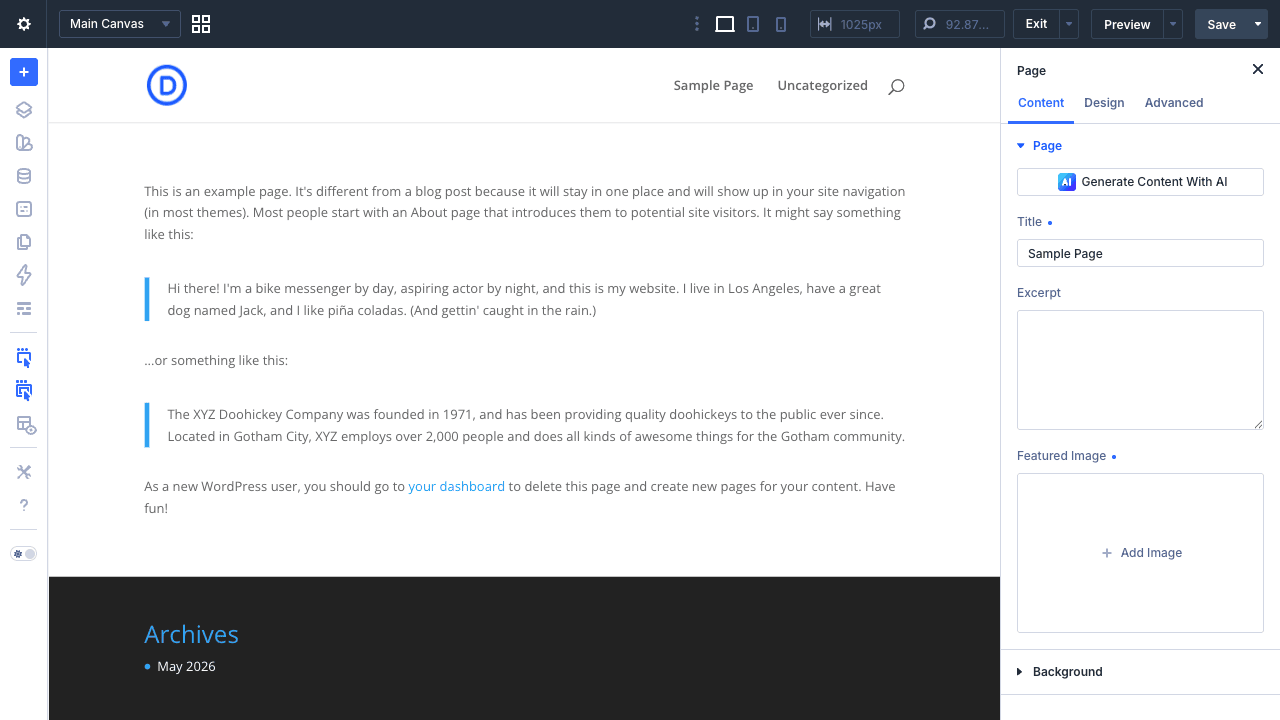
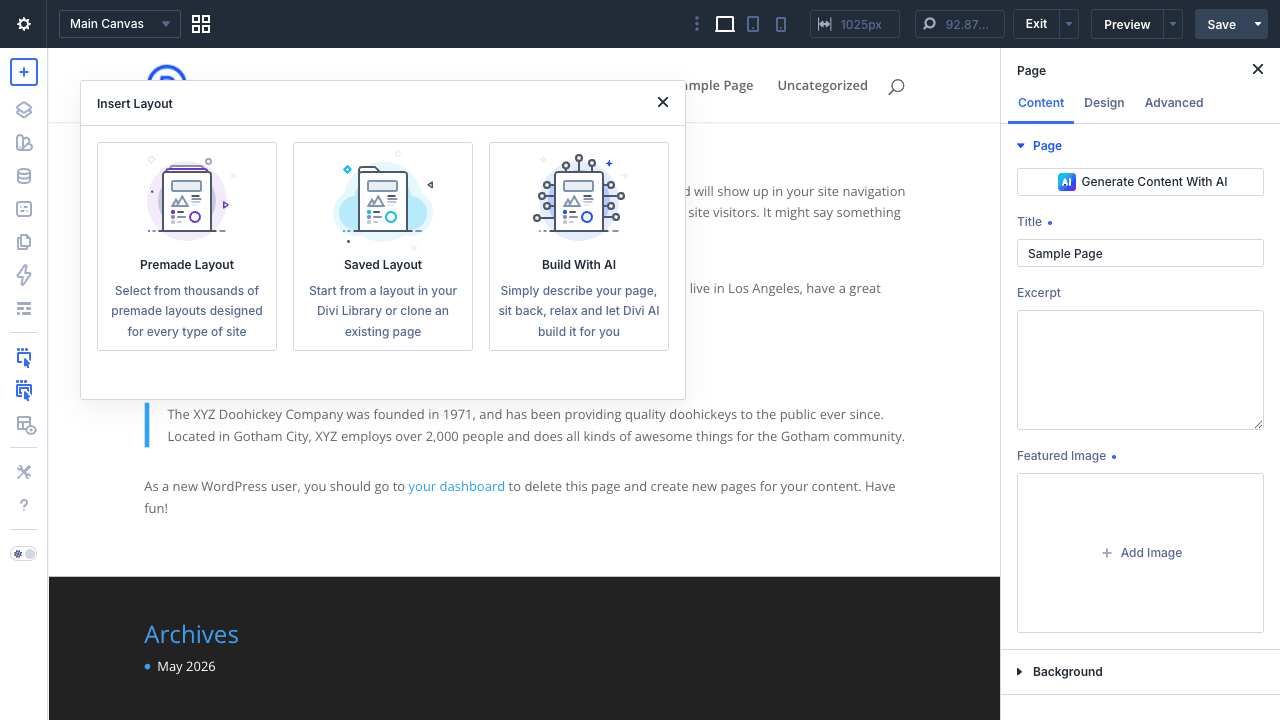
The visual builder comes in two modes. The backend builder (BFB) runs inside the WordPress editor and shows a visual representation of the shortcode tree. The frontend builder (FBB) launches your actual site URL in a special editing mode, letting you click directly on elements to edit them. Most users prefer the frontend builder for its fidelity, though BFB is faster for structural work.
Sections in detail
Standard sections support both solid and gradient backgrounds, background images with optional parallax and video, an adjustable maximum width (defaults to 1080px), and per-side padding. You can also apply a "Custom CSS" field at the section level, which Divi includes as a <style> block scoped to that section’s wrapper class.
Fullwidth sections break out of the content column and extend edge-to-edge. Some modules are "fullwidth-only" (FullwidthSlider, FullwidthHeader, FullwidthMenu, FullwidthPostContent, FullwidthMap, etc.) and must be placed in a fullwidth section.
Specialty sections allow side-by-side columns where one column spans multiple rows. This is useful for sidebar-plus-content layouts inside a single section.
Module settings
Every module has a tabbed settings panel: Content, Design, and Advanced. Content holds the actual data (text, image URL, query parameters). Design handles the visual presentation (typography, colors, borders, sizing). Advanced allows custom CSS classes, custom CSS rules, responsive visibility, overflow, and absolute/relative/fixed positioning.
The typography controls are detailed. You can set font family, weight, style, size, line height, letter spacing, text color, and text shadow, independently for desktop, tablet, and phone. Google Fonts are integrated; you can search and select any Google font right from the builder.
Animation effects live in the Advanced tab too. Fade in, slide in, bounce, flip, zoom, and roll are all available with adjustable duration and delay. No JavaScript to write.
Installation and Setup
Step 1: Install the theme. Go to Appearance → Themes → Add New → Upload Theme. Upload the Divi.zip file and activate. Alternatively, use WP-CLI: wp theme install /path/to/Divi.zip --activate.
Step 2: Run the setup wizard. After activation, Divi prompts you to configure the basics: your license key, which features to enable, and whether to import a starter layout.
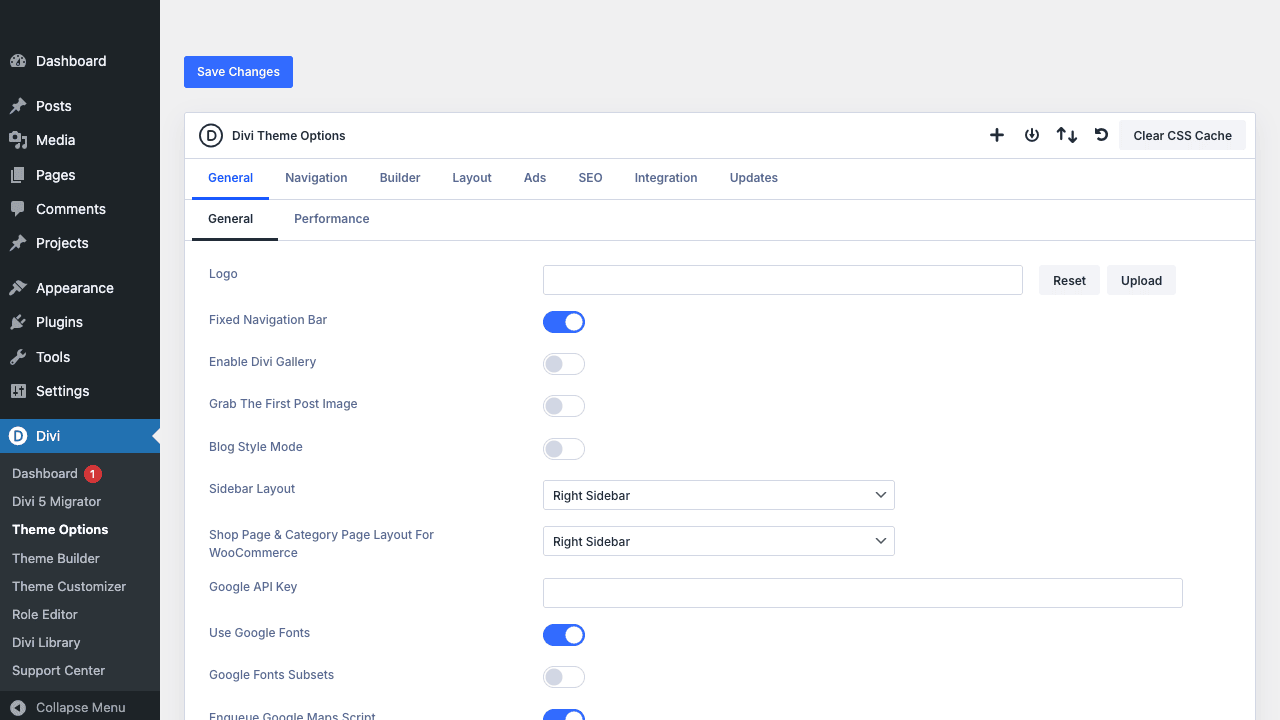
Step 3: Configure Theme Options. Go to Divi → Theme Options (the legacy ePanel) for global settings like your logo, favicon, color scheme, and social media links. For typography and layout, use Divi → Theme Customizer, which is where the live preview settings live.
Step 4: Enable the builder on a page. Create or edit any page. You’ll see a "Use Divi Builder" button above the WordPress editor. Clicking it opens the backend builder. To switch to the frontend builder, click "Build on the Front End" in the backend builder’s top bar.
Step 5: Set up Theme Builder. Go to Divi → Theme Builder to create site-wide templates. You’ll design a Header template, a Body template, and a Footer template, then assign display conditions (all pages, specific categories, WooCommerce shop pages, etc.).
That’s the full setup flow. Most users are building pages within ten minutes of installing.
Divi Customizer settings
The WordPress Customizer under Divi → Theme Customizer exposes most of the theme’s global styling controls:
- Header & Navigation: header height, logo size, menu item sizing, mobile menu trigger style, transparent header toggle, sticky header behavior, secondary menu
- Typography: separate font controls for body, headings (H1-H6), menu items, sidebar widgets, footer text, and mobile sizing for all of the above
- Layout & Container: content area width, gutter width, sidebar position, footer column count
- Colors: primary accent color, text color, link color, background colors for header and footer
- Buttons: global button sizing, corner radius, border, font
- Footer: widget areas (1-4 columns), footer bar content
Changes in the Customizer generate CSS that gets inlined in <head>. If you’ve enabled static CSS generation, the CSS is written to a file instead.
Theme Builder: Full Site Design Without FSE
The Theme Builder is one of Divi’s most powerful and least-understood features. It lets you design your site’s global chrome (header and footer) and per-post-type body layouts using the same visual builder, rather than editing PHP template files.
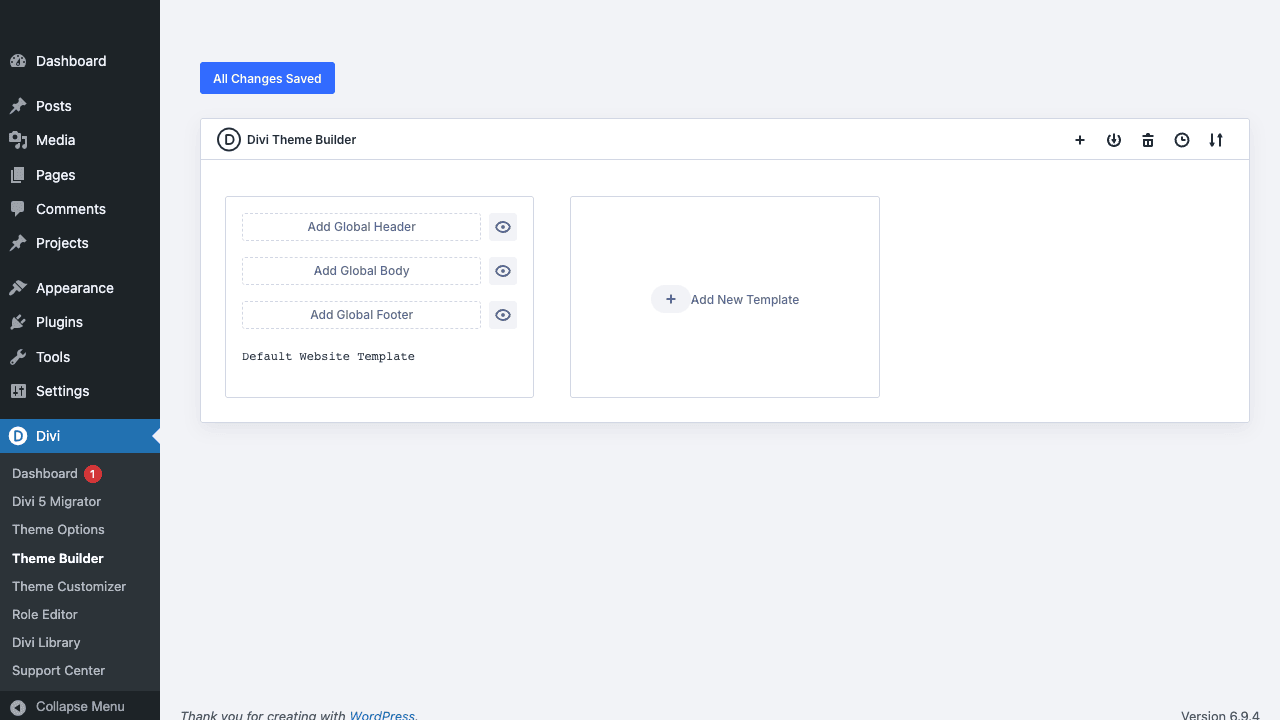
You open Theme Builder at Divi → Theme Builder. You’ll see a canvas with three template layers:
- Header templates, replaces the standard Divi header with a custom-built one
- Body templates, wraps the post content area (what would be
single.php,archive.php, etc.) - Footer templates, replaces the standard Divi footer
For each template, you click "Add Template" and assign display conditions: "Use on All Pages", "Use on Specific Post Types", "Use when Post Category is…", etc. Multiple templates can exist for different conditions, and you assign priority to resolve conflicts.
Inside a body template, you have access to Dynamic Content fields. The Post Title module can pull %post_title%. The Post Content module renders the actual post body. Image modules can pull the post’s featured image. This is how you build custom single-post layouts that auto-populate with real data.
Here’s a practical example: you want a different header on your blog that shows a search bar. You create a Header template, build your header design in the visual builder (logo, navigation, search bar), and set the display condition to "Use on Blog Pages". Your normal header template covers everything else. Theme Builder handles the switch automatically.
Theme Builder templates are stored as custom post types internally (et_theme_builder_template and its sub-types et_header_layout, et_body_layout, et_footer_layout). You can export them via Divi’s portability system and import them to another site.
The Divi Library and Portability
The Divi Library (Divi → Divi Library) is your collection of saved layouts. Anything you build in the editor can be saved: individual modules, full rows, whole sections, or entire page layouts.
When you save a layout, it’s stored as an et_pb_layout custom post type in the database. Layouts can be organized into categories and tagged. You can mark any layout as a "Global" item, which means editing it in one place updates it everywhere it’s used, similar to WordPress reusable blocks.
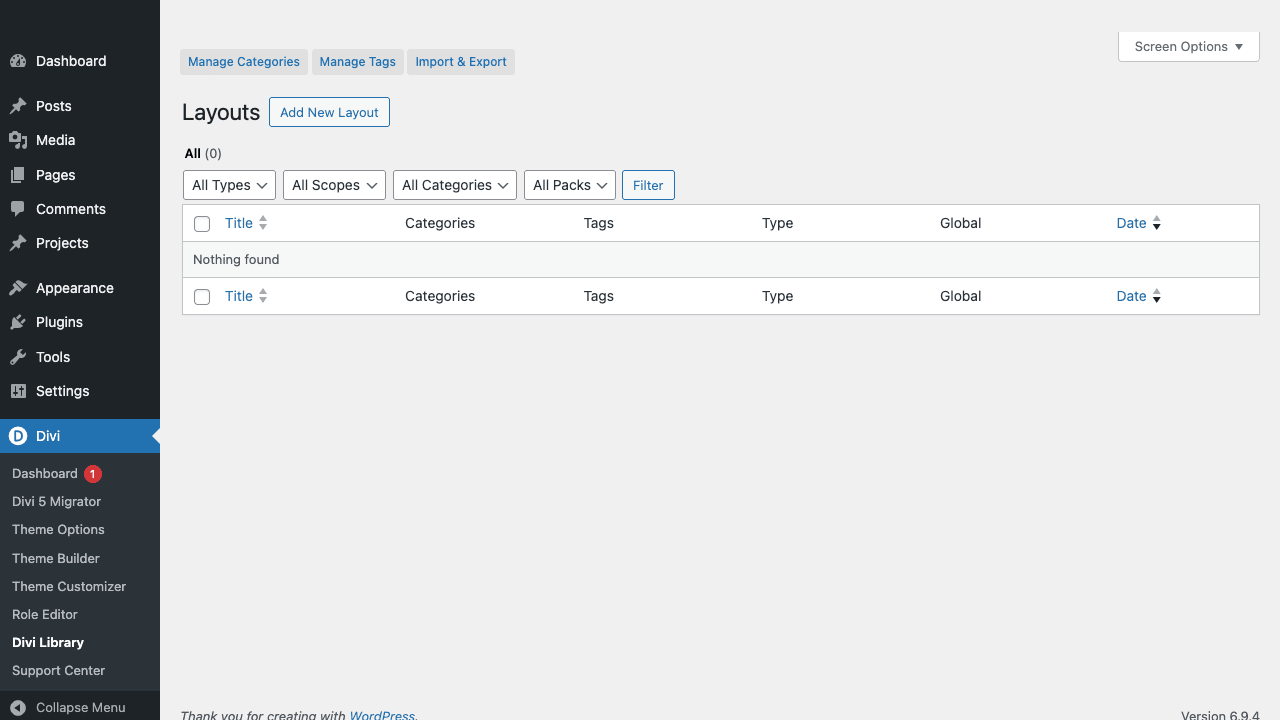
The Portability system (the import/export button in the top bar of Divi Library, Theme Builder, and the Customizer) lets you export any of these as a JSON file:
- Divi Library layouts →
et-divi-layouts.json - Theme Customizer settings →
et-divi-customizer.json - Theme Builder templates → included in the theme builder export
Import works the same way in reverse. This is how agencies build a starter template and deploy it across client sites. It’s also how the official Divi Cloud and Local Import features work (syncing layouts from a remote account or importing from a local file).
The global elements system
One thing that surprises new Divi users is the Global Modules feature. When you save a module, row, or section to the Divi Library and check "Make this a Global item", Divi creates a link between all instances. Edit the global item in one place, and every page where you’ve dropped it updates automatically.
This is different from just reusing a library item. Reusing a library item makes an independent copy that diverges from the original as soon as you edit it. Global items stay synchronized. It’s the pattern you want for things like a site-wide CTA banner, a "trusted by" logo row, or a newsletter signup module.
To identify global items in the editor, they show a yellow outline and an "Edit Global Module" badge. Editing them opens a warning that changes will propagate everywhere. That warning is easy to dismiss accidentally, so it’s worth documenting which modules on your site are global before handing a project to a client.
Responsive previews and device-specific controls
Every setting in Divi has a device icon next to it (desktop, tablet, phone). Clicking the icon lets you set a different value per breakpoint. Want your heading to be 60px on desktop, 40px on tablet, and 28px on phone? Set each independently.
Breakpoints are defined in the Customizer under General Settings. The defaults are 980px for tablet and 767px for phone. These are the same breakpoints the Divi Builder uses for its CSS output, so if you change them, the whole site adapts.
The frontend builder has a toolbar at the top with desktop/tablet/phone icons. Clicking any of them switches the editor preview to that viewport without leaving the page. You can edit in phone view, set different module settings, and switch back to desktop view without losing changes.
Real-World Use Cases
Landing pages for digital products. Divi’s CountdownTimer module, Pricing Tables module, CTA module, and Testimonial module cover all the typical conversion page elements. Build it once, save it to the Library, reuse it for every new product launch.
Multi-type membership sites. Combine Divi with MemberPress or Restrict Content Pro. Build custom body templates in Theme Builder that display different layouts for members vs. guests. Dynamic Content fields can pull user role data via conditional logic.
WooCommerce stores. The WooCommerce module set gives you visual control over every product page element. Build a custom single-product template in Theme Builder: Product Image on the left (using the WC Gallery module), product meta and Add to Cart on the right (using WC Price, WC Meta, WC Add to Cart modules). Apply it to all products with one display condition.
Agency multi-site deployments. Export your entire design system from a master install (Customizer settings, Library layouts, Theme Builder templates) as three JSON files. Import them on a new client site. The structural design is transferred in under five minutes, leaving only content to fill in.
Portfolio sites for creatives. Divi registers a project custom post type with project_category and project_tag taxonomies. The Portfolio and FilterablePortfolio modules query this post type automatically. Pair it with the Fullwidth Slider module for a hero and the FullwidthPortfolio module for the grid, and you have a complete portfolio site without any custom code.
Event and course landing pages. The CountdownTimer module drives urgency for limited-enrollment courses. The Pricing Tables module lays out tier options clearly. The Signup module (with Mailchimp, ConvertKit, or AWeber integrations baked in) captures leads without a separate form plugin. Build the layout once and reuse it per event by swapping the text content.
Local business sites. The Map module embeds a fully styled Google Map (your API key goes in Divi → Theme Options → General → Google API). The Blurb module pairs an icon with a heading and text, great for service listings. The TeamMember module displays staff cards with social links. These building blocks cover the typical local business site structure, and the Theme Builder handles the consistent header and footer across every page.
Developer Reference
Divi is built for extensibility. The main developer patterns are custom modules via the Extension API, hook customizations, and filter overrides.
Custom modules via the Extension API
Elegant Themes maintains developer documentation for Divi, covering module creation, field types, and advanced rendering options in detail. The divi_extensions_init action is the entry point for adding custom modules. You extend DiviExtension for the package and ET_Builder_Module for each individual module.
function my_plugin_divi_extension_init() {
 if (! class_exists( 'DiviExtension' ) ) {
 return;
 }
 require_once plugin_dir_path( __FILE__ ). 'includes/MyDiviExtension.php';
 new MyDiviExtension(
 'my-divi-extension',
 array(
 'version' => '1.0.0',
 'dir' => plugin_dir_path( __FILE__ ),
 'url' => plugin_dir_url( __FILE__ ),
 )
 );
}
add_action( 'divi_extensions_init', 'my_plugin_divi_extension_init' );
Inside MyDiviExtension.php, your module class extends ET_Builder_Module and defines properties, fields, and a render() method. The render() method returns HTML. Divi handles enqueueing, shortcode registration, and visual builder integration for you.
Key filter hooks
et_builder_always_enabled, force the Divi builder on a custom post type without needing the "Use Divi Builder" metabox button:
add_filter( 'et_builder_always_enabled', function( $enabled, $post_type, $post ) {
 return 'my_custom_post_type' === $post_type? true : $enabled;
}, 10, 3 );
et_builder_default_post_types, add a post type to the list where Divi builder is available:
add_filter( 'et_builder_default_post_types', function( $post_types ) {
 $post_types[] = 'my_custom_post_type';
 return $post_types;
} );
et_project_posttype_args, customize the project CPT registration:
add_filter( 'et_project_posttype_args', function( $args ) {
 $args['rewrite'] = array( 'slug' => 'work' );
 $args['has_archive'] = 'our-work';
 return $args;
} );
et_pb_index_blog_image_width and et_pb_index_blog_image_height, change the size of featured images in Divi’s Blog module:
add_filter( 'et_pb_index_blog_image_width', function() { return 800; } );
add_filter( 'et_pb_index_blog_image_height', function() { return 500; } );
et_pb_page_custom_css, filter the per-page custom CSS output (the CSS added via the builder’s custom CSS field):
add_filter( 'et_pb_page_custom_css', function( $css ) {
 // Append a site-wide override
 $css.= '.et_pb_button { border-radius: 4px!important; }';
 return $css;
} );
et_builder_accent_color, override the builder’s accent color programmatically:
add_filter( 'et_builder_accent_color', function( $color ) {
 return '#e44c3c'; // replace with your brand color
} );
et_builder_google_fonts_is_enabled, disable Google Fonts loading entirely (useful when self-hosting fonts):
add_filter( 'et_builder_google_fonts_is_enabled', '__return_false' );
et_html_main_header, replace the entire header HTML output:
add_filter( 'et_html_main_header', function( $html ) {
 // Return custom header HTML, or modify $html before returning
 return $html;
} );
et_divi_theme_customizer_css_output, filter the CSS generated from Customizer settings:
add_filter( 'et_divi_theme_customizer_css_output', function( $css ) {
 return $css. '.et_pb_section { max-width: 1200px; margin: 0 auto; }';
} );
et_core_is_static_css_enabled, force static CSS file generation (writes per-page CSS to disk instead of inlining):
add_filter( 'et_core_is_static_css_enabled', '__return_true' );
et_pb_get_default_color_palette, set the default color swatches shown in the builder color picker:
add_filter( 'et_pb_get_default_color_palette', function( $palette, $post_id ) {
 return array( '#1a1a2e', '#16213e', '#0f3460', '#e94560', '#ffffff' );
}, 10, 2 );
et_fb_app_preferences_defaults, set default frontend builder preferences (like starting in wireframe mode):
add_filter( 'et_fb_app_preferences_defaults', function( $prefs ) {
 $prefs['toolbar_wireframe'] = false;
 return $prefs;
} );
Key action hooks
et_before_main_content, fires right before the main content div, after the header:
add_action( 'et_before_main_content', function() {
 echo '<div class="announcement-bar">Free shipping on all orders.</div>';
} );
et_after_main_content, fires after the main content, before the footer. Good for site-wide footer scripts:
add_action( 'et_after_main_content', function() {
 echo '<script>/* analytics or chat widget */</script>';
} );
et_builder_ready, fires after all builder modules are loaded. Register any additional custom modules here instead of divi_extensions_init if you need them available for the shortcode parser:
add_action( 'et_builder_ready', function() {
 // Safe to reference any ET_Builder_* class here
 do_action( 'my_plugin_register_divi_modules' );
} );
et_save_post, fires when a post is saved via the Divi builder. Use this for custom post-save operations:
add_action( 'et_save_post', function( $post_id ) {
 // Invalidate a custom cache for this post
 delete_transient( 'my_cache_'. $post_id );
} );
et_pb_before_page_builder, fires before the builder UI renders on the back end. Useful for adding admin notices:
add_action( 'et_pb_before_page_builder', function() {
 echo '<div class="notice notice-info"><p>Review layout guidelines before publishing.</p></div>';
} );
et_global_colors_saved, fires after Divi’s global color palette is saved. Hook here to sync colors to a third-party system:
add_action( 'et_global_colors_saved', function( $global_colors ) {
 update_option( 'my_synced_palette', $global_colors );
} );
Custom post type for Portfolio
Divi registers a project CPT with two taxonomies (project_category and project_tag). Querying them follows standard WordPress patterns:
$query = new WP_Query( array(
 'post_type' => 'project',
 'tax_query' => array(
 array(
 'taxonomy' => 'project_category',
 'field' => 'slug',
 'terms' => 'web-design',
 ),
 ),
 'posts_per_page' => 12,
) );
Split testing (A/B)
Divi’s built-in split testing uses the [et_pb_split_track] shortcode. Programmatically, you can filter test parameters:
add_filter( 'et_pb_ab_get_refresh_interval', function( $interval, $post_id ) {
 // Check stats every 5 minutes instead of the default
 return 300000;
}, 10, 2 );

add_filter( 'et_pb_ab_get_stats_data_duration', function( $duration ) {
 return 14; // Track for 14 days
} );
Performance, Compatibility, and Gotchas
CSS output
By default, Divi inlines all builder-generated CSS in <head>. This can add several kilobytes to every page request. You can switch to static CSS file generation (one file per page written to disk) by enabling the option at Divi → Theme Options → Builder → Static CSS File Generation, or by filtering et_core_is_static_css_enabled. Static files are cached by the browser and CDN, which reduces repeat-visit load time noticeably.
Divi also generates a et-pagebuilder.min.css style sheet for the builder’s own UI styles. This only loads in the admin, not the front end.
JavaScript
The frontend builder (et_front_end_builder.js and related chunks) loads only when a logged-in user with builder access visits the page while in editing mode. Regular visitors never see it. The main front-end JS (divi.js and its async chunks) handles animations, sliders, lazy loading, the menu, and module interactions. Divi 5’s architecture splits these into smaller chunks loaded on demand, reducing the initial JS payload.
The et_disable_js_on_demand_theme filter (filtering the boolean returned) lets you turn off on-demand JS loading if you prefer a single-file approach for specific server configurations.
Cache compatibility
Divi ships with cache-clearing integrations for W3 Total Cache, WP Hummingbird, Cache Enabler, LiteSpeed Cache, Super Page Cache (Cloudflare), and SWIS Performance. When a post is updated via the builder, Divi fires the appropriate cache-clearing actions automatically. If you’re using a cache plugin not on that list (or a custom cache layer), hook into et_update_post and clear your cache there:
add_action( 'et_update_post', function( $post_id ) {
 // Clear your custom cache for this post
 my_cache_plugin_purge_post( $post_id );
} );
Plugin compatibility
Divi stores layout content as shortcodes in post_content. This creates a subtle issue with some plugins that process or modify post_content: if a plugin tries to parse or strip shortcodes, it can corrupt Divi layouts. Test carefully when adding content transformation plugins (like certain multilingual plugins or content audit tools).
Divi and WPBakery Page Builder should not be active at the same time on pages using Divi layouts. WPBakery Page Builder has its own shortcode set and the two can conflict in the editor. Pick one builder per site.
Divi works well alongside GeneratePress Premium only if you’re using the Divi Builder plugin (not the Divi theme), since both are themes and you can only activate one theme at a time. If you want Divi’s builder on a GeneratePress site, use the Divi Builder plugin instead.
Unregister unused modules
If you only use half of Divi’s 40+ modules, you can unregister the ones you don’t need to keep the builder library clean. Do this after et_builder_ready:
add_action( 'et_builder_ready', function() {
 // Remove modules we never use
 $remove = array( 'et_pb_audio', 'et_pb_countdown_timer', 'et_pb_map' );
 foreach ( $remove as $slug ) {
 remove_shortcode( $slug );
 }
} );
Note: removing a shortcode only affects rendering. If content already uses that module, the shortcode string stays in the database but renders as empty output on the front end. Don’t unregister modules used in existing content.
The post meta key _et_pb_use_builder
Divi sets _et_pb_use_builder = 'on' on any post where the builder is active. You can query all Divi-built posts with:
$divi_posts = get_posts( array(
 'post_type' => 'any',
 'meta_key' => '_et_pb_use_builder',
 'meta_value' => 'on',
 'numberposts' => -1,
 'fields' => 'ids',
) );
This is useful when migrating away from Divi: the list of posts that need content conversion is right there in post meta.
Programmatic post creation with Divi content
You can create Divi-built pages via WP-CLI or WordPress functions. The key is getting the shortcode structure right and setting the _et_pb_use_builder meta:
$layout = '[et_pb_section fb_built="1" admin_label="Hero"][et_pb_row][et_pb_column type="4_4"]'. '[et_pb_text]<h1>Your Heading</h1><p>Your intro paragraph.</p>[/et_pb_text]'. '[/et_pb_column][/et_pb_row][/et_pb_section]';

$post_id = wp_insert_post( array(
 'post_title' => 'Programmatic Divi Page',
 'post_content' => $layout,
 'post_status' => 'publish',
 'post_type' => 'page',
) );

update_post_meta( $post_id, '_et_pb_use_builder', 'on' );
The fb_built="1" attribute on et_pb_section tells the frontend builder that this layout was created with the frontend editor. Without it, the frontend builder shows a migration prompt when you first open the page for editing.
Classic editor and Gutenberg
Divi adds a "Use Divi Builder" button to both the classic editor and Gutenberg. In Gutenberg, clicking the button swaps the Gutenberg editor for the Divi backend builder. You can set et_builder_always_enabled to true for specific post types to skip the button entirely and open the builder by default.
The block-editor-integration.php in includes/ handles Gutenberg detection and the swap. It also provides an et_builder_block_editor_enqueue_scripts hook if you need to add scripts to the Gutenberg-in-Divi context.
Divi 5 migration
The d5-readiness/ directory in the theme handles migration from the classic shortcode format to the Divi 5 JSON-based format. This migration runs on a per-post basis when you open the post in the new editor. The filter divi_framework_portability_import_migrated_post_content lets you intercept and modify the migrated content before it’s saved.
If you’re building Divi-based products and need to check migration compatibility, the divi.conversion.moduleLibrary.conversionMap JavaScript filter exposes the client-side conversion map used to translate old shortcode attributes to new JSON properties.
Child theme compatibility
Divi supports child themes normally. The recommended child theme structure is the same as any WordPress child theme: a style.css with a Template: Divi header and a functions.php that enqueues the parent stylesheet. If you’re modifying Divi’s PHP templates (single.php, page.php, header.php, etc.), copy them into your child theme directory to override them safely.
The Divi Customizer settings are stored in the parent theme’s location in the database, so child theme activations don’t lose your Customizer configuration. Library layouts and Theme Builder templates are post-type entries in the database, so they survive theme switches too.
For custom CSS, Divi provides three places to add it: the per-module Custom CSS field (scoped to that module), the per-page Custom CSS field (scoped to that post), and the Theme Customizer’s Additional CSS panel (global). The per-module and per-page CSS is stored in post meta and included as a <style> block in <head> when the page loads. For larger stylesheets, a child theme style.css or a separate enqueued stylesheet is cleaner.
Pricing and Licensing
Divi is sold by Elegant Themes as part of their membership plan. There’s no standalone purchase; you buy access to the entire Elegant Themes product library, which includes Divi, Extra (their magazine theme), the Bloom email opt-in plugin, and the Monarch social share plugin.
For projects where you need the full theme without an annual membership commitment, Divi from the GPL Times store is the straightforward route. You get the same theme files under the GPL license that governs all WordPress themes and plugins.
Same builder, just packaged as a plugin you activate alongside your existing theme.
FAQ
Can I use Divi without any programming knowledge?
Yes, and that’s the whole point. The visual builder handles layout, typography, colors, and animation through point-and-click controls. The only time code becomes relevant is if you’re building a custom module or modifying Divi’s behavior via hooks.
Does Divi work with WooCommerce?
Fully. Divi has dedicated WooCommerce modules: Add to Cart, Cart, Checkout, Product Gallery, Product Price, Product Title, Product Reviews, and more. You can use Theme Builder to create custom single-product and shop archive templates built entirely in the visual editor.
Can I use Divi alongside other page builders?
You can’t stack Divi and another shortcode-based builder (like WPBakery) on the same posts. They’ll conflict at the editor level. Gutenberg blocks inside Divi content are also a mixed bag. The cleanest approach is to pick one builder and commit to it for any given site.
What’s the difference between the Divi theme and the Divi Builder plugin?
The Divi theme is a full WordPress theme: it controls your site’s header, footer, sidebar, typography, and overall layout, plus it includes the builder. The Divi Builder plugin is just the builder, packaged so you can activate it on top of any theme. If you’re happy with your current theme’s design but want Divi’s editing experience, use the plugin.
Does the Divi Builder save content as shortcodes?
The classic Divi builder does, yes. Every section, row, column, and module is saved as an [et_pb_*] shortcode in post_content. Divi 5’s new builder uses a JSON representation instead, but migration between formats is handled automatically.
Does Divi have a Portfolio post type?
Divi registers a project CPT with project_category and project_tag taxonomies. The Portfolio and FilterablePortfolio modules query this post type. You can change the permalink slug via the et_project_posttype_args filter.
Can I add custom modules to Divi?
Yes, via the Divi Extension API. You hook into divi_extensions_init, create a class that extends DiviExtension for the package and ET_Builder_Module for each module, and Divi integrates your module into the builder just like a built-in one.
What happens to my content if I switch away from Divi?
The post content will show raw [et_pb_*] shortcodes (or Divi 5 JSON blocks) in the default WordPress editor. They won’t render as HTML because the shortcode handlers won’t be loaded. You’ll need to either migrate the content manually or use a conversion plugin. This is the standard trade-off with any shortcode-based builder.
Is Divi compatible with WordPress multisite?
Yes. Divi works on multisite installations. Library layouts and Theme Builder templates are per-site (not network-wide), so each sub-site maintains its own design system. The portability/export system is useful for keeping sub-sites in sync.
Does Divi support RTL languages?
Yes. The rtl.php file in includes/builder/frontend-builder/ handles RTL style adjustments, and the builder flips the layout direction for RTL content automatically.
Final Thoughts
Divi has been called many things over the years: overkill, indispensable, bloated, brilliant. The truth is more boring: it’s a mature, capable page builder with a track record of reliability, a genuinely good Theme Builder, and an extension system that lets developers add almost anything.
For non-developers, the frontend builder is as approachable as visual WordPress editors get. The module library covers almost every layout need without reaching for another plugin. The built-in A/B testing is a feature you’d otherwise pay separately for.
For developers, the filter and action hook system is thorough, the Extension API is well-documented, and the CPT structure is predictable. The main pain point is the shortcode-based storage format, which complicates headless or API-driven workflows. Divi 5’s JSON format moves the needle there, but full headless support isn’t here yet.
If you’re evaluating page builders for a new WordPress project, the answer depends on how much design control you need. For light customization, a lightweight theme like GeneratePress is cleaner. For a fully bespoke site with complex templates and dynamic content, Divi’s builder and Theme Builder combination is one of the most complete tools available without going custom.
That’s the fastest way to know whether it’s the right fit.