

A shopper lands on your store, the page hangs for three seconds while a slider and four scripts you forgot about load, and they leave before your products ever appear. That’s the quiet way most WooCommerce stores lose sales, and it’s usually the theme’s fault, not the host’s.
The Porto theme is built to avoid exactly that. It’s the long-running WooCommerce and eCommerce theme from P-THEMES, and its whole reputation rests on being fast while still doing everything a store needs: custom product layouts, a wishlist, quick view, AJAX search, and more than a hundred pre-built demos to start from. I spent time in a clean install poking at every panel, so the praise and the criticism here are both first-hand.
This is a full walkthrough: what Porto actually gives a store owner, the demo library, the four ways you can build pages, the deep WooCommerce features, the speed wizard that makes it fast, the developer hooks underneath, and the places it can trip you up.
Table of Contents
- What Porto actually is
- 100+ pre-built demos, and how the import works
- Four ways to build a page (pick one)
- What the Porto theme does best: WooCommerce
- The Theme Options panel, section by section
- The layout builder and custom shop templates
- Headers, mega menus, and content beyond the shop
- The Speed Optimize Wizard
- Setting up a Porto store without regrets
- Four stores Porto is genuinely good for
- Don’t import a demo onto a live store
- Porto vs WoodMart vs Flatsome
- Developer reference: hooks and template regions
- Performance, compatibility, and gotchas
- FAQ
- Final thoughts
What Porto actually is
Porto is a responsive multipurpose and eCommerce theme built by P-THEMES. The header in its stylesheet calls it a "Responsive WordPress Multi Purpose + eCommerce Theme," and that order matters: Porto can build any kind of site, but its heart is the store. It’s been one of the best-selling WooCommerce themes for years, and it’s released under the GPL.
Underneath, Porto is three things working together. There’s the theme framework (headers, footers, blog and portfolio layouts, and a deep WooCommerce integration), a large Theme Options panel that controls almost everything without code, and a layout builder for designing your own headers, footers, and product templates. Around that, P-THEMES ships a library of more than a hundred pre-built demos and a companion plugin called Porto Functionality that adds the extra content types and elements.
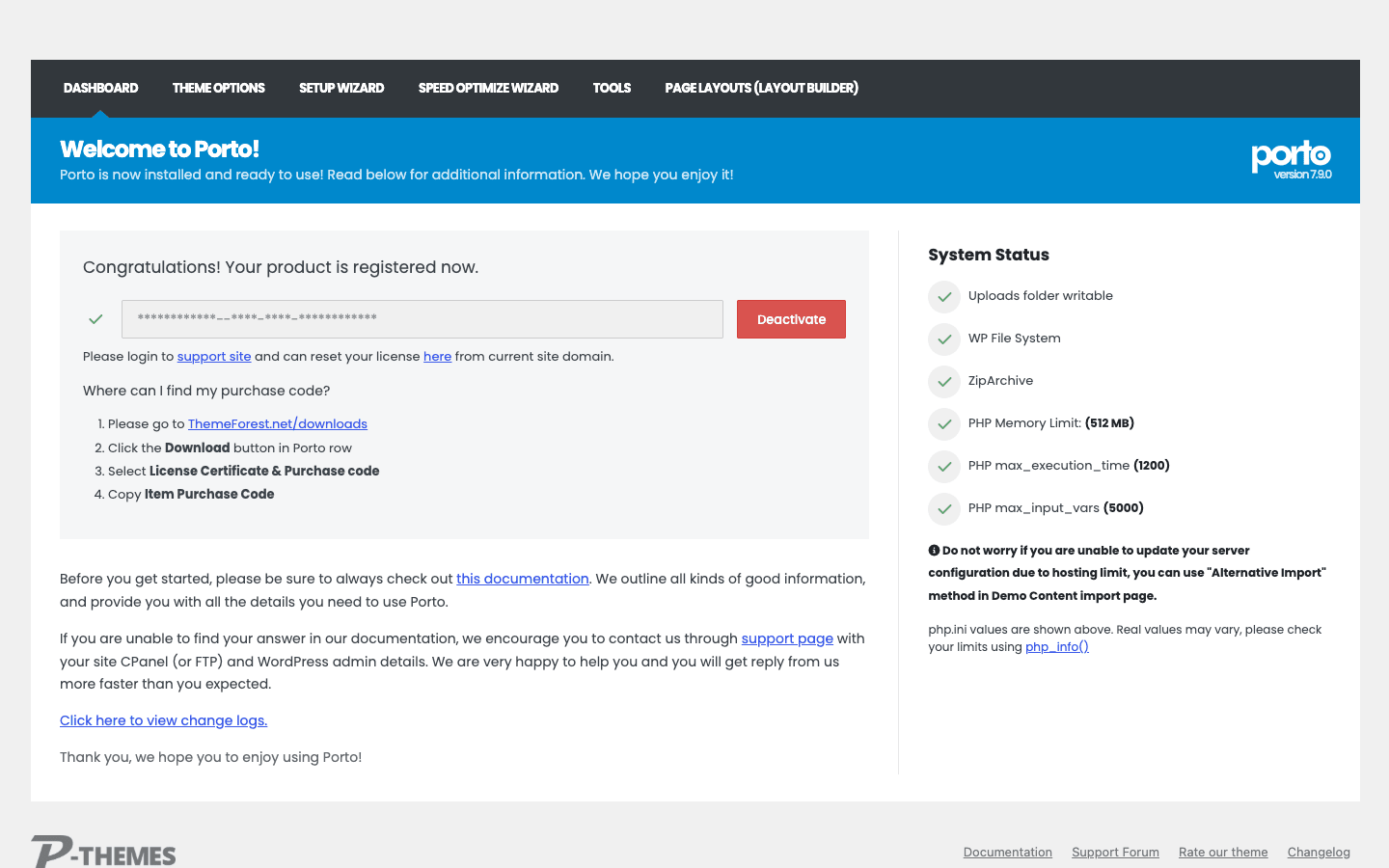
Everything runs from one dashboard at Porto in the admin menu, which doubles as a server system-status check (it flags your PHP memory limit, max execution time, and file permissions before you start, since the demo importer leans on all three).
If you’re a developer who has watched a "fast" theme balloon into a slow one the moment a client adds a slider, the interesting part of Porto is that it ships a dedicated Speed Optimize Wizard whose only job is to strip out the assets you aren’t using. More on that below, because it’s the feature that separates Porto from the pack.
The short version: if you want to launch a good-looking WooCommerce store quickly, keep it fast, and not pay a yearly subscription, Porto is built for exactly that job.
100+ pre-built demos, and how the import works
The pre-built demo library is the reason a lot of people buy the Porto theme, and it’s large. You reach it from Porto » Prebuilt Websites (it lives inside the Setup Wizard), and you get a filterable grid of complete site designs.
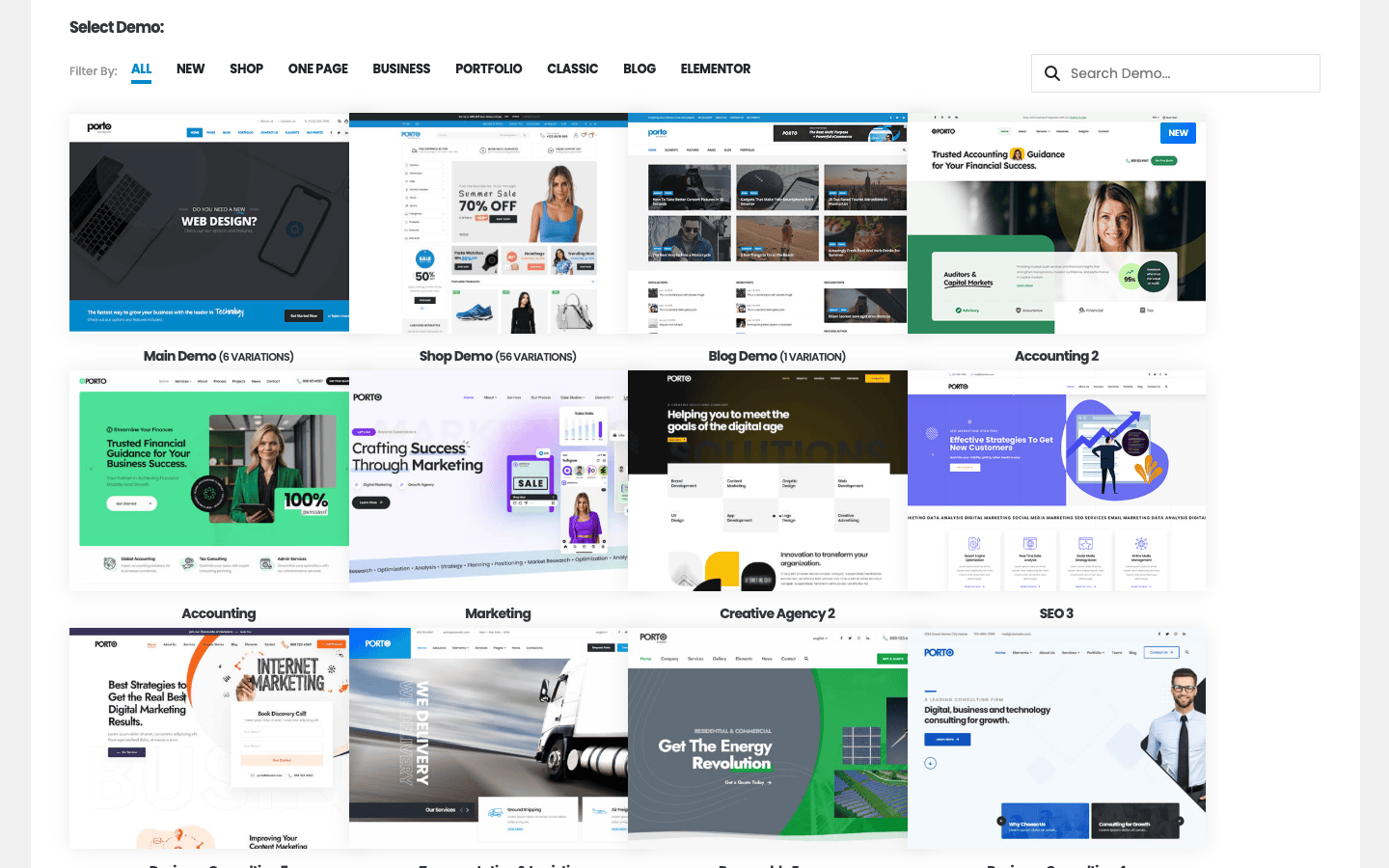
The filters tell you who Porto is for. Alongside All and New, you can narrow by Shop, One Page, Business, Portfolio, Classic, Blog, and Elementor (the demos built specifically for Elementor). The Shop filter alone covers a wide range of storefronts: fashion, electronics, furniture, food, and more. Pick the one closest to your idea, click it, and Porto imports the pages, menus, theme options, widgets, and (for store demos) the WooCommerce content to recreate that design.
The honest catch: the import pulls demo content from P-THEMES’ servers, so it needs outbound internet access. On normal hosting that’s fine. Behind a strict firewall or on a locked-down server, the import can stall, because the demo assets live externally, not inside the theme zip. There’s a "Remove all installed demo contents" button right on the same screen, which tells you the import is designed to be reversible, but you should still import on a fresh install (the anti-pattern section explains why).
You also don’t have to import a whole site. The setup wizard lets you upload your logo first, and the layout builder lets you bring in individual templates later, which is the safer way to work once your store is live.
Four ways to build a page (pick one)
Here’s the thing that surprised me about Porto: it doesn’t lock you into one editor. You can build pages four different ways, and you choose per project:
- Porto’s own layout builder, a visual template system for headers, footers, and content regions (covered in its own section below).
- WPBakery Page Builder, bundled with the theme. Porto adds a large set of its own WPBakery elements, so a lot of the demos are built this way.
- Elementor, supported as a first-class option, including header and footer locations for Elementor Pro. Build a store page in Elementor and Porto gets out of the way.
- The WordPress block editor, with Porto block patterns for quick layouts.
This is genuinely useful, but I’ll give you the same warning I give every multi-builder theme: pick one and commit. If one page is WPBakery, another is Elementor, and a third is Gutenberg, you load the CSS and JavaScript for all of them, and your fast store turns slow. Tip: decide on a single builder before you import a demo (there’s an Elementor filter in the demo library for exactly this), and stick with it for the whole site.
There’s a money angle to the bundling, too. Porto includes WPBakery Page Builder and Revolution Slider as bundled premium plugins, plus its own Porto Functionality plugin. That’s real value, but those bundled plugins update through the theme, not through their own vendor licenses, so don’t expect a separate Slider Revolution account or its template library just because the slider is included.
What the Porto theme does best: WooCommerce
This is the section that matters most, because a store theme lives or dies on its WooCommerce features, and Porto’s are deep.
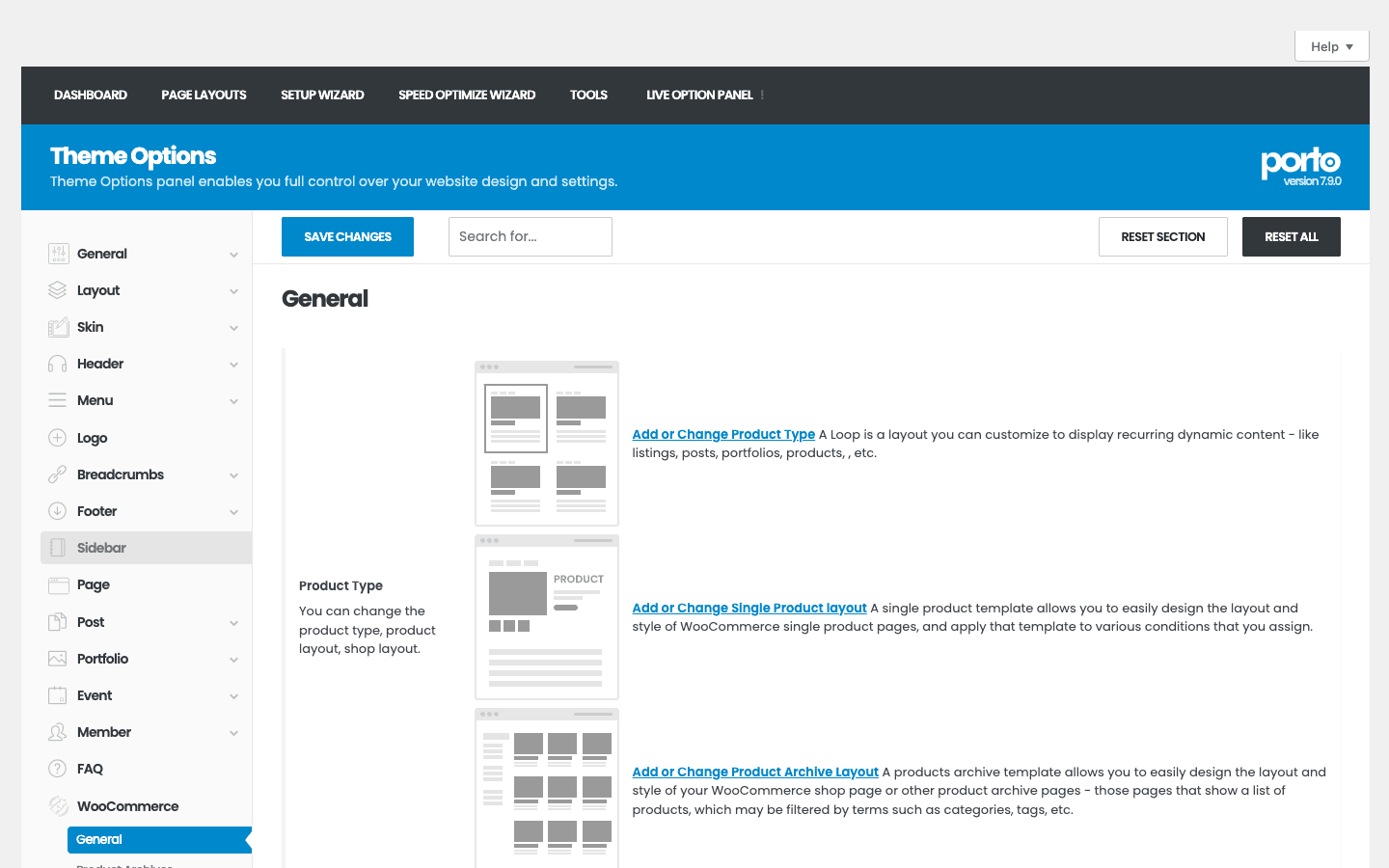
The headline is custom product and shop layouts. From Theme Options » WooCommerce, Porto lets you design your own single-product template and your own product-archive (shop) template, then assign them by conditions, instead of being stuck with one hard-coded product page. You control the product type, the gallery style, and the shop grid.
On top of that, Porto bakes in the conversion features that store owners usually have to bolt on with separate plugins:
| Feature | What it does for your store |
|---|---|
| Quick view | Shoppers preview a product in a popup without leaving the shop grid |
| Wishlist | Logged-in and guest shoppers save products for later |
| AJAX live search | A search box that returns products as you type, filterable by tag |
| Free-shipping progress bar | "You’re $12 away from free shipping" nudges, which lift average order value |
| Currency switcher | Show prices in a visitor’s currency |
| Sticky add-to-cart | The buy button follows the shopper as they scroll a long product page |
| Side cart (mini cart) | A slide-out cart so customers never lose their place |
| Custom product options | Extra fields and add-ons on the product page |
Where this shines: for a small-to-mid catalog, that list covers most of what you’d otherwise pay for in add-on plugins. A wishlist plugin, a quick-view plugin, and an AJAX search plugin together can cost more than the theme, and each one is more code to load. Having them native means they’re built to match Porto’s styling and its speed wizard knows how to manage their assets.
You might be wondering whether all of this slows checkout down. It doesn’t have to, because most of these features are individually toggleable, and the speed wizard can strip the assets for the ones you don’t use. The weight comes from leaving everything on, not from the features existing.
The Theme Options panel, section by section
Porto controls the whole site from one panel at Porto » Theme Options, and it’s large. The left rail is a long list of sections, each with sensible defaults and an inline explanation.
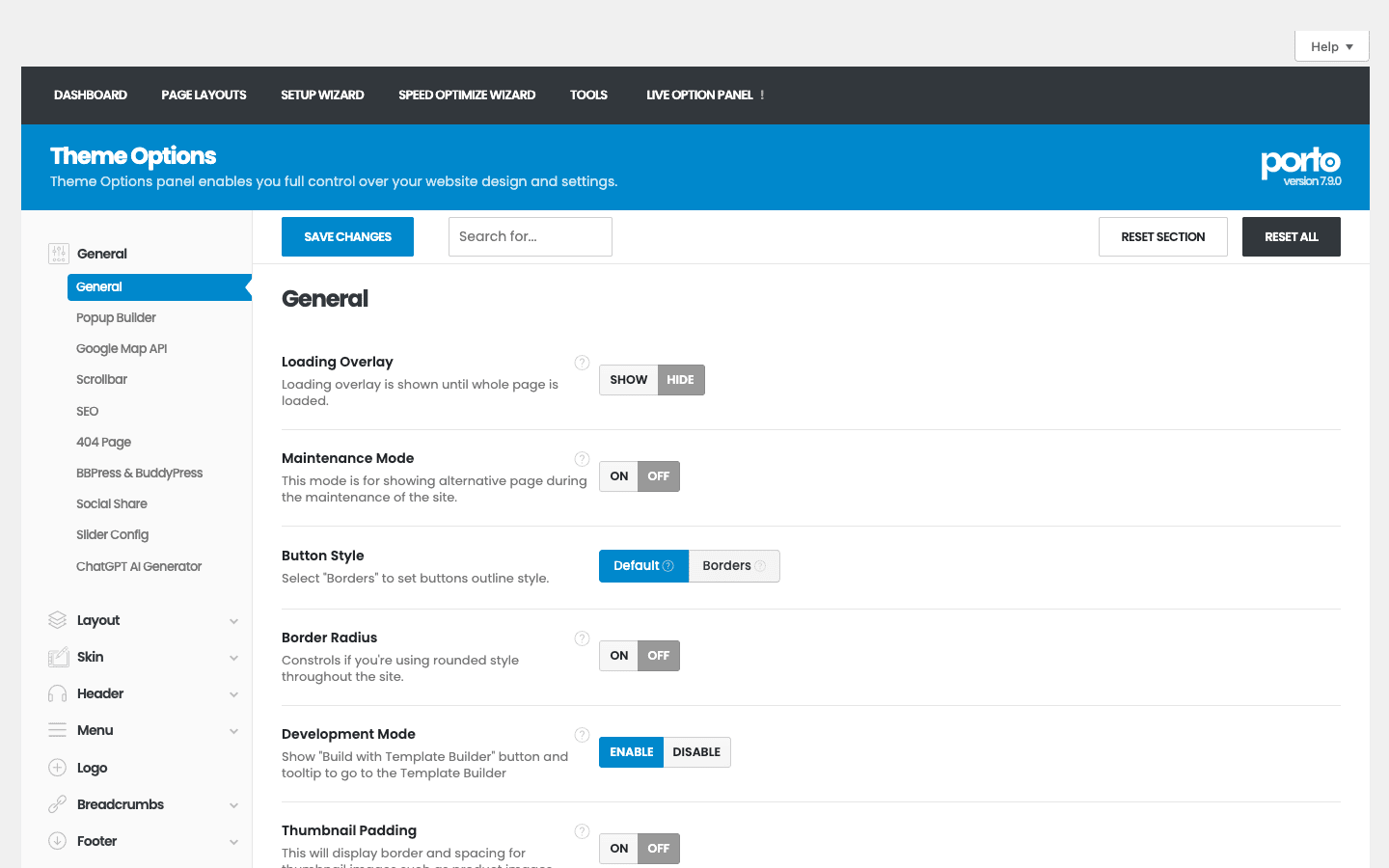
Here’s what the main sections govern, so you know where to go for what:
| Section | What it controls |
|---|---|
| General | Loading overlay, maintenance mode, button style, border radius, popup builder, SEO, 404 page, a ChatGPT content generator |
| Layout | Boxed or wide, container widths, spacing |
| Skin | Theme colors (light/dark scheme, primary/secondary/tertiary), typography, backgrounds, form style |
| Header / Menu / Logo | Header style, sticky behavior, the main and mega menu |
| Breadcrumbs / Footer / Sidebar | The title bar, footer columns, sidebar registration |
| Page / Post / Portfolio / Event / Member / FAQ | Layouts for pages, blog, and Porto’s custom content types |
| WooCommerce | The shop, single product, and archive layouts covered above |
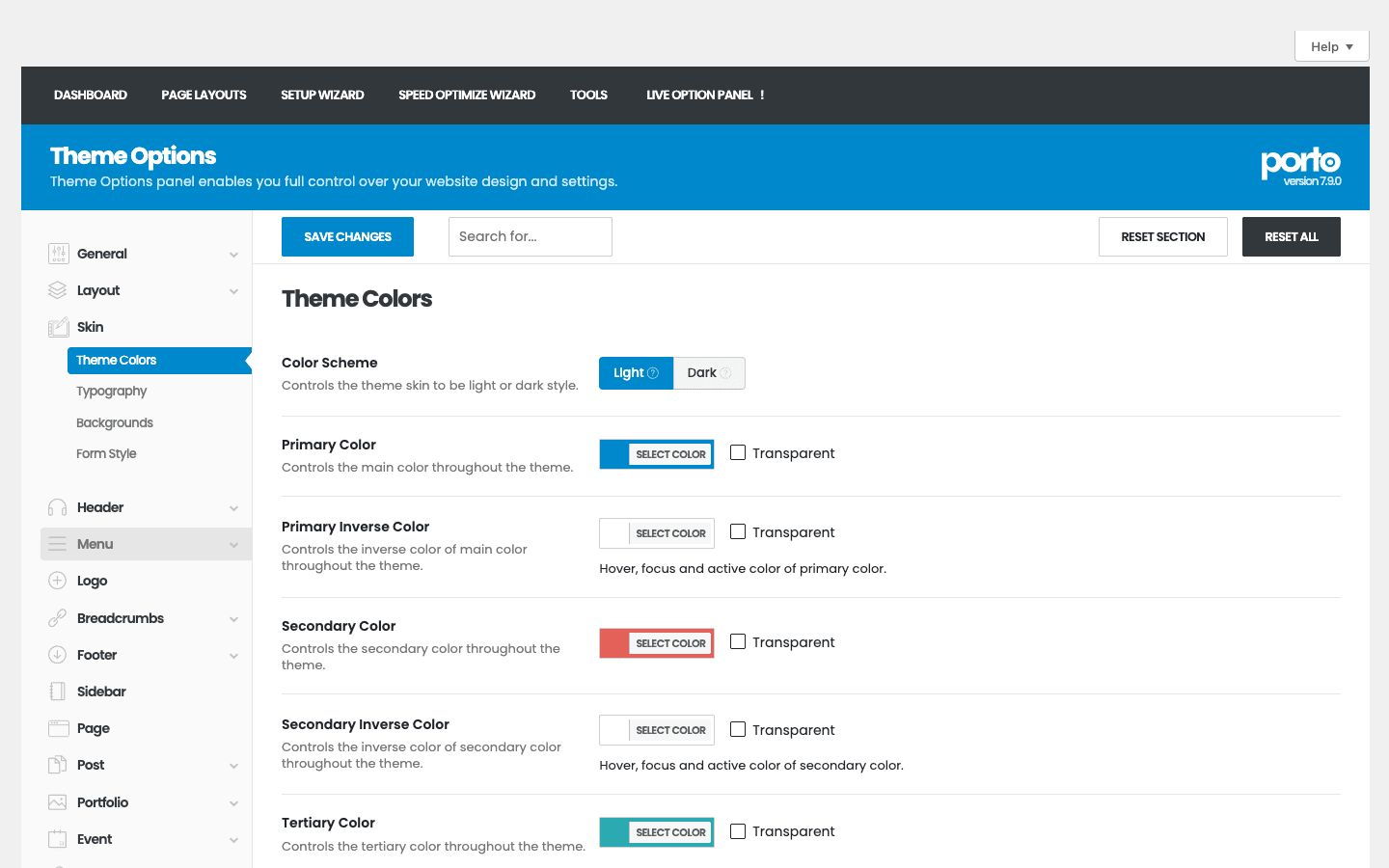
A few things worth calling out. The Skin section is where you set your whole palette and type in one place, so every new page inherits the right look instead of you styling each one. The General section quietly includes a ChatGPT AI Generator for drafting content, which is a newer addition. And there’s a Live Option Panel that previews changes on the front end as you make them.
Note: there’s a search box at the top of Theme Options. With this many settings, you’ll use it. Type "logo" or "sticky" and it jumps you to the right control instead of making you hunt through seventeen sections.
Porto also registers its own content types through the companion plugin: Portfolio, Member (for team pages), FAQ, and Event. So a "Projects" portfolio or a staff grid is a real, queryable post type, not a pile of shortcodes.
The layout builder and custom shop templates
Beyond the options panel, Porto has a visual layout builder at Porto » Page Layouts, and this is where the store customization gets serious.
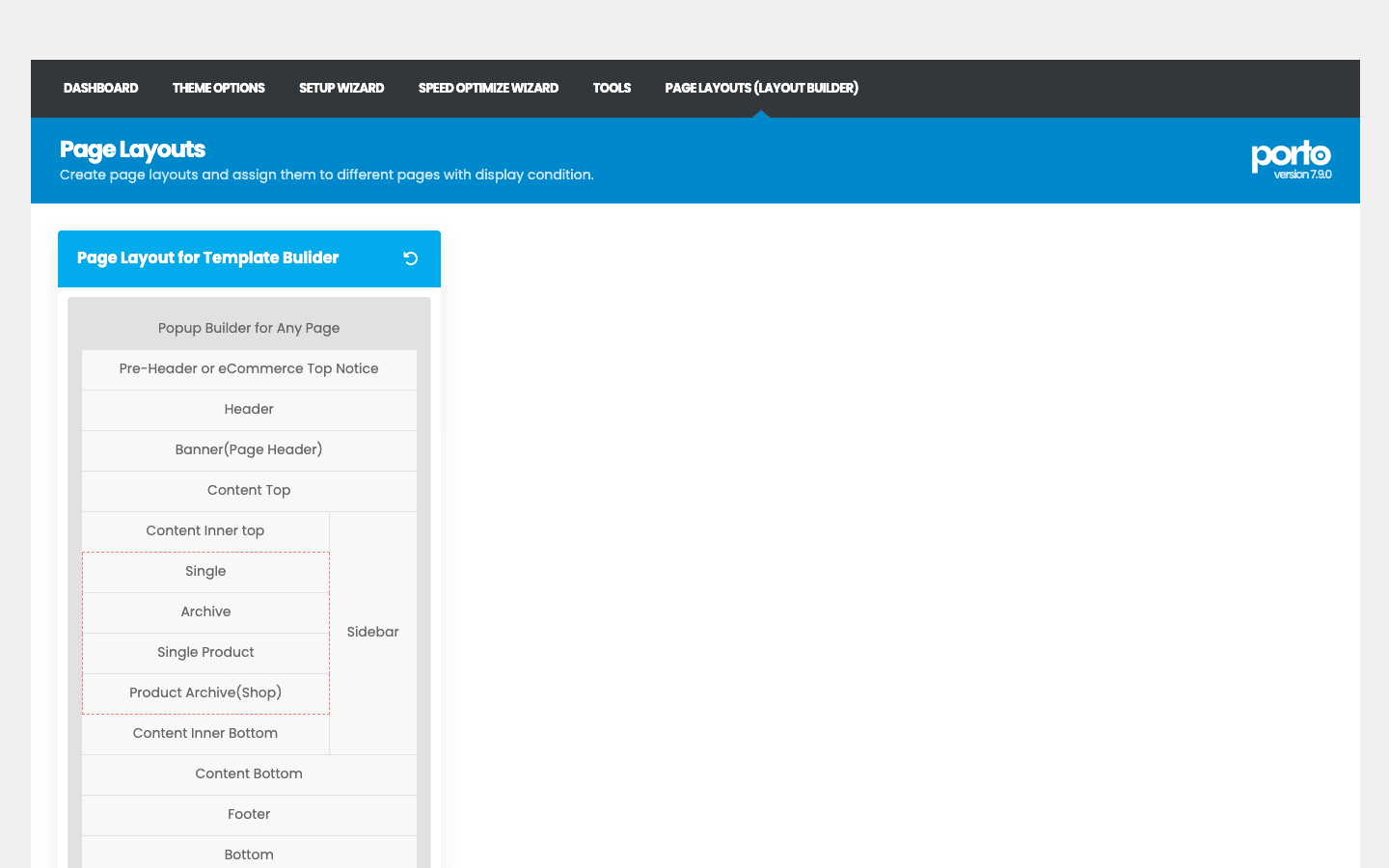
A layout in Porto is a stack of regions: a popup area, a pre-header or eCommerce top notice, the header, a page-header banner, the content (with Single, Archive, Single Product, and Product Archive (Shop) sub-regions), the footer, and a sidebar. You build a layout, then assign it to specific pages with display conditions.
The eCommerce-specific part is that Single Product and Product Archive (Shop) are first-class regions. That means you can design your product page and your shop page visually, with your chosen builder, and apply that design across the catalog, rather than editing PHP templates. For a store that wants a distinctive product page (custom tabs, trust badges, related-product layouts) without a developer, this is the feature that makes it possible.
The "eCommerce Top Notice" region is a small but telling detail: it’s the strip where stores put "Free shipping over $50" or a sale countdown, and Porto treats it as a built-in part of the layout rather than something you hack in.
Headers, mega menus, and content beyond the shop
A store is more than its product pages, and Porto covers the surrounding site without making you reach for extra plugins.
The header is configurable, not fixed. Under Theme Options » Header you choose a header style, decide whether it sticks on scroll, and set a transparent header for landing pages where the hero should run under the menu. For a store, the header is prime real estate: it’s where your search box, account link, wishlist, and cart icon live, and Porto lets you arrange those without code.
The mega menu handles a big catalog. Once you have more than a handful of categories, a normal dropdown stops working. Porto’s mega menu (added through the Porto Functionality plugin) turns a single top-level item into a full-width panel with columns, category images, and even product widgets. If you sell across many departments, this is what keeps navigation usable instead of a 30-item dropdown nobody scrolls.
Porto ships real content types, not just a shop. Through the companion plugin it registers four custom post types you’ll actually use on a business-plus-store site:
- Portfolio for case studies or a lookbook, with grid and slider layouts.
- Member for a team or "our experts" page, which builds trust on a store’s About page.
- FAQ for a proper, structured frequently-asked-questions section (useful for shipping and returns policies).
- Event for shops that also run workshops, launches, or pop-ups.
Each has its own Theme Options section for layout, so a "Meet the team" page or an FAQ accordion is a few clicks rather than a plugin hunt. Where this shines: a store that’s also a brand (a roastery with a story, a studio with a portfolio) can build the whole site, marketing pages included, in one theme with one design language.
The Speed Optimize Wizard
Most themes talk about speed. Porto ships a wizard for it, and it’s the feature I’d point a skeptical developer to first.
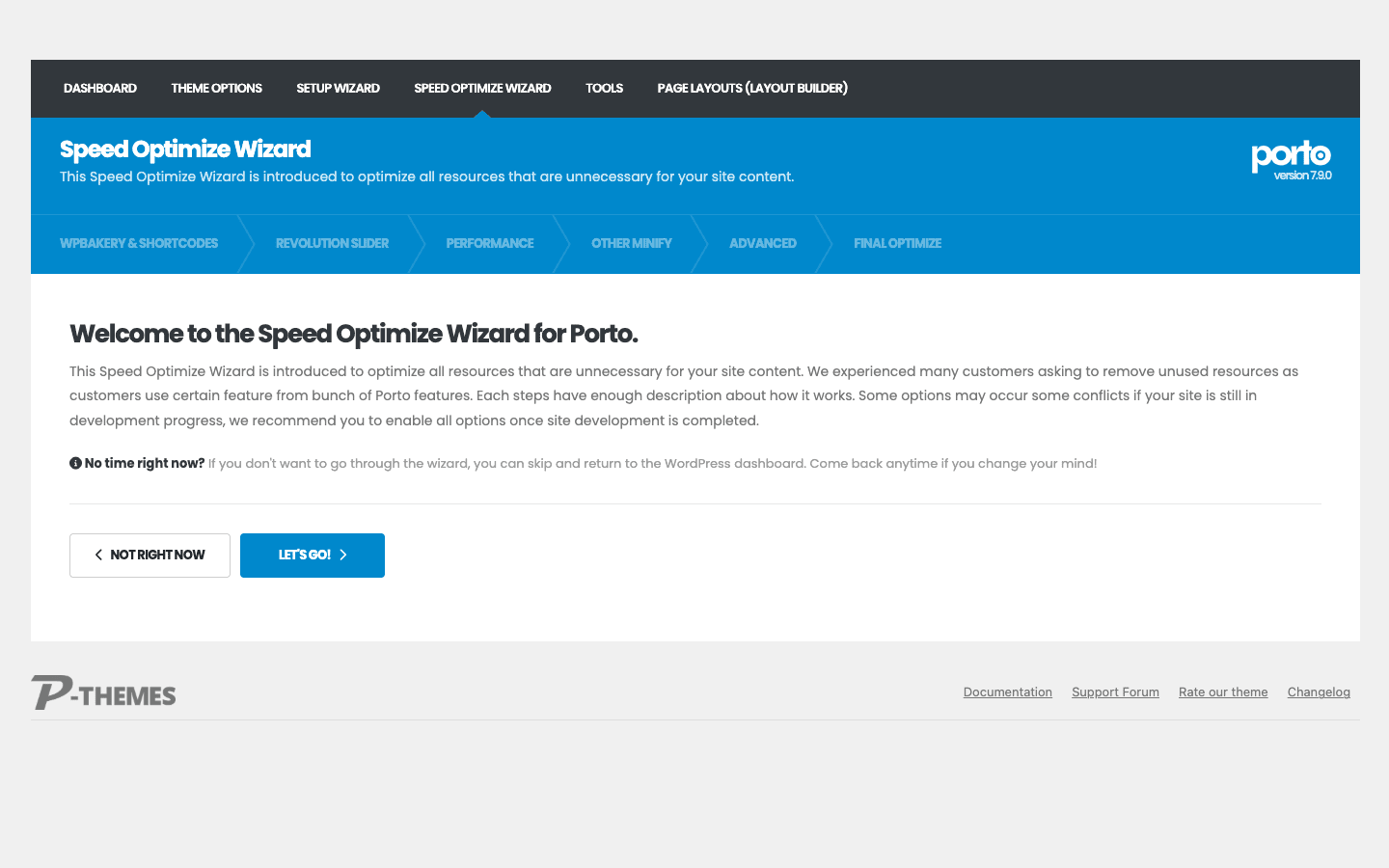
Find it at Porto » Speed Optimize Wizard. It walks you through steps for WPBakery & Shortcodes, Revolution Slider, Performance, Other Minify, Advanced, and a Final Optimize. The idea is honest about the problem it solves: a theme that can do everything loads the code to do everything, so the wizard lets you switch off the assets for features you don’t use. If your store doesn’t use Revolution Slider, the wizard stops loading its scripts. If you build only in Elementor, it can drop the WPBakery shortcode assets.
The wizard itself says it best, warning that some options may conflict if your site is still in development, and recommending you run it once the site is finished. That’s the right instinct. Heads-up: don’t run the full optimization mid-build, because disabling an asset a half-finished page depends on will make that page look broken. Save it for launch, then measure with a real tool.
This is also where Porto’s "fast" reputation actually comes from. The theme isn’t magically light; it’s light because it gives you the controls to make it light. That puts more responsibility on you than a minimal theme would, but it also means a feature-rich store can still score well on Core Web Vitals if you’re disciplined.
Setting up a Porto store without regrets
Porto has a lot of moving parts, so the order you do things in matters. Here’s the sequence I’d follow on a new store.
- Install Porto and activate the child theme. Upload the Porto theme, then activate the bundled child theme so your custom CSS and snippets survive updates.
- Install only the plugins you need. Porto will offer WooCommerce, WPBakery, Revolution Slider, and Porto Functionality. Install WooCommerce and Porto Functionality for a store; add the builders only if a demo needs them.
- Pick your builder and commit. WPBakery, Elementor, or Gutenberg. Filter the demo library to match.
- Import on a fresh install or staging, never on a live store. This is the big one, covered below. Import the store demo closest to your products, then swap in your catalog and branding.
- Set your Skin first. In Theme Options » Skin, set your colors, typography, and form style before you build pages, so everything inherits the right look.
- Run the Speed Optimize Wizard last. Only after the store is built and tested, switch off the assets you don’t use and measure the result.
Tip: WooCommerce was already installed in the demo I tested, so a store demo lands with a working (if empty) shop. Add your products through the normal Products screen and they flow into Porto’s shop and single-product layouts automatically.
Four stores Porto is genuinely good for
Multipurpose doesn’t mean good at everything, so here’s where I’d actually reach for the Porto theme.
The small-to-mid product store on a budget. This is Porto’s sweet spot. You get quick view, wishlist, AJAX search, and a free-shipping bar without buying four plugins, on a one-time license. For a store selling dozens to a few hundred products, it’s a complete storefront.
The store that cares about speed. If you’re chasing Core Web Vitals (and Google’s ranking rewards it), Porto’s speed wizard plus a caching layer gives you a genuinely fast feature-rich store, which most multipurpose themes can’t claim.
The agency building client stores fast. Import a Shop demo, restyle it in the Skin panel, swap the catalog, done. The layout builder lets you give each client a distinctive product page without touching code.
The mixed business-plus-shop site. A company that needs a corporate site with a small shop attached is well served: Porto’s Business and Shop demos live in the same theme, so the marketing pages and the store share one design system.
If your project is a huge catalog with complex merchandising, a marketplace, or a heavily custom checkout, you’ll likely outgrow any off-the-shelf theme and want a custom build. Porto is for the enormous middle ground of stores that need to look good, load fast, and ship this month.
Don’t import a demo onto a live store
This is the mistake that can cost you actual money, so it gets its own section.
When you import a full Porto demo, it doesn’t gently add the design alongside your existing content. It brings in the demo’s pages, menus, widgets, theme options, and (for store demos) WooCommerce settings to recreate that design faithfully. On a fresh install that’s exactly what you want. On a live store, an import can overwrite your configured pages, your menu, and your WooCommerce settings, and "import a demo just to see it" on a production store is how people end up with a shop that’s suddenly pointing at demo products and a checkout that’s misconfigured.
For a store, that’s not just inconvenient, it’s lost orders and a frantic evening of restoring from backup, if you have one. A misconfigured payment or shipping setting after a careless import can mean orders that fail silently while you think everything is fine.
The fix is simple and non-negotiable. Import on a fresh WordPress install or a staging copy, never on a live, populated store. Get the design right there, then either point your domain at it or rebuild the final pages on production using the layout builder, which is surgical instead of site-wide. The "Remove all installed demo contents" button helps you reset a staging site between experiments, but it is not a substitute for keeping demos off production. Two minutes to spin up staging is the cheapest insurance a store owner ever buys.
Porto vs WoodMart vs Flatsome
The honest comparison most store owners want is Porto against the other two giants of the WooCommerce theme category, WoodMart and Flatsome. Here’s how they actually differ, with real numbers.
| Porto | WoodMart | Flatsome | |
|---|---|---|---|
| Pre-built demos | 100+ | around 80 | around 30 |
| Builder | WPBakery + Elementor + Gutenberg + own layout builder | Elementor + WPBakery | UX Builder (own) |
| Regular price | about $26 (ThemeForest, one-time) | about $59 (ThemeForest, one-time) | about $59 (ThemeForest, one-time) |
| Bundled premium plugins | WPBakery, Revolution Slider | WPBakery, Slider Revolution | none (includes UX Builder) |
The numbers tell most of the story. Porto is both the cheapest and the most demo-rich of the three, roughly $26 against $59 for the other two, with 100-plus demos to WoodMart’s ~80 and Flatsome’s ~30. That price gap is real and it’s the main reason Porto stays popular.
One more name belongs in this conversation if your priority is the demo library: XStore ships 150-plus demos, more than Porto’s hundred-plus, though it sits up at the higher one-time price the other two charge. If sheer breadth of starting designs is what you are after, it is worth a look alongside these three.
The trade-offs are about polish and focus. Flatsome’s UX Builder is the most beginner-friendly editor of the three, but it’s proprietary, so leaving Flatsome means leaving your layouts. WoodMart leans hardest into store-specific design touches and feels the most "premium" out of the box. Porto wins on price, demo count, and builder freedom (it’s the only one that lets you use Elementor, WPBakery, or Gutenberg), but it asks more of you: you’ll lean on the speed wizard and the options panel to get it as tight as the other two are by default.
If your priorities are "spend the least, get the most starting points, and not be locked into one builder," Porto is the pick. If you want the most hand-holding, look at Flatsome; if you want the most store-polished defaults, look at WoodMart.
Developer reference: hooks and template regions
Porto is more developer-friendly than its all-in-one reputation suggests. The theme exposes a consistent set of action hooks that mirror the layout regions, so you can inject markup at any point in the page without editing template files.
Content and layout hooks
Every region in the layout builder has matching porto_before_* and porto_after_* actions.
// Add a store-wide announcement right before the header
add_action( 'porto_before_header', function () {
    echo '<div class="store-promo">Free shipping on orders over $50</div>';
} );

// Inject a trust-badges row after the main content on every page
add_action( 'porto_after_content', function () {
    echo do_shortcode( '[porto_trust_badges]' );
} );
The full set includes porto_before_wrapper / porto_after_wrapper, porto_before_main / porto_after_main, porto_before_content / porto_after_content, the inner-content variants (porto_before_content_top, porto_after_content_bottom, and so on), porto_before_sidebar / porto_after_sidebar, porto_before_banner / porto_after_banner, and porto_before_breadcrumbs. If you’ve ever fought a theme to add one line of markup in one spot, this is a relief.
WooCommerce hooks
The store features expose their own filters, which is how you tune them without hacking core.
// Set the free-shipping progress-bar threshold to 75 dollars
add_filter( 'porto_free_shipping_threshold', function () {
    return 75;
} );

// Add a custom post type to Porto's AJAX live search results
add_filter( 'porto_ajax_search_post_type', function ( $types ) {
    $types[] = 'product';
    $types[] = 'post';
    return $types;
} );
There are matching filters for the mini cart (porto_before_mini_cart_total), the currency switcher (porto_currency_switcher), and the cart and checkout layout versions (porto_filter_cart_version, porto_filter_checkout_version), so a developer can reshape the store flow in code.
Elementor and performance hooks
Porto integrates with Elementor Pro through porto_elementor_pro_header_location and porto_elementor_pro_footer_location, so you can drive theme regions from Elementor templates. And the speed wizard is backed by porto_exclude_javascript and porto_exclude_style filters, which is how you script asset exclusions instead of clicking through the wizard on every site.
// Programmatically stop a script from loading on non-shop pages
add_filter( 'porto_exclude_javascript', function ( $handles ) {
    if ( ! is_woocommerce() ) {
        $handles[] = 'revslider';
    }
    return $handles;
} );
Content shortcodes
The Porto Functionality plugin registers template-builder shortcodes like porto_single_product and porto_tb_posts (for theme-builder post loops), plus a porto_widget_woo_products element for product grids and a large set of WPBakery elements. These are what the demos are built from, and you can drop them into any builder.
Performance, compatibility, and gotchas
No honest review skips the rough edges, and a theme this large has a few.
It is fast only if you make it fast. This is the central trade-off. Out of the box Porto is reasonable, but the moment you enable two builders, a slider, and a heavy demo, you’re shipping a lot of CSS and JavaScript. The Speed Optimize Wizard is the answer, but it’s a step you have to actually take. A minimal theme is fast by default; Porto is fast by configuration. Budget time for the wizard and a caching plugin.
The demo import depends on external servers. As covered above, the demo content is fetched from P-THEMES, so a locked-down host can stall the import. That’s a hosting issue, not a theme bug, but it surprises people.
Common problems and fixes:
- A demo imports without its images or with broken sliders. The import didn’t finish fetching remote assets. Re-run it on a host with open outbound access, or import again.
- A page looks broken after running the speed wizard. You disabled an asset that page needs. Re-enable that feature’s assets in the wizard, or exclude that page.
- Styles look wrong after a theme update. You edited the parent theme. Always work in the bundled child theme.
- The shop layout ignores your custom template. Confirm the layout is assigned with the right display condition in Page Layouts, and that you set it under Theme Options » WooCommerce.
Compatibility is broad. Porto styles WooCommerce deeply, integrates with bbPress and BuddyPress, works with Elementor and WPBakery, supports the major multilingual plugins, and ships block patterns for Gutenberg. It works on multisite. The main thing to watch, as always, is builder overlap: don’t load Elementor and WPBakery on the same store if you only build in one.
FAQ
Is the Porto theme good for a WooCommerce store specifically?
Yes, that’s its main job. Porto bakes in quick view, a wishlist, AJAX product search, a free-shipping progress bar, a currency switcher, a side cart, and custom single-product and shop layouts, which together replace several paid plugins. For a small-to-mid catalog it’s a complete storefront; only very large or heavily customized stores will outgrow it.
Do I need WPBakery or Elementor to use Porto?
No. Porto’s own layout builder and the WordPress block editor can build a full site on their own. WPBakery is bundled if you want it, and Elementor is supported if you prefer it, but neither is required. The reason both appear is choice, not dependency. Pick one approach and you’re set.
Is Porto actually fast, or is that just marketing?
It’s fast if you configure it to be. Porto isn’t a minimal theme that’s light by default; it’s a feature-rich theme that gives you a Speed Optimize Wizard to strip the assets you don’t use. Run that wizard after building, add caching, and a Porto store can score well on Core Web Vitals. Skip it and leave every feature on, and it’ll be as heavy as any loaded multipurpose theme.
Will the demos import on any host?
Usually, but not always. The demo content is fetched from P-THEMES’ servers during import, so your site needs outbound internet access. Most shared and managed hosts allow this. On a locked-down corporate server or behind a strict firewall, the import can stall, and you’ll need to allow the connections or import on a host that permits them.
Can I design my own product and shop pages without code?
Yes, and it’s one of Porto’s best features. Under Theme Options » WooCommerce and the layout builder, you can create custom single-product and product-archive (shop) templates with your chosen builder and assign them by condition, instead of being stuck with one hard-coded product page.
How does Porto compare to WoodMart and Flatsome?
Porto is the cheapest (around $26 one-time versus roughly $59 for both) and ships the most demos (100-plus). Flatsome is the most beginner-friendly thanks to its UX Builder; WoodMart has the most store-polished defaults. Porto’s edge is price, demo count, and the freedom to build with Elementor, WPBakery, or Gutenberg rather than one proprietary editor.
Does Porto support multilingual stores?
Yes. Porto is compatible with the major multilingual plugins, and it includes a currency switcher for showing prices in a visitor’s currency, which pairs well with a multi-currency setup for international stores.
How much does the Porto theme cost, and what about the GPL version?
On ThemeForest it’s a one-time purchase (around $26 for the regular license) with lifetime updates, no subscription. On GPL Times, the Porto theme is available under the GPL, so you can install it, import a Shop demo, and try the WooCommerce features and the speed wizard before deciding whether it fits your store. The bundled premium plugins (WPBakery, Revolution Slider) come through the theme and update with it, but they don’t include a separate vendor license.
Final thoughts
The Porto theme is a genuinely good answer to a specific question: how do you launch a good-looking WooCommerce store, keep it fast, and not pay every year? The store features are deep enough to replace a stack of plugins, the demo library gets you to a working design fast, and the speed wizard is the rare honest acknowledgment that a feature-rich theme needs a way to slim down.
It isn’t effortless. Porto rewards a store owner who imports on staging, picks one builder, sets the Skin first, and runs the speed wizard at launch. Ignore that discipline and you get the slow, bloated store that gives multipurpose themes their bad name. The control is there; you have to use it.
For a small-to-mid store on a budget, an agency cranking out client shops, or anyone who wants the most starting points for the least money, Porto is one of the few WooCommerce themes I’d actually recommend. Import a Shop demo onto a staging site, add a few of your products, and run the speed wizard, and you’ll know within an afternoon whether it fits the way you sell.