

Here’s the uncomfortable truth about Elementor: the free widgets get you a page, not a design. Headings, images, buttons, a tab widget that looks like every other tab widget on the internet. The moment a client asks for an animated pricing table, a Google-reviews block, a logo carousel, or a styled contact form, you’re either writing custom CSS for an afternoon or reaching for an add-on.
PowerPack for Elementor is one of the add-ons people reach for. It bundles more than 90 widgets and a set of element-level extensions into a single plugin that sits on top of Elementor (free or Pro) and fills the gaps Elementor leaves. It’s been around for years, it’s made by a team that does nothing but Elementor add-ons, and it has a reputation for being lighter and less buggy than some of its rivals.
This is a full walkthrough of what PowerPack actually gives you, which widgets are worth your attention, how to keep it from slowing your site down, where it beats the other add-on packs and where it doesn’t, and a developer reference with the real filters and hooks. Some of it is genuinely useful. Some of it overlaps with things you may already own. I’ll be honest about both.
Table of Contents
- What is PowerPack for Elementor?
- What you actually get: 90+ widgets, grouped
- Installing it and turning on only what you need
- A tour of the widgets worth knowing
- The form stylers (this is the sleeper feature)
- The extensions: powers for every element
- White-labeling PowerPack for clients
- Integrations and API keys
- Who PowerPack is really for
- Don’t enable every widget and stack three packs
- Is PowerPack a performance problem?
- PowerPack vs Essential Addons vs Happy Addons vs Premium Addons
- Developer reference: filters and hooks
- FAQ
- Final thoughts
What is PowerPack for Elementor?
PowerPack for Elementor is a premium add-on plugin built by Team IdeaBox. Its job, in the plugin’s own words, is to "extend Elementor Page Builder with 90+ creative widgets and exciting extensions." So it isn’t a page builder itself and it isn’t a theme. It’s a layer of extra widgets and tools that plugs into Elementor and appears right inside the editor you already use.
You need Elementor installed for it to do anything. The free version of Elementor is enough; Elementor Pro is not required, although PowerPack happily coexists with it and a few of its widgets overlap with Pro’s. If you’re still deciding on the base, our Elementor Pro walkthrough covers what Pro adds on its own.
The pitch is simple. Elementor’s free widget set is deliberately basic so that Pro and add-ons have room to sell. PowerPack drops in the widgets most real projects need (pricing tables, business reviews, advanced tabs, logo carousels, form stylers, a table of contents, WooCommerce blocks) plus a set of "extensions" that bolt extra powers onto any element, PowerPack’s or Elementor’s. You install one plugin instead of five single-purpose ones.
What I like about PowerPack specifically, having used a few of these packs, is that it leans practical rather than flashy. There are showy widgets, but the bulk of the library is the unglamorous stuff you actually reach for on client work: an info box, a styled form, a reviews block, a logo grid. You can grab PowerPack for Elementor on GPL Times and click through every widget in this article on a real Elementor install.
What you actually get: 90+ widgets, grouped
Ninety widgets is a number that means nothing until you see them sorted into the jobs they do. Here’s the library grouped the way I think about it on a build, with the bold lead-in telling you when each group earns its place.
- Layout and content. Advanced Accordion, Advanced Tabs, Tabbed Content Carousel, Toggle, FAQ, Info Box, Info List, Info Table, Promo Box, Dual Heading, Fancy Heading, Divider, Icon List, Buttons. These are the bread and butter, the widgets you drop on almost every page.
- Pricing and conversion. Pricing Table, Price Menu (think restaurant or service menus), Counter, Progress Bar, Countdown, Coupons, Call-to-action style Promo Box. The widgets that nudge a visitor toward doing something.
- Social proof. Business Reviews (pulls Google reviews), Review Box (your own star-rated reviews), Testimonials, Logo Carousel, Logo Grid. The "trust us" section of every landing page.
- Media. Image Comparison (before/after slider), Image Accordion, Image Hotspots, Gallery, Album, Devices (put your screenshot in a laptop or phone mockup), Random Image, Scroll Image, Video, Instagram Feed, Interactive Circle.
- Content and posts. Advanced Posts, Categories, Breadcrumbs, Sitemap, Table of Contents, Author List, plus a Query Control system and Dynamic Tags for connecting widgets to custom fields.
- Business and utility. Business Hours, How To (with schema), Recipe (with schema), Showcase, Charts (bar, line, pie, radar), Marquee, Modal Popup, Offcanvas Content, One Page Navigation, Twitter widgets.
- Forms. Style stylers for Contact Form 7, Gravity Forms, WPForms, Ninja Forms, Fluent Forms, and Formidable Forms, plus native Login Form and Registration Form widgets. More on these below, because they’re underrated.
- WooCommerce. Product grids, cart, checkout, and a quick-view setup for building shop layouts in Elementor.
The whole grid lives under Elementor » PowerPack » Elements, where each widget is a toggle you can switch on or off.
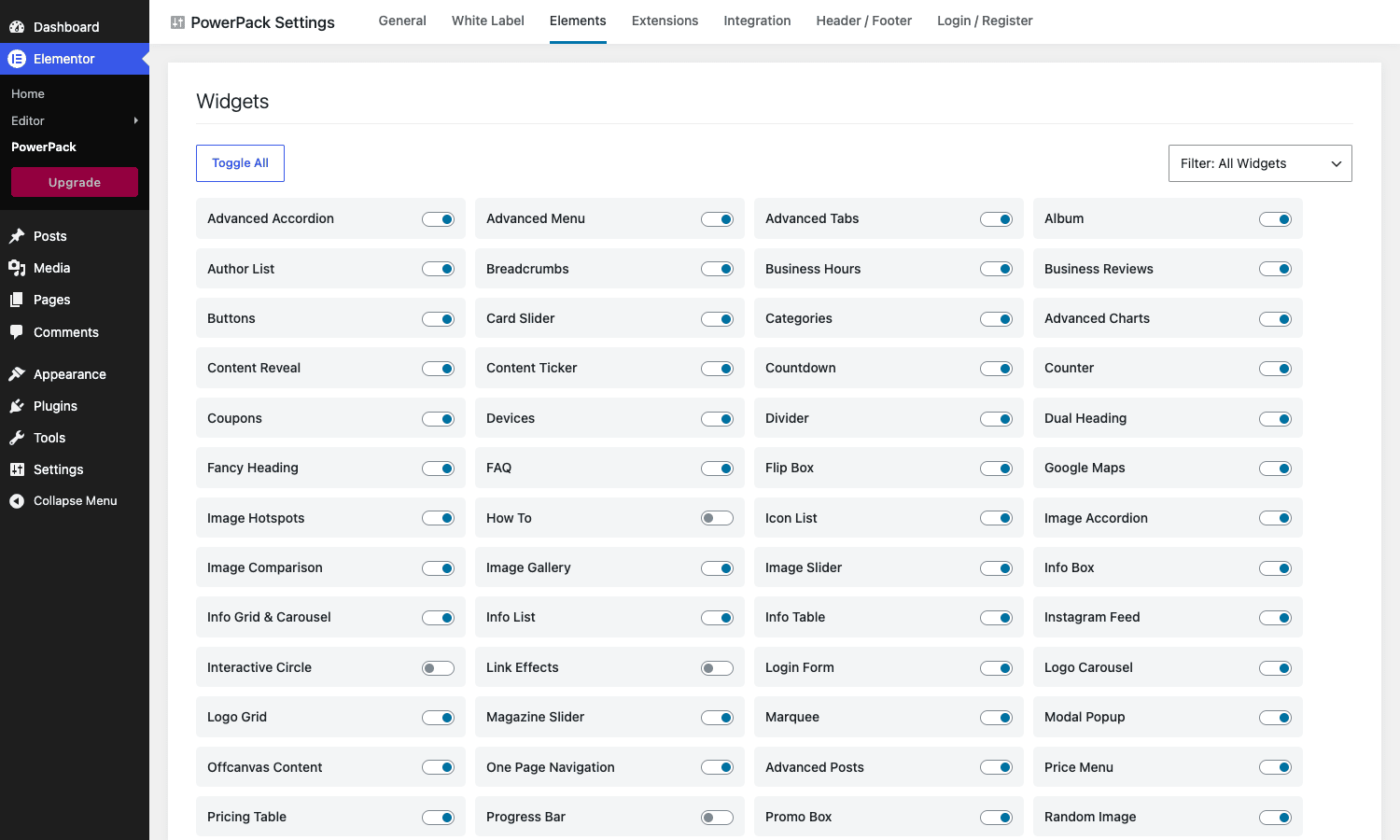
That toggle grid is more important than it looks, and it’s the first thing I’ll come back to in the performance section.
Installing it and turning on only what you need
Setup is short, with one ordering rule that matters.
Step 1: Install Elementor first. PowerPack is an add-on, so Elementor (free is fine) has to be active before PowerPack will load its widgets. If you activate PowerPack on a site without Elementor, nothing breaks, but nothing appears either.
Step 2: Install and activate PowerPack. Upload the plugin under Plugins » Add New » Upload Plugin, activate, and enter your license key under Elementor » PowerPack » General so it pulls updates. The PowerPack widgets now show up in the Elementor editor panel.
Step 3 (the one people skip): turn off the widgets you won’t use. Open Elementor » PowerPack » Elements and switch off everything you don’t plan to touch on this site. Building a brochure site with no shop? Turn off the WooCommerce widgets. No charts? Off. This isn’t busywork, it’s the single biggest lever you have over how much PowerPack weighs, and I’ll explain why later.
Tip: the Elements screen has a "Filter: All Widgets" dropdown and a "Toggle All" button. Toggle everything off, then switch back on the ten or fifteen widgets you actually use. A focused widget list also makes the editor panel faster to scan.
That’s the whole setup. Install order, license, prune. Five minutes.
A tour of the widgets worth knowing
You won’t use 90 widgets. Nobody does. Here are the ones I reach for, and what makes each better than rolling your own.
Advanced Tabs and Advanced Accordion. Elementor’s free tabs are rigid. PowerPack’s let each tab pull in a saved template, so a "tab" can be an entire pre-built section, not just a text box. That one feature turns the tabs widget into a layout tool.
Business Reviews. This pulls your real Google reviews (via a Google Places API key) and lays them out as cards or a carousel, with a star summary. For a local business page, it’s the difference between "trust us" and showing the actual 4.8 stars from 200 reviews. It needs an API key, which I’ll cover in the integrations section.
Pricing Table. A proper pricing table with a featured-plan highlight, ribbon, feature list with tick and cross icons, and a call-to-action button. This is one of those widgets you’d spend half a day building by hand and getting subtly wrong on mobile.
Logo Carousel and Logo Grid. The "as seen in" or "our clients" strip. Sounds trivial, but doing a responsive, evenly spaced, grayscale-to-color-on-hover logo row by hand is fiddly, and this nails it in two minutes.
Table of Contents. Auto-builds a TOC from your headings, sticky or inline, collapsible. For long articles this is a genuine SEO and usability win, and it’s a widget people often install a separate plugin for.
Advanced Posts. A query-driven posts grid or carousel with filters, far more flexible than Elementor free’s basic posts widget. Pair it with the Query Control system and you can show "related posts in this category, excluding the current one" without code.
Charts. Bar, line, pie, doughnut, and radar charts driven by data you enter in the widget. Handy for a stats or report page, and rare in add-on packs.
Devices. Drops a screenshot into a laptop, phone, or tablet mockup. The fastest way to make an app or SaaS landing page look finished.
Modal Popup. Build a popup (newsletter signup, promo, a video, a contact form) triggered on click, page load, or after a delay, without bolting on a separate popup plugin. For a single promo modal, this saves you a whole extra plugin and its overhead.
Offcanvas Content. A slide-in panel from any edge of the screen, triggered by a button. People use it for mobile menus, off-canvas carts, and filter drawers. It’s one of those patterns that looks hard and turns out to be a five-minute widget.
Info Box. The icon-plus-heading-plus-text-plus-button card, the single most-used "our services" or "why choose us" block on the web. Doing it by hand from separate heading, icon, and text widgets is tedious and never quite lines up; the Info Box is one widget with all the styling in one place.
Content Ticker and Marquee. A scrolling announcement ticker or a marquee strip, handy for a breaking-news bar, a sale countdown line, or a rotating set of offers across the top of a page.
How To and Recipe. Both output proper structured-data markup, so a how-to guide or a recipe page becomes eligible for Google’s rich results. Most widget packs give you a pretty layout; these give you a pretty layout that search engines understand, which is a real SEO edge for content sites.
Image Comparison. The before/after slider. Renovation, photo retouching, design mockups, product-versus-product, anywhere a drag-to-reveal comparison sells the point better than two side-by-side images.
I’m leaving out a couple dozen, but you get the shape: PowerPack covers the widgets a real marketing site needs, with enough styling controls that you rarely drop to custom CSS.
The form stylers (this is the sleeper feature)
This is the part most reviews gloss over, so let me give it its own section.
PowerPack ships dedicated "styler" widgets for the big form plugins: Contact Form 7, Gravity Forms, WPForms, Ninja Forms, Fluent Forms, and Formidable Forms. Here’s the thing to understand, and it’s a common source of confusion: a styler does not build the form. Your form plugin still builds and processes the form. The PowerPack widget just wraps it in Elementor’s styling controls so you can match the form’s fields, labels, and submit button to your design visually, instead of fighting the form plugin’s own CSS.
Where this shines: Contact Form 7 in particular ships with almost no styling, and making it look like part of your site is normally a CSS chore. Drop the PowerPack CF7 Styler, point it at your form, and you get full control over field spacing, borders, focus states, and the button, all in the Elementor panel.
The catch: you have to have built the form in the form plugin first. The styler shows you a dropdown of existing forms. If the dropdown is empty, you skipped that step. Style follows function here, not the other way around.
For anyone who has shipped a contact page, this is quietly one of the most time-saving widgets in the pack.
The extensions: powers for every element
Widgets are only half of PowerPack. The other half is "extensions", which add abilities to any element on the page, PowerPack’s widgets and Elementor’s alike. You manage them under Elementor » PowerPack » Extensions.
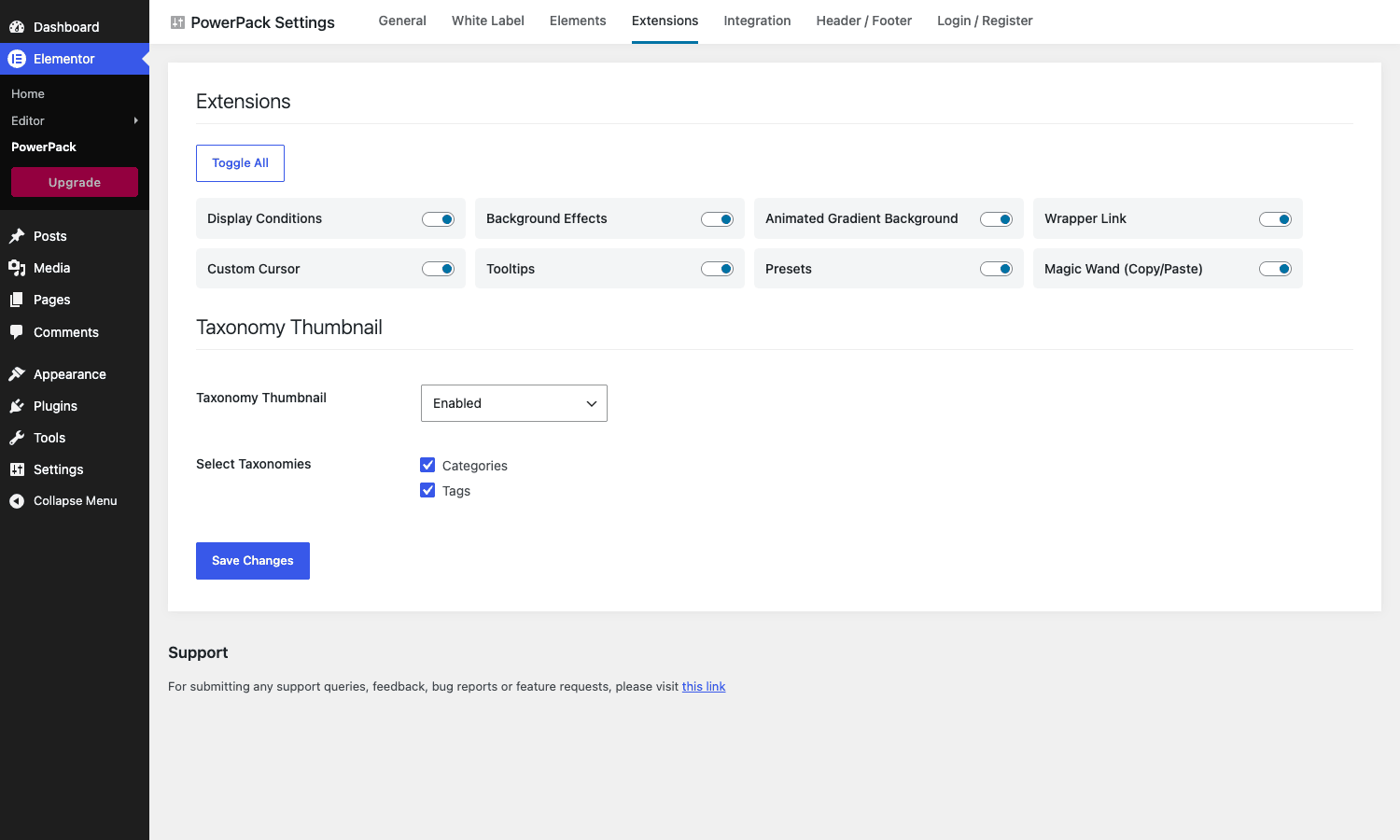
The ones that change how I build:
- Display Conditions. Show or hide any element based on rules: logged-in status, user role, date and time, the current page, and more. This is huge. It means one page can show different content to logged-in members, run a banner only during a sale window, or hide a section on mobile, no duplicate pages.
- Magic Wand (Copy/Paste). Copy an element, or a whole section, from one site and paste it into another. If you build a lot of sites, a cross-domain copy/paste is a real time-saver.
- Wrapper Link. Make an entire section or column clickable, not just a button inside it. Sounds small, solves a genuinely annoying problem.
- Background Effects and Animated Gradient Background. Add particle, gradient, or animated backgrounds to any section without a separate plugin.
- Custom Cursor and Tooltips. A custom cursor for that design-agency feel, and tooltips on any element.
- Presets. Save and reuse styled presets so your buttons and headings stay consistent across a build.
Display Conditions alone justifies a lot of PowerPack installs. It’s the kind of logic that usually needs a dedicated plugin or shortcode hacks.
Building with PowerPack in the editor
Inside the Elementor editor, PowerPack’s widgets live in the same panel as everything else. Search a widget name, or scroll to the PowerPack category, and drag it onto the canvas like any native widget.
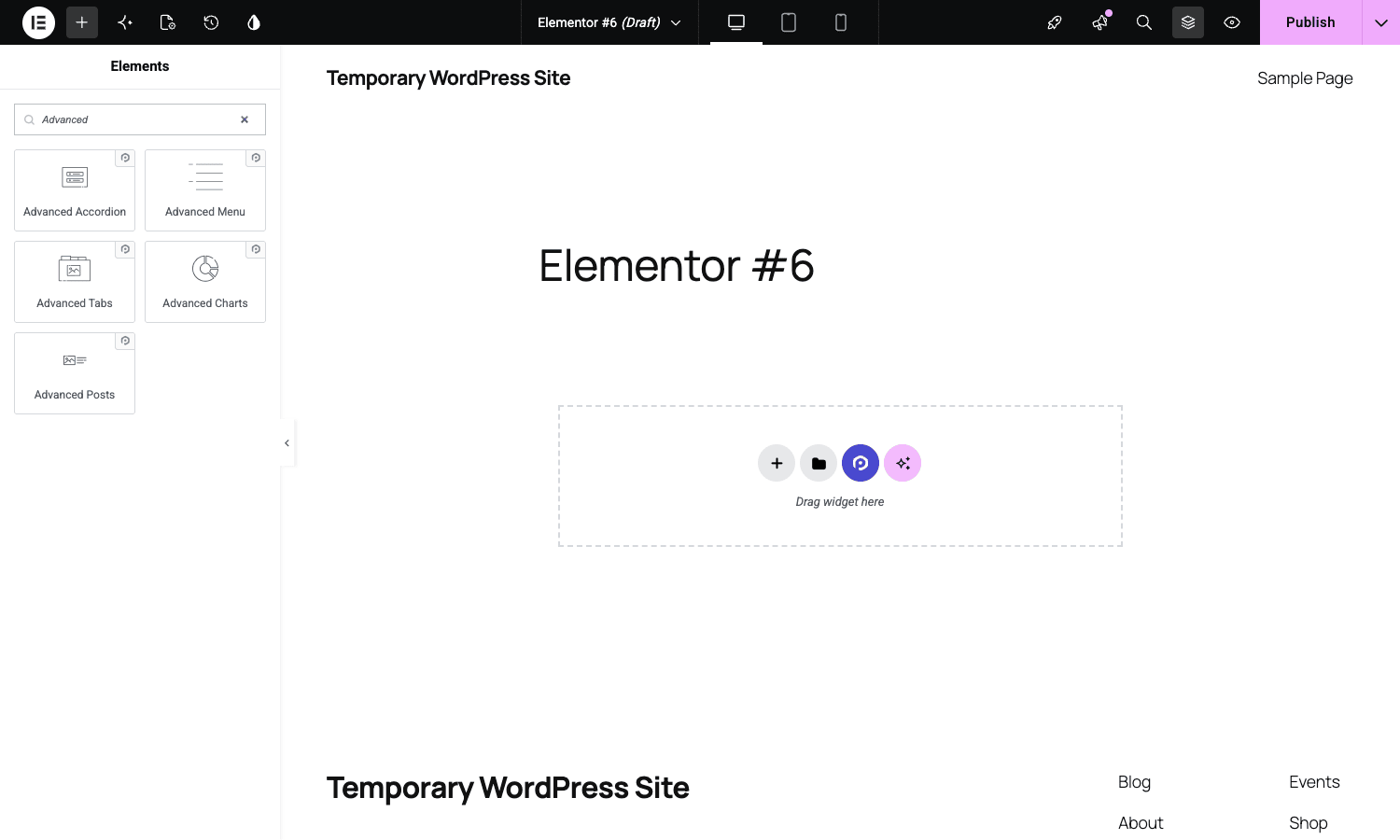
There’s no separate interface to learn, which is the whole point of an add-on done well. Every PowerPack widget uses Elementor’s standard three-tab control layout (Content, Style, Advanced), so if you can use Elementor, you can use PowerPack on day one. The widgets carry a small PowerPack badge in the panel so you can tell them from Elementor’s own, which matters when you’re deciding whether a layout depends on the add-on.
Heads-up: because PowerPack widgets are real Elementor widgets, a page built with them needs PowerPack to stay active to render correctly. That’s true of every add-on pack, but it’s worth saying out loud before you build a client’s whole site on widgets from a plugin they might later disable.
White-labeling PowerPack for clients
If you build for clients, the White Label tab is the feature that pays for the agency license.
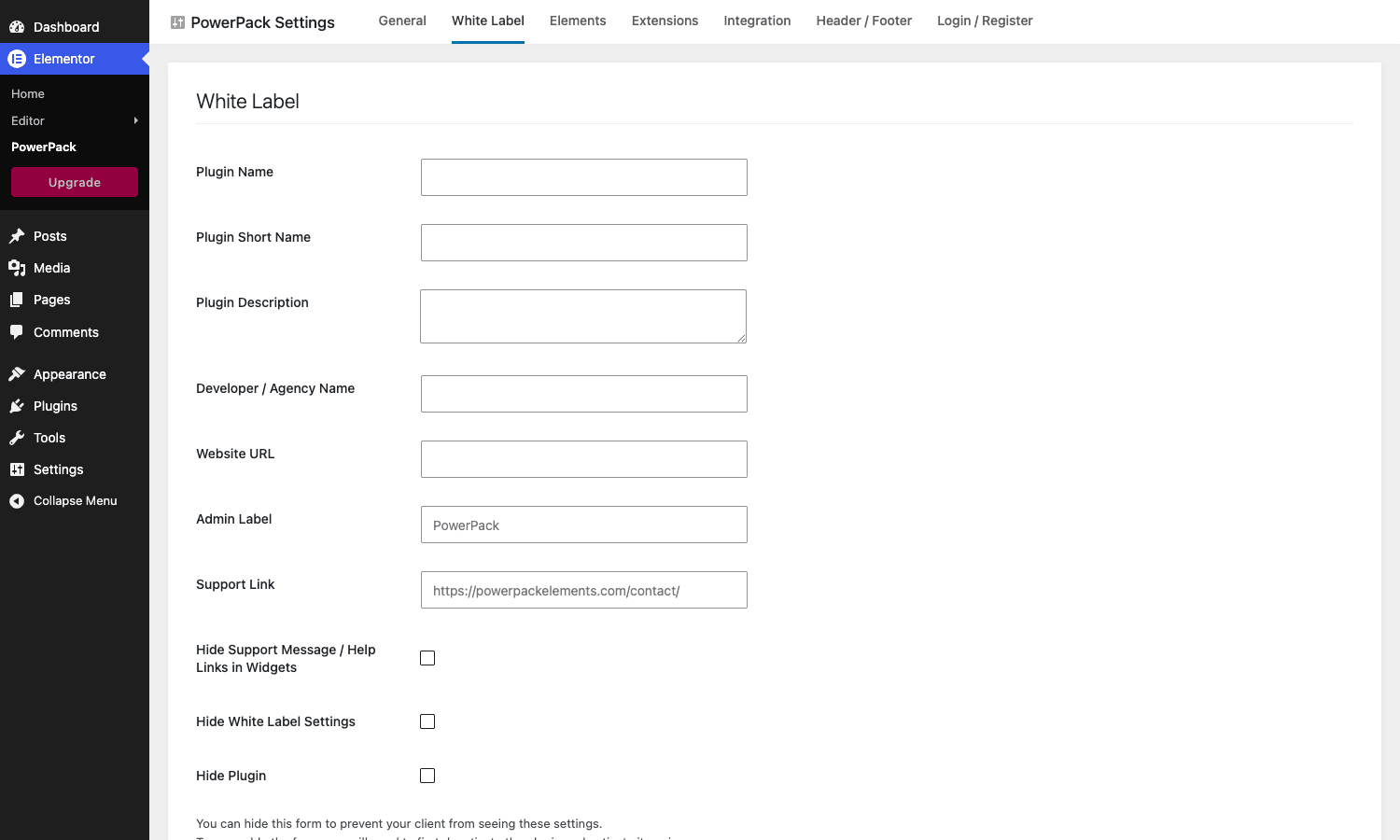
Under Elementor » PowerPack » White Label you can rename the plugin (Plugin Name, Short Name, Description), set your own agency name and website URL, change the admin menu label, swap the support link to your own, and even hide the white-label settings and the plugin row itself from the client. The result: the client sees "Acme Studio Widgets" in their dashboard, not "PowerPack", and they have no reason to go looking for (or disabling) it.
It’s a small thing that makes a real difference to how a handover feels. Not every add-on pack includes full white-labeling, and the ones that do often gate it behind their top tier.
Integrations and API keys
A handful of PowerPack widgets talk to outside services, and those keys live under Elementor » PowerPack » Integration.
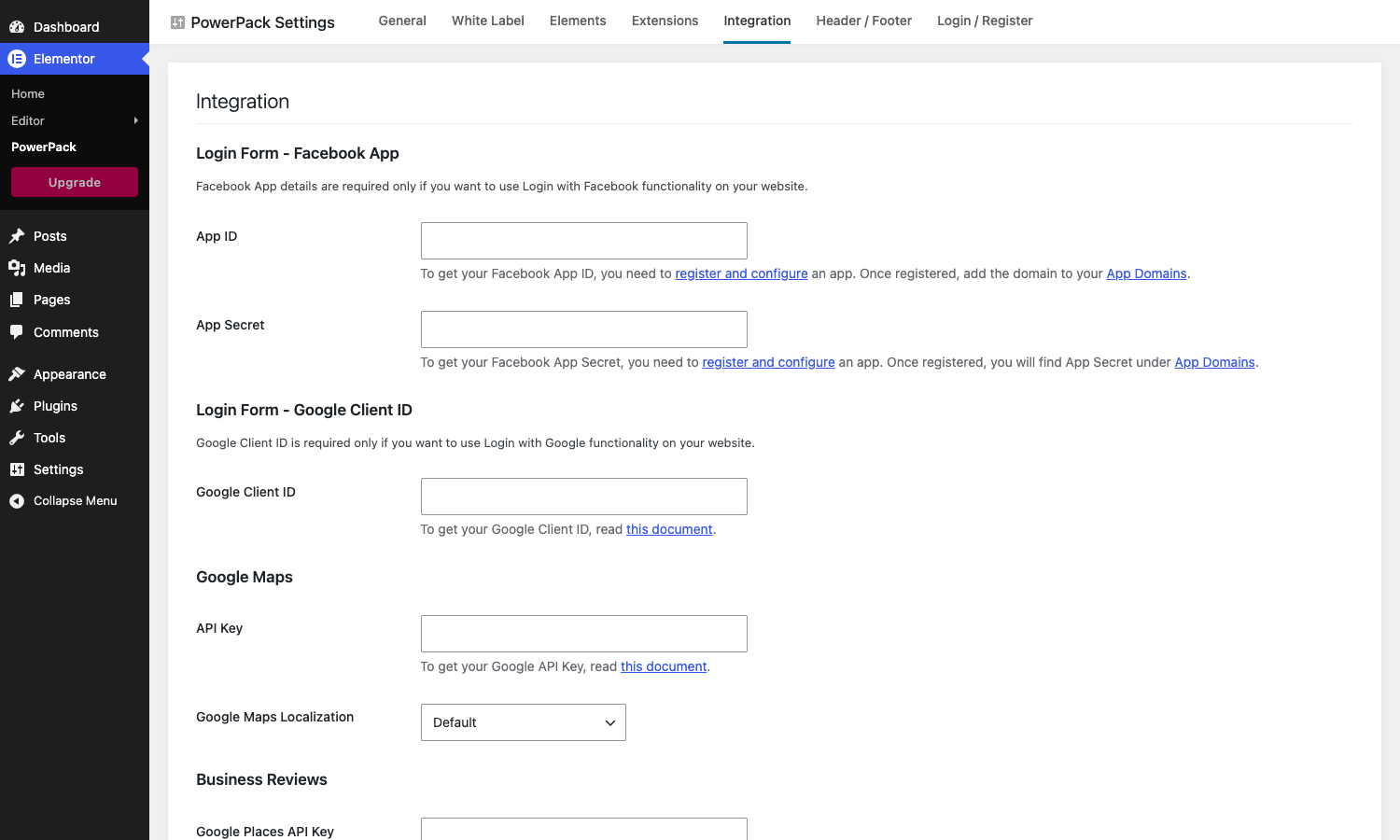
What’s here and why:
- Google Maps API key. The Google Maps widget needs this to render maps. Google requires a key for Maps now, so this is unavoidable, not a PowerPack quirk.
- Business Reviews (Google Places API key). The Business Reviews widget uses this to fetch your Google reviews.
- Facebook App and Google Client ID. Only needed if you use the Login Form widget’s social-login buttons.
Note: none of these are required to use PowerPack generally. They only matter for the specific widgets that depend on them. If you’re not using maps, reviews, or social login, leave the whole tab blank and move on.
Who PowerPack is really for
"For everyone who uses Elementor" is the lazy answer. Here’s the honest breakdown.
If you’re a freelancer or agency building client sites on Elementor, PowerPack is close to a default install. The widget coverage matches real client requests, Display Conditions handles the logic you’d otherwise hack, and white-labeling makes the handover clean. The Magic Wand copy/paste pays off the more sites you build.
If you run your own business site, the value is concentrated in a handful of widgets: Business Reviews, a styled contact form, a pricing table, business hours, a logo strip. You’ll use fifteen of the ninety, and that’s fine, because those fifteen would otherwise be a pile of separate plugins or custom CSS.
If you build content or marketing sites, the Table of Contents, Advanced Posts, Content Ticker, and the schema-aware How To and Recipe widgets are the draw.
If you only ever build simple pages with headings, images, and text, you don’t need PowerPack, or any add-on pack. Elementor free covers you, and adding a 90-widget pack is overkill you’ll pay for in editor load. Be honest about which camp you’re in.
| Your situation | PowerPack fit | The widgets you’ll live in |
|---|---|---|
| Freelancer / agency | Excellent | Display Conditions, form stylers, white label, Magic Wand |
| Small business site | Strong | Business Reviews, Pricing Table, form styler, Business Hours |
| Content / marketing site | Strong | Table of Contents, Advanced Posts, Charts, How To |
| Simple brochure pages | Skip it | Elementor free is enough |
Don’t enable every widget and stack three packs
Here’s the mistake I see most often, and it’s the reason "Elementor is slow" gets blamed on the wrong thing.
Someone installs PowerPack, leaves all 90 widgets enabled, then installs Essential Addons "just in case", then adds Happy Addons because a tutorial used it. Now three add-on packs are loading their widget registrations, their editor assets, and their front-end CSS and JavaScript on every page. The editor panel has five different pricing-table widgets. The site ships a few hundred kilobytes of widget CSS for widgets that aren’t even on the page. And when something breaks, you have no idea which pack did it.
Two rules keep you out of that hole.
First, prune the widget list. That Elements toggle screen isn’t decoration. Turn off every widget you’re not using on this site. PowerPack only needs to register and load assets for enabled widgets, so a site using fifteen widgets is dramatically lighter than one with all ninety live. This is the single most effective thing you can do, and it takes two minutes.
Second, pick one pack and commit. PowerPack, Essential Addons, and Happy Addons overlap enormously, the same pricing tables, the same accordions, the same logo carousels. Running two or three together buys you duplication and conflicts, not capability. Choose the one whose widgets and price fit, and uninstall the others. A site on one pruned add-on pack plus a caching plugin performs fine. A site on three bloated ones does not, and untangling it later costs you a day you’ll wish you’d spent pruning up front.
Is PowerPack a performance problem?
Short answer: it can be, and how much is almost entirely up to you.
Any Elementor add-on adds weight, because each widget ships its own styles and scripts. But PowerPack is built so you control that weight, and it’s lighter than its reputation if you use the controls.
The big lever, again, is the Elements toggle screen. PowerPack only loads the code for widgets that are switched on. Disable the sixty widgets you don’t use and you’ve cut the registration and asset overhead by roughly that proportion. Most "PowerPack made my site slow" complaints come from leaving all 90 enabled on a site that uses twelve.
Beyond that, the usual Elementor performance hygiene applies and matters more than the add-on itself:
- Let Elementor generate and load only the CSS each page needs (Elementor’s improved asset loading), rather than one giant stylesheet.
- Run a caching plugin. Pair PowerPack with something like WP Rocket for page caching, CSS and JavaScript optimization, and lazy loading, and the add-on’s weight stops mattering on cache hits.
- Don’t stack multiple add-on packs (see above).
- Watch your images. A heavy Elementor page is far more often heavy because of unoptimized hero images than because of widget CSS.
Compatibility is generally good. PowerPack works with Elementor free and Pro and with the major themes (Hello, Astra, GeneratePress, Kadence, and the bigger multipurpose themes). It needs a current PHP version and a reasonable memory limit, like Elementor itself; 256MB is comfortable. The most common conflict reports involve another add-on pack registering a widget with the same name, which is one more reason to run a single pack.
PowerPack vs Essential Addons vs Happy Addons vs Premium Addons
These four are the Elementor add-on packs people actually cross-shop, so here are real numbers instead of "powerful and flexible." (If you want a pack that leans toward full site building rather than just more widgets, Royal Elementor Addons Pro is worth weighing against these four too.)
On widget count, they’re all in the same ballpark and all more than you’ll use. PowerPack ships 90-plus widgets. Essential Addons claims around 100-plus elements when you count its extensions. Happy Addons is in the 120-plus range including its free tier. Premium Addons sits a little lower around 60-plus. Past about forty widgets, the count stops being the deciding factor, because nobody uses them all.
On price, they cluster tightly: single-site annual licenses land near $59 for PowerPack, around $59.97 for Essential Addons, and roughly $59 each for Happy Addons and Premium Addons, with multi-site and lifetime tiers stepping up from there. There’s no meaningful price gap to decide on.
So the real differences are quieter. White-labeling: PowerPack includes full white-label rebranding, which not all of them match at the same tier, and that matters if you hand sites to clients. Performance approach: all of them now offer per-widget toggles, but PowerPack’s Elements screen makes pruning straightforward. Stability: PowerPack has a long-standing reputation for being a touch lighter and less prone to breaking changes than the biggest packs, though that’s a judgment call, not a benchmark.
| Pack | Widgets | Single-site / year | White label | Notable |
|---|---|---|---|---|
| PowerPack | 90+ | ~$59 | Full | Display Conditions, form stylers |
| Essential Addons | 100+ | ~$59.97 | Partial | Largest install base |
| Happy Addons | 120+ | ~$59 | Partial | Generous free tier |
| Premium Addons | 60+ | ~$59 | Partial | Lean, fewer widgets |
The takeaway isn’t that PowerPack wins outright. It’s that on a field where price and widget counts are nearly identical, PowerPack competes on white-labeling, pruning, and a reputation for staying out of your way. For agency work, that combination is usually enough.
Developer reference: filters and hooks
PowerPack looks like a point-and-click plugin, but it exposes a clean set of filters and action hooks under the pp_ prefix. If you’re building on it for a client, these let you bend its behavior from a child theme instead of hacking the plugin.
Control which widgets load, in code. The Elements toggle screen writes a setting, but you can also enforce the enabled list programmatically, which is handy for keeping a fleet of sites consistent:
// Force a lean, fixed set of PowerPack widgets across every site you manage.
add_filter( 'pp_elementor_enabled_modules', function ( $enabled_modules ) {
    return array(
        'info-box',
        'pricing',
        'business-reviews',
        'logos',
        'toc',
    );
} );
The matching pp_elementor_enabled_extensions filter does the same for extensions.
Rename or reorganize the widget categories in the Elementor panel (useful alongside white-labeling, so the panel shows your agency’s category name):
add_filter( 'pp_elements_widget_categories', function ( $widget_categories ) {
    $widget_categories['pp-elements']['title'] = 'Acme Blocks';
    return $widget_categories;
} );
Adjust widget behavior with targeted filters. A few I reach for: pp_login_form_password_length sets the length of the password the Login Form widget generates when it registers a user (it defaults to 12), pp_chart_datasets lets you modify Chart data before render, and pp_business_reviews_read_more changes the reviews "read more" text.
// Make auto-generated registration passwords longer.
add_filter( 'pp_login_form_password_length', function ( $length ) {
    return 16;
} );
Hook into the header/footer and login flows with actions. PowerPack’s header/footer builder and login form fire actions you can hook:
// Run something right before PowerPack renders a custom header template.
add_action( 'pp_header_footer_before_render_header', function ( $header_id ) {
    // $header_id is the template post ID being rendered.
} );

// Fire your own logic (CRM sync, logging) after a user logs in via the Login Form widget.
add_action( 'pp_after_user_login', function ( $user, $posted_data ) {
    // $user is the WP_User; $posted_data is the submitted form data.
}, 10, 2 );
There’s a parallel set for the login form lifecycle (pp_login_form_start, pp_login_form_end, pp_login_form_before_reset_password_form) and for WooCommerce surfaces the shop widgets render (pp_before_product, pp_after_product, pp_cart_content, pp_quick_view_add_to_cart_before). When PowerPack finishes wiring up its extensions, it fires powerpack_elements/extensions/extensions_registered, which is the safe moment to register your own. Between the filters and the actions, you can customize PowerPack thoroughly without touching its files, which is exactly what you want from a plugin you don’t control the release schedule of.
FAQ
Do I need Elementor Pro to use PowerPack?
No. PowerPack works on top of the free version of Elementor. It does not require Elementor Pro. The two coexist fine, and a few PowerPack widgets overlap with Pro ones, so if you already have Pro, check whether you need both before doubling up.
Will PowerPack slow down my site?
Only if you let it. PowerPack loads code only for the widgets you enable, so the fix is to open the Elements screen and switch off everything you don’t use. Combine that with Elementor’s per-page CSS loading and a caching plugin, and a pruned PowerPack site performs fine. The slowdowns people report almost always come from leaving all 90 widgets on, or stacking multiple add-on packs.
Can I use PowerPack with Essential Addons or Happy Addons at the same time?
You can, but you shouldn’t. The packs overlap heavily, so running two or three together gives you duplicate widgets, more asset weight, and harder-to-debug conflicts, with no real gain. Pick the one that fits and uninstall the rest.
What happens to my pages if I deactivate PowerPack?
Any widget from PowerPack stops rendering, leaving gaps where those widgets were. This is true of every add-on pack, the widgets belong to the plugin. So build with that in mind on client sites, and don’t disable it casually on a site that depends on its widgets.
Does the white-label feature really hide PowerPack from clients?
Yes. You can rename the plugin, change its admin label, swap the support link, and hide both the white-label settings and the plugin row itself. The client sees your branding, not PowerPack’s, which makes for a cleaner handover.
Do the form widgets replace my form plugin?
No, and this trips people up. The form stylers (for Contact Form 7, Gravity Forms, WPForms, and others) only style a form you’ve already built in that plugin. The form plugin still handles the fields, validation, and submissions. The styler just gives you visual control in Elementor instead of CSS.
Why does the Business Reviews or Google Maps widget need an API key?
Because they pull data from Google. Google requires an API key for Maps and for fetching place reviews, so the key requirement comes from Google, not PowerPack. You add it once under the Integration tab. Widgets that don’t use external data need no keys at all.
Is the GPL version of PowerPack fully functional?
The package on GPL Times is the complete Pro plugin with all 90-plus widgets and the extensions, so you can install it and use every feature in this article. As with any add-on, updates flow through the license key you enter, and you’ll want Elementor installed first for the widgets to appear.
How many widgets does PowerPack actually have?
The plugin advertises 90-plus widgets, organized into around 74 modules (some modules, like the WooCommerce and forms groups, contain more than one widget). Whichever way you count, it’s far more than a typical site uses, which is exactly why the enable/disable toggles matter.
Final thoughts
PowerPack for Elementor is the kind of plugin that quietly becomes part of your default stack and then you forget it’s there, which is high praise for an add-on. It doesn’t try to reinvent Elementor or lock you into a new way of working. It drops the widgets real projects need into the editor you already use, adds genuinely useful element-level extensions like Display Conditions, and hands agencies a clean white-label story.
It isn’t magic. The widgets overlap with what the other big packs offer, the pricing is identical to its rivals, and if you leave all 90 widgets enabled and stack it on top of two other packs, you’ll get the slow, messy Elementor site that gives add-ons a bad name. That’s avoidable, and avoiding it is on you, not the plugin.
But used the way it’s meant to be, pruned to the widgets you need, on a single pack, with caching in place, PowerPack is one of the better values among Elementor add-ons. If you build on Elementor for clients or for your own business, it’s an easy plugin to recommend. You can pick up PowerPack for Elementor on GPL Times and try every widget on a real install. If you’re still assembling your Elementor toolkit, the Essential Addons walkthrough makes a useful side-by-side read.