


Think about where your team’s stuff actually lives right now. A Slack channel for the chatter. A shared Drive folder nobody can find the right file in. A Trello board half the team forgot exists. A wiki page someone wrote in 2022 and never updated. And the rest, somehow, in email threads. Every small company and club I’ve helped runs on this exact pile of duct tape, and it leaks information every single day.
The Woffice theme is one answer to that mess: a single, private, login-gated WordPress site where projects, people, files, a knowledge base, and a calendar all live in one place. I spent a week setting it up on a sandbox, poking at its options, reading its code, and seeing where it genuinely helps and where it asks more of you than the sales page admits. This is the honest version of what I found.
Table of Contents
- What is Woffice?
- Woffice, Woffice Core, and BuddyPress: how the pieces fit
- The intranet toolkit: projects, wiki, directory, and events
- What you actually get with the Woffice theme
- The theme options panel
- Who Woffice is for (and who should look elsewhere)
- Don’t leave your intranet open to the public
- Woffice vs BuddyBoss vs the DIY route
- Developer reference: hooks, filters, and options
- Speed, and the weight of a BuddyPress intranet
- Pricing and licensing
- FAQ
- Final thoughts
What is Woffice?
Woffice is an intranet and extranet theme for WordPress, made by the Xtendify Team (the same people behind woffice.io, published on ThemeForest under the author handle alkaweb). Its own header calls it an "Intranet/Extranet Multipurpose WordPress theme," and that phrasing is doing a lot of work. The job of the Woffice theme is not to be a pretty blog skin. It is to turn a stock WordPress install into a private portal that a company, a paid community, a school, or a club logs into and runs its day on.
You might be wondering what "intranet" really means here. An intranet is just a private website for one group of people. Instead of publishing to the world, you publish to your staff, your members, or your students, and everyone else hits a login screen. An extranet is the same idea stretched to outsiders you trust, like an agency giving a client a private space to track their project. Woffice does both, and the difference is mostly a matter of who you let in.
Here is the part that trips up most first-time buyers, so I’m putting it up front. Woffice is a theme, not a do-everything plugin. It leans on two other pieces to deliver the full intranet, and you install all three. I’ll break that apart in the next section, because getting the mental model right is the difference between "this is brilliant" and "why is half of it missing."
A quick note on the source: I read through both the theme and its bundled companion plugin for this review, so when I say something registers a feature or fires a hook, that’s from the code, not the marketing copy. Where the demo wouldn’t fully cooperate (more on that later), I’ve said so plainly instead of pretending.
Woffice, Woffice Core, and BuddyPress: how the pieces fit
This is the single most important thing to understand about Woffice, so read it twice. The product you buy is one theme, but a working Woffice intranet is three moving parts, and each one owns a different job.
The Woffice theme is the skin and the toolkit. It supplies the design, the page templates, the left-hand intranet navigation, the theme options panel, the integration template overrides, and a large developer hook surface (I counted 110 unique woffice_ filter hooks plus a deep set of woffice_ action hooks in the theme). What the theme does not do is register any custom post types of its own. I grepped the theme for register_post_type and came up empty. That negative is deliberate, and it matters for how you extend the thing.
Woffice Core is the companion plugin, and this is the part people miss. It is bundled inside the theme as a pre-packaged zip and installed through the theme’s TGM plugin-activation notice, not from wordpress.org. Woffice Core is what actually registers the intranet content: the project, wiki, directory, and woffice-event post types, their three taxonomies, the Elementor widgets, the credit system, and the demo importer. So if you activate the theme and wonder where the Projects and Wiki menus went, it’s because you skipped installing Woffice Core. The theme prompts you, but it’s an easy notice to dismiss.
BuddyPress is the people layer, and it’s free, from wordpress.org. Member profiles, the activity feed, groups, private messaging, and the members directory are all BuddyPress features. Woffice does not reinvent social networking. It skins BuddyPress through a set of buddypress/ template overrides so the profiles and activity stream match the rest of your intranet. The theme even declares add_theme_support( 'buddypress-use-nouveau' ), opting into BuddyPress’s modern template pack. If you’ve ever wanted a tidier face on BuddyPress, this is one way to get it.
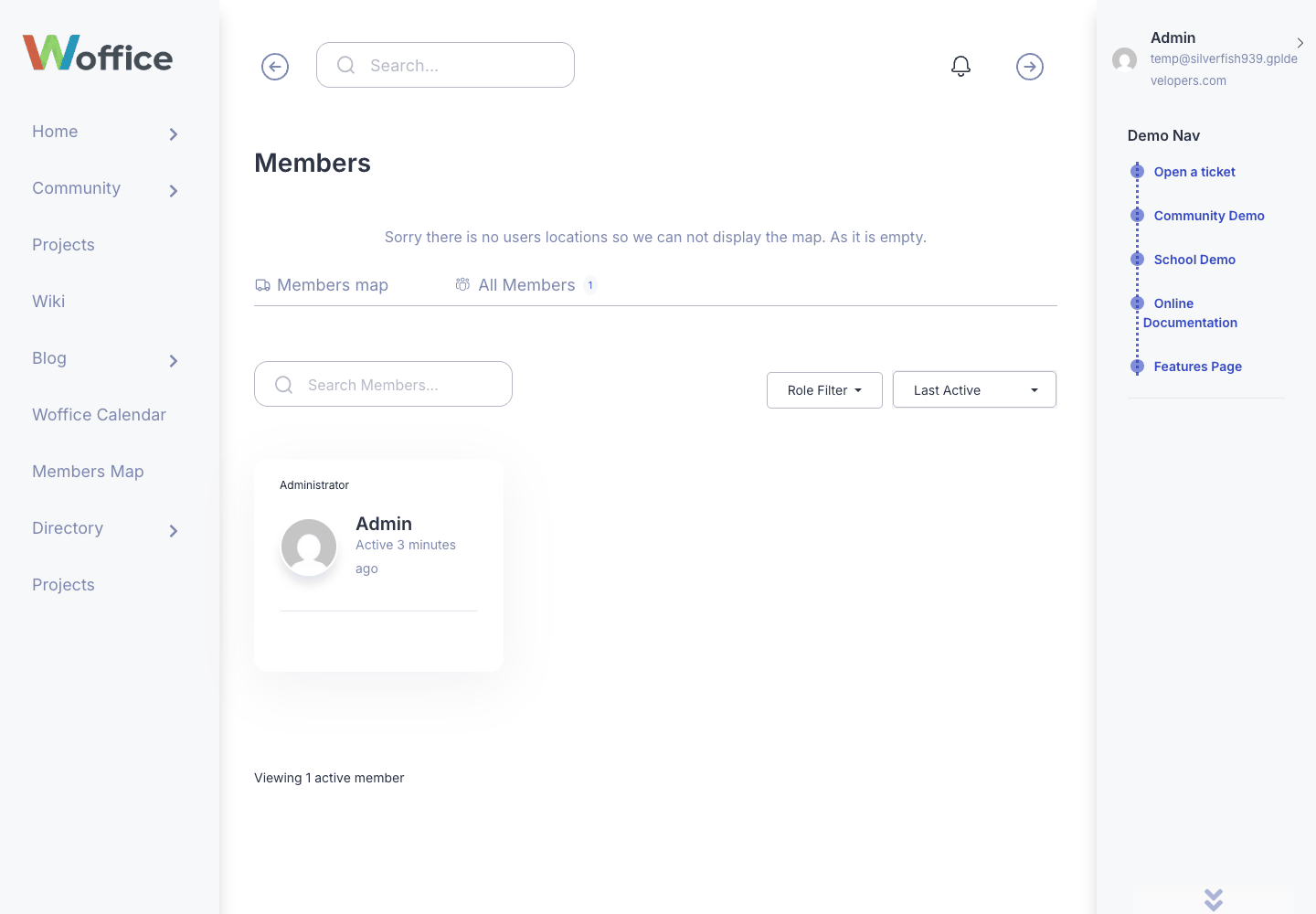
That members directory is pure BuddyPress wearing Woffice’s skin: a searchable, role-filterable list of everyone in the portal, with a members map tab on top. Being honest: the shot above shows a single member, because it’s my seeded sandbox, not a populated demo. On a real site this fills with your whole team or membership.
So the clean way to hold it in your head: Woffice is the skin plus the intranet toolkit, Woffice Core registers the projects, wiki, directory, and events, and BuddyPress runs the people. Three layers, one login.
The real setup story. Because I dropped the usual "Installation and setup" section (the steps only make sense once you understand the three layers), here’s how a fresh install actually goes:
- Activate the Woffice theme. Upload it under Appearance » Themes and activate. On its own it looks like a half-finished intranet, which is expected.
- Accept the TGM plugin notice. Woffice immediately nags you to install its required and recommended plugins. The critical one is Woffice Core (listed as a "Pre-Packaged" plugin, since it ships inside the theme). Install and activate it. Then install BuddyPress (pulled from wordpress.org, which worked fine in my sandbox) and WPBakery for page building. Wise Chat shows up as a recommended extra if you want real-time chat.
- Flush your permalinks. This one bites people. The new post types (projects, wiki, directory) will 404 until you visit Settings » Permalinks and click Save once. WordPress only re-registers the rewrite rules on save. Skip this and you’ll think the theme is broken when it’s just a stale rewrite cache.
- Open the theme options. Head to Appearance » Woffice Theming Options to set your colors, the dashboard layout, the login and registration behaviour, and your BuddyPress display preferences. I’ll walk the panel below.
- (Optional) run the demo import. Woffice ships a One Click Demo Import flow under Appearance » Woffice Demo Import. Here’s my honest experience: in the gpltimes sandbox, the importer stalled. It fetches the demo XML and media from Xtendify’s servers, and when the host can’t reach out (or the external endpoint is slow), the import just hangs with no progress. So the fully-populated intranet you see in the marketing screenshots did not load for me. That’s not a Woffice bug so much as a reality of demo importers that pull content from external servers. On a normal live host with outbound access, it generally works. If it doesn’t, you build the intranet by hand, which honestly takes an afternoon for a real site anyway.
Heads-up: the demo import is the only setup step that depends on an external fetch. Everything else (the three plugins, the theme options, the permalink flush) is fully local. So if your host firewalls outbound requests, plan to populate the intranet yourself rather than betting on the importer.
The intranet toolkit: projects, wiki, directory, and events
Here’s where Woffice stops being a theme and starts being a workplace. All four of these content types come from Woffice Core, not the theme, and together they’re the reason you’d pick Woffice over a generic BuddyPress skin.
Projects are the headline feature, and the one I’d actually use day to day. A project in Woffice is a custom post type (project) with a front-end view built for collaboration, not just reading. On the single-project page you get the project title, a progress bar, the date, a comment count, and action links to View, Edit, Comment, and Delete the project right from the front end. No wp-admin trip needed, which matters when your members aren’t WordPress people. A project carries its own members, files, tasks, and a discussion thread, so a single project page becomes the one URL you send someone for "everything about this piece of work."
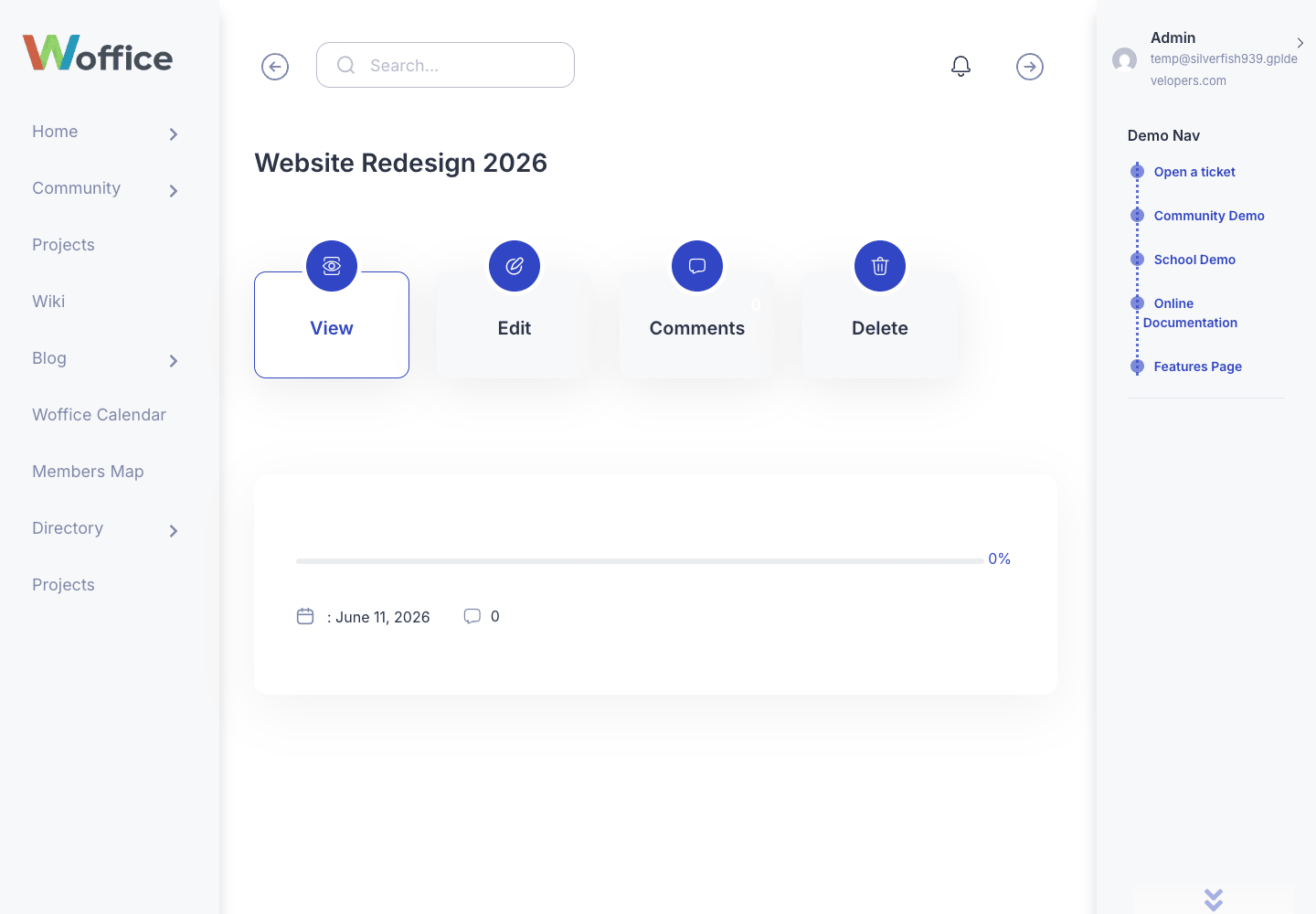
That screenshot is the best single view of the whole intranet shell. Look at the left vertical nav: Home, Community, Projects, Wiki, Calendar, Members Map, Directory. That column is the spine of a Woffice site, and it’s what makes the thing feel like an app you log into rather than a blog you read. The main panel is one seeded project I created, showing the View/Edit/Comments controls and the progress bar. Being honest: this is one project I added by hand, not a demo full of fake data. The intranet fills out once you and your members add real projects.
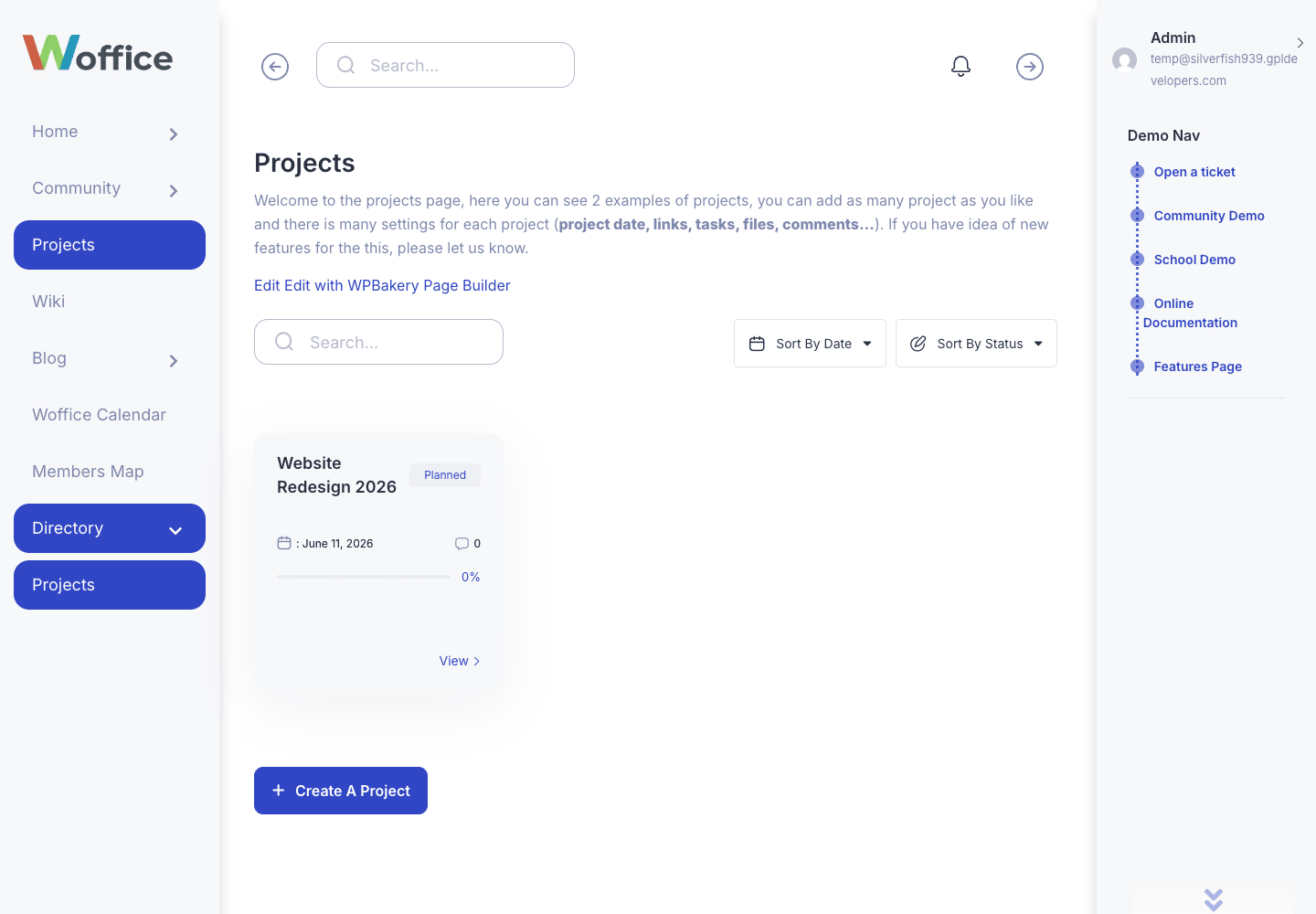
The Projects board is the archive view, and it’s where a team lands first. It’s a card grid, one card per project, with a Sort By control (date or status), a search box, and a prominent "Create A Project" button so members can spin up new work without ever seeing the WordPress dashboard.
The wiki is your knowledge base. The wiki post type plus its wiki-category taxonomy gives you a structured, categorised library of internal documentation: onboarding guides, policies, how-tos, the stuff that usually rots in a Drive folder. Because it’s a real WordPress post type, it’s searchable, it has revisions, and you can gate it by role. Where this shines: the "where did we write that down?" problem. A wiki with categories beats a flat pile of Google Docs the moment your team passes about five people.
The directory (directory post type, directory-category taxonomy) is a catalog you define. Don’t confuse it with the BuddyPress members directory. The Woffice directory is for listing things: departments, office locations, partner companies, equipment, a staff phone book, whatever your group needs to look up. It’s a flexible content type with categories, and what you put in it is up to you.
Events run through the woffice-event post type and a calendar view. Woffice bundles event-calendar plugins in its package (EventON, EventON’s full-calendar add-on, and DP Pro Event Calendar) and ships a woffice_calendar shortcode plus an eventon/ template override so the calendar matches your intranet. So you can run events through the native Woffice event type or hand the job to a fuller calendar plugin like EventON (we’ve got a separate EventON review if events are your main need). Either way, the calendar shows up in that left nav as a first-class part of the portal.
Tip: the four content types share one design language because they all flow through the same Woffice templates. That consistency is the quiet payoff. A project, a wiki article, and a directory entry all feel like parts of one product instead of three plugins bolted together, which is exactly what the DIY route gives you.
What you actually get with the Woffice theme
Beyond the four content types, Woffice carries a stack of features that round out the "portal" promise. Some live in the theme, some in Woffice Core, and a couple lean on integrations. Here’s the honest inventory, with where each one comes from.
- The credit system. This is a full bundled plugin inside Woffice Core (it lives in its own
woffice-credit-systemdirectory). It’s a points and credits feature for the intranet: members can earn and spend credits. Think gamified participation, an internal rewards economy, or a simple token system for a community. It’s a genuine differentiator, not many intranet themes ship one. - The Members Map. Powered by GeoDirectory, this is a map of your members by location. It shows up as its own page in the intranet nav. The catch: it’s empty until your members have geolocated profiles, so it’s most useful for a distributed team or a geographically-spread association, less so for one office.
- Front-end registration and login, with Google and Facebook sign-up plus reCAPTCHA. Members never touch
wp-login.php. The theme exposes hooks around this flow (woffice_register_form_before_captcha,woffice_google_after_signup,woffice_facebook_after_signup) and the Login/Register section of the theme options controls it all. - Private mode and access control. The intranet privacy backbone. Woffice can force a login before anyone sees anything, redirecting unauthenticated visitors to the login screen. This is the feature that makes it an intranet rather than a public site, and I’ll come back to it hard in the anti-pattern section because getting it wrong is genuinely dangerous.
- Wise Chat. A recommended plugin (offered through the TGM notice) that adds real-time chat to your portal. It’s not core Woffice, it’s an integration, but it’s the sanctioned way to add a live chat room.
- WooCommerce. Woffice declares full WooCommerce theme support (including the product gallery lightbox, slider, and zoom) and ships 17
woocommerce/template overrides. So you can run a store inside your intranet, sell access, sell merch, or sell services to members, and it’ll match the theme. - The exchange module. A Woffice "exchange" feature with its own two template overrides, for sharing files and resources between members.
- BuddyPress, bbPress, and GeoDirectory skinning. Out of the box, Woffice overrides templates for BuddyPress (the people layer), bbPress (forums, with seven template overrides), EventON (events), GeoDirectory (the members map and location directory, eight overrides), WooCommerce, and its own exchange module. That’s six integrations skinned to look native.
A word on what Woffice is not. It’s referenced alongside LearnDash in some of its CSS, but the LearnDash template directory in the theme is empty, so I wouldn’t buy Woffice expecting a polished, deeply-skinned LMS. If a course platform is your main goal, treat LearnDash support as minimal and conditional, not a headline feature.
The theme options panel
Woffice’s settings live in a panel at Appearance » Woffice Theming Options, built on the Unyson framework (the fw options system you’ll see referenced in the code). If you’ve configured a ThemeForest theme before, this will feel familiar. The panel is broken into clear sections, and here’s what each one controls.
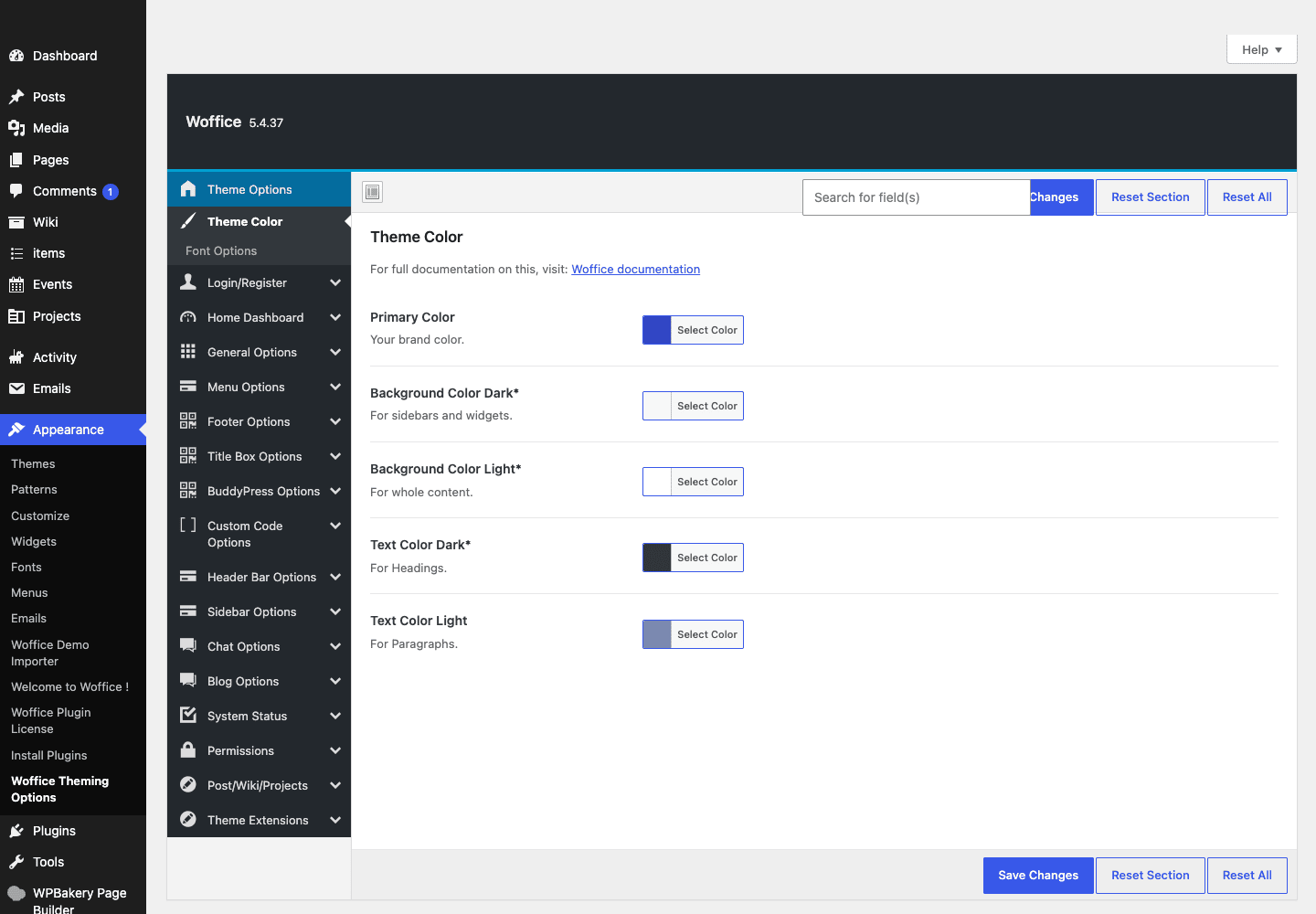
That’s the actual options panel from my install, not a mockup. Walking the sections:
- Theme Options sets your overall Theme Color and Font. This is your fastest path to making the intranet match your brand. One color change ripples across the whole portal because the templates read from these options.
- Login/Register is where the front-end auth lives: toggle Login and Registration on or off, wire up reCAPTCHA to stop bot signups, and enable Google and Facebook social login. If you run a closed company intranet, you’ll likely turn registration off and add users yourself. For an open member community, you turn it on.
- Home Dashboard controls the landing page every member sees after login. This is the "home base" of the intranet, and you decide what widgets and content it shows.
- General holds the catch-all settings that don’t fit elsewhere.
- Menu Options sets the Menu Layout, which controls that left vertical navigation that defines the Woffice look.
- Footer configures the footer hero area, layout, and the copyright bar at the bottom of every page.
- Title Box styles the page title box (the banner-like header on inner pages). The theme fires
woffice_titlebox_beforeandwoffice_titlebox_afterhooks around it, so developers can inject content here too. - BuddyPress Options is the bridge to the people layer: a Cover Image setting, Dynamic profile fields, and a Tab creator for adding custom tabs to member profiles. This is how you tailor what a member’s profile actually shows.
Note: because the options run on the Unyson framework, you read them in code with one helper, woffice_get_settings_option(), which I’ll cover in the developer section. That single accessor is genuinely nice for child-theme work, you don’t go spelunking through option arrays.
Who Woffice is for (and who should look elsewhere)
Woffice is a specialist. It’s brilliant for a narrow set of jobs and overkill (or a poor fit) for others. Let me put real personas against it so you can see yourself, or rule yourself out.
| If you are… | Woffice fits because… | Watch out for… |
|---|---|---|
| A small company (10-100 staff) | Projects, wiki, directory, calendar, and a private members area cover the daily "where is everything" problem in one login | You still own hosting, backups, and onboarding; it’s self-managed, not SaaS |
| A paid member community | BuddyPress profiles + activity + groups + WooCommerce for selling access + the credit system for engagement | You’ll need a membership plugin to gate content by paid tier properly |
| A school or class portal | Wiki for materials, projects for assignments, directory for staff, events for the timetable | LearnDash skinning is minimal, so a true LMS may want a dedicated theme |
| A club or association | Members Map for a spread-out membership, directory, events, and a private space | The map is empty until members geolocate their profiles |
| An agency giving clients an extranet | Per-project access, private mode, file/exchange sharing, branded to your agency | Access control is role-based; complex per-client walls take planning |
For a small company intranet, Woffice is close to ideal. You stop paying for a separate project tool, a separate wiki, and a separate intranet SaaS, and you fold them into one WordPress site you control. I’d genuinely reach for it here.
For a paid member community, Woffice gives you the social and content layers, but it is not a membership plugin. It won’t, on its own, sell three subscription tiers and drip content by plan. You’d pair it with a dedicated membership plugin for the paywall logic. Worth being clear-eyed about that before you buy.
For a club or association that’s spread across a region, the Members Map alone can justify the theme. Seeing your membership on a map is the kind of feature that’s a pain to wire up from scratch.
Who should look elsewhere? If you just want a public-facing community forum with no projects, no wiki, and no intranet structure, Woffice is more than you need, and a leaner social plugin like PeepSo (see our PeepSo review) or a focused forum like wpForo might suit you better. And if your whole goal is selling online courses, a purpose-built LMS theme beats Woffice’s thin LearnDash hooks.
Don’t leave your intranet open to the public
This is the mistake that can actually hurt you, so I’m giving it its own section. Woffice exists to gate private content. The whole point of an intranet is that staff, members, or students see it and the public does not. Yet the most common launch error I see is people building their content and pushing it live without ever turning on private mode.
Here’s what that looks like. A fresh WordPress site is public by default. So your internal projects, members’ profiles, project files, your staff directory, and your wiki of internal policies are visible to anyone with the URL. Worse, Google indexes them, and once a profile or internal document is in the search index, you don’t control it anymore.
That is not a cosmetic "oops." Exposed employee data is potentially a GDPR or confidentiality incident with real legal weight. Leaked client files on an agency extranet break a trust that’s hard to win back. And a member who finds their supposedly-private profile in Google results will not stay a member for long.
The fix is straightforward, and you do it before you announce the site, not after:
- Turn on private mode so logged-out visitors are redirected to the login screen. (In code, this is the
woffice_before_redirect_unallowed_user_to_logingate.) - Set access by role so the right people see the right content, not everyone-or-no-one.
- Mark the post types private or members-only so projects, the wiki, and the directory aren’t publicly queryable.
- Add
noindexso search engines are told to stay out. - Test it in an incognito window. Open your project board logged out. You should see the login screen, not your projects. If you see the board, you are not done.
That incognito test takes thirty seconds and it’s the only proof that counts.
Woffice vs BuddyBoss vs the DIY route
The closest rival to Woffice is BuddyBoss, and the third option is wiring it all together yourself. Here’s how they actually stack up, with the numbers that matter.
Woffice is a one-time theme purchase. The most striking thing in its code is the license: style.css declares GNU General Public License v2 or later. Pure GPL, not the usual Envato Split License. So there’s no recurring theme subscription, you pay once. Functionally, Woffice Core adds 4 custom post types (project, wiki, directory, woffice-event) plus 3 taxonomies, the theme exposes 110 woffice_ filter hooks plus its action-hook set, and it skins 6 integrations out of the box (BuddyPress, bbPress, EventON, GeoDirectory, WooCommerce, and its own exchange module). That’s a lot of intranet for $0 a year in recurring theme fees.
BuddyBoss comes in two parts. The BuddyBoss Platform plugin is free-core (we cover it in the BuddyBoss platform review), but the BuddyBoss theme, the mobile app, and the Pro extras run on a paid subscription you renew. BuddyBoss is more polished as a course-and-community platform, and if a native mobile app is a must-have, BuddyBoss is the stronger pick. But you’re signing up for an ongoing cost, and its intranet-style project/wiki/directory structure isn’t its focus the way it is Woffice’s.
The DIY route is BuddyPress plus a generic theme plus separate plugins for projects, a wiki, events, and a directory. The catch is the integration tax. A generic theme gives you 0% of the 4 intranet post types, 0% of the 6 pre-skinned integrations, and none of the cross-feature design consistency, so you’d bolt on a project tool like WP Project Manager Pro (here’s the WP Project Manager review), a wiki plugin, an events plugin, and a directory plugin, then spend real days making them look like one product. They never quite do.
My take: if you want a native mobile app and a course platform with a vendor handling updates, BuddyBoss is worth the subscription. If you want an owned, self-hosted intranet with projects, a wiki, and a directory baked in, and you’d rather pay once than monthly, Woffice is the better value by a clear margin. The DIY route only wins if you have a very specific stack the pre-built themes can’t match, and you have the time to integrate it.
Developer reference: hooks, filters, and options
Here’s the part developers actually came for. I read the theme and Woffice Core to confirm every hook below, and I want to be precise about what belongs to what, because it changes how you extend things.
Reading theme options. The theme stores its settings via the Unyson framework, and you read any option with one helper from inc/helpers.php:
$primary = woffice_get_settings_option( 'theme_color', '#1a8fc4' );

if ( woffice_get_settings_option( 'enable_registration' ) ) {
    // front-end registration is on
}
The second argument is your default if the option isn’t set. There’s also a woffice_get_settings_option filter (it passes the value, the option name, and the default) if you ever need to override a value at read time. This single accessor is the right entry point for any child-theme work, so learn it first.
Injecting into the dashboard. The intranet home page (page-templates/dashboard.php) fires woffice_before_dashboard and woffice_after_dashboard. Both are zero-argument output hooks, so you echo your markup directly. Here’s a welcome banner above the dashboard:
add_action( 'woffice_before_dashboard', function () {
    $user = wp_get_current_user();
    echo '<div class="team-welcome">';
    echo '<h3>Welcome back, ' . esc_html( $user->display_name ) . '</h3>';
    echo '<p>Three projects need your input this week.</p>';
    echo '</div>';
} );
Adding to the single-project view. On a single project, woffice_after_project_meta fires right after the project’s meta block (template-parts/content-single-project.php). It’s a zero-argument output hook too. A common use is stamping a project owner note onto every project page:
add_action( 'woffice_after_project_meta', function () {
    $owner_id = get_post_meta( get_the_ID(), 'project_owner', true );
    if ( $owner_id ) {
        $owner = get_userdata( $owner_id );
        echo '<p class="project-owner">Project owner: ' . esc_html( $owner->display_name ) . '</p>';
    }
} );
There are sibling hooks in the same area worth knowing: woffice_before_project_meta, woffice_after_project_meta_links, and woffice_after_project_meta_members, so you can target exactly the slice of the project layout you want.
The page title box. Every inner page renders a title box, with woffice_titlebox_before and woffice_titlebox_after (both zero-arg) wrapping it from helpers.php. Good spots for breadcrumbs, a context action button, or a per-section banner.
Access control: the private-mode gate. The hook that powers private mode is woffice_before_redirect_unallowed_user_to_login. It fires just before Woffice bounces an unauthorised visitor to the login screen, which makes it the right place to whitelist a specific path, log an access attempt, or branch the redirect logic for an extranet. It’s the backbone of the privacy story from the anti-pattern section, so treat changes here with care.
add_action( 'woffice_before_redirect_unallowed_user_to_login', function () {
    // e.g. log the blocked request before the redirect runs
    error_log( 'Woffice blocked anonymous access to ' . $_SERVER['REQUEST_URI'] );
} );
Social sign-up hooks. The front-end registration flow exposes woffice_register_form_before_captcha (inject markup right before the reCAPTCHA field), plus woffice_google_after_signup and woffice_facebook_after_signup for running logic after a social registration completes. Handy for assigning a default role or kicking off a welcome sequence.
Other action contexts the theme exposes include woffice_main_container_end, woffice_before_loaded / woffice_after_loaded, woffice_before_member_icons / woffice_after_member_icons (these two receive the member ID), and woffice_advanced_search_members_before_fields / woffice_advanced_search_members_after_fields for the member search form. Most are zero-argument output hooks, but a few (like the member-icon pair) pass an argument. There are also 110 distinct woffice_ filter hooks across the theme, so most strings, query args, and template bits are filterable. The honest rule: verify a specific hook’s arguments against the source before you write a callback, because the action hooks above are zero-arg output hooks, not all hooks are.
Shortcodes. Woffice Core registers woffice_calendar (renders the events calendar). Note that the social_profiles, bloginfo, date, and redux_* shortcodes you’ll see in the bundle come from the bundled Redux framework library, not Woffice’s own code, so don’t build a workflow around them expecting Woffice to maintain them.
Now the negatives, stated as facts, because they shape your architecture. The Woffice theme registers no custom post types, no REST routes, and no WP-CLI commands of its own. The intranet post types (project, wiki, directory, woffice-event), their taxonomies, the credit system, the Elementor widgets, and the demo importer all live in Woffice Core, so if you’re writing a plugin that touches projects, you depend on Woffice Core being active, not just the theme. There is no REST API in either the theme or Woffice Core (I bare-grepped register_rest_route in both and got nothing), so don’t plan a headless front end against a Woffice endpoint that doesn’t exist. And there is no Woffice WP-CLI command; the only wp command in the package comes from the bundled One Click Demo Import library, which adds wp ocdi for triggering demo imports. Don’t credit a CLI to Woffice itself.
If you’re extending the people layer (profiles, activity, groups, messaging, the members directory), you’re really extending BuddyPress, so reach for BuddyPress hooks there, not Woffice ones. The official WordPress developer reference and the bbPress docs cover the forum side. Knowing which layer owns which feature saves you hours of looking for a hook in the wrong codebase.
Speed, and the weight of a BuddyPress intranet
Let’s talk performance honestly, because an intranet built on BuddyPress is not a static brochure site, and pretending otherwise sets you up for a slow portal.
BuddyPress is dynamic by nature. The activity feed, the members directory, the messaging, all of it runs live database queries on most page loads, and those pages are personalised per user, which means they’re hard to cache the way you’d cache a blog post. Add Woffice Core’s project, wiki, and directory queries on top, plus WPBakery rendering your pages, plus whatever integrations you’ve enabled, and you have a site that asks more of your server than a typical WordPress install.
The practical implications:
- Host it properly. A budget shared host will feel sluggish under a real BuddyPress load with concurrent logged-in users. Lean toward decent managed WordPress hosting or a VPS with enough memory. The theme’s header technically allows PHP 5.3, but that’s just a floor declaration, run a current, supported PHP version for both speed and security.
- Cache what you can, carefully. Full-page caching mostly won’t apply to logged-in intranet pages (they’re personalised), but object caching (Redis or Memcached) genuinely helps because it caches the repeated database queries BuddyPress fires. That’s the bigger win here.
- WPBakery adds weight. It’s a capable page builder, but builder-generated markup is heavier than hand-built templates. Use it for the pages that need it (the dashboard, landing pages) and don’t over-build the high-traffic member-facing views.
- The Members Map costs requests. GeoDirectory’s map loads a mapping library and geodata. On a small membership it’s fine; if you have thousands of geolocated members, expect the map page to be one of your heavier views, and consider lazy-loading or paginating it.
- Watch your integrations. Each enabled integration (bbPress forums, WooCommerce, EventON) is more code running on each request. Turn off what you don’t use. An intranet with forums you’ll never enable is just dead weight loaded on every page.
Compatibility notes from the code. Woffice declares support for WooCommerce (with the product gallery lightbox, slider, and zoom), BuddyPress Nouveau templates, wide-aligned Gutenberg blocks, post thumbnails, the title tag, HTML5 markup, and automatic feed links. It has no parent theme (a child theme is bundled separately for your customisations). The text domain is woffice if you’re translating it. And remember the permalink-flush gotcha: after activating Woffice Core, the custom post types 404 until you re-save your permalinks once.
None of this is a dealbreaker. It’s the honest cost of running a real, interactive intranet instead of a static site, and every BuddyPress-based platform carries the same weight. Plan your hosting for it and Woffice runs fine.
Pricing and licensing
Here’s a genuinely unusual detail I confirmed in the code. Woffice’s style.css declares its license as the GNU General Public License version 2 or later. That’s pure GPL, not the Envato Split License most ThemeForest themes ship under. It’s rare, and it’s worth knowing, because it means the theme’s PHP is freely redistributable under the GPL the same way WordPress core is.
You can get the Woffice theme through GPL Times, which is the simplest way to get a working copy onto your server and start clicking through every theme option, project view, and BuddyPress panel I’ve described, on a real install rather than a screenshot. You get the theme, the bundled Woffice Core plugin, and the bundled premium plugins (WPBakery and the event-calendar add-ons) in the package.
Costs to plan for beyond the theme: BuddyPress is free, but proper hosting for a logged-in BuddyPress site is not the cheapest tier. If you want a paywall for tiered membership, budget for a membership plugin. And if you lean on the Members Map heavily, GeoDirectory’s mapping may have its own provider considerations. None of these are Woffice fees, they’re the surrounding stack, but they’re real line items for a production intranet.
FAQ
Is Woffice a theme or a plugin?
It’s a theme, but a working Woffice intranet is three pieces. The Woffice theme is the design and templates, the bundled Woffice Core plugin registers the projects/wiki/directory/events, and BuddyPress (free, from wordpress.org) runs the member profiles and social layer. You install all three. The theme prompts you to add the other two right after activation.
Do I have to use BuddyPress with Woffice?
Effectively yes, if you want the people side. The member profiles, activity feed, groups, messaging, and members directory are all BuddyPress features that Woffice skins. You could run a stripped-down Woffice using only projects, wiki, and directory without BuddyPress, but you’d lose the community half of the product, which is most of why people pick an intranet theme in the first place.
Why are my projects and wiki pages showing a 404?
Almost always a stale permalink cache. After you activate Woffice Core (which registers the new post types), go to Settings » Permalinks and click Save once, even without changing anything. WordPress only re-registers the rewrite rules on save. This catches nearly everyone on first install.
Can Woffice handle a paid membership site with subscription tiers?
Partly, and this is the honest trade-off. Woffice gives you the community, profiles, and WooCommerce support, and the credit system for engagement, but it is not a membership plugin. It won’t drip content by paid tier or run recurring subscription logic on its own. For a real paywall you’d pair it with a dedicated membership plugin. Don’t buy Woffice expecting it to be your billing engine.
Does Woffice have a REST API or WP-CLI commands?
No, and I checked the code directly. Neither the theme nor Woffice Core registers any REST routes, so there’s no headless Woffice endpoint. The only WP-CLI command in the package is wp ocdi, which comes from the bundled One Click Demo Import library, not from Woffice itself. If you need API access to your data, you’d use BuddyPress’s own REST API or WordPress core’s.
Will the demo content import work?
It depends on your host. The importer uses One Click Demo Import to fetch the demo XML and media from Xtendify’s servers. On a host with outbound access it generally works; in a locked-down or sandboxed environment the external fetch can stall, which is exactly what happened in my testing. If it hangs, you build the intranet by hand, which is an afternoon’s work for a real site, since you’ll replace the demo content anyway.
Does Woffice support LearnDash for online courses?
Only minimally. LearnDash is referenced in the theme’s CSS, but the LearnDash template directory in the theme is empty, so there’s no deep, polished course skin. If selling courses is your primary goal, a purpose-built LMS theme will serve you better than relying on Woffice’s thin LearnDash hooks.
How do I make sure the intranet is actually private?
Turn on Woffice’s private mode so logged-out visitors are redirected to login, set content visibility by role, mark the custom post types as private, add noindex, and then test in an incognito browser window. If a logged-out visitor sees your project board instead of a login screen, private mode isn’t on. This is the single most important launch check, treat it as mandatory.
Which page builder does Woffice use?
WPBakery (formerly Visual Composer), which ships bundled in the package. Woffice Core also includes its own Elementor widgets, so you have a path with either builder, though WPBakery is the one that’s bundled and theme-active out of the box.
Can I customise the look without touching the parent theme?
Yes. Woffice ships a separate child theme for your customisations, and you read every theme setting in code through the woffice_get_settings_option() helper. Combined with the 110 filter hooks and the action hooks documented above, most customisation lives in the child theme and never touches the parent, so updates stay clean.
Final thoughts
Woffice is a focused tool that does one big job well: it folds the scattered pile of team tools (the chat, the shared drive, the board, the wiki, the email threads) into one private WordPress site you own. After a week with it, my honest read is that the value is real but it comes with a clear mental model you have to accept first. This is a theme plus Woffice Core plus BuddyPress, three layers working together, and the people who are disappointed are almost always the ones who expected one all-in-one plugin.
What I genuinely like: the project view is built for non-WordPress people, the wiki solves the "where did we write that down" problem, the GPL v2 license and one-time cost are refreshing against the subscription themes, and the developer surface (a clean options accessor, 110 filters, sensible action hooks) makes it pleasant to extend in a child theme.
What I’d flag before you buy: it’s not a membership-paywall engine, the LearnDash support is thin, the demo importer depends on your host reaching external servers, and a BuddyPress intranet needs real hosting and object caching to feel fast. And whatever you do, turn on private mode and test it logged out before launch, because an exposed intranet is the one mistake here with legal teeth.
If you want a self-hosted, owned intranet or member community and you’d rather pay once than every month, the Woffice theme is one of the most complete answers WordPress has. Go in knowing it’s three layers, set up the privacy gate first, and you’ll have a portal your team actually opens every morning.