

Most teams that run a WordPress site already pay for a separate project tool. Asana, Trello, ClickUp, Monday, Basecamp. The login is somewhere else, the URLs don’t match the site, and clients have to remember yet another tab. WP Project Manager Pro by weDevs takes that whole stack and drops it inside wp-admin. Projects, task lists, Kanban boards, Gantt charts, milestones, time tracking, invoicing, client portals, Slack notifications, GitHub issue sync. All of it sitting on your own database, on a URL you already own.
This article is a thorough look at the plugin from two angles. The first half walks novice users through what it does, how to set it up, and what the day-to-day flow looks like. The second half is for developers: hooks, filters, REST endpoints, capability classes, and code samples for the integrations that matter. Whether you’re a freelancer billing clients by the hour or a fifteen-person agency tracking ten projects at once, I want you to leave this post knowing exactly what this plugin will and won’t do for you.
Table of contents
- What is WP Project Manager Pro
- Key features at a glance
- Who it’s for
- How it works for users
- Installation and first-time setup
- Creating projects, lists, and tasks
- Kanban Board and Gantt Chart views
- Milestones, calendar, and the project overview
- Time tracking and invoicing your client
- Roles and the client portal
- Real-world use cases
- Developer reference
- Integrations: WooCommerce, BuddyBoss, GitHub, Slack
- Performance, compatibility, and gotchas
- Pricing and licensing
- Frequently asked questions
- Final thoughts
What is WP Project Manager Pro
WP Project Manager Pro is a project management plugin made by weDevs, the same vendor behind WP ERP, Dokan, and WP User Frontend. There’s a free version on wordpress.org that ships the basic to-do list, milestones, messages, and per-project user assignments. The Pro plugin is a separate add-on you drop on top of free, and it unlocks the views and integrations that turn a basic to-do app into a real project workspace: Kanban boards, Gantt charts, time tracking, recurring tasks, subtasks, custom task fields, sprints, invoicing with Stripe, WooCommerce order-to-project automation, BuddyBoss group bindings, GitHub/Bitbucket/GitLab issue sync, calendar view, and a daily digest email.
What makes the Pro plugin interesting is not any one of those features. It’s that the whole thing runs inside your own WordPress install. The database tables (wp_pm_projects, wp_pm_tasks, wp_pm_task_lists, etc.) live next to your posts. Files attach through the regular Media Library. Comments and mentions fire WordPress hooks the same way wp_insert_comment does. If you already host a WordPress site, you already host the project tool, no extra DNS, no extra billing line, no third party reading your client work.
That’s the elevator pitch. The implementation is a single-page Vue.js application mounted at wp-admin/admin.php?page=pm_projects, backed by a custom REST API under the pm-pro/v2 namespace. It’s been around since 2012, has gone through three major rewrites, and is now on a Vue-based UI that feels close to what you get from the SaaS competitors.
Key features at a glance
A long bullet list to set expectations before we go deep:
- Unlimited projects, lists, and tasks, scoped to your WordPress install. No per-project pricing tier.
- Task lists with hierarchical task structure: lists contain tasks, tasks contain subtasks, subtasks can be nested.
- Kanban board view with drag-and-drop between configurable columns (Open, In Progress, Done, Overdue by default; you can rename or add columns per project).
- Gantt chart view with task dependencies, drag-to-reschedule, and a zoomable time scale.
- Milestones with target dates, linked tasks, and overdue/upcoming/completed grouping.
- Calendar view for tasks across projects, with month/week/day toggle.
- Time tracking per task: start/stop timer, manual entry, billable rate per user, time reports per project.
- Recurring tasks on a daily/weekly/monthly schedule, with optional end date and per-occurrence assignment.
- Sub Tasks module: nest tasks under a parent so you can break work down without polluting the top-level list.
- Custom task fields so you can attach plugin-specific data to every task (priority, type, client-name, anything).
- File attachments through the WordPress Media Library, with project-scoped folders.
- Threaded comments on every task, with @mentions that send WordPress email notifications.
- Project discussions (long-form threads) and messages (Slack-style channels per project) as separate spaces.
- Invoicing module: generate invoices from tracked time, mark hours as billable or non-billable, accept Stripe payment, send invoices via email, render them on a front-end portal via the
[pm_invoice]shortcode. - Project templates so a repeating engagement type (audit, redesign, monthly retainer) can be cloned in one click.
- Project duplication including all task lists, milestones, and assignments.
- Role-based permissions: Project Manager, Co-Worker, Client. Each role gets a different set of WordPress capabilities and a different view of every project.
- Front-end project portal so users without wp-admin access can still see, comment on, and update tasks.
- WooCommerce integration: a paid order automatically spins up a project from a template, with the customer as Client and the assigned staff as Co-Workers.
- BuddyBoss/BuddyPress integration: a BuddyBoss group can own a project, so the social group’s members get auto-assigned roles.
- Slack notifications for status changes, comments, time stops, and milestone moves.
- GitHub, Bitbucket, GitLab issue sync: link a repo to a project; a new issue creates a task, an issue close completes the task.
- WPML compatible for translating the UI and field labels.
- REST API under
/wp-json/pm-pro/v2/...so you can build a mobile app, a Slack bot, or a CLI tool against it.
Who it’s for
I’d put WP Project Manager Pro in front of four kinds of buyers.
Freelancers who already invoice through WordPress (with WooCommerce or Easy Digital Downloads Pro) and want one place for the work, the timer, and the invoice. The combination of time tracking plus the Stripe invoice module replaces Toggl plus a separate billing tool.
Small agencies running 5 to 30 client projects at once. The roles system means clients can log in and see only their project, comment on tasks, and approve work, without you exporting status reports manually. The recurring task module covers the monthly maintenance jobs that every WordPress agency has to do (plugin updates, backup checks, uptime reports).
Internal teams at a non-tech company who already pay for WordPress hosting and don’t want yet another SaaS subscription line. Twenty-person ops teams in particular get a lot from the BuddyBoss tie-in: existing internal groups map straight into project memberships.
WordPress product teams building their own SaaS product who want a roadmap tool that can be embedded in the admin alongside the actual product. GitHub issue sync plus the REST API mean you can render the public roadmap on your marketing site from the same data your developers track tasks against.
If you’re a 200-person engineering org, this isn’t the tool. ClickUp and Asana handle scale, custom dashboards, and external partner workflows better. But for the 90 percent of teams smaller than 50 people, the in-WordPress trade-off is real and worth taking seriously.
How it works for users
The mental model is the same as Asana or Trello, with one wrinkle that’s worth knowing up front. Everything starts with a project. A project contains task lists. A task list contains tasks. Tasks can have subtasks, comments, time entries, files, a milestone, assignees, and a due date. Projects can also have milestones that exist outside any one task list, discussions (long-form threads), and messages (chat channels).
The wrinkle is that lists and tasks both have their own progress bars and status counts, so you can see at a glance which lists are stuck and which are racing ahead. That’s surprisingly useful when you’re juggling 30 projects across 5 clients.
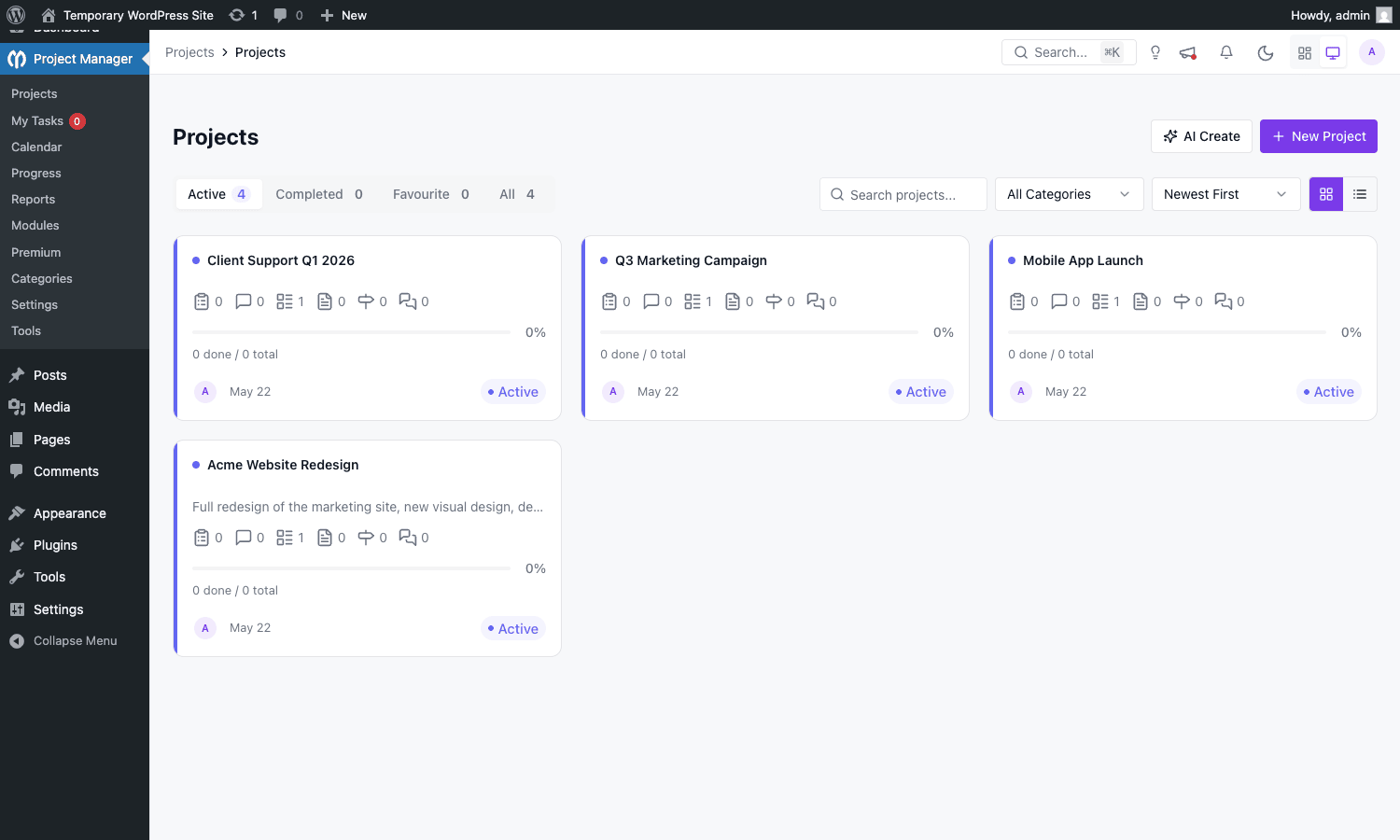
The default landing page is Projects, where you see a grid of project cards. Each card shows the title, a colored dot for category, counts for tasks/comments/lists/files/discussions/messages, a progress bar, the creation date, and a status pill (Active, Completed, or Archived). The same screen has tabs for Active, Completed, Favourite, and All, plus a search box and a category filter. Two view toggles in the top right flip the grid into a list view if you prefer denser layouts.
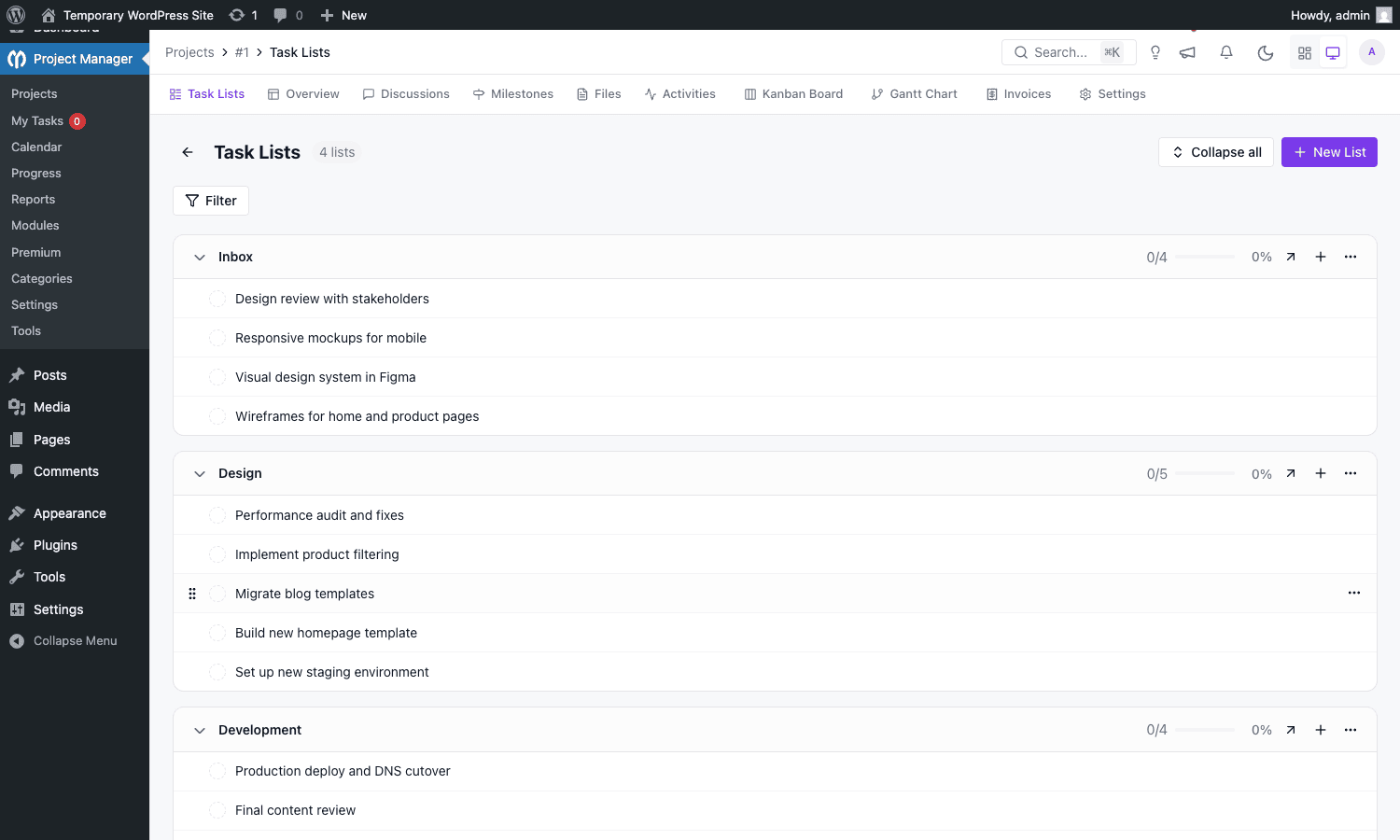
Click a card and you land on the project’s Task Lists tab. From there a row of tabs across the top lets you switch between Task Lists, Overview, Discussions, Milestones, Files, Activities, Kanban Board (Pro), Gantt Chart (Pro), Invoices (Pro), and Settings. The "PRO" badge is visible until you activate the Pro license. Free users still see the tabs but get an upgrade prompt when they click into one.
Installation and first-time setup
You install the free plugin from wp-admin/plugin-install.php (search for "WP Project Manager"), then upload the Pro add-on zip via Plugins > Add New > Upload. The Pro plugin requires the free plugin to be active; it bails out cleanly if you try to activate Pro alone. Pro depends on the core because it reuses the database tables, capability classes, and REST router from free, and adds modules on top.
Once both are active a new top-level menu item appears: Project Manager. The submenu has Projects, My Tasks, Calendar, Progress, Reports, Modules, Premium, Categories, Settings, and Tools.
The first thing to do, after activating, is hit Project Manager > Premium > License and paste your license key. The Pro modules stay locked until the license is validated; an unlicensed Pro install will show the Kanban Board, Gantt Chart, and Invoices tabs but display an "Upgrade to Pro" overlay over each. Once licensed you can flip individual modules on or off from Modules, which is a useful screen because it lets you turn off, say, Stripe and BuddyPress on sites that don’t need them, keeping the JavaScript bundle leaner.
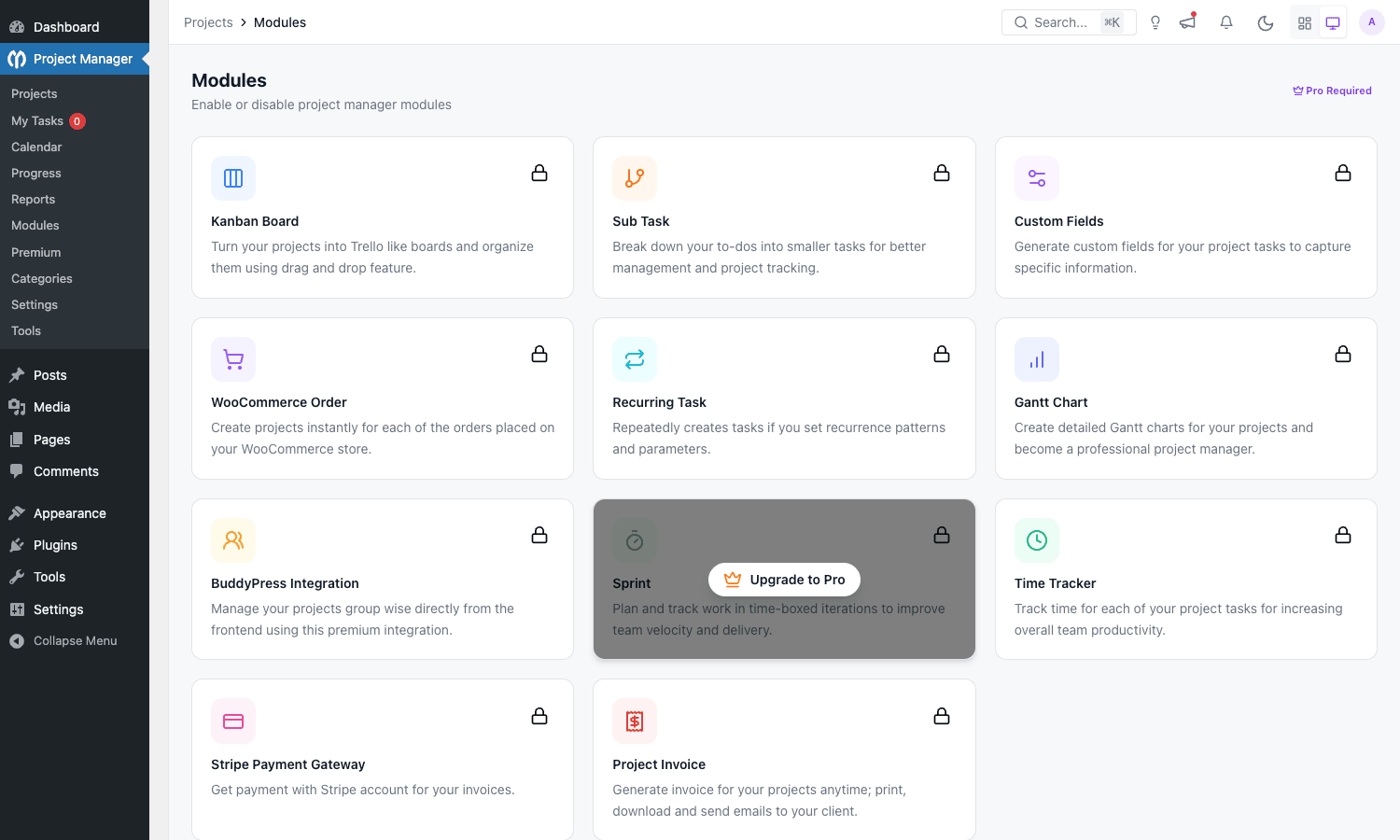
The Modules screen is also the best place to learn what each Pro module actually does. Each card shows the icon, a one-line description, and a toggle. Reading through the list is the quickest way to understand the surface area of what you’ve just bought:
- Kanban Board turns project tasks into a drag-and-drop column board.
- Sub Task lets you nest subtasks under a parent task.
- Custom Fields adds plugin-specific fields to every task.
- WooCommerce Order auto-creates a project per paid order.
- Recurring Task repeats a task on a schedule.
- Gantt Chart renders the project as a timeline with dependencies.
- BuddyPress Integration ties a project to a BuddyBoss/BuddyPress group.
- Sprint adds time-boxed iteration planning.
- Time Tracker is the per-task timer and billable rate engine.
- Stripe Payment Gateway collects payment on invoices.
- Project Invoice generates the invoices themselves.
Settings (the next submenu) is mostly fine to leave on defaults: date format, week start day, default user role for new project members, and email notification toggles. The two things worth changing on first setup are the default privacy for new projects (Private if you have outside clients, Public if you don’t) and the daily digest schedule (off by default).
Creating projects, lists, and tasks
Click + New Project in the top right of the Projects screen and a slide-in panel appears with fields for name, category, description (rich text), and team members. Notify co-workers via email is a checkbox at the bottom; leave it on for client projects and off for internal scratch projects.
Once the project exists, the Task Lists tab is where most of the work happens. + New List opens an inline form for the list name and an optional rich-text description. After the list exists, hovering over its title reveals an Add a task button. Clicking it opens an inline input; type the task name and press Enter to save. Press Enter again on the (now empty) input to add another, so you can stream in 20 tasks without leaving the keyboard. Press Escape to close the input when you’re done.
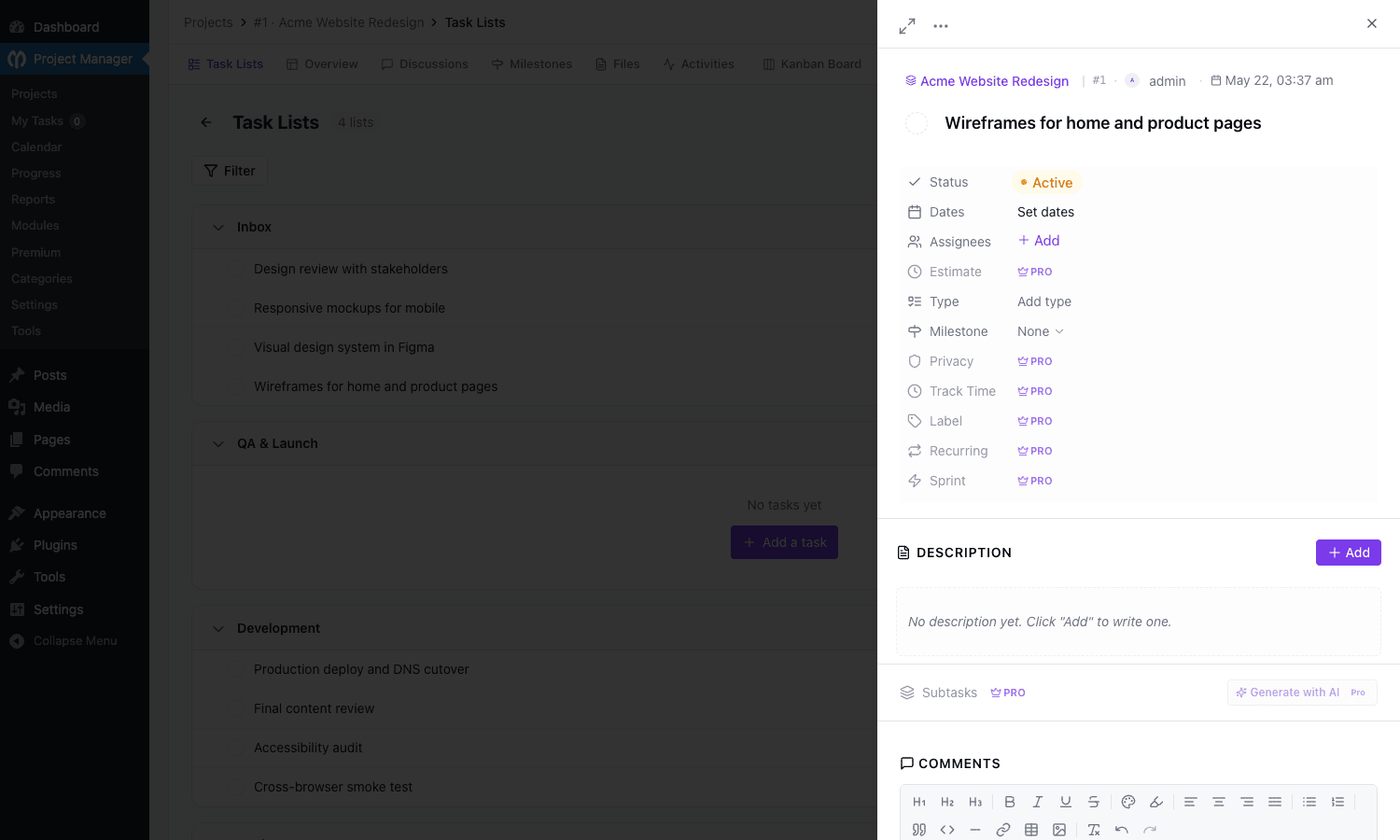
Tasks have a lot of metadata once you click into them. The task detail panel slides in from the right and shows:
- Status (Active or Complete)
- Dates (start and due)
- Assignees (any user in the project, with multi-assign)
- Estimate (PRO) hours, used for capacity planning
- Type (a custom label like Bug, Feature, Chore)
- Milestone dropdown
- Privacy (PRO) so a task can be hidden from Clients
- Track Time (PRO) with a start/stop timer
- Label (PRO) tags for filtering
- Recurring (PRO) schedule for repeating tasks
- Sprint (PRO) assignment
Below the metadata is a rich-text Description, a Subtasks (PRO) list, and a Comments thread with the same TinyMCE-like toolbar Discussions use.
Comments support @mentions. Typing @ in the comment box opens a typeahead of project members; selecting one sends them an email notification (subject is "You were mentioned in a task on [Project Name]" by default, customisable via the wedevs_pm_comment_mention_email_template_path filter).
Kanban Board and Gantt Chart views
Two of the most-marketed Pro features deserve a closer look because they fundamentally change how the same project data is presented.
Kanban Board
The Kanban view takes every task in the project and arranges it into columns by status. Out of the box you get four columns: Open, In Progress, Done, and Overdue. The Overdue column auto-populates from any task whose due date has passed; the other three are status-driven.
You move a task between columns by drag and drop. When a task lands in the Done column, its status flips to Complete and the move fires the same hooks that a normal status change would (the pm_after_task_status_change action in particular, useful for closing the linked GitHub issue).
You can rename columns and add new ones (Backlog, Review, Blocked, whatever fits your workflow) by editing the board settings inside the project. The default board layout is filterable through the wedevs_pm_kanban_default_boards filter, which is the right place to standardise board columns across an agency’s project templates.
Gantt Chart
The Gantt view plots every task on a horizontal time axis with one row per task. The bar’s length is the date range between start and due; the bar’s position is the start date. Drag a bar to reschedule, drag the right edge to extend the deadline, drag the left edge to push the start date out.
The interesting thing about the Gantt is dependencies. Click the small node at the right edge of a task bar and drag it to another task to create a "this task can’t start until that task ends" link. Dependencies render as arrows between bars; if you reschedule a predecessor, the dependent task’s earliest possible start date is highlighted but the bar isn’t moved automatically (you opt in to auto-shift via the project’s Gantt settings).
For long projects the Gantt scales beautifully, there’s a zoom control for day/week/month/quarter, and a "today" button that snaps the viewport to the current date.
Milestones, calendar, and the project overview
Three secondary views that get less attention but matter for managing the work.
Project Overview
The Overview tab is the project’s status dashboard. At the top, a strip of stat cards shows total task lists, total tasks, completed tasks, discussions, milestones, and files. Below that, an Overall Progress bar with the completed/remaining count. Below that, a 30-day activity sparkline broken into Activities and Tasks (you can see at a glance if work has stalled). Below that, the team members list with their assigned role.
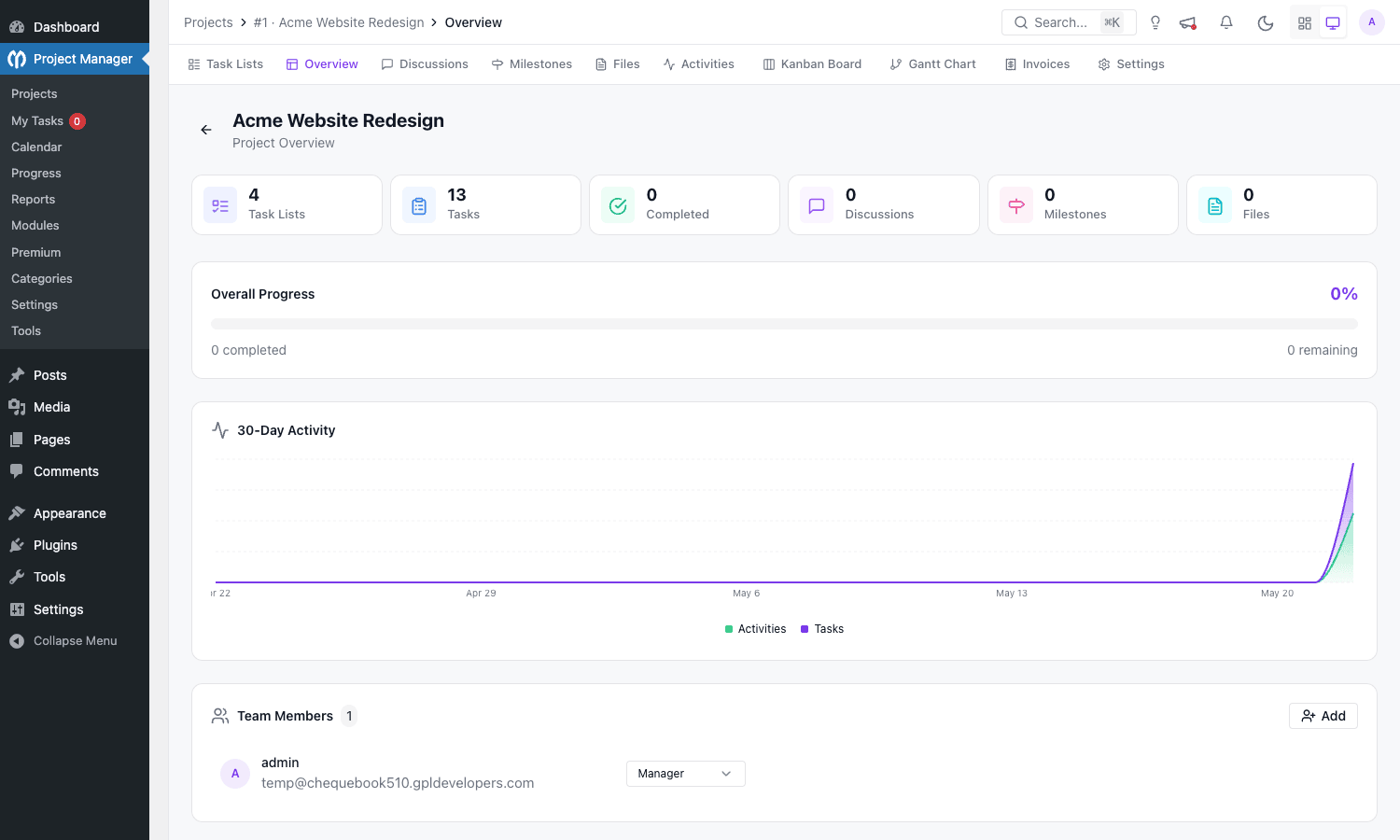
This view is the one to share with clients or stakeholders in a weekly check-in. It’s clean, doesn’t require knowing what a task list is, and tells the story of the project at a glance.
Milestones
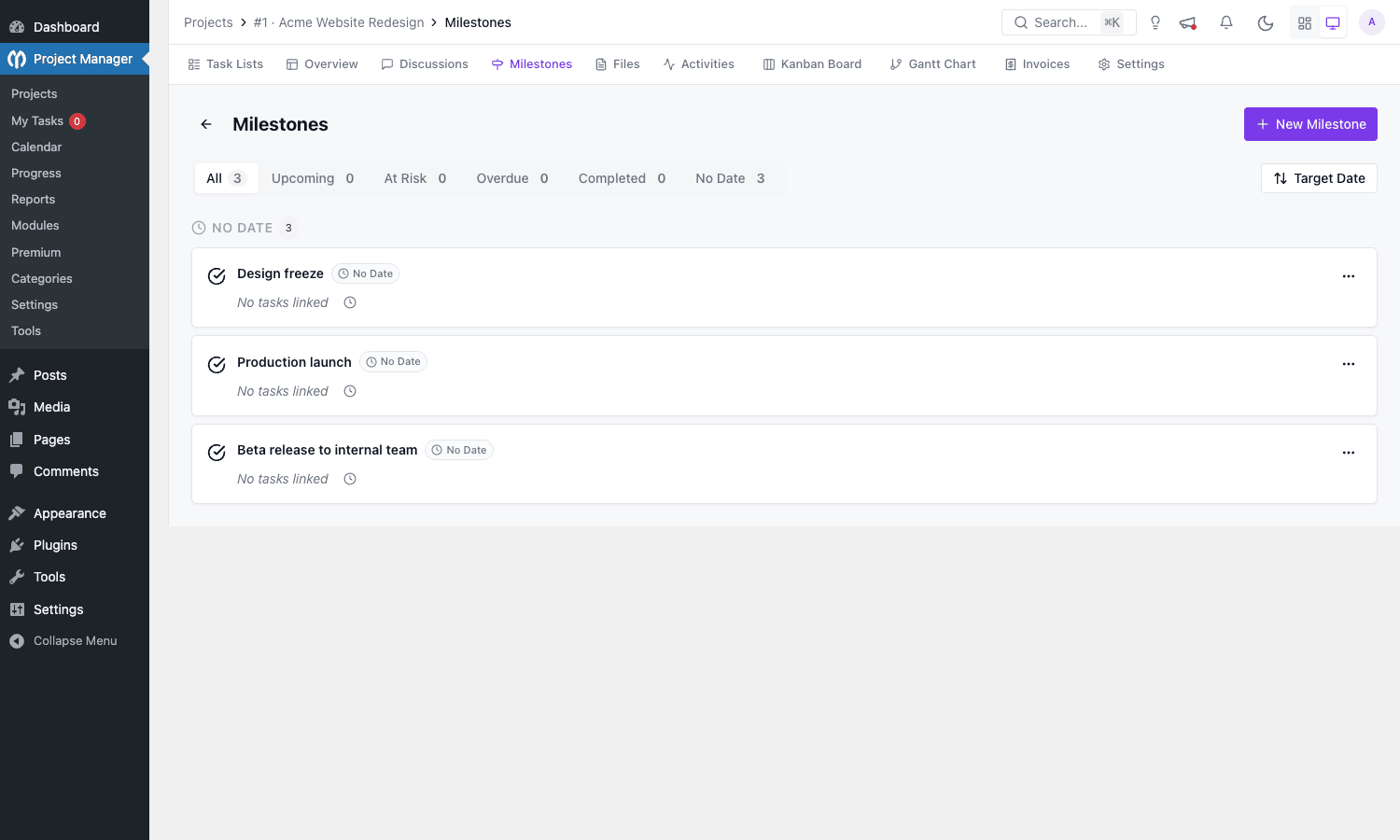
Milestones are project-level checkpoints with a target date. They’re not tasks themselves; they’re container markers you can pin tasks to. A project might have milestones like "Design freeze", "Beta release", "Production launch", each with a date and a list of tasks rolled up under it.
The Milestones tab groups milestones into All / Upcoming / At Risk / Overdue / Completed / No Date tabs, so you can answer "what’s slipping?" in one click. Clicking a milestone opens its detail with the linked tasks and a progress bar based on those tasks’ completion.
Calendar
The global Calendar view (under Project Manager > Calendar in the WP admin sidebar) shows tasks across every project on a month grid. Each cell shows the day number and (when tasks exist) a chip per task. Toggles in the top right let you flip to week or day view, and you can filter by project so you see only one project’s calendar.
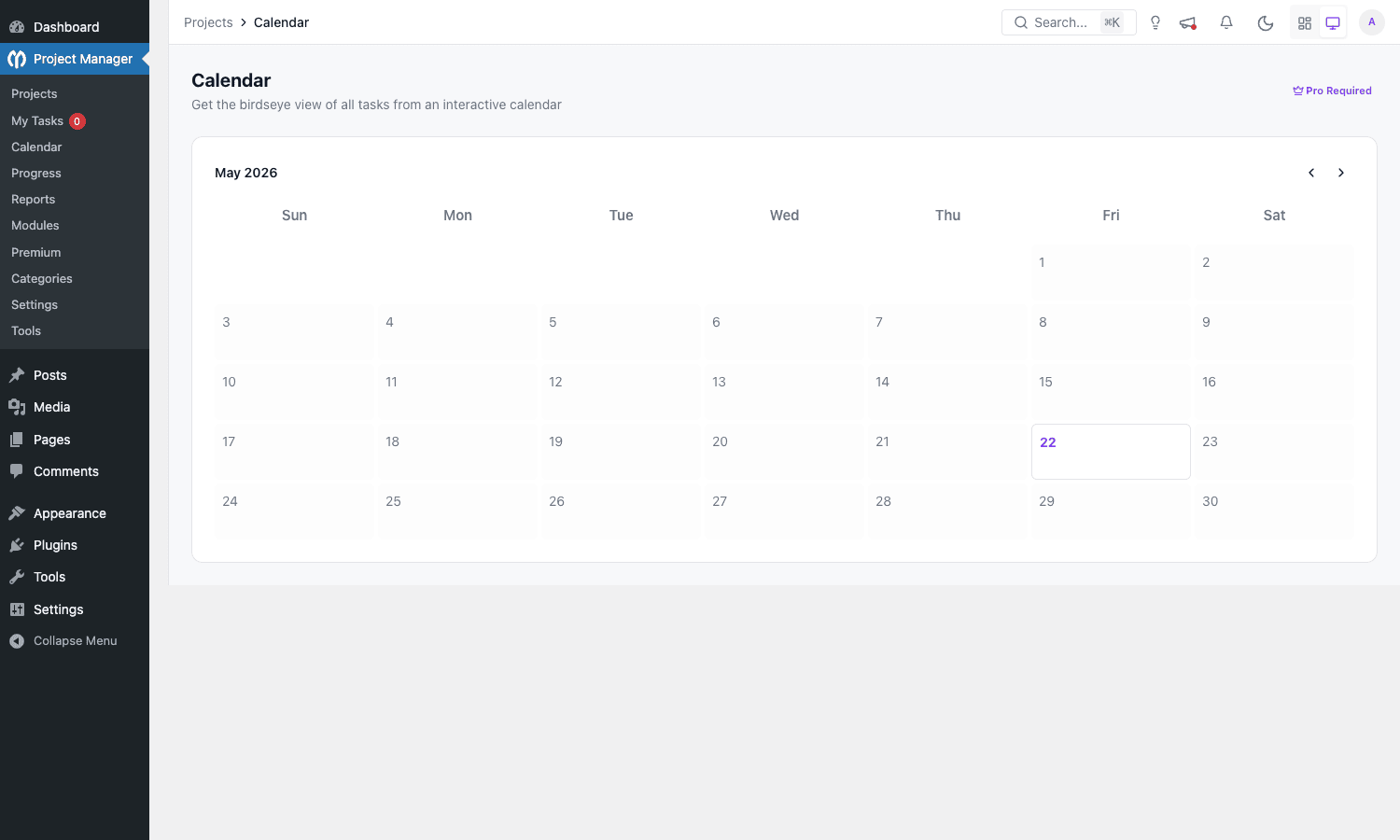
The calendar reads from the REST endpoint /wp-json/pm-pro/v2/calendar-events, so if you want to build a webhook that pipes tasks to your team’s Google Calendar, that’s where to point it.
Time tracking and invoicing your client
If you bill clients by the hour, this is the section that pays for the plugin.
The Time Tracker module adds a small start/stop button on every task detail panel. Click start, the timer runs; click stop, an entry is created with the elapsed time, the task, the user, and an optional note. You can also enter time manually for work done offline ("forgot to start the timer for the Tuesday client call").
Each user has a billable rate (set in Settings > Time Tracker). When the timer stops, the elapsed time and the rate combine into a billable amount. The wedevs_pm_after_stop_time_tracker action fires at this point, see the Developer Reference below for how to push that data into Xero or QuickBooks.
The Project Invoice module reads from the time tracker and turns billable hours into invoices. You pick a date range, the plugin shows all billable hours across the project for that range, you select which entries to bill, the plugin generates a line-itemised invoice. The invoice has its own URL inside WordPress, can be sent via email, can be exported as PDF, and (with the Stripe module enabled) can be paid directly from the front-end portal.
The [pm_invoice] shortcode is what renders the front-end invoice viewer for a Client-role user. Drop it on a page (typically /client-portal/), the page becomes a project portal where the client sees their open invoices and can pay.
Roles and the client portal
The role model is what makes the client-portal use case viable. Three plugin-level roles map to WordPress capabilities:
- Project Manager can create projects, invite people, assign tasks, edit settings, generate invoices, and delete anything in their projects. This is the agency-side role.
- Co-Worker can work on tasks they’re assigned to. They can comment, upload files, log time, change task status, but can’t reorganise the project structure or invite new people. This is the freelancer or junior staff role.
- Client is the read-and-comment role. Clients can see all tasks marked non-Private, comment on them, mark Approved or Needs Revision, and see invoices for their project. They cannot create or delete tasks. This is the role you assign to the customer who pays you.
The Privacy (PRO) field on individual tasks is what makes the Client role safe. Marking a task as Private hides it from Client-role users entirely, so you can keep internal subtasks ("audit competitor pricing", "ask Mike about the budget cap") out of view. By default every new task is non-Private, so you have to remember to flip the toggle on the ones you want to hide.
The front-end portal is the other half of the client experience. The free plugin ships a [wedevs-project-manager] shortcode that renders the entire project UI on a public page (you’d typically gate it behind a login wall via WordPress’s standard login). Combined with the Client role, this is what gives non-wp-admin users a project view that looks like the admin Vue app but lives at /client-portal/ instead of /wp-admin/.
Real-world use cases
Six scenarios where the plugin is the right call.
1. Freelance web developer who invoices via Stripe. Project per client retainer, time tracker on every task, monthly invoice run on the 1st. The whole loop (work, timer, invoice, payment) lives at the same URL as the client’s WordPress site. Saves the Toggl + Harvest subscription line and avoids exporting CSVs.
2. Small agency with 8 clients. Project per engagement, role-mapped users (PM for account managers, Co-Worker for designers/devs, Client for the customer’s primary contact). Monthly maintenance work runs through recurring tasks ("update plugins", "run uptime report") that auto-spawn on the 1st of each month with the Co-Worker assigned. The Reports view at the end of the month shows hours per project for billable reconciliation.
3. WordPress product team building their own SaaS. Project per feature epic, Sub Tasks for individual stories, Sprint module for two-week iterations, GitHub sync so a new GitHub issue auto-creates a task and a closed PR auto-completes it. The roadmap is rendered on the public marketing site via a custom REST consumer that reads from /wp-json/pm-pro/v2/projects.
4. Membership site selling a "done-for-you" service. WooCommerce order triggers a project from a template (the Woo_Project module). Customer is auto-assigned as Client, the assigned account manager as Project Manager. Welcome email goes out with the link to the client portal. No manual project setup per sale.
5. BuddyBoss-based community where teams collaborate. Each BuddyBoss group can own a project, so the group’s existing membership maps directly to project access. Community teams (writers, mods, contributors) get a built-in project view without anyone needing to invite anyone else.
6. Multilingual project run by a team across regions. WPML translates the UI strings and the custom field labels, so a French team member sees the French Project Manager and an English team member sees the English one, while editing the same underlying task. Useful for teams in Europe or India where the working language is mixed.
Developer reference
The plugin’s surface for developers is large. I’ll focus on the hooks and endpoints that are most likely to come up.
REST API namespace
All Pro endpoints live under /wp-json/pm-pro/v2/. The router is built on top of a custom WP_Router class (core/Router/WP_Router.php) that wraps WordPress’s register_rest_route with a permission/validator/sanitizer chain similar to Laravel.
A few of the most-used endpoints:
GET /wp-json/pm-pro/v2/calendar-events, all task events as iCal-style entriesGET /wp-json/pm-pro/v2/calendar-projects, list of projects with calendar eventsPOST /wp-json/pm-pro/v2/duplicate/project/{id}, duplicate a project including lists, milestones, and assignmentsGET /wp-json/pm-pro/v2/projects/{project_id}/files, list files in a projectPOST /wp-json/pm-pro/v2/projects/{project_id}/files, upload a new fileGET /wp-json/pm-pro/v2/projects/{project_id}/files/folders, folder structure inside the projectGET /wp-json/pm-pro/v2/reports, time/task reports with date range filtersGET /wp-json/pm-pro/v2/progress, project progress dashboard dataPOST /wp-json/pm-pro/v2/settings, update settingsGET /wp-json/pm-pro/v2/search, search across projects, tasks, lists, filesPOST /wp-json/pm-pro/v2/github, issue sync webhook receiver
Free-plugin endpoints sit at /wp-json/pm/v2/, same conventions, different namespace.
Hook: react to a task status change
A common requirement: send a Slack message every time a task moves to Done. The action fires from the task controller after the status update is persisted:
add_action( 'pm_after_task_status_change', 'gpl_pm_slack_on_done', 10, 2 );
function gpl_pm_slack_on_done( $task, $status ) {
 if ( 'complete'!== $status ) {
 return;
 }
 $project_id = $task->project_id;
 $url = admin_url( 'admin.php?page=pm_projects#/projects/'. $project_id. '/task/'. $task->id );
 $payload = array(
 'text' => sprintf( 'Task done: *%s* (project #%d), %s', $task->title, $project_id, $url ),
 );
 wp_remote_post( get_option( 'gpl_slack_webhook_url' ), array(
 'body' => wp_json_encode( $payload ),
 'headers' => array( 'Content-Type' => 'application/json' ),
 ) );
}
If you’re already running AutomatorWP Pro for no-code automation, this can also be wired up there without writing PHP, by listening for the same action through the AutomatorWP custom-trigger interface.
Hook: push billable hours into accounting
The wedevs_pm_after_stop_time_tracker action runs every time a timer is stopped. Use it to POST the entry to your accounting system:
add_action( 'wedevs_pm_after_stop_time_tracker', 'gpl_pm_xero_push_time', 10, 2 );
function gpl_pm_xero_push_time( $time_entry, $task ) {
 if ( empty( $time_entry->is_billable ) ) {
 return;
 }
 $user_rate = (float) get_user_meta( $time_entry->user_id, 'pm_hourly_rate', true );
 $amount = $user_rate * ( $time_entry->duration / 3600 );
 gpl_xero_create_draft_invoice_line( array(
 'task_id' => $task->id,
 'project_id' => $task->project_id,
 'description' => $task->title,
 'hours' => $time_entry->duration / 3600,
 'amount' => $amount,
 ) );
}
If your CRM is FluentCRM rather than Xero, the same hook is the place to call FluentCRM’s contact-update API to log "active client" status on the customer who owns the project. Both FluentCRM Pro and WP Fusion can take over from there if you want CRM-side automation triggered by project events.
Filter: change the default Kanban columns
If every project at your agency should start with the same five columns (say Backlog, In Progress, Review, Done, Blocked), filter the defaults at the plugin level rather than configuring each project manually:
add_filter( 'wedevs_pm_kanban_default_boards', 'gpl_pm_agency_default_kanban' );
function gpl_pm_agency_default_kanban( $defaults ) {
 return array(
 array( 'title' => 'Backlog', 'color' => '#94a3b8', 'order' => 1 ),
 array( 'title' => 'In Progress', 'color' => '#f59e0b', 'order' => 2 ),
 array( 'title' => 'Review', 'color' => '#3b82f6', 'order' => 3 ),
 array( 'title' => 'Done', 'color' => '#10b981', 'order' => 4 ),
 array( 'title' => 'Blocked', 'color' => '#ef4444', 'order' => 5 ),
 );
}
Filter: gate task visibility by user role or ACL
The pm_filter_task_permission (and its alias wedevs_pm_filter_task_permission) filter runs whenever the plugin asks "can this user see this task?". Use it to layer your own access logic on top:
add_filter( 'pm_filter_task_permission', 'gpl_pm_acl_filter_tasks', 10, 3 );
function gpl_pm_acl_filter_tasks( $allowed, $task, $user_id ) {
 if (! $allowed ) {
 return $allowed;
 }
 if ( gpl_user_belongs_to_team( $user_id, 'eu-only' ) && gpl_task_is_us_only( $task->id ) ) {
 return false;
 }
 return $allowed;
}
Action: log every comment mention
For audit logging, the wedevs_pm_comment_mention_email_template_path filter is what you use to substitute the email template, but the mention itself is detected during comment save and you can hook the regular wp_insert_comment action with a comment-type check:
add_action( 'wp_insert_comment', 'gpl_pm_log_mention', 10, 2 );
function gpl_pm_log_mention( $comment_id, $comment ) {
 if ( 'pm_task'!== $comment->comment_type ) {
 return;
 }
 if ( preg_match_all( '/@(\w+)/', $comment->comment_content, $m ) ) {
 gpl_audit_log( 'pm_mention', array(
 'comment_id' => $comment_id,
 'task_id' => $comment->comment_post_ID,
 'mentioned' => $m[1],
 'mentioned_by' => $comment->user_id,
 ) );
 }
}
Database tables
The plugin’s tables (all prefixed with the standard WP prefix):
pm_projects, project rowspm_task_lists, lists within a projectpm_tasks, tasks within a listpm_boards_meta, Kanban columnspm_milestones, milestone rowspm_assignees, user-to-task assignmentspm_comments, task and discussion commentspm_files, attached filespm_categories, project categoriespm_meta, generic key/value meta for projects, tasks, lists
The pm_meta table is the place to drop custom data without altering the schema; both the Custom Fields module and your own integrations should write there.
Inside the Pro plugin specifically:
pm_pro_time_tracks, time entries (timer-stops + manual)pm_pro_invoices, generated invoicespm_pro_invoice_items, line items per invoice
If you write any custom analytics, query pm_pro_time_tracks JOIN pm_tasks ON pm_tasks.id = pm_pro_time_tracks.task_id to get a "hours by task by user" report directly.
Capability classes
Permissions are class-based. Every REST endpoint registers an array of permission classes; the request fails if any class returns false from its check() method. The set includes:
Authentic, must be logged inProject_Create_Capability, can create projects (Project Manager + Admin)Access_Project, can view a specific projectCreate_File/Edit_File, file actionsAdministrator(Pro-side), admin-only Pro actions
If you write your own REST endpoint that should respect project access, register it through the plugin’s Router and pass the capability class array, rather than re-implementing the check.
Integrations: WooCommerce, BuddyBoss, GitHub, Slack
A quick tour of the integrations that ship with Pro.
WooCommerce: order-to-project automation
Activate the WooCommerce Order module. Pick a project template (a saved project skeleton). Map a WooCommerce product to that template. Done. Now when someone buys that product, a new project is created from the template, the customer is assigned as Client, and the staff member tied to the template is assigned as Project Manager. The order ID is stored in the project’s meta so you can cross-reference back.
This is the killer feature for any agency selling productised services through WooCommerce, say a $750 "WordPress speed audit" sold as a Simple product. The order comes in, the project spins up with the audit checklist pre-populated, the client gets an email with the portal link, and you start work without touching the project tool manually. If you also sell recurring services through WooCommerce Subscriptions the same module spins up a new monthly project per renewal cycle.
BuddyBoss / BuddyPress integration
The BuddyPress Integration module adds a "Linked Project" tab to BuddyBoss groups. Group admins can attach an existing project or create a new one bound to the group. Group members get auto-assigned with a configurable default role (Client, Co-Worker, or Project Manager).
This is most useful in member-network setups where each "team" or "guild" is a BuddyBoss group. If you already run BuddyBoss Platform for community, you get free project workspaces per group without any extra UI design work on your side.
GitHub / Bitbucket / GitLab issue sync
The integration is two-way. A new issue on the linked repo creates a task in WP Project Manager; closing the issue completes the task. Conversely, marking a task as Complete in WP can be configured to close the linked GitHub issue via the GitHub API token you store in the integration settings.
Configuration lives at Project > Settings > Integrations > GitHub. You paste a personal access token with repo scope, pick the repo, and the plugin sets up a webhook on the repo (using the GitHub API) that fires the issue-sync endpoint.
Worth knowing: the sync handles label changes too. A label change in GitHub can set a custom field on the corresponding task, which is useful when you use GitHub labels for priority/triage.
Slack notifications
The Slack module sits in the free plugin (not Pro), but the Pro modules add more events to it. Configure an incoming Slack webhook URL and pick which events post: task created, task completed, comment added, milestone moved, time entry stopped (Pro), invoice paid (Pro). Each event has its own message template.
If you want richer Slack messages than the defaults give you, the hooks above let you write your own webhook caller and skip the bundled Slack module entirely.
WP ERP and WP Fusion
If you run WP ERP PRO for HR and CRM, the two plugins coexist on the same install and share users. weDevs also ship a separate WP ERP Project Manager module that’s narrower than this plugin; you generally want this one if project management is a core use case. For pushing project-driven status into a third-party CRM (Salesforce, HubSpot, ActiveCampaign), WP Fusion is the bridge to use, set up a tag like "active-project" and apply or remove it on project create/complete events through the hooks above.
Performance, compatibility, and gotchas
Things to know before going live.
The plugin loads a Vue.js bundle (~600 KB minified) on its own admin pages. It does NOT load that bundle on every wp-admin page, only on wp-admin/admin.php?page=pm_projects*, so the rest of your admin stays fast. On the front-end, only pages that use the [wedevs-project-manager] or [pm_invoice] shortcodes enqueue assets. Don’t put either shortcode on every page or the public site bundle gets heavier than it needs to be.
Database-wise, the plugin adds about 14 custom tables. On a fresh install they sit empty; on a busy install with hundreds of projects they grow modestly. The pm_pro_time_tracks table is the one that grows fastest if you have many users running timers, expect a few hundred rows per active user per month. Use the Reports endpoint with date range filters rather than loading "all time" data through the UI.
Caching plugins need a small note: page caches (WP Rocket, LiteSpeed, etc.) should exclude any URL that contains pm_projects from cache, otherwise other users will see stale project data. The plugin sets nocache_headers() on its admin views but front-end portal pages (the ones with the shortcode) don’t, so add /client-portal/ or whatever your shortcode page is to your cache plugin’s bypass list.
A common gotcha: WP Project Manager assigns users to projects through the pm_assignees table, not WordPress’s regular user-role system. So a Client-role plugin user might still be a Subscriber-role WordPress user. Don’t confuse the two when querying users.
Another: the plugin’s Custom Fields module conflicts with some Advanced Custom Fields setups if you use the same field key on both. If you run Advanced Custom Fields (ACF) Pro and want to add custom data to tasks, namespace your keys (e.g. pm_priority rather than priority) to avoid the collision.
Last one: the front-end portal pages need to be excluded from any "redirect non-logged-in to login" rule if you want clients to land directly on the portal after clicking an email link. The plugin doesn’t ship its own login UI; it expects the standard WordPress login flow.
Pricing and licensing
WP Project Manager Pro is sold from weDevs in three tiers: Personal (single site), Professional (5 sites), and Business (unlimited sites). All three include 1 year of updates and support; weDevs also offers lifetime pricing during their seasonal sales. Direct pricing changes regularly, so check the weDevs site for current numbers.
The version available on GPL Times is the Business plan with all modules bundled, Kanban, Gantt, Time Tracker, Invoice, Stripe, BuddyPress, Custom Fields, Sub Tasks, Recurring Tasks, Sprint, and Woo Project all included. The plugin is GPL-licensed by definition (it’s WordPress), so you can use it indefinitely; you’d buy a license from the vendor when you want their priority support and faster update channel.
Frequently asked questions
Do I need the free plugin to install Pro?
Yes. WP Project Manager Pro is an add-on that requires the free wedevs-project-manager plugin to be active. Activate free first, then upload and activate Pro. If you try to activate Pro alone, it’ll bail with a notice that points you to install free.
Can clients log in without a WordPress account?
No, every user is a WordPress user under the hood. You create the WordPress account (Subscriber role is enough), then assign that user the Client role inside a project. The plugin doesn’t ship a magic-link or invite-token system, so you need to send the client their WordPress login credentials yourself. WP User Frontend can paper over this by letting clients self-register through a custom form.
How does it compare to ClickUp or Asana?
ClickUp is more feature-rich, especially around custom dashboards, multi-board views, and external API. Asana is more polished and faster in the browser. Both are SaaS and the data lives on their servers. WP Project Manager Pro trades some polish for being entirely self-hosted and tied to your WordPress site. If you want everything in one place (CRM, invoicing, project work, WooCommerce orders) and your team is under 50 people, the in-WordPress trade is real and meaningful. If you’re a 200-person team with custom workflow needs, SaaS will fit better.
Can I import from Trello or Asana?
The plugin doesn’t ship an importer. You’d need to write one against the REST API, exporting from Trello/Asana via their respective APIs and posting tasks into /wp-json/pm-pro/v2/projects/{id}/lists/{list_id}/tasks. A few community-built importers exist on GitHub but check their last commit date before relying on them.
Will it slow down my site?
Front-end impact is zero unless you put the project or invoice shortcode on a public page. The Vue.js bundle only loads on the plugin’s own admin pages. Database growth is modest for normal use. The main thing to watch is the pm_pro_time_tracks table on multi-user sites with many active timers; archive old entries to a separate table once they’re invoiced if your install gets large.
Does it work with WooCommerce Subscriptions for recurring client work?
Yes, the Woo_Project module fires on the regular WooCommerce order-paid hook, which Subscriptions triggers on each renewal. So a monthly retainer plan renewal creates a fresh project from the template each month. You can also keep one ongoing project per customer and use the renewal hook to add a new task list per month instead; both work, depending on whether you want one project history per client or one project per month.
Can a Client see only their own project?
Yes, Client-role users only see projects they’ve been explicitly added to. The plugin filters the project list per user; there’s no "see everything" leak by default. The Privacy field on individual tasks gives you a second filter for hiding specific tasks from Clients within a shared project (e.g. internal sub-tasks the client shouldn’t see).
What happens if I deactivate the Pro plugin?
The free plugin continues to work; you keep the projects, tasks, lists, and milestones (those are stored in tables the free plugin owns). You lose access to Pro views: Kanban, Gantt, Time Tracker, Invoices, Sprint, Sub Tasks, Custom Fields, BuddyPress integration, and WooCommerce Order auto-creation. The data behind those Pro features stays in the database; it comes back if you reactivate.
Does the plugin have a mobile app?
No official mobile app. The plugin exposes its full REST API though, so a third-party Project Manager mobile app does exist (you’d find it on the App Store / Play Store under "WP Project Manager"). For most use cases the admin UI works in a mobile browser; it’s not optimised but it’s functional.
Can I customise the email notification templates?
Yes, the wedevs_pm_comment_mention_email_template_path and wedevs_pm_daily_digest_email_template_path filters let you swap the template file. Drop a copy of the original template into your child theme or a custom plugin, modify, and return the new path from the filter. This is the right place to brand the emails or add your agency’s signature.
Does it support agile/Scrum workflows?
Partially. The Sprint module gives you time-boxed iteration planning (assign tasks to a sprint, see velocity per sprint). It doesn’t ship a burn-down chart or story-point tracking by default, but those are buildable via Custom Fields plus a small dashboard. If you need Jira-level Scrum tooling, this isn’t the tool; if you need lightweight Scrum-flavoured planning for a small team, the Sprint module is enough.
Final thoughts
WP Project Manager Pro is one of the few WordPress plugins that I’d genuinely consider replacing a SaaS subscription with. The combination of unlimited projects, real role-based access, time tracking, invoicing, and the WooCommerce hook is hard to find anywhere else at this price point, and the fact that everything lives inside your own WordPress install solves a real organisational headache (clients hate yet-another-login).
The UI is good. Not Asana-good, but well past the threshold where "well, but it’s free" stops being an excuse. The Vue.js app is fast, the keyboard flow for adding tasks works, the task detail panel is complete, and the project tabs cover every view a small team needs.
What’s not perfect: there’s no built-in importer from Trello/Asana, no native mobile app, and the Kanban view’s column customisation is per-project rather than per-template. The Gantt chart is solid but won’t replace a dedicated PM tool for million-dollar projects with 200 task dependencies. The plugin assumes WordPress users for everyone, which means client onboarding has an extra step compared to a SaaS that accepts any email.
For freelancers, small agencies, internal ops teams, and WordPress product companies, those trade-offs are easy to absorb. The plugin.
Pair it with Code Snippets Pro for the hook-customisation snippets above and you have a complete self-hosted project workspace running in an afternoon.