

If you’ve shopped for a WordPress event calendar, you’ve probably hit the same wall I have: most of them look like a 2008 SharePoint screenshot. EventON is an exception.
This article walks through what EventON actually does, how the admin and frontend look in practice, and what hooks and filters the plugin exposes for developers. If you grab EventON from the GPL Times store you can spin it up alongside this article and try every screen as we go.
Table of contents
- What is EventON?
- Key features
- How EventON looks on the front end
- Installation and first run
- Touring the EventON admin
- Shortcodes and where to put them
- Real-world use cases
- Developer reference: hooks, filters, REST, taxonomies
- Performance, compatibility, and gotchas
- Pricing and licensing
- FAQ
- Final thoughts
What is EventON?
EventON is a WordPress plugin by Ashan Jay (publishing under the AJDE banner) that turns WordPress into an event calendar. The plugin’s first public release was 21 December 2011, which makes it one of the longest-running event plugins on the market. The main product page lives at myeventon.com, and the plugin has been sold on Codecanyon for most of its life. The sales counter there crossed 90,000 some time ago.
The core idea has stayed the same across versions: take all the messy parts of running a public events calendar (multi-day events, repeating events, locations, organizers, registrations, ticketing) and present them in a UI that doesn’t feel like a database admin tool. The tradeoff is that EventON is opinionated about layout. You’ll get a beautiful minimal calendar out of the box, but if you wanted to recreate Google Calendar’s month-grid view you might pick a different plugin.
In feature terms, EventON competes most directly with The Events Calendar (and its paid sibling The Events Calendar Pro), Modern Events Calendar Lite from Webnus, and the much-simpler Sugar Calendar. EventON sits between them on price (lower than The Events Calendar Pro) and between them on UI density (much lighter than MEC, slightly more visual than Sugar Calendar).
Key features
Here’s what you get when you install EventON, mapped to real use cases.
- Multi-day events. A single event row can span any number of days. Useful for conferences, festivals, weekend retreats.
- Repeating events. Daily, weekly, monthly, custom intervals. Each recurrence is rendered as its own card so you can attach unique content to specific instances if you want.
- Featured events. A flag that promotes specific events visually. You can also build "feature only" calendar views that hide everything else.
- Unlimited event categories. Categories are taxonomies; you can colour-code them and offer category filters on the frontend.
- Event Type 2. A second category taxonomy for more complex sites that need two orthogonal axes (e.g. "Live" vs "Virtual" alongside "Music" vs "Art").
- Locations and Google Maps. Locations are a separate taxonomy with map coordinates. EventON renders an inline Google Map per event.
- Organizers. Organizers are also a taxonomy, so the same organizer can be reused across events without duplicating contact info.
- Custom colors per event. Each event card can override the category color, which is rare among calendar plugins.
- Featured + extra images. One main image per event plus an optional image gallery.
- Virtual events. Built-in support for Jitsi and Zoom, plus generic streaming URLs. Lets you run a hybrid calendar of in-person and online events.
- Live Now view. A calendar mode that only shows events currently in progress. Great for streaming-heavy sites.
- Schedule view. A vertical list rendering, optimized for a long single-day agenda.
- OpenAI integration. Optional. Auto-generate event title variations, subtitles, descriptions, and a tweet/X post from a simple prompt.
- Frontend submission. With the Action User add-on, anyone (or just logged-in users) can submit events from the front end; admins approve them.
- iCal export per event. Every event card includes a "Add to Calendar" link that produces an iCalendar (.ics) file.
- Multi-language ready. Standard WordPress .pot file plus a Language tab in settings for per-string overrides without editing translation files.
How EventON looks on the front end
Before we get into setup, here’s what visitors actually see. The plugin’s default frontend looks like this:
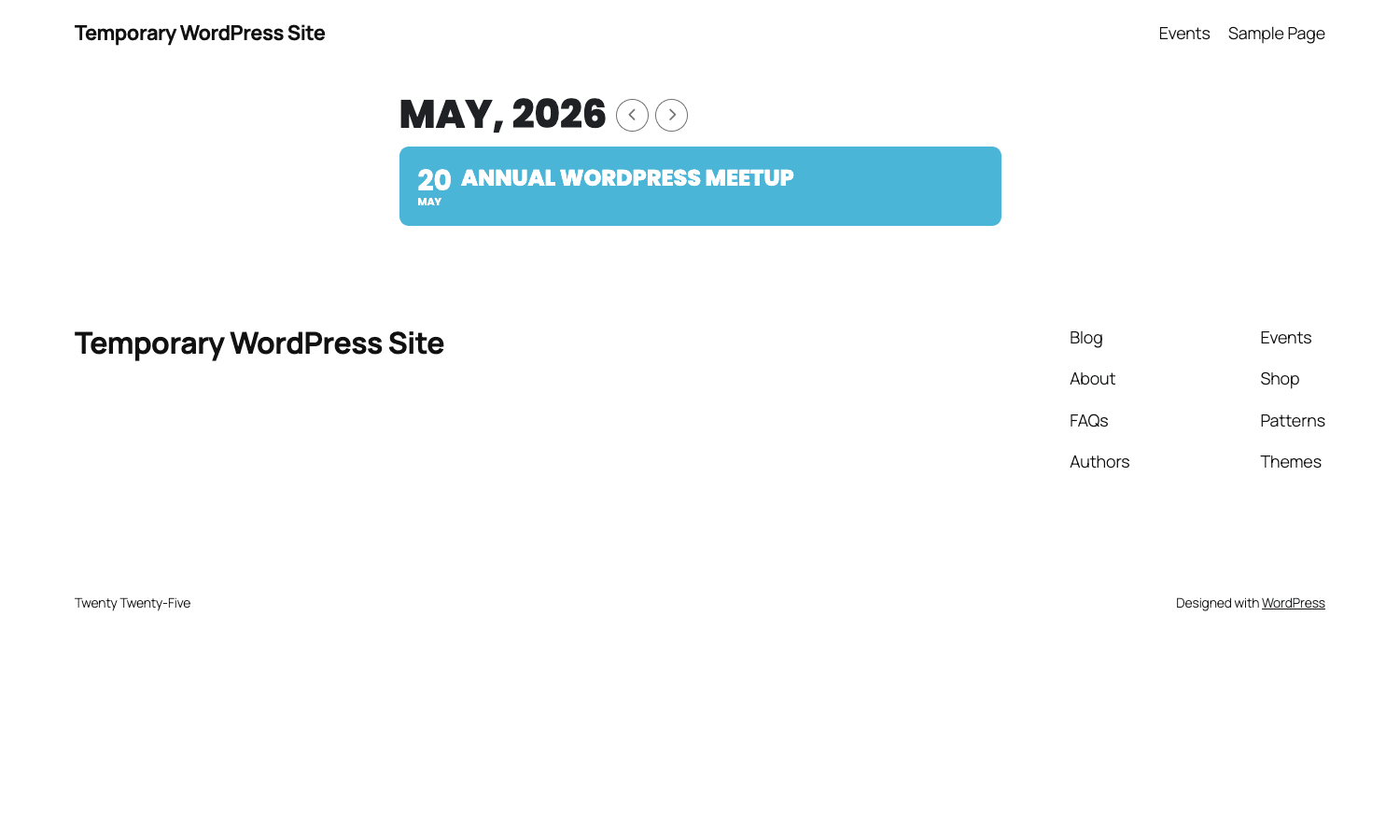
That’s a single event called "Annual WordPress Meetup" appearing in May 2026. The big month header, the small chevron navigation arrows, the bold day number on the left of the event card, and the type-coloured background of the card itself are all defaults. No theme tweaks, no custom CSS. The plugin is intentionally trying to look like a magazine layout rather than a spreadsheet.
When a visitor clicks the event card, it expands inline (no page navigation) to show the event description, location with Google Map, organizer, time block, share buttons, and any custom meta fields you’ve configured. The expand animation is built into the plugin’s JS; you don’t need a separate accordion library.
If you have many events in a month, the same card layout simply stacks vertically. There’s no traditional month-grid view in the core plugin. To get a true grid view, you install the Full Cal add-on, which adds a more traditional calendar grid alongside the list-style default. The Filters Plus add-on layers on multi-faceted filtering (category, location, organizer, date range) for sites with hundreds of events.
There are also other view types available out of the box: a Week view, a Day view, a List view, a Tiles view (grid of large cards with images), and the Schedule view. Each is a separate shortcode (we’ll go through those later).
Installation and first run
EventON installs like any WordPress plugin: upload the zip via Plugins -> Add New -> Upload Plugin, activate, and the plugin adds two top-level menu items to the WordPress admin: Events (an WordPress post-type list of your events) and EventON (the plugin’s settings + addons + support panel).
Out of the box, EventON does two important things on activation:
- Creates a WordPress page called Events at
/events/and attaches a default[add_eventon]shortcode to it. That page is your default calendar URL. - Registers the
ajde_eventspost type and theevent_location,event_organizer, andevent_typetaxonomies.
So a brand-new EventON site already has a working public calendar at /events/. From there, you add events through the WordPress admin and they show up on that page immediately.
The Events admin list looks like this:
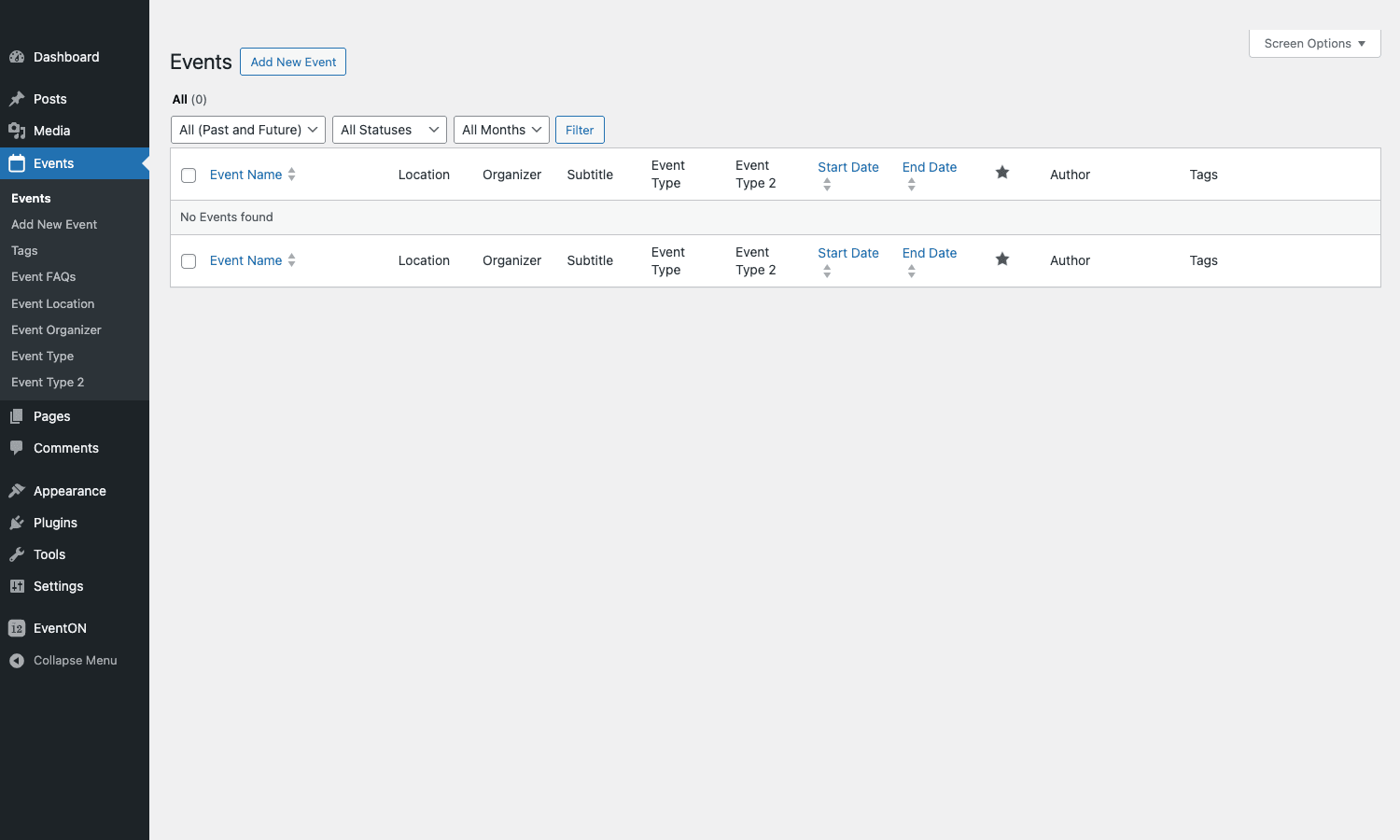
You get the standard WordPress posts table layout, but with EventON-specific columns: Location, Organizer, Subtitle, Event Type, Event Type 2, Start Date, End Date, Author, Tags, and a Featured indicator. The "All (Past and Future)", "All Statuses", and "All Months" filters above the table let you slice the list quickly.
Touring the EventON admin
The Settings page is where most of the configuration happens. EventON’s settings UI is one of the better Vue-based admin builds I’ve seen in the events space, with sensible sub-navigation and clear labels.
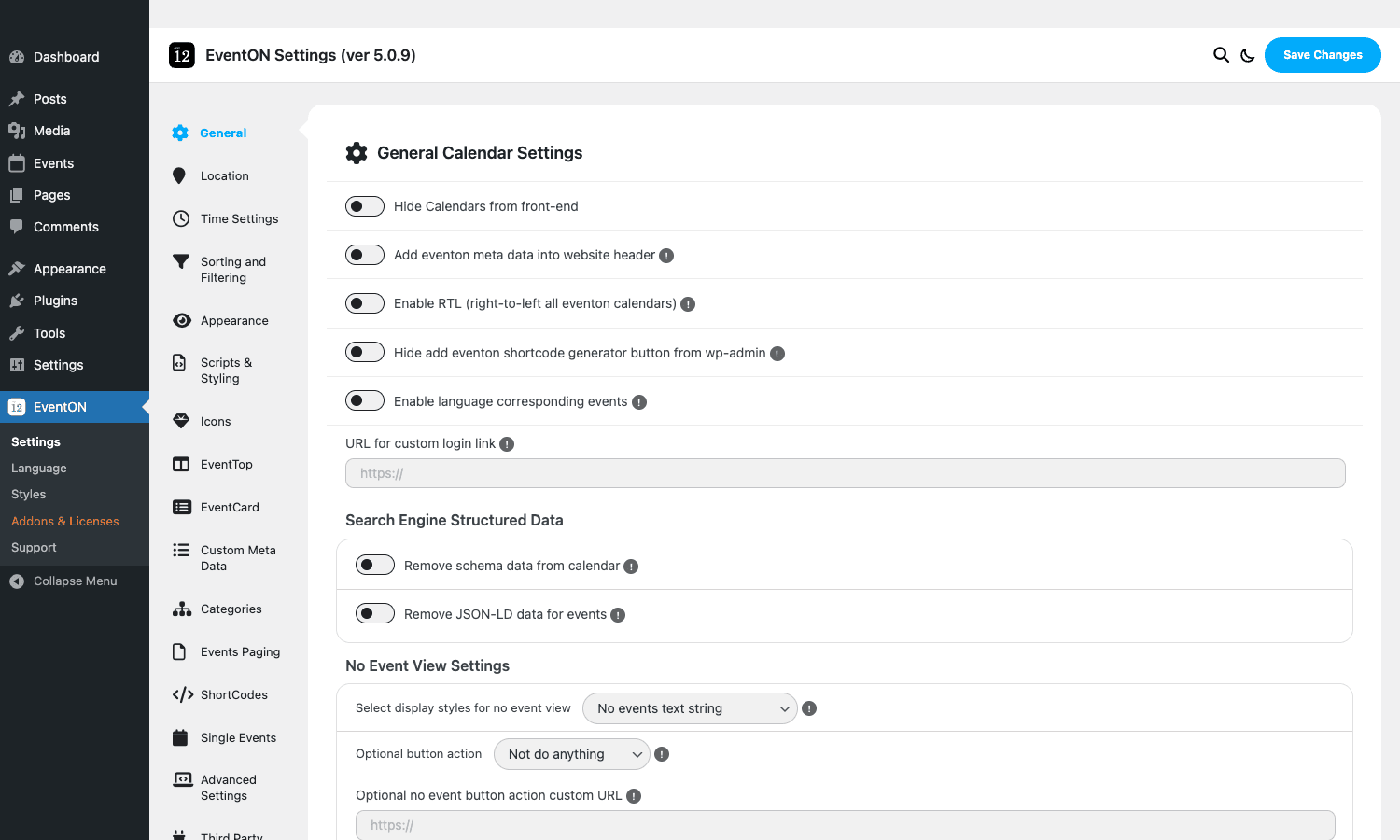
The left sub-nav has fifteen-ish areas. The ones that matter most:
- General. Site-wide toggles: hide calendars from the front-end (during maintenance), RTL support, language-aware events, structured-data emission (schema.org + JSON-LD), the no-event display fallback, search engine indexing rules.
- Location. How locations render. Google Maps API key, marker icons, map zoom defaults, whether to show the map inline or as a popup.
- Time Settings. Time formats, week starts (Sunday vs Monday), timezone handling. EventON respects the WordPress timezone setting by default but you can override.
- Sorting and Filtering. Default sort order, default filter visibility, ascending vs descending.
- Appearance. The biggest panel. Calendar themes, color palettes, fonts, navigation arrow placement, featured event styling. (Screenshot below.)
- Scripts & Styling. When to load the plugin’s JS/CSS (every page vs only calendar pages), defer/async toggles, custom CSS injection.
- Icons. The plugin ships with a custom icon set; you can swap individual icons or upload your own.
- EventTop. The header section above the calendar (month label, navigation, search). Whether to show it, how it’s styled.
- EventCard. The collapsed event row. Which fields to show by default (organizer, location, time, date, image).
- Custom Meta Data. Add unlimited custom fields to events. (Text, textarea, image, URL, email, phone, date, color picker.)
- Categories. Per-category default colors and icons.
- Events Paging. How many events per page, infinite scroll vs traditional pagination.
- ShortCodes. A reference list of all available shortcodes with their attributes.
- Single Events. How the single-event page (when expanded inline) renders. Field order, what to hide.
- Advanced Settings. Database options, cache-busting, debug logging, fallback rendering when JS fails.
The Appearance tab is where you spend the most time once the calendar is live:
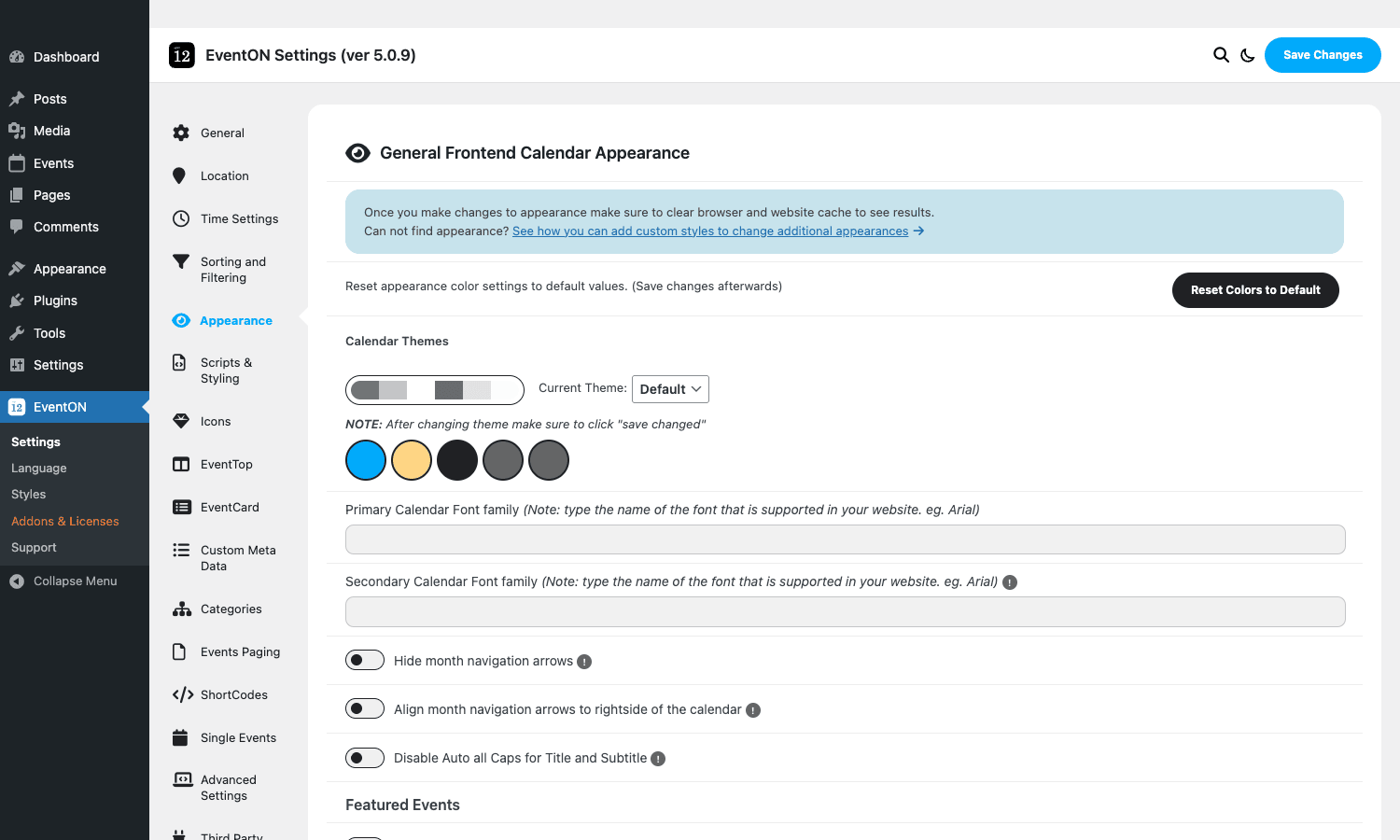
You can pick between Light and Dark theme bases, swap the primary color from a palette of brand colors (cyan, yellow, red, black, dark grey), and override the typography. Most sites get a perfectly good look just by picking a theme and a color. The text fields for Primary Calendar Font and Secondary Calendar Font accept any font family already loaded on your site (system fonts work; Google Fonts work if you enqueue them separately).
The event editor
Adding or editing an event opens the standard WordPress block editor, but with a EventON meta box pinned below the content area:
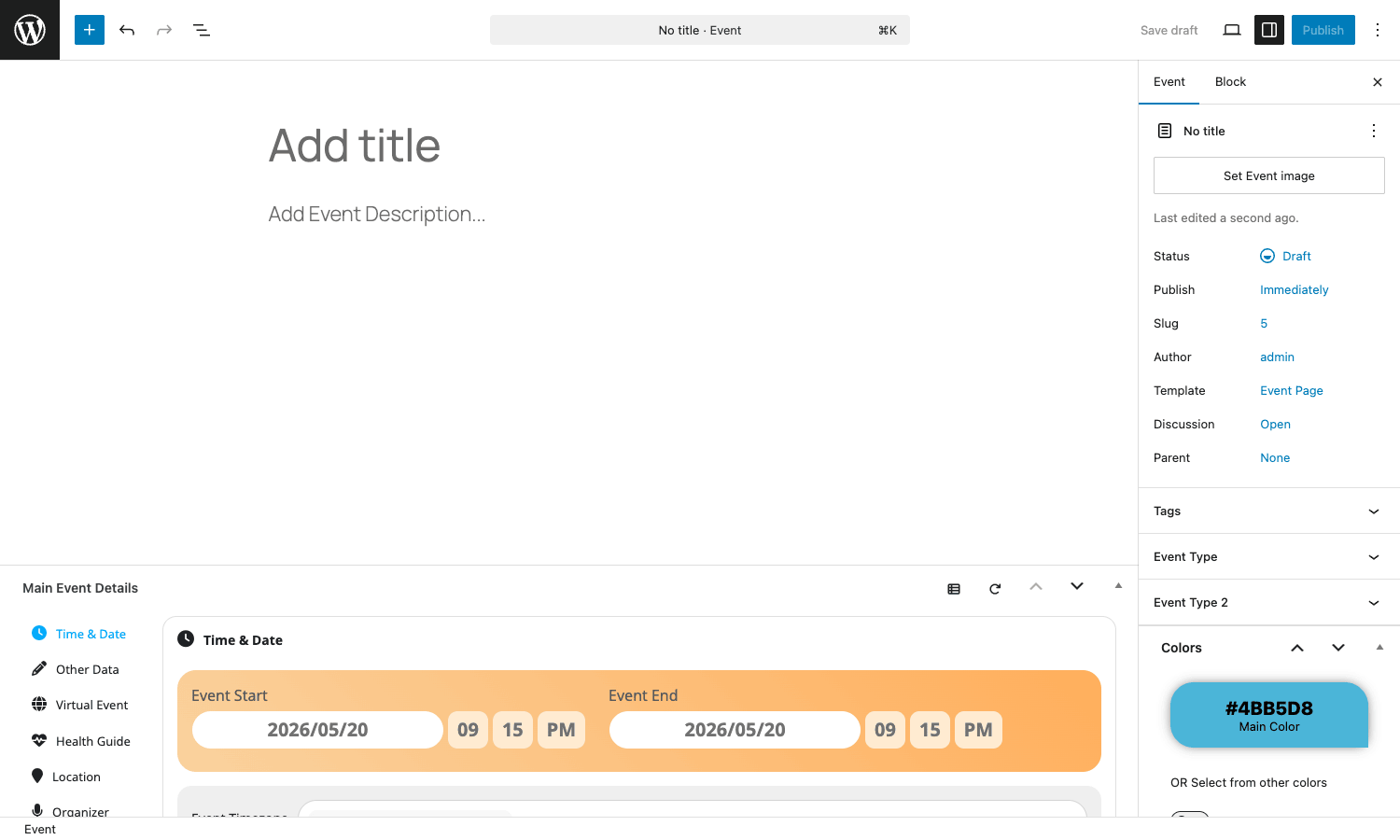
The Main Event Details box has its own internal side-nav: Time & Date, Other Data, Virtual Event, Health Guide, Location, Organizer, and (with add-ons) more. The Time & Date panel sets the start and end timestamps, the timezone, recurrence rules, and the time display preferences for this specific event.
The right sidebar in the editor holds the standard WordPress publish controls plus EventON-specific blocks: Event Type, Event Type 2, Tags, and a Colors picker (the override-the-category-color feature mentioned earlier). If you’ve enabled custom meta data in the global settings, those fields appear in the meta box too.
Most events take less than two minutes to create from scratch. Title, dates, location, save. The rest is optional polish.
Shortcodes and where to put them
EventON’s settings page assumes you might want different calendars on different pages, so almost everything is shortcode-driven. The full list:
[add_eventon]– the default calendar (month list view).[add_eventon_list]– a clean list view with no calendar header.[add_eventon_now]– shows only events happening right now ("Live Now").[add_eventon_search]– a standalone search box that filters a calendar elsewhere on the page.[add_eventon_sv]– schedule view (vertical agenda for a single day or short range).[add_eventon_tabs]– tabbed calendar where each tab is a different filter (e.g. one tab per category).[add_single_eventon]– render a single event inline somewhere (e.g. on the homepage).[eventon_anywhere]– a placement helper for embedding the calendar in any theme location.[add_ajde_evcal]– the legacy alias from earlier versions; still works.
Each shortcode accepts attributes to filter and customize. The two most useful patterns:
[add_eventon
 event_type="3,5"
 number_of_months="6"
 ft_event_priority="yes"
 sort_by="sort_date"
 hide_past="yes"
]

[add_eventon_list
 event_count="10"
 fixed_month="2026-06"
 hide_mult_occur="yes"
]
The first creates the default calendar but only for event types 3 and 5, looking six months ahead, sorted by date, hiding past events, with featured events floated to the top.
The second renders a list of the next ten events in June 2026, deduplicating any recurring events so each repeating event shows up only once.
A few more attributes that come up often: hide_so_filter="yes" (hide the sort dropdown), show_year="yes" (include the year alongside the month label), accord="yes" (force accordion-style expand instead of inline), and event_order="ASC|DESC".
You can pull up the Shortcode Creator from the EventON settings panel to build these visually instead of remembering attributes, which is what most non-developers will do.
Real-world use cases
EventON is generic enough that "any site that needs an event list" covers the surface, but a few patterns recur in production:
Music venue or theatre. Categories for genres (Jazz, Rock, Acoustic, Comedy), locations for the venue’s multiple stages, organizers for promoters. Featured events for headline shows. Frontend uses the default list view with category color coding. The Bookings add-on handles ticket reservations and paid ticketing.
Conference site. Multi-day events (the conference itself spans 3 days) plus child events for individual sessions. Schedule view shortcode on the per-day pages. Filter Plus add-on so attendees can filter by track, speaker, or room.
Coworking space or community calendar. Mix of in-person and virtual events. The virtual event panel handles Zoom/Jitsi links cleanly. Event Type 2 separates "Member-only" from "Public" while Event Type 1 holds the topic categories.
University events page. Multiple departments each maintaining their own calendar but rolling up into a campus-wide view. One EventON install with categories per department; departmental pages use category-filtered shortcodes, the campus-wide page uses the no-filter shortcode.
Religious or cultural community. Recurring weekly services, occasional special events, location pinned to a single physical address. Light maintenance once the recurring pattern is set up.
Festival or fair. Multi-day spanning event with dozens of child events (food stalls, performances, workshops). The Full Cal add-on renders the traditional grid view for printing as a paper schedule.
Sports league. Recurring games on a fixed schedule, locations per home and away venue, organizers per team. The Subscriber add-on lets fans get email alerts for events matching specific filters (e.g. "all home games").
Developer reference: hooks, filters, REST, taxonomies
EventON’s developer surface is reasonably well-thought-out, with naming conventions that make filters and actions easy to grep for. The plugin’s source files live under wp-content/plugins/eventON/includes/ and wp-content/plugins/eventON/ajde/ if you ever need to read them. Everything that follows uses the standard WordPress hooks system, so any tooling that works with do_action / apply_filters works here.
Actions
Some of the most useful do_action hooks:
// Fires after WordPress activation. Use to seed default events or trigger
// migration logic for sites coming from another calendar plugin.
add_action( 'eventon_activate', function() {
 // ... create initial categories or copy data ...
} );

// Fires right before the event listing is rendered. Use to inject HTML
// (e.g. a sponsor banner) above the calendar.
add_action( 'eventon_calendar_header_content', function() {
 echo '<div class="my-banner">Sponsored by Acme Co.</div>';
} );

// Fires for each event card as it renders. Lets you append custom data
// (a price tag, a "sold out" badge) per event.
add_action( 'eventon_eventcard_event_details', function( $event_id ) {
 $sold_out = get_post_meta( $event_id, 'sold_out', true );
 if ( $sold_out ) {
 echo '<span class="sold-out-badge">Sold Out</span>';
 }
} );

// Fires when the plugin's JS bundle is being enqueued. Use to add or
// dequeue scripts in a calendar-only context.
add_action( 'eventon_enqueue_scripts', function() {
 wp_enqueue_script( 'my-eventon-extension', ... );
} );

// Fires before the meta boxes are registered on the event editor.
// Use to register your own custom meta box.
add_action( 'eventon_add_meta_boxes', function() {
 add_meta_box( 'my-event-meta', 'My data', ... );
} );
Filters
The plugin exposes a long list of eventon_* filters. The most useful ones:
// Customize which capabilities the plugin grants to which roles.
add_filter( 'eventon_core_capabilities', function( $caps ) {
 // Add a custom role's capability for managing events.
 $caps['editor'][] = 'edit_ajde_events';
 return $caps;
} );

// Override the icon set used across the calendar.
add_filter( 'eventon_custom_icons', function( $icons ) {
 $icons['location'] = 'fas fa-map-marker';
 return $icons;
} );

// Modify the JS variables passed to the calendar JS bundle.
add_filter( 'eventon_cal_jqdata', function( $data, $atts ) {
 $data['my_custom_setting'] = 'value';
 return $data;
}, 10, 2 );

// Filter which event types are included in a calendar render.
add_filter( 'eventon_appearance_add', function( $atts ) {
 // Force "featured only" in a specific context.
 if ( is_page( 'home' ) ) {
 $atts['ft_event_priority'] = 'yes';
 }
 return $atts;
} );

// Modify the short info line on the event card (the line that
// usually reads "Location: X, Organizer: Y").
add_filter( 'eventon_event_cal_short_info_line', function( $line, $event_id ) {
 return $line . ' — ' . get_post_meta( $event_id, 'extra_info', true );
}, 10, 2 );
For everything else, grep the source:
grep -rEn "apply_filters\(\s*['\"]eventon" wp-content/plugins/eventON/
REST API
EventON registers three REST endpoints under the eventon and evo-admin namespaces:
GET /wp-json/eventon/v1/data– generic data endpoint, used internally by the calendar JS.GET /wp-json/eventon/v1/events?evo-ajax=eventon_get_events– returns a JSON array of events. Accepts filter parameters in the query string.GET /wp-json/evo-admin/data– admin-side data (currently a simple "Howdy!!" response, reserved for future use).
The main one you’d actually consume is /eventon/v1/events. Example:
curl "https://yoursite.com/wp-json/eventon/v1/events?evo-ajax=eventon_get_events&event_type=3&from=2026-01-01&to=2026-12-31"
This is what you’d use to feed an external mobile app, a Slack notifier, or a static-site generator with the calendar’s contents.
Taxonomies and post types
EventON registers:
- Post type:
ajde_events. All events are posts of this type. Useget_posts(['post_type' => 'ajde_events', ...])to query them. - Taxonomy:
event_location– hierarchical, attached to events. - Taxonomy:
event_organizer– hierarchical. - Taxonomy:
event_type– hierarchical. Primary category. - Taxonomy:
event_type_2,event_type_3, etc. – secondary categories, registered conditionally based on plugin settings.
Event start/end times are stored as post meta on each event:
evcal_srow– Unix timestamp of event start.evcal_erow– Unix timestamp of event end.evo_event_complete– "yes" if event has been marked complete._evo_fac– featured event flag.
Querying events between two dates:
$events = new WP_Query( [
 'post_type' => 'ajde_events',
 'posts_per_page' => -1,
 'meta_query' => [
 [
 'key' => 'evcal_srow',
 'value' => [ strtotime( '2026-06-01' ), strtotime( '2026-06-30' ) ],
 'type' => 'NUMERIC',
 'compare' => 'BETWEEN',
 ],
 ],
] );
This is the same query EventON itself uses internally, so it’s safe to use in your own templates.
Performance, compatibility, and gotchas
A few things worth knowing.
Cache compatibility. EventON renders the calendar via JavaScript that hydrates from REST endpoints. That means page caching is mostly safe (the HTML shell can be cached), but the JSON responses should be excluded from object caching for users who are filtering or paginating. With WP Rocket the default config works without changes. If you’re on a heavy-handed CDN, exclude /wp-json/eventon/* from CDN caching to avoid stale results.
Google Maps usage. The location panel shows a Google Map per event by default. Google requires an API key for any new Maps embed since 2018; EventON has a field for it in Settings -> Location. Without a key, you’ll see a "for development purposes only" watermark on each map. The plugin also supports OpenStreetMap as a fallback.
Heavy frontend. EventON’s default JS bundle is ~200KB minified, plus images per event. On a calendar page with 50+ events, expect that to bloat to a few MB total. The Scripts & Styling tab has settings to defer the JS and load it only on calendar pages, both of which help. Pair with a real caching plugin for production.
Recurring events at scale. Each recurrence is stored as a separate row in the database for the lookup index. A weekly event for a full year is 52 rows. This is fast for query, but it does make the events list crowded. Use the hide_mult_occur shortcode attribute to deduplicate on display.
Time zones. EventON respects the site-wide WordPress timezone setting unless you explicitly override per-event. If you run a multi-region site (events in different timezones rendering for users in yet another timezone), set the per-event timezone explicitly in the event editor. The Live Now view in particular uses server time, so a wrong site timezone will show events "happening" at the wrong moment.
OpenAI integration costs. The AI assistant for event titles/descriptions calls the OpenAI API directly. You provide the key in settings. It’s billed to your OpenAI account, not the plugin. Useful for content-heavy calendars but not free.
The Twenty Twenty-Five default theme issue. As of this writing, some EventON CSS rules conflict with the FSE default themes’ container queries. The visible symptom is the calendar header being cropped on the right side. Fix: add .eventon_main { container-type: normal !important; } to your child theme.
RTL support. Built in, toggle in Settings -> General. Hebrew, Arabic, Urdu, and Persian work cleanly out of the box.
Pricing and licensing
EventON is sold on Codecanyon at around $25 for the core plugin, with a regular license that covers one site. There’s an Extended License at higher cost for sites that resell access. CodeCanyon’s pricing also includes six months of support; you can extend it for an additional fee.
The add-ons are sold separately, also via Codecanyon. The pricing ranges from $9 (Slider) to $25 (Bookings) per add-on. There’s no "all add-ons" bundle from the developer themselves; the closest thing is the GPL Times bundle that includes the core plus a curated set of add-ons.
The CSS, JS, and image assets ship under a more restrictive proprietary license per the bundled LICENSE.txt; if you redistribute publicly, those need to be replaced or the assets re-licensed.
If you’re going into production, the Codecanyon license is worth buying for the official support and update channel.
FAQ
Is EventON still being developed? Yes. The team ships regular updates, and the codebase reflects modern PHP and WordPress practices (block editor support, PHP 8 compatibility, REST API endpoints). Major releases happen a few times a year.
Does EventON work with the block editor? Yes. The event editor itself opens in Gutenberg, with the EventON meta box pinned below the block area. The calendar shortcodes also work inside Gutenberg paragraph blocks or the shortcode block.
Can I import events from Google Calendar or another plugin? With the CSV Event Importer add-on, you can import from any CSV (including Google Calendar’s CSV export). For migrations from The Events Calendar, there’s no official migration tool, but the plugin’s post type and meta layout is well documented enough to write a custom migration script.
How does EventON compare to The Events Calendar? The Events Calendar Pro has the bigger ecosystem (Tribe Tickets, Event Aggregator, more integrations). EventON has the cleaner default UI and the lower per-site price. For most sites where the calendar is the main feature, either works; for sites where the calendar is one of many features, The Events Calendar’s ecosystem tips the scale.
Can I run EventON on WordPress multisite? Yes, each subsite gets its own events. There’s no built-in network-wide aggregation; you’d write that yourself or use one of the third-party multisite event aggregators.
Does EventON support paid tickets? Not in core. The Bookings add-on adds RSVP and ticket-style reservations; the Event Tickets add-on adds full paid ticketing with Stripe and PayPal integration. The Dynamic Pricing add-on layers on tiered pricing rules.
Will the calendar slow my site down? On a page with under 50 events, no. The JS bundle is reasonable and loads only on calendar pages if you enable that toggle. On larger calendars (hundreds of events) you’ll want to enable the lazy-load and infinite-scroll modes in Events Paging.
Can I export events to .ics for users? Yes, every event card includes an "Add to Calendar" link that downloads an ICS file the user can import into Google Calendar, Apple Calendar, or Outlook.
Does EventON support frontend event submission? With the Action User add-on, yes. The add-on adds a frontend form (shortcode) where any user (with optional admin approval) can submit an event. Useful for community calendars where members add their own events.
Final thoughts
The WordPress event plugin market has converged on two dominant approaches: dense data-grid UIs (The Events Calendar, Modern Events Calendar) or minimalist editorial UIs (EventON, Sugar Calendar). If you’ve ever looked at an events page and thought "this looks like a spreadsheet", EventON is the answer to that.
There are tradeoffs. EventON’s opinionated layout means you’ll either love it or find yourself fighting it. If your goal is "looks like an editorial magazine calendar," EventON will be a fast yes. If your goal is "looks like Outlook, with all the data dense and visible at once," another plugin will be a better fit.
The other quiet strength is the add-on ecosystem. The core plugin is enough for a basic calendar, and as you grow, you slot in Action User for frontend submissions, Bookings for ticketing, Filters Plus for advanced filtering. You don’t have to bet the whole site on a single mega-plugin; you start small and grow.
Spin it up, add a few events, see how the frontend feels with your theme. The Vue-based settings panel and the inline event editor mean you can be running a real calendar in twenty minutes.