

If you want a job board, a "Careers" section on a company site, an industry-specific listing site, or a freelancer marketplace, WP Job Manager is the plugin that does the heavy lifting on WordPress. It’s been around long enough that "WordPress job board" and "WP Job Manager" are basically synonymous in the community. The plugin is what powers Indeed-clones, niche industry boards, agency career pages, and the long tail of "we should have a careers page" projects built on top of WordPress.
This article walks through what WP Job Manager actually does, the core shortcodes and blocks ([jobs], [submit_job_form], [job_dashboard]), how the front-end posting flow works in practice, the application capture and employer dashboard model, the developer hook surface (it’s huge), the addon ecosystem, and the gotchas worth knowing before you ship.
Table of contents
- What WP Job Manager is
- Free WP Job Manager vs paid addons
- Installation and the first job board page
- The job listings shortcode and block
- Front-end job submission
- The employer dashboard
- Admin: managing jobs from WP
- Job types, categories, and taxonomies
- Custom fields on the submit form
- Email notifications
- Job expiry and listing lifecycle
- Developer reference: hooks and filters
- REST API and the job_listing CPT
- Addons that make WP Job Manager production-ready
- Real-world use cases
- Performance, SEO, and gotchas
- Pricing and licensing
- FAQ
- Final thoughts
What WP Job Manager is
WP Job Manager is a WordPress plugin originally written by Mike Jolley (who built WooCommerce) and now owned and maintained by Automattic. It adds three things to a vanilla WordPress install:
- A
job_listingcustom post type with all the metadata you’d expect (company name, location, job type, expiry date, featured flag, filled flag, application URL/email, company logo and website). - A front-end submission flow so employers can post jobs without ever touching WP admin, via the
[submit_job_form]shortcode. - A set of shortcodes and blocks for the public-facing parts of the board:
[jobs]for the search and listing page,[job_dashboard]for the employer-side management UI, and single-job display blocks.
That’s the whole core. Everything else (resume submission, paid listings, alerts, multi-region, Indeed sync) is sold as separate addons. The combination of "the right amount of feature in core" and "a deep addon ecosystem" is exactly why the plugin has lasted so long: small projects use just the core, and serious job boards layer on addons as they grow.
If you’ve ever tried building a job board with a generic CPT plugin, custom post type UI, and a forms plugin, you know what WP Job Manager replaces. The custom post type alone isn’t the work; the work is the front-end submission, the dashboard for employers, the search and filtering, the expiry handling, the email notifications, the moderation flow, and all the little affordances ("mark filled", "promote this", "edit again"). WP Job Manager bundles all of that into one plugin.
Free WP Job Manager vs paid addons
The core plugin is free on WordPress.org. It’s not a feature-stripped freemium teaser. The free version is genuinely production-ready for the common case: anonymous or logged-in job submission, search with location and keyword filters, employer dashboard, expiry, admin moderation, email notifications, taxonomies, and the developer hooks. Many real job boards run for years on just the free version plus a child theme.
The paid addons unlock specific workflows on top:
- WooCommerce Paid Listings, charge for job posts via WooCommerce.
- Resume Manager, let candidates post their resumes (a mirror of the job submission flow).
- Applications, capture applications inside WordPress instead of redirecting to an email or external URL.
- Bookmarks, candidates can save jobs to view later.
- Job Alerts, candidates subscribe to keyword/location alerts and get emails when matching jobs are posted.
- Predefined Regions, replace the free-text Location field with a taxonomy of predefined regions.
- Indeed Integration, sync jobs out to Indeed and import jobs from Indeed.
- LinkedIn Apply, apply with LinkedIn one-click.
- Embeddable Job Widget, share a job widget on external sites.
- Application Deadline, separate deadline from listing expiry.
- Stats, view counts, application counts, conversion analytics per listing.
Each addon is $39/year direct from wpjobmanager.com. The bundle (Core + every addon) is hundreds per year. Most production job boards run with 3-5 addons selected to match their model (Paid Listings + Resume Manager + Job Alerts + Applications is a very common combination).
Installation and the first job board page
Installation is the standard WP flow:
Plugins -> Add New -> Search "WP Job Manager" -> Install -> Activate. On activation, the plugin offers to auto-create the three required pages (Jobs, Post a Job, Job Dashboard) for you. Accept the offer; it saves a step.
If you skip auto-creation or want to do it manually, create three pages with these shortcodes (one per page, in the page content):
- Jobs page:
[jobs per_page="10"] - Post a Job page:
[submit_job_form] - Job Dashboard page:
[job_dashboard]
Then go to Job Listings -> Settings -> Pages and assign each page to its role. The plugin reads these page IDs for redirects after submission and for permalinks in emails.
After installation, the Job Listings admin menu appears in WP admin:
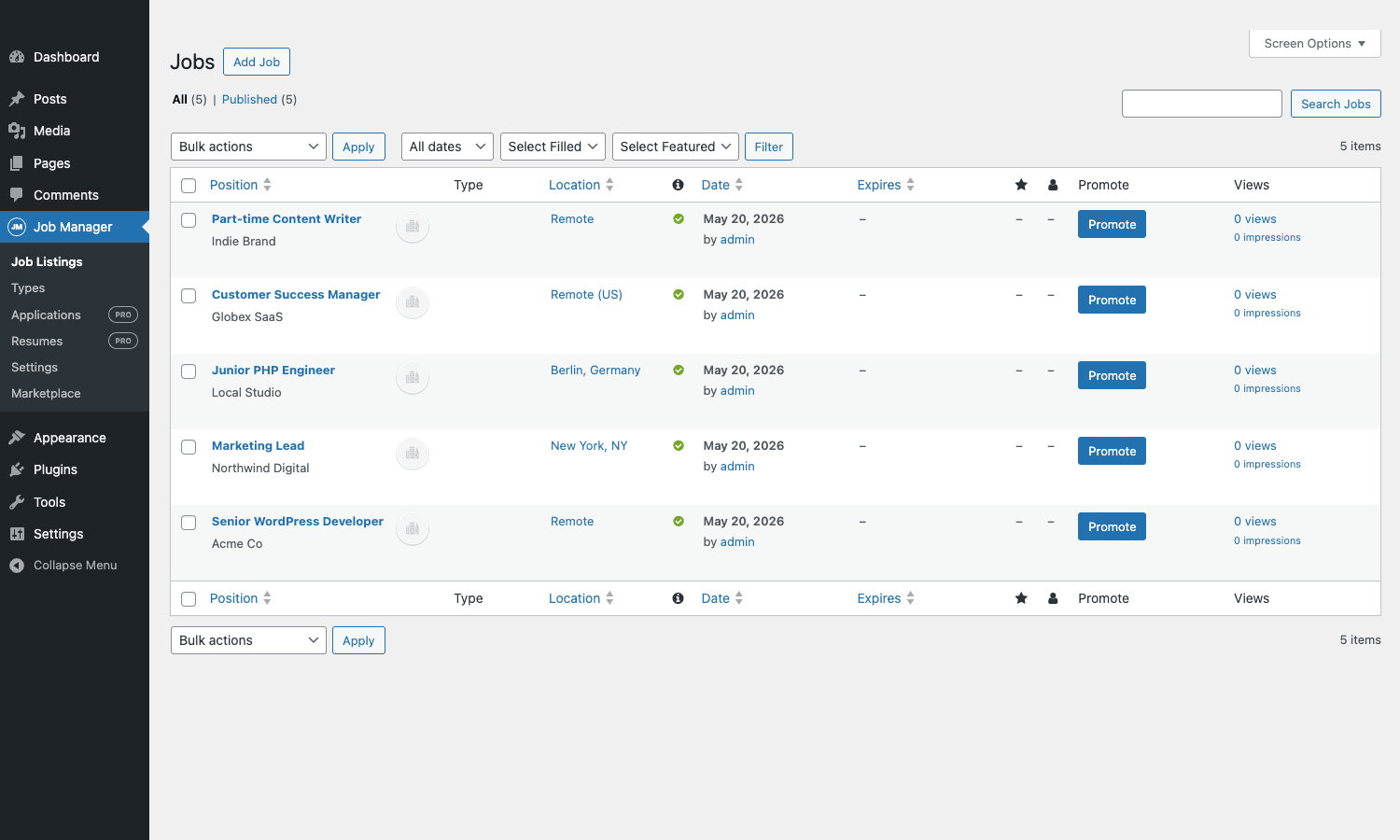
The admin list looks like a normal WP admin table but with job-specific columns: position title with company name, type (Full Time / Part Time / etc), location, date posted, expiry date, featured/filled toggles, promote button, and view stats.
The job listings shortcode and block
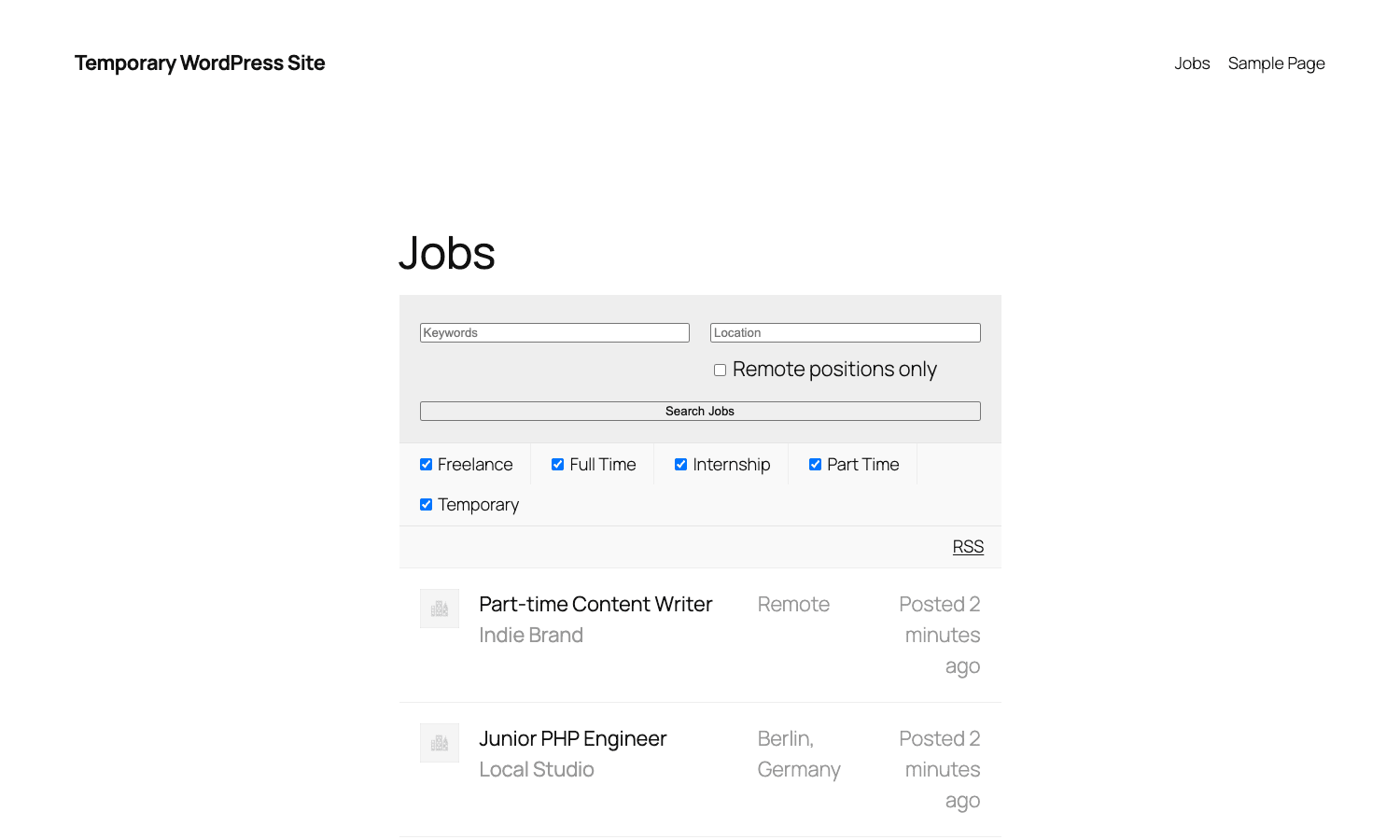
[jobs] is the workhorse shortcode. Dropped on a page, it renders a complete job board: search form with keyword and location inputs, a "Remote positions only" checkbox, type-filter checkboxes (Full Time / Part Time / Contract / etc), and the job list itself with infinite-scroll or pagination.
The shortcode takes a long list of attributes you can use to specialize the rendering:
[jobs per_page="20" categories="design,engineering" location="London" featured="1" filled="0" job_types="full-time,contract" order="DESC" orderby="date" show_filters="true" show_categories="true" show_pagination="true"]
You can have multiple Jobs pages with different filters: one for remote-only, one for engineering, one for entry-level. Just drop different shortcodes on different pages.
The equivalent Gutenberg block is "Job Listings" under the Widgets category. The block exposes the same attributes as a UI in the block sidebar, which is easier than memorizing shortcode parameters. For Gutenberg-first sites, prefer the block; for backwards compatibility or fine-grained control, prefer the shortcode.
Front-end job submission
[submit_job_form] renders the job-posting form on the front end. This is the killer feature: employers post jobs without ever logging into WP admin.
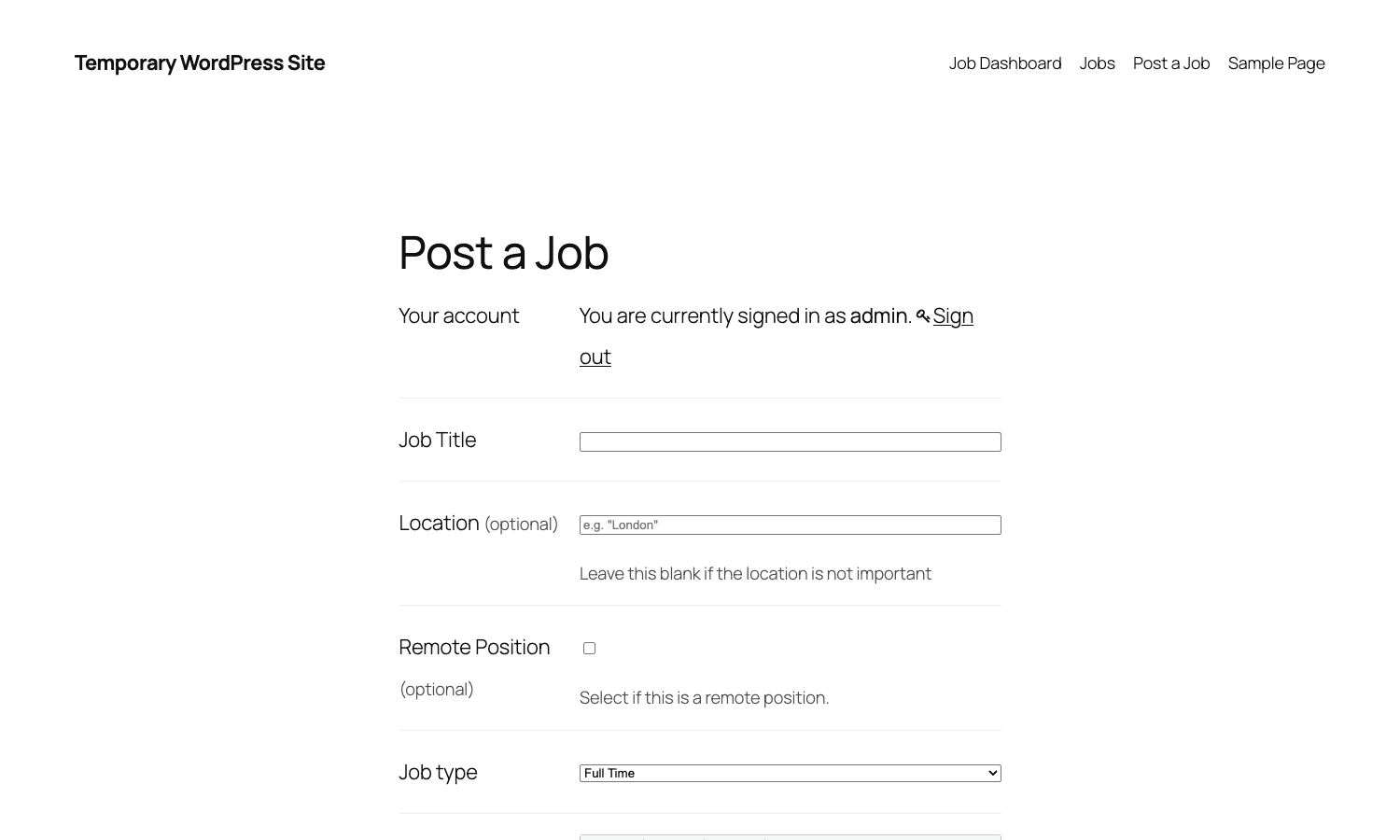
The default form has two sections: the Job section (title, location, remote flag, job type, description) and the Company section (name, website, tagline, video URL, Twitter, logo). Required fields are configured in Settings; optional fields show "(optional)" next to the label.
The submission flow:
- Employer fills the form. If they’re not logged in, they enter an email; the plugin creates a "guest" account (or sends them through the standard WP registration if you require accounts).
- On submit, the plugin shows a preview page where the employer can review the job exactly as it’ll appear publicly.
- The employer clicks "Submit Listing". The job enters either "Pending" status (admin moderates before publishing) or "Published" (auto-publishes), depending on Settings.
- Confirmation email is sent to both the employer and the admin.
- If moderation is enabled, admin sees a notification and can approve/reject from the admin job listings page.
- Once published, the employer gets a "Your job is live" email with the public URL.
You can configure the form in Settings:
- Submission requires login, require WP account or allow anonymous.
- Account required to view job, protect the public-facing job listings behind login (rare but possible).
- Auto-create account, if anonymous submission is on, auto-create a WP account for the submitter.
- Approve before publishing, moderation step.
- Edit deadline, how many minutes the submitter can edit the job after submitting.
- Approval emails, which roles get notified on new submissions.
The submit form is highly customizable via the submit_job_form_fields filter (covered in the developer section below). Add your own fields, remove defaults, change labels, alter the order, mark some required, hide some from public, save the values to job meta.
The employer dashboard
[job_dashboard] renders the employer-side dashboard where they can manage their own listings.
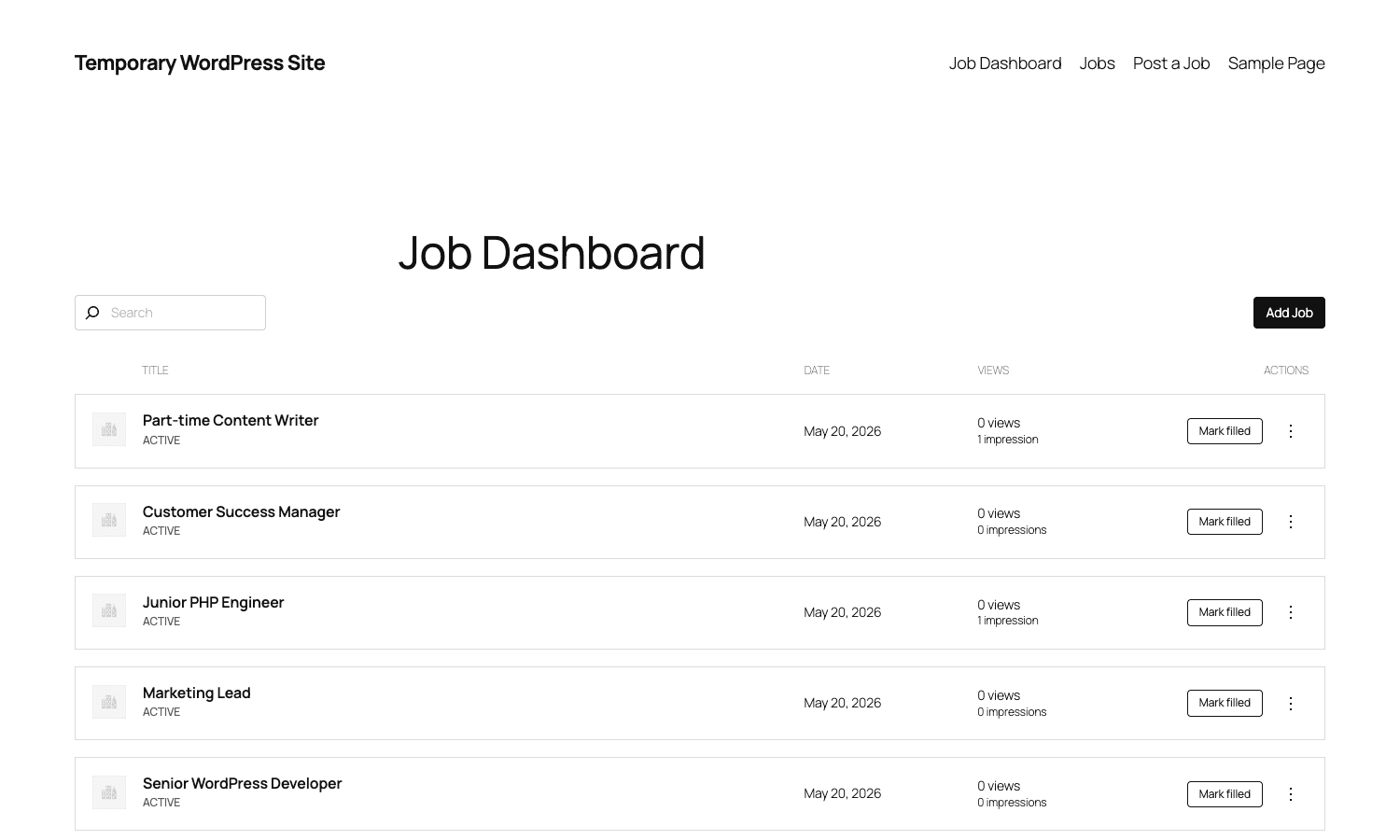
The dashboard table has columns for title (with status badge), date, view count, and per-row actions. The actions menu typically has Edit, Mark Filled, Duplicate, Promote, and Delete. The Mark Filled action moves the listing to a "Filled" state where it stays visible but no longer accepts applications. Edit reopens the front-end form with the current job’s data pre-filled. Duplicate is essential for employers who post many similar listings.
The dashboard uses the same user account model as the submission form: employers log into WP with their account and see only their own listings. If you have a multi-employer model (many companies posting jobs on your site), each employer manages their own listings without seeing anyone else’s. Admins see all listings in the WP admin.
For employers who submitted as guests (no WP account), the plugin generates a "Manage" link with a one-time access token and emails it to them. They click the link and can edit, mark filled, or delete the job without ever creating a WP account. This is one of the better-designed parts of the plugin; the guest-flow handling sidesteps the "I don’t want to make an account" friction that kills conversion on many job boards.
Admin: managing jobs from WP
The WP admin side gives admins full control. Job Listings -> Jobs is the standard WP list table with bulk actions: approve, reject, mark featured, mark filled, expire now, delete. Clicking into a job opens the Gutenberg editor with the job title, description, and a Job sidebar panel for the per-listing fields.
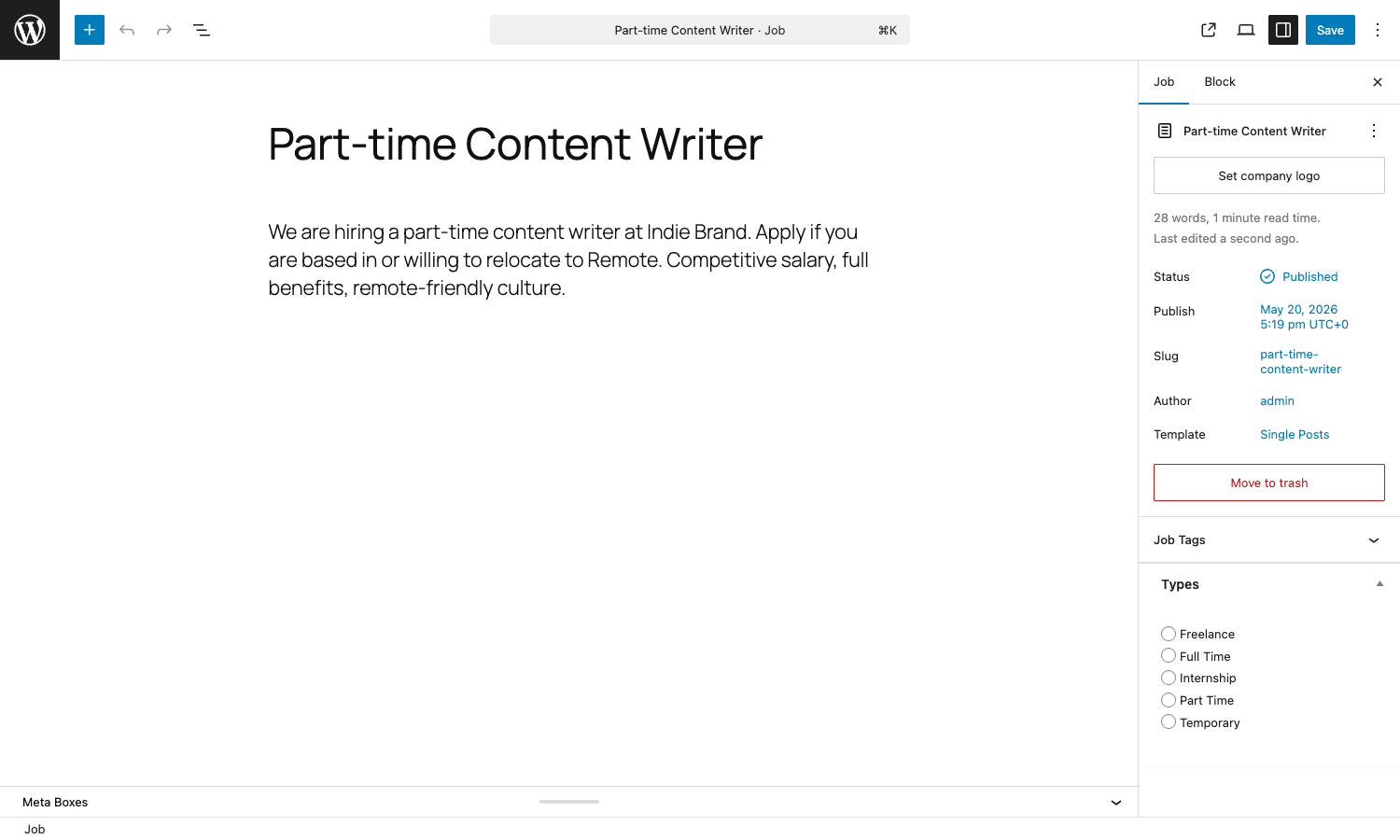
The Job sidebar in the editor exposes:
- Status: Published, Pending, Expired, Preview.
- Slug, Author, Template (standard WP).
- Set company logo action.
- Job Tags taxonomy.
- Types taxonomy (Freelance / Full Time / Internship / Part Time / Temporary by default).
- Below the fold, Job Listing Data metabox with Location, Application email/URL, Company name, Tagline, Website, Twitter, Video URL, Featured flag, Filled flag, Position Filled, Listing Expires date.
Admins can override anything an employer submitted from the dashboard, including the public-visible job title, the company name, the application URL, expiry date, and featured status. This is useful for fixing typos, repromoting filled jobs as "filled but visible", and curating featured listings.
Job types, categories, and taxonomies
WP Job Manager registers two taxonomies for organizing listings:
- Job Listing Type (
job_listing_type), the type of role. Defaults to Freelance, Full Time, Internship, Part Time, Temporary. Multiple types per job allowed if you enable multi-type. Type slugs become URL-friendly identifiers used in shortcode filters. - Job Listing Category (
job_listing_category), the topical category. Disabled by default; you can enable it in Settings. Common categories on real boards: Engineering, Design, Marketing, Sales, Customer Support, Operations.
Job Tags are not a taxonomy, they’re a free-text comma-separated meta field. Lighter than a taxonomy and useful for hashtag-style discovery without inflating the term table.
Adding/removing/renaming types is done at Job Listings -> Types (just like Categories). Slugs can be customized; the plugin will rewrite URLs accordingly. Most boards don’t need more than 5-6 types; if you have 15 types you probably want a different organizing approach (e.g., Categories for industry + Tags for skills, with Types as a small fixed set).
Custom fields on the submit form
The submission form’s fields live in an array filtered by submit_job_form_fields. To add a salary range field:
add_filter( 'submit_job_form_fields', function( $fields ) {
 $fields['job']['job_salary'] = array(
 'label' => __( 'Salary', 'theme' ),
 'type' => 'text',
 'placeholder' => 'e.g. $80,000 - $120,000',
 'required' => false,
 'priority' => 7,
 );
 return $fields;
} );

// Save the value when the job is created/updated.
add_action( 'job_manager_update_job_data', function( $job_id, $values ) {
 if ( isset( $values['job']['job_salary'] ) ) {
 update_post_meta( $job_id, '_job_salary', $values['job']['job_salary'] );
 }
}, 10, 2 );

// Show the value on the single-job template.
add_action( 'single_job_listing_meta_end', function() {
 $salary = get_post_meta( get_the_ID(), '_job_salary', true );
 if ( $salary ) {
 echo '<li class="job-salary">' . esc_html__( 'Salary:', 'theme' ) . ' ' . esc_html( $salary ) . '</li>';
 }
} );
That’s the entire pattern. Add a field via the filter, save it via the action, render it via a template hook or a custom template override. The same pattern works for select dropdowns, radio buttons, checkboxes, file uploads, multiselect, and a few specialized field types (URL, email, term-select).
For larger custom-field needs, use ACF or Meta Box to define the fields once, then write a small adapter that registers each ACF field in submit_job_form_fields so it shows on the front-end form. The plugin doesn’t ship ACF integration in core, but it’s a 30-line adapter that bridges them.
Email notifications
WP Job Manager fires several emails out of the box:
- Job Submitted, to admin (and optionally to employer) when a new job is submitted.
- Job Published, to employer when a job is approved or auto-published.
- Job Expiring Soon, to employer N days before expiry (default 1 day).
- Job Expired, to employer when a job expires.
- Listing Updated, to admin when an employer edits a job.
Templates live in templates/emails/. You can override them by copying to yourtheme/wp-job-manager/emails/. The plugin filters the email content via job_manager_email_content and job_manager_email_subject so you can also modify them programmatically without a template override.
Custom emails can be added by hooking job_manager_email_notifications:
add_filter( 'job_manager_email_notifications', function( $emails ) {
 require_once 'class-wp-job-manager-email-custom.php';
 $emails['custom_employer_followup'] = 'WP_Job_Manager_Email_Custom_Followup';
 return $emails;
} );
This is how Applications and other addons add their own emails (application received, application accepted, etc) without modifying core.
Job expiry and listing lifecycle
Each job has a _job_expires date. By default the plugin sets it to 30 days after the submission date (configurable per job type in Settings). When the expiry date passes, a WP-Cron job runs daily, finds expired jobs, sets their status to "Expired", and triggers the expired email to the employer.
Expired jobs no longer appear in [jobs] listings but stay in the database. The employer can renew (resubmit) the job from the dashboard, which extends the expiry. Admins can also manually un-expire a job from the WP admin.
You can configure:
- Days until expiry: per job-type or global. Common values: 30 (most boards), 60 (long-term roles), 90 (academic).
- Days before expiry warning: when the "expiring soon" email fires.
- Delete expired jobs after: optional auto-delete of expired jobs N days after expiry (default disabled – the data stays forever).
- Auto-expire on filled: when an employer marks a job filled, optionally also expire it immediately.
For a board that wants permanent "Filled" listings as part of social proof ("we placed 1,200 candidates in 2025"), disable auto-expire-on-filled and let filled jobs stay visible with a clear "Filled" badge.
Developer reference: hooks and filters
WP Job Manager has one of the deepest hook surfaces in the WordPress plugin world. 400+ filters and actions; the patterns developers reach for daily:
Adding fields to the submit form (covered above)
add_filter( 'submit_job_form_fields', function( $fields ) {
 $fields['job']['my_field'] = array( /* config */ );
 return $fields;
} );
Modifying job listings query
job_manager_get_listings_args is the WP_Query args filter for the [jobs] shortcode. Add custom filters, restrict to a category, exclude certain users.
add_filter( 'job_manager_get_listings_args', function( $args ) {
 // Exclude jobs from a specific company.
 $args['meta_query'][] = array(
 'key' => '_company_name',
 'value' => 'BadCorp',
 'compare' => 'NOT LIKE',
 );
 return $args;
} );
Customizing job content rendering
Templates in templates/ can be overridden by copying to yourtheme/wp-job-manager/. Hooks inside the templates let you add content without full template override:
job_content_start/job_content_end, wrap the job description.single_job_listing_meta_start/single_job_listing_meta_end, add custom meta fields to the sidebar.single_job_listing_before/single_job_listing_after, wrap the whole single-job template.single_job_listing_apply_buttons, replace or augment the Apply button area.
Modifying the application URL
add_filter( 'the_job_application_method', function( $apply, $post ) {
 // Force all applications through a custom URL with the job ID appended.
 if ( $apply ) {
 $apply->url = 'https://recruiter.example.com/apply/' . $post->ID;
 $apply->type = 'url';
 }
 return $apply;
}, 10, 2 );
Restricting who can edit/delete
job_manager_user_can_edit_job decides whether the current user can edit a given listing. Use it to enforce per-employer permissions, or to lock down editing after publication.
add_filter( 'job_manager_user_can_edit_job', function( $can_edit, $job_id ) {
 $job = get_post( $job_id );
 if ( $job->post_author === get_current_user_id() && $job->post_status === 'publish' ) {
 return false; // Lock editing after publish.
 }
 return $can_edit;
}, 10, 2 );
Capturing the job submission event
add_action( 'job_manager_job_submitted', function( $job_id ) {
 // Sync to your CRM, send a Slack notification, etc.
 do_action( 'mycrm_log_event', 'job_submitted', array( 'job_id' => $job_id ) );
} );
Filtering job-type taxonomy
add_filter( 'job_manager_job_types', function( $types ) {
 // Replace defaults with your own set.
 return array( 'fulltime' => 'Full Time', 'contract' => 'Contract', 'remote' => 'Remote-only' );
} );
The plugin’s includes/admin/class-wp-job-manager-admin.php and includes/forms/class-wp-job-manager-form-submit-job.php are the best places to read existing hooks. For each "I want to change behavior X" question, the answer is usually a filter, the plugin is built like a library, not a black box.
REST API and the job_listing CPT
The plugin registers job_listing as a public custom post type with REST support. That means you get the standard WP REST endpoint for free:
# List published job listings (paginated).
curl https://example.com/wp-json/wp/v2/job-listings?per_page=20

# Get a single job.
curl https://example.com/wp-json/wp/v2/job-listings/123

# Create a job (admin auth required).
curl -X POST https://example.com/wp-json/wp/v2/job-listings \
 -H "Content-Type: application/json" \
 -u user:apppass \
 -d '{
 "title": "Senior Developer",
 "status": "publish",
 "content": "Job description here.",
 "meta": {
 "_company_name": "Acme Co",
 "_job_location": "Remote",
 "_application": "jobs@example.com",
 "_job_expires": "2026-12-31"
 }
 }'

# Search by job-type taxonomy.
curl https://example.com/wp-json/wp/v2/job-listings?job_listing_type=full-time
The meta fields are exposed if you whitelist them via register_post_meta(). Some plugins do this automatically (the WP Job Manager core does for the main fields like _company_name, _job_location, _application, _job_expires). For custom fields you’ve added, you’ll need to register them with register_post_meta() to expose them in REST.
This is what makes WP Job Manager a great backend for headless or mobile front-ends. The standard REST endpoints work; you don’t need the plugin’s own REST namespace for normal CRUD.
Addons that make WP Job Manager production-ready
For most serious job boards, you’ll want at least these three addons:
WooCommerce Paid Listings, the standard way to monetize a job board. Define packages (e.g. "1 standard job for $99", "5 jobs for $299", "1 featured job + auto-promote for $199") as WooCommerce products. When an employer submits a job, they pick a package, pay through WooCommerce checkout, and the package determines how many jobs they can post, whether their jobs are featured, how long each job runs. The integration is deep, refunds remove the credit, subscription products grant recurring credits, and admin sees a "credits remaining" counter on the dashboard.
Resume Manager, adds a mirror submission flow for candidates. Candidates post resumes via [submit_resume_form], manage them via [candidate_dashboard], and employers browse them via [resumes]. The Resume Manager taxonomy includes Resume Category and Resume Skills. Combined with WP Job Manager core, this builds a two-sided marketplace where companies post jobs and candidates post resumes, and both sides browse the other.
Applications, captures application data inside WordPress instead of relying on email or external URLs. Candidates apply directly from the job page; the application form supports custom fields, file uploads (resume PDF, cover letter, portfolio), and routes the application to the employer dashboard. Employers see all applications per job, can mark them as "Reviewed", "Interview", "Hired", and can export to CSV. This is what makes WP Job Manager a real ATS-lite system instead of just a listing display.
Other addons worth considering:
- Job Alerts, boost candidate engagement by letting them subscribe to keyword/location/category alerts.
- Bookmarks, let candidates save jobs they’re interested in for later.
- Predefined Regions, replace free-text location with a controlled vocabulary of locations.
- Application Deadline, for boards where deadline matters (academic, government, RFPs).
- Embeddable Job Widget, let employers embed their own job list on their corporate site (driving traffic back to your board).
- Indeed Integration, for ATS-style boards: sync jobs out to Indeed for distribution.
Real-world use cases
A few patterns WP Job Manager excels at:
-
Industry job board. A niche site (WordPress development, dental hygiene, restaurant management, anything) where companies post and candidates browse. WP Job Manager + WooCommerce Paid Listings + Applications + Resume Manager covers everything. Monetize via per-listing fees or subscription packages.
-
Company careers page. A "Join Us" section on a company website. WP Job Manager core only, no addons. Admin posts jobs internally, applications go to a Greenhouse/Lever URL via the Application field. Less work than building it custom, more flexible than a "careers iframe" widget.
-
Freelancer marketplace. Resume Manager pairs with the core plugin to make a two-sided marketplace. Companies post short-term contracts; freelancers post resumes; both sides browse each other. Apply the Region taxonomy for location filtering.
-
Agency portfolio + jobs page. Combine WP Job Manager core with Elementor Pro for the rest of the site. The job board uses the plugin’s templates; the marketing site uses Elementor. Standard WP child theme glues them together.
-
Internal HR board. Restrict everything behind a login (use Restrict Content Pro or similar). Only authenticated employees see the listings. Useful for internal mobility programs where companies post open roles to their existing workforce before going external.
-
Conference or event "Now Hiring" board. Limited-time, often free-to-list. WP Job Manager core only, with a manual approval flow.
Performance, SEO, and gotchas
Job boards have specific performance and SEO needs because of the volume of pages (one per job) and the high turnover.
Performance:
- Job listings shortcodes can be expensive on large databases (thousands of active listings). Use object caching (WP Rocket helps; Redis/Memcached help more). Pair with a CDN.
- The submit-job form is a regular page; cache it like any page. The dashboard is per-user; exclude it from page cache (most caching plugins do this automatically for logged-in users).
- The search uses
meta_query. If you have huge listings, consider indexing on the meta keys you search most (location, type).
SEO:
- Single-job URLs are
/job/<slug>/by default. Rename the slug in Settings if you want/jobs/<slug>/instead. URL change post-launch requires 301 redirects. - Each job page should have structured data (JSON-LD JobPosting schema). WP Job Manager renders this automatically when the title/description/location/company are filled. Verify with Google’s Rich Results Test.
- For Google Jobs (the SERP feature), make sure: title is plain text, description is HTML-friendly, JobPosting schema includes hiringOrganization with name + URL, datePosted and validThrough are ISO 8601, employmentType matches the standard enum (FULL_TIME, PART_TIME, etc), and location includes a placeName/streetAddress when possible.
- Use Rank Math or Yoast SEO on the job_listing CPT for meta titles and descriptions.
Gotchas:
- Anonymous submissions create guest accounts. Over time you accumulate guest accounts. Periodically clean up:
Job Listings -> Tools -> Cleanup Guest Accounts. - Filled vs Expired confuses employers. Mark Filled = "found someone, listing stays visible" or "found someone, hide". Expired = "listing aged out, employer can renew". Document the difference in your employer FAQ.
- Job expiry is WP-Cron-based. On a low-traffic site WP-Cron may not run for hours. For accurate expiry, set up a real OS cron job.
- CSV import isn’t built-in. Use the REST API or a CSV-to-REST script for bulk imports. The Indeed Integration addon imports from XML/RSS feeds.
- Featured jobs aren’t auto-bumped on update. When an employer edits a featured job, it doesn’t move back to the top of the list unless you also bump the post_modified or post_date.
- Pagination uses URL params. Combine with permalinks correctly; sometimes shortcode + custom pagination plugins conflict. Test on staging first.
Pricing and licensing
The core WP Job Manager plugin is free on WordPress.org. You can run a complete job board with just the free version + a theme.
The paid addons are sold individually at wpjobmanager.com:
- $39/year per addon (single site).
- Bundle pricing for multiple addons.
Most serious boards spend $150-300/year in addons. The math vs SaaS (Workable, JazzHR) makes WP Job Manager dramatically cheaper at scale.
The plugin is GPL-licensed. GPL Times bundles the core plus the major addons under one annual license, useful if you’re running multiple client boards or want all the addons without per-addon fees. Verify which specific addons are bundled with your GPL Times license tier before relying on a particular addon’s behavior.
FAQ
Is WP Job Manager free?
The core plugin is free, yes. Paid addons add specific features. Most boards start free and add paid addons as needed.
Can it handle a board with thousands of listings?
Yes, with proper hosting and caching. Major job boards run on WP Job Manager at 100,000+ active listings. Real-world performance depends on your hosting (VPS or better, not shared), database tuning (index meta keys you query frequently), and a serious caching layer.
Does WP Job Manager integrate with Greenhouse / Lever / Workday?
Not directly out of the box. You can route the Application field to a Greenhouse posting URL (one-way, no application capture). For bidirectional integration, you’d need a custom integration via the REST API or webhooks. The Indeed Integration addon covers Indeed specifically; other ATS systems require custom work.
Can I have multiple employer accounts?
Yes. Each WP user can post their own jobs and see only their own in the dashboard. With WooCommerce Paid Listings, each employer also has a per-employer credits balance. For more advanced "multi-tenant" employer pages (each company has a branded landing page with their jobs), you typically use a custom theme or Elementor Pro for the landing pages.
Does it support paid listings out of the box?
Not in core. The WooCommerce Paid Listings addon (separate, paid) adds package-based paid posting. Without that addon, all listings are free.
Can candidates apply directly?
Not in core. By default, the Apply button either opens a mailto: link with the application email or sends candidates to the application URL you specified. The Applications addon adds in-WordPress application capture.
Does it work with my page builder?
Yes. The shortcodes work in Elementor, Divi, Beaver Builder, Gutenberg. The Gutenberg blocks are first-class. For deep customization, you typically combine the plugin’s templates (overridden in your theme) with the builder for the surrounding page.
Is there a free trial of the paid addons?
Some addons have demos at wpjobmanager.com. Otherwise you can buy and refund within 30 days under their refund policy. The GPL Times bundle is the way to try multiple addons without per-addon commitment.
Final thoughts
WP Job Manager is one of those WordPress plugins that quietly powers a lot more of the web than the install count suggests. The core does enough to launch a working board on day one; the addons let you grow into more complex monetization, application capture, and ATS-style workflows. The hook surface means you can customize anything without forking.
The biggest mistake teams make with WP Job Manager is underestimating how much of a job board the core covers. They install the plugin, see a deceptively simple settings page, and start writing custom code for things the plugin already does. Read the Settings page in full, install the Applications addon if you want to capture applications, install Paid Listings if you want to monetize, and most "I need to build X" thoughts disappear into a checkbox somewhere.
The second mistake is treating WP Job Manager like a static-content plugin. Job boards are conversion businesses: employer signups, paid postings, candidate applications, repeat business. Wire your analytics, set up email tracking, monitor the funnel from "view listing" to "click apply", and iterate. The plugin gives you the substrate; the business is what you build on top.
Install it on a staging site, post a few sample jobs through the front-end form, configure expiry and emails, then layer on whichever addons match your model.