

Sooner or later every WordPress project needs to import a stack of data. A migration from another CMS. A product feed from a supplier. A monthly nutrition database for a recipe site. A real-estate listings sync. A staff directory from HR. The built-in WordPress importer handles WordPress’s own XML format and nothing else, so you reach for a plugin. The plugin that the entire ecosystem reaches for is WP All Import Pro.
This article walks through what WP All Import Pro actually does, the drag-and-drop field mapping that makes it the standard, scheduled and update-on-rerun imports, WooCommerce and ACF integration via addons, the hooks developers use to extend it, and the gotchas that bite real migration projects.
Table of contents
- What WP All Import Pro is
- Free WP All Import vs Pro
- Installation and the first import
- The four-step import wizard
- Drag-and-drop field mapping
- Updating existing posts on re-import
- Scheduled imports and cron
- Image imports from URLs
- Managing your imports
- Settings: licenses, cron, performance
- WooCommerce addon
- ACF and custom fields
- Other addons worth knowing
- Developer reference: hooks and PHP function calls
- WP All Export Pro: the inverse
- Real-world use cases
- Performance, large files, gotchas
- Pricing and licensing
- FAQ
- Final thoughts
What WP All Import Pro is
WP All Import Pro is a WordPress plugin from Soflyy that lets you map any CSV or XML feed onto any WordPress post type, including pages, custom post types, WooCommerce products, and users (with the User addon). The mapping uses a drag-and-drop interface: you drag elements from your feed onto WordPress fields (title, content, taxonomies, custom fields, ACF fields, WooCommerce attributes) and the plugin handles the rest. On re-import, it can update existing posts based on a unique identifier you choose, so the same import becomes the sync mechanism for an ongoing feed.
What makes WP All Import the standard rather than just one of several CSV importers:
- It handles arbitrary feeds, not WordPress-format XML. Most importers only handle their own format. WP All Import handles whatever shape your data happens to be in.
- The field mapping is visual. You see your source data on the left and WordPress fields on the right; you drag and drop without writing column mappings.
- Updates on re-import work out of the box. Pick a unique identifier (post ID, SKU, slug, custom field); subsequent imports update matching records.
- Scheduled imports run automatically. Set a cron schedule and the feed re-imports at the cadence you pick.
- Addons cover specific stacks. WooCommerce, ACF, Meta Box, Toolset, Pretty Links, JetEngine. Each addon adds the field set for its target.
- It handles big feeds. Multi-gigabyte XML, hundreds of thousands of rows. The plugin chunks the import via cron so it doesn’t time out.
Used right, WP All Import becomes the "external data" boundary for a WordPress install. Anything outside your DB that needs to land inside it goes through an import.
Free WP All Import vs Pro
The free WP All Import is on WordPress.org. It handles CSV and XML imports to standard posts, pages, custom post types, and taxonomies. Drag-and-drop mapping is in the free version.
Pro adds:
- Update existing posts on re-import (the killer feature for ongoing feeds).
- Scheduled imports via cron.
- Remote file imports (URL, FTP, Dropbox, Google Drive).
- WooCommerce add-on support (free version can’t import to WooCommerce product fields).
- ACF, Meta Box, Toolset add-ons for custom-field plugins.
- User add-on for importing users.
- Real-time logs during long imports.
- Custom PHP functions in the field mapping (advanced transformations on import).
- Email notifications on import completion or failure.
- Direct support from Soflyy.
For one-off imports of standard posts, the free version is enough. For migrations of any size, ongoing feeds, WooCommerce stores, or anything beyond default WordPress fields, you need Pro.
Installation and the first import
Install via Plugins -> Add New -> Upload Plugin -> wp-all-import-pro.zip. Activate. On activation, an "All Import" menu appears in the WordPress admin sidebar with New Import, Manage Imports, Settings, and Partner Discounts submenus.
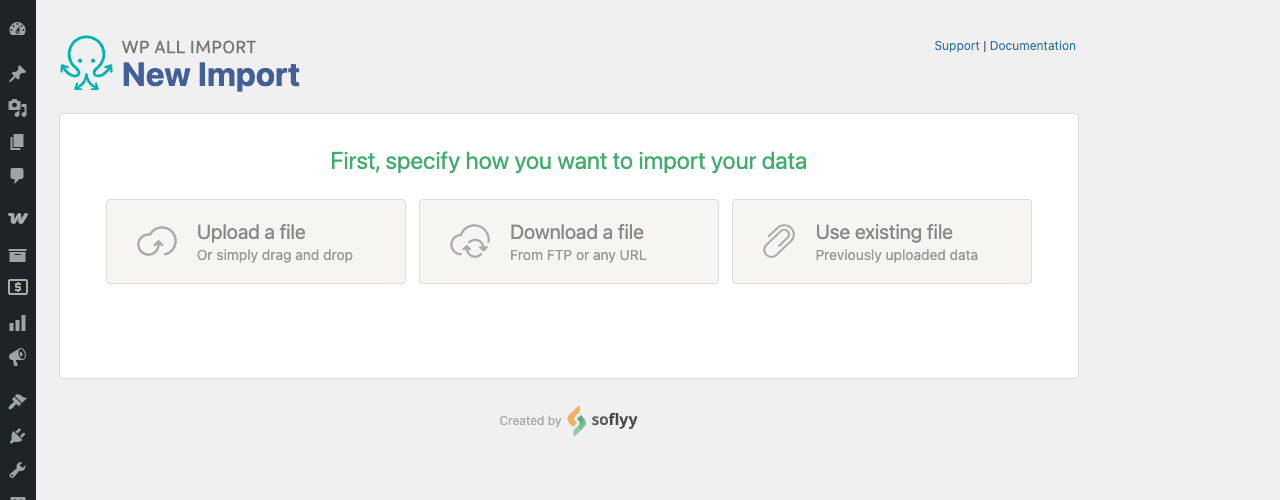
The "New Import" page is where every import starts. Three ways to bring data in:
- Upload a file, drag-and-drop or browse for a CSV/XML file from your computer. Works up to whatever your PHP
upload_max_filesizeallows. For larger files use one of the other methods. - Download a file, paste a URL, FTP path, or remote location. The plugin downloads and processes it. Supports Dropbox shared links, Google Drive direct-download URLs, plain HTTP/HTTPS, FTP, SFTP.
- Use existing file, pick from previously uploaded files still on the server. Useful when iterating on field mappings without re-uploading the same multi-megabyte feed.
Pick a source, point at your file, choose the WordPress post type to import into, and click "Set Up Import". The plugin parses the file and walks you through the rest.
The four-step import wizard
WP All Import organizes the import into four screens:
-
Step 1, Choose Your Data. Select the source file and the WordPress post type. Optionally add filters to import only a subset of rows ("only products where stock > 0", "only listings in California"). The Set Up Import button moves you to Step 2.
-
Step 2, Review Import File. The plugin shows the parsed file. For XML, you pick the repeating XML element (the "loop element", the tag that wraps each record). For CSV, the plugin assumes each row is a record. Confirm the count of records the plugin found.
-
Step 3, Drag & Drop. The big screen. Source data on the left, WordPress fields on the right. Drag fields onto Title, Content, Excerpt, Date, Author, Taxonomies, Featured Image, Categories, custom fields, ACF fields, WooCommerce attributes. Cover the standard WordPress fields plus any custom additions you need.
-
Step 4, Import Settings. Configure the post status (Draft, Pending, Publish), update behavior (only insert new, update on match, skip duplicates), scheduling (run now, scheduled), notifications, and finally the unique-identifier field (which column in the source uniquely identifies a record).
After Step 4, the import runs. Long imports show a real-time log: rows processed, posts created, posts updated, errors. The wizard saves the configuration so you can run the same import again later with a single click, or schedule it to recur.
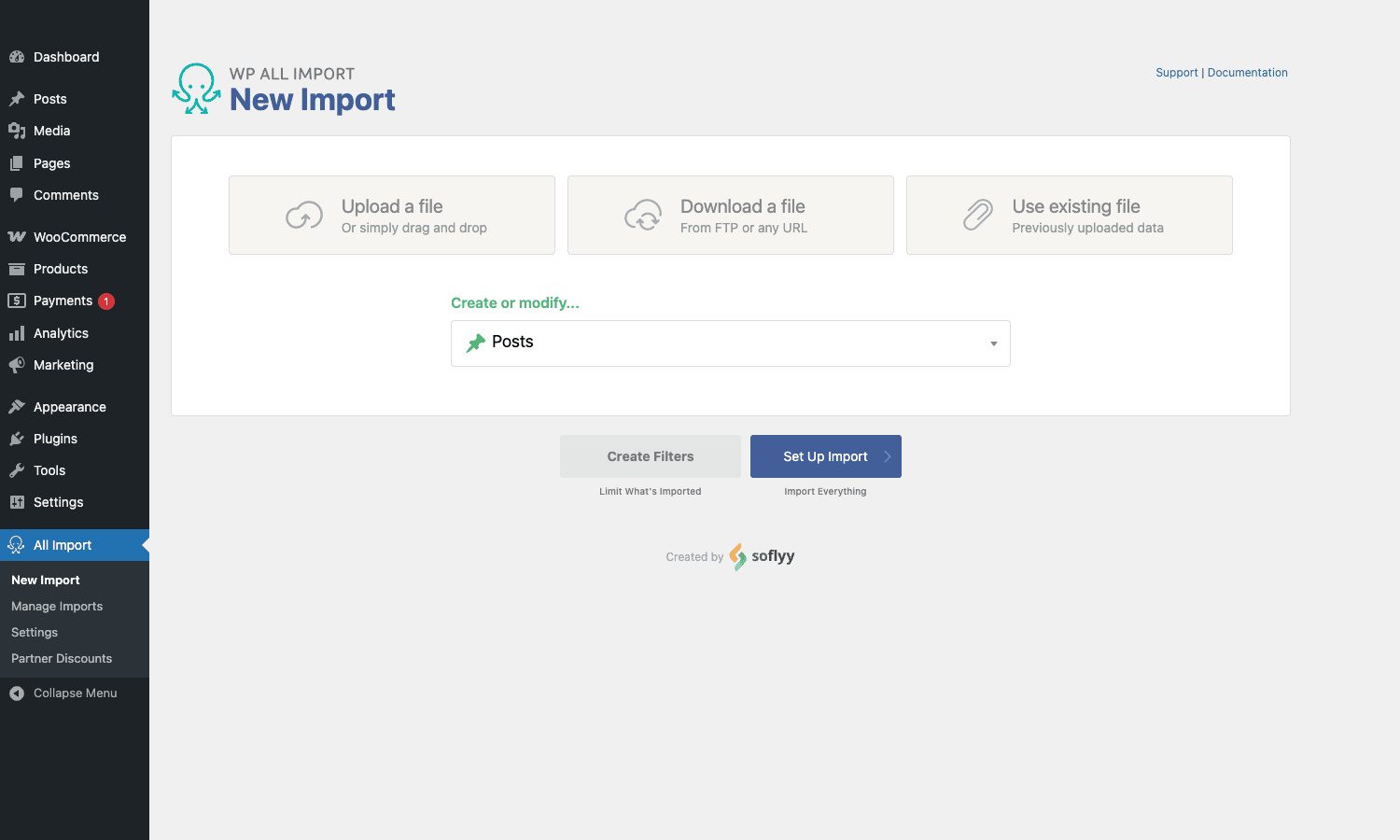
This is the wizard right after uploading a sample posts CSV: the file is loaded, you confirm the post type ("Posts"), and click Set Up Import to begin field mapping.
Drag-and-drop field mapping
Step 3 is where most users spend their time. The interface looks like a split panel: your source data on the left (with each row preview at the top so you can see actual values), and WordPress field slots on the right.
You drag a field name from the left ("title" column, <title> XML tag) into a WordPress slot (Title input on the right). The plugin replaces what you’d type with a placeholder like {title[1]} for CSV or {title} for XML. The placeholder gets resolved at import time by reading the corresponding value from each record.
The Title and Content slots are obvious. The interesting slots are:
- Taxonomies. For each taxonomy registered on the post type, you can drag a source field into the slot. The plugin will create taxonomy terms on-the-fly if they don’t exist. Useful for category/tag imports from arbitrary source vocabularies.
- Custom fields. Add a meta_key on the right; drag the source field into the value slot. The plugin saves it as post meta. Works for any plugin’s custom fields.
- Featured image. Provide a URL in the source; the plugin downloads it and attaches it as the featured image. Works for absolute URLs and relative paths (relative to a base you configure).
- Author. Map by user ID, username, email, or display name.
- Date. Accept any parseable date format; the plugin converts to WordPress’s MySQL format.
- Permalink/slug. Use a source field as the post slug.
- Status. Per-row post status (publish/draft based on a flag in the feed).
- Custom PHP functions. In Pro, you can wrap a placeholder in a PHP function call:
[ucfirst({title[1]})],[my_custom_transform({sku[1]})]. The plugin runs the function on each record before saving.
The custom-PHP-function feature is the secret weapon for non-trivial imports. You drop a snippet into the "Function Editor" tab and reference it in any field mapping. The function receives the raw value, returns the transformed value. Use this for date normalization, currency conversion, content cleanup, conditional logic, or anything else that needs more than a 1:1 mapping.
Updating existing posts on re-import
The point of pro-grade imports is that the same import becomes the sync. You set up the mapping once; subsequent runs of the same import update only the records that changed, leaving the rest alone.
The mechanism is the unique identifier. In Step 4 you pick a field that uniquely identifies each record: the WordPress post ID, the WooCommerce SKU, a custom field, a slug, an email address. The plugin uses this to match records on re-import:
- If a record matches an existing post: update only the fields you configured to update (you choose per-field which to overwrite).
- If a record doesn’t match: create a new post.
- If a record was previously imported and is no longer in the file: optionally delete the post (or change its status to trash/draft, configurable per import).
The "configurable per field" part is critical for ongoing feeds. Maybe you want to update price and stock from the feed on every run, but never overwrite the description (because someone is editing those by hand in WordPress). The plugin lets you tick which fields update vs preserve on re-import.
This is what makes WP All Import useful for ongoing supplier-feed syncs, real-estate MLS imports, recipe database updates, weather data, anything where the same data refreshes over time.
Scheduled imports and cron
Once you have an import set up, you can schedule it to run automatically. In the Import Settings (Step 4 or via Manage Imports → Edit Schedule), you pick:
- How often, hourly, daily, weekly, monthly, or every N minutes.
- What time, for daily/weekly imports.
- Whether to send notifications, email on success, on failure, both.
The schedule uses WordPress cron under the hood. For low-volume sites that’s fine. For high-volume sites or guaranteed timing, replace WP-Cron with a real OS-level cron:
- Disable WP-Cron by adding
define( 'DISABLE_WP_CRON', true );towp-config.php. - Add an OS cron job:
* * * * * curl -s https://example.com/wp-cron.php >/dev/null 2>&1.
For very large imports, WP All Import has a dedicated cron mode where it processes chunks of the feed per cron tick. Configure the secret key and chunk size in Settings → Cron Imports.
Image imports from URLs
When a source feed has an image URL field, drag it into the Images section on Step 3. The plugin downloads the image, uploads it to the WordPress media library, attaches it as the post’s featured image (or as a gallery image, if you configure multiple).
Image import options:
- Download via cURL vs WordPress’s HTTP API. cURL is faster but requires server access.
- Image caching. If the same URL appears in multiple records, the plugin reuses the downloaded copy.
- Per-image timeout. Long downloads time out via
pmxi_image_download_timeoutfilter (default 60 seconds). - Image rename. Source filename or a pattern you specify (e.g.,
{sku[1]}.jpgto match the SKU). - Skip on existing. If the image already exists in the media library (by filename), skip the download.
- Featured image vs gallery. Pick whether the first image is the featured image and subsequent ones go to the gallery, or all go to the gallery.
Image imports are usually the slowest part of a large import. A 5,000-product feed with one image per product takes hours if each download is sequential. Use the "Custom URL function" hook to parallelize or pre-cache downloads if performance matters.
Managing your imports
Once you have one or more imports set up, "Manage Imports" shows them in a table.
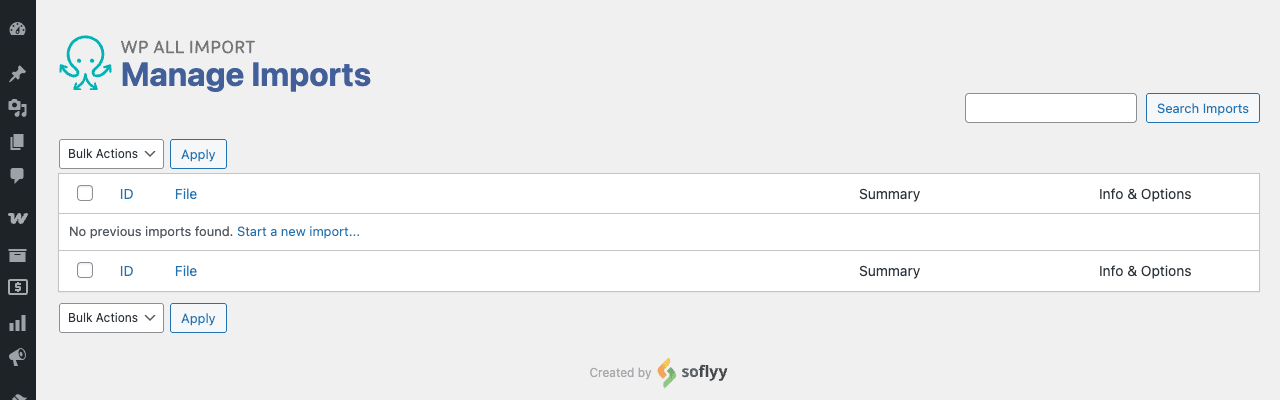
Per-import actions:
- Run Import, execute now.
- Edit Schedule, change the cron settings.
- Edit Import, modify the field mapping or post-type target.
- History, see past runs (date, records processed, errors).
- Duplicate, copy this import as the basis for a new one.
- Delete Import, remove the import config (optionally also delete all posts created by it).
The Delete Import option is the panic button. If you misconfigured an import and created 10,000 wrong posts, you can delete the import AND mass-delete all posts associated with it in one action.
The history view is essential for ongoing imports. You can see which runs succeeded, which failed, error messages per run, and re-run failed imports without re-uploading the file.
Settings: licenses, cron, performance
The Settings page covers the global plugin config.
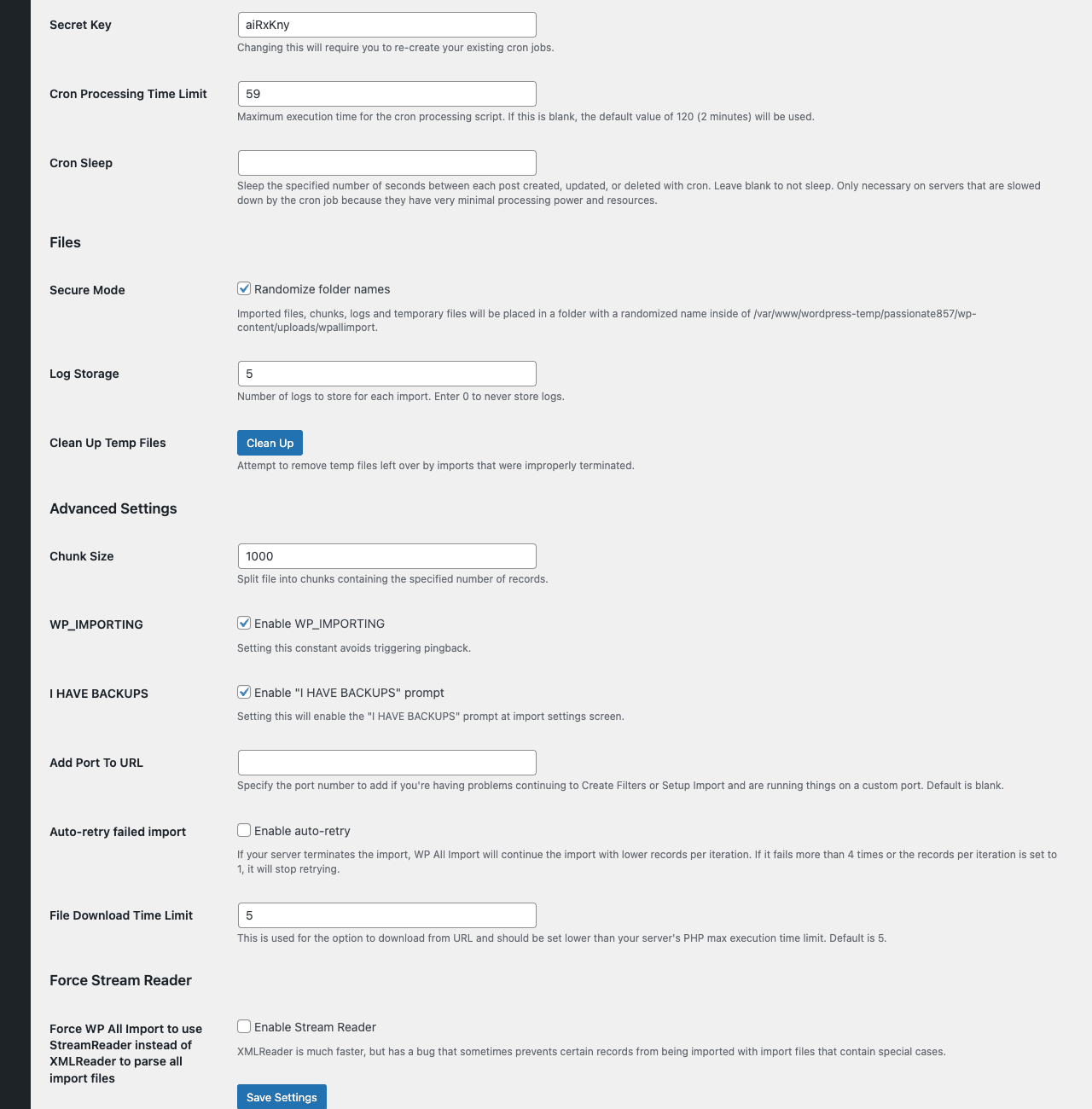
Key sections:
- License Key. Activate your WP All Import Pro license to enable plugin updates. Updates ship through this channel; without a license you stay on the version you installed.
- Automatic Scheduling License Key. For Soflyy’s Automatic Scheduling cloud service (separate subscription) that triggers your imports from their servers instead of relying on your own cron.
- Import/Export Templates. Import a pre-built template (a saved field-mapping config) from a .dat file. Templates are shareable between WP installs. Useful for agencies running similar imports on many sites.
- Cron Imports. Configure the secret key (URL parameter the cron URL uses to authenticate), cron processing time limit (default 120 seconds), records per cron pass, and pause between passes. These knobs control how aggressive the cron processing is.
- Custom Code. Add helper PHP functions globally (available to all imports via the function editor on Step 3).
- Logs. Configure log retention and log path.
Most of the settings ship with sane defaults. The Cron Imports section is the one you’ll touch on a site with multiple recurring imports, adjust records-per-pass and time-limit to balance import speed against server load.
WooCommerce addon
The WooCommerce Add-On is the single most-installed extension because most agency and store work involves WooCommerce. It adds:
- Product Type field mapping (simple, variable, grouped, external, subscription with WC Subscriptions).
- Variable product imports. The addon handles variation generation: import the parent product, then import each variation in subsequent rows, all matched on the parent SKU.
- Stock, price, sale price, weight, dimensions field mapping.
- Attribute mapping (color, size, etc) and taxonomy attributes.
- Variations with their own SKU, price, stock, image, attributes.
- WooCommerce categories and tags for products.
- Cross-sells, upsells, grouped products by SKU reference.
- Downloadable file URLs for virtual products.
A typical WooCommerce import flow:
- Get a supplier’s CSV with one product per row (simple products) or one row per variation (variable products).
- Set up the import targeting the
productCPT. - Map the columns: title, description, SKU, regular price, stock quantity, categories, attributes.
- Map the image column to Featured Image.
- Configure update behavior: stock + price update on every run, but description and image only on initial import.
- Schedule daily at 3 AM.
After the first run you have your product catalog imported, and every subsequent run updates only what changed in the supplier feed. The same setup handles 100 products and 100,000 products; the plugin chunks the work.
ACF and custom fields
The ACF Add-On exposes Advanced Custom Fields field types in the WP All Import drag-and-drop UI. Without it, ACF fields are still importable, but only via raw meta_key/meta_value. With the addon, you get the actual field types: Repeater, Flexible Content, Image, Gallery, Relationship, Post Object, User, Taxonomy, True/False, etc.
For each ACF field type, the addon adds the right input on Step 3. For example, a Repeater field has a section where you map each subfield to a source column, plus a "loop" element that tells the importer how to find the repeating data (e.g., a comma-separated list, a JSON array, multiple XML siblings).
Repeater imports are the killer feature here. Map a "skills" repeater to "skill1, skill2, skill3" in the source or to a JSON array, and the plugin populates the repeater correctly. Without this addon, importing ACF Repeaters is essentially impossible without custom code.
The Meta Box and Toolset addons do the same thing for those custom-field frameworks. Pick the addon that matches your custom-field plugin.
Other addons worth knowing
- User Add-On. Import WordPress users from CSV. Pre-set username, email, role, custom user meta. Pair with Ultimate Member or BuddyBoss when migrating members between platforms.
- Link Cloaking Add-On. Imports to Pretty Links / ThirstyAffiliates. Useful for affiliate sites importing cloaked link inventories.
- WooCommerce Reviews Add-On. Imports product reviews (from an existing store, from a CSV of historical reviews). Each review gets attached to the right product via SKU match.
- JetEngine Add-On. Maps to Crocoblock JetEngine CCT fields. Specific to Crocoblock-built sites.
- Toolset Add-On. Toolset Types post types and Toolset Forms field mapping.
- Meta Box Add-On. Meta Box custom fields.
Addons are sold individually; the bundle saves money if you need three or more.
Developer reference: hooks and PHP function calls
WP All Import’s customization story is two-pronged: the Function Editor on Step 3 (custom PHP per field), plus the action and filter hooks for global behavior. Devs use the function editor for per-import logic and hooks for cross-import behavior.
Common hooks
// Runs once per imported record after the post is saved.
add_action( 'pmxi_saved_post', function( $post_id, $xml_node, $is_update ) {
 // Custom side-effects: sync to CRM, enqueue a job, etc.
 update_post_meta( $post_id, '_imported_at', current_time( 'mysql' ) );
}, 10, 3 );

// Runs once after the entire XML import completes.
add_action( 'pmxi_after_xml_import', function( $import_id ) {
 // Send a Slack notification, kick off downstream processing.
 do_action( 'mycrm_sync_batch', $import_id );
} );

// Runs once per import file before processing begins.
add_action( 'pmxi_before_xml_import', function( $import_id ) {
 // Pause caching, prepare a transaction, etc.
} );

// Customize image download behavior.
add_filter( 'pmxi_image_download_timeout', function() {
 return 180; // Increase from default 60s for slow source servers.
} );

// Filter the feed type detection.
add_filter( 'wp_all_import_feed_type', function( $feed_type, $file_path ) {
 // Force CSV regardless of extension detection.
 return str_contains( $file_path, 'always-csv' ) ? 'csv' : $feed_type;
}, 10, 2 );

// Modify the XML root element selection.
add_filter( 'wp_all_import_root_element', function( $root, $file_path ) {
 if ( str_contains( $file_path, 'special-format' ) ) {
 return '//special-records';
 }
 return $root;
}, 10, 2 );

// Hook when an attachment is uploaded by the importer.
add_action( 'pmxi_attachment_uploaded', function( $post_id, $attachment_id, $image_url ) {
 // Add custom alt text or rename the file.
 update_post_meta( $attachment_id, '_imported_from', $image_url );
}, 10, 3 );
Function Editor patterns
In Step 3 you can call any PHP function in your field mapping. Examples:
[ucfirst({title[1]})] // Capitalize first letter.
[my_clean_html({description[1]})] // Run a custom cleaner.
[my_parse_date({date[1]})] // Convert MM-DD-YYYY to Y-m-d.
[implode(",", explode("|", {categories[1]}))] // Pipe-separated to comma-separated.
[number_format({price[1]}, 2, ".", "")] // Format price.
The function definitions go in the Function Editor tab inside the import. They’re saved per-import (or globally in Settings → Custom Code). For complex imports, build a small library of helper functions and reuse them across imports.
Modifying the redirect after import
add_filter( 'pmxi_options_redirect_url', function( $url, $import_id ) {
 return admin_url( 'edit.php?post_type=product' ); // Send to the product list after WooCommerce import.
}, 10, 2 );
Stopping an import conditionally
add_action( 'pmxi_before_post_save', function( $post_id, $import_id ) {
 if ( my_should_skip_record( $import_id ) ) {
 // Throw an exception to skip this record (logged but doesn't abort the import).
 throw new \Exception( 'Skipping for reason X' );
 }
}, 10, 2 );
WP All Export Pro: the inverse
WP All Export Pro is the sibling plugin from Soflyy. Same field-mapping UI, same scheduling, same addons, but in reverse: it exports WordPress data to CSV or XML.
Use cases:
- Migration to another platform. Export WP All Import compatible CSV/XML, modify if needed, import to the new system.
- Round-trip workflows. Edit WordPress data in a spreadsheet, re-import via WP All Import.
- Reporting feeds. Daily/weekly XML or CSV exports for BI tools, accounting systems, or partner integrations.
- Backups of specific post types. A scheduled export of all products to CSV for cold-storage backup.
The Import and Export plugins share the same configuration format. An export from WP All Export Pro is structurally compatible with WP All Import Pro, so round-trips work without manual reformatting. The two plugins are sold separately but bundle-priced if you buy both.
Real-world use cases
A few patterns the plugin is uniquely good for:
-
CMS migration. Drupal/Joomla/Squarespace -> WordPress. Export from the source CMS as CSV or XML, import via WP All Import. Map fields, preserve old IDs as custom meta (for redirect rules), import images.
-
WooCommerce product sync. Supplier publishes a daily CSV/XML feed. Set up WP All Import + WooCommerce Add-On with the feed URL, schedule daily, mark stock/price as updateable. Catalog auto-syncs.
-
Real estate listings. MLS feed -> WordPress. The MLS provides XML or RETS feed; configure the WP All Import to pull, parse, and create/update
listingCPT posts. Use the ACF addon for custom fields like bedrooms, bathrooms, square footage. -
Recipe database. USDA nutrition data, recipe blog migrating from another platform. Map ingredients to ACF Repeater, nutritional facts to custom fields, images to featured images.
-
Bulk content seeding. Launching a new content site and need 500 starter posts. Generate the CSV in Sheets, import via WP All Import. Each post gets the right author, category, tags, featured image.
-
Membership migration. Importing 10,000 members from a legacy SaaS into WordPress + Restrict Content Pro. User Add-On creates the WP user accounts; an RCP-aware function in the field editor assigns the membership level based on the source plan column.
-
Affiliate inventory. Amazon/Walmart/ShareASale product feeds imported as posts or as WooCommerce-flagged external products. WP All Import + WooCommerce Add-On.
Performance, large files, gotchas
A few things to know before you point WP All Import at a 1GB feed.
- PHP memory and execution time are the practical bottlenecks. The plugin chunks via cron, but each chunk has to fit in memory. Bump
memory_limitto 256M+ andmax_execution_timeto 300+ for production imports. - Image downloads dominate large imports. A 50,000-product import with images can take 24 hours. Pre-cache images locally, or use a service like Cloudflare Images for the source URLs.
- MySQL slow queries during big imports. Wrap the import in a transaction, disable autocommit per chunk, or schedule for low-traffic windows. The plugin has a "Faster Imports" mode that skips some WP post-save hooks.
- Hooks fire for every post. If you have plugins that hook
save_postto do expensive work (sync to external services, regenerate caches), they fire for every imported record. Disable the heaviest hooks via thepmxi_before_xml_importaction and re-enable inpmxi_after_xml_import. - Re-imports without a unique identifier create duplicates. Always set a unique identifier in Step 4 before scheduling. Once duplicates exist, cleanup is manual.
- XML namespace handling can be fiddly. Feeds with custom XML namespaces sometimes need extra config. The
xmlns:attribute on the root element is what to look at; use thewp_all_import_replace_colons_in_attribute_namesfilter when namespace prefixes break field detection. - Cloudflare blocks remote-file imports. If your source feed is behind Cloudflare bot protection, the WP All Import download fails. Whitelist your import server’s IP at the source, or download the file separately and use the local-file option.
- Permalinks pre-generation. After a big import, run
wp rewrite flushto regenerate the rewrite rules, otherwise some imported permalinks may 404 until the next page-cache rebuild. - Custom field key collisions. If your source data has field names that collide with WP’s reserved meta keys (like
_thumbnail_id), the plugin will overwrite the wrong thing. Rename the source field or remap explicitly in the field editor.
None of these are dealbreakers. They’re the kind of thing you find out on your first 50k-row import, and they’re all fixable.
Pricing and licensing
WP All Import Pro is sold per site / per year on wpallimport.com:
- 1 site: $99/year.
- 5 sites: $149/year.
- Lifetime (unlimited): $299 one-time.
Add-ons are sold separately ($79-$149 each per year, lifetime tiers available). Most production setups need 2-3 addons (WooCommerce + ACF is the most common combo).
GPL Times bundles WP All Import Pro and the major addons under one annual license. The math gets compelling if you’re running multiple sites or projects that each need different add-on combinations.
The plugin is GPL-licensed, so the license is for updates and support, not for code access.
FAQ
Does WP All Import work with the free WP All Export?
Yes, they’re a matched pair. Export from WP All Export Pro, import via WP All Import (free or Pro). The data format is round-trippable.
Can it import to ACF Repeater and Flexible Content fields?
With the ACF Add-On, yes. Without the addon, ACF Repeater imports require custom PHP. Get the addon if you have any ACF Repeaters in your target schema.
How large a file can it handle?
The practical limit is what your hosting can chew through. Sites have imported multi-million-row feeds successfully. The plugin chunks the work; you just need patience and adequate server resources. Anything under 100k rows is routine on standard hosting.
Does it work with the WordPress block editor?
Yes. Imported content can be stored as HTML or as block markup (you can pre-format your source content with Gutenberg blocks). The block parser handles imported markup correctly when it has the right comment syntax.
Can I import to multiple post types from one file?
Indirectly. Set up one import per post type, all pointing at the same file with different XPath/filter rules. Run them sequentially or as a scheduled chain.
Does it preserve post IDs from the source?
Not by default. The plugin assigns new post IDs in WordPress. You can store the source ID as a custom field (_legacy_id) and use it for redirect mapping or relational lookups.
Does it handle WP All Import on multisite?
Yes. Each site has its own import configurations and schedules. Network-activate or per-site-activate, both work.
What’s the difference between WP All Import and WP All Import Pro?
The free version (on WordPress.org) handles basic CSV/XML to posts/CPTs. Pro adds: update on re-import, scheduled imports, remote file fetch, addons (WooCommerce/ACF/etc), custom PHP in field editor, real-time logs, and Soflyy’s direct support.
Final thoughts
WP All Import Pro is one of the most quietly important plugins in the WordPress ecosystem. Every agency that runs more than a handful of migrations has it installed. Every WooCommerce store with a real catalog feed runs it on a schedule. The plugin doesn’t get talked about as much as page builders or SEO plugins because it’s the kind of tool that fades into the background once configured, but it’s also the tool you reach for the day "we need to bulk import this feed" lands on your desk.
The right mental model for WP All Import is "the SQL boundary you don’t have to write". Without it, importing a structured feed into WordPress means writing a custom script that walks rows, calls wp_insert_post, hands off images to the media library, sets meta. With it, you drag a few field names and click Run. Time-to-import for any reasonable feed goes from hours of scripting to minutes of clicking.
The other thing worth understanding is that WP All Import is structured as a development tool, not a "set and forget" plugin. The function editor, the hooks, the chained imports, the templates, these are aimed at developers and agencies. If you’re approaching WP All Import as a one-time content-loader for a small site, you’ll get there in 20 minutes. If you’re approaching it as the long-running data pipeline for an ongoing WooCommerce store or content site, you’ll spend more time but get a system that runs unattended for years.
If you have a structured data feed you need to bring into WordPress and aren’t already running WP All Import, install it.