

Yoast SEO is the plugin most WordPress people meet first. It’s been around long enough to be a noun ("just install Yoast"), and the free version powers an absurdly large slice of the web. Premium is the paid step up, and the question every site owner eventually asks is: what do I actually get for the money, and is it worth it for a site like mine?
This is a long, honest walk through Yoast SEO Premium. We’ll cover what it does, what the Premium version adds over free, how to set it up without getting overwhelmed by 200 toggles, and a developer reference with the hooks and filters that matter when you’re building or extending a site. Whether you’re a content creator who just wants to get the green light next to every post, or a developer trying to wire Yoast into a custom schema or sitemap, you’ll find what you need here.
Reading this with a site in mind?
Table of Contents
- What is Yoast SEO Premium?
- Free vs Premium: what you actually pay for
- Key features at a glance
- Installation and first-time configuration
- A guided tour of the Yoast admin
- Using Yoast inside the post editor
- Premium-only features in depth
- Recommended settings for most sites
- Yoast and Core Web Vitals
- Real-world use cases
- Developer reference: hooks, filters, and the indexable API
- Performance, compatibility, and gotchas
- Troubleshooting
- Pricing and licensing
- FAQ
- Final thoughts
What is Yoast SEO Premium?
Yoast SEO is a WordPress plugin that helps you publish content that search engines (and increasingly, AI search systems) can actually understand and rank. It does this in two main ways: it writes a lot of structured metadata into your pages (titles, descriptions, Open Graph tags, JSON-LD schema, sitemaps, robots directives), and it gives you a friendly in-editor coach that nudges you toward better content.
The plugin is built by Team Yoast, a company that’s been at this since 2010. Their free plugin has over thirteen million active installs. Premium is sold as a yearly subscription, and in 2026 they’ve also tilted the product toward AI-powered tooling: brand insights, AI-generated meta descriptions, schema-driven endpoints for LLMs, that kind of thing.
The architecture is more interesting than most plugins. Yoast maintains a database "indexable" for every post, term, and user on your site, which is essentially a denormalised cache of everything Yoast needs to render meta on the front-end. That’s why the plugin runs fast on the front-end even on sites with thousands of posts. We’ll come back to indexables in the developer section.
Free vs Premium: what you actually pay for
The free version of Yoast SEO does most of the heavy lifting. You get:
- Real-time SEO and readability analysis in the editor
- Title and meta description templates per content type
- XML sitemaps with intelligent priority and lastmod
- Schema.org JSON-LD output for posts, articles, organization, and breadcrumbs
- Open Graph and Twitter Card tags
- Canonical URLs
- Robots.txt and
.htaccessediting - Bulk title and description editor
- The first-time configuration wizard
Premium adds a focused set of features that mostly matter for content-heavy sites:
- Redirect manager with a UI for plain, regex, and 301/302/307/410/451 redirects
- Multiple focus keyphrases per page (free is one keyphrase only)
- Internal linking suggestions in the editor based on related posts
- Orphaned content workout to find posts no one links to
- Cornerstone content workout for prioritising your hub pages
- Stale content detection to flag posts that haven’t been updated in a while
- Live page analysis that runs on the actual rendered HTML, not just the editor preview
- AI title and meta description generation
- AI Brand Insights dashboard
- Premium support and a year of updates
If you’re a hobbyist with a small blog you don’t actually need Premium. If you publish more than a few posts a month, run a multi-author site, or are an agency managing client sites, the redirect manager alone will save you the cost in a single broken-link emergency.
Key features at a glance
Rather than dump every checkbox, here’s what actually moves the needle on a real site:
- Title and description templates. Set them once per content type and Yoast generates SEO titles and meta descriptions consistently. Variables like
%%title%%,%%sitename%%,%%page%%,%%category%%give you predictable output. - In-editor SEO and readability traffic lights. Green, orange, or red dots tell you at a glance whether a post is in shape to publish. Hovering shows you exactly what to fix.
- JSON-LD schema. Article, BlogPosting, WebPage, BreadcrumbList, Organization, Person, FAQPage, HowTo. The output is integrated rather than a separate page-by-page setup.
- Open Graph and Twitter Card. Auto-filled from your title and featured image, overridable per post.
- XML sitemaps. Multiple sitemaps split by post type, term type, and author, all rolled into a sitemap index at
/sitemap_index.xml. - Breadcrumbs. A shortcode plus a programmatic function (
yoast_breadcrumb()) you can drop in any template. - Bulk title editor. Edit titles and meta descriptions for hundreds of posts on one screen.
- Redirect manager (Premium). Add a new URL, the old URL, choose 301/302/307/410/451. Importer for CSV redirects. Regex support. Works with WP_404 detection so you can fix redirects from the broken-link side.
- Workouts (Premium). Three guided flows: cornerstone content, orphaned content, configuration. You walk through your site and Yoast suggests what to fix.
- AI generators (Premium). Generate alt text, meta descriptions, and SEO titles using their AI service.
The pattern with Yoast Premium is that you can find ways to do most of these things yourself with other plugins or careful manual work. The reason people keep Yoast is consolidation, and the indexable architecture under it that keeps performance acceptable.
Installation and first-time configuration
Installation is standard.
- Buy and download the zip from the GPL Times Yoast page.
- In WordPress, go to Plugins → Add New → Upload Plugin, choose the zip, and click Install Now.
- Activate. If you don’t already have the free Yoast SEO plugin, the Premium plugin will offer to install it for you.
After activation you’ll see a new top-level "Yoast SEO" item in the admin sidebar. Click it, and you’ll land on the main dashboard.
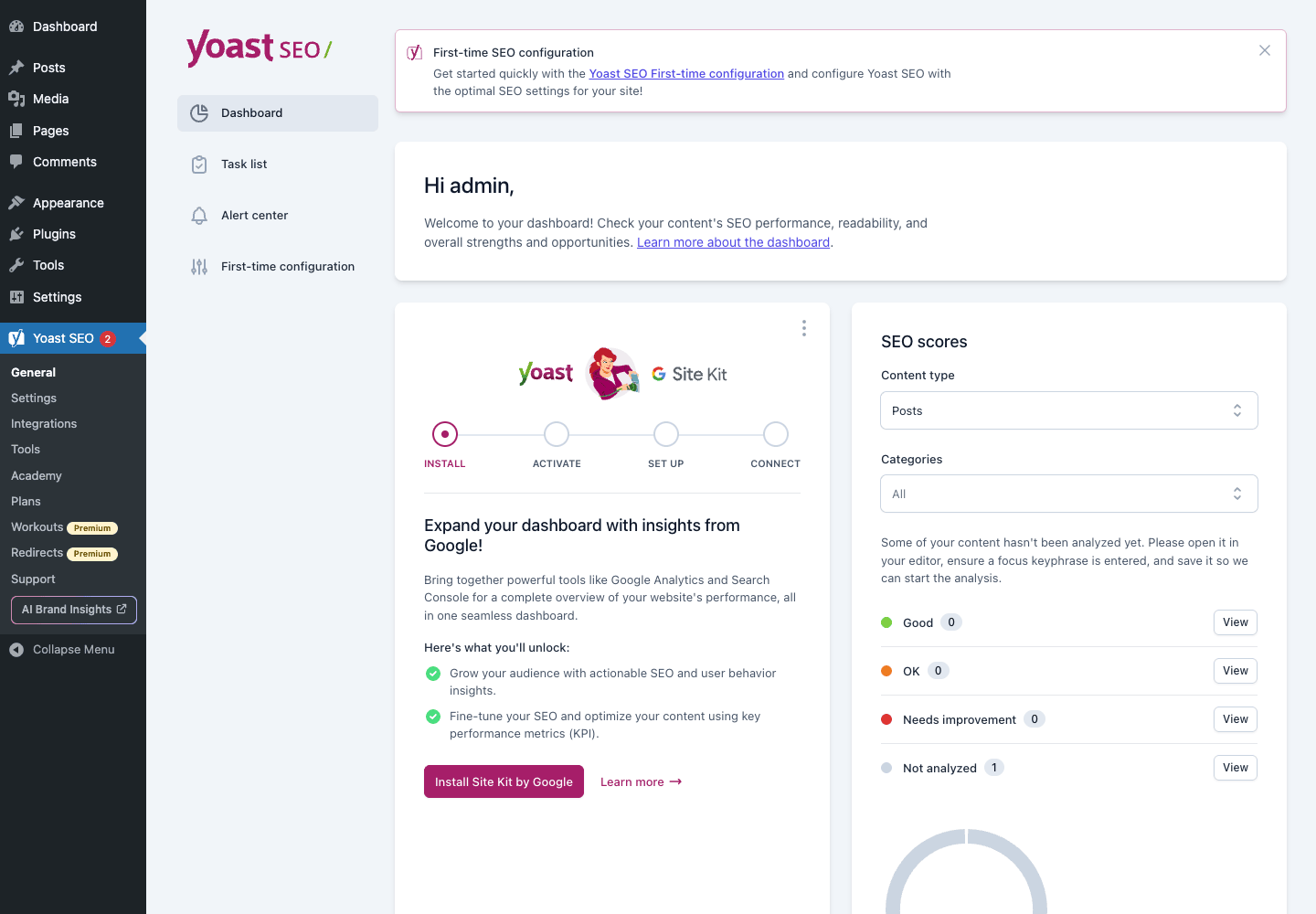
The first thing to do is run the First-time configuration wizard. The link is right there on the dashboard. It walks you through five quick steps:
- Site representation (is this site a person or an organisation?)
- Social profiles
- Personal preferences (data tracking)
- Newsletter signup (skip if you want)
- Done
The site representation matters more than it sounds. It’s what Yoast uses to fill the Organization or Person schema, which is what AI search systems like ChatGPT, Google AI Overviews, and Perplexity read to figure out who’s behind the content. Get the name, logo, and main social profiles right here once.
A guided tour of the Yoast admin
Yoast SEO’s admin is split across half a dozen pages, and the layout was redesigned recently to be cleaner. Here’s what each page does.
Settings
The Settings page is where 80% of the config lives now. It used to be split across three different pages; this consolidated UI is much friendlier.
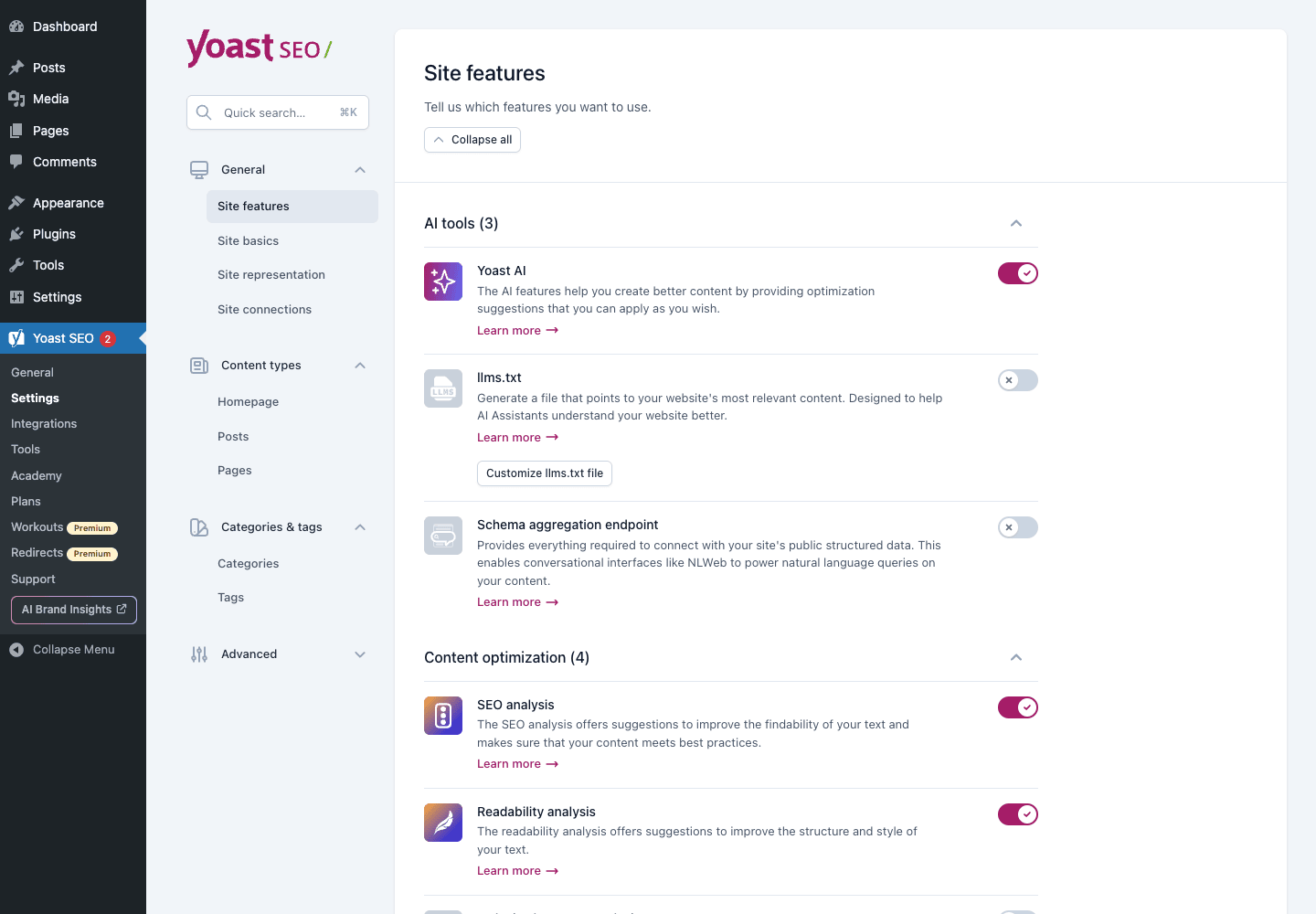
The left rail has four big groups:
- General, Site features (which plugin features are on), Site basics (site name and tagline), Site representation (org/person details), Site connections (verification codes for Google, Bing, Yandex, Pinterest, Baidu).
- Content types, One sub-panel per post type. Choose whether posts/pages show up in search, set title and meta description templates, control schema type per content type. Same for the homepage.
- Categories & tags, Whether category and tag archives show up in search, their title templates, prefix removal toggle.
- Advanced, Crawl optimization (removes feed/comment-feed bloat from WordPress), Breadcrumbs settings, Author archives, Date archives, Format archives, Special pages, Media URLs, RSS markup, Search settings.
A few defaults worth changing right away:
- Search appearance for media (attachment URLs). Set this to redirect to the parent post. Otherwise WordPress generates a separate attachment page for every image you upload, and Google indexes them as thin pages.
- Date archives. If you don’t have a topic-based site that links date archives, turn them off. They cause duplicate content.
- Author archives. If you’re a single-author site, turn off author archives. If multi-author, leave them on.
- Format archives. Almost always safe to turn off.
Tools and Integrations (briefly)
Two other pages worth knowing about, both more situational than essential:
- Integrations lets you wire Yoast up to Semrush (keyword research in the editor), Wincher (daily rank tracking), Algolia (on-site search), Google Search Console, Site Kit by Google, and WooCommerce SEO. None of these are required, all are nice-to-have. Turn on what you’ll actually use.
- Tools is the migration and recovery page: import settings from another SEO plugin (All in One SEO, SEOPress, Rank Math), import/export your Yoast config between sites, edit
robots.txtand.htaccessinline, run the bulk title/description editor for hundreds of posts at once, and rebuild the indexable table if something gets stuck.
Using Yoast inside the post editor
The post editor is where you’ll actually spend time. This is the daily-driver view, and it’s the part of Yoast that most users see most often.
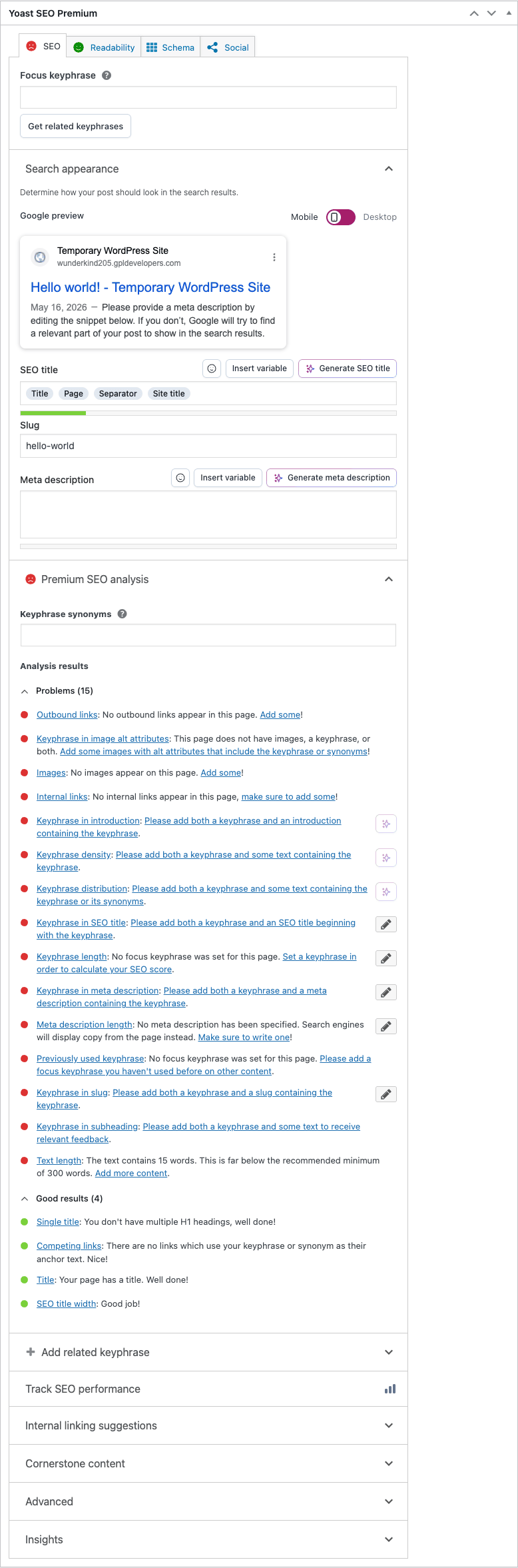
What you get on every post and page:
- Focus keyphrase input. The one word or phrase you’re trying to rank for on this page. With Premium, you can add up to four extra keyphrases, each with its own analysis tab.
- Google snippet preview. A live preview of what your result will look like in Google. You can toggle between mobile and desktop view, and edit the SEO title, slug, and meta description right there.
- SEO analysis (Premium SEO analysis with Premium). A checklist of problems, improvements, and good results. Yellow dots are "improvements", red are "problems", green are "good". Things like: "keyphrase in title", "keyphrase in introduction", "outbound links", "internal links", "image alt text contains the keyphrase", "keyphrase distribution".
- Readability analysis. A second tab with passive voice, sentence length, paragraph length, transition word use, Flesch reading ease score, subheading distribution. The thing most writers either love or roll their eyes at.
- Schema tab. Set the schema type for this specific post (Article, BlogPosting, NewsArticle, HowTo, FAQPage, etc.) and override the page-level schema.
- Social tab. Override the Facebook/Twitter title, description, and image for this post. Useful when the post’s hero image isn’t the right OG card.
- Advanced (collapsed by default). Per-post robots meta tag (noindex/nofollow), canonical URL, breadcrumb title override.
- Internal linking suggestions (Premium). A panel that lists related posts you might want to link to from this article. Click and Yoast drops a link in.
- Insights (Premium). Word count, reading time, prominent words.
The trick to using the analysis well is to treat it as a checklist of things worth thinking about, not a set of rules to obey. A well-written paragraph that ignores a Yoast suggestion is almost always better than a clunky one that gets the dot green. The keyphrase distribution check in particular tends to push writers toward unnatural repetition.
The posts list with SEO columns
Yoast also adds new columns and filters to Posts → All Posts, which is genuinely useful for editorial planning.
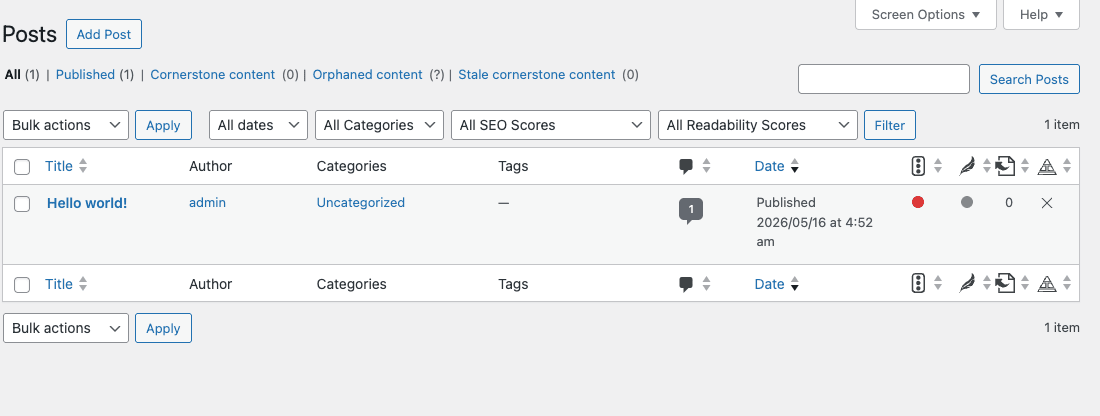
What you can see at a glance:
- SEO Score column (red/orange/green dot per post) and Readability Score column. Spot weak posts without opening them.
- All SEO Scores / All Readability Scores filters in the toolbar. Filter the list to just your red posts, fix them in a session.
- Premium-only filters at the top of the list: Cornerstone content, Orphaned content (posts no one links to), Stale cornerstone content (cornerstone posts you haven’t updated in a while).
These filters make editorial cleanup tractable. On a site with 500 posts, "orphaned content" is the sort of thing you’d never find by hand, and one weekend of fixing internal links can move your site’s overall SEO health noticeably.
What Premium adds in the editor
The Premium plugin adds, on top of everything above:
- Live page analysis. Same checks but against the actual rendered HTML rather than the editor’s draft preview. Catches issues your theme introduces (e.g. missing alt text on theme-generated images).
- Multiple focus keyphrases. Up to four extra keyphrases per post. Each gets its own analysis tab so you can optimise for a primary term plus related variants.
- Internal linking suggestions. A live panel of related posts to link from. Drag-and-drop into the editor.
- AI generation. Click a button to get a title, meta description, or alt text suggestion. Uses your Premium AI credits allowance.
- Stale Cornerstone Content alerts. Flags cornerstone posts that haven’t been touched in six months.
Premium-only features in depth
The two features that genuinely justify Premium for most sites are Workouts and Redirects.
Workouts
A workout is a guided flow that walks you through a specific SEO task on your site.
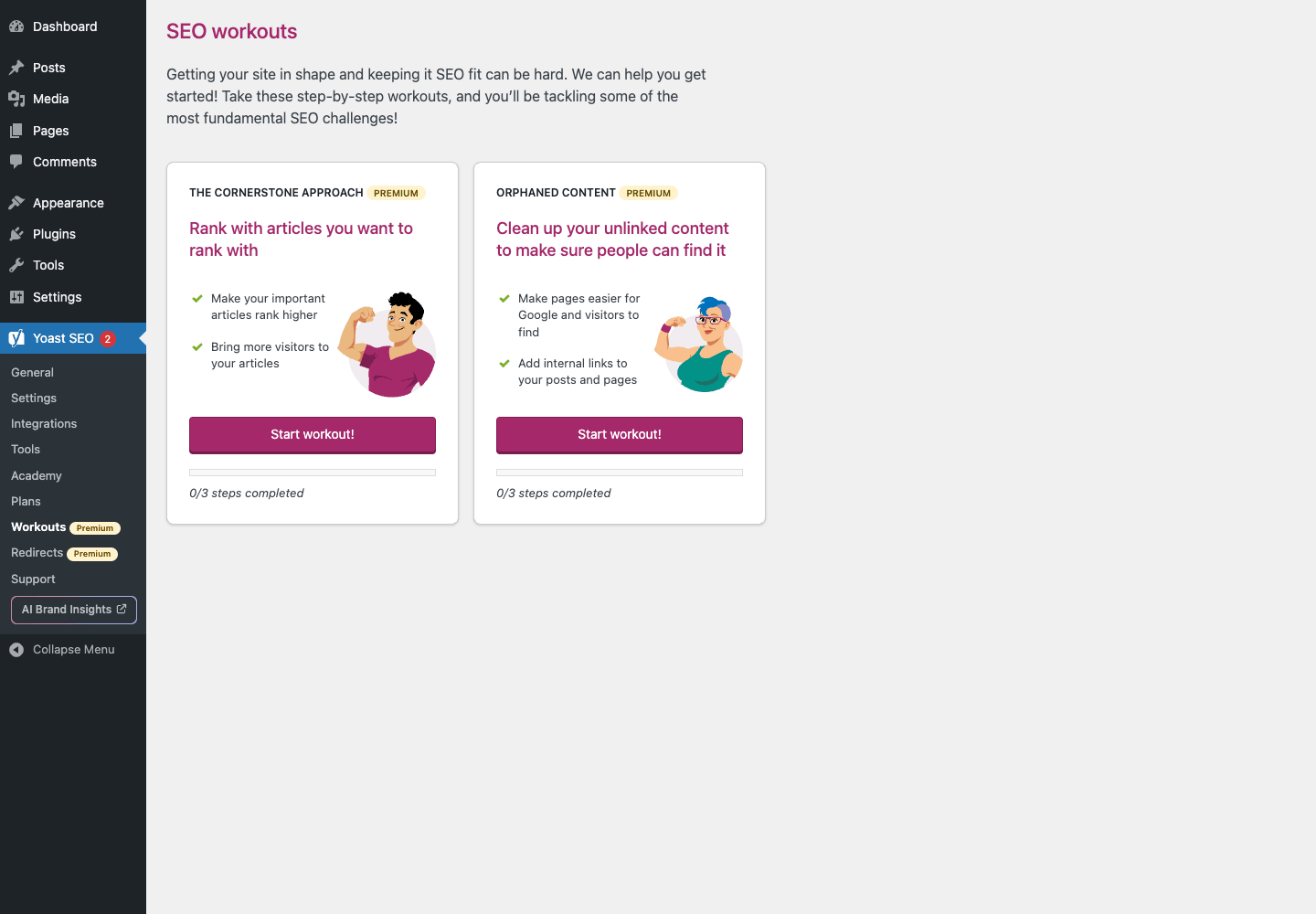
The three workouts are:
- Cornerstone content workout. You pick your most important pages, Yoast helps you make sure they link to and from each other in a hub-and-spoke structure. This is one of the simplest internal-linking tactics that actually works.
- Orphaned content workout. Yoast finds posts that have zero internal links pointing at them. You fix them by adding links from related posts.
- First-time configuration workout. Re-runs the initial wizard, useful if you skip it during onboarding.
The workouts are basically structured advice with a checklist. You could do all of it manually, but the workout puts the list and the affected URLs side by side, so you actually finish.
Redirects
The redirect manager is what most agencies will quote as "the reason we use Premium."
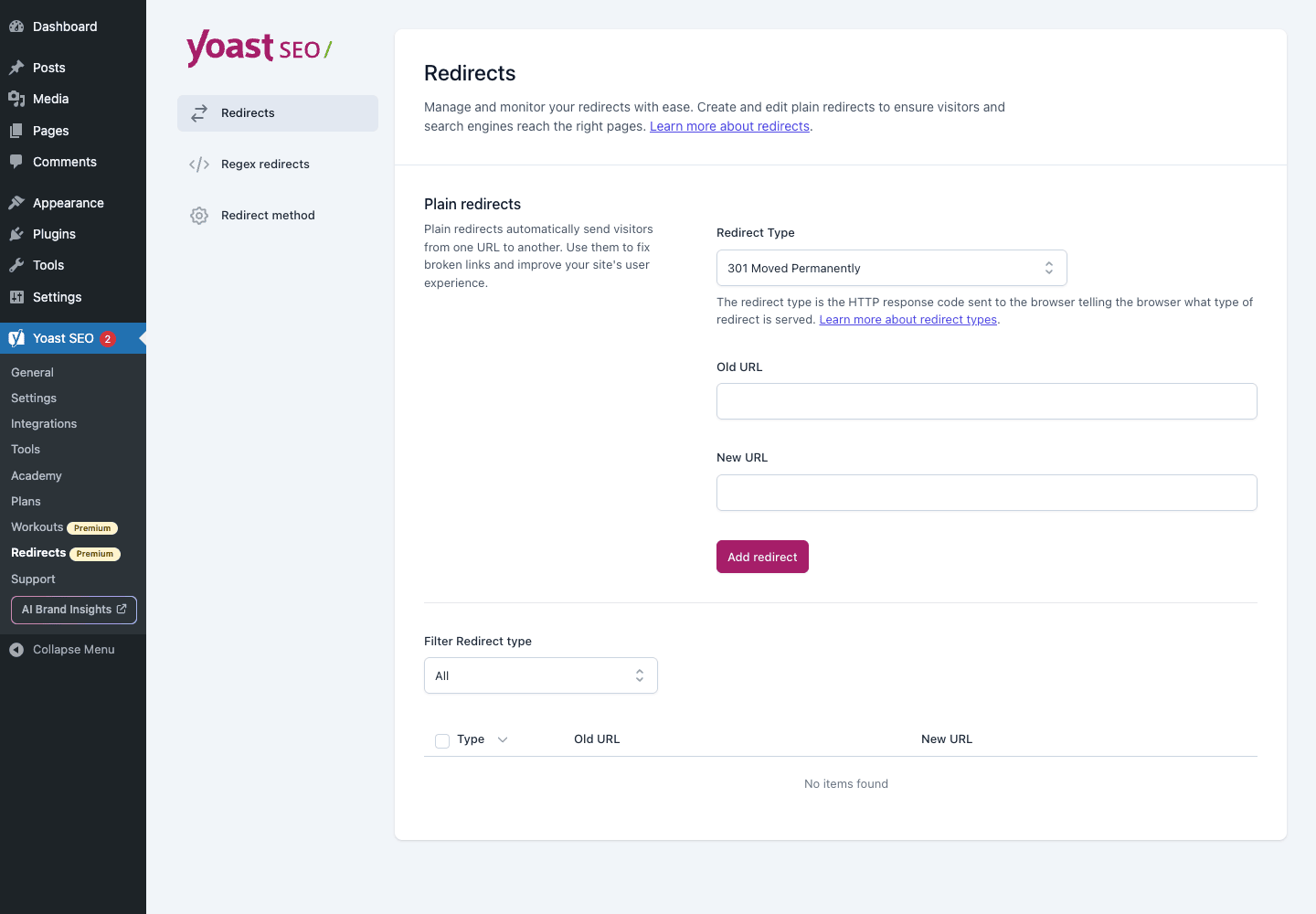
What it does:
- Plain redirects. Old URL, new URL, redirect type. Saves a row. Done.
- Regex redirects. Pattern → replacement. Good for migrating an entire URL structure (e.g.
/blog/(.*)→/articles/$1). - Redirect type per row. 301 Moved Permanently, 302 Found, 307 Temporary, 410 Gone, 451 Unavailable for Legal Reasons.
- CSV import. Migrate a redirect list from a spreadsheet or another tool.
- Auto-detect on slug/URL change. When you rename a post slug, Yoast offers to create the redirect automatically. This single feature saves more SEO juice than any other Premium tool.
- Redirect method. Choose whether redirects are written to
.htaccess(faster) or processed in PHP (works on Nginx, easier to debug).
For sites where you regularly rename URLs or restructure content, the auto-redirect-on-slug-change is the killer feature. You’ll never silently break an old URL again.
Stale content detection
Premium adds a "Stale Cornerstone Content" filter to the post list. It surfaces cornerstone pages you haven’t updated in six months. Useful for editorial planning.
AI generators
Premium ships AI generators for SEO titles, meta descriptions, and alt text. They use a usage allowance that comes with the license. The output is usually decent and saves a minute or two per post. Treat the generated text as a draft, not a final copy.
AI Brand Insights
The newer Premium feature. It builds a small dashboard of how your brand is mentioned in AI search engines (ChatGPT, Perplexity, Bing Copilot, Google AI Overviews). Click through and you can see which prompts return your site, which competitors are showing up alongside, and what topics your brand is most associated with. Genuinely useful if you care about being cited by AI search.
Recommended settings for most sites
If you skip everything else, here’s what I turn on for nine out of ten sites.
First-time configuration wizard. Run it. Don’t skip.
Site representation. Pick Organization for businesses, Person for personal brands. Upload a logo (at least 600px on the shortest side). Add your main social profiles.
Content types
- Posts: shown in search, meta description template
%%excerpt%%, schema type Article. - Pages: shown in search, default template, schema type WebPage.
- Custom post types: only show in search if the URLs are meant to be indexed. Product pages yes, internal team-only pages no.
Categories & tags
- Categories: shown in search if you have at least a few posts per category.
- Tags: usually NOT shown in search. They cause duplicate content with no benefit.
Advanced
- Date archives: off
- Author archives: on if multi-author, off if single
- Format archives: off
- Media URLs: redirect to parent (this matters a lot for SEO)
- Special pages: leave defaults
- RSS markup: leave defaults
Crawl optimization (Advanced → Crawl optimization)
- Remove unused resources from
<head>: on - Remove emoji scripts: on
- Remove generator tag: optional
- Remove WLW manifest: on
- Remove RSD link: on
- Remove shortlinks: on
- Remove REST API links: optional (leave on if you don’t use REST API publicly)
Schema (Content types → Posts → Schema)
- Default article type: Article (or BlogPosting if you blog regularly).
- Default page type: WebPage.
Premium-specific
- Cornerstone content workout: run it. Mark your 5-10 pillar pages.
- Redirects → Auto-detect on slug change: on (default). Never turn this off.
- Stale content notification: on if you publish more than once a week.
That covers the bulk of what matters.
Yoast and Core Web Vitals
Yoast’s effect on Core Web Vitals is a question that comes up a lot. The short answer: minimal direct impact, both good and bad.
The plugin runs almost entirely on the admin and during the indexable update cycle, not on the front-end. The front-end JS footprint is tiny (a small breadcrumb helper at most). The HTML output is JSON-LD, meta tags, link tags. None of that affects LCP or CLS in any meaningful way.
What Yoast can do is bloat your <head>. By default it outputs a comment block, a stack of Open Graph tags, Twitter cards, multiple <link rel> tags, the JSON-LD graph, etc. On a fresh install this is fine. On a heavy site you can clean it up via the Crawl optimization panel (remove unused resources) and via filters like wpseo_robots_array to skip unused output.
If you’re seeing performance issues that you suspect are Yoast-related, install WP Rocket alongside it. Yoast is a content / metadata plugin; WP Rocket is a caching / front-end plugin. Together they handle different layers and don’t conflict.
Real-world use cases
Single-author blog. Free is enough. Premium is overkill unless you publish weekly and care about internal linking workflow.
Multi-author publication. Premium.
Agency managing client sites. Premium is a strong default. Five sites’ worth of licenses cover a year of redirects, slug-change auto-redirects, and the bulk editor for client migrations.
WooCommerce store. Yoast SEO Premium is the foundation. If you sell products, also grab the Yoast WooCommerce SEO add-on for proper product schema. The two plugins together give you Product, Offer, AggregateRating, and BreadcrumbList schema for free.
News publisher. Premium plus the Yoast News SEO add-on. The redirect manager alone is essential for a publisher.
Local business. Yoast SEO Premium plus the Yoast Local SEO add-on. LocalBusiness schema, opening hours, store locator, multi-location support.
Developer reference: hooks, filters, and the indexable API
Yoast SEO is unusually friendly to developers. Below are the hooks I reach for most often.
Modify the front-end SEO title and meta description
The two most basic hooks. They run when Yoast is about to render the title and meta description tags.
add_filter( 'wpseo_title', function ( $title ) {
 if ( is_singular( 'event' ) ) {
 $date = get_post_meta( get_the_ID(), 'event_date', true );
 if ( $date ) {
 $title = sprintf( '%s (%s) - %s', get_the_title(), $date, get_bloginfo( 'name' ) );
 }
 }
 return $title;
} );

add_filter( 'wpseo_metadesc', function ( $desc ) {
 if ( is_search() ) {
 return sprintf( 'Search results for "%s" on %s.', get_search_query(), get_bloginfo( 'name' ) );
 }
 return $desc;
} );
Modify the canonical URL
Useful for paginated archives, AMP variants, syndicated content, or any case where the auto-detected canonical isn’t right.
add_filter( 'wpseo_canonical', function ( $canonical ) {
 if ( is_singular( 'post' ) ) {
 $custom = get_post_meta( get_the_ID(), 'syndicated_canonical', true );
 if ( $custom ) {
 return esc_url( $custom );
 }
 }
 return $canonical;
} );
Control the robots meta tag
For pages you want to noindex programmatically (private members areas, query-stringed search results, etc.).
add_filter( 'wpseo_robots_array', function ( $robots ) {
 if ( is_singular( 'post' ) && get_post_meta( get_the_ID(), 'is_draft_preview', true ) ) {
 $robots['index'] = 'noindex';
 $robots['follow'] = 'nofollow';
 }
 return $robots;
} );
Open Graph and Twitter card tweaks
add_filter( 'wpseo_opengraph_image', function ( $image ) {
 if ( is_singular( 'event' ) ) {
 $custom = get_post_meta( get_the_ID(), 'event_og_image', true );
 if ( $custom ) {
 return $custom;
 }
 }
 return $image;
} );

add_filter( 'wpseo_twitter_card_type', function ( $type ) {
 if ( is_singular( 'product' ) ) {
 return 'summary_large_image';
 }
 return $type;
} );

add_action( 'wpseo_add_opengraph_images', function ( $object ) {
 if ( is_singular( 'recipe' ) ) {
 $extra = get_post_meta( get_the_ID(), 'recipe_step_images', true );
 if ( is_array( $extra ) ) {
 foreach ( $extra as $url ) {
 $object->add_image( $url );
 }
 }
 }
} );
Schema graph customization
Yoast outputs a single JSON-LD @graph per page. You can hook the whole graph or individual pieces of it.
add_filter( 'wpseo_schema_graph', function ( $graph, $context ) {
 if ( is_singular( 'event' ) ) {
 $graph[] = [
 '@type' => 'Event',
 '@id' => $context->canonical. '#event',
 'name' => get_the_title(),
 'startDate' => get_post_meta( get_the_ID(), 'event_start', true ),
 'endDate' => get_post_meta( get_the_ID(), 'event_end', true ),
 'eventStatus' => 'https://schema.org/EventScheduled',
 'location' => [
 '@type' => 'Place',
 'name' => get_post_meta( get_the_ID(), 'event_venue', true ),
 'address' => get_post_meta( get_the_ID(), 'event_address', true ),
 ],
 ];
 }
 return $graph;
}, 10, 2 );

add_filter( 'wpseo_schema_article', function ( $data ) {
 $data['articleSection'] = wp_strip_all_tags( get_the_category_list( ', ' ) );
 return $data;
} );

add_filter( 'wpseo_schema_organization', function ( $data ) {
 $data['founder'] = [
 '@type' => 'Person',
 'name' => 'Jane Doe',
 ];
 return $data;
} );
The $context object passed to wpseo_schema_graph is a Meta_Tags_Context instance and has properties like canonical, title, description, site_url, site_name, indexable, presentation. That’s the cleanest way to grab URL/title from inside a schema filter without re-querying.
Sitemap exclusions and additions
add_filter( 'wpseo_exclude_from_sitemap_by_post_ids', function ( $ids ) {
 $ids[] = 42;
 $ids[] = 99;
 return $ids;
} );

add_filter( 'wpseo_sitemap_exclude_post_type', function ( $exclude, $post_type ) {
 if ( $post_type === 'event' ) {
 return is_singular( 'event' )? false : true;
 }
 return $exclude;
}, 10, 2 );

add_filter( 'wpseo_xml_sitemap_post_url', function ( $url, $post ) {
 if ( $post->post_type === 'product' && get_post_meta( $post->ID, '_use_canonical', true ) ) {
 return get_permalink( $post );
 }
 return $url;
}, 10, 2 );
For a fully custom sitemap entry that Yoast renders, hook wpseo_sitemap_index to register additional sitemap URLs in the sitemap index.
add_filter( 'wpseo_sitemap_index', function ( $index ) {
 $index.= '<sitemap>';
 $index.= '<loc>'. home_url( '/wp-sitemap-events.xml' ). '</loc>';
 $index.= '<lastmod>'. date( 'c' ). '</lastmod>';
 $index.= '</sitemap>';
 return $index;
} );
Breadcrumb customization
add_filter( 'wpseo_breadcrumb_links', function ( $links ) {
if ( is_singular( 'event' ) ) {
$extra = [
[
'url' => home_url( '/events/' ),
'text' => 'Events',
],
];
array_splice( $links, 1, 0, $extra );
}
return $links;
} );
add_filter( 'wpseo_breadcrumb_separator', function () {
return '<span class="bc-sep">→</span>';
} );
The indexable API
Yoast’s indexable table is wp_yoast_indexable. It’s a denormalised cache of post/term/user data with the SEO-relevant columns prebuilt. The classes you’ll touch:
\Yoast\WP\SEO\Repositories\Indexable_Repository– find indexables.\Yoast\WP\SEO\Builders\Indexable_Builder– build a fresh indexable for an object.\Yoast\WP\SEO\Models\Indexable– the model itself.
Resolving the container is the entry point:
function my_get_indexable_for_post( $post_id ) {
 $repo = \YoastSEO()->classes->get( \Yoast\WP\SEO\Repositories\Indexable_Repository::class );
 return $repo->find_by_id_and_type( $post_id, 'post' );
}

add_action( 'save_post', function ( $post_id ) {
 if ( wp_is_post_revision( $post_id ) ) {
 return;
 }
 $indexable = my_get_indexable_for_post( $post_id );
 if ( $indexable && $indexable->primary_focus_keyword ) {
 update_post_meta( $post_id, '_my_seo_keyphrase_mirror', $indexable->primary_focus_keyword );
 }
} );
You almost never need to write to wp_yoast_indexable directly. Use the builder if you need to force a rebuild:
function my_rebuild_indexable( $post_id ) {
 $builder = \YoastSEO()->classes->get( \Yoast\WP\SEO\Builders\Indexable_Builder::class );
 $builder->build_for_id_and_type( $post_id, 'post' );
}
Premium-specific hooks
add_filter( 'wpseo_cornerstone_post_types', function ( $types ) {
 $types[] = 'guide';
 return $types;
} );

add_filter( 'wpseo_link_suggestions_indexables', function ( $indexables, $current ) {
 return array_filter( $indexables, function ( $indexable ) {
 return $indexable->post_status === 'publish';
 } );
}, 10, 2 );

add_filter( 'wpseo_prominent_words_indexation_limit', function () {
 return 50;
} );
WP-CLI
Yoast ships a wp yoast CLI namespace. Useful commands:
# Rebuild every indexable (use after migrating sites)
wp yoast index

# Show plugin index stats
wp yoast indexables stats

# Cleanup orphaned indexables
wp yoast cleanup
Disabling Yoast on specific endpoints
For sites with REST API integrations or custom routes you don’t want Yoast running on:
add_filter( 'wpseo_frontend_presenters', function ( $presenters, $presentation ) {
 if ( strpos( $_SERVER['REQUEST_URI']?? '', '/api/v1/' ) === 0 ) {
 return [];
 }
 return $presenters;
}, 10, 2 );
Performance, compatibility, and gotchas
Indexable table size. On sites with hundreds of thousands of posts, wp_yoast_indexable can get large. Add an index on permalink_hash if you query indexables in custom code, and run wp yoast cleanup quarterly.
Migration to Yoast on a big site. When you first activate the plugin on a site with thousands of posts, Yoast builds indexables in batches via WP-Cron. On a slow host this can take hours. You’ll see a "Calculating SEO data" notice during this time. Don’t deactivate the plugin while it’s running. If WP-Cron is unreliable, run wp yoast index manually.
Schema conflicts with other SEO or WooCommerce plugins. If you install Yoast plus another plugin that also outputs schema (e.g. a recipe plugin), you’ll get duplicate schema blocks. Use wpseo_schema_graph to remove duplicates, or disable schema in the conflicting plugin.
Breadcrumb conflicts with themes. Many themes ship their own breadcrumbs. If both render, you’ll see two trails. Either turn off Yoast breadcrumbs in Settings → Advanced → Breadcrumbs, or remove the theme’s breadcrumb call.
Mass redirects on slow servers. If you import thousands of redirects, the .htaccess method gets slow. Switch to the PHP method in Redirects → Redirect method.
Editor analysis on long posts. On posts over ~10,000 words the readability analysis can lag the editor. Premium has a "skip analysis" toggle per post.
Yoast and Rank Math at the same time. Don’t. They both try to manage the same indexables and meta tags. Pick one and migrate via the Tools → Import.
Caching plugins and the indexable update. WP Rocket, LiteSpeed, and W3 Total Cache all play nicely with Yoast. The auto-redirect-on-slug-change works correctly behind cache (the cache layer purges the old URL).
Troubleshooting
Meta description doesn’t appear in Google. Google often picks its own description from page content. Your meta description is a hint, not a guarantee. Make sure it’s between 130-160 characters, contains the focus keyphrase early, and gives a concrete value proposition.
"Yoast SEO has detected issues with your indexables" warning. Go to Tools → Optimize SEO data → "Start SEO data optimization". This rebuilds the indexable table.
SEO score is red but the post looks fine. Open the analysis tab and look at each suggestion. Most "red" issues are minor (one missing internal link, slightly long paragraph). A genuinely good post with a few orange dots will outrank a Yoast-perfect-green post that reads like a robot wrote it.
Sitemap is empty or shows 404. Visit Settings → Site features and confirm "XML sitemaps" is on. If it still doesn’t render, check that your permalinks are not set to "Plain" and visit Settings → Permalinks → Save Changes to flush rewrite rules.
Open Graph image is wrong on Facebook. Use Facebook’s Sharing Debugger and click "Scrape Again". Facebook caches OG images aggressively.
Schema validator complains. Use Google’s Rich Results Test. Most schema issues are missing required fields (e.g. an Article without an image). Yoast usually auto-fills these but check the validator if you’ve customized via wpseo_schema_* filters.
AI generators say "out of credits". The Premium license includes a generous monthly allowance. If you actually hit it, you’ll need to wait for the monthly reset or buy more credits from Yoast.
Pricing and licensing
Yoast SEO Premium is sold as an annual license per site. The license unlocks updates and premium features, and gives you a year of support.
There are also separate add-ons sold individually: News SEO, Video SEO, Local SEO, and WooCommerce SEO. Each is its own license. A typical multi-site business will end up with 3-4 licenses, which adds up.
The version on GPL Times is the GPL-licensed version. The GPL covers the PHP code, and GPL Times distributes it without per-site limits. You’ll save money if you run more than two sites, or if you’re an agency. Support comes from your own knowledge plus the community, not directly from Yoast. For most installs that’s fine; the plugin is stable enough that you rarely need support.
There’s also a Membership option that bundles Yoast SEO Premium with other premium plugins like WP Rocket, Elementor Pro, and Divi. If you need three or more premium plugins, the membership.
FAQ
Is Yoast SEO free version enough for a small blog?
Yes. The free version covers titles, meta descriptions, schema, sitemaps, Open Graph, and basic editor analysis. If you publish weekly or less and don’t rename URLs much, free is genuinely enough.
What’s the difference between Yoast SEO Premium and Yoast SEO?
Premium adds the redirect manager, multiple focus keyphrases, internal linking suggestions, workouts (cornerstone, orphaned), stale content detection, live page analysis, AI title and description generation, and a year of premium support. The core SEO output (titles, descriptions, schema, sitemaps) is identical between free and Premium.
Can I run Yoast and Rank Math at the same time?
No. They both try to manage the same meta and schema. Pick one. Yoast has the Tools → Import that pulls in Rank Math settings.
Does Yoast slow down my site?
Negligibly. The plugin runs almost entirely in the admin and in the indexable update cycle, not on the front-end. The HTML it adds is metadata that has no impact on LCP or CLS.
Does Yoast write to my robots.txt?
Only if you edit it via Tools → File editor. Otherwise it leaves your existing robots.txt alone. It DOES add <meta name="robots"> tags in the page <head>, but those don’t touch the actual robots.txt file.
Will my old redirects survive a Yoast Premium update?
Yes. Redirects are stored in the wp_yoast_premium_redirects option (and optionally written to .htaccess). Plugin updates don’t touch redirect data.
Can I migrate from another SEO plugin?
Yes. Yoast → Tools → Import detects All in One SEO, SEOPress, RankMath, and a few smaller plugins, and imports titles, descriptions, focus keyphrases, and redirects.
Will Yoast help me rank in Google AI Overviews / ChatGPT?
Indirectly. Yoast writes Organization/Person schema, Article schema, FAQ schema, and other structured data that AI systems rely on. Plus the new AI Brand Insights dashboard tracks where you’re cited.
Does Yoast support WooCommerce out of the box?
Partially. The free Yoast plugin handles product titles and meta descriptions. For proper Product/Offer schema, you need the separate Yoast WooCommerce SEO add-on.
Can I write custom schema with Yoast?
Yes, via the wpseo_schema_graph filter (and the per-type filters like wpseo_schema_article). See the developer reference above.
Does the redirect manager work with regex?
Yes. Redirects → Regex redirects. Patterns are PCRE-style. Test them with a regex tester before saving; a bad regex can break a lot of URLs at once.
Final thoughts
Yoast SEO Premium isn’t going to magically rank your site. No plugin will. What it does, very reliably, is give you a consistent, well-structured set of metadata across thousands of pages without you having to think about it. The redirect manager alone saves enough SEO juice on a real site to pay for itself.
The Premium upgrade makes the most sense for sites with: multiple authors, regular URL changes, more than a couple dozen posts, an interest in internal linking quality, and any business reliance on organic search. For a personal blog with twenty posts, free is enough.
For developers, Yoast’s filter surface is genuinely good. The schema graph filter, the title/description hooks, the sitemap controls, and the indexable API give you everything you need to integrate Yoast with custom post types, custom URL structures, or unusual content shapes.
If you’re going to install one SEO plugin and never think about it again, this is the one.GPL Times is the budget-friendly way to do that, especially if you also need the WooCommerce SEO or Local SEO add-ons.
For deeper reading, the Yoast SEO developer docs and Google’s Search Central docs are still the best free reference. Pair either with Yoast and you’ll be set for a long while.