

Most WordPress security plugins try to be everything at once and end up doing each thing in a half-measure. WP Cerber Security takes a different angle. It treats the WordPress login page as the front door, the REST API as the side door, your wp-content directory as the inside of the house, and your comment forms as the mail slot. Each surface gets its own layer of defense, with its own settings panel, its own activity log, and its own set of rules you can tighten or relax. The result is a plugin that feels like an operations console more than a "set and forget" wizard.
This article walks through what WP Cerber actually does, how to install and configure it sensibly, the day-to-day admin views, the developer hooks for customization, and how it stacks up against the other big names on the market. It is written for both site owners who have never opened a security plugin before and for developers who want to know what they can wire into.
Table of contents
- What is WP Cerber Security?
- Core features at a glance
- How WP Cerber thinks about WordPress security
- Installation and first run
- Walking through the admin panels
- Setting up the login firewall
- Two-factor authentication, role by role
- The malware scanner and integrity checker
- Anti-spam without Akismet
- Locking down the REST API and XML-RPC
- GeoIP rules and IP access lists
- The activity log and Traffic Inspector
- Cerber.Hub for managing multiple sites
- Developer reference: hooks, filters, and integrations
- Real-world use cases
- Performance, compatibility, and gotchas
- WP Cerber vs Wordfence, Solid Security, Defender, and Sucuri
- Pricing and licensing
- Frequently asked questions
- Final thoughts
What is WP Cerber Security?
WP Cerber Security is a WordPress security plugin from Cerber Tech Inc. that focuses on three jobs: stopping unauthorized logins, blocking bots and spam at the request layer, and scanning files on disk for malware or unauthorized changes. The free version on the WordPress.org plugin directory already covers a lot of ground (login limits, 2FA, basic scanner, anti-spam reCAPTCHA), and the paid tiers add the deeper scanner with automatic file recovery, country-level GeoIP rules, the Data Shield policies, and Cerber.Hub for multi-site management.
The plugin has been actively maintained since 2015, which matters in a category where abandoned forks are common. The maintainers (Gioni / Cerber Tech) post detailed release notes and respond on the wpcerber.com support forum, and the plugin is hosted from a fast update channel of their own (downloads.wpcerber.com) so updates don’t depend on the WordPress.org repo being healthy that day.
It’s worth saying upfront what WP Cerber is not. It’s not a server-level WAF like Cloudflare’s or Sucuri’s cloud firewall, so attack traffic still hits your origin and consumes PHP. It’s not a backup plugin either; pair it with something like Solid Backups (formerly BackupBuddy) so you have a known-good copy to restore if a scan catches something nasty. It’s not an SSL plugin (use Really Simple Security Pro for that). What it is, very deliberately, is a WordPress-aware application firewall and integrity monitor that sits inside the PHP process, sees every login attempt and REST call, and acts on them with WordPress-specific knowledge no upstream firewall can match.
Core features at a glance
A long list, because Cerber is genuinely broad. Each of these is its own panel inside the admin.
- Login attempt limits. Per-IP and per-subnet retry caps with configurable lockout duration. Counts attempts across the login form, XML-RPC, and authentication cookies, not just the login form.
- Citadel mode. A network-wide brake. When site-wide failed logins cross a threshold within a short window, the plugin disables logins entirely for X minutes. Designed for distributed brute-force from botnets where blocking one IP at a time doesn’t help.
- Custom login URL. Rename
wp-login.phpto anything you like. The original URL returns a 404, so bots scanning for the default login page hit a dead end without consuming PHP. - IP Access Lists. Black and white lists, with single IPs, ranges, or CIDR subnets. Class A, B, and C all supported. White list always wins.
- Hidden
/wp-admin/. Unauthenticated requests to the admin folder return a 404 instead of redirecting to the login page, which kills another common bot pattern. - Two-Factor Authentication. Email codes by default, with TOTP authenticator app support. Per-role rules, so admins can be forced into 2FA while subscribers stay friction-free.
- GeoIP / country-based rules. Allow or block logins, comments, REST, and registration by country. Useful when you have a regional audience and obvious attack origins.
- Anti-spam engine. A built-in deterministic bot detector that catches form submissions from automated tools, plus optional Google reCAPTCHA v2 or v3 on login, registration, and comment forms.
- Malware scanner. Hashes every file in
wp-content, compares against canonical checksums from the WordPress.org repo for core, plugins, and themes, and flags anything that doesn’t match. Scheduled scans send email reports. - Automatic file recovery. If a scanned file should match the canonical version but doesn’t, Cerber can pull the canonical file and replace it. Lifesaver after a compromised admin password.
- Activity log. Every login, lockout, password reset, profile change, role change, scanner event, and IP block, with IP, user-agent, country flag, and timestamp.
- Traffic Inspector. Request-level log. Every HTTP request to the site with method, URL, response code, user, IP, and Cerber’s verdict. Filterable like a small SIEM.
- User Sessions manager. See active sessions across users, force logout one or all, limit concurrent sessions per user.
- REST API and XML-RPC controls. Block REST entirely, block XML-RPC, block author enumeration, or apply role-based rules to specific namespaces.
- fail2ban hooks. Writes failed login lines to syslog or a custom log file so a host-level fail2ban can ban offending IPs at the OS firewall.
- Cerber.Hub. Centralized dashboard to manage many Cerber instances from a single site. Useful for agencies.
How WP Cerber thinks about WordPress security
A lot of security plugins lean on a single big idea, a cloud-served signature database, a 30,000-rule WAF, a one-click hardening wizard. Cerber’s mental model is different. It assumes you’ll spend time in it, and the UI rewards that. Instead of one dashboard that tries to summarize everything in a green-yellow-red light, you get a sidebar of panels, each one focused on a specific attack surface, each one with its own rule engine.
In practice this means the plugin is more powerful than the "just turn it on" plugins, and it has more knobs that can hurt you if you flip them without thinking. The flip side is that once you’ve spent an hour walking through the panels, you know exactly which rules are active and why. That visibility is the actual product. It’s also why the activity log and Traffic Inspector are first-class views, not tabs hidden three clicks deep.
The other thing Cerber gets right is the layering. Anti-spam doesn’t replace reCAPTCHA, it complements it: Cerber’s deterministic bot detection (invisible honeypot fields, JavaScript challenges, behavioural checks) catches the easy 90 percent of bots before they ever reach reCAPTCHA, and reCAPTCHA picks up the smarter ones that get past. Login limits don’t replace 2FA, they catch the credential-stuffing wave before a 2FA prompt would even be reached. The integrity scanner doesn’t replace the firewall, it tells you about the attacks that got through. Each layer is meaningful on its own and stronger when stacked.
Installation and first run
The setup is the standard WordPress flow.
- In
wp-admin, go to Plugins -> Add New Plugin -> Upload Plugin. - Upload the
wp-cerber.zipyou got from the GPL Times WP Cerber download, or install the free version directly from the directory and then drop the Pro files over the top. - Activate. A new WP Cerber menu appears in the WordPress admin sidebar, with the shield icon (
dashicons-shield). - The first run lands you on the Dashboard. The plugin doesn’t lock you out with a wizard; everything is opt-in.
That last point matters. Some security plugins enable hard rules on activation and immediately surprise you with a logged-out state or 403s on REST. Cerber starts with a friendly default profile: it’s logging events and limiting login attempts at a reasonable threshold (4 retries with a 15 minute lockout), but it isn’t blocking countries or hiding wp-login.php until you tell it to.
Before going further, a one-time sanity step:
- Open WP Cerber -> Main Settings and confirm the Site connection section shows the correct IP address. If your site is behind a reverse proxy (Cloudflare, NGINX in front of Apache, a load balancer), Cerber needs to know to read the real client IP from
X-Forwarded-Forinstead ofREMOTE_ADDR. Otherwise every visitor looks like the proxy, and a single botnet attempt will lock out your CDN.
That single setting trips up more people than anything else. Get it right once and the rest of the plugin just works.
Walking through the admin panels
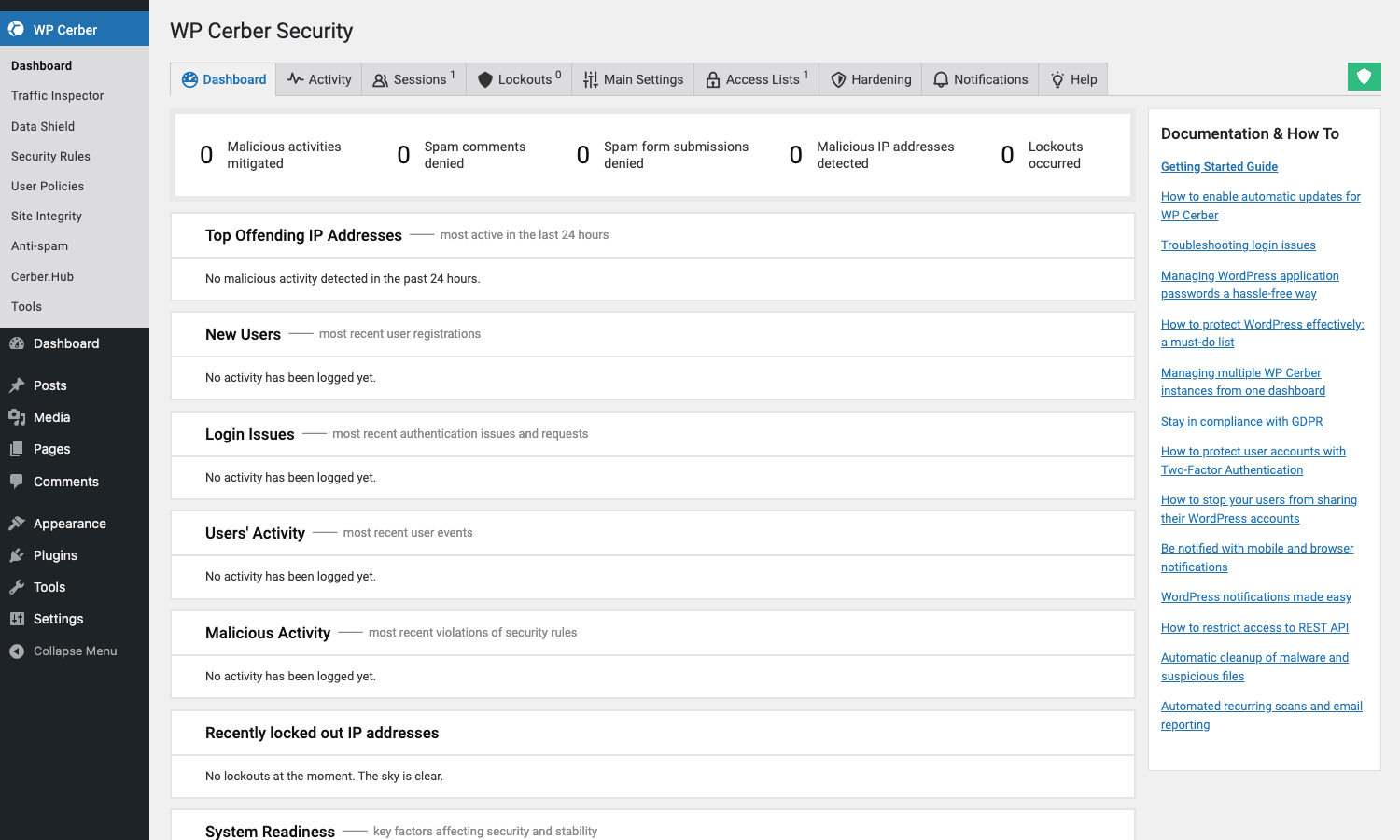
The admin sidebar shows WP Cerber with a stack of subpages. The default arrangement is intentional: Dashboard at the top for at-a-glance status, then the day-to-day operational views (Activity, Lockouts, Traffic Inspector, User Sessions), then the configuration panels (Main Settings, Hardening, Anti-spam, Site Integrity), then the meta panels (Cerber.Hub, Add-ons, Tools).
The Dashboard summarizes the last 24 hours: failed logins, lockouts in effect, suspicious activity counters, and a recent activity stream. If you want to know whether anything bad happened today, this is the single view to bookmark.
The Activity log is where you spend time after an incident. Every event has an IP, a user (if known), a username (if the attacker guessed one), a country flag, a user-agent, and a labelled event type. Filters let you narrow to "all failed logins for user ‘admin’ from a single country in the last 6 hours," which is the kind of slice you actually need when reviewing a report.
The Lockouts page lists currently blocked IPs and lets you whitelist, blacklist, or release them one at a time. You can also blacklist an entire subnet from there with one click, which is the right reaction when an attacker is rotating through a /24.
The Traffic Inspector is the most underused view. It logs every HTTP request the plugin sees, with method, URL, response code, the user (if any), the IP, the country, and Cerber’s verdict (allowed, rate-limited, blocked, suspicious). For audit and forensic work this is invaluable, and it’s enabled with a single setting.
Setting up the login firewall
The login firewall is the single biggest reason most sites install Cerber. The defaults are sensible, but a few tweaks are worth making on day one.
Limit login attempts
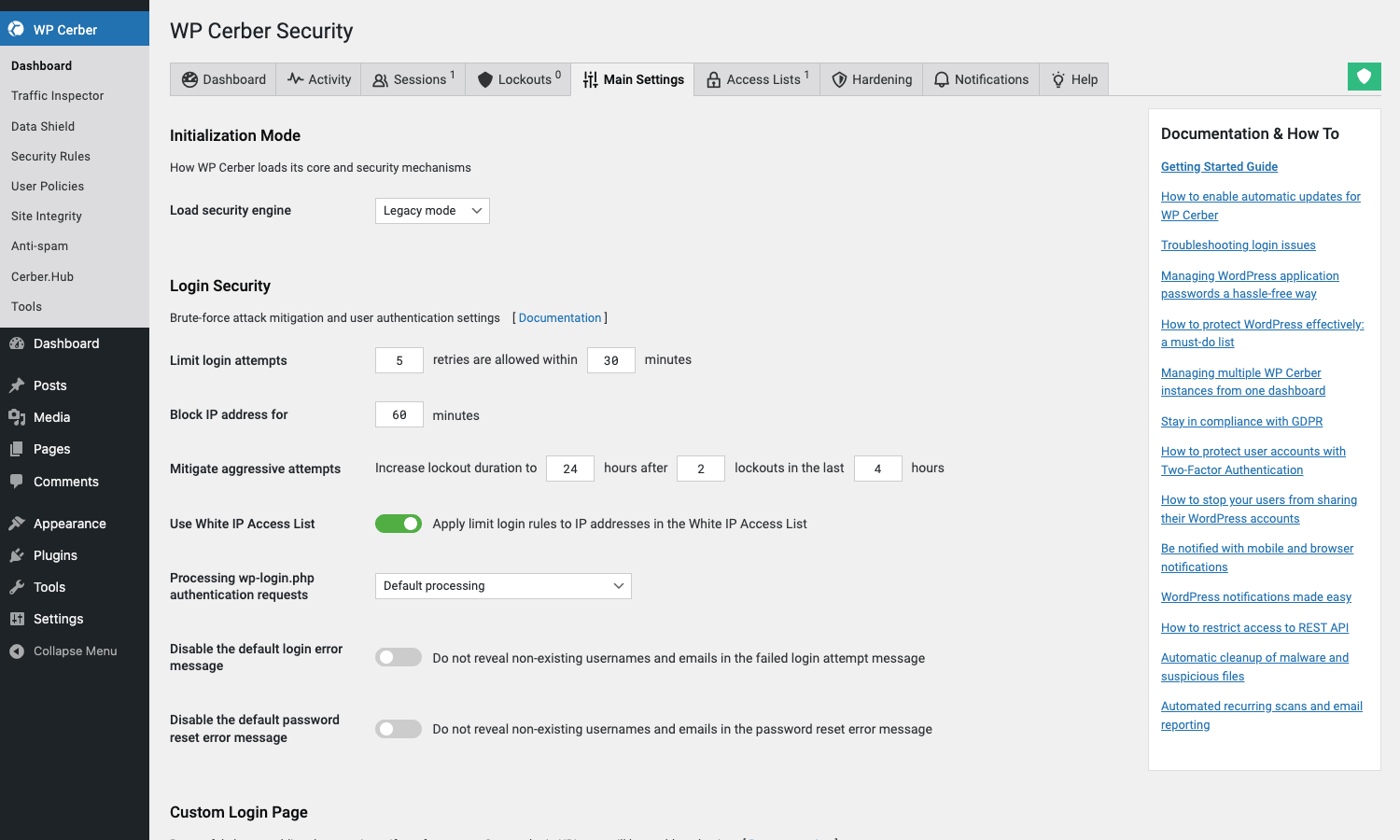
In Main Settings -> Limit login attempts, the defaults are 4 attempts per 15 minutes with a 60 minute lockout on the second offense. For a typical site this is fine. If you run a membership site where real users genuinely fat-finger their password regularly, bump the retry count to 5 or 6, but leave the lockout duration alone, because the lockout is what makes brute force impractical.
The important checkbox below is Block IP subnet (Class C) instead of IP address for repeat offenders. Botnets often have many IPs in the same /24, and switching to subnet blocks after repeated offenses cuts off a lot of traffic with one rule. Don’t enable this for first offenses, only for the second or third within a short window, otherwise a single typo from a shared office network can block a whole company.
Citadel mode
Citadel mode is the panic button. Configured under Main Settings -> Citadel mode, it triggers when the total number of failed login attempts across the site crosses a threshold within N minutes. While Citadel is active, no one can log in. A typical setup is 30 failed logins in 5 minutes triggers a 60 minute Citadel, with a Citadel notification email going to the admin. Tune the thresholds to your traffic; a busy WooCommerce store sees a higher organic failure rate than a brochure site.
Custom login URL
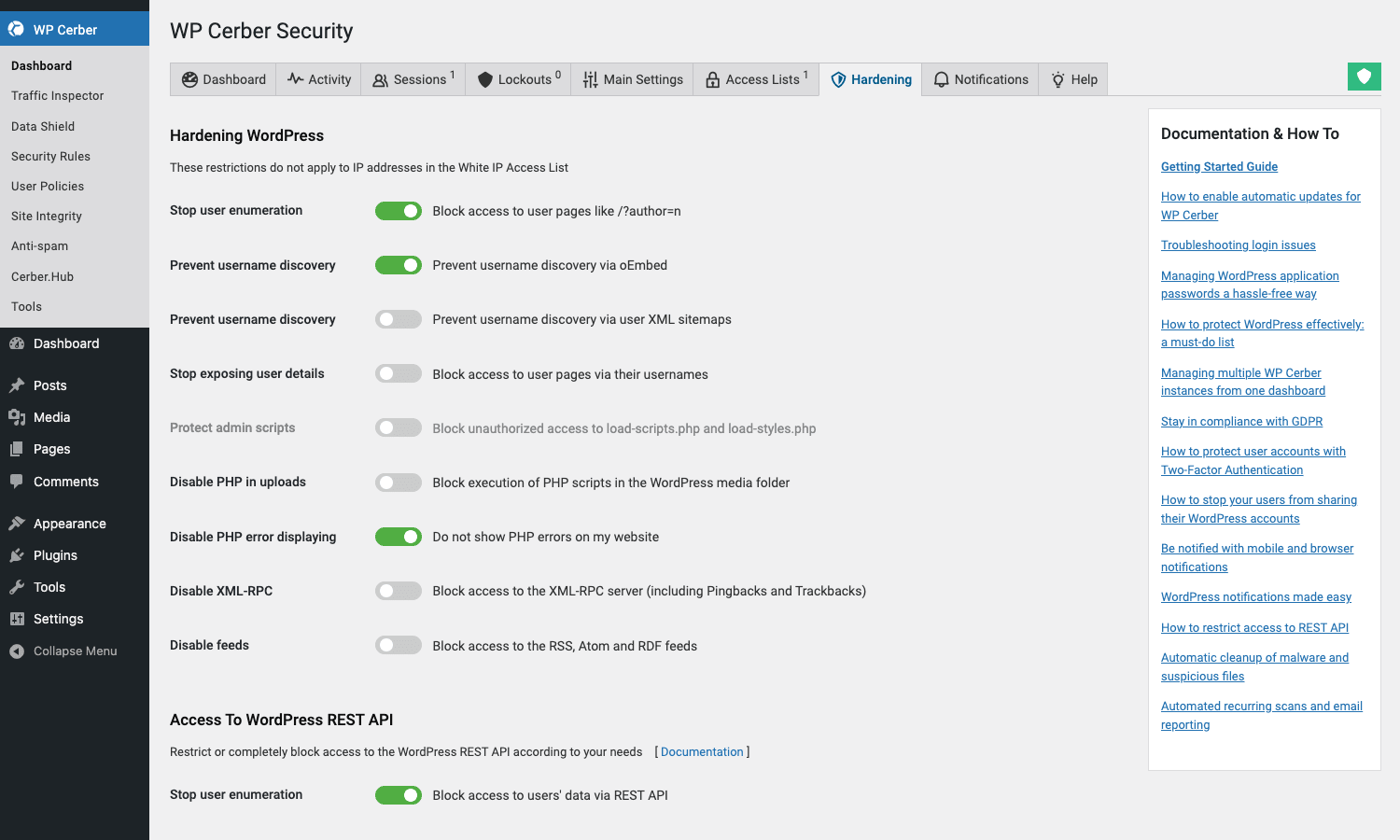
Renaming wp-login.php is the single highest-value security change you can make to a WordPress site. Every drive-by botnet hits /wp-login.php and /xmlrpc.php; if those return 404 instead of a real login form, the attacker moves on. In Hardening -> Custom login URL, set a slug only you know (something like team-portal-2026, not wp-login-secret), and check Disable wp-login.php. The original URL now 404s for everyone. Bookmark the new URL.
While you’re in Hardening, also enable Disable the dashboard for unauthenticated visitors. Unauthenticated requests to /wp-admin/* will return 404 instead of redirecting to the login page, which kills the other half of the bot discovery pattern.
Authorized users only mode
For staging sites, beta sites, or any site that shouldn’t be public, Hardening -> Authorized users only mode locks the entire front-end behind authentication. Anyone without a session sees the login form (at your custom URL, naturally). Combined with role-based 2FA, this is a one-checkbox staging-site lockdown.
Two-factor authentication, role by role
Cerber’s 2FA implementation is more flexible than most. Under User Policies -> Two-factor Authentication, you set rules per user role, not just on/off for the whole site. The rules can be unconditional ("administrator must always use 2FA"), conditional ("editor must use 2FA when logging in from a new country"), or off entirely for low-risk roles.
The default 2FA flow is email-code based. After password verification, Cerber emails a six-digit code to the user’s address; they enter it, and they’re in. For admins, you can require an authenticator app (TOTP) instead, which is faster and works offline. Most users have Google Authenticator, Authy, or 1Password handy.
The conditional rules are the killer feature. You can require 2FA only when:
- The login IP is new (not seen for this user in the last 30 days).
- The login country differs from the user’s usual country.
- The login user-agent is new.
- The user is logging in via the REST API or XML-RPC instead of the form.
For most sites the right setup is: administrators always require 2FA, editors require it on new-device logins, contributors and below have no 2FA. This gets the security where it matters without inflicting friction on people who just want to upload a blog post draft.
The malware scanner and integrity checker
The scanner is the second flagship feature. Find it under Site Integrity. It runs in two modes:
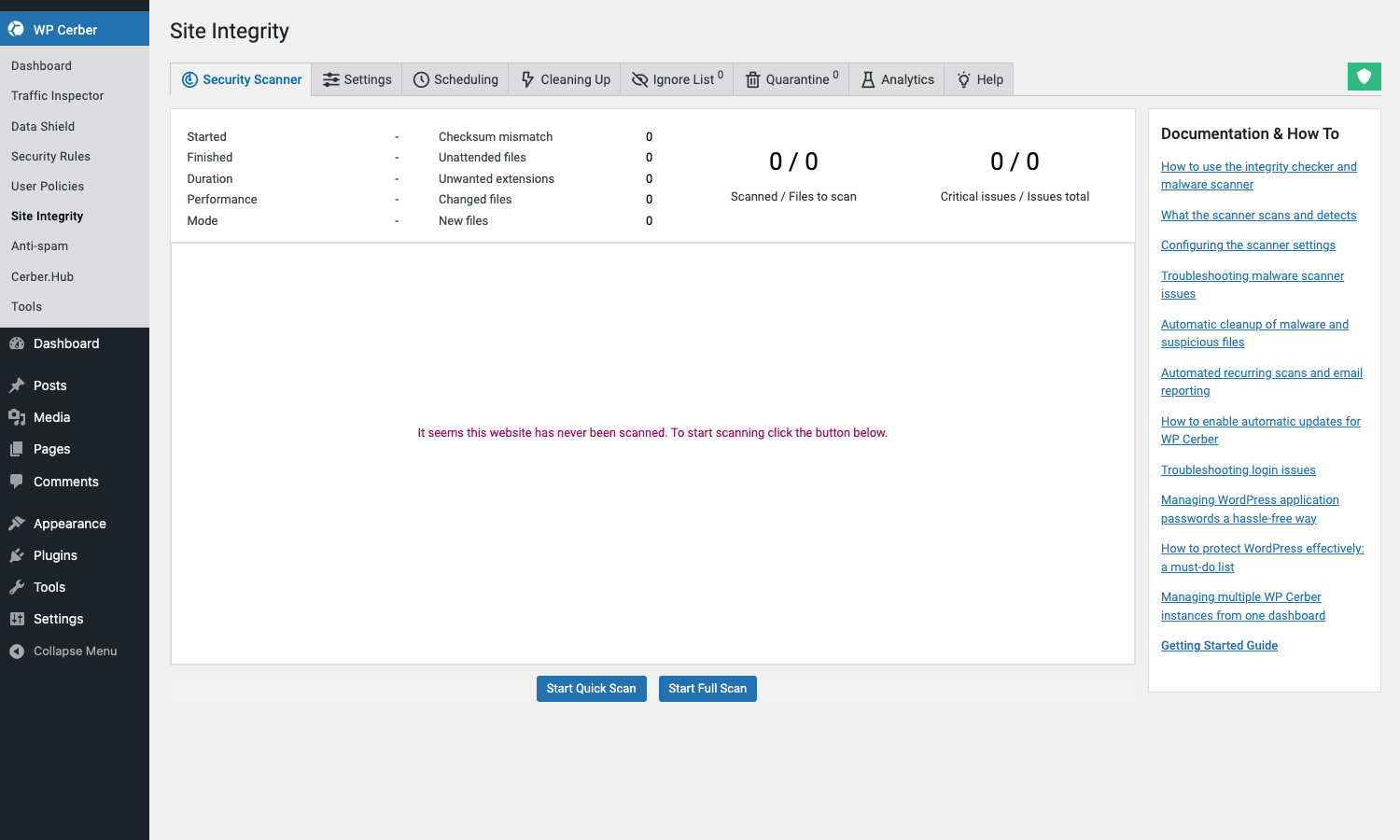
- Quick Scan. Hashes every file under
wp-content/andwp-admin/andwp-includes/, compares against a baseline, and surfaces only files that have changed since last scan. Fast (under a minute on most sites) and safe to run hourly via cron. - Full Scan. Same as Quick but also pulls canonical hashes from the WordPress.org repository for core, free plugins, and free themes, and compares each file on disk against the official checksum. Anything that doesn’t match is flagged. Anything that doesn’t exist in the canonical repo (custom plugin, custom theme, mu-plugin) is reported separately so you can review it.
For premium plugins and themes that aren’t in the WordPress.org repo (commercial ones), Cerber baselines them on first scan and tracks changes from that point on. So if your premium theme’s functions.php suddenly gains 200 lines of obfuscated PHP between scans, Cerber notices.
Automatic File Recovery is the part that earns the price tag. If a flagged file’s canonical version is known, Cerber can replace the on-disk version with the canonical one in a single click, or automatically as a scheduled action. After a confirmed compromise where the attacker dropped a backdoor in /wp-includes/cron.php, "scan, recover, change admin passwords, force logout sessions" is a 10 minute remediation cycle inside Cerber instead of an emergency restore-from-backup operation.
Reports for scheduled scans are emailed to the addresses you configure under Site Integrity -> Notifications. Pick the right level: "report only when new issues are found" for noisy sites, "report every run" for quieter sites or when you’re trying to baseline.
Anti-spam without Akismet
The anti-spam engine is genuinely good and is probably the most overlooked feature of the plugin. Under Anti-spam you find:
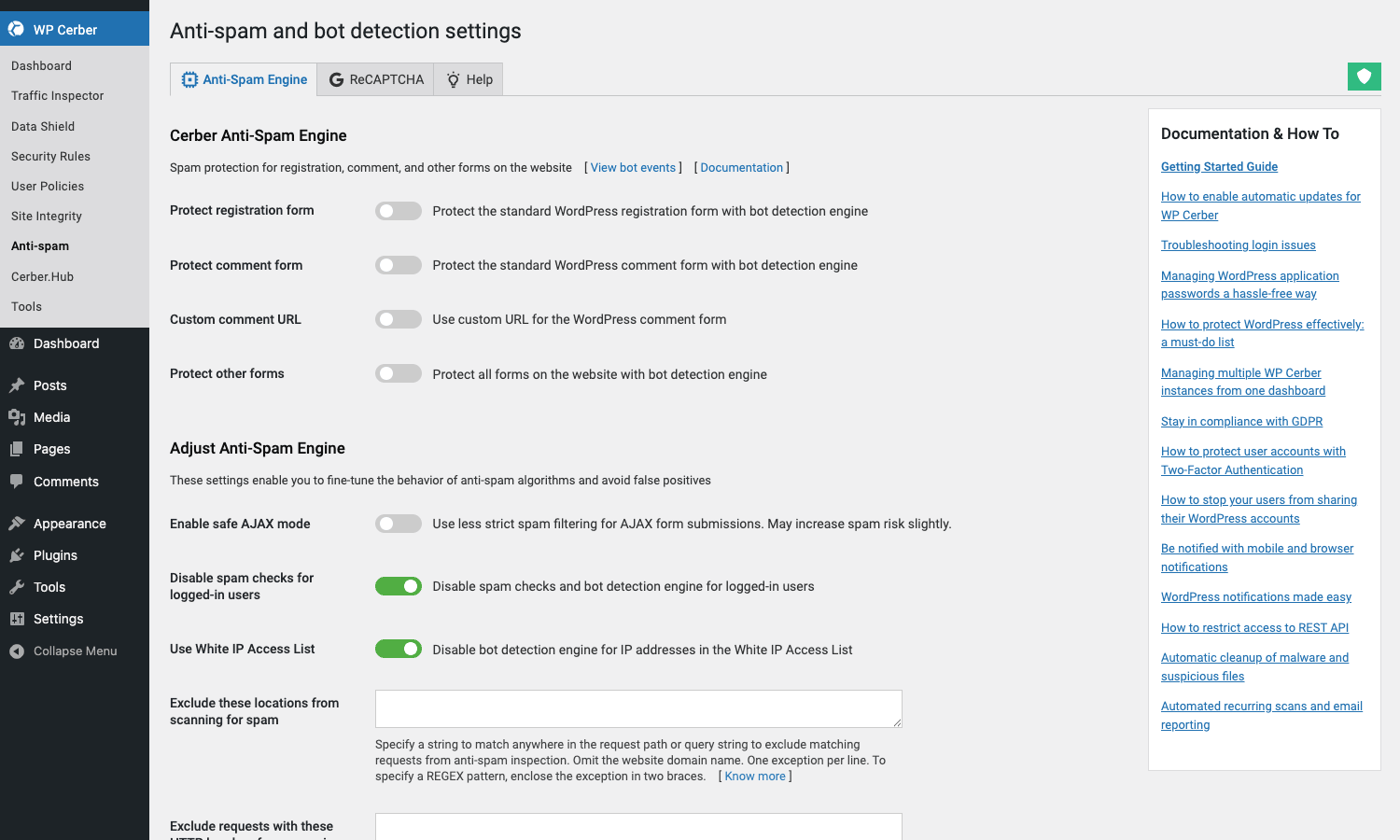
- Cerber anti-spam engine. Deterministic bot detection: invisible honeypot form fields, JavaScript challenge tokens, timing checks, and form fingerprinting. Catches the easy bulk of bot submissions before they ever reach your comments queue or your contact form inbox.
- Comment processing rules. Auto-trash or auto-deny spam comments based on rules: minimum number of words, link count, language patterns. Trash is reversible, deny is final.
- Google reCAPTCHA v2 and v3 integration. Per-form: login, register, comments, lost password, and any WooCommerce checkout / register / login form. Invisible (v2) or score-based (v3).
- Custom message strings. Replace the generic "you appear to be a bot" message with something on-brand if you want.
The combined effect is that Akismet becomes unnecessary on most sites. Akismet ships comment content to a cloud service for classification, which is fine but adds an external dependency and a license cost on commercial sites. Cerber does the same job inside the PHP request with no external call, no per-comment fee, and no license to renew.
For WooCommerce in particular, Cerber’s anti-spam saves a lot of pain on the registration form, where credit-card testers historically use freshly created customer accounts to validate stolen cards. Combined with the login firewall, the score on automated card testing drops to near zero.
Locking down the REST API and XML-RPC
WordPress exposes a lot of surface area through the REST API and XML-RPC, and most sites don’t actively use either from outside requests. Cerber lets you lock them down without breaking your admin.
Under Hardening -> WordPress REST API, the options run from least to most restrictive:
- Block access to REST API for unauthorized visitors. Logged-out users get 403. Authenticated users still have access. Safe default for most sites that don’t expose public REST endpoints.
- Block specific namespaces. Allow
wp/v2/postsbut blockwp/v2/users(which is what attackers query to enumerate usernames). Per-namespace rules are surgical. - Block REST entirely. Hardest setting. Use it on sites that absolutely do not consume REST from outside the admin (most brochure sites and many content sites fit this).
Under Hardening -> XML-RPC, the equivalent toggles disable XML-RPC entirely (recommended unless you actually use the WordPress mobile app or Jetpack), or just block pingbacks and trackbacks (the historical XML-RPC abuse vectors).
The author enumeration block under Hardening -> Stop user enumeration is another quick win. WordPress lets anyone visit /?author=1 to get the author’s slug (which becomes a target username for brute force). Cerber blocks both that pattern and the REST /wp/v2/users namespace from leaking the same data.
GeoIP rules and IP access lists
Country-level blocking has a deserved bad reputation when applied carelessly (legitimate users travel, VPN users are everywhere, and entire markets get cut off). Cerber’s GeoIP rules are usable because they’re targeted per-action, not site-wide.
Under Main Settings -> Country rules you can:
- Allow or deny login by country.
- Allow or deny registration by country.
- Allow or deny REST API access by country.
- Allow or deny commenting by country.
- Allow or deny front-end access by country (the heavy hammer).
For most sites the right setup is: allow login from your team’s countries plus the user-base countries, deny login from anywhere else. The site itself stays browseable globally; only the login surface is gated. This stops the geographic majority of credential-stuffing without affecting normal readers.
The IP Access Lists under Security Rules complement the GeoIP rules. White-list entries always win (you can be sure your office IP or your monitoring service’s IP will never be blocked), and black-list entries are processed before any limit logic, so a known-bad IP doesn’t even count toward Citadel thresholds. Subnet syntax (CIDR or range) lets you block whole netblocks with one rule.
The activity log and Traffic Inspector
The activity log records discrete events: a login, a lockout, a password change, a scanner finding, a Cerber rule that fired. Every entry has structured fields (IP, country, username, user-agent, label) and you can export filtered slices to CSV.
The Traffic Inspector is finer grained. Every HTTP request that hits WordPress is logged with method, URL, response code, user, IP, country, and Cerber’s verdict. Filter by URL pattern, response code, or verdict to answer questions like "what hit /xmlrpc.php in the last 24 hours and what did Cerber do about it?" or "did anyone successfully POST to /wp-json/wp/v2/posts from an unfamiliar IP last week?"
For incident response, the workflow is: filter the activity log to the incident window, identify the attacker IPs, jump to the Traffic Inspector to see what they actually requested, jump to Site Integrity to scan for file changes during the same window, then act (blacklist IPs, rotate passwords, force logout sessions). Cerber holds your hand through this if you have a Pro license and the Data Shield policies enabled.
Cerber.Hub for managing multiple sites
If you run more than three or four sites, the Hub is what justifies upgrading. Cerber.Hub designates one of your sites as the Master and registers other sites as Clients. From the Master you can:
- View the activity log of every client site in one feed.
- Push setting changes to all clients at once.
- Trigger a scan on any client.
- See lockouts across the entire fleet.
- Receive notifications in one inbox instead of N.
This is meaningfully different from running Cerber separately on every site, where each site mails you its own reports and the only way to compare them is your inbox. It’s similar in spirit to WPMU DEV Defender’s The Hub or iThemes Solid Security Pro’s Sync, but the implementation is direct site-to-site RPC (no third-party SaaS in the loop), which some admins prefer for data residency reasons.
Developer reference: hooks, filters, and integrations
Cerber doesn’t expose its own REST namespace. Instead it hooks deeply into WordPress core stacks (authenticate, wp_login_failed, wp_login, pre_comment_approved, the REST routes, the cron scheduler) to apply policies. That’s the right design for a security plugin (no extra attack surface), but it means developer customization happens through filters, not endpoints.
The filters worth knowing about are all prefixed cerber_. A representative subset:
Filter: customize the "you are blocked" message
The default block message is generic. If you want a branded message that tells the user where to go for help, filter cerber_msg_blocked.
add_filter( 'cerber_msg_blocked', function ( $message, $status ) {
 return sprintf(
 'For security reasons, your access is currently restricted. Please contact <a href="%s">support</a> with reference code %d.',
 esc_url( home_url( '/support/' ) ),
 absint( $status )
 );
}, 10, 2 );
The $status argument is Cerber’s internal status code, which is useful for support tickets ("your block code is 7, that means subnet block from repeated failed logins").
Filter: customize the "attempts remaining" message
Cerber tells the user how many login attempts they have left before lockout. You can rewrite this string to match the rest of your site’s voice.
add_filter( 'cerber_msg_remain', function ( $message, $remain ) {
 return sprintf(
 'Heads up: %d attempts remaining before this IP is temporarily blocked.',
 absint( $remain )
 );
}, 10, 2 );
Filter: customize a notification email body
Every Cerber notification email passes through cerber_notify_body before send. Use this to add your company signature, redact internal IPs, or strip the default footer.
add_filter( 'cerber_notify_body', function ( $body, $params ) {
 $body.= "\n\n--\nSecurity notifications via WP Cerber on ". home_url();
 return $body;
}, 10, 2 );
The $params array contains the event metadata (event type, IP, user, country, etc.) if you want to conditionally rewrite based on what’s being notified about.
Filter: customize the 404 template Cerber serves
When Cerber blocks a URL (the disabled wp-login.php, the hidden admin, a denied REST request, etc.) it serves a 404 template. You can replace the template path with your own theme file so the 404 looks on-brand.
add_filter( 'cerber_404_template', function ( $template ) {
 $custom = get_stylesheet_directory(). '/cerber-404.php';
 return file_exists( $custom )? $custom : $template;
} );
Action: react to an IP lockout
The cerber_ip_locked action fires whenever Cerber locks an IP. Use it to push the event to your SIEM, your Slack channel, your audit log, or your fail2ban control plane.
add_action( 'cerber_ip_locked', function ( $event ) {
 if ( empty( $event['IP'] ) ) {
 return;
 }
 $payload = wp_json_encode( array(
 'ip' => $event['IP'],
 'reason' => $event['reason']?? 'unknown',
 'site' => home_url(),
 'when' => current_time( 'c' ),
 ) );
 wp_remote_post( 'https://siem.example.com/ingest/cerber', array(
 'headers' => array( 'Content-Type' => 'application/json' ),
 'body' => $payload,
 'timeout' => 2,
 ) );
} );
Keep the timeout low so a slow SIEM doesn’t slow down the WordPress request.
Action: react to a notification being sent or failing
cerber_notify_sent and cerber_notify_fail fire after Cerber tries to deliver an email or push notification. Use these to mirror notifications to a backup channel (PagerDuty if email fails, Slack if SMS fails).
add_action( 'cerber_notify_fail', function ( $body, $params ) {
 error_log( '[Cerber] notification failed: '. wp_strip_all_tags( $body ) );
}, 10, 2 );
Filter: hook your own forms into the anti-bot engine
cerber_antibot_hooks lets you add your own WordPress action hooks to the list of submission points Cerber’s anti-bot engine protects. If you have a custom form built outside Contact Form 7 / WPForms / Fluent Forms / Gravity Forms, and that form fires a WordPress action on submit, you can add that action to the protected list.
add_filter( 'cerber_antibot_hooks', function ( $hooks ) {
 $hooks[] = 'my_custom_form_submit';
 return $hooks;
} );
The [wp_cerber_cookies] shortcode
The plugin ships one shortcode, [wp_cerber_cookies], which renders an opt-in cookie consent banner. Drop it on your privacy page (or insert it via a footer block) if you want to use Cerber’s cookie module instead of a dedicated cookie plugin.
Working with the activity log programmatically
Cerber stores activity events in its own custom tables. There’s no public REST endpoint, but you can query directly. The relevant table is {$wpdb->prefix}cerber_log. Schema reading is straightforward (event_id, ip, user_id, activity, timestamp, country, user_agent). Build a custom dashboard widget or daily digest by querying that table directly.
Integrating with fail2ban
Under Tools -> Diagnostic -> Log to syslog, enable syslog writing. Failed login lines appear in /var/log/syslog (or your distro’s equivalent) with a Cerber prefix, which fail2ban can match with a one-line filter. The benefit of moving the block down to the OS level is that the blocked IP never even reaches PHP on its next attempt, which saves server resources during a heavy attack.
Real-world use cases
Membership site with thousands of customer logins
A membership site sees real users mistype passwords daily, so login limits have to be lenient. Set retries to 6, lockout to 30 minutes. Enable Citadel mode with a high threshold (50 in 5 minutes) so a real credential-stuffing wave still triggers it but normal traffic doesn’t. Require 2FA on the administrator role only, with conditional 2FA on editor/shop_manager when logging in from a new country. Anti-spam engine on, reCAPTCHA on the registration and login forms.
WooCommerce store with credit card testers
Card testers create accounts then try the test charge through the checkout. Block REST registration by country (allow only the countries you actually serve), enable Cerber’s anti-spam engine on the WooCommerce registration form, and use reCAPTCHA v3 (score-based, invisible) on checkout. Add IPs of known cardable BIN-testers to the blacklist as you spot them in the Traffic Inspector. Pair with the Defender Pro audit log for cross-checking.
High-traffic publisher with public REST consumers
A publisher whose mobile app or front-end SPA consumes the REST API can’t disable REST entirely. Block REST by country only for the countries that produce most of your scraper traffic, keep wp/v2/users blocked entirely (the app doesn’t need user enumeration), and rate-limit wp/v2/posts with Cerber’s request limits to throttle scrapers without affecting normal app users.
Multisite network with many admins
Cerber works on multisite as a network-activated plugin. Settings apply per-site by default; the network admin can centralize a few settings (anti-spam policy, scanner schedule) from the network screen. For agencies managing 20+ separate WordPress installs, Cerber.Hub is the right answer; for a single multisite with 20 subsites, the per-site settings work fine.
Staging environments and beta sites
For staging, enable Authorized users only mode so the whole front-end is gated behind login. Combine with the custom login URL. The site is invisible to crawlers, search engines, and casual visitors, but anyone with an account (developers, the client) can log in and browse normally.
Performance, compatibility, and gotchas
Cerber’s per-request overhead is small on a normal page load (a few cheap queries against its own tables and a couple of in-memory rule checks). On a page that’s already heavy from a builder or LMS, you won’t notice the difference. The scanner is the only part that uses meaningful CPU, and it’s designed to run as a scheduled cron job during off-peak hours.
The plugin plays well with caching plugins. Edge-cached pages don’t run PHP, so Cerber doesn’t see those requests, which is exactly right. Login forms, admin pages, the REST API, and authenticated front-end requests are not cached, and Cerber sees those normally.
Compatibility with the major caching plugins (WP Rocket, WP-Optimize Premium, Perfmatters), the major page builders (Elementor Pro, Divi, Bricks Builder), and the major form plugins is good. The plugin is widely deployed and edge cases are rare.
Gotchas to watch for
- Reverse proxy IP detection. If Cerber sees your CDN IP as the client IP, one botnet hit will lock out Cloudflare. Set the Site connection option correctly on first install. Test by visiting your site and confirming the Activity log shows your real IP, not the CDN’s.
- Lockout of yourself. The first time you tighten login limits, test with an incognito window before applying. If you do lock yourself out, FTP to
/wp-content/plugins/wp-cerber/and rename the folder; the plugin deactivates and your IP is no longer blocked. - Custom login URL with a slug that mirrors a real page. Don’t use a slug that collides with a real WordPress page or category. Use a long, random-ish string.
- Email delivery for 2FA codes. If your site has flaky outbound email, 2FA codes won’t arrive and your users get stuck. Pair Cerber with a transactional email plugin like WP Mail SMTP Pro or a dedicated SMTP provider before enabling 2FA.
- Country blocking via Cloudflare and via Cerber at the same time. Pick one. If Cloudflare blocks Russia at the edge, Cerber’s country block is redundant; if Cerber blocks Russia in PHP, Cloudflare’s pass-through is wasted. Doubling up isn’t harmful, just inefficient.
- The Activity log can grow. A busy site can generate millions of rows over time. Cerber prunes automatically, but it’s worth peeking at Tools -> Maintenance monthly to confirm the prune schedule is healthy.
- Hidden
wp-adminand your mobile app. If your site’s mobile app authenticates via cookie + REST against/wp-admin/admin-ajax.php, blocking unauthenticated admin requests will break that flow. Whitelistadmin-ajax.phpor keep the rule narrower.
WP Cerber vs Wordfence, Solid Security, Defender, and Sucuri
Quick comparison of the practical strengths.
-
WP Cerber is the strongest standalone option for sites that want deep configurability without a cloud dependency. The anti-spam engine is the unique selling point; nobody else ships a deterministic bot detector built into the same plugin as the firewall. The activity log + Traffic Inspector combo is the best in-PHP forensic toolkit on the market.
-
Wordfence Premium has a larger signature-based WAF (rules pushed from a cloud threat intel feed), real-time IP reputation, and a more polished onboarding flow. If you want "install and let it work," Wordfence is friendlier. Read more in our Wordfence Premium walkthrough. If you want fine-grained control, Cerber wins.
-
Solid Security Pro (formerly iThemes Security Pro) has the cleanest UI and the smoothest 2FA experience, plus tight integration with Solid Backups. Lighter scanner, no built-in anti-spam engine. Our Solid Security Pro review walks through the hardening flow in detail.
-
Defender Pro from WPMU DEV is a strong centralized-management option if you already run other WPMU DEV plugins, with The Hub providing the multi-site dashboard. Read our full Defender Pro review. Cerber.Hub is a more focused alternative if security is all you’re centralizing.
-
Sucuri is the cloud-WAF option. It’s hosted in front of your origin, blocks traffic before it reaches PHP, and includes incident response services. Different product category; pair it with Cerber if you want defense in depth.
-
Hide My WP focuses on obfuscation (hiding the fact that the site is WordPress at all). Our Hide My WP review explains what that buys you. It pairs well with Cerber; obfuscation is the first line of defense, Cerber is the second.
-
Really Simple Security Pro covers SSL, security headers, and a lightweight firewall, with a much smaller surface area than Cerber. Read our walkthrough. Use it for the SSL and headers, use Cerber for the deeper firewall and integrity scanning.
If you’re new to WordPress security and just want one plugin that handles the most attack surface with the most flexibility, Cerber is the right pick. If you want a guided setup over deep configuration, look at Wordfence or Solid Security. If you have multiple WordPress sites under one roof, look at Defender Pro or Cerber.Hub.
Pricing and licensing
WP Cerber is licensed under GPLv2, like all WordPress plugins. The official store at wpcerber.com sells three tiers: Personal (single site), Business (up to 5 sites), and Professional (unlimited sites), each at a yearly subscription that includes updates and support for the duration. The free version on WordPress.org has the full feature set minus the deeper scanner, automatic file recovery, and Cerber.Hub.
GPL Times distributes WP Cerber under the same GPLv2 license, with the full Pro feature set unlocked. The single annual GPL Times membership covers WP Cerber alongside the rest of the catalog. You can grab WP Cerber from GPL Times and install it on as many of your own sites as your support agreement allows.
For commercial use, the right path depends on volume. A single site is cheaper directly from Cerber. A handful of sites or an agency-scale deployment is much cheaper through the GPL Times catalog, especially when paired with the rest of the security stack (Defender Pro, Solid Security Pro, backup plugins, SMTP) from one license.
Frequently asked questions
Will WP Cerber slow my site down?
No, not in any measurable way on normal pages. The plugin runs a few cheap database queries per request and a small in-memory rule check. The scanner is the only CPU-heavy part, and it’s scheduled to run as cron, not on every request.
Can I run WP Cerber alongside Wordfence?
You can, but you shouldn’t. The two plugins overlap heavily on login limits, 2FA, and scanner; running both means duplicate rules, duplicate notifications, and confusing log entries. Pick one as your primary security plugin.
Does WP Cerber work on multisite?
Yes. Network-activate the plugin and configure per-site settings under each site’s admin, or use network-level rules from the network admin screen.
Does WP Cerber support TOTP authenticator apps for 2FA?
Yes, in addition to the default email-code 2FA. Configure TOTP under User Policies -> Two-factor Authentication and users scan the QR code with Google Authenticator, Authy, 1Password, or any other TOTP app.
What happens if I lock myself out?
FTP / SSH into your site, rename the /wp-content/plugins/wp-cerber/ directory to wp-cerber-disabled/. WordPress auto-deactivates the plugin and the login limits stop applying. Log in, fix your IP whitelist, then rename the folder back.
Does the scanner detect everything?
It detects file changes and files that don’t match canonical WordPress.org checksums. It catches injected backdoors in core files, plugins, and themes very reliably. It catches uploads of new files into wp-content/uploads/ if you enable that scan path. It is not a behavioural firewall (it doesn’t see live attack patterns; that’s what the activity log + Traffic Inspector are for), and it won’t catch a malicious plugin or theme that you installed willingly, since you’d have approved the file changes.
Can WP Cerber replace Akismet?
For most sites yes. Cerber’s anti-spam engine plus reCAPTCHA covers the bulk of comment and form spam without an external API call. Akismet still has a slight edge on borderline "is this spam" classification because it uses a much larger cross-site corpus, but on day-to-day spam load, Cerber is comparable and cheaper.
Does WP Cerber work with Cloudflare?
Yes, with one important setting: under Main Settings -> Site connection select the option to read the client IP from X-Forwarded-For or the appropriate Cloudflare header. Without that, Cerber sees Cloudflare’s IPs as every visitor and will eventually block Cloudflare. After fixing the IP source, the two work together (Cloudflare blocks at the edge, Cerber blocks in PHP, no overlap).
Does it scan the database for malware?
It scans the filesystem, not the database. For database-stored payloads (injected admin users, hostile options entries, modified posts) the plugin will detect the admin-user creation event in the activity log and the modification event in the Traffic Inspector, but it doesn’t scan post content for injected scripts. A dedicated database malware scanner is a separate tool.
Will WP Cerber log my legitimate users’ IPs?
Yes. The activity log and Traffic Inspector record every authenticated request. Logged data is stored in the site’s own database; nothing is sent to an external service. Configure retention under Tools -> Maintenance to comply with your privacy policy.
Is the free version usable on its own?
Yes. The free version has the login firewall, 2FA, anti-spam engine, basic scanner, IP access lists, activity log, and most of the hardening features. The Pro features (deeper scanner with automatic recovery, country-level GeoIP, Cerber.Hub, Data Shield) are nice to have but not required for a typical small site.
Final thoughts
WP Cerber rewards admins who want to understand and control what their security plugin is doing. The trade-off compared to "set and forget" alternatives is an hour of initial setup; the payoff is a security posture you can actually reason about, a forensic toolkit.
For most WordPress sites of any meaningful size (a busy blog, a membership site, a WooCommerce store, a multisite network), it’s a strong default pick. For brochure sites with no logins it’s overkill; install Really Simple Security Pro and move on. For agencies running fleets of sites, Cerber.Hub is a real management win and worth the upgrade on its own.
What I keep coming back to is the activity log. Most security plugins record events badly (one line per event with no context, no filter, no export). Cerber’s log is the operational heartbeat of the plugin and the first place I look during any incident. That single design choice (treat events as first-class, not a hidden tab) is the difference between a plugin you trust and a plugin you hope is doing something useful while you’re not watching.
If you’re shopping for a new security plugin or auditing your current one, install WP Cerber on a staging site, give it the hour it needs to walk through every panel, and decide whether the visibility is worth the configuration time. For me it consistently is.