


Thrive Leads is the lead capture plugin from Thrive Themes. It handles every opt-in surface a WordPress site usually needs (lightbox popups, ribbon bars, slide-ins, in-content forms, post-footer forms, screen fillers, widgets, two-step buttons, and shortcoded inline forms) and bolts a drag-and-drop visual editor onto the front of all of them. The thing that makes it stand out is what’s underneath: built-in A/B testing with an automatic-winner feature, SmartLinks for returning visitors, SmartExit+ for mobile exit intent, and roughly 45 native email and CRM integrations.
This review walks through what Thrive Leads does, how the form-building and targeting flow actually works for a beginner, and then drops into the developer side: shortcodes, hooks, filters, database tables, and the bits worth knowing if you’re going to extend it.
Table of contents
- What Thrive Leads is
- Core features at a glance
- The form types Thrive Leads supports
- How Thrive Leads works for a beginner
- The drag and drop editor
- Triggers and targeting
- A/B testing and the automatic winner
- SmartLinks and SmartExit Plus
- Asset delivery for lead magnets
- Integrations and the autoresponder layer
- Reports and analytics
- Installation and setup
- Real world use cases
- Developer reference
- Performance, compatibility, and gotchas
- Pricing and licensing
- Thrive Leads vs the alternatives
- Frequently asked questions
- Final thoughts
What Thrive Leads is
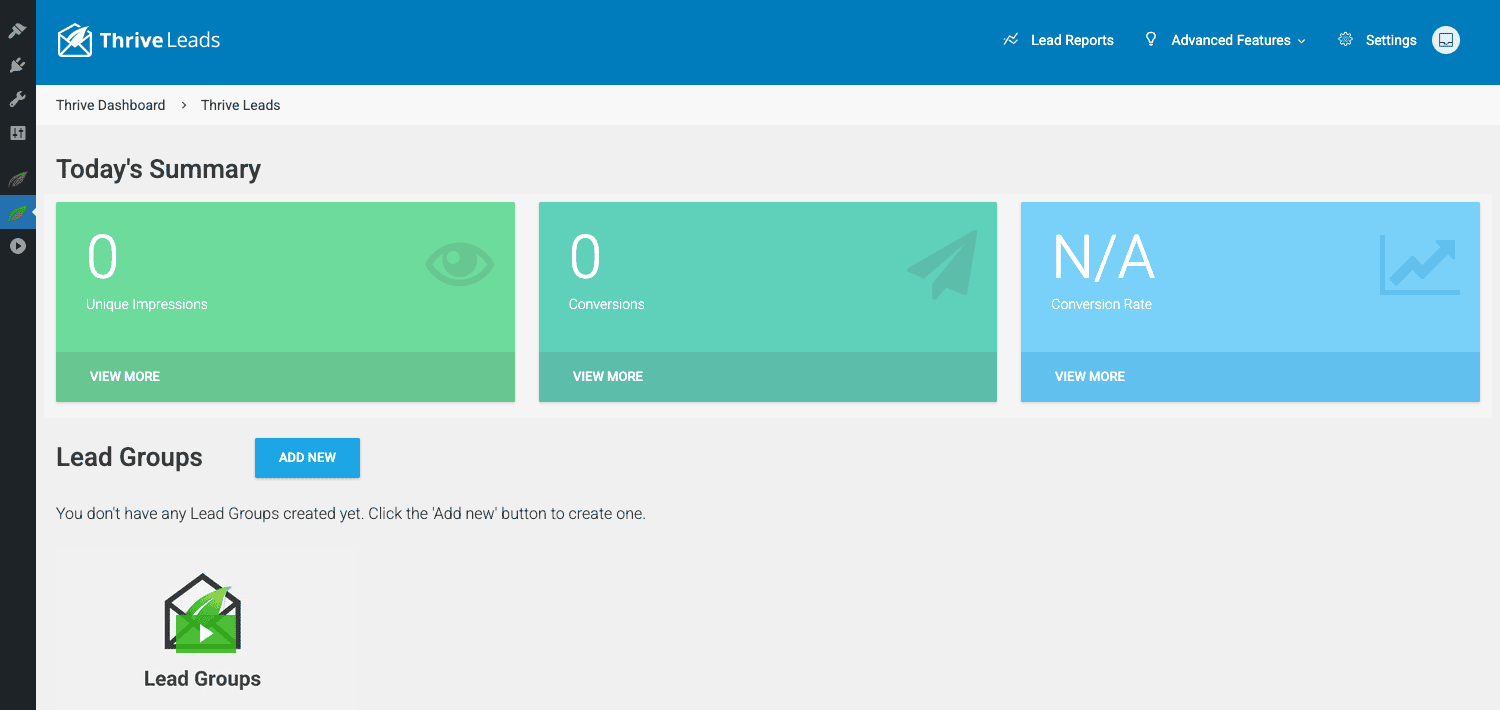
Thrive Leads is a lead generation plugin for WordPress. You install it, build a form (or a stack of forms), tell the plugin where on the site the form should appear and what should trigger it, and the plugin handles the rest: showing the form, animating it in, collecting the submission, passing it to your email tool, and logging the impression and the conversion.
The plugin is from Thrive Themes, the team behind the Thrive Architect page builder and a sizeable family of conversion-focused tools. It started as a standalone product around 2014 and is now sold as part of the Thrive Suite bundle. The build available on GPL Times is the plain Thrive Leads plugin, ready to install on any WordPress site running PHP 8.1 or newer.
What makes Thrive Leads different from the dozens of other opt-in plugins is the combination of three things. The editor is the same drag-and-drop canvas that powers Thrive Architect, so you’re not stuck with a half dozen template variations. You can build a popup that looks like a custom landing page if you want. The A/B testing is real A/B testing, not just "load variant A on Tuesday." It runs multiple variations in parallel, splits traffic, watches the conversion rate, and can automatically pause losers and serve the winner. And the trigger and display rules are granular enough to do things like "show this form only on posts in the category Marketing, to first-time visitors, after they’ve scrolled 60 percent of the page, but never on mobile."
Core features at a glance
- Nine form types. Lightbox, ribbon, greedy ribbon, slide-in, screen filler, in-content, post-footer, widget, and shortcode. Each has its own templates and trigger options.
- Drag-and-drop visual editor. Inherited from Thrive Architect. Add headlines, columns, icons, countdown timers, image backgrounds, custom CSS classes. The forms are not limited to "headline plus email plus button" templates.
- Eight triggers. Page load, time on page, scroll percent, scroll past element, click, exit intent, viewport (form scrolls into view), and page bottom.
- A/B testing built in. Run multiple form variations in parallel, set a confidence threshold, and let the plugin pick the winner.
- SmartLinks. Don’t show an opt-in to someone arriving from a specific URL or referrer, so subscribers clicking through from a newsletter don’t get asked to subscribe again.
- SmartExit Plus. Exit intent on desktop (cursor movement toward the address bar) plus a mobile heuristic that fires when a visitor is about to leave on touch devices.
- Asset delivery. Attach a PDF or other lead magnet to a form and the plugin emails it after opt-in, with a configurable email template.
- Roughly 45 integrations. Native connectors for the major email tools, CRMs, webinar platforms, and transactional email services. Plus Zapier and a generic webhook approach.
- Custom post types under the hood. Lead groups, lead shortcodes, two-step lightboxes, one-click signups, and form variations are all custom post types, so they sit cleanly inside WordPress.
- Built-in reporting. Per-form, per-group, and per-variation conversion rates, plus impression counts, with charts and CSV export.
The form types Thrive Leads supports
Lead generation lives or dies on getting the form to show up at the right moment in the right place, and Thrive Leads gives you a wide menu of containers to do that with. Each type is a distinct WordPress object internally, with its own templates inside editor-templates/<type>/.
- Lightbox. The classic popup. Overlays the page, dims the background, and is the workhorse for "subscribe to the newsletter" offers.
- Ribbon. A sticky bar that pins to the top or bottom of the screen. Less intrusive than a lightbox, hard for visitors to miss.
- Greedy ribbon. A ribbon that starts as a small bar and expands when the visitor clicks or after a timeout. Useful when you want to keep the initial footprint tiny.
- Slide-in. A small box that slides up from the bottom corner of the page. Good middle ground between a ribbon (low effort to dismiss) and a lightbox (high attention).
- Screen filler. A full-screen takeover. Aggressive, best reserved for major launches or exit intent on landing pages.
- In-content. A form that the plugin injects into the body of every post matching the targeting rules. You pick the location (after the first paragraph, after a specific block, in the middle of the post, etc).
- Post footer. A form appended after every post body. Different from in-content because it doesn’t interrupt the read.
- Widget. Use the form as a WordPress widget, drop it into any widgetized sidebar or footer.
- Shortcode. Hand-placed via
[thrive_leads id="..."]so you can drop the form anywhere a shortcode renders.
You can mix form types inside a single Lead Group too. The most common setup I’ve seen is a lightbox triggered by exit intent, a post-footer form for blog posts, and a sticky ribbon that’s hidden once the visitor converts in any of the three.
How Thrive Leads works for a beginner
Thrive Leads has a few moving parts that take a minute to wrap your head around. Once they click, the rest is easy.
The top-level container is a Lead Group. A Lead Group is "a set of forms that share one targeting rule." So you might have a Lead Group called "Blog Posts" that’s set to show on all single posts, and inside it you have a lightbox, a post-footer form, and a slide-in. All three share the "blog posts only" rule, but each form type has its own trigger, design, and A/B test.
Below the Lead Group, each form type is a Form Variation. Form Variations are what you actually design in the editor. Inside a single form type slot (say, the lightbox slot of your Blog Posts group) you can have multiple variations running side by side. That’s the A/B testing layer.
There are two more standalone form objects that live outside Lead Groups:
- Lead Shortcode. A form you build once and drop anywhere via shortcode. Useful for sidebar widgets and one-off pages.
- Thrive Box (two-step opt-in). A button or link the visitor clicks, which then opens a lightbox. Two-step opt-ins typically convert better than one-step popups because the click counts as a micro-commitment.
The full editing flow looks like this:
- Open Thrive Dashboard > Thrive Leads.
- Click Add New under Lead Groups, give it a name (e.g., "Blog posts opt-in").
- Inside the new group, click Add a form type. Pick lightbox.
- Inside the lightbox slot, click Create Form. Give the form a name. Then click Edit Design to open the visual editor.
- Pick a template, customize the design, set the integration to your email tool, save and exit.
- Back on the group page, set the trigger (e.g., exit intent), the display frequency, and the animation.
- Go to the group’s Display Settings tab and target it (e.g., All Posts).
- Set the lead group to Active.
The plugin then handles loading the form on every matching page, watching for the trigger, animating it in, capturing the email, sending it to the autoresponder, and logging the impression and conversion to its own database tables.
The drag and drop editor
The editor is the same canvas Thrive Architect uses, repackaged for opt-in forms. If you’ve used Architect, this will feel identical. If you haven’t, the model is the typical block-based page builder approach: a left panel with elements (text, image, button, columns, etc.), a center canvas where you drop them, and a right panel for the element’s settings.
Notable elements specific to opt-in forms:
- Lead Generation element. This is the actual form. It wraps the field inputs (name, email, custom fields) and the submit button. The element has an "API connection" setting where you pick which autoresponder list the submission goes to.
- Countdown timer. Evergreen or fixed-date countdown. Common in launch popups.
- States. A form variation can have multiple states (default, success, error, etc.). You design each state independently. The success state shows after a successful submission and is where you put the thank-you message or a redirect.
- Conditional display by device. You can hide elements on mobile or only show them on tablet. Useful for compressing copy on small screens.
Saving works the same as Architect: hit Save at the bottom-left, then close. The plugin writes the markup to the variation’s post content and stores any custom CSS in a separate file via tve_after_load_custom_css.
The editor’s a bit heavy. It loads the full Architect bundle, which is several hundred KB of JavaScript and CSS. The trade-off is design flexibility you don’t get from "pick from 10 templates" plugins.
Triggers and targeting
The trigger is what makes a form appear. Thrive Leads ships with eight, each backed by a PHP class and a small JS file in js/triggers/:
- Page load. Show the form as soon as the page is ready. Aggressive.
- Time. Show the form after N seconds on the page. Easiest knob to tune.
- Scroll percent. Show the form once the visitor has scrolled past a percentage of the document height (25%, 50%, 75%, 100%).
- Scroll past element. Same idea but triggered by scrolling past a specific element. You pass a CSS selector.
- Click. Show the form when the visitor clicks an element. Common for "click here to download" two-step opt-ins.
- Exit intent. On desktop, fires when the cursor moves toward the top of the browser window, signalling the visitor is about to switch tabs or close.
- Viewport. For in-content forms, fires when the form itself scrolls into view. Useful if you want the form animation to play just as the reader reaches that part of the page.
- Page bottom. Fires when the visitor reaches the end of the page. Less common but good for long blog posts.
Targeting (the "where") is set in the Lead Group’s Display Settings tab. The options:
- All pages
- All posts, optionally narrowed by category or tag
- Specific page IDs
- Specific post IDs
- All archives (category, tag, author, date)
- Search results
- 404 pages
- Custom post types (filtered by
tve_leads_settings_post_types_blacklistif you want to exclude any from the dropdown) - An "exclude" list, so you can say "all posts except these"
The targeting and trigger combine multiplicatively. A "show on posts in Marketing category, after 30 seconds, hide on mobile" rule is normal and works exactly as you’d expect.
A/B testing and the automatic winner
This is one of the features that separates Thrive Leads from lighter opt-in plugins. Inside any form type slot in a Lead Group you can clone a variation and tweak the new copy. Once you have two or more variations, you start an A/B test from the form type’s contextual menu.
The test serves variations in rotation (roughly equal split) and tracks impressions and conversions for each. The test has a configurable Automatic Winner setting where you set:
- Minimum number of conversions per variation before declaring a winner (e.g., 100).
- Minimum number of days the test must run (e.g., 7).
- Required statistical significance (chance to beat original) percentage.
When all three conditions are met, the plugin marks the losing variations as "loser" (status changes via the data in the tve_leads_split_test and tve_leads_split_test_items tables) and serves the winning variation to all future traffic.
The test runs purely on Thrive Leads’ own event logging (tve_leads_event_log and tve_leads_conversion_log tables). You don’t need Google Analytics or any external tool to see the result, though you can layer MonsterInsights or another analytics plugin on top if you want the data in GA4.
If you’ve used Bloom (the Elegant Themes opt-in plugin), this is the headline feature it doesn’t really match. Convert Pro added A/B testing more recently but the auto-winner flow is less polished.
SmartLinks and SmartExit Plus
Two niche-but-useful features that don’t get a lot of marketing attention.
SmartLinks (originally called "inbound links" in older builds and still referenced that way in the code) lets you give an existing subscriber a special URL that suppresses opt-in forms. Typical use: in your email newsletter, every link to your blog goes through a SmartLink. When the subscriber clicks, they land on the page and Thrive Leads recognizes the link, skips the popup, and either shows a different variation (e.g., "Want our new product?") or just no form at all.
The mechanism is a URL parameter Thrive Leads writes into a cookie. Once cookied, the plugin respects that state across the rest of the session.
SmartExit Plus is exit intent on mobile. The desktop version uses mouse movement which obviously doesn’t exist on phones. SmartExit Plus uses a heuristic: visitor has been on the page for N seconds AND scrolled past Y percent AND is about to leave (back button, address bar tap, etc). It’s not perfect, no mobile exit intent is, but in practice it catches a meaningful number of would-be bouncers.
Asset delivery for lead magnets
A common opt-in pattern is "give us your email and we’ll send you the PDF." Thrive Leads has this baked in.
Inside the Thrive Dashboard there’s a sub-page called Asset Delivery. You upload the lead magnet (PDF, ebook, audio file, anything), give it a name, configure the email template (subject line, sender, body with placeholders for the file URL), and assign it to a specific form. After a successful submission, the plugin sends the email automatically using wp_mail() or your transactional email integration if one is configured.
You don’t need a separate marketing automation platform for the simple "deliver the lead magnet" flow. For complex multi-step nurture sequences you’d still hand the contact off to FluentCRM Pro or your ESP of choice, but the file delivery itself can stay inside WordPress.
Integrations and the autoresponder layer
The full integration list lives at Thrive Dashboard > API Connections. As of this build, the connectors include:
- ActiveCampaign
- AWeber
- Brevo (formerly Sendinblue) V3
- Campaign Monitor
- Constant Contact V2 and V3
- ConvertKit
- Drip
- FluentCRM
- GetResponse
- HubSpot
- iContact
- Infusionsoft / Keap
- KlickTipp
- Mad Mimi
- MailChimp
- MailerLite
- MailPoet
- MailRelay
- Mailster
- Ontraport
- SendFox
- Sendlane
- Sendy
- Zapier
- Zoho
Plus webinar platforms (GoToWebinar, EverWebinar, WebinarJam), transactional email services (SendGrid, Mailgun, Mandrill, Postmark, SparkPost, SendLayer, Amazon SES), and security extras (reCAPTCHA, Cloudflare Turnstile, Facebook Pixel).
Each integration is a class under thrive-dashboard/inc/auto-responder/classes/Connection/. They all extend a common base, so adding a new one is a contained job: implement connect(), getLists(), addSubscriber(), and a small admin form for the API credentials.
Inside a form variation’s settings panel you pick which integration sends the submission and which list/tag/segment the contact goes to. Each form can hit multiple integrations at once, which is useful when you want the same lead in MailChimp and Zapier (for example, to copy it into a CRM).
Reports and analytics
Thrive Leads writes every impression and conversion to its own DB tables (tve_leads_event_log and tve_leads_conversion_log). The Lead Reports page (Thrive Dashboard > Thrive Leads > Lead Reports) renders that data into a few useful views:
- Conversion rate by lead group. Useful for comparing your "blog post" opt-in to your "homepage" opt-in.
- Conversion rate by form type. Lightbox vs slide-in vs ribbon, on the same site.
- Per-variation rate. Used heavily during active A/B tests.
- Conversions by source URL. Which pages convert best.
- Conversions by device. Desktop vs mobile vs tablet.
- Referrer split. Which incoming traffic source converts best.
Date range is configurable. You can export any view to CSV.
The reporting is honest, in the sense that "conversion" means "form submitted successfully." It doesn’t try to attribute revenue or guess at the visitor journey beyond the single page where the form fired. If you want full-funnel attribution, layer GA4 (via MonsterInsights) or a dedicated analytics product on top.
One thing worth knowing: the event log table grows quickly on busy sites. A page view counts as an impression, so a site doing 50k pageviews a month accumulates 50k rows per active form per month. The plugin does index the table sensibly but it’s worth keeping an eye on it. The Thrive Dashboard has a tool to truncate old data which you can run periodically.
Installation and setup
- In your WordPress admin, go to Plugins > Add New > Upload Plugin and upload
thrive-leads.zip. - Click Install Now, then Activate.
- After activation a new top-level menu appears: Thrive Dashboard. Click it.
- Click Thrive Leads in the sub-menu (or visit
/wp-admin/admin.php?page=thrive_leads_dashboarddirectly). - Optional but recommended: go to Thrive Dashboard > API Connections and add at least one email tool integration before you build any forms. That way the form-building flow is uninterrupted.
- Optional: go to Thrive Dashboard > General Settings and tick "Enable lightspeed" if you want the slim asset loader (described in the performance section below).
Building your first form:
- From the Thrive Leads dashboard, click Add New under Lead Groups. Name it something like "Site-wide opt-in."
- In the new group, click Add a form type. Pick Lightbox.
- Inside the lightbox slot, click Create Form. Give it a name (e.g., "Newsletter v1").
- Click Edit Design. Pick a template. Customize the headline, copy, fields, button text, and styling.
- In the form’s Lead Generation element settings, click Add Connection and pick the integration you set up earlier. Pick the list.
- Save and exit.
- Back on the group page, set the trigger (start with Exit Intent), the display frequency (e.g., "show once every 14 days"), and the animation (Slide Top is a safe default).
- Click Display Settings at the top of the group page. Pick All pages for now, or narrow it.
- Set the group to Active.
Visit the front end in an incognito window and trigger the form to confirm it works.
Real world use cases
A few scenarios that show up over and over.
Newsletter growth on a blog
The classic. Set up a Lead Group called "Blog opt-in" targeted at all single posts. Inside it, put three form types: a lightbox with exit intent (display once every 14 days), a post-footer form (always shown), and a sticky ribbon (top, dismissable). Send all submissions to the same MailChimp or ConvertKit list. Most blog readers will see at least one of these forms during a typical visit.
Lead magnet for a service business
A consultant offering a free PDF guide. Build a single lightbox with a content upgrade headline and connect it to the Asset Delivery feature so the PDF is emailed automatically. Trigger on scroll past 60 percent, on pages tagged with the service category. Layer in a SmartLink so people already on the email list don’t see it again.
Webinar registration
Connect Thrive Leads to GoToWebinar or EverWebinar. Build a screen-filler popup on the webinar landing page, with the registration form going straight into the webinar platform. The contact lands in your email list and in the webinar attendee list in one submission.
Two-step opt-in for an existing button
You have a "Get the guide" button somewhere on the page. Create a Thrive Box, build the form inside it, and replace the button’s href with the ThriveBox shortcode trigger ([thrive_2step id="..."] wrapping the button text). The visitor clicks the button, sees the popup, fills the form. Two-step opt-ins consistently outperform one-step popups because the click is a small commitment.
Multi-niche site with category-specific offers
A site covering multiple topics. Create one Lead Group per category, each with a different offer. Set the targeting to that category only. Each group can also have its own A/B test running independently. Reports per group show which category responds best so you can prioritize content.
Developer reference
Thrive Leads exposes a meaningful number of hooks and filters, plus a handful of shortcodes and database tables you can query. If you’re new to WordPress hooks in general, the official Plugin API reference on developer.wordpress.org is the best starting point. Thrive also publishes its own Thrive Themes documentation for product-specific questions.
Shortcodes
[thrive_leads id="..."]renders a Lead Shortcode form anywhere shortcodes are allowed.[thrive_2step id="..."]wraps any clickable element so clicking it opens a ThriveBox two-step opt-in.[thrive_lead_lock id="..."]is a content locker. The content between the opening and closing tags is hidden until the visitor opts in.[thrive_login_form_shortcode]drops a Thrive-styled login form.
Custom post types
tve_lead_group // Lead Groups
tve_form_type // Form type slots inside a group
tve_lead_shortcode // Standalone shortcode forms
tve_lead_2s_lightbox // ThriveBox (two-step) forms
tve_lead_1c_signup // One-click signup links
All are registered in inc/hooks.php. They’re set to public => false so they don’t show in the WP admin’s main menu, but you can list them via the REST API by writing a small admin tool or via WP-CLI.
Database tables
wp_tve_leads_event_log: every impression, click, conversion, and ribbon collapse, with form_type_id, lead_id, variation_id, type, date, IP, referrer, user_agent, screen_size, user_id.wp_tve_leads_conversion_log: slimmer conversion-only log (just confirmed submissions).wp_tve_leads_split_test: the A/B test container.wp_tve_leads_split_test_items: each variation inside a split test.
If you need to bulk-export conversions out of Thrive Leads into another tool, query wp_tve_leads_conversion_log directly. The table is reasonably indexed but a date-bounded query is wise on large sites.
Filter: customize the AJAX payload that loads forms
add_filter( 'tve_leads_ajax_load', function( $data ) {
 $data['custom_param'] = get_current_user_id();
 return $data;
} );
Use this when you need to pass extra context into the AJAX request that loads forms. The payload ends up server-side in the variation logic so you can branch on it.
Filter: stop a particular ThriveBox from rendering
add_filter( 'tve_leads_do_not_show_two_step', function( $skip, $two_step_id ) {
 // Don't show ThriveBox 1234 to logged-in users.
 if ( is_user_logged_in() && (int) $two_step_id === 1234 ) {
 return true;
 }
 return $skip;
}, 10, 2 );
Useful for hiding opt-ins from members who shouldn’t see "subscribe to the newsletter" prompts.
Filter: which post types Thrive Leads can target
add_filter( 'tve_leads_settings_post_types_blacklist', function( $blacklist ) {
 $blacklist[] = 'shop_order';
 $blacklist[] = 'product_variation';
 return $blacklist;
} );
The plugin shows every public post type in the Display Settings dropdown by default, which can be noisy on a site with lots of WooCommerce or LMS post types. Use this to hide internal ones.
Filter: disable shortcode processing inside form content
add_filter( 'tve_leads_allow_shortcodes', '__return_false' );
By default do_shortcode runs on the form’s HTML, which is what you want for things like [product] from WooCommerce or any WPForms embed you’ve placed inside a Thrive Leads form. If you’d rather forms run in isolation, return false here.
Filter: lazy-load forms
add_filter( 'tve_leads_lazy_load_forms', '__return_true' );
Enables AJAX lazy-loading. The page loads with placeholders, and Thrive Leads fetches the form markup after the initial page render. Helps with first contentful paint on slower sites.
Filter: register a custom form field
add_filter( 'tve_additional_fields', function( $fields ) {
 $fields['company_size'] = array(
 'label' => 'Company size',
 'type' => 'select',
 'options' => array(
 '1-10' => '1-10 employees',
 '11-50' => '11-50 employees',
 '51-200' => '51-200 employees',
 '201+' => '201+ employees',
 ),
 );
 return $fields;
} );
Register a custom field that becomes available in the editor’s Lead Generation element. The field’s value is passed through to the autoresponder integration as a custom field on the contact.
Action: respond to every opt-in submission
add_action( 'tcb_api_form_submit', function( $data ) {
 // $data has keys: name, email, custom_fields, form_id, lead_id, etc.
 error_log( '[Thrive Leads] opt-in: ' . wp_json_encode( $data ) );
} );
This action fires on every successful opt-in across the site, regardless of which integration handles it. Useful for logging, audit trails, or piping the lead into a custom system in parallel with the regular integration.
Action: respond to opt-ins for a specific integration
add_action( 'tcb_api_form_submit_mailchimp', function( $data ) {
 // Runs only when the form's autoresponder is MailChimp.
 do_something_specific( $data );
} );
The dynamic action tcb_api_form_submit_<api_name> lets you branch on integration. <api_name> matches the connection slug in thrive-dashboard/inc/auto-responder/classes/Connection/.
Action: customize the asset delivery email
add_action( 'tve_leads_asset_delivery_before_send', function( $args ) {
 // $args contains 'to', 'subject', 'message', 'headers', 'attachments'.
 $args['headers'][] = 'Reply-To: support@example.com';
 return $args;
} );
If you’re using the Asset Delivery feature and need to add Reply-To, BCC, or custom headers, this is the hook.
REST endpoints
Thrive Leads relies on the WP admin-ajax handler for most front-end calls (/wp-admin/admin-ajax.php with action=tve_leads_*). There aren’t custom REST routes registered for opt-in submission, which keeps the surface area smaller and the cache rules predictable. The custom AJAX handlers are all routed through Thrive_Leads_Ajax_Controller.
Performance, compatibility, and gotchas
Thrive Leads is heavier than minimal opt-in plugins. It bundles the Thrive Architect editor (because the form designer uses it), the Thrive Dashboard shared library, and the lightspeed asset loader. On the front end the impact is smaller than you’d think because the form’s CSS and JS only load on pages where a Lead Group actually matches, and the editor itself only loads in the admin. Still, the active-page JS payload is typically 60 to 120 KB minified+gzipped, which is more than something like MailPoet at its baseline.
The lightspeed loader, introduced a few updates back, slims that down on forms that don’t use exotic elements. Enable it from Thrive Dashboard > General Settings.
Cache compatibility is mostly fine. Page-load and time triggers work with full-page caching because the trigger logic runs client-side. Exit intent and click triggers similarly don’t care what’s cached. The only thing that needs care is variant assignment in an A/B test: the variant is decided client-side via a cookie, so on a cached page the first request might briefly show one variant and a JS handoff might swap it. In practice it’s invisible to visitors, but if you’re A/B testing on a page with heavy above-the-fold conversion elements, sanity-check the rendered result on a fresh incognito session.
Heartbeat compatibility: the plugin doesn’t aggressively use Heartbeat, but the editor does poll for autosave like Architect.
Gotchas worth knowing:
- The event log table grows fast. A busy site can accumulate millions of rows in a few months. Schedule a periodic truncate of rows older than 90 days if you don’t need long-term per-impression history. The Reports page summarizes by day so you don’t lose the chart data, only the raw row-level detail.
- A/B test winner detection only fires on the WordPress cron. If your wp-cron isn’t running reliably (a common issue on cache-heavy or low-traffic sites), the auto-winner can lag. Set up a server-level cron hitting
wp-cron.phpto be safe. - Custom CSS from forms is written to a file per blog. On multisite installs you’ll see a
tve-dynamic-{blog_id}.cssfile. It’s regenerated on save, but if you ever swap server paths, regenerate the file via the Tools page or the form may load with stale CSS. - Some integrations need keys with specific permissions. ActiveCampaign in particular wants an API key with at least list-write and contact-write permissions. The integration tells you when authentication fails, but the message doesn’t always pinpoint the missing scope.
- The visual editor is still jQuery-heavy. It works, it’s been actively maintained, but the JS payload is a recognisable chunk of the admin load. If your admin is sluggish on a small VPS, this is a likely contributor.
Pricing and licensing
On the Thrive Themes website, Thrive Leads is sold inside the Thrive Suite bundle, which currently lists at around $299 per year for a 5-site license (or roughly $599 per year for the 25-site tier). The Suite includes Thrive Architect, Thrive Quiz Builder, Thrive Ovation, Thrive Ultimatum, Thrive Apprentice, Thrive Comments, Thrive Theme Builder, and Thrive Optimize alongside Thrive Leads. The standalone Thrive Leads license, when sold separately, was historically priced around $97 per year.
GPL Times offers the same Thrive Leads plugin as a one-time GPL purchase. You get the full plugin, all the features described above, and the right to install it on as many sites as you want. For people running multiple client sites or a single business site where the recurring $299/year doesn’t pencil out, the GPL route is the obvious move.
Thrive Leads vs the alternatives
A few comparison points that come up often.
Thrive Leads vs Bloom. Bloom is included with the Elegant Themes membership and pairs nicely with Divi. The templates are pretty out of the box but the trigger set is narrower (no click trigger, no granular scroll past element) and the A/B testing is rudimentary. If you’re already inside the Elegant Themes ecosystem and just need basic email capture, Bloom is fine. If you want serious conversion optimization, Thrive Leads wins on every axis. A separate Bloom review walks through that plugin in depth.
Thrive Leads vs OptinMonster. OptinMonster is SaaS. You pay monthly, forms live on their servers and inject into your site via a script. The advantage is page-level targeting and exit intent that have had more years of tuning. The downside is recurring cost, dependence on a third party, and the forms aren’t yours. Thrive Leads is self-hosted, all data lives in your WordPress DB, and you own everything.
Thrive Leads vs Convert Pro. Both are visual, drag-and-drop, self-hosted. Convert Pro has fewer templates and a lighter editor footprint. Thrive Leads has more triggers, deeper A/B testing, and the asset delivery feature. If editor speed matters more than feature depth, Convert Pro is worth a look. If you’ll use the advanced features, Thrive Leads has them. We’ve covered Convert Pro in its own review too.
Thrive Leads vs Hustle Pro. Hustle Pro (WPMU DEV) covers popups, slide-ins, and embeds with a clean UI. Lighter analytics. Thrive Leads has more form types, more triggers, and a deeper integration list. Hustle is a fine fit if you’re already paying for WPMU DEV.
Thrive Leads vs Brave Conversion Engine. Brave Conversion Engine is newer and focuses on conditional content. Smaller integration list, fewer form types. Thrive Leads is the safer choice for a site that needs the full toolkit.
Thrive Leads vs MailOptin. MailOptin is WordPress-native, leaner code, integrates with most ESPs. Smaller editor, fewer templates, no built-in A/B testing of the same depth. Good lighter alternative if Thrive feels heavy.
Frequently asked questions
Does Thrive Leads work with any WordPress theme?
Yes. The plugin renders its forms in a container it owns, with its own CSS scoped to that container. Themes don’t generally interfere. Page builders (Elementor, Divi, Beaver Builder) also play fine because Thrive Leads injects forms via PHP hooks (the_content filter for in-content, wp_footer for lightboxes, etc.) which run after the builder.
Is Thrive Leads compatible with WooCommerce?
Yes. You can target Lead Groups by WooCommerce post types (products, shop page, cart, checkout) and trigger forms there like anywhere else. Many sites use Thrive Leads to promote newsletter signups on the cart abandon flow.
Can I import existing forms or subscribers?
Forms, no, you build them in the Thrive Leads editor. Subscribers aren’t stored in Thrive Leads at all (it pushes them to your email tool), so import happens on the email tool side.
Does Thrive Leads slow down my site?
It adds JavaScript and CSS to pages where forms render. The lightspeed loader minimizes this. Pair it with a caching plugin and the impact is small. The biggest variable is how many forms you load on a single page.
Can I customize the email that Asset Delivery sends?
Yes. Inside the Asset Delivery panel each asset has its own email template (subject, sender, body). Use the tve_leads_asset_delivery_before_send action shown above to inject custom headers.
Does Thrive Leads support GDPR / consent?
Yes. There’s a consent checkbox element you can add to any form, and the plugin respects the visitor’s consent state via the tve_tracking_consent_changed action. You can wire this to your cookie consent plugin to suppress impression tracking until consent is given.
How does Thrive Leads compare to running forms in Gutenberg blocks?
Gutenberg blocks are static, manually placed, and don’t have triggers or analytics. Thrive Leads gives you triggered, conditionally-displayed forms with conversion tracking. Different tools, different jobs. For static "subscribe in the sidebar" forms, a Gutenberg block from your ESP is fine. For triggered popups, exit intent, A/B testing, you need a tool like Thrive Leads.
Can I run it alongside another opt-in plugin?
Technically yes, in practice no. Two opt-in plugins on the same site means double the JavaScript, conflicting triggers, and duplicate impressions. Pick one. If you’ve already got Newsletter handling the sending and basic embed, Thrive Leads can handle the advanced form layer without conflict, but two popup plugins shouldn’t both be active.
Does it have a REST API for submissions?
Submissions go through admin-ajax.php with action=tve_leads_ajax_*. There aren’t dedicated WP REST routes for posting an opt-in, but the AJAX endpoint is documented enough that you could call it from a custom integration if you really needed to.
What happens to the data if I uninstall the plugin?
By default, the plugin’s tables stay in the database when you deactivate it. On uninstall the plugin honors WordPress’s standard uninstall.php cleanup if you’ve also opted into "delete all data" in the General Settings. Otherwise your forms, Lead Groups, and event log persist for re-activation.
Can I export the conversion log?
Yes. The Lead Reports page has a CSV export. For programmatic export, query the wp_tve_leads_conversion_log table directly.
Will Thrive Leads conflict with Thrive Architect?
No. They share the same editor library on purpose. Architect builds pages, Thrive Leads builds opt-in forms. Both can be active on the same site and they share dashboard space cleanly under Thrive Dashboard.
Final thoughts
Thrive Leads has been around long enough that the "is it stable" question is settled. It is. Where it earns its place is the combination of an editor that doesn’t fight you, trigger and targeting flexibility that matches what serious marketers actually want to do, A/B testing that pays its own way, and an integration list deep enough that you probably don’t need to write a custom connector.
It’s not the lightest opt-in plugin and it’s not the cheapest if you’re buying directly from Thrive Themes. If you’re running a content site, a SaaS landing page, a course business, or any WordPress install where the email list is a meaningful asset, this is one of the few opt-in plugins that gives you the design ceiling and the data layer to actually optimize. Build a form, set the trigger, run an A/B test, watch the report. That’s the loop, and Thrive Leads has all the parts.