

WS Form PRO is the WordPress form plugin that finally feels like a real visual editor instead of a stack of admin panels pretending to be one. You drag fields onto a canvas, resize them across breakpoints the way you would in Figma, drop conditional logic on individual fields without touching code, and ship the result anywhere via shortcode or block. If you’ve outgrown the "free + a dozen paid add-ons" treadmill that comes with most form builders, this is the one to look at.
This review is the long version. We’ll walk through what WS Form PRO actually is, how the visual builder works, every important admin screen, the 60+ integrations, real-world scenarios where.
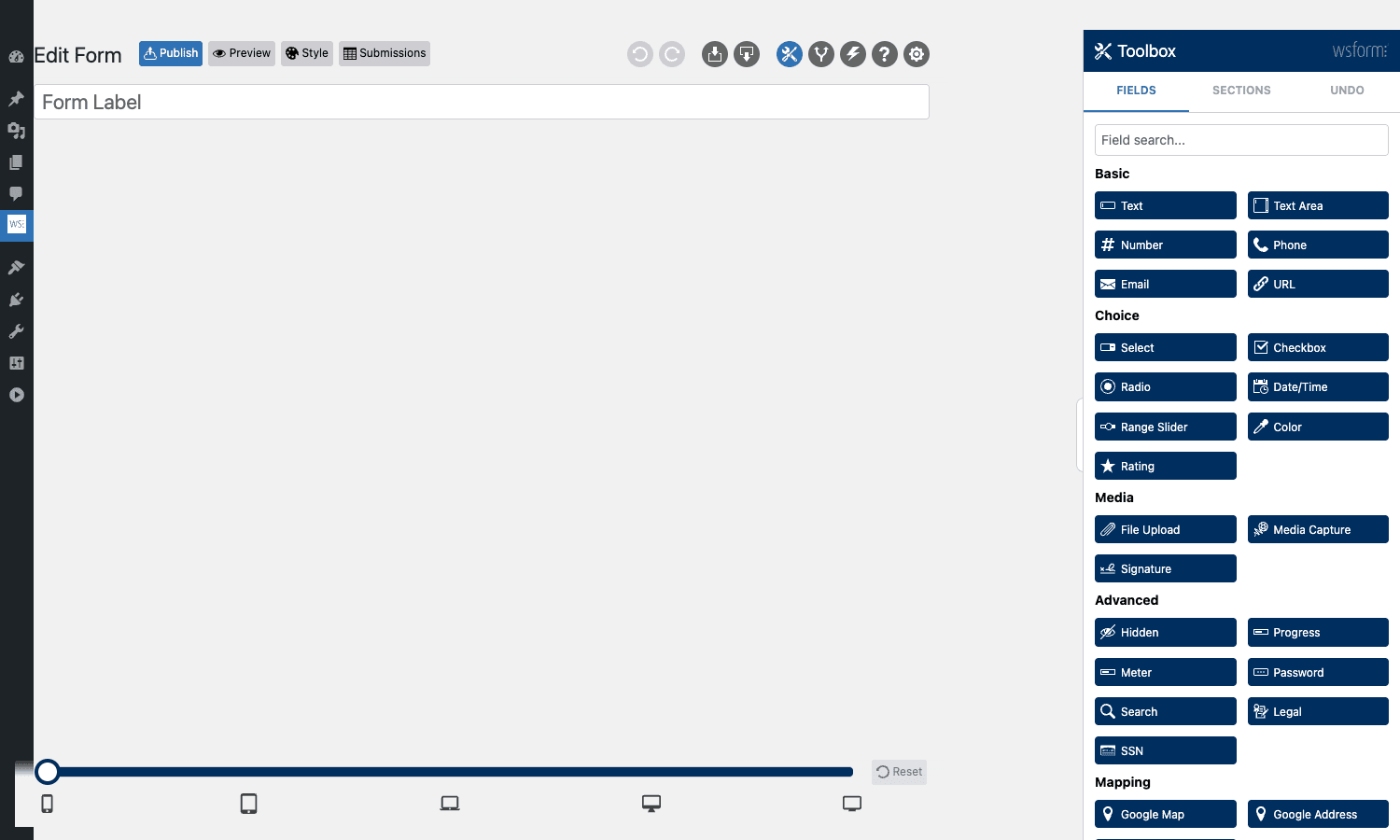
Table of contents
- What is WS Form PRO?
- Key features
- How the visual builder works
- Installation and setup
- Real-world use cases
- Settings tour
- Spam protection options
- Developer reference
- WS Form PRO vs other form builders
- Performance, compatibility, and gotchas
- Pricing and licensing
- Frequently asked questions
- Final thoughts
What is WS Form PRO?
WS Form PRO is a premium WordPress form-builder plugin made by WS Form (Westgate Studios). It’s a single-purchase, GPL-licensed product. The plugin ships as ws-form-pro and registers a top-level admin menu under "WS Form".
The pitch is simple. Most WordPress form builders started life as a page of admin tables and bolted on a visual layer years later. You can tell because the field editor is still a column of accordion panels, not a canvas. WS Form was built around the visual canvas from day one. The official WS Form site and its knowledge base document every field, action, and add-on in detail; this review is more about how the pieces fit together and what to expect once you start building. You see exactly what your form will look like, on every breakpoint, while you build it. Form labels are real text in a real grid, fields snap into rows, and section dividers are draggable. The "settings" for each field live in a sidebar that opens on click, not in a long stacked list below the form.
The plugin then layers everything you’d expect from a serious form tool on top of that canvas:
- A dedicated Styler that emits real CSS variables and themes, not WordPress admin presets that vanish when the active theme changes.
- A Submissions UI that’s structured like a CRM lite, with starring, status, edit-in-place, and column customization.
- A library of 60+ integrations (CRMs, email tools, payment gateways, AI services).
- Conditional logic that runs in the browser without round-tripping to the server, and a separate "Actions" engine for what happens after submit.
- Developer hooks everywhere: we counted over 200
wsf_filters in core, plus 40+ actions.
If you’re a freelancer or agency, that last point matters. WS Form is one of the easiest form plugins to extend from custom code without forking it or stuffing logic into a child theme.
Key features
- Real visual builder. Drag fields onto a grid canvas. Resize across XS / S / M / L / XL breakpoints. See the form rendered at exactly the width it’ll display on your site.
- Conditional logic at the field level. Hide, show, enable, disable, require, mark valid/invalid, set values, or run other actions when conditions match. Multiple conditions per field, AND/OR groupings.
- Action engine for post-submit work. Send email, save to DB, redirect, hit a webhook, push to a CRM, create a WP post, run a Zapier task, fire JavaScript. Multiple actions per form, each with their own conditions.
- Styler that emits real CSS. The included Styler edits color, typography, spacing, button styles, and field decoration in a separate UI and saves the result as a reusable style attached to one or many forms.
- 60+ official integrations. ActiveCampaign, ConvertKit, FluentCRM, HubSpot, Klaviyo, Mailchimp, MailerLite, Salesforce, Stripe, PayPal, Mollie, Authorize.Net, Slack, Twilio, Zapier, Zoom, OpenAI, plus dozens more. Each add-on is a separate plugin.
- Conversational mode. Render any form as a one-question-at-a-time Typeform-style experience without rebuilding it.
- E-Commerce add-on. Cart, Product, Coupon, Shipping, and Tax fields that turn a form into an order form or even a tiny standalone checkout flow.
- Submissions browser. Star, filter, search, edit, export, and re-fire actions on submitted entries.
- CSV and JSON import / export at the form template level (move a form between sites without copy-paste).
- Multi-step forms and progress bars built in, not as an add-on.
- WCAG-conscious accessibility with proper field labels, ARIA, focus management, and visible error states.
- Translation-ready. The plugin uses standard
__()/_e()calls with thews-formtext domain. Works with WPML, Polylang, TranslatePress, and similar. - REST API for every data source so external systems can pull dynamic field options.
- Gutenberg block that lets editors pick a form from a dropdown and preview it inline.
How the visual builder works
The first time you click WS Form > Add Form, you land on a tabbed template gallery. The tabs are organized by use case (Popular, Applications, Booking, Calculators, Contact, Demos, E-Commerce, GDPR, Google Maps, Health, Human Resources, Quizzes, Sales, Signup, Surveys) and each card is a live preview of what the form will look like, not a screenshot.
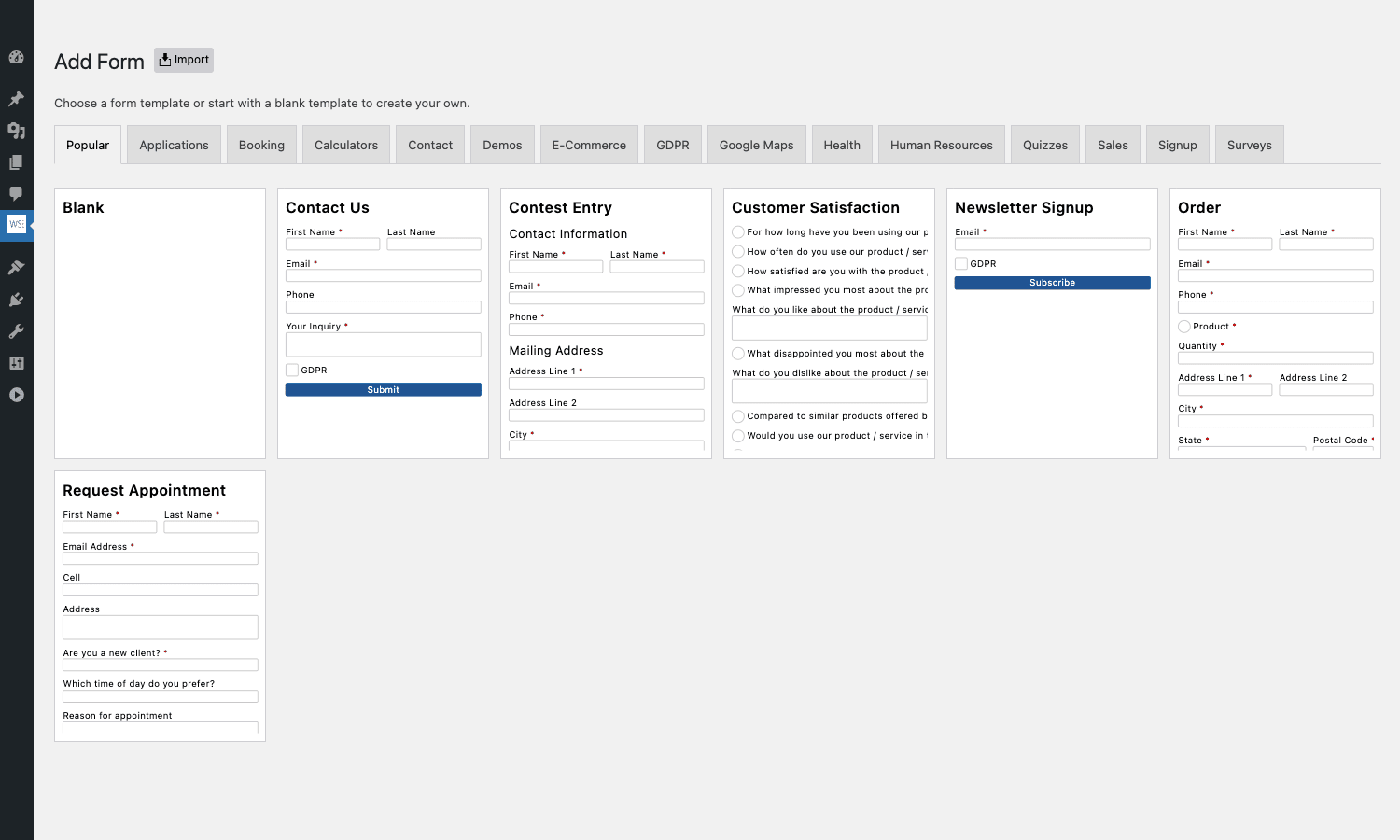
Pick a template (or "Blank" to start fresh), name it, hit Create, and you’re inside the builder.
The builder splits into three parts:
- The canvas in the centre. This is your form, rendered in the actual front-end stylesheet. Fields are real DOM elements, not placeholder boxes. The bar at the bottom switches the canvas between five breakpoints (XS / S / M / L / XL) so you can confirm the form looks right on each.
- The toolbox on the right. Field groups (Basic, Choice, Media, Advanced, Mapping, Spam Protection, Content) collapse and expand. Drag any field onto the canvas and drop it where you want.
- The top toolbar. Publish, Preview, Style, Submissions, plus icons for Undo / Redo, Import / Export, Settings, Actions, Conditional Logic, and Help.
Resize a field by grabbing the right edge and dragging. Reorder by dragging from the field header. Click any field to open its settings drawer, which has six or seven tabs (Basic, Validation, Conditional Logic, etc.). Drop a section divider to start a new row group. Add a tab to break the form into multi-step pages.
Conditional logic is the killer interaction. Click the lightning-bolt icon on any field, pick "when value of X is Y", then choose an action (Hide, Show, Enable, Disable, Require, Set Value, Run Action, Submit, and many more). All evaluated in the browser, so the form responds instantly without a server round-trip.
Installation and setup
The flow looks like this:
- Get the plugin. Download the WS Form PRO zip (from the official site if you’ve bought a license, or from the GPL Times product page if you’re using the GPL-licensed version).
- Upload via WP admin. Plugins > Add New > Upload Plugin > choose the zip > Install > Activate.
- Walk the welcome screen. The first time the plugin loads you’ll see a short setup wizard. It asks about your familiarity level and preferred CSS framework. Pick "Keep It Simple" if you just want the plugin to handle styles, or "I’m a Developer" if you want full control. Click Skip or Get Started.
- License the plugin. WS Form > Settings > License. Paste your license key and hit Save.
- Create your first form. WS Form > Add Form. Pick a template that matches what you need, or start blank.
- Configure the form. Click Publish in the top-right corner to make it visible. Open Settings (the cog icon) to set form-wide options like submission storage, redirect URL, and confirmation message.
- Set up an Action. Click the Actions icon in the toolbar to add what happens after submit. The default form ships with a Save Submission action and a Send Email action. Edit either by clicking on it. Add more by clicking the plus button.
- Embed the form. Copy the shortcode from the Forms list (
[ws_form id="1"]style) and paste it into any page or post. If you’re on the block editor, use the WS Form block instead, which adds an inline preview.
That’s the full minimum-viable setup. Five minutes for a single contact form. Ten minutes for a multi-step form with conditional logic and a CRM integration once you know the UI.
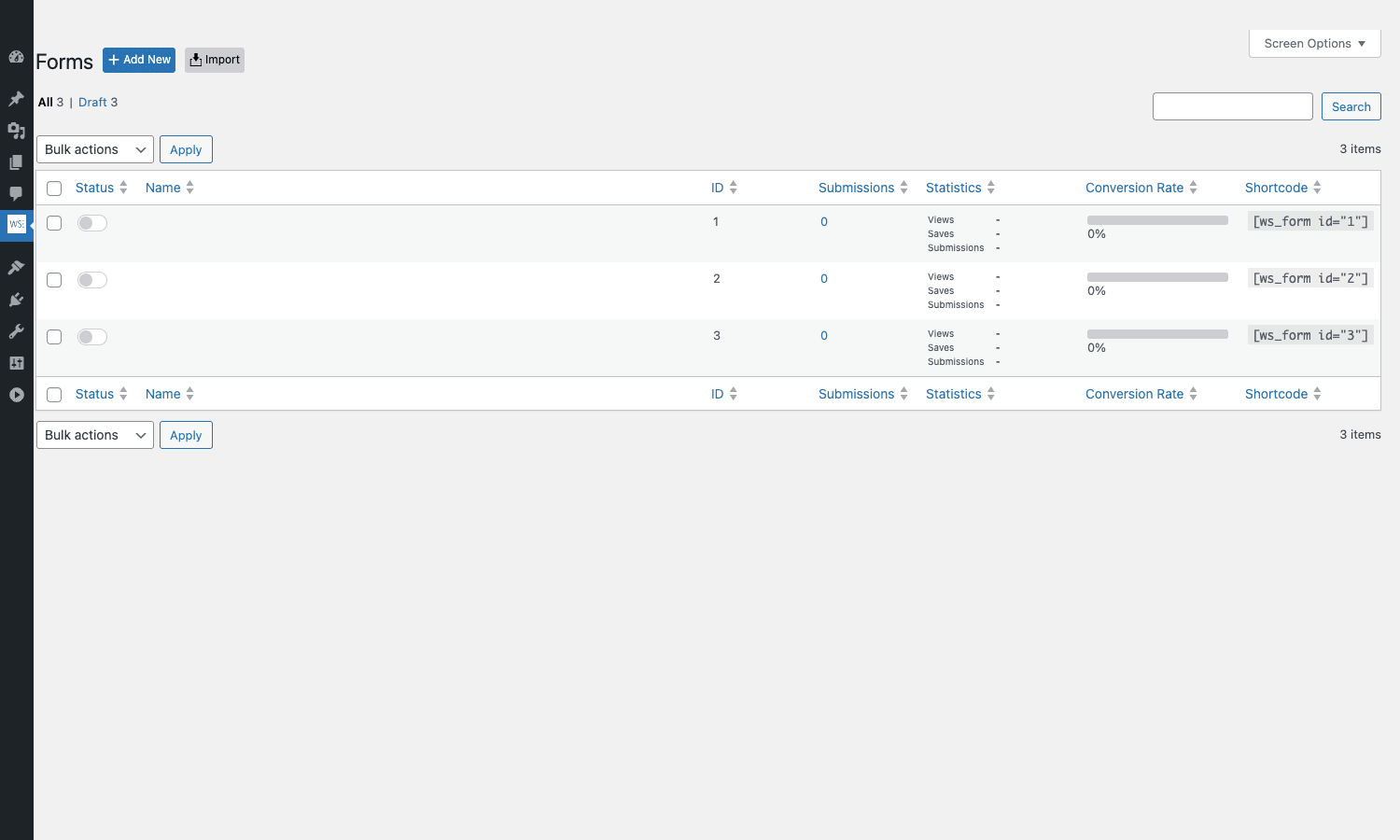
The Forms list is where you’ll spend most of your day-to-day. Each form gets a Status toggle (Draft / Published), an ID, the live submission and conversion stats, and a ready-to-copy shortcode column.
Real-world use cases
The template gallery is a quick way to see the range of forms WS Form covers out of the box. Beyond the Popular tab, the Applications tab alone has form templates for affiliate sign-ups, college enrollment, employment applications, membership applications, rental applications, and volunteer sign-ups.
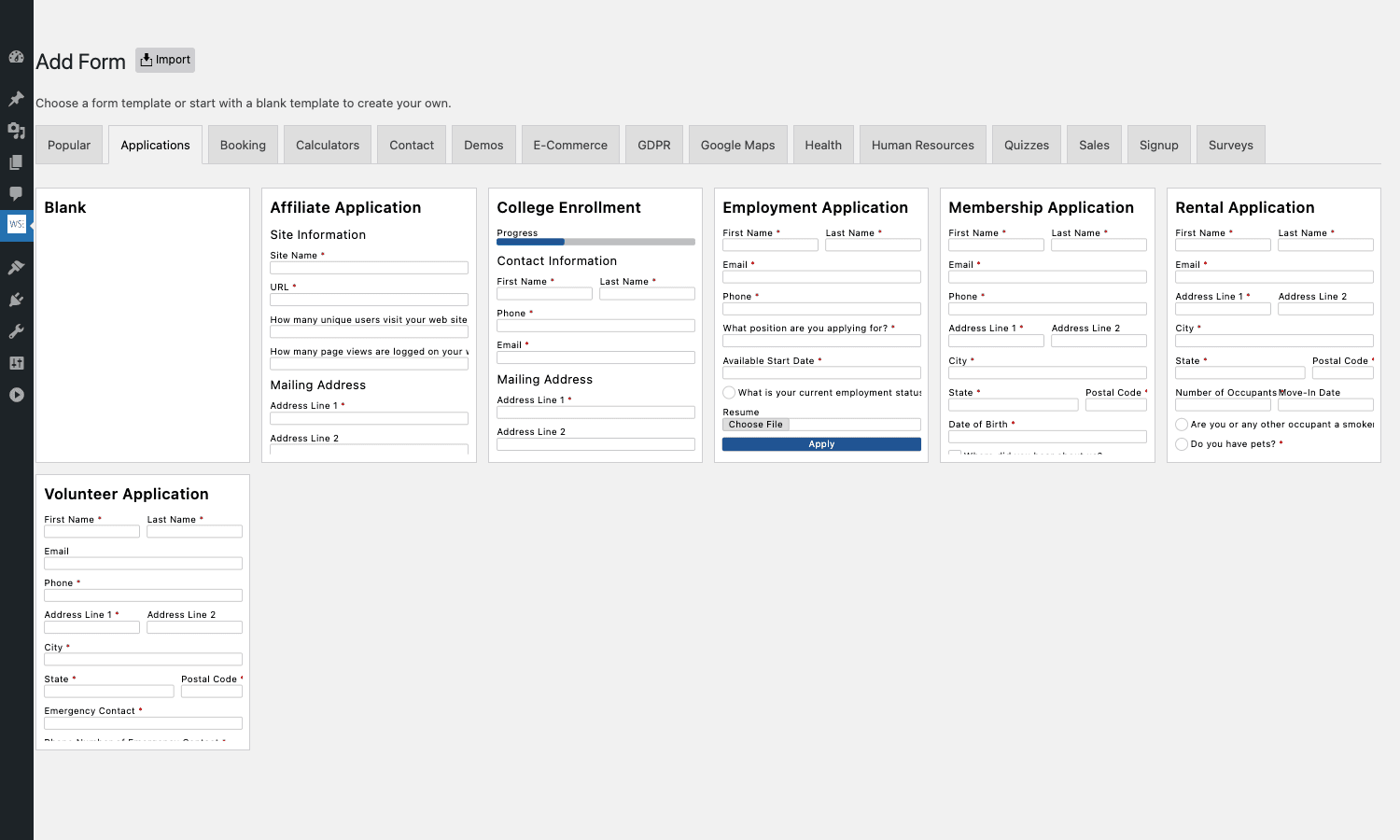
Each one is fully editable; treat them as starting points and customise from there.
WS Form PRO is one of those tools where the feature list reads like marketing copy until you’ve actually built a real form with it. A few common scenarios make the trade-offs clearer.
Multi-step lead-capture form for a SaaS landing page
You want a three-step form: company size, primary use case, contact details. The first step routes the second: enterprise picks a different question set than self-serve. The third step pushes the contact to your CRM if it’s a qualified lead, or to a "we’ll get in touch" autoresponder if not.
In WS Form you’d create a form with three Sections (one per step), drop a Progress field at the top, and add Conditional Logic on the second-step questions so they only show when the right company-size value is selected. Then add two Actions: a Webhook to your CRM with conditions on company size + use case, and a Send Email action that fires for everyone with appropriate template content. No add-ons, no JavaScript, no admin contortions.
Quote calculator for a service business
A logo-design studio wants a quote form that prices itself in real time: pick a service tier, pick add-ons, pick a turnaround speed, see the price update. The user submits and gets an email with a quote PDF.
WS Form’s Number, Select, and Range Slider fields all support calculations via the Variables tab. You can reference other field values, do math, format the result. Drop a Meter or Text field that displays the running total. Add a Conditional Action: if total > 5000, route the inquiry to the senior salesperson; otherwise to the default inbox.
GDPR-compliant signup with data export and erasure
For an EU-based audience you need an explicit consent field, a privacy-policy link, and a way for users to request their data or delete it. WS Form ships with a built-in Consent field plus Data Export Request and Data Erasure Request actions. You add the field, add the actions, and the plugin handles the rest. Submission records get tagged with the consent state, so when an export or erasure request lands, the right rows can be processed.
E-commerce order form (without launching a full WooCommerce store)
You’re selling a small set of products (say, four pricing tiers for an online course) and don’t want to install the entire WooCommerce stack. WS Form’s E-Commerce add-on gives you Cart, Product, Coupon, Shipping, and Tax fields plus Stripe / PayPal / Mollie / Authorize.Net checkout actions. The form itself becomes a checkout. Submissions store the order. You skip the WooCommerce admin entirely.
If you DO want a full store with carts, accounts, and shipping zones, WooCommerce is the right tool, but for "I have three SKUs and want a checkout page", WS Form is much lighter.
Conversational long-form survey
A long survey gets abandoned at high rates. WS Form’s Conversational mode renders the same form one question at a time, with smooth transitions, big buttons, and keyboard navigation. You build the form once in the standard builder, flip a setting, and it renders both ways depending on which shortcode flag you set.
Settings tour
Click WS Form > Settings and you’ll get a tabbed page. We’ll skip a couple to keep this short.
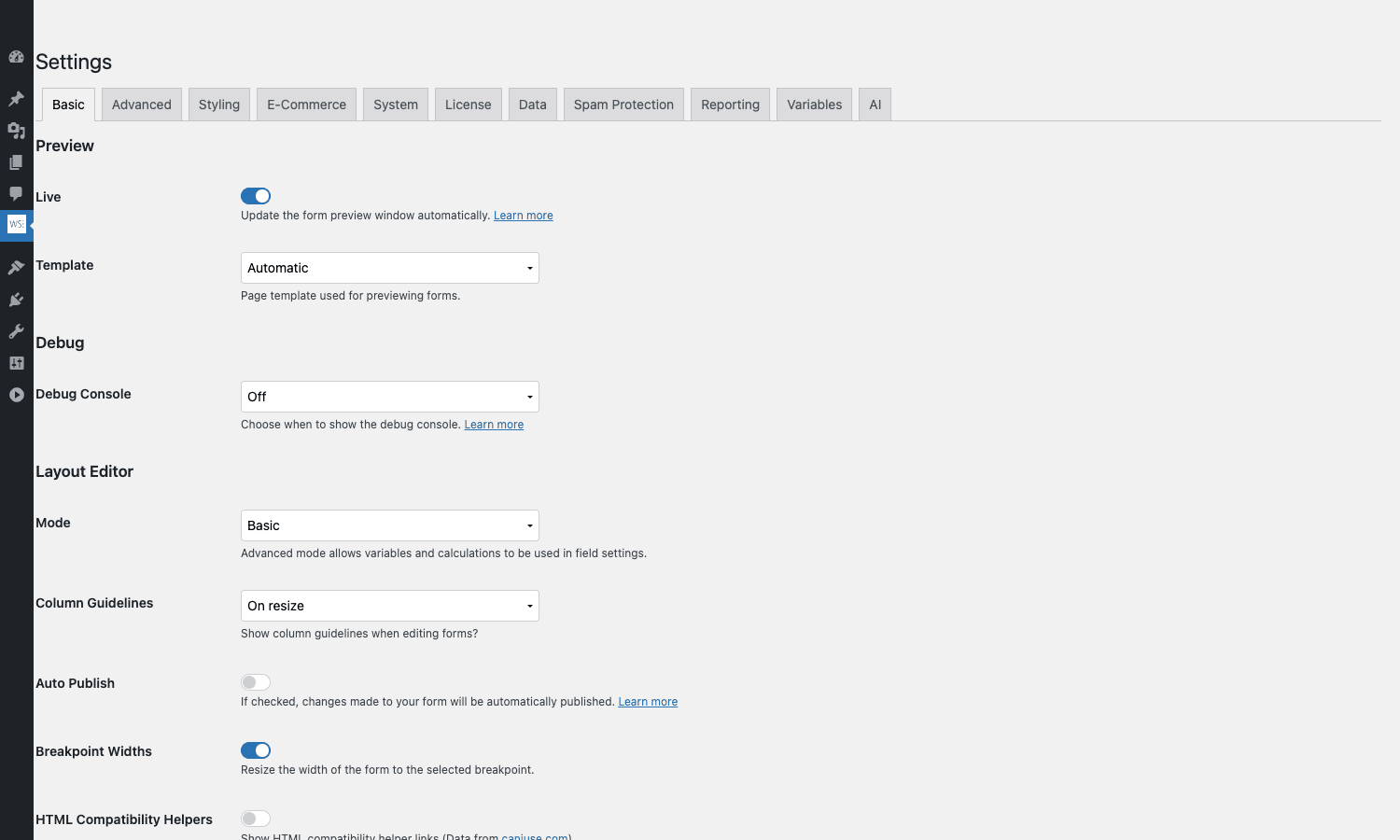
Basic. Preview behaviour (Live updates on/off, which template to render previews in), debug console, layout-editor mode (Basic vs Advanced – Advanced unlocks variables and calculations in field settings), and a couple of UI helpers.
Advanced. Where the plugin caches things, request timeouts, CSV delimiters, character encodings, and how the plugin handles uploaded files (where they go, how they’re sanitized, whether non-image MIME types are allowed).
Styling. Tweaks for how WS Form’s CSS variables map onto the active theme. If you want to force WS Form to inherit theme colors instead of using its own palette, this is where you do it.
E-Commerce. Currency, decimal precision, tax handling, and which payment gateway plugins are active. Only useful if you have the E-Commerce add-on installed.
System. Phpinfo-style status panel showing server config, plugin version, MySQL version, and a row of "are you good?" indicators for things like file_uploads, allow_url_fopen, and intl extension status.
License. Paste your key, see the expiry date, and toggle automatic updates.
Data. Default field data sources (post types, taxonomies, ACF fields, Toolset bindings) and how the plugin caches dynamic option lists.
Reporting. Send periodic usage reports to your inbox.
Variables. Custom variables you can reference in field values, action settings, and conditional logic. Useful for "store the current user ID in a hidden field" or "compute the form-wide discount once and reuse it".
AI. Connect an OpenAI / Anthropic / etc. key so the plugin can suggest field types, write field labels, or generate validation rules from a natural-language description.
Spam protection options
WS Form rolls multiple captcha and anti-spam mechanisms into one tab rather than making you install a dozen add-ons.
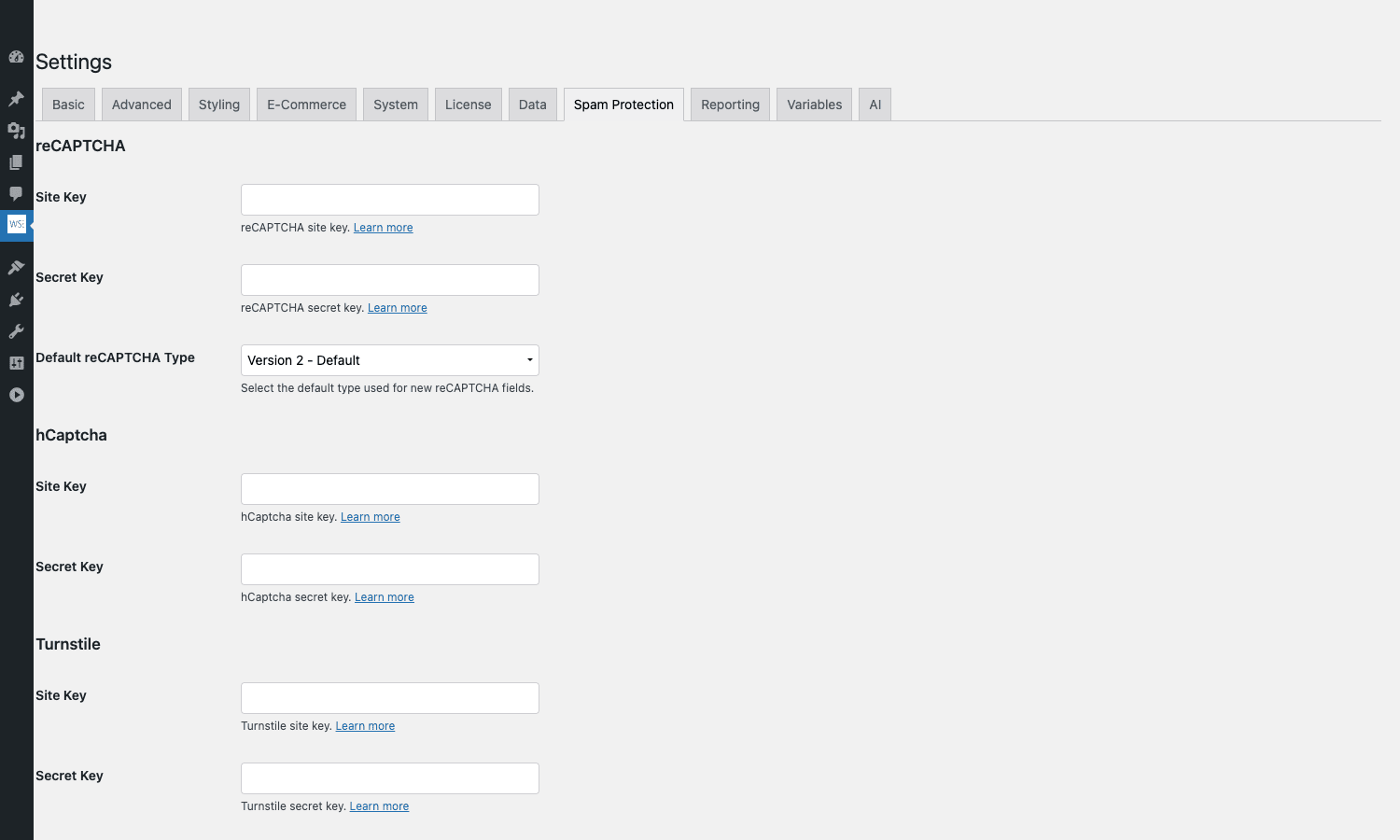
You get:
- reCAPTCHA (v2 checkbox, v2 invisible, v3 score-based).
- hCaptcha (privacy-friendly drop-in for reCAPTCHA).
- Cloudflare Turnstile (newer, no-cookies, "Are you human" style).
- CaptchaFox (privacy-focused European captcha service).
- TrustedForm (independent record of a user’s interaction, often required by US insurance/legal compliance).
- Consent Verification (a real field that requires an explicit opt-in to submit).
- Plus you can drop the standard honeypot behaviour onto a hidden field with one filter.
Each one is configured by pasting the site/secret keys in the Spam Protection settings tab; then any form that includes that captcha field automatically uses your global keys. No per-form re-entry.
Developer reference
This is the part that separates WS Form from the rest of the WordPress form market. Almost everything is filterable. We’ll cover the patterns you’ll actually use, with code snippets for each.
The shortcode and block
For end users, embedding a form is one line:
[ws_form id="1"]
The id attribute is the form ID from the Forms list. Optional attributes include class (extra wrapper class), style (style ID for the Styler), and behavior (defaults to standard, switch to conversational for the Typeform-style rendering).
In the block editor there’s a WS Form block (wsf-block/form-add). It renders an inline preview and lets editors pick a form from a dropdown. It uses the same shortcode under the hood.
There’s also a stats shortcode: [ws_form_stat] which prints aggregated counts (Views, Saves, Submissions, Conversion Rate) for a given form or form set.
Hook the form object before save
Maybe you want to enforce a max number of fields, sanitize labels, or inject a hidden field on every form. Filter wsf_form_object and you get the full form definition as a PHP object before it’s saved or rendered.
add_filter( 'wsf_form_object', function( $form ) {
 if (! is_object( $form ) ) {
 return $form;
 }

 // Inject a hidden tracking field on every form
 $form->groups[0]->sections[0]->fields[] = (object) array(
 'id' => 'utm_source',
 'type' => 'hidden',
 'label' => 'UTM Source',
 'meta' => (object) array( 'default_value' => '' ),
 );

 return $form;
} );
Customize the email action
The Email action exposes a filter for every piece: subject, message, recipient, sender, CC, BCC, reply-to, attachments, headers, even the CSS used to style the email template. Want to enforce that every email gets BCC’d to the office manager?
add_filter( 'wsf_action_email_bcc', function( $bcc, $form, $submit ) {
 $office_manager = 'manager@example.com';
 if ( empty( $bcc ) ) {
 return $office_manager;
 }
 return $bcc. ','. $office_manager;
}, 10, 3 );
Or send the email as plain text instead of HTML by replacing the template:
add_filter( 'wsf_action_email_template', function( $template, $form, $submit ) {
 return '{message}';
}, 10, 3 );
Tamper with the webhook payload
The Webhook action posts a JSON payload to your URL. Filter wsf_action_webhook_payload to add fields, remove fields, rename keys, or wrap the whole payload in a parent object that your downstream system expects.
add_filter( 'wsf_action_webhook_payload', function( $payload, $action, $form, $submit ) {
 // Wrap in {data:...} envelope, add a source tag.
 return array(
 'source' => 'wordpress-'. get_option( 'blogname' ),
 'data' => $payload,
 );
}, 10, 4 );
For HTTP headers, use wsf_action_webhook_http_headers:
add_filter( 'wsf_action_webhook_http_headers', function( $headers, $action, $form, $submit ) {
 $headers['X-Site-Source'] = home_url();
 return $headers;
}, 10, 4 );
React to form lifecycle events
The wsf_form_create, wsf_form_update, wsf_form_publish, wsf_form_trash, and wsf_form_delete actions all fire at the relevant moment. Hook them when you want to sync forms across multiple sites or trigger a deploy on form publish:
add_action( 'wsf_form_publish', function( $form ) {
 // Bust an external cache when a form is published.
 wp_remote_post( 'https://my-cache.example.com/purge', array(
 'body' => array( 'form_id' => $form->id ),
 ) );
} );
Track every submission
wsf_submit_post_create fires after a new submission row lands. Use it to push the submission to an external logger, increment a counter, or notify a Slack channel:
add_action( 'wsf_submit_post_create', function( $submit ) {
 if ( $submit->status!== 'complete' ) {
 return;
 }
 // Mirror complete submissions to your analytics endpoint
 wp_remote_post( 'https://analytics.example.com/wsf-event', array(
 'body' => wp_json_encode( array(
 'form_id' => $submit->form_id,
 'submit_id' => $submit->id,
 'when' => current_time( 'mysql' ),
 ) ),
 'headers' => array( 'Content-Type' => 'application/json' ),
 ) );
} );
Per-field tamper hooks
Every field type has its own filter chain. The base wsf_field_value_get filter lets you mutate a stored value when other code reads it. Combine with wsf_field_value_get_post to mutate just the POST-side value.
add_filter( 'wsf_field_value_get', function( $value, $field, $submit ) {
 if ( 'email' === $field->type && is_string( $value ) ) {
 $value = strtolower( trim( $value ) );
 }
 return $value;
}, 10, 3 );
REST endpoints for dynamic field data
WS Form registers a REST namespace (ws-form/v1 by default, defined in WS_FORM_RESTFUL_NAMESPACE) and exposes a per-data-source endpoint that returns option lists. The built-in data sources cover Post, Post Status, Term, User, ACF, and Toolset. Each registers a POST endpoint at /wp-json/ws-form/v1/data-source/<id>/ that returns paginated, filterable JSON.
You can register your own data source by extending WS_Form_Data_Source and calling wsf_data_source_register. The internal classes in includes/data-sources/class-ws-form-data-source-*.php are the right starting point. The pattern is: register the data source, implement the get and api_post methods, ship it as a custom plugin or as part of a theme. Once registered, your data source shows up in the Select/Radio/Checkbox field’s "Data Source" dropdown alongside the built-ins.
Conditional logic from PHP
The visual conditional-logic UI is fine for most cases, but sometimes you want a server-side condition: "if the form contains a field with X, then run Y". Hook wsf_submit_status to mark a submission as complete, pending, or spam based on whatever logic you like:
add_filter( 'wsf_submit_status', function( $status, $submit, $form ) {
 $data = $submit->meta['data']?? array();
 // Auto-mark as pending if value of field 'requires_review' is set
 if (! empty( $data['requires_review'] ) ) {
 return 'pending';
 }
 return $status;
}, 10, 3 );
Disabling features by capability
WS Form respects WordPress capability checks. The admin UI checks manage_options_wsform for settings, edit_form for edits, create_form for new forms, and read_form / read_submission for read access. You can map these to existing roles with any capability-management plugin, or filter editable_roles to remove form-editing rights from authors and contributors.
The full filter list
We counted over 200 wsf_* filters in core and 40+ actions. The categories you’ll use most: form lifecycle (wsf_form_*), submission lifecycle (wsf_submit_*), email/webhook action settings (wsf_action_email_*, wsf_action_webhook_*), style theming (wsf_color_*), and integration enablement (wsf_*_enabled). The plugin’s official knowledge base documents each filter with a code example, which is the right reference once you know roughly what you want to override.
WS Form PRO vs other form builders
Form plugin choice depends on what you’re optimising for. Here’s how WS Form PRO compares with the other paid form builders on the WordPress market.
vs Gravity Forms
Gravity Forms is the long-time market leader and has a deeper add-on catalog (especially via the Gravity Perks bundle). Its editor is functional but feels dated next to WS Form’s visual canvas. Gravity has stronger conditional-pricing and donation-form integrations out of the box. WS Form has the better builder UX, built-in styler, and conversational mode without an add-on. If you want the deepest ecosystem and don’t mind a more clinical editor, Gravity. If you want the modern visual builder, WS Form.
vs WPForms
WPForms is built for non-technical users. The editor is friendly, the templates are polished, and the marketing is excellent. Where it falls down is feature tiering: most useful things (conditional logic, payments, surveys, multi-step) live behind the Pro/Elite tier upgrades. WS Form has a single PRO product that ships with everything; you pay once per license tier (which scales by sites, not features). For a small site that needs only a contact form, WPForms is friendlier. For a site that will eventually need everything, WS Form is simpler in the long run.
vs Fluent Forms
Fluent Forms is the lightweight challenger that markets itself as "fast and modern". It’s genuinely good and the price point is competitive. The trade-off versus WS Form is around the builder model: Fluent uses a column-and-row editor, not a true drag canvas, and its styling is preset-based rather than CSS-variable based. Pick Fluent if you want a small, snappy plugin with good defaults. Pick WS Form if you want to design forms visually and ship custom styles per form.
vs Formidable Forms
Formidable Forms Pro is the "forms plus data" plugin. Its key differentiator is Views, which lets you turn submitted form data into a front-end table, calendar, or directory. WS Form does not duplicate that; it sticks to forms. If you’re building a directory or listing site from submitted data, Formidable. If you just need forms, WS Form is the cleaner choice. For pure tabular data displays, Ninja Tables Pro handles that side of things better than either form plugin.
vs Forminator
Forminator Pro is the WPMU DEV form plugin. It’s part of their hosting bundle, has a generous free tier on WordPress.org, and ships polls/quizzes/calculators alongside standard forms. It’s good for sites already on WPMU DEV hosting. Outside that ecosystem, the developer hooks are sparser and the integration catalog is smaller. WS Form wins on the visual builder and on extensibility.
vs FormCraft
FormCraft is the CodeCanyon perennial. Lower price point, single purchase, focused on style customization. It’s a fine pick if you want a one-off design-led form plugin and don’t need a deep integration list. WS Form’s catalog of CRM, email-marketing, and payment add-ons is much broader, and its developer hooks are far more extensive.
vs Contact Form 7
CF7 is free and ships from WordPress.org. It’s the lightest possible option. If your form is a single contact form on a single page, you might never need anything more. WS Form is the better choice the moment you want conditional logic, file uploads handled well, spam protection beyond Akismet, multi-step UX, or any kind of CRM integration. CF7 makes you bolt on a separate plugin for each of those.
Performance, compatibility, and gotchas
A few honest notes from spending time with the plugin.
Performance
WS Form’s front-end footprint is reasonable but not zero. Each form pulls in its own CSS and a JavaScript runtime for conditional logic. By default the plugin only loads those assets on pages that contain a form (via shortcode or block), so a non-form page stays clean. If you embed many forms across the site, enable asset concatenation via your performance plugin of choice (WP Rocket handles WS Form correctly out of the box) and the per-page cost drops further.
The visual builder itself is heavier than a basic admin form editor; on slower hardware the first load can take a second or two. Once loaded it’s responsive. Field-level edits don’t trigger full re-renders.
Compatibility
WS Form plays nicely with the major page builders. Elementor Pro treats it as a shortcode widget. Beaver Builder, Bricks Builder, Oxygen, and Divi all accept the WS Form shortcode or block. For Gutenberg-only sites the WS Form block adds proper inline preview.
It works with multilingual plugins out of the box. WPML treats form labels as translatable strings. Polylang and TranslatePress do the same via their string-translation modules.
For caching, WP Rocket, WP-Optimize, and Cache Enabler all correctly skip the form’s AJAX endpoints. If you’re seeing stale form output, check that your cache plugin is excluding wsf- AJAX requests.
Known gotchas
A few things that have tripped me up:
- First-run setup wizard. The welcome flow is required the first time you visit the admin. If you skip it via URL hacking, some buttons in the Add Form template gallery silently no-op. Just walk the welcome screen once.
- Custom roles and
manage_options_wsform. Settings are gated by the custom capabilitymanage_options_wsform, notmanage_options. If you have non-admin editors who need access to settings, map this capability via a role-management plugin. - Large file uploads. Default WordPress upload limits apply. If you’re collecting big files (videos, design files), bump
upload_max_filesizeandpost_max_sizein PHP config, and check the Advanced settings for the WS Form file-handling toggles. - Conditional logic on Hidden fields. A Hidden field’s value can drive conditional logic, but you can’t make a Hidden field "appear" because it’s hidden by definition. If you want a field that’s invisible at first and reveals on a condition, use a regular field with a default Hide condition.
- Conversational mode and CSS conflicts. Some themes apply heavy resets to
<button>and<input>that fight WS Form’s conversational layout. If the buttons look wrong in conversational mode, the fix is usually to inherit instead of override. - REST API namespace collisions. The plugin uses
ws-form/v1. If some other plugin registersws-form/v2you’re fine, but a name collision onws-form/v1itself would be ugly. We have not seen this in practice.
Pricing and licensing
WS Form PRO’s official pricing scales by the number of sites a license covers. There are typically three tiers: Personal (1 site), Freelance (5 sites), and Agency (25+ sites). All tiers include the full feature set, every official add-on, and lifetime add-on access (with annual renewals for updates and support). There’s no "Pro" vs "Elite" upsell ladder.
The plugin is GPL-3.0+ licensed. That means anyone who has a copy can legally redistribute it under the same license. You install it on any number of your own sites, get updates whenever a new version is released, and skip the per-site-key activation step.
If you want vendor email support and to fund continued development, buying directly from wsform.com is the right call.
Frequently asked questions
Can WS Form PRO replace WooCommerce for small product sales?
For a handful of products without inventory, shipping zones, or accounts, yes. The E-Commerce add-on adds Cart, Product, Coupon, and checkout fields. Submissions become orders. Once you need product variations, real inventory tracking, customer accounts, or shipping zones, switch to WooCommerce.
Does it work with the block editor?
Yes. WS Form registers a Gutenberg block (wsf-block/form-add) that lets editors pick a form from a dropdown and preview it inline. You can still use the shortcode if you prefer.
How does conditional logic differ from Gravity Forms’ conditional logic?
Gravity evaluates conditional logic on the server during AJAX validation and re-renders the fields. WS Form evaluates conditions in the browser on every field change, so the form reacts instantly without a request. The trade-off: server-side validation still runs on submit, so anything you hide client-side is also enforced server-side, but the UX is snappier.
Can I import forms from another plugin?
WS Form ships with a Migrate page (WS Form > Migrate) that imports from Contact Form 7, Gravity Forms, WPForms, Ninja Forms, and a few others. The conversion is template-level; complex conditional rules may need manual review. JSON export/import is also supported for moving forms between WS Form sites.
How do I version control my forms?
Export the form as JSON (Tools > Export inside the editor), commit it to your repo, import it on the target site. The plugin also has a built-in History panel inside the editor that lets you roll back recent changes, but that’s per-site state, not a real version-control system.
Does it support repeating sections / repeater fields?
Yes. Add a Section field, mark it as a Repeater in its settings, and the front-end gets an "add another" button. Useful for "list your other websites" or "add a guest to your booking" patterns.
Is the data stored in the WordPress database?
Yes, by default. WS Form creates its own tables (prefix wsf_ by default) for forms, submissions, styles, and supporting metadata. You can configure submissions to be stored, not stored, or stored only on errors. If you don’t need a record (because the form pushes straight to a CRM), turn submission storage off.
What about GDPR compliance?
The plugin has built-in Consent fields, plus Data Export Request and Data Erasure Request action types that respond to user data requests automatically. Combine that with a Consent Verification field on every form and you have a defensible GDPR setup.
Can I theme the form to match my site exactly?
Yes. The Styler is a separate UI (WS Form > Styles) that builds a reusable theme: colors, fonts, spacing, button styles, field decoration, error colors. Apply a style globally or per form. Output is real CSS variables, so further tweaks in your theme stylesheet are easy.
Can I edit a submitted entry from the admin?
Yes. Open the Submissions list, click a row, edit any field, save. Re-fire actions if you want the change pushed back to your CRM. That’s not something most form plugins do well; WS Form treats submissions as first-class editable records.
Does WS Form work with caching plugins like WP Rocket?
Yes. WS Form’s AJAX endpoints are correctly excluded by WP Rocket out of the box. For other cache plugins, exclude any URL containing wsf- from the cache rules.
Final thoughts
WS Form PRO is the form builder I keep coming back to when a project is bigger than a single contact form. The visual builder makes form design feel like front-end work instead of admin work. The Styler emits real CSS that holds up across theme changes. The integrations catalog is wide enough that most "we need to push form data to X" requests are a one-time setup. The hooks and filters mean a developer can extend almost anything without forking the plugin.
It’s not the cheapest form plugin and it’s not the lightest. If your only need is a contact form on a brochure site, you don’t need this. But if your form work goes beyond "name, email, message", WS Form will pay for itself in the first complex form you build with it.