

Pick any WordPress security plugin discussion and the same three names come up: Wordfence, Solid Security (formerly iThemes), and Defender. Wordfence has the most market share. Solid is the iThemes-pedigreed one. And Defender is the WPMU DEV one, which most reviewers gloss over because WPMU DEV’s brand is associated with the company’s wider ecosystem (Smush, Hummingbird, SmartCrawl) rather than security specifically. That’s a shame because Defender Pro is a legitimately strong security plugin in its own right, and the free version on WordPress.org is one of the most generous free security tools around.
This review walks through what Defender Pro is, what its free version covers, what the Pro upgrade adds, how it compares to Wordfence and Solid Security, every security module (there are over a dozen), how the hardening and scan flows actually behave, the developer hook surface, and the gotchas that bite real installs.
Table of contents
- What Defender Pro actually is
- Free Defender versus Defender Pro
- Defender vs Wordfence vs Solid Security
- Who Defender is the right pick for
- Installation and the activation flow
- The Defender dashboard
- Security Recommendations: the hardening engine
- Malware Scanning
- Firewall: lockouts, geo blocking, IP banning
- Two-factor authentication setup
- Audit logging
- Mask Login URL
- Security headers
- Notifications and reports
- Pwned passwords and password protection
- Developer reference
- Performance impact
- Common gotchas
- Pricing
- FAQ
- Final thoughts
What Defender Pro actually is
Defender is a security plugin for WordPress. It bundles hardening recommendations, malware scanning, a firewall, login lockouts, two-factor authentication, an audit log, security headers, and several smaller features under one menu. The plugin is developed by WPMU DEV (the parent company is Incsub), the same team that builds Smush, Hummingbird, SmartCrawl, and Forminator.
There are two distributions:
- Defender (free, on WordPress.org). The core security feature set with most of the hardening, malware scanning, and firewall modules. Generous free tier.
- Defender Pro (paid extension from WPMU DEV). Adds cloud-based malware scanning, blocklist monitoring, scheduled reports, longer audit log retention, and the AntiBot Global Firewall (a community-shared IP blocklist across WPMU DEV’s network of 750,000+ sites).
The free and Pro versions share the same plugin codebase. Pro features unlock once you connect the site to your WPMU DEV Hub account.
Free Defender versus Defender Pro
Knowing the split prevents you from paying for things you don’t need.
Free Defender includes
- All 12 hardening recommendations. Disable file editor, hide WP version, change DB prefix, disable trackbacks/pingbacks, prevent PHP execution in uploads, etc.
- Local malware scanning. Checks WordPress core file integrity, looks for known malicious patterns in PHP files, flags suspicious file changes.
- Firewall. Login lockout, 404 lockout, user-agent lockout, IP banning (manual + automated), geographic blocking.
- Two-factor authentication. TOTP-based 2FA per user, with multiple provider support (Google Authenticator, Authy, etc.).
- Mask login URL. Move
/wp-login.phpto a custom path so script kiddies can’t brute-force the standard URL. - Audit logging. Records meaningful admin actions (logins, plugin activations, post edits) for 30 days locally.
- Security headers. Adds HSTS, X-Frame-Options, X-Content-Type-Options, CSP headers.
- Pwned passwords check. Flag users whose passwords appear in known breach databases (uses Have I Been Pwned).
- Anti-spam captcha. ReCAPTCHA, hCaptcha, and Altcha (newer CAPTCHA-less option) on login, registration, lost-password, comment forms.
- Fake bot detection. Block bots claiming to be Googlebot/Bingbot but coming from non-Google IPs.
Defender Pro adds
- Cloud malware scanning. Deeper scans powered by WPMU DEV’s cloud (the free version is local-only).
- Blocklist monitoring. Daily check against major DNS blocklists (Google Safe Browsing, etc.). Alerts you if your domain gets flagged.
- AntiBot Global Firewall. Shared community IP blocklist across the WPMU DEV network. Bad IPs blocked on one site get blocked on all connected sites.
- Scheduled reports. Email security summary daily/weekly with scan results, lockout counts, audit summary.
- Extended audit log retention. Beyond the 30-day local cap.
- Quarantine. Detected malware is moved to a quarantine folder for review instead of being immediately altered.
- Server-level WAF rules. Web Application Firewall rules pushed from WPMU DEV Hub (advanced, multi-site only).
- Premium support.
If you have a single low-traffic site and you’re security-conscious, the free version is genuinely enough. Pro pays off when you have several sites (the shared blocklist becomes more valuable as your network grows), or when you want the scheduled reports for compliance/peace-of-mind.
Defender vs Wordfence vs Solid Security
The honest comparison. (We cover Wordfence Premium and Solid Security Pro elsewhere on the blog.)
Defender
- Pros. Lightest of the three. Generous free tier. Clean admin UI. Tight integration with the rest of the WPMU DEV stack (Smush, Hummingbird) if you use them.
- Cons. Cloud features require WPMU DEV Hub account connection. Smaller community/tutorial library than Wordfence.
Wordfence
- Pros. Largest market share. Most-trusted brand in WP security. Mature threat-intelligence feed (their own malware research team). Real-time IP blocking from a global network.
- Cons. Heavier on resources (some hosts even ban it on shared plans). Premium is the highest-priced of the three.
Solid Security (iThemes)
- Pros. Strong file change detection. Solid (pun intended) hardening features. Tight integration with the Solid Backups (formerly BackupBuddy) stack.
- Cons. UI feels older than Defender’s. Less polished free tier.
If you already use WPMU DEV plugins, Defender is the obvious pick because everything plugs into the same Hub dashboard. If you don’t have a strong preference, Wordfence has the larger reputation and Defender has the lighter footprint. Solid Security sits in the middle.
Who Defender is the right pick for
Three audiences fit.
Single-site owners who want strong security without a heavy plugin
The 12 hardening recommendations alone make most WordPress sites materially safer in 20 minutes of setup. Defender’s free tier covers this entirely. You don’t need to pay anything if your goal is "lock down a single small business site."
Agencies running many client sites on WPMU DEV Hub
The killer feature for agencies is the AntiBot Global Firewall plus the unified Hub dashboard. Once your client sites are connected, you manage security across all of them from one place, get cross-site threat intelligence, and push WAF rule updates from the central console.
Sites that don’t want Wordfence’s resource footprint
Wordfence is excellent but heavy. On shared hosting it can use significant memory; some budget hosts cap or block it. Defender is lighter (the local scan doesn’t ship a full malware signature database; the firewall uses native PHP without a giant rules table). For shared-host sites that want security without resource warnings, Defender often wins by elimination.
Installation and the activation flow
Standard WordPress plugin install.
Plugins -> Add New -> Upload Plugin -> Defender Pro zip -> Install Now -> Activate. The plugin adds a "Defender Pro" top-level menu in the WP admin sidebar (free version shows just "Defender").
First-run onboarding
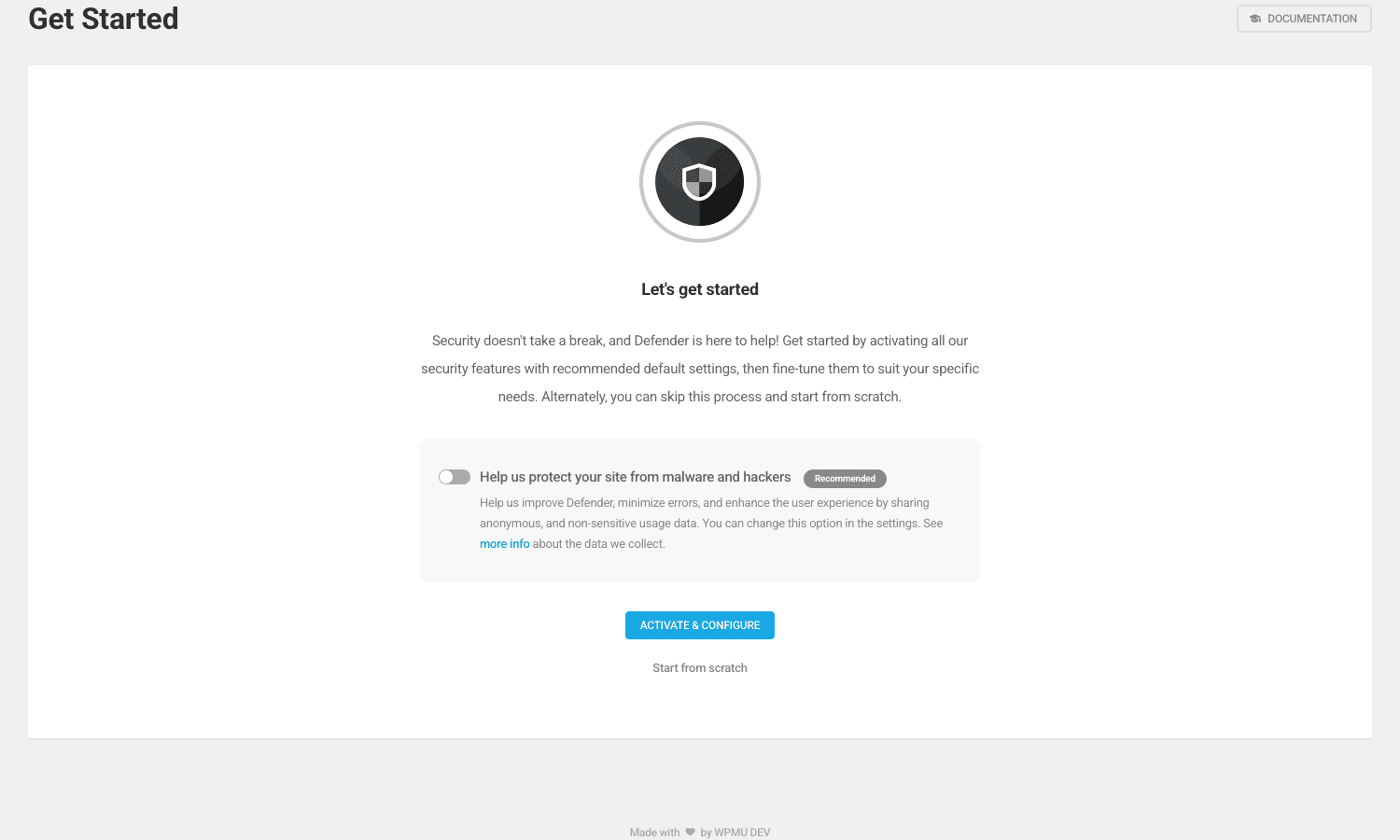
On first launch, Defender shows a "Let’s get started" screen with two paths:
- Activate & Configure runs the auto-configuration wizard. Defender applies the recommended default settings for hardening, scanning, and the firewall in one click. Most users should pick this, the defaults are sane.
- Start from scratch skips the wizard. You configure each module manually. Pick this if you’re already familiar with the plugin and want fine control.
After either path, the second screen prompts you to connect to the WPMU DEV Hub for the AntiBot Global Firewall. You can connect (free WPMU DEV account is enough) or click "Remind me later" to skip. The connect step unlocks the Pro cloud features.
The Defender dashboard
Defender Pro -> Dashboard is the central overview.
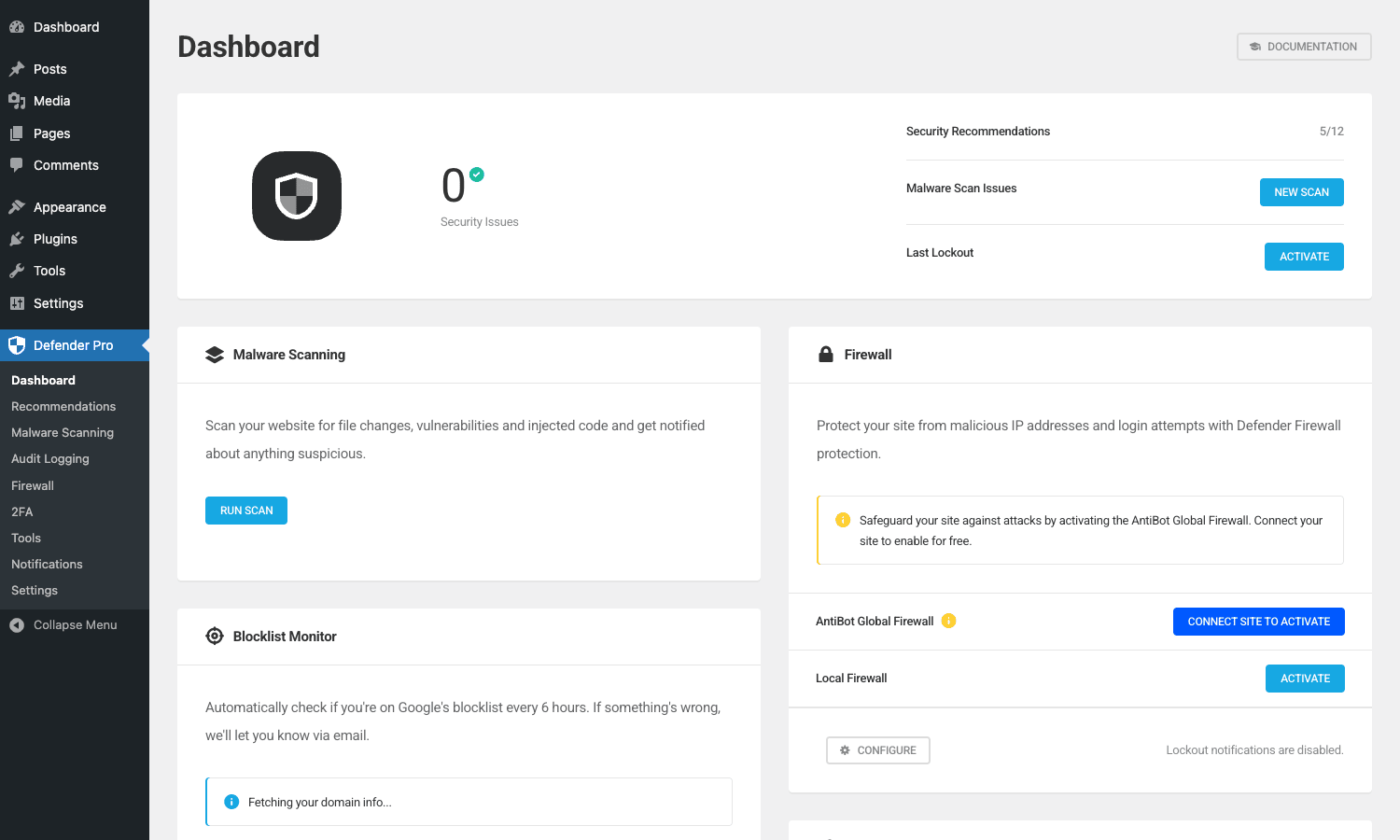
What you see:
- Security Issues counter. Number of open security issues (hardening not yet applied, scans failed, etc.). Goal is zero.
- Security Recommendations counter. How many of the 12 hardening recommendations you’ve applied. The Pro tier shows 5/12 by default after Activate & Configure runs the safe ones for you.
- Malware Scanning card. Last scan status and a "Run Scan" button.
- Firewall card. Lockouts in the last 24 hours, with "Activate" or "Configure" buttons depending on state.
- Blocklist Monitor card. Status of your domain against major DNS blocklists.
- Other module cards for 2FA, audit log, mask login, security headers (depending on what’s enabled).
The dashboard is read-only at-a-glance. You go to each module’s dedicated page to actually configure.
Security Recommendations: the hardening engine
Defender Pro -> Recommendations. The 12-item hardening checklist that WordPress security people have been talking about for years.
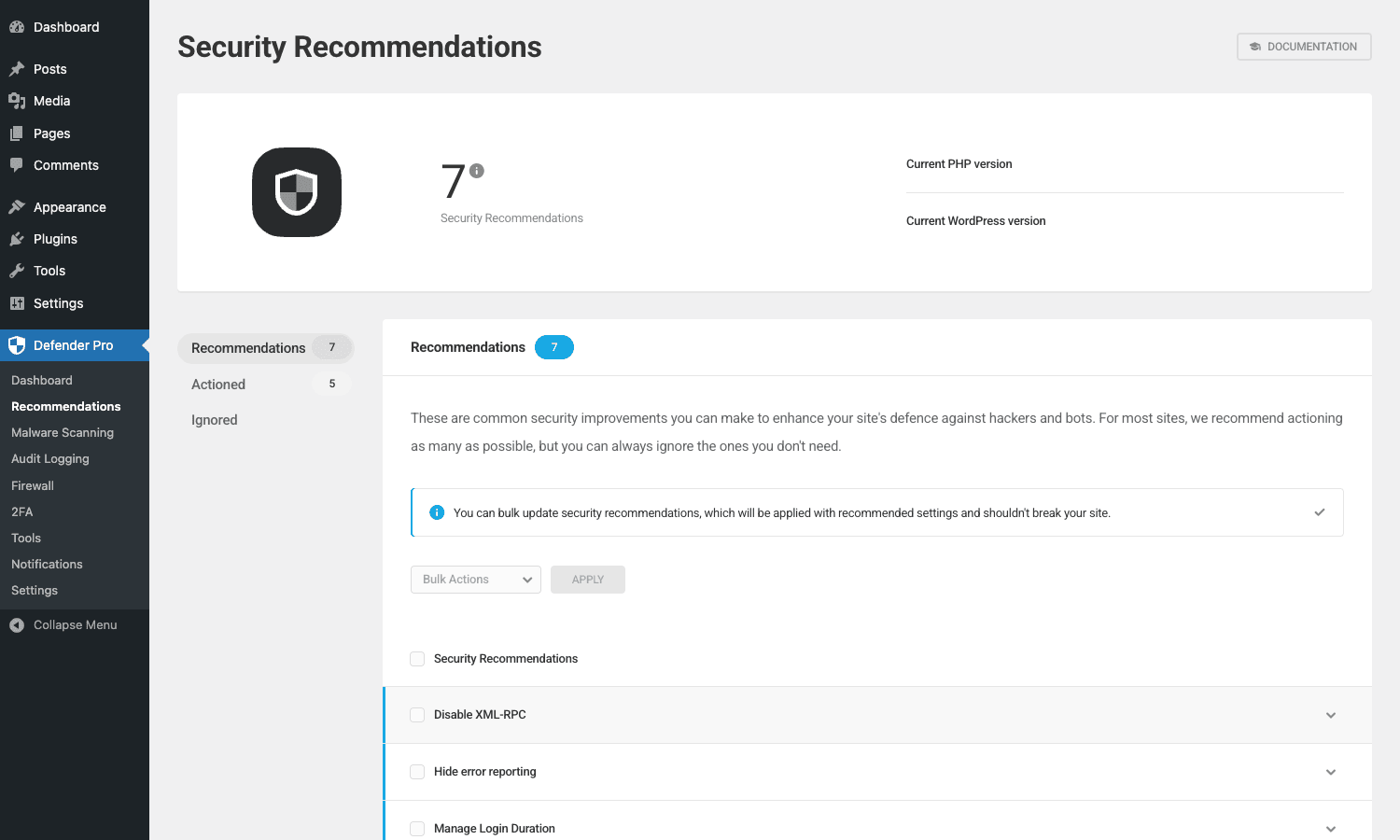
The recommendations:
- Update WordPress to the latest version. If your core is behind, this is the top priority.
- Update PHP to the latest version. PHP versions get security patches; old PHP means known vulnerabilities.
- Disable file editor. WordPress’s built-in file editor (
Appearance -> Theme File Editor) is a soft-target for an attacker who already got admin access. Disable it. - Disable XML-RPC. Old protocol that’s used for some legacy mobile apps but is a common DDoS amplification target. Disable unless you actually use it.
- Hide error reporting. Error messages can leak file paths and server info. Hide in production.
- Change DB prefix. Default WP
wp_prefix is a target for SQL injection attempts. Change to something custom on install (less effective after the fact but still nonzero). - Hide WordPress version. Stop telling Google and bots which WP version you’re on.
- Block author archive URL guesses. Default
/?author=1exposes usernames. Block this enumeration. - Prevent PHP execution in uploads folder. Critical. If an attacker uploads a PHP file (via a file-upload bug), this prevents them from executing it.
- Manage login duration. Set how long an active login session lasts before requiring re-auth.
- Disable trackbacks and pingbacks. Spam vector. Disable.
- Prevent information disclosure. Hide README files, license files, that leak WP version.
Each recommendation has a "Apply" button. Click and Defender makes the change. Some recommendations are reversible from the same UI (so you can roll back if needed).
The bulk "Apply All" path is what the Activate & Configure wizard runs. It applies the safe-to-apply ones (the ones that don’t risk breaking your site) and leaves the riskier ones (like changing DB prefix on a live site) for you to apply manually.
Malware Scanning
Defender Pro -> Malware Scanning runs malware detection across your WordPress install.
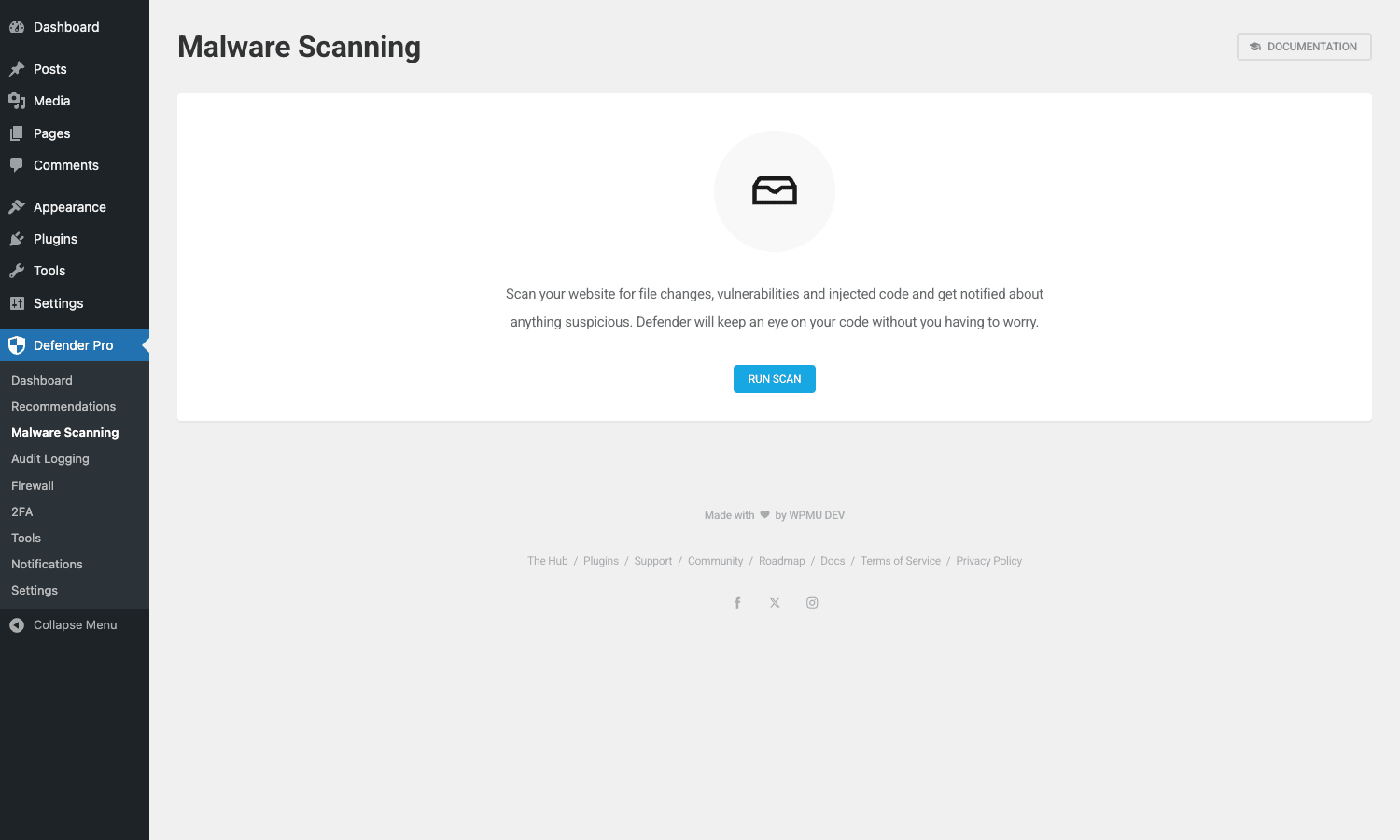
Three scan types:
- WordPress core integrity check. Compares your core files against the canonical versions from WordPress.org. Flags any modified core files (a strong signal of malware injection).
- Plugin and theme integrity check. Same idea for plugins and themes whose canonical version is on WordPress.org. Flags modifications.
- Suspicious code scan. Pattern-matches PHP files for known malicious patterns (backdoors, eval’d encoded payloads, fake admin user creation).
Run a scan, wait 1-5 minutes depending on site size, and Defender shows results. For each flagged item:
- Ignore. Mark as a false positive.
- Quarantine (Pro). Move to a quarantined folder for review.
- Delete. Permanently remove.
Scheduled scans are configurable: daily, weekly, or monthly. With Pro you get scheduled report emails so you don’t have to log in to check results.
The local malware scanner is good but not as deep as Wordfence’s. If you want signature-based real-time scanning with a continuously-updated malware database, Wordfence is the stronger pick. Defender’s scan is "find common known patterns and file changes", useful for detecting compromise after the fact, less useful for blocking new threats in real-time.
Firewall: lockouts, geo blocking, IP banning
Defender Pro -> Firewall is where the brute-force protection lives.
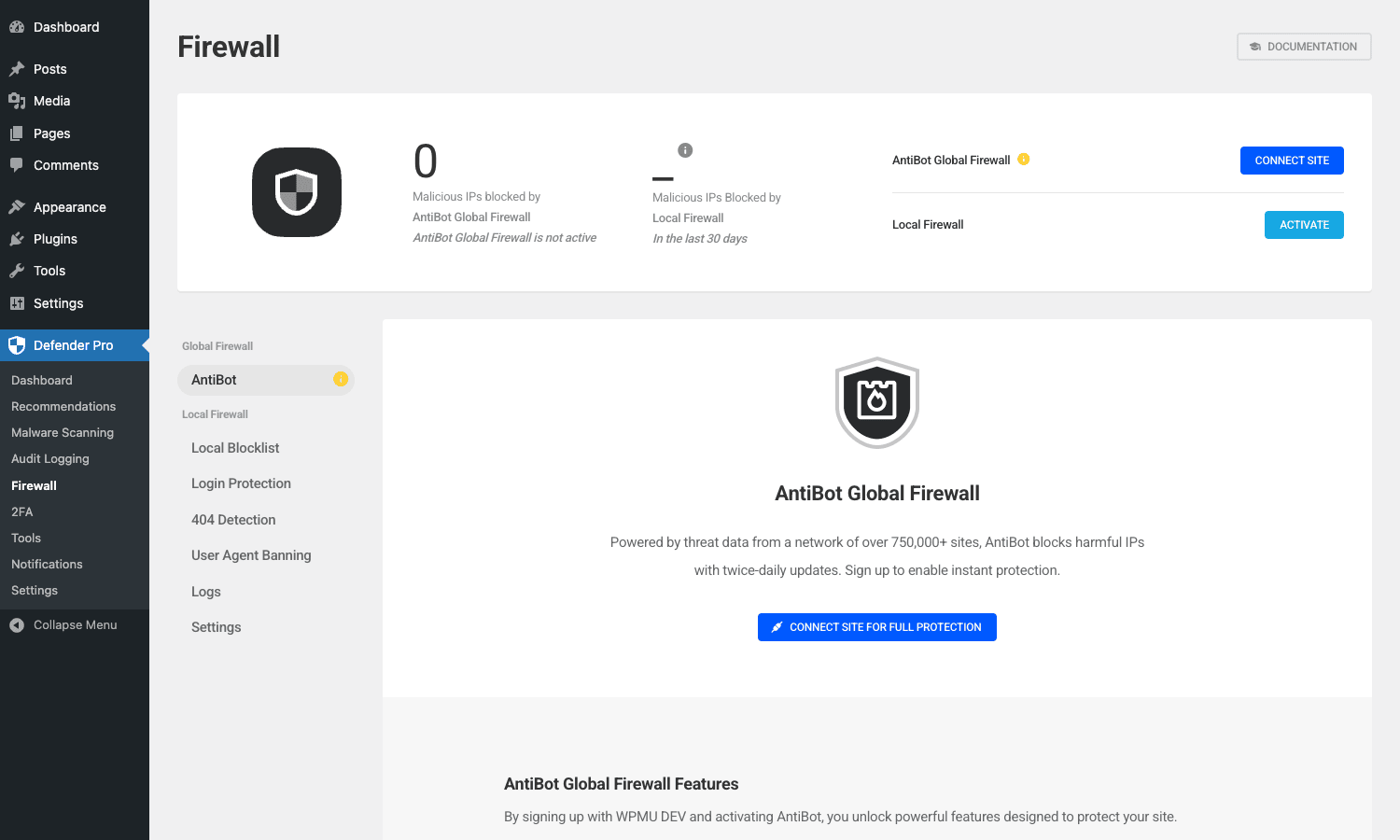
Five sub-modules:
Login Lockout
Block an IP after N failed login attempts in M minutes. Defaults: 5 failed attempts in 5 minutes triggers a 30-minute ban. Tune to taste; tighter for high-traffic sites, looser for shared offices where many users share an IP.
404 Lockout
Block an IP after too many 404 requests in a short window. A high 404 rate from one IP usually means a scanner looking for vulnerable plugin paths. Defaults: 20 404s in 5 minutes = 30-minute ban.
User Agent Banning
Block IPs based on the User-Agent string. Pre-populated with known-bad bots (PHP scanners, content scrapers, broken crawlers). You can add custom UA patterns.
IP Banning
Manual + automatic blocklist. Add an IP or a range (CIDR notation supported). Bans are permanent until you remove them.
Geographic Blocking
Block (or allow-list) entire countries. Useful for B2B SaaS that only sells in specific regions. Allow only your target countries + your office IPs and you cut off a huge slice of automated attacker traffic.
For all five, Defender stores lockout records in your DB with timestamps and request details. The Defender Pro -> Firewall -> Logs view shows recent blocks; useful when debugging "why was my customer blocked."
Two-factor authentication setup
Defender Pro -> 2FA. Two-factor auth for WordPress users.
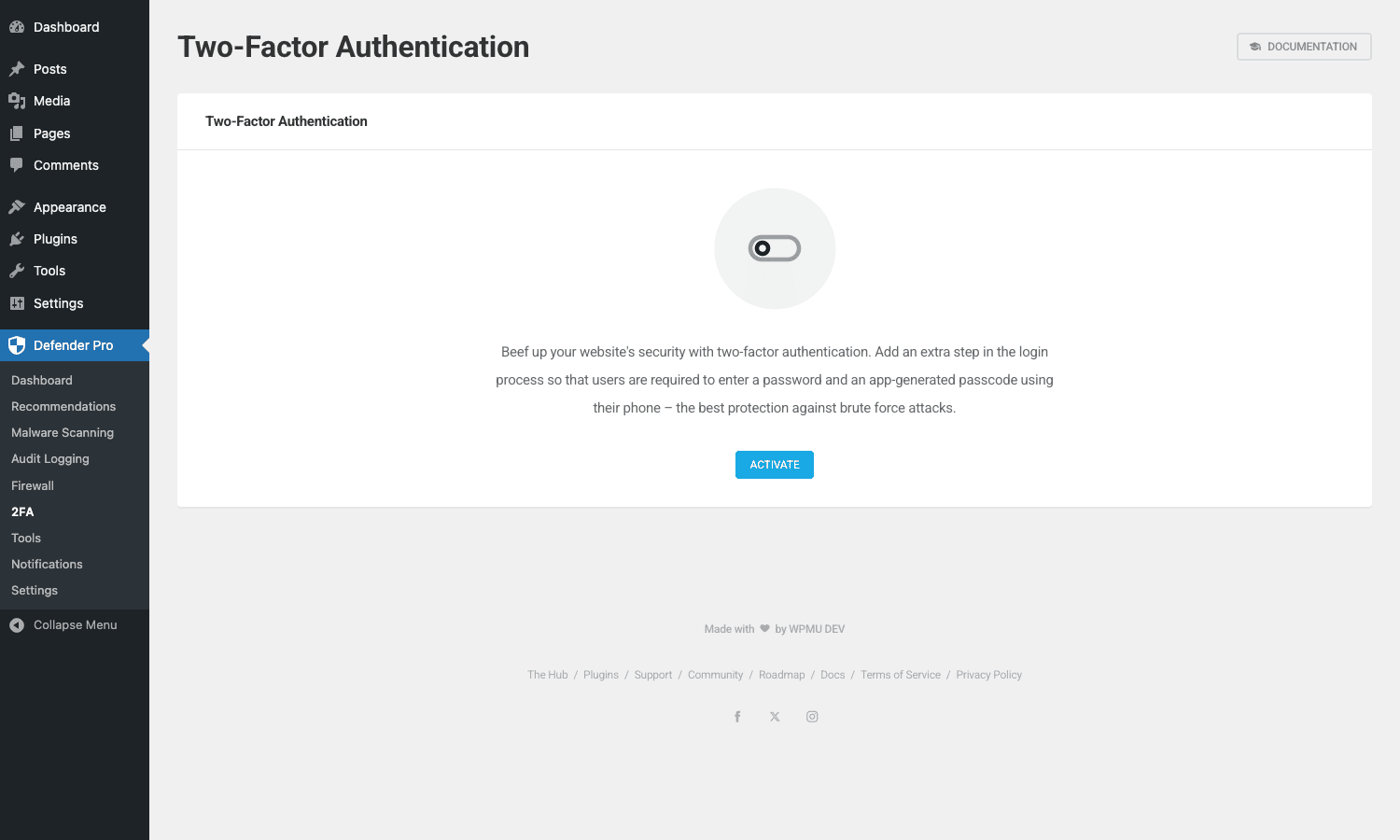
Defender supports multiple 2FA methods:
- TOTP (Time-based One-Time Password): works with Google Authenticator, Authy, 1Password, any standard TOTP app.
- Email-based codes: for users who don’t have a TOTP app on hand.
- Backup codes: pre-generated one-time codes the user can save.
Configuration choices:
- Force enforcement: make 2FA mandatory for specific roles (admin, editor) or all users.
- Grace period: users have N days to enable 2FA before they’re locked out of the admin.
- Custom login URL: pair with Mask Login for an extra layer.
After enabling, users see a 2FA setup prompt on their next login. Scan a QR code with their authenticator app, paste the code Defender generates, done. Future logins ask for a code.
For team sites, force 2FA on the admin role. The single biggest security win is removing "weak admin password" as an attack surface.
Audit logging
Defender Pro -> Audit Logging records every meaningful admin action.
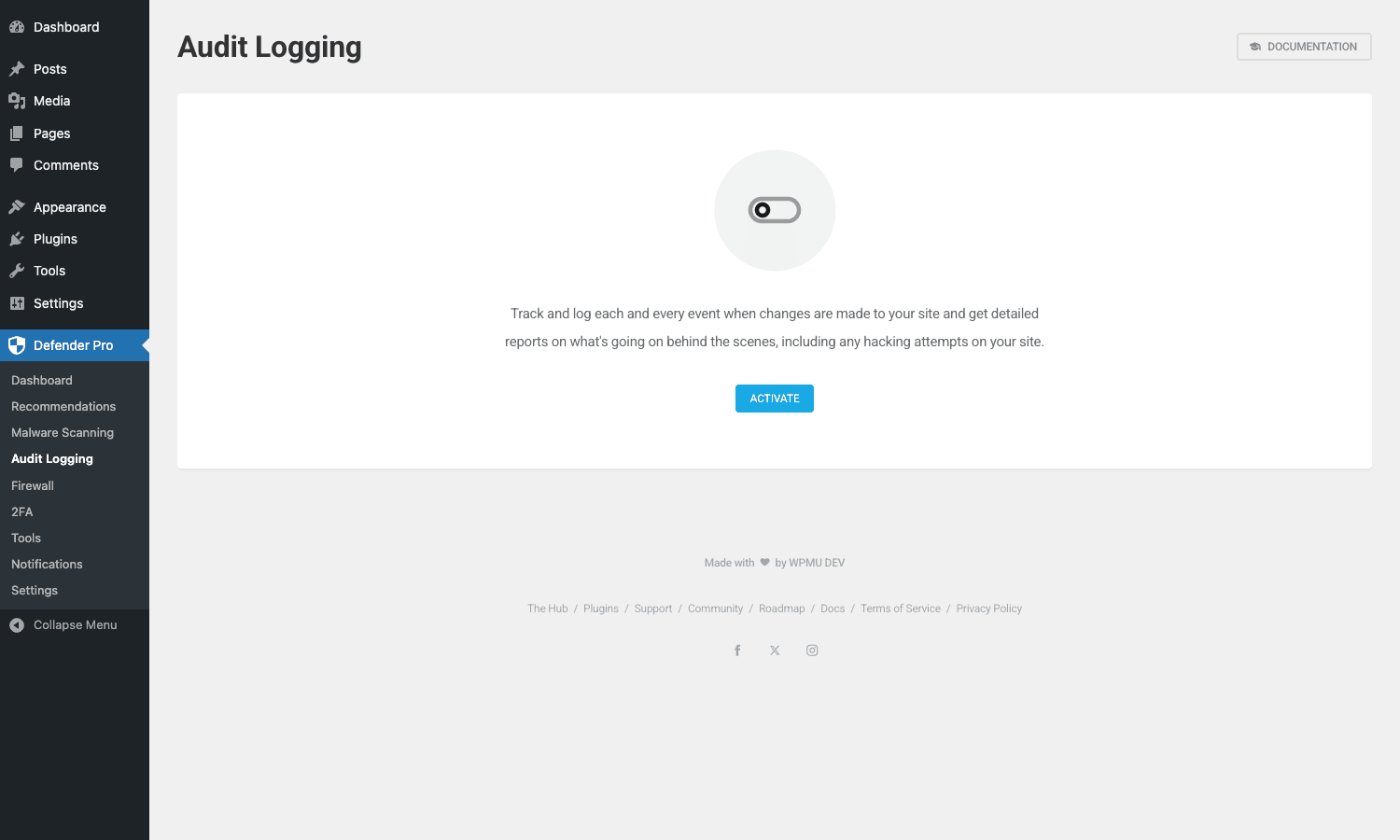
What gets logged:
- User logins (successful + failed)
- User account changes (created, deleted, role changed)
- Plugin and theme activations and deactivations
- WordPress core updates
- Post and page edits
- Settings changes (Defender’s own + WordPress general)
- Comment moderation
Filter by user, by event type, by date range. Export to CSV. Useful when:
- An admin says "I didn’t change that, who did?", the audit log answers.
- Compliance requires keeping a record of admin actions.
- You suspect a compromise and want to see what an attacker did once inside.
The free version retains 30 days of logs. Pro extends retention (configurable, up to indefinite). Old logs are auto-deleted to keep DB size manageable.
For multi-site networks the audit log spans every subsite, which is useful for super admins running larger WP multisite installs.
Mask Login URL
Defender Pro -> Mask Login URL. Move /wp-login.php to a custom path.
By default WordPress’s login is at wp-login.php, which every scanner knows. Brute-force attempts hit that URL constantly. Mask Login moves it to whatever path you specify (e.g., /secret-login), and the standard wp-login.php returns a 404. Brute-forcers either give up or move on to the next site.
The setup is one field: pick your custom slug. Save. Defender does a few things:
- Rewrites
/wp-login.phpto your custom path. - Returns 404 on the original URL.
- Adds a "Lost your custom login URL?" recovery mechanism via secret URL (so you can recover if you forget the slug).
This isn’t security in the deep sense (a determined attacker can find the new URL with persistence). It is noise reduction. 99% of attack traffic targets wp-login.php specifically. Moving the URL eliminates that 99%.
Security headers
HSTS, X-Frame-Options, X-Content-Type-Options, Referrer-Policy, Content-Security-Policy. Defender adds each as a configurable toggle.
For a normal WordPress site, you want:
- Strict-Transport-Security (HSTS). Force HTTPS for the next N seconds. Set to
max-age=31536000; includeSubDomainsonce your HTTPS is solid. - X-Frame-Options. Prevent your site from being framed/embedded on other domains (anti-clickjacking). Set to
SAMEORIGIN. - X-Content-Type-Options. Prevent MIME-type sniffing. Set to
nosniff. - Referrer-Policy. Control what referer info gets sent to outbound links. Set to
strict-origin-when-cross-originfor a sane default. - Content-Security-Policy. The big one. Allow only specific origins for scripts, styles, fonts, etc. Hard to get right without breaking things; start strict and loosen.
Defender’s UI gives sane defaults. If CSP breaks something on your site (common, your theme loads from a CDN you forgot to whitelist), use Report-Only mode first to log violations before enforcing.
Notifications and reports
Defender Pro -> Notifications is where you configure who gets emailed when something happens.
Notifications include:
- Login lockout. Alert when an IP gets banned.
- 404 lockout. Alert on 404 abuse.
- User agent lockout. Alert on bot blocks.
- Malware scan results. Daily/weekly summary.
- Audit log highlights. Significant events.
- WordPress core updates available. Reminder.
- Plugin and theme updates available. Reminder.
For each notification, pick recipients (email addresses, can be multiple) and frequency (immediately, daily digest, weekly digest).
Defender Pro adds scheduled reports: a complete weekly or monthly PDF report covering all modules. Useful for client agencies that send security summaries to non-technical clients.
Pwned passwords and password protection
A small but useful module under Defender Pro -> Settings -> Pwned Passwords. Defender checks each user’s password against the Have I Been Pwned breach database (using the secure k-anonymity API; your passwords never leave your server in plaintext).
Users with a flagged password (one that appears in known breaches) get a banner on next login asking them to change it. You can also force a password reset for everyone if you suspect a breach.
Combined with the enforced password complexity setting (under the same Settings tab), the password story is solid: weak passwords get caught at creation, breached passwords get caught at login, and 2FA covers the rest.
Developer reference
The hook surface is small but useful. Here are the hooks you’ll actually use.
Adjust lockout limits programmatically
wd_lockout_record_limit controls how many lockout records Defender retains in the database. Default is 10000. For high-traffic sites with aggressive brute-force protection, you may want a higher limit; for low-traffic sites a lower limit keeps the DB lighter.
add_filter( 'wd_lockout_record_limit', function() {
 return 50000;
} );
Add a custom 2FA provider
wd_2fa_providers lets you register your own 2FA provider class. Useful if your organization has a custom auth backend (SAML, an internal authenticator service) you want to plug into the same UI.
add_filter( 'wd_2fa_providers', function( $classes ) {
 require_once get_template_directory(). '/inc/my-saml-2fa.php';
 $classes[] = 'My_SAML_TwoFA_Provider';
 return $classes;
} );
The provider class needs to extend Defender’s Two_Fa_Provider abstract.
Per-user 2FA configuration
wd_2fa_enabled_providers_for_user lets you control which providers are available per user. Useful when policy says "admins must use TOTP; editors can use email."
add_filter( 'wd_2fa_enabled_providers_for_user', function( $providers, $user_id ) {
 $user = get_userdata( $user_id );
 if ( in_array( 'administrator', $user->roles, true ) ) {
 return [ 'totp' ]; // admins must use TOTP only
 }
 return $providers;
}, 10, 2 );
Hook into lockout events
wd_login_lockout fires when an IP is locked out for failed logins. Use it for custom side effects: Slack notification, internal API call, fraud-team ticket.
add_action( 'wd_login_lockout', function( $model, $scenario ) {
 if ( $scenario!== 'login_lockout' ) return;
 wp_remote_post( get_option( 'fraud_team_slack_webhook' ), [
 'body' => wp_json_encode( [
 'text' => sprintf( ':rotating_light: Login lockout from IP %s (%d attempts)', $model->ip, $model->attempt ),
 ] ),
 ] );
}, 10, 2 );
Similar hooks fire for wd_404_lockout, wd_user_agent_lockout, wd_2fa_lockout.
Listen for the blacklist signal
wd_blacklist_this_ip is an action Defender fires when it decides an IP should be added to the blocklist (e.g., after repeated lockouts). Use it to mirror the blacklist to your reverse proxy (nginx, Cloudflare WAF, AWS WAF) so the block is enforced at the edge, not just at the WP layer.
add_action( 'wd_blacklist_this_ip', function( $ip ) {
 // Push to Cloudflare WAF via API
 wp_remote_post( 'https://api.cloudflare.com/client/v4/zones/'. CF_ZONE_ID. '/firewall/access_rules/rules', [
 'headers' => [
 'Authorization' => 'Bearer '. CF_API_TOKEN,
 'Content-Type' => 'application/json',
 ],
 'body' => wp_json_encode( [
 'mode' => 'block',
 'configuration' => [ 'target' => 'ip', 'value' => $ip ],
 'notes' => 'Defender lockout',
 ] ),
 ] );
} );
Customize IP geolocation
wd_ip_to_country_api overrides which service Defender uses to convert IPs to country codes (default uses an internal service). Useful if you have an existing geolocation provider with better accuracy.
add_filter( 'wd_ip_to_country_api', function( $country, $ip ) {
 // Use your own MaxMind GeoIP database
 if ( function_exists( 'my_maxmind_country_for_ip' ) ) {
 $resolved = my_maxmind_country_for_ip( $ip );
 if ( $resolved ) return $resolved;
 }
 return $country;
}, 10, 2 );
Exclude post types from audit log
wd_audit_excluded_post_types lets you omit specific CPTs from the audit log. Useful for high-volume CPTs (auto-published feed items, machine-generated content) that would flood the log.
add_filter( 'wd_audit_excluded_post_types', function( $excluded ) {
 $excluded[] = 'machine_generated_log';
 $excluded[] = 'auto_imported_feed';
 return $excluded;
} );
Exclude plugins from malware scan
wd_scan_excluded_plugin_slugs lets you skip specific plugins during scanning. Useful for legitimately-modified plugins where you’ve intentionally added custom code and don’t want them flagged every scan.
add_filter( 'wd_scan_excluded_plugin_slugs', function( $excluded ) {
 $excluded[] = 'my-custom-fork-of-something';
 return $excluded;
} );
Captcha customization
wd_captcha_excluded_requests lets you skip captcha verification for specific request signatures (e.g., your own automated tests).
add_filter( 'wd_captcha_excluded_requests', function( $requests, $type ) {
 if ( $type === 'login' && isset( $_SERVER['HTTP_X_INTERNAL_TEST'] ) ) {
 $requests[] = 'login';
 }
 return $requests;
}, 10, 2 );
Performance impact
Defender is lighter than Wordfence by design. Concrete numbers on a typical small business site:
- Frontend impact. Near zero. The firewall runs as a PHP middleware on each request; the work is one DB lookup against the lockout table. Sub-millisecond.
- Admin impact. Small. The audit log writes ~1 row per significant action. Reads are paginated.
- Scan impact. A full malware scan reads every PHP file on disk. Takes 30 seconds to 5 minutes depending on site size. Doesn’t impact frontend during the scan; runs in background via Action Scheduler.
- DB size. Lockout table can grow large on high-traffic sites if you don’t trim. The
wd_lockout_record_limitfilter above keeps it bounded.
For comparison, Wordfence’s scanner is heavier (larger malware signature database, real-time threat feed) and uses more memory. On shared hosting with strict PHP memory limits, Defender stays under the cap where Wordfence sometimes doesn’t.
If you also run WP Rocket or another cache plugin, Defender plays nicely with caching, the firewall’s IP checks happen before cache, so a banned IP still gets the 403 quickly.
Common gotchas
Six things that bite real installs.
The Hub connection gate
Many "Pro" features (cloud scanning, antibot global firewall, blocklist monitoring) require connecting the site to WPMU DEV Hub. The free WPMU DEV account is enough for the connection, but you have to actually do it. Without the connection, those modules show "Connect site to activate" prompts on every visit.
Mask Login URL recovery
If you set a custom login URL and forget what you set it to, you can’t log back in. Defender provides a recovery mechanism (/login-recovery or similar) that emails you the current URL, but you have to enable that path during setup. If you skipped it, you may need FTP access to disable the plugin via the WordPress filesystem.
XML-RPC for legitimate apps
Disabling XML-RPC (one of the hardening recommendations) breaks any legitimate app that still uses it. The official WordPress mobile apps moved to REST API years ago, but some third-party tools (Jetpack on older versions, certain backup plugins, certain CRM integrations) still need XML-RPC. Check what you use before disabling.
Login lockout false positives
If your office uses a shared NAT (everyone shows the same public IP to your site), a single user’s bad password attempts can lock out the whole office. The fix is to whitelist your office IP range in Firewall -> IP Banning -> Allowlist.
Audit log database bloat
On busy sites the audit log grows fast. The default 30-day retention helps but doesn’t bound it absolutely. Set a more aggressive retention (7 or 14 days for low-budget hosting) if your DB starts getting bloated, or use the Pro tier’s scheduled export so you can offload to a long-term archive.
Security headers breaking embeds
The HSTS and CSP headers can break legitimate functionality if you set them too strictly. CSP especially, if your theme loads a font from a CDN you forgot to whitelist, the font fails to render and you don’t know why. Always test with the CSP-Report-Only mode first (log violations without enforcing) before flipping to enforce.
Defender CLI for scripted deployments
If you deploy Defender across many sites via WP-CLI (wp plugin install + wp plugin activate), the post-activation onboarding doesn’t run automatically. You need to either visit the dashboard once to dismiss the wizard, or call Defender’s internal init hooks via custom WP-CLI scripts. For high-volume agencies, this is worth automating.
Pricing
The free Defender on WordPress.org is genuinely free. Full hardening, local scanning, all firewall modules, 2FA, audit logging, mask login, security headers. No transaction or usage fees.
Defender Pro is sold by WPMU DEV at a starting price around $7-10/month for a single site, with multi-site tiers and a full WPMU DEV membership bundle that includes Smush, Hummingbird, Forminator, SmartCrawl, and Branda.
The Pro cloud features still require connecting to WPMU DEV Hub (their cloud services aren’t included in the GPL distribution; you’d need a real WPMU DEV account for those). The plugin code itself is identical between the WPMU DEV-sold version and the GPL-licensed version.
FAQ
Does Defender require WPMU DEV Hub membership?
No, the plugin works fully without an account. Some Pro cloud features (deep malware scanning, antibot firewall, blocklist monitoring) require connecting to the Hub, which has a free tier sufficient for those features.
Can I run Defender alongside Wordfence?
Don’t. Two security plugins compete for the same hooks and end up double-locking-out IPs, double-scanning files, and creating odd conflicts. Pick one and stick with it. If you’re migrating from Wordfence, deactivate it first, then activate Defender.
Does it work on WordPress multisite?
Yes. Defender is multisite-aware. The dashboard view shows status across the network for super admins. Some modules are network-only (the audit log, the global firewall); others can be per-site. The Pro tier handles multisite cleaner than the free tier.
Will Defender block legitimate users?
Possible if you set lockout thresholds too aggressive. The defaults (5 failed logins in 5 minutes = 30-minute ban) are conservative enough that a real user mistyping their password twice won’t get caught. If you have shared-IP issues (office NAT, public WiFi), whitelist those IPs.
Does it work with WooCommerce?
Yes. The captcha integration covers WooCommerce login, registration, and checkout forms. The audit log captures WC order changes if you enable that filter. The firewall protects against brute-force attacks on WC customer accounts the same way it protects WP admin.
Can I export the audit log?
Yes. CSV export is built into the audit log view. Useful for compliance archives or when handing off security data to auditors.
Does the firewall block at the server level or PHP level?
PHP level by default. Defender runs as middleware on each WP request and blocks at PHP execution time. For server-level blocking (faster, lower load), you can mirror the blocklist to your reverse proxy via the wd_blacklist_this_ip hook shown above.
How does Defender handle 2FA recovery?
Backup codes generated during 2FA setup are the primary recovery path. If a user loses both their authenticator app and backup codes, an admin can disable 2FA for that user via the Users admin (a Defender meta box on the user edit page). For the last admin’s recovery, you’d need to disable Defender via FTP/SSH.
Will Defender Pro auto-update?
Yes if you’ve connected to WPMU DEV Hub. Without the Hub connection, you’d manually update by re-downloading and reuploading.
Does it support the new WordPress block-based admin?
The Defender admin pages use their own React-based UI (not Gutenberg blocks). They work fine within the WP admin context and don’t conflict with block-editor pages.
Can I customize the captcha appearance?
reCAPTCHA and hCaptcha appearance is controlled by Google/hCaptcha respectively. Altcha (the newer puzzle-based option Defender supports) is more customizable via CSS overrides. For the captcha placement on forms, the wd_captcha_excluded_requests filter (shown above) lets you skip captcha on specific forms.
Does the malware scanner detect zero-day threats?
No security plugin does. The scanner finds known-pattern malware and modified files. Zero-day threats (never-before-seen exploit patterns) are inherently hard to detect signature-based. Defender’s value is post-compromise detection (you find out an attacker got in within hours, not weeks) plus pre-compromise hardening (most known attack paths are closed by the recommendations).
Is it GDPR-compliant?
Yes. Defender stores IP addresses, user agents, and timestamps for lockouts and audit logs. All data is on your server (not WPMU DEV’s, unless you connect to Hub). Disclose in your privacy policy that you log security events; that’s the GDPR requirement.
Does the antibot global firewall share my user data?
The shared blocklist only includes IPs that have been flagged as bot/attacker across the WPMU DEV network. No user PII is shared. The community blocklist is the threat IP itself plus aggregate stats, not individual visitor data.
Can I run it on managed hosts like WP Engine or Kinsta?
Yes. Defender works on all major managed WP hosts. Some hosts have their own server-level firewalls and may make Defender’s firewall partially redundant, that’s fine, layered defense is the goal, and Defender’s other modules (2FA, audit, mask login, security headers) aren’t replaced by the host’s firewall.
How do I uninstall Defender cleanly?
Settings -> Defender Pro -> Tools -> Uninstall has a "remove all data on uninstall" toggle. Enable it before clicking Deactivate + Delete from the Plugins page. Defender will clean up its custom tables, options, and lockout records on uninstall.
Final thoughts
Defender Pro is the underdog in the WordPress security plugin category, and it’s an easy recommendation for anyone whose primary blocker against using a security plugin is "Wordfence is heavy." Defender does most of what Wordfence does, costs less, and uses fewer resources. The free version is genuinely useful on its own, most small business sites don’t need anything beyond it.
The Pro tier. For agencies running many client sites, both features compound in value.
The two arguments against Defender are (a) the Hub connection gate, which adds friction if you’re philosophically opposed to cloud-connected plugins, and (b) the smaller community/tutorial library, when you Google "how to do X in Defender" you get fewer answers than for Wordfence. Both are surmountable; neither is a dealbreaker.
If you’re not already invested in Wordfence or Solid Security, install Defender Pro from GPL Times, run "Activate & Configure," apply the safe hardening defaults, and your site is materially more secure within 20 minutes.