

Three years ago, "I want to sell online courses on WordPress" had two obvious answers: LearnDash if you wanted enterprise-grade, Tutor LMS if you wanted lightweight. There was a third option, but it was the underdog. Sensei LMS, made by Automattic (the company behind WordPress.com and WooCommerce), was the LMS most people overlooked because it felt like a side project. That has changed. The current Sensei is a full LMS with native WooCommerce integration, a dedicated Sensei Pro tier that adds paid courses, interactive blocks, content drip, groups, and certificates, and a much better course editor than the competition.
This review walks through what Sensei LMS does, how the free core differs from Sensei Pro, who should pick it over LearnDash or Tutor LMS, how to install and run your first course, every key admin screen, the developer hook surface, and the gotchas that matter when you go to production.
Table of contents
- What Sensei LMS actually is
- Sensei LMS (free) versus Sensei Pro
- Sensei vs LearnDash vs Tutor LMS
- Who Sensei is the right pick for
- Installing and the setup wizard
- The Sensei admin dashboard
- Building your first course
- Lessons, modules, and the lesson editor
- Quizzes and the question bank
- Settings, one tab at a time
- Students, groups, and grading
- Reports and progress tracking
- Selling courses with WooCommerce
- Developer reference
- Performance, hosting, and gotchas
- Pricing
- FAQ
- Final thoughts
What Sensei LMS actually is
Sensei is a WordPress plugin that turns your site into a learning management system. After activation, you get six new content types: courses, lessons, quizzes, questions, modules, and student messages. You assemble courses from lessons, attach quizzes to lessons, group lessons into modules, and learners progress through it all at their own pace (or on a schedule, with the Pro tier). Progress, grading, and reporting are built in. Course frontend pages are rendered by Sensei’s templates, which inherit your theme’s styles and don’t require a separate frontend setup.
The plugin is built by Automattic. That matters because Automattic owns WooCommerce, owns WordPress.com, and contributes heavily to WordPress core. Updates ship in lockstep with WordPress and WooCommerce releases. The plugin uses the block editor as its course/lesson editor (not a custom builder), which means everything you already know about Gutenberg blocks applies inside Sensei.
Sensei LMS (free) versus Sensei Pro
Sensei is a two-tier product. The free core (Sensei LMS) is on the WordPress.org repository. The paid extension (Sensei Pro) adds the features stores actually need to sell courses.
What the free core gives you
- Unlimited courses, lessons, quizzes, questions
- Modules (grouping lessons within a course)
- A clean course editor with the Course Outline block
- 7 quiz question types (multiple choice, true/false, gap fill, file upload, single line, multi line, multi-select)
- Automatic grading for objective question types
- Student enrollment, progress tracking, completion certificates (basic)
- Course archive page, lesson pages, student dashboard ("My Courses")
- Student-teacher private messaging
- Reports for course/lesson completion
- Theme-friendly templates (looks fine on any decent theme)
What Sensei Pro adds
- WooCommerce Paid Courses. Sell courses as WC products. Stripe, PayPal, recurring billing via Subscriptions, the whole WC ecosystem.
- Content Drip. Release lessons on a schedule (3 days after enrollment, 7 days, whatever) instead of all at once.
- Groups. Cohorts of students with shared progress tracking. Good for company training, classroom-style courses, mastermind groups.
- Interactive blocks. Flashcards, image hotspots, ordering, fill-in-the-blank. Real interactivity in lessons, not just video + text.
- Conditional content blocks. Show or hide blocks based on enrollment, completion, or group membership.
- Quiz timer. Timed quiz attempts (essential for exam-style assessments).
- Co-teachers. Multiple instructors per course with separate dashboards.
- MailPoet integration. Email automation tied to enrollment, completion, and drip schedules.
- Distraction-free lesson view. Hide the chrome (header, sidebar) when a student is in a lesson.
- AI-assisted course outlines (in the latest Pro versions).
The free core is enough to run an internal training site or a free-to-enroll course library. The Pro tier is what you need if you want to charge money or run anything resembling a real online school.
Sensei vs LearnDash vs Tutor LMS
The honest comparison.
Sensei
- Pros. Tightest WooCommerce integration (because it’s by the same company). Best course editor (uses Gutenberg cleanly, no custom builders). Cleanest data model (uses WP-native CPTs and dedicated progress tables). Best Pro pricing-to-features ratio.
- Cons. Smaller plugin ecosystem (fewer third-party add-ons than LearnDash). Smaller community for support snippets.
LearnDash
- Pros. Largest LMS plugin by market share. Huge ecosystem of add-ons (gamification, advanced quizzing, ProPanel reports, etc.). Mature support for complex course structures (focus mode, quiz reporting, "drip courses by milestone").
- Cons. UI shows its age in places. Slower iteration cycle. More expensive at the entry tier.
Tutor LMS
- Pros. Light footprint. Good frontend builder for course creators who don’t want to use WP admin. Free version is generous.
- Cons. Less mature than the other two. Some Pro features feel rough around the edges. Smaller team.
If you already run a WooCommerce store, Sensei is the easy choice. If you run a non-Woo site and need a sprawling course catalog with hundreds of courses, LearnDash. If you’re price-sensitive and want a creator-facing UI, Tutor LMS.
We already cover LearnDash and Tutor LMS in detail elsewhere. This review focuses on Sensei.
Who Sensei is the right pick for
The audience splits roughly into three groups.
Existing WooCommerce stores adding training
You sell physical or digital products on WooCommerce and want to add courses. Sensei Pro plugs courses into your existing product catalog. Customers buy a course like they’d buy any other product. Subscriptions for monthly access work via WooCommerce Subscriptions. Coupons via WooCommerce Smart Coupons. No second checkout system to maintain.
Standalone course sites
You’re building a course platform from scratch. Sensei works equally well without WooCommerce; you can offer free courses, gate them behind membership, or integrate with Restrict Content Pro / MemberPress for paid access.
Internal training, employee onboarding, customer education
A SaaS company training new customers on the product. A consulting firm onboarding new employees. A non-profit training volunteers. Sensei’s groups feature plus content drip plus quizzes give you everything you need without any of the e-commerce complexity.
Installing and the setup wizard
Easy. Like any WordPress plugin, install and activate.
Plugins -> Add New -> Upload Plugin -> Install Now -> Activate. The plugin requires WordPress 6.7 and PHP 7.4 minimum (Sensei Pro also requires WooCommerce 4.0+). Once active, a new top-level "Sensei LMS" menu appears in the WP admin sidebar.
On first activation, Sensei shows a "Welcome to Sensei LMS – You’re almost ready to start creating online courses!" banner with a "Run the Setup Wizard" button. The wizard:
- Asks what kind of site you’re building (training, online courses, internal docs, etc.).
- Auto-creates the required pages (Courses archive, My Courses, Course Completed).
- Suggests theme compatibility steps if your active theme is known to have issues.
- Optionally installs Sensei Pro if you’ve activated the bundle.
You can skip the wizard with "Skip setup" and configure everything manually later. The wizard doesn’t do anything you can’t do from Sensei LMS -> Settings.
The Sensei admin dashboard
Once installed, Sensei LMS -> Home is your dashboard. It’s a clean overview with course-creation steps, links to documentation, and quick links to key admin screens.
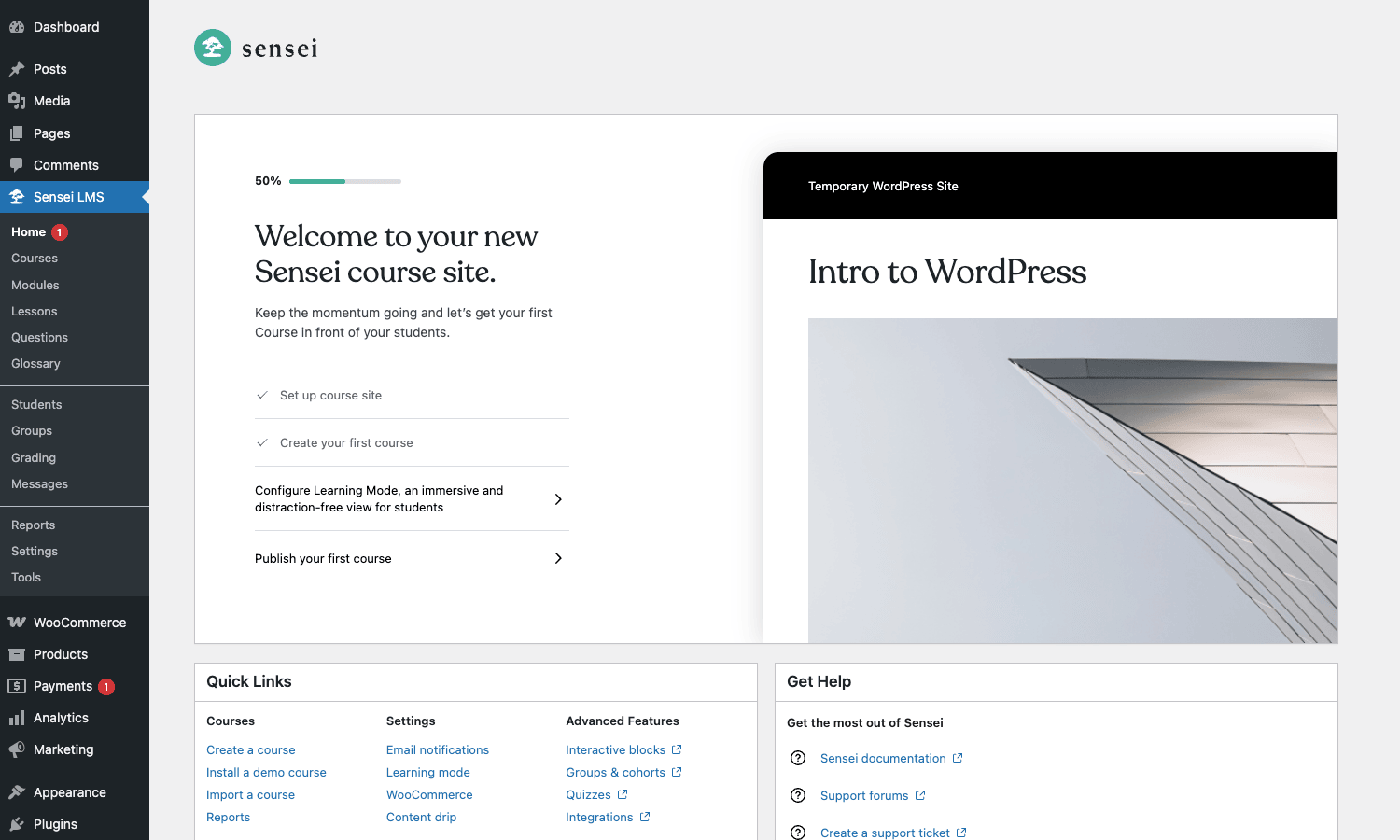
The dashboard is intentionally minimal. There’s no analytics panel, no graph of student activity, no "things to do today" notification list. For analytics, you go to Reports. For students, you go to Students. The Home page is just the front door.
The Sensei sidebar in the WP admin shows the full list:
- Home (the dashboard)
- Courses, Lessons, Modules, Questions, Glossary (content types)
- Students, Groups, Grading, Messages (student management)
- Reports, Settings, Tools (admin tools)
That’s roughly 12 menu items, which is normal for a full-featured LMS. LearnDash has more; Tutor has slightly fewer.
Building your first course
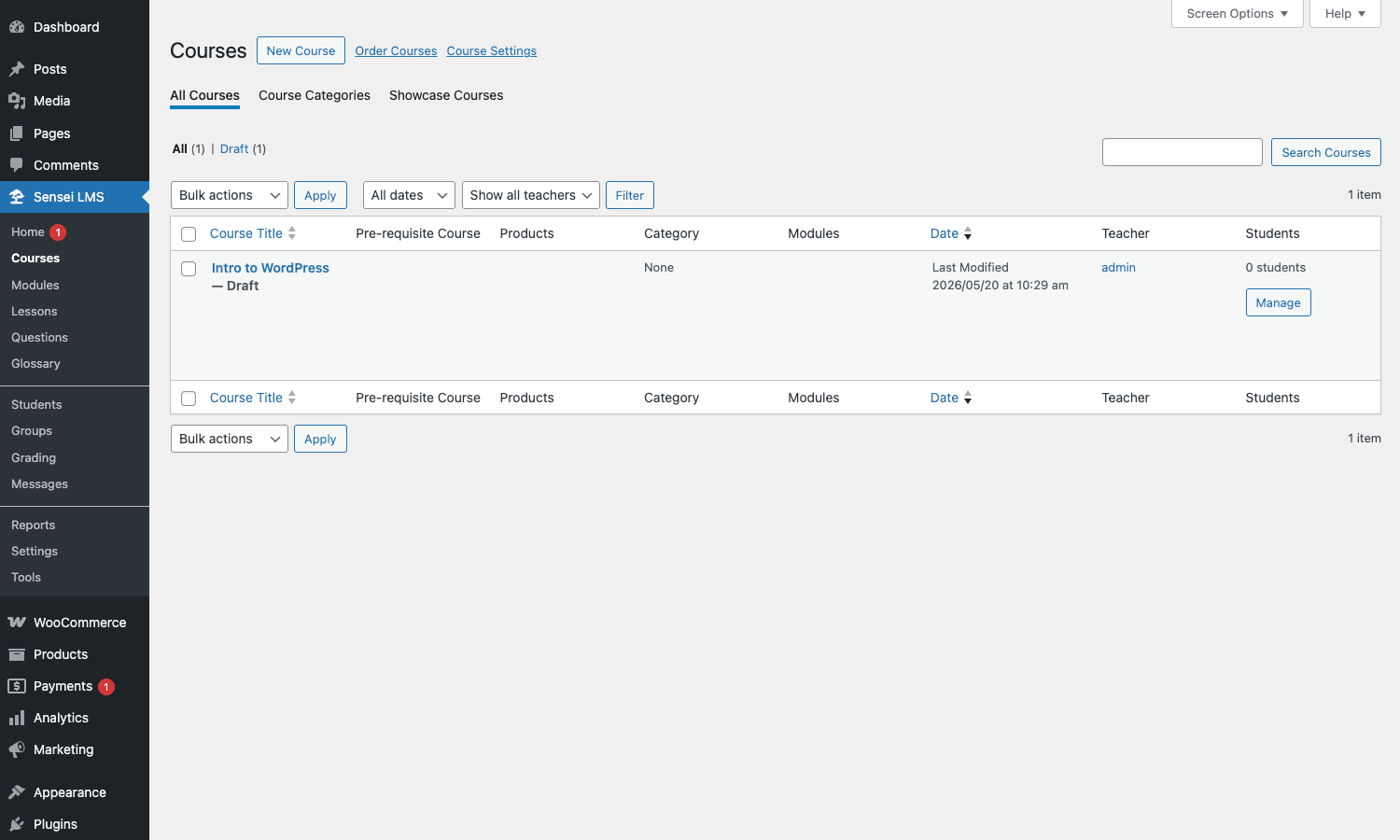
Click Sensei LMS -> Courses and you land on the courses list. Hit "New Course" to start.
The course editor is the standard WordPress block editor, but with three Sensei-specific blocks added:
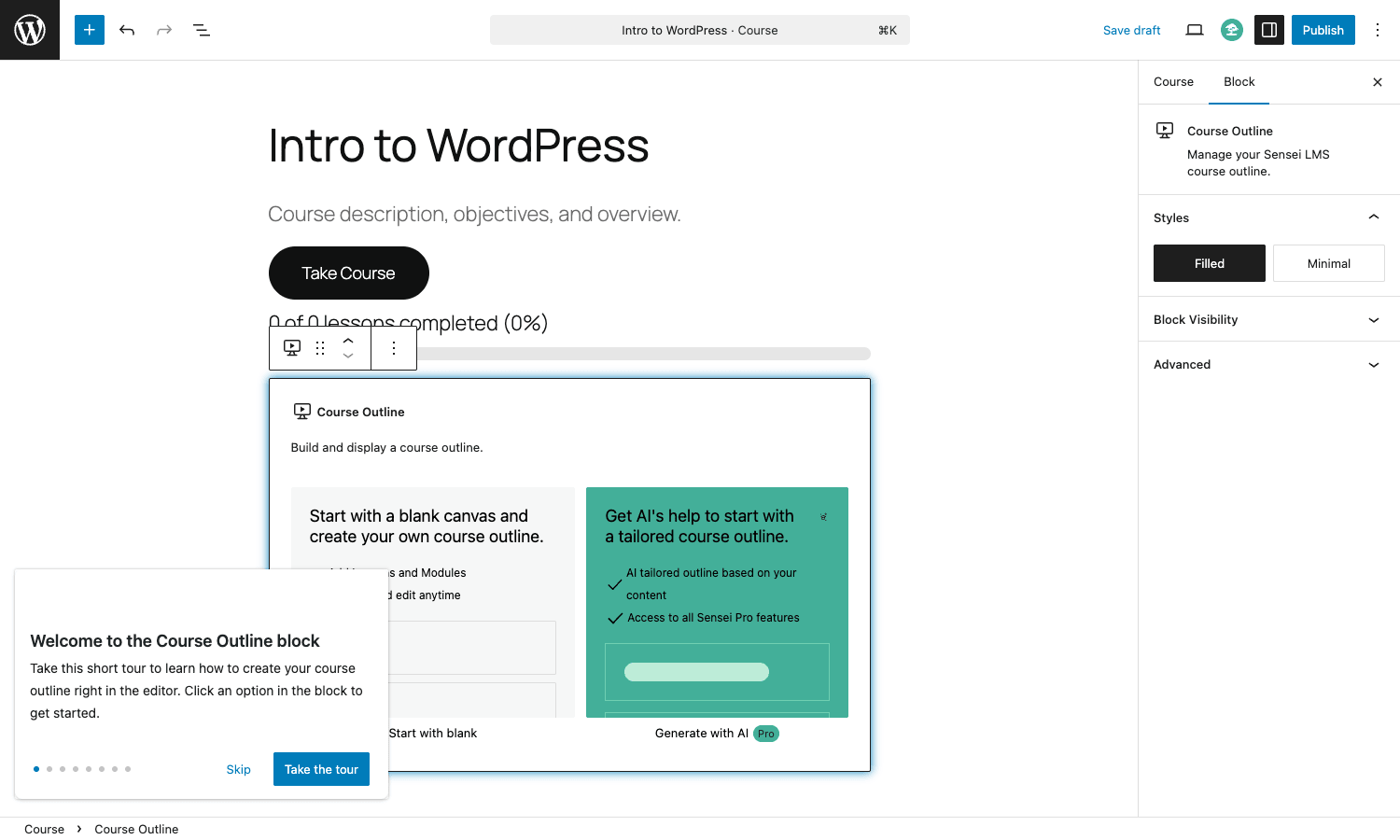
- Take Course block. The enroll button. Renders the call-to-action that lets students enroll. Variant for the Pro version shows different copy if the course is a paid product.
- Course Outline block. The structured list of lessons in the course. Drag-and-drop reorder, click to edit lesson titles inline, group lessons into modules from the same UI.
- Course Progress block. A progress bar showing the enrolled student how far they are through the course.
In the right sidebar you get Course Settings (featured image, prerequisite course, free preview, course completion message) and Course Categories (the taxonomy for grouping courses).
The Course Outline block deserves special mention. It is the cleanest course-builder I’ve seen in any WordPress LMS. You can type lesson titles directly inline, drag to reorder, click a lesson to open its editor in a new tab, and "modules" are just hierarchy: indent a row to make it a module header, demote lessons under it. Most LMS plugins ship with a custom course-builder UI that exists in its own world; Sensei’s lives inside Gutenberg, which means the rest of WordPress works correctly around it.
After saving the course, Sensei generates the public URL at /course/<slug>/. Visit that to see the student-facing version with the course name, description, lesson list, and enroll button.
Lessons, modules, and the lesson editor
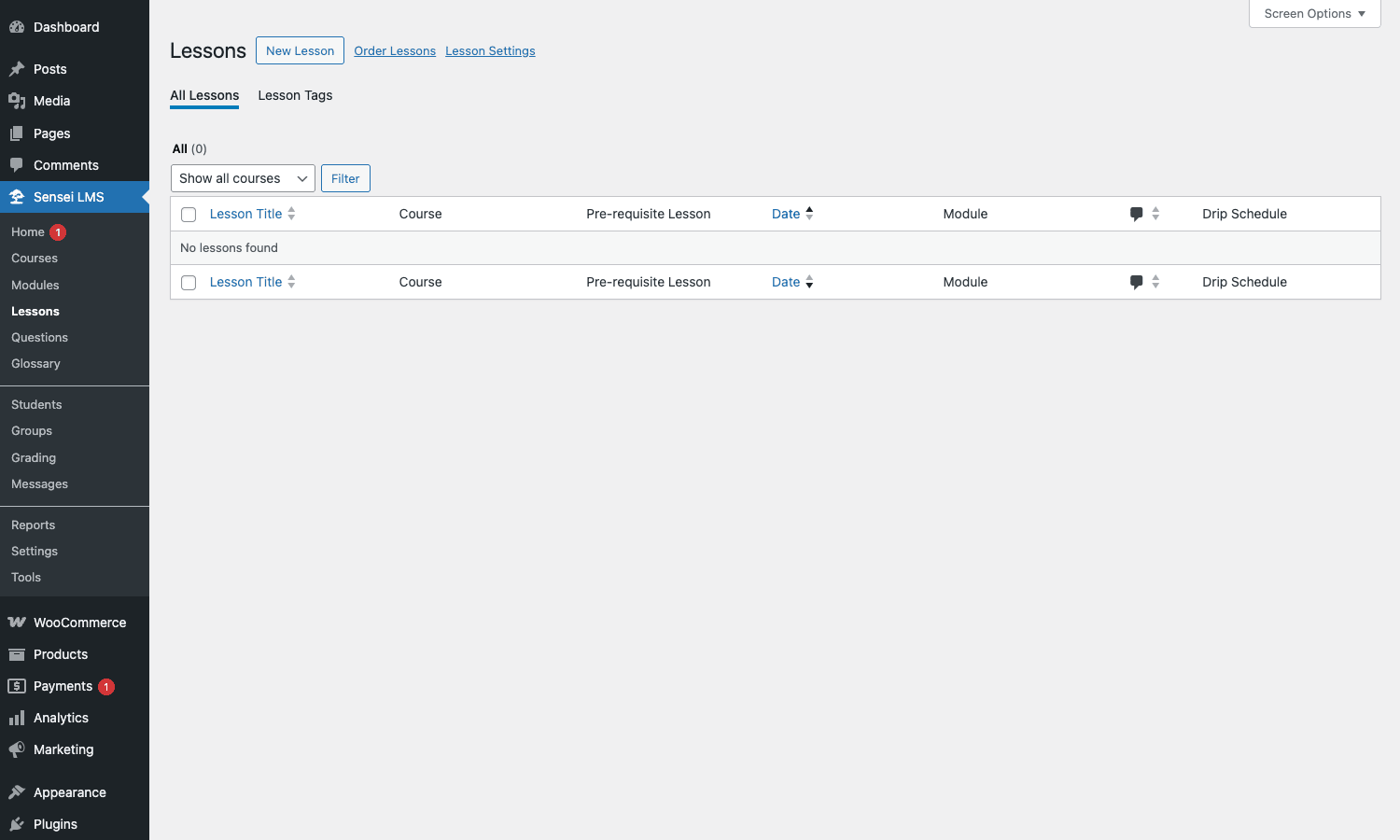
Lessons are a separate post type. You can create them from inside the Course Outline block (which creates them in the context of the course) or from Sensei LMS -> Lessons directly.
The lesson editor is the standard block editor again, with Sensei extras:
- Lesson Completion block. Renders the "Mark as Complete" button at the bottom of the lesson.
- Quiz block. Embeds a quiz at the end of the lesson.
- Conditional content block (Pro). Shows blocks only to students who have completed a prerequisite lesson or who are in a specific group.
In the sidebar you set the lesson’s course, pre-requisite lesson, complexity level, video URL (for video-first lessons), and the module it belongs to.
Modules are a sub-grouping of lessons within a course. Useful for long courses ("Module 1: Setup," "Module 2: Implementation," "Module 3: Going Live"). They’re registered as a taxonomy attached to lessons; assign each lesson to a module and Sensei groups them automatically on the course archive page.
The lesson list view above gets a "Drip Schedule" column. That column is populated only when Sensei Pro’s Content Drip module is active. You can set a lesson to unlock "3 days after enrollment" or "on a specific date," and Sensei handles hiding the lesson from the student until that point.
Quizzes and the question bank
Quizzes are attached to lessons. Each lesson can have one quiz; the quiz contains as many questions as you want.
Question types Sensei supports:
- Multiple Choice. Pick one correct answer from a list.
- Multiple Select. Pick all correct answers from a list.
- True or False.
- Gap Fill. A sentence with one or more missing words; learner fills in the blanks.
- Single Line. Short-answer text input. Manually graded.
- Multi Line. Long-answer text input (essay). Manually graded.
- File Upload. Learner uploads a file. Manually graded.
The Multiple Choice and True/False types are auto-graded by Sensei. Single Line, Multi Line, and File Upload require an instructor to grade them via the Grading admin screen. Gap Fill is auto-graded if the answer matches exactly (case-sensitive by default).
Questions can live in a "question bank" outside any single quiz. Reusable across multiple quizzes. Create them under Sensei LMS -> Questions, then add them to quizzes by reference. Useful when you have a shared question pool across modules.
Quiz settings (per quiz):
- Pass mark (% required to pass)
- Allow retakes (yes/no, with maximum attempts)
- Show grade to student (yes/no)
- Quiz timer (Pro, optional)
- Random question order (yes/no)
Settings, one tab at a time
Sensei LMS -> Settings has eight tabs. Here’s what each one controls.
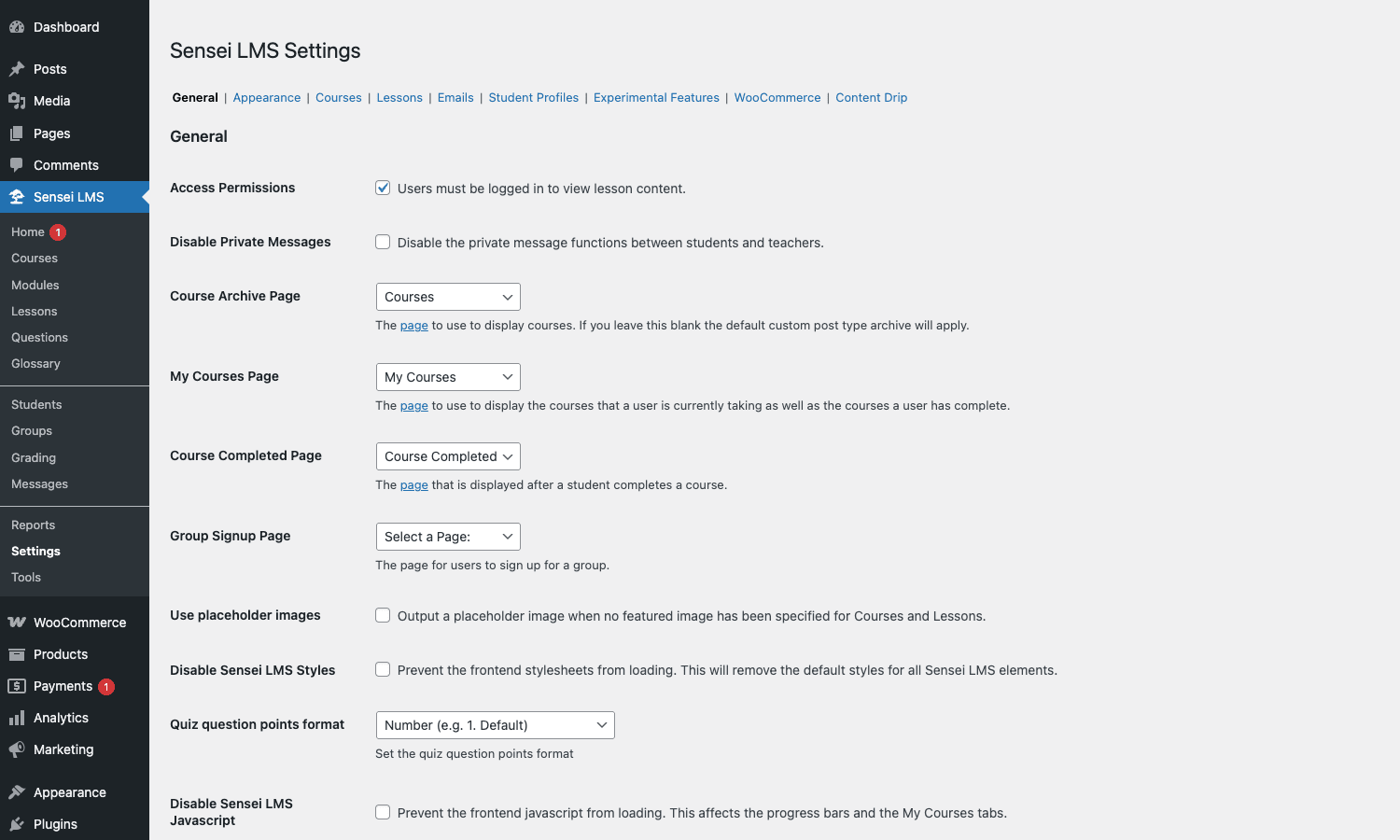
General
The defaults that apply site-wide.
- Access Permissions. Whether non-logged-in users can view lesson content. Most courses lock content to enrolled students; toggle this on to require login.
- Disable Private Messages. Turn off the student-teacher messaging feature if you don’t want it.
- Course Archive Page. Which WP page renders the "all courses" archive. Defaults to a page Sensei auto-creates during setup.
- My Courses Page. The student’s dashboard showing their enrolled courses.
- Course Completed Page. Where students land after finishing a course. Customize this with a certificate, next-course recommendation, or upsell.
- Group Signup Page (Pro). Where users sign up for cohort-based groups.
- Quiz question points format. Number (default) or letter grades (A+, A, B+…).
- Disable Sensei LMS Styles / JavaScript. Toggle if you want to ship your own CSS/JS and not load Sensei’s defaults.
Appearance
Course archive layout, course image sizes, color overrides for the Take Course button. Most stores leave these at defaults.
Courses
Course-specific defaults: whether to show a course excerpt on archives, whether to display the "back to courses" link on single-course pages, completed-courses visibility.
Lessons
Lesson-specific defaults: lesson archive page, whether to show the lesson author byline, comment behavior on lesson pages.
Emails
Templates for the transactional emails Sensei sends (enrollment confirmation, lesson completion, course completion). You can customize the from-address, the reply-to, and the email template HTML.
Student Profiles
Whether to expose public student profile pages, the profile fields shown, and whether students can edit their own bio.
Experimental Features
Internal feature flags Automattic uses for incremental rollouts. You can opt into beta features here, including the new student-progress storage system (dedicated tables vs legacy comments).
WooCommerce (with Sensei Pro)
WooCommerce-specific integration: whether to auto-enroll students on order completion, refund behavior (revoke enrollment on refund?), and course-product linkage rules.
Content Drip (with Sensei Pro)
Default drip behavior: drip by date, by days-since-enrollment, by completion of a prerequisite lesson. Per-lesson override available in the lesson editor.
Students, groups, and grading
Three closely-related admin screens.
Students
Sensei LMS -> Students lists every learner enrolled in any course on your site.
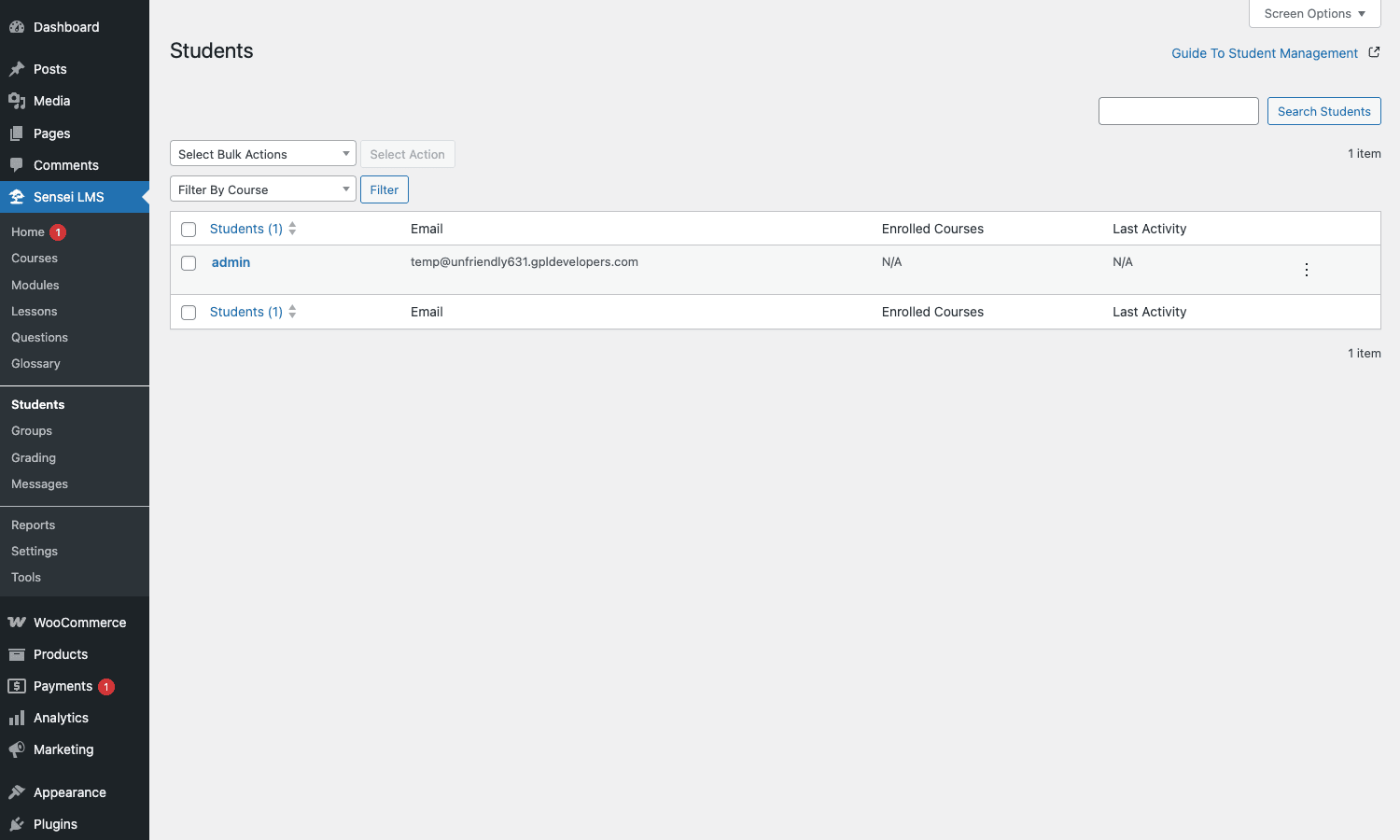
For each student you see name, email, courses enrolled, last activity. Click into a student to see their progress per course, per lesson, and per quiz. The right-rail menu lets you manually enroll/unenroll a student from a course, reset their progress, or remove them entirely.
Groups (Sensei Pro)
Groups bundle students together. Create a group ("January 2026 Cohort"), assign students to it, and any course you assign to the group becomes available to all members at once. Group-specific drip schedules, group leaderboards (in some Pro versions), shared discussion threads (if combined with bbPress).
Useful for company training, classroom courses, mastermind groups, and any case where the cohort matters as much as the individual.
Grading
Sensei LMS -> Grading is the queue of manually-graded quiz answers waiting for instructor review. Single Line, Multi Line, and File Upload questions land here.
You see student name, course, lesson, quiz, the student’s answer, and a grade input. Type the grade, save, and the student gets an email notification with their result.
Reports and progress tracking
Sensei LMS -> Reports is the analytics surface.
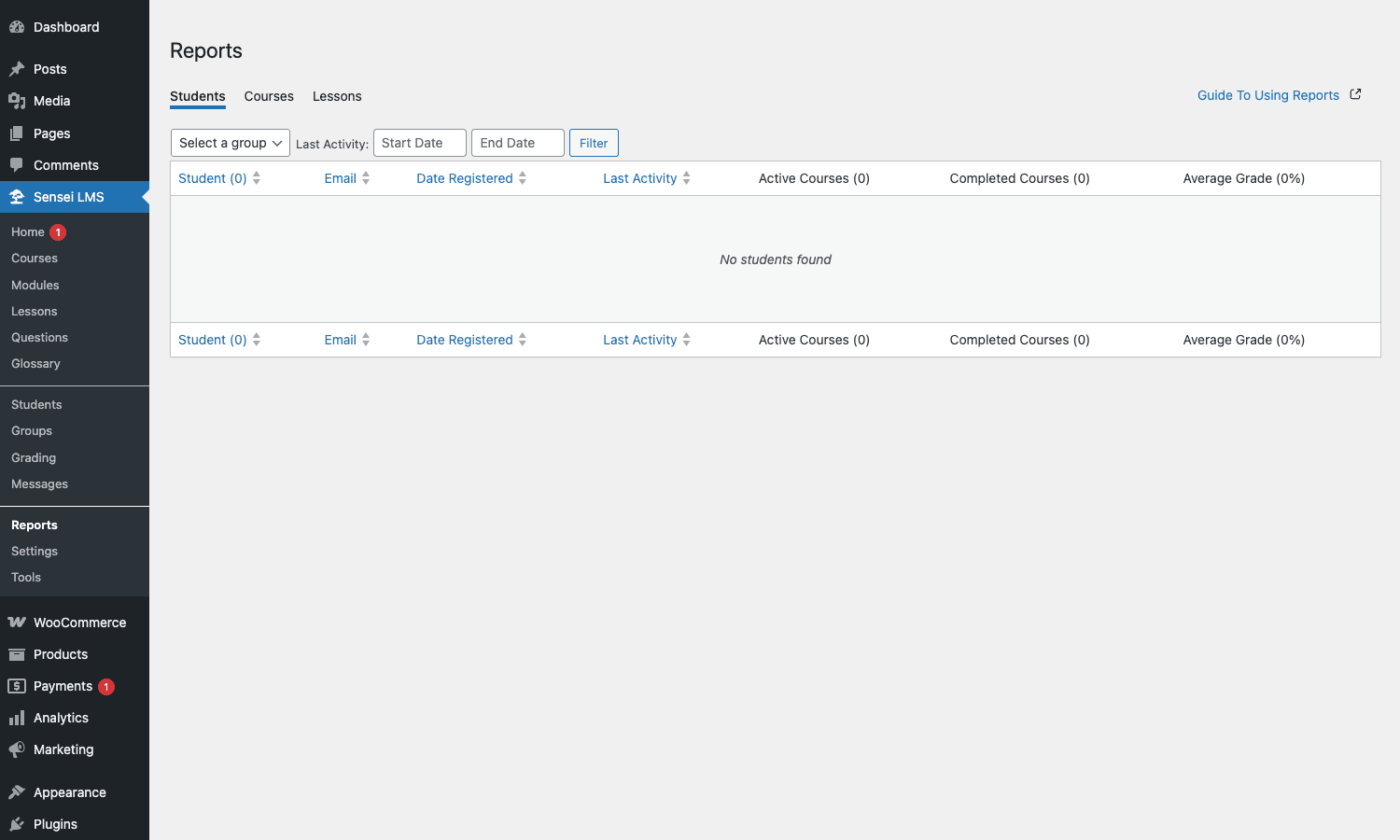
Three reports are built in:
- Students. Per-student summary: name, email, registration date, last activity, active courses, completed courses, average grade.
- Courses. Per-course summary: enrollment count, completion rate, average grade, average time to complete.
- Lessons. Per-lesson summary: views, completions, average grade (if the lesson has a quiz).
Each row is clickable to drill into a more detailed view. Export to CSV is supported for all three reports.
For deeper analytics, you’ll usually pair Sensei with MonsterInsights or Plausible. Sensei’s built-in reports cover progress and completion; behavioral analytics (where students drop off, which lessons get re-watched most) need a real analytics tool.
Selling courses with WooCommerce
The killer feature of Sensei Pro. Here’s how it works.
- Create a course in Sensei as normal.
- Create a WooCommerce product (Products -> Add New). Set the price.
- In the product editor, scroll to the Linked Courses section (added by Sensei Pro). Link the product to the course you created.
- Publish both.
When a customer buys the product, Sensei automatically enrolls them in the linked course on order completion. Refund the order in WooCommerce, and Sensei automatically unenrolls them. You can also link multiple courses to one product (bundle) or multiple products to one course (different pricing tiers).
This is the cleanest course-monetization story in the LMS world. It works with every WooCommerce payment gateway (Stripe, PayPal, Square, Apple Pay) because the actual payment is handled by WC, not Sensei.
For recurring access ("monthly subscription for unlimited courses"), pair Sensei Pro with WooCommerce Subscriptions. Subscription orders enroll the customer; subscription cancellations or failed renewals unenroll them. No custom code required.
Developer reference
The hook surface is large because Sensei’s been around for years. Here are the hooks you’ll actually use.
Course content access control
sensei_can_access_course_content filters whether a specific user can view a course’s content. The default is "yes if enrolled, no otherwise." Override it to add custom access logic (e.g., subscription check, IP-based access for corporate training, hardcoded admin bypass).
add_filter( 'sensei_can_access_course_content', function( $can_view, $course_id, $user_id, $context ) {
 if ( user_can( $user_id, 'manage_options' ) ) {
 return true; // admins always have access
 }
 return $can_view;
}, 10, 4 );
Course meta fields
sensei_course_meta_fields registers extra meta keys on the course CPT. Useful for custom course attributes (duration, difficulty, language) that you want managed alongside Sensei’s built-in fields.
add_filter( 'sensei_course_meta_fields', function( $fields ) {
 $fields[] = 'course_duration_hours';
 $fields[] = 'course_language';
 return $fields;
} );
Custom course slug
sensei_course_slug changes the URL slug for the course CPT. Default course, so URLs look like /course/intro-to-wp/. Override to /training/intro-to-wp/ or /learn/intro-to-wp/.
add_filter( 'sensei_course_slug', function() {
 return 'training';
} );
After changing this, flush rewrite rules (Settings -> Permalinks -> Save) once.
Lesson queries
sensei_course_get_lessons lets you modify the lesson list returned for a course. Useful if you want to filter lessons by an external criterion (date, custom meta, locale).
add_filter( 'sensei_course_get_lessons', function( $lessons, $course_id ) {
 // Hide lessons marked "draft preview" from all students except admins
 if ( current_user_can( 'manage_options' ) ) {
 return $lessons;
 }
 return array_filter( $lessons, function( $lesson ) {
 return ! get_post_meta( $lesson->ID, '_draft_preview_only', true );
 } );
}, 10, 2 );
Hook into course completion
sensei_user_course_end fires when a student completes a course (with $user_id and $course_id). Use it to trigger a webhook, issue a certificate, send a Slack notification, or whatever you want.
add_action( 'sensei_user_course_end', function( $user_id, $course_id ) {
 $user = get_userdata( $user_id );
 $course = get_post( $course_id );
 if ( ! $user || ! $course ) return;

 // Send a Slack notification
 wp_remote_post( get_option( 'slack_webhook_url' ), [
 'body' => wp_json_encode( [
 'text' => sprintf( ':tada: %s just completed "%s"', $user->display_name, $course->post_title ),
 ] ),
 ] );
}, 10, 2 );
Hook into lesson start and end
sensei_user_lesson_start and sensei_user_lesson_end fire when a student starts or finishes a lesson. Useful for fine-grained progress tracking, time-on-task analytics, or triggering side effects (like awarding gamification points).
Template overrides
Sensei loads templates from templates/ in the plugin. To override one, copy the template to your-theme/sensei/<file> and Sensei picks up your override automatically.
For example, to customize the single course page layout, copy templates/single-course.php to your-theme/sensei/single-course.php and edit there. Theme updates won’t overwrite it.
sensei_locate_template filter is the hook to use if you want fully custom template resolution (e.g., load templates from a different folder structure).
Bypass Sensei templates
sensei_use_sensei_template returning false makes Sensei skip its own templates entirely. Useful for headless setups where you want WP to render your theme’s normal template even for course/lesson post types, with course-specific content injected via custom logic.
add_filter( 'sensei_use_sensei_template', '__return_false' );
REST API
Sensei exposes an internal REST namespace at /wp-json/sensei-internal/v1/. Endpoints for course progress, enrollment, modules, and learner data are all there. The "internal" naming signals these are private API surfaces (subject to change between Sensei versions), but they’re functional and widely used in the wild for mobile apps and external integrations.
Public REST exposure is via the WP REST API directly: /wp-json/wp/v2/courses, /wp-json/wp/v2/lessons, /wp-json/wp/v2/quizzes. These work via the standard show_in_rest mechanism.
Performance, hosting, and gotchas
Sensei is well-built but a few things matter when you run it at scale.
The progress storage migration
Older versions of Sensei stored student progress in the wp_comments table (as special comment types). This worked but didn’t scale well past a few thousand students. A recent major release introduced dedicated progress tables (wp_sensei_lms_progress, wp_sensei_lms_quiz_progress). The sensei_student_progress_read_from_tables filter toggles which storage backend Sensei reads from.
For new installs, dedicated tables are the default and what you want. For installs that upgraded from earlier Sensei versions with existing student data, Sensei runs a background migration on activation. Monitor Action Scheduler to confirm the migration completes; if it stalls, you can re-trigger manually with WP-CLI.
Course archive caching
Course archive pages (/course/) are cached by every page-cache plugin. New enrollments don’t invalidate the archive cache automatically. The course summary card includes enrollment count, which can go stale.
If you also use WP Rocket or another cache plugin, add the sensei_user_course_end and sensei_after_user_enrolment actions to purge the affected course’s cache:
add_action( 'sensei_user_course_end', function( $user_id, $course_id ) {
 if ( function_exists( 'rocket_clean_post' ) ) {
 rocket_clean_post( $course_id );
 }
}, 10, 2 );
Video lessons
If you host course videos directly on your server (rather than YouTube/Vimeo), monitor bandwidth carefully. A 10-minute 1080p video is ~150-200MB. A course with 50 lessons and 100 students watching each lesson 1.5 times averages out to ~1.5TB of monthly egress. Most shared hosts will throttle or charge you for this.
Use a video host (Vimeo, Wistia, YouTube unlisted, Bunny.net, Mux) instead. Sensei’s "Featured Video" lesson field accepts any embeddable URL. Hosting cost moves to the video provider; your WP server stays light.
Email deliverability
Sensei sends enrollment, completion, and quiz-grade emails via wp_mail() by default. WP_Mail() uses your server’s PHP mail() function, which lands in spam from most shared hosts. Pair Sensei with WP Mail SMTP (or any SMTP plugin) and configure a real SMTP service (SendGrid, Postmark, Mailgun) before launch.
Theme conflicts
Sensei ships its own CSS, scoped under .sensei-content and similar class prefixes. Most themes work fine. A few aggressive page-builder themes override Sensei’s spacing/typography in unhelpful ways. The fix is Settings -> General -> Disable Sensei LMS Styles and then copy Sensei’s default CSS into your child theme to adjust from there.
Pricing
Sensei LMS (the free core) is free on WordPress.org. It is also free to redistribute under GPL.
Sensei Pro is paid. The senseilms.com price is an annual subscription tied to a number of sites.
There’s no transaction fee. There’s no per-student fee. There’s no per-course fee. Once you have the plugin, every course and every student is free in terms of plugin cost. Your only ongoing costs are hosting, video hosting (if used), and your time.
FAQ
Do I need WooCommerce to use Sensei?
No. The free Sensei LMS works without WooCommerce. You can run free courses, gated-by-membership courses, or internal training without any e-commerce setup. WooCommerce is only needed if you want to sell courses, and Sensei Pro is the extension that adds that integration.
How is Sensei Pro different from "Sensei Plus" or "Sensei LMS Pro Modules"?
Naming has shifted over the years. The current product is "Sensei Pro" (sometimes called "WC Paid Courses" because that was its original name when it was Woo-specific). The bundle on GPL Times labeled "Sensei Pro (WC Paid Courses)" is the same thing.
Can I migrate from LearnDash?
Yes, with effort. There’s no official one-click migration tool. The standard approach is to export your courses, lessons, and questions as CSV, then import them into Sensei. WP All Import works for the bulk of it. Student progress is harder to migrate; you’d typically restart progress for existing students.
Does Sensei support certificates?
The free core includes a basic certificate feature. Sensei Pro adds a more polished certificate template with customizable design, custom backgrounds, and PDF generation.
Can I sell course bundles?
Yes. Link multiple courses to one WooCommerce product. A customer buying the product enrolls in every linked course.
Can I run cohort-based courses?
Yes. Sensei Pro’s Groups feature is built specifically for this. Add students to a group, assign a course to the group with a start date, drip lessons on a schedule. All members progress together.
What about gamification (badges, points, leaderboards)?
Sensei has basic completion badges via certificates. For deeper gamification (XP points, leaderboards, achievement systems), you’d add a third-party plugin like GamiPress or myCred and use the sensei_user_course_end / sensei_user_lesson_end actions to award points.
Can students download lessons for offline viewing?
Sensei doesn’t have a built-in offline mode. Lessons are web pages that need an internet connection. For offline content, you’d structure the lesson around a downloadable file (PDF, video file in the lesson body) and let students download it manually.
Does Sensei work with the WordPress.com hosting?
Yes. Sensei is by Automattic, the company that runs WordPress.com. On the Business plan and higher (where third-party plugins are allowed), Sensei runs the same as on self-hosted WordPress. The Pro tier is sold separately.
Will Sensei slow down my site?
Marginally. The frontend script (sensei.js) is ~30KB. The CSS is ~50KB. They only load on Sensei-related pages (course archive, single course, lesson, quiz, My Courses) by default. The admin loads slightly more JS for the course editor, but that’s only visible to logged-in admins editing courses, not to your visitors.
Can I use Sensei with the block-based / FSE themes?
Yes. Sensei ships block templates that work with full-site editing. Block themes can also override Sensei’s templates via the Site Editor without touching code.
Is the gradebook exportable?
Yes. Each report (Students, Courses, Lessons) has a CSV export button. Useful for external reporting, sending grade summaries to corporate training coordinators, or archiving completed cohort data.
Does Sensei support video uploads to the WP media library?
Yes, technically. The "Featured Video" lesson field accepts any URL, including a media library video. But hosting video on your own server is rarely a good idea for the bandwidth reasons mentioned earlier. Use Vimeo or YouTube instead.
Can I customize the email templates?
Yes. Settings -> Emails lets you edit the email subject and body for each transactional email. For deeper customization, override the email templates in your-theme/sensei/emails/<filename>.php.
Does Sensei integrate with Zoom or Google Meet for live sessions?
Not natively. Sensei is asynchronous by design (recorded video, written lessons, quizzes). For live classes, embed a Zoom meeting link in a lesson, or use a separate scheduling plugin. AutomatorWP has a Sensei integration that can trigger Zoom meeting creation on lesson start.
Final thoughts
Sensei LMS is the LMS plugin I’d recommend to anyone starting a course site on WordPress in 2026. It is not the most feature-bloated of the three majors (LearnDash wins that), and it is not the cheapest (Tutor LMS wins that), but it is the cleanest and the one with the best WooCommerce story.
The free core is generous enough for internal training and free course libraries. The Pro tier adds the paid-course story, content drip, and the interactive blocks that make lessons feel less like reading homework. The Automattic backing means the plugin will stay current with WordPress and WooCommerce as both evolve, which is more than you can say for many third-party LMS plugins.
If you’re starting fresh, I’d grab Sensei Pro on day one and skip the "free LMS, paid add-on later" tier-shopping. The Pro features are what you’ll grow into within the first few months anyway, and they make the difference between a hobby course site and a real business.
Grab Sensei Pro from GPL Times, install both bundled plugins, run the setup wizard, and you’ll have your first course live the same afternoon.