


Here is a problem every WordPress site owner runs into eventually. You set up a contact form, you publish the page, you ask a friend to test it. They submit the form. Nothing arrives in your inbox. You check spam. Nothing there either. You re-submit yourself. Still nothing. The form looks like it worked (success message and all), so what happened?
The answer is almost always the same. WordPress, by default, sends mail through PHP’s mail() function, which routes through whatever your hosting server has configured. Most shared hosts have either no outbound mail configured, or they send from an IP address that Gmail, Outlook, and Apple Mail have flagged as a spam source years ago. Your email never reached the inbox because the inbox already decided not to trust it.
WP Mail SMTP Pro fixes this by routing every WordPress email through a real transactional email service (SendLayer, Gmail, Outlook, Amazon SES, Postmark, SendGrid, Mailgun, Brevo, and twelve others) over an authenticated connection. The provider has a long-standing relationship with the inbox providers, your email passes SPF/DKIM/DMARC, and it lands in the inbox like normal.
This guide is for two readers. If you are a site owner who has noticed your contact form replies are vanishing and you want to fix it today, the first half walks you through everything in plain language. If you are a developer building or maintaining a WordPress site for clients and you need to know the hook surface, the multi-connection routing, and the integration patterns, the second half is yours.
Table of Contents
- What is WP Mail SMTP Pro?
- Key features
- How it works (for users)
- Installation and setup
- Step-by-step: route WordPress emails through SMTP
- Real-world use cases
- Developer reference
- Performance, compatibility, and gotchas
- Pricing and licensing
- FAQ
- Final thoughts
What is WP Mail SMTP Pro?
WP Mail SMTP Pro is a WordPress plugin that replaces PHP’s mail() function with a proper SMTP or transactional email API. It handles delivery, not design: once your WooCommerce order emails reliably land in the inbox, a customizer like YayMail makes them match your brand. Made by Awesome Motive (the team behind WPForms, MonsterInsights, OptinMonster), it is the most-installed SMTP plugin on WordPress with over three million active sites running the free version. The Pro version adds the high-use features that production sites end up needing: an email log, multi-provider routing, conditional rules, weekly summary reports, and Smart Routing across multiple SMTP connections.
The mental model is simple. WordPress core has a function called wp_mail() that almost every plugin and theme uses when it needs to send mail (account verification, password reset, contact form replies, WooCommerce order confirmations, comment notifications, all of it). By default, wp_mail() calls PHP’s mail() which hands the message to the local mail transfer agent on your server. WP Mail SMTP intercepts the same function and routes the message through a configured transactional email provider instead. The plugin you originally used (WPForms, WooCommerce, etc.) does not need any changes. The email just starts working.
What you get is reliable deliverability. The transactional email providers WP Mail SMTP integrates with (SendLayer, SMTP.com, Brevo, Amazon SES, Gmail, Outlook, Mailgun, SendGrid, Postmark, Mandrill, etc.) all have established sender reputation, support DKIM and SPF signing, and have agreements with inbox providers that PHP mail() simply does not. Your contact form replies arrive. Your WooCommerce order confirmations arrive. Your password resets arrive.
The "Pro" suffix unlocks the operator features that matter for a real site. The Email Log records every message your site sent (with full headers, body, attachments, status). Smart Routing lets you send transactional mail through one provider and marketing-flavored mail through another. Alerts ping you on Slack or Discord when an email fails. Email Controls let you disable specific WordPress-native emails (the new-comment notifications you do not want, for example) without touching code.
Key features
- 18 mailer integrations. SendLayer, SMTP.com, Brevo, Amazon SES, Elastic Email, Google Gmail, MailerSend, Mailgun, Mailjet, Mandrill, Microsoft 365 / Outlook, Postmark, Resend, SendGrid, SMTP2GO, SparkPost, Zoho Mail, plus Other SMTP (any provider with SMTP credentials).
- OAuth and API auth where supported. Gmail and Outlook integrations use OAuth (no app passwords), while modern providers like SendLayer, Brevo, Postmark use their native API tokens.
- Setup wizard. Six-step wizard that walks brand-new users through picking a provider, entering credentials, sending a test email, and seeing it land in the inbox.
- From email and from name overrides. Force every email to come from a single address regardless of what the calling plugin sets, optional.
- Email Log (Pro). Every email sent is logged with the From, To, Subject, Status, mailer used, headers, body, attachments. Filterable by date, status, mailer. Resend, delete, export.
- Email Reports (Pro). Weekly summary report of email volume, open rates (where supported), and failures.
- Open and click tracking (Pro). Per-email pixel tracking and link rewriting (when your mailer does not support it natively).
- Smart Routing (Pro). Define rules like "if email subject contains ‘Order’ send via Postmark, else via SendLayer". Stack rules for transactional vs marketing segmentation.
- Additional Connections (Pro). Configure multiple mailer connections in parallel (e.g. Postmark for transactional, Mailgun for newsletters). Each connection is a named SMTP/API setup.
- Alerts (Pro). Get a notification (Slack, Discord, Microsoft Teams, generic webhook, or email) when an email send fails. Critical for operator awareness.
- Email Controls (Pro). Toggle WordPress core emails on/off (new comment notifications, password change confirmations, etc.) per email type without touching code.
- Rate limiting (Pro). Cap how many emails are sent per hour or per day per connection to stay within provider limits.
- Backup connection failover (Pro). If the primary mailer fails, automatically retry with a backup.
- Multisite (Pro). Network-wide configuration with per-site overrides.
How it works (for users)
When you install WP Mail SMTP, the plugin hooks into WordPress’s phpmailer_init action. Every call to wp_mail() flows through PHPMailer (the library WordPress uses internally). The plugin intercepts the PHPMailer object before it sends, swaps in your configured mailer’s API client or SMTP credentials, and the message goes out via that path instead of the server’s default mail(). The plugin or theme that originally called wp_mail() has no idea this happened. It is a silent improvement.
The whole admin surface lives at wp-admin → WP Mail SMTP. The first time you go there, the Setup Wizard launches automatically:
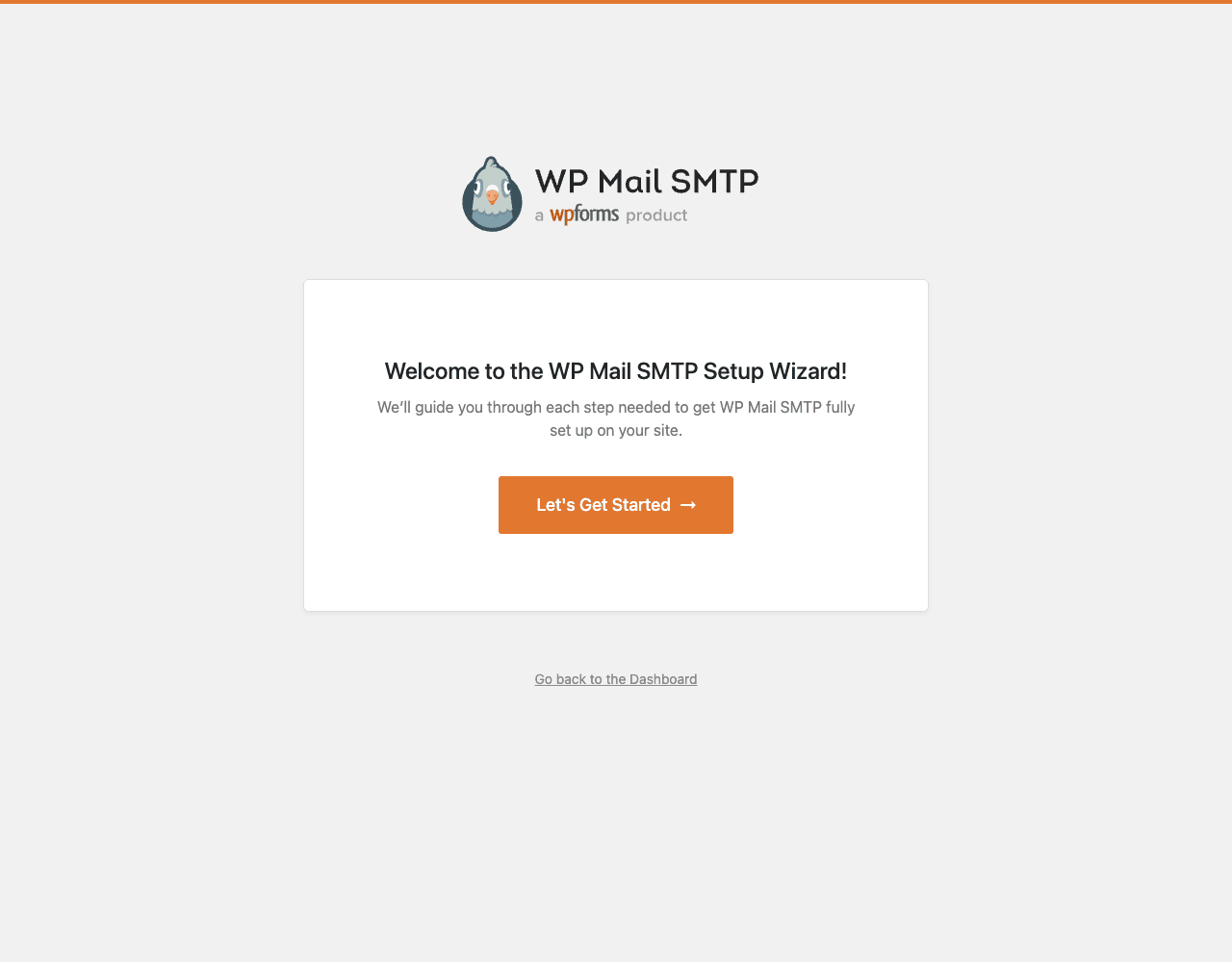
Click "Let’s Get Started" and the next screen is the mailer picker, which lists all 18 supported providers:
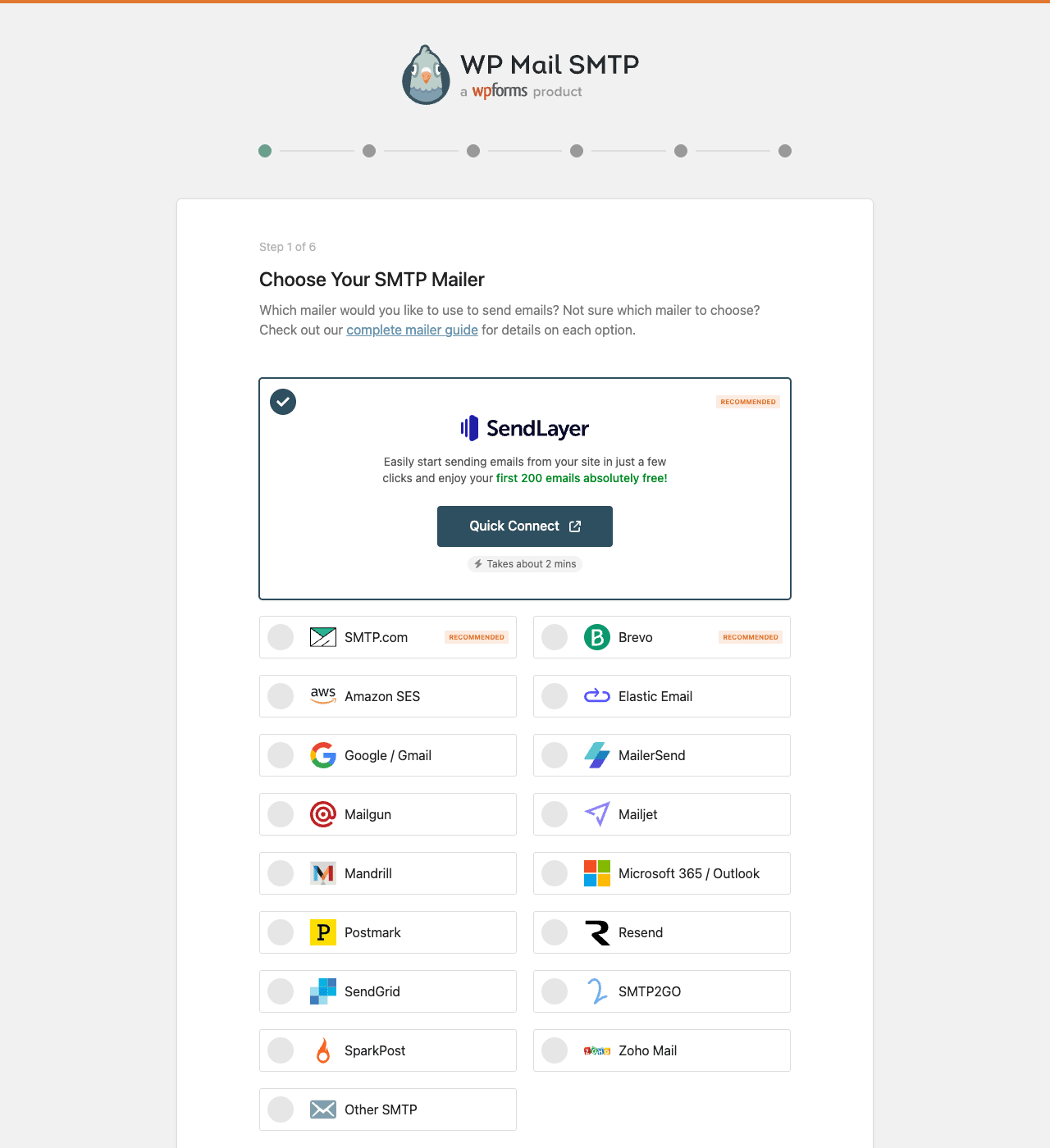
Each one has its own setup flow. SendLayer (the recommended option from Awesome Motive’s own team) takes about two minutes because the wizard handles OAuth for you. Gmail takes about ten minutes the first time because you have to create a Google Cloud project for the OAuth credentials (the wizard walks you through every step). Other SMTP is the catch-all for "I already have SMTP credentials from my host or provider".
Once a mailer is configured, the main Settings page is where you tweak everything else:
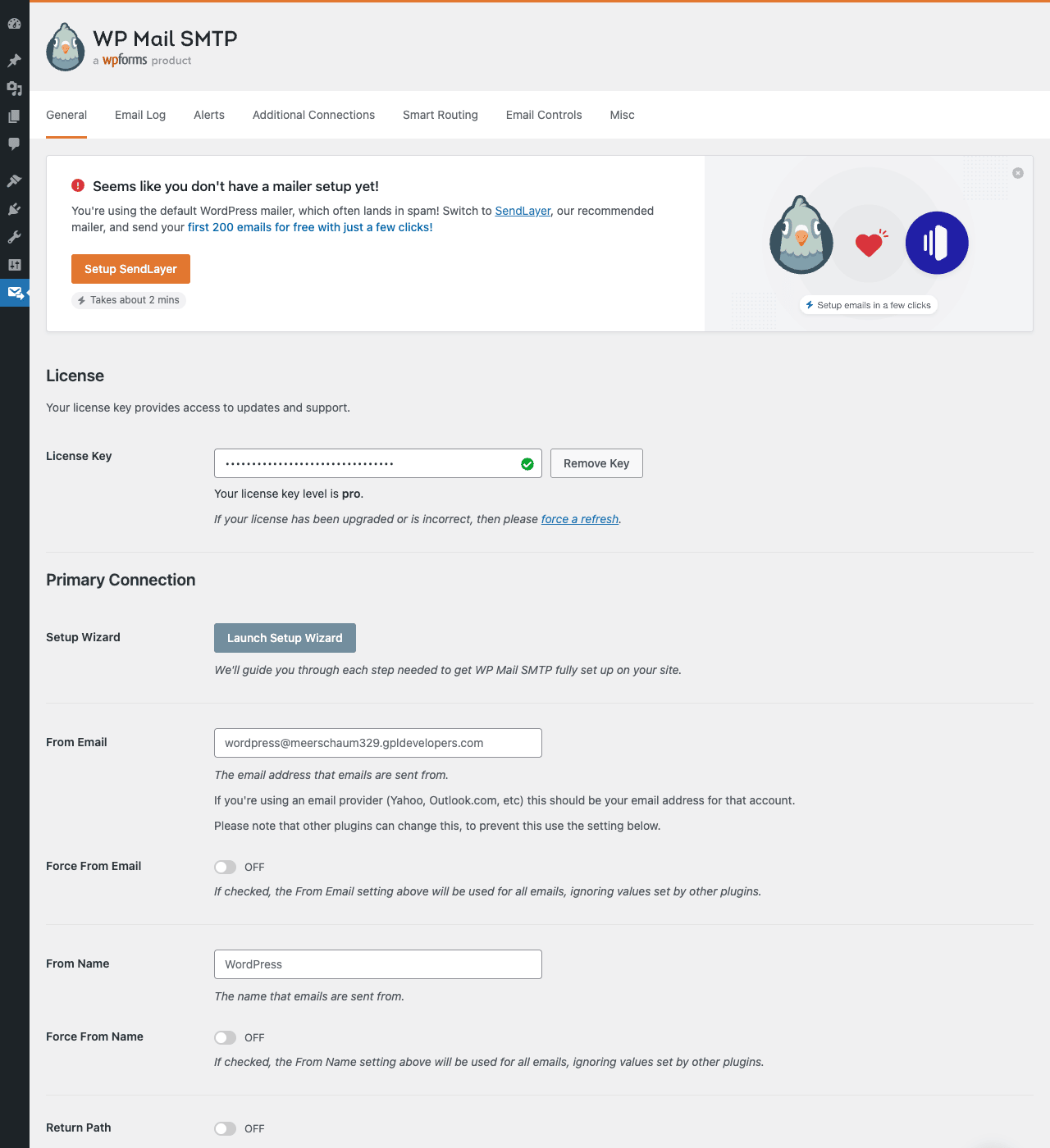
Notice the tab bar at the top: General, Email Log, Alerts, Additional Connections, Smart Routing, Email Controls, Misc. Each is a Pro feature surface. The General tab covers the basics (which mailer, what From email, what From name). The next sections handle the operator-grade features.
The Email Log tab is where every sent email lands once you enable logging:
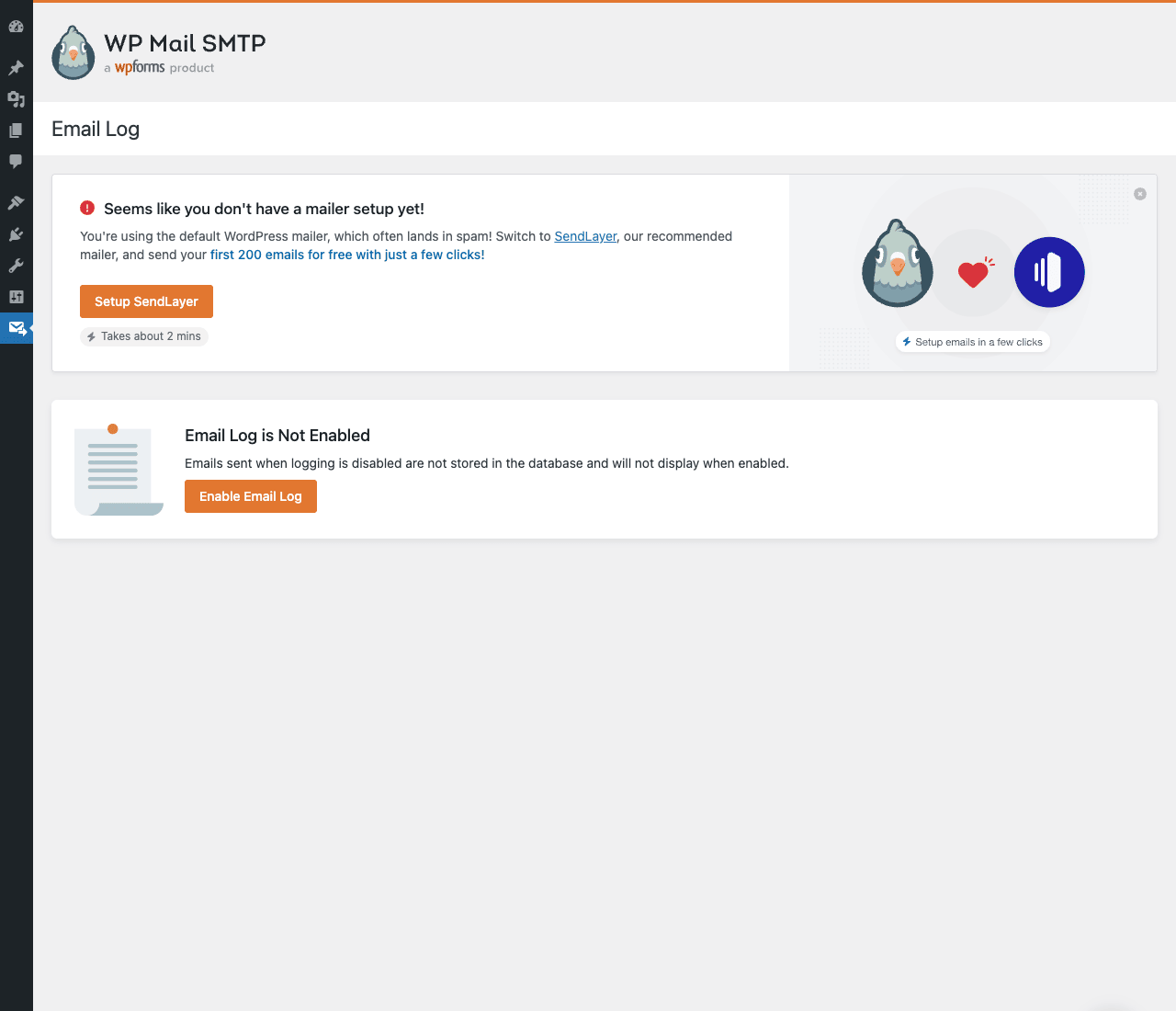
After clicking "Enable Email Log" and sending a few test emails, this page becomes a search table of every email your site sent. You can filter by mailer, status (sent, failed, queued), date range, From/To address. Click any row to see the full headers, body, and attachments. This is invaluable when a customer says "I never got my receipt" – you can see if the email was even attempted, whether the mailer accepted it, and whether you can resend.
Smart Routing is the per-email-type routing engine:
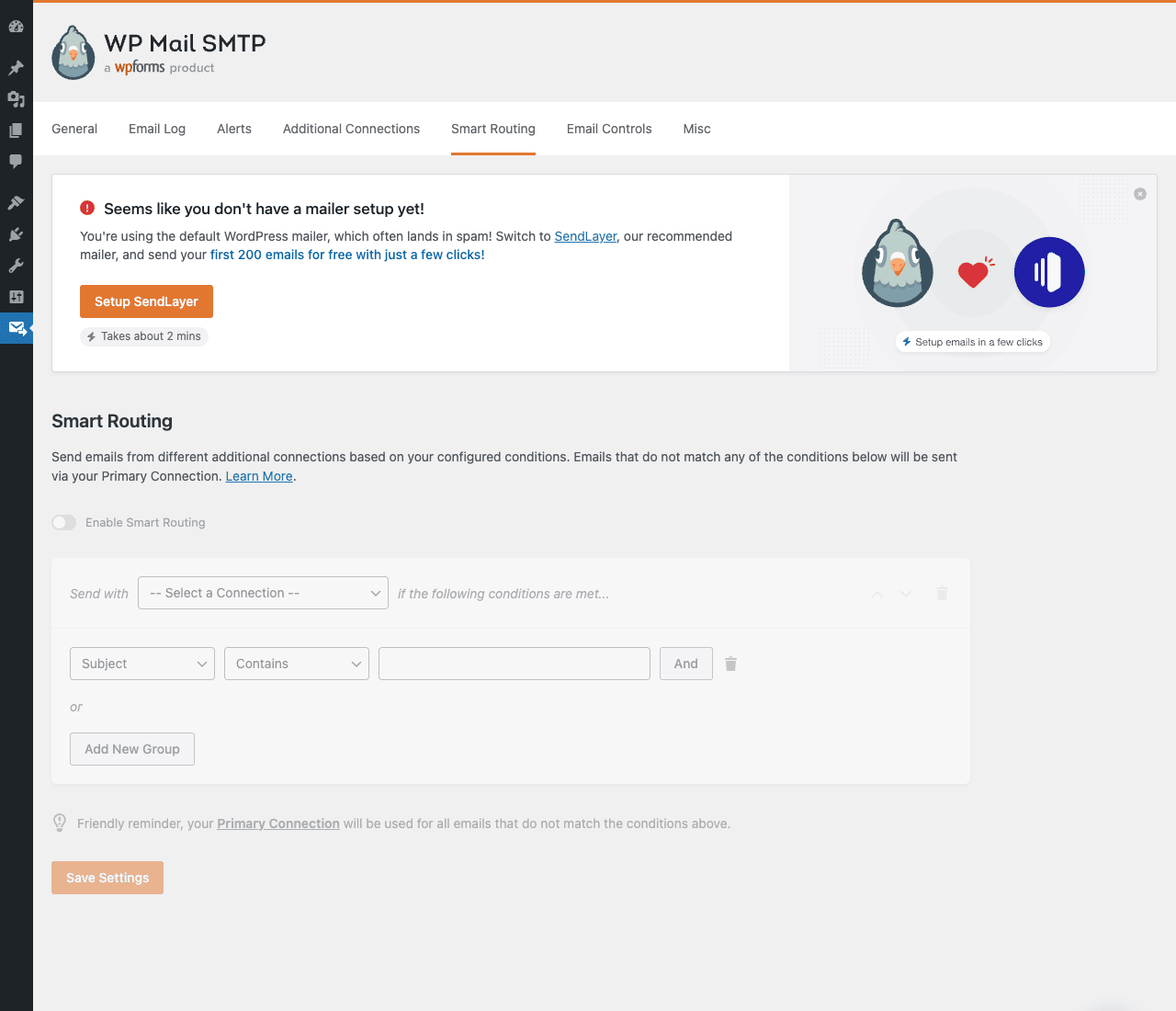
The use case: you might want WooCommerce order confirmations to go through Postmark (highest deliverability for transactional) while newsletter blasts go through Mailgun (cheap and built for volume). Or password resets via SendLayer (fast) but admin alerts via Gmail (so they show up in your normal inbox). Smart Routing lets you set those rules without writing PHP.
Email Controls is the "stop sending me this" panel:
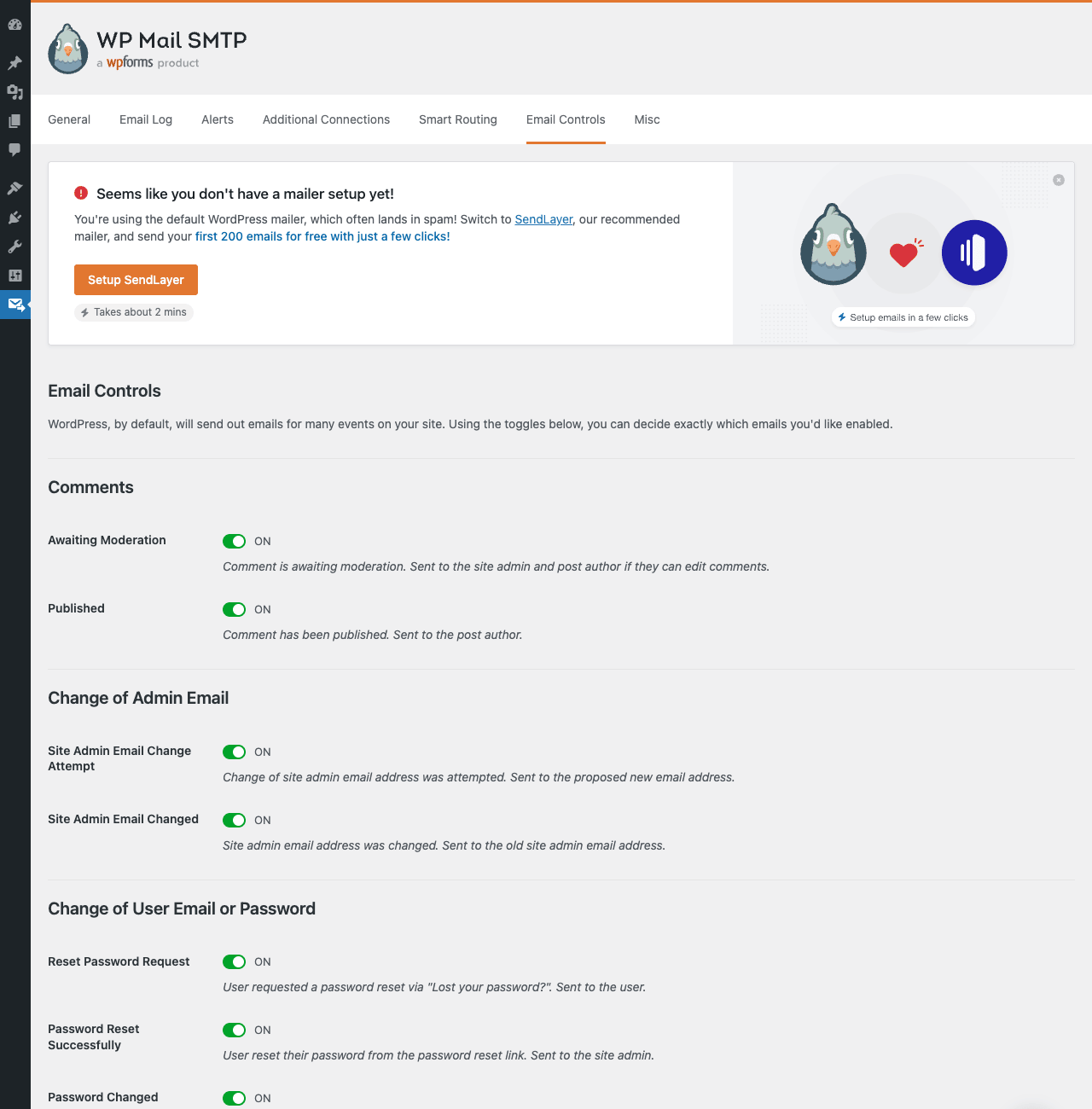
WordPress core sends a lot of emails. New comment awaiting moderation. Comment published. Site admin email change confirmations. Password reset requests. Password change confirmations. New user notifications. Most sites do not want all of these turned on. Email Controls lets you toggle each one off without writing a filter or removing an action hook. This is one of the most quietly-useful Pro features.
Installation and setup
WP Mail SMTP Pro installs like any other WordPress plugin. The setup wizard walks you through everything else.
Step 1: Install the plugin. Plugins → Add New → Upload Plugin. Choose the wp-mail-smtp-pro.zip file. Click Install Now, then Activate Plugin. The "WP Mail SMTP" menu appears in the admin sidebar, and the Setup Wizard launches automatically.
Step 2: Run the Setup Wizard. Click "Let’s Get Started". Pick a mailer (we recommend SendLayer if you have no preference because it has the least setup friction). Follow the per-mailer instructions, which differ. For SendLayer it is a one-click OAuth. For Gmail it is a Google Cloud Console setup. For "Other SMTP" you enter host, port, username, password.
Step 3: Activate your license (optional). Go to WP Mail SMTP → Settings → License Key. Paste your key and click Activate. The plugin works without a license, the key only enables the official update channel.
Step 4: Send a test email. Inside the Wizard you can send a test message. Or go to Tools → Test Email (under the WP Mail SMTP menu). Enter a destination address, click Send. If it arrives in your inbox, you are done.
Step 5: Enable Email Log (recommended). Go to WP Mail SMTP → Email Log and click "Enable Email Log". Every email your site sends from this point forward will be logged. Cheap insurance against "did that email actually send?" debugging.
Step 6: Set up Alerts (optional but recommended). Go to Alerts tab. Configure a Slack webhook, Discord webhook, or notification email so you get pinged when an email send fails. You will probably never see one for the first six months. The seventh month, when your DNS rotates or your API key expires, you will be glad it was configured.
That is the install. The plugin is now silently routing every wp_mail() call through your chosen provider.
Step-by-step: route WordPress emails through SMTP
Let me walk through a concrete setup. Anika runs a small online jewelry shop (WordPress + WooCommerce + WPForms contact form). She has been getting customer complaints that order confirmations never arrive. She wants to fix it today.
Step 1: Diagnose the problem. Before doing anything else, Anika opens Tools → Site Health in her WP admin. The Status tab shows "Background updates" and "REST API" but does not explicitly show email status. She tests email by going to a contact form on her own site and submitting a test. She does not get the reply. Confirmed: her site cannot send email reliably.
Step 2: Pick a mailer. Anika is a one-person shop sending maybe 50-100 emails per day. She picks SendLayer because (a) it has a free 200-emails/month tier that covers her current volume, (b) the WP Mail SMTP wizard handles it in under two minutes, (c) the deliverability is excellent for an SMTP provider designed specifically for WordPress sites.
Step 3: Get SendLayer credentials. Anika clicks "Setup SendLayer" in the WP Mail SMTP wizard. A new tab opens to sendlayer.com. She creates a free account, adds her domain, the wizard returns her to WordPress with the API token already populated.
Step 4: Verify domain DNS. SendLayer (like every transactional provider) requires Anika to add three DNS records to her domain: SPF, DKIM, and DMARC. The wizard shows her the exact records to paste. She logs into her domain registrar (Namecheap), adds the three TXT records, waits a few minutes for propagation. Back in the wizard she clicks "Verify". Green checkmarks appear.
Step 5: Set From Email and From Name. Under General settings, Anika sets From Email to orders@anikastudio.com (the address she wants customers to see). She sets From Name to "Anika Studio". She toggles "Force From Email" ON so any plugin that tries to set a different from-address is overridden.
Step 6: Send a test. Anika goes to Tools → Test Email. Enters her personal Gmail. Clicks Send. Refreshes Gmail. The email is there. She marks it "Not Spam" if it landed in the spam folder, and Gmail learns to trust the new sender.
Step 7: Test a real WooCommerce order. Anika places a test order through her own checkout (with her real email). The order-confirmation email arrives within 30 seconds. The shipping-confirmation email arrives. The thank-you email arrives. The problem is solved.
Step 8: Enable Email Log. Anika goes to Email Log tab, clicks Enable. From now on, every email her site sends is recorded. When a customer says "I didn’t get my receipt" she can look up the order, see whether WP Mail SMTP attempted to send, see SendLayer’s response code, and resend with one click if needed.
Step 9: Configure Alerts. Anika sets up a Discord webhook in her personal server. Now if SendLayer ever returns an error (DNS expired, monthly quota exceeded, API key rotated, whatever), a message hits her Discord and she knows to investigate before customers notice.
Step 10: Set up Email Controls. Anika turns off "Comment Awaiting Moderation" and "Comment Published" notifications (she does not want to see those daily). She leaves all WooCommerce-related emails on. She also leaves password-reset emails on because customers occasionally need them.
The whole flow took maybe 45 minutes including DNS propagation wait. Her email problem is solved permanently.
Real-world use cases
The same plugin handles a surprising range of sites. A few patterns:
1. A WooCommerce store with high transactional volume. Vikram sells digital downloads via Easy Digital Downloads. He sends 500-1000 order confirmations per day. Default mail() was working but landing in 20% spam folders. He switched to Postmark (transactional-only provider, best deliverability metrics). Spam rate dropped to under 2%. Conversion on the "click here to download" link in the email went up.
2. A multi-author blog with WordPress notifications. Maya runs a writing collective with 12 contributing authors. Comment notifications, post-published notifications, password resets, and Editorial Calendar notices were all bouncing on a few authors’ Yahoo and AOL addresses. She switched to Brevo (formerly Sendinblue). Bounce rate dropped to zero because Brevo handles the inbox-provider negotiations that her shared host could not.
3. A LearnDash student onboarding flow. Priya runs an online course site on LearnDash LMS. Each new student gets a welcome email, course-start email, and lesson-completion emails. She uses Smart Routing to send welcome emails via SendLayer (high deliverability) and lesson-completion emails via Mailgun (cheaper at volume, lower urgency). Her email costs dropped while welcome-email open rates rose.
4. A WPForms contact form with conditional reply-to. Raj uses WPForms for his consulting site. He uses Smart Routing to send "sales inquiry" form submissions through one connection (with reply-to set to his sales address) and "support request" forms through another (reply-to to his support team). Customers never see the routing, but his team sees the right inbox.
5. A WordPress-on-AWS site using SES. Sara hosts a non-profit’s site on AWS. She uses Amazon SES as her mailer because she already has an AWS account and SES is the cheapest option at non-profit volumes ($0.10 per 1000 emails). The SES integration in WP Mail SMTP handled the SES API authentication automatically; she did not need to configure SMTP credentials manually.
6. A maintenance-mode site with Email Controls. Marcus runs an agency. When a client site is in maintenance mode (final pre-launch testing), he uses Email Controls to disable all WordPress-native and WooCommerce-test emails so test orders do not spam the client’s real customers. After launch, he toggles them back on. A simple workflow that used to require a custom plugin or filter.
Developer reference
This section is for developers extending WP Mail SMTP. You should know the WordPress wp_mail() function and phpmailer_init action before going further.
The interception flow
WP Mail SMTP attaches to phpmailer_init (the same hook every other WordPress mail-related plugin uses). When WordPress is about to send mail:
wp_mail()is called by whatever plugin or theme wants to send mail.- WordPress constructs a
PHPMailer\PHPMailer\PHPMailerobject with the From, To, Subject, Body, headers, and attachments. - WordPress fires
do_action_ref_array( 'phpmailer_init', [ &$phpmailer ] ). - WP Mail SMTP’s
MailCatcherTraitintercepts the$phpmailerobject via this action, replaces it with its own subclass, and configures the subclass to send via the mailer you have selected in settings. - The PHPMailer subclass either uses native SMTP (for SMTP-based mailers like Gmail, Outlook, Other SMTP) or makes an HTTP API call to the provider (for API-based mailers like SendLayer, Postmark, Brevo).
- The result is captured in the Email Log (if enabled) and any failures trigger Alerts.
The whole flow is transparent to the calling code. wp_mail() still returns true or false, headers are still respected, attachments are still included.
The most useful hooks
// Modify the PHPMailer object before sending.
add_action( 'phpmailer_init', function( $phpmailer ) {
 // Add a custom X-Mailer header for tracking.
 $phpmailer->addCustomHeader( 'X-Site', get_bloginfo( 'name' ) );
} );

// Fired right before WP Mail SMTP hands the message to the mailer.
add_action( 'wp_mail_smtp_mailcatcher_smtp_pre_send_before', function( $mailcatcher ) {
 // $mailcatcher is the PHPMailer subclass instance.
 // Custom logging, last-minute body rewrites, etc.
} );

// Fired after a successful send.
add_action( 'wp_mail_smtp_mailcatcher_smtp_send_after', function( $is_sent, $to, $cc, $bcc, $subject, $body, $from ) {
 if ( $is_sent ) {
 do_action( 'my_app_email_sent', $to, $subject );
 }
}, 10, 7 );

// Fired when a send fails.
add_action( 'wp_mail_smtp_mailcatcher_send_failed', function( $error_message, $mailcatcher, $mailer_slug, $error_code, $response_code ) {
 error_log( "Mail failed via $mailer_slug: $error_message (code $error_code)" );
}, 10, 5 );

// Fired when an email is blocked (e.g. by a recipient rule, or by a Pro Email Control toggle).
add_action( 'wp_mail_smtp_mail_catcher_send_blocked', function( $mailcatcher ) {
 // Optional logging.
} );

// Fired when options are saved.
add_action( 'wp_mail_smtp_options_set_after', function( $options ) {
 do_action( 'my_app_smtp_config_changed', $options );
} );
Custom PHPMailer options
If you need to set additional PHPMailer options (custom OAuth provider, custom encryption, custom routing), the safest hook is wp_mail_smtp_custom_options:
add_filter( 'wp_mail_smtp_custom_options', function( $phpmailer ) {
 // Add a custom reply-to address if not already set.
 if ( empty( $phpmailer->getReplyToAddresses() ) ) {
 $phpmailer->addReplyTo( 'support@example.com', 'Support Team' );
 }
 // Force a specific charset.
 $phpmailer->CharSet = 'UTF-8';
 return $phpmailer;
} );

// Set a default reply-to address that applies to every email.
add_filter( 'wp_mail_smtp_processor_set_default_reply_to', function( $reply_to ) {
 return 'support@example.com';
} );
Reading and writing options
The plugin’s settings are accessed via the WPMailSMTP\Options class:
$options = WPMailSMTP\Options::init();

// Read.
$mailer = $options->get( 'mail', 'mailer' ); // e.g. "sendlayer"
$from_email = $options->get( 'mail', 'from_email' ); // e.g. "orders@example.com"
$from_name = $options->get( 'mail', 'from_name' );
$force_from = $options->get( 'mail', 'from_email_force' );

// Get the full options array.
$all = $options->get_all();
Setting options programmatically is less common (most users do it through the UI) but is supported:
$options = WPMailSMTP\Options::init();
$options->set( [
 'mail' => [
 'from_email' => 'orders@example.com',
 'from_email_force' => true,
 'from_name' => 'Example Shop',
 'from_name_force' => false,
 ],
], false /* skip activation flag */, true /* overwrite */ );
Custom mailers
You can register your own mailer (e.g. integration with a niche provider). The pattern is to extend WPMailSMTP\Providers\MailerAbstract and register via the wp_mail_smtp_providers filter (see src/Providers/Loader.php for the full list). This is a deeper customization; for most needs, the "Other SMTP" mailer covers any provider with SMTP credentials.
REST API endpoints
WP Mail SMTP Pro registers REST routes only for internal use (the React-based admin UI in newer versions). Public REST endpoints are not part of the plugin’s external contract. For programmatic email status checks from outside WordPress, query the Email Log table directly:
SELECT id, mailer, from_email, to_email, subject, status, date_sent
FROM wp_wpmailsmtp_emails_log
WHERE date_sent > DATE_SUB( NOW(), INTERVAL 24 HOUR )
ORDER BY date_sent DESC;
(The exact table name depends on your WP table prefix.)
Multisite
On WordPress multisite, WP Mail SMTP supports network-level configuration. The Pro version exposes a "Multisite" tab in network admin where you can enforce settings across all subsites or allow per-site overrides. The wp_mail_smtp_mail_key and related options are read from the main blog by default.
add_filter( 'wp_mail_smtp_options_populate_options', function( $options ) {
 // Force a specific mailer across the entire network.
 if ( is_multisite() ) {
 $options['mail']['mailer'] = 'sendlayer';
 }
 return $options;
} );
Pre-send filters and conditional sending
// Skip sending entirely if a condition is met.
add_filter( 'wp_mail', function( $args ) {
 // Block all emails to a specific test address (useful in staging).
 if ( strpos( $args['to'], '@test.local' )!== false ) {
 return false; // returning false from this filter prevents sending
 }
 return $args;
} );

// Modify the email content right before send.
add_filter( 'wp_mail', function( $args ) {
 // Add an X-Environment header.
 if (! isset( $args['headers'] ) ) $args['headers'] = [];
 if ( is_string( $args['headers'] ) ) $args['headers'] = [ $args['headers'] ];
 $args['headers'][] = 'X-Environment: '. wp_get_environment_type();
 return $args;
} );
Smart Routing programmatic equivalent
The Smart Routing UI is the visual builder. The same routing can be done in code by using multiple PHPMailer instances and choosing one based on the message content:
add_action( 'phpmailer_init', function( $phpmailer ) {
 if ( strpos( $phpmailer->Subject, 'Order' )!== false ) {
 // Use Postmark for order emails (configured as Additional Connection 'postmark_orders').
 $phpmailer->Host = 'smtp.postmarkapp.com';
 $phpmailer->SMTPAuth = true;
 $phpmailer->Username = defined( 'POSTMARK_TOKEN' )? POSTMARK_TOKEN : '';
 $phpmailer->Password = defined( 'POSTMARK_TOKEN' )? POSTMARK_TOKEN : '';
 }
}, 99 ); // High priority to run after WP Mail SMTP's own setup
The visual Smart Routing UI is usually easier to maintain, but the programmatic path is useful for conditions that involve dynamic data not exposed in the UI (e.g. user role of the recipient).
Action Scheduler integration
WP Mail SMTP Pro uses Action Scheduler (the same WooCommerce-shipped library) for delayed and rate-limited sending. This means you can integrate with the standard WooCommerce/Action Scheduler tools:
# List pending email tasks.
wp action-scheduler list --hook=wp_mail_smtp_admin_notifications_update

# Run pending tasks immediately (useful in CI).
wp action-scheduler run
Disabling specific WordPress emails programmatically
The Pro UI handles this with toggles, but if you need to do it in code (e.g. inside a plugin that ships behavior):
// Disable all new-user notifications to the admin.
add_filter( 'wp_new_user_notification_email_admin', '__return_false' );

// Disable the new-comment-awaiting-moderation email.
add_filter( 'notify_post_author', '__return_false' );

// Disable post password change emails.
add_filter( 'send_password_change_email', '__return_false' );

// More options are in wp-includes/pluggable.php; check the function names.
The Email Controls UI is essentially a wrapper around these (and many more) WordPress core filters.
Compatibility
WP Mail SMTP plays nicely with:
- WPForms, Gravity Forms, Fluent Forms (any plugin that uses
wp_mail()). - WooCommerce, EDD, MemberPress, LearnDash, LifterLMS, BuddyBoss.
- BackupBuddy, UpdraftPlus (for backup completion emails).
- Newsletter plugins (Newsletter, MailPoet, Newsletter Glue) – though if you have a marketing newsletter at scale, you usually want the newsletter plugin’s own ESP integration rather than routing every newsletter through WP Mail SMTP.
It does NOT play nicely with:
- Other SMTP plugins (Easy WP SMTP, FluentSMTP, Post SMTP). Pick one, deactivate the others. Two SMTP plugins fighting over
phpmailer_initis a guaranteed bug. - PHP mail interception services that override
mail()at the PHP level (some shared hosts do this). WP Mail SMTP bypassesmail()so the override never runs; if the override was doing useful work (rate limiting, header injection), you lose it.
Performance, compatibility, and gotchas
WP Mail SMTP is a lightweight plugin. The plugin itself adds essentially zero perceptible load to non-email page requests. The only requests that involve the plugin are emails, and those are I/O bound on the SMTP provider’s response time, not WordPress.
Performance considerations:
- API-based mailers (SendLayer, Postmark, Brevo, etc.) are faster than SMTP-based mailers (Gmail, Outlook, Other SMTP) because they use HTTPS POST instead of negotiating an SMTP session. If you send a high volume of emails, prefer an API mailer.
- The Email Log (Pro) adds one row to a dedicated table per email. For a site sending 10,000 emails per month, the table grows by 10,000 rows. Set up auto-deletion under Email Log → Settings (e.g. delete logs older than 90 days).
- Rate limiting (Pro) uses Action Scheduler to queue emails that exceed your per-hour or per-day cap. The queued emails do not block the page request that triggered them.
- If you have multiple WordPress sites on the same mailer provider, share the API token across them (most providers allow this). Do not create a separate API key per site unless you need separate billing.
Compatibility caveats:
- WordPress 5.5+ and PHP 7.4+ are required.
- The Gmail mailer requires you to create a Google Cloud project for OAuth credentials. This is annoying the first time but standard practice. The Outlook mailer is similar (requires an Azure App Registration).
- Amazon SES requires you to be out of "sandbox mode" before you can send to addresses outside your verified ones. New AWS accounts start in sandbox. Request production access through the AWS console.
- Multisite licenses cover the whole network. A single-site license activated on a network will work for the main site but not subsites.
- Block-based editor screens that include the Email Log table can be slow on sites with hundreds of thousands of logged emails. Use the filter UI to narrow the date range instead of paginating.
Common gotchas:
- DNS records not propagated. If you add SPF/DKIM/DMARC records to your domain and try to send right away, the records might not have propagated yet. DNS can take up to 48 hours. The "Verify" button in the wizard tells you if records are visible.
- Force From Email overrides every plugin. If you enable "Force From Email", WPForms’s per-form From-Address setting is ignored. WooCommerce’s per-order From-Address is ignored. This is usually what you want for deliverability (one consistent From address) but it can confuse you if you forget you turned it on.
- The free version does not include Email Log. If you install the free WP Mail SMTP from WordPress.org and look for the Email Log feature, you will not find it. The free version focuses on mailer setup; Email Log, Smart Routing, Alerts, Additional Connections are Pro-only.
- Test emails go via the wizard’s selected mailer, not the active one. If you change mailers mid-wizard, the Test Email button might use the previous configuration. Save settings first, then test.
- OAuth tokens expire. Gmail and Outlook OAuth tokens are refreshed automatically by the plugin, but if your Google Cloud project or Azure App Registration is deleted or its scopes change, the token can become invalid. Re-authenticate when this happens.
Pricing and licensing
WP Mail SMTP Pro is sold by Awesome Motive on an annual-license-per-site model. Three tiers: Pro (1 site), Elite (5 sites), and Master (unlimited sites). The Pro tier covers Email Log, Smart Routing, Alerts, Additional Connections, Email Controls. The Elite and higher tiers add features like Backup Connection failover.
The plugin is GPL-licensed (the WordPress license requires it). The license sold by Awesome Motive is a support and update license, not a use license. After installation, you can use it on any number of sites; the license only gates support replies and the official update channel.
Because of GPL, the same plugin file is legally redistributable. Same plugin, same features, no Awesome Motive update channel.
For business-critical sites where email deliverability is part of your revenue stream (any WooCommerce store, any membership site, any contact-form-driven lead generation), the official license is worth considering. The Awesome Motive support team is experienced and responsive.
FAQ
Q: Do I need to write any code to use WP Mail SMTP Pro?
No. The Setup Wizard handles every step of the initial configuration. After that, all settings are in the admin UI. Code is only needed if you want to extend the plugin with custom mailers, custom routing logic, or integration with external systems.
Q: Is there a free version?
Yes. WP Mail SMTP (without Pro) is on the WordPress.org plugin repository and includes all 18 mailer integrations plus the basic Setup Wizard. The Pro version adds Email Log, Smart Routing, Alerts, Additional Connections, Email Controls, Rate Limiting, Backup Connection, and Reports. If you only need reliable email delivery and no operator features, the free version is enough.
Q: Which mailer should I pick?
If you have no preference, SendLayer is the recommended default (it is the Awesome Motive team’s own mailer, integration is one-click, includes a free 200-emails/month tier, deliverability is excellent for WordPress-flavored mail). Postmark is the gold standard for transactional emails specifically. Amazon SES is the cheapest at high volume. Brevo (formerly Sendinblue) has good free-tier limits. Gmail and Outlook work if you do not want to add another vendor.
Q: Will WP Mail SMTP slow down my site?
No measurable impact on non-email page loads. Emails themselves take 200-800ms longer because they hit a remote SMTP or API instead of the local server’s mail spool, but this delay does not block the user’s page request (WordPress sends mail at the end of the request, after the response is mostly delivered).
Q: Does WP Mail SMTP work with WooCommerce, WPForms, Gravity Forms, etc?
Yes. WP Mail SMTP hooks wp_mail() itself, so any plugin that uses wp_mail() (which is essentially all of them) benefits automatically. No per-plugin configuration needed.
Q: Can I send transactional and marketing emails through different providers?
Yes, via Smart Routing (Pro feature). Define conditions like "if subject contains ‘Newsletter’, send via Mailgun, else send via Postmark". You configure as many Additional Connections as you want.
Q: What happens if my mailer fails?
Without Pro: the email fails and wp_mail() returns false. The calling plugin sees the failure. With Pro Backup Connection: WP Mail SMTP automatically retries with a configured backup mailer. With Alerts: you get a notification on Slack/Discord/email so you can investigate.
Q: Does it work with WordPress multisite?
Yes, with Pro. Network admin gets a global configuration page. Subsites can either inherit or override (configurable per setting).
Q: Is my email data sent to Awesome Motive?
No. WP Mail SMTP routes emails directly from your WordPress site to the SMTP provider you configure. Awesome Motive’s servers are not in the loop. The plugin does send anonymous usage stats (you can opt out under Settings → Misc).
Q: Can I migrate from another SMTP plugin?
Yes, but deactivate the old plugin before activating WP Mail SMTP. Two SMTP plugins both hooking phpmailer_init will fight over the mailer. Most settings (host, port, username, password) can be copied manually from the old plugin’s settings to WP Mail SMTP’s General tab.
Final thoughts
WP Mail SMTP Pro is one of those infrastructure plugins you install once and then forget about. Once it is working, the site’s email Just Works. Contact forms reach you. Order confirmations reach customers. Password resets land in the inbox. The 30 minutes you spent setting it up returns its value the first time someone complains "I never got my receipt" and you can prove the email was sent, see the SMTP response code, and resend with one click.
For a beginner the path is short. Install the plugin, follow the Setup Wizard, pick SendLayer (or whatever your team has accounts with), enter credentials, send a test, you are done. The Pro features (Email Log, Smart Routing, Alerts) are worth turning on but not required for the basic problem to be solved.
For a developer the plugin is well-designed. The hook surface mirrors WordPress’s own wp_mail() semantics, the PHPMailer integration is non-invasive, and the option API (WPMailSMTP\Options) is clean. Custom mailer registration is documented in the codebase. The plugin plays nicely with WP-CLI tooling (Action Scheduler for queueing) and standard WordPress upgrade flows.
The places where WP Mail SMTP is not the right answer: if you are sending large-volume marketing newsletters (hundreds of thousands of emails per send), use a dedicated marketing-email platform with its own native integration. WP Mail SMTP is built for transactional and operational email, not for bulk campaigns.
For everything else (and that is almost every WordPress site that uses email), WP Mail SMTP Pro is the boring-good default.
Useful external references:
- WP Mail SMTP official documentation covers every mailer integration in detail with per-provider setup walkthroughs.
- Why are my WordPress emails not sending is the canonical troubleshooting reference for general deliverability problems.
- WordPress wp_mail function reference for understanding what WP Mail SMTP intercepts.