

A few years back I helped move a 40-vendor handmade-goods marketplace off Dokan Pro onto the WCFM stack, mostly because the math on lifetime pricing was impossible to argue with after year two. The migration wasn’t painless. But the vendor-facing dashboard at /store-manager/ was honestly the part that won everyone over: small sellers who had never touched the WordPress admin could actually log in, list a product, see their last seven days of sales, answer a customer message, and leave again, all without ever seeing /wp-admin/. That’s the pitch in one sentence. WCFM treats the vendor as the primary user, not the site admin.
This is a long look at WCFM Ultimate, which is the top-tier paid add-on in the WCFM family. We’ll cover what the free pieces do, what Ultimate stacks on top, where it shines, where it’s clunky (the admin settings layout is the main gripe), how to actually wire up Stripe Connect payouts, and a developer reference with the hooks you’ll reach for when you start customising vendor flows.
Table of contents
- What is WCFM Ultimate?
- The free stack underneath
- Key features Ultimate adds
- How the front-end dashboard actually works
- Installation and setup
- Vendor membership plans
- Commission rules and payouts
- A real handmade-goods marketplace scenario
- Developer reference
- Where WCFM gets clunky
- Performance, compatibility, and gotchas
- Pricing and licensing
- WCFM Ultimate vs Dokan Pro vs WC Vendors
- Final thoughts
What is WCFM Ultimate?
WCFM stands for WooCommerce Frontend Manager. The original product was a free plugin from WC Lovers (a small Indian dev team) that gave WooCommerce a front-end dashboard. The idea was simple: store managers shouldn’t have to use the WordPress admin to add products or process orders. They could do it from a custom page on the front of the site that looked like a slimmed-down SaaS dashboard.
Then WC Lovers shipped a second free plugin called WCFM Marketplace, which extended that idea to multiple sellers. Now you had a system where each vendor got their own copy of the dashboard, their own products, their own orders, and the site admin sat above all of it as a kind of platform operator. That’s the basic multi-vendor pattern that Etsy, Bonanza, and Amazon Marketplace popularised: many sellers under one storefront, one checkout, one customer experience.
WCFM Ultimate is the paid, top-of-the-stack add-on that bolts the advanced features onto that free base. It’s the plugin you buy if you’ve already used the free version, decided the model fits, and now want vendor memberships, staff accounts, vendor coupons, audio and video downloads, time-based shop hours, geolocation, per-vendor SEO, Stripe Connect payouts with automatic order splitting, and a long list of smaller things I’ll cover below.
For context, the family looks like this:
- WCFM (free, on WordPress.org). The front-end dashboard for a single-vendor WooCommerce store.
- WCFM Marketplace (free, on WordPress.org). Turns the dashboard into a multi-vendor system.
- WCFM Marketplace Pro (paid). Advanced commission rules, payouts, refunds.
- WCFM Ultimate (paid, what this article covers). Memberships, staff, addons, vendor analytics, shop hours, vendor SEO, audio/video.
You don’t have to install all four. Most production marketplaces I’ve seen run the bundle, because the paid pieces overlap and depend on each other. The Ultimate tier in particular assumes WCFM Marketplace Pro is also present.
The free stack underneath
Before going into Ultimate, it’s worth noting how much you get for zero dollars. The two free plugins on WordPress.org get you:
- A vendor registration page that adds a Become a Vendor option to the WooCommerce signup flow.
- A separate front-end dashboard at
/store-manager/for each vendor, with their own product list, order list, customer list, and basic reports. - Vendor-aware checkout: when a customer adds products from three different vendors to their cart, WCFM splits the resulting WooCommerce order into per-vendor sub-orders behind the scenes, so each vendor only sees their slice.
- A basic commission split (flat percentage, set globally by the site admin).
- Vendor product publishing, with an optional approval queue.
- Vendor profile pages at
/store/<vendor-slug>/that act as mini-storefronts.
That’s a working marketplace. Many small sites never need more than that. The reason to buy Ultimate is when you want vendor self-sufficiency: vendors who pay their own subscription, manage their own staff, write their own coupon codes, and get paid out automatically without the site admin doing any per-order admin work.
Key features Ultimate adds
Here’s the part of WCFM Ultimate that isn’t in the free plugins or in the Pro tier:
- Vendor membership plans. Charge vendors to join. Monthly, annual, or one-off. Different tiers with different product caps, commission rates, and capability sets. This is what makes WCFM useful for paid SaaS-style marketplaces.
- Per-vendor staff accounts. A vendor can invite team members under their store with scoped permissions: maybe one staffer only handles orders, another only adds products. Each staff account is a real WordPress user, with custom capabilities flagged by WCFM.
- Vendor coupons. Vendors create their own coupon codes, scoped to their own products. The codes show up in WooCommerce’s normal coupon system, with the vendor’s user ID stamped on them.
- Time-based shop hours. A vendor can set opening hours per day of the week, and the storefront shows an open/closed indicator. Useful for restaurants, services, made-to-order shops, anyone with real-world availability.
- Audio and video downloads. Lets vendors upload audio and video files as downloadable products. Native WooCommerce only supports generic file downloads, so this is a nice quality-of-life feature for music, course, and stock-media marketplaces.
- Vendor SEO per store. Per-vendor meta titles, descriptions, OpenGraph tags, and sitemap submission. The site-wide SEO plugin (Yoast, Rank Math, AIOSEO) handles the rest of the site, but individual store pages get their own controls.
- Vendor product addons. A vendor can add custom options to their own products (engraving text, gift-wrap, choose-your-colour) without the admin having to wire each one up.
- Subscription products per vendor. If you also run WooCommerce Subscriptions, vendors can sell recurring products and get recurring commission splits.
- Stripe Connect payouts. This is the big one. Money flows directly from the customer to each vendor’s Stripe Connect account at checkout, with the platform commission split server-side by Stripe. No manual payouts.
- Per-vendor commission rules. Flat amount, flat percentage, tiered by sales volume, or per-product overrides. You can give one vendor 90% and another 70%, or set per-category rates.
- Vendor analytics. Per-vendor revenue charts, top-product reports, customer demographics. The site admin sees aggregated analytics across all vendors.
- Vendor support tickets. A small built-in ticketing system so customers can ask a specific vendor questions without involving the platform.
Each of these is a checkbox in a different settings panel, and there’s no single "Ultimate features" page that lists them. You discover them as you click through the admin.
How the front-end dashboard actually works
This is the thing WCFM gets right and most competitors copy. Vendors never go to /wp-admin/. They go to /store-manager/, which is just a regular WordPress page that contains the [wc_frontend_manager] shortcode. The shortcode renders a single-page-app-ish dashboard with a left nav and a main content area.
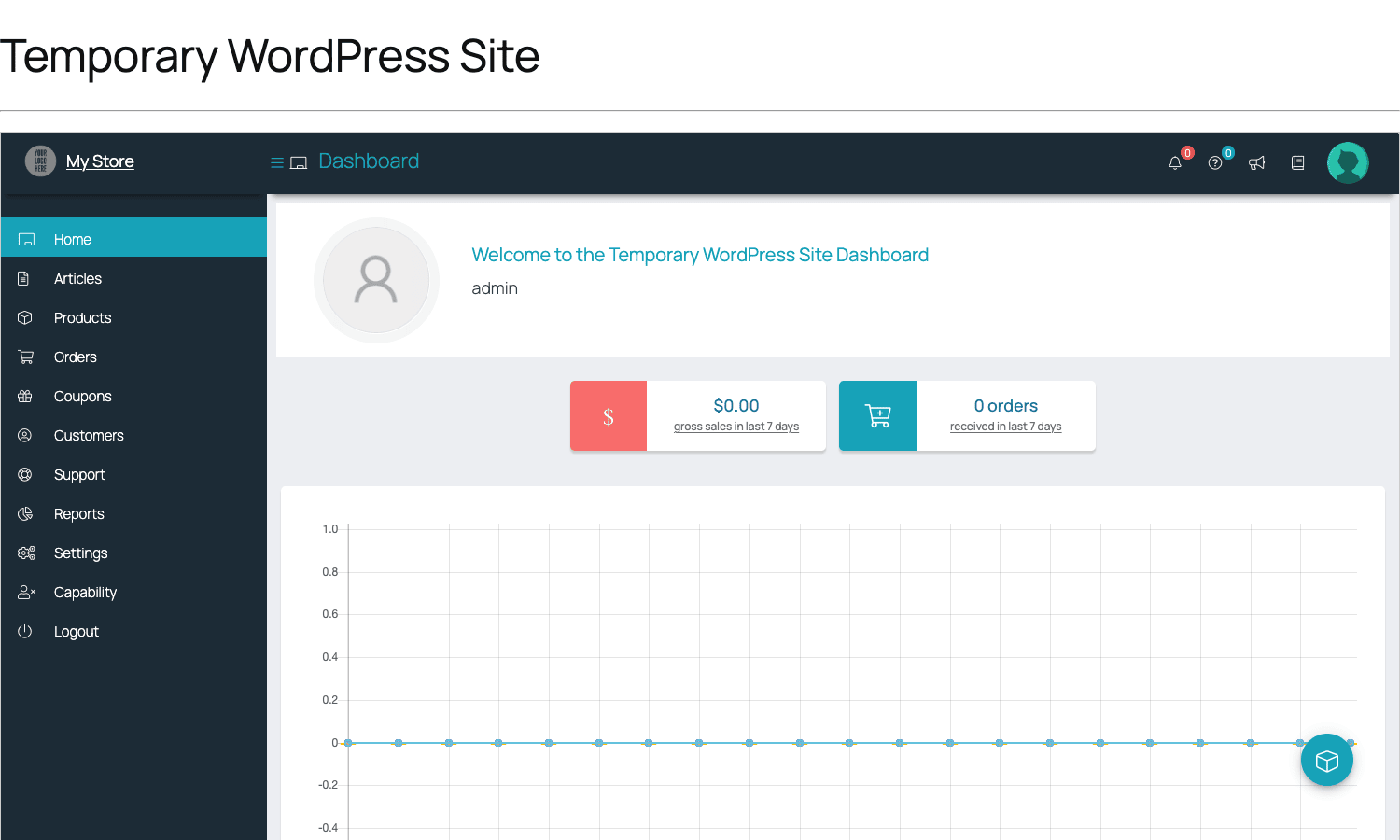
The left nav has the vendor-facing items: Home, Articles, Products, Orders, Coupons, Customers, Support, Reports, Settings, Capability, Logout. Each item maps to a separate WCFM "view" with its own URL, like /store-manager/products-manage/ or /store-manager/orders/. The Home view shows two stat cards (gross sales last 7 days, orders received last 7 days) and a revenue chart pulled from the vendor’s own orders.
The interesting design call is that there is no WordPress admin bar at the top. By default WCFM strips it for vendor roles, so when a small seller logs in they see a clean SaaS-style page with no WP chrome. The header shows the vendor’s logo and store label (My Store is the default, configurable per vendor). The notification bell, the help dot, the megaphone for vendor announcements, and the vendor’s avatar sit top-right.
The product editor is a stripped-down version of WooCommerce’s product editor. Same shape (Simple, Variable, Grouped, External, Subscription dropdown), but rendered in WCFM’s own form layout instead of the WordPress block editor.
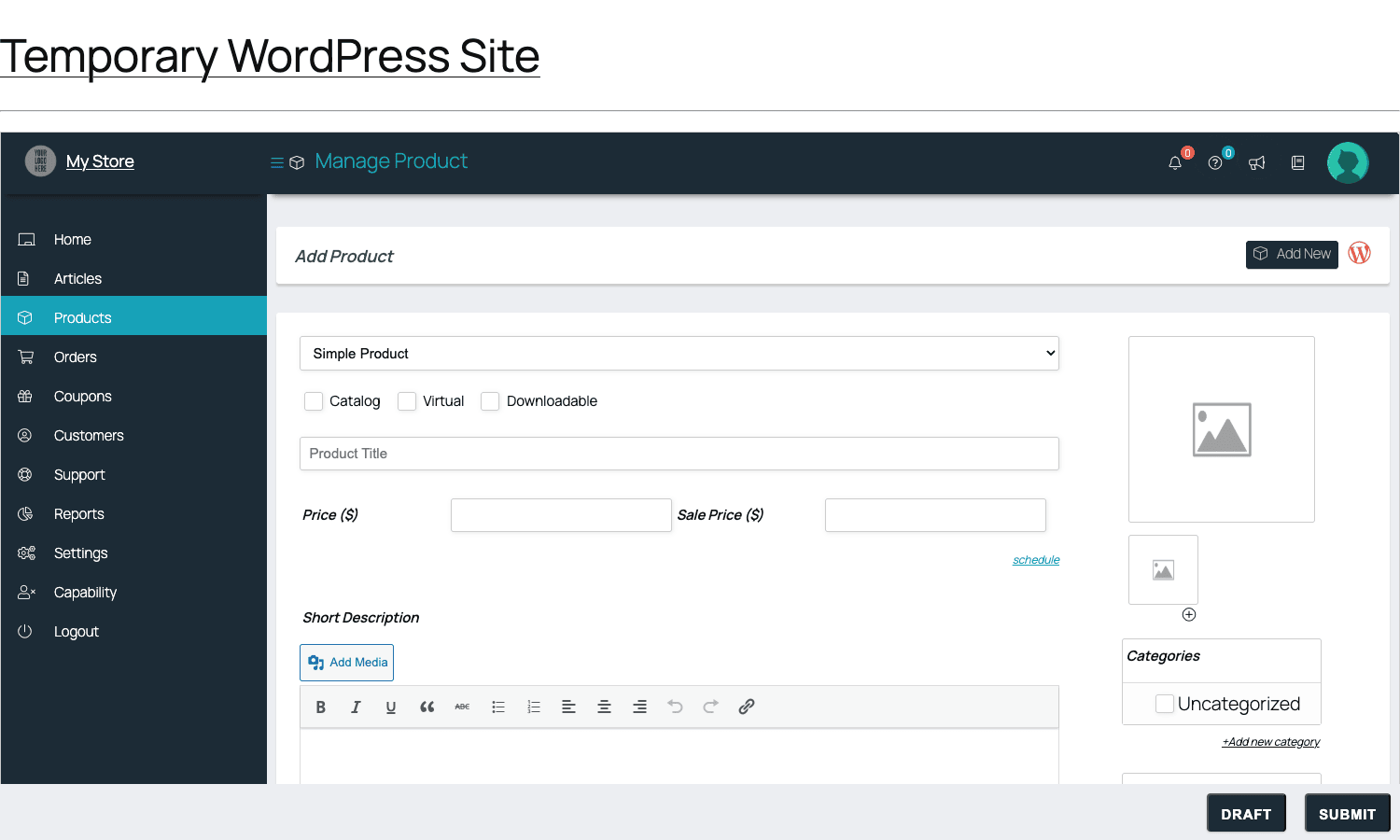
Notice what’s not there. No Gutenberg blocks. No fullscreen mode. No publish/draft sidebar with a dozen panels. Just the fields a small seller actually needs: title, price, sale price, short description, featured image, gallery, category. The DRAFT and SUBMIT buttons sit bottom-right. If the admin has approval enabled, hitting SUBMIT marks the product as pending and notifies the platform. If not, it goes live immediately.
The right sidebar handles featured image upload, secondary image, categories. WordPress’s regular media library is wrapped inside a modal so non-admin vendors can still use it without triggering capability errors.
What you sacrifice for this stripped-down editor is anything custom that lives in Gutenberg blocks or in extra meta boxes added by other plugins. If your product has a Yoast SEO block, or an ACF field group, those won’t appear in the WCFM front-end editor by default. You have to add them with wcfm_products_manage_form_advanced_head or one of the related hooks (more on those in the developer section).
Installation and setup
If you’ve never installed WCFM before, here’s the order I’d do it in. The plugin family has dependencies and the install order matters.
- Install WooCommerce first. Set up at least one product, one payment gateway, and the standard pages (Cart, Checkout, My Account).
- Install the free WCFM plugin from WordPress.org. Activate it. It will run a setup wizard that creates the
/store-manager/page. You can skip the rest of the wizard. - Install the free WCFM Marketplace plugin. Activate. Now your
/store-manager/becomes multi-vendor, and/store/pages start appearing for each vendor. - Upload and activate WCFM Marketplace Pro. This enables advanced commissions and payouts.
- Upload and activate WCFM Ultimate. This enables everything else.
After all four are installed, the WordPress admin sidebar gets a WCFM Options item near the bottom. The settings page is unusually busy:
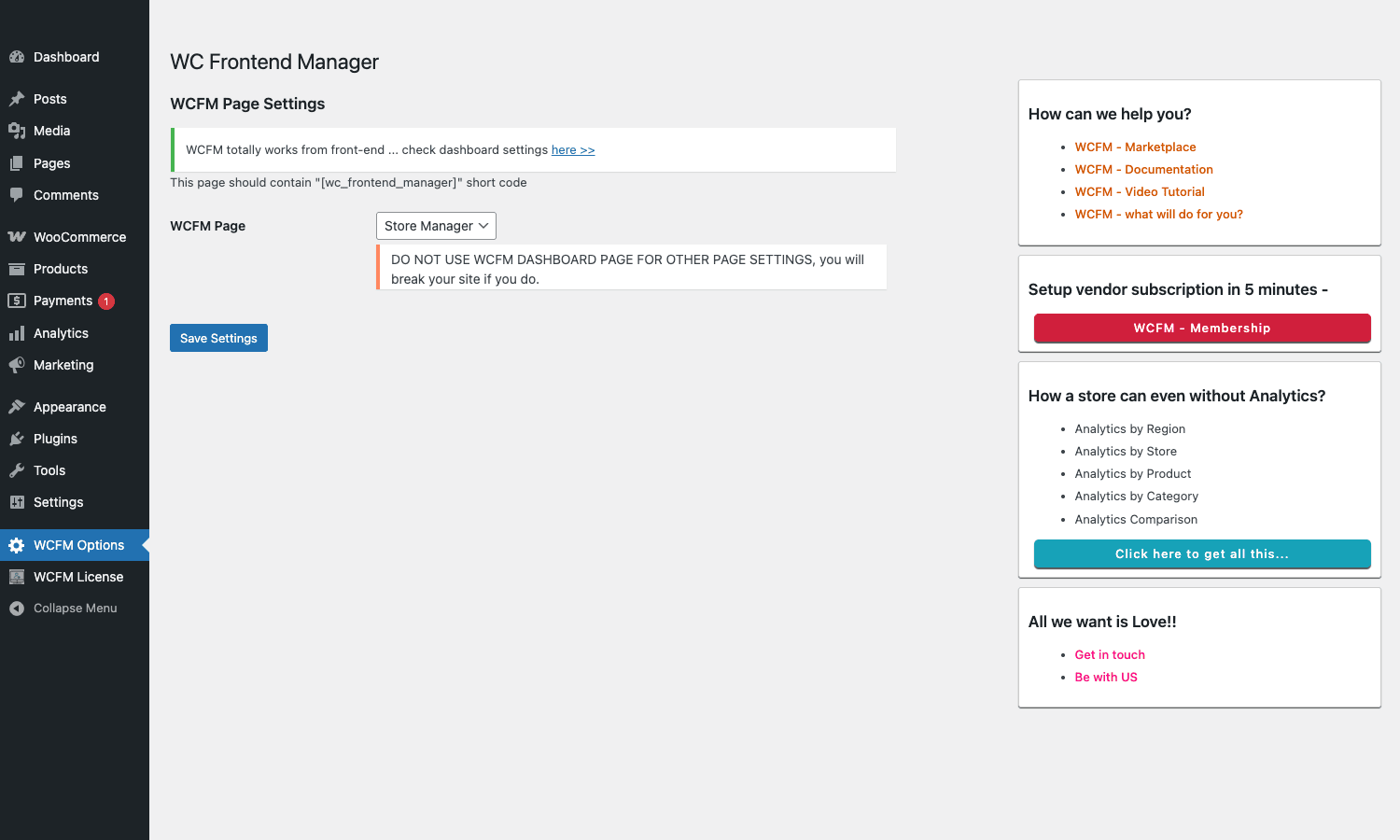
The main panel just lets you pick which page contains the [wc_frontend_manager] shortcode (it auto-defaults to Store Manager). The warning callout in red says, in caps: "DO NOT USE WCFM DASHBOARD PAGE FOR OTHER PAGE SETTINGS, YOU WILL BREAK YOUR SITE IF YOU DO." That’s WC Lovers being defensive after years of support tickets from people who reused one page for multiple shortcodes.
The right rail is where most of the configuration happens, actually. It links out to WCFM Marketplace, Documentation, Video Tutorial, the membership setup page, and five different per-segment Analytics pages (Region, Store, Product, Category, Comparison). It’s not how I’d organise a settings UI, but once you know the pattern you stop fighting it.
The remaining settings are not on this page at all. They live in the vendor-facing /store-manager/settings/ page as a 12-tab sub-nav, which is technically the vendor’s own settings but most fields can also be set globally by the admin.
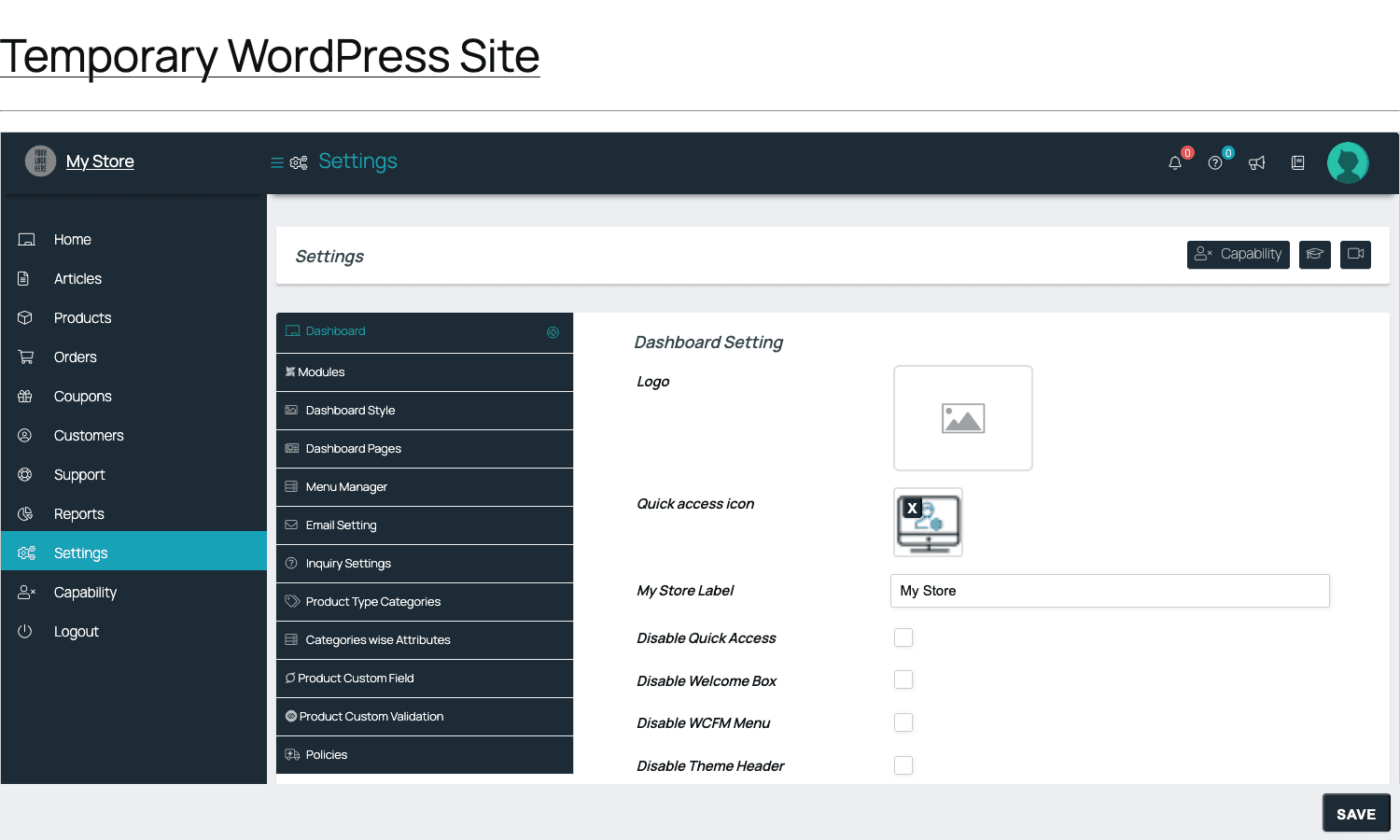
The first time I opened this, I spent a solid afternoon clicking through the 12 sub-tabs trying to figure out which one held the "disable WCFM menu" toggle. (Spoiler: it’s the Dashboard tab, halfway down the right pane, under Disable WCFM Menu. The Modules tab is where you’d expect it to be, but no.) The mental model is: Dashboard sets the chrome of the dashboard itself (logo, label, quick-access icon, what to hide), Modules is the on/off matrix for major feature blocks, Dashboard Style is theming, Menu Manager is the left nav of the front-end. The rest is named clearly enough.
Once you’ve configured all of that, vendors register via the WooCommerce sign-up page (or whatever signup flow you’ve wired up) and get sent to /store-manager/ after first login.
Vendor membership plans
This is the Ultimate-only feature that justifies the upgrade for paid marketplaces. WCFM Membership lets you charge vendors to register. Plans are stored as a custom post type called wcfm_membership, and you create them from the admin under WCFM Memberships.
Each plan has a price, a billing interval (one-off, monthly, yearly), and a capability set: how many products the vendor can list, which product types they can sell, whether they can upload audio and video, whether they get vendor coupons, whether they get staff accounts, what commission rate applies. You can make the cheapest tier free and the expensive tier $99/month, and gate features by tier.
The signup flow on the front end shows the available plans as cards. The vendor picks one, pays through WooCommerce checkout (membership plans are technically WC products under the hood), and gets their capabilities assigned on payment success.
Renewals run on a schedule via WP Cron. If a vendor’s renewal fails, their store is automatically put into a soft-disabled state (products marked private, dashboard restricted) until they renew. You can configure a grace period.
The integration with WooCommerce Subscriptions is optional. If you have it installed, WCFM Membership uses Subscriptions for recurring billing instead of its own internal cron. If you don’t, WCFM falls back to its own simpler recurring system. Subscriptions is much more battle-tested, so I’d install it if you’re doing paid memberships at any kind of scale.
A side note: vendor memberships are different from customer-facing memberships. If you also want gated content for customers (like paid members get 10% off), that’s WooCommerce Memberships, a separate plugin. They can run side by side.
Commission rules and payouts
This is where the model gets interesting. WCFM gives you four ways to split each order, layered most-specific-wins:
- Per-product override. A specific product can have its own commission rate.
- Per-vendor rule. A specific vendor has their own commission rate that overrides the global default.
- Per-category rate. Products in
t-shirtsget one rate, products indigital-downloadsget another. - Global default. A site-wide percentage that applies to anything not covered above.
You can also do tiered rates: first $500 of monthly sales at 90% to the vendor, anything above that at 95%. That’s set per vendor or per plan. The math runs at checkout, and the commission record is stored in a custom table (wcfm_marketplace_orders).
For payouts, you have three options:
- Manual. The admin sees a list of pending payouts and approves each one. The vendor enters their PayPal email or bank details, the admin clicks Pay. Reliable, but doesn’t scale.
- Automatic PayPal Payouts. Uses PayPal’s Payouts API to push money to each vendor’s PayPal account. Requires a PayPal business account with Payouts enabled. Lower fees than Stripe but the vendor experience is poor (vendors have to manage their own PayPal accounts, currency conversion is bad).
- Stripe Connect. This is the modern choice. Each vendor connects their own Stripe account during signup via Stripe Connect‘s standard onboarding flow. At checkout, Stripe splits the payment server-side: the customer pays once, Stripe routes the commission to the platform and the rest to the vendor automatically. There’s no manual payout step, no end-of-month reconciliation. Refunds and chargebacks also flow correctly through Stripe Connect.
Setting up Stripe Connect through WCFM looks like this from the vendor’s side: they go to Settings -> Payment, click "Connect with Stripe", get redirected to Stripe’s OAuth flow, fill out the standard Connect onboarding (legal name, address, bank account), and land back on the WCFM dashboard with their account linked. From then on every order that includes one of their products auto-splits the payment.
For very large marketplaces you also want WooCommerce’s own Stripe gateway installed so that the platform-side payments use the same Stripe customer infrastructure. WCFM doesn’t replace WC’s Stripe plugin; it sits on top.
A real handmade-goods marketplace scenario
Let me describe one concrete deployment instead of a list of use cases. This is a real-ish composite of two marketplaces I’ve helped set up.
The brief was a regional crafts marketplace. About 60 sellers, mostly individuals making jewellery, candles, knitwear, ceramics, and a few small workshops doing wooden toys. The sellers wanted to keep their own pricing, manage their own stock, set their own shipping costs (some shipped from rural areas with their own courier deals), handle their own customer messages, and get paid directly when an order came in. The platform took an 8% commission across the board, with no manual processing.
What we did:
We installed the WCFM stack (free WCFM + free WCFM Marketplace + WCFM Marketplace Pro + WCFM Ultimate). We set up a single membership plan called Crafter, priced at $9/month or $90/year, that gave the vendor 1000-product cap, all product types except subscription, vendor coupons, two staff accounts, and the 8% commission. The Crafter plan was the only signup option; new vendors had to subscribe to register.
Stripe Connect was the only payout method. Vendors had to connect their Stripe account during onboarding or they couldn’t publish products. We set this as a required step using the wcfm_new_vendor_registered_admin_notification hook, plus a small front-end gate that hid the Add Product button until wcfm_marketplace_vendor_stripe_account_id was set.
Per-vendor shipping was enabled in WCFM Marketplace Pro’s shipping module, so each vendor configured their own shipping zones from the front-end Settings page. The cart at checkout adds shipping charges per vendor sub-order automatically.
For the storefront, we used a custom Flatsome theme with overrides for the WCFM single-store template (templates/store-lists.php and templates/store.php in the WCFM Marketplace plugin, copied to the theme). The vendor store pages got a hero banner, an avatar, a bio, a product grid, a contact form, and review widget.
The admin’s actual day-to-day workload after launch was: approve new vendor signups (because we enabled vendor approval for spam control), respond to platform-level support tickets, and review the top-vendor analytics every week. The day-to-day per-order work was zero. No payouts, no commission splits, no refund processing.
The two friction points worth flagging:
- Non-technical vendors needed a written guide for connecting Stripe. About a third of the initial 60 vendors got stuck somewhere in Stripe’s identity verification flow and had to be walked through it.
- The vendor approval queue isn’t great. It’s a paginated list of pending users with a Approve/Reject button. There’s no built-in way to ask the vendor a follow-up question before approving. We added that as a small custom mod using
wcfm_admin_dashboard_after_vendor_applicationto inject a Request more info button.
Both of those are minor in the bigger picture of we didn’t have to write a custom marketplace from scratch.
Developer reference
WCFM exposes a lot of hooks. The full list is somewhere around 400 actions and 800 filters across the four plugins, which is too many to list, but here are the ones I reach for regularly.
Adding a custom field to the front-end product editor:
add_action( 'wcfm_products_manage_form_advanced_head', 'gpl_add_origin_field', 50 );
function gpl_add_origin_field() {
 global $WCFM, $WCFMmp;
 $product_id = isset( $_GET['updateproduct'] ) ? absint( $_GET['updateproduct'] ) : 0;
 $origin = $product_id ? get_post_meta( $product_id, '_origin_country', true ) : '';
 ?>
 <div class="page_collapsible" id="wcfm_products_manage_form_origin_head">
 <label class="wcfmfa fa-globe"></label>
 <?php esc_html_e( 'Origin & sourcing', 'my-theme' ); ?>
 </div>
 <div class="wcfm-container">
 <div id="wcfm_products_manage_form_origin_expander" class="wcfm-content">
 <p class="wcfm_title">
 <strong><?php esc_html_e( 'Country of origin', 'my-theme' ); ?></strong>
 </p>
 <input type="text"
 name="_origin_country"
 value="<?php echo esc_attr( $origin ); ?>"
 class="wcfm-text"
 placeholder="e.g. Portugal" />
 </div>
 </div>
 <?php
}
Then save it on submit:
add_action( 'wcfm_product_manage_meta_save', 'gpl_save_origin_field', 50, 2 );
function gpl_save_origin_field( $product_id, $wcfm_products_manage_form_data ) {
 if ( isset( $_POST['_origin_country'] ) ) {
 update_post_meta(
 $product_id,
 '_origin_country',
 sanitize_text_field( wp_unslash( $_POST['_origin_country'] ) )
 );
 }
}
Adding a new top-level item to the vendor sidebar:
add_filter( 'wcfm_menus', 'gpl_add_vendor_payouts_menu', 80 );
function gpl_add_vendor_payouts_menu( $menus ) {
 $menus['gpl-payouts'] = array(
 'label' => __( 'Payouts', 'my-theme' ),
 'url' => get_wcfm_url() . 'gpl-payouts/',
 'icon' => 'money',
 'priority' => 75,
 );
 return $menus;
}
WCFM uses Font Awesome icon classes (without the fa- prefix) for icon.
Changing the commission split per order, programmatically:
add_filter( 'wcfm_marketplace_orders_vendor_commission', 'gpl_dynamic_commission', 10, 4 );
function gpl_dynamic_commission( $commission, $product_id, $line_total, $vendor_id ) {
 $category_ids = wp_get_post_terms( $product_id, 'product_cat', array( 'fields' => 'ids' ) );
 if ( in_array( get_term_by( 'slug', 'premium-handmade', 'product_cat' )->term_id, $category_ids, true ) ) {
 return $line_total * 0.92; // 92% to vendor for premium category
 }
 return $commission;
}
This filter runs at order completion when WCFM is calculating each vendor’s share. Returning a value here overrides the static rules in the admin UI.
Restricting product types per vendor:
add_filter( 'wcfm_allowed_product_types', 'gpl_restrict_product_types', 20, 2 );
function gpl_restrict_product_types( $product_types, $vendor_id ) {
 $plan = get_user_meta( $vendor_id, 'wcfm_membership', true );
 if ( $plan === 'starter' ) {
 unset( $product_types['variable'], $product_types['subscription'] );
 }
 return $product_types;
}
Adding a custom analytics card to the vendor dashboard home:
add_action( 'wcfm_dashboard_after_recent_orders', 'gpl_render_top_customer_card' );
function gpl_render_top_customer_card() {
global $WCFM, $WCFMmp;
if ( ! $WCFM->is_marketplace_vendor() ) {
return;
}
$vendor_id = wcfm_get_vendor_id();
$top = gpl_query_top_customer_for_vendor( $vendor_id ); // your own query
?>
<div class="wcfm-container">
<div class="wcfm-content">
<h2><?php esc_html_e( 'Top customer (last 30 days)', 'my-theme' ); ?></h2>
<p>
<?php echo esc_html( $top->display_name ); ?>
·
<?php echo wc_price( $top->total_spent ); ?>
</p>
</div>
</div>
<?php
}
Sending a custom notification on vendor signup:
add_action( 'wcfm_new_vendor_registered_admin_notification', 'gpl_alert_team_on_new_vendor', 10, 3 );
function gpl_alert_team_on_new_vendor( $vendor_id, $user_id, $user_data ) {
 $user = get_userdata( $vendor_id );
 wp_mail(
 'team@example.com',
 sprintf( '[Marketplace] New vendor: %s', $user->display_name ),
 sprintf( "%s just signed up.nReview: %s",
 $user->user_email,
 admin_url( 'admin.php?page=wcfm-vendors&edit_vendor=' . $vendor_id )
 )
 );
}
Custom post types you can query directly:
wcfm_ordersfor the per-vendor sub-orderswcfm_couponsfor vendor-created couponswcfm_productsfor products in the WCFM-flagged setwcfm_subscriptionsfor vendor subscription productswcfm_membershipfor membership plans (Ultimate)wcfm_stafffor vendor staff users (Ultimate)
REST routes are namespaced under wp-json/wcfmapi/v1/ and wp-json/wcfm/v1/. The endpoints you’ll use most:
GET /wcfmapi/v1/ordersreturns the current user’s vendor orders.GET /wcfmapi/v1/productsreturns the current vendor’s products.POST /wcfmapi/v1/productscreates a product from the front end (this is what the dashboard editor uses internally).
Auth is via standard WordPress nonces if you’re calling from the front end, or via REST API authentication (Application Passwords, JWT) for server-to-server use.
If you need to register a CLI command for vendor maintenance:
WP_CLI::add_command( 'gpl-vendor', 'GPL_Vendor_Commands' );

class GPL_Vendor_Commands {
 public function audit_inactive( $args, $assoc_args ) {
 $days = isset( $assoc_args['days'] ) ? absint( $assoc_args['days'] ) : 90;
 // query vendors with no orders in the last $days
 // mark stores closed, send email, etc.
 WP_CLI::success( "Audited vendors inactive for {$days} days." );
 }
}
That’ll show up as wp gpl-vendor audit-inactive --days=90. WCFM doesn’t ship its own CLI tools, but its data is just normal WP users + custom post types + custom tables, so the standard WP-CLI primitives all work.
Where WCFM gets clunky
Honesty section. I’ve used both WCFM and Dokan Pro in production and the comparison isn’t all in WCFM’s favour.
The admin settings are scattered. The main WCFM Options page does almost nothing. The real settings live in the front-end /store-manager/settings/ page as a 12-tab sub-nav, which is technically a vendor-facing page. As the admin you can see all 12 tabs, but as a vendor you only see a subset. There’s no admin-only consolidated settings view. You will spend time hunting for toggles. Dokan Pro has a much cleaner admin settings UI.
Documentation can be thin. The WC Lovers docs site covers the main concepts but specific edge cases (custom hooks, migration paths, integration with specific themes) often aren’t documented. You end up reading the plugin source or asking on the WC Lovers support forum.
Support response time varies. WC Lovers is a small team, and their official support has been responsive for me most of the time but occasionally takes a few days. If you need fast paid support, Dokan’s company is bigger.
The front-end stylesheet collides with some themes. WCFM ships its own dashboard CSS and it can fight with themes that use generic class names like .dashboard, .button, .form. Workaround is to load the WCFM front-end on its own page with a stripped-down template (page-store-manager.php in your child theme that calls get_header() minimally).
Onboarding non-technical vendors needs a written guide. The dashboard is clean, but Stripe Connect onboarding is the same Stripe Connect that everyone struggles with. Plan for a help doc and probably a video.
The free plugins are required. You can’t run WCFM Ultimate standalone. If the free plugins ever go away or have a breaking change, your paid Ultimate install will be affected. WC Lovers has been consistent about keeping the free plugins active, but it’s still a dependency chain.
Modules tab on/off matrix is non-obvious. When you flip a module off, the corresponding sidebar item disappears, but related settings remain in their tabs. So a vendor might see Email Setting even though the email module is disabled. Not destructive, just visually confusing.
None of these are dealbreakers if you understand them going in. They’re the cost of a much cheaper price tag and a larger feature set per dollar.
Performance, compatibility, and gotchas
WCFM is reasonably performant for a plugin of its scope, but there are a few sharp edges:
- Vendor analytics queries on large stores are heavy. Once you cross a few thousand orders, the analytics page on the front-end dashboard can take several seconds to load. WC Lovers has added some caching, but the underlying queries on
wcfm_marketplace_ordersjoined withpostsandpostmetaaren’t always optimal. For very large stores I’ve seen people move analytics to a separate cached page that updates nightly via cron, rather than computing live. - WooCommerce auto-updates can break WCFM. WCFM hooks into a lot of WC internals. Major WooCommerce releases (every six months or so) sometimes need a corresponding WCFM update. Don’t auto-update WooCommerce on production until you’ve checked the WCFM compatibility matrix.
- Theme compatibility is hit or miss. Officially WCFM supports Storefront, Astra, OceanWP, Flatsome, and a handful of others. Custom themes are fine in most cases but you may need to copy the WCFM templates into your theme to fix CSS conflicts.
- The High-Performance Order Storage (HPOS) feature in WooCommerce is supported but adds friction. WCFM uses its own order tables in addition to WC’s, so HPOS migrations require running WCFM’s own migration script as well. Read the release notes before flipping HPOS on.
- Multi-language sites with WPML need extra setup. WCFM has a WPML compatibility module, but vendor profile pages and store URLs need to be configured manually per language. Polylang has lighter support.
- Object caching helps a lot. If you’re on a managed host (Cloudways, WP Engine, Kinsta) with Redis or Memcached enabled, vendor dashboard load times improve noticeably. WCFM uses transients heavily and they benefit from a persistent object cache.
- Email deliverability is the admin’s problem. WCFM sends a lot of email (vendor signups, order notifications, payout receipts, support replies). Install a transactional email plugin (SMTP via Mailgun, SES, Postmark, etc.) before you launch. The default
wp_mail()will get throttled or filtered.
Pricing and licensing
WC Lovers is among the cheapest multi-vendor plugin vendors in the WordPress ecosystem. The current pricing (subject to change):
- WCFM Ultimate annual: around $19/year for one site. Renewal at the same price.
- WCFM Ultimate lifetime: around $39 one-off for one site.
- WCFM Bundle (all paid add-ons including Pro): around $99/year or $199 lifetime.
For comparison, Dokan Pro starts at $149/year and YITH MultiVendorX (the rename of YITH Multi Vendor) is around $99/year. WCFM is significantly cheaper.
The catch is the bundle versus individual add-on math. WCFM Ultimate alone is cheap, but it needs WCFM Marketplace Pro alongside it to do anything Pro-level. Buying both individually adds up. The bundle is usually the right call unless you’re certain you only need a subset.
Like every plugin in the WordPress commercial ecosystem, the source is GPL. You can get WCFM Ultimate from GPL Times along with the rest of the WCFM bundle, install it on as many sites as you need, and use it however you’d use any GPL plugin. If you’re building client marketplaces and the cost of a per-client license adds up, the GPL version on staging or for development is the practical choice. For production deployments where you want first-party updates and direct support from WC Lovers, buying from them is still the supported path.
WCFM Ultimate vs Dokan Pro vs WC Vendors
Quick comparison of where WCFM Ultimate sits relative to the main alternatives:
- vs Dokan Pro. Dokan has a more polished admin UI, a slightly cleaner vendor dashboard, better documentation, and a bigger ecosystem of add-ons (delivery, auction, booking). WCFM has more features included in the base tier, costs less, and ships Stripe Connect out of the box. If your client has the budget and wants the most "managed" feel, Dokan. If you want most of the features for a fraction of the price, WCFM.
- vs WC Vendors Pro. WC Vendors is older and less actively developed. It’s a fine choice for small, single-language marketplaces with minimal complexity. WCFM is the more complete product for anything beyond a handful of vendors.
- vs YITH MultiVendorX (was Multi Vendor). YITH’s strength is its tight integration with other YITH plugins. If you’re already invested in the YITH stack, MultiVendorX makes sense. WCFM is a better standalone choice.
- vs MarketKing. Newer entrant, smaller install base, cleaner code than WCFM in some places. Worth watching but I’d still pick WCFM for a project I have to ship now.
- vs WC Marketplace (free WordPress.org). Basic, missing the vendor-frontend dashboard, no real path to growth. Don’t start here in 2026.
Final thoughts
WCFM Ultimate is the plugin to use when you want to launch a real multi-vendor WooCommerce marketplace without spending a hundred-plus dollars a year on the platform plugin alone. The vendor-facing front-end dashboard is the right design choice (vendors really should not be in /wp-admin/), the Stripe Connect integration removes most of the operational overhead of per-vendor payouts, and the membership tier turns the platform itself into a recurring-revenue product.
The trade-off is that the admin settings layout is messy, the documentation thins out at the edges, and you’re depending on a small team rather than a big company. If those costs are acceptable, and they usually are for a $39 lifetime spend, the math is hard to beat. Most marketplaces I’ve seen run WCFM long enough to outgrow it, and by the time they outgrow it they’re large enough to fund a proper custom platform. That’s a good outcome.
Install the WCFM stack, create a couple of test vendors, push a few products through the dashboard, and see whether the vendor UX feels right for the people you actually want to recruit. That afternoon will tell you more than any review.