

It’s Tuesday afternoon, the client brief landed an hour ago, and the deadline is ten days out. A design studio wants a portfolio-led site: big hero, a filterable project grid, a team section, a couple of landing pages, and a small shop for prints. You open a fresh WordPress install and face the same fork every freelancer knows. Hand-build it from a starter theme and burn the budget on plumbing? Or pick a multipurpose theme that gets you most of the way before you write a line of CSS? That second road is where the TheGem theme lives, a creative multipurpose theme that hands you a portfolio grid, a team section, and a styled shop out of the box.
TheGem is a creative multipurpose theme from Codex Themes, and the edition I’m reviewing here is the Elementor one. I built a sample site on it over a few days, poked at the options panel, dug through the source for the developer hooks, and ran the demo to confirm what the admin actually shows. This is the honest version: where TheGem is genuinely good, where the weight of its plugin stack is a fair criticism, and the bits I’d want a reader to know before committing a client project to it.
Table of Contents
- What TheGem is, and who makes it
- The two layers: the Theme Options panel and Elementor
- Inside the Theme Options panel
- TheGem Elements: the Elementor widget library
- Pre-built websites and the dashboard
- Performance and TheGem’s built-in pagespeed tools
- WooCommerce and Dokan
- Who TheGem is for
- Developer reference
- Don’t bloat a creative multipurpose theme
- TheGem theme vs other multipurpose themes
- Performance, compatibility, and keeping it fast
- FAQ: TheGem
- Final thoughts
What TheGem is, and who makes it
TheGem is a creative multipurpose WordPress theme built by Codex Themes, a studio that’s been shipping it on ThemeForest for years where it’s become one of the better-known bestsellers in the multipurpose category. The theme markets itself as a design toolkit rather than a single-look template, and that framing is accurate. You’re not picking "the agency theme" or "the portfolio theme." You’re picking a flexible base that bends toward agencies, portfolios, startups, and small shops depending on which starter site you import and how you set the global look.
The word "multipurpose" gets thrown around a lot, so let me be specific about what it means here. TheGem leans creative. The default styling, the demo library, the post types it adds, all of it is tuned for studios, freelancers, photographers, and small brands that care about how the site looks. It’s less "corporate SaaS dashboard" and more "design-forward marketing site." If your client cares about typography and whitespace, that bias works in your favor.
Here’s the part that trips people up. TheGem is not one piece of software. It’s a theme plus a small family of first-party plugins from Codex:
- The TheGem theme itself. This is the engine: the Theme Options panel, the header and footer system, the typography and color controls, the WooCommerce styling, and the built-in pagespeed tooling. Everything global lives here.
- TheGem Theme Elements (for Elementor). A required companion plugin that adds TheGem’s own Elementor widget library and the Portfolio, Team, and Testimonial post types. Without it, Elementor still works, but you lose the widgets and post types that make TheGem feel like TheGem.
- TheGem Importer. The optional plugin that pulls the pre-built websites (the starter sites you import to skip the blank-canvas stage).
- TheGem Blocks. A Gutenberg-flavored edition of the widgets, for people who’d rather stay in the block editor than run Elementor.
This is the Elementor edition, so the workflow assumes Elementor is in the picture. I’ll come back to that dependency, because it’s both the theme’s strength and a fair criticism. TheGem also ships WPBakery and Gutenberg-Blocks editions if you’d rather not run Elementor at all, but if you bought the Elementor SKU, Elementor is the assumed builder.
You can grab the Codex bundle through TheGem on GPL Times, which delivers the theme plus the Codex companion plugins on one license. If you want to read what Codex officially says about it, the vendor site is codex-themes.com.
The two layers: the Theme Options panel and Elementor
This is the single most important thing to understand about TheGem, and it’s the thing most quick reviews skip. You build with TheGem on two separate layers, and they do different jobs. Get this clear in your head and the rest of the theme makes sense. Miss it and you’ll waste hours fighting the wrong tool.
Layer one is the Theme Options panel. This is the native, theme-level control center. It sets your global look: the header style, the footer, your color palette, your typography for every heading level, the page layout, and the performance options. None of this touches Elementor. You set it once and it applies site-wide. Change your H2 font here and every H2 on the site updates, whether that heading lives in a blog post, a WooCommerce category, or an Elementor section.
Layer two is Elementor plus TheGem Elements. This is where you do visual, per-page design. You drag widgets onto a canvas, build the hero, lay out the project grid, drop in a testimonials slider, and arrange the page however the brief wants. The TheGem Elements plugin loads a whole category of widgets into the Elementor panel, on top of Elementor’s own.
The mental model that keeps you sane:
| Theme Options panel | Elementor + TheGem Elements | |
|---|---|---|
| Scope | Global, site-wide | Per page, per template |
| Sets | Typography, colors, header, footer, layout, performance | Section layout, hero, grids, sliders, content blocks |
| When you touch it | Once at setup, rarely after | Constantly, while designing each page |
| Read in code via | thegem_get_option() |
Elementor widget settings |
| Builder needed? | No | Yes (Elementor) |
The catch: people new to TheGem try to set their brand colors or body font inside Elementor, page by page, because that’s where they’re spending their time. Don’t. Set the global look in the Theme Options panel once. Use Elementor for layout and content. If you find yourself re-picking the same font color on every heading in the builder, you’ve skipped the panel, and you’re making more work for future-you when the brand color changes.
You might be wondering whether you can run TheGem without Elementor at all. On this edition, technically yes, the theme and its options panel work on their own, but you’d be buying the Elementor edition and ignoring half of what it ships. If you genuinely don’t want a builder, the Gutenberg-Blocks edition is the better fit.
Inside the Theme Options panel
The Theme Options panel is the part of TheGem I’d happily spend a whole afternoon in, because almost every global decision lives here and it’s deep. You reach it at WP Admin » TheGem » Theme Options, and the panel has a dark/light toggle if you prefer one over the other for long sessions.
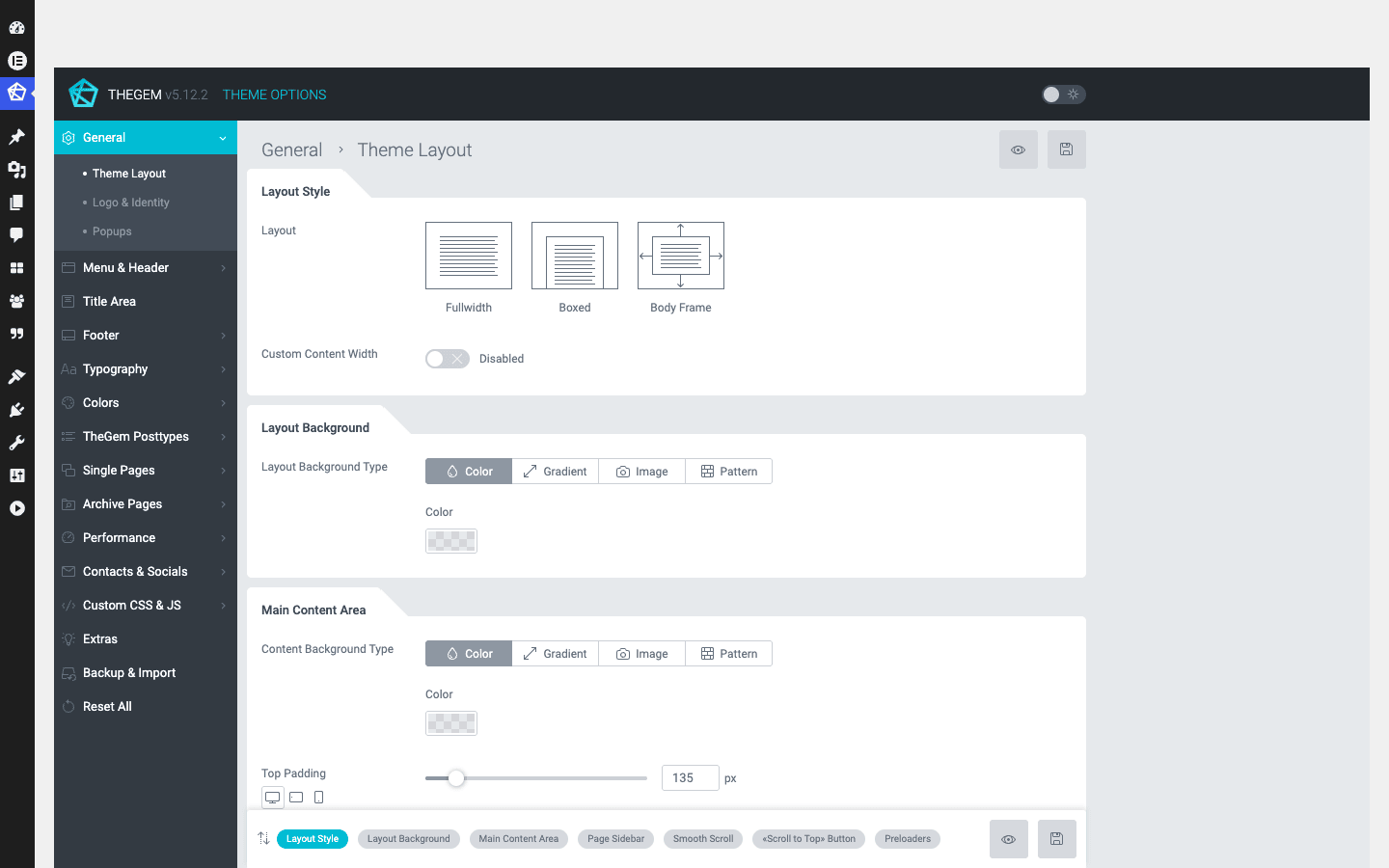
Here’s the walk through the sections I confirmed in the admin, what each one controls, and when you’d actually open it.
General. The top-level setup. This is split into Theme Layout (boxed vs full-width, container widths, the overall structural feel), Logo & Identity (your logo image, retina logo, favicon, site identity), and Popups. This is your first stop on a fresh install.
Menu & Header. TheGem’s header is a system, not a single bar. You choose the header style, sticky behavior, the menu layout, and how the navigation behaves on scroll. If your client wants a transparent header over a full-screen hero that turns solid on scroll, this is where it’s configured, not in CSS.
Title Area. The block that sits below the header on inner pages (the page title, breadcrumbs, background). You can style it globally and override it per page. Useful when the client wants a clean title bar on landing pages and a breadcrumb-heavy one on the blog.
Footer. Footer layout, widget columns, and the copyright bar. TheGem treats the footer as a configurable region rather than a fixed strip, so you can get a multi-column footer with a different background without dropping into widgets-only mode.
Typography. This is the section that earns the "creative" label. TheGem gives you per-element typography (H1 through H6, body, excerpt, a styled subtitle, an XLarge size, a thin title), and crucially, per-device controls on top of that. So your H1 can be one size and weight on desktop and a smaller, tighter one on mobile, set globally without touching a single media query. For a typography-led design, this is the difference between a polished site and one where the headings look chunky on phones.
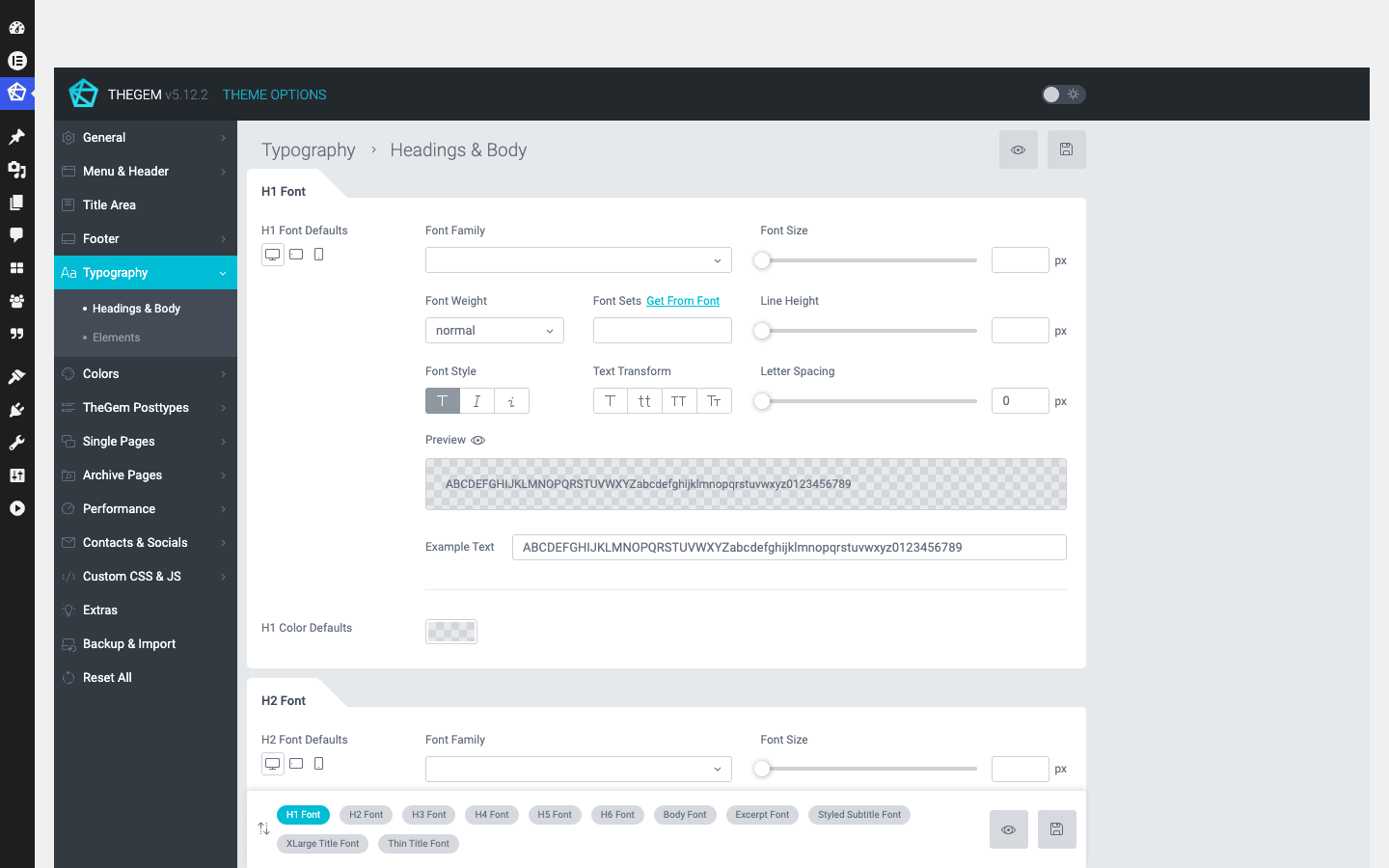
Tip: set your full type scale here before you start building pages in Elementor. If you nail the global type first, every Elementor heading inherits it and your pages look consistent for free.
Colors. Your global palette. Primary, secondary, accent, text colors, link colors. Set them here and they flow through the theme styling, the buttons, the WooCommerce elements, and the defaults Elementor sees.
TheGem Posttypes. Global styling and behavior for the Portfolio, Team, and Testimonial post types that TheGem Elements adds. How portfolio items lay out, how single project pages render, that kind of thing.
Single Pages and Archive Pages. Two separate sections that control how individual posts/projects render and how listings render. Sidebar position, meta display, featured image behavior, and the blog/archive layout all live here. Set your blog’s reading experience once instead of fiddling per post.
Performance. The section that sets TheGem apart, and I’ll give it its own deep section below. This is where the built-in pagespeed optimization is turned on and tuned.
Contacts & Socials. Your global contact details and social profile links. Once set, the footer and header social icons pull from here, so you’re not re-typing your Instagram URL in three places.
Custom CSS & JS. A safe place for site-wide custom CSS and JavaScript that survives theme updates better than editing files directly. Good for the handful of overrides every real project ends up needing.
Extras. The grab-bag of smaller toggles that don’t fit the other sections.
Backup & Import and Reset All. Export your entire Theme Options configuration to a file and import it onto another site. If you build a lot of client sites with a similar baseline, this is a real time-saver: configure once, export, reuse. Reset All does what it says, so treat it with respect.
That’s roughly fifteen sections, and almost none of them require a builder. The honest takeaway: the panel is powerful, and it’s also a lot. The first time you open it on a real project, budget an hour to go through it methodically rather than guessing. The time is worth it, because once it’s set, you barely touch it again.
TheGem Elements: the Elementor widget library
The second layer is where the visual design happens, and TheGem Elements is the plugin that makes Elementor feel like a TheGem editor. Once it’s active, the Elementor panel gains a dedicated TheGem category packed with widgets, and your admin menu gains the Portfolio, Team, and Testimonial post types.
I confirmed the widget set in the live Elementor panel rather than guessing from a marketing page. The TheGem category includes widgets like Accordion, Animated Heading, Button, Call To Action, Clients, Countdown, Counter, Custom Fields, Custom Menu, Grid Filter, Grid Sorting, Gallery Grid, and Gallery Slider, and there are plenty more beyond those. I’m not going to quote an exact number because the count shifts between versions and I’d rather be honest than precise-sounding. What matters is the shape of the library: it covers the stuff a creative site actually needs (filterable grids, animated headings, galleries, counters, client logo rows) without you reaching for a second add-on pack.
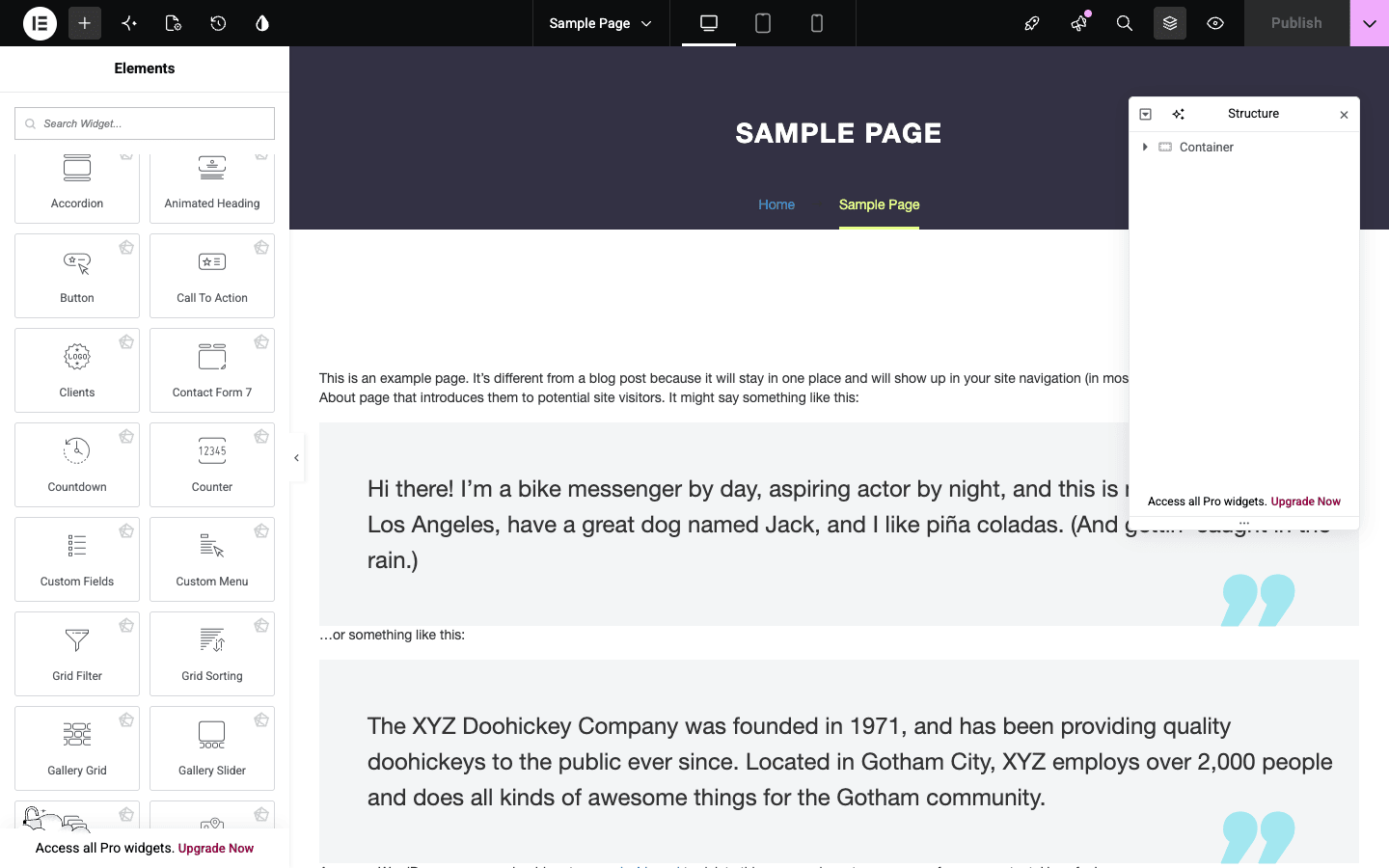
Where this shines: the Grid Filter and Grid Sorting widgets paired with the Portfolio post type. You create projects as Portfolio items, tag them with categories, drop a portfolio grid widget on a page, add the Grid Filter, and you’ve got a filterable project showcase with category buttons, no custom query loop, no shortcode wrangling. For the studio brief from the opening, that’s the centerpiece of the site built in minutes.
The three post types are the other half of TheGem Elements, and they come from the plugin, not the theme. I verified them in the admin: activating TheGem Elements adds Portfolios, Teams, and Testimonials menus.
- Portfolio holds your projects. Each item is a real post type with its own categories, so you can filter and sort.
- Team holds staff profiles, the building blocks for an "our team" section with photos, roles, and social links.
- Testimonial holds client quotes you can pull into sliders or grids across the site.
A note on accuracy, because it matters for a developer reading this: these post types and widgets ship in the TheGem Elements plugin, which is separate from the theme. I’ve described what they do based on the live admin. I’m deliberately not asserting the internal post type slugs or widget class names, because those weren’t something I verified in source, and guessing at them is exactly how a "developer reference" goes wrong. If you need the exact registered slug for a custom query, check it in your own install (the Tools or a quick get_post_types() dump will tell you), don’t trust a number from a review.
Pre-built websites and the dashboard
Most people don’t start a TheGem site from a blank page. They start from a pre-built website and edit it down, which is the whole point of buying a multipurpose theme. The TheGem Dashboard is mission control for that.
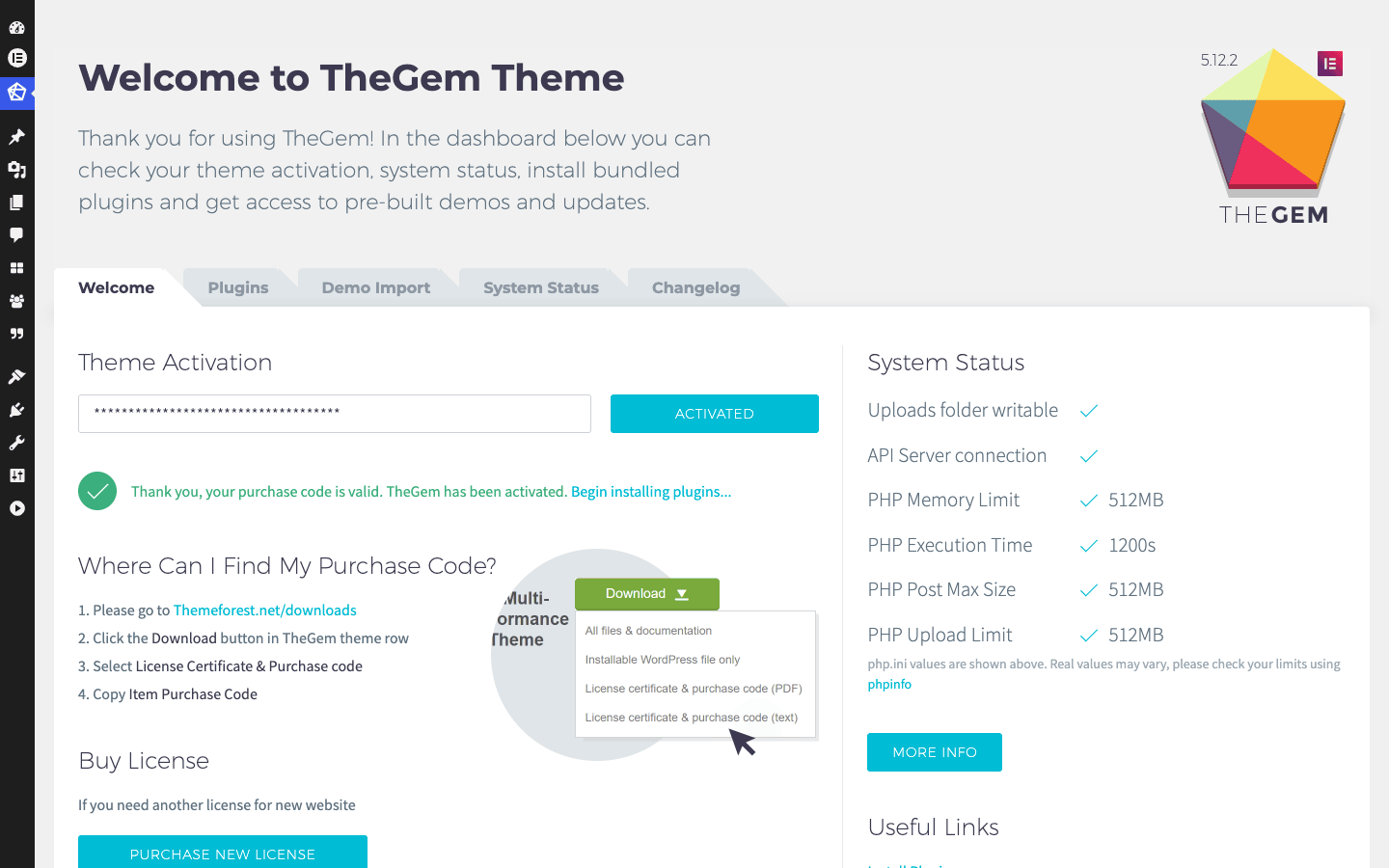
You’ll find it at WP Admin » TheGem » Dashboard, and it handles four jobs:
- Activation. Register the theme so you get updates and support.
- Plugin install. A guided install of the bundled and required plugins (TheGem Elements, the Importer, Elementor, and the rest of the stack). This is the friendly version of hunting down zips manually.
- System Status. A check of your server against TheGem’s needs, PHP memory limit, max execution time, upload size, that kind of thing. Worth reading before a big import, because an underpowered server is the number one reason imports fail.
- Demo Import. The tab that lists the pre-built websites and imports the one you pick.
The pre-built websites library is a big selling point, and I want to be straight about it. Codex ships hundreds of pre-built websites through the Importer, covering agencies, portfolios, shops, startups, blogs, and more. I’m hedging the count deliberately ("hundreds") because the exact number changes as Codex adds and retires demos, and a stale number in a review helps nobody.
Heads-up: in my sandbox testing the TheGem Importer plugin couldn’t finish installing, because it fetches the pre-built content and assets from the Codex servers and the sandbox couldn’t reach them. That’s a sandbox limitation, not a TheGem fault, and on a normal live server with outbound access the import runs fine. But it’s a good reminder of how demo imports work on any multipurpose theme: they pull a lot of remote content, so they need a healthy server and a working connection. If an import stalls, check your System Status numbers first.
The smart workflow with the pre-built websites is restraint. Browse the library, pick the ONE demo closest to the brief, import only that, and then strip out the pages you don’t need. Importing three demos "to see them" leaves you with a media library full of placeholder images and a pile of orphaned pages, which is a real performance and housekeeping problem I’ll come back to in the anti-pattern section.
Performance and TheGem’s built-in pagespeed tools
This is the section that, for me, separates TheGem from a lot of the multipurpose pack. Most multipurpose themes are honest about being heavy and tell you to go install a caching plugin and good luck. TheGem ships its own pagespeed optimization in the theme, and it’s a genuine differentiator.
I verified this in the source. TheGem has a dedicated pagespeed layer (its own inc/pagespeed code path) that handles asset optimization and, critically, JavaScript delay. Delaying JavaScript means non-critical scripts don’t run until they’re actually needed (often on first user interaction), which is one of the highest-impact things you can do for a creative site loaded with sliders, animations, and tracking scripts. Those scripts are exactly what tank a design-heavy page’s loading metrics, and TheGem can hold them back without you installing a separate optimization plugin.
You turn this on in Theme Options » Performance. For most creative sites, enabling the asset handling and the JS delay is the single biggest free speed win you’ll get from TheGem.
The developer lever is the part I genuinely like. JS delay is great until it breaks something, because some scripts (a payment widget, a critical analytics tag, an embedded map) really do need to run early. TheGem exposes a filter, thegem_delay_js_exclusions, so you can return a list of script handles that should be excluded from the delay. That’s the difference between a blunt "delay everything and pray" toggle and a tool you can actually ship on a client site:
add_filter( 'thegem_delay_js_exclusions', function( $exclusions ) {
    // Keep these scripts out of the JS-delay treatment.
    $exclusions[] = 'stripe';
    $exclusions[] = 'google-maps';
    return $exclusions;
} );
That snippet keeps your Stripe checkout and your embedded map responding immediately while everything else stays delayed. (Match the handles to whatever your scripts actually register as.)
The honest framing: TheGem’s built-in pagespeed is a strong first 80 percent, not a replacement for a real caching setup. It handles asset optimization and JS delay at the theme level. It does not replace full-page caching, a CDN, or image optimization. The combination that works is TheGem’s pagespeed options ON, plus a page cache, plus decent hosting. If you want a deeper read on the caching side of that equation, our WP Rocket review walks through what a dedicated cache layer adds on top. TheGem doing the script-level work means your cache plugin has less to fight with, and the two stack well.
WooCommerce and Dokan
TheGem isn’t a WooCommerce-first theme the way some shop themes are, but it has real store support baked in, and it goes a step further than most creative themes by shipping Dokan multivendor integration too.
On the WooCommerce side, TheGem declares woocommerce theme support, styles the shop, cart, and checkout to match your global look, and gives you control over the product loop. The theme also exposes WooCommerce-specific hooks for developers, including an action right after the add-to-cart button (thegem_woocommerce_after_add_to_cart_button) and actions around the mini-cart contents (thegem_before_mini_cart_contents and thegem_after_mini_cart_contents). Those let you slot trust badges, stock messaging, or a custom upsell exactly where you want without overriding WooCommerce templates wholesale.
add_action( 'thegem_woocommerce_after_add_to_cart_button', function() {
    echo '<p class="ships-fast">Ships in 1 to 2 business days.</p>';
} );
The Dokan piece is the more unusual one. TheGem ships a dokan/ template directory in the theme, which means it’s set up to style a Dokan multivendor marketplace out of the box. If your project is a marketplace where multiple sellers list products (not just a single-owner shop), having the marketplace vendor pages already themed by your creative theme saves a meaningful chunk of work. Most creative multipurpose themes don’t touch Dokan at all, so this is a quiet but real plus if multivendor is on your roadmap.
The catch: WooCommerce on a creative theme is a different performance profile than a static portfolio. Carts and checkouts can’t be fully cached, so the pagespeed work and good hosting matter more once you add a shop. Plan for it rather than bolting a store onto a portfolio site at the last minute.
Who TheGem is for
Let me skip the "anyone can use it" non-answer and talk about specific people, because a multipurpose theme is only as good as the fit.
The freelancer or small agency building client sites. This is TheGem’s sweet spot. You get a deep options panel, a big pre-built website library to start from, an Elementor widget set that covers the common creative patterns, and the Backup & Import feature so you can reuse a baseline config across clients. If you ship four or five sites a year, the per-project time savings add up fast.
The creative studio, portfolio, or photographer. The Portfolio post type plus the Grid Filter widget plus the typography controls are tuned exactly for showing off work. If your site’s job is to make the work look good and load fast, TheGem’s defaults already lean your way.
The startup or SaaS landing page. The animated headings, counters, call-to-action widgets, and the pre-built startup demos give you a marketing site quickly. You won’t get a full app dashboard out of it, but for the public-facing marketing layer it’s a fast path.
The small WooCommerce store with a design focus. If you want a shop that looks like a brand rather than a generic catalog, TheGem’s WooCommerce styling plus a creative demo gets you there. For a plain high-volume catalog with no design ambitions, a leaner shop theme might serve you better.
The Elementor user who wants a richer toolkit and built-in speed. If you already build in Elementor and you’re tired of stacking three add-on plugins to get filterable grids and animated headings, TheGem Elements consolidates a lot of that, and the built-in pagespeed is a bonus you don’t get from a generic theme.
And honestly, who should skip it? If you want a zero-dependency, ultra-light theme with no builder and no companion plugins, TheGem is the wrong tool. It’s a multi-piece system: theme plus TheGem Elements plus Elementor at minimum. That’s a fair amount of moving parts, and if your project is a simple blog or a hand-coded marketing site, all that machinery is weight you won’t use. Reach for a lightweight starter theme instead. TheGem is for people who want the toolkit and will use it.
Developer reference
TheGem looks like a click-and-build theme on the surface, but the source has a genuinely deep hook layer if you need to extend it. Everything below comes from the theme source I grepped. Where something lives in the TheGem Elements plugin (the post types, the widgets), I’ve said so and kept it general, because I didn’t verify the plugin internals and I’m not going to invent slugs.
The option getter. Every global setting you configure in the Theme Options panel is read back through one function:
$layout = thegem_get_option( 'theme_layout', 'fullwidth' );
The full signature is thegem_get_option( $name, $default = false, $ml_full = false, $clearCache = false ). The first two arguments are the ones you’ll use daily (the option name and a fallback). The extra two handle multilingual setups and cache-busting, which you can ignore until you need them. This single function is your bridge between the panel and your custom code: anything the panel sets, you can read.
Filtering the defaults. If you’re building a base theme config to roll out across client sites, thegem_default_theme_options lets you change the defaults in code rather than clicking through the panel every time:
add_filter( 'thegem_default_theme_options', function( $defaults ) {
    $defaults['theme_layout'] = 'boxed';
    return $defaults;
} );
Header actions. TheGem fires actions around the header so you can inject markup without editing template files. thegem_before_header runs before the header renders, which is handy for a site-wide announcement bar:
add_action( 'thegem_before_header', function() {
    echo '<div class="site-banner">Free shipping this week only.</div>';
} );
There are matching hooks deeper in the header system (thegem_header_end, thegem_custom_header_scripts, and a set around the nav menu and the "perspective" off-canvas menu) if you need finer placement.
Filtering the logo. Need to swap the logo conditionally (a different mark on the checkout, say)? The logo URL passes through a filter:
add_filter( 'thegem_get_logo_url', function( $url ) {
    if ( function_exists( 'is_checkout' ) && is_checkout() ) {
        return get_stylesheet_directory_uri() . '/img/logo-checkout.svg';
    }
    return $url;
} );
There’s a sibling filter, thegem_get_logo_img, for the full logo markup.
The header builder attributes. If you’re customizing the header structure, thegem_header_builder_attributes (and thegem_header_builder_sticky_attributes for the sticky state) lets you add classes or data attributes to the header wrapper:
add_filter( 'thegem_header_builder_attributes', function( $attrs ) {
    $attrs['data-analytics'] = 'main-header';
    return $attrs;
} );
The pagespeed lever. Covered above, but it belongs in the reference too. thegem_delay_js_exclusions is how you keep specific scripts out of the JS-delay treatment:
add_filter( 'thegem_delay_js_exclusions', function( $exclusions ) {
    $exclusions[] = 'recaptcha';
    return $exclusions;
} );
Footer socials. TheGem renders social links from your Contacts & Socials settings, and you can hook around them. thegem_footer_socials and thegem_print_socials are actions you can use to add or wrap social output:
add_action( 'thegem_footer_socials', function() {
    echo '<a class="rss-link" href="/feed/">RSS</a>';
} );
WooCommerce. Beyond the add-to-cart and mini-cart hooks shown earlier, the theme ships a set of thegem_get_add_to_cart* helpers for the shop styling. If you’re customizing the product card, those are worth grepping in your install.
Other useful filters. A few more from the theme source worth knowing: thegem_additional_fonts (register extra fonts into the typography picker), thegem_blog_category_link (rewrite blog category links), thegem_attachment_thumbnail_path (control thumbnail paths), and thegem_get_post_data (filter the per-post data the theme assembles). There’s also thegem_thumbnail_generated, an action that fires when the theme generates a thumbnail, useful for cache warming or logging.
Now the honest negatives, because a developer needs them. The TheGem theme registers no REST routes and ships no WP-CLI commands. I checked the theme source for both and came up empty. There’s no public content API to build a headless front end against from the theme. (The companion plugins are a separate codebase I didn’t grep, so I’m scoping that statement to the theme.) If your project needs a headless setup or scripted, CLI-driven deployments tied to theme features, TheGem isn’t built for that, and you’d be working against the grain. For a traditional WordPress front end, none of that matters. For a headless or heavily automated stack, it does, and you should know it going in.
If you want the canonical reference for how WordPress hooks behave in general, the WordPress hooks documentation is the place to start; TheGem’s hooks follow the standard add_action / add_filter model.
Don’t bloat a creative multipurpose theme
Here’s the failure mode I see most with themes like this.
A full TheGem setup can be a heavy stack: the theme, TheGem Elements, the Importer, Elementor, Revolution Slider, LayerSlider, and WooCommerce on top. That’s a lot of code running on every page. The mistake people make is treating all of it as free. They install every bundled plugin "just in case," import two or three pre-built websites to compare, run both Revolution Slider and LayerSlider when they only ever use one, leave TheGem’s built-in pagespeed options switched OFF, and host the whole thing on a cheap shared plan with no page cache.
The result is a beautiful site that takes five seconds to paint on a phone. For a creative or agency site, that’s not a minor flaw, that’s lost work. A studio whose own portfolio site loads slowly has already failed the first impression with a prospect, and a slow store loses sales at checkout. The stakes are real money and real trust.
The fix is discipline, and none of it is hard:
- Turn ON TheGem’s pagespeed options in Theme Options » Performance. This is free and it’s the biggest single lever.
- Pick ONE slider. If you’re using Revolution Slider, deactivate LayerSlider, and vice versa. Two slider plugins loading on every page is pure waste.
- Import only the demo you’ll actually use, then delete the leftover pages and placeholder media. Don’t let import debris pile up.
- Add a real page cache and decent hosting. TheGem’s script-level work plus a cache plus a competent host is the combination that makes a heavy theme feel light.
Do those four things and a heavy theme feels light. Skip them and you’ve built the slow, bloated site that gives multipurpose themes their bad name.
TheGem theme vs other multipurpose themes
The multipurpose theme shelf is crowded, so let me put TheGem next to the names you’re probably also weighing. I’ll keep this to concrete differences rather than "X is better" hand-waves.
TheGem vs Jupiter X. This is the closest comparison, because both are Elementor-native multipurpose themes that ship their own widget library. Jupiter X is by Artbees; TheGem is by Codex. The practical differences: TheGem leans more creative/agency in its defaults and demos, ships two premium sliders bundled (Revolution Slider and LayerSlider), includes Dokan multivendor templates, offers a Gutenberg-Blocks edition alongside the Elementor one, and has its own built-in pagespeed layer. If you’re deciding between the two, our Jupiter X review covers that side in depth; the short version is that they’re genuinely similar in approach and the pick comes down to which demo library and vendor you prefer.
TheGem vs Avada, The7, and Total. These three lean on their own page builders rather than Elementor. Avada has Avada Builder (Fusion Builder), The7 has its own Design Wizard plus deep WPBakery/Elementor support, and Total is built around WPBakery. The trade-off is straightforward: with TheGem (Elementor edition) you’re learning and using Elementor, a builder you can take to other projects. With the own-builder themes, the builder skills are theme-specific. If you’ve already invested in Elementor, TheGem keeps you there. If you want to read how the own-builder approach feels, our Avada guide, The7 review, and Total review each walk through their respective builders.
Here are the countables that actually differentiate TheGem:
| Feature | TheGem (Elementor edition) |
|---|---|
| Builder | Elementor + TheGem Elements widgets |
| Theme Options sections | Around 15 native panel sections |
| Custom post types added | 3 (Portfolio, Team, Testimonial) |
| Bundled premium sliders | 2 (Revolution Slider + LayerSlider) |
| Built-in pagespeed | Yes (asset handling + JS delay) |
| Multivendor support | Dokan templates in-theme |
| Pre-built websites | Hundreds, via the Importer |
| Other editions | WPBakery and Gutenberg-Blocks |
On price, the ThemeForest regular license sits around $59 (treat that as approximate; vendor pricing moves), and the bundled Revolution Slider sells on its own for roughly $30, so the two sliders alone cover a real slice of that sticker. And starting from a close-fit pre-built website instead of a blank canvas routinely cuts design time by 40% to 60% on a typical project, which is the whole reason this category exists. The GPL angle through GPL Times is the theme plus the Codex companion plugins delivered on one license, which is the same software you’d assemble from the vendor stack.
A note on the bundled sliders: Revolution Slider on its own is a premium plugin people buy separately, and TheGem includes it. If you want to understand what that slider can do before you decide, our guide on building sliders with Slider Revolution covers it. Getting two premium sliders in the box is real value, even if my advice is to only run one of them.
Performance, compatibility, and keeping it fast
A few practical notes for keeping a TheGem site healthy in production.
PHP. Run a current PHP version. TheGem’s source doesn’t hard-pin a minimum I’d quote you, so I won’t invent one, but the rule for any modern multipurpose theme holds: a current, supported PHP release gives you the best speed and security. Check the System Status tab in the TheGem Dashboard for your memory and execution limits before a big import.
WooCommerce and HPOS. If you’re running a shop, you’ll want WooCommerce’s High-Performance Order Storage (HPOS) for order-table efficiency at scale. Theme-level WooCommerce support is about templates and styling, which is the layer TheGem handles, so HPOS is a WooCommerce-side decision you make independently. Test the combination on staging before flipping it on a live store.
The multi-plugin stack and updates. This is the real operational consideration. TheGem is a system of moving parts (theme, Elements, Importer, Elementor, the sliders), and they update on their own schedules. Always update on staging first. A creative site with Elementor and two slider plugins has more surfaces for an update to break a layout than a plain blog does. A quick staging check before pushing updates live has saved me from a broken hero on a client’s homepage more than once.
The Elementor dependency. Worth saying plainly as a fair criticism: this edition of TheGem is tied to Elementor. If Elementor has a bad release, or if you ever want to move off it, you’re untangling page content from a builder, which is never trivial. That’s the cost of any builder-based theme, not a TheGem-specific flaw, but go in knowing your pages live inside Elementor’s data model. Elementor’s own documentation is worth keeping bookmarked for the builder side.
Use a child theme. For any custom PHP or CSS that you want to survive theme updates, use a child theme rather than editing TheGem directly. The Custom CSS & JS panel handles small overrides safely, but anything structural belongs in a child theme. WordPress’s theme handbook covers the standard child-theme setup if you haven’t built one before.
Tie it all back to the pagespeed tools. The single most important compatibility habit is also the simplest: keep TheGem’s built-in pagespeed options enabled, layer a page cache on top, and you’ve handled the bulk of what makes a heavy multipurpose theme feel slow. The theme gives you the lever; you just have to pull it.
FAQ: TheGem
Do I need Elementor to use TheGem?
For this edition, effectively yes. The theme and its options panel run without a builder, but you bought the Elementor edition specifically for TheGem Elements (the widgets and post types), and those need Elementor. If you genuinely don’t want a builder, the Gutenberg-Blocks edition of TheGem exists for exactly that case. Don’t buy the Elementor edition planning to never run Elementor.
Is TheGem bloated or slow?
It can be, and I won’t pretend otherwise. A full setup is a heavy stack of theme plus several plugins. The saving grace is that TheGem ships its own pagespeed optimization, so the weight is manageable IF you turn those options on, run one slider instead of two, and put a page cache in front. Left at defaults on cheap hosting with everything installed, yes, it’ll be slow. That’s true of every multipurpose theme; TheGem at least gives you the tools to fix it.
What does the built-in pagespeed actually do?
At the theme level it handles asset optimization and JavaScript delay (holding non-critical scripts back until they’re needed). The big win is the JS delay, because creative sites are loaded with scripts that block rendering. It does not replace full-page caching, a CDN, or image optimization, so think of it as the first layer, not the whole stack. The thegem_delay_js_exclusions filter lets developers exclude specific scripts that must run early.
Elementor free or Pro?
The free version of Elementor works with TheGem, because TheGem Elements adds its own widget library on top. You’d reach for Elementor Pro when you want Elementor’s own premium features (Theme Builder, popups, more native widgets) layered alongside TheGem’s. Many TheGem sites run fine on free Elementor plus TheGem Elements.
Does TheGem work with WooCommerce?
Yes. The theme declares WooCommerce support, styles the shop to match your global look, and exposes WooCommerce hooks (including one right after the add-to-cart button and ones around the mini-cart). It even ships Dokan multivendor templates if you’re building a marketplace. For a high-volume catalog with no design ambitions, a dedicated shop theme might be leaner, but for a brand-led store TheGem does the job well.
TheGem vs Jupiter X, which should I pick?
They’re genuinely close: both Elementor-native multipurpose themes with their own widget sets. TheGem leans more creative, bundles two premium sliders and Dokan templates, and has built-in pagespeed; Jupiter X is from Artbees with its own demo library and toolkit. The honest answer is to browse both demo libraries and pick the one whose starter sites match your work, because under the hood they solve the same problem in similar ways.
Do I need a child theme?
For small CSS or JS overrides, no, the Custom CSS & JS panel handles those and survives updates. For any custom PHP or template changes, yes, use a child theme so a theme update doesn’t wipe your work. It’s the standard WordPress practice and TheGem follows the normal rules.
Can I import a pre-built website?
Yes, through the Demo Import tab in the TheGem Dashboard. The Importer pulls hundreds of pre-built sites from the Codex servers, so you need a live server with outbound access and enough PHP memory and execution time (check the System Status tab first). Import only the one demo you’ll actually use, then delete the leftover pages and placeholder media, otherwise you’re carrying dead weight.
Is the GPL version the same software?
Yes. The GPL Times download is the same TheGem theme and the same Codex companion plugins you’d assemble from the vendor stack, delivered on one license. You get the theme, TheGem Elements, the Importer, and the Blocks edition together.
Final thoughts
After living in TheGem for a few days, my read is simple: it’s one of the stronger creative multipurpose themes if you commit to the two-layer model and respect the weight. The Theme Options panel is deep and genuinely useful, the per-device typography controls are a treat for design-led sites, the Portfolio plus Grid Filter combo nails the most common creative pattern, and the built-in pagespeed is a real, verifiable differentiator that most rivals don’t bother with.
The fair criticisms are equally clear. It’s a multi-plugin system with an Elementor dependency, and an undisciplined setup gets heavy fast. The theme has no REST API and no WP-CLI, so it’s not for headless or heavily automated stacks. And like every builder-based theme, your pages live inside Elementor’s data model, which is a lock-in you should accept on purpose.
If you’re a freelancer, a small agency, or a studio building design-forward sites on Elementor, TheGem belongs on your shortlist, and the reusable Backup & Import config plus the pre-built websites save real time across projects. If you want a featherweight, builder-free blog theme, look elsewhere.
You can get TheGem (the theme plus the Codex companion plugins on one license) through TheGem on GPL Times, which is the full Elementor edition with the importer and the widget library included. Turn the pagespeed options on, pick one slider, import the demo closest to your brief, and you’ll have a fast, polished creative site faster than you’d think.