

The first thing I do with any multipurpose theme is open the source and look for hooks. Not the demo, not the marketing page, the actual do_action and apply_filters calls. It tells me whether the thing was built for developers to live inside, or whether it’s a sealed box that fights me the moment I want to change one template part. So I cracked open the Jupiter X theme expecting the usual handful of generic filter names, and instead found a deep, properly namespaced jupiterx_ hook surface that runs through the loop, the comments template, the customizer lifecycle, the LESS compiler, and the WooCommerce cart. That surprised me, in a good way.
This is a long, honest review of the Jupiter X theme by Artbees. I’ll walk through the two completely different ways you build with it, the deep native Customizer that needs no page builder at all, the Layout Builder and Raven that absolutely do need Elementor, the WooCommerce side, and a full developer reference with real hooks and code. Whether you’re an agency churning out client sites or a store owner who wants control without touching PHP, by the end you’ll know exactly what you’re signing up for. Including the dependency nobody mentions until you’ve already installed it.

Table of Contents
- What Jupiter X is, and who makes it
- The two ways you build with Jupiter X
- The control panel and Layout Builder
- How much you can do in the Customizer alone
- Ready-made templates and Raven
- WooCommerce and the Shop Customizer
- Custom fonts, icons, and code snippets
- Who Jupiter X is for
- Developer reference
- Don’t treat Jupiter X as a no-dependency theme
- The Jupiter X theme vs other multipurpose themes
- Performance, compatibility, and keeping it fast
- FAQ: Jupiter X
- Final thoughts
What Jupiter X is, and who makes it
Multipurpose themes have a bad reputation, and most of it is earned. The pitch is always the same: one theme, infinite sites, a hundred demos, build literally anything. What you actually get, too often, is a bloated theme that loads a megabyte of CSS for a layout you’ll never use, an options panel with three hundred toggles, and a page builder bolted on that nobody outside that one theme knows how to use. You learn the theme, not WordPress. Then the theme stops getting updates and you’re stranded.
So when I say the Jupiter X theme is good, understand I’m grading on a curve that has burned me before.
Jupiter X is a multipurpose WordPress theme by Artbees, the studio behind the original Jupiter theme that spent years as one of the best-selling themes on ThemeForest. It comes in two parts, and you need both. There’s the JupiterX theme itself, which is surprisingly thin. It carries the templates, the jupiterx_ hook framework, a LESS compiler for the styles, and the Bootstrap grid assets. Then there’s the Jupiter X Core plugin, which is required and does most of the heavy work: the React control panel, the Layout Builder, Raven (the Elementor widget set), custom fonts and icons and snippets, the Shop Customizer, and the dynamic-content engine.
That split matters. A lot of multipurpose themes stuff everything into functions.php and a vendor folder, so swapping the theme means losing every page you built. Jupiter X keeps the heavy machinery in a plugin, which is a cleaner architecture even if the practical effect is that you’re now managing a theme plus a plugin instead of one thing.
A few facts worth pinning down up front. The theme requires PHP 7.0 as a floor, and supports WordPress 5.6 and up. It has full WooCommerce support baked in, including the product-gallery lightbox, slider, and zoom features. The text domain is jupiterx, and it’s licensed GPL v2 or later, which is why the Jupiter X theme is on GPL Times with the theme and Core bundled in one license. No version numbers in this review, by the way. Versions go stale and I’d rather this page be useful a year from now.
The honest one-line summary: Jupiter X gives you a genuinely deep WordPress Customizer that builds a real site with no page builder, plus a visual theme builder that runs on Elementor. Two engines, one theme, and you should decide which one you’re using before you buy.
The two ways you build with Jupiter X
Here’s the part that took me a while to fully get, and the part most reviews skip. Jupiter X has two separate building surfaces. They don’t depend on each other, they overlap in places, and they have very different requirements. Understanding this split is the whole review, honestly.
Surface one: the native WordPress Customizer. This works with no page builder at all. Out of the box, with just the theme and Jupiter X Core active, the Customizer at Appearance » Customize is unusually deep. You set your global look, typography, colors, header and footer basics, blog and portfolio and single-post layouts, sidebars, the page title bar, all of it, from native Customizer panels. No Elementor, no drag-and-drop, nothing extra. For a content site or a simple business site, you can genuinely get to "done" here.
Surface two: the Layout Builder plus Raven. This is the visual theme builder, and it requires Elementor. The Layout Builder lets you design headers, footers, single-post templates, archive layouts, loop items, and popups visually, with full drag-and-drop. Raven is Jupiter X Core’s set of Elementor widgets plus its dynamic-content tags. Both of these are Elementor-dependent. With Elementor not installed, the control panel literally shows you a notice that the Layout Builder requires Elementor to be installed and activated. I saw that exact message in a clean install. It’s not a soft suggestion. The visual builder is gated.
The catch: most people who buy a flagship multipurpose theme want the drag-and-drop builder. And the drag-and-drop builder here is Elementor. So realistically, your stack is going to be the JupiterX theme, plus Jupiter X Core, plus Elementor, plus often WooCommerce. That’s four moving parts before you’ve added a single contact form. I’ll come back to what that means for performance, because it matters.
Here’s the split in a table, since it’s the single most useful thing to internalize before you commit:
| Native Customizer (no Elementor) | Layout Builder + Raven (needs Elementor) | |
|---|---|---|
| Global look, colors, typography | Yes | Optional, usually done in Customizer |
| Header and footer basics | Yes (layout-level) | Yes, fully visual + dynamic |
| Blog / portfolio / single layouts | Yes (preset layouts) | Yes, design every pixel |
| Drag-and-drop page design | No | Yes |
| Theme builder (header/footer/single/archive/loop/popups) | No | Yes |
| Dynamic content (post fields, ACF) | No | Yes, via Raven dynamic tags |
| WooCommerce shop layout | Shop Customizer | Shop Customizer + Layout Builder checkout |
| Requirement | Theme + Jupiter X Core | Theme + Core + Elementor |
If you read one thing in this review, read that table. It’s the difference between "I bought a self-contained theme" and "I bought a theme that orchestrates Elementor really well." Both are valid. They are not the same product, and the marketing tends to blur the line.
I’ll say plainly where I land: the Elementor dependency is a fair criticism. A theme that markets itself as build-anything should be clearer that the build-anything part means installing a second plugin most buyers don’t expect to be mandatory. It’s not a dealbreaker, Elementor is the most-used builder on the planet, but it deserves to be stated out loud before you pay.
If you are weighing Elementor-native multipurpose themes against each other, it is worth looking sideways: our TheGem theme review covers another that takes the same Elementor-plus-its-own-widgets approach, from a different vendor and with built-in pagespeed tools, a useful comparison before you commit.
The control panel and Layout Builder
Everything Jupiter X Core adds lives behind one admin screen. After you’ve installed and activated the JupiterX theme and the Jupiter X Core plugin (you’ll get a prompt to install Core right after theme activation, and you say yes), a new top-level Jupiter X menu appears. Open it and you land on a React control panel at admin.php?page=jupiterx. It’s a single-page app, hash-routed, so the tabs swap instantly without full page reloads.
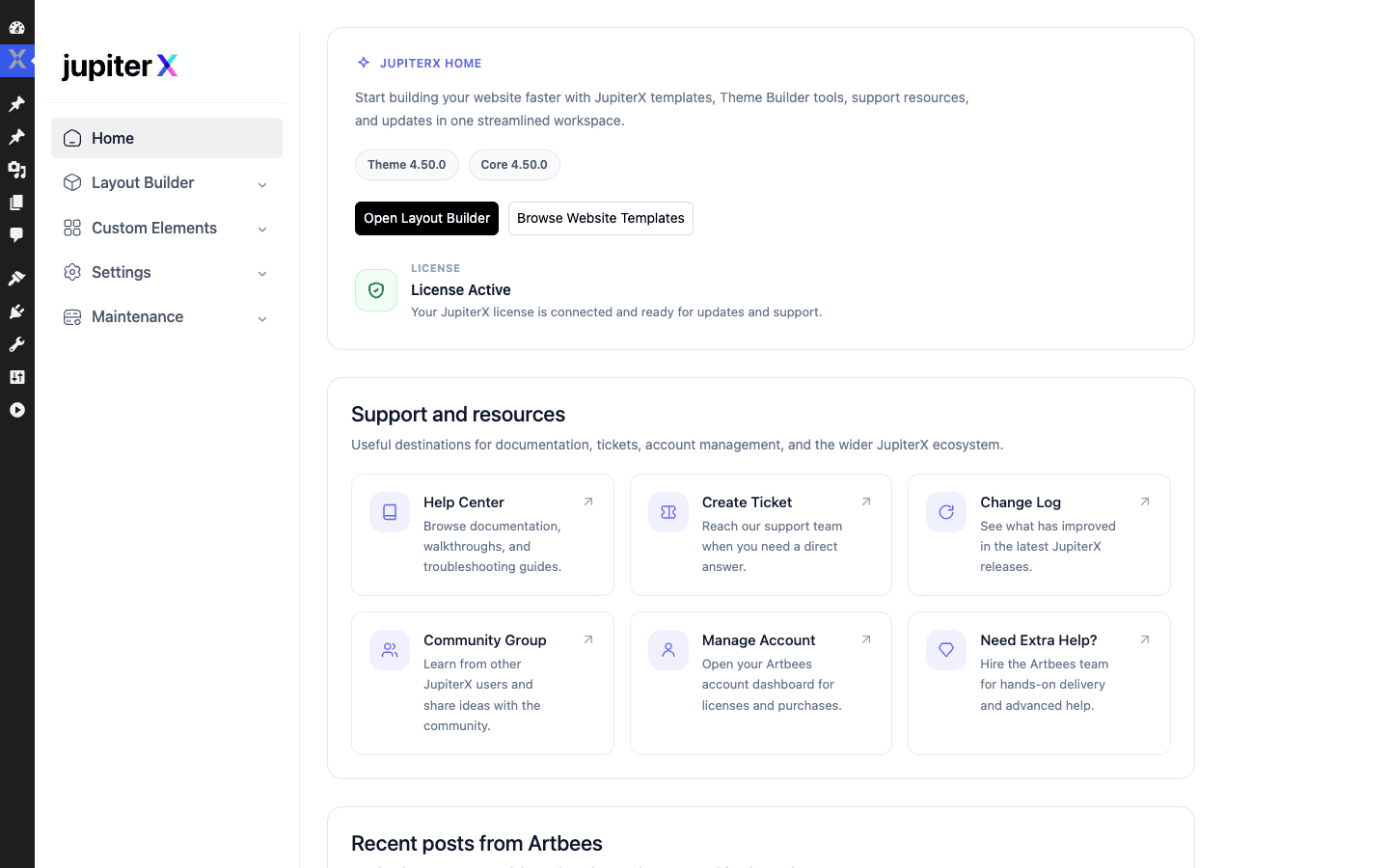
The control panel is organized into a handful of areas:
- Home. Your dashboard. License status, support links, quick jumps into the builder and the Customizer.
- Layout Builder. The theme builder. Sub-sections for Header, Page Title Bar, Footer, Single, Archive, Loop Item, Popups, Saved Templates, and Website Templates.
- Custom Elements. Where you manage Custom Snippets, Custom Fonts, and Custom Icons.
- Settings. Site Settings, Manage Elements, White Label, Integrations, and Tracking Codes.
- Maintenance. Maintenance mode and housekeeping.
The Layout Builder is the part to understand. This is where Jupiter X stops being "a theme with options" and becomes a full theme builder, the same category as Elementor Pro’s Theme Builder or Brizy’s. You create a Header layout, set conditions for where it appears, and design it visually. Same for footers, single-post templates, archive pages, the loop item (the repeating card in a blog or portfolio grid), and popups. The Loop Item builder in particular is the thing that lets you design a custom blog card once and have it apply across every archive, which is a genuinely nice workflow.
Heads-up: the Layout Builder needs Elementor. In a clean install with no Elementor, opening the Layout Builder shows a notice telling you it requires Elementor to be installed and activated. The theme will install and run perfectly happily without Elementor, the Customizer works fully, but this specific screen is the gate where the dependency becomes real. If you plan to use the visual theme builder, plan to run Elementor. There’s no way around it, and I’d rather you know now than after the purchase.
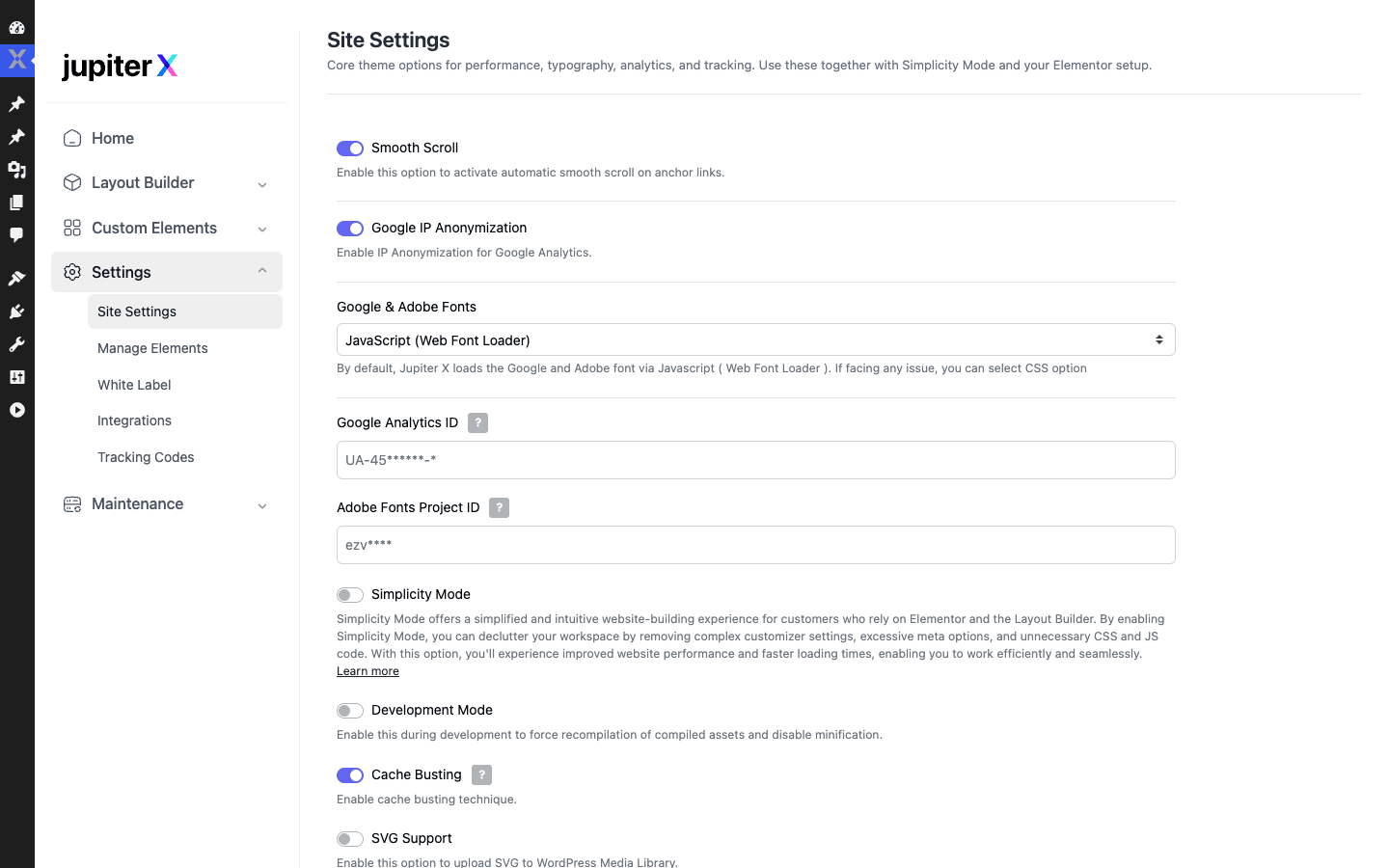
Under Settings » Site Settings you’ll find the more technical, global toggles: performance-related options, typography defaults, asset handling, and the kind of switches that affect the whole site rather than one template. Manage Elements lets you turn individual Raven widgets on or off, which is a small but real performance lever (don’t register widgets you never use). White Label is the agency feature, it lets you rebrand the theme in the admin for client handoff. Integrations holds API connections, and Tracking Codes is a header/footer script injector so you don’t need a separate plugin for analytics or pixel tags.
Setup, in practice, is short. Install the theme, accept the Jupiter X Core prompt, activate your license in the control panel, and then either start in the Customizer or import a website template. There’s no thirty-step wizard, which I appreciate. The complexity is in the building, not the onboarding.
How much you can do in the Customizer alone
This is the section I wish I’d read before I assumed Jupiter X was Elementor-or-nothing. It isn’t. The native Customizer is one of the deepest I’ve seen ship with a theme, and for a lot of sites it’s enough on its own.
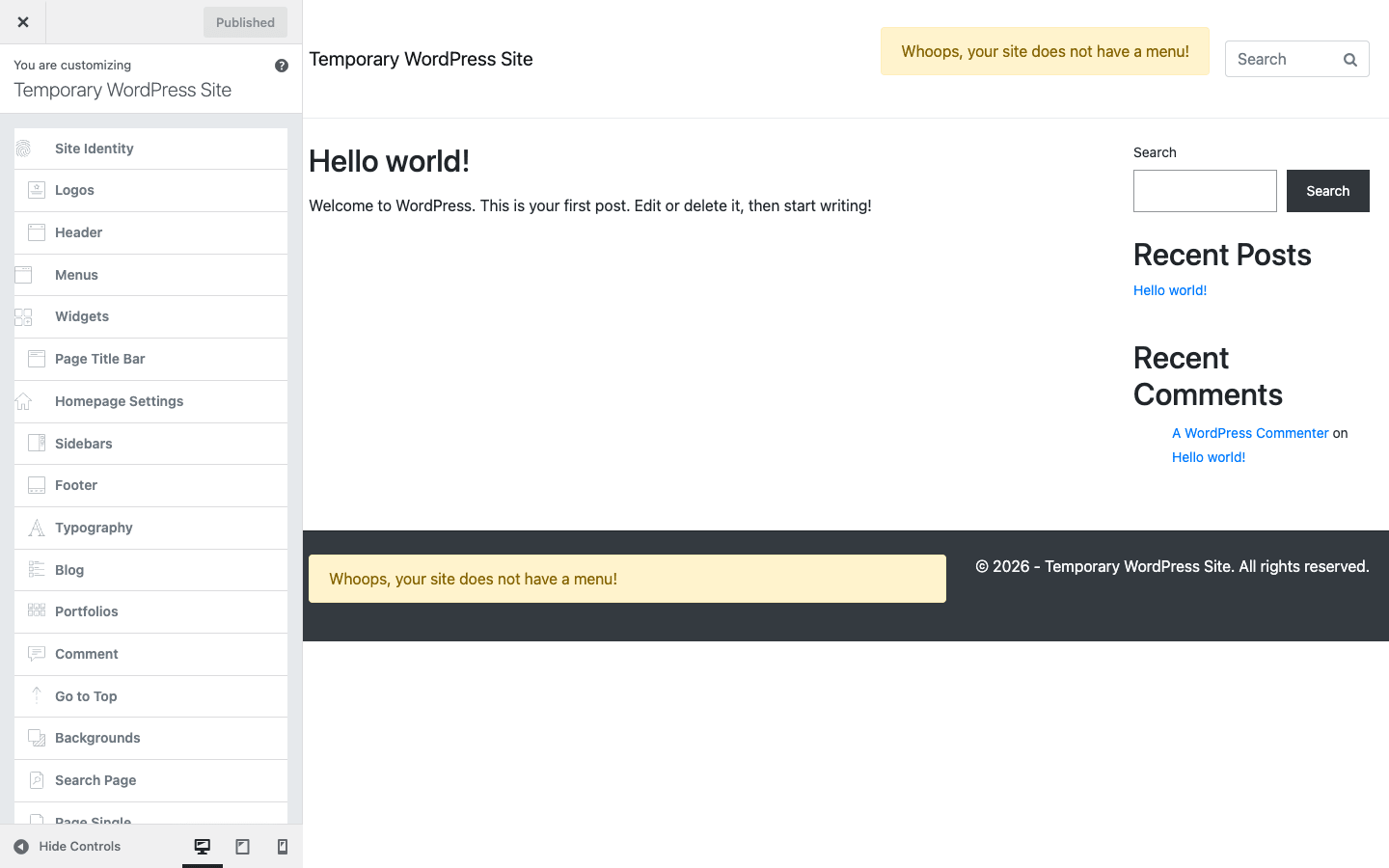
Open Appearance » Customize and you get a stack of panels that goes well beyond the standard WordPress fare. Here’s the meaningful set, and what each one actually controls:
- Site Identity. Site title, tagline, and the basics WordPress always gives you.
- Logos. Plural, on purpose. You set your main logo, and typically a separate logo for sticky/transparent header states and for retina, so the header looks right in every mode.
- Header. The structural header controls: which header layout, behavior on scroll, spacing, the bones of the top of every page.
- Menus. Standard WordPress menu assignment, wired into the header.
- Widgets. Your widget areas, managed the native way.
- Page Title Bar. The strip under the header that shows the page title and breadcrumb. You control whether it shows, its height, alignment, and background, globally and with per-template overrides.
- Homepage Settings. Static page versus latest posts, the usual front-page switch.
- Sidebars. Where sidebars appear (left, right, none) across post types, set globally.
- Footer. Footer layout, columns, and the copyright bar.
- Typography. This is a big one. Global font families, sizes, weights, and line heights for body text and each heading level. Because Jupiter X compiles styles through a LESS compiler, these settings produce real CSS variables, not just inline overrides on a few elements.
- Blog. Archive and single-post layout for your blog: grid versus list, what meta shows, excerpt length, featured image behavior.
- Portfolios. Same idea for the portfolio post type. Archive layout, columns, single-portfolio layout.
- Backgrounds. Global background colors and images.
- Page Single, Comment, Go to Top, Search Page. The smaller surfaces: default single-page layout, comment styling, the back-to-top button, and the search results page.
The reason this matters: typography, color, header structure, blog layout, and sidebars are global decisions. You want to set them once and have them apply everywhere. The Customizer is the right place for that, and Jupiter X gives you real depth there without making you open Elementor. A surprising number of "simple business site" builds never need to touch the visual builder at all. Pick a website template close to your goal, adjust the global look in the Customizer, swap the copy and images, done.
Tip: even if you do plan to use Elementor and the Layout Builder, set your global typography, colors, and header basics in the Customizer first. Rebuilding global styles inside Elementor on every page is how multipurpose sites end up slow and inconsistent. Let the Customizer own the global layer; let Elementor own the page-by-page design. That division keeps both your CSS and your sanity intact.
Ready-made templates and Raven
You’re not expected to build from a blank page, and most people won’t. Jupiter X ships a large library of ready-made website templates, accessible from the control panel under Layout Builder » Website Templates. These are full site designs, not just single sections: a car-parts store, an electronics shop, an investment firm, a skincare clinic, a law firm, a digital marketing agency, a restaurant, and many more. Each one has Import and Preview buttons. Preview opens the live demo so you can see exactly what you’re getting before you commit.
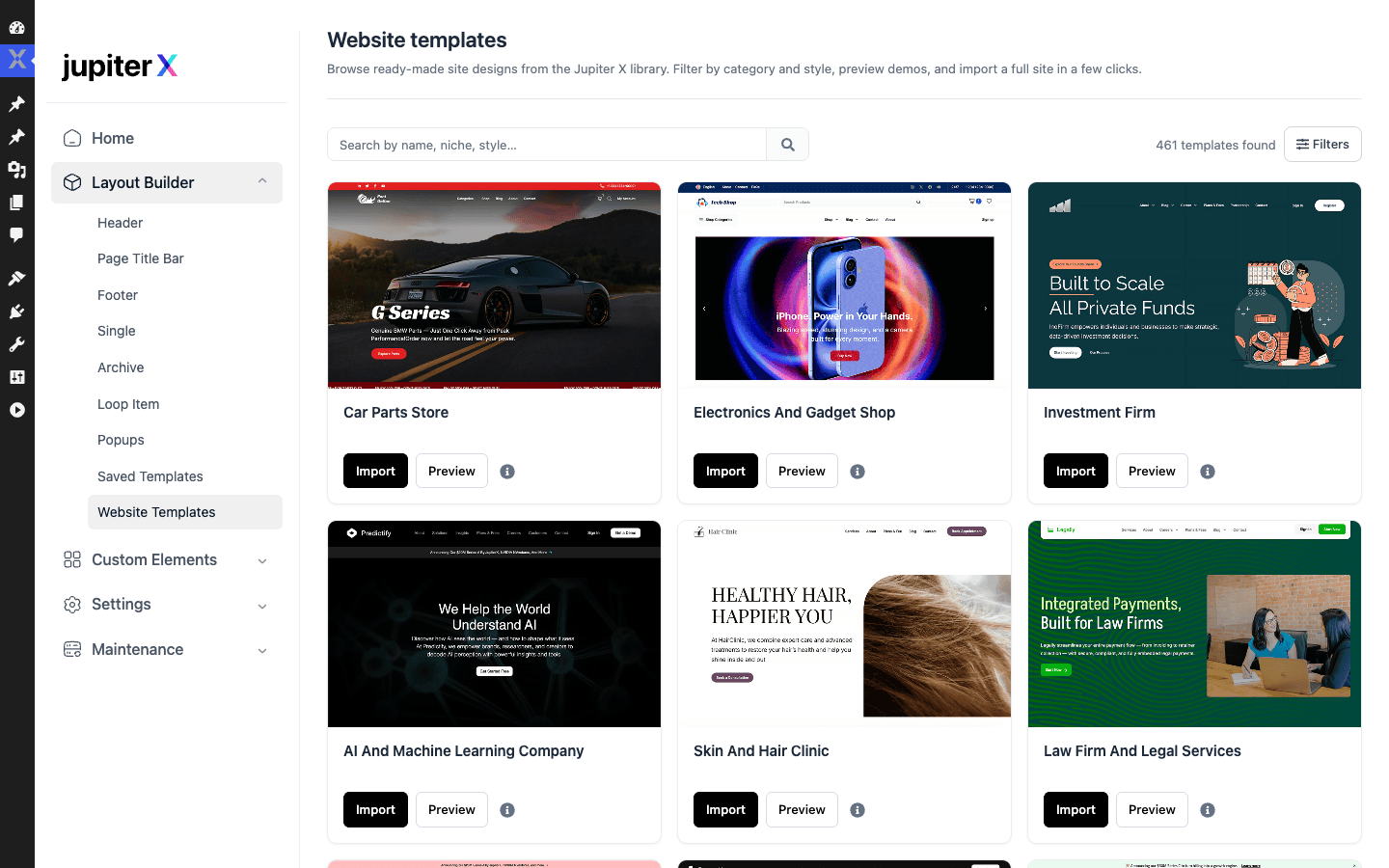
I won’t quote a hard template count because those numbers change and date the review, but the library is large and genuinely varied. The designs are modern and the variety is real, you’re not looking at fifteen recolors of the same layout. This grid, by the way, is the single best argument for a multipurpose theme: the design work is done, and you’re editing rather than starting cold.
The catch, again: importing a website template needs Elementor. The templates are built with Raven widgets on the Elementor canvas, so without Elementor active, you can browse and preview the library but you can’t import a template into your own site. The preview always works (it’s rendered on the vendor’s servers). The import is gated behind the same Elementor requirement as the Layout Builder.
Which brings us to Raven. Raven is Jupiter X Core’s contribution to Elementor: a set of custom Elementor widgets plus a dynamic-content layer. Three pieces matter here.
First, the widgets. Raven adds Jupiter X’s own widgets to the Elementor panel, alongside Elementor’s defaults. These are the building blocks the website templates are made of.
Second, dynamic tags. Raven adds dynamic content sources to Elementor, so a widget can pull its value from the current post’s title, its featured image, a custom field, and so on, instead of being hardcoded. Crucially, Raven includes ACF dynamic tags, so if you store custom fields with Advanced Custom Fields (a very common setup), you can bind Raven and Elementor widgets directly to ACF values. That’s the feature that turns Jupiter X from "a pretty theme" into "a theme you can build a real dynamic site on."
Third, the Loop Grid. Raven ships a loop grid widget that repeats a designed template (the Loop Item you built in the Layout Builder) across a WP_Query result set. This is how you build custom blog feeds, product grids, portfolio walls, and "related items" rows that match your design exactly. And as you’ll see in the developer section, the query behind it is filterable, which is the kind of detail that separates a builder you tolerate from one you actually like.
If you’ve used other Elementor add-on packs, Raven sits in the same category. The difference is that Raven is tied into the theme’s Layout Builder and dynamic-content system, so it’s not just a bag of widgets, it’s the rendering layer for the whole theme builder.
WooCommerce and the Shop Customizer
If you’re building a store, this is where Jupiter X gets interesting, because it treats WooCommerce as a first-class citizen rather than an afterthought.
Theme support for WooCommerce is declared at the theme level, including the three product-gallery features people actually want: the lightbox, the slider, and the zoom on product images. That means the single-product gallery behaves like a proper modern store gallery out of the box, no extra plugin required.
On top of that, Jupiter X gives you a Shop Customizer: a dedicated set of controls for the four WooCommerce areas that matter most.
- Product list (shop and category archives). Columns, what each product card shows (rating, sale badge, add-to-cart placement), pagination style, and the overall grid layout.
- Product single. The single-product page layout: gallery position, the arrangement of title, price, short description, and the add-to-cart area, tabs versus stacked content.
- Cart. The cart page layout and styling.
- Checkout. The checkout layout, including the option to take it over with the Layout Builder for a fully custom checkout design.
That last point is worth dwelling on. Jupiter X can route your main checkout through a Layout Builder template, which means you can design the checkout visually instead of fighting WooCommerce’s default markup. There’s a dedicated filter (more on it below) that controls whether the Layout Builder owns the main checkout, so developers can override the behavior cleanly.
There are a couple of nice WooCommerce touches in the hook surface too. There’s a filter to disable AJAX add-to-cart in archives (handy when you want a "view product" flow instead of instant-add, or when the AJAX add-to-cart fights a caching layer), and a cart-widget action you can hook to inject content before the mini-cart renders.
Note: if you run a store, decide early whether the Shop Customizer alone meets your needs or whether you want the Layout Builder checkout. The Shop Customizer covers the common cases with zero Elementor required. The custom Layout Builder checkout is more powerful but pulls you back into the Elementor-dependent half of the theme. For most stores, the Shop Customizer plus a clean product-single layout is enough, and it keeps your checkout, the most performance-sensitive page on the whole site, lighter.
Custom fonts, icons, and code snippets
Under Custom Elements in the control panel, Jupiter X handles three things most sites eventually need and most themes make annoying.
Custom Fonts. You can upload your own font files and have them appear in the Customizer’s typography selectors and in Elementor. This is the right way to handle brand fonts and self-hosted fonts (which, for both privacy and speed, beat pulling from Google’s CDN on every page load). There’s also a developer filter for registering custom fonts programmatically, which I’ll show later.
Custom Icons. Upload a custom icon set and use it across the theme and Raven widgets. Useful when a brand has its own iconography or when you’ve got an icon font from a design system.
Custom Snippets. This is the one developers will like. Jupiter X gives you a code-snippets manager, backed by a custom post type called jupiterx-codes, so you can add PHP, CSS, or JS snippets from the admin without editing theme files or installing a separate snippets plugin. Each snippet is a post under the hood, with conditions for where it runs. It’s a small thing, but having a managed snippets store inside the theme means your client-site customizations live in the database (and survive theme-file changes) instead of being scattered across functions.php edits that the next person can’t find.
There are two shortcodes worth knowing while we’re here. [elementor-template] renders a saved Elementor template anywhere a shortcode is accepted (inside a widget, a text block, another plugin’s output). And [jupiterx_current_date] outputs the current date, which is the kind of small dynamic helper you reach for in footers and copyright lines. Wrap them in backticks if you’re writing about them, so your editor doesn’t try to run them.
Who Jupiter X is for
Let me skip the "perfect for everyone" routine, because no theme is. Here’s who Jupiter X actually fits, and who should walk away.
The agency or freelancer building client sites. This is the sweet spot. The website-template library means you start most projects 70 percent done. The White Label feature lets you hand off a clean, rebranded admin. The Layout Builder gives you a consistent theme-building workflow across every client. And because the visual layer is Elementor, you’re not training each client on a proprietary builder they’ll never see again, you’re handing them the most-documented builder on the web. If you do this for a living, the per-project time savings are the entire pitch.
The business owner who wants control without code. If you run a company site and want to manage your own typography, colors, header, and blog without a developer on retainer, the native Customizer covers a lot. Pair it with a website template, and you can keep a polished site current yourself. You might never open Elementor.
The WooCommerce store. Between the gallery features, the Shop Customizer’s four areas, and the option for a Layout Builder checkout, Jupiter X is a serious store theme. If you want fine control over how products display without hand-coding WooCommerce templates, it delivers.
The portfolio or creative. There’s a dedicated portfolio post type with its own Customizer layouts, plus the Loop Grid for custom project walls. For photographers, designers, and studios, that’s a real head start.
The developer or shop already fluent in Elementor. If Elementor is already your builder of choice, Jupiter X adds a deep Customizer, a Shop Customizer, Raven’s widgets and dynamic tags, and a theme builder on top of it. You get global control plus a richer Elementor toolkit, instead of building literally every template from scratch in Elementor Pro.
And honestly, who should skip it? If what you want is a zero-dependency, ultra-lightweight theme that you’ll extend purely in code, Jupiter X is not it. The whole point here is the building surfaces, and the best one leans on Elementor. If your idea of a good theme is a few hundred KB of carefully hand-written CSS with no builder anywhere near it, you’ll be happier with a minimal starter theme and your own templates. Jupiter X is for people who want to build visually, fast, with a deep options layer, not for people optimizing for the smallest possible footprint.
Developer reference
This is the part I came for, and the part that made me take Jupiter X seriously. The theme exposes its own jupiterx_ hook framework (not Beans, despite what some descriptions imply, the theme uses its own framework and a LESS compiler, with Bootstrap for the grid and ACF for custom fields in Core). Everything below is verified against the actual theme and Core source. I’m not going to invent a hook to fill a paragraph.
The option API
The main getter for theme settings is jupiterx_get_option():
$value = jupiterx_get_option( $option, $default = false );
You pass the option key and an optional default. This is how you read any Customizer-driven setting in your own code. There’s a family of typed helpers around it for common values, including jupiterx_get_content_width(), jupiterx_get_container_width(), jupiterx_get_archive_post_type(), jupiterx_get_custom_footer(), jupiterx_get_component_support(), jupiterx_get_current_page_key(), jupiterx_get_compiler_dir(), jupiterx_get_compiler_url(), jupiterx_get_bootstrap_assets(), and jupiterx_get_api_key(). If you’re building a child theme, jupiterx_get_current_page_key() is genuinely useful for branching logic based on the kind of page being rendered.
Action hooks around the loop and templates
The loop is wrapped in clean before/after actions, which is exactly what you want for injecting content without copying template files. To drop a notice or an ad block above and below the main posts loop:
add_action( 'jupiterx_before_posts_loop', function () {
    if ( is_home() ) {
        echo '<div class="blog-announcement">New season, new guides.</div>';
    }
} );

add_action( 'jupiterx_after_posts_loop', function () {
    echo do_shortcode( '[newsletter_signup]' );
} );
There’s a tighter pair, jupiterx_before_loop and jupiterx_after_loop, that wraps the loop itself, plus widget-level actions (jupiterx_before_widget, jupiterx_after_widget, jupiterx_before_widgets_loop, jupiterx_after_widgets_loop) for hooking into widget rendering. The comments template is equally well covered: jupiterx_comment, jupiterx_comment_before_header, jupiterx_comment_after_body, and jupiterx_after_open_comments let you customize the comment markup without overriding comments.php.
For lifecycle work there’s jupiterx_before_init / jupiterx_after_init, jupiterx_before_load_api / jupiterx_after_load_api, jupiterx_after_load_document, and jupiterx_before_theme_version_update (a clean place to run migration logic before the theme updates). The Customizer itself fires jupiterx_before_customizer_register and jupiterx_after_customizer_register, so you can add or remove your own Customizer sections at the right moment:
add_action( 'jupiterx_after_customizer_register', function () {
    global $wp_customize;
    $wp_customize->add_section( 'agency_footer_note', array(
        'title'    => __( 'Agency Footer Note', 'my-child' ),
        'priority' => 200,
    ) );
} );
Filters worth knowing
The filter surface is where Jupiter X earns the "built for developers" line. A few of the ones I’d actually use:
jupiterx_default_layout controls the default content/sidebar layout. Force a full-width layout on a custom post type without touching a single template:
add_filter( 'jupiterx_default_layout', function ( $layout ) {
    if ( is_singular( 'project' ) ) {
        return 'c'; // content-only, no sidebar
    }
    return $layout;
} );
jupiterx_body_header_classes lets you add classes to the body or header wrapper, handy for scoping CSS to specific conditions:
add_filter( 'jupiterx_body_header_classes', function ( $classes ) {
    if ( is_page( 'pricing' ) ) {
        $classes[] = 'has-sticky-cta';
    }
    return $classes;
} );
jupiterx_breadcrumb filters the breadcrumb output (there’s a Raven-specific sibling, jupiterx_core_raven_breadcrumb, for the Raven breadcrumb widget). jupiterx_advanced_posts_excerpt filters excerpt output, and jupiterx_comment_textarea_placeholder swaps the comment field placeholder text.
The one I’d flag for performance tuning is jupiterx_compiler_less_variables. Because the theme styles compile through a LESS compiler, you can inject or override LESS variables before compilation, which is the clean way to extend the design system rather than piling !important overrides on top:
add_filter( 'jupiterx_compiler_less_variables', function ( $vars ) {
    $vars['brand-primary'] = '#0b5fff';
    $vars['border-radius-base'] = '10px';
    return $vars;
} );
For custom fonts there’s jupiterx_custom_fonts to register fonts programmatically (instead of, or alongside, the Custom Fonts uploader). For housekeeping, jupiterx_check_plugin_conflicts and jupiterx_disable_admin_notices give you control over the theme’s conflict checks and admin notices, which is exactly what you want on a client site where stray notices look unprofessional.
WooCommerce-specific filters
Three filters target the store. jupiterx_disable_ajax_add_to_cart_in_archive toggles AJAX add-to-cart on shop and category pages:
add_filter( 'jupiterx_disable_ajax_add_to_cart_in_archive', '__return_true' );
jupiterx_determines_main_checkout_using_layout_builder controls whether the Layout Builder template takes over the main checkout, so you can force-disable a custom checkout layout in code if a payment integration needs the stock WooCommerce checkout markup. And there’s a cart-widget action, jupiterx_cart_widget_before_render, for injecting content (a free-shipping progress bar, an upsell note) just before the mini-cart renders.
The Raven loop grid query
If you use Raven’s Loop Grid, the WP_Query behind it is filterable through jupiterx_core_raven_loop_grid_query_args. This is the hook that lets you build a "related products by category" grid or filter a portfolio loop by a custom taxonomy without writing a custom widget:
add_filter( 'jupiterx_core_raven_loop_grid_query_args', function ( $args ) {
    if ( is_singular( 'product' ) ) {
        $args['posts_per_page'] = 4;
        $args['orderby'] = 'rand';
    }
    return $args;
} );
Custom post types, shortcodes, and REST
Jupiter X registers two custom post types you’ll see: portfolio (the Portfolio CPT, with its own admin menu and Customizer layouts) and jupiterx-codes (the storage behind Custom Snippets). The two shortcodes are [elementor-template] (render a saved Elementor template) and [jupiterx_current_date].
On the REST side, set expectations correctly, because it’s easy to misread. The only REST route Jupiter X registers on your own site is a single jupiterx-license route (a deactivate endpoint for license management). That’s the whole local REST surface. The control panel’s template browser and Raven’s preset library do not expose routes on your site at all, they reach OUT to a remote jupiterx/v1 API on Artbees’ own servers (the blocks.jupiterx.com and jupiterx.artbees.net libraries) over HTTP to pull down the ready-made templates and presets. So your site is a client of that vendor service, not the host of it. The practical upshot: there’s no public content API here, just one local license route plus an outbound connection to the template service. If you were hoping to pull your theme settings over a documented REST API for a headless front end, that’s not what any of this is for.
One honest gap: there is no WP-CLI. I checked. Neither the theme nor Core registers any WP-CLI commands. If you manage sites from the command line and were hoping to script template imports or settings via wp jupiterx ..., that command doesn’t exist. For a theme this developer-friendly elsewhere, the missing CLI is a real omission, and worth knowing if CLI-driven deployment is part of your workflow.
If you want the official angle on the theme builder and Raven, Artbees, the studio behind Jupiter X, is the vendor source, and since the visual builder runs on Elementor, Elementor’s own documentation covers the canvas itself. For the Customizer-side work, the WordPress Customize API and the WordPress hooks reference are the canonical sources for the underlying APIs the jupiterx_ hooks build on.
Don’t treat Jupiter X as a no-dependency theme
Here’s the failure mode I want to save you from, because it costs real money and real time.
You buy Jupiter X expecting an all-in-one, build-anything theme. You skip Elementor (why would you need it?), open the Layout Builder to design your header, and hit a wall: it requires Elementor to be installed and activated. Now you feel misled, and you’ve lost an afternoon before building a single page. I’ve watched this happen, and it’s entirely avoidable.
The opposite mistake is just as costly: you install Elementor, then rebuild everything in it. Global typography set per-page. Header built three times because the Customizer already does it once. Every page ships redundant CSS, and you’ve stacked the theme, plus Core, plus Elementor, plus Raven, plus WooCommerce on a five-dollar shared host. The result is a site that takes four seconds to load, fails Core Web Vitals, and quietly loses conversions. Slow stores don’t get a warning, they just convert worse, and you find out months later in the analytics.
The fix is to decide your approach up front:
- Decide whether you’re running Elementor. Most people will. Install it deliberately, not in a panic when the Layout Builder blocks you.
- Use the Customizer for the global layer. Typography, colors, header basics, blog layout, sidebars. Set them once instead of rebuilding them on every Elementor page.
- Budget for proper hosting and a cache. A four-part stack (theme + Core + Elementor + WooCommerce) needs real hosting and a caching plugin in front of it.
Get those three right and Jupiter X is fast and pleasant. Ignore them and you’ve built exactly the slow, bloated multipurpose site that gave the category its bad name. The tools to do it well are there. So is the easy path to doing it badly.
The Jupiter X theme vs other multipurpose themes
The honest way to compare Jupiter X to its rivals is by one question: where does the page builder come from?
Most flagship multipurpose themes bundle their own builder. Avada ships Fusion Builder. BeTheme has BeBuilder. The7 leans on its own design tooling plus WPBakery and Elementor. Total is built around WPBakery. Jupiter X takes the other path: it doesn’t ship a proprietary builder, it leans on Elementor, the most widely used page builder on WordPress, plus its own Raven widget set on top.
Where this shines: you build in the editor most people already know. If you hire, your new designer already knows Elementor. If you hand off to a client, they can find a thousand Elementor tutorials. You’re not locked into a builder that only exists inside one theme and dies if that theme does. Compared to a proprietary builder, that portability is the real advantage.
The trade-off: it’s a dependency, not a self-contained product. Avada’s Fusion Builder is right there in the box. Jupiter X’s best building surface needs a second plugin. That’s the core tension, and which side wins depends entirely on whether you’d rather have everything bundled or everything portable.
Some concrete countables to anchor the comparison:
- Theme-builder coverage: the Layout Builder covers 6-plus template types (Header, Page Title Bar, Footer, Single, Archive, Loop Item, Popups). That’s full theme-builder territory, on par with Fusion Builder’s and BeBuilder’s template systems.
- Native Customizer depth: roughly 15 to 20 Customizer panels (Site Identity, Logos, Header, Menus, Page Title Bar, Homepage, Sidebars, Footer, Typography, Blog, Portfolios, Backgrounds, and more). Many competitors push you into their builder or a custom options panel for the equivalent; Jupiter X keeps a lot of it in the native Customizer.
- WooCommerce control: the Shop Customizer covers 4 store areas (product list, product single, cart, checkout). That’s a focused, store-specific control set rather than "WooCommerce works, figure out the layout yourself."
- Engineering floor: PHP 7.0 as the minimum, a LESS-compiled stylesheet, and a Bootstrap grid underneath. Predictable, modern-enough plumbing.
- Template library: a large, varied ready-made template library you import on the Elementor canvas. For an agency, starting a build from a close-fit template instead of a blank canvas routinely shaves 40% to 60% off the design hours on a typical client project, which is the real reason this category exists.
On price, all of these sit in the same general bracket as premium ThemeForest themes, which list around $59/yr for a regular license with a year of updates, before the per-item math starts to add up across a stack. I’m not going to quote exact figures for any one product because they drift. The GPL angle is the practical one: a single license on GPL Times covers the theme plus Jupiter X Core together (two separate paid items on ThemeForest), so you’re paying once instead of $59 per item for the theme and Core as a pair.
There’s also the Elementor-native comparison worth naming. You could skip a multipurpose theme entirely and run Hello (Elementor’s blank starter) plus Elementor Pro’s Theme Builder, with an add-on pack like Essential Addons for Elementor for extra widgets. That’s a valid path, and Raven sits in the same category as those add-on packs. The difference is that Jupiter X bundles the deep Customizer, the Shop Customizer, and a curated template library on top, so you get global control without building literally every template from scratch. If you want maximum Elementor flexibility, you’d compare Raven against Elementor Pro plus a third-party add-on pack directly. Different balance, same family of tools.
Performance, compatibility, and keeping it fast
Performance is where multipurpose themes live or die, so let’s be straight about it.
The stack weight is real. A full Jupiter X setup is theme + Jupiter X Core + Elementor + Raven + WooCommerce. That’s a lot of code loading on every page if you don’t manage it. The theme itself is thin, the weight comes from what you stack on it. So the performance story is mostly about discipline, not about the theme being bloated by default.
Manage what loads. Use Settings » Manage Elements in the control panel to disable Raven widgets you don’t use, so they don’t register their assets. Don’t import three website templates "to compare" and leave the leftovers in the database. And lean on the Customizer for global styling rather than per-page Elementor CSS, which keeps your stylesheet from ballooning.
The LESS compiler is a feature and a footgun. Jupiter X compiles its styles through a LESS compiler. That’s great for customization (the jupiterx_compiler_less_variables filter, again), but it means there’s a compile step. If styles look stale after a change, you usually need to regenerate the compiled CSS, and the jupiterx_get_compiler_dir() / jupiterx_get_compiler_url() helpers point at where that compiled output lives. On most hosts this is invisible, but on locked-down hosting with no write access to the cache directory, a failed compile is a classic "why is my site unstyled" cause. Worth knowing where to look.
Caching is not optional here. Put a real caching plugin in front of this stack. Page caching turns the multi-plugin render into a static file for visitors, which is the single biggest win you can get. If you want our take on the best one to pair with a builder-heavy site, that’s a separate rabbit hole, but the short version is: run a cache, and verify your checkout and cart pages are excluded from it.
PHP and WooCommerce. PHP 7.0 is the floor, but realistically you want a current, supported PHP for both speed and security, your host’s latest stable. On the WooCommerce side, the theme supports the modern product gallery features, and you’ll want to confirm your WooCommerce setup (including High-Performance Order Storage if you’ve enabled it) plays nicely with any Layout Builder checkout you’ve built. Test that flow specifically.
Updates and staging. This is a stack with several interlocking parts (theme, Core, Elementor, Raven), and updates to any one of them can interact with the others. I’d never update all four on a live store at once and hope. Update on a staging copy first, click through your key templates and a test checkout, then push. The few minutes that takes is far cheaper than a broken checkout discovered by a customer.
The Elementor dependency, one last time. I keep returning to it because it’s the thing that surprises people, and because it shapes every performance decision above. Your front-end weight, your build workflow, your hosting needs, all of it assumes Elementor is in the stack. Plan for that and Jupiter X performs well. Pretend it isn’t there and you’ll fight both the dependency and the page weight at the same time.
FAQ: Jupiter X
Do I need Elementor to use Jupiter X?
For the visual Layout Builder and the website-template imports, yes. The Layout Builder literally shows a notice that it requires Elementor to be installed and activated, and Raven’s widgets run on the Elementor canvas. For the native Customizer, no. So the honest answer is "it depends what you want to build": global styling and standard blog/portfolio/shop layouts work without Elementor, the drag-and-drop theme builder does not.
Can I build a real site without Elementor at all?
Yes, more than you’d expect. The native Customizer handles global typography, colors, header and footer basics, blog and portfolio layouts, sidebars, and the page title bar. Combine that with a website template’s content and you can ship a solid business or content site. The ceiling is custom drag-and-drop page design and the visual theme builder, both of which need Elementor. For a lot of sites, that ceiling is high enough.
Is Jupiter X bloated or slow?
The theme itself is thin. The weight comes from the full stack (theme + Core + Elementor + Raven + WooCommerce) and from how you build. Run it on cheap hosting with no cache and rebuild global styles per-page in Elementor, and yes, it’ll be slow, that’s true of any builder-based multipurpose theme. Use the Customizer for global styles, disable Raven widgets you don’t use under Manage Elements, run a caching plugin, and host it properly, and it performs well. The honest answer: it can be fast, but it won’t be fast by accident.
Does the Customizer replace the page builder?
For global and structural decisions, largely yes. For page-by-page custom design, no. Think of the Customizer as the global layer (typography, colors, header, blog layout) and the Layout Builder plus Elementor as the per-template design layer. The best workflow uses both: Customizer for global, Elementor for the bespoke pages. Trying to do everything in one or the other is where people get into trouble.
How good is Jupiter X for WooCommerce?
Genuinely good. You get theme-level support for the product-gallery lightbox, slider, and zoom, plus a Shop Customizer covering product list, single product, cart, and checkout. You can even route the main checkout through a Layout Builder template for a fully custom checkout (controlled by the jupiterx_determines_main_checkout_using_layout_builder filter). For most stores the Shop Customizer alone is enough, and it keeps the checkout lighter than a fully Elementor-built one.
Do I need Elementor Pro, or does the free version work?
The free version of Elementor satisfies the dependency, the Layout Builder and Raven work with it. Jupiter X’s Raven widgets and the Layout Builder fill in a lot of what people buy Elementor Pro for (theme building, dynamic content, popups), so you may not need Pro. Whether you want Pro on top comes down to whether you need its specific extra widgets and features. Start with free Elementor plus Raven and add Pro only if you hit a wall.
Is Raven just another Elementor add-on pack?
It’s in the same category, but it’s tied into the theme. Raven gives you Elementor widgets plus dynamic tags (including ACF dynamic tags) plus a Loop Grid, and it’s the rendering layer for Jupiter X’s website templates and Layout Builder. So unlike a standalone add-on pack you bolt onto any theme, Raven is part of how Jupiter X’s theme builder works. If you’ve used Essential Addons or similar, you’ll feel at home, but Raven isn’t a separate purchase or a generic bolt-on, it ships with Jupiter X Core.
Should I use a child theme?
Yes, if you’re adding PHP. Because Jupiter X exposes a deep jupiterx_ hook framework and the jupiterx_get_option() API, most customization can go in a child theme’s functions.php using filters like jupiterx_default_layout or jupiterx_compiler_less_variables, rather than editing the parent. For quick CSS or JS, the built-in Custom Snippets manager (the jupiterx-codes post type) is an alternative that survives theme-file changes. For anything substantial, a child theme is still the right call.
Is there a command-line / WP-CLI way to manage it?
No. Neither the theme nor Jupiter X Core registers WP-CLI commands. If CLI-driven deployment is part of your process, you’ll manage Jupiter X through the admin and the control panel, not the command line. It’s a real gap for a theme that’s otherwise developer-friendly.
Can I move my site off Jupiter X later?
Partially, and this is worth thinking about before you commit. Content built in the native Customizer maps to standard WordPress concepts and travels reasonably well. But pages built with Raven widgets on the Elementor canvas are tied to Raven, so switching themes means those specific designs will need rebuilding, the same lock-in you’d get with any theme-specific Elementor widget set. Plan your exit the way you would with any builder-based theme: it’s not zero-cost.
Final thoughts
I came into this expecting another bloated build-anything theme and left with a more nuanced opinion. The Jupiter X theme is two products in one wrapper: a genuinely deep native Customizer that builds a real site with no page builder, and a visual theme builder that runs on Elementor. Judge it on the right half for your needs and it’s excellent. Judge it on the wrong assumption (that the drag-and-drop builder is self-contained) and you’ll feel misled.
What I respect about it is the engineering underneath. The jupiterx_ hook framework is deep and well-placed, the option API is clean, the LESS compiler gives you a real customization lever, and keeping the heavy machinery in Jupiter X Core rather than welding it to the theme is the right architecture. What I’d push back on is the Elementor dependency being soft-pedaled, and the missing WP-CLI. Neither is a dealbreaker, both deserve to be said out loud.
So who should buy it? Agencies and freelancers building client sites get the most value, the template library and White Label alone justify the time. Store owners get a serious WooCommerce theme. Anyone already fluent in Elementor gets a deep Customizer and a richer toolkit on top of the builder they already use. The one group I’d steer away is people chasing a minimal, zero-dependency theme, that’s just not what this is.
Jupiter X is sold GPL, and a single license for Jupiter X on GPL Times covers the theme and Jupiter X Core together, the same code you’d get through ThemeForest, delivered through the GPL store. If you want to actually feel the two-surfaces split for yourself, install it, open the Customizer to see how far the no-builder half goes, then add Elementor and the Layout Builder to see where the visual half takes over. That contrast is the whole theme in one sitting, and it’s the fastest way to know whether Jupiter X fits how you like to work.