

Here’s the thing nobody tells you when you go shopping for a website chatbot: almost every option on the market is a rental. Tidio, Intercom, Drift, the chat bubble on half the sites you visit, they all live on someone else’s servers, and you pay a monthly fee that quietly climbs as your traffic grows. Miss a payment and the bubble goes dark. Your conversation data sits in a third party’s database.
WPBot Pro takes the opposite bet. It’s a self-hosted WordPress chatbot you install on your own site, pay for once, and then own. The conversations stay on your server. There’s no per-conversation meter ticking in the background. That tradeoff is the whole story of this plugin, and it’s the lens I want to use to walk you through what it does well, where it gets fiddly, and who should genuinely skip it.
I spent a good while clicking through every settings page and watching the bot answer questions on a live demo. This is an honest look, not a sales page.
Table of Contents
- What is WPBot Pro?
- How a chatbot plugin actually works on your site
- The five ways WPBot answers
- What WPBot Pro can actually do
- Selling through the chat: the WooCommerce mode
- Who WPBot Pro is for (and where a SaaS bot wins)
- Don’t point ChatGPT at your bot and walk away
- WPBot Pro vs renting a SaaS chatbot
- Developer reference
- Privacy, performance, and the AI-cost question
- Pricing and licensing
- FAQ
- Final thoughts
What is WPBot Pro?
WPBot Pro is a WordPress chatbot plugin built by QuantumCloud. It installs like any other plugin, drops a floating chat launcher onto your site, and starts answering visitors. There’s a free WPBot on the WordPress.org repository, and the Pro version is the paid one that adds the AI integrations, the WooCommerce selling features, multi-language support, and the lead-capture tools.
The headline difference between this and the chat bubbles you usually see is right there in the word "self-hosted." WPBot Pro is not a subscription service with a WordPress widget bolted on. The plugin code runs inside your WordPress install, the conversation data lives in your own database, and you bought the software outright. QuantumCloud sells it as a one-time purchase on CodeCanyon, so there’s no monthly bill for the chatbot software itself.
That model shapes everything. A SaaS chatbot company has to keep charging you because they’re paying for the servers your bot runs on. WPBot runs on the server you already pay for, so the recurring cost of the chatbot software drops to zero.
One honest caveat up front: "no monthly fee" applies to the plugin. If you switch on one of the AI brains (OpenAI, Google AI, DialogFlow), you bring your own account and your own API key, and you pay those vendors directly for what the AI uses. The plugin does not bundle any AI usage. I’ll come back to this because it’s the single most misunderstood thing about WPBot, and getting it wrong can cost you real money.
If you want to try it on a real install, the WPBot Pro download is on GPL Times, so you can activate it and click through every response mode yourself while you read this.
How a chatbot plugin actually works on your site
Skip ahead if you’ve shipped a chat widget before. If you haven’t, this short detour makes the rest of the article click.
A website chatbot is really three pieces stitched together.
- A widget on the front end. This is the floating "ball" launcher in the corner that opens a chat window. WPBot injects it site-wide automatically once you activate the plugin, or you can place it inline with a shortcode. It renders out of the box with a greeting and a few quick-reply buttons, no configuration required.
- A conversation engine. When a visitor types or taps a button, something on the server has to decide what to say back. In WPBot, that engine runs on WordPress’s
admin-ajax.phppipe. Every message, button tap, and product lookup is an AJAX call. There are 116 of these AJAX actions wired up, and both the logged-in and logged-out variants exist so anonymous visitors can chat too. It is not a heavy single-page-app or a REST API you call from outside, it’s classic WordPress AJAX, which keeps it lightweight and predictable. - An answer source. This is where WPBot gets interesting, because it doesn’t have one answer source. It has five, and you decide which ones are switched on. That’s the next section.
Setup itself is almost a non-event. You activate the plugin, the bot appears, and the only real decision is which response mode (or modes) you want it to use. Everything after that is refinement: writing your FAQ answers, styling the widget, plugging in an AI key if you want one. There’s no wizard you have to survive, no demo import that fetches half the internet. Activate, and a working bot is already greeting people.
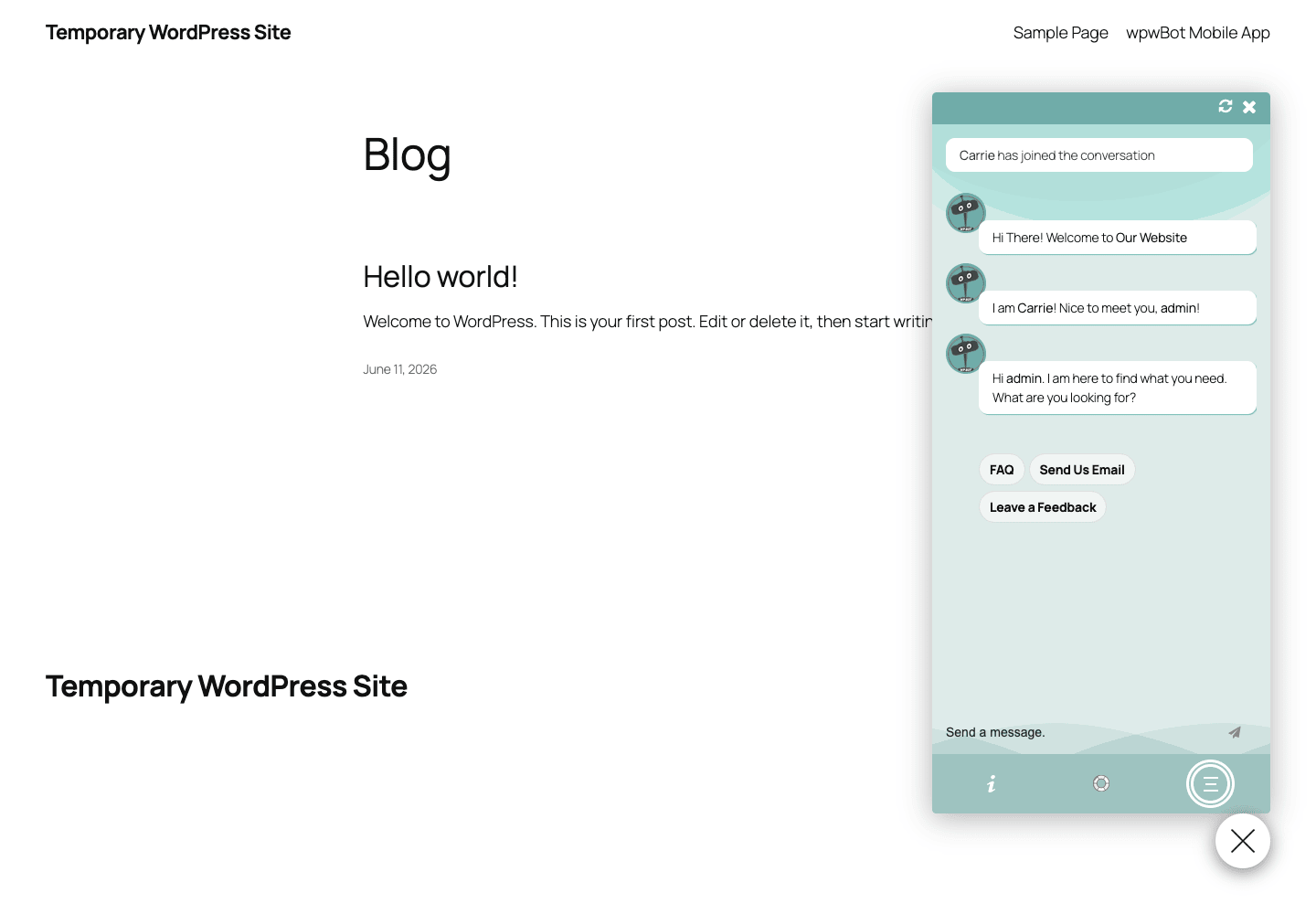
That screenshot is the bot as it ships, with zero AI configured. The greeting, the quick replies (FAQ, Send Us Email, Leave a Feedback), and the text input all work the moment the plugin is active. Keep that in mind every time I mention AI later: none of what you’re seeing here needs an API key.
The five ways WPBot answers
This is the heart of WPBot Pro, and it’s the part most reviews gloss over. The bot can answer a visitor in five different ways, and you turn them on independently. You can run a perfectly useful bot on just the first two, with no AI anywhere in sight.
Here’s the whole spread, from simplest to most powerful.
1. Predefined intents (the menu bot, no AI)
This is the out-of-the-box brain. WPBot ships with built-in conversational intents: greetings, a FAQ trigger, email and feedback collection, and the WooCommerce actions if you’re running a store. The visitor taps a quick-reply button or types something that matches an intent, and the bot follows a scripted flow. Want their email? It asks, validates the format, and stores it. Want to show your FAQ? It pulls up the list.
Where this shines: a small business that just wants a 24/7 receptionist. No API key, no training data, no monthly bill. You enable it, write a few answers, and you have a bot that handles "what are your hours" and "how do I contact you" at three in the morning.
2. Simple Text Responses (your FAQ engine, still no AI)
This is my favorite mode, and the one I’d push you to set up first regardless of whether you ever touch AI. Simple Text Responses is a keyword and phrase matched question-and-answer manager. You add a question (or a keyword, or a phrase) and the answer you want the bot to give. When a visitor’s message matches, the bot returns your exact wording.
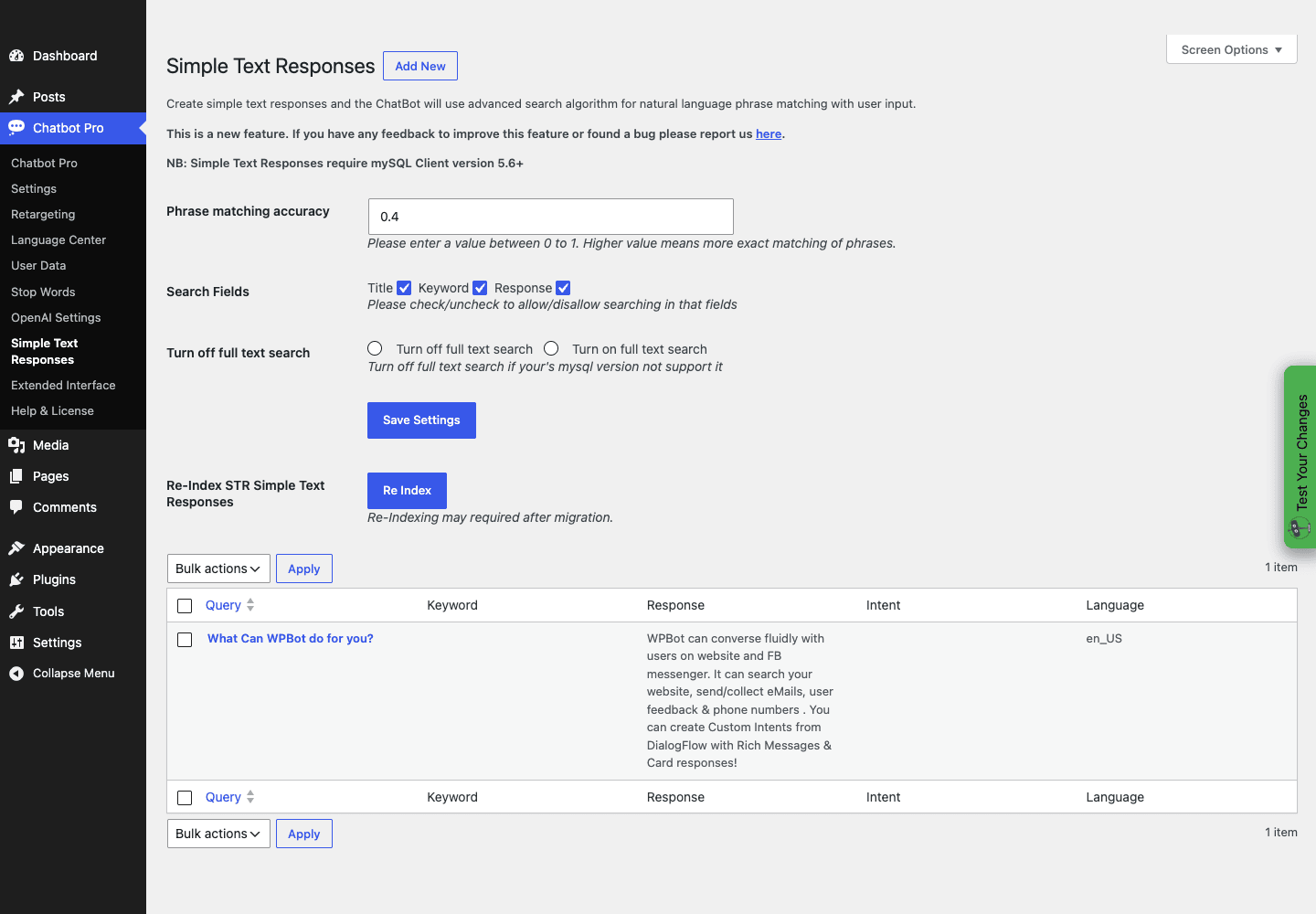
It’s deterministic, which is exactly what you want for the answers that matter. There’s a "Phrase matching accuracy" value you can tune between 0 and 1, so you control how loose or strict the match is. Set it tight and only near-exact phrasings trigger the response. Loosen it and the bot catches more variations at the risk of the occasional wrong match. There are search fields for Title, Keyword, and Response, full-text search, and a re-index button for when your library grows.
The catch: you write every answer yourself. That’s the point. Your pricing, your return policy, your shipping cutoff, those should never come from a language model guessing. They should come from a script you control. Simple Text Responses is that script.
3. OpenAI / ChatGPT (your API key)
Now we get to the AI modes. Switch on the OpenAI integration and WPBot routes the conversation to ChatGPT, so the bot can answer free-form questions in natural language instead of waiting for a keyword match. The OpenAI Settings page even lists your fine-tuned GPT models, so if you’ve trained a model on your own content you can point the bot at it.
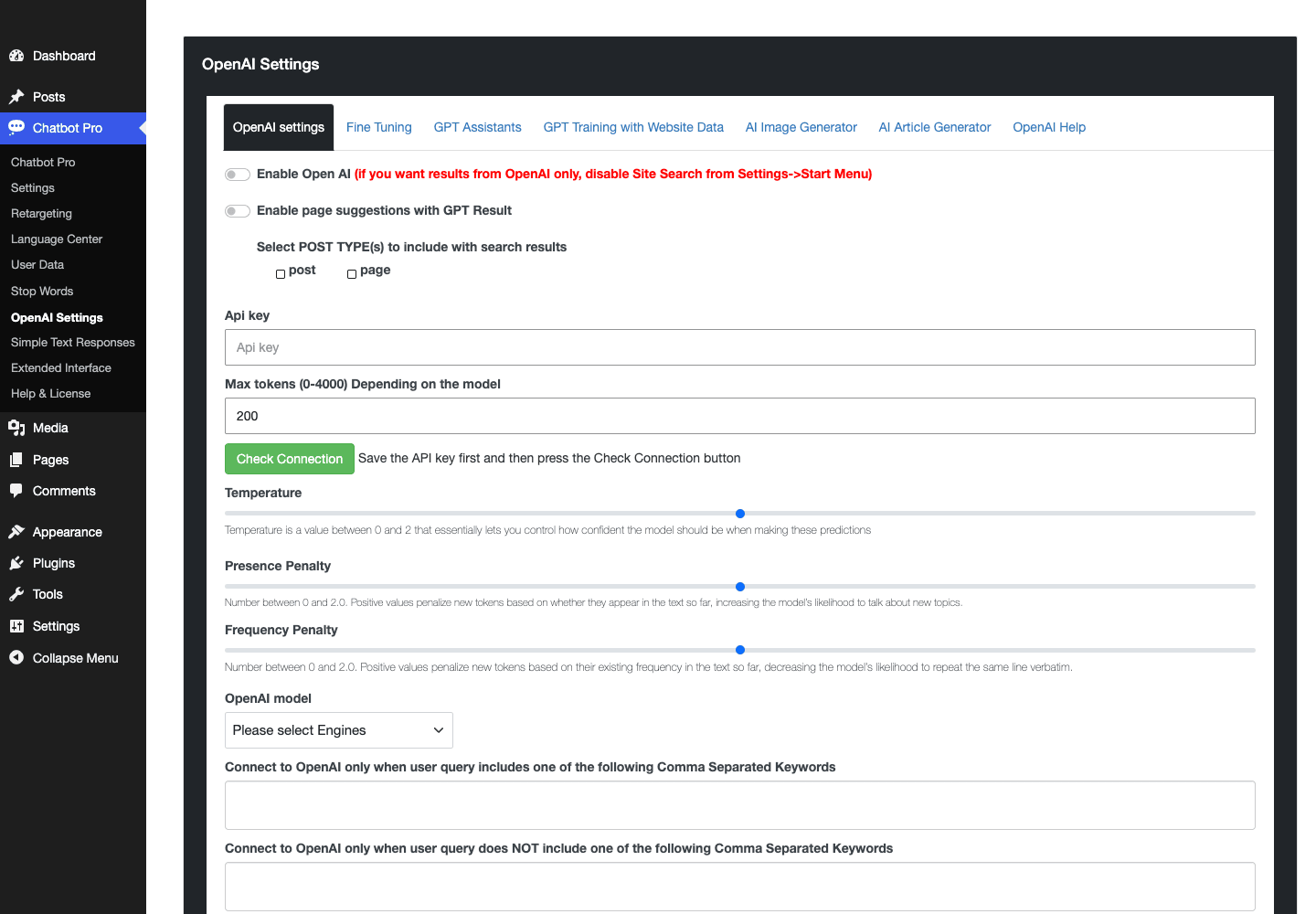
Read this twice: the OpenAI mode needs your own OpenAI account and API key. The plugin connects to api.openai.com using credentials you supply. WPBot does not include any ChatGPT usage. Every answer the AI generates is billed to your OpenAI account by the token. You can read OpenAI’s own API and pricing docs to understand exactly how that meter works before you flip the switch. This is genuinely the best and most dangerous mode at the same time, and there’s a whole section below on not getting burned by it.
4. Google AI (Gemini / PaLM, your key)
If you’d rather use Google’s models than OpenAI’s, WPBot also integrates with Google’s generative AI (Gemini and PaLM via the Google generative-language API). Same arrangement as OpenAI: you bring a Google AI account and key, and you pay Google for usage. It’s a straight alternative backend. Pick whichever vendor you already have a relationship with, or whichever pricing you prefer.
5. DialogFlow ES and CX (Google, the serious NLU option)
The fifth mode is Google DialogFlow, in both its ES and CX flavors. DialogFlow is a full natural-language-understanding platform where you design intents, entities, and conversation flows in Google’s console, and the bot calls into that. This is the heaviest of the five and the one aimed at teams that want proper conversation design rather than a raw LLM.
DialogFlow is also the one piece of WPBot that uses REST instead of AJAX, because Google’s platform needs to call back into your site. There’s a webhook route for that, and I’ll cover it properly in the developer section. If you’re curious about the platform itself, Google’s DialogFlow documentation is the place to start, and again, you bring your own Google Cloud account.
Tip: you don’t have to pick just one. A common and smart setup is Simple Text Responses for your critical, must-be-correct answers, plus an AI mode as the fallback for everything else. Your known questions stay deterministic, the long tail gets a natural-language answer, and you’re not paying the AI vendor for questions you already had a scripted answer to.
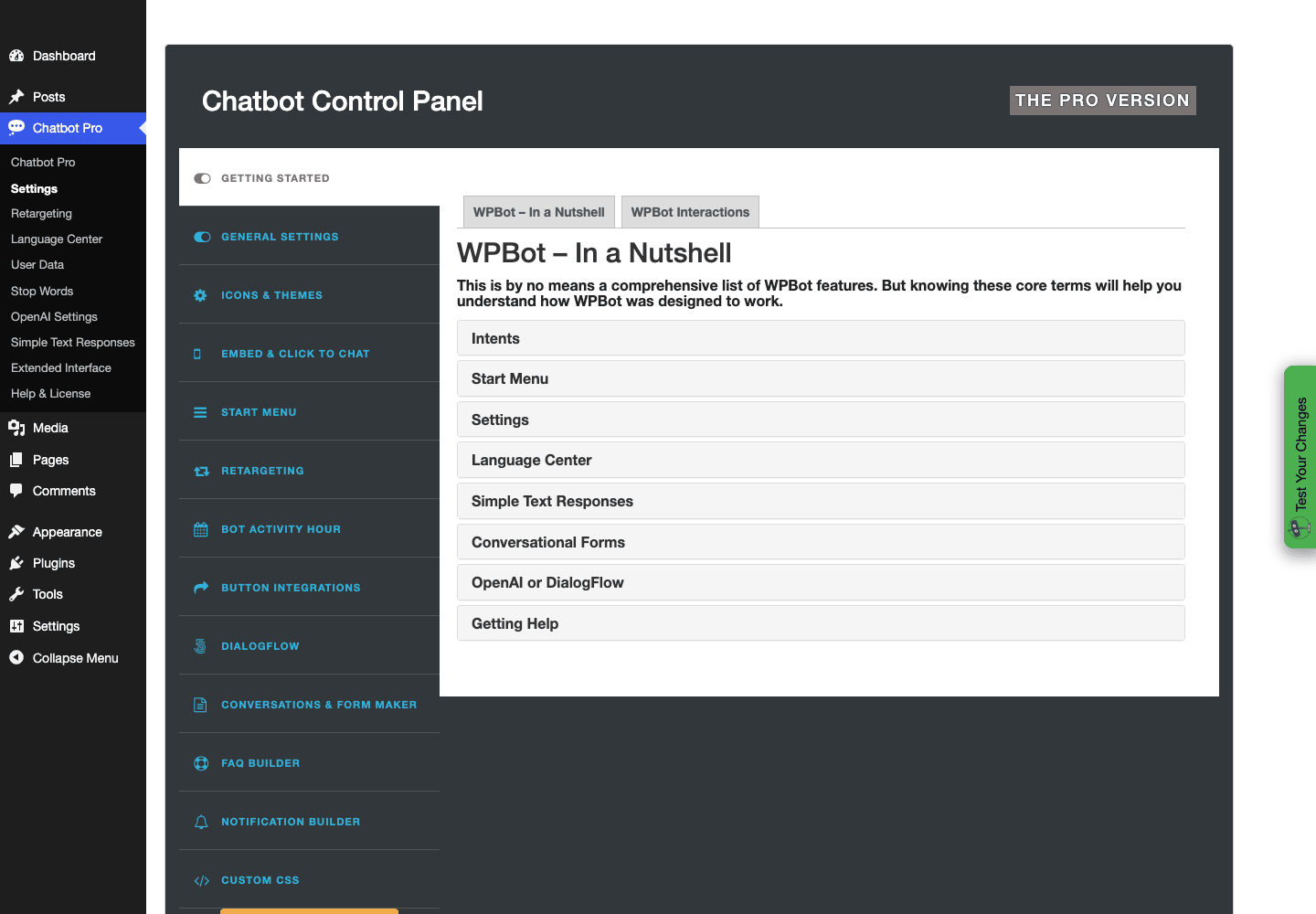
That settings page is where you choose your response modes. Notice how much of this is optional. The bot is fully functional with everything in the AI column switched off.
What WPBot Pro can actually do
The five response modes are the engine. Around them, WPBot Pro stacks a fair amount of practical machinery. Here’s what’s actually in the box, beyond "it chats."
- The floating widget and launcher. The chat "ball" auto-injects site-wide once you activate the plugin. You control its position, icon, and behavior from the settings. No code needed for the default placement.
- Multiple chat UI templates. WPBot ships several front-end skins for the chat window, including light and dark variants and a couple of heads-up-display styles. So you can match the widget to your site’s look instead of being stuck with one bubble shape.
- Quick-reply menus. Those tappable buttons (FAQ, Send Us Email, Leave a Feedback, and your own) keep visitors moving without typing. For a menu-driven bot, this is how most of the conversation actually happens.
- Email and lead capture. The bot can collect an email and phone number mid-conversation, with subscribe and unsubscribe handling. It is not a Mailchimp integration (it doesn’t talk to Mailchimp’s API), it’s a built-in capture-and-store flow with an export.
- User Data export. Every collected lead and conversation lands in the User Data page, where you can review and export it. This is your record of who talked to the bot and what they wanted, and it lives in your database, not a vendor’s.
- Retargeting. A re-engagement feature that fires follow-up messages to bring a visitor back into the conversation. Used well, it’s a nudge. Used badly, it’s nagging, so go light.
- Language Center. A dedicated page for multi-language bot strings, so you can run the bot in more than one language or simply rewrite every default string in your own voice.
- Stop Words. A list of words the bot ignores or blocks. This doubles as a guardrail when you’re running an AI mode, which I’ll come back to in the anti-pattern section, because it’s more useful than it first looks.
- Small talk. A bundled dataset of casual chit-chat responses so the bot can handle "how are you" and "thanks" gracefully instead of falling flat.
- Voice. There’s a voice input and output option, so visitors can speak to the bot and hear it back where the browser supports it.
- Shortcodes. Beyond the auto-injected widget, you can place the bot inline anywhere with shortcodes. More on those in the developer section.
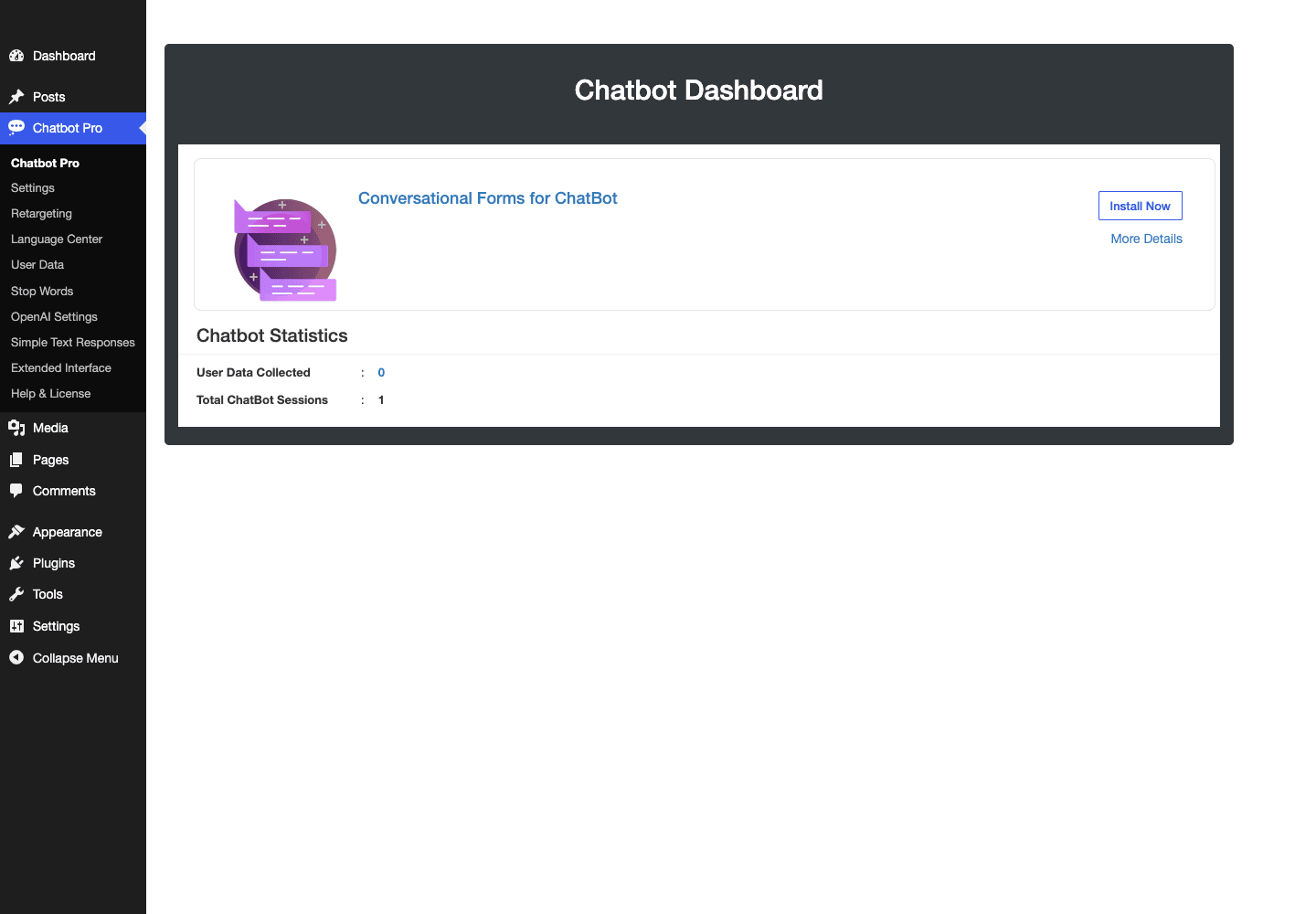
The dashboard gives you the Chatbot Statistics at a glance: how much User Data you’ve collected and how many total sessions the bot has handled. It’s not a deep analytics suite, but for a self-hosted bot it tells you what you most want to know, that people are using it and you’re capturing leads.
One thing worth flagging: WPBot also references a Conversational Form Builder as an add-on (the dashboard offers it via an "Install Now" prompt) and a companion mobile app. Treat the Conversational Form Builder as an optional extra rather than something baked into the core download, so you don’t go hunting for a menu that isn’t there yet.
Selling through the chat: the WooCommerce mode
This is the feature that pushes WPBot past "support bot" and into "salesperson," and it’s the reason a lot of store owners pick it.
If you run WooCommerce, WPBot can turn the chat window into a tiny storefront. Inside the conversation, a visitor can:
- Search for products by name or keyword.
- Browse by category, including a category list and the products inside each one.
- See your featured products surfaced right in the chat.
- Add an item to the cart without leaving the conversation.
- View the cart and head to checkout, again from inside the chat.
- Log in and look up their past orders, so a returning customer can ask "where’s my order" and actually get an answer.
- Subscribe by email for offers.
All of this runs on the same admin-ajax architecture as the rest of the bot, through a dedicated set of WooCommerce chat actions (the qcld_wb_chatbot_* family). You’re not bolting on a separate plugin, it’s the same bot, with the store wired in.
You might be wondering whether this slows your checkout down or interferes with the normal cart. It doesn’t. The chat cart talks to WooCommerce’s own cart, so it’s the same order, the same totals, the same payment gateways. The bot is just another way into the funnel.
There are two shortcodes that expose Woo views directly, [wpwbot_products] and [wpwbot_cart], if you want to drop a product browser or a cart view onto a specific page rather than relying only on the floating widget. For the broader picture of how the cart and checkout objects work underneath, WooCommerce’s official developer documentation is the reference.
Where this genuinely helps: a store with a catalog big enough that customers get lost. A bot that can say "looking for running shoes? here are three" right in the chat is a real shortcut. Where it’s overkill: a five-product shop, where a normal menu does the job and the chat-store adds friction nobody asked for.
Who WPBot Pro is for (and where a SaaS bot wins)
Let me put some real faces on this, because "it’s a chatbot" tells you nothing about whether it fits you.
If you run a small business and you just want a 24/7 FAQ desk that catches leads while you sleep, WPBot Pro is close to ideal. Predefined intents plus Simple Text Responses, no AI, no monthly bill. You write your answers once and the bot handles the repetitive questions. This is the cleanest fit for the plugin.
If you run a WooCommerce store, the in-chat product help and order lookup are the draw. A returning customer asking about their order gets a real answer instead of an email two days later. Pair that with a few scripted answers about shipping and returns and you’ve offloaded a chunk of your support inbox.
If you want ChatGPT-style answers without a recurring bot subscription, WPBot is one of the few self-hosted ways to get there. You’re still paying OpenAI or Google for the AI tokens, but you’re not also paying a SaaS company a monthly fee to sit between you and the model. For a developer or a tinkerer, that’s an appealing arrangement.
If you’re privacy-conscious or have GDPR obligations, the self-hosted model is the headline. Conversation data and captured leads stay in your database. There’s no third-party processor you have to list in your privacy policy for the basic bot, no data leaving your server (until and unless you switch on an AI mode, which does send the message text to the AI vendor, so be honest about that in your policy).
Now the honest part, because no plugin is for everyone. A SaaS chatbot wins in a few real situations. If you have a support team that needs proper human handoff, where the bot escalates to a live agent with a shared inbox and ticket history, the big SaaS platforms do that out of the box and WPBot does not aim to. If you need omnichannel (the same bot across your website, Messenger, WhatsApp, and SMS in one unified inbox), that’s SaaS territory. And if you want managed AI where someone else handles the model, the prompts, and the bill, you’re paying the subscription precisely so you don’t have to think about any of it. WPBot is for people who’d rather own the thing and handle it themselves. That’s a real personality difference, not a feature gap you can patch.
If your actual need is a multi-channel chat button (WhatsApp, Messenger, phone, email) rather than an answering bot, that’s a different tool entirely, and Chaty Pro is the one to look at. I wrote a full Chaty Pro review if you want to compare the two approaches side by side. They solve different problems: WPBot answers, Chaty connects.
Don’t point ChatGPT at your bot and walk away
Here’s the mistake I see people make the moment they discover the OpenAI mode, and it’s worth its own section because it costs real money and real trust.
You switch on the OpenAI integration, paste in your API key, and let the AI free-answer every visitor with no guardrails. It feels magical for an afternoon. Then two problems show up.
The money problem. Your bot is now a public, unauthenticated tap into a paid API. Every visitor message becomes a billable call to OpenAI, charged by the token to your account. A chatty bot on a busy site burns through tokens fast. Worse, a curious visitor (or a script that finds your endpoint) can hammer the bot all day, and you foot the bill. There’s no built-in spending cap by default. You set the limits, or you don’t have any.
The trust problem. A raw language model does not know your business. Ask it about your refund window, your stock levels, or your pricing, and it will answer confidently and sometimes completely wrong. It might invent a policy you don’t have, or say something off-brand. To a visitor, the bot speaks with your voice, so its mistake becomes your mistake.
The fix is all in the plugin. Put your critical, must-be-correct answers (pricing, returns, shipping, hours) into Simple Text Responses so the bot answers those from your script, not the model. Use Stop Words to block topics you never want the AI touching. Set usage and rate limits on the OpenAI side so a runaway day can’t drain your account. And watch the User Data log for abuse patterns. Treat the LLM as a fallback for the long tail of weird one-off questions, never as the front door that fields everything.
WPBot Pro vs renting a SaaS chatbot
Here’s the comparison that matters, framed in numbers you can actually act on. I’m deliberately not quoting exact competitor prices, because SaaS pricing changes constantly and varies by plan, but the structural differences are real and measurable.
| What you’re comparing | WPBot Pro (self-hosted) | Typical SaaS chatbot |
|---|---|---|
| Recurring cost of the software | $0/mo (one-time purchase) | A monthly fee that grows with seats or conversations |
| Where the bot runs | Your own WordPress server | The vendor’s cloud |
| Conversation data | 100% on your server, 0 third-party processors | Stored in the vendor’s database |
| Response modes built in | 5 (intents, Simple Text Responses, OpenAI, Google AI, DialogFlow) | Varies, often 1 managed AI |
| In-chat WooCommerce actions | Yes, via the dedicated AJAX action set | Usually requires an add-on or higher tier |
| Who pays for the AI | You, directly to OpenAI/Google by the token | Bundled into the subscription |
Three numbers do the heavy work here. First, $0/mo recurring for the chatbot software, against a SaaS fee that never stops and tends to climb as your traffic does. Second, 0 third-party data processors for the basic self-hosted bot, which is a real GDPR simplification, every conversation stays in your database. Third, 5 response modes included in one purchase, where a typical SaaS bot gives you its one managed AI and charges more for anything beyond it.
But I promised honesty, so here’s the counter. The SaaS subscription is buying you things WPBot doesn’t try to be. Managed AI where you never see a token bill or tune a prompt. A polished human-handoff and ticketing inbox for a support team. Omnichannel reach across Messenger, WhatsApp, and SMS from one dashboard. If those are core to how you operate, the monthly fee is buying real convenience, and "you own it" doesn’t make up for "you now have to run it." Pick based on whether you want to own a tool or rent a service. Both are valid, they’re just different deals.
Developer reference
WPBot’s developer surface is a bit unusual, so let me set the right expectation before the code. This is not a plugin with a documented public REST API you call from outside. The conversation engine runs entirely on WordPress AJAX, and you extend the bot by hooking those flows and a set of filters. If you’re expecting wpbot/v1/messages style REST endpoints, that’s not how this works, and knowing that up front saves you a frustrating afternoon.
Embedding the bot
The floating widget auto-injects site-wide, but when you want the bot inline on a specific page, the primary shortcode is [wpwbot]:
// In a template, or anywhere shortcodes run:
echo do_shortcode( '[wpwbot]' );
There are eight shortcodes in total. The main ones worth knowing:
[wpwbot]            // primary embed (the chat widget inline)
[chatbot-widget]    // theme/widget-area variant
[wpbot-page]        // a full-page bot
[wpbot-click-chat]  // a click-to-open trigger you wrap around your own button
[wpwbot_products]   // WooCommerce product browser view
[wpwbot_cart]       // WooCommerce cart view
(There’s also a skip-greeting shortcode and an app shortcode, but those four plus the two Woo views cover almost everything you’ll reach for.)
The architecture: it’s AJAX, not REST
The conversation runs on admin-ajax.php. There are 116 registered AJAX actions driving the bot, in both the wp_ajax_ (logged-in) and wp_ajax_nopriv_ (logged-out) variants so anonymous visitors can chat. The WooCommerce flows, for instance, are actions like qcld_wb_chatbot_add_to_cart, qcld_wb_chatbot_category, qcld_wb_chatbot_featured_products, and qcld_wb_chatbot_loged_in_user_orders. If you’re extending the bot’s behavior, you’re hooking into this AJAX layer, not calling a tidy API. You can read up on the underlying mechanism in WordPress’s own AJAX in plugins documentation.
Extension hooks: filters and actions
WPBot exposes a mix of hooks, and the distinction matters. Some are genuine value-filters you return a modified value from; the rest are actions that fire at a point in the flow (some output markup, some just signal that something happened). Hook the wrong type and your callback does nothing, so it’s worth checking which is which in the source before you write it.
A real filter. qcld_wpbot_settings_fields lets you add your own field to the bot’s settings:
add_filter( 'qcld_wpbot_settings_fields', function ( $fields ) {
    $fields['my_custom_greeting_delay'] = array(
        'label'   => 'Greeting delay (seconds)',
        'type'    => 'number',
        'default' => 3,
    );
    return $fields;
} );
A useful action. qcld_mailing_list_subscription_success fires when the bot captures a lead, passing the visitor’s name and email, which is the right place to push that lead into your own CRM or a webhook:
add_action( 'qcld_mailing_list_subscription_success', function ( $name, $email ) {
    // Forward the captured lead wherever you want it.
    error_log( "WPBot lead: {$name} <{$email}>" );
}, 10, 2 );
The rest of the surface is action hooks, so treat them as triggers, not value transformers:
qcld_wpbot_floating_buttonfires where the launcher renders, so anadd_actionhere can echo extra markup next to the chat ball (a "Need help?" label, say).- The
qcld_str_*hooks (qcld_str_add_entity,qcld_str_add_category,qcld_str_edit_entity,qcld_str_import) fire when a Simple Text Response is added, edited, or imported, so you can hang sync or logging logic off your FAQ changes. - The in-chat WooCommerce views fire the
qcld_wpwc_*_woocommerceactions (qcld_wpwc_product_details_woocommerce,qcld_wpwc_cart_item_number_woocommerce,qcld_wpwc_start_menu_option_woocommerce,qcld_wpwc_template_bottom_icon_woocommerce) at the points where products and the cart render inside the chat. wpbot_voice_iconfires around the voice control.
There are around twenty of these qcld_/wpbot_ hooks in total. Confirm whether a given one is an apply_filters or a do_action in the source before you write the callback, because the two are not interchangeable.
The only REST routes, and they’re DialogFlow’s
To be precise: WPBot does register REST routes, but only two, under the wpbot/v1 namespace, dialogflow_webhook and dialogflow_api. They exist for exactly one reason, so Google DialogFlow can call back into your bot during a conversation. They are not a general-purpose API for the chatbot. If you’re building an integration, don’t plan around them as your entry point, hook the AJAX actions and filters instead.
No WP-CLI
There are no WP-CLI commands. If your workflow leans on wp commands for bulk operations, you’ll be doing those through the admin UI and the qcld_str_* import filters instead.
Privacy, performance, and the AI-cost question
Privacy first, because it’s the strongest argument for this plugin. With the basic bot (intents plus Simple Text Responses, no AI), nothing leaves your server. Visitor messages, captured emails, conversation logs, all of it sits in your WordPress database. There’s no third-party processor handling your visitors’ data, which makes your privacy policy and your GDPR posture genuinely simpler. The moment you switch on an AI mode, that changes: the message text gets sent to OpenAI or Google for an answer, and you need to disclose that processor. Be straight about it in your policy. The plugin gives you the privacy-friendly default, but you can opt out of it.
Performance. Because the engine is plain WordPress AJAX rather than a giant front-end framework, the widget is light. The bot loads its assets on the front end and talks to admin-ajax.php as needed. On a well-cached site you’ll want to make sure the chat AJAX calls aren’t being page-cached (they shouldn’t be, since they’re POST requests to admin-ajax), and that’s the normal behavior. If you run a heavy cache or optimization stack, just confirm the widget still opens after you turn caching on. It almost always does, but it’s a five-second check worth doing.
Now the AI-cost question, because it’s the one that bites. I keep hammering this because it’s the difference between a free bot and a surprise invoice. The plugin is a one-time cost. The AI is not. If you run OpenAI or Google AI, you pay that vendor per token for every AI-generated answer, billed straight to your account. A quiet brochure site might spend pennies. A busy store with the AI answering everything could spend real money, especially if someone abuses the open endpoint. The Simple Text Responses engine is your cost control: every question you can answer from a script is a question you didn’t pay an AI vendor to answer. Lean on it. Build your deterministic library first, add AI as the fallback, and watch your usage for the first few weeks before you trust it on autopilot.
Compatibility. WPBot needs a reasonably current WordPress and plays nicely with WooCommerce, which is where its store features come from. As with any front-end widget, the usual suspects for conflicts are aggressive JavaScript optimization plugins (deferring or combining scripts) and overly strict Content Security Policy headers. If the widget doesn’t appear, those are the first two places to look.
Pricing and licensing
WPBot Pro is sold by QuantumCloud on CodeCanyon as a one-time purchase. That’s the model in a sentence: you pay once for the plugin, and there’s no recurring fee for the chatbot software. The free WPBot on WordPress.org gives you a taste (the basic menu bot), and Pro is what adds the AI integrations, the WooCommerce selling mode, multi-language support, retargeting, and the full lead-capture toolset.
The recurring costs, if any, are the ones you opt into: the AI vendors. OpenAI, Google AI, and DialogFlow each bill you directly for usage when you enable them, and that’s entirely separate from the plugin. Run the bot with no AI and your ongoing cost is zero.
On GPL Times, you can get the WPBot Pro plugin through the store and install it on a real WordPress site to test every response mode before you commit to a setup. If you’re weighing where the captured leads should go afterward, a CRM like FluentCRM is the natural next stop (here’s my FluentCRM walkthrough if you want to see how that side works), and a form plugin like Fluent Forms covers the structured lead-capture cases the bot’s quick capture doesn’t (the Fluent Forms guide walks through that). For on-site proof and re-engagement nudges alongside the bot, the NotificationX walkthrough is a good companion read.
FAQ
Does WPBot Pro require an OpenAI or AI subscription to work?
No, and this is the most important thing to get right. The basic bot (predefined intents and Simple Text Responses) runs with zero AI and zero API keys. You only need an AI account if you deliberately switch on the OpenAI, Google AI, or DialogFlow mode, and in that case you pay the AI vendor directly, not QuantumCloud. Most small sites get everything they need from the no-AI modes.
Is WPBot Pro really a one-time purchase with no monthly fee?
The plugin software is a one-time purchase, yes. There’s no recurring subscription for the chatbot itself, which is the main reason people pick it over SaaS bots. The only ongoing cost is optional: if you enable an AI mode, the AI vendor bills you for token usage. Run it without AI and your recurring cost is genuinely zero.
How is this different from Tidio, Intercom, or Drift?
Those are SaaS platforms where the bot lives on the vendor’s servers and you pay a monthly fee that scales with usage. WPBot Pro is self-hosted: it runs on your WordPress site, your conversation data stays in your database, and you own the software. The tradeoff is real, though. SaaS bots win on managed AI, human-agent handoff, and omnichannel inboxes. WPBot is for people who want to own and run their own bot.
Can the bot hand off to a real human agent?
Not in the way a dedicated support-desk SaaS does. WPBot is built to answer, capture leads, and (with WooCommerce) sell, not to route conversations into a shared live-agent inbox with ticketing. If live human handoff with an agent dashboard is central to your support, that’s the one area where a SaaS chatbot is the better fit, and I’d be upfront with you about that.
Will an AI-powered bot ever give wrong answers about my business?
Yes, if you let it free-answer everything. A raw language model doesn’t know your prices, policies, or stock, so it can confidently make things up. The fix is to put your critical answers in Simple Text Responses so the bot answers those from your script, and treat the AI only as a fallback for the long tail. Used that way, the risk is small. Used as an unguarded front door, it’s a real liability.
Does WPBot integrate with Mailchimp?
No, there’s no built-in Mailchimp integration. What it has is generic email and lead capture: the bot collects emails and phone numbers, handles subscribe and unsubscribe, and stores everything in the User Data page where you can export it. From there you can move those leads into whatever email tool or CRM you use.
Can I sell products inside the chat?
Yes, if you run WooCommerce. The bot can search products, browse categories, show featured items, add to cart, view the cart, go to checkout, and let logged-in customers look up their past orders, all from inside the chat window. It uses your real WooCommerce cart and gateways, so it’s the same order, just initiated from the conversation.
Does WPBot have a REST API I can build against?
Not really, and this trips up developers. The conversation engine runs on WordPress AJAX (116 actions), not REST. The only REST routes it registers are two DialogFlow callback endpoints under wpbot/v1, which exist solely so Google DialogFlow can call back into the bot. If you want to extend WPBot, you hook the AJAX actions and the qcld_ filters, not a public API.
Will the chat widget slow down my site?
The widget is light because the engine is plain WordPress AJAX, not a heavy front-end framework. It loads its assets on the front end and only calls the server when there’s a message to handle. If you run an aggressive caching or JS-optimization stack, just confirm the widget still opens after you enable it, since deferring or combining scripts is the usual culprit when a widget misbehaves.
Final thoughts
WPBot Pro is the right tool for a specific kind of site owner: someone who would rather own their chatbot than rent one. If that’s you, the appeal is obvious. A working menu-and-FAQ bot the moment you activate it, with no AI bill and no monthly subscription, and the option to bolt on ChatGPT, Google AI, or DialogFlow later when you actually need natural-language answers. The WooCommerce selling mode is a genuine bonus for stores, and the self-hosted privacy story is the strongest in its class.
It’s not for everyone, and I’d be doing you a disservice to pretend otherwise. If your support model depends on live human agents, ticketing, and an omnichannel inbox, a SaaS platform will fit you better and the monthly fee buys that convenience. And the AI modes demand respect. They’re powerful, but they’re an open tap into a paid API, so you scope them, you script your critical answers, and you watch your usage.
But if you want a chatbot that lives on your own site, keeps your visitors’ data in your own database, and doesn’t send you a bill every month, WPBot Pro is one of the few self-hosted options that does the whole job. Set up the no-AI modes first, get comfortable, and add the AI only when you have a reason to. Do that, and you’ll have a bot you actually own. You can pick up WPBot Pro on GPL Times and have it greeting visitors on your site within the hour.